RSS
 

Posts Tagged ‘lightroom’

Tips For Editing the Colors in Landscape Photos Using Lightroom (video)

16 May

The post Tips For Editing the Colors in Landscape Photos Using Lightroom (video) appeared first on Digital Photography School. It was authored by Caz Nowaczyk.

In this video from Nigel Danson, you’ll gain some invaluable tips for editing the colors in landscape photos using Lightroom.

While Nigel uses Lightroom Mobile to show you his editing tips, these tips also apply to Lightroom classic.

The features that Nigel discusses to improve the colors in your landscape photos include the:

  • Temperature slider
  • Contrast Slider
  • HSL Panel
  • Split Toning Panel
  • Curves Panel
  • Gradient Adjustments
  • Calibration panel

So try out some of these tips for editing the colors in landscape photos using Lightroom and share your results with us in the comments section! Furthermore, if you have some tips for editing colors in landscape photos, please share those with us too.

You may also like:

  • Create Stunning Photos in Lightroom
  • Create Amazing Sunrise Photos with these Easy Lightroom Editing Tips
  • Landscape Editing Techniques for Fine Art Photography Using Lightroom
  • Four Lightroom Tips to Enhance Your Landscape Photos
  • Living Landscapes

The post Tips For Editing the Colors in Landscape Photos Using Lightroom (video) appeared first on Digital Photography School. It was authored by Caz Nowaczyk.


Digital Photography School

 
Comments Off on Tips For Editing the Colors in Landscape Photos Using Lightroom (video)

Posted in Photography


Adobe launches Lightroom Ambassador program

16 May

Lightroom, a leading photo editing and organization software program from Adobe, now has its own Ambassador program. The product’s Marketing Manager for Photography, Pei Ketron, announced that she is ‘happy to have finally launched this program that I spent much of 2019 working on.’

‘Now more than ever, you live with a camera in your hand, ready to capture every moment. You want your photographs to reflect what you see, to tell the stories you want to tell, to match the vision you had when you captured the image. But cameras don’t always see what you see, and they don’t come equipped with inspiration or expertise. Only people can offer that,’ reads the introductory paragraph on the Lightroom Ambassador Program’s home page.

Ketron’s hope is that the community grows over time and its members, from beginners to seasoned photographers, continue to inspire each other. 10 ambassadors are currently on board to kick off the initiative: Aundre Larrow, Carmen Chan, Gloria Atanmo, Jennifer Chong, Johnie Gall, Mylo Fowler, Omar Robles, Paola Franqui, Summer Murdock, and Tobi Shinobi.

Adobe Lightroom is available on macOS, iOS, Android, Windows, and tvOS. Any questions about the Ambassador Program can be addressed to lightroomambassador@adobe.com.

Articles: Digital Photography Review (dpreview.com)

 
Comments Off on Adobe launches Lightroom Ambassador program

Posted in Uncategorized


Lightroom Preset Compatibility: XMP or LRTemplate Confusion?

11 May

The post Lightroom Preset Compatibility: XMP or LRTemplate Confusion? appeared first on Digital Photography School. It was authored by Adam Welch.

Lightroom preset compatibility

Over the last couple of years, Adobe has made some enormous changes to its flagship post-processing software. In short, some of these changes can be slightly…confusing. As someone who uses Adobe Lightroom a lot (and I do mean A LOT), perhaps one of the most confusing changes to Lightroom to come down the pike was Adobe’s choice to change the format of its develop presets from .lrtemplate to .xmp. This has led to quite a bit of head-scratching from hobbyists and professional photogs alike over Lightroom preset compatibility.

Today, once and for all (until Adobe changes things), we’re going to speak plainly about what you need to know when it comes to your development presets in Lightroom. You’re going to learn which presets work with which versions of Lightroom. You’ll learn which ones don’t work, and in the process, gain a better understanding of how presets function in all realms of Lightroom.

Making the jump to XMP

In April 2018, Adobe released Lightroom Classic v7.3.

With Lightroom v7.3, we discovered for the first time that the file designation for develop presets changed from ‘.lrtemplate’ to ‘.xmp’. This brought along some awesome benefits, with the most brilliant being that our Lightroom develop presets could now be used with Adobe Camera RAW (ACR).

Lightroom Preset Compatibility: XMP or LRTemplate Confusion?

Unfortunately, this switch gave birth to a whole litter of questions over how the older .lrtemplate presets would function after the switch to the .xmp format.

For people like me that engineers develop presets as part of their living, tiny beads of sweat congregated on our foreheads once the announcement dropped from Adobe.

Adding to the anguish, around the same time, Adobe experienced somewhat of an identity crisis with the naming of their Lightroom platforms. Lightroom Classic CC? Lightroom CC? Lightroom Desktop? It was difficult to keep track.

Lightroom Preset Compatibility: XMP or LRTemplate Confusion?

This left many users (myself included) questioning what version of Lightroom we were running. This, in part, compounded the confusion over what develop presets would function with what versions of Lightroom.

Lightroom Preset Compatibility: XMP or LRTemplate Confusion?
By Alex Knight/Unsplash

Why XMP?

Many users wondered why Adobe would change the file format of the develop presets in Lightroom. The reason stems from another one of the big changes to come along with Lightroom v7.3, which was the introduction of Adobe’s ‘Creative Profiles’.

Lightroom preset compatibility with creative profiles

Creative Profiles are a way for Lightroom users to add base-line adjustments (think in-camera profiles) that do not interfere with their other edits in Lightroom and ACR.

Yep, you guessed it, these Creative Profiles are in .xmp format.

So really, the general reasoning behind Adobe’s switch from .lrtemplate to .xmp file format was aimed at accomplishing universal Lightroom preset compatibility, sync ability, and Creative Profile functionality across Lightroom Classic, Lightroom CC, Lightroom Mobile, and ACR.

A question of compatibility

With the Lightroom v7.3 build, all of the users presets that were in the old .lrtemplate format automatically converted to the fresh .xmp format upon updating Lightroom (Lightroom Classic that is). This meant all of the Lightroom presets in the preset library were now usable in ACR and could be synced for use with Lightroom CC and Lightroom Mobile.

Lightroom preset compatibility with Lightroom Mobile

It also meant virtually all of us were completely befuddled as to what to do next with our presets.

Would our .lrtemplate presets still work with the newest version of Lightroom? Are .xmp presets compatible with previous Lightroom builds? What if I’m still running the pre-cloud versions of Lightroom?

Yes, it can all be extremely frustrating.

To help out, I’ve broken down which versions of Lightroom and ACR are compatible with which develop preset file formats.

We’ll also have a look at how each handles your development presets.

Pre-v.7.3 Lightroom builds

After Adobe launched the inclusive Creative Cloud ecosystem for its image processing applications in 2017, all standalone versions of Lightroom ended production. This meant that after Lightroom 6, the program was re-birthed as the Cloud-centric Lightroom Classic CC, now known simply as Lightroom Classic.

In short, you can no longer buy Lightroom, only rent it for a monthly subscription fee.

Lightroom Preset Compatibility: XMP or LRTemplate Confusion?

For these builds, there is no backward compatibility for .xmp format presets. This means all presets that aren’t in the new format, will not work with this version of Lightroom.

Lightroom v7.3, ACR 10.3 and later

No matter your opinion on the switch from .lrtemplate to .xmp format for Lightroom develop presets, there’s no denying that the cross-platform functionality is quite convenient. Being able to use your Lightroom presets in ACR is awesome. What’s even better is that Adobe will automatically update all of your .lrtemplate formatted presets to the new .xmp format once you have updated your build of Lightroom Classic to v7.3 or later.

This allows you to continue to enjoy your presets in all their glory after updating to the new format.

Unfortunately, once your presets are updated to .xmp format…there is no going back.

Lightroom Preset Compatibility: XMP or LRTemplate Confusion?

Consider the .lrtemplate to .xmp conversion process as the “point of no return” for your presets.

In the face of this finality, it is strongly recommended that you save all of your presets that are in .lrtemplate format in a separate location (preferably an external drive) other than the native Lightroom Develop Presets folder. This will allow you to maintain the fullest Lightroom preset compatibility just in case you should ever wish to revert to a pre-v7.3 build of Lightroom.

What’s the endgame?

Even now, some long-time users of Lightroom still feel a bit frustrated when it comes to the compatibility of develop presets with older versions of Lightroom. With the enormous changes to their favorite image processing software, the confusion (and at times overt contempt) over what works and what doesn’t is completely understandable.

It’s obvious by now that the new .xmp format for presets is here to stay. It is also equally obvious that the trepidation of Lightroom preset compatibility still lingers for many users.

Looking to the bright side, with each new development feature introduced to Lightroom Classic, the processing power available in our develop presets grows exponentially. As time passes, hopefully, the long-term benefits of all these changes will far outweigh any initial challenges we may have encountered in the beginning.

I hope this has eased your Lightroom preset compatibility. If you have any other thoughts, or ideas around this, please share them with us in the comments section.

Interested in Lightroom Presets? Try some of our great sets available:

  • 101 LANDSCAPE LIGHTROOM PRESETS
  • 101 LIGHTROOM PORTRAIT PRESETS
  • 101 LIGHTROOM PRESETS PACK

The post Lightroom Preset Compatibility: XMP or LRTemplate Confusion? appeared first on Digital Photography School. It was authored by Adam Welch.


Digital Photography School

 
Comments Off on Lightroom Preset Compatibility: XMP or LRTemplate Confusion?

Posted in Photography


How to Dramatically Shape the Light and Mood Using Adjustment Brushes in Lightroom (video)

18 Apr

The post How to Dramatically Shape the Light and Mood Using Adjustment Brushes in Lightroom (video) appeared first on Digital Photography School. It was authored by Caz Nowaczyk.

How to Dramatically Shape the Light and Mood Using Adjustment Brushes in Lightroom (video) Featured image

In this video from PiXimperfect, you’ll learn how to dramatically shape the light and mood of a photo using Adjustment Brushes in Lightroom.

Throughout this tutorial you’ll learn:

  • the difference between local adjustments and global adjustments
  • how to auto-set particular sliders
  • ways to expand the tonal range
  • how to avoid edge glow when using particular sliders
  • about the tone curve and how to use it effectively
  • valuable shortcuts to help you see when you are creating clipping (blown-out, and underexposed areas with no detail), to view before and after shots, to select the adjustment brush and more
  • how to use the HSL panel to great effect
  • ways to use split toning

We’d love to see the images you edit after watching this tutorial. Please share them with us in the comments section.

You may also like:

  • Landscape Editing Techniques for Fine Art Photography Using Lightroom
  • 5 Things to Do to Every Photo In Lightroom to Improve Your photos
  • How to Jump from Lightroom to Photoshop and Back Again When Editing Photos (video)
  • Answers to Your Most Common Lightroom Questions
  • How to Make Your Photos Pop in Lightroom (With Just 4 Quick Edits!)
  • Create Amazing Sunrise Photos with these Easy Lightroom Editing Tips
  • How to Make Your Photos Awesome in Lightroom or Photoshop Camera RAW

The post How to Dramatically Shape the Light and Mood Using Adjustment Brushes in Lightroom (video) appeared first on Digital Photography School. It was authored by Caz Nowaczyk.


Digital Photography School

 
Comments Off on How to Dramatically Shape the Light and Mood Using Adjustment Brushes in Lightroom (video)

Posted in Photography


Landscape Editing Techniques for Fine Art Photography Using Lightroom

12 Apr

The post Landscape Editing Techniques for Fine Art Photography Using Lightroom appeared first on Digital Photography School. It was authored by Caz Nowaczyk.

In this video from the photographer, Marvin Grey, you’ll learn some fine art landscape editing techniques in Lightroom that will give you the opportunity to experiment with your landscapes to give them a whole new look and feel.

While the results may not be for everyone, the techniques he uses will teach you some valuable Lightroom editing techniques that you can use in other editing scenarios.

And what better time to tackle and play with our catalogs of landscape photos and learn some new landscape editing techniques while we are at home!

Feel free to share your results with us in the comments below.

You may also like:

  • How to Use the Lightroom HSL Panel for Landscape Photo Editing
  • Create Stunning Photos in Lightroom
  • 5 Tips For Mastering Contrast In Your Landscape Photos (video)
  • RAW Photo Editing in Lightroom: How to Make Your Photos Look Real to Life
  • Four Lightroom Tips to Enhance Your Landscape Photos
  • How to Edit Landscape and Nature Photos with the Lightroom Gradient Tool and Range Mask Features
  • Loving Landscapes

The post Landscape Editing Techniques for Fine Art Photography Using Lightroom appeared first on Digital Photography School. It was authored by Caz Nowaczyk.


Digital Photography School

 
Comments Off on Landscape Editing Techniques for Fine Art Photography Using Lightroom

Posted in Photography


How to Use Lightroom Presets- A Handy Guide

09 Apr

How many of you love wasting hours of time making the same basic edits to a lot of photos? Anyone? No? Well, that’s understandable. None of us like doing menial repetitive tasks and it’s no different when editing images — even for those of us who enjoy the editing process. The good news is that Lightroom has a handy tool Continue Reading

The post How to Use Lightroom Presets- A Handy Guide appeared first on Photodoto.


Photodoto

 
Comments Off on How to Use Lightroom Presets- A Handy Guide

Posted in Photography


Viewing Images in Lightroom – What Are The Options?

26 Feb

The post Viewing Images in Lightroom – What Are The Options? appeared first on Digital Photography School. It was authored by Kevin Landwer-Johan.

viewing-images-in-lightroom-options

Digital photographers can tend to take tons of photos. Viewing images in Lightroom can be a tedious and time-consuming task if you are not familiar with the various tools available to you. In this article, I’ll outline some techniques and tools to help improve your post-processing workflow.

Lightroom Grid View - Viewing Images in Lightroom

Viewing many images in Lightroom

The most common way of viewing images in Lightroom is by using the Grid View option. You can also use the Filmstrip option.

In Grid View, your main panel in Lightroom is populated with the thumbnails of photos stored in the folder you have open. To select the folder with images you’d like to view, open the left module panels. To do this, you can press F7 on your keyboard, or click on the triangle to the left of your main panel. Then navigate in the Folders tab to the folder you want to open.

Alternatively, you can use the Filmstrip. This shows up below your main panel when you press F6 or click the triangle at the bottom. Using the Filmstrip module, you are limited to viewing the thumbnails at only one size.

In Grid view, you are able to alter the size of the thumbnails. Three ways you can do this are by:

  1. Using the Zoom slider below the main panel and to the right
  2. Using the + and – keys
  3. Holding down the Ctrl key (cmd on Mac) and scrolling your mouse wheel.

Below the main panel, you will also find the option for choosing how Lightroom sorts your images. By default, it uses Capture Time, but you might find it more convenient at times to change this. There are lots of options including File Name, File Type or Label Color.

Lightroom Grid View Options

You can customize the way your Grid View looks.

To do this, go to View in the top menu then click on View Options. Alternatively, you can press Ctrl+J (or cmd+J on a Mac). Here you have a lot of control over how the information about your photos is displayed. It may seem overwhelming if you are new to viewing images in Lightroom, but keep in mind these options. They will be good to visit again later when you are more familiar with the software.

Selecting and viewing more than one image in Lightroom

There are various options for ways to view images in Lightroom when you want to compare images. To select the photos you want to compare, click on one, and then, while holding down the Ctrl (Cmd on Mac) key, click on the other photos you want to select.

When you have selected more than two photos, you can press the “N” key. This will bring you into Survey View, where you will only see the photos you have selected. I use this feature often when I am initially culling my photos. Being able to view a limited number of images helps compare them and then select the best one.

Compare viewing images in Lightroom

If you select only two images, you can use the “C” key to bring you into Compare View. This can help you see the differences between two very similar photos. You can view the images side-by-side, full size, and you can zoom in. When you are zoomed, you can use the hand tool to drag around and view different parts of the photos. Both images will move together when you do this. You are also able to change the Candidate image using the arrow keys at the bottom right.

Viewing images with Loupe View

Viewing images in Lightroom using Loupe View allows you to see them much larger. Loupe View gets its name from the magnifying loupe used to view slides and negatives on an old fashioned lightbox. To switch to Loupe View from Grid View, use the “E” key or the spacebar.

Old Fashion Loupe and Lightbox

When you are in this mode, you can view other images in Lightroom by using:

  • The arrow keys
  • The scroll wheel on your mouse (when you are not zoomed in)
  • Or the film strip panel

You can zoom in on an image using the slider under the main panel. Or you can hold down Ctrl (Cmd on a Mac) and use the scroll wheel on your mouse. Once you are zoomed in, you can use the hand tool to move the image around.

You can also choose to show a Grid overlay on your images in Loupe View. This option is at the bottom right. If you cannot see one of these options, click on the triangle to the lower right to bring up the panel to display the available tools.

Viewing images in Lightroom Develop Module

The Lightroom Develop Module is where you make adjustments to the way your photographs look. In this module, it’s’ good to be familiar with some of the ways you can view your photos.

One of the functions I use the most in the Develop Module is the “\” key. Hitting this backslash key will show you what your original image looked like prior to you making any adjustments. This helps you see what you are doing and guide you towards further steps you might take.

Another similar option is to use the “Y” key. When you’ve made some changes in the Develop Module, hitting the “Y” key will bring up your original image alongside one with the changes you have made. Once again, when you are zoomed in, you can move the images around in tandem using the hand tool.

Before and After Viewing images in Lightroom

Viewing image information

One more handy tip is to use the “I” key to bring up a display of image information about the photo you are currently viewing. This will show you EXIF data from the image.

You can control and change what you see. To do this, go to View in the top menu and then click on View Options. In either the Loupe View or Develop option panel, check the boxed for the information you’d like displayed.

options for viewing images in Lightroom

Conclusion

I hope you’ve picked up at least two or three useful tips from this article. I’m sure there are many more ways of viewing images in Lightroom. Please share some of the techniques you employ in your regular Lightroom workflow.

The post Viewing Images in Lightroom – What Are The Options? appeared first on Digital Photography School. It was authored by Kevin Landwer-Johan.


Digital Photography School

 
Comments Off on Viewing Images in Lightroom – What Are The Options?

Posted in Photography


Luminar vs Lightroom: Three Reasons Luminar is Better (and Two Reasons It’s Not)

24 Feb

The post Luminar vs Lightroom: Three Reasons Luminar is Better (and Two Reasons It’s Not) appeared first on Digital Photography School. It was authored by Jaymes Dempsey.

luminar-vs-lightroom

Are you struggling to decide whether you should be working in Luminar vs Lightroom? Do you want to know how these two post-processing powerhouses match up?

You’ve come to the right place.

Luminar vs Lightroom

Because this article will give you three ways Luminar excels over Lightroom, followed by two areas where Lightroom dominates.

And it’ll help you decide which option is best for your needs.

Let’s dive right in, starting with the biggest reason to choose Luminar:

1. Luminar offers one-click features for quick edits

When dealing with the question of Luminar vs Lightroom, I always recommend you take a look at the biggest feature Luminar offers:

One-click editing.

You see, Luminar offers a modern approach to editing, where you tap a few buttons and the software does most of the editing for you. This is ideal for photographers who don’t feel comfortable doing advanced edits in a program like Lightroom, or who simply don’t have time to carefully edit every photo.

These one-click options include the Orton Effect (which gives your photos a soft glow), to the Sunrays tool (which adds surprisingly realistic sun rays to your photos), to the Fog tool (which adds, well, fog).

Luminar vs Lightroom: Three Reasons Luminar is Better (and Two Reasons It's Not)

Even more impressive, some of Luminar’s best editing features are powered by artificial intelligence.

For instance, Luminar’s AI Enhance tool offers an AI Accent slider that often looks quite good; it makes your photo pop with some carefully applied color and tonal adjustments, among others.

And the Luminar AI Sky Replacement is nothing short of amazing. With a couple of clicks, you can take a boring sky and turn it into something eye-catching (an edit that could previously only be pulled off by a Photoshop expert).

Luminar vs Lightroom AI sky replacement tool

So if quick editing is your thing, then Luminar is a great choice.

2. Luminar offers useful layer-based editing

If you’ve ever used Photoshop, then you’ll know that one of its most powerful features is layer-based edits.

Because with layers, you can stack edits on top of one another, selectively delete edits, mask out certain edits, and more.

And while Lightroom doesn’t offer layer-based editing…

…Luminar does.

In Luminar, you can make adjustments on different layers. Then you can selectively apply these adjustments by masking out different areas of the layer, ensuring that only part of the photo is enhanced by a slider or corrected by a tool.

Luminar vs Lightroom layer editing

You can also use Luminar’s Luminosity Mask tool to selectively adjust areas of your photos based on their underlying brightness.

Now, Lightroom does offer some similar features, though they don’t technically use layers. Features such as the Adjustment Brush.

But these aren’t quite as useful as true layer-based editing, not least because you can only apply some edits via the Adjustment Brush, whereas Luminar allows for almost every slider to be separated into a different layer and masked out (if you so choose).

Personally, I’m a huge fan of layer-based editing, and I love that Skylum included it in their software.

On the other hand, layer-based editing can be a bit complex for newcomers. Fortunately, as discussed in the section above, Luminar also has a handle on basic editing tools.

So you have a choice:

Do more complex, layer-based editing.

Or work with the one-click edits.

(Or both!)

Very cool.

3. The Luminar editing interface is incredibly easy to work with

Here’s the third big area where Luminar dominates Lightroom in the Luminar vs Lightroom question:

The Luminar interface is streamlined, simple, and ridiculously easy to use.

Open up Luminar, and you can immediately tell that it’s great for beginners. There’s a toolbar at the top that lets you access basic options, no matter the module you’re in, and the tool panels on the right are simple and uncluttered.

To do some quick editing, all you have to do is tap the Looks icon at the top, and a handy image carousel pops up:

Luminar vs Lightroom interface

Lightroom, on the other hand, is far less sleek, and a little bit messy.

Take a look at the Lightroom interface:

Luminar vs Lightroom: Three Reasons Luminar is Better (and Two Reasons It's Not)

Sure, it’s workable, but it’s not exactly simple, and it can feel overwhelming at times. There’s a huge number of editing panels, quite a few modules, and many sliders.

So while a professional probably wouldn’t balk at the Lightroom display, a beginner may feel far too out of their depth.

Which is why Luminar is worth a look.

4. Lightroom offers far superior image organization options

Now it’s time to look at areas where Lightroom excels over Luminar, starting with Lightroom’s digital asset management capabilities.

You see, Lightroom is carefully designed to catalog, group, and label your photos. It has ultra-useful collection options and a huge number of ways to filter your images (in case you’re after an elusive image buried somewhere deep in your catalog).

image organization Luminar vs Lightroom

I love Lightroom’s organization features, and I still use my Lightroom catalogs to keep track of all my images, even when I’m doing editing in Luminar.

You see, Luminar’s photo organization options are far less powerful compared to Lightroom’s. Luminar does offer a Library feature, which gives you the option to group your photos into Albums.

But Albums don’t offer much in the way of functionality; for instance, you can’t group one album under another, nor can you sort them into a meaningful hierarchy.

Hence, when it comes to Luminar vs Lightroom in photo organization capabilities, Lightroom is the winner. Hands down.

Lightroom features a set of powerful, complex tools for precise editing

One other gripe that I have with Luminar compared to Lightroom:

It’s just not as precise.

Even though Lightroom has a complex interface, there’s a lot of options within that interface. Whereas Luminar’s editing tools are often a bit too simple.

For instance, look at Lightroom’s Split Toning panel:

Luminar vs Lightroom: Three Reasons Luminar is Better (and Two Reasons It's Not)

You can drag around a point on the color display, and your photo will respond.

Then compare this to Luminar’s Split Toning tool, where you’re stuck dragging sliders in a far less helpful way:

Luminar vs Lightroom luminar split toning

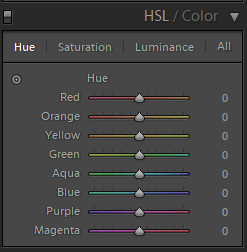
The same is true of Lightroom’s HSL/Color editing panel. You have basic HSL options, which allow you to modify colors according to hue:

Luminar vs Lightroom: Three Reasons Luminar is Better (and Two Reasons It's Not)

But then you also have a more targeted color adjustment tool, where you can click and drag to edit particular colors of your photos.

This is in contrast to Luminar’s Color tool, where you have the basic HSL options, and that’s all:

Luminar vs Lightroom Luminar color tool

Now, for a beginner, this may not be a big deal. You may not be interested in more complex editing tools.

But more experienced editors want this sort of thing, and so you should be aware that you can’t find it in Luminar.

Luminar vs Lightroom: Conclusion

Lightroom and Luminar are both excellent for post-processing, just in different ways.

Luminar offers fantastic one-click editing, along with powerful AI options.

Whereas Lightroom features superior image organizational features and complex editing tools.

So which is better, Luminar vs Lightroom?

In the end, the choice is yours!

The post Luminar vs Lightroom: Three Reasons Luminar is Better (and Two Reasons It’s Not) appeared first on Digital Photography School. It was authored by Jaymes Dempsey.


Digital Photography School

 
Comments Off on Luminar vs Lightroom: Three Reasons Luminar is Better (and Two Reasons It’s Not)

Posted in Photography


5 Things to Do to Every Photo In Lightroom to Improve Your photos

19 Feb

The post 5 Things to Do to Every Photo In Lightroom to Improve Your photos appeared first on Digital Photography School. It was authored by John McIntire.

things-to-do-to-every-photo-in-lightroom

Lightroom, as we all should know by now, is a powerful tool that allows you to get the absolute most out of your raw files. For many photographers, it’s an all-in-one solution for their post-processing workflow. For others, it’s just a stepping stone before moving the file across to Photoshop. While there are no hard-and-fast rules as to what you do to your images at this stage, there are a few things to do to every photo in Lightroom that will make your workflow easier and can help to polish your images just a little bit more.

Five things to do to every photo in Lightroom.

Lightroom is an invaluable tool for both organizing and processing your images. There is no one-size-fits-all workflow, but there are a few things that you can do to every photo.

1. Color Profile

The first of the things to do to every photo in Lightroom is to set up the color profile of your image.

Under this tab at the top of the Basic module, you will find several presets (such as Landscape, Portrait, and Neutral) that try to emulate these settings within your camera.

Using these presets can help you to get a good start on your image. They will adjust the colors and contrast in your image to a half-decent starting point for the type of image you have. From there you can fine-tune in any way you want.

Things to do to every photo in Lightroom - Color Profiles

Using color profiles is a powerful way to manage the colors in your images. Whether you use a preset or a custom profile, this is a good tool to get familiar with.


Image: As you can see, using the Landscape preset on a portrait is something you don’t want to...

As you can see, using the Landscape preset on a portrait is something you don’t want to do very often, but the available options can be a powerful start to adjusting your images.

Where Color Profile really comes into its own is when you use an external tool to create custom color profiles. Tools such as the ColorChecker Passport from X-Rite allow you to create a custom color profile for any individual scene and lighting set-up. This enables you to attain accurate colors for each individual situation.

To use this feature, you will have to create your custom profile with the external software for the tool you are using. Then you import it into Lightroom, where you will find it under the Color Profile tab’s subsection labeled Profiles.

In the case of the ColorChecker Passport, this task is as easy as creating the profile and restarting Lightroom, where it will be waiting for you.

things to do to every photo in Lightroom - custom color profile

Creating a custom color profile (via the ColorChecker Passport) has ensured that the starting point for the image is an accurate representation of the colors as they were in real life.

2. White Balance

With your color profile set up, you can now turn your attention to the White Balance. I like to start each image off with as neutral a white balance as I can attain. You may drastically alter it later, but I feel the whole process is easier with a neutral white balance from the start.

If you are doing this by eye, you can use the Temp and Tint sliders in the Basic module to adjust as you will.

Pay close attention to any whites and grays in your images and try to get them looking as neutral as possible. When doing it this way, I like to zoom in as far as I can on blocks of tone and color (such as skin and backgrounds) to see what effect my adjustments are having.

Things to do to every photo in Lightroom - White Balance

The White Balance tool is basic, but it is still very powerful. I find starting with a neutral white balance works well (though this is not a rule).

If you’re using an external tool (such as a grey card) to set your white balance, you can do that instead with your preferred method.

Image: Using a grey card or other tool to get an accurate white balance can help save time and ensur...

Using a grey card or other tool to get an accurate white balance can help save time and ensure complete accuracy.

3. Sharpness

Another of the things to do to every photo in Lightroom is to turn the sharpness setting (under Details) to “0.” The reason for this is that using this feature in Lightroom treats sharpening as a global adjustment that affects the entire image. It also does it at the beginning of your workflow, whereas I prefer to do sharpening at the very end of the post-processing stage.

Things to do to every photo in Lightroom - Sharpness

The Sharpening slider in Lightroom doesn’t offer a great deal of control. Instead, use another method that allows you to fine-tune the effects at the end of your workflow.

By turning off the sharpening at this point, you grant yourself far more control over the process. Once you’re in Photoshop, you will be able to sharpen with far more precision than the slider in Lightroom provides you thanks to the various sharpening tools and other features such as Layer Masks.

Image: An example of a Layer Mask for a sharpening layer in Photoshop. This amount of control would...

An example of a Layer Mask for a sharpening layer in Photoshop. This amount of control would be very difficult to achieve in Lightroom.

Also, because the amount of sharpening you use will depend on the output (a large file for print will be sharpened more than a small file for web usage), using the sharpening in Lightroom at the beginning of your workflow may actually set you back.

If you don’t use Photoshop, you can always still set the Sharpness to “0” and when it comes time to export your images for whatever output you require, you can create a virtual copy of your finished image and sharpen that copy accordingly.

4. Noise

Unless the noise in your images is quite bad, the noise reduction tool in Lightroom is rather good.

Under the Details section, these sliders will allow you to reduce the impact of any noise in your images.

As with the other things to do to every photo in Lightroom mentioned in this article, it’s important to do this at the beginning stage of your image as the effect may dramatically alter the way your image looks as well as the approach you have towards it in further post-processing.

Things to do to every photo in Lightroom - Noise

Lightroom’s built-in noise reduction usually performs well. If there is noise present in your image, use it well. If there is no noise, leave it at 0 as you will risk losing some detail.

5. Lens Corrections

The last of the things that I suggest you do to every photo in Lightroom is to use the tool in the Lens Corrections section.

Checking the Chromatic Aberration box will go a long way to dealing with all but the worst instances of Chromatic Aberration. Lightroom does a very good job of this, and in most cases, you won’t have to do any more than to click this box.

If you do have to go further, the sliders under the Manual section will help you make short work of any Chromatic Aberration present in your images.

Things to do to every photo in Lightroom - Lens Corrections

The Lens Corrections tool allows you to fix Chromatic Aberrations and correct for the lens you used.

Checking the Enable Profile Corrections box is one of the most useful things you can do to do your images from the very start. As long as you are using a lens that has a Lens Profile in Lightroom (you can make one manually if it doesn’t), using this tool will make adjustments to your images that compensate for that individual Lens.

Distortion and vignetting are two of the most prominent things that this tool corrects for, and this can have a dramatic effect on how your images appear.

Image: Left: No corrections. Right: With lens corrections. The difference is subtle, but it is very...

Left: No corrections. Right: With lens corrections. The difference is subtle, but it is very much there. Applying the profile corrected both distortion and vignetting.

The end

While this is a simple list, it’s often very easy to overlook some of these steps once you are in Lightroom. The excitement of looking at your images and getting started with the adjustments once you’ve imported them is a hard thing to override.

However, taking the few moments that it takes to implement these steps can help you to achieve more natural and polished results with very little effort at the beginning of your post-processing stage.

In the end, I hope you find these things to do to every photo in Lightroom helpful with your photo editing journey.

If there is a step that you think that I should have included here, please feel free to add it to the comments.

The post 5 Things to Do to Every Photo In Lightroom to Improve Your photos appeared first on Digital Photography School. It was authored by John McIntire.


Digital Photography School

 
Comments Off on 5 Things to Do to Every Photo In Lightroom to Improve Your photos

Posted in Photography


10 Tips for Switching from Lightroom to Capture One Pro

12 Feb

The post 10 Tips for Switching from Lightroom to Capture One Pro appeared first on Digital Photography School. It was authored by Darina Kopcok.

switching-from-lightroom-to-capture-one-pro

Capture One Pro 20 was launched recently, with improvements to the Basic Color Editor, noise reduction, and other tools and features. It offers improved DNG support and has added functionality with several cameras. If you’ve been thinking of switching from Adobe Lightroom to Capture One Pro, now may be the time.

Capture One Pro color grading tools are unparalleled and the ability to work in Layers gives you more options in your workflow.

If you’re nervous about the learning curve associated with yet another piece of software, don’t worry – knowing Lightroom will give you a great foundation for learning Capture One Pro.

Switching from Lightroom to Capture One Pro

The two programs basically work the same in that they allow you to make edits non-destructively by saving them in a database and keeping track where the images are stored.

Here are ten tips that will help you when switching from Lightroom to Capture One Pro.

10 Tips for Switching from Lightroom to Capture One Pro

1. Import your Lightroom Catalog

The fact that you can migrate your Lightroom catalog into Capture One Pro is a great nudge to make the switch. It’s a simple process that involves only a few quick steps.

Migrating will not have an impact on your Lightroom catalog, and you can continue to use it as you normally would.

One thing to note is that while edits such as Exposure, Highlights, Shadows, White Balance and Rotation will be imported seamlessly, every single adjustment might not translate. This is often the case with some color settings.

For a step-by-step guide on how to migrate your Lightroom Catalog into COP, go here.

Capture )ne pro-Tips for Switching from Lightroom

2. Familiarize yourself with the Capture One interface

There is a big difference between the Lightroom and Capture One Pro interface.

While Lightroom has separate tabs for the various workspaces such as the Library and Develop modules, Capture One has an all-in-one workspace. Instead of jumping around from module to module for specific functions, all of the tools in Capture One (COP) are at your fingertips.

The various panels in COP are called Tools. They are organized under various Tabs.

10 Tips for Switching from Lightroom to Capture One Pro 10 Tips for Switching from Lightroom to Capture One Pro

One awesome feature is that you can actually mimic the Lightroom workspace until you familiarize yourself with the program and decide how you want your workspace to look.

To do this, simply go to Window->Workspace->Migration.

switching from Lightroom to Capture One Pro

3. Customize your tools

The key to getting the most out of Capture One Pro’s awesome functionality is to customize your tools. The tools in COP are highly customizable, which is another bonus to switching from Lightroom.

You can move the tools around and you can set up a Tab containing only the tools you regularly use.

For example, you can move your White Balance Tool to the Exposure panel, similar to how it’s set up in Lightroom.

Right-click on the Tab to add a tool or remove it. You can also float your tools by dragging them onto the image itself.

switching from lightroom to capture one pro

4. Catalogs and Sessions

Capture One offers two management systems:  Catalogs and Sessions. Both have their pros and cons.

As far as organization goes, a COP Catalog is similar to a Lightroom Catalog. Think of Sessions as being similar to Lightroom Collections, but with additional functionality.

Catalogs are most suitable for organizing large volumes of images, whereas Sessions are used for individual shoots.

Sessions provide a simple, folder-based workflow. They give you the ability to browse any folder on your computer without having to import images. Your adjustments are placed in a subfolder next to the images.

switching from Lightroom to Capture One Pro

Sessions are great for on-set workflow and tethered shooting, and are generally seen as the more efficient option. Sessions allow you to store all the files from a single project together.

Once you have migrated your Lightroom Catalog into COP, you can build and structure your photos into sessions if you choose.

When you create a new Session, Capture One creates five folders on your hard drive. It creates a main folder with the name of your session. This folder contains the following:

  • Capture: contains the RAW files
  • Output:  contains converted JPEGS, TIFFS, etc
  • Selects:  images you’ve marked as a “select”
  • Trash:  images you’ve deleted during capture.

Any images that you delete during your COP session will go into Trash, but won’t be deleted from your disk until you physically delete them from this folder.

I use both Catalogs and Sessions. My recommendation is to use Catalogs based on genre.

Or if you shoot only in one or two genres like I do, you might want to separate commercial work form editorial work, stock photography, or personal photos, for example. Create an organizational system that works for you.

5. Get to know the Color Editor

Many photographers who make the switch from Lightroom to Capture One Pro say that the color quality is unparalleled by any RAW editor out there, especially when it comes to natural-looking skin tones. In fact, it has its own editor for skin tones.

If you’re used to the HSL sliders in Lightroom, the color tools are an area that will feel very new to you and may require some getting used to.

Switching from Lightroom to Capture One Pro

Color Editor – Tool Icon

10 Tips for Switching from Lightroom to Capture One Pro

You can use the Color Editor with masks. It’s split into three tabs: Basic, Advanced, and Skin Tone.

The Basic Tab is divided into eight color ranges, represented by a color wheel, and one that encompasses the whole spectrum. Here you can use sliders that affect Hue, Saturation, and Lightness.

To work on a certain color, click on the Eyedropper Tool and then click on the color in your image you want to edit. Sliding vertically on the area will affect the Saturation. Sliding horizontally affects the Hue.

In my image below, I worked individually on the oranges without altering anything else. This comes in handy when you’re working on a photo with various hues of the same color, by helping you target only those colors you want to alter.

10 Tips for Switching from Lightroom to Capture One Pro

6. Practice working with Layers

One of the best features that Capture One Pro has to offer is the ability to work in Layers.

These layers are similar to the layers in Photoshop in that they work with masks, but they function like targeted adjustments in Lightroom.

Masks determine where on the layer your adjustments will be applied. You can create masks in multiple ways. For example, you can brush them in, just like with the Adjustment Brush in Lightroom.

Click on the brush and paint over the area you want to work on. By default, the area will be indicated in red. It will only show up when you’re painting unless you hit the shortcut “M” to keep it on permanently.

You can use the shortcut key “E” to erase any areas that you want to subtract.

You can make changes to exposure, contrast, clarity, saturation etc.

10 Tips for Switching from Lightroom to Capture One Pro

Be sure to name each layer when working with multiple layers to keep track of the various edits you’ve made to your image.

To do this double-click on the Layer name and type in a new name.

10 Tips for Switching from Lightroom to Capture One Pro

7. Play around with creating style

Are you used to working with Presets? Capture One Pro offers the same capability – another reason not to hesitate about switching from Lightroom.

What you know as a Preset in Lightroom is called a Style in Capture One Pro.

Capture One Pro also has “presets,” but they include only one Tool and are accessible from within that Tool. Styles contains several Tools to create a pre-determined look.

The same way you can purchase presets from various third-parties, you can also purchase Styles from Capture One Pro/Phase One.

To test out some free sample Styles, go to this link from Capture One Pro.

8. Copy your adjustments

You can copy your adjustments from one image to another, just like you can in Lightroom.

Go to the upper-right-hand corner of the interface and click on the arrow up icon.

Click the arrow down icon to paste them to your images.

switching from Lightroom to Capture One Pro

9. Try Process Recipes

Process Recipes are similar to Export presets, but you can select several at one time. Once you set them up, they can make your workflow a lot quicker and more efficient. No more tinkering with dialog boxes!

Each recipe includes the output file format information and location information. There are also options for watermarking, metadata, and sharpening, etc.

You can create a specific process recipe for images that you want to export for social media use, with lower resolution and optimal pixel dimensions for social sharing.

Or you can create a recipe for printing your images for your portfolio or for postcards to send as promotional pieces. You can even export multiple recipes at the same time by checking off their respective checkboxes.

You can find Process Recipes under the Output Tool Tab noted with green in the screenshot below.

switching from lightroom to Capture One Pro

Note that COP has created some Process recipes to get you started.

10 Tips for Switching from Lightroom to Capture One Pro

To create a new Process Recipe, click on the arrow in the lower right-hand side of the panel. Rename it with any name you like – for example, “Instagram.”

It will give you all the options for exporting the photo, as seen in the first picture, including the Output Location and Output Naming conventions.

10. Try shooting tethered

One of the best things about switching from Lightroom to Capture One Pro is the outstanding tethering ability.

Although Lightroom has improved its tethering capabilities in the last couple of years, it’s still buggy and has a tendency to crash. COP leads the way in tethering in the photographic industry with its instant tethered capture technology.

With tethered capture in Lightroom, your camera also goes to sleep when you’re not using it. This is a massive pain if you’re working in a studio with a client. COP stays open as long as you keep the tethering session open.

You can also use Live View and Layout Overlays. This is really handy if you’re shooting a magazine cover or product packaging where you have to work around the placement of text.

Lightroom doesn’t have Live View functionality unless it’s paired with camera proprietary software, such as Canon EOS Utility. Capture One Pro, on the other hand, allows you to use Live View with natural light or strobes at the click of a button.

Conclusion

Hopefully, these tips have given you a better idea of how easy it is to make the switch from Lightroom to Capture One pro.

Only you can decide which RAW editor is for you. However, with its reputation for color quality, all-in-one workspace, and tons of ways to keep you organized and make an efficient workflow, Capture One Pro is totally worth checking out.

You can try a 30-day free trial to help you decide.

The post 10 Tips for Switching from Lightroom to Capture One Pro appeared first on Digital Photography School. It was authored by Darina Kopcok.


Digital Photography School

 
Comments Off on 10 Tips for Switching from Lightroom to Capture One Pro

Posted in Photography