RSS
 

Posts Tagged ‘lightroom’

Adobe adds new Texture slider to Lightroom CC, Lightroom Classic and ACR

16 May
A screenshot of the new ‘Texture’ setting under the ‘Presence’ module inside Adobe Lightroom CC, Adobe Lightroom Classic CC and Adobe Camera Raw.

Adobe has announced the addition of a new Texture slider to the latest updates for Lightroom, Lightroom Classic and Adobe Camera Raw (ACR). According to Adobe, Texture is the result of user requests for a way to smooth skin without reducing image quality or spending large periods of time making adjustments.

‘Photoshop may still be needed for some workflows,’ Adobe’s Max Wendt said in a blog post about the slider, ‘but we think that Texture will be great for many of your images.’

Texture, according to Wendt, was first developed as a smoothing slider that eventually expanded to cover both smoothing and texture enhancement. Positive texture — that is, enhancement rather than smoothing — is described as something like a cross between positive Sharpening and Clarity. Negative Texture for smoothing is comparable to Noise Reduction.

Texture reduces or enhances what Adobe calls ‘mid-frequency’ areas of an image, which enables the tool to boost or reduce important details generally without amplifying noise or producing a flat, plastic appearance. Specifically, Texture is great for smoothing skin without obliterating fine details that are key to its realistic appearance.

Texture and Clarity can be used together to adjust different aspects of the image, as well; Adobe provides examples, beyond the ones we’ve included in this article, involving both portraits and landscape images. Those are ultimately just samples of different ways Texture can be utilized, however, with Wendt explaining in his post:

The best way to discover your vision is to experiment. Texture is fully non-destructive, so don’t be afraid to explore and just try things. Go too far, pull it back, go too far again. You’ll find what values work for you. It’s all about your own vision.

Users can access the new Texture slider by updating their software to the latest versions of Adobe Lightroom CC, Adobe Lightroom Classic CC and Adobe Camera Raw available in Creative Cloud.

Articles: Digital Photography Review (dpreview.com)

 
Comments Off on Adobe adds new Texture slider to Lightroom CC, Lightroom Classic and ACR

Posted in Uncategorized


Adobe Creative Cloud no longer offers most older Lightroom and Photoshop versions

11 May

Adobe Creative Cloud no longer offers customers access to most older versions of Lightroom and Photoshop. The company announced its decision to limit Creative Cloud download availability via its Adobe Blog this week, stating that subscribers can now only download the two most recent major versions of both Lightroom and Photoshop.

The direct download access is provided through the Adobe.com website and Creative Cloud desktop app. According to the company, the ‘vast majority’ of Adobe CC customers are already using the two most recent major release versions of both applications.

By forcing the remaining users to make this transition, Adobe says it can ‘ensure peak performance and benefits across Windows and Mac operating systems.’ This change means Adobe CC subscribers can only download Photoshop versions that start with ’19.x.x’ and ’20.x.x,’ and Lightroom versions that start with ‘7.x.x’ and ‘8.x.x.’

Articles: Digital Photography Review (dpreview.com)

 
Comments Off on Adobe Creative Cloud no longer offers most older Lightroom and Photoshop versions

Posted in Uncategorized


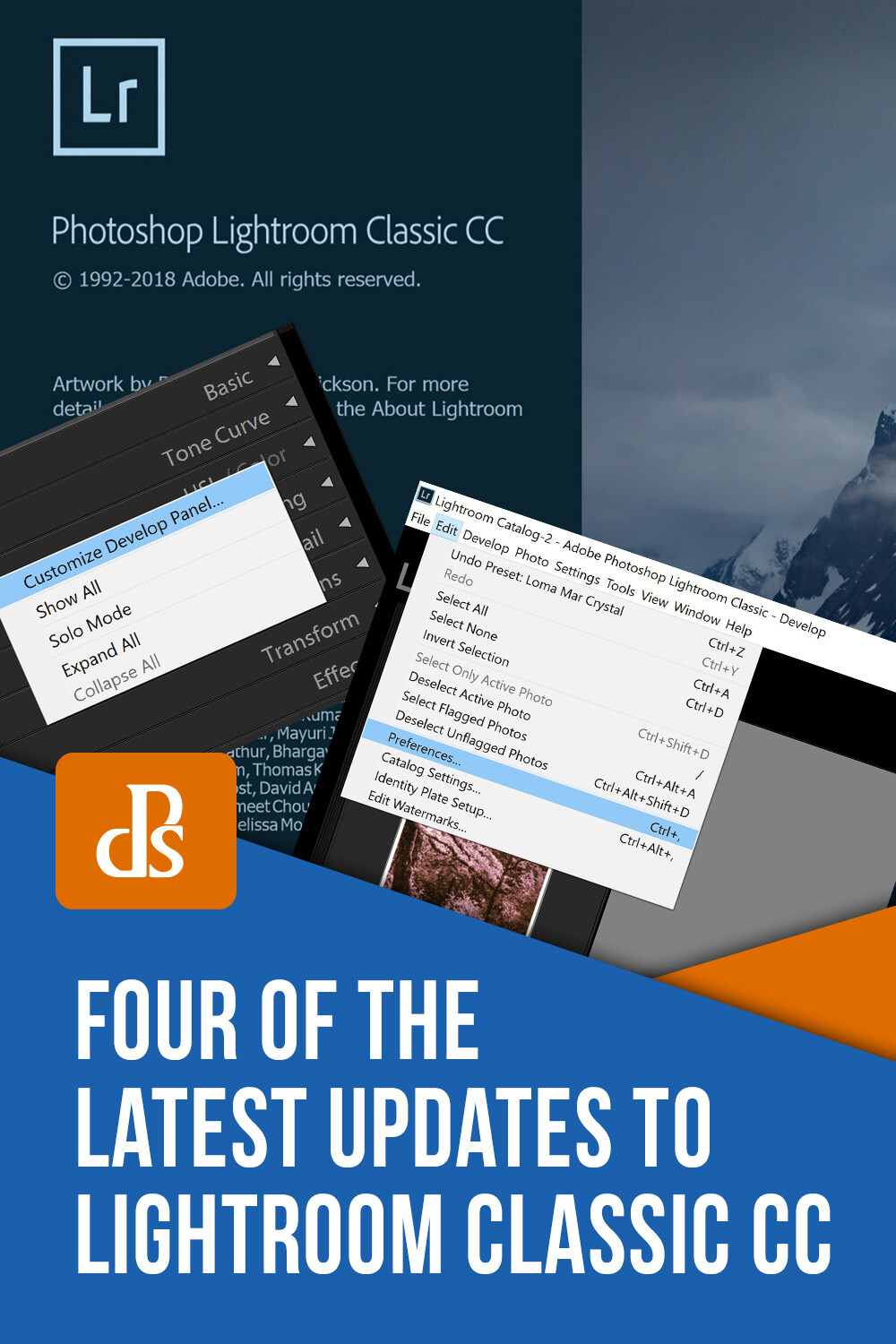
Four of the Latest Updates to Lightroom Classic CC

08 May

The post Four of the Latest Updates to Lightroom Classic CC appeared first on Digital Photography School. It was authored by Adam Welch.

When it comes to the world of photography it seems as if change is an everyday occurrence. New cameras, new lenses and new ways to make your photographs better, give the feeling that we are never quite standing still. One of the biggest testaments to this fluidity comes from the recent changes made to Adobe Lightroom Classic CC. It seems as if Adobe has been extremely busy over the past year by introducing new features and settings to Lightroom.

F:\DPS Images\Four Updates for LR Article\Lightroom-updates-adobe-adam-welch-digital-photography-school-3-3.png

It’s impossible to list all of the changes here, so I’ve picked four of the biggest and freshest new features to be introduced into Lightroom Classic CC. These range from somewhat complex to some very simple tweaks that might leave you thinking “hey, why didn’t I think of that?!”

Here’s a short list of the new features which are currently available in Lightroom Classic CC v8.2 which was the most current build at the time this article was written.

Customize Develop Panels

To kick things off, we’ll take a look at a very simple yet interesting new feature introduced to Lightroom in December of 2018. Until now the only choice of customization for our Develop panels was to switch to “Solo” (highly recommended) mode. With the release of Lightroom Classic CC v8.1, we can now choose the order we want the Develop panels to appear and even decide which panels we want to have listed at all.

Lightroom-updates-adobe-adam-welch-digital-photography-school-3

I know, right? Looks a little odd to see all the panels in a different order and a few missing! To customize your Develop panels all you need to do is right-click on the title bar of any panel.

Lightroom-updates-adobe-adam-welch-digital-photography-school-3

This opens up the customizer dialog box.

Lightroom-updates-adobe-adam-welch-digital-photography-school-3

From here it’s just a matter of checking or unchecking the panels and/or dragging and dropping them into the order you like.

Show/Hide Develop Presets

Moving over from the far right to the far left side of Lightroom Classic CC, we’ll find another new feature added to the v7.4 (seems so long ago) update which dropped in June of 2018. Beginning with this build, we can now control which Develop Preset groups appear in our Preset panel. This feature is called “Manage Presets,” and it is accessed by right clicking on any Develop Preset group or by clicking the dropdown icon at the top right of the panel.

Lightroom-updates-adobe-adam-welch-digital-photography-school-3

We are then met with this preset management window.

Lightroom-updates-adobe-adam-welch-digital-photography-school-3

This is where you can check or uncheck the preset groups you want to appear in the Develop presets panel. Remember, you can always select “Reset Hidden Presets” should you ever decide you want to restore everything to the default configuration.

Preset Compatibility

While we’re on the topic of Develop presets, it’s worth mentioning another brand new aspect to grace the halls of Lightroom Classic CC in 2018. Starting with the v8.1 update, we have the option to determine which presets appear in our Develop Preset folders even more judiciously than before with the ability to hide or show partially compatible presets.

Now, you might be wondering what a partially compatible preset is? Simply put, any Develop Preset that contains a setting not compatible with your current version of Lightroom will now be italicized or hidden depending on your preferences.

Here, let me show you.

First, let’s say this preset was made with a creative profile which you don’t have installed. You’ll notice that its name appears in italics. This means that the preset is still usable, however, it only offers limited functionality.

Lightroom-updates-adobe-adam-welch-digital-photography-school-3-3

Alternatively, we can choose to not have that preset appear at all. To do this, we first select ‘Edit’ and then ‘Preferences’

Lightroom-updates-adobe-adam-welch-digital-photography-school-3-3

Next, click on the ‘Presets’ tab and then set the preset visibility checkbox to your desired preference. If left unchecked ANY of your presets that feature settings not fully compatible with your version of Lightroom will no longer appear in your presets folder.

Lightroom-updates-adobe-adam-welch-digital-photography-school-3-3

This of course can be undone at any time by simply checking the presets visibility box once again.

Single-step HDR Panorama Photo Merge

Don’t worry, just because the title is lengthy doesn’t mean this next feature is overly complicated. For years we’ve been able to tell Lightroom to stitch together our panoramic and HDR images for us. Now, the folks at Adobe have given us an incredibly easy way to combine the best of both worlds with the release of Lightroom Classic CC v8.0 back in October of 2018. We can now merger multiple bracketed photos into a high dynamic range (HDR) panorama in, you guessed it, just a single step. Well, maybe a little more than that – but it is still incredibly easy.

Lightroom-updates-adobe-adam-welch-digital-photography-school-3-3

The majority of the work involved in making use of this new feature happens before you ever import your images into Lightroom.

Namely, your photos need to be correctly bracketed and meet a few other criteria. It will be helpful to read the full release notes from Adobe to learn more about how to make sure your images are compatible with Single-step HDR Pano Merge.

In any case, once you have selected the bracketed images for your HDR pano, the actual process is remarkably straightforward. So go ahead and select them first.

Lightroom-updates-adobe-adam-welch-digital-photography-school-3-3

Then right-click on any image and select ‘Photo Merge,’ and then ‘HDR Panorama’.

Lightroom-updates-adobe-adam-welch-digital-photography-school-3-3

From here, Lightroom will create a smart preview of your HDR Panorama.

Lightroom-updates-adobe-adam-welch-digital-photography-school-3-3

You then have options to control the way the final photograph gets cropped as well as how the images combine. This new “single-step” approach to creating high dynamic range panoramas is light years ahead of previous methods. Instead of first needing to merge individually bracketed image sets into separate HDR photos, only then to require further stitching into the final panorama, we can now eliminate virtually half of the effort involved. If you’re an avid landscape photographer, you will absolutely fall in love with single-step HDR Panorama Photomerge.

And that’s not all…

Of course, this is just a taste of the new flavors Adobe has added to Lightroom in the last year or so. It’s nearly impossible to include all of the new features constantly added – and that’s a good thing. There are many more fresh features to be found in Lightroom Classic CC.

Do you have any favorites? Feel free to let us know in the comments!


The post Four of the Latest Updates to Lightroom Classic CC appeared first on Digital Photography School. It was authored by Adam Welch.


Digital Photography School

 
Comments Off on Four of the Latest Updates to Lightroom Classic CC

Posted in Photography


How to Use the New Enhance Details Feature in Lightroom

05 May

The post How to Use the New Enhance Details Feature in Lightroom appeared first on Digital Photography School. It was authored by Simon Ringsmuth.

One benefit of subscribing to Adobe Creative Cloud is that the software you use is updated regularly throughout the year. Some of these updates might not add much to your workflow, while others result in dramatic improvements to how you edit your images.

In February 2019, Adobe rolled out a powerful new option in Lightroom called Enhance Details. You may not have noticed since there’s nothing new in the interface that even indicates the feature is available.

However, this can dramatically increase the quality of your RAW files, particularly if you shoot with Fuji cameras, and it is certainly worth investigating to see if it could benefit you.

In order to understand what Enhance Details does, it’s important to know how RAW files work. When you shoot in RAW you aren’t storing images on your memory card or computer like when you shoot in JPEG. Instead you are storing a set of instructions for how your editing software should create an image when it’s exported from Lightroom, Capture One, or any other image-editing program.

What’s weird to wrap your head around, though, is the notion that when you browse through your image library in Lightroom you aren’t looking at the RAW files at all. You’re seeing previews that the software has generated which give you a good idea of what the RAW files will look when they are exported.

This is why RAW files look slightly different when you open them in different software. Capture One, Lightroom, Luminar…they all use different methods to interpret the data in a RAW file. This results in previews (what you see when you edit an image or browse your image library) that look different, as well as your final exported final images.

This isn’t a RAW file. It’s a JPG file generated from RAW data, as interpreted by Lightroom.

Understanding RAW Files

So what does all this have to do with Enhance Details? It all goes back to how your RAW files are interpreted in Lightroom. Digital cameras collect Red, Blue, and Green data on their image sensors using an array of pixels that correspond to each color. When Lightroom loads a RAW file, it looks at the color data for each pixel and guesses what the resulting image should look like. This is what you see when you look at your images before exporting them.

This also means that Lightroom has to essentially fill in the details throughout each image since you don’t see individual Red, Blue, and Green pixels when you zoom in on an image. You see pixels of all colors that Lightroom has created based on what it thinks they should look like based on the Red, Blue, and Green color data in the RAW file.

Unfortunately, this means that some elements of the scene that you photographed, particularly the very fine details, get lost in the transition from RAW file to Lightroom.

Different camera sensors contain different types of RGB patterns. When saving RAW images, all of the color information for each pixel is stored without the camera deciding how to interpret the data as an actual image.

Enhance Details is a way for you to recover some of the finer aspects of your images that get lost along the way when interpreting RAW files.

It works by using Adobe’s artificial intelligence technology, called Sensei, to fill in some of the missing gaps when pixels are rendered from RAW data.

The results can be quite impressive, depending on the type of image you are working with. It can also mitigate some of the issues that Fuji users have traditionally had when rendering RAW data from Fuji’s X-Trans sensors. Traditionally, these result in wavy, worm-like artifacts with an overall loss of sharpness.

Bringing out the details

To use Enhance Details, select an image in your Lightroom Library and choose Photo -> Enhance Details.

This brings up a Preview window which lets you see what will happen after the Enhance Details procedure finishes.

It shows a zoomed-in view of the photo you are working with, and you can click and drag around to see what different parts of the image will look like after the operation is complete.

When you click on the image preview it reverts to its un-enhanced state, allowing you to compare the original and Enhanced versions with a single click. There are no parameters to configure, sliders to adjust, or options to customize with the operation which I find refreshing. It’s a take-it-or-leave-it approach, at least in its current state, which makes it a little less of a hassle from an end-user perspective.

When you are satisfied that you want to undergo the Enhance operation, click Enhance and wait for Lightroom to finish the operation.

When it’s done you will still have the original RAW file, but in addition you will now have a new Adobe DNG file that contains the Enhanced image. This file is, as you might expect, the same image as the original but with several additional megabytes of new data where Adobe has attempted to improve things.

Original on the left, Enhanced on the right.

More details, larger files

One important point to note in this process relates to file size and storage space. When I converted several RAW files that were originally about 22 megabytes, the resulting Enhanced DNG files were about five times larger. Since each new file easily takes up well over 100 megabytes you might want to be somewhat selective in choosing the images you want to Enhance. Either that, or start looking into more storage solutions!

So what’s different about the enhanced RAW pictures other than massive file sizes? It varies depending on the scene you photographed, the camera and lens you used, and other parameters. If you shoot Nikon, Canon, or Sony, you might not see that much of an improvement since Adobe already does a pretty good job interpreting those RAW files. However, if you use Fuji you might notice significant improvements. The image below is the original RAW file, shot with an X100F, that I edited in Lightroom.

Original Fuji RAW image. It seems fine, until you zoom in for a closer look.

At first glance, and sized down for on-screen resolution, it looks fine. But upon closer inspection you can see some significant issues particularly among the leaves and ground.

Some of the issues are now apparent, and they can’t be corrected simply by adjusting sliders in Lightroom.

When I first saw this up close, I thought there was something wrong with my computer! Either that or I had a broken camera. The edges of the leaves, particularly where the sun is shining through in the top-right corner, have a wavy, worm-like appearance that’s rather strange and almost a little disconcerting. This is due to how Lightroom renders Fuji RAW files and can be corrected quite easily using Enhance Images.

Original on the left, Enhanced on the right.

Notice the way the edges of the leaves are much smoother in the right-hand image. The gold light coming through the dark leaves is also crisper.

This isn’t just an issue of adjusting the Sharpening slider in Lightroom. Instead, it’s an entirely new RAW file built from the ground-up using Adobe’s artificial intelligence algorithms.

The new image really is enhanced – as the name of the process implies. While it might not be entirely obvious when viewed on a computer screen, there is a clear difference when files are shown at full resolution or as large prints.

Enhanced image. You can’t see a noticeable difference on a small screen, but when viewed full-size the details are much improved.

Your results may vary

While the process works wonders for Fuji RAW files, it’s somewhat hit-or-miss for major names like Nikon and Canon. For instance, below is a RAW file from a Nikon 7100 as rendered by Lightroom.

Original image, shot from the Columbia Center skyscraper in downtown Seattle.

The Seattle skyline looks crisp and clear, with no noticeable issues in the finer details even when zoomed in to 100%. When processed through the Enhance Image feature the improvements are discernible, but you really have to look for them. It’s a marginal improvement, and nowhere approaching the fixes to Fuji RAW files.

Original image on the left. Enhanced on the right. If you look at the roofline of the building in the middle, you can see a more accurate rendering in the Enhanced image…barely. The Enhanced version doesn’t have oddly-colored pixels where Lightroom didn’t quite get the original RAW file rendered properly.

Conclusion

In my opinion, Enhance Images isn’t worth the file size tradeoff on Nikon and Canon cameras. Lightroom already does such a good job of rendering them already. However, I encourage you to try it out and see for yourself. The amount of improvement depends greatly on a variety of factors including your camera, lens, and the subject in the photograph.

You might find that you prefer the Enhanced Images as a general rule, or you might only use this feature now and then. Either way, it’s nice to know it’s there.

Enhanced image, without a lot of truly noticeable improvements even enlarged to full size.

I like to think of Enhance Images as a useful tool to have in your back pocket for those times when you really need it and not something I use on an everyday basis.

The really exciting part is where this technology might end up in the future. Right now the process is done for one photo at a time and takes several seconds even on newer computers. I can easily see a time when it’s applied as easily as a filter or adjustment slider, with dramatic improvements to every image.

Until that happens, it’s fun to see technologies like this take shape and mature. As photographers, we live in an incredible time with technology like this that were unthinkable only a few years ago.

It’s amazing to ponder what the future might hold, and think about the tools we will have at our disposal to let our creative freedom loose.

Have you use this feature? Let us know your thoughts in the comments below.


The post How to Use the New Enhance Details Feature in Lightroom appeared first on Digital Photography School. It was authored by Simon Ringsmuth.


Digital Photography School

 
Comments Off on How to Use the New Enhance Details Feature in Lightroom

Posted in Photography


Timelapse+ Studio makes it easier than ever to create timelapses directly in Lightroom

02 May

Timelapse+ has introduced a new plug-in for Adobe Lightroom that promises to make editing and constructing timelapse videos significantly easier. Timelapse+ Studio can identify timelapse sequences in your library and form them into collections. It will then automatically mark what it thinks are key frames in the sequence and allow users to edit those key frames in Lightroom as normal. Users can add more key frames and then have the software blend transitions to balance for adjustments across all the images in the sequence.

The software also allows users to zoom in to areas of the scene and to pan across the frame to create a sense of camera movement even in situations in which the camera and lens were stationary during recording.

Exposure differences between frames, or different parts of the sequence, can be ironed out to avoid abrupt changes, and the result can be previewed in a window within Lightroom once the sequence is complete. The company says all the automated tasks the software performs can be undone and redone by those that need manual control of the way the timelapse is created.

The astro timelapse below was created by Adrien Mauduit using Timelapse+ Studio.

Timelapse+ Studio is available now and costs $ 49. For more information see the Timelapse+ website.

Articles: Digital Photography Review (dpreview.com)

 
Comments Off on Timelapse+ Studio makes it easier than ever to create timelapses directly in Lightroom

Posted in Uncategorized


RAW vs JPEG Format Editing in Lightroom

17 Apr

The post RAW vs JPEG Format Editing in Lightroom appeared first on Digital Photography School. It was authored by Kunal Malhotra.

As a photographer, you have most likely heard or read discussions about RAW vs JPEG file formats. It is said that a RAW file consists of a lot more data and details as compared to a JPEG file. How about we conduct a few experiments and talk about why one file format is better than the other?

If you are someone who mostly edits in Lightroom CC, get ready to know some shocking reasons why you must avoid using JPEG files. Going forward in this article I am sharing a few experiments that I conducted using the JPEG and RAW files of the same shot. I am sure that by the end you will be convinced to always edit using the RAW file format.

Experiment 1

Adjusting Highlights and Whites

The left image shows the jpeg file, while the right image shows the RAW file.

In this first experiment, I am going to import a JPEG file as well as a RAW version of the same frame in Lightroom. You can see these in the image above. You will notice that the sky in this frame is overexposed and the details are not visible because I exposed for the foreground. In this test, I am going to bring down the highlights as well as the whites all the way to -100 and see what happens with both JPEG and RAW files.

The left jpeg image has struggled to retrieve the highlights, while the RAW file on the right has retrieved the highlights well.

Surprising, isn’t it? If you look at the sky in both the JPEG and RAW files, you can see the difference quite clearly.

The details of the clouds in the JPEG (left) file become ruined when I reduced the highlights and whites to recover the details. Whereas, the RAW file (right) does an excellent job in recovering the details in the sky – even though it was completely overexposed.

This experiment concludes that if you wish to recover the highlights in a photo, RAW files achieve much better results. The JPEG file would fail at recovering details from highlights and whites.

Experiment 2

Detail and Sharpness

The JPEG image on the left is soft, while the RAW file on the right is sharp.

In this experiment, for reference purposes, I again placed the JPEG file on the left and the RAW file on the right. In the image above, I have a 1:1 zoom in Lightroom CC to show you something very interesting. Look at the difference in the sharpness and details on the face of the person. The difference is quite shocking. One would conclude that these are two different shots, with the left one being softer. However, that is not the case here. This is the same shot but just in different file formats.

Next time if you are shooting portraits or events, you know that shooting in RAW can help you preserve far more details than the JPEG file. I usually shoot in RAW and JPEG. Then I use the RAW file to edit my photos while using the JPEG files for reference or shortlisting purposes only.

Experiment 3

White Balance Adjustment

Experimenting with White Balance, I moved the slider to the warmer end of the White Balance scale. The JPEG image on the left, has lost detail and is flat, while the RAW file on the right, is far more usable.

In this last experiment, I wanted to check if adjusting the white balance does make any difference. You may have heard that a RAW file allows you to later adjust the white balance as per your desire? But how different is it from JPEG? Let’s find out in this experiment.

Here I moved the temperature slider all the way to the warmer side in both the RAW and the JPEG files. Interestingly, the JPEG file (left in the image above) was almost unusable for me. At this stage, the sky was almost flat and lacked contrast. Whereas, the RAW file with the same exposure had so much information stored that at this stage the elements in the frame had details and contrast.

Conclusion

The above experiments demonstrated a few key reasons why I always prefer using a RAW file in Lightroom to ensure my final image has maximum details. My advice here would be to shoot in RAW and JPEG to be on the safe side. If you wish to make a quick edit or directly use the image for social media, go with JPEGs. If you wish to edit the same image seriously, use the RAW file.

I hope next time you import an image to Lightroom, these experiments will encourage you to shoot and edit in RAW format.

Feel free to share your views in the comment section.

The post RAW vs JPEG Format Editing in Lightroom appeared first on Digital Photography School. It was authored by Kunal Malhotra.


Digital Photography School

 
Comments Off on RAW vs JPEG Format Editing in Lightroom

Posted in Photography


Adobe adds new lens, camera support to Adobe Camera Raw, Lightroom in April updates

05 Apr

In addition to its updates to After Effects and Premiere Pro, Adobe has also updated Adobe Camera Raw, Lightroom CC and Lightroom Classic with updated lens profiles and additional camera support.

Adobe Camera Raw version 11.2.1, Lightroom version 2.2.1 and Lightroom Classic version 8.2.1 adds lens profile support for the following lens and its adapter combinations:

• Nikon AF-S NIKKOR 500mm f/5.6E PF ED VR
• Nikon AF-S NIKKOR 500mm f/5.6E PF ED VR + 1.4x
• Nikon AF-S NIKKOR 500mm f/5.6E PF ED VR + 1.7x
• Nikon AF-S NIKKOR 500mm f/5.6E PF ED VR + 2.0x

On the camera body front, Adobe has added support for the following camera systems:

• Canon EOS RP
• Panasonic LUMIX DC-FZ1000M2 (DC-FZ10002)
• Panasonic LUMIX DC-S1
• Panasonic LUMIX DC-S1R
• Panasonic LUMIX DC-ZS80 (DC-TZ95, DC-TZ96, DC-TZ97)

The latest updates can be downloaded directly from Adobe’s Creative Cloud desktop app for users with the compatible plans. If you don’t have the Creative Cloud Desktop app, you can download it from Adobe’s Creative Cloud website.

Articles: Digital Photography Review (dpreview.com)

 
Comments Off on Adobe adds new lens, camera support to Adobe Camera Raw, Lightroom in April updates

Posted in Uncategorized


How to Use the Lightroom Transform Tool

02 Apr

The post How to Use the Lightroom Transform Tool appeared first on Digital Photography School. It was authored by Erin Fitzgibbon.

Lightroom has so many great tools we all use to edit our photographs. No wonder it’s an essential editing program for just about every photographer. Let’s take a look at the Transform Tool.

The Transform Tool can be used to adjust the perspective in your images. Most know that the tool is useful for straightening horizons or fixing those pesky leaning buildings, but it can do a lot more than that. The Transform Tool can help you to adjust other types of photographs. It has a convenient application, but it can also be used to edit your images to create more dramatic looks. You can also use it to help you create interesting artistic interpretations of your shots.

I used the transform tool to help me edit this image. I made several small adjustments to align the perspective with my creative vision.

Let’s start with the individual components of the transform tool before progressing to using them in more creative ways towards the end of the article.

The Auto Function

The Transform Tool comes with an automatic option. In this case, it’s pretty simple. Push the Auto button and let Lightroom make all the adjustments to your image. For those who are unfamiliar with how to use the other features of the Transform Tool this may be the simplest option. The problem is that Auto doesn’t always do the best job of adjusting your images. I find that if the adjustment is straightforward like straightening a horizon, then auto works well. However, it has difficulty adjusting the more complex perspective issues. This is meant to be a quick and dirty type of adjustment for minor perspective issues.

Here’s an example of the Auto tool in use on Tintern Abbey.

Vertical adjustments

The Vertical Tool automatically analyzes and then adjusts the vertical lines within your photograph. This type of adjustment is particularly useful if you’re trying to fix a leaning building or leaning trees in your landscape because you’re using a wide-angle lens. At the same time, you will find that automatic fixes don’t always work correctly and that Lightroom may over-adjust the verticals and give you something that doesn’t look quite right. So this may not be your best option for using the Transform tool.

In this case, the vertical tool didn’t do a very good job of adjusting the perspective.

Level Adjustments

The Level Tool automatically adjusts your horizontal lines. This tool seems to work reasonably well for most landscape shots. Issues with the Level Tool may arise when you are working with a horizon line along with diagonal lines. Sometimes this combination of lines fools the software. Lightroom may choose to adjust the diagonal lines and skew the rest of the image. Keep this in mind when using the automatic adjustment.

I find the level tool works great for landscape images but in this case, it needs manual adjustments.

Full Adjustments

The Full Adjustment option takes into account all vertical and horizontal lines plus the features of the auto option. This particular tool doesn’t adjust my images well. It tends to overcompensate. This tool rarely creates a look I want to use for my photographs. That doesn’t mean it won’t work for you; however, be aware that it tends to be aggressive.

Some may like the adjustments that a full perspective tool creates. If you do, remember to leave a lot of room around your subject. As you can see here, the crop that needs to occur is quite severe.

The Guided Adjustment option

The Guided Tool is probably the best way to adjust perspective within your images. The problem with the other options is that Lightroom chooses which vertical and horizontal lines it uses to adjust perspective. The reality is that these may not be the lines that need adjusting. This is where the Guided Tool comes into practice. As the editor of your work, you know which lines need straightening so you can guide Lightroom to adjust the proper verticals or horizontals. It’s still a quick and easy tool to use. You are guiding Lightroom by telling it where to focus its efforts.

The tool is straightforward to use. Just choose the line you wish to adjust and then use your mouse to define the line for Lightroom. Once two lines have been selected, Lightroom automatically adjusts your image based on your guidelines.

In this case, the Guided Tool straightens the lines I highlight but the required crop is rather extreme.

The guided tool worked really well with this simple adjustment.

Using the sliders

You can always adjust your images using the Manual Sliders located below the automatic options. Sometimes it works very well to use the Guided tool and then to make minor manual adjustments to the image as well.

Just move the sliders to adjust your work for the desired look. Each slider will adjust a different aspect of the image.

Level – tilts the image and creates an angle of sorts

Vertical – adjusts the image by tilting either forwards or to the back
Rotate – twists the image on an access point (adjusting horizon lines for the most part)
Aspect – stretches the image horizontally or compresses it horizontally
Scale – allows you to zoom in closer or further out on an image
X offset – moves the image on the x-axis to the left or right.
Y offset – move the image on the y-axis up or down.

Used on their own you may find that these sliders do not achieve much. However, when used in combination and subtle amounts, you can easily adjust the sliders to obtain the perspective you see in your mind’s eye.

In this screenshot, you can see how the aspect slider works to adjust an image.

Using the Transform Tool creatively

You can use the Transform Tool to help you adjust perspective to create more drama within an image. You can also use it to completely change the perspective of an image for a creative interpretation of the subject you originally photographed.

In the case of the following image, I made the adjustments to create something that highlighted the foreground more, thus drawing the viewers eyes towards that area.

I used the vertical slider to adjust the image so the foreground plays a bigger role in the image.

Here’s the completed photograph exported from Lightroom:

Compare this to the original perspective of the shot.

In the image below the foreground plays a less important role in the image. You can use the Transform Tool to help you make creative decisions about your photographs.

This is the unedited jpeg of the file above. Consider how the change of perspective affects the visual nature of the image.

It’s a versatile tool

You can use the Transform Tool in very subtle ways to adjust perspective. It can either be used to make an image seem more realistic and more accurate to our understanding of the way the landscape looks in reality or can be used to make some more open to interpretation. Remember, there are lots of options out there when editing work.

Be creative. Give the transform tool a whirl and see what you can do with it. You may surprise yourself and create something extraordinary.

I’ve included a few more photos edited using the Transform Tool to illustrate how you can use it both functionally and creatively.

The goal was to make the foreground more important in this photograph.

My goal was to capture my friend as she took photos of the incoming waves on the beach in Borth, Wales.

The post How to Use the Lightroom Transform Tool appeared first on Digital Photography School. It was authored by Erin Fitzgibbon.


Digital Photography School

 
Comments Off on How to Use the Lightroom Transform Tool

Posted in Photography


How to Create Simulated Light Leaks Using Lightroom

23 Mar

The post How to Create Simulated Light Leaks Using Lightroom appeared first on Digital Photography School. It was authored by Adam Welch.

Recently, we discussed how easy (and cool) it can be to reproduce the basic looks of vintage film stocks with our digital photographs. Sure, this style is not for everyone, but it’s undeniable that the “film look” has made a resurgence in recent years. There’s an especially organic feel to a photograph that has muted tones and funky contrasts which carries an inherent interest that makes people look twice. To go a step further, if you truly want to push the envelope of your digital vintage film simulations, you can go as far as to introduce something which is generally considered to be the sworn enemy of photographers everywhere: light leaks. I know, I know…the horror, right?

light-leaks-lightroom-digital-photography-school-adam-welch

Light leaks

Light leaks are less of a problem in digital photography and seldom occur. Still, it can happen. Unwanted light rays can weasel their way into your photos through damaged camera bodies or poor lens fitment in digital and analog cameras alike.

However, when shooting with film the incidence of light leaks skyrocket. Causes range from accidental openings of the camera back to damaged film canisters and general mishandling of the film either before or during processing.

light-leaks-lightroom-digital-photography-school-adam-welch-1

Why make an intentional mistake?

Now, you might be wondering ‘why, oh why, might we want to simulate light leaks in our digital photographs if they are so loathed and avoided in general photography?’ The answer to that lies in the very nature of light leaks themselves; they add uniqueness.

While technically flawed, light leaks can impart a vibe of beautiful realism to a photograph. Because the chances of light leaks increase with the age of a film, it makes perfect sense to learn how to introduce them alongside your digital vintage film simulations in Adobe Lightroom Classic CC.

light-leaks-lightroom-digital-photography-school-adam-welch-1-2

Don’t get me wrong; light leaks are not practical or even warranted for every one of your vintage film simulations. That said, a judicially placed light leak on the right photo can boost it’s aesthetic appeal tremendously. What’s more, being able to create digital light leaks at will is a handy skill to have in your mental post-processing tool kit.

How to make a Light Leak

The cause of light leaks is the intrusion of light of various intensities interacting with the film. To reproduce this effect digitally in Lightroom we’ll make use of some cleverly simple local adjustments. The graduated and radial filters are the primary local adjustment tools we’ll use for our light leak simulations.

light-leaks-lightroom-digital-photography-school-adam-welch

We’ll also use the local adjustment brush – but not in the way you might think. I’ll show you what I mean in just a second.

To get started, we’ll use a photo I have already processed using some of my vintage film presets. It has a faded vibe and a mellow tone. This should work well with our light leak simulations. It’s always a good practice to add your light leaks AFTER you have completed processing your photo.

light-leaks-lightroom-digital-photography-school-adam-welch-1-3

1. Deciding where to place your light leaks

There are no rules when it comes to creating your light leak simulations but if you’re going for realism remember that your light leaks should look as if they are – well – caused by light leaking onto the film.

Consider where the light might be intruding from when determining where they appear. Is there a crack in the camera housing? Was there a pinhole in the film canister? Perhaps the dark slide accidentally slid back just a tiny bit in the film holder?

For our particular example, we’ll be going for a sort of “first frame” light leak. This simulates a 35mm frame having been exposed to light on one of the first sections of the film while being loaded into the camera. Virtually all 35mm cameras wind the film from the spool to the spindle from left to right, so the light leak will always appear at the right side of the frame. So, that’s exactly where we’re going to put our digital light leak simulation.

light-leaks-lightroom-digital-photography-school-adam-welch

2. The Graduated Filter

We’ll use a single graduated filter to produce the light leak. Create the filter and make it wide enough to rotate easily.

It doesn’t matter where it is created on the photo because we will re-position it after we’ve added the adjustments.

For most photos, the core effect is caused but the Exposure and Whites sliders. Begin by increasing the Exposure slider considerably until you lose detail in the highlight areas of the image.

light-leaks-lightroom-digital-photography-school-adam-welch

Depending on the overall brightness of your photo even +100 exposure increase might not be adequate. If this is the case, make use of the Whites slider to increase the intensity of the leak. We can always dial back the brightness after the next step.

3. Placing and feathering the Graduated Filter

Now it’s time to re-position the graduated filter and compress it to the appropriate feathering.

Grab the center point and pull the filter to the right of the photo. A good rule of thumb is to place the far edge of the filter even with the edge of the frame.

Next, click and drag the left side of the filter to reduce the feathering. This is when the light leak will begin to really look like a light leak.

The feathering is important in reproducing the circumstances of the particular light leak effect you’re after.

In our case, the light would have interacted with our film up to the point where it was shielded by the film canister. Modern 35mm canisters feature felt lining on the mouth of the canister where the film enters. This will produce a very slight feathering effect in the light leak. So we will reflect this minute amount of feathering with our simulation.

light-leaks-lightroom-digital-photography-school-adam-welch

4. Adding fine adjustments

With our light leak placed we can now go to work applying some fine adjustments. Anything is possible! Adjust the intensity of the leak by increasing or decreasing the Exposure and Whites sliders or amplify the color (or take it away) using the Saturation slider. You can even add in custom colors using the color swatch selector. For our example, we’ll add in some yellow.

light-leaks-lightroom-digital-photography-school-adam-welch

What a beautiful mistake we’ve made! But we’re not finished yet.

5. The Adjustment Brush

You’ll recall earlier I mentioned we would use the adjustment brush tool but not actually to create the leaks. Instead, we will make use of the Adjustment Brush to ERASE areas of our light leaks. That way, we can selectively control how they appear with more precision.

In our example, we’ll dial back the light in the area of the sky to make it flow more naturally with the rest of the adjustment.

light-leaks-lightroom-digital-photography-school-adam-welch

Now that we’ve placed our primary light leak let’s kick things up a notch by adding in some additional ones. Remember that less is usually more when it comes to light leaks. But since we’re having fun, let’s pretend our camera was having a terrible day.

6. Adding extra light leaks with the Radial Filter

Our next light leak will simulate an intrusion at one of the ends of our film canister. Leaks of this type generally manifest themselves at the edges of the film around the sprocket holes. Depending on the severity, the leak bleeds down towards the midline of the film. We’ll pull off this effect using the radial filter tool with the same slider adjustments we used earlier. Again, create the filter anywhere you please in the beginning and then re-position.

light-leaks-lightroom-digital-photography-school-adam-welch

Drag the center point of the filter to the top edge of the photo being careful to leave the point itself within reach for easier re-positioning. Once you roughly position the filter, pull the bottom of it downward (or upward depending on position) until it reaches the desired location.

light-leaks-lightroom-digital-photography-school-adam-welch

Since this type of leak usually occurs very close to the film, they will exhibit more clearly defined edges which means we’ll use less feathering of the filter.

Of course, this is entirely a judgment call so feel free to adjust the feathering to suit your taste. Add in more radial filters to complete the effect by right-clicking the center point and selecting ‘Duplicate.’

light-leaks-lightroom-digital-photography-school-adam-welch

Congratulations! We’re finished making our light leak simulations and we did it all right inside of Lightroom Classic CC using a few simple tools that anyone can use.

light-leaks-lightroom-digital-photography-school-adam-welch

But wait, there’s more….

Saving your light leaks as Local Adjustment Presets

As you’ve seen, most light leaks are incredibly easy to make once you understand the basic concepts involved with the effect. Still, it’s a good idea to save yourself some time by saving your favorite light leak simulations as Local Adjustment Presets. That way, you don’t need to create each one anew every time you’re feeling like adding in a leak or two.

Saving your light leaks as presets is as simple as a couple of mouse clicks.

First, select the control point of the filter you wish to save as a preset. Once the filter is active, click the ‘Custom’ drop-down arrow at the top of the filter adjustment section.

light-leaks-lightroom-digital-photography-school-adam-welch

Next, select ‘Save Current Settings as New Preset’ from the bottom of the menu.

light-leaks-lightroom-digital-photography-school-adam-welch

It’s a good idea to name your preset something that will help you know exactly what effect it produces. In our case, I’ll name this one “Tina”.

Just kidding.

We’ll go with “35mm Canister Leak-Yellow”.

light-leaks-lightroom-digital-photography-school-adam-welch

Your new light leak preset will then be available from the local adjustment presets list.

Final thoughts on Leaking Light…

When you think about it, introducing simulated light leaks to your photos is a very funny thing to do. We are purposefully introducing problems to a photograph. With that being said, sometimes beauty can in fact lie within the very flaws we might otherwise avoid. Depending on the type of photograph and the final aesthetic you’re going for, adding in some judicious light leak simulations to your digital photographs can go a long way to enhance their “vintage feel”.

Have you tried your hand at simulating your own light leaks? Feel free to share your work in the comments!

And if you want to learn more about how to add a vintage film look to your photos be sure to check out my other article The Basics of Simulating Vintage Film in Lightroom.

The post How to Create Simulated Light Leaks Using Lightroom appeared first on Digital Photography School. It was authored by Adam Welch.


Digital Photography School

 
Comments Off on How to Create Simulated Light Leaks Using Lightroom

Posted in Photography


Lightroom Shortcuts Every Photographer Needs to Know [video]

15 Mar

The post Lightroom Shortcuts Every Photographer Needs to Know appeared first on Digital Photography School. It was authored by Caz Nowaczyk.

In this awesome video by Lucy Martin, you’ll learn Lightroom shortcuts every photographer needs to know to make their editing workflow faster and more efficient.

?


The Lightroom shortcuts every photographer needs to know

Help make your editing process be more efficient and fast-paced so you can deliver your photos much quicker by knowing these shortcuts:

G – Grid view
E –  Loupeview
L –  Lights Out – (isolates your image against a black background for previewing)
P –  Pick (Flag)
x –  Reject
Caps Lock –  auto next
Cmd+Delete –  delete rejected
D –  Go to Develop
\ –  Before/After
Y –  Before/After Side by Side Comparison
V –  Black and White
R –  Resize and Rotate
Q –  Spot Removal Tool
H –  Hide adjustment Pins
Cmd+Z –  Undo last action
Cmd+C –  Copy Settings
Cmd+P –  Paste Settings
Cmd+/ –  Show all shortcuts

You may also find the following helpful:

Lightroom CC and Photoshop CC Keyboard Shortcut Cheat Sheets

How to Use Lightroom Star Ratings to Improve Your Editing Workflow

How to Customize Your Lightroom Workspace for Better Workflow

10 Tips to Make Lightroom Classic CC Run Faster

5 Adobe Lightroom Plugins That Will Make Your Life Easier

How to Find Your Photos in the Lightroom Catalog Using Filters


The post Lightroom Shortcuts Every Photographer Needs to Know appeared first on Digital Photography School. It was authored by Caz Nowaczyk.


Digital Photography School

 
Comments Off on Lightroom Shortcuts Every Photographer Needs to Know [video]

Posted in Photography