RSS
 

Posts Tagged ‘Jump’

How to Jump from Lightroom to Photoshop and Back Again When Editing Photos (video)

01 Feb

The post How to Jump from Lightroom to Photoshop and Back Again When Editing Photos (video) appeared first on Digital Photography School. It was authored by Caz Nowaczyk.

In this video from Phil Steele of SteeleTraining, you’ll learn how you can jump from Lightroom to Photoshop and back again when editing your photos.

?

In this tutorial you will learn:

  • How to make the jump from within Lightroom to Photoshop so you can do more detailed editing using layers, and then bring the photo back to Lightroom.
  • About making multiple jumps or nested jumps.
  • How this function works with RAW files versus JPG files.
  • What the different options mean in the “Edit in Photoshop” dialogue box when editing JPGs.
  • A workaround to open your original, unedited RAW file in Photoshop.
  • How to add text to your photo in Photoshop.
  • How to Save the file and how to change the default settings of the file saving format.
  • Why you should use only “Save” and not “Save As” when in Photoshop.
  • The process that Lightroom uses to save and retrieve your image.

Multiple jumps (or roundtrips)

You’ll learn:

  • What happens when you make multiple round trips (jumps to and from Lightroom to Photoshop and back) with the same file.
  • The best format to choose after you have closed Photoshop and decide you want to keep editing your edited photo.
  • What setting to choose so that you don’t loose further adjustments made in Lightroom when jumping back to Photoshop.
  • The trade-off of jumping back to Photoshop for a second time after making further edits in Lightroom but with a sneaky work-around.
  • How to make “virtual copies” of your image in Lightroom.
  • How you synchronize settings from one image to another in Lightroom.

Nested Jumps (or roundtrips)

You’ll learn:

  • How to jump from Lightroom to Photoshop and then from Photoshop to third-party software such as Luminar.
  • How to merge multiple Layers into a single Smart Layer so you can open in a third party program/plugin.

You may also like:

  • How to Use Camera Calibration Tool in Lightroom (video)
  • RAW Photo Editing in Lightroom: How to Make Your Photos Look Real to Life
  • How to Make Your Photos Pop in Lightroom (With Just 4 Quick Edits!)
  • How to Make Your Photos Awesome in Lightroom or Photoshop Camera RAW
  • Texture and Clarity Sliders in Lightroom Classic CC: What’s the difference?
  • How to Develop Better Black and White Photos in Lightroom

The post How to Jump from Lightroom to Photoshop and Back Again When Editing Photos (video) appeared first on Digital Photography School. It was authored by Caz Nowaczyk.


Digital Photography School

 
Comments Off on How to Jump from Lightroom to Photoshop and Back Again When Editing Photos (video)

Posted in Photography


Switching from Lightroom to ACDSee Photo Studio: Making the Jump Easy

14 Dec

Let’s be honest – over the past couple of months, more than enough has been said about Adobe’s recent change in policy regarding how the latest versions (yes, all two of them) of Lightroom are to be purchased and used. Articles have been written, disappointment expressed in some volume, silver linings spotted where there seemed to be none.

There’s also a good chance that you have made up your mind regarding the change to do one of the following:

  • To stick with CC and Classic.
  • To start the fairly painful process of moving on to a different piece of software.
  • Or to put off the decision for as long as the already-purchased version of Lightroom supports RAW files from your camera.

From Lightroom to ACDSee Photo Studio: Making the Jump Easy

Thus, we are not here to discuss Adobe’s brilliant decisions or lack thereof. This article is meant for those who chose the second option. Specifically, for those, who have decided to switch from Lightroom to ACDSee Photo Studio Ultimate. Hopefully, the last article I wrote on ACDSee Photo Studio has helped you make up your mind whether or not this software is suitable for your needs. If it is, I will try to help make the transition as painless as possible.

An important disclaimer: as before, the license for this copy of ACDSee Photo Studio Ultimate has been provided by ACD Systems. Having said that, even though ACD Systems has asked me to write this article, it has not been dictated by the company in the slightest. My words are always my own, as are your reasons for switching or otherwise. More than that, ACD Systems never implied they expect anything but integrity.

Direct transfer from Lightroom

I am afraid I will have to start with some disappointment, so I will try to rip off the bandage as quickly as possible. As of today, there is absolutely no way to transfer editing data from Lightroom to any other post-processing software or vice versa. It’s the result of closed-standard tools and database format that each software developer uses – not even sharpening is equivalent, let alone tonal adjustments.

So, the progress you have made with Lightroom is bound to remain accessible via Lightroom only, at least as far as RAW files themselves are concerned. For all the convenience catalog systems provide, this is one of the downsides – switching to a new RAW converter can really be a hassle.

From Lightroom to ACDSee Photo Studio: Making the Jump Easy

It may not be possible to transfer edits from LR to ACDSee, but Photo Studio sure has a lot of tools to cover most post-processing tasks.

But if you are here, I am guessing you have decided to push through the process now rather than become even more tied-in with the system Adobe is sticking to, and have even more to deal with at a later date. One solution you are left with is exporting full-size JPEG images from your Lightroom Catalog for any future needs (uploads to social media or websites, for example). But should you ever need to tweak a setting or two, you will either have to go back to Lightroom, or start from zero using ACDSee or an alternative tool.

Mind you, this caveat is only really valid for two or three years at the most, since there is a good chance that after a couple of years your taste in post-processing – as well as your skill – will have changed noticeably. I know mine has. Still, it is something that you will need to accept as an unavoidable result of having been part of such a closed system.

It is my hope that, over time, software developers such as ACD Systems will work out a way to read Adobe’s (and other) databases and interpret adjustments in an equivalent manner so that none of the edits – at least not those most prominent – would be lost when switching.

Now that the bandage is off, let’s go through what can be achieved with Photo Studio Ultimate.

Importing Lightroom Catalog Data

As I have mentioned in the previous article, culling and adding metadata information is an enormous pain for me. I am sure I am not the only one who just wants to get on with post-processing. Having to assign ratings and keywords all over again for images that have been organized in Lightroom would be insufferable. It is an enormous relief that this is something ACDSee Photo Studio Ultimate can greatly help you with.

Photo Studio has the functionality to import ratings, color labels, keywords, and collections from any Lightroom Catalog, thus preserving the major image organizing-structure of your portfolio. The process of importing this data is very easy to initiate and requires minimal effort.

1. Find the Adobe Lightroom Database Import tool

While in Manage Mode, select the Tools menu at the very top of the screen. There, navigate to Database > Import > Lightroom Database, which is located at the very bottom of the Import submenu. This will open the Lightroom Database Import Guide.

From Lightroom to ACDSee Photo Studio: Making the Jump Easy

2. Select Data and Catalog to Import

As soon as you launch the Lightroom Database Importer, a dialog with a short introduction to the tool’s functionality will pop up. Click Next, and you will be given options to specify which database entries you want to be imported, as well as the location of the Lightroom Catalog itself.

From Lightroom to ACDSee Photo Studio: Making the Jump Easy

2.1 Ratings

This is the star-based filter assigned with numeric keys (1 through 5) in Lightroom. ACDSee does not have stars as such, but it provides a numeric rating that is equivalent for all intents and purposes. If you check this option, ACDSee will interpret the ratings you have assigned with Lightroom and apply the same values.

2.2 Labels

This specifically refers to color labels that both Lightroom and ACDSee support. Again, by default, the labels that ACDSee provides are exactly the same as those found in Lightroom, so files marked with a Red label in a Lightroom Catalog will be marked with the same color in ACDSee after the data from the Catalog is imported.

2.3 Collections

These are a bit more complicated than Labels and Ratings and not something Photo Studio promotes as a means to managing your files, at least not by default. But if you were using Collections in Lightroom to sort your images, ACDSee will readily take over.

Simply select the Panes menu and enable Collections there and a new navigational tab will become available. Located right next to the Folders tab in Manage mode, it will list all the Collections that the imported Catalogs contained, along with the images assigned to those Collections.

It has been a couple of years since I last used Collections in Lightroom, preferring to stick with simple filters now, but it is nice to know this option is available and neatly integrated.

From Lightroom to ACDSee Photo Studio: Making the Jump Easy

2.4 Keywords

These are perhaps self-explanatory. Any keywords that you applied in Lightroom to any given RAW file will be seen by ACDSee too. This is useful for when you want to find images of specific locations, events, or people, provided you specified those keywords in Lightroom in the first place. Obviously, if you have not, ACDSee offers enough image management tools to have you covered.

2.5 Location

ACDSee will navigate to the default Lightroom Catalog in the Pictures folder on your computer, so keep in mind you may need to change the location. There is no way to select several Catalogs at once, so if you have more than one (which is very likely), the Catalog Import process will need to be repeated once for each one.

From Lightroom to ACDSee Photo Studio: Making the Jump Easy

Make sure Lightroom is not running while attempting to Import a Catalog.

Depending on the size of the Catalog being imported and your computer hardware specifications, the process might take up to a few minutes to finish. In fact, it took ACDSee over 30 minutes to process my Catalog. More than enough time to take a break from work and have a cup of coffee (you will have to wait for the Import to finish before you can use Photo Studio for anything else).

Admittedly, the Catalog was quite large, with a year’s worth of RAW files, and stored on an external hard drive on top of that. And not the fastest sort either. Be that as it may, importing will certainly be quicker than having to apply the filters and ratings manually, and nowhere near as tedious.

From Lightroom to ACDSee Photo Studio: Making the Jump Easy

Once the process is finished, you will find (upon navigating to the corresponding folder) your RAW files to contain the same labels, ratings, and metadata entries as applied in Lightroom. Honestly, this is great. The only omission that I can think of is that ACDSee does not seem to take Flags into account, so any images you may have marked with Pick or Reject Flag in Lightroom will not have the filter imported.

Part of the reason is that ACDSee simply has no Reject Flag equivalent, even if marking a file with backslash key tags it in a similar fashion to how Pick Flag works in Lightroom. Something to improve upon perhaps.

From Lightroom to ACDSee Photo Studio: Making the Jump Easy

The ratings and labels Lightroom is showing…

From Lightroom to ACDSee Photo Studio: Making the Jump Easy

…are now transferred to ACDSee. And it gives you a good before-after glimpse too/

Plugins are added

Here is something that’s as unexpected as it is brilliant; ACDSee supports plugins designed for Adobe Photoshop. If you have been using Lightroom, this may be of relevance to you, too, as so many of these plugins are also meant for Adobe’s standalone RAW converter and image management software.

I have no idea how much work had to go into this little trick, but it is a massive attraction for anyone who is not fully satisfied with the extent of default ACDSee tools.

From Lightroom to ACDSee Photo Studio: Making the Jump Easy

Long time no see, Silver Efex. Fancy finding you here.

While I have not done any extensive testing – I rarely, if ever, use plugins anymore – I was able to verify this with one of the most well-regarded plugin packs by Nik Software (now owned by DxO after being nearly killed-off by Google). Color Efex worked like a charm. I encountered an occasional error here and there, but often to no direct effect on the functionality of the software or the plugin, so while annoying, it was rarely terminal.

I also tried a couple of plugins by Topaz some time ago and they worked without issue. The full list of officially supported tools can be found here.

From Lightroom to ACDSee Photo Studio: Making the Jump Easy

It is necessary to path the location of the already-installed plugins. To make sure ACDSee can locate the plugins correctly, first go to Edit mode. Then, select Options from the Tools menu at the top of the screen, or simply hit Alt + O. Once the Options panel is displayed, choose Edit Mode from the list on the left. There, you will be able to select the GPU that ACDSee will use to speed up processing, among other things.

What we need is the bottom-most field called Adobe Photoshop Plugin Paths. A couple of directories will be listed by default, but in some cases (as with Nik), they won’t be enough. You need to specify where the plugins are located. Since I am interested in using Nik Software, I added (click the Add button) a new path that leads to C:\Program Files\Nik Collection. The destination of your plugins might be different, so make sure you set the path correctly. Once you’re done, click OK.

From Lightroom to ACDSee Photo Studio: Making the Jump Easy

If the plugins are supported and the path has been specified accurately, you will find the plugins listed in the Photoshop Plugins section of the Tools menu (still in Edit Mode).

I won’t claim there is no chance of errors happening – after all, those plugins were never really intended for anything but Adobe. Yet the fact that they work so well despite that is an impressive and convenient achievement no matter how you look at it.

Just keep in mind that not everything might work as expected every single time, or it may take time for some plugins to be properly supported.

Final Words

Breaking and rearranging an established workflow is not a pleasant experience. Especially if the previous routine worked well and it is the company’s decisions, rather than the quality of the tool, that has become an issue. With that in mind, it is good to know that less-dominant software developers are going out of their way to show how welcoming they can be.

ACDSee Photo Studio Ultimate attempts to make the transition from Lightroom as simple and straightforward as possible, not only by offering a plethora of powerful (and often similar) post-processing tools but by also taking steps towards preserving any image organizing you may have already done with Lightroom.

It’s not perfect and there is certainly room for improvement (perhaps edit transfers are not as far-fetched as they might seem?), but what has been done is by no means a small feat and will save any new user hours of rating and filtering what has already been done before.

Whichever software you will find yourself choosing next (or sticking with), there is plenty for the giant developers to learn from such attention to detail.

Disclaimer: ACDsee is a paid partner of dPS

The post Switching from Lightroom to ACDSee Photo Studio: Making the Jump Easy by Romanas Naryškin appeared first on Digital Photography School.


Digital Photography School

 
Comments Off on Switching from Lightroom to ACDSee Photo Studio: Making the Jump Easy

Posted in Photography


Sky-High Ski Jump Penthouse: Win a Night at Historic AirBnB

13 Mar

[ By Steph in Boutique & Art Hotels & Travel. ]

ski jump penthouse 1

‘Please do not apply if you’re scared of heights,’ warns AirBnB about this private sky-high chalet located at the very top of the Holmenkollen ski jump, where some of the world’s top skiers have launched themselves onto the slopes. The fully-furnished apartment is 250 steps above the world’s first ski museum, and features the highest roof terrace in all of Oslo. Tell AirBnB why you’d like to stay here in 100 worlds or less, and you could win the chance to experience it yourself.

ski jump penthouse 9

ski jump penthouse 3

The vacation rental service is offering up a one-night stay at the Holmenkollen ski jump and as long as you’re available on March 26th or 27th, if you win, they’ll fly you in from anywhere in the world. You have until midnight on March 16th to submit your entry.

ski jump penthouse 6

ski jump penthouse 4

ski jump penthouse 7

The ski jump superstructure was first built in 1892 and hosted the 1952 Winter Olympics, where expert skiers gazed out onto the Nordic landscape before flying off the ramp in front of thousands of spectators. Since 1923, it’s also been home to a museum displaying over 4,000 years of ski history. The pinnacle, where the apartment is located, is 200 feet in the air.

sku jump penthouse 2

ski jump penthouse 8

Only pros are allowed to use the ski jump, “so don’t think you’re going to be pulling any tricks in your toboggan,” says AirBnB. But you’ll be steps away from thousands of miles of ski slopes, and if you want, you can even leave via zip-line when your trip is over. Apply here.

Share on Facebook


[ By Steph in Boutique & Art Hotels & Travel. ]

[ WebUrbanist | Archives | Galleries | Privacy | TOS ]


WebUrbanist

 
Comments Off on Sky-High Ski Jump Penthouse: Win a Night at Historic AirBnB

Posted in Creativity


You’ll Jump for the 2-in-1 Backup Battery and Power Cord

29 Jul

Extra photos for bloggers: 1, 2, 3

Your daily caffeine break is at 2pm sharp. Your phone seems to need a power boost, every time you want to shoot just a few more pix.

Since phones don’t seem to have a taste for coffee, grab a Jump Cable, a tangle free charge cord and backup battery in one.

The Jump Cable charges your phone from its backup battery, or any USB port. When you use a wall outlet or computer to charge you phone (like you already do daily) it fills up its battery at the same time.

Tuck this tiny, snack size cord pack into your pocket when you’re on the move for an extra zap of battery life when your phone decides it’s time to snooze.

Never mess with your tangly and boring old charge cable again! The Jump Cable is all you need to power through the day and night … other than coffee, of course.

Get a Bite Sized Battery Jump
$ 49 at the Photojojo Shop


© Britta for Photojojo, 2014. |
Permalink |
No comment |
Add to
del.icio.us

Post tags:


Photojojo

 
Comments Off on You’ll Jump for the 2-in-1 Backup Battery and Power Cord

Posted in Equipment


Caught on Video: Illegal BASE Jump Off NYC Freedom Tower

07 Apr

[ By WebUrbanist in Travel & Urban Exploration. ]

skydiving illegal 1 wtc

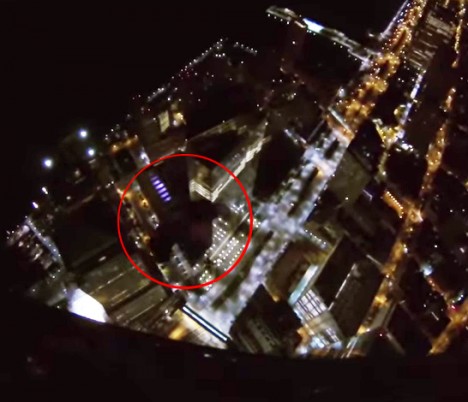
Breaking into One World Trade Center and scaling to its top was just the beginning for this daring trio, who then not only parachuted from close to the peak but also had to navigate nearby structures on the way down and ultimately land in the street.

If you are not one for suspense, skip to the two minute and thirty second mark in the first video above to watch as the first jumper takes the plunge from the 1,776-foot tower, followed shortly thereafter by the man behind the camera.

amazing building jump

After months of hiding their identities, James Brady, Marco Markovich and Kyle Hartwell have turned themselves in and are already raising legal funds for their defense. They are charged with burglary, reckless endangerment and jumping from a structure.

base jump caught video

nyc street landing strip

skydiving street landing

According to the New York Times, the trio have been “described by their lawyers as experienced, amateur sky divers who also sought thrills leaping from buildings, bridges and other structures.” As for how they got in and up in this case: apparently, they simply slipped through a hole in the fence, scaled the stairs and did not encounter any security along the way to the top of the tower above. A similar stunt was pulled by a teenager not too long ago, but reporters who tried to follow suit found themselves caught and arrested.

Share on Facebook


[ By WebUrbanist in Travel & Urban Exploration. ]

[ WebUrbanist | Archives | Galleries | Privacy | TOS ]


WebUrbanist

 
Comments Off on Caught on Video: Illegal BASE Jump Off NYC Freedom Tower

Posted in Creativity


Get a Jump Start on Your Gift List

12 Nov

The Early Bird may get the worms but trust us, your loved ones don’t want worms as gifts.

We’re here to help! We’ve organized our best phoneography presents by your pals’ preferred gizmos and apps.

Are they an Android Addict? An iPad Enthusiast? A fisherman?

If they’re a fisherman we may have mispoken, they probably want worms. If they’re an avid gadget user read this guide to find out what they really want.

iPhone Lovers
For the iPhone addicted among us (*guilty as charged*)
we’ve got phoneccessories to kick their photo game up a notch.

Impossible Instant Lab

Turn any iPhone photo into a real live instant print, instantly! → More

iPhone Lens Wallet

The perfect carrying solution for five great iPhone lenses. → More

Pocket Spotlight

Add soft even light anytime. Buh-bye harsh flash. → More

The Keyprop

Holds up any phone for shakefree vids and selfies. → More

iPod Fanatics
Fewer phone calls, more photos!
Get the most out of your iPod Touch with these goodies.

Bamboo Solar Charger

Give your pod a boost while you’re photoing the day away. → More

Gorillapod Mobile

A perfectly portable mini tripod, that bends to fit any sitch. → More

Smartphone Spylens

Take photo from new angles and shoot candids on the sly. → More

Jelly Phone Filters

Starburst, kaleidoscope and wide angle lenses add fun FX. → More

iPadographers
The biggest viewfinder in town comes equipped
with quite the camera too! Just add these handy gadgets.

Sony QX Smart Lenses

This pro camera uses your tablet or phone as a viewfinder. → More

Eye-fi Wireless SD Cards

Send files from your DSLR to your iPad with no wires. → More

iPad Telephoto Lens

See 10-12x farther with optic zoom and adjustable focus. → More

iPad CF/SD Card Readers

Get files from a memory card to your pad, on the quick.→ More

Android Enthusiasts
We’ve found that Android Users
(and Androids themselves) love these photo gizmos.

Photojojo Lens Series

Pro-quality telephoto, wide angle, macro and fisheyes. → More

USB Chargecard

A credit card sized charging cable that fits in your wallet. → More

Macro Lens Band

Get incredible close-up shots. It stretches to fit any phone.→ More

Une Bobine

A charging cable that’s also a phone stand. Double duty. → More

Instagram and Vine Addicts
For maximum “Likes” and “Revines”
you’re gonna need just a couple of these…

The Kick Light

Completely customizable light. Controlled by your phone. → More

The Slingshot

It’s a tripod and also a grip for super smooth pans. → More

iPhone Boom Mic

Get a quality audio recording to go with that video of yours. → More

Pocket Reflector

Add light to your photo right where you want it. → More

Related posts:

  1. Photojojo’s Holiday Gift Guide 2012, Part 2! It’s the most wonderful time of the year! Some would…
  2. Photojojo’s Gift Guide 2010, Part 3 It’s the holiday home stretch! This mid-December, may you stuff…
  3. Photojojo’s Holiday Gift Guide 2011, Part 1! You calmly plug your ears at the first hint of…


Photojojo

 
Comments Off on Get a Jump Start on Your Gift List

Posted in Equipment


Get a Jump Start on Your Gift List

12 Nov

The Early Bird may get the worms but trust us, your loved ones don’t want worms as gifts.

We’re here to help! We’ve organized our best phoneography presents by your pals’ preferred gizmos and apps.

Are they an Android Addict? An iPad Enthusiast? A fisherman?

If they’re a fisherman we may have mispoken, they probably want worms. If they’re an avid gadget user read this guide to find out what they really want.

iPhone Lovers
For the iPhone addicted among us (*guilty as charged*)
we’ve got phoneccessories to kick their photo game up a notch.

Impossible Instant Lab

Turn any iPhone photo into a real live instant print, instantly! → More

iPhone Lens Wallet

The perfect carrying solution for five great iPhone lenses. → More

Pocket Spotlight

Add soft even light anytime. Buh-bye harsh flash. → More

The Keyprop

Holds up any phone for shakefree vids and selfies. → More

iPod Fanatics
Fewer phone calls, more photos!
Get the most out of your iPod Touch with these goodies.

Bamboo Solar Charger

Give your pod a boost while you’re photoing the day away. → More

Gorillapod Mobile

A perfectly portable mini tripod, that bends to fit any sitch. → More

Smartphone Spylens

Take photo from new angles and shoot candids on the sly. → More

Jelly Phone Filters

Starburst, kaleidoscope and wide angle lenses add fun FX. → More

iPadographers
The biggest viewfinder in town comes equipped
with quite the camera too! Just add these handy gadgets.

Sony QX Smart Lenses

This pro camera uses your tablet or phone as a viewfinder. → More

Eye-fi Wireless SD Cards

Send files from your DSLR to your iPad with no wires. → More

iPad Telephoto Lens

See 10-12x farther with optic zoom and adjustable focus. → More

iPad CF/SD Card Readers

Get files from a memory card to your pad, on the quick.→ More

Android Enthusiasts
We’ve found that Android Users
(and Androids themselves) love these photo gizmos.

Photojojo Lens Series

Pro-quality telephoto, wide angle, macro and fisheyes. → More

USB Chargecard

A credit card sized charging cable that fits in your wallet. → More

Macro Lens Band

Get incredible close-up shots. It stretches to fit any phone.→ More

Une Bobine

A charging cable that’s also a phone stand. Double duty. → More

Instagram and Vine Addicts
For maximum “Likes” and “Revines”
you’re gonna need just a couple of these…

The Kick Light

Completely customizable light. Controlled by your phone. → More

The Slingshot

It’s a tripod and also a grip for super smooth pans. → More

iPhone Boom Mic

Get a quality audio recording to go with that video of yours. → More

Pocket Reflector

Add light to your photo right where you want it. → More

Related posts:

  1. Photojojo’s Holiday Gift Guide 2012, Part 2! It’s the most wonderful time of the year! Some would…
  2. Photojojo’s Gift Guide 2010, Part 3 It’s the holiday home stretch! This mid-December, may you stuff…
  3. Photojojo’s Holiday Gift Guide 2011, Part 1! You calmly plug your ears at the first hint of…


Photojojo

 
Comments Off on Get a Jump Start on Your Gift List

Posted in Equipment


Steve Aoki – Balcony Jump @ Club Cinema 2012 HD

01 Feb

Photographer Robert Giordano filmed DJ Steve Aoki jumping from the second level balcony into an inflatable kiddie pool held up by the crowd!! This was just part of the experience at Club Cinema in Pompano Beach, Florida on May 15, 2012. Both the upper and lower levels of Club Cinema were packed with fans as DJ Aoki returned to this venue where he last played in 2011. It was another great night of music and mayhem. Robert captured the video using a Nikon D7000 camera and a Nikkor lens. Sound was recorded with a Zoom H4N digital recorder. Robert Giordano: www.design215.com http Facebook: www.facebook.com www.facebook.com Please SUBSCRIBE to: www.youtube.com Steve Aoki: steveaoki.com dimmakrecs.com
Video Rating: 5 / 5


Stories Jump Out of the Pages with 3D Book Sculptures

14 Dec

[ By Steph in Art & Sculpture & Craft. ]

Fiction favorites, from Gone with the Wind to Treasure Island, literally leap off the pages in three dimensions in Jodi Harvey-Brown’s imaginative book paper sculptures. Harvey-Brown illustrates figures from the stories, cuts them out and sets them on top of the open books among paper trees, waves, castles and dragons.

The top sculpture is from ‘Knight and Dragon’, a book from the Dragonlance series. Harvey-Brown wired the knight and dragon through the book for extra stability. Above, a ship rises from the waves in the book ‘Kidnapped.’

Huck Finn and Tom Sawyer relax on a raft in the Mississippi.

Bambi and his mother explore the peaceful meadow just before tragedy strikes in one of the book’s most poignant scenes.

Pirates are poised above a chest full of gold and jewels in Treasure Island. See more of Harvey-Brown’s book sculptures, many of which are for sale, at the artist’s website.


Want More? Click for Great Related Content on WebUrbanist:

Gripping Book Art: 31 Sculptures Worth Reading About

Society is in a digital age and paper books are being left behind. Artists are fighting the tide by bringing books into their own as gorgeous works of art.
13 Comments – Click Here to Read More »»


Book Sculpture by Jacqueline Rush Lee

Artist Jacqueline Rush Lee takes papercraft to a new dimension with stunning, organic book art crafted from lovingly handled used books.
5 Comments – Click Here to Read More »»


Share on Facebook


[ By Steph in Art & Sculpture & Craft. ]

[ WebUrbanist | Archives | Galleries | Privacy | TOS ]


WebUrbanist

 
Comments Off on Stories Jump Out of the Pages with 3D Book Sculptures

Posted in Creativity


Nikon D600: Think Twice Before You Jump

16 Oct

UPDATE 9/25/12: Upon testing, the D600 appears to have a pretty sweet sensor — if the issues noted below are not a concern for you.
__________

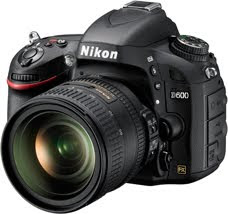
Nikon has just officially announced their long-awaited entry-level full-frame body. Full spec reports are everywhere, as Nikon seeds lots of sites with advance info and embargoes them until the hour of release. So I won't duplicate that content here.

But for lighting photographers, the camera has two issues that are of concern. One is minor and (sadly at this point) expected.

But the other is major and quite unexpected. Read more »


Strobist

 
Comments Off on Nikon D600: Think Twice Before You Jump

Posted in Photography