RSS
 

Posts Tagged ‘iphone’

Kamerar ZOOM is a lens attachment for the iPhone 7 Plus dual-camera

26 Dec

With the 28 and 56mm equivalent lenses of its dual-camera, the iPhone 7 Plus offers more flexibility in terms of focal length than most smartphones. If that’s still not enough, the Kamerar ZOOM is now the first lens attachment designed for the iPhone’s dual-camera. 

The system includes two lens attachments that slide into a special case and over the iPhone’s built-in camera lenses. One combines a fisheye lens for the iPhone’s wide-angle camera with a tele-converter for the 56mm lens. The other improves the macro capabilities of both lenses.

In the product images the tiny lenses and the attachment don’t have the same premium look as some of the high-end smartphone lenses, for example from Moment or Zeiss. However, at only $ 45 plus import duties the Kamerar Zoom could be an inexpensive way of widening the creative potential of the iPhone 7 Plus even further. It can now be ordered on the Kamerar website. 

Articles: Digital Photography Review (dpreview.com)

 
Comments Off on Kamerar ZOOM is a lens attachment for the iPhone 7 Plus dual-camera

Posted in Uncategorized


Zeiss ExoLens PRO lens lineup updated with support for iPhone 7 phones

13 Dec

$ (document).ready(function() { SampleGalleryV2({“containerId”:”embeddedSampleGallery_6073214240″,”galleryId”:”6073214240″,”isEmbeddedWidget”:true,”standalone”:false,”selectedImageIndex”:0,”startInCommentsView”:false,”isMobile”:false}) });

Zeiss has announced a new ‘Edge’ bracket that brings iPhone 7 family support to the maker’s ExoLens PRO with Optics by Zeiss smartphone lenses. The bracket features half a dozen device inlays that support both the iPhone 7 and the iPhone 6 phones, as well as a cold shoe mount for attaching secondary accessories such as lighting instruments.

According to Zeiss, a bracket specifically for the iPhone 7 and the ExoLens optics is available now from camera stores, as well as a wide-angle ‘accessory lens.’ The Edge bracket, meanwhile, will be available at camera stores starting in the end of January. The company recommends that iPhone 7 Plus owners use either the ExoLens PRO Macro-Zoom or Wide-Angle lenses since the device already offers a 2x telephoto camera, however, all of the lenses are said to be ‘generally compatible.’

The iPhone 7 bracket is available now for $ 59.95 / €64.95, and the Edge bracket will be available starting next month for $ 49.95 / €59.95. The Wide-Angle lens recommended for the iPhone 7 Plus is $ 149.95 / €179.95, and the Macro-Zoom lens is $ 149.95 / €179.95.

Via: Zeiss

Articles: Digital Photography Review (dpreview.com)

 
Comments Off on Zeiss ExoLens PRO lens lineup updated with support for iPhone 7 phones

Posted in Uncategorized


Flickr says smartphones were the most popular device this year, iPhone tops list

08 Dec

Flickr has published its 2016 end-of-year report detailing the most popular devices and brands on its platform. Per the report, 48% of photos published on Flickr this year were captured using smartphones, and 47% of them were captured using iPhones specifically. The top three iPhone models were the iPhone 5s, the iPhone 6, and the iPhone 6s.

As far as brands go, Canon was the second most used at 24% and Nikon came in third at 18%. Device types, meanwhile, show DSLRs ranked second after smartphones at 25%, point-and-shoot cameras at 21%, and mirrorless models at 3%. Comparing the figures with last year’s report, smartphone uploads are up 9%, DSLR uploads are down 6%, point-and-shoot uploads are down 4%, and mirrorless uploads have remained steady.

Via: Flickr Blog

Articles: Digital Photography Review (dpreview.com)

 
Comments Off on Flickr says smartphones were the most popular device this year, iPhone tops list

Posted in Uncategorized


A colorful journey through Morocco with the iPhone 7 Plus

20 Nov

$ (document).ready(function() { SampleGalleryV2({“containerId”:”embeddedSampleGallery_2528030905″,”galleryId”:”2528030905″,”isEmbeddedWidget”:true,”standalone”:false,”selectedImageIndex”:0,”startInCommentsView”:false,”isMobile”:false}) });

Resource Travel Editor Michael Bonocore loves the Northern African country of Morocco, having traveled there previously to lead a team for The Giving Lens. So when an opportunity came along to return to Morocco this October, Bonocore couldn’t resist.

Although he normally travels with a Sony a7R II, Bonocore noticed that he always managed to come home with lots photos taken on his mobile phone, so he challenged himself to try a new approach to travel photography. Could he tell a beautiful and cohesive story about his journey through Morocco using only his new iPhone 7 Plus? Based on his portfolio of images, we think you’ll agree that the answer is yes.

Read the full article and see more of Bonocore’s photos at Resource Travel

Articles: Digital Photography Review (dpreview.com)

 
Comments Off on A colorful journey through Morocco with the iPhone 7 Plus

Posted in Uncategorized


How to Use DNG Files on Your iPhone With Lightroom Mobile, RAW or ProCam 4

16 Nov

The recent release of iOS 10 saw an important update to the iPhone’s operating system for photographers. If you own an iPhone with a 12-megapixel camera (that is an iPhone 6S/Plus, iPhone 7/Plus, iPhone SE or even an iPad Pro 9.7) the operating system now allows third party camera apps to save photos in the DNG format. That’s excellent news for iPhone photographers as it means that you can now realize the potential of your phone’s camera.

iPhone DNG file

Image quality improvements

The advantage of using DNG (rather than JPEG) as the file format is that you can process the DNG files in Lightroom (or your software of choice). This gives you much greater control over noise reduction and sharpening, as well as color and tonal adjustments. Photos processed by the iPhone and saved in JPEG format often suffer from smearing caused by noise reduction, especially if taken in low light. Using DNG lets you avoid that.

This photo was taken at ISO 125 (fairly high for an iPhone, whose lowest ISO setting is 25) using the JPEG format (all other photos in this article are from DNG files).
iPhone DNG file

This 100% magnification from part of the image shows the smearing caused by the iPhone’s processing. To me, it looks like someone has applied a filter in Photoshop that is meant to make the photo look like a painting.
iPhone DNG file

This photo was taken at ISO 250 using the DNG format. A smartphone camera is not the best tool for shooting in low light, but I wanted to test the camera under these conditions.
iPhone DNG file

This is a 100% magnification. I processed the photo using Lightroom’s default noise reduction settings. There is plenty of noise (exaggerated by the increased Clarity needed to get the best out of iPhone files) but no smearing.
iPhone DNG file

DNG files are also much better for converting to black and white than JPEG files. Black and white shooters will appreciate the ability to process their own Raw files and not rely on the camera’s software to do it.

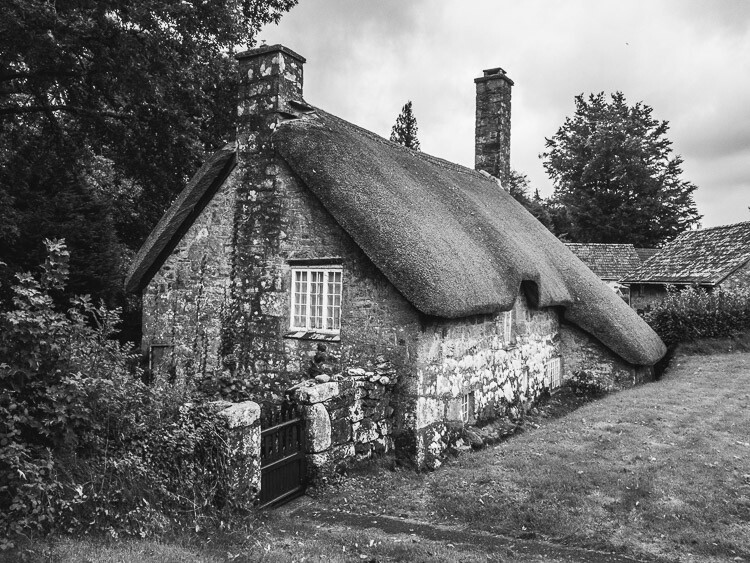
Here’s a black and white version of the opening photo that I made using Lightroom for conversion.
iPhone DNG file

What you need to know

The important thing you need to know is that, at the time of writing, the iPhone’s native Camera app doesn’t have the ability to save your photos in the Raw format. You need a third-party one. Let’s take a look at some of the choices available.

Lightroom mobile

Lightroom mobile lets you take, save, and process DNG files on your iPhone. This is brilliant if you’re a Lightroom CC subscriber as it lets you take full advantage of all of Lightroom mobile’s features.

The only disadvantage of using Lightroom mobile is that the photos you take are stored within the Lightroom mobile app and not in the Camera Roll. That means you can’t download your DNG files by connecting your iPhone to your computer using the lightning cable.

Please note: If you’re not a Lightroom CC subscriber, you can still download Lightroom mobile for your iPhone and use it to take Raw photos. However – and this is very important – there is no way to save the Raw files to your Camera Roll or get at them without a CC subscription. I understand that Adobe software engineers are working on a solution to this, and hopefully, it will be implemented in a future version of Lightroom mobile.

iPhone DNG file

How it works

Lightroom mobile uploads photos taken with the camera, to Adobe’s servers. These are then downloaded by Lightroom desktop or Lightroom mobile on another device such as a tablet. You can set Lightroom mobile to sync only over wi-fi networks, so you don’t have to worry about using up data. But, given that DNG files are larger than JPEG files, it does mean that if you take photos in any volume it’s going to take a while for them to synchronize across devices.

Lightroom mobile’s camera app is a little more sophisticated than the iPhone’s camera app and lets you set white balance and exposure compensation.

As we’ve seen, Lightroom mobile works well under the right circumstances. But if you’re not a CC subscriber or you don’t have fast wi-fi, then you may want to look elsewhere for an app that lets you save photo files in the DNG format.

iPhone DNG file

RAW

500px have released a free camera app called RAW that lets you capture DNG files and edit them on your phone. The RAW app lets you create model releases, upload and license your photos on the 500px website, and use filters created by other RAW app users to process your photos.

The app also lets you save DNG files to the Camera Roll. So that you can download them by connecting your iPhone to your computer without having to rely on a wi-fi connection. You can only do this one at a time, though. So it’s a time-consuming process if you shoot a lot of photos. The camera in the app itself is also quite limited – you can tap on the screen to select the focus point but that’s the only control you have over the camera.
iPhone DNG file

VSCO Cam

The VSCO Cam app (also free, AND available for Android users too!) doesn’t support DNG yet but according to a recent press release DNG support is coming in a future update (date unspecified).

I’m looking forward to this, because the VSCO Cam camera app is quite clever and lets you adjust the exposure, white balance, and flash settings, as well as display a grid and a spirit level on the screen. You can download free presets to process your images (or buy others). But the big advantage is that it saves photos automatically to the Camera Roll, so you can download your DNG files directly from your iPhone if you want, without having to rely on a wi-fi connection.
iPhone DNG file

ProCam 4

If you’re looking for a sophisticated iPhone camera app that supports Raw, saves your DNG files to the Camera Roll, and gives you full manual control over the camera, then I recommend the ProCam 4 app.

It costs a few dollars to buy ($ 4.99) but is well worth the expenditure. This app lets you adjust ISO, shutter speed and white balance. It also lets you save the same photo in both JPEG and DNG formats in the Camera Roll.

If you take photos in any volume, then the ProCam 4 app is the best one that I’ve used for the iPhone. All you have to do to transfer your DNG files to your computer is connect the iPhone with the lightning cable and import the files using Lightroom (or the computer’s own software). It’s much quicker and easier than waiting for Lightroom mobile to synchronize files, or using the RAW app and saving your photos to the Camera Roll one by one.

iphone-dng-8

Disadvantages of DNG

Are there any disadvantages to using Raw on an iPhone? The only one that I can think of is that DNG files are larger than JPEGs and require more storage space. If you have an iPhone with 64GB or more storage space I don’t think this will be a problem. But if you have 32GB or less, then space management may become an issue if you have lots of DNGs.

More to come in the future

Before we finish I think that it’s important to note that the ability to save DNG files on an iPhone is such a new feature that developers are still rushing to take advantage of it. Expect the apps mentioned in this article to be updated and improved, and for more apps to take advantage of this new feature in the future.

All photos in this article were taken with an iPhone SE and processed in Lightroom.

Do you have an iPhone that lets you use the DNG format? Which apps do you use to take DNG photos? Let us know in the comments.

Editor’s note: There are several Android phones which can shoot RAW files in the DNG format as well. If you have an Android do a google search to find options for your brand and model.


If you’d like to learn more about processing photos in Lightroom then please check out my Mastering Lightroom ebooks.

googletag.cmd.push(function() {
tablet_slots.push( googletag.defineSlot( “/1005424/_dPSv4_tab-all-article-bottom_(300×250)”, [300, 250], “pb-ad-78623” ).addService( googletag.pubads() ) ); } );

googletag.cmd.push(function() {
mobile_slots.push( googletag.defineSlot( “/1005424/_dPSv4_mob-all-article-bottom_(300×250)”, [300, 250], “pb-ad-78158” ).addService( googletag.pubads() ) ); } );

The post How to Use DNG Files on Your iPhone With Lightroom Mobile, RAW or ProCam 4 by Andrew S. Gibson appeared first on Digital Photography School.


Digital Photography School

 
Comments Off on How to Use DNG Files on Your iPhone With Lightroom Mobile, RAW or ProCam 4

Posted in Photography


Next level: iPhone 7 Plus camera review

09 Nov

$ (document).ready(function() { SampleGalleryV2({“containerId”:”embeddedSampleGallery_3203287185″,”galleryId”:”3203287185″,”isEmbeddedWidget”:true,”standalone”:false,”selectedImageIndex”:0,”startInCommentsView”:false,”isMobile”:false}) });

Judging by design, screen size and resolution, the new iPhone 7 Plus is nothing new. While its major specs are nearly identical to the iPhone 6s Plus, it’s in the camera department where a lot of innovation has happened. Next to the standard 28mm equivalent lens there is a second 56mm module to enable optical zooming. Combined with digital zoom, you can drag the zoom slider in the camera app up to a 10x magnification. 

At F1.8 the six-element lens in the wide-angle camera comes with a faster aperture than the 6s Plus and optical image stabilization is on board as well. The 56mm ‘tele’-lens has to make do without stabilization though, and uses a slower F2.8 aperture. A bokeh-simulation mode, similar to what we’ve seen on the HTC One M8 and Huawei P9 before is also made possible by the dual-camera setup. Other new camera features include a quad-LED true-tone flash and flicker-sensor. With iOS 10 and certain third-party camera apps the new iPhone can now finally save Raw files as well.

As you can see, there are a lot of new camera features to explore on the new iPhone 7 Plus and we have done exactly that. Read our full review to see how we got on. 

Key Photographic / Video Specifications

  • Dual 12MP sensors
  • 28/56 mm equivalent focal length
  • F1.8/2.8 aperture
  • On-sensor phase detection
  • Quad-LED flash
  • DNG Raw capture and manual control with 3rd party apps
  • 4K video at 30 fps
  • 720p/240 and 1080p/120fps slow-motion video
  • 7MP front camera with F2.2 aperture and 32mm equivalent focal length

Other Specifications

  • 5.5-inch 1080p IPS screen with taptic feedback
  • Apple A10 Fusion chipset
  • 3GB RAM
  • 32/128/256GB storage
  • 2,900mAh battery
  • Fingerprint reader
  • Stereo speakers

DPReview smartphone reviews are written with the needs of photographers in mind. We focus on camera features, performance, and image quality.

Articles: Digital Photography Review (dpreview.com)

 
Comments Off on Next level: iPhone 7 Plus camera review

Posted in Uncategorized


iOS 10.1 adds ‘beta’ support for Portrait mode to iPhone 7 Plus

26 Oct

Apple has released an update to iOS 10, which alongside various bug fixes and refinements, adds beta support for ‘Portrait’ mode in the iPhone 7 Plus.

The Portrait mode feature is only supported by the dual-lens iPhone 7 Plus model running iOS 10.1, and is designed to replicate the look of shooting at a shallow depth of field – an effect traditionally limited to larger imaging formats. Although anyone with an Apple developer account has been able to shoot with the new mode for a while (we posted a gallery including some samples last month), iOS 10.1 represents the first truly public ‘beta’ test of the new feature.

Are you curious? Have you downloaded it? Did you jump straight to the comments section before you finished reading this paragraph? Let us know. 

Articles: Digital Photography Review (dpreview.com)

 
Comments Off on iOS 10.1 adds ‘beta’ support for Portrait mode to iPhone 7 Plus

Posted in Uncategorized


Camera components represent 9.5% of total iPhone 7 material cost

21 Oct
 Image: Chipworks-TechInsight

Analyst firm Chipworks-TechInsight has published its iPhone 7 reverse engineering report, which includes some interesting cost and technology information for more engineering-minded photographers. The analysts estimate the total bill of materials for the iPhone 7 with 128GB of built-in memory to be $ 275. $ 26, or approximately 9.5%, of that total sum are spent on camera and imaging components. This includes the Sony-made Exmor RS image sensors and lenses in front and rear cameras and all processing hardware.

The most expensive component in the device, that retails in the US for $ 749, is Apple’s A10 Fusion CPU at $ 40.  The display and touchscreen add $ 37 to the cost. Given how advanced smartphone camera technology has become, it is surprising that it only represents a relatively small percentage of the total cost of a device (though Apple is famous for its high margins.)

We’d expect the dual-cam in the iPhone 7 Plus to be quite a bit more expensive than the single-lens version in the standard iPhone 7. However, Chipworks has to publish its report on the larger iPhone model. For now, you can download the iPhone 7 report on Chipworks website if you’re happy to provide your contact information and email.

Articles: Digital Photography Review (dpreview.com)

 
Comments Off on Camera components represent 9.5% of total iPhone 7 material cost

Posted in Uncategorized


Olloclip launches three lens kits for the iPhone 7 and iPhone 7 Plus

12 Oct

Olloclip has announced the launch of three lens kits for the iPhone 7 and iPhone 7 Plus: the Active Lens Set, Core Lens Set, and Macro Lens Set. All three sets, of which there are eight lenses total, are joined by the new Connect interchangeable lens system, which makes quick work of swapping between the various iPhone 7 Connect lenses. The Connect system sits flush with the iPhone’s two cameras, and can be used alongside screen protectors up to 0.5mm in width.

According to olloclip, the new iPhone 7 lenses are designed to offer ‘similar perspectives’ to what you get with DSLR lenses; they offer coated glass optics and ‘edge-to-edge clarity.’ 

Core Lens Set ($ 99.99):

  • ‘Near 180-degree spherical effect’ Fisheye lens
  • ‘Advanced 4-element’ Super-Wide lens with greater than 120-degree field-of-view
  • Macro 15x lens

Active Lens Set ($ 119.99):

  • Telephoto 2x optical zoom lens
  • Ultra-Wide 155-degree FOV lens

Macro Pro Lens Set ($ 79.99):

  • Macro 7x lens
  • Macro 14x lens
  • Macro 21x lens

Speaking about the lenses, company founder Patrick O’Neill said, “olloclip is committed to continually enhancing the mobile photography experience. That means giving full respect to mobility with no oversized, heavy lenses and paying strict attention to delivering beautiful photography with the simplest, quickest and most versatile user experience possible.”

All three lens kits are available to pre-order now from Olloclip’s website and are expected to ship in early November. 

Articles: Digital Photography Review (dpreview.com)

 
Comments Off on Olloclip launches three lens kits for the iPhone 7 and iPhone 7 Plus

Posted in Uncategorized


iPhone 7 real-world sample gallery

07 Oct

The iPhone 7 lacks the dual camera modules of its iPhone 7 Plus sibling, but it still offers plenty of imaging features. It includes a 12MP sensor with optical image stabilization, 4K video recording and thanks to iOS 10, Raw image capture. We’ve already posted a preliminary iPhone 7 Plus gallery, but not wanting to neglect the iPhone 7, we went spent some time getting to know its sibling too.

See our iPhone 7 real-world sample gallery

Articles: Digital Photography Review (dpreview.com)

 
Comments Off on iPhone 7 real-world sample gallery

Posted in Uncategorized