RSS
 

Posts Tagged ‘into’

How to Turn Your Photos into Painterly Style Watercolor Art

02 Mar

It’s fun to be creative with your photos, elevating them beyond a digital image and into painterly style art instead. Perhaps you have a great shot of your dog but the neighbor’s bright red car is distracting in the background. Maybe your kid was cute at the park but the swings are poking into one side of the shot. It might be nice to make a festive or birthday card for a relative with the personal touch.

Or maybe you have seen other people doing cool creative stuff on Instagram and you would like to have a go too?

How to Turn Your Photos into Painterly Style Watercolor Art

Image of my cat Cognac created in Waterlili.

There are many ways to edit your images with a painterly style, for this article we are going to focus on the possibilities on offer to make your images look like watercolor art. Whether you use a PC, Laptop, tablet or phone, there is something available. You don’t need Photoshop nor do you always need to spend heaps of money on software either.

Note: This isn’t a How To article, this is us dipping our toe into the water to see what the options are – some are quite complicated and probably need Photoshop (or similar).

Watercolor Programs and Apps

There are many different ways to achieve a watercolor effect. Some are surprisingly easy and yet effective, and some are a lot more complicated. Let’s start with the easy options and go from there.

1. Dedicated Mobile Apps

I have an iPad for doing creative work and there are a couple of specific Watercolor Apps that I like. They have a realistic effect and enough capability to allow you to tweak them and get some variety with your final efforts.

Waterlili

Waterlili turns your image into a watercolor and allows you to tweak color, contrast and saturation. It also has an built-in mask effect for adding some uniqueness to your image.

Waterlili is available for IOS.

How to Turn Your Photos into Painterly Style Watercolor Art - lilacs

Original photo before editing.

How to Turn Your Photos into Painterly Style Watercolor Art - lilacs

Lilac flowers done in Waterlili.


How to Turn Your Photos into Painterly Style Watercolor Art - lilacs

Same image as above, but have applied a watercolor mask effect in Waterlili for a different outcome.

Waterlogue

Waterlogue has several preset options to choose from, and some contrast options to apply. You can save your image in a variety of image file sizes (small files can be used in social media, large files could be printed).

Available for IOS, Android and Win10.

How to Turn Your Photos into Painterly Style Watercolor Art - cat photo

Original image before editing in Waterlogue.

How to Turn Your Photos into Painterly Style Watercolor Art - cat image painterly style

2. Creative Mobile Apps

A creative app is one that allows you more scope with your editing, and offers a variety of different creative and editing options. It isn’t a “one hit wonder” like the first options above. My weapon of choice here is called iColorama.

iColorama has several different ways of adding a painterly effect using its settings. But its real strength is the capability to layer and mask images (like in Photoshop) so you can blend elements of images together for a very creative and completely unique piece of art. It is a program with an impressive depth of capabilities.

It’s IOS only, but Android users could consider Snapseed.

How to Turn Your Photos into Painterly Style Watercolor Art

Original image before creative editing.

How to Turn Your Photos into Painterly Style Watercolor Art

After painterly effects applied in iColorama.

How to Turn Your Photos into Painterly Style Watercolor Art

In this third image, I took the second image with painterly effect into Waterlili, and then blended the two in iColorama for this final image.

3. Options using Photoshop

Actually most photo editing programs that support layers and masks will work here (Elements, Paint Shop Pro etc.). But you need to have Photoshop or similar installed to use these options.

Watercolor Brush and Mask

This is a fairly simple option, but you do need to know how to use layers and how to apply a mask. Also required are some watercolor brushes (these can be found free online or good quality ones can be purchased).

Load up your image, add a new white layer on top of the image. Working on the white layer, tap with your water color brush to reveal the image below. It can take a few goes to get it looking really watercolor, and tweaking the brush opacity up and down helps.

How to Turn Your Photos into Painterly Style Watercolor Art - birds

Photoshop Actions

Actions are where someone has recorded all the steps necessary to make the desired outcome in Photoshop for you. A bit of manual intervention at the beginning sets it up, click Play on the Action and it runs and does its thing.

The best Photoshop Action artist I know is sevenstyles, and he has an amazing library of effects available, including a Watercolor option. Once created you can tweak and edit many components to add your personal flourish if you want. An action can be used over and over again and does provide some variety in the results.

How to Turn Your Photos into Painterly Style Watercolor Art - cherries

Plugin Software

Plugins are separate programs that work within Photoshop to fulfill an additional requirement. Some will work as standalone programs, but many are only accessible from within Photoshop. My favorite painting plugin is Impression by Topaz Studio.

It has a huge range of different painting presets already loaded and you can tweak EVERYTHING – brush size and shape, direction, color, light contrast, add a vignette, and so on. It’s a very powerful tool and capable of beautiful painted effects. It does need a fairly powerful computer with a decent graphics card to run it, so check that your hardware will support it first.

How to Turn Your Photos into Painterly Style Watercolor Art - train

This image had the background replaced with a painted image and then it was run through Topaz Impression.

4. Dedicated Painting Software

For PC/Mac there are some options for software that is specifically designed to mimic painting effects. The most commonly known one is called Corel Painter. It’s expensive, complicated, and difficult to learn which is fine if you are an artist and that’s your thing. If you are someone who wants to dabble a bit for a really genuine watercolor effect then there is another option available called Rebelle.

Rebelle is a fraction of the price of Painter, much easier to use, and it has the most incredible realistic watercolor effect as well as other painting and drawing options. It’s also available for a free trial. I have no artistic background, so the realism of Rebelle was initially a bit of a hurdle for me, so I signed up to do an online watercolor course and work with real paints, which really helped.

You don’t need to do that, but I can tell you quite genuinely, there is little difference between dipping your brush into some real paint and doing it with Rebelle (except the digital version makes no mess!)

How to Turn Your Photos into Painterly Style Watercolor Art - lighthouse

Original photo.

How to Turn Your Photos into Painterly Style Watercolor Art - lighthouse

Painted image – the lighthouse, rocks, and sea painted in Rebelle, the sky done in Photoshop with watercolor brushes and the sketch effect done with Akvis Sketch.

Summary

This article barely dips its toe into the range of options available for doing painterly watercolor conversions of your images. Hopefully, these examples show you that there are many choices to suit all skill levels and budgets.

It can be as simple or as complicated as you want to make it. I am constantly surprised at how much mobile apps are capable of these days, seems like you don’t need Photoshop at all!

If you have other apps you use and would recommend for creating painterly style images, please put them in the comments below. Otherwise, go forth and be artistic!

The post How to Turn Your Photos into Painterly Style Watercolor Art by Stacey Hill appeared first on Digital Photography School.


Digital Photography School

 
Comments Off on How to Turn Your Photos into Painterly Style Watercolor Art

Posted in Photography


Wacom’s new Cintiq Pro Engine turns your Wacom pen display into a full-blown PC

28 Feb

Back in July of 2017, Wacom announced that it would be releasing 24- and 32-inch versions of its popular Cintiq Pro pen display for creatives. But today’s debut of the 24-inch model isn’t the most interesting news out of Wacom; the interesting bit is the Cintiq Pro Engine: a plug-and-play PC module that turns your Cintiq Pro tablet into a full-blown Windows 10 workstation.

Or, in Wacom’s own words:

Designed for professional illustrators, designers, engineers and motion graphics users who require professional computing power and graphics performance, the modular Cintiq Pro Engine slots into the back of the Cintiq Pro 24, eliminating the space, cable clutter and compatibility issues that often result from using external computers and laptops.

Attaching the Cintiq Pro Engine to the Cintiq Pro 24 tranforms the Cintiq Pro 24 into a full Windows 10 creative studio that supports even the most demanding programs and applications used by creative professionals.

The Cintiq Pro Engine is a PC module that quite simply slides into a slot on the back of the 24-inch (and eventually 32-inch) Cintiq Pro pen display. Once added, your Cintiq Pro is now a Windows 10 PC in one of two variations:

If go with the $ 2,500 Cintiq Pro Engine i5, you get:

  • A quad-core Intel Core i5HQ processor
  • NVIDIA Quadro P3200 graphics card with 6GB of dedicated GDDR5 RAM
  • 16GB of RAM
  • A 256GB PCIe Gen3 SSD
  • WiFi and Bluetooth Connectivity

Or you can get the $ 3,300 Cintiq Pr Engine Xeon with:

  • An Intel XEON processor
  • The same NVIDIA Quadro P3200 graphics card with 6GB dedicated GDDR5 RAM
  • 32GB of RAM
  • A 512GB PCIe Gen3 SSD
  • Wireless and Bluetooth connectivity

What’s more, the SSDs and RAM inside both versions are upgradable, so you can keep the PC modules current as demands increase. And since the Cintiq Pro Engine is plug-and-play, you can swap it between various Cintiq Pro 24- and 32-inch pen displays “while retaining the same computing environment.”

Both versions of the Cintiq Pro Engine will be available starting in March in Japan, the US, and ‘select countries’ in Europe. To learn more about the Cintiq Pro 24-inch and the Cintiq Pro Engine, visit the Wacom website.

Press Release

Wacom Cintiq Pro Engine and Cintiq Pro displays: The first modular all-in-one creative studio

Wacom Cintiq Pro Engine is a compact PC module that converts the Cintiq Pro into a powerful creative studio. Artists, Designers and Engineers can transform their Cintiq Pro into a powerful Windows 10 workstation with the power to run the demanding creative applications and workflows, including 3D, animation and virtual reality.

Tokyo, Japan – Feb. 27, 2018 – Today Wacom announced the Wacom Cintiq Pro Engine, a creative PC module available in two configurations that fully integrates into the Cintiq Pro 24-inch pen display (announced today in a separate release). Designed for professional illustrators, designers, engineers and motion graphics users who require professional computing power and graphics performance, the modular Cintiq Pro Engine slots into the back of the Cintiq Pro 24, eliminating the space, cable clutter and compatibility issues that often result from using external computers and laptops.

“It is our mission to help professionals create with the least amount of distraction and clutter and to give them the power to tackle the new spaces of creating content for AR, VR and MR. The Wacom Cintiq Pro Engine provides a beautiful, easy to use solution for creatives everywhere,” said Faik Karaoglu, Executive Vice President of the Creative Business Unit at Wacom.

Attaching the Cintiq Pro Engine to the Cintiq Pro 24 tranforms the Cintiq Pro 24 into a full Windows 10 creative studio that supports even the most demanding programs and applications used by creative professionals. The combination of the Wacom Cintiq Pro display, the powerful Wacom Cintiq Pro Engine creative PC module, and a flexible and rotatable new Wacom Ergo Stand is an innovative approach to providing an all-in-one specialized working environment for creatives. Adding the use of the Wacom Pro Pen 3D, professionals who rely on 3D animation or sculpting software, or CAD applications, will see an immediate benefit to their workflow.

Virtual Reality Support

In addition to the benefits around creative applications and workflows, Cintiq Pro Engine supports the increasingly important virtual reality (VR) workflow. Most Wacom products are already capable of supporting VR content creation, but to review and check the VR content, customers frequently need to move the content to another PC that has the graphics power to run VR content.

Powerful Graphics

The Wacom Cintiq Pro Engine is powered by the NVIDIA Quadro P3200. This graphics card is based on the NVIDIA Pascal GPU architecture, which provides the power demanded by today’s creative applications with dramatically faster graphics and computing power than on the CPU.

“Wacom designs products for the way artists and designers create. They’re intuitive, natural and fast and can be used anywhere,” says Bob Pette, vice president, Professional Visualization, NVIDIA. “Our new mobile Quadro P3200 packs a ton of graphics power into the new Cintiq and Cintiq Engine Pro, and we’re thrilled to have them showcased at our upcoming GPU Technology Conference.”

Flexibility Found Nowhere Else

The Wacom Cintiq Pro Engine memory and SSD are exchangeable and upgradable, ensuring system flexibility. Given the plug and play nature of the hardware, it’s easy to move between Cintiq 32” and 24” displays while retaining the same computing environment with the Cintiq Pro Engine. This flexibility is found nowhere else in the market and leads to a lower total cost of ownership (TCO) than any other solution.

Two Versions of Cintiq Pro Engine

Cintiq Pro Engine i5:

  • Operating System: Windows 10 Pro
  • Processor: Intel® Core i5HQ (Quad Core)
  • Graphics: NVIDIA® Quadro® P3200
  • Dedicated graphics memory: 6GB GDDR5
  • RAM: 16GB
  • Storage: 256GB SSD, PCIe Gen3
  • Wireless LAN: Wi-Fi IEEE 802.11 ac
  • Bluetooth: Bluetooth® 4.2
  • Security: fTPM(TPM2.0)
  • Input Voltage: 100 to 240 VAC, 50/60 Hz
  • Connectivity: Internal (communication between PC & Display) 1x USB-C, 1x Power
  • Connectivity: External (customer interfaces) 1x RJ45 (LAN), 2x USB-C, 1xmHDMI, 1xmDP, 2x DC-in
  • Price: $ 2,499

Cintiq Pro Engine Xeon:

  • Operating System: Windows 10 Pro for Workstation
  • Processor: Intel® XEON
  • Graphics: NVIDIA® Quadro® P3200
  • Dedicated graphics memory: 6GB GDDR5
  • RAM: 32GB
  • Storage: 512GB SSD, PCIe Gen3
  • Wireless LAN: Wi-Fi IEEE 802.11 ac
  • Bluetooth: Bluetooth® 4.2
  • Security: fTPM(TPM2.0)
  • Input Voltage: 100 to 240 VAC, 50/60 Hz
  • Output Voltage: 19.5V/11.8A (230W)
  • Connectivity: Internal (communication between PC & Display); 1x USB-C, 1x Power
  • Connectivity: External (customer interfaces); 1x RJ45 (LAN), 2x USB-C, 1xmHDMI, 1xmDP, 2x DC-in
  • Price: $ 3,299

Availability

There are two versions of Cintiq Pro Engine, available as of May 2018 in Japan, US and selected countries in Europe. For details visit our homepage at Wacom.com. For more information on compatibility, visit www.wacom.com/comp.

Articles: Digital Photography Review (dpreview.com)

 
Comments Off on Wacom’s new Cintiq Pro Engine turns your Wacom pen display into a full-blown PC

Posted in Uncategorized


How to Compress Time Into One Photo

25 Feb

Throughout the history of photography, many photographers have blended multiple exposures into one final image. Obviously, they didn’t shoot the exposures at the same time, but at some interval to achieve something.

One really common purpose is to remove people by shooting several photos and making sure that all areas are covered without any people and then blend all the images into one image. Another purpose of shooting multiple images is bracketing for HDR. Yet a different purpose is to compress a long time into one photo.

Italy Manarola Day to Night

In this article, you will learn how to make an image that compresses a long time-span into one image. It is a bit like a time-lapse movie sequence, but instead of making a movie you create one final image.

Like in time-lapse photography you will shoot several photos shot over a period of preferably several hours to see a change in the scenery. To make it more interesting, you shoot the photos during a change of light, like from daylight to nighttime. When you put such photos together, you get something really fascinating.

Required Gear

To be able to make such a photo you must have a camera and a tripod or similar device. While you shoot, you need to avoid touching the camera more than you have to. Therefore a cable release or remote trigger is recommended.

You will be standing still for several hours and the temperature will most likely change quite a bit. Remember to bring clothes for a change of temperature.

Australia Sydney Harbor View Time Compressed

Where to Shoot

In theory, you can shoot these kinds of photos anywhere and of anything. But since you are putting a lot of time into one single image, it is recommended that you have an excellent composition of an interesting scene.

When to shoot

You should shoot when the light changes the most, which is from daytime to nighttime or the other way around. It is this change that will make it into a remarkable photo. If you just shoot for four hours around midday, you will get a midday photo.

How to Shoot

When you shoot photos that you intend to blend into one final image, it is essential that you make sure to have an almost identical composition in each frame. You can do that by stabilizing your camera, typically on a tripod. Minor pixel shift differences can be handled later in the post-processing phase, but big differences in the composition will be really hard, if not impossible to blend.

You can either use a remote control to trigger the camera for each shot or put the camera into a time-lapse mode. The advantage of triggering the shutter release remotely yourself is that you can time your shots if something interesting happens.

As the light changes, you will need to change the camera settings.

During the daytime put your camera in Aperture Priority mode at ISO 100 and set the aperture around f/8. This mode makes sure that the images have the same depth of field and therefore are identical, except for the change of light. Do a couple of trial shots to make sure you don’t blow out the highlights or the shadows. If the image is too bright or dark, use the exposure compensation to adjust.

As it gets darker, the camera will make longer exposures and when you hit the 30-second mark, you will need to increase the ISO. You will typically end up at ISO 800 or 1600.

Sweden A Mountain Sunset in Sweden

You most likely want to switch off autofocus before it gets dark. It depends on the scenery. City photos often offer good low light autofocus points, while the contrast disappears in landscape photos and makes autofocus impossible. Alternatively, you can use Back Button Focus.

How many photos do you need?

You need at least two different photos, but any number larger than one will work. For my photo of Sydney, I used a couple of night shots. For the morning part, I only used two.

If you shoot the “many people” variation, you will need photos with interesting people in all those areas you want to be populated with people. For the photo of Manarola, Italy I used approximately 60 photos from a batch of around 200.

Switzerland Montreux Compressed Time

How to handle high dynamic range?

Some situations are hard or impossible to capture in one exposure because the dynamic range gets too high. Typically this happens in nighttime city photos or if the sun enters the frame. The difference between the strong light source and the shadows is too great to capture in one single exposure.

In these situations, you must either switch to Auto Exposure Bracketing (AEB) or do some manual exposure compensation.

How to blend the photos

You can use any layer-based photo editing tool to blend the photos together. I will demonstrate using Photoshop, but Photo Affinity, GIMP or any other similar photo editing tools can do the same.

UK Lake District Time Compressed

The overall process is to pick one of the good photos from the shoot as the base photo. Then you handpick a set of other photos that you want to blend into the base image.

The technique you are going to use to blend is called “Layer Masking”.

Step 1

Put all the photos you have picked into an empty folder on your computer. JPEGs are fine, but you can also use RAW files.

Step 1 image folder with images - How to Compress Time Into One Photo

Step 2

Pick your base photo and open that in Photoshop.

Step 3

Pick another photo with different light. Load that in into Photoshop by dragging the file onto the base image. Position the photo and press enter.

Notice that you now only see the top layer.

Step 3 image drag layer into place - How to Compress Time Into One Photo

Step 4

Add a mask to the top image, by selecting the top layer and clicking Layer > Layer Mask > Hide All. You have now added a Black Mask. Notice that you can now see the lower image layer again.

Step 4 image The black layer mask - How to Compress Time Into One Photo

Step 5

Select the layer mask by clicking on the black mask and then select the brush tool. Select white as your brush color and set the opacity to around 50% and hardness to 0%. You want to work with a BIG soft brush for most stuff. When you need to do more detailed work, increase hardness to around 50%.

Step 5 image Select a brush - How to Compress Time Into One Photo

Step 6

Start painting in some areas and see how the image changes. Each time you click the mouse and paint in an area, the more the top image becomes visible. Play around until you see something you find interesting.

Step 7

Add more photos by dragging them into Photoshop one at a time and make sure the new layer is the top one. You can drag it to the top of the stack if it is not. Then repeat steps 4-6 again.

The final image

In the end, you will end up with several layers containing photos from which you have used bits and pieces, to create your own unique and quite fascinating image. In the image of the idyllic alp town of Hallstatt in Austria, I used 18 photos to create my image.

Tutorial image 3 An example of layers

Austria Hallstatt Day To Night

Additional things to consider

8-bit or 16-bit?

Normally you should never use 8-bit mode for image editing, but if you are blending 20+ photos, you will run into serious performance issues at 16-bit, even with a high-performance computer. One workaround is to use 8-bit at the cost of image quality. You can change the mode by going to Image > Mode > 8-bit/Channel. The downside of using 8-bit is that you may end up having banding which is when you can see the colors transition from one to the other (they do not graduate smoothly).

Alignment

You have probably had to adjust the camera while shooting and most likely you will find that the images are slightly misaligned. It may not be more than a pixel or two.

Tutorial image 1 Move tool

You use the Move Layer tool to micro adjust the misaligned layer using the arrow keys.

Addition tip – try to make more than one final image from the same photos, by switching around the night and day photos.

The post How to Compress Time Into One Photo by Jacob Surland appeared first on Digital Photography School.


Digital Photography School

 
Comments Off on How to Compress Time Into One Photo

Posted in Photography


This strange gadget literally shocks you into taking ‘better’ photos

21 Feb

A new project called Prosthetic Photographer involves a very real gadget designed to zap humans into taking better images. The system was created by artist and designer Peter Buczkowski, and it works with both DSLR and mirrorless cameras. Using artificial intelligence, the device constantly scans for ‘ideal’ scenes and uses mild electric shocks to force/train the photographer to capture them.

“The Prosthetic Photographer enables anybody to unwillingly take beautiful pictures,” Buczkowski explains on the project’s website. The gadget is a way for an AI to train a human, though the AI itself was first trained using a dataset containing 17,000 images, and those images were captured and rated by humans.

Using what it learned about quality photos, the Prosthetic Photographer AI identifies scenes worth capturing and trains the human behind the camera to recognize them. To do this, the AI triggers a small electric shock delivered through electrodes on the handgrip, which forces the photographer’s finger to press a button and capture said ideal scene.

As demonstrated in the video at the top of this post, users can adjust the shock strength using knobs on the back of the device. “This system is part of a new aesthetic, based on computer-generated decisions that were taught by previous human skill,” Buczkowski explains on his site. “The conscious skill of photography becomes obsolete this way.”

The resulting images feature the AI’s own aesthetic tastes, which are based on the images used to train the system. Of course, some of the scenes captured by the human who is being ‘trained’ are often… less than striking.

Articles: Digital Photography Review (dpreview.com)

 
Comments Off on This strange gadget literally shocks you into taking ‘better’ photos

Posted in Uncategorized


How to Turn Your Photo into a Cartoon Drawing Using Photoshop

17 Feb

Photography can be traced back all the way to the camera obscura; which was an aid for artists who could then draw their subjects from the projection created by the light passing through the pinhole. Following that tradition, in this tutorial, I’m going to show you how to create a drawing by outlining the subject from your digital photo to create a fun, cartoon-like image.

Deer cartoon - How to Turn Your Photo into a Cartoon Drawing Using Photoshop

Getting started

You can use this technique on any photo you want and apply it to any subject you like. However, I find it best, especially for your first attempt, that the subject is well defined or isolated so it’s easier for you to outline it. I also personally prefer and recommend that the image is not too busy. So, once you have chosen your photo, open it in Photoshop.

Outline the subject

To trace your subject you are going to use the Pen tool. The way it works is that you create anchor points with each click. A straight line then connects those points. Do this all around the subject.

Once you have this, change the Pen tool to the Convert Point Tool, which you can find by holding down on the Pen until the drop-down menu opens. With the Convert Point, you can curve the straight lines to make it fit the silhouette best. Just click on the anchor point and start dragging it. From each anchor point, you will have to handles, each one to control the line in each direction of the anchor.

Pen Outline - How to Turn Your Photo into a Cartoon Drawing Using Photoshop

This will help you get a smoother silhouette and avoiding unnecessary bumps that you would get if you only trace by adding anchor points.

Straight lines - How to Turn Your Photo into a Cartoon Drawing Using Photoshop

A straight line.

Curve - How to Turn Your Photo into a Cartoon Drawing Using Photoshop

Using curved lines.

Create your outline

Once you have outlined the silhouette of the subject, create a new layer. You can do this by going to the top Menu > Layer > New Layer. You can rename it as “silhouette” or “outline” just to keep things tidy, as you will be creating more layers further along.

What you’re going to do next is turn this path into a drawing, more precisely, the line that borders your drawing. Therefore, you can choose which color it will be and how thick you want it. To set it you need to go to the Brush tool and select a hard brush as thick as you want. I’m doing 8px in this case.

You can also choose the color by clicking on the foreground color at the bottom of the tool palette, for this example, I’m using black. Turn off the background layer (click the little eye icon) so you can see how it will look like and then choose your settings.

Silhouette - How to Turn Your Photo into a Cartoon Drawing Using Photoshop

Now that you have this ready, leave the new layer active go to the path palette. If it’s already opened you can open it by going to the top Menu > Windows > Path. In there you will see that a Work Path has been created, the icon will show the image as a grey rectangle and the path is the silhouette you traced.

Next, right-click on the Work Path and choose Stroke Path. A pop-up window will appear, make sure the Brush option is selected and click OK.

Stroke Path - How to Turn Your Photo into a Cartoon Drawing Using Photoshop

Adding details

You have a border or a silhouette now, but you still need details. Each one will be a new layer and a new path, that way you have it separated and can, therefore, control it more precisely.

If you want two details on the same layer, for example, to keep the two ears in one layer so that any changes apply equally, then you keep working in the same layer. But you do need to create a new path for each one.

Notice here that I have my background layer which is my original image; a Layer 1 that corresponds to the Work Path which is the outline; and a Layer 2 that contains Path 1 and Path 2 which are the two details of the ears. This is why I suggested earlier that you should rename the layers and the paths to keep track of them easier. Continue doing this as many times as you need to finish your drawing.

Layers and Paths - How to Turn Your Photo into a Cartoon Drawing Using Photoshop

Apply a filter

Once you’re finished with this, duplicate the background layer. With this new layer active, go to the Work Path (the one that has the outer line of the drawing) and right-click it. From the drop-down menu, choose Make Selection. This will select your subject so that the filter you’ll apply next doesn’t affect the background, otherwise the entire will turn into a cartoon.

Now go to the top Menu > Filter > Filter Gallery. A window will appear with all kind of filters that you can apply and a preview image. In this case, you’re going to select the one called Cutout from the Artistic Filters. On the right side there are sliders to refine the effect, just move them around until you are satisfied. I’m going to do it as Number of levels 7, Edge simplicity 5 and Edge fidelity 2. When you’re done just click OK.

Cutout - How to Turn Your Photo into a Cartoon Drawing Using Photoshop

Other tricks

You can also multiply your cartoons, apply modifying layers to change colors or saturation, and anything else you can think of! And the best part is that you can do this to any kind of photo, here are some other examples; share yours as well in the comments!

Three deers - How to Turn Your Photo into a Cartoon Drawing Using Photoshop


The post How to Turn Your Photo into a Cartoon Drawing Using Photoshop by Ana Mireles appeared first on Digital Photography School.


Digital Photography School

 
Comments Off on How to Turn Your Photo into a Cartoon Drawing Using Photoshop

Posted in Photography


Kodak Scanza is a portable, budget film scanner that turns negatives into JPEGs

14 Jan

Kodak has launched a new budget scanner that digitizes film and slides. The scanner, called the Kodak Scanza, is compact at just 12cm x 12.7cm (4.7in x 5in), and features: a 3.5-inch color screen, an integrated SD card slot for saving scanned content, adapter trays for different types of film, and an HDMI port for viewing scanned content directly on an external display.

Kodak Scanza, which was introduced at CES 2018, supports 35mm, 110, Super 8, and 8mm film negatives and slides via inserts and adapters. Content is scanned as 14MP JPEGs, though users can enlarge the resolution up to 22MP.

The integrated screen, which is hinged for tilting, provides access to pre-scanning options, such as exposure and color adjustments.

Both Windows and macOS are supported out-of-the-box, and scanned content can either be saved to a compute, or directly to an SD card inserted into the scanner’s built-in card reader. Kodak Scanza will be available to purchase from Amazon for $ 170 USD. Availability and pricing in other regions is unclear at this time.

To learn more about the scanner, visit the Kodak Scanza landing page.

Articles: Digital Photography Review (dpreview.com)

 
Comments Off on Kodak Scanza is a portable, budget film scanner that turns negatives into JPEGs

Posted in Uncategorized


Kodak didn’t get into cryptocurrency and bitcoin mining, “Kodak” did

12 Jan

Kodak’s CES announcements tell an interesting tale of the power of brands, and what happens to those brands when you start licensing them to other companies.

A lot of people still have positive associations with the Kodak brand and its iconic logos, but it’s worth clearing something up, especially in light of all the cryptocurrency madness that Kodak unleashed at CES: not everything with the Kodak name on it has much connection to a bunch of clever people in Rochester New York.

The parent company, Eastman Kodak, left the consumer photography business in 2012 following court-overseen ‘Chapter 11’ restructuring. Its remaining consumer photo businesses were sold to Kodak Alaris, which continues to sell photo film and printing kiosks.

So it’s worth keeping your fond memories of that company at arms length when you read about its apparent embrace of the blockchain.

The “Kodak” KashMiner, yours to rent for just $ 3,400 and a two year contract.

At CES this year ‘Kodak’ announced both blockchain-based IP protection and cryptocurrency projects, and a scheme that apparently lets you buy a Bitcoin-mining farm for them. However, the KodakOne project appears to be as much a rebranding of an existing project called RYDE as it does a “partnership between Kodak and [RYDE owner] Wenn Media”. Meanwhile, the Kodak KashMiner scheme, which lets you rent the hardware to mine the more famous Bitcoin cryptocurrency appears to be entirely separate: essentially an unconventional investment scheme using industry-standard hardware with the Kodak logo stuck on the side so that there’s something to show at CES.

Essentially, these look a lot like Kodak licensing its name to other companies in much the same way as the current holders of the Polaroid, Rollei and Vivitar names accept fees to let those names get emblazoned on, well, pretty much anything.

Eastman Kodak still makes film, but it appears to have only two customers: Hollywood and Kodak Alaris.

The Kodak PixPro Orbit360 4K VR camera, by JK Imaging

Then, of course, there are the cameras. You can still buy ‘Kodak’ cameras: JK Imaging, a California-based company, sells cameras under the Kodak brand. Interestingly, JK Imaging shares and address with General Imaging, which licensed the General Electric brand for its photo products.

Given the way that even the largest names in photography regularly use third-party ‘OEM’ manufacturers to produce some of their models, it’s senseless to try and draw a line between ‘real’ Kodak and licensees of the brand name. That the red and yellow logo doesn’t necessarily tie anything back to your fuzzy memories of Kodachrome, or brilliant developments such as the Bayer color filter.

Articles: Digital Photography Review (dpreview.com)

 
Comments Off on Kodak didn’t get into cryptocurrency and bitcoin mining, “Kodak” did

Posted in Uncategorized


Modular PITTA camera transforms into drone, action, and security cameras

04 Jan

$ (document).ready(function() { SampleGalleryV2({“containerId”:”embeddedSampleGallery_5360811256″,”galleryId”:”5360811256″,”isEmbeddedWidget”:true,”selectedImageIndex”:0,”isMobile”:false}) });

PITTA, a modular ball-shaped 13MP camera that transforms into a drone, is currently blasting its way through a campaign on Kickstarter. The small, sphere-shaped modular camera launched on the crowdfunding platform with a $ 50K goal, but as of this writing it has already raised well over a quarter million dollars.

Eyedea, the company behind PITTA, describes its product as a multi-purpose device:

It’s not just aerial, not just handheld, not just wearable or mountable, it’s all of these. It’s a complete system packed into a single device.

Here’s a quick intro video from the company’s Kickstarter:

In its most basic form, PITTA looks like a simple black sphere, which is the 200g/7oz camera body. The sphere-shaped body features a 13MP sensor, support for 4K/30fps recording, and “software image stabilization.” Additionally, the body contains various sensors including GPS/GLONASS, gyroscope, accelerometer, barometer, magnetometer, object detection and visual tracking hardware, and optical flow positioning sensors.

Joining that is an Action Cam Module, Charging Cradle, and Drone Module. When docked in the Charging Cradle, PITTA can be used as a stationary security camera or livestreaming camera.

When used with the Action Module, PITTA can be attached to a tripod or other mount and used as an action camera that supports burst shot, 60fps slow-motion recording, livestreaming, and time lapse, as well as direct sharing to the major social media platforms.

The Drone Module, meanwhile, transforms the camera sphere into a drone via a snap and twist-to-lock design. The resulting camera drone is controlled using a smartphone and companion app, which itself offers several operation modes. PITTA as a drone supports taking panoramas, hovering in place, orbiting around the operator, auto-following the operator, as well as a “Come Back Home” function, terrain awareness, auto-landing, and GPS. The slow-motion and time lapse functions aren’t available in drone mode.

$ (document).ready(function() { SampleGalleryV2({“containerId”:”embeddedSampleGallery_0862783015″,”galleryId”:”0862783015″,”isEmbeddedWidget”:true,”selectedImageIndex”:0,”isMobile”:false}) });

PITTA is being offered to Kickstarter backers who pledge $ 290 for a Kickstarter Exclusive Basic Kit or $ 320 for a Kickstarter Exclusive Full Package, though other pledge packages are also available. Shipments to backers are expected to start in May 2018, though as with any crowdfunding campaign, plans could change, so proceed with caution.

To learn more or pledge for your own, head over to Kickstarter by clicking here.

Articles: Digital Photography Review (dpreview.com)

 
Comments Off on Modular PITTA camera transforms into drone, action, and security cameras

Posted in Uncategorized


Putting the Fine Art into Travel Photography

18 Dec

“Fine Art” when it comes to travel photography is not an often used term and few photographers define themselves as “fine art travel photographers”. Genre definitions in photography can be highly subjective, and the fine art line can be very fine indeed. For me as a travel shooter, the fine art approach is just a natural extension of who I am and how I see and share the world through my images.

Vietnam is one of my favorite places to photograph, not only because of its remarkable aesthetic qualities but because of my great fondness for its people. And so when asked talk about my photography through the fine art lens, using Vietnam as the focal point was an easy choice to make.

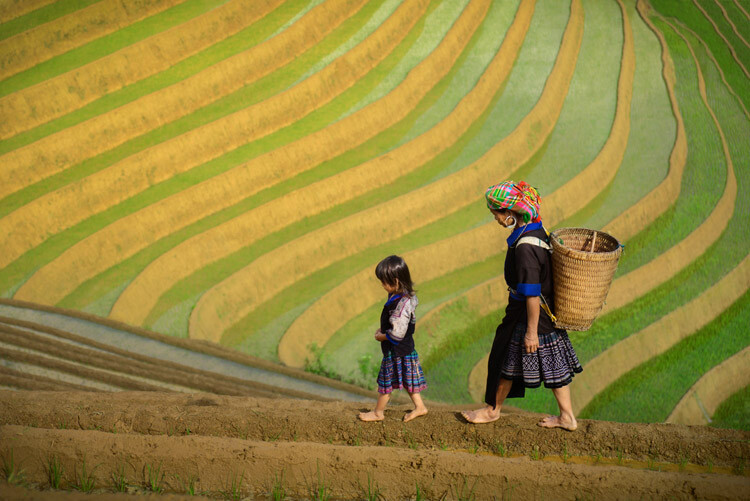
Putting the Fine Art into Travel Photography - Vietnam rice terraces

Flower H’mong mother and daughter walking a rice terrace berm in Mu Cang Chai, northern Vietnam. Exposure settings: f/4, 1/2000th, ISO 400, 70mm lens.

fishermen resting on Boats - Putting the Fine Art into Travel Photography

Fishermen resting. Shot from a bridge near Lang Co Bay. Exposure settings: f/8, 1/320th, ISO 800, 56mm lens.

The Fine Art of Travel Photography – People and Landscapes

Fine art photography, at least the way I see it, is about focusing on a specific style or look that reoccurs in every image with a goal to create aesthetically pleasing and engaging work.

Fine art travel photography implies that each travel-themed photo is of a very high artistic standard with consistent consideration to an effective composition, use of tonal range (lights and darks), and a balanced or focused color scheme throughout the photo.

Personally, I use natural light, and again, approach a photo to be a work of art. The goal is to create a visually striking image that looks similar to what a painter might have created, while still also looking completely like a photograph.

Fishermen in Halong Bay - Putting the Fine Art into Travel Photography

Fishing amidst the thousands of karst limestone formations of fabled Ha Long Bay. Exposure settings: f/9, 1/200th, ISO 800, 35mm lens.

Fishermen Ballet - Putting the Fine Art into Travel Photography

Four fishermen raise their nets on the Perfume River in Hue, central coastal Vietnam. Exposure settings: f/11, 1/160th, ISO 800, 30mm lens.

Showcase the people and culture

I aim to do this while still faithfully representing a country’s culture, with the goal to accurately, if ideally, portray the personality and lives of the people within the photos. I have always been most interested in the artistic side of travel photography, and less so in the traditional or documentary approach.

That said, I can see myself taking on more singularly focused projects in the future, where I can apply my artistic sense to the challenges of documentary storytelling within the travel space.

Vietnamese Monk - Putting the Fine Art into Travel Photography

A Khmer-Vietnamese monk daydreams at his monastery window in the Meklong Delta region. Exposure settings: f/4, 1/125th, ISO 640, 40mm lens.

Set your intention of making art

Although it may seem obvious, I think it’s critically important when adopting the fine art style to have the intention of making art throughout the process – from preparation to post-production. I take this mindset into the field and shoot a variety of subjects in various ways.

Portraiture is my first love, but I also enjoy landscape, wildlife, and cultural documentary photography. The purpose is to showcase scenes of life and culture for others to observe and enjoy. And of course I enjoy it as well, or I wouldn’t be doing it!

Playing in the River - Putting the Fine Art into Travel Photography

Ladies from the Cham ethnic group in Phan Rang having their own water festival. Exposure settings: f/36, 1/15th, ISO 400, 90mm lens.

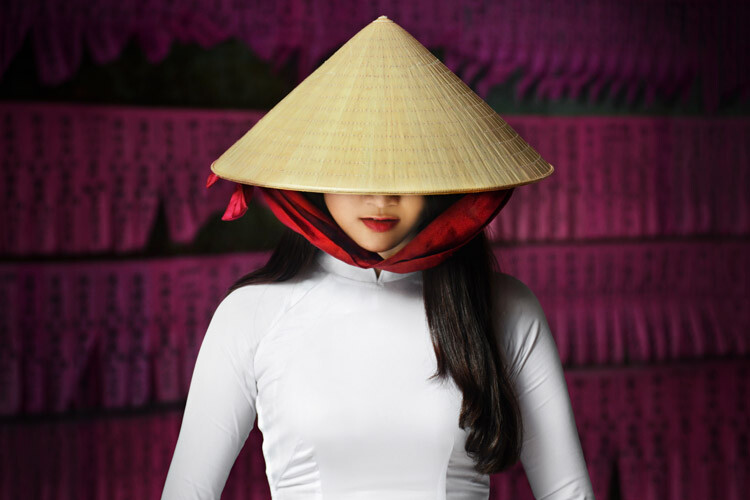
Lady in Conical Hat - Putting the Fine Art into Travel Photography

Vietnamese lady wearing the traditional white “Ao Dai” and Non La (conical hat), Saigon. Exposure settings: f/4, 1/125th, ISO 640, 70mm lens.

Have a vision and shoot with a purpose

In each work, I try to have a vision and understand what the photo will be about and how it will look in my mind before I take it. There is nothing in the frame that shouldn’t be there – everything included serves a purpose.

I also like to look for patterns in the scenes and feature these in the composition. Careful composition allows for clean backgrounds, no unnecessary distractions from the subject, and a clear focal point that is immediately identifiable against a complementary background that helps to tell the story or set the mood for the piece.

Below is some insight into how I approached photographing some of my favorite Vietnam images taken over the last few years.

Forever in Love

Forever in Love - Putting the Fine Art into Travel Photography

“Forever in Love” – A loving couple in Hoi An share a moment of joy and happiness together in their garden as the sun sets. At the time of photography, they had been married for 66 years. Exposure settings: f/7.1, 1/200th, ISO 500, 50mm lens.

I met a fellow travel photographer who now resides in Vietnam, Réhahn Croquevielle, and he generously invited to show me around his hometown of Hoi An. I was lucky to meet a lovely old couple who live in his village. When I met them they were smiling widely and happy be photographed by us.

To take this photo, I first observed the direction of light. Then I made sure to position them in front of the setting sunlight so their faces would be bright and the details on their skin well exposed.

I also had to consider the background and overall scene, and I found an area near one of their vegetable patches which was clean (consistent colors and even patterns without clutter) while also providing context and a backstory for the couple. So I asked them to sit there. They found this all very funny and were laughing constantly as we kept the mood light and fun, which I think is important to help make subjects enjoy a portrait session.

Interesting subject matter is the most important element to a successful photograph, in my opinion, followed by good composition and lighting. But a background that complements and doesn’t distract from the focal point is also crucial for a powerful photograph, and perhaps too often overlooked.

Playing in a Sea of Fishing Nets

Playing in a Sea of Fishing Nets - Playing in a Sea of Fishing Nets

A happy boy playing in a blue sea of fishing nets in the Mekong Delta region of southern Vietnam. Exposure settings: f/8, 1/250th, ISO 500, 24mm lens.

I was in search of a workshop where fishing nets are made by hand in the Mekong Delta region of Vietnam. When I arrived, I noticed a boy and his friends were curious about my presence and wanted to meet me and help out if they could. They led me to the net weaving shop, which was a large open-ended structure with a corrugated tin roof.

Inside were seated ladies spread about busily creating these nets. I was immediately struck by the blue color and knew it would be very photogenic, but it was important to get the right light to make them come to life. I noticed all the ladies were in shaded, darker areas where the light wasn’t strong enough. There was an area that was close to an opening in the rooftop, under a natural skylight. I saw that the light was good there, but without a human subject the photo wouldn’t be so interesting.

Since I had created a rapport with the boy and his friends and they were still hanging around, I encouraged them to play in the fishing nets. Demonstrating myself, I ran and jumped into the nets, making everyone laugh, and the kids started to do the same themselves. I captured this photo knowing that the frame had to be filled with the blue fishing nets to bring attention to the boy. It’s his genuine smile and action that makes this photo all the more interesting and enjoyable to view.

Patterns on the Streets of Hanoi

Patterns on the Streets of Hanoi - Putting the Fine Art into Travel Photography

A busy street scene in Hanoi photographed from a bridge on a rainy morning. Exposure settings: f/14, 1/40th, ISO 1250, 35mm lens.

It was raining one morning that I was to be exploring the city of Hanoi, which could have been considered a problem for photography. I went to the Long Bien Bridge after visiting a nearby market and observed the traffic passing by underneath me. I saw the potential for a really interesting pattern of cyclists with the high volume of motorbike traffic and the occasional bicycle. The rain had stopped, but the wet roads were creating reflections which would ultimately be beneficial and make for more dynamic lighting in the picture.

I waited a long time and photographed many combinations and patterns of commuters. I felt it was important to have an interesting focal point that was different from the rest of the scene. That was either going to be a person walking across the road or riding a bicycle amongst the sea of cars and other traffic.

I decided to use a slightly slower shutter speed to blur the traffic and capture the human subject sharper than the surroundings. It took a lot of patience and time on the bridge to finally capture an interesting pattern. It was fun to find the art in simple, everyday life.

Old Man with a Lute

Old Man with Lute - Putting the Fine Art into Travel Photography

Exposure settings: f/4, 1/160th, ISO 1000, 70mm lens.

I met this old man in the small idyllic village of Ninh Binh where he was walking by a lake. When he learned that I would like to make his portrait, he invited me into his home close by. We drank some tea and I spent some time together with his family.

Before I photograph someone, I always look around the scene and try to find the right place where I will take their picture, depending on the lighting and the background. I noticed near a window there was strong natural light coming into his otherwise dark home, and I placed a chair in this spot for him to sit. There was enough light on the man to not require a tripod in this position.

I noticed an old lute hanging on the wall. I found out that it was his and he could play, so I asked if he could show me. As he played, I took some pictures, but I noticed that the light would be stronger on his face, which is the main focal point if he were looking out the window. The breeze from the window blew his beard gently to one side, creating some movement in this portrait of an interesting, old and very friendly Vietnamese man who I was privileged to meet and photograph.

Here are a few more example images of my fine art travel photography.

Fisherman at Sunrise

Girl with Blue Eyes

Lady with Fan

Mekong Breakfast

Running and Playing

Salt Harvesters


The post Putting the Fine Art into Travel Photography by David Lazar appeared first on Digital Photography School.


Digital Photography School

 
Comments Off on Putting the Fine Art into Travel Photography

Posted in Photography


How to Take the Pain Out and Put Personality Into Assembly-Line Photos

04 Dec

Taking the Pain Out and Putting the Personality Into Assembly-Line Photos

Assembly-line photos are a whirlwind of craziness and fun. These can include school dance photos, team sports, drill team, preschool, business headshots, and anything else that involves a whole lot of people that you have to photograph the same way in a short period of time.

These sessions can be a nightmare if you aren’t prepared, and can be boring if you aren’t creative. I’m going to share some of my secrets for making these sessions some of your favorites and delivering photos that will please moms, coaches, teachers, and kids alike.

Taking the Pain Out and Putting the Personality Into Assembly-Line Photos

1. Make a List

Before the day of your big assembly-line session, write out a list of exactly what you need to capture that day. Do not deviate from this list, especially if you have a large group. If you are working with teens especially, you’ll get requests for “just one more” picture, or requests to see what they look like in their photo. You might get requests to take photos not on your list, like best friends, or for a clothing change. If you want to keep your sanity, you have to smile, express how sorry you are, but give them a firm, “No”.

Taking the Pain Out and Putting the Personality Into Assembly-Line Photos

My lists might look something like the following. You can use this list as a starting point, and adapt it to your needs.

PRESCHOOL FALL

  • Close-up face, horizontal
  • Reading a book, vertical
  • Holding an apple, vertical
  • Entire class – with teachers and without

PRESCHOOL SPRING

  • Close-up face, horizontal
  • Name o a chalkboard, vertical
  • Graduation gown, vertical
  • Entire class with teachers and without

Taking the Pain Out and Putting the Personality Into Assembly-Line Photos

PROM

  • Individual couples; up close, full length, something fun (they choose)
  • Group photos; smiles, serious, silly
  • All girls together, all boys together

Taking the Pain Out and Putting the Personality Into Assembly-Line Photos

SWIM TEAM

  • An individual photo in team jacket on the “blocks”
  • Entire team smiling, hugging, serious, silly
  • Each class (seniors, juniors, etc.) smiling, silly
  • All girls together, all boys together
  • Coaches together and individually
  • Individual fun photo (off the diving board, in pool, they choose ONE)

Taking the Pain Out and Putting the Personality Into Assembly-Line Photos

DRILL TEAM

  • Individual horizontal, vertical, and something fun (they choose)
  • Shots of “big sister” and “little sister” together
  • Entire team smiling, hugging, “model pose” with coaches and without
  • Each class (seniors, juniors, etc.) smiling, one more their choice

Taking the Pain Out and Putting the Personality Into Assembly-Line Photos

2. Stay Professional and Organized

Let everyone know right at the beginning how things will go, and keep everyone moving through quickly. It’s always good to have an assistant helping you line everyone up, and get the next in line prepared before they get in front of your camera. I usually use one of the coaches or teachers to help guide their kids, but you could bring a friend along too.

Taking the Pain Out and Putting the Personality Into Assembly-Line Photos

Things can become chaotic quickly, especially with kids and teens. Be firm, decisive, and even a little bit loud if necessary. Let everyone know what is coming up next, and have them line up and wait for their turn so you aren’t trying to gather people every time you need to do the next photo.

If there’s something they need to decide (like what their class “silly” pose will be) warn them ahead of time, so they have time to prepare and think of something before it’s their turn.

Taking the Pain Out and Putting the Personality Into Assembly-Line Photos

3. Give them a Chance to Show their Personality

Whether I am photographing the entire class, a team, a group together, or photographing each individual, I like to give them a chance to show a little bit of who they are.

If it’s a younger group, like preschool, the teacher and I collaborate to have something fun for at least one of the photos. We’ve done holding apples, writing their name on a chalkboard, graduation caps and gowns, reading a cute children’s book, sitting on a stack of books, etc.

Taking the Pain Out and Putting the Personality Into Assembly-Line Photos

For organized team photos, I let them know that after we do all of the basic photos, I will let them each do one fun photo. For example, for the swim team, I give them two location options, either jumping off the diving board or in the water at the end of the pool.

Everyone who wants the diving board option lines up there, and everyone who wants in the pool lines up at that location. I don’t let them do both because if you start that, they all want to do both, and there’s just no time for it. Once they are at their location I let them do whatever they’d like to do, but they only have one chance, and only a few seconds to set it up.

Taking the Pain Out and Putting the Personality Into Assembly-Line Photos

When school dance couples start to arrive, I let them know that they will be doing one “fun” pose together, and to start thinking of what to do. Many of them are “regulars”, and know that’s what I’ll be doing, so they come ready with ideas. If they can’t think of something, I give them a few ideas. They might go back-to-back, or make serious faces. Maybe one wants to pick the other one up. They could dance together, or make silly faces.

When I do the group silly pose, I don’t give them time to plan. There are too many kids, and they’d be there all day trying to agree on something. Instead, I take the regular smiling photo first, then a serious face photo, then I say, okay, on the count of three, something crazy! Then, I count to three as they hurry and do their thing, and then I snap about 10 photos or so and choose the best one later.

Taking the Pain Out and Putting the Personality Into Assembly-Line Photos

4. Relax and Have Fun

It’s easy to forget to breathe, let alone remember to have fun when you are photographing 60 kids at the same time. However, it’s important that you don’t get too robotic with your assembly-line photos. If you can have a little bit of fun interaction with each person, you’ll get much better photos.

Help them relax, and you’ll get some genuine smiles that will be much better than those old school photos we used to get, where half of the time you were mid-blink, looking away, or not smiling. Assembly-line photos are a great way to get to know a whole bunch of wonderful people at once. Smile at them, and forget about the cheese.

Taking the Pain Out and Putting the Personality Into Assembly-Line Photos

The post How to Take the Pain Out and Put Personality Into Assembly-Line Photos by Melinda Smith appeared first on Digital Photography School.


Digital Photography School

 
Comments Off on How to Take the Pain Out and Put Personality Into Assembly-Line Photos

Posted in Photography