RSS
 

Posts Tagged ‘Images’

Researchers use AI to brighten ultra-low light images without adding noise

15 May

Researchers with the University of Illinois Urbana–Champaign and Intel have developed a deep neural network that brightens ultra-low light images without adding noise and other artifacts. The network was trained using 5,094 raw short-exposure low-light and long-exposure image pairs—the end result is a system that automatically brightens images at a much higher quality than traditional processing options.

The deep learning system was detailed in a newly published study that points out the limitations of alternative “denoising, deblurring, and enhancement techniques” on what the team calls “extreme conditions,” such as low-light images that are too dark to discern without processing.

Using traditional methods to process these images often results in high levels of noise that isn’t present when using the machine learning technique:

The team used images captured with a Fujifilm X-T2 and Sony a7S II, and also demonstrated the system on photos taken with an iPhone X and Google Pixel 2 smartphone. High-resolution comparison images are available here, and a PDF of the full study can be found here.

This is the latest example of machine learning ‘AI’ being used to automatically enhance images—ideally speeding up post-processing tasks while reducing the user’s workload. Last year, for example, a system called Deep Image Prior was demonstrated using an image’s existing elements to intelligently repair damage, and Adobe and NVIDIA are both working on AI-powered Content Aware Fill.

Articles: Digital Photography Review (dpreview.com)

 
Comments Off on Researchers use AI to brighten ultra-low light images without adding noise

Posted in Uncategorized


Behind the scenes of Himalaya Bound: Images of nomads in north India

24 Apr
17-year-old Mariam leads her family’s caravan through the foothills of the Himalayas, while carrying her 2-year-old niece in the blue plaid shawl over her shoulders.

The forests and mountains of north India are home to a unique nomadic tribe whose world revolves around caring for the water buffaloes that they herd. During the fall and winter months, the Van Gujjars dwell in the lowland jungles of the Shivalik Hills, where thick foliage provides plenty of fodder for their animals at that time of year. But by mid-April, as temperatures there soar above 110 degrees, the leaves and grasses wither and die and creeks and streams run dry. With nothing left for their buffaloes to eat or drink, the Van Gujjars must move elsewhere.

Entire families, from infants to the elderly, trek with their herds up into the Himalayas, where melting snows reveal lush alpine meadows laced by gurgling streams, which provide abundant grass and water throughout the summer. When the cold sets in at the end of September, they head back down to the Shivaliks, where the jungle has sprung back to life following the monsoon rains. The tribe has followed this cycle of seasonal migration—up in summer, down in winter, perpetually living in the wilderness and shunning settled village life—for over 1,500 years.

My most recent book, Himalaya Bound: One Family’s Quest to Save Their Animals – And an Ancient Way of Life, which was published by Pegasus Books earlier this year, follows one extended Van Gujjar family on their spring migration into the mountains. In this article, I’ll delve into the story behind the images that are featured in the book’s photo insert, which is sandwiched between 230 pages of text.

Who Am I?

I’m a freelance photographer and writer for magazines and newspapers, including The New York Times. I’m also the author of three books.

I often find myself drawn to stories about nomadic communities around the world—for my first book, Men Of Salt: Crossing the Sahara on the Caravan of White Gold, I traveled 1,000 miles over age-old trade routes north of Timbuktu with one of the last working camel caravans on Earth. I’ve spent time with nomadic / transhumant people in Africa, the Middle East, a number of states in India, as well as Mongolia and the Southwestern U.S.

Before taking on the project that became Himalaya Bound, I had dreamed of migrating with a tribe—partly to document what is becoming an increasingly rare way of life, and partly because I imagined it would be an amazing thing to experience.

The Van Gujjars’ livelihoods are based almost entirely on the sale of buffalo milk

Planning

No, I did not fly over to India, wander into the jungle, and start randomly knocking on huts asking Van Gujjars if I could migrate with them. As the idea for this project began to crystallize in my mind, it seemed wise to investigate how realistic it was to pursue before channeling too much time, money, and energy in its direction.

My first step was emailing the director of the Society for the Preservation of Himalayan Indigenous Activities (SOPHIA)—a small non-profit organization based in Dehradun, India, that advocates for the tribe—asking if he thought it would be possible for me to travel with a nomadic family and document their migration from beginning to end. He replied that he would check in with a few Van Gujjars to see if they were open to the idea. As it turned out, they were; since they were being pressured by the government to abandon their way of life against their will, they thought it might be helpful if someone would share their story with the rest of the world. SOPHIA also connected me with a translator who was willing to join me for most of the journey.

Gear

My choice of camera gear was determined by three factors: weight, budget, and year. The year was 2009 and I had to watch what I spent. But my main consideration was the fact that I was embarking on an assignment during which I would be trekking for over a month, from the lowlands into the Himalayas, while hauling everything I needed on my back—including a sleeping bag, clothing appropriate for temperatures ranging from over 110 degrees to below freezing, a first aid kit, and more. Thus, my goal was to make the most out of as little camera gear as I could carry and still get satisfying images.

I ended up taking a Nikon D90 (remember the year) with a few Nikon lenses: an 18-70mm zoom, plus 50mm F1.4 and 35mm F1.8 primes. I kept my old Nikon D70 in the bottom of my bag as a backup in case the D90 failed (it never did), and I brought along a low-quality but very lightweight tripod. Knowing that I might spend days or weeks without an electrical outlet, I also carried a bunch of batteries.

The prime lenses proved to be crucial: many days, we hit the trail by 3am, aiming to arrive at our next camp as early in the morning as possible. This meant that my best shooting opportunities on the trail were often during the liminal hours in weak light around the break of dawn. With the caravan marching forward, I had to get shutter speeds fast enough to stop motion, and the only way to do that was with wide apertures—often shooting at F2. Carrying my fully loaded backpack, I would run ahead of the family, pause, turn, shoot, and repeat, as they quickly caught up to me.

Hamju carries his nephew, Karim
Goku carries her brother, Yasin, while following the Yamuna River into the Himalayas.

Getting the Images

The most important element in the series of images I returned with was the time I spent deep in the Van Gujjars’ world. I lived with them for forty-four days: walking with them, herding buffaloes with them, swimming in rivers with them, joking around with them, helping with daily chores, and sleeping under their tents. I formed real relationships with my companions, which I think accounts for how natural they appear and how clearly their personalities are communicated through the images.

I never set up shots or posed anyone—I either snapped away while they were doing whatever they happened to be doing or, for true portraits, they presented themselves however they liked.

The heads of four Van Gujjar families discuss their strategy for moving higher into the Himalayas, after the government has threatened to ban them from their ancestral alpine meadows, where they have gone each summer for generations, because those meadows are now within a national park. They scrambled to find a different place to spend the summer.
Jamila cooks lunch on the trail, with her 2-year-old son Yasin on her lap.
Mustooq and his little cousins, Bashi and Salma, asked for their picture to be taken.
Dhumman, the father of the family I traveled with, wanted a photo with his favorite buffalo.

Of course, the time I spent immersed with the tribe also allowed me to witness—and shoot—the scenarios that were essential to telling their story, as they happened.

One part of the Van Gujjars’ culture that I needed to capture was the deeply personal connection that they have with their water buffaloes. They think of their large horned animals as family members, and readily sacrifice their own comfort for their herds. If a buffalo falls ill, Van Gujjars become wracked with concern; if one dies, they mourn for it as though it were human. They never eat their buffaloes nor sell them for slaughter, using them only for the milk that they produce. (Though they are Muslim, Van Gujjars are also traditionally vegetarian, averse to the idea of killing animals.)

In order to get photos that convey this relationship in a way that was organic and authentic and not staged, I had to be there during those moments when that kind of closeness was demonstrated, and my companions had to be comfortable enough with me around so the fact that a foreigner with a camera was taking pictures didn’t alter the moment for them.

Goku pets one of her family’s buffaloes, at about 10,500’ above sea level.
Sharafat dries off after a swim in the Yamuna River, trusting a buffalo enough to use it as a lounge chair.
Karim gets his milk straight from the source.
Bashi watches the herd at a camp in the mountains.

In the course of documenting the migration, unexpected issues arose. While covering the human rights aspect of the story, I learned that the government was threatening to ban a number of Van Gujjar families—including the one that I was traveling with—from their ancestral alpine meadows, where they had spent summers for many generations. Those meadows had been absorbed into a national park, and park authorities didn’t want the nomads using them any longer. The Forest Department announced that any Van Gujjars who entered the park would be arrested and have their herds seized—while refusing to offer them any alternative pastures.

This left these families deeply shaken, facing dire circumstances, because they had no idea where they would take their buffaloes for the season. Hence, when the father of the family I was with joined about 80 of his fellow tribespeople at Forest Department headquarters in Dehradun (about two hours by bus from where we were camped) to plead with park officials to let them go to their traditional pastures, I went to take pictures.

Though I did nothing more than photograph what was a very peaceful scene, the park director had me arrested for being a “foreign political agitator,” and when I objected I was forced into a police car at gunpoint. Fortunately, no one thought to demand my memory cards, and the captain at the police station released me relatively quickly, realizing that the charge was absurd. What could have been a nightmare turned into a gift: by the time I rejoined the Van Gujjars that night, word about the incident had spread among the tribe, so even people I hadn’t yet met trusted me by my reputation, knowing that I had been pushed around by the same person who was pushing them around.

Weeks later, another episode posed a photographic dilemma for me. While camped at about 10,000 feet above sea level, a cataclysmic Himalayan storm struck, during which a tree washed over a cliff and landed on several young buffaloes, crushing one’s front left leg. A broken bone stuck out of the yearling’s flesh and the hoof below it flopped around like it was attached by a rubber band. It was bad, really bad, and because of how close they feel to their animals, everyone in the family was devastated—even the men were weeping.

Watching this unfold, part of me was aching to take pictures of this scene. But another part of me felt that in this moment of raw anguish, it could be the wrong thing to do: that the snapping of a shutter could create a self-consciousness that would inhibit my companions’ experience and their expressions of suffering and vulnerability.

Bashi comforts the yearling with the broken leg

I vividly remember a photograph that once appeared on the front page of a major American newspaper, probably twenty years ago or so: it was taken at a funeral, I believe in England, after some horrible tragedy. I don’t recall the specific circumstances—what stood out to me was that one of the graveside mourners depicted in the image was looking at the camera dead-on, and using her fully extended middle finger either to wipe a tear, or to convey a not-so-subtle message to the photographer. It was hard not to imagine it was the latter.

I think it matters how taking someone’s picture makes them feel, and I try to weigh how important it is to get any one image if the taking of that image might be hurtful or disrespectful in some way. There are an array of factors to consider in what can be a split-second decision, but I do think it’s worth questioning how many photos the world needs of grieving people in tears. Surely we need some, but how often do those photos serve a larger purpose—such as provoking outcry against genocide or bringing aid to famine victims or filling in a crucial piece of an important story—and how often might those images be, say, a photojournalistic cliché?

In the particular dilemma that I faced, I decided the world’s need for photos of this family in their moment of distress was outweighed by what I perceived to be the family’s need to freely express their feelings without a camera clicking around them. I felt as though shooting right then would have been greedy—as though I would have been willing to make people I cared about feel uncomfortable so I could return with a photo of their suffering. I kept my lens cap on until a semblance of composure returned, hoping that perhaps there is some kind of photographer’s karma, which would reward me with even better shooting opportunities for letting this one pass by.

I don’t claim any moral high ground for making that choice. It was simply the right choice for me, in that moment. I’ve talked to a number of photographers who adamantly disagree with my decision, and I understand and respect their opinions even if I don’t share them. Of course, since I’m a writer as well as a photographer, I knew that I could always write about the scene later, creating a deeply moving image with words, thus telling the story without disturbing the moment as it was happening. And a couple of days later, I felt like I did receive a bit of the photographic-karmic reward I’d hoped for.

The family decided to save the yearling, splinting its leg and carrying it up and over a 3000-foot-tall Himalayan pass to the meadow where they would spend the summer.
This was one of the most incredible things I’ve ever seen. And they did it not because the animal was worth much money, but because they love their buffaloes and would never leave one behind if there was any chance of saving it.

After the Migration

I’ve been back to visit the family I traveled with a few times over the years since the migration. Once, I was lucky enough to catch them on their way back down from the Himalayas, and was able to join them for a few days on the road.

Though I had given them many prints of the pictures I took, it wasn’t until 2016 that any Van Gujjars got a real taste of what I was doing with this story. That year, a set of my photos from the migration was exhibited in New Delhi at the Indira Gandhi National Centre for the Arts, and I gave a slide show at the opening. A few people from the tribe had been invited to attend, and though none of my companions were able to come, some of their cousins did.

The presentation was translated into Hindi as I gave it, and afterwards one of the Van Gujjars asked for the microphone and told the audience, “This is our life!” saying he was very happy that their story was being told. It was the most satisfying form of validation that my work on this project could have received.


Michael Benanav writes and shoots for The New York Times, Sierra, Geographical, The Christian Science Monitor Magazine, Lonely Planet, and other publications. His photographs have been used by international non-profit organizations and featured in National Geographic Books, on CBS’ 60 Minutes, at Lincoln Center in New York, and in exhibition at the Indira Gandhi National Center for the Arts in New Delhi.

To see more of his work, visit www.michaelbenanav.com. To see more about his new book, Himalaya Bound: One Family’s Quest to Save Their Animals – And an Ancient Way of Life, visit www.himalayabound.com.

Articles: Digital Photography Review (dpreview.com)

 
Comments Off on Behind the scenes of Himalaya Bound: Images of nomads in north India

Posted in Uncategorized


Demo: How to edit professional beauty images with GIMP on Linux

24 Apr

Though Photoshop remains the most recognizable image editing application out there, open-source alternative GIMP is still around, still free, and still receiving updates. In this video tutorial, photographer Shane Milton spends around 25 minutes demonstrating how to use the software to apply a pro-level beauty edit to an agency’s model image.

If you want to go fully open source for your photo editing, Milton is a great resource. His YouTube library offers numerous other videos on GIMP and free Lightroom alternative Darktable. In this particular video, Milton uses a Wacom Intuos Pro Small tablet with GIMP 2.9 running on Linux. He previously demonstrated optimizations that users could make to this version of GIMP, as well as setting up the Wacom tablet for use with Linux.

GIMP can be downloaded at this link for Windows, macOS, Linux, BSD, and Solaris.

Articles: Digital Photography Review (dpreview.com)

 
Comments Off on Demo: How to edit professional beauty images with GIMP on Linux

Posted in Uncategorized


How to Easily Watermark Your Images Using Lightroom

17 Apr

In this article, I’m going to show you just how easy it is to watermark your images using Lightroom.

With photography, it’s the simple things which often become the most important. Simple moments like the sun shining through that perfect wisp of cloud and plain objects shot with elementary techniques. Perhaps one of the simplest, and yet at the same time most important, additions you can make to your work is helping to protect it from unwanted uses while at the same time making sure people know who made your wonderful image.

How to Add Watermarks to Your Images Using Lightroom

Watermarks and logos (we’ll just use the term “watermark” for this article) help to keep your images from being used without your permission. Of course, nothing is bulletproof in the digital age but adding a watermark to your photos is one of the easiest ways you can impart a little security to your images before you send them out into the world.

Watermarks in Lightroom

Watermarks can be added to your images during the exportation process, but the watermarks you make and store in Lightroom are available anytime.

To access the watermark creation section dialog at any time in Lightroom, from your top menu bar go to Edit > Edit Watermarks (note: on Mac you need to go to Lightroom > Edit Watermarks).

How to Add Watermarks to Your Images Using Lightroom

Once in the watermark creation dialog, you have quite a few options for constructing your watermarks. The two main choices will be whether to create a text watermark or to import a graphic from somewhere else on our computer.

I’ll begin by showing you how to make a simple text watermark (which I use) and then move onto importing a graphic.

How to Create a Text Watermark

Making a text-based watermark right in Lightroom is extraordinarily easy. Essentially, all you need to do is type in the box provided and place the watermark where you want it to appear on your image.

For our example, let’s type in a simple watermark. Make sure the “Text” option is selected as the Watermark Style at the top right of the window.

How to Add Watermarks to Your Images Using Lightroom

Next, choose what font, color, style, and orientation you would like to use for the text. The orientation is less of an issue because you will be moving the watermark yourself later.

How to Add Watermarks to Your Images Using Lightroom

To shadow or not to shadow? This is just a drop-shadow to make the text appear more three-dimensional and I usually leave this option unchecked. If you choose to add a shadow, there will be some basic positioning and opacity options for you to adjust to suit your tastes.

How to Add Watermarks to Your Images Using Lightroom

Add a drop-shadow here.

Set the size

Now you will need to decide what size to make the watermark relative to your photo. Generally, keeping the watermark sized proportionately is best but you can also choose to “Fit” or “Fill” the text to the photo. Usually, the “Fill” option will be seldom used as it obnoxiously enlarges the watermark.

How to Add Watermarks to Your Images Using Lightroom

The Fill option is a bit too in your face.

Position the watermark

The “Inset” sliders control how far inside the frame the watermark will be positioned. I’ve found this is best left until the end so we’ll adjust this later.

How to Add Watermarks to Your Images Using Lightroom

The final set of options in the watermark dialog is the anchor point selection.

set the anchor points - How to Add Watermarks to Your Images Using Lightroom

Picture that center dot as being the middle of your photo. You can choose whichever location you prefer but I like to position my watermarks in the bottom right corner and also vertically orient them. Use the arrows to rotate your watermark.

How to Add Watermarks to Your Images Using Lightroom

Watermark rotated and placed in the lower right corner.

Before you save your new watermark, I want you to adjust the inset just a tad vertically to move it back from the edge of the image. This is where those inset sliders from earlier come into play.

Now is the time to make some final tweaks to the size and opacity of the watermark once it is fully positioned.

How to Add Watermarks to Your Images Using Lightroom

To save this for use later (more on this shortly) simply click “Save” and give your freshly-minted watermark a name.

How to Add Watermarks to Your Images Using Lightroom

How to Create a Graphic Watermark

You might not believe it, but using your own graphical watermark is just as easy as making its textual counterpart. To start, simply select the “Graphic” option at the top of the watermark dialog box.

How to Add Watermarks to Your Images Using Lightroom

Next, click “Choose…” and find the graphic you want to use on your computer. Keep in mind it will need to be either in a JPG or PNG file format.

For this tutorial, I made a quick 3D watermark in Photoshop. Once you’ve selected the file you want to use, Lightroom will do the rest. This is my graphic before it was nested into the image.

How to Add Watermarks to Your Images Using Lightroom - 3d graphic

And here it is after it has been placed and positioned. The text left in the box will have no effect since the Graphic Watermark option is selected.

How to Add Watermarks to Your Images Using Lightroom

From here you have many of the same options for opacity, positioning, and sizing as you did for the text watermark. Saving the graphic watermark is done exactly the same way as you saved the text watermark as well.

How to Apply Your Watermark During Export

Now that you know how to create and save your watermarks in Lightroom, it’s time to stick them onto your images during export which is also super easy.

Open the Export dialog box by choosing File > Export. Near the very bottom of the dialog box in the right-hand box, you’ll see the Watermarking drop-down menu.

Select the watermark you would like to apply. In this case, add the graphical watermark you saved earlier.

How to Add Watermarks to Your Images Using Lightroom

Click export and your image will be exported with your watermark lovingly placed!

Final Thoughts on Making Watermarks in Lightroom

Watermarks are a great way to sign and protect your photographs. While there are no real rules for applying your watermarks, I would urge you to adhere to the “less is more” mentality. Do not plaster your watermark obtrusively over your images like most of the samples in this tutorial, which were done for demonstration purposes only.

Make your photo the center of attention with your watermark as more of an afterthought. That being said, feel free to experiment with your own creative watermarks. As you’ve just seen, they are incredibly easy to apply in Lightroom.

The post How to Easily Watermark Your Images Using Lightroom appeared first on Digital Photography School.


Digital Photography School

 
Comments Off on How to Easily Watermark Your Images Using Lightroom

Posted in Photography


How Slow Photography Can Help You Improve Your Images

06 Apr

So often we are caught up in hectic schedules and checking completed items off our to-do lists that we don’t make time to truly enjoy our photographic experience. I believe slow photography can be a fabulously enjoyable, and even therapeutic experience, especially when you give yourself time to indulge.

Woman making giant soap bubbles in a park. - How Slow Photography Can Help You Improve Your Images

When you have a camera in hand you can set your mind and emotions free from the troubles of the day and step into another world, one of inspiration and creative expression. But you must be mindful and make time for yourself to achieve this.

Man with his tricycle taxi in Chiang Mai, Thailand - How Slow Photography Can Help You Improve Your Images

Being Patient

Patience is a virtue and should not be exclusive to bird and wildlife photographers. Maybe these genres require somewhat more patience, but street photography, sports, landscape and most other kinds of photography require you to slow down and take time to obtain the best possible images from most situations.

Some of the very best street photography is not brought about by spontaneity alone, but by careful planning, anticipation and patience. Finding a great location on the streets is one thing, but often you’ll have to wait for the best light and the most interesting action to present itself in your chosen location to capture the most impressive photographs.

Street with activity in Muang Mai Market, Chiang Mai, Thailand. - How Slow Photography Can Help You Improve Your Images

Even the best sports photographers take time with their photography. The time they invest may be in studying the game more or getting to know the players and coaches of the teams they photograph the most.

Doing this will give them the knowledge and relationships which will enable them ultimately to capture more dynamic pictures in the spur of the moment. They will more easily anticipate the flow of the game than someone who’s inexperienced and knows little or nothing of the character of the team.

Thai man working as a porter at the fresh market in Chiang Mai - How Slow Photography Can Help You Improve Your Images

Observe

Taking time to observe the environment in which you are photographing will help include more sense of feeling into your photos. Rather than rushing in to get some photos as soon as you arrive at your location, leave your camera in its bag or case and just observe what’s there and what’s happening.

Use your other senses too, not just your eyes. Listen, feel, smell and even taste (when it’s appropriate) to become more aware of the environment where you want to take photos.

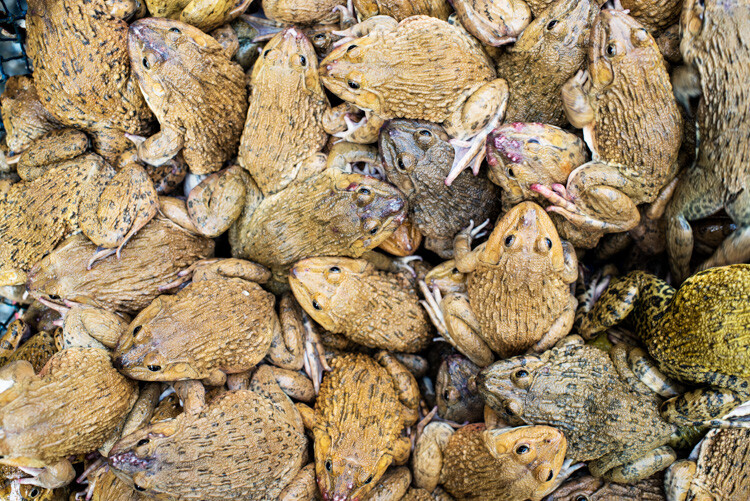
Lots of frogs - Slow Down and Take Your Time – Don’t Rush Your Photography

Give yourself space to slow down, to take a step back and observe what’s going around you. You will often discover interesting and photogenic subjects that you may not notice if you move in too quickly and start taking photos immediately.

Incorporate Photography into Your Schedule

Take your camera with you wherever you go. To work, school or university, when you exercise, when you go shopping, and when you walk the dog. By doing so you will learn to see your regular environment in different ways.

Thai woman outdoors - Slow Down and Take Your Time – Don’t Rush Your Photography

Making time to use your camera each day is one of the best ways to improve your skill and technique and to develop your own unique style. Giving yourself time within the regular context of your day might seem hard or a little strange at first. But as you commit yourself to doing this you can begin to find ways you hadn’t thought of to make interesting photos.

Think outside the box as you go about your regular routine. Make the ordinary things in your life look extraordinary in pictures.

Thai woman selling mangos at the fresh market in Chiang Mai - Slow Down and Take Your Time – Don’t Rush Your Photography

Revisit Locations and Subjects

Visiting the same locations multiple times and photographing the same subjects more than once is often worth taking the time to do. If you go someplace just once you will never really know if you’ve gotten the best photos possible.

Reviewing the images from your first or subsequent visits to a location will help you build a more critical eye. Then when you return to that place and subject you will have a more experienced perspective than at first go around.

Female butcher are a Chiang Mai market - Slow Down and Take Your Time – Don’t Rush Your Photography

By making time to do this you will most likely enjoy the experience more and produce better photographs.

Be careful to opt for places you really enjoy and feel good about as this will help compel you to return and seek to make better photographs than you have done previously.

Kayaw girl blowing bubbles in Chiang Mai, Thailand.

In Conclusion

By allowing yourself time to slow down and enjoy using your camera you will begin to see a progressive improvement in the quality of your images. Continuing to delve into techniques you’ve not previously mastered and experimenting with new subjects will help maintain a freshness in your pictures and you will enjoy your photography time even more.

Maybe we can make slow photography the next popular craze!

The post How Slow Photography Can Help You Improve Your Images appeared first on Digital Photography School.


Digital Photography School

 
Comments Off on How Slow Photography Can Help You Improve Your Images

Posted in Photography


Avoid Blurry Long Exposure Images with Proper Tripod Setup

05 Apr

A tripod is an important piece of gear for all photographers, but even more so for those who are hooked on shooting long exposure photography at the blue hour like myself (I primarily shoot waterfront cityscapes). Those photos require exposures lasting for minutes with a use of neutral density (ND) filter. Therefore, a sturdy tripod is absolutely essential to keep photos sharp.

Avoid Long Exposure Photographers’ Worst Nightmare by Setting Your Tripod Low

A sturdy tripod is a must for long exposure photography, as there is no chance at all of shooting sharp photos by hand-holding a camera for minutes.

Get a Best Tripod Within Your Budget

This article is not your ultimate tripod buying guide (dPS already has an excellent article on that here), but let me mention a few brief pointers first.

First of all, unlike your camera body, a tripod isn’t something you will upgrade very often. In fact, a good one could last a lifetime, so it’s advisable to get the best possible tripod within your budget. Here are a few other things to look out for when choosing your tripod.

Load Capacity:

The maximum load capacity of your tripod should be at least twice or preferably three times the maximum weight of your camera body and biggest lens combined. For example, my trusty Manfrotto MT190CXPRO3 Carbon Fiber Tripod supports up to 7kg, which is more than sufficient for my Nikon D610 (850g) and Nikon 18-35mm (f/3.5-4.5) (385g) combined (1.25kg).

Tripod Head:

Your tripod head also has a maximum load capacity, and it should at least match that of your tripod. If your tripod supports up to 7kg, but the head only supports up to 5kg, then the load capacity of the entire tripod system is to be 5kg, as the maximum load comes from the weaker component. For your information, I own the SIRUI K-20X Ballhead, which supports a whopping 25kg.

Tripod Weight:

Decent tripods are commonly made of aluminum or carbon fiber. Both are equally good, but carbon fiber tripods are lighter yet more resistant to vibration (hence they are also pricier, too). My Manfrotto Carbon Fiber Tripod weighs 1.6kg (3.5 lbs.) while its aluminum counterpart the Manfrotto MT190XPRO3 weighs 2kg (4.5 lbs.), with all the other specs being pretty much identical).

Tripod Leg Sections:

While 3-section legs provide a more stable platform, tripods with 4-section legs have a shorter closed (folded up for transportation) length and make it easier to pack into a suitcase when traveling. For example, closed length for my 3-section leg Manfrotto MT190CXPRO3 Carbon Fiber Tripod is 61 cm (24 inches), but its 4-section counterpart the Manfrotto MT190CXPRO4 is only 52 cm (20.5 inches).

If you ask me, I recommend choosing nothing but 3-section tripod legs. I personally won’t compromise stability for convenience. That said, my tripod still fits into my check-in luggage (after taking out the center column). Before purchasing, I even tested it by bringing my luggage to the camera shop!

Tall Isn’t Always Cool

Having a good tripod is one thing, but using it correct way is another. I see way too many photographers fully extending tripod legs even when it’s not necessary. The rule of thumb is that the higher the tripod legs are extended, the less stable it gets, leaving more prone to high winds and undermining your chance of taking sharp photos. The photo below (at Victoria Peak in Hong Kong, with an altitude of 552m) is a good example.

Victoria peak - Avoid Long Exposure Photographers’ Worst Nightmare by Setting Your Tripod Low

To take blur-free shots here, I kept the tripod low and put the lens through the bars, rather than fully extending the tripod legs and center column to shoot from above the railing.

Instead of fully extending the tripod legs (and even the center column, which is a big NO-NO) to position the camera above the railing, I put the lens through the bars and kept the tripod as low as needed to minimize the risk of vibration.

Actually, I learned this from a previous mistake. I shot at this exact location the previous year but screwed up the opportunity by setting up the tripod too tall (over the railing by extending the center column) in high winds, and none of the photos came out sharp.

Center column - Avoid Long Exposure Photographers’ Worst Nightmare by Setting Your Tripod Low

Extending the center column in high winds or when shooting long exposure photography is a recipe for a disaster. It’s very unlikely that you’ll be able to capture sharp photos this way.

Long Exposure Photographers’ Worst Nightmare

Let’s say you’re shooting waterfront cityscapes at blue hour with a few minutes of long exposure at a tourist-centric area (places like Victoria Harbour in Hong Kong, The Bund in Shanghai, etc.) on your holiday. It may be your once-in-a-lifetime trip, and the weather is clear and perfect.

Such places are always crowded especially at sunset and dusk times with herds of tourists flocking to take snaps, selfies, and groupies. Extending all the tripod legs inevitably takes more space on the ground, which has a huge risk of someone accidentally kicking it during long exposure and ruining your potentially epic shot. This is long exposure photographers’ worst nightmare (and happened to me once).

Crowded spot - Avoid Long Exposure Photographers’ Worst Nightmare by Setting Your Tripod Low

At a crowded photography location like this (Merlion Park in Singapore), keep your tripod setup as low as possible so that it takes less space on the ground and reduces the risk of someone accidentally kicking your tripod legs.

Tripod Alternatives

To avoid such a nightmare, I’m also using a sort of a tripod alternative that helps stabilize my camera setup. A clamp tripod like the Manfrotto 035 Super Clamp without Stud comes in handy at places with high winds or at crowded city shooting locations where you feel worried about someone accidentally kicking your tripod legs.

It’s not that you can use a clamp tripod anywhere you want, as it needs a railing or something that it can be clamped onto. But where possible, this setup can be rock solid (with a load capacity of 15kg) and the resulting long exposure photos are appreciably sharper than those shot using a regular tripod.

Super clamp in use - Avoid Long Exposure Photographers’ Worst Nightmare by Setting Your Tripod Low

A Super Clamp is like a game changer, it’s small and strong.

Set up clamp - Avoid Long Exposure Photographers’ Worst Nightmare by Setting Your Tripod Low

To mount a DSLR on a Super Clamp, first, plug a separately-sold Manfrotto 208HEX 3/8-Inch Camera Mounting Platform Adapter (or a cheaper alternative Manfrotto 037 Reversible Short Stud) into a Super Clamp socket and secure it with the double lock system. Then mount a tripod head with DSLR on the mounting platform adapter, just like you do with your regular tripod.

Conclusion

I hope these tips help you avoid making the same mistakes I did. Don’t blindly follow the mantra that says, “Extend your tripod and place the viewfinder at your eye level” (you’ve probably heard about that before!).

There’s nothing wrong with setting up your tripod low and bending down. This increases your chance of capturing sharp long exposure photos in high winds and also prevents your tripod legs from getting accidentally kicked.

If you have any other tips or experiences to share, please do so in the comments below.

The post Avoid Blurry Long Exposure Images with Proper Tripod Setup appeared first on Digital Photography School.


Digital Photography School

 
Comments Off on Avoid Blurry Long Exposure Images with Proper Tripod Setup

Posted in Photography


Using Scanography to Create Images of Plants

30 Mar

black and white flower - How to Create Images of Plants With Scanography

Since its inception, photographers have found weird and wonderful ways to create photographic images in amazing styles and mediums. The first photograph, or more specifically, the earliest known surviving photograph made in a camera, was taken by Joseph Nicéphore Niépce in 1826 or 1827. He used a polished sheet of pewter coated with a thin layer of bitumen, a naturally occurring petroleum tar, which was dissolved in lavender oil, applied to the surface of the pewter and allowed to dry before use.

As cameras developed, the popularity of photography increased and the possibilities of the medium grew, opening new artistic avenues.

How to Create Images of Plants With Scanography - leaves

We’re a creative bunch, so it’s only natural that as technology progressed into the contemporary climate, advances in office technology such as the printer presented a whole new realm of artistic possibilities. Printers not only allowed for new aesthetics but provided the opportunity for more economical distribution too.

It’s the same with scanners. Modern scanners are considered the successors of early telephotography and fax input devices. The first modern scanner developed for a computer was a drum scanner built in 1957 at the US National Bureau of Standards. Led by a team headed by Russell A. Kirsch, the first image ever scanned on this machine was a 5cm square photograph of Kirsch’s then-three-month-old son, Walden.

Companies such as Acer, Microtek and HP began offering flat-bed scanners in the late 1980s, although hi-res (600 DPI or more), color versions didn’t become popular until the mid-1990s. Once the technology moved into mainstream use, people began experimenting with the flatbed scanner’s artistic potential. What they discovered was a new form of digital photography, called scanography.

How to Create Images of Plants With Scanography

Making your own scanography

The process of scanography is as simple as arranging objects on the scanner and capturing the resulting image. But a few extra steps can help refine the process for more successful images.

What you’ll need

  • Computer
  • Flatbed scanner
  • Objects to scan (flat, mailable objects like plants make great subjects)
  • Glass cleaner and cloth
  • Square of glass approximately A4 in size
How to Create Images of Plants With Scanography

For this image, I have combined two scanned images together and included the duct-tape frame that was on the piece of glass I used to compress the branches flush against the scanner bed.

Before you start

Because the scanning surface is made of glass, you’ll have to take care that the bed doesn’t get scratched or cracked. If you are particularly concerned about marking your scanner, try using a layer of glad-wrap as an extra barrier between your objects and the glass. Keep in mind that a scanner bed can only hold so much weight and exceeding this weight will break the scanner.

Method

First, open your flatbed scanner and give it a good wipe-down with glass cleaner and a cloth. This will reduce the amount of dust that will show up in your scanned image. Next, arrange your objects face-down directly on the scanner glass. For a nice, sharp image, I place a layer of glass over the top of my objects so they are flush with the scanner bed.

The depth of field of most scanners is very limited, usually no more than half an inch (12 mm), but the built-in light source provides excellent sharpness, color saturation, and unique shadow effects on objects pressed close to the bed. This is why flat objects like plants produce the most successful scanographic results.

How to Create Images of Plants With Scanography

Using a pane of glass will help keep your subject flush with the scanning bed, emphasizing detail. I’ve included the duct-tape border of the glass to create a more dynamic image.

The next step depends on whether you would like a black or white background for your image. For a white background, simply close the scanner lid and activate the scanner. For a black background, leave the lid of the scanner open and activate the scanner in a dark room. Once your scanner has finished processing, observe the results on the computer screen and make any necessary adjustments until you are happy with the finished result.

Post-processing

Once you are happy with your scanned image, open it up in Photoshop for a better look. Photoshop will allow you to remove any pesky dust marks or scratches that appear on your image. Personally, I don’t mind a few imperfections in the capture, as it embraces the quirks of the medium.

How to Create Images of Plants With Scanography

Experiment!

Once you have the technique down, the possibilities are endless. Why not try “branching out” and scanning some other objects?

How to Create Images of Plants With Scanography

Here are several scanned images of my pet rat that I’ve combined in Photoshop. I think it makes an interesting (and cute) study of movement, detail, and the scanner technology itself.

How to Create Images of Plants With Scanography

This creepy wavy effect was done by slightly moving my hands from side-to-side as the scanner arm passed over my fingers.

The post Using Scanography to Create Images of Plants appeared first on Digital Photography School.


Digital Photography School

 
Comments Off on Using Scanography to Create Images of Plants

Posted in Photography


Focus Challenges and How Live View Can Help You Get Razor-Sharp Images

16 Mar

There’s no feeling quite like the dread that sets in when you are reviewing your photos from the day and you notice that some of those stellar images you snapped are soft and out of focus. For photographers who like to shoot with a wide aperture, sometimes hitting your focus is like walking on a tightrope – and missing by just a tiny little bit can seriously ruin your day.

An image showing accurate focus with a wide aperture - Focus Challenges and How Live View Can Help You Get Razor-Sharp Images

The watch is the focal point of this shot, and some careful technique helped ensure that it stayed tack sharp.

Editing can do a lot to save a picture; you can make areas of it brighter or darker, you can modify colors and add your own distinctive style – but there’s no way to completely fix a shot where the focus simply missed.

Fortunately, when shooting in controlled situations, there’s a useful trick for making sure each and every shot is in razor-sharp focus.

Why are some of my shots out of focus?

In a perfect world, cameras would adjust correctly to the lighting and dynamics of every shot and deliver focus with pinpoint precision. Unfortunately, reality gets in the way.

There are a few reasons why your shots sometimes come out a bit soft, meaning that the camera has decided to focus a bit too far in front or behind the target you were actually aiming for.

Lack of contrast

Cameras determine focus based on contrast. When you try to focus on an object that doesn’t have much contrast, say a smooth white wall, for example, there isn’t contrast for the camera to lock onto. Sometimes the camera will hunt for a focus point, shifting back and forth for a few seconds, and then give up. Sometimes the camera focus will latch onto a different part of the picture, putting your true subject out of focus.

An image of a Christmas Tree ornament where the autofocus grabbed onto the wrong spot in the image - Focus Challenges and How Live View Can Help You Get Razor-Sharp Images

This shot was supposed to be focused on the red ornament, but finer details in the background and the flicker of lights grabbed the attention of the camera’s autofocus instead.

An image of a Christmas tree ornament with accurate focus - Focus Challenges and How Live View Can Help You Get Razor-Sharp Images

After flipping over to manual focus and choosing the focus point more deliberately, the final shot looks a whole lot better!

This can also be a problem in low light conditions. Once again, the camera doesn’t have any strong contrasts to grab onto and can miss its target.

Bad focus caused by user error

As much as we hate to admit it, user error can cause some missed focus problems too. If you lock your focus on a target, then either move the camera or wait too long and allow the target to move significantly from where it once was, the resulting shot isn’t going to be razor-sharp.

Another common problem for shooters using autofocus is when the focus locks on an unintended part of the image, leaving the main subject blurry. One good way to counter this is to choose a more specific focus mode, such as single point focus.

A chess board image with accurate focus managed using Live View - Focus Challenges and How Live View Can Help You Get Razor-Sharp Images

The focus of this shot is tight on the King, emphasizing the piece’s importance in the game.

A chess board image with missed focus - Focus Challenges and How Live View Can Help You Get Razor-Sharp Images

Here the autofocus grabbed a different part of the frame, leaving this picture without a clear subject or purpose.

Slow shutter speed

Some blur that looks like missed focus could also be the result of using a shutter speed that is too slow. The resulting movement in the camera from pressing down the shutter button can blur out the fine details in your shot.

If your shot isn’t turning out right, take time to consider whether it might be because of one of these common problems before you throw your camera at the wall in frustration.

So how can Live View help me with focus?

Live View is a mode where you can see through your lens using the LCD screen on the back of your camera. It can be used to pinpoint your focus in situations when your subject isn’t moving and your camera is on a tripod.

The advantage of using the camera’s LCD screen is that you get a 100% accurate look at how the picture is going to turn out once you press the shutter button.

Using Live View on a camera for accurate focus - Focus Challenges and How Live View Can Help You Get Razor-Sharp Images

The camera is set up in Live View mode, ready for precision focusing.

Live view set to magnify the image five times

In Live View mode, you can focus up to 5 times magnification.

Live view set to magnify the image ten times - Focus Challenges and How Live View Can Help You Get Razor-Sharp Images

Some cameras can even zoom to 10 times magnification, helping guarantee that the focus is precise, even at f/1.8.

This technique is mostly useful at wider apertures when your camera’s autofocus may miss its target, even with using single point focus. When shooting at a wide aperture of f/4 or lower, the margin for error is very slim. With an extremely narrow depth of field, missing your focus by even a couple of centimeters could make those crucial details in your shot looks soft.

If you are taking a landscape photograph and are using a narrow aperture (such as f/16) to keep as much detail in focus, there is a lot more room for error.

What about using the single point focus mode?

For precision focusing, the single point focus mode goes a long way.

This is a mode where you can choose just one point for the camera to automatically focus with, rather than allowing the camera to consider the entire scene.

A good opportunity for using single point focus - Focus Challenges and How Live View Can Help You Get Razor-Sharp Images

Single point mode was a good choice here in order to make sure the focus was accurate on the orange insect.

When you need to nail a tough shot on a moving subject, single point focus is definitely the way to go. For stationary subjects, however, shooting in manual focus mode and using Live View to ensure your focus is tack sharp removes any potential for trouble. Even single point focus can have issues with accuracy in dark or low contrast situations.

Read more here: 6 Ways to Use Live View to Get Sharper Image and here 4 Tips for Using for Live View to Get Sharper and More Creative Images.

Less misses, more keepers

Discovering what subjects you like to photograph and chasing unique moments with a camera is a thrill. And practicing your focusing technique and using tricks like Live View focusing can help you make sure you come home with more and more keepers after every shoot!

The post Focus Challenges and How Live View Can Help You Get Razor-Sharp Images by Frank Myrland appeared first on Digital Photography School.


Digital Photography School

 
Comments Off on Focus Challenges and How Live View Can Help You Get Razor-Sharp Images

Posted in Photography


6 Creative Composition Techniques to Boost Your Images

12 Mar

I am a huge fan of the Canadian rock band Barenaked Ladies. They were very popular in the 2000s and their songs were creative, fun and edgy. They also came up with a children’s album called Snacktime and it was a blockbuster hit. Now you must be wondering what a music band has to do with photography but just bear (pun intended!) with me and keep reading on.

One of the songs on the kid’s album is called “Crazy ABC’s” and it was not the traditional alphabet song. In fact, the whole song used unique and different words that begin with the traditional letters of the alphabet. Are you still with me here? At the end of the song, the lead singer (Ed) encourages kids to think outside the box when it comes to learning. Everyones knows the typical A, B and C words like Apple, Cat, and Ball. But think outside the box and see what a wonderful world it opens up.

Thi is how that example relates to photography. We all know the basic composition techniques – the rule of thirds, center focus, fill the frame, etc. How about we change things up and look at some of the atypical composition techniques – after all, it really is such a wonderful world out there, why see it from a boring frame of reference!! Let’s get creative.

#1 Look for reflections

Reflections don’t always have to be done with water. Reflections on water are probably the easiest thing to do if you want to get creative. But following the theme of changing things up, try other surfaces as well. Actually, any reflective surface can be used to add an element of creativity to your frame.

6 Creative Composition Techniques to Boost Your Images - reflections

Nothing wrong with the typical reflection in water shot…the fact that I get to see the snow-capped Himalayas twice over was enough to get me to do the typical/traditional shot.

Karthika Gupta Photography - Memorable Jaunts DPS Article-Creative Composition Techniques-reflection 1

But pushing beyond the boundaries of typical and photographing this lovely couple’s first look on their wedding day, with an added reflection in the glass takes it to another level.

#2 Look for symmetry

Just like in point number one above, symmetry does not necessarily mean centered composition of the subject. As long as you can draw a virtual line across the frame and have two exact replicas of the image, symmetry is achieved. Try to think of creative ways to achieve symmetry.

food - 6 Creative Composition Techniques to Boost Your Images

Food is one of those subjects that lends itself to a multitude of different composition techniques. By isolating these appetizers (don’t they look absolutely delicious) in a central composition, I was able to create symmetry horizontally, vertically and maybe even diagonally! Again, think outside the box.

6 Creative Composition Techniques to Boost Your Images - symmetry

One of my favorite clients from a few years ago…here the symmetry is implied – parents on one end of the spectrum and kids on the other.

#3 Use of negative space

I love the use of negative space to add so much more to an image without any additional weight of other subjects. I am always thinking of ways to use negative space to add that extra special “oomph” factor to my images.

6 Creative Composition Techniques to Boost Your Images - negative space

This little Italian car screamed for my full attention – using negative space with a wall exactly the same color as the car was a little different but this image is all about that car and nothing else!

The Vatican - 6 Creative Composition Techniques to Boost Your Images

Negative space can be used for any genre of photography – people, things, and even places. The Vatican deserves everyone’s undivided attention, there’s no doubt about that!

negative space with a model - 6 Creative Composition Techniques to Boost Your Images

My lovely model from an editorial shoot last year. She totally owned that shoot and this image shows her strength, tenacity, and attitude – the only thing in this image is her, simplified by the use of negative space.

#4 Multiple exposures

This is by far one of my favorite ways to add a little creativity to my images. Don’t feel you need to be limited by using only two exposures in the case of multiple exposures. This works great for three or even four exposures and can be done in-camera as well as in post-processing.

6 Creative Composition Techniques to Boost Your Images - double exposure

A typical double exposure using a textured image and a human element.

6 Creative Composition Techniques to Boost Your Images - multiple exposures

But why stop at two exposures? Here I used three exposures to showcase the active, multi-faceted mind of a creative. A lot of thoughts race through our minds at any given point in time – here is a creative way of documenting that!

6 Creative Composition Techniques to Boost Your Images - multiple exposures

Another three exposure frame – an extension of being creative with your composition.

#5 Slow down your shutter speed

By having a long exposure (slowing your shutter speed) you can add some creativity to your shots. Traditionally we see this with waterfalls or flowing water shots. But try and do this with other subject matter as well. Sometimes that intentional blur can be used just as a creative expression, or to create abstract art in your images.

6 Creative Composition Techniques to Boost Your Images - intentional blur

This was actually taken from a car as we were driving along a California highway. The car was too fast for me to get any sort of sunset shot so I decided to embrace the movement and create an abstract version of what I was seeing.

6 Creative Composition Techniques to Boost Your Images - motion blur

Here motion blur or slow shutter speed was much more intentional. I was camping on the beach along the Oregon coast as the fog was just rolling in and people were walking back to their tents. By slowing the shutter, the waves took on this milky look and the people magically faded away from the shot. For this kind of shot, I used a tripod to make sure the sea stacks were sharp.

#6 Creative framing

Try and incorporate frame within a frame within a frame or any combination of that in your photos to add a fun element and lead the viewer into where you want them to focus their attention.

6 Creative Composition Techniques to Boost Your Images - framing

My lovely client backlit and framed within the doorway. The sun was too bright behind her and the rest of the room was dark – a perfect recipe for taking a step back and framing the dark against the bright.

6 Creative Composition Techniques to Boost Your Images - framing

Here the happy couple is being framed by the staircase and steps in a more subtle way. The eye is being led down and around the sides of the railing leading the viewer into the bottom of the frame where the couple is taking a moment to be with each other.

6 Creative Composition Techniques to Boost Your Images - framing

This is one of my favorite images of my kids…one of the few times that big sister is being nice to her little brother! The leaves along with the tree frame them, directing your eyes to the center of the frame where they are interacting.

Conclusion

I hope these tips encourage you to think differently when it comes to photographic composition. Sure you likely know the tried and true rules – things that you know will work when all else fails. But you know what? Embrace that failure to grow creatively.

Experiment and try some of these creative composition techniques. In fact, take a chance and maybe try a couple of them together. Who knows what might happen, but at least you will feel like you explored outside your comfort zone. And the best part is that these tips work well for almost any genre of photography. So get out there and create some magic.

The post 6 Creative Composition Techniques to Boost Your Images by Karthika Gupta appeared first on Digital Photography School.


Digital Photography School

 
Comments Off on 6 Creative Composition Techniques to Boost Your Images

Posted in Photography


Leaked images confirm Huawei P20 will have a Leica-branded triple-camera

09 Mar

Huawei will launch its new flagship smartphone at a dedicated event in Paris on the 27th of March, and over the past few weeks we have seen a number of rumors indicating the new device will be the first smartphone to feature a triple-lens camera. Now, thanks to a fresh set of leaked images, that rumor is all but confirmed.

Previous rumors indicated that the triple cam setup will offer a total resolution of 40MP and a 5x optical/digital hybrid zoom. Additionally, the front camera will allegedly feature a 24MP resolution.

We still don’t know the exact camera specifications, but the existence of the triple-camera setup has now been pretty much confirmed by a series of very official-looking product renders, which were discovered by Dutch website Telefoon Abonnement on the Chinese social network Weibo.

As you can see from the images above, a fairly-conventional looking dual-camera is joined by a third, separate module, with all cameras aligned vertically on the device’s back plate. There is also a dual-LED flash and the Huawei-typical Leica badge.

According to the teaser images, we should also expect some AI-powered functions from the camera app, and the new model appears to come with an iPhone X-style camera notch at the front. Huawei itself doesn’t appear too concerned about the leaked product images, and has actually published a number of teasers on its Instagram account and other social media.

We’ll be in Paris on the 27th to have a closer look at the new device and its camera for you on launch day, so stay tuned for official details in a few weeks’ time.

Articles: Digital Photography Review (dpreview.com)

 
Comments Off on Leaked images confirm Huawei P20 will have a Leica-branded triple-camera

Posted in Uncategorized