RSS
 

Posts Tagged ‘Horizon’

5 Tips for Keeping Your Horizon Line Level

13 Oct

Tips for keeping your horizon line level

The horizon line is a big deal in landscape and other outdoor photography. You can’t do this kind of photography for long without encountering the Rule of Thirds and the Golden Ratio, both of which are usually applied to the horizon line. Even if there isn’t a true horizon line in your picture, there’s often a line running through the picture that determines whether it will appear level.

Still, it’s surprising how often people end up with crooked lines. You might not notice it, but it’s often the first thing people will see when looking at your photo. Posting a good photo only for it to appear crooked can be embarrassing. Beginners are notorious for overlooking this, but it happens all the time. It even happens to me occasionally.

In this article I’ll walk you through ways to make sure that your horizon line is straight.

But before we get into that, start making sure you actually check it. After all, it’s an easy thing to forget. Do whatever works for you, whether it’s making a checklist, leaving yourself a note or whatever. And make it a part of your workflow so you do it every time.

Sometimes it can be hard to tell whether your horizon line is straight or not, even when using the level in your camera. It gets especially hard when it’s mixed up with other elements in your picture that aren’t straight either. Add in lens distortion, and you can end up with a convoluted mess.

So let’s talk about tools and techniques for keeping your horizon line level. We’ll go from the most obvious tools that  you probably already know about (but worth a little refresher) to some less obvious tools and techniques.

1. Use the Crop Tool Effectively

The easiest way to straighten your horizon line is with the crop tool. Virtually every photo editing software package in existence has a crop tool, so it should be familiar to you.

Tips for keeping your horizon line level

Lightroom’s crop tool controls. Note that the controls also allow you to straighten your photos.

Most of the time this tool will also let you change the angle of the picture. And quite often that’s all you need to do.

In Lightroom or Adobe Camera Raw (ACR), select the Crop Tool and then move your cursor slightly off the picture. The cursor will change to a curved line with arrows at either end, which indicates that clicking and dragging will now change the angle of the picture. Click and move it around to straighten your horizon line.

Tips for keeping your horizon line level

You can also do it by filling in the angle percentage on the far right.

2. Avoid Distortion

Sometimes your picture will appear crooked even when it’s level. That’s because most lenses have at least some barrel distortion, which makes the horizon line sag toward the sides of the picture.

Tips for keeping your horizon line level

This really affects things when you crop one side of your picture. The sag will show on one side (the one you didn’t crop) but not the other, and so your picture will appear to be leaning to one side.

You can fix this with the leveling functions mentioned already. But another way to fix it is to cure the distortion, which can be done easily in Lightroom and ACR.

Find the box labeled Lens Corrections, and check the box next to Enable Profile Corrections. The software will then apply an automatic correction tailored to the lens you used. You might need to help the software find your lens by selecting the manufacturer and perhaps even the model. But usually the software will find it for you and apply an automatic correction.

Tips for keeping your horizon line level

3. Transform to Correct

Sometimes you need a little help determining what is truly level. Your eyes can play tricks on you, particularly when you have different lines running in different directions in your picture. Lightroom can provide some help in the Transform panel.

Lightroom’s Transform panel lets you cure a variety of distortions. The most common adjustment is to correct vertical distortion, which is most useful for converging buildings and trees.

The best way to get familiar with these controls is to just play with them. Go through them all and watch how they affect your photos. After that, you’ll know which controls will be the most useful.

You can have Lightroom level your photo automatically by pressing the Level button at the top left. However, this doesn’t always work, in which case you can do it manually using the Rotate slider.

This is a great set of tools to use when you have multiple distortions working at the same time. Here’s a picture that isn’t level, and also seems to be suffering from vertical distortion.

Tips for keeping your horizon line level

And here’s the same picture after pressing the Auto button in the Transform panel.

Tips for keeping your horizon line level

Pretty dramatic improvement, isn’t it? If you don’t like what you get, you can always perform manually tweaks using the sliders. It won’t always be that easy, but sometimes this control is like magic.

4. Use the Ruler to Test

Okay, so how can you tell if your horizon line is actually level? We already talked about the Level command in Lightroom’s Transform panel. But there’s perhaps an even better way – Photoshop’s Ruler tool. It isn’t intuitive, and isn’t something you’d know about until someone shows you.

Tips for keeping your horizon line level

Here’s a shot with a crooked horizon line. We’ll use Photoshop’s Ruler tool to fix it in the next two pictures.

Start by selecting the Ruler tool from the tools on the left side of your screen. Then draw a line along your horizon line. If you can’t see all of the horizon in the picture, just use the part you can see. And don’t worry – you can re-do this as many times as you want.

Once you’ve drawn your line:

  1. From the main menu choose Image > Image Rotation > Arbitrary. This will bring up a dialog box with a number in the angle box. This is the angle Photoshop has set based on the line you just drew with your Ruler. Don’t change it.
  2. Click OK.

Photoshop will now level the picture according to the line you just drew.

Tips for keeping your horizon line level

Here I’ve used the steps mentioned earlier to straighten the picture using the Ruler tool. Now I need to crop the picture to make it look straight.

If it looks right, crop away to fix the edges. If it doesn’t look right, just undo it and try again.

Tips for keeping your horizon line level

Here’s the final picture straightened and cropped.

5. Add Distortion to Correct Without Cropping

Here’s another Photoshop technique to level the horizon line doesn’t involve any cropping at all. You simply distort the image to pull up the low end of the horizon line.

Start by selecting the entire image. You can use whatever selection tool you’re most comfortable with, or just press Ctrl+A to select the entire image. Once you’ve selected it, choose Image > Transform > Distort from the main menu.

Tips for keeping your horizon line level

See how the buildings appear to tilt a little to the right? The horizon line isn’t quite level either. We’ll fix it using the Transform command in the next graphic.

Your image will now have a series of little boxes on the edges and corners. By dragging these boxes around you can distort the image. You might want to play with them a little to get comfortable with the tool, as it can be handy in a variety of contexts.

For our purposes. just pull up the corner of the image on whatever side the horizon line is low until it’s level. Your picture is now level without needing to be cropped.

I pulled out the top left corner to straighten the buildings. I also pulled down just a touch on the bottom left corner to straighten the horizon line. In this example, I could have changed the angle of the entire picture to accomplish the same thing. But the Transform tool generally gives you greater control.

You can combine this technique with any other distortions you might want to fix, such as correcting converging buildings.

Putting it in Practice

Just thinking about having a straight horizon line goes a long way. Correct any other distortions first to get a sense of how the picture will ultimately look.

If you’re having trouble determining whether your horizon line is level, you can check with either the Level command (Lightroom and ACR) or the Ruler combined with the Image Rotation command (Photoshop). Use both to get a sense of what feels right.

But ultimately there’s no mathematical way to do this. It’s what you see with your own eye that’s most important.

The post 5 Tips for Keeping Your Horizon Line Level appeared first on Digital Photography School.

Digital Photography School

 
Comments Off on 5 Tips for Keeping Your Horizon Line Level

Posted in Photography


YI’s Horizon VR180 captures stereoscopic 3D stills and videos at 5.7K

10 Jan

$ (document).ready(function() { SampleGalleryV2({“containerId”:”embeddedSampleGallery_9690803839″,”galleryId”:”9690803839″,”isEmbeddedWidget”:true,”selectedImageIndex”:0,”isMobile”:false}) });

YI Technology, in partnership with Google’s VR team, has announced its Horizon VR180 stereoscopic 3D camera. The VR180 takes advantage of Google’s format of the same name, which allows for viewing of 180° material on popular VR headsets, such as the Daydream, Cardboard and Playstation VR.

The VR180 can capture video and stills at 5.7K/30p with the push of its single record button, with instant stitching and live streaming capability. It has a 2.2″ LCD touchscreen, Type-C USB port, and 4 microphones with noise reduction. The VR180 can be accessed using Google’s VR180 app.

Pricing and availability have not been announced.

Press Release

YI Technology and Google Unveil YI Horizon VR180 Camera at CES 2018

Users and Viewers Can Easily Make and View More Immersive Videos Using 3D Camera for Google’s VR180 Format

CES, LAS VEGAS – January 9th, 2018 – YI Technology (YI), the leading provider of advanced, intelligent imaging technologies, in collaboration with Google’s Virtual Reality (VR) team, announced details of its YI Horizon VR180 Camera. Developed to leverage Google’s new VR180 format, the stereoscopic, 3-D camera gives users an easy way to capture high-resolution, immersive video that lets anyone who views it immediately transport to new and amazing places.

YI Horizon VR180 seamlessly integrates with YouTube and Google Photos so viewers can easily activate a VR experience when viewed with Google Cardboard, Daydream, PSVR, and a number of other certified VR viewers. Viewers can also easily view the content in 2D. With an intuitive and sleek design, the YI Horizon VR180 Camera captures 3D video in 5.7K resolution at 30 frames per second (fps) and video looks great on desktop or mobile. The camera also features instant in-device stitching and supports live streaming so creators and fans can be together in real time.

“We truly believe that it should be easy for everyone to create and share virtual reality experiences,” said Sean Da, CEO of YI Technology. “Whether it is to demonstrate a makeup tutorial or share rich experiences from a recent trip with friends and loved ones, the YI Horizon VR180 Camera provides an easy and deeply engaging way to capture many of life’s most special moments. When the opportunity to work closely with Google’s VR team on this initiative presented itself, it was a no-brainer given the team’s extraordinary commitment to defining the future of VR experiences and extensive investment in the YouTube VR180 format. We believe the YI Horizon VR180 Camera will bring endless amounts of joy to all that use the device.”

“We introduced VR180 as a way to make capturing high quality, immersive photos and video easy for consumers and professional creators” said Clay Bavor, VP of VR at Google. “YI’s camera has amazing image quality, as well as features that we think will be compelling for creators like livestreaming and a preview display. We’re excited to see what consumers and creators are able to capture and bring to virtual reality.”

Key YI Horizon VR180 Camera Features:
? Capture stunning 5.7k resolution photos and video
? One-button live video streaming
? 2.2 inch, 640×360 retina touch screen
? Features Type-C USB port with HD speed data transmission
? Professional-grade 4 microphone design with outdoor noise reduction
? Easily manage photos and videos by using the VR180 app by Google
? Compatible with YouTube and Google Photos

To learn more, please visit www.yitechnology.com/180-vr-camera, and to learn more about YI Technology’s other VR offerings go to yitechnology.com/yi-360-vr-camera and yitechnology.com/yi-halo-vr-camera. To learn more about Daydream’s VR180 program visit vr.google.com/vr180.

Articles: Digital Photography Review (dpreview.com)

 
Comments Off on YI’s Horizon VR180 captures stereoscopic 3D stills and videos at 5.7K

Posted in Uncategorized


LEE’s new Reverse ND filters help you tame that bright horizon

21 Oct

LEE Filters has launched three new Reverse ND filters that are designed to reduce horizon exposure by up to 4 stops, helping you get ‘perfectly balanced’ sunrise and sunset photos.

What distinguishes a Reverse ND from a regular graduated ND filter is that the center of these filters are most opaque, becoming clearer and clearer as you ‘fade’ to the top of the filter. This makes them ideal for scenes where the sun sits close to the horizon. And unlike competing Reverse ND filters, LEE claims that its versions have an “extremely smooth and gradual” transition so that the resulting images don’t appear to have a strong dark stripe in the middle.

Here they are demonstrated by photographer Mark Bauer, who worked with LEE to develop this range of Reverse ND filters that he says, “do the job properly” without the harsh transitions he’s noticed when using other brands:

The new filters are offered in 0.6, 0.9, and 1.2 strengths representing 2, 3, and 4 stops of exposure reduction, respectively. As well, all three filters are hand-manufactured for 100mm, Seven5, and SW150 systems. LEE says its Reverse ND filters work best when used with lenses that are at least 24mm wide.

The filters are currently available for preorder at the following prices:

Seven5: $ 125 / £81.80
100mm: $ 175 / £114.34
SW150: $ 200 / £125.56

To learn more, head over to the LEE Filters website by clicking here.

Articles: Digital Photography Review (dpreview.com)

 
Comments Off on LEE’s new Reverse ND filters help you tame that bright horizon

Posted in Uncategorized


Where to Place a Horizon in Your Paddling Pictures?

19 Oct

7 examples with a commentary from paddling and shooting around a lake …
paddling with a camera

 
Comments Off on Where to Place a Horizon in Your Paddling Pictures?

Posted in Photography


Where to Position that Horizon?

28 May

Horizons can be quite divisive, both in terms of composition and opinion.  If used correctly, a horizon will either add to a composition or go unnoticed, however, if positioned poorly, it can become a competing element, distracting attention away from the main areas of interest.

One of the main ‘rules’ you often see written regarding horizons is that they should never be placed in the centre of the frame, but positioned closer to a ‘third’.  As with most rules, there are plenty of times when this can be completely disregarded, so here are a few guidelines to help you to decide where to position the horizon when composing your shot.

A low horizon

Placing the horizon towards the bottom of the frame is a great way of emphasising a dramatic sky.  By placing the horizon low in the frame, you are giving dominance to the upper portion of the image and so, ideally, you want to have something there to keep the attention of the viewer, i.e. don’t do this if the sky is completely clear, as you will be dedicating over half of the frame to an empty blue sky, and that will not hold interest for long.

A low horizon

A low horizon gives dominance to the sky to help emphasise the movement of the clouds

A high horizon

Conversely to above, placing the horizon towards the top of the frame gives dominance to the lower portion of the image, allowing you to emphasise foreground detail to draw the viewer through to a sky.

A horizon high in the frame

An empty sky and a foreground full of detail made the choice of where to place the horizon in this composition very easy

In both of the above cases, if you tilt the camera either forwards or back to adjust the position of the horizon, be aware of distortion of any vertical lines at the edge of the frame, e.g. trees, buildings etc.  You will find they will either lean into or out of the frame, and may need to be corrected during post processing.

Horizon in the centre of the frame

This is probably the most difficult horizon to handle, compositionally, as it is very easy for a scene to appear unbalanced when the horizon is so close to the centre of the frame.  If you are going to take this approach, it is a good idea to ensure that the horizon is bang in the middle as positioning slightly above/below may look as if you were intending for central positioning but were sloppy in either composition or crop.

A centred horizon works very well when dealing with reflections as, by default, the composition is easily balanced.

Horizon in the centre of the frame

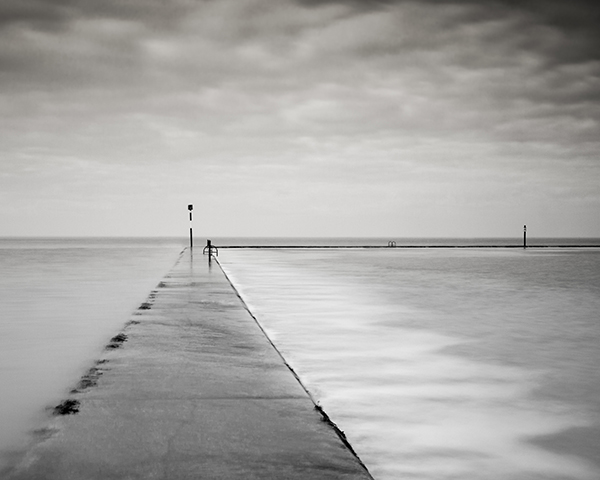
A centred horizon can work very well with reflections

Also, given that the frame is going to be split in half by the horizon, it is wise to ensure that there is something that breaks the horizon line, from land to sky, to ensure there is a relationship between the two halves of the image.

horizon - centre but broen

The two posts that break the horizon here ensure that the sky and foreground are linked, and are not seen as two separate elements

No horizon

Whilst discussing horizon placement, it is worth considering the option of omitting the horizon entirely.  If the sky doesn’t add anything to the scene in front of you, consider leaving it out and focussing on the detail of the landscape alone.

No horizon

You can choose to omit the horizon entirely and focus in on detail within the landscape

So there you go, a few things to help you consider what it is you want to capture about the landscape in front of you, and how that can help you determine where to position the horizon within the frame.

Post originally from: Digital Photography Tips.

Check out our more Photography Tips at Photography Tips for Beginners, Portrait Photography Tips and Wedding Photography Tips.

Where to Position that Horizon?


Digital Photography School

 
Comments Off on Where to Position that Horizon?

Posted in Photography


Vertical Horizon: Urban Photographs Turn City Upside Down

08 May

[ By WebUrbanist in Art & Photography & Video. ]

vertical horizon hong kong

Hong Kong has to be one of the most-photographed cities on Earth, but these shots present a rarely-seen perspective by documentarians or pedestrians … unless they look straight up.

vertical urban photo shoot

From Vertical Art Space: “Romain Jacquet-Lagreze is a French graphic artist with a Masters in multimedia and art from East Paris University. His interest in photography began during his period of working in Los Angeles and Tokyo, and subsequently blossomed into a passion after his arrival in Hong Kong.”

vertical urban built environment

His Vertical Horizon series emphasizes the vast scale of tall structures, but also the “heterogeneous character” of the built environment – traditional alongside modern, scrappy versus refined, small set against large.

vertical city landscape photos

While some of his images are taken from the top down, or at an angle, many of the most powerful ones are straight-up vertical captures. Somehow, these more predictable approaches lack the striking gravitas of their deceptively-flat  cousins.

Share on Facebook


[ By WebUrbanist in Art & Photography & Video. ]

[ WebUrbanist | Archives | Galleries | Privacy | TOS ]


WebUrbanist

 
Comments Off on Vertical Horizon: Urban Photographs Turn City Upside Down

Posted in Creativity