RSS
 

Posts Tagged ‘Guide’

A Step-by-Step Guide to Using Light in Flower Photography for Awesome Photos

23 Oct

The post A Step-by-Step Guide to Using Light in Flower Photography for Awesome Photos appeared first on Digital Photography School. It was authored by Simon Ringsmuth.

using-light-in-flower-photography

Flowers are brilliant subjects for photography. They are bright, colorful, and are stay perfectly still for you as long as the wind is calm. You don’t need any special equipment or lenses to take great photos of flowers either. You can get great photos with just a mobile phone or a basic DSLR with a kit lens. If you really want to elevate your flower photography to the next level, you need to pay very close attention to one thing – the sun – because the light in flower photography is everything.
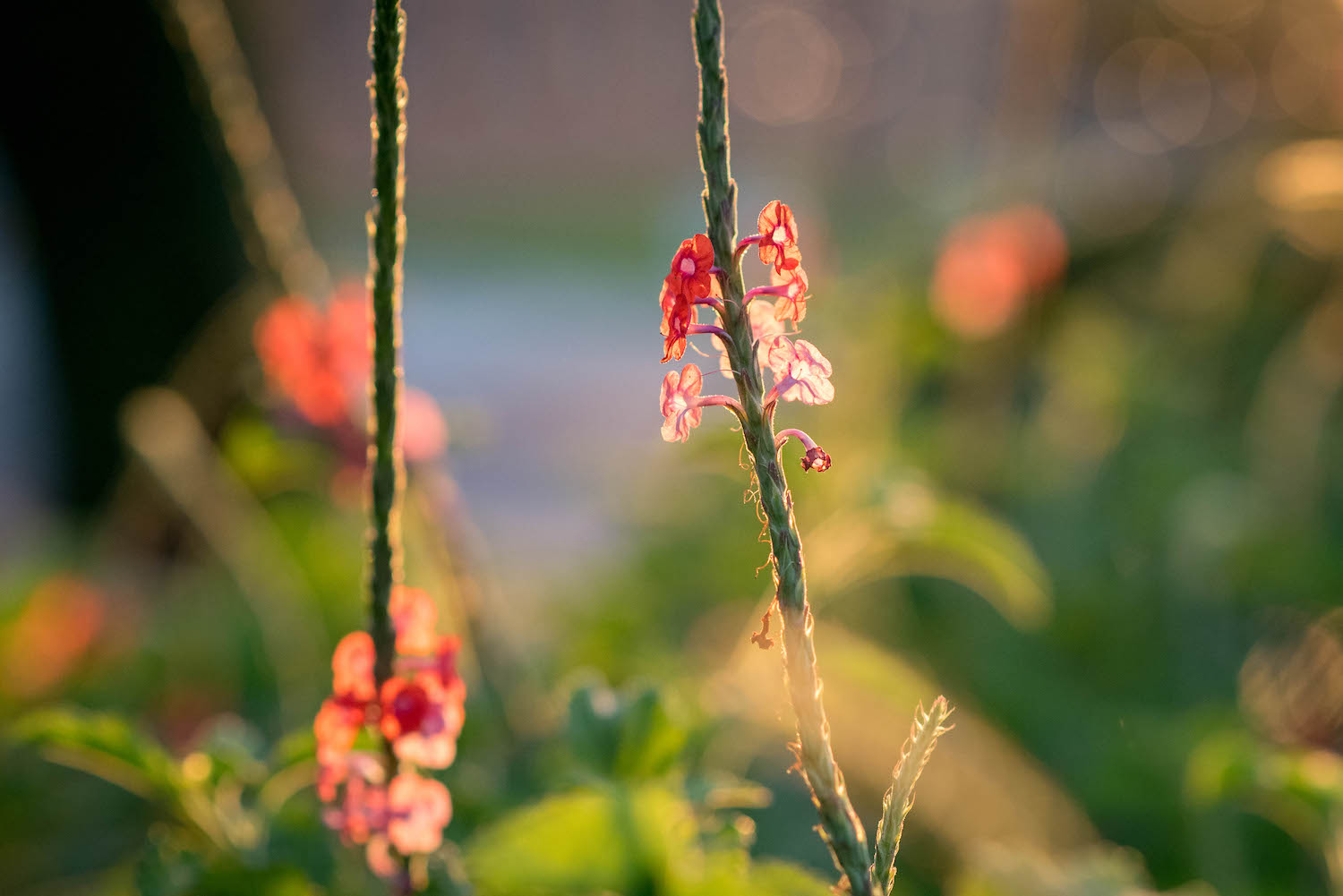
Image: 85mm, f/2.8, 1/3000 second, ISO 2200

85mm, f/2.8, 1/3000 second, ISO 2200

Of course, there are other sources of light besides the sun, but this is the most obvious and easily-accessible one when considering flower photography. Unfortunately, you can’t position the sun exactly where you want it, but you can position yourself to make the best use of it. You can also take note of the lighting conditions when you go out to shoot flower pictures. Understanding how the sunlight, and your angle of view, affect the finished product is key to getting great shots.

Don’t let anyone tell you that if you want to get good pictures of flowers you have to do it in certain conditions like a cloudy day or the evening. In truth, you can get great flower photos almost any time as long as you pay attention to the sun and the shot you are trying to get. Let’s take a look at some different scenarios and see how they affect flower photography.

Time of day

The time at which you shoot, such as early morning or mid-afternoon, can have a huge impact on your flower photos. In addition to altering the amount of light available, shooting in the morning or evening changes the type of light. It also changes the angle at which it hits your flowers and the surrounding area.

I shot the picture below just as the sun was coming up. The blurry triad in the background is a street lamp that had not yet turned off. It added a nice background touch to the picture. This would have looked entirely different had I taken the picture a few hours later.

Image: 50mm, f/1.8, 1/180 second, ISO 400.

50mm, f/1.8, 1/180 second, ISO 400.

If you want your flowers gently illuminated for a soft, almost hazy appearance, then early morning or late evening is going to work great. However, if you want your flowers bright, sharp, and punchy, then harsh overhead lighting is ideal.

It all depends on the type of picture you want to take and knowing how the lighting conditions affect the final image.

using-light-in-flower-photography

50mm, f/2.8, 1/1500 second, ISO 200

A monarch butterfly joined me as I was taking the above picture in the afternoon. The bright overhead sun made the reds, yellows, and greens bright and crisp, which doesn’t happen in the early morning or late in the day.

The sun was directly overhead when I took the picture below. This caused each of the colors in this picture to shine. It turned out I wasn’t the only one interested in this particular magnolia flower.

using-light-in-flower-photography

50mm, f/1.8, 1/6400 second, ISO 200

You can get great pictures of flowers at any time of the day. Just make sure you know where the sun is and how it will impact your pictures. Armed with that knowledge, you’ll be able to make better choices about the pictures you are going for.

Types of light in flower photography

Backlighting vs. front lighting

Backlight is when the main source of light comes from behind your subject. This can lead to some creative scenarios, especially when used to shoot subjects with rim lighting. Conversely, front light is when the main source of light comes from the front of your subject, usually behind the photographer.

Either one of these types of lighting works great for flower photography. However, you need to understand how backlighting and front lighting affect your flower pictures, so you know which one to use. I photographed the flower below with front lighting. The sun was behind me as I took the picture.

using-light-in-flower-photography

85mm, f/1.8, 1/3000 second, ISO 100

Front lighting makes the purples really stand out, especially against the background. There are also some prominent shadows along the left-hand side and at the base. These are neither good nor bad, just a result of using front lighting.

A similar flower, shot in the same location a few minutes later, reveals a much different image when employing backlighting.

Image: 85mm, f/2.8, 1/500 second, ISO 560

85mm, f/2.8, 1/500 second, ISO 560

Notice how the petals almost look like they are glowing as the sun shines through them. The shadows are more diffused, which is also due to the late hour of the day at which this was shot. Both pictures are good but in different ways. If you traditionally shoot flowers with front lighting, try doing some backlit shots and see if you like the results.

Image: Another backlit flower, where the shining sun made the yellow flower appear bright and radian...

Another backlit flower, where the shining sun made the yellow flower appear bright and radiant.

Sunny vs. overcast

There’s a common perception among photographers that cloudy, overcast skies make for some of the best lighting conditions. While I certainly enjoy shooting on days like that, the truth is, you can make any lighting condition work for flower photography. You just need to know how the light will affect your images.

One of my favorite flower photos I have ever taken was in the middle of the day just after a bit of rain. It’s a few coneflowers low to the ground. The overcast sky led to even lighting across the entire frame and rich, deep colors. There are no harsh shadows, no translucent petals, and no bright spots in the background. Instead, the frame is a mix of saturated greens, purples, and reds that I really like.

using-light-in-flower-photography

50mm, f/1.8, 1/640 second, ISO 200

Another example of this is the following picture, which I took in the morning after a night of thunderstorms. The clouds overhead dispersed the sunlight into all directions, which gave me an evenly-lit scene that worked great for this particular show.

Image: 85mm, f/1.8, 1/200 second, ISO 125

85mm, f/1.8, 1/200 second, ISO 125

However, these two pictures don’t mean you can’t take great flower pictures in bright sunlight. Far from it! Just know that flower images in bright sunlight will look much different than their cloudy-skied counterparts. The picture below is similar to the one above, but I took it on a bright sunny day.

using-light-in-flower-photography

50mm, f/1.8, 1/8000 second, ISO 360

This picture is neither better nor worse than the one above it, just different. Bright sunlight makes the red petals leap out of the frame. The rich blue sky and deep shadows of the grove of trees add a sense of space and depth that is missing in this picture’s counterpart.

Similarly, I photographed the purple magnolia flower below on a bright sunny day, but with just a bit of cloud cover. It’s kind of a cross between sunny and overcast and yields an interesting picture.

using-light-in-flower-photography

85mm, f/1.8, 1/200 second, ISO 140

The sun was off to the left, making the white inside of the flower petal shine out and compete with the purple in the foreground for the viewer’s attention.

I show all these examples as an illustration that you can get great shots of flowers in a variety of lighting conditions. The key is to use the sunlight (however it happens to be at the moment) to your advantage by knowing how it will affect your flower photos.

A comparison

If you can’t control the light in your flower photography, you can still control the angle from which you shoot your pictures. This has an amazing impact on how your flower photos turn out.

I shot the three photos below on a bright sunny day in about three minutes. The same flower is in each shot, and I used a 50mm lens with an f/2.8 aperture. The only difference is the angle from which I took each photo but that one simple thing changes each picture a great deal.

In this first picture, the flower is front-lit, meaning the sun was behind me and almost directly overhead as I took the photo. Notice the bright orange colors and stark shadows, which create a sense of depth and isolation. The background is shrouded in shadow because of the overhead light and the angle from which I took the picture. I see a lot of pictures similar to this online, especially on social media sites.

Image: 50mm, f/2.8, 1/2000 second, ISO 100

50mm, f/2.8, 1/2000 second, ISO 100

For this next photo, I stood in the exact opposite spot, looking up from below into the sun. Notice how the petals have become brilliantly translucent, and the greenery on the left is bursting with blurry bokeh.

It’s an entirely different version of the same flower and didn’t require anything on my part other than a simple perspective change.

Unlike the first picture, I don’t often see flower shots like this on social media. This is most likely because it’s just not something a lot of people think about doing.

Image: 50mm, f/2.8, 1/2000 second, ISO 100

50mm, f/2.8, 1/2000 second, ISO 100

I photographed this final image from the side, and what’s interesting here isn’t necessarily the flower but the background. From this angle, the background was entirely green, making the oranges and reds of the flower scream out by comparison. The lighting is similar to the first image, but this one is a lot more interesting to me because it’s a mix of colors instead of a flower against a mostly black background.

using-light-in-flower-photography

50mm, f/2.8, 1/2000 second, ISO 100

I really want to stress that none of the pictures in this tutorial are objectively better than any others. What I hope to have illustrated is that paying attention to the light in flower photography, as well as considering alternative viewpoints from which to shoot, can dramatically impact your flower photos.

Image: 23mm, f/5.6, 1/160 second, ISO 200. I had to hold my camera high above my head and fire off a...

23mm, f/5.6, 1/160 second, ISO 200. I had to hold my camera high above my head and fire off a series of shots hoping one of them would turn out. It did, and I’m so glad I didn’t just shoot a single sunflower from my normal eye level.

If you enjoy taking pictures of flowers, hopefully these images will give you some new ideas to consider. And if you haven’t spent much time out in nature capturing the beauty of blossoms like this, I hope you can find some time to go out, look at the lighting in flower photography and give it a try. You might be surprised at what you can get!

I’d love to see some of your shots – please share them with us in the comments below.

The post A Step-by-Step Guide to Using Light in Flower Photography for Awesome Photos appeared first on Digital Photography School. It was authored by Simon Ringsmuth.


Digital Photography School

 
Comments Off on A Step-by-Step Guide to Using Light in Flower Photography for Awesome Photos

Posted in Photography


The Absolute Beginners Guide to Camera Settings

11 Oct

The post The Absolute Beginners Guide to Camera Settings appeared first on Digital Photography School. It was authored by Mat Coker.

beginners-guide-to-camera-settings

When you bought your fancy camera with all its buttons and dials, you began a journey that few can endure.

Most people who buy a DSLR, never figure out how to use it. But the fact that you’re reading an article like this means that you’re determined to learn.

One of the most difficult phases of photography you’ll pass through is figuring out how your camera works. But once you understand even a little bit, the world of photography opens its doors to you.

If you’re new to photography, then this Absolute Beginners Guide to Camera Settings is for you.

Absolute-Beginners-Guide-to-Camera-Settings-Start in auto mode

The Olympus Tough TG-6 comes with auto mode, more than a dozen scene modes, as well as aperture mode (one of the most used settings by photographers). This photo was taken by a child using a DSLR in auto mode.

Photographs are made with light

Buying paint and canvas does not guarantee that you will produce a nice painting, nor does buying a camera guarantee a good photo.

Your camera is a complicated piece of technology designed to capture the moment you see with your eye and make a picture. However, the main ingredient it uses is not ink or paint but light.

A poor photograph may be due to a lack of creativity. But many creative photos are ruined due to a wrong combination of camera settings used to make a picture. The most important camera settings are about what the camera does as it makes a picture out of light.

Using Auto Mode with Window Light

Small steps

Sure, cameras differ in their capability and quality, but it’s not really the camera that is ultimately responsible for how the photo turns out. You must have control over the camera to make it do what you want it to.

Every time you snap a picture, you need to make some decisions that are affected by camera settings:

  • Do I want my background to be in focus or not?
  • Should I freeze the action or capture motion blur?
  • Do I want my photo to be warm or cool-looking?
  • Is it best to capture a series of shots in burst mode or just one photo at a time?

These decisions, and many more, are represented by “camera settings.” You select certain settings so that the camera knows what to do when it takes a picture.

There are many settings and I want to walk you through some of the most important.

The best way to learn something is by taking small steps. Learn one step, and don’t move on until you understand it. Bookmark this and other articles so that you can come back to them as you grow in your understanding.

Confused about camera settings

This was my attempt to capture my son’s first steps with an advanced camera that I didn’t know how to use.

Auto mode

Let’s begin in Auto mode. Look for the dial on the top of your camera. You’ll either see the word auto or perhaps just a green box or icon.

Absolute-Beginners-Guide-to-Camera-Settings-Auto Mode

What does Auto mode do? It means that your camera will make all the decisions for you and choose all the settings. All you have to do is take the picture!

When you put your camera in Auto mode, you’re basically saying, “I don’t know how to work this thing!” There is no shame in not understanding how your camera works. If you are determined, you will learn over time.

It is possible to take nice photos in Auto mode. Part of the reason that auto mode can work so well is that it frees your mind from the technical aspects of photography that you don’t understand yet. Auto mode allows you to focus on the creative elements and use of light that you’re more likely drawn to.

Auto Mode Examples

Auto mode exercise

Go ahead and put your camera in Auto mode. Get out into the world and take lots of pictures. As you sort through your photos, make a list of the problems you run into. It’s easier to learn photography and grow when you’ve got specific problems that you can ask questions about.

Problems with Auto mode

You’re going to run into lots of problems in Auto mode, but how come? Shouldn’t your camera be smart enough to take a great picture on its own?

First, your camera has no idea what it’s looking at. So, it doesn’t know what you’re taking a picture of and it doesn’t know what you want the picture to look like.

All it’s trying to do is take a picture with the right exposure. Exposure refers to how bright or dark your photo is and it’s all the camera really cares about in auto mode.

You may see an inspiring scene in front of you, but the camera doesn’t. All it’s trying to do is expose your photo properly, and even that doesn’t work well many times.

Motion blur in auto mode.

Common problems in Auto mode include motion blur.


Blown highlights

Overexposed highlights are another major problem in Auto mode.

Over time, you’ll have a pretty good idea of what you wish you could make your camera do. You’ll say, “I wish I could tell my camera to…”

The good news is, there is actually a way to tell your camera what you’re taking a picture of and how you wish it would look.

How to tell your camera what you’re taking a picture of

If you tell your camera what you’re taking a picture of, you’ll increase the odds of getting a better photo.

The way to tell your camera what you’re taking a picture of is to use the scene mode option on your camera. Scene mode covers the most popular photography situations such as landscape, portrait, close-up, sports, etc.

Absolute-Beginners-Guide-to-Camera-Settings-Scene mode

Absolute-Beginners-Guide-to-Camera-Settings-Scene modes


When you select the appropriate scene, you’re telling your camera what you’re photographing. Your camera will choose a combination of settings that are best suited to that situation. It’s going to choose roughly the same settings that an experienced photographer would use.

Sports Mode

You can use Sports mode when photographing quick moving kids, or when you’re photographing any action. There will still be imperfections in your photos, but you’re more likely to freeze the action.


Absolute-Beginners-Guide-to-Camera-Settings-Freeze Action

Freeze quick-moving subjects with Sports mode.


Absolute-Beginners-Guide-to-Camera-Settings-Portrait Mode

Portrait mode will help your camera achieve an out-of-focus background. That background blur is referred to as bokeh.


Landscape mode

Landscape mode will favor a greater depth of field in your photo. This will keep more of the foreground, midground, and background in focus. It tends to make colors more vibrant too.


Your camera will have all sorts of scene modes to explore. Consider the situation you’re in and see if your camera has a scene mode to help you out.

But still, your photos might not turn out great. Why? Because ultimately your camera is most obsessed with making your photo bright enough. And you might be pointing it at a scene that is really hard for the camera to capture properly.

Light and creativity

When you put your camera on Auto mode, it has to balance three main settings in order to make a picture out of light.

The three settings are ISO, aperture, and shutter speed. Each of these three settings contributes to the overall brightness or exposure of your photo. But aperture and shutter speed have creative effects as well.

Aperture contributes toward brightening or darkening your photo, but will also help make your background out of focus, or keep it in focus.

Shutter speed contributes toward brightening or darkening your photo, but will also help freeze the action or make your photo blurry.

ISO contributes toward brightening or darkening your photo but doesn’t really have its own creative effect.

I’ll show you how to begin taking control of aperture, shutter speed, and ISO settings so that you can get a predictably good photo. I mean a photo that is bright enough without being too bright, a photo where the action is captured as you wish and the background is in or out of focus as you desire.

A little more like the photo on the right than the photo on the left!

Good vs Bad Photo

Make one decision

The good news is, you can take some control of your camera without the burden of having to take full control. You can take control over one of the three main settings that are part of the exposure triangle. But how do you choose which one?

You can make this decision by asking yourself what’s more important; freezing the action, or blurring the background?

If you’re taking pictures of birds, sports, or other quick-moving subjects, you’re likely most concerned with freezing the action. If you’re taking a portrait, you’re most likely concerned with an out-of-focus background or, bokeh.

In order to achieve an out-of-focus background, we’ll begin with a setting called aperture.

Aperture Mode

If you’re most concerned with whether or not your background is in focus, choose Aperture mode (also known as Aperture Priority).

  • For Nikon and most other cameras, turn your dial to A.
  • For Canon, turn it to Av.
  • If you’re using a Fuji, you control the aperture with a ring on the lens.

Absolute-Beginners-Guide-to-Camera-Settings-Aperture Mode

When you put your camera on Aperture mode, you’re telling your camera that you want to control the aperture but you want the camera to control the shutter speed and ISO.

You use aperture to control whether or not your background is in focus, but what exactly is aperture?

To understand aperture, think about your kitchen sink. Picture turning the tap on full-blast. The water will come rushing out of the tap. But you could also turn the tap on gently so that there is a slow trickle of water.

That’s what aperture is, except with light.

Open your aperture up and get a strong flow of light coming through your lens. Close the aperture, and you’ll only have a trickle of light.

The creative effect of aperture

Open up your aperture and your background will be more out of focus (great for portraits). Close your aperture a bit and your background will be more in focus (great for landscapes).

The aperture is measured in numbers such as 1.8 or 3.5 or 5.6 or 8 or 11, etc. The smaller the number, the more open the aperture. The larger the number, the more closed.

Open aperture

This was an aperture of f/4. The background is out of focus. The more you bring your subject away from the background, the more out of focus the background will look.


In focus background

The aperture was set to f/11 for this photo so that the background is more in-focus.


The smaller the number and the more open the aperture, the more light that comes in and the more out of focus the background.

The larger the number and the more closed the background, the less light that comes in, and the more in-focus the background.

When you’re in Aperture mode, you use the scroller on your camera to open and close the aperture.

Choose Aperture mode when you’re most concerned about whether or not your background is in focus.

Image: If you close your aperture a bit, then you’ll have a greater depth of focus in your pho...

If you close your aperture a bit, then you’ll have a greater depth of focus in your photo. This photograph was made at f/5.6, but I would even recommend f/11 for landscape photos. Closing your aperture will help to keep both the foreground and background in focus.


beginners-guide-to-camera-settings-50mm lens

If you want your background to be blurred, then open your aperture as much as you can. That might be f/3.5 or f/5.6 on the lens that you’re using. If you have a 50mm lens then you can open all the way to f/1.8.


Absolute-Beginners-Guide-to-Camera-Settings-50mm bokeh

The other way to help your background to go blurry is to step closer toward your subject.


50mm close up

The closer you get to them, the more the background goes out of focus.


ISO

Remember, ISO doesn’t exactly have a creative effect.

So what is ISO and when do you use it?

ISO is a magical setting that helps your camera to see in the dark.

So you would set your ISO according to the lighting conditions that you’re in.

  • Is it a bright sunny day? Then set your ISO to 100 or 200.
  • Perhaps the sky is overcast? Set your ISO to 400 or 800.
  • Are you in dim indoor light? Set your ISO to 1600 or 3200. Maybe even 6400!

You have two main options when it comes to ISO:

  • Set it to Auto and let the camera figure it out.
  • Take control of it yourself.

I recommend playing in Aperture mode with your ISO set to auto. That way, you can experiment with aperture and let the camera figure out ISO and shutter speed for you. In a moment, we’ll look at shutter mode. In that case, I recommend leaving your ISO on auto as well. Take control of ISO when you feel comfortable with the other settings.

A word of caution about ISO

The higher you raise your ISO to help capture the light, the more noise or graininess will be introduced in your photo – especially in low light. The noise or grain is intensified all the more if you brighten your photos in post-processing (with a program such as Lightroom).

I don’t always mind a little noise or graininess in my photos. Noise and graininess are normally considered an imperfection in our photos. To me, it reflects the graininess or imperfection of everyday life and the moment by moment struggle that we have as photographers when we take pictures.

My photos are filled with imperfections, as am I in real life. If everything in my photo looks good except for the grain, then I am happy. I have an old iPhone that I keep around just for its nostalgic graininess.

High ISO Grain

The grain or digital noise is easily seen in this high ISO photo. Generally, the newer the camera and the larger the sensor, the less of a problem you’ll have with noise.

Shutter Mode

If your main concern is freezing the action, then you should choose Shutter mode (also known as Shutter Priority).

  • Nikon – set your dial to S.
  • Canon – set your dial to Tv.
  • Fuji – look for the dial with numbers like 125, 250, 500, etc.

Absolute-Beginners-Guide-to-Camera-Settings-Shutter mode

If the aperture is how much flow of water is coming out of the tap, then shutter speed is how long the water comes out for.

Aperture controls how much flow of light comes into the camera, while shutter speed controls how long that flow comes in for.

The quicker the shutter speed, the less light that comes in.

The slower the shutter speed, the more light that comes in.

It’s generally the case that in bright light you should have a quicker shutter speed, and in dim light, you need a slower shutter speed. The danger with a slower shutter speed is that your photo may become blurry.

Why will your photo become blurry with a slow shutter speed?

Consider shutter speed being how long it takes for your camera to take a picture. A quick shutter speed means that the photo is taken so quickly that the action is frozen in the photo. But a slower shutter speed means that the camera takes longer to take the photo and any movement in the scene becomes smeared across the photo.

Two circumstances lead to a blurry photo. The first is that you have moved the camera while taking the picture – often referred to as camera shake. Maybe your hand shakes, or the camera vibrates as you take the photo.

Camera shake motion blur

You must hold the camera still and consider using a tripod when your photos turn out like this.


Another possibility is that your camera is perfectly still but your subject is moving. If the person you’re photographing is moving, they may be smeared across the photo.

Motion blur

But even if you put your camera on a tripod, a moving subject may cause motion blur.

So what does it take to freeze the action?

You’ll notice that shutter speed is measured in fractions of a second. You’ll see numbers such as 1/125th or 1/2000th. Basically, the smaller the fraction, the more likely you are to freeze the action.

So 1/2000th will likely freeze the action, but 1/60th likely will not.

Slow shutter speed mtion blur.

Shutter speed of 1/40th of a second. The camera was held still so that the background was sharp, but the motion is blurred.


Absolute-Beginners-Guide-to-Camera-Settings - Freeze the action

A shutter speed of 1/500th of a second froze the motion of her hair as she turned.


Freezing the action.

A shutter speed of 1/2500th froze him as he bounced in the air.


Slow shutter speed creative effects

Silky waterfall shutter priority

These silky waterfalls were captured using a slow shutter speed. ISO 100, 1-second shutter speed


Slow shutter speed panning

The panning technique uses a combination of slow shutter speed and following the movement of your subject with the camera. The shutter speed was 1/20th of a second.

Other articles to explore

You now have enough knowledge to control the amount of background blur in your photo and to freeze or blur the action. You can also use ISO to help your camera see better in the dark.

Now it’s up to you to practice one little bit at a time until you’re comfortable and ready to move on.

Here are some more advanced concepts that may help you down the road.

  • Stops
  • Light Metering
  • Exposure compensation
  • White balance
  • Raw vs JPEG

Many people find it harder to master the introductory stage of camera settings than the advanced stages. Advanced techniques are easy to learn once you know the basics. Don’t be discouraged, and feel free to leave questions in the comment section below.

The post The Absolute Beginners Guide to Camera Settings appeared first on Digital Photography School. It was authored by Mat Coker.


Digital Photography School

 
Comments Off on The Absolute Beginners Guide to Camera Settings

Posted in Photography


A Step-by-Step Guide to Sky Replacement Using Photoshop

29 Sep

The post A Step-by-Step Guide to Sky Replacement Using Photoshop appeared first on Digital Photography School. It was authored by Simon Ringsmuth.

Picture this if you will: you’re out in nature with your hopes, dreams, and a camera to capture it all. You see the beauty of creation stretching out before you, so you carefully and patiently set up your gear to get the perfect shot. Finally, the sun moves to just the right spot, and you hold your breath while you press the shutter button. Then you realize the clouds are all wrong. You can wait for hours for the ideal opportunity to present itself, or you can do sky replacement using Photoshop to drop in another one. It’s not as difficult as it might seem and can lead to some exciting results.

sky-replacement-using-photoshop

The building is in Oklahoma, and I combined it with a long-exposure sky I shot in Kansas.

Before you get started with this operation, you will need two pictures: one with a boring sky and one with a breathtaking sky. If you’re just getting started, I recommend using two pictures shot at a similar time of day under similar conditions. If you replace a sunny sky with storm clouds, the lighting will be all different, and the results will look, well, Photoshopped.

Image: A scenic view in the middle of Kansas. The sky could use some clouds though.

A scenic view in the middle of Kansas. The sky could use some clouds though.

After finding a picture with a nice foreground, you need to get another picture with an interesting sky.

Image: I shot this in the Tallgrass Prairie Nature Preserve in another part of Kansas. These clouds...

I shot this in the Tallgrass Prairie Nature Preserve in another part of Kansas. These clouds would look great in the first image, and Photoshop can help.

The plethora of screenshots below might seem overwhelming, but this entire process is quite easy and a lot less complicated than it seems. Fire up Photoshop, follow along carefully, and you should have some good results in no time at all.

Step 1: Get rid of the boring sky

Open your picture with the sky you want to replace in Photoshop. If you’re not familiar with Photoshop, you’ll see that the Layers panel on the right side has your picture as the Background layer. It’s locked, meaning you need to unlock it or make a copy. Go with the latter route by right-clicking and selecting Duplicate Layer.

Image: Always work on a copy of the background layer so you can revert to it if you need to.

Always work on a copy of the background layer so you can revert to it if you need to.

Click the new layer in the Layers panel to make sure it’s actually selected. You will know it’s selected by the outline that you can see around each corner of the layer thumbnail.

Image: The currently selected layer has white borders around each corner of its thumbnail. Make sure...

The currently selected layer has white borders around each corner of its thumbnail. Make sure the original Background layer is hidden by clicking the eye icon to the left of its thumbnail.

Click the eye button next to the original Background layer to make it invisible. It’s still there if you need it for any reason, but if all goes well, you should be able to do the rest of this entire process using the duplicated layer.

The next thing you need to do is remove the sky, which you can do with a technique known as layer masks. Start by clicking the Selection tool and holding it down until the pop-up menu appears. Click “Quick Selection Tool.” While not perfect, this is a great starting point for people who are new to sky replacements. You can do some fine-tuning to get things just to your liking.

A Step-by-Step Guide to Sky Replacement Using Photoshop

Now click and drag in the sky and watch the selection grow until it covers your entire sky.

sky-replacement-using-photoshop

Use the Selection tool to create a selection around the sky in your original image.

This selection isn’t going to be perfect, but it’s a good place to start. You can refine things once you create your layer mask. As long as you have most of the sky selected, you’ll be good to go. You can also use the Magic Wand tool to select portions of the sky, and hold [shift] to keep adding new parts to the selection. This works well if you have clouds or other elements besides just the color blue in your sky.

With the sky selected, click the Add Layer Mask button at the bottom of the Layers panel.

Image: Click this button at the bottom of the Layers panel to create a Layer Mask. This lets you sho...

Click this button at the bottom of the Layers panel to create a Layer Mask. This lets you show and hide different parts of a layer.

The result might surprise you – everything in your picture is now gone except for the sky! (If you still see the original image, remember to click the eye to the left of the Background layer. This will make it invisible, but not remove it from Photoshop.)

sky-replacement-using-photoshop

The initial layer mask shows the sky, which is not exactly what you want for this operation. It’s a good starting point though.

Removing everything but the sky is the opposite of what you want to do! The fix for this is simple: invert your layer mask. Select your new layer mask by clicking on the black-and-white thumbnail in the duplicated background layer.

A Step-by-Step Guide to Sky Replacement Using Photoshop

Now invert the mask by pressing Control-I (Command-I on a Mac) or choosing Image -> Adjustments -> Invert from the menus at the top of your screen. Now we’re really making some progress since the sky is gone but the foreground remains intact.

sky-replacement-using-photoshop

Invert the layer mask to show only the foreground. With the sky out of the way you can now insert a new sky into the background.

If clouds, birds, or other elements of the original sky are still intact, you can remove them by using the Brush tool on your layer mask. (See Step 3 for details on how to do this.)

Step 2: Insert a better sky

There are a couple of ways to do this next step, and I’m sure you will probably develop your own workflow over time. Since this is just a tutorial to get you started though, it should work for most basic sky replacement.

Choose the File menu and then select Place Embedded. Navigate to the folder on your computer with the image you want and double-click on it. This loads the replacement sky picture into your current Photoshop document. You can then tweak the results to get just the right image you want. The image will load on top of the previous image, and you’ll see it at the top of your Layers panel.

Image: When you place a new image into your Photoshop document it will appear at the top of the list...

When you place a new image into your Photoshop document it will appear at the top of the list of layers, which means it’s the only thing you will see in the main image editing screen.

Photoshop layers work like a stack: whatever is on top is, literally, whatever you see on top of your picture. If you want something to appear underneath something else, just click and drag the layers to your liking. In fact, that’s what you have to do with your replacement sky. Click the layer you just inserted and drag it below the duplicated background layer.

Image: Click and drag the sky replacement layer so it’s beneath the copy of your background.

Click and drag the sky replacement layer so it’s beneath the copy of your background.

Now look at your sky picture! Just like magic, the original sky has gone and the new sky shows up in its place.

A Step-by-Step Guide to Sky Replacement Using Photoshop

Step 3: Clean things up

At this point, there are two common issues that generally need fixing. One is that the foreground has some errors that need correcting, like trees or other objects that are cut off or otherwise not showing up properly. The other is that the replacement sky doesn’t quite fit the empty space.

You can harness the power of Layer Masks to fix the first issue. Tap the Z key to switch to the Zoom tool, and click on your picture a few times to zoom in for a close-up view. Hold the space bar to switch to the Hand tool, and click-and-drag the picture to see the spots that need fixing.

Image: These trees don’t really need fixing, but I want to remove them for a cleaner horizon.

These trees don’t really need fixing, but I want to remove them for a cleaner horizon.

Make sure you select your Layer Mask and tap the B key to switch to the Brush tool. Right-click to adjust the size of your brush and other parameters like hardness and shape.

Image: Using the brush tool on the Layer Mask will show or hide specific parts of the layer.

Using the brush tool on the Layer Mask will show or hide specific parts of the layer.

Now click on the parts of the foreground you want to either remove from the picture or add to the picture. (Press the X key to switch between remove and add mode.) What you’re actually doing is painting white or black on the layer mask: everywhere you paint white is shown, and everywhere you paint black is hidden. You don’t actually see the white or black colors, just the results of painting them onto the image.

Image: A few clicks on the Adjustment Layer and the trees have gone!

A few clicks on the Adjustment Layer and the trees have gone!

If you find that your sky doesn’t quite fill the empty space, you can solve that by just adjusting the size of the sky layer. Click the top layer, the one with the foreground, and adjust the opacity to 30%. That way you can see the background layer, the one with the sky, along with the foreground layer.

Image: Set the opacity of the duplicate background layer to 30%.

Set the opacity of the duplicate background layer to 30%.

The result looks like some kind of weird double-exposure error, but it will look fine once you finish the operation.

Image: You can now see the replacement sky and the foreground. This will help you adjust the replace...

You can now see the replacement sky and the foreground. This will help you adjust the replacement sky size and position to your liking.

Select the layer with the replacement sky and choose Edit -> Free Transform, or press Control-T (Command-T on a Mac). Then use the handles at the corner of the sky layer to enlarge it until it fills the empty space.

sky-replacement-using-photoshop

After pressing Transform, click and drag on the squares in the corner of the layer to change its size. Click and drag in the middle of it to change its position.

After you have resized the sky layer, press the [return] key to lock in the transformation. Then go back to the foreground layer and increase its opacity to 100%. This same process is also a great way to adjust the sky in the background even if there isn’t necessarily anything wrong with it. One example of this is if you want to adjust the sky to emphasize a certain portion where the clouds happen to be more interesting.

sky-replacement-using-photoshop

The same image as before, but with the sky zoomed in (i.e. Transformed) to create a more interesting picture.

Once you get the hang of this process, it’s pretty simple. You can do a lot of custom work simply by editing the layer mask you create in the first step. You can also do this just for fun, like the picture below where I replaced the blue sky behind this building with a giant squirrel. If you have kids, or if you just want to have some fun experimenting on your own, this is a great way to explore some of the capabilities of Photoshop.

sky-replacement-using-photoshop

Attack of the Giant Mutant Killer Squirrels!

Once you try sky replacement using photoshop on your own, I’d love to see some examples of your work. Leave the results in the comments below!


sky-replacement-using-photoshop

The post A Step-by-Step Guide to Sky Replacement Using Photoshop appeared first on Digital Photography School. It was authored by Simon Ringsmuth.


Digital Photography School

 
Comments Off on A Step-by-Step Guide to Sky Replacement Using Photoshop

Posted in Photography


Updated with new winners: Best cameras for travel buying guide

27 Sep

The Sony RX100 VII takes the place of its predecessor as our top recommendation for travel, with the Canon G5 X Mark II earning an honorable mention as a solid option for low-light photography.

Articles: Digital Photography Review (dpreview.com)

 
Comments Off on Updated with new winners: Best cameras for travel buying guide

Posted in Uncategorized


Updated: Best cameras over $2000 Buying Guide

20 Sep

Our guide to the best cameras over $ 2000 has been updated to include overviews of some of the latest contenders.

Articles: Digital Photography Review (dpreview.com)

 
Comments Off on Updated: Best cameras over $2000 Buying Guide

Posted in Uncategorized


7 Tips for Stunning Black and White Photography (Comprehensive Guide)

15 Sep

The post 7 Tips for Stunning Black and White Photography (Comprehensive Guide) appeared first on Digital Photography School. It was authored by Jaymes Dempsey.

How do you achieve stunning black and white photography?

stunning-black-and-white-photography

Black and white photography is one of the most intimidating genres out there, mostly because it’s associated with lots of established names, as well as the “fine art photography” label.

But here’s the thing:

Black and white photography isn’t actually difficult. In fact, it’s just like any other genre of photography: There are a few tips and tricks that, once you apply them to your shooting process, will instantly improve your black and white photos.

And that’s what this article is all about. I’m going to share with you seven tips for stunning black and white photography. And you’ll come away with the ability to take masterful black and white photos wherever you go.

Sound good?

Let’s dive right in:

1. Shoot in high-contrast light for the most impactful photos

Here is the number one thing you need to remember about black and white photography:

It’s all about the contrast.

In fact, if that’s all you take away from this article then you’ll have profited enormously, because contrast is the lifeblood of black and white photography.

7 Tips for Stunning Black and White Photography (Comprehensive Guide)

Now, there are a number of ways to create contrast in your photos. And I’ll explore these different techniques below.

So let’s start at the very beginning:

With light.

If you can’t make the light work for you, your black and white photos are just going to look like a muddy mess. Instead, you need to recognize the type of light you’re working with, and you need to try to use that light to achieve as much contrast as possible.

The best light for black and white photography is (no surprise!) high-contrast light. More specifically, light on sunny days.

If you’ve explored other genres of photography, you’ll know that light on sunny days is harsh, it’s unpleasant, and it just doesn’t look good.

Unless you’re a black and white photographer.

7 Tips for Stunning Black and White Photography (Comprehensive Guide)

Because bright, sunny light enhances dark tones and creates intense light tones. This looks amazing in black and white photos, and it’ll really take your black and white images to the next level.

If you want to do some shooting but end up with softer golden tones from later in the afternoon or early in the morning, you can try using heavy backlighting to create additional contrast.

2. Find contrast-heavy tones and put them together

You already know about the importance of contrast in black and white photography. And you know about the importance of using contrast-heavy light.

But even once you’ve got the best light, you still have to make sure that the tones of your photo lend themselves to the overall black and white look.

7 Tips for Stunning Black and White Photography (Comprehensive Guide)

Now, the best black and white tones are very dark and very light. For instance, a great black and white might include a white sky and a dark house, or a bright character standing in front of a black building.

So when you’re out and about, look for tones that contrast. Try not to think in terms of colors, because the colors will just distract you. Instead, think about the relative brightness of tones.

And look for blacks and whites that go together.

stunning-black-and-white-photography

Once you’ve found them, however, you’re going to need to follow a piece of compositional advice:

3. Simplify your black and white photos as much as possible

All photography, for the most part, benefits from a simple composition.

However, black and white images benefit from a simple composition the most. This is because black and white photography is meant to be simple. It has no complex colors. No chaotic color-contrasts.

Instead, it’s just…black and white.

7 Tips for Stunning Black and White Photography (Comprehensive Guide)

So whenever you go to take your black and white shots, stop and think. Consider whether there are ways to simplify the shot.

Could you remove something distracting in the background? Could you use a wide aperture to make the background blur more? Could you change your angle so as to create a more non-distracting option!

Do anything you can to make your shot simple.

Simpler is better, all else being equal.

4. Try to capture raw emotion for compelling black and white photography

Here’s one of the great things about black and white photography:

It’s a genre that loves to capture emotion.

The smile of a person on the street. The laugh of a person crossing the road. The frown of a sad child.

stunning-black-and-white-photography

These are all very photographable moments, moments that you shouldn’t miss out on. And black and white is the perfect way to record it.

In fact, I recommend you try to capture emotion with black and white photography. The somber look of a high-contrast black and white will take emotion and make it even more powerful in a photo. It might even give you a three-dimensional effect.

5. Use minimalism to make your compositions stand out

What is minimalism?

Minimalism is a compositional technique that emphasizes intense simplicity. And not the simplicity as I explained above, but a true, deep simplicity – one that’s built into the composition.

Let me explain:

Minimalism uses lots of white space to draw attention to your main subject. White space is just empty space in a photo. (It doesn’t have to be white – it can just easily be gray or black, as long as there’s nothing going on in that part of the image).

This is a minimalistic photo:

7 Tips for Stunning Black and White Photography (Comprehensive Guide)

Minimalistic photography uses the weight of negative space to emphasize your subject. So you don’t have to be afraid of photos that are extremely minimalistic. And they’re pretty easy to pull off.

To create minimalist black and white photos, I recommend you find a background that’s smooth and pure, such as a white sky. Then place your main subject small in the frame, along one of the rule of thirds power points (or even just above or below the power point).

If all goes according to plan, then you should have a beautiful minimalistic photo! Don’t be afraid to play with the placement of your subject.

7 Tips for Stunning Black and White Photography (Comprehensive Guide)

6. Shoot against the sky to achieve a silhouetted look

In the previous tip, I mentioned that a white sky makes for a nice minimalistic background.

And it’s true. A bright white sky can be used in a black and white photo to emphasize a darker subject, which is exactly what you want to do! When the sky’s especially bright, you might even produce a partial silhouette, where the main subject has no detail but stands out against a white background.

So here’s how it works:

Find the main subject. It can be any color, but darker tones work best.

7 Tips for Stunning Black and White Photography (Comprehensive Guide)

Then get down low, so that the main subject is framed by the sky. If you’re shooting on a cloudy day, you’ll have plenty of bright light behind your subject (even if it doesn’t seem like it). If you’re shooting on a sunny day, a bright part of a blue sky should do the trick.

Experiment with different possible angles, while making sure that your main subject doesn’t overlap with anything around it or behind it.

7 Tips for Stunning Black and White Photography (Comprehensive Guide)

Then experiment with different exposures. Take a few shots that are drastically underexposed, a few shots that are nicely exposed for the subject, and a few shots that are overexposed.

Eventually, you’ll find a technique you’ll like!

7. Shoot in color, then use post-processing to convert your photos

I’ve been talking all about capturing amazing black and white photos in-camera.

But a big part of the black and white photography process is the post-processing. After all, this is where you should be converting your color images to black and white shots!

When you first open your photos in an editing program, they may look bland. They might even look a little bad.

stunning-black-and-white-photography

But don’t worry. Because here’s what you do:

First, you drop the saturation all the way down, until it’s completely gone. This should give you a photo that’s full of grays.

Then you lift the contrast so that contrast shines through, and makes the photo pop off the page.

I also recommend boosting the Whites and lowering the shadows. This will add further contrast to the photo. It also ensures a greater tonal range overall, which looks quite good!

Conclusion

If you’re looking to create stunning black and white photography, then you’ve come to the right place.

You hopefully now know all about black and white photography.

All that’s left…

…is to get out and start doing some shooting of your own. Amazing photos await!

stunning-black-and-white-photography

The post 7 Tips for Stunning Black and White Photography (Comprehensive Guide) appeared first on Digital Photography School. It was authored by Jaymes Dempsey.


Digital Photography School

 
Comments Off on 7 Tips for Stunning Black and White Photography (Comprehensive Guide)

Posted in Photography


Your Comprehensive Guide to Photography Post-Processing Software

04 Sep

The post Your Comprehensive Guide to Photography Post-Processing Software appeared first on Digital Photography School. It was authored by Herb Paynter.

My recent article, 3 Alternative Post-Processing Applications that Challenge the Adobe Throne, presented just three of the many post-processing software packages available (both free and paid) that provide excellent post-processing capabilities. In this article, I’ll give you a much longer list of post-processing software. To be impartial, I’ll list the titles in alphabetical order.

Your Comprehensive Guide to Photography Post-Processing Software

DXO Photolab 2

A few of the titles added by readers in the Comments section of the “3 Alternatives” article impressed me with their power and innovative design. I’ve been editing digital images with every software package available since late 1986, and I thought I’d seen most of them. However, it seems that the list of capable editing software grows weekly.

As you will notice, I do not mention ALL the software available for download or online use. Those that made the cut will be actual production titles with a minimum set of well-designed editing functions.

To be honest, I’ve looked at a significant number of offerings that are little more than public domain routines. They are not fully implemented or even adequately defined. These were considered but not listed.

Listed below is a wide variety of packages on both mobile and laptop/desktop platforms; a true variety pack that covers the field from hobbyist to professional users. No matter what your preference, you’ll find something here to tickle your fancy and meet your demands.

Your Comprehensive Guide to Photography Post-Processing Software

ACDSee Photo Studio Professional

As was welcomed in my first article, additional post-processing software titles should be added to this list by readers who have discovered (and used) them.

It is important to recognize all such products in a desire for fairness and sharing information. Because this list includes many more titles, I will not mention individual features of these titles, only a brief mention of the product’s most notable features.

This is where you can really contribute…

I’ll rely on you to describe your favorite features and benefits of your favorite titles. Let’s make this a very collaborative group effort BUT with one important request: please be brief and succinct with your comments. Limit your comments to one or two of the features that make your favorite app stand out from all others. That way, we learn from each other without monopolizing the mutual pulpit.

Image: Skylum Luminar 3

Skylum Luminar 3

List of photography post-processing software

ACDSee Photo Studio

Publisher: ACDSee Systems International

Website: https://www.acdsee.com/en/index/

Trial: Free/30 days

Price: $ 60 Mac/Win/Mobile

Afterlight 2

Publisher: Afterlight Collective

Android Website: https://play.google.com/store/apps/details?id=com.fueled.afterlight&hl=en_US

Apple Website: https://apps.apple.com/app/id1293122457 

Trial: Free/30 days

Price: $ 60 Mac/Win/Mobile

Affinity Photo

Publisher: Serif

Website: www.affinity.serif.com

Trial: Free/30 days

Price: $ 50 Mac/Win/iPad

Capture One

Publisher: Phase One

Website: https://www.phaseone.com/en/

Trial: Free/30 days

Price: $ 299 or $ 20/month Mac/Win

Darktable

Website: www.darktable.org

Price: Free

Exposure X4.5

Publisher: Alien Skin

Website: https://www.alienskin.com

Trial: Free/30 days

Price: $ 119 Mac/Win Computer

Fotor

Publisher: Fotor

Android Website: https://play.google.com/store/apps/details?id=com.everimaging.photoeffectstudio&hl=en_US

Apple Website: https://apps.apple.com/app/id440159265?referrer=click%3D8cd7ac09-77a3-42f6-9005-ed622bd3e17f

Price: Free

Gimp

Publisher: Gimp

Website: https://www.gimp.org

Price: Free Mac/Win Computers

Google Photos

Publisher: Google

Website: https://www.google.com/photos

Price: Free online

Lightroom CC and Lightroom Classic

Publisher: Adobe Systems

Website: https://www.adobe.com/creativecloud/photography.html

Trial: Free/30 days

Price: $ 10/mo Mac/Win

Your Comprehensive Guide to Photography Post-Processing Software

Adobe Lightroom Tablet/Computer/Mobile

Online Photo Editor

Publisher: PicMonkey

Website: https://www.picmonkey.com/

Trial: Free/7 days

Price: Starts at $ 7.99/month

Photo RAW

Publisher: ON1

Website: https://www.on1.com/products

Trial: Free/30 days

Price: $ 80

PhotoLab 2

Publisher: DxO

Website: https://shop.dxo.com

Trial: Free/30 days

Price: $ 129 Mac/Win Mobile/Computer

Paint Shop Pro X9

Publisher: Corel

Website: https://www.paintshoppro.com/en/

Trial: Free/30 days

Price: $ 80 Mac/Win

Anthropics Portrait Pro 2 post-processing software

Anthropics Portrait Pro 2

Photoshop/Camera RAW

Publisher: Adobe Systems

Website: https://www.adobe.com/creativecloud/photography.html

Trial: Free/30 days

Price: $ 10/mo Mac/Win

Photoshop Elements

Publisher: Adobe Systems

Website: https://www.adobe.com/creativecloud/photography.html

Trial: Free/30 days

Price: $ 59.99 Mac/Win

Photoshop Express

Publisher: Adobe Systems

Android Website: https://play.google.com/store/apps/details?id=com.adobe.psmobile&hl=en

Apple Website: https://apps.apple.com/us/app/photoshop-express-photo-editor/id331975235?mt=8&ign-mpt=uo%3D4

Price: Free

PhotoPad

Publisher: NCH Software

Website: https://www.nchsoftware.com

Trial: Free/30 days

Price: $ 40

PicsArt

Publisher: PicsArt

Android Website: https://play.google.com/store/apps/details?id=com.picsart.studio

Apple Website: https://apps.apple.com/us/app/picsart-photo-studio/id587366035

Price: Free

Pixlr Editor

Publisher: Pixlr

Android Website: https://play.google.com/store/apps/details?id=com.pixlr.express&hl=en_US

Apple Website: https://apps.apple.com/us/app/pixlr-photo-collages-effect/id526783584

Price: Free online

Pixlr Mobile Android/IOS post-processing software

Pixlr Mobile Android/IOS

PortraitPro 18

Publisher: Anthropics

Website: https://www.anthropics.com

Trial: Free/30 days

Price: $ 45 Mac/Win

RAW Therapee

Publisher: Softpedia

Website: https://www.softpedia.com

Price: Free (but only offered on Windows)

Skylum Luminar 3

Publisher: Skylum

Website: https://skylum.com/luminar

Trial: Free/30 days

Price: $ 70 Mac/Win Computer

Smart Photo Editor

Publisher: Anthropics

Website: https://www.anthropics.com/smartphotoeditor/product/

Trial: Free/30 days

Price: $ 30 Wind/Mac

Snapseed

Publisher: Google

Android Website: https://play.google.com/store/apps/details?id=com.niksoftware.snapseed&hl=en_US

Apple Website: https://apps.apple.com/us/app/snapseed/id439438619

Price: Free

Sumo Paint

Publisher: Sumo

Website: https://www.sumopaint.com

Trial: Free/30 days

Price: Free version, but Sumo Pro is $ 4/month

Topaz Studio 2

Publisher: Topaz Labs

Website: topazlabs.com

Trial: Free/30 days

Price: $ 100 Mac/Win

Your Comprehensive Guide to Photography Post-Processing Software

Anthropics Smart Photo Editor

Conclusion

Some titles didn’t make this list’s cut simply because they are only marginally useful. Needless to say, in today’s market, there is an innumerable slew of entertainment-level phone/tablet-based image “editing” apps also available. There are way too many even to mention, let alone keep current information on.

Many of these apps are made for the amusement of the younger social media crowd who appreciate more unicorns and stickers than serious editing power. Not to sound judgmental, there is an app for everything and everyone, but this listing is “focused” on actual photo editing capabilities more than the social media aspect.


photography-post-processing-software

The post Your Comprehensive Guide to Photography Post-Processing Software appeared first on Digital Photography School. It was authored by Herb Paynter.


Digital Photography School

 
Comments Off on Your Comprehensive Guide to Photography Post-Processing Software

Posted in Photography


A Step-by-Step Guide to Achieving the Perfect Starburst Effect

04 Sep

The post A Step-by-Step Guide to Achieving the Perfect Starburst Effect appeared first on Digital Photography School. It was authored by Simon Ringsmuth.

Adding a starburst effect to your images is a great way to spice things up and really grab the attention of your viewers.

Seeing rays of light slice through your photo is one of the most enjoyable tricks to pull off, especially if you haven’t really done this sort of thing before. While some software programs let you do this on your computer, the real magic comes when you do it by knowing how to use your camera.

starburst on building

Step 1: Find a light source

Creating the starburst effect isn’t difficult. But it does require a bit of training and practice to pull off. You’ll need a few basics to get started:

First, you’ll need a bright source of light, such as the sun. A street lamp or really powerful flashlight will work too, but the sun is nice because it’s always available and doesn’t cost money to use.

If you don’t mind shooting pictures at night, you can get a starburst effect quite easily with a street lamp or other source of light. However, night photos might not look as interesting or visually compelling as shots of the sun.

Ironically, you also need something to block most of the sun. This is because the sun itself is too large and bright to give you good starburst shots; just a sliver of its light is all you need. Buildings and trees work great, but whatever you use can’t be too far away. If the thing blocking the sun is separated from you by too great a distance, you won’t get the starburst effect.

starburst effect on a building roof

The effect isn’t as pronounced in this image, but it’s definitely there. Using a structure to block most of the sun is a great way to help you achieve a good starburst.

Step 2: Choose a small aperture

As far as your camera goes, the one setting that really matters is your aperture.

To get a good starburst, your aperture should be small, such as f/11 or f/16. This means you will need a camera with aperture control, such as a DSLR or mirrorless system. Nearly all mobile phones use wide apertures and very few of them allow you to have any control over the aperture at all.

So if you want to pull off a cool starburst effect in-camera, you’re going to need a dedicated camera and not just a phone.

Step 3: Set up for your starburst shot

The basic setup for a starburst effect photo is also fairly simple and works best when the sun is lower on the horizon during the morning or late afternoon. You can do it at other times of day, but it’s a little more difficult to find objects that obscure the sun when it’s directly overhead.

starburst on a clock

To achieve the starburst effect, position yourself so that the sun is off in the distance and the object obscuring it is not too close and not too far. Then set your aperture to f/11, point your camera in the direction of the light, and take a picture.

Take care to not point your camera directly at the full sun, as it could damage your sensor or your eyes. Just a sliver of the sun and a small aperture is all you need.

Step 4: Experiment with different setups

If the object you use to block most of the sun is too far away, the starburst effect will be much more difficult to achieve. In the shot below, you can just barely see the points of light emanating from where the sun is peeking over the clouds. It’s subtle and can work if it suits your compositional goals for the image, but I don’t find shots like this to be nearly as fun as other starburst images.

A Step-by-Step Guide to Achieving the Perfect Starburst Effect

There’s a lot of creative things you can do when you start experimenting with starbursts. In the picture below, the sun was obscured just a bit too much by the tree branch. The cicada exoskeleton looks fine, but the photo lacks something in the way of a visual spark.

A Step-by-Step Guide to Achieving the Perfect Starburst Effect

I adjusted the position of my camera by mere millimeters so as to get the tiniest bit of the sun poking out below the branch. The result is a much more compelling photo:

cicada with starburst

The addition of a starburst adds a whole new dimension to the photograph and elevates it to a whole new level.

Note: How aperture alters the starburst effect

To see why a small aperture is important, look at the following photos, which were taken just a few seconds apart. The first used a large f/1.8 aperture, and as a result, the sun is a large yellow blob in the sky and not all that interesting. This is similar to the type of picture you could take on a mobile phone since most of those have large apertures ranging from f/1.8 to f/2.8.

Image: I took this photo with an f/1.8 aperture at 50mm.

I took this photo with an f/1.8 aperture at 50mm.

Stopping down to f/11 changes the image dramatically. Not only is the foreground and background in focus, but the sun is now a brilliant star pattern. This is a direct result of the smaller aperture.

fountain with starburst

I took this photo with an f/11 aperture at 50mm.

A similar effect is seen in the two photos below. Taken at different locations, they illustrate the effect quite clearly. The first shows a row of lights fading into the distance, and because I shot it at f/1.8, they appear as blurry orbs. This isn’t a bad thing, as my intent was for the viewer to focus on the light in the foreground.

row of lights without starburst

I took this photo with an f/1.8 aperture at 50mm.

The next image shows a similar row of street lights, but the small aperture I used caused every point of light in the image to appear as a starburst.

streetlights with starburst

I took this photo with an f/13 aperture at 50mm.

Even the green traffic lights far in the distance are starbursts. You can see how this dramatically alters the overall effect of the picture. If I had used a larger aperture, it would be an entirely different image.

Conclusion

My favorite part of shooting starburst photos is how easy it is once you get the hang of it. It’s also rather gratifying to know you can do it just by manipulating your camera.

starburst at night

Have you tried using the starburst effect in your images? What tips or tricks do you have for the DPS community, or for others who might not have done this type of photography before? Leave your thoughts in the comments below!


perfect-starburst-effect-in-photography

The post A Step-by-Step Guide to Achieving the Perfect Starburst Effect appeared first on Digital Photography School. It was authored by Simon Ringsmuth.


Digital Photography School

 
Comments Off on A Step-by-Step Guide to Achieving the Perfect Starburst Effect

Posted in Photography


How to Use Pinterest to Grow Your Photo Business (Step-By-Step Guide)

02 Sep

The post How to Use Pinterest to Grow Your Photo Business (Step-By-Step Guide) appeared first on Digital Photography School. It was authored by Darina Kopcok.

Do you use Pinterest to market your photography services?

You should.

Because here’s the thing: Millions of potential clients use Pinterest. In fact, 250 million people around the world use Pinterest every month, and this number continues to grow. 

Most people think of Pinterest as a social media platform, but it’s actually a search engine that’s driven by search and discovery. Statistics show that nearly half of online users search in Pinterest before turning to Google. It has an incredible power to drive traffic to your site and grow brand awareness. Visitors from Pinterest convert into leads or sales faster than those from social media networks.

Why?

One reason is that Pinterest has a much longer shelf life than social media. Once an image is uploaded to an Instagram or Facebook feed, it gets buried quickly. With Pinterest, your pins will have staying power and benefit you more the longer they’re around. 

Now that you know why Pinterest is so great…

…let me tell you how you can gain traction on Pinterest, fast.


pinterest photography business profile page

Step 1: Get a business account 

In order to use Pinterest effectively for your photography business, you’ll need to sign up for a free Business account. A Business account will allow you to monitor your analytics from within Pinterest. This will give you important information about the boards and pins that are most popular with your audience.

These insights can help you increase your engagement and pin more effectively.

pinterest statistics

Step 2: Create a succinct Pinterest profile

Your Pinterest profile needs to be short and to the point. It needs to let people know what you do. Are you a wedding shooter? Do you specialize in personal branding portraits? Include it in your profile.

For example, my main income comes from commercial and still-life photography, but I’m also a photography mentor. This third aspect of my business is the focus of my Pinterest account. Therefore, it’s the focus of my profile biography.

Step 3: Organize your board for your viewers

If you want to promote yourself as a photographer, you must always keep your target audience in mind. Your boards are not for you; they’re for your viewers, and so you need to speak to what they might be looking for when they log onto Pinterest.

This doesn’t mean you can’t have boards on crafting and cooking. It just means that you need to hide these non-business boards from public view.

Just remember, all of your visible boards must be relevant to potential clients.

Since I’m a food photographer, most of my boards feature beautiful images of food, organized into topical boards such as Salads, Desserts, Main Dishes, etc., as well as themes such as food photography lighting and styling.

And since I mentor food bloggers and emerging photographers, I also have boards such as Learn Food Photography as well as Blogging Tips. Use basic names for your boards that will be searchable and easy to find. 

Your boards should be organized from most relevant to least relevant, not by alphabetical order. Have your first board feature your own photography only; you want to show potential clients what you can do. Clean up your own boards and create new ones.

You’ll quickly see a big difference in your Pinterest traffic.

pinterest business boards

Step 4: Use keywords in your descriptions

Pinterest works similarly to Google – users search for specific content they’re interested in by using keywords.

In fact, keywords are the number-one tool for content discovery.

That’s why each of your boards should have a description using keywords or using hashtags created from keywords. Also, use as many keywords as possible in your pin descriptions. General keywords make your content easier to discover.

You can also use keywords to attract potential clients in your region. If you live in Portland and want to attract brides in your area, use keywords like “Portland Bride” or “Portland Weddings.” Add them to all of your descriptions and alt tags. Local keywords are underused and undervalued, especially in small markets, so they can make a big difference.

pinterest keywording
Step 5: Brand your pins

When creating pins, you may want to add text (depending on your niche and your reason for pinning posts).

If you’re just trying to share your stunning images, then this may not be relevant. But if you can think of a way to add text that will advertise your services, it’ll work in your favor. Surprisingly, pins with text get more attention than those without text.

For example, the purpose of my Pinterest account is to attract people to my photography coaching services and products. I do this by driving traffic from Pinterest to my blog.

How?

I create pins for each blog post I write. The pins are simply designed, but they’re consistent. I use the same font and style for each pin, which creates a “brand” for my pin that is consistent and that viewers will easily recognize.

Consider creating some pins with text in Photoshop or using an easy app like Canva. Canva offers a variety of free templates already sized for use on Pinterest. Test a few different styles and fonts and see how they perform. You may see that one style of pin gets repinned more than another. If so, then stick with that style.

branded pins

Examples of branded pins created on Canva.

The bottom line is that you should try to keep a strong brand identity, one that highlights specific services and remains visually consistent. It might be a bit of extra work at first, but it’ll pay off in the end.

Step 6: Join group boards selectively

Group boards are like regular boards, except that the board owner can invite collaborators to add pins of their own.

Group boards used to be a great way to generate traffic. Until Pinterest introduced the “Smart Feed,” which prioritizes and ranks pins based on their quality and engagement.

This led to a big decline in the value of group boards. You see, group board collaborators often rarely look at the board, and therefore rarely repin other members’ content. Because no one interacts with the boards, Pinterest assumes the pins are not popular. So they don’t show up in the Smart Feed.

How do you avoid this problem and use group boards to your advantage?

Choose active, niche boards that focus on one topic and have less than 100 contributors. Too many contributors can mean low-quality content.

The important thing to remember is that quality is much more important than quantity.

A board that encourages mutual sharing is also crucial. For example, a policy stating that you need to repin two pins for every post you make can make a big difference.

If you choose to join group boards, then keep these points in mind.

Step 7: Use boards to collaborate with clients

Visuals are a part of the communication that should take place between you and your clients before you start a job, especially if you’re in the commercial world. Pinterest can help you share images that serve as inspiration or a guideline for an upcoming shoot. If you work with commercial or editorial clients, you can collaborate on a mood board using Pinterest. This ensures that everyone involved in the shoot understands what the final results should be.

If you work in a retail niche like weddings or portraiture, you can use Pinterest to get a sense of the mood and color your client is drawn to. After all, a picture is worth a thousand words, right? Light green might mean one thing to you and another to your customer, so images that demonstrate the feel and color treatment that is sought can go a long way in helping you get the right look.

You can also use Pinterest boards to educate clients. If you do glamour or boudoir portraits, you can send your client a What to Wear board. This will provide inspiration and examples for choosing outfits for their shoot.

chef portraits board

Step 8: Schedule pins with the Tailwind app

Tailwind is a Pinterest-approved scheduling tool. It’s a fantastic app to help you grow your audience like crazy.

You see, pinning consistently is important growth strategy, but most people don’t have time to be pinning throughout the day. With Tailwind, you can sit down once a week to schedule your pins. They’ll automatically upload throughout the week at optimal times. Or, if you prefer, you can customize your pin schedule.

Tailwind also offers powerful tools that analyze your pins and boards, as well as your Pinterest profile. You can see which pins are getting the most engagement and reschedule them right from the interface.

Tailwind analytics

Conclusion

Pinterest is a great tool for generating visitors and leads.

And if you follow the steps I’ve given above, your Pinterest account will start expanding, fast.

So go set up your Pinterest account and start pinning!

Do you have any other tips for using Pinterest? Share with us in the comments section!

How-to-Use-Pinterest-to-grow-your-photography-business


The post How to Use Pinterest to Grow Your Photo Business (Step-By-Step Guide) appeared first on Digital Photography School. It was authored by Darina Kopcok.


Digital Photography School

 
Comments Off on How to Use Pinterest to Grow Your Photo Business (Step-By-Step Guide)

Posted in Photography


2019 Guide: Apple iPad Pro for Photographers

25 Aug

Introduction

With the release of every new tablet, photographers peer past their laptops and wonder: could this be the one that lightens my gear load without sacrificing performance? The appeal of a fast and light tablet is seductive, even if you’re not looking to completely replace a desktop or laptop, but tradeoffs have so far made it a difficult choice.

2019 iPad Pro key specs:

  • Resolution of 2388×1668 pixels (11″ model), 2732×2048 pixels (12.9″ model)
  • 64GB, 256GB, 512GB, 1TB storage capacity options
  • 64-bit A12x chip
  • USB-C connection
  • 468g (11″ model), 632g (12.9″)

Apple’s latest iPad Pro models boast impressive hardware that’s making them competitive alternatives. Depending on what you need to do, though, the software still isn’t quite there yet. Partly that’s due to limitations imposed by Apple and iOS, but it’s also because third-party developers have only recently had the power to build the types of full-blown apps photographers expect.

That said, based on what’s been announced about the next versions of iOS (called iPadOS 13 for the tablets), the iPad Pro will become even more capable when it’s released in the fall. I haven’t run the iPadOS beta on the current iPad Pro because the software is still in development, so I won’t be evaluating any of those features in this article. However, I’ll reference them as needed to talk about some of the current limitations and what to expect later this year.

Performance

During the early days of the iPad, Apple didn’t share all the hardware specifications, preferring to convey the message that the iPad was perfect for anyone’s needs. Processor speed, memory, and graphics specs were details for nerds and pros, and the computer industry had become fixated with them. Honestly, Apple was likely deflecting from the fact that the original iPad shipped with just 256 MB of RAM—not terrible for most uses on that first model, but it hampered the machine when working with large image files. It wasn’t until the third-generation iPad that it crossed into the 1 GB territory for RAM.

Affinity Photo on this latest 12.9-inch iPad Pro isn’t fazed by significant demands

Apple has since returned from that marketing sojourn with a lot to trumpet. The iPad Pro is powered by an Apple-designed, 64-bit A12X Bionic processor with eight cores that balance power and battery life: four high-performance cores and four high-efficiency cores. When needed, all eight cores can be put to use. It includes 4 GB of LPDDR4 RAM, though the model equipped with 1 TB of storage includes 6 GB of RAM (the model I reviewed). The A12X also includes a 7-core graphics processor that Apple says delivers the same graphics performance as an XBox One S, and a Neural Engine that processes machine-learning tasks (such as identifying faces in the Photos app).

What does all that mean for photographers? It never feels like I’m waiting for the device to catch up. For example, in my review of Affinity Photo for iPad using a 2016 iPad Pro, I noted, “The tradeoff is that adding several Live Filters will slow down the live rendering performance. I added five Live Filters to a layer to test this, and making subsequent edits did lag significantly.” Affinity Photo on this latest 12.9-inch iPad Pro isn’t fazed by the same demands.

We’ll call it abstract art: a photo with multiple Live Effects applied in Affinity Photo for iPad.

Similarly, making adjustments in Lightroom for iPad is responsive, even on large raw files created by the Nikon Z7 and Sony A7 III cameras. I threw images at other photo editing apps, such as RAW Power, Pixelmator Photo, and Snapseed and I swear the iPad Pro yawned and asked, “Is that all you’ve got?” (I may have been overcaffeinated at the time.)

Editing in Lightroom for iPad Editing in RAW Power
Editing in Pixelmator Photo Editing in Snapseed

Storage for two of the configurations is roomy enough for photographers generating gigabytes of image and video files. While the 64 GB base model is pretty sparse and the 256 GB level is what I would consider tight, jumping to 512 GB or 1 TB is a lot more workable. Of course, you’ll be paying for the privilege: the 11-inch iPad Pro with 1 TB costs $ 1549. Depending on the speed of your Internet connection and your comfort level with cloud services, even the 256 GB configuration is workable if you’re using Apple’s Photos or Lightroom for iPad due to their ability to temporarily delete originals to conserve space and re-download them as needed.

Articles: Digital Photography Review (dpreview.com)

 
Comments Off on 2019 Guide: Apple iPad Pro for Photographers

Posted in Uncategorized