RSS
 

Posts Tagged ‘Goto’

Hot-Shoe Go-To: The Godox TT600

06 Feb

How best to put this?

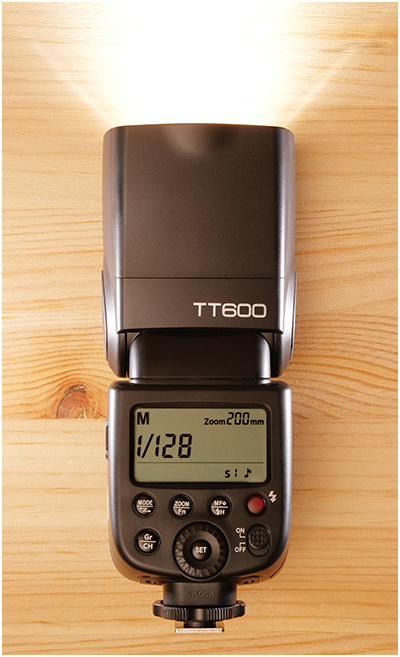
The Godox TT600 is, objectively, a screaming bargain. It is a full-sized manual-only speedlight with power comparable to OEM speedlights that cost over eight(!) times as much.

It features a reliable, built-in transceiver, a suite of different remote triggers and is part of a ridiculously comprehensive lineup of lighting gear.

I honestly don't know how they can possibly sell them for under $ 70 and still make a profit. Read more »
Strobist

 
Comments Off on Hot-Shoe Go-To: The Godox TT600

Posted in Photography


Improve Your Photography by Having Go-To Places to Shoot

22 Dec

There is a spot about 25 minutes west of the city. It is a spot right along the highway with a big sign that says, “Scenic Viewpoint”. Naturally it draws a lot of photographers. A quick look on Google will show a lot of sunsets shots, most with the guard rail along the bottom.
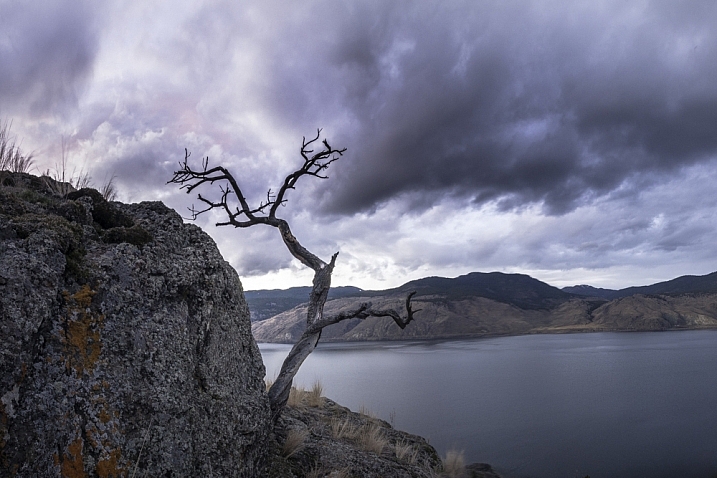
tree-on-cliff-2

Having 45 minutes before sunset, with a 20 minute drive, plus 10 minute walk, leaves no time to find and compose a shot. Being able to walk into the spot, set up and shoot makes some shots possible.

I know, I am one of them, making the scramble to get set up. Of course, it’s natural not to know the cool little spots when you are just passing through the area. However, after living in a place for some time, you start to learn of some go-to spots. You know, those places you can confidently walk into as the light is building, set up, and be there when the shot happens? If you don’t have a list of go-to spots you may want to consider making one, it can help you improve your photography.

Over the past couple of years that I’ve been shooting, I have developed a lengthy list of very specific spots (down to where the tripod stands) that all have their ideal season, weather, and time of day combination.
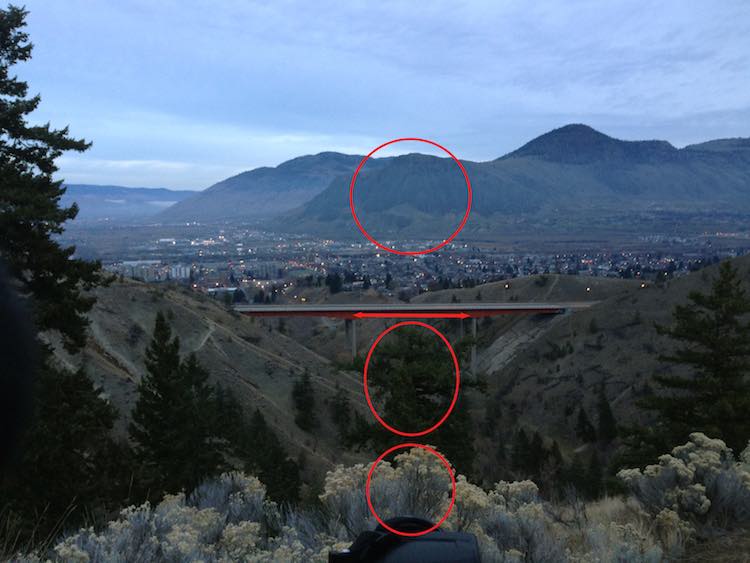
Peterson

After an hour of walking this area, I found the spot that aligns the features of this shot. This way if it looks like a certain shot might have good light, I can save myself a ton of hassle and just get to where I need to be quickly.

This is particularly important when shooting at night, the Milky Way, northern lights, etc. Night photography requires a lot of planning. To make an interesting shot, having good foreground and mid-ground objects is key, and just cannot be done blindly in the dark. Thus a lot of mediocre shots are required while scouting a new area. Learning the angles to line up items in your shot with features in the sky.
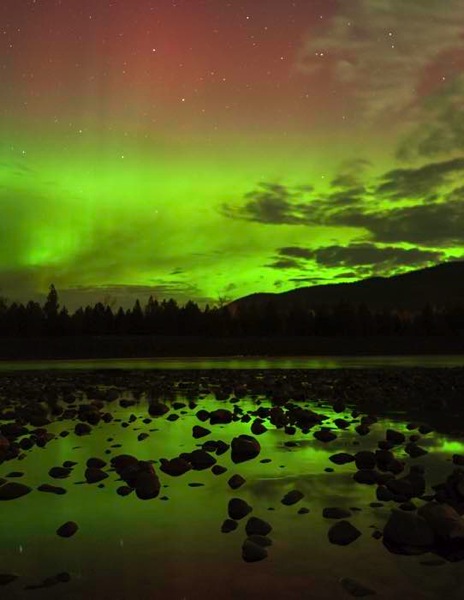
River aurora

This photo was taken on the third trip in to this spot. I knew everything would work, so when the auroras started up I was ready.

The whole process takes some time, but as you revisit locations you will become so confident about it being right, that you can walk up to that certain rock and set up. There’s no second guessing, and wasting time repositioning for a better composition.

Building your list of go-to spots

Most places I shoot, I return to many times. The first trip in is often just to gather info, and shoot some images to use for planning purposes. Here are a few tools that I use:

1. Facebook:

Yes Facebook can be useful, I am part of several Facebook photography groups and specifically one for my local area. Going out to photograph with other people, is a great way to learn an area. Just be careful not to poach another photographers exact go-to spot. I also find groups for other places that I plan to visit.
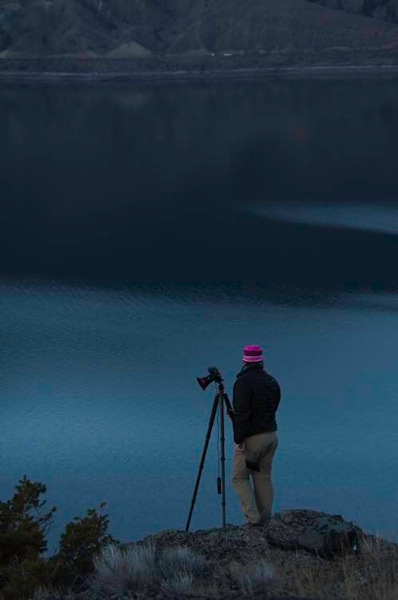
Ryanfisher2

Being invited along to an area with another photographers is a privilege. Be sure not to steal their go-to spot.

2. Google Maps and Images:

I use Google all the time to find new areas, specifically Maps, for looking into an area to see the lay of the land. The terrain is critical as to how the natural light will play into the shot. If a waterfall only shoots facing north, but you want the sunset behind it, then that will quickly rule out this spot for that shoot. However, it might make a fantastic spot to photograph the auroras.

3. The Photographer’s Ephemeris:

I use the Photographer’s Ephemeris to place celestial events. I won’t go into the ins and outs of the Ephemeris, but it will allow planning of moonrise, sunset, sunrise, etc., type of shots. It shows the azimuth, and time when certain events occur for any day of the year. Very handy if you plan to photograph the moonrise in a notch along a ridge, or something.
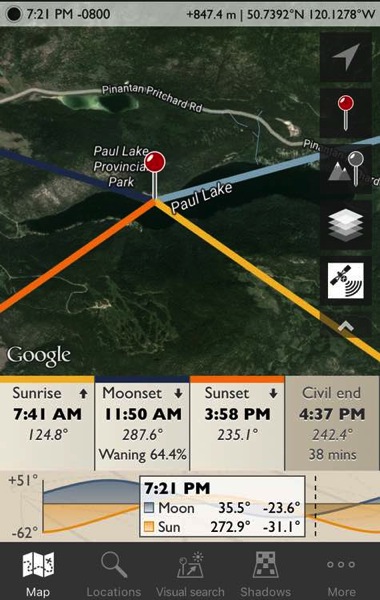
Ephemeris

If you are interested in getting a shot of the sun rising at the end of the lake you will have to wait.

4. Boots on the ground:

Research can only take you so far before you have to get your feet dirty. Making day hikes into a new area is by far the best way to explore a specific spot. Just make sure to get off the beaten path, if possible, to see what others might miss. This is also the time to get some shots which I call taking notes. The images can even be iPhone shots, because their purpose is to gather info. I always look at my images and quickly see better positions to shoot from, or a feature that went unnoticed.
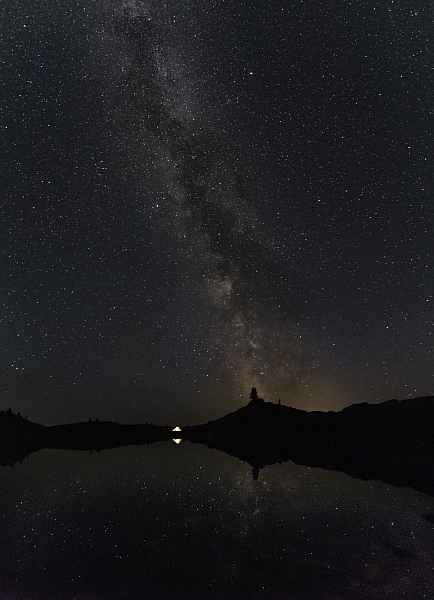
Timing is everything when lining up celestial objects. Knowing your go to spot can help you get the most out of your shots. I wasn't by chance that the Milky Way lines up with that point of rock.

Timing is everything when lining up celestial objects. Knowing your go to spot can help you get the most out of your shots. I wasn’t by chance that the Milky Way lines up with that point of rock.

You get the idea. I guess there is a fifth note, and that is to just keep going into places and taking shots. I always see better positions to shoot from while going through my images. Having a lot of go-to spots is the result of simply going to a lot of places. Remembering how each spot shoots, and knowing when the conditions will work best.

Although I am a landscape and nature photographer, who focuses on night sky photography, I also know the value of go-to spots for portrait and wedding photographers as well. Knowing when and where to shoot can make or break your shots. Being able to reduce harsh shadows and wrong angles to make more of your shots usable.

Do you have any go-to spots near where you live? Share your images and comments with us below.

googletag.cmd.push(function() {
tablet_slots.push( googletag.defineSlot( “/1005424/_dPSv4_tab-all-article-bottom_(300×250)”, [300, 250], “pb-ad-78623” ).addService( googletag.pubads() ) ); } );

googletag.cmd.push(function() {
mobile_slots.push( googletag.defineSlot( “/1005424/_dPSv4_mob-all-article-bottom_(300×250)”, [300, 250], “pb-ad-78158” ).addService( googletag.pubads() ) ); } );

The post Improve Your Photography by Having Go-To Places to Shoot by Dave Markel appeared first on Digital Photography School.


Digital Photography School
 
Comments Off on Improve Your Photography by Having Go-To Places to Shoot

Posted in Photography


Ten Go-to Editing Tips for Using Photoshop

28 Jul

PS CC launch

The recent release of Adobe Photoshop Creative Cloud (CC) 2014 (which is the 15th release of the product) got me thinking about my own workflow. Photoshop is an amazing piece of software. I have been using it commercially since version 5. However, I don’t necessarily think the latest version is the best one. I’ve just recently upgraded to CS6 and I’m loving it but I can’t see myself going the CC route just yet, as it doesn’t suit my business model.

The beauty of this software is the power that it can bring to your images, but it is a complex piece of software and coming to grips with it as a beginner can be daunting. Time and practice will be your allies in learning Photoshop.

As a photographer, Photoshop is the main editing software package I use in my photography workflow. Every photographer or designer has their own unique approach to editing images using Photoshop. I find this fascinating.

I’m constantly refining, and tweaking my editing workflow. I get such a buzz when I find an alternative method or a shortcut, that I wasn’t aware of before, which makes things more efficient. Having said that there are a lot of the features in Photoshop I wouldn’t use, and there are some that I use more than others.

Before I start editing my images in Photoshop, I open them with Adobe Camera Raw (ACR) since I shoot RAW format. I need to make basic adjustments such as exposure, white balance, correcting chromatic aberration and any lens distortion. From there, I take my images into Photoshop as Smart Objects.

The following tips for using Photoshop are my regular editing techniques in no particular order. These can be used in most versions of Photoshop. These are a small set of useful tips. I could have extended it by a dozen more.

Ten go-to editing tips for using Photoshop

1. Duplicating Layer Masks for other Adjustment Layers

To save time when you need a copy of a mask from one layer to another adjustment layer; when you’ve used the brush tool to create a mask. Simply hold down the Option key on a Mac or CTRL key on a PC, click on the layer mask and drag it to the adjustment layer in question. This makes a copy of the layer mask without having to redo the same again.

Gorilla duplicating masks on other adjustment layers

2. Add a Curves Adjustment Layer with a Difference

Normally in the Curves adjustment, you adjust points on the curve line which affect the image’s tonal range. The S-shaped curve is a classic tonal tweak for boosting contrast and color saturation. However, if you add a curves adjustment layer, change the blend mode to Soft Light and reduce the Fill down to approximately 55% (the reduction amount will depend entirely on your image & preference), this gives a similar boost to color and contrast. For demonstration purposes, I have left the Fill at 100%, so that you can see a difference as outlined within the white square.

Field in France curves softlight

3. Dodge and Burn

Create a separate layer, change the blend mode (Mode) to Overlay and fill the layer with 50% gray. Name this layer “Dodge and Burn”. The Dodge and Burn tools are my go-to method for making selected areas of an image lighter or darker. Dodge is for lightening and the Burn tool is for darkening an area. Use a soft Brush and set Exposure to between 6-12%. In most cases, I leave Range set to Midtones. If you find that you have overdone it in the specific areas, just reduce the Opacity on the layer. The image on the right (below) shows the areas where I used the Burn tool to darken his arm, his face, and the bright spots in the background, and also where I lightened his back shoulder.

Secret Agent Dodge Burn

4. Layer Comps

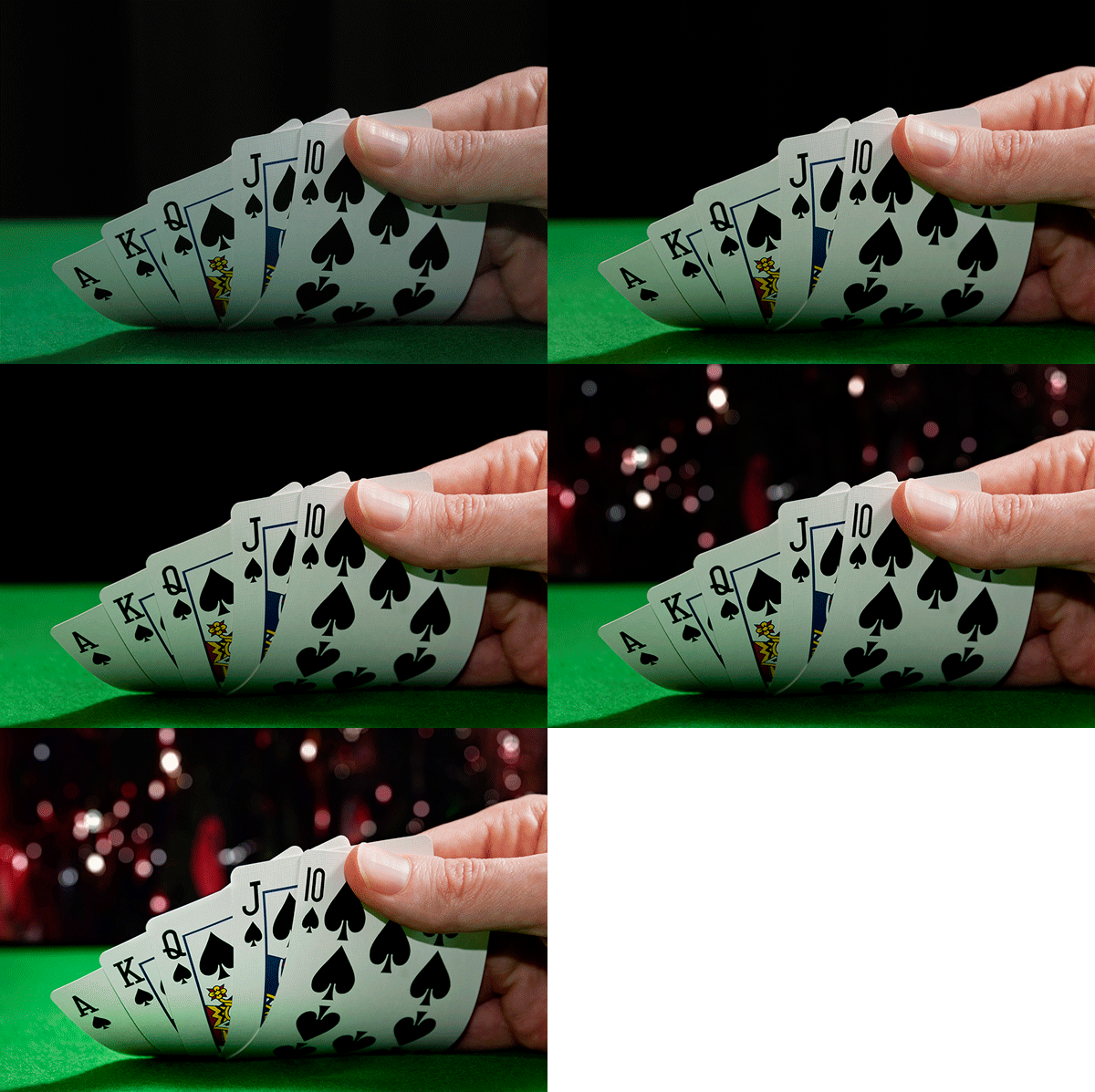
I find the Layer Comps feature in Photoshop invaluable. It is a useful guide to the different editing stages as a before and after comparison. It is so easy to overdo it and get carried away with over-editing your image. This has five stages from straight out of camera, to the final image.

Poker

5. Stamp Visible

Cmd+Shift+Alt+E (Mac) or Ctrl+Alt+Shift+E on a PC is the command to keep all the layers in a Photoshop file and make a merged copy on top of them. I find this particularly useful, especially at the end of my editing process, where I apply some sharpening or contrast by using a Topaz effect (plug-in for Photoshop).

6. The “Place” Command

This is found under File>Place. I normally work with multiple images in the same document. Therefore, I find using this method really handy as it imports the image as a Smart Object automatically, which is great for resizing the image without any degradation.

7. Patch Tool

The Patch Tool was my favorite of the Healing Brush Tools in Photoshop CS5. But now that I’ve upgraded to CS6, the Patch tool has just gotten even better. You can now use the Patch tool to fill using the Content-Aware on a new empty layer. I prefer to set the Adaption to Loose. Make sure Sample All Layers has been ticked. The Healing Brush also feels more intuitive to use than before.

Ringbuoy Patch Tool

8. CMD+T or Transform

I seem to use this shortcut a lot. If I’m working on multiple images in the same document, I may need to resize one or two of the images accordingly. As I import my images using the Place command, this means they are converted to Smart Objects, so the resolution of the images isn’t affected when transforming or resizing.

9. CMD+T+Warp Tool

Similar to the above point, the Warp tool is great for fine-tuning an element of an image, especially if you are working on composites. In the image below, I was using my own stock photo of Heron’s talons to replicate the Owl’s talons for the purpose of realism.

Owl Warp tool

10. Opening a Second Window for the Same Document

When you are retouching your image to get rid of dust and blemishes and so forth, you may need to zoom in as much as 300% or more. Open another window for the same document by Window>Arrange>New window for new_filename.PSD but keep it at 25% (or fit to window). This way, instead of zooming back out to see how the image looks and then zooming back in to resume your retouching, just click on the second window where you have the same document viewed at 25% (or fit).

Do you have another other go-to Photoshop tools or tips you’d like to share? What is in your workflow? Please share in the comments.

The post Ten Go-to Editing Tips for Using Photoshop by Sarah Hipwell appeared first on Digital Photography School.


Digital Photography School

 
Comments Off on Ten Go-to Editing Tips for Using Photoshop

Posted in Photography