RSS
 

Posts Tagged ‘Google’

[MODIFIED] Google Chrome – Clear Browsing Data including Cookies, Flash Cookies, Cache, History, and Saved Passwords

07 Apr

For privacy, clear the data Google Chrome stores regarding your browsing history.

Even though Google Chrome supports “Incognito” browsing where history information is not kept and cookies are removed after browsing (press CTRL + SHIFT + N to open an “Incognito” window), you might accidentally forget to use this mode. You might also wish to remember cookies for a few hours while checking e-mail, chatting on social networking, or accessing your bank account online, then later decide to clear your tracks for privacy.

Google Chrome supports a feature where without the use of any extensions, you can clear browsing and download histories, the cache, cookies, Flash cookies, saved passwords, saved form data, and/or other details….

Read more at MalekTips.
New Computer and Technology Help and Tips – MalekTips.Com

 
Comments Off on [MODIFIED] Google Chrome – Clear Browsing Data including Cookies, Flash Cookies, Cache, History, and Saved Passwords

Posted in Technology


[MODIFIED] Google Gmail – Add a Smiling Face or other Emoji (Emoticon)

06 Apr

Brighten up your email with emoticons such as smiling faces, weather symbols, and food items.

Need another way to express yourself when sending e-mail via Google Gmail, and changing the text color just won’t do?

You can insert all sorts of emoji / emoticons, such as smilies, stars, exclamation points, and mini clip-art of objects such as a computer, cell phone, or baseball. Some even animate such as laughing faces, dancing hearts, and ringing bells! Inserting emoticons is simple:…

Read more at MalekTips.
New Computer and Technology Help and Tips – MalekTips.Com

 
Comments Off on [MODIFIED] Google Gmail – Add a Smiling Face or other Emoji (Emoticon)

Posted in Technology


Snapseed features creep into Google+ for Android app

01 Mar

google3.jpg

Google has launched an update for its Google+ for Android app, which offers many features found in the popular editing program Snapseed. Most of the new features are imaging-related and make Google+ a more powerful image editing, storing and sharing platform. Integration with Google+ allows continuous editing across devices, and editing is non-destructive. See more on connect.dpreview.com.

News: Digital Photography Review (dpreview.com)

 
Comments Off on Snapseed features creep into Google+ for Android app

Posted in Uncategorized


Virtual LEGO Blocks: Build with Chrome, Set on Google Maps

05 Feb

[ By WebUrbanist in Gaming & Computing & Technology. ]

build with chrome page

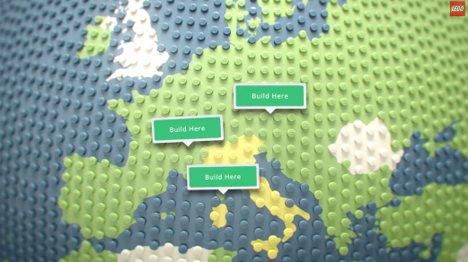
Build with Chrome is the new, fast and simple model-maker in town, and this one lets you create structures faster than digital SketchUp or physical LEGOs ever could.

build lego google maps

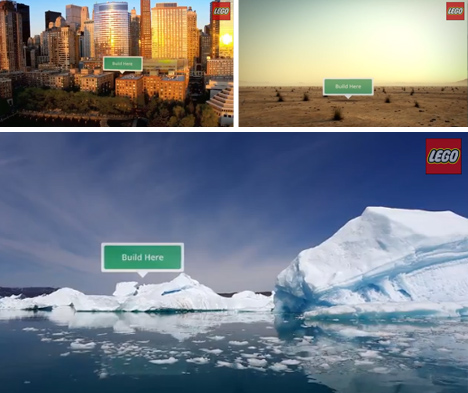
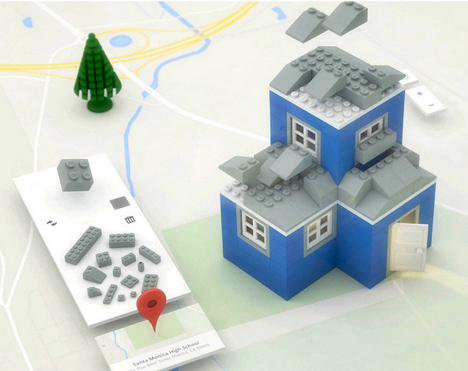
Of course, this Chrome Experiment project would not be complete without Google Maps integration, allowing you to deploy your creations around the world and interact with others.

build lego online browser

Architecture seems the most obvious, but infrastructure, ships and other complex shapes are all ultimately possibilities as well.

build lego pirate ships

Like SketchUp (previously owned by Google), the tool set is relatively simple, except in this case the learning curve is even faster, making it possible for anyone to participate with ease.

build lego house architecture

Users can select blocks, change colors, rotate with a key click, drop them into place then keep on stacking, then save or reset at any time. From private estates to pirate ships, anything is possible.

Share on Facebook


[ By WebUrbanist in Gaming & Computing & Technology. ]

[ WebUrbanist | Archives | Galleries | Privacy | TOS ]


WebUrbanist

 
Comments Off on Virtual LEGO Blocks: Build with Chrome, Set on Google Maps

Posted in Creativity


Extreme Street View: Google Employee Maps Deserted Island

31 Jan

[ By WebUrbanist in Global & Urbex & Parkour. ]

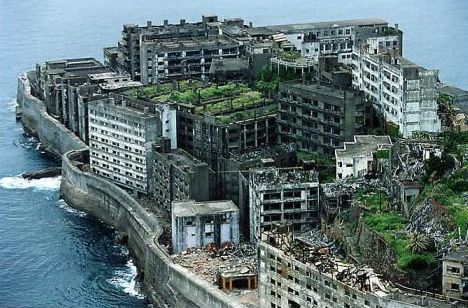
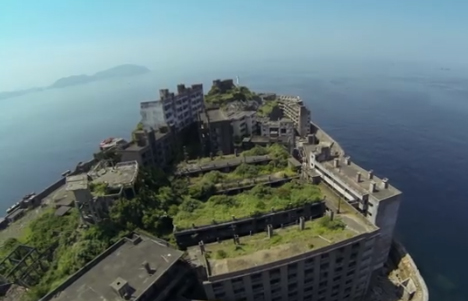
street view battleship island

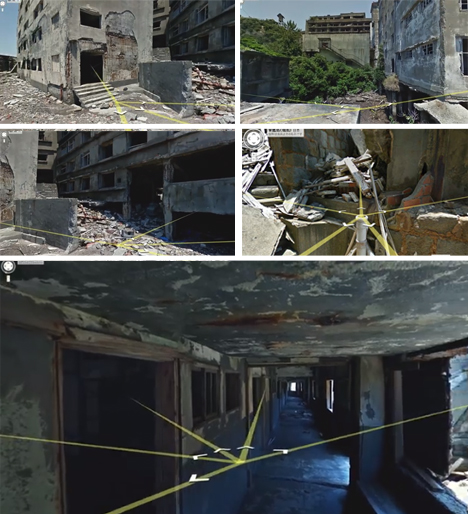
Street View has mapped much more than roads in its, but sending a lone urban explorer through the haunting multistory ruins of a remote island may be one of their riskiest geographic ventures yet.

street view abandoned island

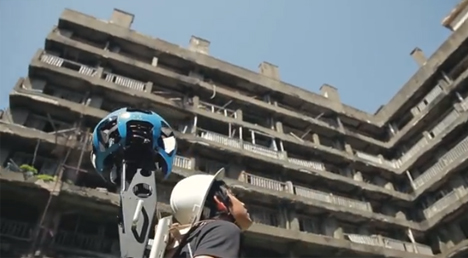
street view japanese employee

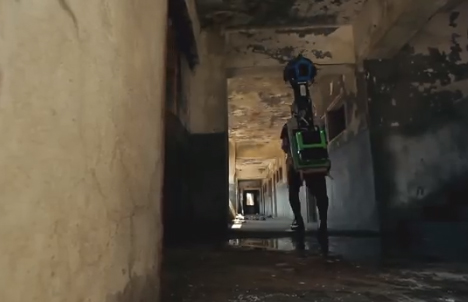
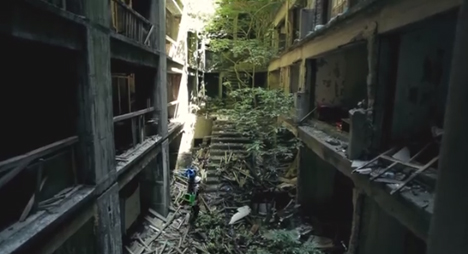
Strapped with panoramic photography equipment, this video shows a lone Google employee crawling through rubble, scaling partially caved-in abandonments and standing on precarious roofs, all to document one of the most unique deserted cities on the globe.

street view urban exploration

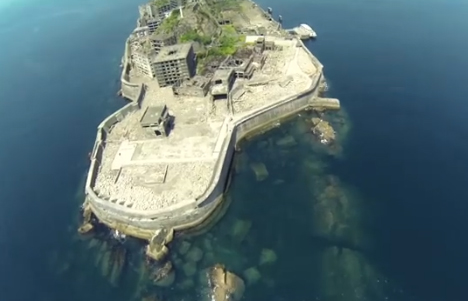
Occupied for over a century, and briefly the world’s most densely-populated island, Gunkanjima, Japan (aka Hashima) is now one of the loneliest places on the planet.

street view overview aerial

street view island rooftop

A giant concrete wall surrounds the ship-shaped Battleship Island, giving it its nickname. At one point it was packed with an average of 1.4 residents per square meter of space, almost like an overcrowded sea vessel.

street view inside walking

street view building infiltration

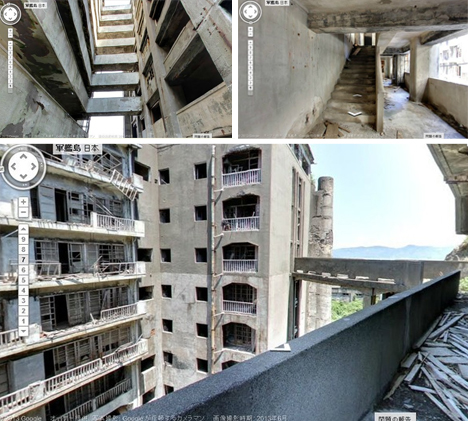
Parts of the deserted island have since been reopened to the public, but Google secured special permission to go off the beaten path and pass through long-abandoned buildings that only intrepid infiltrators have seen in recent decades past.

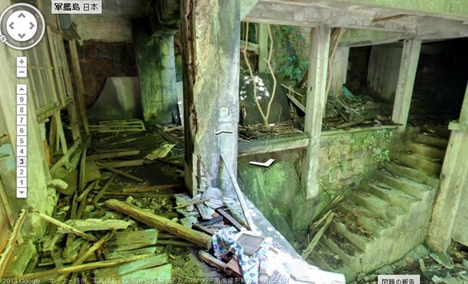
street view ruin interior

street view routes paths

Thanks to their carefully mapping, virtual visitors (web viewers) can now tour the corroded corridors, crumbling stairs and uncertain roofs from a much safer distance, almost look a choose-your-own-adventure for urban explorers.

Share on Facebook


[ By WebUrbanist in Global & Urbex & Parkour. ]

[ WebUrbanist | Archives | Galleries | Privacy | TOS ]


WebUrbanist

 
Comments Off on Extreme Street View: Google Employee Maps Deserted Island

Posted in Creativity


Ricoh and Google team up to get Theta spherical pictures on Google Maps

31 Jan

Screen_Shot_2014-01-29_at_3.10.28_PM.png

Ricoh has updated the suite of apps provided with the Theta spherical image camera, to allow users to post images from the Theta to Google Maps and Google+. According to Ricoh, these new abilities are a result of collaboration with Google to make the Theta’s images compatible with Photo Sphere XMP, Google’s standard for panoramic images. Click through for more details. 

News: Digital Photography Review (dpreview.com)

 
Comments Off on Ricoh and Google team up to get Theta spherical pictures on Google Maps

Posted in Uncategorized


Getting to Know Picasa – a Free Image Editor and Browser by Google

20 Dec

Getting to know Picasa

If you’re looking for an image browser and editor that is feature packed and easy to use then Picasa just may be the only bit of software you’ll ever need. It may not have all the advanced features you would expect from some of the more well-known image editors but it is a nice piece of software that punches way above its weight, and what’s more, it’s free and available for both Mac and Windows platforms.

Photo editing picasa 01

Before I get started I will state unequivocally that I have never in the past or present worked, in any capacity, for Google or any of its subsidiaries. Furthermore, I have never received payment of any kind for writing about their products. I wish!

I recently ran a digital photography course in Perth, Western Australia and was asked by my boss to use Picasa as the editing software. I was sceptical at first about what I could achieve with freeware, mainly because I was used to working with the Adobe Creative Suite, and initially protested. But after downloading and trialling Picasa, I was pleasantly surprised to find it’s actually quite a useful and feature-packed piece of software.

So what exactly is Picasa?

According to Google, it’s software that helps you “organize, edit and upload photos”. When you download and install Picasa, the first thing the software will do is trawl through your computer, and attached hard drives, looking for image files such as jpegs, bitmaps, tiffs. In fact Picasa recognizes most image file types, including Photoshop PSD. So what you’ll end up with is a large library of pictures organized chronologically in folders, which is handy for finding that holiday snap you took several years ago. How long this all takes will depend on how many images you have on your computer or hard drive, so be patient and wait until it has finished collating.

Browsing

Once Picasa has catalogued all your pictures you can then start to browse, organize, and edit, as well as having the option of grouping them into Albums. One of the nice things about Picasa is that it’s non-destructive. So edits you make to photos can be undone. Picasa also stores all edits as separate files so your original pictures are left intact. Picasa also scans your hard drive and updates itself whenever you add more pictures so it’s always up to date.
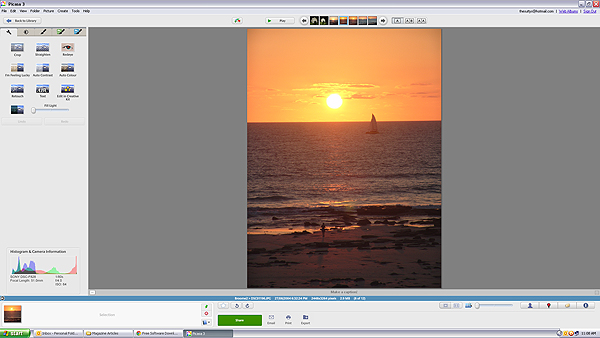
Picasa main screen 01

Picasa’s main browsing interface is simple and easy to navigate

You also have the ability to import photos directly from cameras and portable drives using the import function in the top left hand side of the browser. Simply connect the device to your computer and navigate to the photographs on your device. Once you have all your pictures imported, and in their respective folders, you are ready to start editing.
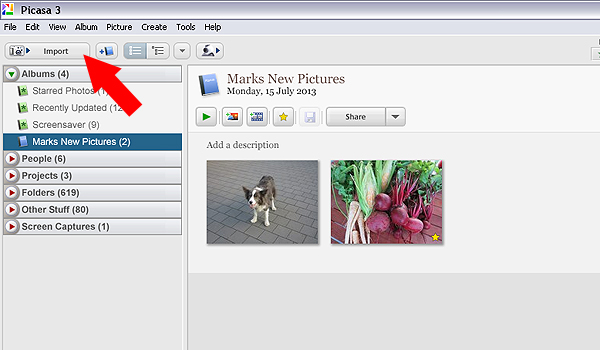
Picasa import button 02

Use the import function to download from a digital camera or portable hard drive

Editing and effects

To begin editing you simply double click on a picture in the Picasa browser. This activates the editing functions and you can begin making changes to your selected photograph.

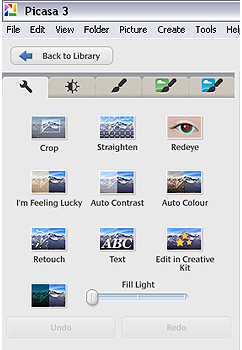
There are five tabs at the top left-hand side of the editing window:
Use the import function to download from a digital camera or portable hard drive

Use the import function to download from a digital camera or portable hard drive

TAB #1 COMMONLY NEEDED FIXES

The tools in this tab gives you control over cropping, straightening, red-eye removal, basic brightness and contrast adjustments. There are some automated features too such as “Auto contrast” and “Im feeling lucky”, which all deliver varied results. The “Edit in Creative Kit” feature has been discontinued but there is the opportunity to edit online inside Google+. There’s also a “Text” tool for adding some titles and information to your selections as well as a “Retouch” tool for fixing blemishes and scratches.

TAB #2 CONTRAST ADJUSTMENTS

The second tab gives you more brightness and contrast options and a greater level of control. It includes sliders to adjust the amount of fill light and shadows in your picture, and you also have the ability to change highlights. There’s a temperature control feature but in reality this simply adds either a blue or sepia tint to the picture which simulates daylight or interior colour temperatures.

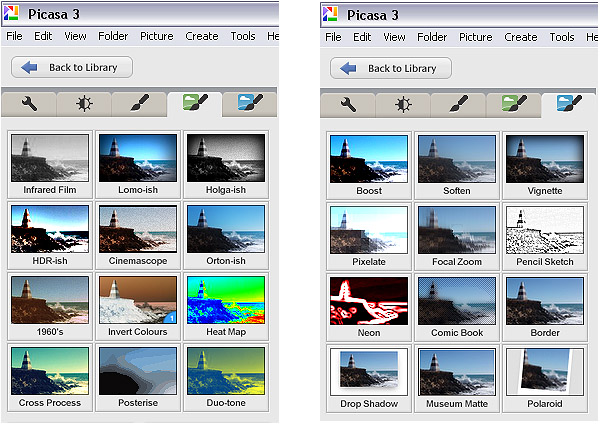
TAB #3 FILTERS

The third tab is where Picasa starts to offer some cool features. Here you will find a series of twelve preset filters such as sharpening, film grain and black and white. Most of the filters are adjustable so you can control the amount of each effect applied to a photograph.

TABS #4 and 5 MORE FUN FILTERS

Similarly, tabs four and five continue to offer you even more fun filters to apply to your photographs, with twenty four additional styles.
Picasa effect previews 04

The image filters in Picasa offer a wide range of modern and classic effects

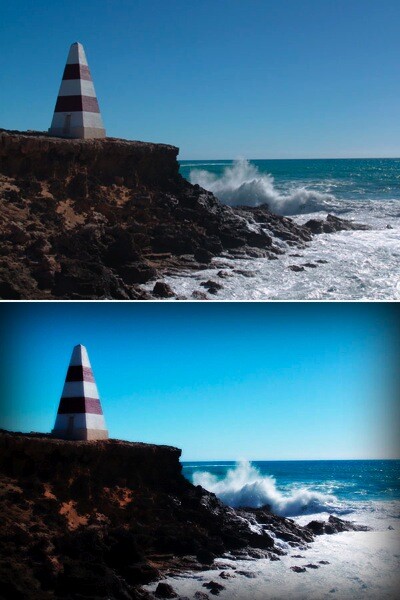
In the picture below I applied the Orton-ish filter and a Vignette to get a softening, yet dynamic effect.
Picasa before and after 05

Video

So, you’ve messed around for a few hours and now have a dozen images you want to show off to friends and family. Well Picasa’s bag of tricks doesn’t stop there. In fact, there’s some very useful output options available should you want to either print, make a video, or simply upload your pictures to the web.
Picasa create video icon 06

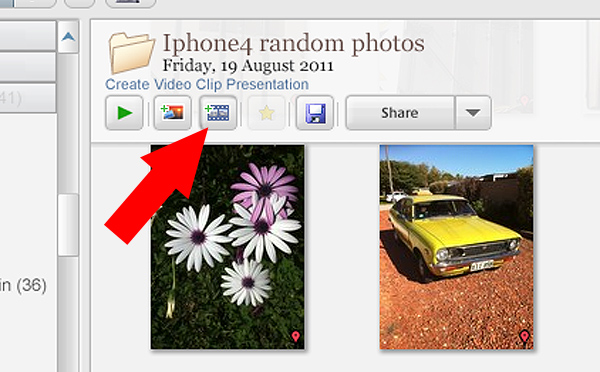
Making videos is simple and fun in Picasa. Just click the “Create Video Clip” icon to get started

By selecting a group of pictures in the browser and selecting “Create Video Clip Presentation’ it puts your selected pictures onto a simple video timeline. You can then add titles, and even import a music sound track to go with your pictures. If you’re not happy with the selection order you can shuffle the pictures, and then output the file to one of several video formats, including high definition 1080P.

There’s also the option of making a collage for print, screen or for the web. There are tons of options and it takes very little time to come to grips with how it all works.

Other features

If you think that’s impressive, wait, there’s more! If you have a free Google+ account you can upload and share your pictures right from the Picasa browser, to Picasa’s Web Albums photo sharing site with very little effort. Just make sure you familiarize yourself with the privacy settings before you start uploading and always read the terms and conditions.

On the downside,

On the downside Picasa has limited raw editing features, so if you want to try something more advanced then you will have to look elsewhere. That said there’s enough features in this little program to keep most people happy.

Bottom line on Picasa

Picasa is really a fun and easy program to use and the learning curve isn’t too steep. If you need an application that is primarily for browsing and organizing, then this is a handy program. Although the editing capabilities are basic there are some useful features such as geotagging, keyword tagging, face recognition and a range of exporting options. But if you are a serious photographer that needs a program that can do some heavy lifting then perhaps you’ll need something more robust.

Picasa will certainly appeal to a broad demographic and it is really intended to perform many of the most common photographic tasks. It can also speed up the process of getting your pictures online. While I was reluctant to start using this program I have warmed to it. So if you need a photo organizer and editor that’s quick, easy and – dare I say – fun to use then perhaps give it a go.

Download it:

  • Picasa for Windows
  • Picasa for Mac OSX

The post Getting to Know Picasa – a Free Image Editor and Browser by Google by Mark Sutton appeared first on Digital Photography School.


Digital Photography School

 
Comments Off on Getting to Know Picasa – a Free Image Editor and Browser by Google

Posted in Photography


Make your own Google Street View virtual tours

11 Dec

google.png

Google is reaching out to photographers to help capture and record the planet’s most hard-to-reach places using Android’s Photo Sphere feature. A new tool lets users upload and connect their 360-degree photo spheres to create virtual tours that can be shared in Google’s Street View. Learn more on connect.dpreview.com.

News: Digital Photography Review (dpreview.com)

 
Comments Off on Make your own Google Street View virtual tours

Posted in Uncategorized


Camera review: Google turns its attention to imaging on new Nexus 5

29 Nov

nexus5.jpg

The Nexus 5 is Google’s latest showcase smartphone, bringing with it Android 4.4 (aka KitKat) and some new imaging features. This time around, Google is talking up the Nexus 5’s camera, highlighting its optical image stabilization and revamped HDR mode. We put the phone through its photographic paces to see how it holds up in the real world on connect.dpreview.com.

News: Digital Photography Review (dpreview.com)

 
Comments Off on Camera review: Google turns its attention to imaging on new Nexus 5

Posted in Uncategorized


Google reworks Android to allow for Raw imaging

27 Nov

shared:google.png

Google has given its camera API a complete makeover in an attempt to make app development easier for programmers. When the new API rolls out, it will allow apps to save Raw files and will also enable burst shooting. Learn more on connect.dpreview.com.

News: Digital Photography Review (dpreview.com)

 
Comments Off on Google reworks Android to allow for Raw imaging

Posted in Uncategorized