RSS
 

Posts Tagged ‘Free’

Adobe’s 12th Annual 99U Creative Conference will be free and virtual this year

07 May

Adobe has announced its 12th Annual 99U Creative Conference, which is usually a paid, in-person event, will be hosted on Adobe Live for free as a virtual event this year amidst the ongoing COVID-19 pandemic.

Tickets for the annual event normally cost around $ 1,000, so being able to take in the event for free, in the comfort of your own home, is quite the discount. This year’s event will take place on Wednesday June 17 and will feature a mix of keynotes, creative workshops and masterclasses throughout the day. The presentations will be available stream via Adobe Live or available on-demand shortly after completion of each event.

A few of the individuals who will be presenting at this year’s virtual conference.

You can find out more information and register to ‘attend’ the event for free on Adobe’s Behance website.

Articles: Digital Photography Review (dpreview.com)

 
Comments Off on Adobe’s 12th Annual 99U Creative Conference will be free and virtual this year

Posted in Uncategorized


Affinity Photo is Available for a Three Month Free Trial

28 Mar

The post Affinity Photo is Available for a Three Month Free Trial appeared first on Digital Photography School. It was authored by Jaymes Dempsey.

Affinity Photo is Available for a Three Month Free Trial featured image

As coronavirus continues to take its toll on artists and designers everywhere, Serif has decided to act.

The company announced that their software, including Affinity Photo, will sell with a steep 50% discount, taking the normally inexpensive programs down to bargain-cheap levels:

$ 24.99 USD for Affinity Photo on desktop (either Mac or Windows), and just $ 9.99 USD for Affinity Photo on iPad.

And that’s not all:

Serif has also announced a 90 day free trial on all Affinity software. This means that anyone struggling to afford editing software during the coronavirus pandemic can use Affinity Photo for free. There’s no catch; you can try the software, with all features included, for the next three months.

Affinity Photo is currently on sale

As the Serif Managing Director explained, “[H]opefully these things will make life a little easier for people who rely on creative software to make a living but may be stuck at home without access to their usual tools, or for students who might suddenly be without access to their Affinity apps on their personal devices.”

For those of you unfamiliar with Affinity Photo, it’s one of the most popular Photoshop alternatives around. It’s known for its full-featured, layer-based software, sleek interface, and excellent price.

In fact, plenty of creatives have abandoned Adobe for Serif, given that the Serif program is comparable in its features and noticeably cheaper.

In some ways, the standard Affinity price (and the current, even lower, price) is unbelievable, because Affinity Photo just offers so much. The software comes with basic adjustment capabilities, but you also get advanced features such as focus stacking and HDR merging, plus a useful in-built RAW editor.

So if you’re someone who’s struggling to pay for your current software, or you’re looking for a way out of Adobe’s subscription model, or you just want to take advantage of a tremendous deal, then I recommend you head over to the Affinity website now.

Chances are that you’ll love Affinity Photo.

Now over to you:

Are there any other Photoshop alternatives that you’d recommend? If you’ve already started using Affinity Photo, what do you think of it?

Share your thoughts in the comments!

The post Affinity Photo is Available for a Three Month Free Trial appeared first on Digital Photography School. It was authored by Jaymes Dempsey.


Digital Photography School

 
Comments Off on Affinity Photo is Available for a Three Month Free Trial

Posted in Photography


Professional Photographers of America is offering free access to its 1,100+ classes amidst COVID-19 quarantines

22 Mar

The Professional Photographers of America (PPA) has announced it’s unlocking all of its more than 1,1000 online photography classes for the next two weeks as a way to help those who are quarantined amidst the COVID-19 pandemic.

On the sign up page to access the free classes, PPA says:

‘Times are tough – we need to be at our best. More kindness. More patience. More giving. And we at PPA want to pitch in to make things a little easier. What better way to spend your time at home than preparing your business for when things kick back into high gear? That’s why PPA is opening ALL of our online education to ALL photographers and small business owners worldwide for the next two weeks.’

To access the more than 1,100 classes, all you need to do is sign up for a free account on this page. There, you are asked to enter your first name, last name, email, a password and the city, state and country you reside in. Once the account is created, you’ll automatically be sent to the page shown in the screenshot below, from where you can choose the class(es) you want to partake in.

The available classes range in topics and genres, from classes on how to get started with your photography business and create contracts to guides on how to balance natural light with flash and how to organize keywords and metadata in Lightroom.

PPA CEO David Trust also shared a letter to the photography community, which you can read on the PPA website.

Articles: Digital Photography Review (dpreview.com)

 
Comments Off on Professional Photographers of America is offering free access to its 1,100+ classes amidst COVID-19 quarantines

Posted in Uncategorized


Adobe announces free at-home Creative Cloud service for students and educators impacted by COVID-19 outbreak

15 Mar

Adobe has announced it will be providing students and educators at-home access to Creative Cloud applications free of charge due to the increasing amount of remote learning current taking place amidst the COVID-19 pandemic. In order to qualify for this service, a student must otherwise only have access to Creative Cloud applications on campus or at a school computer lab.

In order to access a temporary license to use Adobe Creative Cloud software at home, an IT admin must request access for students and teachers from Adobe. The access application can be found here. Once access is granted, users will be able to remotely access Creative Cloud apps through May 31, 2020, or until their educational institution reopens if this occurs before the end of May.

Remote education can be challenging, especially for students who are only able to access certain services on campus, so it’s nice to see Adobe working to help those affected. Per PetaPixel, the initial request for help came from RC Concepion, a professor at Syracuse University. He told PetaPixel, ‘We have been running around—like every other university—quickly coming up with an action plan to keep serving our students through COVID-19. Teaching communications, we rely a huge amount on Adobe Software—reporters, cinematographers, photographers, designers. It dawned on me that a lot of student access was here at school and that with any students at universities, there would be many that couldn’t afford using the software.’

Image credit: Adobe

In addition to free at-home access to Adobe Creative Cloud for students and teachers, Adobe announced earlier this week that it would make Adobe Connect, its web conference application, free to all users until July 1, 2020. This decision has been made to facilitate remote business and education, and also allow healthcare and government institutions to coordinate their efforts in real-time. Of the decision, Adobe states, ‘We believe that Adobe Connect has a vital role to play for enterprises looking to continue business operations despite travel restrictions, canceled conferences and delayed projects, all while keeping their people safe.’

As more students, educators and other workers are forced to work remotely, access to technological services becomes even more important. It’s great to see a large company such as Adobe working to make people’s lives easier in what are trying times for many.

Adobe Enables Distance Learning Globally for Schools Impacted by COVID-19

March 12, 2020: The past few weeks have shown us that, even in times of uncertainty, our schools and business communities remain strong and resourceful, all while continuing to find creative ways to maintain learning and business continuity.

With many schools facing physical campus closures and moving to online learning due to COVID-19, we’re announcing that we’re giving greater access to Adobe Creative Cloud desktop apps to facilitate distance learning. We believe that doing so will make it possible to keep coursework, teamwork, and student progress on track through at-home access to Creative Cloud for students and educators.

Articles: Digital Photography Review (dpreview.com)

 
Comments Off on Adobe announces free at-home Creative Cloud service for students and educators impacted by COVID-19 outbreak

Posted in Uncategorized


Free Tools to Easily Remove a Background in Photos

04 Mar

The post Free Tools to Easily Remove a Background in Photos appeared first on Digital Photography School. It was authored by Ana Mireles.

remove-a-background-in-photos

Whether you’re replacing a dull sky, cutting-out a product or creating a collage, sooner or later you’ll need to remove a background in photos. Professionals and amateurs alike need an efficient tool for this task. Fortunately, there are some free alternatives in the market for all levels of expertise. Here, I’ll show you some of them.

remove a background in photos

Removing the background is usually very meticulous and tedious work. It is, however, one of the most needed edits. Because of this, developers have come up with different solutions. I’ll show you some of the free tools available, so you can choose what’s best for you.

Source Image

It’s easier to remove a background when your image is well exposed and when the subject has defined edges and a contrasting background. To better test the tools, I’ll use an image with these characteristics, but also one that doesn’t.

The second image will be a simple snapshot with a slightly underexposed subject, some hot points, and a busier background. Let’s see how each tool behaves in both situations.

images to remove the background

Image 1 (left): 1/1000; f8; ISO 200.  Image 2 (right): Snapshot in auto mode.

Edit Photos for Free

Edit Photos For Free is a website where you can remove the background. It’s free, without having to register for an account and without previous training or knowledge. You just draw the border, then indicate what is the foreground and the background; the program will do the rest.

remove a background in photos

Pros

  • It really is free, you won’t be asked to register or upgrade during the process, nor at the end of your work. No tricks as far as I can see.
  • You can download the final version without losing resolution.
  • You don’t need to have previous knowledge or skills – it is very user-friendly.
  • When the source image is well-exposed and has a contrasting background, it will do a very good job drawing the border automatically. Just by adjusting the tolerance value, I didn’t need to do any further adjustments for image number one.

remove a background with edit photos for free

Cons

  • It wouldn’t allow me to rotate image number two.
  • You can’t replace the background, you either leave the transparency or color it.
  • If the image foreground is not super clear, you will have to draw the edges yourself. I had to do this for image number two and refining the selection was not very intuitive.
  • The shadow and feather options didn’t do any noticeable changes.

review to remove a background in photos

Background Burner

Background Burner is free to use, however, you do need to register. As soon as you upload the image, it automatically runs the first selection.

remove a background in photos with background burner

Cons

  • I start with the cons because it’s the first impression I got. It’s free if you register, which means you are paying with your data. It’s not super invasive as it only asks for email and country. But still, it’s not ideal.
  • You can’t replace the background or color it. You’ll need to use another program if you want to do that. If you save it as JPG, though, it will automatically fill the background with white.
  • The automatic selection is not very intuitive. Here you can see how it did in both of my images. In this case, image number two was better, and it even gave me some choices to pick from.

remove a background in photos with background burner

Pros

  • The tools for fine-tuning the first selection are better than the previous website. It has the basic tools for refining easier things and pixel tools to go into details.
  • You can download the final version without losing resolution. You can even choose between JPG or PNG. Remember that to keep the transparency you need the PNG.
  • You don’t need to have previous knowledge or skills – it is very user-friendly.
  • It has the option to upgrade into a paid service if you need more accuracy and tools.

Background burner selection tools


Photoscissors

Photoscissors is one of the most popular and known choices out there to remove a background in photos.

It’s one of the most complete tools. They even tell you that on the first page: “Remove a background and replace it with a transparency, solid color, or background image.” So, it already gives you more options than the past two websites.

photoscissors

Pros

  • The auto-selection didn’t do an amazing job, but the touch up is easier because of the slider that gives you more control over the brush size. It also has a good feathering system.
  • It allows you to easily replace the background with another image or color.
  • You can also create a shadow and control opacity and blur.


remove a background in photos

Cons

  • It’s free to use even without registering, but you can only download a low-resolution version. This is not very evident when you start working on your image, so you might end up losing your work or be forced to pay the upgrade. Unless a low-resolution is enough for your needs.

Photoscissors down side

Extra

  • It has a hair selector that is very accurate. If you do many portraits, it may be worth considering a subscription.

GIMP

Gimp is a free and open-source editing program.

remove a background in photos using GIMP

Pros

  • It has many selection tools that you can use and combine for selecting your background in a controlled and precise manner.
GIMP selection tools

For Image 1 (left), I used the Fozzy selection tool and the Rectangle tool for details. For image 2 (right), I used the Scissors selection tool and the Free select for the details.

  • You can keep your background, shadow, and foreground in different layers to work independently and non-destructively.
  • You can do your entire project in it.  Adjustments, collages, etc. without the need to use any other website or software.

remove background from images for collages


Cons

  • You need to download the program onto your computer – you can’t work online.
  • It does require a learning curve, and it’s not the friendliest of interfaces.

Conclusion

To remove a background in photos has become easier and more accessible with technology, but there are no magic tricks. You do need patience, skills and good software, which often costs.

If you’re going to let the algorithm do most of the work, try different ones to see which one ‘reads’ your image better and saves you more time. If you’re ready to dive in and take charge, go with GIMP. The time you spend learning it becomes a skill that will save you time in a future project.

Do you have any other websites or tools to remove a background in photos? Let me know in the comments section.

The post Free Tools to Easily Remove a Background in Photos appeared first on Digital Photography School. It was authored by Ana Mireles.


Digital Photography School

 
Comments Off on Free Tools to Easily Remove a Background in Photos

Posted in Photography


Sony reportedly cuts planned mirrorless camera features to free up hardware for PS5

20 Feb

Sources recently speaking to Bloomberg allege that Sony has nixed some features it had planned for an unnamed future mirrorless camera model due to the scarcity of certain hardware, namely DRAM and NAND flash memory. The decision was reportedly made in order to reserve the limited hardware for the upcoming fifth-generation PlayStation console, which is expected to launch this holiday season.

The current demand for NAND and DRAM is high among smartphone manufacturers, according to Bloomberg, which reports that Sony is struggling to keep down the cost of its upcoming PS5 console. Assuming sources are correct, the PS5 will cost around $ 450 to manufacture, meaning that even with thin margins, consumers could be facing a unit price of $ 470 or more for the next-gen gaming console.

The sources claim that the coronavirus outbreak hasn’t had any sort of impact on the PS5 at this time, but that limited DRAM availability prompted the company to cancel some mirrorless camera features it had planned. Sony will reportedly prioritize the DRAM for its PS5 console, the final price of which hasn’t been revealed.

The report doesn’t specify which camera model will suffer as a result of this alleged decision nor which features were eliminated, though it does claim that Sony plans to release the camera this year. Assuming the claim is true, Sony may have decided to remove a planned stacked DRAM image sensor from an upcoming model, but the company has not commented on the report, leaving little more than speculation at this time.

Articles: Digital Photography Review (dpreview.com)

 
Comments Off on Sony reportedly cuts planned mirrorless camera features to free up hardware for PS5

Posted in Uncategorized


Topaz Labs will end free upgrades for several products starting in August 2020

15 Feb

Topaz Labs, the software company known for offering free software upgrades, has announced a major change to its business model: customers will have to pay to upgrade several of the company’s products starting in August 2020. The announcement was made by company CEO Eric Yang in a statement on Thursday. Gigapixel AI, DeNoise AI, Sharpen AI and Mask AI are all affected by the change.

Yang explains that offering free major upgrades for its products was a way ‘of acting differently than faceless corporations,’ but that it ultimately had an unwanted effect. By hinging its revenue on new products rather than product upgrades, Yang says, ‘we found that we weren’t focusing as much as we wanted on improving existing products.’

Yang goes on to state:

We ended up with several different products that did similar things, which caused confusion about which tool to use. Although it started out with good intentions, our free upgrade policy ultimately prevented us from delivering the best possible products to you. Make no mistake about it: this situation was 100% our fault. We were not thoughtful enough about aligning our pricing structure with continuous improvement of our products.

Topaz Labs says more than $ 8 million worth of free upgrades were claimed for major new products last year. In 2020, the company will transition to paid upgrades, which will involve paying $ 49.99 for a year of upgrades following an initial first year of free major and minor upgrades. For customers who own multiple Topaz Labs products, the upgrades can be collectively purchased for $ 99.99.

The company says that Mask, Sharpen, DeNoise and Gigapixel will require upgrade licenses this year. Topaz Labs stresses that customers retain access to the products they purchased even if they choose not to purchase software upgrades. ‘Wait until [the upgrade] actually includes something you want to pay for,’ Yang says. ‘This also incentivizes us to make sure that the improvements we do implement are useful enough for you to upgrade.’

Some customers are understandably upset about Topaz’s decision to start charging for upgrades. Yang acknowledges this in his post, stating that it was a hard decision to make. ‘I’m asking you to lock arms with us and walk through this phase of our development by accepting this change,’ he states. Users will soon be able to view how much time remains on their upgrade licenses within their customer accounts.

Articles: Digital Photography Review (dpreview.com)

 
Comments Off on Topaz Labs will end free upgrades for several products starting in August 2020

Posted in Uncategorized


This free, AI-powered Lightroom plug-in will automatically tag your photos with keywords

22 Jan

Powered by artificial intelligence, Imagga’s Wordroom is a plug-in for Adobe Lightroom that ‘sees’ images and recommends a list of up to 30 keywords based on attributes including objects, colors, shapes, emotions, timeframes, and events. With one click, keywords can be added to an image’s metadata so that it’s easily searchable. It was created for professional and hobbyist photographers who don’t want to spend long hours assigning individual keywords to hundreds of thousands of images.

Wordroom relies on machine learning algorithms that get smarter as more people use them. This means the more images it sees, the better it gets at accurately identifying keywords. Users can remove any keyword that doesn’t make sense for a specific image and manually add in as many as they wish. Once the ‘Add to keyword tags’ button is clicked, both automatic and manually entries will be displayed in Lightroom’s Keyword tags panel. Each photo with keywords will have a tag on its thumbnail.

To install Wordroom, select ‘Plugin Manager’ from Lightroom’s dropdown menu ‘File.’ Add the plug-in file stored on your computer, enable it, and click ‘Done.’ Next, select the dropdown menu ‘Library’ and click on ‘Plug-in Extras’ > ‘Auto-keyword.’ It will automatically display suggested keywords for the currently selected photo. Photos are analyzed in the cloud as small thumbnails, so users will need to be connected to the Internet when using it, but Wordroom claims images are not permanently stored.

You can use the plug-in without registering for the first 100 photos. After that, you’ll need to sign up for a free plan. Wordroom will remain free to use if you auto-tag 2,000 or fewer images per month. Any more than that will require a higher-tier plan that allows for up to 12,000 images per month at $ 14. To get started, all Imagga asks for is an email address so it can send you a download link.

Articles: Digital Photography Review (dpreview.com)

 
Comments Off on This free, AI-powered Lightroom plug-in will automatically tag your photos with keywords

Posted in Uncategorized


The Canadian Internet Registration Authority has created a free and funny stock photo library

20 Jan
A lumberjack checking out a hockey player is a Canadian take on the ‘distracted boyfriend’ meme. Photo courtesy of CIRA/.CA.

The Canadian Internet Registration Authority (CIRA), the organization in charge of Canada’s ‘.ca’ top-level domain, has published a series of stock photos that poke fun at Canadien stereotypes. In a bid to get more people to add something ‘uniquely Canadian’ to their projects, they’re offering up their library of stock images for free.

Photo courtesy of CIRA/.CA

Anyone can use small, medium, large or extra-large sized images from the library, though they ask for an email address to access the extra-large 4K files. All CIRA asks, in return, is that a credit along the lines of ‘photo by CIRA/.CA,’ along with a link back to their website, is included.

Photo courtesy of CIRA/.CA. Also, no, this is not long-lost relative of Jordan—so far as we’re aware.

CIRA has their own version of the popular ‘distracted boyfriend’ meme, featuring a hockey player, and other distinct nods to Canadian culture including a moose interacting with backpackers and a lumberjack taking a swig of maple syrup. Anyone with the desire to add to this collection of images is encouraged to contact CIRA.

Articles: Digital Photography Review (dpreview.com)

 
Comments Off on The Canadian Internet Registration Authority has created a free and funny stock photo library

Posted in Uncategorized


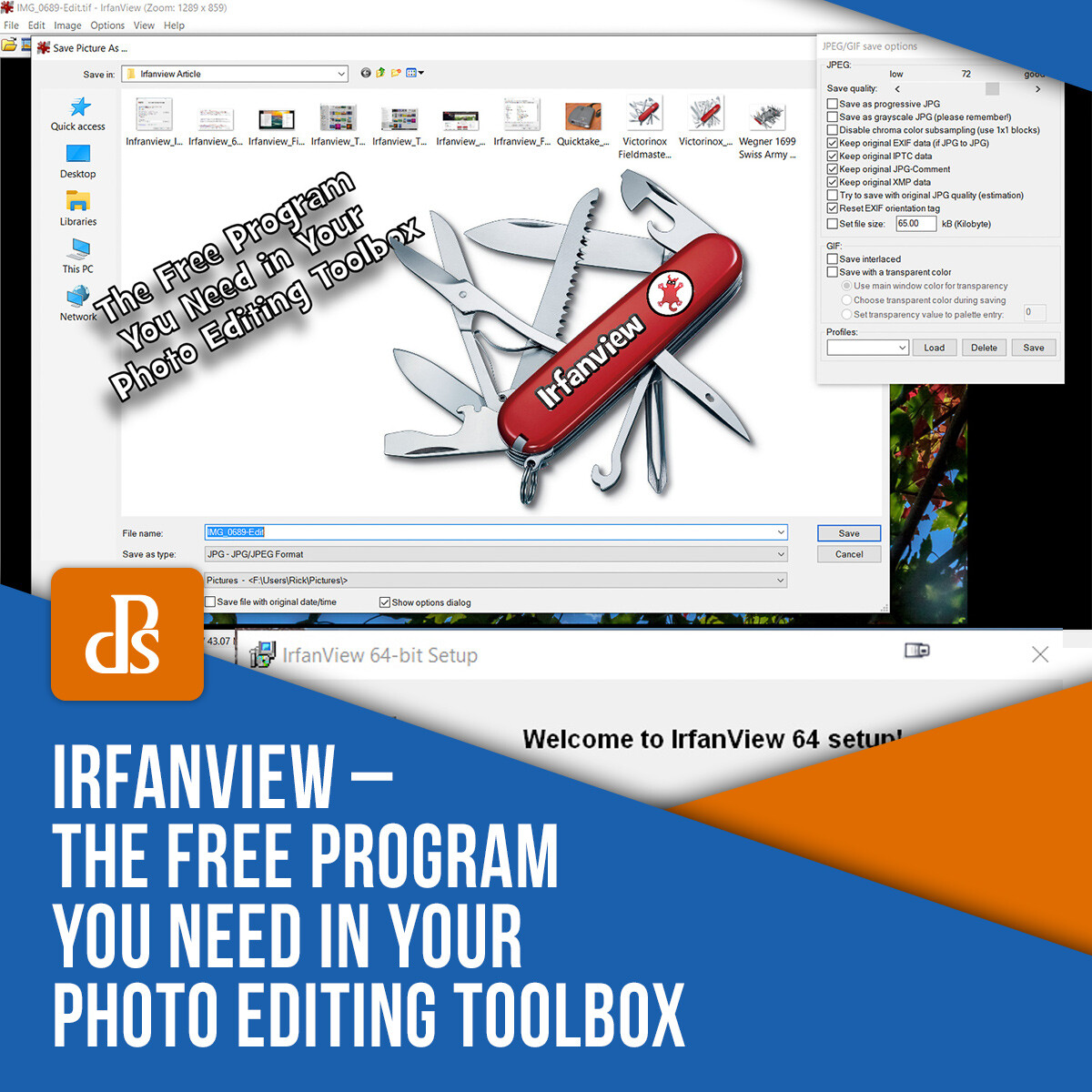
Irfanview – The Free Program You Need in Your Photo Editing Toolbox

19 Jan

The post Irfanview – The Free Program You Need in Your Photo Editing Toolbox appeared first on Digital Photography School. It was authored by Rick Ohnsman.
irfanview-software

You would typically expect an article on a photo editing/utility program to be about the new latest-greatest thing to come out.  Instead, this article will tell you why Irfanview, a program that has been around since almost the dawn of digital photography, is still as useful as ever and, as a photographer, it’s something you’ll want in your toolbox.

This is the main screen that will greet you on the Irfanview.com site.

This is the main screen that will greet you on the Irfanview.com site.

The “Swiss Army Knife” of digital photography

You no doubt have heard of Swiss Army knives, those pocket multi-tools that have all manner of flip-out gadgets to perform whatever task you might require. Need a knife, a corkscrew, scissors, screwdriver, bottle opener, saw, tweezers, you-name-it? You can get all those things in one pocketable tool.

The largest such knife made by the company Wegner is the model 16999, and it has 87 tools that can perform over 141 functions. It’s hardly pocketable, but probably more of a demo of what is achievable. More typical Swiss Army knives have about 15-30 functions and are very pocketable.

Sure, a dedicated screwdriver or saw might do a better job, but the idea of having an entire toolkit in your pocket is the attraction.

The Victorinox SwissChamp knife

Irfanview is like a Swiss Army Knife – Lots of tools in one compact package.

Such is the case with the utility program Irfanview.

This little do-all program is the brainchild of student Irfan Škiljan, from Jajce, Bosnia/Herzegovina, who first introduced the program in 1996. To put that into perspective, the first commercially successful consumer digital camera, the Apple Quicktake 100, was introduced in 1994. I would venture that some of the readers of this article weren’t yet born.

Not only has Irfanview been around for 23 years, like the Swiss Army knife, but it also is small, compact, can fit on, and even be run from a thumb drive and performs more functions than I’ll even be able to cover here.

If you could only have one digital photography tool to work with, I daresay this might be the one you’d want. (Providing you work on a PC, sorry Mac users, this one’s not available for you unless perhaps you use a Windows emulator).

If you have been involved in digital photography for a long time, you may already be familiar with Irfanview. (Especially considering that since 2003 it’s been downloaded over a million times each month.)

It could be that you’ve used it in the past, but have forgotten about it. If so, you might learn some new tricks it can do now that you didn’t know about.

If you’ve never heard of it, it’s time you did. Either way, the list of Irfanview tools, features, functions, and tricks is impressive.

And did I mention it’s all free?

Yes, Irfanview has always been free, though Irfan Škiljan does accept donations and sells the product when used for commercial use. He has pretty much been able to live off the program.

The Apple Quicktake, released in 1995 was the first consumer digital camera.

The Kodak-made Apple Quicktake, released in 1995 was the first consumer digital camera.

What can’t it do?

I bought my first personal digital camera in 1999, a Nikon Coolpix 950. One of the first tools I used to work with my photos was, yup, Irfanview.

Over the years, new features and functions have been added, many of those created by other contributors who’ve created “plugins.” Adding to the already impressive list of functions the native program can perform, there are now over 70 plugins for Irfanview, expanding its capabilities even further.

It might be easier to list what the program can’t do rather than what it can do, but I will attempt to give you an overview of its basic functions. This will not be a “how-to-use” Irfanview article. One of the great things is the program is very easy to learn, and there’s no end of support available.

Pick the 32 or 64-bit version of Irfanview for your particular computer.

32 or 64-bit versions of Irfanview are available. Pick the version (and the plug-ins) for your particular computer.

Acquiring, downloading and installing

The official site for Irfanview is what you’d expect, Irfanview.com. Once there, you will see there are now two main versions, one for 64-bit and the other for 32-bit versions of Microsoft Windows. It will run on Windows XP, 7,8, and 10. If for some reason, you need older versions, those are available too.

Pick the version suitable for your computer. I suggest downloading the versions with the installers build in (these will be .EXE files).

Once downloaded, just double-click the file, tell it where you want it installed, and let it do its thing. (I also mentioned if you want a “portable” program, you can download and install it to a flash drive. It can be handy to have the program with you when you may want to use it on someone else’s computer and not have to install it to their machine.)

The Installation menu for Irfanview

The installation menu for Irfanview.

The Plug-ins

You don’t have to install the plug-ins, but I don’t know why you wouldn’t, as they greatly expand the list of what Irfanview can do. 

The easiest way to do this is to download and install the All Plug-Ins Installer. Be sure to pick the one that matches the version of the main program you downloaded and installed, 32 or 64-bit

Run the .EXE file just as you did the main program. It will find Irfanview on your machine (install that first) and then put the plugin-ins where they need to go. The whole process is very easy and straightforward.

You can configure Irfanview as the default view for whatever filetypes you choose.

You can configure Irfanview as the default view for whatever filetypes you choose.

Exploring the functions

With so much capability, I think the easiest way to give you an overview of the features is to look at the kinds of tasks you might want to accomplish and how Irfanview can handle those. I’ll briefly describe common tasks, though this will not be an in-depth instruction on how to perform the functions.

You might find this website a good resource for that purpose. The beauty of Irfanview is it’s very easy to learn and quite intuitive.

Open, view, save and convert files

As a photographer, you will likely be working with image file types like JPG, TIF, PNG, GIF, or possibly raw files like Canon CR2 or Nikon NEF.  What’s great is Irfanview opens dozens of different file types, even things you probably haven’t even heard of.  Here’s a link to a full list.

Open a file and view information in Irfanview.

You can learn lots about your image when you open it and use the Information option in Irfanview.

Open and View

To open a file/image, go to the File dropdown, pick Open and use the next menu to browse to where your file is located.

Click it once and, with the Preview Active box checked, you will see a thumbnail below.  There will also be information on the width and height of the image in pixels, the color depth, the size in RAM, and the file size.

Click Open or double-click the image and it will open in Irfanview.  If you want to go to the next image in the same folder, just click the spacebar on the keyboard or use the arrows on the top menu bar.

File conversion is a real strength of Irfanview.

Open one image type and convert it to something else. Irfanview excels at this. Here a .tif is converted to a ,jpg.

Convert

A powerful feature of Irfanview is the ability to convert one file type to another. For example, open a TIF file and save it as a PDF file or maybe a JPG. It’s as easy as opening the file and then saving it as whatever else you like.

If you like keyboard shortcuts, Irfanview has many. For example, an open image, click the “S” key to Save and then use the menu to tell Irfanview the file name, type, and location you wish to save it.

Irfanview can run video files too, like this mp4 video file.

Irfanview can run video files too, like this MP4 video file.

Not just for image files, Irfanview can play mp3 and other audio files.

Not just for image files, Irfanview can play MP3 and other audio files.

Not just photos

Irfanview goes beyond just opening photos.  It can also load and play audio and video files.  Want to play an MP3 music file or maybe an AVI video file?   Irfanview can do!

Send Irfanview images to an external editor of your choice.

Setting up external editors allows you to send an image from Irfanview to another editor, Photoshop in this example.

Open with an external editor

If Irfanview can’t do what you need, you can have it send the image to an external editor of your choosing.  You can specify up to three different editors in the Properties/Setting Menu.

The Thumbnails menu is Irfanview gives you many ways to look at your image files in a folder.

The Thumbnails menu is Irfanview gives you many ways to look at your image files in a folder.

View Thumbnails

This is a useful option.  (The “T” key is the shortcut).  Pick this, a submenu will open, and you can then browse all the folders on your drives.  Find the image you want, double-click it, and it will open in Irfanview.  The Thumbnails feature is very robust, offering many ways to view your files and see information about them.

Irfanview is a great program for making slideshows.

Irfanview is a great program for making slideshows.

Make a slideshow

This is one of my favorite features of Irfanview.

You can create an impromptu slideshow from images on any drive – even a plugged-in flashdrive. You can have the images automatically or manually advance, set timings, add music, show text such as file name, or even complete EXIF data.

If you want to save and take your finished slideshow elsewhere, you can save it to a self-contained EXE file, burn it to a CD or DVD, or even create a Screensaver file (SCR). With your computer connected to a projector, Irfanview makes a great presentation program, even allowing you to do things on the fly.

The batch conversion-rename tool in Irfanview is very powerful.

A top feature of Irfanview is its powerful batch conversion-rename utility. I’ve found none better.

Batch conversion/rename

I have not found a better program for this kind of work than Irfanview. Say I need to convert 200 TIF images to JPG, resize them to 1200 on the long side, sharpen them slightly, and rename them all to the same name but with sequential numbering. Irfanview has many of these options. You can tell it exactly what to do, how to do it, and where to save the results.

Once set up, it can work with as many files as necessary and, when set in motion (Start Batch), will quite quickly perform the assigned task.

Yes, the menus are quite extensive in this portion of the program, and taking the time to prepare your batch command carefully is important. What’s great, however, is the extensive options giving you very precise control of what you want.

There’s only one caution I’d give (and the default settings will usually protect you from doing this); if you convert or rename your files, be sure to set Irfanview to make a copy of those instead of overwriting the originals. You don’t want an “oh no!” moment if you discover you made a mistake and overwritten your originals.

Irfanview is a reasonablly capable image editor.

It’s not Photoshop, but Irfanview is a reasonably capable image editor.

Editing images

I won’t suggest that Irfanview will replace your dedicated photo editors like Lightroom, Photoshop, or whatever editing tool you use. That would be like saying the saw on a Swiss Army knife is a fine substitute for a chainsaw when felling trees.

However, in a variation of the saying about the “best camera,” let me say that the best editor is… the one you have with you.

Since Irfanview can work from a thumb drive, if necessary, without even installing it to the host computer, it’s easy to have it with you.

It’s installed on my desktop and notebook computers, and I carry a copy on a thumb drive on my keychain. Don’t leave home without it!

So what can you do with Irfanview as an editor?  Here’s a quick list:

  • Adjust color, brightness, contrast, saturation, gamma,
  • Resize image, canvas size
  • Crop
  • Add text
  • Paint – adjust brush size, color, shape, type
  • Fill
  • Sample color
  • Replace colors
  • Flip, rotate, mirror vertically or horizontally, straighten
  • Draw lines, arrows, shapes
  • Add borders, frames
  • Convert to grayscale, adjust color depth, invert to negative
  • Show histogram
  • Fix Red-Eye
  • Sharpen
  • Clone Stamp
  • Plus more!
Create multi-image montages with Irfanview.

Use Irfanview to create multi-image montages.

Other editing/compositing functions

Irfan has other great tricks it can perform. Need to create a contact sheet? Make a montage image? Yes, Irfanview can do these things.

While it also has a “Panorama” creation function, this is not a stitching program that can detect and seamlessly merge multiple images. It works better for making horizontal montages with multiple images where the edges need not match.

For stitching panoramas, I would instead suggest another free program, Microsoft ICE, on which I wrote this previous article.

Irfanview can control your scanner, bringing the scanned image into the program for further work.

Irfanview can control your scanner, bringing the scanned image into the program for further work.

Scanning, copying, and printing

Irfanview can connect to scanners and other TWAIN devices to bring images directly into the program. Point Irfanview to the device, and it will allow you to scan single or multiple images.

If you need to make a quick copy of something and have both a scanner and printer connected to your computer, Irfanview has a Copy Shop feature that scans the image and immediately sends it to the printer.

Still more tricks

You will want to explore Irfanview on your own as there are more possibilities than I can possibly write about here. As with many things, the best way to learn is to experiment and get some hands-on experience.

Here a few other things you may wish to try:

Screen captures

Need a screenshot to save or send someone?  Use the Print Screen function on your keyboard to capture the screen.  Then open Irfanview and Edit->Paste the captured image.  Crop it as desired and save the image for attachment to your email, further editing, or printing.

Add your exposure data to your photo with Irfanview.

Want to have your exposure data show on your photo? Irfanview can do! Display any Exif or IPTC data you like.

Put exposure data (or other text) on photo

There could be times you might want to display Exposure data or other text on your photo.  Here’s a simple way to do it in Irfanview:

  • Open the photo of interest
  • Drag a box on the portion of the image where you want to display the text
  • Click Edit->Insert Text
  • Use the menu that appears to fill in the information you want to be displayed.
  • You can use the Exif data codes to pull data from the file (if you haven’t overwritten it with a previous edit to the file).  A list of all codes is available in the Irfanview Help menu. Click the Help button in the menu to see them.  See an example in the image above.
  • If you want to be able to save the “recipe” you created, you can save it as a Profile which you can then use later.  This same technique can be used within the Batch conversion tool to do multiple images.
Plug-ins offer many more options in Irfanview like this Effects option.

Plug-ins offer many more options in Irfanview like this Effects option.

Plug-ins and filters

When you really want to dig deep into what Irfanview can do, you can explore the plug-ins and filters option. Here you can do such things as OCR (Optical Character Recognition), which will allow you to scan in a page of text and then convert it to editable text.

There is Facial Recognition (which I’m still deciphering), and there are the Image Effects (with an image open in Irfanview, click Image->Effects->Effects Browser, to get an overview of the various looks you can achieve.

Want even more? There are plug-ins under the Effects Menu like Filter Sandbox or Filter Factory. Irfanview can also use any Adobe-compatible 8BF filters.

Conclusion

The Swiss Army Knife analogy is a perfect description of the way I use Irfanview. It may not be the tool I use routinely, and certainly isn’t my primary photo editor, but, like carrying a utility tool in my pocket, it is oh, so handy when I need it. It’s also easy to always have around.

For a few tasks, it even does things commercial programs can’t or does them in a simpler, better way.

I have used the program for over 20 years, and I can say even as I prepared this article, I learned some new things I’d not yet discovered. If you try it, you, too, will find a place in your photo-editing-toolkit for Irfanview.

Let me know in the comments how you found it useful in your work.

The post Irfanview – The Free Program You Need in Your Photo Editing Toolbox appeared first on Digital Photography School. It was authored by Rick Ohnsman.


Digital Photography School

 
Comments Off on Irfanview – The Free Program You Need in Your Photo Editing Toolbox

Posted in Photography