RSS
 

Posts Tagged ‘Exposure’

Introduction and Creative Uses for the Snapseed Double Exposure Feature

23 Jul

The post Introduction and Creative Uses for the Snapseed Double Exposure Feature appeared first on Digital Photography School. It was authored by Ana Mireles.

Snapseed double exposure feature uses and tips

Do you have a different app for doing collages, and compositing, and another for changing backgrounds? Then this article is for you. I’ll show you how to use the Snapseed double exposure feature so you can do all of this inside one free app. Let’s get started.

Snapseed Double Exposure Uses

Double Exposure

The double-exposure technique comes from film photography. It’s created by shooting multiple times in the same frame. This can create compositions, collages, or superimposed ghosts on a scene and used for many things. Fortunately, it carried over into digital photography.

Snapseed Double Exposure

There are different ways to achieve double exposures. You can do it in-camera, by editing on your computer or using your smartphone. This last one is what I want to show you.

Snapseed editing app

There are tons of editing apps to choose from. I particularly like Snapseed because you can do most of your post-production in it, it’s free and available for iOS and Android.

Snapseed Interfase

In general, Snapseed is very intuitive, but if you want to have more control over your editing, it’s not always clear how to access the tools for fine-tuning. This is the case of the Snapseed double exposure feature.

Basic Double Exposure

For the basic use of the Snapseed double exposure feature, I’m going to show you how to add a bokeh background to your subject.

When you launch the app, you’ll be immediately prompted to open your image by clicking anywhere on the screen. This will open the browser for you to access your gallery. Choose the one with your subject and tap on it.

White Background Subject

Next, open the Tools menu by tapping the pencil icon. Scroll down until you find the Double Exposure tool and tap on it.

Snapseed Double Exposure Tool

Here you’ll find three tools. Choose the one with the plus sign (+) on it. This is the ‘add image’ button. It will give you access to your gallery again to add the photo you want to overlap. In this case, the bokeh image.

Snapseed Double Exposure

Blending modes

Now that both images are superimposed, you can modify the effect.

Start by tapping the middle icon – it represents the different layers. Here you can adjust the way they interact with each other. If you are familiar with Photoshop Blend Modes, it will be fairly easy. If not, just tap on each choice to see how they change the results.

When you’re happy, tap on the check icon to apply.

Snapseed Double Exposure Blending

Opacity

Now, go to the third tool, the one that looks like a drop. With this one, you can open a slider that controls the transparency of the layer. Move it until you like the final result.

Add Bokeh Background

If it’s still not perfect, you can always mask away specific parts of your layer. I’ll show you how to do this in the next section by doing a simple composite.

Advanced editing

Pretty good right? But not exactly a lot of control. That’s why the Snapseed double exposure feature offers the possibility to mask. However, these tools aren’t so easy to find as a first time user.

First, make your composite with the basic tools as explained in the previous section. Once you’ve decided on the blending mode and transparency, accept the edits by tapping on the check sign.

Snapseed Double Exposure Composite

Next, tap on the back button that you can find on the top right. Usually, you wouldn’t do that unless you were unhappy with your results, and this is why these advanced tools are not apparent at first glance. This will open a menu that gives you the choice to Undo, Revert, and View edits. This last one is where you want to go.

Snapseed View Edits

This will open a list with every edit you’ve done.

In this case, there’s only the double exposure, but if you also adjusted perspective, exposure, etc, it would show up here to access again for further edits.

Snapseed Double Exposure Advance Editing

Click on the Double Exposure step to open its menu. The sliders icon on the right takes you back to basic tools if you want to make any changes. The icon in the middle takes you to the advanced edits.

Masking

Here, you can mask your images to reveal or hide different parts of it. Use your finger as a brush and just paint away. With the eye icon, you can make the mask visible.

Snapseed Double Exposure Masking

Use the arrows to increase or decrease the opacity. If you made a mistake and painted over the wrong part, tap the arrow down to 0 and paint again to make visible again the underlying layer.

Fine tune brushing

If you need to be precise, you can zoom in and out using two fingers. When you’re happy just tap on the check button and save your image.

Conclusion

The Snapseed double exposure feature gives you control over the effect you’re applying while still being easy to use without previous training.

And, by the way, it’s not just double but multiple exposures. You can add as many layers as you want. Just repeat the process to add more images.

Get creative and show us your results in the comments section!

Snapseed Multiple Exposure

The post Introduction and Creative Uses for the Snapseed Double Exposure Feature appeared first on Digital Photography School. It was authored by Ana Mireles.


Digital Photography School

 
Comments Off on Introduction and Creative Uses for the Snapseed Double Exposure Feature

Posted in Photography


How to Use Photography Filters for Amazing Long Exposure Landscapes

15 Jul

The post How to Use Photography Filters for Amazing Long Exposure Landscapes appeared first on Digital Photography School. It was authored by Simon Bond.

filters-for-long-exposure-landscapes

One of the most competitive genres in photography is landscapes. In this article, you’ll learn how to add creativity to your landscapes by using filters. The use of filters will allow you to create masterpiece long exposure landscapes, and you’ll learn what’s needed to do this. So read on and discover tips and tricks to get the best results.

How to Use Photography Filters for Amazing Long Exposure Landscapes
Using the correct exposure length meant an interesting foreground from the movement of water.

What is long exposure photography?

One of the key settings on your camera is the ability to control the exposure length. If you’re new to photography, the chances are you’ll not have tried long exposures yet. You’ll need a tripod, but once you begin taking long exposure photos, the creative potential is massive.

Long exposure photos are those that last for over one second in length, and typically don’t last more than thirty seconds. There are some situations where even longer long exposures can be taken. These can last minutes. To take these photos, you need to use bulb mode on your camera.

Filters for long exposure landscapes
Filters come in varying strengths.

How to use filters for long exposure landscapes

The use of filters to produce these long exposure landscapes will increase your options. They allow you to take long exposure daytime photos (where there is lots of light), and, if you wish, even longer night time long exposures.

You can use different grades of filters to give you the ability to take photos of different exposure lengths. Of course, the time of day is a massive factor as well, with night time an easier time to take long exposures.

Filters you can use during the day

The filter you’ll need to use to take long exposure landscapes during the day is the ND filter. These are neutral density filters, which are abbreviated to ND filters.

These filters work by blocking out the amount of light that comes into the camera. They should do this without changing the color tone of your image, which is why the filter is considered neutral. The strength of these filters range.

filters for long exposure landscapes - waterfall in the fall
Filters can be used to lengthen the exposure, and produce “silk water”.

Weak ND filters

These are the ND2, ND4, and ND8 filters. They’re more often used with flash photography, but you can use them to extend exposure length during the day. In low light situations like under tree canopies, or as the evening draws in, using one of these filters may allow you to take a long exposure.

Circular Polarizer (CPL) filter

In a similar fashion to the weak ND filters, you can use a CPL filter in a low light situation to turn a half-second exposure to a one or two-second exposure. This can be long enough to dramatically change the nature of moving water during an exposure.

Strong ND filters

These filters are designed for longer exposures, the typical filters you can use are the ND110 and the ND1000. Filters like this will allow you to take exposures longer than five seconds or more even during the middle of the day.

How to Use Photography Filters for Amazing Long Exposure Landscapes
Using an infra-red filter is an interesting way of creating landscapes.

Infrared filters

Infrared filters block out all light except infrared.

The exact light they block comes with the name of the filter. The Hoya R72 filter blocks all light except the light of a wavelength of 720 nanometers. This translates to a filter that’s even stronger at blocking out light than the ND1000.

You will, of course, be taking an infrared photo, but this will then be a long exposure that can often be minutes long.

Filters you can use during the night

The need to use filters for night time long exposure is not as extreme.

You’ll almost certainly be able to carry out long exposures with no problem, except perhaps during the transition from day to night. Here, the filters you’ll likely use are the weak ND filters or the CPL filters, with the intention of turning a medium-length long exposure into a longer long exposure.

However, the need to use a strong ND filter can occur. This happens when you want an exposure that lasts several minutes. Usually, you would not take an exposure of this length, but in order to get cloud motion across the sky, this length of exposure can be needed.

filters for long exposure landscapes - jetty over the water at sunset
Flattening the water makes for a serene landscape.

Stacking filters

The more extreme long exposure landscapes will require filter stacking. Stacking filters means placing one filter on top of another to combine their strength.

Those wanting to take an ultra-long daytime long exposure, that produces cloud motion, often need to stack an ND110 filter with an ND1000 filter.

Stacking filters gives you an extra level of control over the length of your exposure. This happens by blocking more or less light. One thing to be careful of when stacking is vignetting. When using screw-on filters, there is a greater risk of this, caused by stacking too many filters on the front of your lens.

How long to expose for?

The aim of adding a filter to the front of your lens is to lengthen the exposure. Learning the correct strength of filter you need to apply is therefore important.

To know how strong the filter should be, you will need to decide what type of long exposure landscape you wish to take. The following is a list of photo types you could take during the daytime.

  • Silky water – An exposure of one second is long enough to produce the silk water effect at places like waterfalls.
  • Water motion – The motion of water and the length of exposure is a sliding scale. At half a second, it’s long enough to capture motion from waves going in and out at a beach. A longer exposure can then be used all the way up to the exposure length needed to flatten the sea. It’s not always desirable to completely flatten water, as some turbulence can look nice.
  • Flattening the sea – An exposure longer than ten seconds will be enough to flatten the sea.
  • Cloud motion on a calm day – With slow-moving clouds, an exposure of minutes will be required.
  • Cloud motion on a windy day – On a windy day, an exposure of over 15 seconds is likely to be long enough. However, you will need to experiment with the conditions you have on the day.
How to Use Photography Filters for Amazing Long Exposure Landscapes
Getting cloud movement across your landscape can take very long exposures.

Time for long exposure landscapes!

The take-home message is to know how long an exposure you need, and use the correct filter on your lens to allow this length of exposure.

Do you enjoy long exposure photography, or are you yet to learn about the genre?

If you have examples of your work you would like to share, please share them in the comments section. These could be from your archives or images you take after reading this article. So get out with your tripod, and create some long exposure magic!

The post How to Use Photography Filters for Amazing Long Exposure Landscapes appeared first on Digital Photography School. It was authored by Simon Bond.


Digital Photography School

 
Comments Off on How to Use Photography Filters for Amazing Long Exposure Landscapes

Posted in Photography


Exposure X5 software review: blazing fast and subscription-free

26 Apr

Exposure Software Exposure X5
$ 119-149 | exposure.software

Although we’ve reviewed both of its immediate predecessors – Alien Skin Exposure X3 and X4 – here at DPReview, I’m personally a newcomer to the long-running and retroactively-eponymous Exposure series. Since the last release, Alien Skin has changed its name to match that of its most popular and best-known app, and now goes by Exposure Software.

Exposure’s roots can be traced all the way back to a 2006-vintage film simulation plugin for Photoshop. And while it’s grown vastly across the 14 major updates launched since then, its interface should still prove fairly familiar to anyone who’s used it in at least the past five or six years since the basic UI was defined by the sixth and seventh versions.

Blazing-fast browsing and editing that won’t vanish into the ether if you don’t upgrade every year

An alternative to the likes of Adobe’s category-dominating Lightroom or Phase One’s popular Capture One, Exposure X5 stands out from its rivals thanks to its blazing-fast image browsing and editing. It also boasts a treasure trove of manual adjustments plus a vast library of quick yet professional-looking presets.

Key takeaways:

  • Very competitively priced, no subscription
  • Blistering performance in comparison to Lightroom
  • Interface is a bit rough around the edges
  • Tons of controls and presets at your fingertips
  • Good high-DPI monitor support, not-so-good touch support
  • Fewer profiles for automatic corrections than competitors

Not much more than a Benjamin, with no subscriptions in sight

And yet despite its depth and swiftness, it’s also extremely affordable. Without adding on any of Exposure Software’s other tools, you can get the full Exposure X5 experience for just $ 119, almost two-thirds less than a perpetual Capture One License at $ 299. And even if you add both the Snap Art and Blow Up plugins for artistic effects and easier enlargements, the pricetag still comes in below $ 150.

Adobe, meanwhile, charges you $ 120 every year for an ongoing Creative Cloud photography plan subscription. In fairness to the company, that gets you not just the Exposure X5-rivaling Lightroom but also Adobe Photoshop. But then, Exposure X5’s perpetual license doesn’t vanish into the ether if you decide not to pay for an upgrade in a year’s time.

Results of the new Complementary – Orange and Teal filter.

Great upgrades to masking and lens correction

The step from the Alien Skin-developed X4 to the Exposure Software-produced X5 is very much an evolutionary one, with many features carried over unchanged. But that’s not to say there aren’t any significant changes; on the contrary, there are several upgrades that are well worth having.

The most significant changes are to be found in two main areas: Masking and lens correction. On the masking front there’s a new 3D Color Masking tool which allows you to quickly make complex layer masks based on subject hue, saturation and luminance ranges, allowing other adjustments to precisely target your intended subject.

You can profile your own cameras for better color out of the box

Exposure Software has also added tools to correct chromatic aberrations and vignetting, and extended the distortion correction tool to allow for manual corrections. You can keep aberrations on an even tighter leash with a new Defringe tool, and you can profile your own cameras for better color out of the box.

Also new to your toolbox are more presets than ever before, as well as support for more camera and lens profiles. Exposure X5 also gains greyscale TIFF and JPEG support, new horizontal / vertical flip controls and an undockable, resizeable tone curve editor.

Take a look at all 500+ presets at your disposal over at Exposure’s site.

Browsing images in Exposure X5 in the default view. Click through for the full version.

A bit rough around the edges compared to Lightroom

There’s really no escaping the fact that right out of the box, Exposure X5 looks a whole lot like its dominant arch-rival, Adobe Lightroom Classic. Your chosen image or folder of images sit front and center between two columns of informational displays and controls.

If viewing a single image, thumbnails of others from its folder or collection sit beneath. And all panels but the centermost area can be hidden, individually or as a group, to help you focus on the images themselves.

But there are also some important differences for the Lightroom user to consider. Firstly, Adobe’s app has a modal interface, with sections appearing or disappearing from the sidebars as you switch from, say, the Library to Develop modules.

Exposure X5, though, has a non-modal design which means there’s a lot more to fit in those sidebars. Most of what Lightroom fits into both its Library and Develop modules is crammed into the sole interface for Exposure Software’s app, plus a truly mind-boggling number of fun and useful presets.

A selection of some of the new presets in Exposure X5. Clockwise from top left, we start with the original image on which the other looks are based. Next is the Light and Airy – High Contrast filter, then Kodak Recording 2475, and finally Ilford PanF Plus 50 at bottom left.

The sidebars are jam-packed full of controls

Each sidebar is split in two vertically, with each panel in the sidebar being scrollable if needed, and a handle in the center of the divider allowing you to choose how much of the screen height to devote to each panel.

There’s less handholding in Exposure X5 than in Lightroom

I found that with so much stuff in there, I was constantly resizing panels to fit the controls I wanted on-screen, and scrolling up and down within them in search of individual controls I wanted to tweak. Right-clicking on any section header and switching to “Solo” mode helps a lot, though, simply by minimizing all but controls in any section but the one you’re currently browsing.

One other point to note is that there’s less handholding in Exposure X5 than in Lightroom. Adobe’s app can, for example, adjust white balance, most basic exposure settings and even perspective transformations automatically. Exposure, though, offers only presets whose actions are predetermined, and don’t vary significantly based upon image content.

Clockwise from top left, the same image processed with the new Seasons – Spring, Summer, Fall and Winter presets.

The lack of a catalog has pros and cons

The other major difference to consider is where your adjustments are stored. Adobe’s Lightroom is based around managing a library of images, storing its processing information in a single monolithic database. Exposure X5 instead stores its processing information in sidecar files which, in the interest of tidiness, are deposited in a subfolder of that in which the processed image was found. (And if you just browse images without editing them, no sidecar is created at all.)

I was honestly a little gobsmacked by how much faster Exposure feels

One upside of this is that the sidecars – and therefore the processing information – reside in the folder right alongside the images, and so if you share a folder of images, you also share the processing information. But while backing up your Lightroom catalogs is just a matter of backing up a single folder’s contents, if you want to do the same in Exposure X5 you’re faced with tens or hundreds of thousands of files scattered in folders among your photos.

Let’s now take a closer look at Exposure’s performance, as well as some more of its more powerful features on the next page.

Articles: Digital Photography Review (dpreview.com)

 
Comments Off on Exposure X5 software review: blazing fast and subscription-free

Posted in Uncategorized


ISO Has NOTHING To Do With Exposure! What?! (video)

29 Feb

The post ISO Has NOTHING To Do With Exposure! What?! (video) appeared first on Digital Photography School. It was authored by Caz Nowaczyk.

Off the back of one of our previously published articles about the exposure triangle, one of our readers shared his video with us stating that ISO has NOTHING to do with exposure! So technically, does it belong in the “Exposure” Triangle?

What? I hear you say.

Well, check out this video from dPS reader, Chris Lee, aka pal2tech.

?

Chris states that ISO has nothing to do with the light hitting the sensor. It is, instead, “amplifying the electrical charge in the sensor’s photosites…each photosite then sends the electrical charge into the camera’s analog to digital converter, which then turns the voltage into a digital value.”

What? I still hear you say?

Also, Chris states that ISO does not create “noise” but only amplifies what is already there in the image. Phew.

Just watch the video. It makes way more sense, and it has good humor!

Thanks, Chris.

We’d love to hear your thoughts on this. Please share them with us in the comments below.

You may also like:

  • What Your Camera Can’t See
  • Your Camera’s Metering System Explained
  • Image Resolution Explained – Seeing the Big Picture
  • RAW Files: Digital Manifestations of the Emperor’s New Clothes
  • Color Management Can Be Easy
  • Understanding the Basics of Color

The post ISO Has NOTHING To Do With Exposure! What?! (video) appeared first on Digital Photography School. It was authored by Caz Nowaczyk.


Digital Photography School

 
Comments Off on ISO Has NOTHING To Do With Exposure! What?! (video)

Posted in Photography


How to Use Exposure Compensation and When You Should Use It

27 Feb

The post How to Use Exposure Compensation and When You Should Use It appeared first on Digital Photography School. It was authored by Mat Coker.

how-to-use-exposure-compensation

Sometimes, no matter what you do, your photos seem to keep coming out too dark or too bright. If only there were a simple way to tell your camera to make them a bit brighter or a bit darker. Well, there is! In this tutorial, I’ll show you how to use exposure compensation so you’ll never have to struggle with stubborn brightness levels again.

how to use exposure compensation

Take control over the whole look of your photo with the exposure compensation button.

Using exposure compensation is perfect for people who love aperture or shutter mode but want more control over the brightness of their photos without having to overthink settings. If you aren’t ready for manual mode yet or prefer not to use it, then you’ll love the exposure compensation feature.

underexposed photo

Exposure compensation can help you to refine your landscape photos. ISO 250, f/4.3, 1/500 sec.


how to use exposure compensation

This is the exposure I was hoping for. I didn’t need to think about ISO, aperture or shutter speed. I merely need to use the +/- button and the camera did the work. ISO 800, f/4.3, 1/500 sec.

The point of exposure compensation

If you’re shooting in auto mode, then your camera makes all the decisions about how bright your photo will be. You know from experience that you’re often unhappy with how your photos turn out in auto mode.

Even if you’re using a partial-auto mode such as Aperture or Shutter Priority, then your camera still makes the final decision about how bright your photo will be.

If you’re frustrated that your pictures keep coming out too bright or too dark, then you should use exposure compensation. It tells your camera to make the picture a little brighter or a little darker than it thinks it should be.

Suppose you take a picture that turns out too dark, simply use the “+” part of the button to make the next photo brighter.

underexposed photo

The first photo was underexposed, so I used exposure compensation to increase the overall brightness of the next photo I took.

If your pictures are coming out too bright, simply use the “-” part of the button to make the next photos darker.

using exposure compensation for overexposed photos

The first photo happened to come out overexposed. So I decreased the exposure compensation for a better exposure.

How to use exposure compensation

It’s the little +/- button on your camera that controls exposure compensation. If you need help locating it, just search your camera model and “exposure compensation” on Youtube. You’ll find a tutorial showing you where it is and how it works on your camera.

exposure compensation button

You’ll need to press this button to activate exposure compensation. Search Youtube for tutorials on how to use it with your camera.

That little button will help you take better pictures, save time editing, and feel more competent as a photographer.

Exposure compensation may not work in auto mode. You may or may not be able to use it in scene mode. It may not be compatible with auto ISO too.

If you’re working in full manual mode, then you don’t need exposure compensation since you’ve already taken full control of your camera.

Begin by choosing either Aperture or Shutter Priority mode.

aperture mode

Aperture Priority mode.


shutter mode

Shutter Priority mode.

If you’re using Aperture or Shutter modes, the exposure compensation button will allow you to adjust the look of your photo without getting confused about the other settings. It’s like a secret shortcut to manual mode without having to actually be in manual mode.

If you are already using manual mode a lot but find yourself getting frustrated with constantly adjusting ISO, aperture, and shutter speed, then exposure compensation will simplify everything for you and reduces the need for full manual mode.

Using exposure compensation to solve exposure problems

Use exposure compensation as a problem solver or to refine your photos.

Overexposed photo

This photo was taken at dusk. Even though the scene looked right to my eye, the camera’s eye saw the scene as much darker and naturally wanted to brighten up the photo for me. Unfortunately, it was quite overexposed. This happens to me all the time at dusk. ISO 6400, f/1.8, 1/60 sec.


how to use exposure compensation

This photo is now properly exposed. Yes, the photo looks a little dark, but it really was this dark in reality. ISO 6400, f/1.8, 1/320 sec.

When your camera always seems to under/overexpose your photos, try exposure compensation. My Olympus Tough TG-6 always overexposes the photos, so I always have exposure compensation activated to darken the photo. My Nikons and Fuji’s always underexpose the photos, so I’ve always got exposure compensation activated to brighten the exposure.

how to use exposure compensation

This white blanket appeared very bright to the camera, so it naturally darkened the exposure for me. ISO 1600, f/2.4, 1/500 sec.


properly exposed photo

I increased the exposure compensation to get a better exposure. ISO 1600, f/2.4, 1/125 sec.

Using exposure compensation for creative effect

Exposure compensation works well to help achieve or avoid silhouette photos.

silhouette exposure compensation

When you photograph somebody against a bright background, you are almost sure to get a silhouette. I used exposure compensation to make this silhouette even darker. ISO 100, f/5.6, 1/500 sec.


how to use exposure compensation

You can increase the exposure compensation to force a brighter exposure and avoid the silhouette look. ISO 400, f/5.6, 1/250 sec.

Exposure compensation is great for a technique called “exposing for the highlights.” It’s when most of your photo looks dark, but the highlights are bright and stand out.

exposing for the highlights

This is a nicely-exposed photo, but I had wanted something more dramatic looking. ISO 800, f/3.5, 1/150 sec.


how to use exposure compensation

I used exposure compensation to darken this next photo. Now, just the highlights are shining. ISO 100, f/5.6, 1/500 sec.


how to use exposure compensation

This photo was exposed so that the highlights would look just right while the rest of the leaf falls into darkness.


water exposed for the highlights

This photo was exposed to capture the highlights on the water while letting everything else fall into darkness. The person in the foreground turns this into a silhouette as well.

Most photographers would rather think about the creative elements of the photo rather than camera settings (although camera settings do contribute to the creative look of the photo).

Using exposure compensation lets you focus more on creativity and less on settings. Save brainpower – don’t think about settings and creativity

how to use exposure compensation

I knew that I wanted the sunlight properly exposed, and I wanted her traced in highlights. A combination of composition and exposure compensation helped me achieve that quickly.

As you can see, exposure compensation can help solve a lot of problems when you’re taking pictures. You’ll be amazed at how your photos look better with a little exposure adjustment. And in time, you’ll find it easier to discern when you prefer to use manual mode or exposure compensation.

Checklist

Now that you know how to use exposure compensation, keep this checklist in mind. Exposure compensation works:

  • To achieve better exposure in your photos
  • While in aperture and shutter mode
  • To achieve or avoid silhouettes
  • For creative effects like exposing for the highlights

Once you know how to use exposure compensation (and when is the best time to use it), you’ll simplify your process as a photographer. Simplicity is good because it helps you get back to what you really love doing; taking pictures.

The post How to Use Exposure Compensation and When You Should Use It appeared first on Digital Photography School. It was authored by Mat Coker.


Digital Photography School

 
Comments Off on How to Use Exposure Compensation and When You Should Use It

Posted in Photography


Fujifilm’s new Instax Mini 11 features an ‘Automatic Exposure’ mode and dedicated ‘Selfie Mode’

27 Feb

Although not nearly as exciting as its new X-T4 camera, Fujifilm has also announced the Instax Mini 11, its latest-generation instant film camera.

The Instax Mini 11 looks very similar to its predecessor, the Mini 9 (don’t ask where 10 went), but it’s received a subtle facelift. Specifically, the camera is more rounded than before and uses a material around the lens that’s different from the material used in the rest of the camera body. The shutter button and the button used to extend the lens now have dimples as well, presumably to make it easier to locate the buttons by feel when shooting.

Aside from the slight design change, Fujifilm has also added an Automatic Exposure mode that adjusts the shutter speed and flash output based on the ambient lighting environment. Previously, the only option was to choose from a selection of presets that were changed by twisting a ring around the lens.

Fujifilm has also added a new Selfie Mode that, according to Fujifilm, ‘makes it super easy to take selfies and close-up pictures.’ A small convex mirror on the front of the camera makes composing selfies a bit easier as well (this has been on previous-generation Instax Mini cameras).

The Mini 11 also comes in different color options: Blush Pink, Sky Blue, Charcoal Gray, Ice White and Lilac Purple. The Instax Mini 11 is set to ship in mid-March with an MSRP of $ 69.95. In addition to the new camera, Fujifilm has also unveiled two new Instax film varieties: Instax Mini Blue Marble film and Instax Square White Marble film.

{pressrelease}

Fujifilm Unveils Its next Generation Instant Camera: The New Instax Mini 11 Is Here!

Valhalla, N.Y., February 25, 2020 – FUJIFILM North America Corporation is pleased to announce the launch of INSTAX® Mini 11 (Mini 11), the latest innovation in its long line of popular INSTAX instant cameras and Smartphone printers.

The INSTAX® Mini 11 has been designed for optimal portability along with a fresh, trendy look. Available in five new colors, the Mini 11 boasts the following new features and benefits:

Automatic Exposure function for better pictures day or night

The “Automatic Exposure” function automatically senses the level of ambient light when the shutter button is pressed, and optimizes the shutter speed and flash output according to the condition. It allows even novice INSTAX® users to take photos that are automatically properly exposed regardless of conditions, producing high-quality instant photo prints on the spot.

Selfie Mode for quick and easy selfies

Users can activate the Selfie Mode, perfect for taking selfies and close-up shots, by simply pulling out the front end edge of the lens after powering the camera on. This makes it super easy to take selfies and close-up pictures.

Custom, interchangeable shutter buttons for style and personalization

The Mini 11 comes with two replaceable and stylish shutter button stickers; a fun and easy way to change the button’s look and to personalize the camera.

Updated design with attention to detail

Mini 11’s rounder, softer, modern look is a direct homage to its Mini 9 predecessor. Contrasting design elements on the Mini 11 are achieved by using a different material around the lens from the rest of the camera body. The Mini 11 is available in five pastel, pale-tone colors – Blush Pink, Sky Blue, Charcoal Gray, Ice White, and Lilac Purple.

Also accompanying the launch of this exciting new instant camera are two new INSTAX instant film varieties; INSTAX® Mini Blue Marble film and INSTAX® Square White Marble film. Both have marble-patterned print frames transforming everyday photos into unique, fun keepsakes.

Fujifilm’s INSTAX® Mini 11 instant camera will be available at a manufacturer’s suggested retail price of $ 69.95 USD ($ 89.99 CDN) and is expected to be available for purchase mid-March, 2020.

{/pressrelease}

Articles: Digital Photography Review (dpreview.com)

 
Comments Off on Fujifilm’s new Instax Mini 11 features an ‘Automatic Exposure’ mode and dedicated ‘Selfie Mode’

Posted in Uncategorized


Making Sense of the Exposure Triangle – ISO, Aperture, and Shutterspeed Made Simple

26 Feb

The post Making Sense of the Exposure Triangle – ISO, Aperture, and Shutterspeed Made Simple appeared first on Digital Photography School. It was authored by Jackie Lamas.

making-sense-of-the-exposure-triangle

Ever hear other photographers talking about shooting in manual mode, and using terms like ISO, aperture, and shutter speed and have no idea what they’re talking about? Then this article is for you. While making sense of the Exposure Triangle may seem overwhelming, you’ll learn everything there is to know so that you can get shooting in manual mode quicker!

Image: Canon 6D, 28mm, f/5.6, 1/250, ISO 400

Canon 6D, 28mm, f/5.6, 1/250, ISO 400

Everything in photography has to do with light

All three settings, ISO, aperture and shutter speed are collectively called the Exposure Triangle. They work together to allow more or less light to enter the camera depending on the light that you see with your eye in a given situation.

making-sense-of-the-exposure-triangle

For example, the brighter the light outside, the less you need to enter your camera to record the image. The less light around you, the more light you’ll need the camera to capture in order to make the image visible.

Each part of the Exposure Triangle works together to create a good exposure while controlling the camera fully to suit your creative direction.

What is ISO?

When making sense of the exposure triangle, you first need to understand ISO. ISO is the light sensitivity of the camera’s sensor.

So, think of this as your eye. When it’s really bright outside, your eyes tend to be less sensitive and need to strain less to focus, see, and look at the world around.

Image: When it’s particularly bright outside, like in this photo, use a lower number ISO.  Cam...

When it’s particularly bright outside, like in this photo, use a lower number ISO.  Camera settings: f/5.0, 1/800, ISO 200, 85mm shot on Canon 6D.

On the other hand, when you’re in a dark location with little to no light, your eyes strain and become more sensitive to any lights in the scene, helping you see better at night as well.

The same thing happens to a camera’s sensor. The more sensitive, the more light you’ll be able to pick up. The less sensitive, less light will enter the camera.

making-sense-of-the-exposure-triangle

ISO is measured in numbers ranging from 50 to 25,600 on some models. There is usually a button on your camera that is labeled ISO. This is where you’ll be able to change the ISO depending on the lighting situation.

Image: Here, we used auto mode to get an idea of the exposure we would need to take a photo of these...

Here, we used auto mode to get an idea of the exposure we would need to take a photo of these stuffed animals setting the ISO at 100.

The ISO also affects the quality of the image, so be careful when you’re using higher ISO numbers. They tend to record a lot of digital noise (or grain points) that you see when zoomed in.

Image: As you can see in this photo, using a high ISO added more light than we needed.

As you can see in this photo, using a high ISO added more light than we needed.

Using a higher ISO can help you in low light situations when you want to keep a relatively fast shutter speed to avoid camera shake. However, you need that boost in light to help expose correctly.

Image: When you use a high ISO, your camera is more sensitive to light and causes digital noise – li...

When you use a high ISO, your camera is more sensitive to light and causes digital noise – little points on your image that make it look grainy.

Aperture

When making sense of the exposure triangle, you need to understand aperture next. Aperture, is the opening and closing of the lens. Measured in F-numbers, it affects both the amount of light entering the camera, and the depth of field in your image.

making-sense-of-the-exposure-triangle

Camera settings f/2.5, 1/100, IS0 400, 50mm. In order to get the baby’s hand in focus and nothing else, we had to use an open aperture of f/2.5.

The depth of field is how much is in focus from foreground to background. A lower f-number will open your lens and let more light in, but it will also give you a narrower focus range (a shallow, or small depth of field). While a higher f-number will close your lens, and lessen the light entering, it will give you a wider focus range (a wide, or large depth of field).

making-sense-of-the-exposure-triangle

This is especially important to keep in mind when taking portraits so that you can determine how much you want in focus.

For an individual portrait, any f-number between f/2.8 and f/5.6 works great. You still have your subject in focus but you do get some bokeh (blurry background due to a low f/number).

making-sense-of-the-exposure-triangle

Here we have a more open aperture and therefore less is in focus.

For groups of people, you’ll want a high f-number like f/8 or f/11 because, at a lower f/number, you have less depth of field. This means your plane of focus is narrower. If you have people standing outside the plane of focus, they will be blurry. Therefore, in order to have everyone in focus, a high f/number is best because it gives you a wider plane of focus.

making-sense-of-the-exposure-triangle

Here we are using a closed aperture, allowing more to be in focus.

Again, opening and closing of the lens affects how much light enters the camera. Eventually, in manual, you’ll have to compensate with one of the other two settings to make up for the lack of light or excess of light entering your camera.

Image: To capture the bird and the landscape surrounding it, we used an aperture of f/9. Other camer...

To capture the bird and the landscape surrounding it, we used an aperture of f/9. Other camera settings are ISO 400, 1/250, at 28mm.

Use Av or A mode on your camera to play with aperture. The camera will set the shutter speed for you to maintain correct exposure. However, you’ll be able to see a noticeable difference in your depth of field and in light entering your camera.

Shutter speed

When making sense of the exposure triangle, shutter speed is the next thing you need to know. Shutter speed dictates the length of time that the shutter is open.

Image: To get a silhouette, you’ll need a fast shutter speed. This image has a shutter speed o...

To get a silhouette, you’ll need a fast shutter speed. This image has a shutter speed of 1/1000, f/16, ISO 400, 28mm.

Shutter speed is measured from seconds to fractions of a second (slow to fast shutter speeds). The slower the shutter speed, the longer it stays open to capture light. The faster it opens and closes, the less light is captured to make your photo.

making-sense-of-the-exposure-triangle

For example, on a really bright afternoon, use faster shutter speed in order to create a good exposure. In a low light situation, like a nighttime scene or a dark cafe, a slower shutter speed can help capture enough light to make the photo.

making-sense-of-the-exposure-triangle

In these two photos, we only changed the shutter speed and kept the other camera settings the same. You can see a significant difference in light.

Keep in mind, the slower the shutter speed, the more chance of camera shake occurring. Camera shake is an accidental blur due to the camera shaking, either in your hands, or due to some other force.

At slower shutter speeds, usually 1/125th of second or slower you are more likely to get camera shake. At faster shutter speeds this isn’t a problem as the camera opens and closes too quickly to register the shake.

making-sense-of-the-exposure-triangle

Using a slow shutter speed can give you interesting images with movement. Camera settings f/6.3, 1/13, ISO 400, 50mm.

Shutter speed also allows you to show movement in your photos or freezes moments. Slow shutter speed will show more movement, for example, a child running or playing. While a faster shutter speed will freeze the moment or action that you’re capturing.

Manual Mode

Manual mode is where you have to set all three adjustments manually, therefore, giving you complete control of the light and look of your photo.

Think of these three as a pulley system, all working together. When one is moved, one or both of the other settings must also adjust and compensate.

making-sense-of-the-exposure-triangle

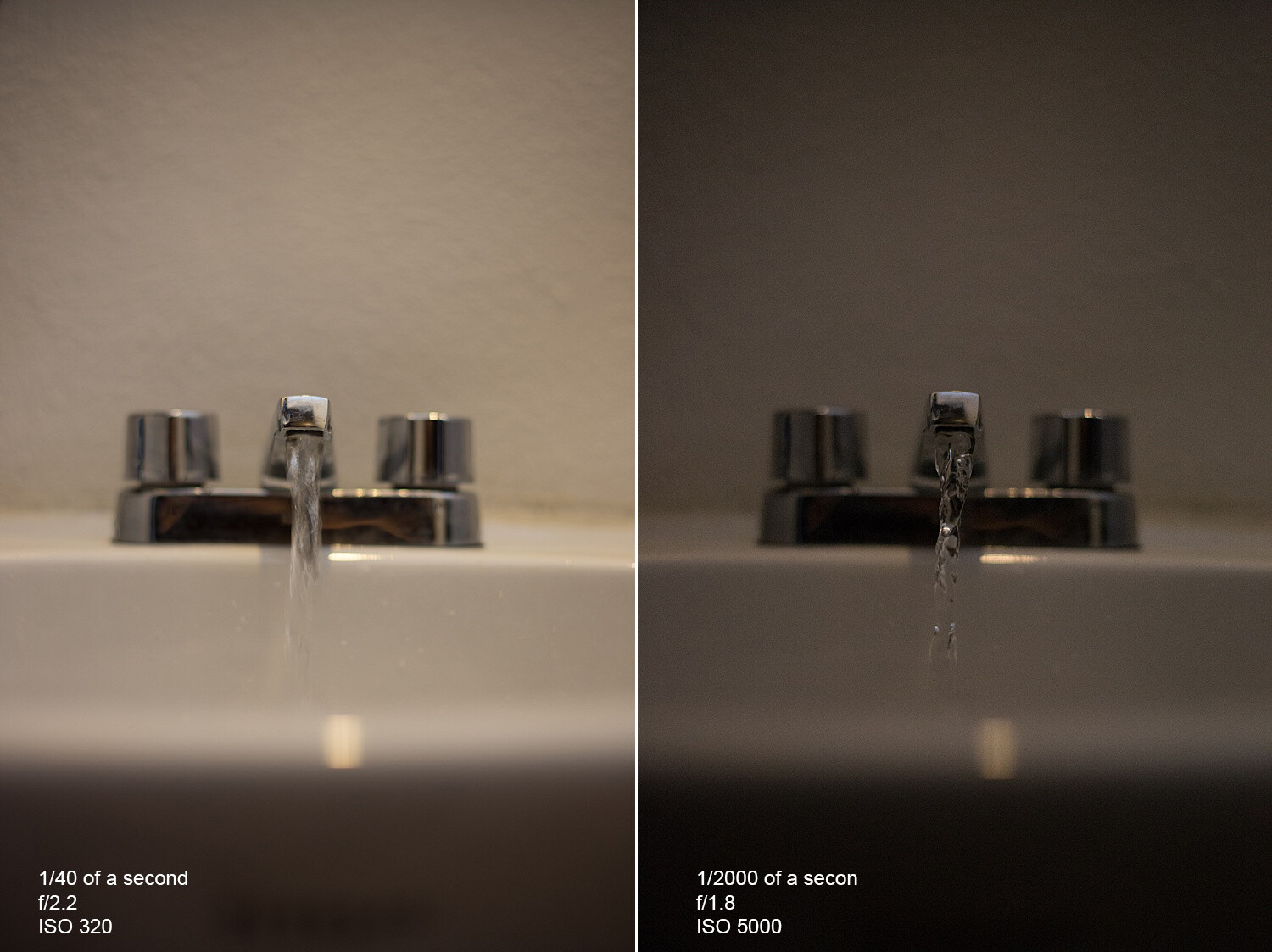
The photo on the left has a slow shutter speed, an open aperture, and low ISO. The slow shutter speed and open aperture help light enter. It also allows the camera to pick up the movement of the water.

In the photo on the right, we get more of an action shot of the water. This is because we have now changed the ISO to 1/2000 sec – a pretty fast shutter speed. With this fast shutter speed, we had to compensate for the loss of light from the fast shutter speed. So, we added light by using a higher ISO and a more open aperture. Even so, it wasn’t enough to get a correct exposure as the photo is a little dark.

The best way to get started in manual mode is to think about what kind of photo you want to make. Are you shooting still life? Is there enough light? Do you want to control your focus range? Is this a portrait? All of these things can help you to determine where to start.

making-sense-of-the-exposure-triangle

For example, you’re taking photos of your kid’s soccer game in the early evening, and there is still a lot of light left, but it’s not harsh. You want to freeze the action of the game, and so you’d start by setting a fast shutter speed first.

If you’re taking a portrait of someone, then you’d start with the aperture in order to control your depth of field. Then you’d adjust the other two settings accordingly.

Image: Camera settings f/5.6, 1/100, IS0 400, 53mm.

Camera settings f/5.6, 1/100, IS0 400, 53mm.

For landscapes, you’d likely start with aperture and shutter speed. You may need a small aperture (eg f/11) to capture a wide plane of focus. Depending on whether there is water in your landscape, you may want to freeze the water or give it a silky look by slowing your shutter speed right down.

Knowing what you’re shooting and type of light will give you a starting point

Also, in manual mode, there is a built-in light meter. This meter looks like a tiny ruler either at the bottom of the live view or inside the viewfinder. It helps you determine if your photo is too bright (metering to the right), or too dark (metering to the left).

When the line is in the middle, or at zero, you’ve got what the camera considers a perfectly-exposed photo.

making-sense-of-the-exposure-triangle

The ruler at the bottom of the live view, or through the viewfinder, can help you expose your photos correctly. To the right of the ruler your photo will be brighter, and to the left, it will be darker.

Aim to keep it in the middle as you practice in manual mode. Sett one of the adjustments and then move the other two to add or take away light accordingly until the meter is in the middle.

It’s all about practice and really getting to know what each setting does on its own before switching to full manual. This can feel overwhelming, so try using one of the other modes, like Tv/S or Av/A modes first. Doing so may give you a better understanding of the settings and more control over your photos.

making-sense-of-the-exposure-triangle

Camera settings f/22, 30 seconds, ISO 200, 28mm.


Image: Camera settings f/10, 1/640, ISO 400, 50mm.

Camera settings f/10, 1/640, ISO 400, 50mm.

Conclusion

The technical side of photography can sometimes seem overwhelming and it seems like there is always something new to learn before feeling confident. Making sense of the exposure triangle will set your creativity free and give you full control of your camera.

The post Making Sense of the Exposure Triangle – ISO, Aperture, and Shutterspeed Made Simple appeared first on Digital Photography School. It was authored by Jackie Lamas.


Digital Photography School

 
Comments Off on Making Sense of the Exposure Triangle – ISO, Aperture, and Shutterspeed Made Simple

Posted in Photography


The Jollylook Mini Auto is an updated Instax Mini camera with auto exposure and more

29 Jan

Three years after launching its first Jollylook Instant Camera, the company is back at it with a new and improved version.

The new version is called the Jollylook Mini Auto. As its name suggests, this updated version features automatic exposure, a built-in flash and an adjustable aperture (F16, F22, F32, F45, F64 and pinhole). Other improvements include the addition of a multiple exposure option, as well as the inclusion of a polarizing filter.

The camera and flash are powered by a rechargeable (microUSB) lithium-ion battery that’s rated for up to 80 images when the flash is used at 50%). Using an onboard light sensor, the shutter speed is automatically set with a range between 1/200 of a second to 60 seconds, as well as a bulb setting.

The camera is constructed of a new laminated fiberboard and the optics are constructed of acrylic. The Fujifilm Instax Mini film it uses is ejected through a manual crank mechanism.

Admittedly, Jollylook’s first Kickstarter proved underwhelming, with slow delivery and subpar build quality, based on the initial reviews. So, even more so than usual, we urge you to be cautious about funding this project. Still though, it’s a neat little device that might well be worth a little fun after its initial crowdfunding campaign ends and it’s available to the general public.

A few sample photos taken with the camera.

If you’re feeling brave though, head on over to the Kickstarter campaign to find out more information and to secure your pledge. The ‘Super Early Bird’ pledge will secure you a Jollylook Mini Auto for $ 79. The first units are expected to ship out November 2020, if all goes to plan.


Disclaimer: Remember to do your research with any crowdfunding project. DPReview does its best to share only the projects that look legitimate and come from reliable creators, but as with any crowdfunded campaign, there’s always the risk of the product or service never coming to fruition.

Articles: Digital Photography Review (dpreview.com)

 
Comments Off on The Jollylook Mini Auto is an updated Instax Mini camera with auto exposure and more

Posted in Uncategorized


Google’s Dual Exposure Controls and Live HDR+ features remain exclusive to Pixel 4

22 Oct

Google’s brand new flagship smartphone Pixel 4 comes with a variety of new and innovative camera features. Google has already said that some of those features, for example the astrophotography mode, will be made available on older Pixel devices via software updates.

However, two of the new functions will be reserved for the latest generation Pixel devices: Dual exposure controls, which let you adjust highlights and shadows via sliders in the camera app, and Live HDR+, which gives you a WYSIWYG live preview of Google’s HDR+ processing. Google confirmed this in a tweet:

According to the tweet the reason these two features won’t be available on the Pixel 3 and older devices is down to hardware rather than a marketing decision. It appears the older phones simply don’t have enough processing oomph to display the HDR+ treatment and manual adjustments in real time.

Articles: Digital Photography Review (dpreview.com)

 
Comments Off on Google’s Dual Exposure Controls and Live HDR+ features remain exclusive to Pixel 4

Posted in Uncategorized


How to Use a 16-Stop ND Filter for Extreme Long Exposure Photography

18 Oct

The post How to Use a 16-Stop ND Filter for Extreme Long Exposure Photography appeared first on Digital Photography School. It was authored by John McIntire.

extreme-long-exposure-photography

Long exposure techniques are a fantastic way to inject interest into your photography. By nature, these techniques present your images in a way that is different to how the world is perceived by the human eye. Blurring moving elements within your frame (whether that be water, people or clouds) can also be a tool to help you isolate and focus on the elements of a scene that you want your viewers to focus on. This makes long exposures a valuable asset for composition and design. While most long exposures last for a matter of a few seconds, there are tools available that will allow you to do extreme long exposure photography – even in the middle of the day.

How to Use a 16-Stop ND Filter for Extreme Long Exposure Photography

This tutorial will show you how to use a 16-stop neutral density filter to do extreme long exposure photography. It will take you step-by-step through the equipment you need, the steps you need to take to get started, and the considerations you need to make to overcome some technical issues. There is also a list of tips at the end to help you get the most out of your 16-stop ND filter.

Why 16 stops?

Extreme-Long-Exposure-Photography

Using the long exposures provided by a 16-stop ND filter, you are able to blur moving elements (such as clouds and water) to simplify your frame and reduce visual clutter.

Long exposures, even with strong 10-stop neutral density filters, are usually limited to low light situations. For the most part, this is fine as that means you will be out at golden hour or blue hour when the light is at its very best for most types of photography.

What a 16-stop ND filter allows you to do is to extreme long exposure photography in the middle of the day when the light levels are at their highest. For example, a shutter speed of 1/125th of a second (sunny 16 rule) turns into an 8-minute and 44-second exposure when you put 16-stops of neutral density filter on the lens. This kind of exposure time turns the water and clouds into an almost ethereal, milky texture that works well visually. By blurring these elements, you are also potentially reducing visual clutter and contrast in your scenes, making them more visually appealing.

What you need

Extreme-Long-Exposure-Photography

Apart from the filter, this technique is going to require a few other pieces of equipment as well.

  • A camera with a Bulb setting.
  • A sturdy tripod that will hold still for several minutes or more.
  • A release that will allow you to trigger the camera without touching it.
  • An exposure calculator.
  • A 16-stop ND filter. (This tutorial will work the same with any strength of ND filter.)

How to do it

Once you’re out on location, setting up for a long exposure is pretty easy. In fact, these steps remain the same whether you are using a three-stop filter or a 16-stop filter.

Step 1: Set up your camera and line up your composition.

Make sure to attach all of your releases or filter holders at this point as well. Anything you can use to reduce the chance of camera movement between now and the time your exposure finishes will help to ensure there is no camera movement affecting your images. Take your time with this step and if you need to, take as many test shots as possible. Once you put the filter on, you will be stuck in place for several minutes.

Be sure of your composition before you get to that point.

Step 2: Meter and calculate exposure

Extreme-Long-Exposure-Photography

Here, a metered shutter speed (without the filter) of 1/160th of a second becomes 6 minutes and 49 seconds once the 16-stop ND filter is applied.

If you’ve taken test shots, you already know what your exposure is (without the filter). If not, read the camera’s meter. Take the exposure it has given you and input it into the exposure calculator of your choice to calculate the exposure required for 16-stops of ND filter. This will give you your required exposure for your final image.

There are a lot of exposure calculators available on iOS and Android. They all provide the same end result, so pick whichever one you would like.

Step 3: Set focus

Set the focus where you want in the frame and then place the camera in Manual Focus mode. Autofocus will not work at all with a 16-stop filter. It is way too dense. Putting your camera into manual focus will make sure that the camera does not attempt to focus when it can’t, thereby rendering your photos out of focus.

Step 4: Switch to Bulb

Put your camera into Bulb mode to allow it to keep the shutter open for as long as your exposure requires.

Step 5: Attach the filter

Extreme-Long-Exposure-Photography

With everything in place, you can now attach your filter. If you’re using a rectangular slot-in variety, attach the holder to the ring you’ve already placed on your lens. If you’re using a screw-in variety (shown), be very careful not to jostle your set-up because, if you do, you will have to start the process again.

Step 6 – Input shutter speed

Extreme-Long-Exposure-Photography

My trigger is controlled by my phone, so the shutter speed is inputted into the app as shown.

With the filter set up, you just need to input your shutter speed into whatever trigger you are using. In these examples, I am using a Pulse trigger which allows me to control it from my phone. There are a lot of available options at a variety of price points. Be sure to choose one that doesn’t require you to hold down a button for ten minutes though.

Step 7 – Release the shutter

With that done, the only thing left for you to do is to start your exposure and wait.

Easy as that

How to Use a 16-Stop ND Filter for Extreme Long Exposure Photography

This process may seem like a lot of steps, but it is quite easy. As long as you take care not to move the camera throughout the process, you will be fine. You will be able to set it up in a minute or so once you have practiced a bit. The key here is to know your equipment and to practice the movements so you can perform them as second nature.

Considerations

Now that you know how to create long exposures with your 16-stop ND filter, there are a few technical considerations you should bear in mind.

Noise

Image: Noise is a problem when taking long exposures and is especially prone to showing up in the sh...

Noise is a problem when taking long exposures and is especially prone to showing up in the shadow areas of your images. Be prepared to take care of it.

Unfortunately, long exposures with digital cameras mean noise. The longer the exposure, the more noise appears in your images. If you use a higher ISO to achieve shorter exposures, that will also increase the noise levels in your images.

To alleviate this as much as possible, try to avoid really, really long exposures if they are not necessary. If your camera has a Long Exposure Noise Reduction (or similar) feature, turn it on (remember that this will double your exposure time). It will also help if you to familiarize yourself with noise reduction software, either inside Photoshop or Lightroom, or other third-party program.

Hot pixels

Image: The two circled white dots are hot pixels. They’re easy enough to clone out just as lon...

The two circled white dots are hot pixels. They’re easy enough to clone out just as long as you are aware of them in the first place.

Hot Pixels are an unfortunate side effect of long exposures using digital cameras. While there is no way to truly avoid them, you need to be aware of their existence as they have the potential to ruin your efforts. These defects happen when your sensor gets hot during a long exposure (a simplified explanation, but it will serve).

To deal with them, you can heal, patch, or clone them out in Photoshop. Alternatively, you could use the Long Exposure Noise Reduction (or similar feature as appears in your camera system), but be aware this doubles your exposure time. If your exposure is close to nine minutes, that now means that all of your exposures will take about 18 minutes.

Light leaks

Extreme-Long-Exposure-Photography

While light leaks of this nature can be easy to take care of, there are a few steps you can take to make sure that they don’t appear in the first place.

With such long exposures, light leaks can be a common problem. These happen where excess light falls onto your sensor. This can happen where the filter attaches to the lens, or it can happen where the lens attaches to the camera. It can also happen through the viewfinder.

If you’re worried about light leaks, you can buy dedicated accessories that help to prevent them. If the leak is coming from the lens mount, you can also wrap material around it for a cheaper option. Some camera brands have a little rubber rectangle attached to the camera strap. This handy little feature is used to cover your viewfinder during long exposures. Simply slide off the exterior case over your viewfinder, and slide the rubber rectangle from your camera strap in its place. This will stop the light leaking in through the viewfinder.

Another option is to shoot a wider composition than you need and crop the light leaks out. This wouldn’t be my preferred method, but it will work in a pinch when you have no other choice.

Changing light

Image: This image is underexposed by several stops. Although it was taken at the exposure the meter...

This image is underexposed by several stops. Although it was taken at the exposure the meter dictated, the light dimmed significantly during the exposure, meaning the original exposure time was inadequate.

In the middle of the day, your exposure will be close to a near-constant. Later in the day, however, light levels can start to change rapidly.

If you meter for a long exposure of a hypothetical half hour in the late afternoon, it is entirely possible the light will lower in intensity during that time. Therefore, the actual time required for correct exposure will be much much longer. This will result in underexposed images.

You can compensate by preparing for that possibility beforehand. Choose a longer shutter speed than your meter dictates if you suspect that the light will change on you. This will be mostly guesswork based on plenty of experience though, so be sure to be out practicing as much as possible.

Filter size

Image: For the most versatility, consider opting for a filter system that will fit the complete rang...

For the most versatility, consider opting for a filter system that will fit the complete range of your lenses so you have the choice to use it at all of your available focal lengths.

Image: Alternatively, feel free to shoot wide and crop in. Not ideal, but this works just fine. Crop...

Alternatively, feel free to shoot wide and crop in. Not ideal, but this works just fine. Cropping is also a useful way to get rid of light leaks that appear at the edges of your images like in the example shown.

If you opt for the screw-in variety of filters, you may find yourself limited with the lenses you can use. In my case, I bought a filter that would fit my 16-35mm wide-angle zoom, and almost immediately found that I wanted to put it on my 70-200mm to crop in close on a particular building.

I was convinced that I wouldn’t want to use it on anything but the wide-angle lens. You can always buy stop-down rings, but if you think that you’ll use your filter on a  variety of lenses, a filter that fits a slot-in system may be the better choice for you.

Releases, triggers, and remotes

Extreme-Long-Exposure-Photography

As mentioned, there are a lot of options to fire your shutter without touching your camera. It doesn’t matter which you pick. However, it would be best to altogether avoid any releases that require you to hold down a button for the entire duration of the exposure. For thirty seconds, this may not be a problem, but in terms of ten-minute exposures, you are just increasing the chance that you might slip and ruin your frame.

Tips

Here are a handful of tips to help you get the most out of the technique.

ISO

Extreme-Long-Exposure-Photography

If you want shorter exposure times without using a different filter, you can increase your ISO. Here, changing the ISO from 100 to 400 (2 stops) has cut the exposure time by over 75%.

If you don’t want to wait around for, say, ten minutes for an exposure, you can halve it by upping your ISO one stop. This may introduce some more noise to your images, but as long as you don’t try to go past ISO 800, and your exposures are under or around 10 minutes, you should be fine as long as you are aware of the possibility.

Lighting

Image: In overcast conditions, the effect of the 16-stop filter can emphasize the flatness of the li...

In overcast conditions, the effect of the 16-stop filter can emphasize the flatness of the lighting. This may or not work with what you are trying to achieve.

Image: Conversely, the technique also helps to emphasize hard lighting and the contrast in such scen...

Conversely, the technique also helps to emphasize hard lighting and the contrast in such scenes. Use this to your advantage.

This is no rule, but I’ve found that this technique works well with subjects in direct light as the heavy contrast suits the technique. In overcast conditions, the flatness of the light is emphasized, and the results can feel a little less than inspiring. Again, this is not a rule and if you have no choice but to shoot in overcast conditions, do so anyway.

Moving things

Extreme-Long-Exposure-Photography

On a rare and anomalous sunny day in Manchester, this river was full of numerous boats that constantly went through my frames. The near ten-minute exposures have caused all evidence of them to disappear.

The longer your final exposure, the less any moving thing will show up in your frame. Is there a lot of river traffic in your scene? A bunch of tourists? Chances are those things will have left your frame by the time your exposure is finished. If you’re at a particularly crowded spot, see if you can make your exposure as long as possible to increase the chances that every unwanted element is removed from your frame.

Be sure of your composition

This technique is a very slow and deliberate form of photography. If you get something slightly wrong, it will cost you a fair amount of time to try again. To prevent having to do that, take your time with every single step in the set-up process and make sure that it is right. Composition, in particular, is vital for you to get right before you press the shutter release.

Embrace the time

Whilst your camera is recording your exposure, you will have a lot of time standing around. Take advantage of it. Take the opportunity to appreciate the scene around you without the viewfinder to your eye. Mindfully think about any other compositions in the area. It’s easy to start worrying about the remaining time on the exposure clock, but I encourage you not to. Instead, take a quiet few minutes for granted when you have nothing to do but stand next to your camera.

Be aware of your surroundings

Extreme-Long-Exposure-Photography

I was aware of the tide coming in here (I was counting on it) but did not expect it come this far in less than ten minutes.

Because you are going to be standing around for at least a good few minutes, it’s important that you pay extra care to your surroundings during your exposure. During normal-length exposures, you won’t usually have a problem with things like the tide coming in and submerging your tripod during the exposure. With exposures that last into the minutes or hours, that’s more than a possibility.

Simply put, pay attention to your environment and keep yourself and your equipment safe.

End results

Finally, here are a few examples of some of the results you can expect to achieve with a 16-stop ND filter.

Extreme-Long-Exposure-Photography

How to Use a 16-Stop ND Filter for Extreme Long Exposure Photography

How to Use a 16-Stop ND Filter for Extreme Long Exposure Photography

How to Use a 16-Stop ND Filter for Extreme Long Exposure Photography

How to Use a 16-Stop ND Filter for Extreme Long Exposure Photography

That’s it

If you already have experience with long exposures, the only thing new to you with this technique is the amount of time the shutter will be open. The skills may be basic, but the extra few stops of ND filter can lead to wonderful results.

I encourage anyone interested in long exposures to give the technique a try. If nothing else, experiencing the mindful, deliberate, and slow approach to photography that this technique commands are well worth the effort. Also, it is a nice departure from the faster-paced styles of photography.

Share your extreme long exposure photography with us in the comments below!

The post How to Use a 16-Stop ND Filter for Extreme Long Exposure Photography appeared first on Digital Photography School. It was authored by John McIntire.


Digital Photography School

 
Comments Off on How to Use a 16-Stop ND Filter for Extreme Long Exposure Photography

Posted in Photography