RSS
 

Posts Tagged ‘Efficient’

File Management Tips to Create a More Efficient Photography Workflow

22 Mar

The post File Management Tips to Create a More Efficient Photography Workflow appeared first on Digital Photography School. It was authored by Jackie Lamas.

file management tips in photography

As you gain more clients, this also means that you’ll have to start implementing a more efficient workflow so that you can work quickly and get your images to your clients. In this article, we’re going to explain some file management tips to help you stay organized session to session.

file management tips

What is a photography workflow?

A workflow is a process in which a photographer has a file management system in place that helps them to get images edited and processed faster and more efficiently.

Basically, it’s a way to organize your images so that you can get them to your clients much faster. The way that a photographer manages their workflow can be different from person to person depending on what they photograph, their workloads, and what the end goal for their clients is.

file management tips

In time, you’ll be able to implement these file management tips so that your workflow is quick, and you’re able to deliver the images to your clients faster. You’ll also access the images on your hard drives quicker when you need them because they’ll be nice and organized.

Uploading the images

The first of the file management tips regards uploading your photos to your computer. Some like to go straight into Lightroom or the editing program and upload the images directly.

However, I recommend that you first upload your images onto your actual hard drive. This can be directly onto your computer’s hard drive, an external hard drive, or both. Uploading to both is the best option since sometimes computers can shut down or stop working and you wouldn’t want to lose your photos!

file management tips

Make sure to copy the images from the memory card rather than moving them. Doing this means if the upload didn’t go smoothly, you still have all of the images safe on the memory card.

Here are the steps to organize the Upload of your images onto your computer or external hard drive:

  • Create a folder with the year 2020
  • You can now create separate folders for the types of sessions you do. However, this is not required and it depends on how you want to manage your files.
  • Create a folder and name it according to the shoot date, last name of your client, a dash, then the location or something specific. For example 2020.03.06 Burns Family – Secrets Resort Puerto Vallarta
File Management Tips to Create a More Efficient Photography Workflow

The location is optional, but it does help keep the information to the session together. It’s also good for searching later on when you want to find a location photo to post on social media or otherwise.

Renaming the images

Renaming images can seem like an added step, however, keeping the naming simple with numerical sequence, adds more organization in the end.

It’s tough when looking for an image by the original image name of IMG_ when it would be much quicker to remember the name and then look for an image that way.

file management tips

Rename with the last name, a dash, then the sequence number, for example, Burns-0001. Use more than three zeros so that you can safely number the images when you have more than one hundred images.

If you have more than a thousand, use another zero. This can keep all of your images organized and you won’t get jumping numbers from 01 and 11.

file management tips

When you import the images into your editing program, the renaming stays and will get saved the same when you’re finished editing. This is really helpful especially when the family wants a particular photo to order. They can simply use the sequence number and you can quickly find the image in the edited folder.

Importing into Lightroom

Now that you’ve organized the session into the yearly folder, session folder, and have renamed the files you’re ready to import into Lightroom.

Some photographers like to import the images straight from the memory card into Lightroom but creating the folders seems easier in Finder than in Lightroom. However, with time, you can choose how you want to import the photos that help your workflow work for you.

file management tips
Choose the “add” option a top to import the photos.

There are two different options to choose from when importing. You can simply add the photos, which is the simplest choice seeing that we’ve already backed them up onto your hard drive in the desired folders. Or the COPY option, which will create a duplicate of your image into a specific folder on your desktop. This usually creates a copy in another place and can take up unnecessary storage on your computer.

File Management Tips to Create a More Efficient Photography Workflow
Check the box Add to Collection and this window will popup. Name it with the year and shoot date so your catalog stays organized as well within Lightroom.

We’ll go with the ADD option today since we have put the originals in the specific folder we made earlier.

Check the Collection option and put them into a Collection with the date and name – just like we did in the source folder.

File Management Tips to Create a More Efficient Photography Workflow

This will make it easier to find the folders in the left sidebar while editing without making multiple duplicates or without getting lost in the Import or Folders section.

File Management Tips to Create a More Efficient Photography Workflow

Now we’re ready for editing!

Organized editing

In Lightroom, editing can seem like a lot of work. However, you’ll want to go through this process so that your workflow is quicker and editing time is minimized.

Use the color tags to choose your favorites. This is how I personally tag the photos using the number keys:

  • Number 9 is Blue for chosen images
  • Number 8 is green for additional editing – usually when I have to swap out ahead or do some major editing.
File Management Tips to Create a More Efficient Photography Workflow

After you’ve used the color of your choice for the chosen photos, at the bottom of the screen is a Filter option. Choose the blue square (or the colors you’ve chosen), so that all you see are the photos tagged Blue.

The great thing about using the filter and colors is that if you missed a photo somewhere, you can turn off the filter and go back and choose more photos to edit or tag.

File Management Tips to Create a More Efficient Photography Workflow
Here at the bottom right-hand corner, you can toggle the color filter to show or not show.

Alternatively, you can untag a photo and it will hide it from view. Then you can just edit the blue-tagged photos without additional clutter.

Using the color tags in the toggle on/off filter modes keeps your photos organized, in the same folder, and easy to edit.

Exporting your final images

The final of the file management tips is exporting your final images.

After you’ve edited your photos it’s now time to keep them organized so that you can find the final edited photos with ease.

Go into the Library window, with the color tag filter ON, choose all of the images you’ve edited with the Select All option, and click Export.

File Management Tips to Create a More Efficient Photography Workflow
We have only the blue tagged photos highlighted. Toggle the color filter on, select all images with that filter and then hit Export.

Choose the same folder your images are in, but create a subfolder with the words EDIT (or you can choose whichever name is best for you). This will create a folder within the original source folder on your hard drive.

File Management Tips to Create a More Efficient Photography Workflow

This keeps all of the images from that session in the same location, which makes it easier to find later on.

file management tips for better workflow
As you can see, the edit folder appears in the family session folder with the RAW files. The final jpeg images are named the same for easier referencing.

In conclusion

These file management tips will help you categorize and catalog your sessions so that you have a more efficient photography workflow from start to finish.

File Management Tips to Create a More Efficient Photography Workflow
When you search for the images you can now do so with the name or date. Makes looking for images much simpler when you have your files organized.

Do you have any other file management tips to better organize your workflow? Share with us in the comments.

The post File Management Tips to Create a More Efficient Photography Workflow appeared first on Digital Photography School. It was authored by Jackie Lamas.


Digital Photography School

 
Comments Off on File Management Tips to Create a More Efficient Photography Workflow

Posted in Photography


HP unveils DesignJet Z6 and Z9+: faster, more efficient large-format photo printers

25 May

During the FESPA Global Print Expo in Berlin last week, HP unveiled two new DesignJet Z Series large-format printers: the DesignJet Z6 and Z9+. Both models will be available in 24-inch and 44-inch formats with onboard vertical trimmers, new HP Pixel Control color technology, and a redesigned poster application.

According to HP, the new Z Series printers are able to print 2.5 times faster than the DesignJet Z3200 Photo Printer while utilizing fewer inks, the end result being improved performance and reduced costs. The company claims these new large-format printers offer the “fastest printing capabilities available on the market today.”

The DesignJet Z6 printer is designed specifically for Geographical Information Systems (GIS) users and creators, as well as anyone else in need of water- and fade-resistant large-format prints. The Z9+ model, meanwhile, is targeted at consumers and retailers in need of “amazing photographic quality prints.”

$ (document).ready(function() { SampleGalleryV2({“containerId”:”embeddedSampleGallery_3777761186″,”galleryId”:”3777761186″,”isEmbeddedWidget”:true,”selectedImageIndex”:0,”isMobile”:false}) });

HP explains that its Pixel Control technology coupled with HP Nozzle Architecture (HDNA) results in true-to-color prints made using nine instead of 12 inks; there’s also support for HP Professional PANTONE Emulation. Other features include dual drop technology, HP Secure Boot and JetAdvantage Security, and HP PrintOS for remote printer management.

HP plans to release the DesignJet Z6, Z6x10, and Z9+ large-format printers on June 1st, with the larger 44-inch models with dual roll and the vertical trimmer not arriving until around July 1st. The company didn’t specify which markets the printers will launch in, or how much they will cost when they do.

Press Release

HP Launches State-of-the-Art Large Format Photo Printers

BERLIN, May 15, 2018 – HP Inc. unveiled its new DesignJet Z Printer series at FESPA Global Print Expo to showcase innovative large format technologies offering amazing image quality and fast, simple output for print service providers (PSPs), retailers, and creatives to deliver beautiful photos, impactful graphics and technical applications.

The market for large photo merchandising grew seven percent in 20171 with nearly 1.3 trillion photos taken in the same year2. The demand for simplicity and unrivaled photo quality is growing, fueling the need for printing solutions that remove bottlenecks and increase time savings.

The new HP DesignJet Z6 and Z9+ Printer series is designed to easily maximize printing performance for amazing photo output. By tightly integrating the materials, hardware, and software together, the new printers offer amazing photo quality and print permanence with fewer inks to simplify manageability and reduce costs. New vertical trimmer is featured on select models to optimize output in addition to other innovative technologies for rapid high-quality production from professional photo quality prints to retailer signage. The result is printing 2.5 times faster3 and post-production 20 percent faster4.

“The new DesignJet Z Printer series radically enhances the customer experience and reinvents printing possibilities for both professional photo and signage to ignite business growth and adapt to future needs,” said Guayente Sanmartin, General Manager and Global Head, HP Large Format Design Printing, HP Inc. “We thoughtfully designed the new printers to deliver impressive photo quality without compromising time resources and output speeds with the new vertical trimmer and innovative color technologies.”

The DesignJet Z Printer series will debut at FESPA 2018 at HP Booth 3.2 C20.

Simple and fast output for high-quality vibrant photos

HP DesignJet Z Printer series, both available in 24- and 44-inch formats, are built to give PSPs a competitive edge by enabling the fastest printing capabilities available on the market today. As an industry first, the HP DesignJet Z6 and Z9+offer a premium option with onboard vertical trimmer for fast and efficient production. New color technology, HP Pixel Control, now for the first time manages colors in a truly digital way to help customers embrace new opportunities for color-rich and dynamic printing.

For print service providers who rely on amazing professional photographic quality prints, the HP DesignJet Z9+ printer allows for a broad range of graphics and technical applications.

The DesignJet Z6 Printer series is designed for Geographical Information Systems (GIS) creators and users, print service providers, and retailers who require a simple to use solution for high-quality technical and graphics applications with water/fade resistance. The new print series is designed to handle even the most complex files with powerful processing architectures and the Adobe PDF Print Engine.

Specific technologies and features include:

  • HP Pixel Control: Achieve true-to-color prints and an expanded color gamut with RGB HP Vivid Photo Inks, featuring chromatic red, chromatic green, and chromatic blue, the i1 embedded spectrophotometer5 and HP Pixel Control. HP Pixel Control is truly digital color pipeline designed for outstanding, consistent image quality delivered by controlling every print-ready pixel. Combining HP HDNA with HP Pixel Control, users get amazing image quality with just nine inks versus 12 compared to the previous generation HP DesignJet. The new printers also offer HP Professional PANTONE Emulation to match Brand identity colors.
  • Dual drop technology: Produce prints with clear details and high-contrast color with dual drop technology powered by HP Nozzle Architecture (HDNA) and high-definition printheads. The HP DesignJet Z9+ features an upgradable configuration for a higher gloss output6.
  • Tools to create: Simplify large format printing with a redesigned poster application in the HP Applications Center7, which also includes Adobe Stock, Unsplash, Vecteezy, and Pattern Design, offers customers access to the necessary tools for creating beautiful, original signs, and posters. The HP Applications Center also embeds augmented reality (AR) technology to ignite the creation of more meaningful and engaging content for print.
  • Indoor and Outdoor Durability: Create prints with highly-stable pigment HP Vivid Photo Inks that provide water-resistant, fade-resistant prints8 for long-term indoor display and, when printed on suitable water-resistant media, outdoor display. HP Vivid Photo Inks gives PSPs the assurance that the prints they make for their customers will last as long as possible.
  • Security: Take advantage of the industry’s most secure printers with HP Secure Boot, whitelisting, authentication solutions, and HP JetAdvantage Security manager to safeguard printers and data for enterprise and government.
  • HP PrintOS: Remotely manage the print production environment from anywhere at any time with HP PrintOS now offered on the HP DesignJet Z Printer series.

HP is also announcing enhanced HP DesignJet Z6x10 Printers for a better user and output experience. Boasting a new fresh design, the new printers have new labeling indicating the printer colors to simplify ease-of-use. The printers have new printheads and Chromatic Red Ink formulation to deliver sharp detail and precise line quality. Optimized fast and normal print modes for heavyweight coated, polypropylene and canvas to speed-up production and enhance image quality. Lastly, the new printers will have 500 GB HDD with more virtual memory to process complex and graphic intensive prints.

HP offers a wide variety of innovative media including the new:

  • HP Recycled Satin Canvas is a 17.4 mil (443 micron), 370 gsm crack-resistant canvas for HP aqueous inks, made from 100% recycled water bottles making it the first of its kind in the HP Wide Format Media Portfolio.
  • HP Everyday Blockout Display Film with a unique construction of three layers of polypropylene, polyester, and polypropylene film for an added suppleness and superior lay-flat properties. HP Everyday Blockout Display film is a thicker film compared to 100 percent polyester, costs less, and has a coating for dual ink technology.

Follow HP Graphics on Facebook, Twitter, YouTube and LinkedIn.

Availability9

The HP DesignJet Z6, Z6x10, and Z9+ Printers are expected to be available on June 1, 2018. The 44-inch HP DesignJet Z6 and Z9+ with dual roll and vertical trimmer are expected to be available on July 1, 2018.


1. Source: Photo Merchandising report from Infotrend

2. Source: New York Times

3. Based on internal HP testing April 2018, tests done on mechanical printing time. Up to 2.5 times faster printing compared to the HP DesignJet Z3200 Photo Printer series. May vary depending on print mode and media type.

4. Vertical trimmer and dual rolls included with the HP DesignJet Z9?dr 44-in PostScript® Printer with V-Trimmer only. Up to 20% reduction in post-processing labor time based on internal HP testing compared to HP DesignJet Z9?dr series printers without built-in vertical trimmer.

5. Embedded in the HP DesignJet Z9? Printer series is an i1 spectrophotometer from X-Rite. Close collaboration between HP and X-Rite ensures a reliable solution that’s been thoroughly tested to meet customer demands for ease, quality, and dependability.

6. Based on internal HP testing April 2018, tests on mechanical printing time, comparing to HP DesignJet Z9? series printers without gloss enhancer. HP Gloss Enhancer can be used on photo paper, except for matte-finish papers. Optional upgrade available second half 2018.

7. Requires an HP Applications Center account, Internet connection, and connected Internet-capable device. For more information, see http://www.hpapplicationscenter.com.

8. Performance may vary based on writing system differences. Print permanence estimates by HP Image Permanence Lab based on the same formulation of HP Vivid Photo Inks used with the HP DesignJet Z6200 Photo Production Printer, using 6 inks. Water resistance performance varies based on printer and print profile. Water resistance testing by HP Image Permanence Lab on a range of HP media and follows ISO 18935 method. Display permanence rating for interior displays/away from direct sunlight by HP Image Permanence Lab on a range of HP media. For more information, see http://www.HPLFMedia.com/printpermanence.

9. Pricing and availability subject to change.

Articles: Digital Photography Review (dpreview.com)

 
Comments Off on HP unveils DesignJet Z6 and Z9+: faster, more efficient large-format photo printers

Posted in Uncategorized


ACDSee Photo Studio Ultimate: Efficient RAW Workflow for Professionals

16 Nov

A good workflow is such a powerful, time-saving and inspiring thing. There is even a certain romance to it – a routine of steps melting into the background that lead to a finished photograph. This creates a result to be proud of, one to inspire you to go out and photograph more, be it a product shot, an image from a recent trip to Iceland (everyone seems to be going to Iceland), or an artistic portrait.

It can also be an inexhaustible source of frustration or an excuse for procrastination. I know it’s certainly been all of these things for me, and the latter much more often in the past. The people behind ACDSee Photo Studio Ultimate must have had a similar experience, too, but they created tools that set up a solid workflow foundation for any photographer.

ACDSee Photo Studio Ultimate: Efficient RAW Workflow for Professionals

Somehow, my desktop really is this clean. I don’t know how.

Mind you, ACD Systems faces an obvious, towering obstacle by the name of Lightroom, a piece of software that has been the industry standard for nearly a decade now. I’ve used it extensively and exclusively for just about every project in the past seven or eight years. And let’s be honest, for all of its faults, Lightroom has been the most popular choice with good reason. It does many things right.

In light of Adobe’s recent (or was it really recent?) change of policy regarding payment (among other things), however, I have felt the need to take a look around and see if perhaps there are alternatives. ACDSee Photo Studio Ultimate is certainly one.

In this article, I will go through a workflow that I’ve been using with Photo Studio Ultimate as I got myself properly acquainted with it. While I realize it’s an entirely subjective approach to managing and editing photographs, I hope that it will at least give you a good starting point from which to individualize.

An important disclaimer: The license to this copy of ACDSee Photo Studio Ultimate 2018 has been provided by the company; I did not purchase it. Having said that, it’s my subjective opinion and findings that you are reading here. ACD Systems (rather happily, I must add) had next to no say in it. My words are always my own.

What is ACDSee Photo Studio Ultimate?

Quick Overview

Many have heard – or even used – some version of ACDSee. No surprise there as it’s around two decades old now and actually precedes Lightroom. But there are few areas where Adobe does not have a monopoly, and while many remember ACD Systems, it’s not nearly as popular as Lightroom. Perhaps undeservedly so, because pretty much everything Lightroom does, ACDSee does too.

First and foremost, Photo Studio Ultimate 2018 is an image management software. It started off as a lightweight viewer and organizer and has not lost the idea over the years. But powerful metadata and organizing capabilities are now complemented by some very useful post-processing tools for both RAW and graphic image files. More so in this high-end version than any other (and there are plenty, which explains the mouthful of a name).

Photo Studio Ultimate 2018 has been specifically designed to cater to pretty much every need you may have while editing – from culling to doing extensive graphics manipulations with layers and masks. In essence, it should be the only software you need. In that sense, Photo Studio’s ambition stretches beyond that of overthrowing Lightroom. It actually has Photoshop in its sights, too. But let’s not get ahead of ourselves. Going against Lightroom is hard enough already – the newly updated software throws a large shadow. We’ll see if Photo Studio can shine through.

Learning the Environment

As I have mentioned before, ACDSee Photo Studio Ultimate was created to address all the needs of a working professional photographer or artist. As such, it incorporates powerful image management tools as well as those meant for post-processing images and specifically, RAW files.

Naturally, having such vast capability meant a lot of thought has to go into the interface and user-friendliness. After all, having all the tools crammed into a single screen would leave little to no room for an actual image. Let’s briefly overview the ACDSee Photo Studio interface before we get started.

ACDSee Photo Studio Ultimate: Efficient RAW Workflow for Professionals

Even this Ultimate version is immediately friendly upon launch, but there is a whole lot going on here. Thankfully, not much is beyond customizing. By going to the Mode Configuration in the General section of the Options dialog, you can get rid of modes you find less useful. I’ve immediately unchecked every mode except Manage, Photos, View, Develop, and Edit. After a second thought, I got rid of Photos, too, as I did not seem to use it at all.

Much like with Lightroom Modules, ACDSee has several different environments for different tasks you may want to accomplish. All of these environments (or modes) are accessible at the top-right of the screen at pretty much any time.

ACDSee Photo Studio Ultimate: Efficient RAW Workflow for Professionals

If you look through the screenshots carefully, you’ll notice how the mode buttons in the top-right corner of the interface keep changing. ACDSee offers plenty of options to declutter the interface, and hiding access to modes that you don’t find yourself using is very convenient. In the end, I even disabled the View button since View mode is very easy to access by double-clicking on any image thumbnail. I’ve found the button to be redundant.

Manage Mode

The first mode – that opens by default each time you launch Photo Studio – is Manage. This mode is meant for navigating your hard drive, importing images (which by itself is never necessary, but rather handy all the same), applying keywords and filters, and so on. You will likely spend a lot of time here and start your work in this mode more often than not.

ACDSee Photo Studio Ultimate: Efficient RAW Workflow for Professionals

Manage mode screen.

You will be spending a lot of time in Manage mode and thus a view similar to this (after some tinkering) should be immediately familiar. The interface is dominated by the Image Grid, as it should be. But that’s not to the detriment of other information, such as metadata and even the Histogram. Navigation is easy and there are some useful quick-access tools at the bottom of the screen for image rotation and comparison.

Photos Mode

Photos mode is similar to Manage in that it can be used to find and view images. However, rather than letting you navigate to a specific folder on your hard drive, it shows every image that you have on your computer in chronological order, similar to how Gallery works on your smartphone.

You can choose a specific year to be shown using the Timeline panel (positioned on the left by default), and further narrow it down from there if you need to. Hovering over any given image will show an enlarged preview with some basic information next to it (where the image is stored, its dimensions, and more).

View Mode

The View mode is at the core of ACDSee and as the name suggests, is meant specifically for viewing images one by one, full screen. In addition to the View mode, which is launched whenever you double-click on an image within ACDSee, there is also Quick View. This is an even lighter image viewer that, by default, launches when you double-click an image anywhere on your hard drive.

It’s part of ACDSee, but also isn’t. For the purposes of speed, Quick View does not launch the full ACDSee software. As is, View mode is already very speedy and gets on with displaying images very well once the software is up and running. A simple task, but one Microsoft has not managed to do well for decades and ACDSee always seems to get right.

Develop Mode

An important mode that you are likely to end up using as much as Manage is Develop. This, as the name suggests, is designed for post-processing images. Specifically – it’s the RAW converter environment (similar to Adobe Camera RAW). It offers tools to fine-tune exposure, white balance, noise reduction, and sharpening, along with some immensely powerful tools, such as Tone Curves. I will be paying a lot of attention to this mode as Develop, along with Manage, is what ACDSee simply must get right.

ACDSee Photo Studio Ultimate: Efficient RAW Workflow for Professionals

Develop mode holds few surprises to anyone who’s used any RAW converter before, as the fundamentals are usually the same. The screen is dominated by a large image preview and there is a useful Filmstrip underneath for quick navigation within the selected folder. Notice the conveniently presented exposure and camera information right next to it (bottom right corner of the image above).

The left side of the screen is where the main tools are placed by default, but the whole panel can be relocated. See those blue circles? They show which settings have been altered from their default values. Clicking on the blue circle will temporarily disable those adjustments, but not completely discard them.

Edit Mode

Complementing the Develop mode is Edit. This is where ACDSee starts to target Photoshop in addition to Lightroom. For some users, it will more or less replace Adobe’s best-known software. It offers layers, masks, and sophisticated retouching tools – suffice to say, too much to cover in this article.

ACDSee Photo Studio Ultimate: Efficient RAW Workflow for Professionals

Edit mode is a whole new piece of software, it’s so capable and complex. While some elements are similar to those you will find in Develop mode, a lot is different. There is a Layers panel on the right side, while the left and top portions of the interface are absolutely packed full of tools.

We will cover all of the modes in more detail in upcoming articles. For the purposes of this one, however, we will mostly focus on Manage and Develop, as these two modes are crucial for RAW file management and post-processing.

Image Management and Post-Processing Workflow with ACDSee Photo Studio Ultimate 2018

Importing Files from a Memory Card

Import is convenient even if it is ultimately not a must-use feature. It’s still very much an option to just move files from the card to your hard drive the drag-and-drop way if you so wish. But the ACDSee Import tool offers to apply metadata, rename, and backup files and is simply very useful. You can even save import presets to speed up the process further if you regularly do photo sessions of specific types, and it’s easy to classify them. This I like very much as it saves plenty of time once you set them up.

But there is a caveat – the Import tool is really only meant for images that are not yet on your hard drive, but stored somewhere on an external device, be it a USB drive or a memory card. And while you can “import” image files that are already on your hard drive (select Disk from the Import drop-down menu using the top-most toolbar), there is little point to do so as ACDSee does not use a catalog system and you can already see all the images on your computer.

So, after popping a memory card in hit Alt+G (or select Import from the toolbar at the top-left corner of the screen). At this point, you will be asked to select the source device (an external one, such as a USB drive or a memory card) and, once that is done, you’ll be greeted by the Import dialog box.

ACDSee Photo Studio Ultimate: Efficient RAW Workflow for Professionals

Once inside the Import dialog, there’s not really much control over the source directory. No way to select all images from a specific sub-folder, either. You can choose to show only images taken on a specific day or those that are new (not yet on your computer), but, other than that, you’ll have to select images manually.

ACDSee Photo Studio Ultimate: Efficient RAW Workflow for Professionals

The Import dialog gives access to metadata presets, along with everything else. This is a powerful feature that can potentially save you a lot of time. In some cases, it may take your mind off keywords for good. Very handy, but beware of the seemingly infinite text fields in there. Importing itself is refreshingly simple on the eyes.

Using the main Import dialog is rather straightforward. Select the destination via the Location section of the dialog, where you can also specify a backup location for a second copy of the files to be saved. There is an option to rename files and it’s infinitely customizable. So is the metadata changes that you can apply upon import. I try to take care of this particular part of my workflow during import as it means I won’t have to assign all the necessary metadata information to so many files later on.

Organizing Images by Applying Filters

The import process itself is swift. More so than with Lightroom, as ACDSee does not need to add the RAW files to an internal catalog, and can instead display them immediately. Once the images have been copied to your hard drive (or, alternatively, you’ve navigated to a set of images already on it) with basic metadata hopefully already applied, it’s time to do the tedious task of culling.

Culling your images

I prefer to leave out as many images as I can before I move on to post-processing (during which I tend to drop a few more images), and ACDSee has plenty of filters to make the task easy.

ACDSee Photo Studio Ultimate: Efficient RAW Workflow for Professionals

Part of the reason why import is as swift as moving images manually from memory card onto your hard drive is that it is pretty much all that’s happening. ACDSee does not add files to a catalog like Lightroom does. Another important aspect is the image preview – rather than render its own previews immediately, ACDSee uses embedded JPEGs before any edits are applied. Basically, at first, you see the exact same image as you would on the back of your camera. This can be changed in the options, as shown in the screenshot, but I’m not sure why you would. Proper previews are rendered once you start developing the files, but for the initial sorting? Embedded is probably the best way to go about it and saves so much time.

It’s always been a real struggle for me to sort through the initial batch of image files – it’s never easy to judge your work fairly, is it? So breaking the process into several steps has helped me a lot. First things first – ratings. Photo Studio permits a numeric rating ranging from 1 to 5 to be assigned to any file. It’s as straightforward as you think – the lower the rating, the less you like the image.

My routine involves going through images and only assigning a 5 (Ctrl + 5) to the files I find good enough, and 1 (Ctrl + 1) to images that are safe to delete with certainty. Once I’ve done both and the lowest rating images are off my hard drive, I select a rating 5 filter to only see photographs that passed the initial sorting. You can do that by selecting the Filter drop-down menu above the image grid.

ACDSee Photo Studio Ultimate: Efficient RAW Workflow for Professionals

73 product shots of a printed catalog. And as much as I enjoyed taking the photographs and then doing the layout… I am not sure I am ready to edit 73 images of it. Let’s get to culling.

See that? Ratings applied, filter turned on, and we are left with 20 images. Much better, but not quite enough. The second sorting resulted in just 8 out of the total 73. I obviously still need to dial down the trigger-happy (can’t really show how I sort through images if I pick 9 out of 10, right?), but at least I don’t struggle with choice quite so much.

Now, I said rating 5 goes to images that are good enough for a reason – by removing a large number of similar images during initial sorting, I make it that much easier for myself to see the photo shoot as a whole and judge which photographs don’t fit. At the same time, I don’t pressure myself to only keep the very best images after the initial sorting, as that may take too much time. So I sort through the 5 rated photographs one more time. This time around, I assign a rating of 4 to images that are not quite what I was trying to achieve. These files get dropped, but should I change my mind, I know they are marked with 4 and are always easily accessible. I may end up deleting unrated files at some point, but I always keep the 4 rated ones just in case.

Hopefully, the second sorting has left me with a small number of photographs that I really like. Now that there are much fewer files remaining, I can give each one a lot more attention. At this point, I tend to go through the files one by one in full screen view (double-click on any thumbnail or select a file and hit View mode) and pre-visualize the final result that I want to achieve as I did while photographing. What sort of editing will I need to do to each one? Will it require conversion to black and white? Is extensive retouching or complex local adjustment of tones and colors going to be necessary?

ACDSee Photo Studio Ultimate: Efficient RAW Workflow for Professionals

ACDSee has a lot of filtering, sorting, and grouping options. And I do mean a lot. They can all be used to narrow down which image files you want to be shown. It’s not just the Filter menu, but the ones next to it, too.

More often than not (the photographs I used for this article are a strange exception, which is why I won’t bore you with additional screenshots), around half the images will end up being monochrome as I tend to photograph in such a manner, and they need to be separated from the color images for easier batch processing. For that, I tend to use a color label.

Assigning a label to any given file is just as simple as rating images, only this time you need to use Alt instead of Control in combination with a numeric key. So, for example, Alt + 1 will result in red label (hitting Alt + 0 will reset label to none). I tend to assign the first color label (red) to images that will require conversion to monochrome and the second one (yellow) to those that are part of a panorama and will need merging. The rest of the labels still get used. If there are images of several separate panorama shots located next to one another, I use the remaining colors to separate them for easier visual discerning later on.

Finally, there is one final sort that needs to be done. Using the Tag filter (the \ key), I mark images that will require more complex, graphic retouching than simple RAW converters are rarely designed for. Usually, that would mean moving on to Photoshop at some point. With ACDSee, the built-in alternative in the form of Edit mode is all many people will need. Either way, tagged image files would end up undergoing considerably more complex editing.

Post-Processing with the Develop Mode

To anyone who has used Lightroom (or Camera RAW, or any other RAW image processor for that matter), the Develop mode will be instantly familiar. Perhaps not in the fits-like-a-glove sort of way, at least not at first, but there are definitely no big surprises to be had.

ACDSee Photo Studio Ultimate: Efficient RAW Workflow for Professionals

Ignore the identical color scheme. Develop mode is an entirely different environment to the Manage mode that we’ve already got to know a little bit. See how many of the toolbars at the top are now gone? The menu is different, too. Importantly, there are a bunch of sections and tools designed for local adjustments hiding just above the histogram. These are easy to miss. Don’t, because they are also very useful and sometimes absolutely necessary.

The filters I apply to sorted images – color labels and tags – are extremely helpful for batch post-processing. As selecting a certain filter hides image files that are to be developed in a different manner, I am not only able to apply similar adjustments to several images at a time but I can only see color or black and white images in the Filmstrip too. How is that relevant? Simple – it helps with achieving consistent luminance, contrast, and color of the photographs, as I am able to compare them and notice differences that need compensating for as I work.

While photographing, I tend to leave white balance in Auto as I know my camera will get it more or less right. As for exposure, I tend to work in manual mode, especially in high-contrast lighting where prominent highlights and shadows are plentiful (as was the case with these product shots). Manual mode means my composition does not affect the exposure when dealing with the same basic scene, so while there is always the chance I may end up under or overexposing, (having gotten used to setting up my own exposure, it does not happen often), there is also more consistency shot-to-shot.

And that makes adjusting exposure in post-production much simpler, as I can apply the same corrections to a few images at a time. That’s made easier by the Filmstrip in Develop mode – just select a few images and apply the adjustments as needed. Alternatively, you can process a single image and then copy/paste the settings onto a different image. Both actions are accomplished by right-clicking on the thumbnail in the Filmstrip to first copy, and then paste settings to a corresponding file.

ACDSee Photo Studio Ultimate: Efficient RAW Workflow for Professionals

Adjusting exposure and white balance to taste gives me a good starting point from which to dive a little deeper. But since I’m using the General adjustments anyway, I might tweak a few more sliders while I’m at it.

After adjusting the white balance and exposure sliders (which, strangely and inconveniently enough, only allows 4-stops of adjustment, 2-stops each way), I had a solid starting point from which to move on to more specific tone and color adjustments.

ACDSee has plenty of tools for that, perhaps even too many. In the General section of Develop tools, there’s Highlight Enhancement and Fill Light sliders. Both of these can only be set in one direction, meaning a positive adjustment or nothing. What’s more, Fill Light encompasses a very broad range of tones, from dark ones all the way to highlights. So if you’re used to Lightroom adjustments of highlights and shadows, you’ll find it a little sensitive. On the other hand, Fill Light might just save you if you’ve underexposed your RAW file by more than the 2-stops the exposure slider allows you to compensate (with modern image sensors, you may find yourself doing that on purpose, too).

ACDSee Photo Studio Ultimate: Efficient RAW Workflow for Professionals

I expected the Fill Light slider to only really “fill” the shadows, but it did a bit more than that. I find this a little too close to how fill flash works while photographing. That said, it’s not without uses and ACDSee does have alternative tools, should you require finer tweaking.

Either way, it’s a good thing there’s an alternative tool in the shape of Light EQ, which is much more akin to the blacks/shadows and whites/highlights adjustments Adobe’s software incorporates. Using it is also very easy – simply select the tool and click on any area of the image. Light EQ will adjust the tones automatically – brighten them up if you click on a shadowy area, and bring the tones down should you click on a bright, highlight-intensive bit of the image.

Want more control? Choose Standard (which I prefer), or Advanced mode (a touch confusing), which will allow you to click-and-drag on the photograph itself, in addition to using the sliders. Clicking on any tone will adjust it across the whole image – drag up to increase brightness, down to deepen the shadows or restore highlights.


In case Light EQ is also not to your liking, there’s the trusty Tone Curves tool. These tools tend to work pretty much the same everywhere. In simplicity lies its strength, as the Tone Curves tool is immensely versatile.

Before Curves.

After a Tone Curve was applied.

I can’t stress enough how powerful (and sometimes complex) the seemingly boring Tone Curves tool is. As you can see from this before/after comparison above, not only does it affect tonal contrast, but also color. Pull down the shadows and you’ll notice saturation increase. You may find yourself needing to compensate for the increase in saturation via the Saturation slider or the Color EQ tool. Either way, Develop mode offers plenty of control over all the tones in your image.

If I had to single out a favorite tool of mine in Develop mode, it would be Color EQ. Much like HSL panel in Lightroom, it allows very precise control of color. I was able to bring down the orange hues of the table while keeping the beautiful reds and greens just so (for my taste). It helped me achieve decent consistency across the whole selection of images with minimal effort.

This particular product shot only really needed so color adjustment, which was achieved using the Color EQ tool more than anything else. I’ve also pushed the mid-tones a bit using Tone Curves, but not enough to burn out the highlights.

For the images I tasked myself with editing, I mostly used a combination of Light EQ, Tone Curves, and Color EQ, setting up each one to taste. The latter is, again, extremely versatile and works much like HSL panel does in Lightroom. It allows you to adjust the saturation, brightness, and hue of each individual color channel (see screenshot above). As you may notice in the screenshots, I went for a very desaturated look (mostly the red, orange, and yellow channels). Whatever you choose to do, Color EQ offers plenty of control and is perhaps by far my favorite tool in the Photo Studio Ultimate Develop mode.

Lastly, I added a little warmth to shadows using the Split Tone tool (Shadows Hue set at 44, Saturation at 4, and Balance at 24), and adjusted Sharpening in the Detail tab of the Develop Tools panel.

The Geometry panel is accessed via a tab at the top of Develop Tools. Here, you can crop and adjust an image for distortion. It’s great that ACDSee has lens profiles to take care of distortion for you, though any vignetting you may want to fix, is up to your own judgment for now.

Before image.

After processing.

There’s a Whole Lot More

Scratch the surface, I told myself when I started writing this article. At least scratch the surface. I am still unsure if I managed to do that.

There is more luck than planning involved in my choice of images for this article. Should I have gone for something more demanding – an artistic portrait, perhaps – it would have been at least twice as long. ACDSee Photo Studio Ultimate 2018 (to use its full set of names) is immensely packed with tools and settings. So much so that I used only a small fraction of what Develop mode offers for my product shots.

Black and white conversion was left untouched, so were the local Develop Brush and Gradient tools. These edits required next to no Geometric correction or attentive use of noise reduction, not to mention Edit mode. Even so, it has proved to be an exceptionally versatile bit of software. My hope is this article has provided you with an insight into how ACDSee works and how it can be used as part of an efficient, stress-free workflow for your business and artistic needs.

Disclosure: ACDSee is a paid partner of dPS.

The post ACDSee Photo Studio Ultimate: Efficient RAW Workflow for Professionals by Romanas Naryškin appeared first on Digital Photography School.


Digital Photography School

 
Comments Off on ACDSee Photo Studio Ultimate: Efficient RAW Workflow for Professionals

Posted in Photography


Equipment Tips for Quick and Efficient Studio Product Photography

05 Jul

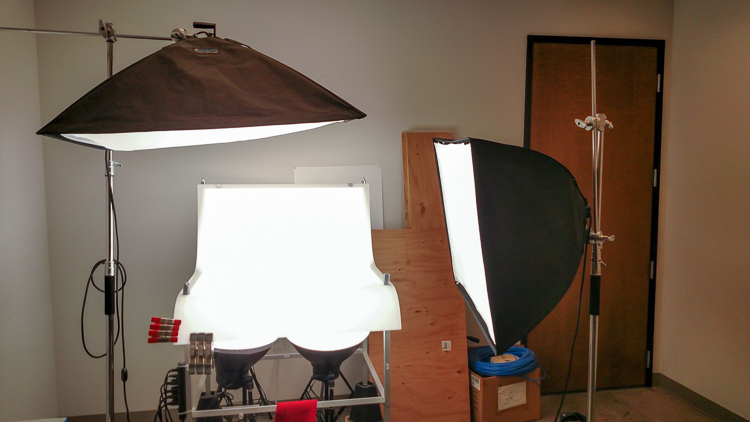
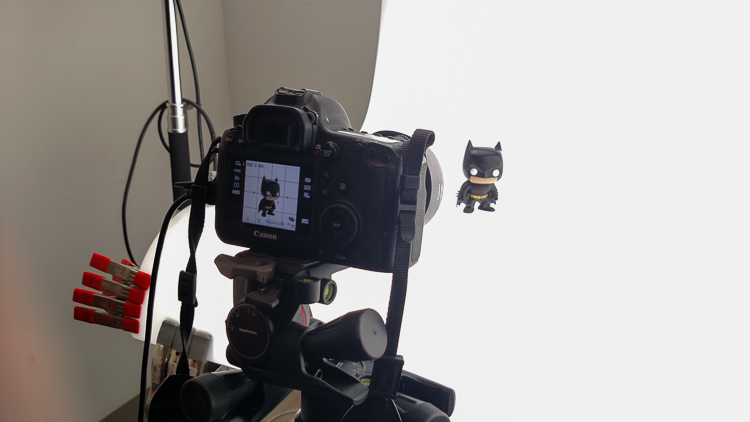
In this article I’m going to discuss the equipment you will need to create great product photography. I built my setup to provide great versatile lighting, speed, and the ability to cut out the product in post production very quickly and accurately. This setup can be used for still life, food, fine art and even some macro work.

Article Example_03

When I first started doing product photography I was hired by a company to reshoot their entire 3200 piece inventory. Needless to say that was a HUGE job, and speed and efficiency was paramount. I had previously not done more than a few dozen parts at one time for a client, so I really was not set up to undertake a job of this scale. I was going to have to rethink a lot of things, and I knew I was going to need additional studio equipment. The words, “Not going to happen” were not going to come out of my mouth, as I wanted the challenge and the learning experience. Many of the things I implemented for that specific job are still in use for my product photography today. This tips in this article are a good base to start if you are an aspiring product photographer.

Requirements of a product setup

Article Example_04

Here is what I felt were the most important things to plan for to make this job happen.

  1. Speed – to be able to quickly move through multiple angles of a single product, and to adapt quickly to the next product.
  2. Versatile light – lighting that can stay constant for similar groups of products, but remain flexible enough to quickly shift to get proper exposure.
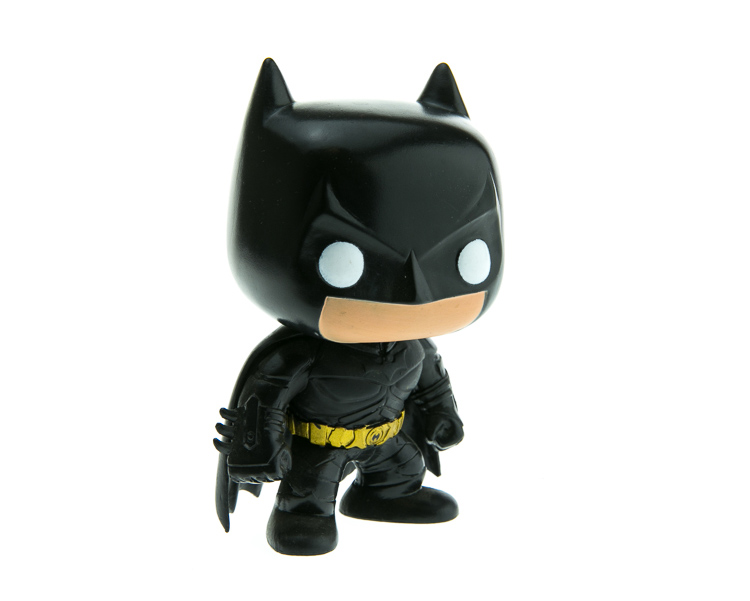
  3. Cut-out ease – the ability to knock out a product from the background quickly in post-production, and place a product on pure white without having to open the image in Photoshop.

With this list in mind you find yourself smack dab in the crosshairs of a shooting table. There really is no other way around it. This is why a shooting table works so well for this type of setup.

1. Speed

Article-Example_01b

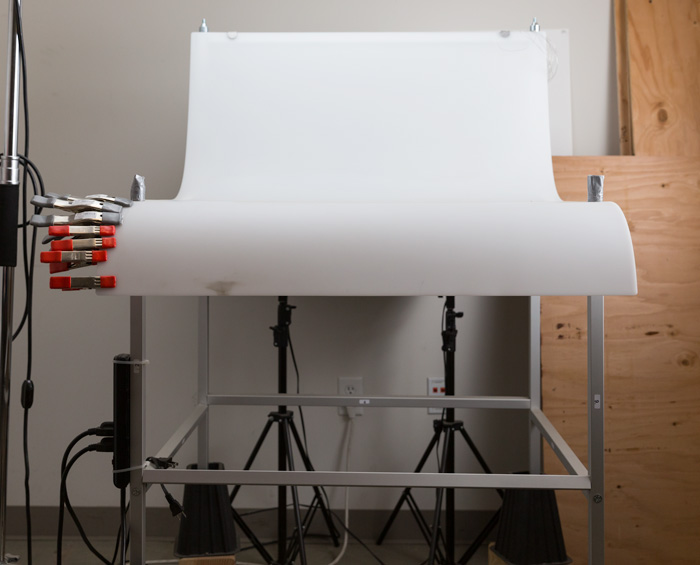
A platform is needed when you want to quickly move products in front of your camera and then off the set. Why not make it a platform that is specifically made for photography? The seamless background of a shooting table means less fussing around with intersecting lines that is typical with most background setups, and you won’t have to spend much time with product placement within the scene. That alone will speed up your shoots.

2. Versatile light

You can bounce light off the white shooting table, or better yet light the table from below, causing it to glow. Another great thing about a shooting table is that it’s white. White is a great way to control the shadows of a product. If I had it my way I would have the product completely enshrouded in white light or reflectors, then introduce shadows that add shape and dimension via black cards for the ultimate control. That unfortunately isn’t going to happen, but a white table is a great start.

ShootList4

Table with light coming from below.

ShootList5

Table with light from above.

3. Remove background quickly in post-production

Article Example_05

Article-Example_02b

Nice clean light, easy to cut-out product shot.

No one wants to sit around using the Quick Selection tool in Photoshop, refining the edge, seeing the horrible job that tool does, and then finally having to use the much more labor intensive Pen tool to mask out the background. It’s far easier to get this done in camera, or at least give yourself a huge head start. The time you will save with this method will add up very quickly, and will give you a more natural look.

A shooting table

A shooting table is the first place to spend your money. There are many different tables out there but after all my research I found the Foba DIMIU shooting table to be the perfect solution for me.

ShootList3

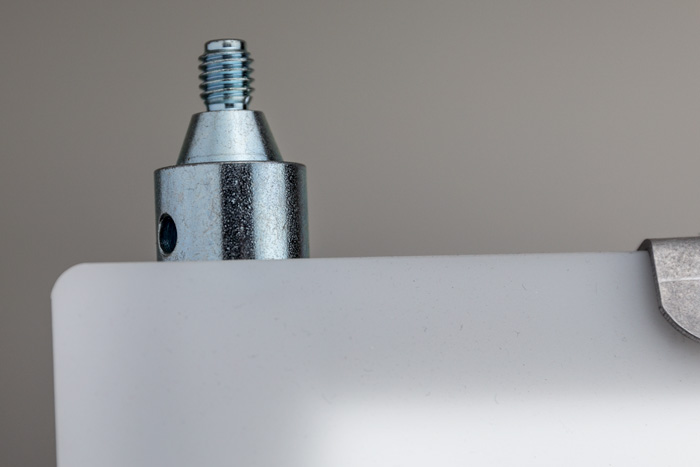
It is a large shooting area, a long sweeping seamless Plexiglas surface that allows you to light from above or below it, the table frame features 4 – æ inch studs at each corner that can be used for various attachments such as arms and brackets to hold cards, product or lights.

ShootList1

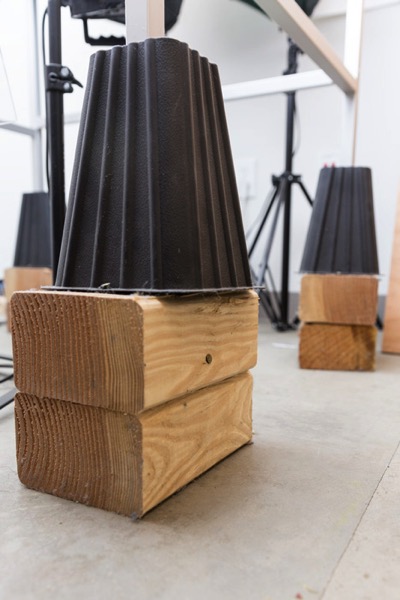
The table is lightweight, can be moved around the studio with ease, and is easy to assemble. I raised the height of my table by using 6×4 lumber cut into blocks, and some bed risers.

ShootList2

At $ 1,544 I realize that the price might keep it out of a lot of hands. But, don’t fret, a more affordable option can be found, like the Manfrotto large still life table for $ 811. If you’re planning on shooting only small products, the Manfrotto mini table at $ 480 is an option as well. Keep in mind, if you think you might have large products in the future, spend the money now and get the largest table you can afford.

Lighting

Lighting is the next thing to consider. The type of system you choose is going to make a pretty big difference when it comes to shooting your actual products. You will ultimately be choosing between two main types of light; a constant (continuous) light system or a studio strobe (flash) system.

A constant light setup is going to be much easier if you’re just starting out with product photography. With a constant light system the learning curve is exponentially smaller. The benefits of What You See Is What You Get (WYSIWYG) light cannot be overstated. I am going to go out on a limb to make a broad statement and say that if you are reading this article for help with your product photography, then you likely do not have the experience needed to employ studio strobes as your light source.

Article Example_03

Even if you have some experience with strobes, unless you have two to three years or more of shooting strobes in a product environment, do yourself a huge favor and get continuous lights. You will be amazed at how much, and how quickly you will learn when you use constant light. Plus there are some added benefits of using a constant light:

  • No tether equipment. You do not have to control the lights with a radio transmitter, by placing the light in optical slave mode, or by a cable like you do with studio strobes. They will always be on, ready to make pictures.
  • You can use them as video lights if you want to get into motion for product shots.
  • They are a far superior light learning tool, even for more advanced photographers. In my opinion this reason alone is why you want go with constant light.

ShootList9

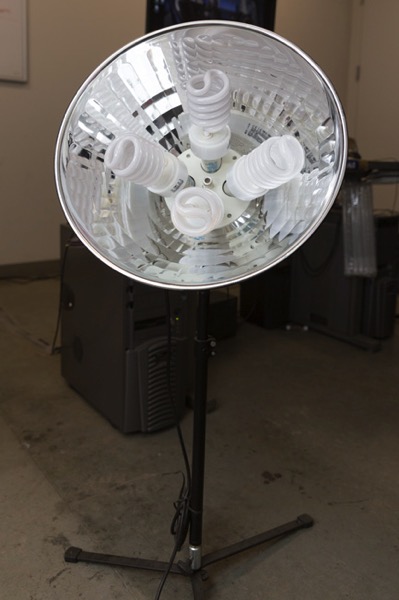
Okay great, you are going to take my advice and get some constant light. My recommendation would be the Westcott Spiderlite TD6 system for the following reasons:

  • They are bright.
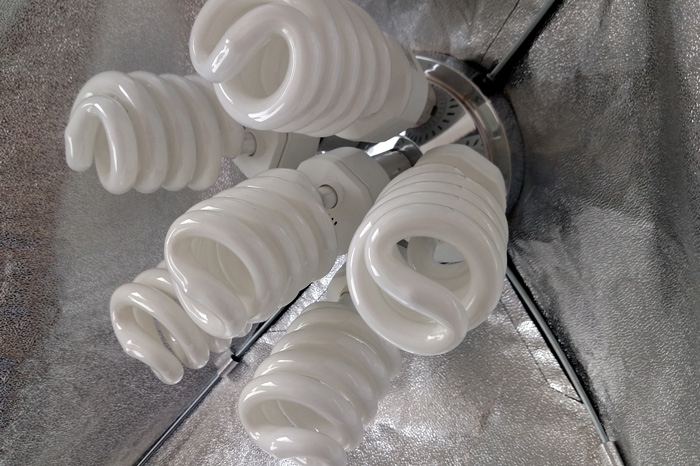
  • The fluorescent bulbs stay cool. A huge deal when you are stuffed in a studio with no windows.
  • The included bulbs are daylight balanced and can be mixed with light from a window.
  • Option to use tungsten halogens (not sure why you would because those bulbs run so hot).
  • Westcott has plenty of light modifiers for shaping your light.
  • Light output is controllable in 33% increments with three switches.
  • Solid build, with all metal heads and quality light modifiers.

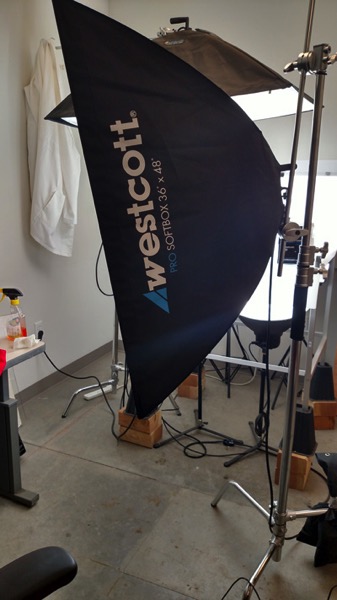
When I bought the kit from Westcott it came with the Spiderlite TD6 head, six 50w fluorescent bulbs, a tilter bracket, and the 36×48 softbox. I paid $ 700 per light, and bought two of those kits for a grand total of $ 1400.

ShootList10

There is some good news though. At the time of writing this article, there is a Westcott promo kit that comes with two of everything, two heads, two brackets, two sets of bulbs, and two softboxes, one is the 36×48 the other is a strip 12×36. The kit is going for $ 799. A fantastic buy for this lighting system.

If that is still a little more than you want to spend, then there are some other options for lighting. Impact has a kit that has light heads, stands, bulbs, and modifiers for about $ 265. But as my grandfather always said, you can’t afford to buy something twice. If product photography is something you are going to do, pay for the quality of Westcott. It will last, day in and day out.

My TD6 lights are used primarily as my key (main) and fill lights. I still need to be able to light my shooting table. For that I turned to some reflectors.

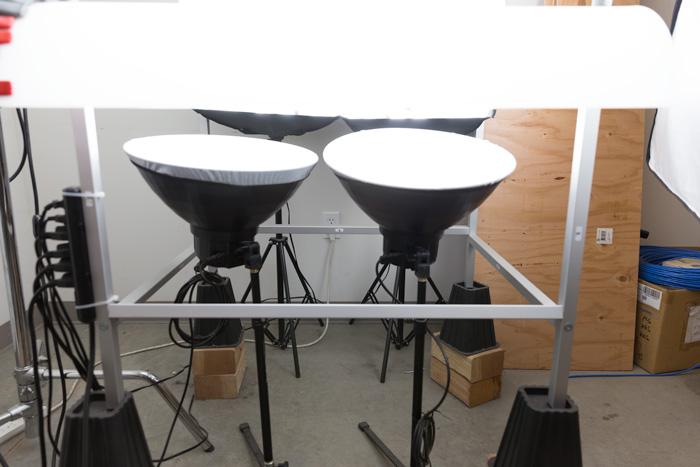
ShootList6

I went with two 16″ reflectors from Flashpoint, for $ 70 a piece. These sit under my raised shooting table and shine straight up through the bottom to blow out my table top.

ShootList7

Light stands

Now is a good time to talk about support. Supporting your lights should be carefully considered, and you need to ensure you don’t skimp here. I have a story to help illustrate this point. While doing a product shot for a client I was moving about the studio, and I brushed past my lights on my way back to my camera. Before I could turn around and look at the scene I heard a crash. My light had toppled over, hit the table, knocked the product off balance, and it hit the floor and broke. It was a bottle of wine. I was left with a huge mess to clean up, a broken bottle that needed to be replaced, and a bill from the client for the unreturned product. It could have been worse, but not by much. Invest in your light stands. Get good ones and weigh them down properly with sandbags.

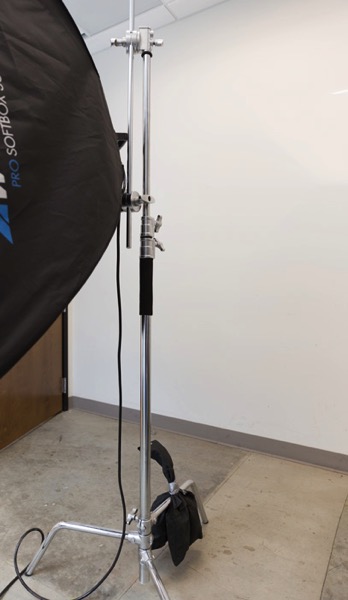
You are going to want to use some sort of a C-Stand. Whether it be a turtle base (removable legs from the center column) a rocky mountain C-stand (a stand with one leg that can go up and down the center column) or a super C-stand (extra heavy duty) invest in a C stand for your large lights. Also, always have sandbags handy to weigh the C-stands down once you bring them onto your set.

ShootList8

For the price of $ 129 per stand from Adorama, for their Flashpoint C-stand with turtle base is pretty great, I couldn’t be more pleased. It has been a fantastic solid stand for my large TD6 lights.

The other stand that I bought was a lot less mission critical, it was for my reflectors. I bought a few Manfrotto Nanopole stands which bottom out at 20″, and can go as high as six feet. They are not meant for anything too heavy, but they do the small stand job perfectly.

So, we touched on all the main equipment needed to make a successful product photography set. Do you have any other tips to add? What do you use for product photography? If you have any questions please ask in the comments below.

googletag.cmd.push(function() {
tablet_slots.push( googletag.defineSlot( “/1005424/_dPSv4_tab-all-article-bottom_(300×250)”, [300, 250], “pb-ad-78623” ).addService( googletag.pubads() ) ); } );

googletag.cmd.push(function() {
mobile_slots.push( googletag.defineSlot( “/1005424/_dPSv4_mob-all-article-bottom_(300×250)”, [300, 250], “pb-ad-78158” ).addService( googletag.pubads() ) ); } );

The post Equipment Tips for Quick and Efficient Studio Product Photography by Jacob Macias appeared first on Digital Photography School.


Digital Photography School

 
Comments Off on Equipment Tips for Quick and Efficient Studio Product Photography

Posted in Photography


Actions: Efficient Editing or Cheating?

22 Oct

Learning to use Photoshop can be overwhelming to some people. There are so many functions and so many tools that it can seem like you will never really understand how to use it. You search online for videos and tutorials, but even then, depending on your version of Photoshop you still may feel lost.

When photographers discover actions for Photoshop it’s sometimes like hitting the photography jackpot. They speed up your workflow. You can get more done. You can achieve different effects with them, but sometimes other photographers will tell you that it’s basically cheating in Photoshop.

Are you cheating yourself or your client when you use actions?

Most actions require a bit of tweaking when you use them to get the effect that you want. It’s very rare that once actions are played that they are perfect. This way a photographer can adjust them to get the look they desire for their images. When photographers use actions that require the tweaking of their images, they are learning more than just using the slider, they are learning how parts of Photoshop works. They are learning about blending modes, adjustments, curves, etc.

Photography is about finding your art and doing it your own way. Using an action does not compromise the vision of your art. You still make the decisions about how the end product looks. There are some people who will disagree and say that actions are cheating because you don’t have to learn to manually adjust everything by hand. You can get clean dishes by using a dishwasher or washing them by hand, is one way cheating? You still achieve clean dishes. Isn’t that the goal?

Some photographers use different actions combined with hand editing. They have learned Photoshop over time and figured out what works for their editing needs. You can even make your own actions by combining the actions you use the most and your own hand editing. It takes a little practice to get the technique down, but once you do you will speed up your own workflow go even faster. I have incorporated actions and hand editing and now when I do a photo shoot I typically know what type of look I am going to want for the final images. Whether I achieve those looks by hand editing or by actions or a combination doesn’t matter to my client. They just want beautiful images. You can even use actions multiple times or use different actions in a combination to achieve your desired look.

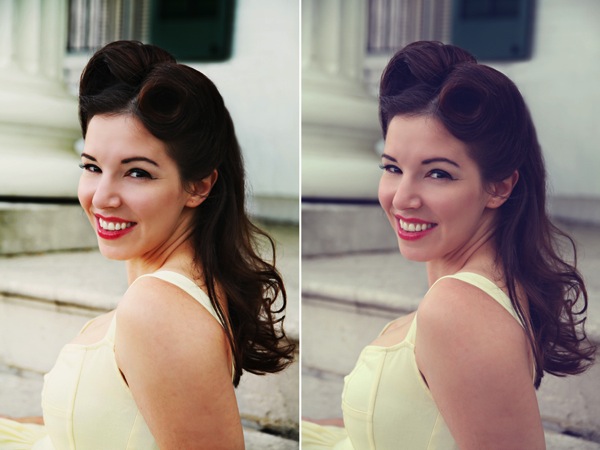
For this vintage type look I used Blue Ginger from Florabella Classic Workflow twice.  The second time I only used it at 10%.

For this vintage type look I used Blue Ginger from Florabella Classic Workflow twice. The second time I only used it at 10%.

So, you decide that you want to look into actions, but then you Google them and are overwhelmed by the options that are out there. What’s next? How to choose? Well, this depends on the look you want for your images. Look at the images that are posted using the actions and see if they reflect your style and your images. There are some free actions out there, but most you have to purchase. Some are relatively inexpensive and there are some that are very expensive. For some people it’s very hard to commit to buying expensive actions without testing some first. There are some action developers that post some free sample actions for you to use so that you get an idea of how their actions work.

For this complete vintage look I used Pioneer Woman's free set. I used Vintage and changed the edge burn to 74%, vintage blur to 84%, midtone bump to 85%, and turned grain off. Then I used the Old West action and just decreased the overall action to 37%

For this complete vintage look I used Pioneer Woman’s free set. I used Vintage and changed the edge burn to 74%, vintage blur to 84%, midtone bump to 85%, and turned grain off. Then I used the Old West action and just decreased the overall action to 37%

Whether your purchase your actions or use free actions the only thing you need to be sure of is that they are working with your overall images and that they are reflecting your style. As you learn Photoshop you may start creating your own actions that help your workflow and truly reflects your style and your artistic vision, or you may stick with what is working. Only you can decide what works best for your business, your images, and your clients.

A few recommended places to download free actions:

  • Colorvale Actions
  • Pioneer Woman
  • My Four Hens (Look for the freebie tab on their Facebook)

You can also purchased actions from:

  • Colorvale
  • My Four Hens
  • Wish Photography
  • Florabella

Post originally from: Digital Photography Tips.

Check out our more Photography Tips at Photography Tips for Beginners, Portrait Photography Tips and Wedding Photography Tips.

Actions: Efficient Editing or Cheating?

The post Actions: Efficient Editing or Cheating? by Guest Contributor appeared first on Digital Photography School.


Digital Photography School

 
Comments Off on Actions: Efficient Editing or Cheating?

Posted in Photography