RSS
 

Posts Tagged ‘Dial’

Nikon F 60th anniversary sale includes a special wristwatch with shutter speed dial

10 Dec

Nikon is celebrating the 60th anniversary of its first SLR camera, the Nikon F introduced in 1959, with a commemorative items sale through the Nikon Museum. The sale is offering several unique Nikon F-themed products, including a wristwatch, coffee mug, an acrylic plate featuring a hand-drawn and written illustration of the Nikon F camera’s components, as well as a revised 2019 Edition of the Nikon Camera History poster.

The Nikon F represents an important part of the company’s history; the model was in production for years before the eventual launch of the Nikon F2 model in 1973. It’s not surprising that Nikon would commemorate the iconic model with a special anniversary sale, one involving limited-production items at very reasonable prices for collectibles.

Though the Nikon F coffee mug is already listed as ‘sold out,’ the Nikon Museum is still offering the acrylic plate camera diagram for 2,240¥ (approx. $ 22), the revised Nikon Camera History poster for 1,220¥ (approx. $ 11), and the Nikon F wristwatch for 19,900¥ (approx. $ 183). The watch is the most notable of the items, featuring an ‘F’ shutter speed dial, the words ‘Nikon Museum,’ and the letter ‘F’ in the watch face.

Nikon Museum advises that each product is offered in limited quantities and that it may prevent buyers from purchasing too many units. Unfortunately, you’ll have to physically visit the Nikon Museum shop in Japan to purchase the items; shipping is not available.

Articles: Digital Photography Review (dpreview.com)

 
Comments Off on Nikon F 60th anniversary sale includes a special wristwatch with shutter speed dial

Posted in Uncategorized


Ricoh says it will repair GR III cameras affected by a wobbly control dial, scroll wheel

02 Apr

Ricoh Korea and Japan have issued a statement regarding an issue with select Ricoh GR III cameras that caused the control dial of the camera jiggles more than it should, as seen in the above video shared by Photo Rumors. Following an investigation of the issue, Ricoh says it will fix affected devices free of charge and notes that the movement of the controls does not interfere with the functionality of the camera.

The translated statement says ‘The basic specification is to set a slight rotation allowance width, but as a result of investigation, it has been found that some products with the following target serial numbers have combinations with large display inclinations.’

In more clear terms (you made a valiant effort Google Translate), Ricoh anticipated a slight bit of movement, but the affected cameras show far more movement than should be happening and as a result the affected cameras will be fixed. Below are the serial number ranges Ricoh references:

  • 0010046 – 0022290
  • 2010043 – 2012044
  • 3010045 – 3010544
  • 4010041 – 4010230

The statement says Ricoh will start processing repairs for affected devices on April 8, 2019. DPReview was informed by a Ricoh spokesperson that Ricoh USA and UK will be issuing a statement tomorrow regarding the issue and the subsequent steps needed to repair affected cameras. We will update the article with that statement when we receive it.

Articles: Digital Photography Review (dpreview.com)

 
Comments Off on Ricoh says it will repair GR III cameras affected by a wobbly control dial, scroll wheel

Posted in Uncategorized


Logitech’s new Craft keyboard includes a dial for photo and video editors

06 Sep

Computer accessory maker Logitech has introduced a new keyboard designed specifically for ‘creators.’ It’s called the Craft keyboard, and it features a dial that will hopefully make life a little easier for stills and video editors.

The Crown dial on the Craft keyboard offers three-way touch, tap and turn functions that can tune-in to the tools of editing applications and allow mouse-free adjustments and selections. The company suggests using the Craft keyboard with Adobe’s Photoshop, for example, so the dial can be used to adjust brush sizes, turn saturation up or down, or to scroll through tool settings quickly and with greater accuracy.

But you’re not limited to Photoshop. A software package called Logitech Options will allow custom profiles to be installed that are specifically designed for individual applications, and which extends the range of controls that can be accessed. The Crown can also be used with Microsoft Office applications, and you can use it to take control of standard PC functions such as screen navigation as well.

The Logitech Craft is expected to go on sale in October priced $ 200/£170. For more information, check out the video below and visit the Logitech website.

Press Release:

Logitech CRAFT Advanced Keyboard with Creative Input Dial Sets New Standard for Desktop Control

Flagship Keyboard Improves Creativity and Productivity

“The creative input dial gives you instant access to the functions you need, the moment you need them, allowing you to increase your productivity by simply touching the dial. CRAFT puts you in your creative element – every time you sit at the desk.”

Today Logitech (SIX: LOGN) (NASDAQ: LOGI) announced CRAFT, an advanced keyboard with a creative input dial, setting a new standard for computer keyboards. CRAFT looks and feels better than anything you have typed on and offers a whole new way to immediately access context-specific computing tools with a smart aluminum dial. For example, with a touch, tap or turn you can adjust image brightness, contrast and saturation in Adobe Photoshop, or create and adjust charts in Microsoft Excel®. The creative input dial gives you the ultimate control and input at your desk for precision, efficiency and uninterrupted creative flow.

“Our new flagship Logitech CRAFT keyboard is for all creators who spend a lot of time designing and creating – who want to work with greater precision and feel connected to their work,” said Art O’Gnimh, global head of keyboards at Logitech. “The creative input dial gives you instant access to the functions you need, the moment you need them, allowing you to increase your productivity by simply touching the dial. CRAFT puts you in your creative element – every time you sit at the desk.”

The touch-sensitive aluminum creative input dial, called the Crown, recognizes the apps you are using and gives instant access to the tools you need. With a slight touch of the Crown you can instantly access context-specific functions — like brush size, brightness, chart type, font size — tap to change the function and turn to change the selected function’s value. Installing custom profiles in Logitech Options™ Software maximizes the creative process when working with Adobe Photoshop CC, Adobe Illustrator CC, Adobe Premiere Pro CC, Adobe InDesign CC and Microsoft PowerPoint®, Excel® and Word® (Microsoft functionalities work on PC only at this time). The Crown brings comfort, immediacy and convenience to your creative process and allows for increased two-handed interactions. You can also have access to global controls – giving you the ability to change desktops, navigate between apps, or adjust volume – and assign one additional Crown function in each of your favorite apps.

CRAFT also features smart illumination with backlighting that detects your hands and adjusts lighting automatically depending on the room conditions. The keys are crafted for comfort, in a full-size familiar layout, with each individual key engineered for stability and precision. CRAFT looks great alongside other premium desktop accessories by Logitech, such as the Logitech MX Sound, Logitech Spotlight Presentation Remote and Logitech MX Master 2S.

Additionally with the touch of an Easy-Switch™ button, you can easily switch between – and type on – any three connected devices, whether you are using a Windows® PC or Mac®. Select from either a Logitech Unifying™ USB or Bluetooth® Low Energy technology to connect to your computer.

Pricing and Availability

The Logitech CRAFT Advanced Keyboard is expected to be available in October 2017 at Logitech.com and select retail stores for a suggested retail price of $ 199.99. For more information, please visit Logitech.com, our blog or connect with us on Facebook, Instagram and Twitter.

Articles: Digital Photography Review (dpreview.com)

 
Comments Off on Logitech’s new Craft keyboard includes a dial for photo and video editors

Posted in Uncategorized


A Simple Explanation of the Camera Mode Dial

09 Aug

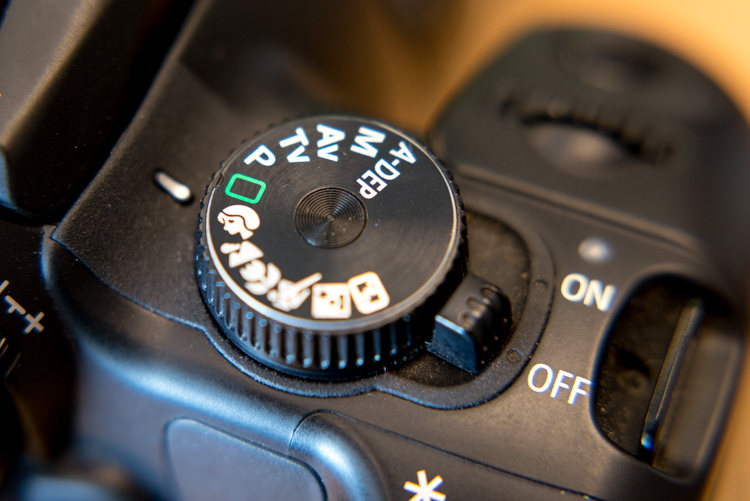
If you have a more advanced camera like a DSLR or mirrorless, or even a high-end pocket model, it’s a good bet that somewhere on the top of the camera body you will find a circular dial (the camera mode dial) with a whole lot of strange letters like: M, Tv (or S), Av (or A), P, and maybe even a U1 or U2 (or C1, C2) thrown in for good measure. There is also a friendly safe green option, that may say Auto, or depending on the type of camera you have, is just represented by a green rectangle.
mode-dial

Most beginners know this option the best, since it essentially puts your camera in the driver’s seat, and forces it to do all the heavy lifting of figuring out the exposure, while all you need to do is point your camera in the right direction. If you like shooting in Auto and you are happy with your pictures, then don’t let anyone tell you that you need to change, or that you aren’t a good photographer.

However, if you would like to branch out a little bit, and learn to make your camera do what you want in order to make the photos you desire, then the mode dial is your key to a whole new world of photographic creativity. It can be somewhat daunting, and those strange letters don’t inspire much confidence for beginners who already feel overwhelmed. So I’ll walk you through the basic functions of the mode dial one by one, and give you the information you need to start experimenting with some of your camera’s more advanced settings.

Auto Mode

This one might seem fairly self-explanatory, but I’d like to offer some detail about what Auto mode actually does. In most situations, your camera is going to do whatever it can to make sure the pictures you take are properly exposed (in other words, not too dark nor too bright). There are three main things that govern exposure (Aperture, Shutter, and ISO – otherwise known as the Exposure Triangle) and Auto mode takes care of setting the values of all three of these elements for you. If your camera has a flash, it may decide to fire it, order to brighten up a scene that is quite dark, which often happens indoors or at night. Auto generally does a good job at allowing you to take decent photos in a variety of situations.
Sometimes Auto mode is all you need to get the pictures you want.

Sometimes Auto mode is all you need to get the pictures you want.

P: Program Auto Mode

When you want to branch out from Auto mode, this is a good place to start. Program Auto does exactly the same thing as the familiar, comfortable green Auto mode, but with a twist – you can change a few settings if you want. Using Program Auto allows you to do things like decide whether you want the flash to automatically pop-up or turn off altogether, as well as change the ISO and the White Balance.

It really gets interesting when you turn the rotating circular dial (called a control wheel) on the top or back of your camera, which lets you take some degree of control back from your camera. In Program Auto your camera will always try to maintain a properly-exposed picture, but you can use the dial to change the aperture and shutter speed at the same time. It’s a fun way to experiment with your camera while being reasonably certain that you will still get good pictures, and also start to notice some of the effects that changing the aperture and shutter speed has on your final images.
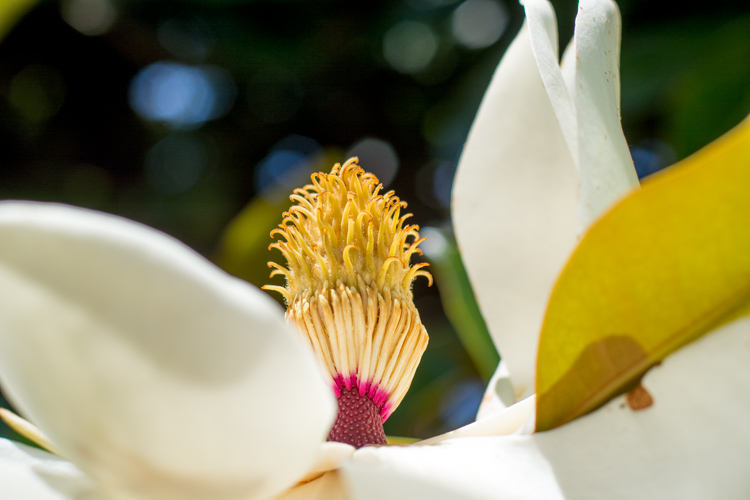
Program Auto can be a great way to help you get the shot you want by changing the shutter speed and aperture with a simple flick of your thumb.

Program Auto can be a great way to help you get the shot you want by changing the shutter speed and aperture with a simple flick of your thumb.

Av (or A): Aperture Priority Mode

When you want to have full control over the aperture in your lens (and thus also control the depth of field), this is the mode to use. It lets you turn the control wheel on your camera in order to adjust the aperture alone, while the camera decides what ISO (if you use auto ISO) and shutter speed to use.

If you have plenty of available light this is a fantastic mode to be in, because you can choose whether you want a wide depth of field (i.e. everything in focus) or a shallow depth of field (just your subject in focus, with foreground/background elements blurry) and know that the shutter speed and ISO will be set automatically to get the shot you want. However if you are shooting in low light, you might end up in a situation where you set the aperture you want, but your camera chooses a shutter speed that is too slow, or an ISO (again only if you are using Auto ISO, if you are manually setting the ISO you will still have to adjust that yourself) that is too high for your liking.

My personal favorite mode to shoot in is Aperture Priority with Auto-ISO, which means my camera won’t use a shutter speed that’s too slow (you can usually set the parameters for minimum shutter speed in your camera’s settings via the menu options – consult your user manual if you aren’t sure), and will instead raise the ISO.
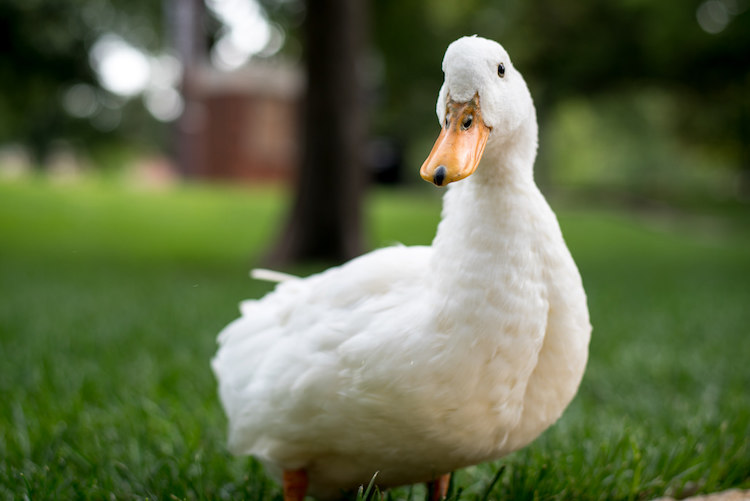
I knew I wanted a shallow depth of field with this, so I used Aperture Priority mode to select a wide aperture and let my camera figure out the rest.

I knew I wanted a shallow depth of field for this shot, so I used Aperture Priority mode to select a wide aperture, and let my camera figure out the rest.

Tv (or S): Shutter Priority Mode

You may have already guessed what this mode does, based on the explanation of Aperture Priority above. Shutter Priority Mode is essentially the opposite. In this mode you tell the camera what shutter speed to use, and let it calculate the aperture and ISO (when using Auto ISO). It is particularly useful if you are shooting fast action like a race or sporting event, because you can set your shutter speed to be fast enough to freeze the motion of the subjects, and know that your camera will select whatever aperture and ISO values are needed to get the shot. Most cameras can shoot as fast as 1/4000th of a second which is plenty for freezing motion, or as slow as 30 seconds, which can be fun for nighttime photography and capturing light trails.
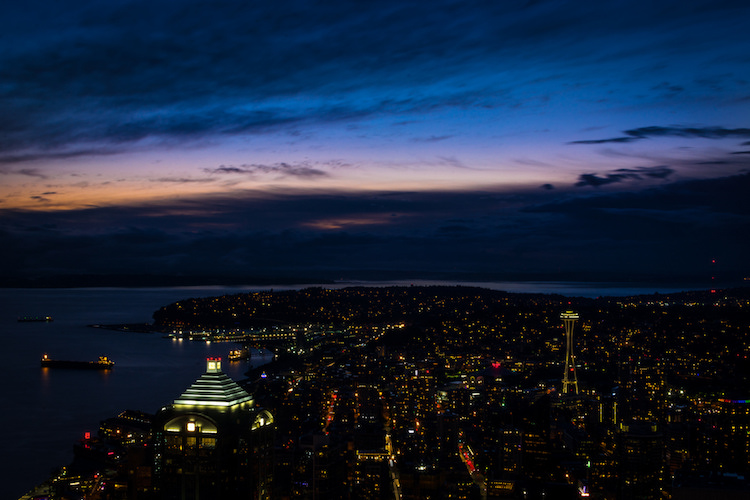
I used Shutter Priority with a value of 30 seconds to get this shot of the Seattle skyline from the Columbia Tower Observation Deck.

I used Shutter Priority with a value of 30 seconds to get this shot of the Seattle skyline, from the Columbia Tower Observation Deck.

M: Manual Mode

This is the granddaddy of all camera modes, because you have to choose all three settings: Aperture, Shutter Speed, and ISO. Shooting in manual can be a little scary at first, but the trick here is to learn to use your camera’s light meter, which will tell you if your picture will be over, or under-exposed. When you put your camera in Manual ode, the control wheel will only change one parameter of the three aforementioned settings at a time, so you may need to press another button while turning the wheel, or navigate to one of your camera’s menus in order to select a different value. With enough practice you will easily get the hang of it.

Shooting in Manual can be challenging, but intensely rewarding, as you learn exactly how to control your camera to get precisely the picture you want. Any situation can be good for Manual, provided you are well acquainted with your camera and how it operates.
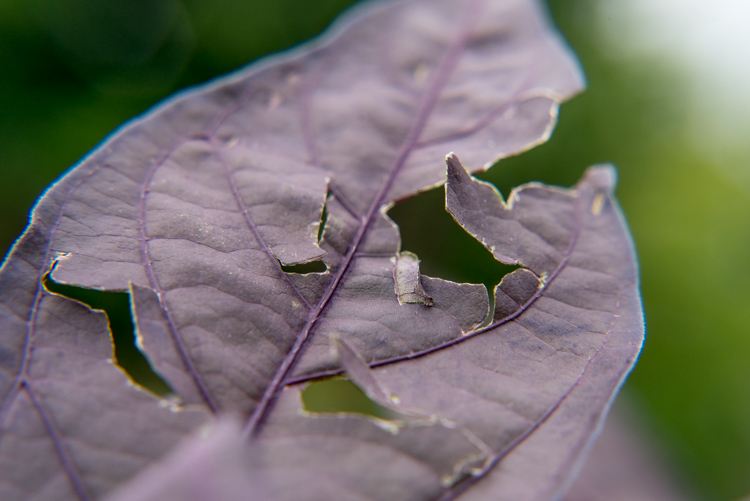
Learning to shoot in Manual mode might seem daunting at first, but it's incredibly liberating when you learn how to take full control over every element of exposure.

Learning to shoot in Manual mode may seem daunting at first, but it’s incredibly liberating when you learn how to take full control over every element of exposure.

U1 (or C1): Storing custom user settings

Not all cameras have these options, but if yours has the ability to save custom user settings, you may want to investigate it a little more to start taking advantage of how this can help you. These custom settings allow you to specify a set of parameters, not just for exposure, but for other options like: shooting in JPG or RAW, shooting mode, White balance, enabling Auto ISO, and others – then instantly switch to those settings with just a click of your dial.

One thing I find these user storage banks useful is for having U1 (may be called C1 or something else on your camera) store a set of parameters that is a good starting point for indoor photography, such as a wider aperture and higher ISO, and then using U2 for outdoor pictures. The values and parameters can all be changed once you click over to a U1 or U2 storage bank, but it’s an incredibly handy to instantly change to a specific custom baseline for shooting different types of scenes.

Other things you could use it for are: saving settings for panning, bracketing for HDR shots, low light photography, portrait settings, landscape settings, etc. Use them for the types of things you do most often, or need to access quickly.
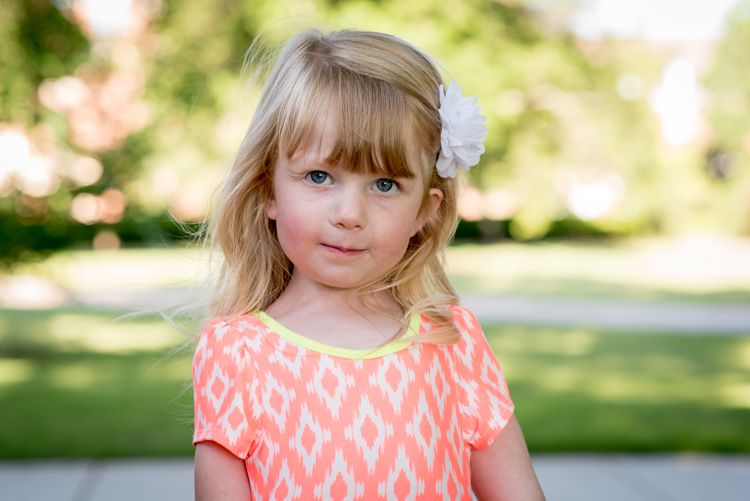
I have U1 configured to be ideal for outdoor portraits, so no matter what I'm doing I can instantly switch over to those settings to get the shot I want.

I have U1 configured to be ideal for outdoor portraits, so no matter what I’m doing I can instantly switch over to those settings to get the shot I want.

Preset Program Modes
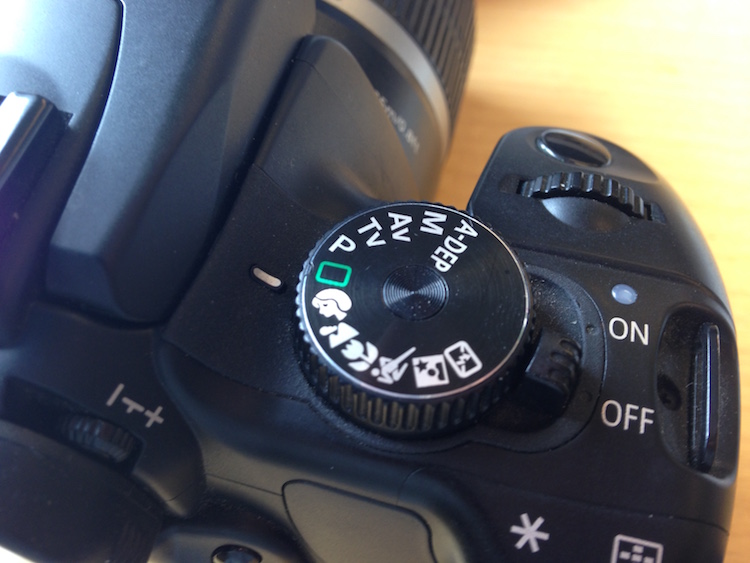
Insert mode dial close-up shot here. This is just a placeholder.

Think of these as custom Auto settings, each one suited for a different type of photography (look for the mountain, flower, person or sports figure on your mode dial). If you are perfectly happy shooting in Auto mode, but get frustrated when it doesn’t always give you the results you want, you might want to try using one of these instead.

Each option includes a specific set of parameters, kind of like the U1/U2 storage banks, that is ideal for taking pictures in certain types of settings. If you like going outdoors and taking shots of landscapes, twist the dial away from Auto, and over to the mountain icon, which will force your camera to use smaller apertures and lower ISO values that are suited for this type of photography. If you are watching your kids play football or run around at the park, use the icon with a person running, which will make your camera use faster shutter speeds and higher ISO values, if necessary, to freeze the action.

Each one of these icons is calculated and calibrated by your camera’s manufacturer to deliver good results in various types of situations, and they often deliver better images than just shooting in Auto mode.
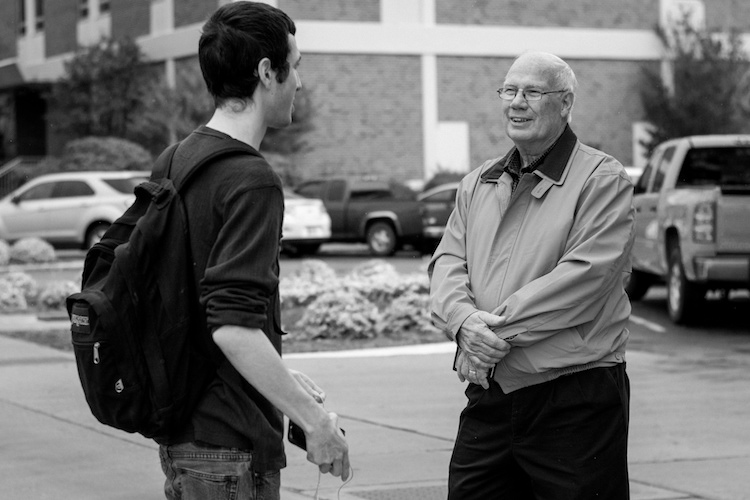
Using the icons on your camera can help you get the specific type of picture you want; the Portrait mode works here because it forces the camera to choose a wider aperture resulting in a blurry background behind the subjects.

Using the icons on your camera can help you get the specific type of picture you want; the Portrait mode worked here because it forced the camera to choose a wider aperture, resulting in a blurry background behind the subjects.

Other Common Modes

There are plenty of other modes you might find on any given camera, and each manufacturer includes a slightly different set of options, so it’s difficult to make a list that includes an explanation of all available functions. Here are just a few more that you might find, along with brief explanations. If your camera has something that’s not on this list, it may well be worth your time to open up your user manual and investigate. You may find some very useful modes for helping you take better pictures that were hidden in plain sight all along!

A-Dep: A fully automatic mode that lets you pick two points (in the foreground and background) that you want to be in focus, and your camera selects the aperture needed to get everything between those two points in sharp focus. The abbreviation stands for Automatic Depth of Field and it’s fun to play with, but doesn’t always work out so well in practice.

Box with Lightning Symbol Crossed Out: Another automatic mode that also disables the flash. It’s good if you want to shoot in low-light situations and only use available light, but your pictures may come out grainy or blurry.

Flower (macro): This is useful for shooting subjects at close range, such as flowers, or other small objects. It doesn’t affect the properties of your lens, which are far more important when shooting close-up subjects, but merely tells your camera to set the focus priority on things that are closer instead of farther away.

SCN/SCENE: Similar to the icons you may find on a mode dial, this lets you choose from several built-in scene examples, in order to help your camera figure out the appropriate shooting parameters to use.
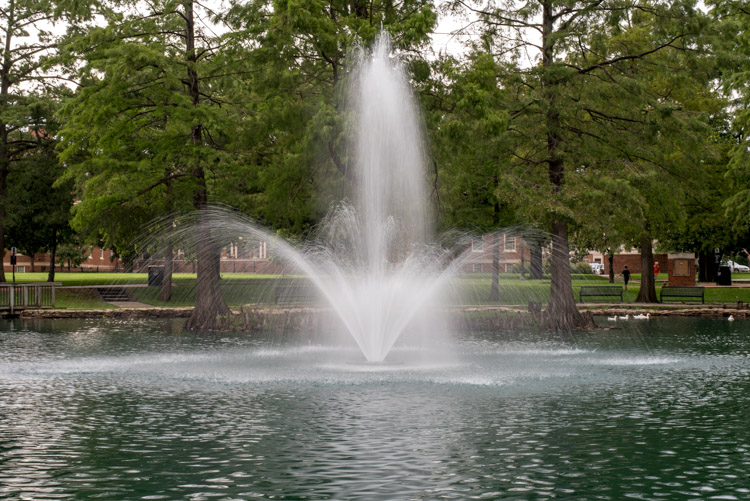
Though I shot this in the day, the nighttime scene mode worked well because it forces the camera to use a slow shutter speed which resulted in a nice blurry fountain.

Though I shot this in the day, the nighttime scene mode worked well because it forces the camera to use a slow shutter speed, which resulted in a nice blurry fountain.

Do you like using the mode dial on your camera, or do you prefer to leave it in just one position for all your shooting needs? Do you have any other tips or tricks you have learned from using the various functions on your mode dial? Did I leave out any critical information you think might be useful to someone learning to use the mode dial? Please leave your thoughts in the comments below.

googletag.cmd.push(function() {
tablet_slots.push( googletag.defineSlot( “/1005424/_dPSv4_tab-all-article-bottom_(300×250)”, [300, 250], “pb-ad-78623” ).addService( googletag.pubads() ) ); } );

googletag.cmd.push(function() {
mobile_slots.push( googletag.defineSlot( “/1005424/_dPSv4_mob-all-article-bottom_(300×250)”, [300, 250], “pb-ad-78158” ).addService( googletag.pubads() ) ); } );

The post A Simple Explanation of the Camera Mode Dial by Simon Ringsmuth appeared first on Digital Photography School.


Digital Photography School

 
Comments Off on A Simple Explanation of the Camera Mode Dial

Posted in Photography


Dial it Down: Noise-Cancelling Device for City Street Sounds

25 Nov

[ By WebUrbanist in Conceptual & Futuristic & Technology. ]

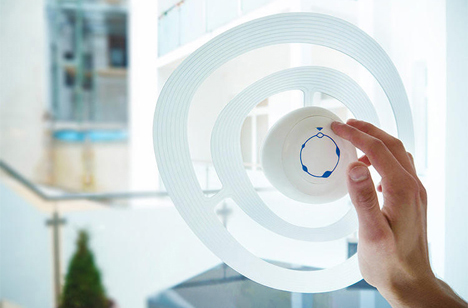
sound control window knob

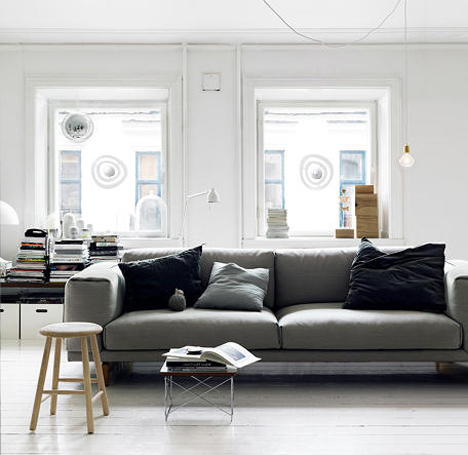
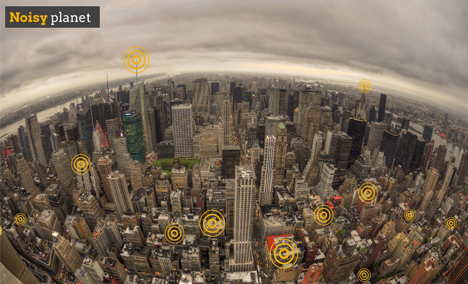
The background sounds of urban environments can be invigorating when you are out and about, but enervating when you are at home and want to tune them out. Now imagine a simple gadget you can stick to your window letting you do just that – a volume knob for everyday life.

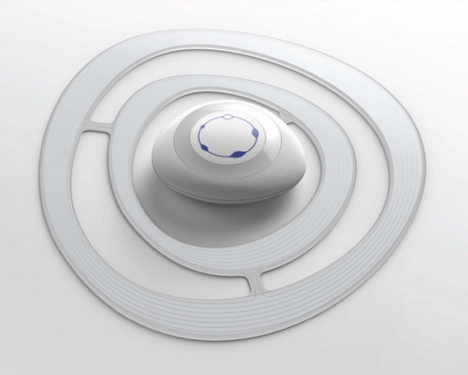
sound cancelling window attachment

sound device prototype design

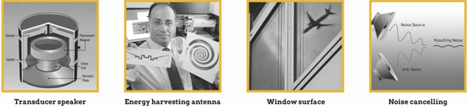
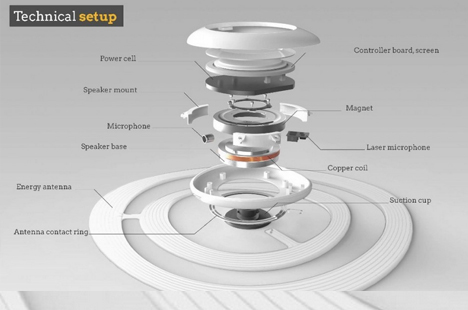
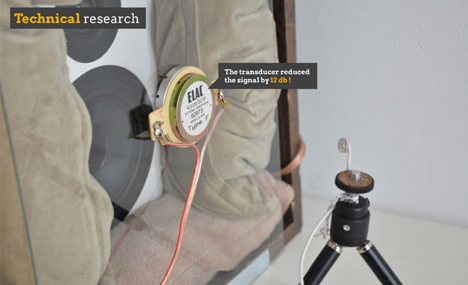
Sono is a remarkable working prototype, created and tested by industrial designer Rudolf Stefanich that “turns your window into an advanced noise cancelling system that allows you to eliminate and/or control the sounds that pass through.”

sound cancel city noise

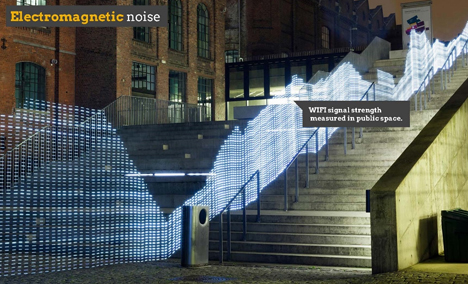
sound cancelling wifi research

sound user interface selection

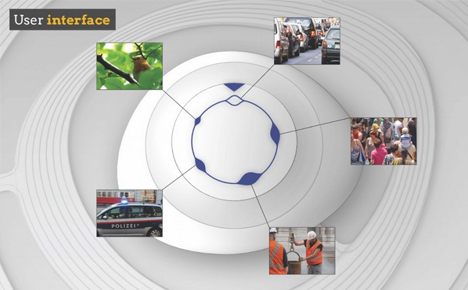
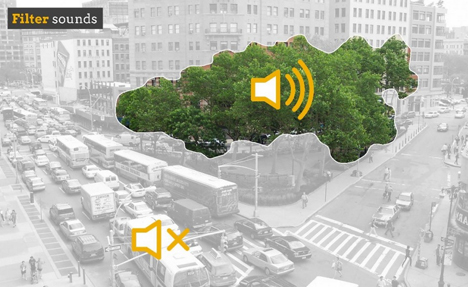
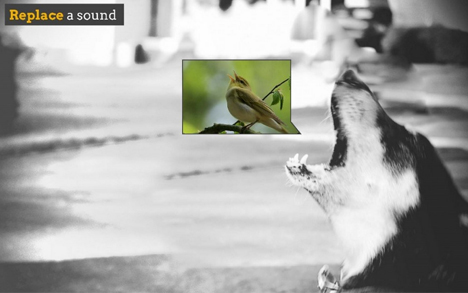
Cancellation of background noise is just the first step, however, with specific-sound filtering and replacement via a user-friendly touch interface as advanced options.

sound filtering city nature

sound replacement demo example

The gagdet will allow to you dial up or turn down the sounds of car sirens, traffic horns and other intrusive distractions, but it will also give you the power to select a preferred ambient audio experience instead. It effectively offers an adjustable soundtrack of your own choosing.

sound device demo

sound device tech

sound device specs

From its creator: “In our loud and busy world a moment of silence has become a scarce and almost luxurious experience. The pebble like device you can see here lets you reclaim that silence for your home. With its concentric broadband antenna rings, it harvests the energy of electromagnetic noise from Wi-Fi, and similar signals and this way also reduces the level of e-smog pollution in your environment.”

Share on Facebook


[ By WebUrbanist in Conceptual & Futuristic & Technology. ]

[ WebUrbanist | Archives | Galleries | Privacy | TOS ]


WebUrbanist

 
Comments Off on Dial it Down: Noise-Cancelling Device for City Street Sounds

Posted in Creativity


Turn Back the Dial: 13 Retro Historical TV Set Designs

13 Nov

[ By Steph in Technology & Vintage & Retro. ]

Retro Television Main

Early television sets ranged from tiny screens housed in laughably oversized cabinets to stylish midcentury modern designs. Some, like a Russian TV from 1932, don’t even look remotely like the televisions we’re familiar with today. Here are 13 historical TV set designs dating from 1928 through 1991.

Massive Luxury Kuba Komet, 1957-1962

Retro TV sets Kuba Komet

Retro TV Sets Kuba Komet 2

How cool is this midcentury modern TV console? Shaped like a sailboat, it features an upper section that rotates like a sail on a mast so you can tilt the 23-inch screen in the desired direction. The lower cabinet holds additional multi-media features with a pull-out, 4-speed phonograph, a TV tuner and a multi-band radio receiver.

First Publicly Available Russian TV, 1932

Retro Television Russian 1

The first television set that was available to the public in Russia looks exactly like you would expect – basically, as if it were a piece of military equipment.

GE Performance Television, 1978

Retro Television GE Performance

Once upon a time, having a gigantic ugly faux-wood-covered box in your living room was considered a sign of prestige. The GE Performance Television is about as ridiculous as it gets, especially since the picture was terrible owing to the fact that it was essentially just a regular TV tube flipped and back-projected onto that giant screen. GE marketed it as “a super-size TV with a picture three times as big as a 25-inch diagonal console and the ‘chairside convenience’ of random access remote control.”

Zenith CBS Mechanical Color Wheel, 1948

Retro Television Zenith Color Wheel

Before ‘real’ color TVs were available, CBS labs came up with this contraption – essentially a black-and-white television equipped with a spinning mechanical wheel of red, blue and green filters that added color to the picture seen on the screen. CBS was all ready to start selling these things when RCA protested that an all-electronic color system (which they were researching, but had not yet developed) would make more sense. Ultimately, the Zenith design was briefly used as a teaching tool for surgery, but never sold to the public.

Phillips Discoverer Space Helmet TV, 1991

Retro Television Phillips Discoverer Space Helmet

This novelty television didn’t really do anything special – it just  looks cool, modeled after a space helmet with a closing lid. They can still be found on eBay for under $ 100.

Next Page – Click Below to Read More:
Turn Back The Dial 13 Retro Historical Tv Set Designs

Share on Facebook


[ By Steph in Technology & Vintage & Retro. ]

[ WebUrbanist | Archives | Galleries | Privacy | TOS ]


WebUrbanist

 
Comments Off on Turn Back the Dial: 13 Retro Historical TV Set Designs

Posted in Creativity


Finding Your Way Around the Mode Dial

11 Feb

This is the first in a series of articles by Andrew S Gibson, the author of Understanding EOS: A Beginner’s Guide to Canon EOS cameras.

01

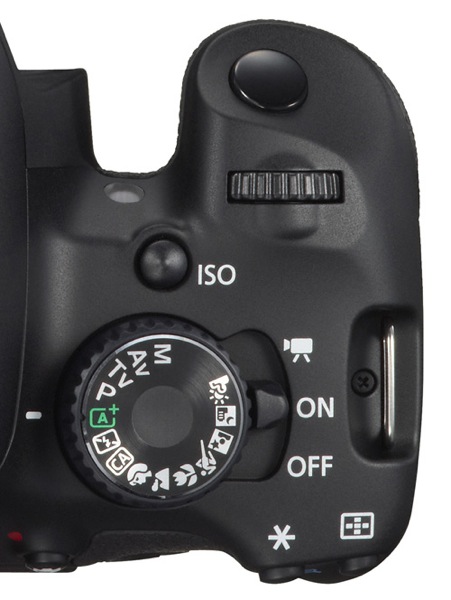
Your camera’s Mode Dial is the gateway to its exposure modes. Knowing which exposure mode to use, and why, is the key to creative photography, and to taking photos like the one above.

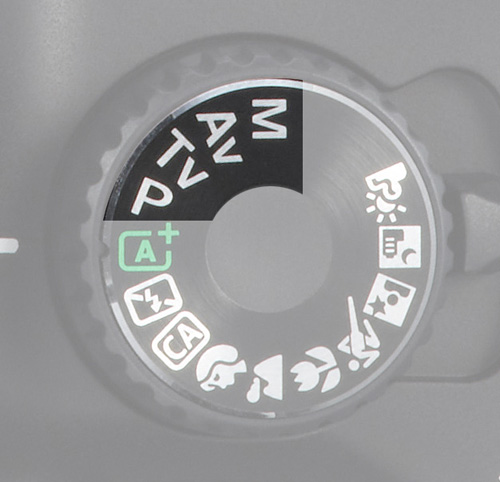
If you want to create beautiful images then you need to know how to control your camera’s settings. It all starts with your camera’s Mode Dial (not all cameras have a Mode Dial, but most do). Here’s what the Mode Dial from the EOS 650D (or Rebel X4i if you’re in North America) looks like. It’s fairly typical of many SLR cameras:

02

As you can see, there are a lot of icons. This can be confusing, especially for newcomers to photography. If you’re new to using an SLR, then how do you know which mode to select?

Let’s start by looking at Full Auto. It’s depicted by the green A+ icon on the Mode Dial of the EOS 650D (the precise term for the fully automatic mode on this camera is Scene Intelligent Auto). With other camera brands the Full Auto mode is also clearly marked by using an icon of a different colour to the rest (Nikon uses green, Pentax and Sony blue).

Full Auto mode is aimed at photographers who don’t know how to use the camera’s more advanced controls. If you’ve just picked up a digital SLR for the first time you can set it to fully automatic and start taking photos even if you know nothing about photography.

03

There are several other fully automatic modes on the EOS 650D’s Mode Dial (see above). Not all cameras have these modes (they are noticeably absent on many models aimed at semi-pro and professional photographers). They have names like portrait, landscape, close-up mode etc.

They are also aimed at photographers who don’t know how to use the more advanced controls on their camera. Their use is straightforward. If you’re taking a portrait, for example, then just set the camera to portrait mode. You don’t need to know anything about the camera or how it works to do this.

Fully automatic modes are very helpful for photographers that don’t know much about how their camera works. But they are too restrictive to be useful to creative photographers. On Canon EOS cameras, for example, you can’t change the white balance, Picture Style, autofocus mode or shoot in Raw in the fully automatic modes. Neither can you override the camera’s selected aperture, shutter speed and ISO settings. You can’t even use exposure compensation. You are locked into the settings the camera selects, and there’s nothing you can do about it. The fully automatic modes on other manufacturer’s cameras have similar restrictions.

The creative half of the Mode Dial

04

Now, these are the modes that creative photographers are interested in! They are Program Auto Exposure (P), Aperture Priority (Av on Canon EOS cameras), Shutter Priority (Tv on Canon EOS cameras) and Manual (M).

I’m a great believer in keeping things simple. You’ll find the only exposure modes you need in this section of the Mode Dial.

If you’re new to photography, your task as a creative photographer is to move away from the fully automatic modes and start using Program, Aperture Priority or Shutter Priority as soon as you can.

Once you’re comfortable with using these modes, you can also consider using Manual mode. There are some compelling reasons for doing so (I discussed them in another article here).

Let’s take a brief look at the benefits of Program, Aperture Priority and Shutter Priority modes:

Program Auto Exposure (P)

Often overlooked, Program is a surprisingly useful exposure mode. It works like this: you set the ISO and the camera sets the shutter speed and aperture according to the reading from its built-in exposure meter.

Many cameras now also let you use Auto ISO. With Auto ISO activated, the camera also selects the ISO. You can usually restrict the upper (and sometimes the lower) end of the ISO range available to the camera so that it doesn’t set an ISO that is too high.

At first glance, Program seems nearly the same as Full Auto. But the differences are crucial. You retain full control over settings like image quality (ie Raw or JPEG), white balance and Picture Style. You can use exposure compensation to override the camera’s exposure settings. And if you don’t like the aperture/shutter speed combination selected by the camera, you can use Program Shift (that’s Canon’s term, check your manual if you have a different brand of camera) to nudge the selected settings one way or the other.

In other words, while the camera is in an automatic mode, you stay in control of the settings. This is crucial for creative photography.

This is the sort of photo you might take in Program mode. Neither the aperture nor the shutter speed are particularly important:

05

The next two exposure modes really let you get creative:

Aperture Priority (Av)

I’m sure plenty of readers are already aware of the effect of aperture on the photo. For those of you who aren’t, here’s how it works. There are three approaches to using aperture:

06

1. You use a wide aperture to take a photo with shallow depth-of-field. You know those beautiful portraits you’ve seen with the background completely out of focus? That’s the sort of thing you can achieve with a wide aperture. Some photographers buy prime lenses (which have wider maximum aperture settings than zoom lenses) just to take advantage of this characteristic. I created the above portrait with an 85mm lens set to f1.8.

07

2. You use a small aperture to ensure that the entire scene is in focus from front to back. This is the opposite approach and one often used by landscape photographers who want everything within the scene to be rendered sharply. It’s the opposite to the first approach. I selected an aperture of f16 to create the above landscape image.

08

2. You use a middle-of-the-road aperture, that is one somewhere in the middle of your lens’s aperture range, to create a photo where part or most of the scene is in focus. Parts of the background may be out of focus, even if you have to look closely to see it. This is the sort of approach you would take when you want the background to be recognisable, but it’s not important for it to be completely sharp. The above photo is a good example, taken with an aperture of f5.6.

Aperture Priority works very simply. You set the ISO and the aperture, and the camera sets the shutter speed required to give the correct exposure.

Shutter Priority (Tv)

You use Shutter Priority when you want to set a certain shutter speed to record any movement within the frame a certain way. Again there are three approaches:

09

1. Set a fast shutter speed to freeze motion. This is what sports photographers do when they freeze the motion of athletes in mid-leap. I used a shutter speed of 1/2000 second for the above photo.

10

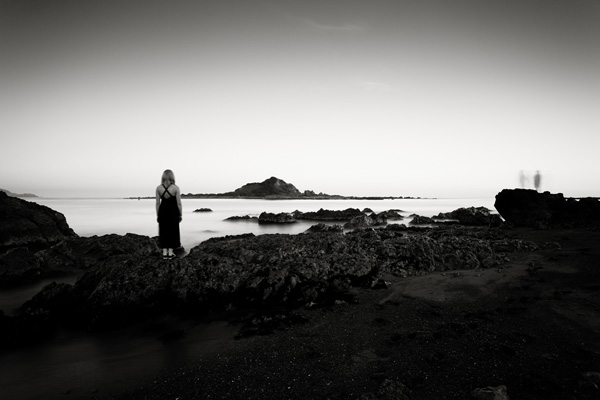
2. Set a slow shutter speed to blur any movement within the scene. You would normally set the camera on a tripod to support it when you do this, although you can also use creative techniques like panning if you are hand-holding the camera. I used a shutter speed of 30 seconds and asked my model to stand still to create the photo above.

3. Set a middle-of-the-road shutter speed that freezes most motion and lets you take a photo free from camera shake. This is the typical approach that many photographers take most of the time. But exploring fast and slow shutter speeds is fun and creative.

Shutter Priority also works very simply. You set the ISO and the shutter speed, and the camera sets the aperture required to give the correct exposure.

Conclusion

There are only three modes you really need to use on your camera: Program Auto Exposure, Aperture Priority and Shutter Priority (some of the others, such as Manual or Bulb mode, will come in useful as your skills develop). But as for the fully automatic modes on your camera, it’s best to forget about them completely. They will hold you back, and prevent you from getting the full potential out of your camera.

This article is the second in a series. The next one will take a close-up look at your camera’s colour and contrast controls.

11

Understanding EOS

Andrew S Gibson is the author of Understanding EOS: A Beginner’s Guide to Canon EOS cameras. The use of the Mode Dial is one of the topics discussed in-depth within the ebook.

Post originally from: Digital Photography Tips.

Check out our more Photography Tips at Photography Tips for Beginners, Portrait Photography Tips and Wedding Photography Tips.

Finding Your Way Around the Mode Dial


Digital Photography School
 
Comments Off on Finding Your Way Around the Mode Dial

Posted in Photography