RSS
 

Posts Tagged ‘Demystifying’

Demystifying Shutter Speed

20 May

One of the most crucial factors of making any photograph is the selection of the shutter speed. It is not always an easy task to decide what shutter speed you should select, to correspond to the aperture or ISO setting you have chosen. It can be a little overwhelming, and sometimes discouraging, to learn how to select the proper shutter speed to produce whatever your desired photo may be. You might still be shooting in full auto just because you can’t seem to have any luck with manually selecting your exposures. Luckily, once you understand the basic concept of shutter speed in relation to photography, this aspect will become much easier and almost intuitive.
Shutter Speed

Let’s take a look at what shutter speed really is, and how to better understand it, so you can begin to have more control over your photography.

What is shutter speed?

First things first, what exactly do photographers mean when they say “shutter speed”? This refers to the amount of time that the shutter of the camera is open. Shutter speed can be easily compared to blinking. Close your eyes, then open them for about one second. Now close them again. You have just performed a one second exposure with your eyes. Though very simplified, the exact same thing happens inside your camera when you press the shutter release button. The shutter opens, and remains open, for whatever duration you have set your camera to expose. This lets in light through the lens which interacts with whatever receptor you’re using (film or digital sensor), in order to produce a photograph. In reality, it might help you to refer to shutter speed as shutter time.

How does shutter speed affect a photograph?

As I have said, shutter speed is one of the biggest assets you can control in order to produce the type of photograph you want. Now, the shutter is not to be confused with aperture. Aperture has nothing to do with the amount of time that light is allowed to enter your camera. Aperture simply refers to the size of the opening through which the light passes when the shutter opens. The larger the opening is, the more light that enters your camera. The shutter speed, on the other hand, controls how long light is allowed to linger in order to make the photograph. Got it? Good.

So since shutter speed is related to time, it naturally means that it will directly affect how motion is recorded by your camera. This is where an infinite amount of creativity can be applied to your photographs. You may have heard a photographer say, “I used a really fast shutter speed to freeze the motion.” What they means here is that he or she used a shutter speed that was much faster than whatever motion was happening in the scene. The faster the motion, the faster the shutter speed will need to be, in order to arrest the movement. This is the very reason beginner photographers can become frustrated when photographing sports, children, or pets. They simply don’t understand that the shutter speed must be set in relation to the subjects motion to produce a desired outcome.

Take a look at this quarter that I froze mid-roll by using a fast shutter speed of 1/1250th of a second.

Fast Shutter

The flipside of the shutter speed coin comes into play when you want to impart a sense of motion, or to intentionally use blur within your composition. There is no better illustration of this than when working with moving water and waterfalls. Photographers will often use a long shutter time in relation to the speed of the water in order to produce that smooth, almost fog-like appearance that many of us love (or hate) to see. This again, comes down to relativity. A longer shutter time will be needed to blur a slow moving subject. A faster moving subject will not require as long of a shutter time in order to produce the same effect.

Here’s that same quarter shot at 1/50th of a second.

Slow Shutter

Things to keep in mind about shutter speed.

As with virtually everything else that has to do with photographic technique, there are not absolutes when it comes to how you choose to manipulate your shutter speed. It always comes down to whatever it is you are trying to express through your photograph. However, this doesn’t mean that there aren’t other things that you should know which are related to shutter speed. Two of the most important things you need to know is how aperture and ISO interact with shutter speed.

Aperture

Aperture is the best friend, and worst enemy of your shutter. As you have already learned, aperture controls the size of the opening in your lens and is measured in “stops”. Stops are indicated by the usage of f-numbers. Understanding how aperture is measured is the most difficult aspect of the subject. It is actually somewhat counter intuitive and that is why it becomes so confusing. Basically, the larger the f-number, the SMALLER the physical opening becomes. It might help to think of aperture as a window in your home. The larger the window the more light can come through. When shooting at larger apertures (smaller f-numbers like f/2.8, etc.) you have a lot of light coming into your camera so your shutter time doesn’t have to be as long in order to reach the desired exposure. The opposite is also true. When you are shooting at smaller apertures (bigger f-number like f/22) a longer shutter time will be required to produce the same exposure that was achieved at the larger aperture.

Here you can clearly see why less light can come through a smaller aperture.

Apertures

Let’s say a certain shutter time at a certain aperture gives you a properly exposed image. You then switch to a higher f-number. If you don’t increase your shutter time, this image will be underexposed compared to the previous one because you have essentially made the window into your camera smaller. The take-away point here is that a change in aperture must also be accompanied by a change in shutter speed if you wish for the overall exposure to remain the same.

It should also be noted that aperture plays a key role in the perceived depth of field of a photograph…but that’s another article.

ISO

ISO is a measurement of light sensitivity. It is fairly straight forward to understand. The higher the ISO number, the more sensitive the camera sensor, or film, is to the light coming in through the lens. Although most modern cameras are capable of selecting ISO in smaller increments, when first learning about how ISO relates to shutter time it might be easier to use increments in powers of two; meaning ISO 100, 200, 400, 800, 1600, etc. Each time the ISO number doubles, the sensitivity to light also doubles. So ISO 200 is twice as sensitive as ISO 100.

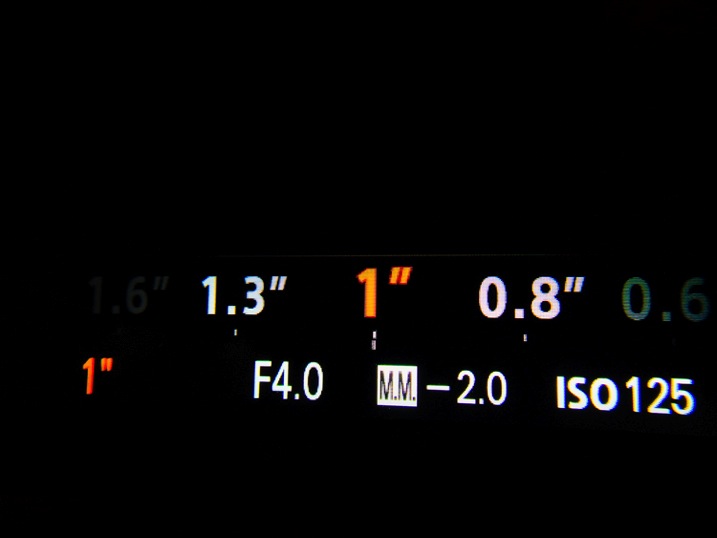
We can then easily relate ISO to shutter speed using a one second exposure to simplify the math. Let’s say we find that a proper exposure of a scene requires ISO 100 and a one second exposure time. If we increase the ISO to 200 then we have doubled the sensitivity so we can now get the same exposure using half a second instead of one second. If we further increase the ISO to 400 then we can get the same results from a ¼ second exposure. As you have probably already deduced, increasing your ISO is an easy way to allow for an increase in shutter speed to compensate for subject movement, or for low light.

Take a look at these three images. I was able to get virtually identical results each time even though I decreased the exposure from 1 second to ¼ of a second just by increasing my ISO.

ISO 100

ISO 200

ISO 400

Be aware though, increasing your ISO will add grain (noise) to your final image to some extent depending on your camera and equipment. Still, it is almost always more acceptable to live with a little increased grain in an image, than to underexpose or miss the shot completely.

Understanding what shutter speed means to your images doesn’t have to be a complicated issue at all. Shutter speed, or more accurately shutter time, is simply a measure of how long you choose for light to enter your camera to make an image. Learning how shutter time relates to other aspects of photography is slightly more complex. That doesn’t mean that it should discourage you from experimenting and seeing first hand how ISO, aperture, and shutter time come together to produce different types of images.

Have more questions about shutter speed? Post them in the comments below.

googletag.cmd.push(function() {
tablet_slots.push( googletag.defineSlot( “/1005424/_dPSv4_tab-all-article-bottom_(300×250)”, [300, 250], “pb-ad-78623” ).addService( googletag.pubads() ) ); } );

googletag.cmd.push(function() {
mobile_slots.push( googletag.defineSlot( “/1005424/_dPSv4_mob-all-article-bottom_(300×250)”, [300, 250], “pb-ad-78158” ).addService( googletag.pubads() ) ); } );

The post Demystifying Shutter Speed by Adam Welch appeared first on Digital Photography School.


Digital Photography School

 
Comments Off on Demystifying Shutter Speed

Posted in Photography


Demystifying White Balance

03 Aug

White Balance (WB) is one of the most challenging camera settings for beginners to learn. White Balance can also be difficult to fix later when you are shooting in JPG format. In this post I’m going to discuss what WB is and how to use it properly when shooting JPGs. I am a food photographer, but keep in mind the WB principals apply the same way, to anything you are shooting.

01White Balance Eggs

The image on the left has a cooler, or bluer, color temperature than the image on the right.

White Balance is one of the most important camera settings because it hugely affects how the colors look in your photos. The White Balance setting is used to tell the camera what type of lighting you are using for your shot, or in what type of scenario you are shooting. White Balance, also known as color temperature, is measured in degrees Kelvin, so I will be referencing that as well. The main reason White Balance is so hard to grasp is because our eyes are so good at filtering light, and our eyes make everything look “normal” under almost any lighting condition. We don’t see the blue or yellow sunlight. It just looks like white light. As you learn more about light and its color temperature, you will start to actually see these slight differences throughout the day.

Where to find the White Balance camera setting

Not all cameras access the WB setting in the same way. Some have a little button on the body of the camera with a “WB” under it, while other cameras make you access this setting in the camera menu. Below is how to find the WB menu for the Canon 5D Mark II. In most Canons the WB menu is located here.

02White Balance camera menu 1

The White Balance is inside the camera settings menus on most cameras.

03White Balance Menu

Here are all the WB settings available for the Canon. Yours make looks slightly different.

If you can’t find your White Balance setting, look it up in your manual or google it for your camera model. If you are having a hard time finding it, make sure you are on the “Manual” camera mode setting, or one of the other modes that your camera will allow you to adjust the WB. Depending on your camera, certain modes will lock you out of the WB menu.

What the WB setting icons represent

To make things easier, camera manufacturers have come up with some standard icons that represent the most common lighting scenarios. When you set your camera to one of these settings, you are setting it to a specific color temperature, or degrees Kelvin. Depending on your camera, you might only have the first six settings. Advanced cameras have settings 8 and 9.

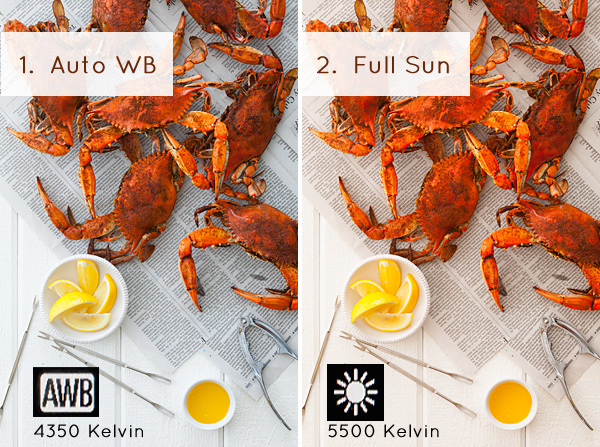
  1. Auto White Balance (AWB) – the camera will analyze the light in the scene that you are shooting, and pick a setting for you. Depending on your camera it will be set anywhere between 2,000 and 10,000 degrees Kelvin.
  2. Full Sun – this is for a bright sunny day, hardly any clouds, with a blue sky, and you are shooting in direct sunlight. Degrees Kelvin will be in the 5000-5500 range.04White Balance 1
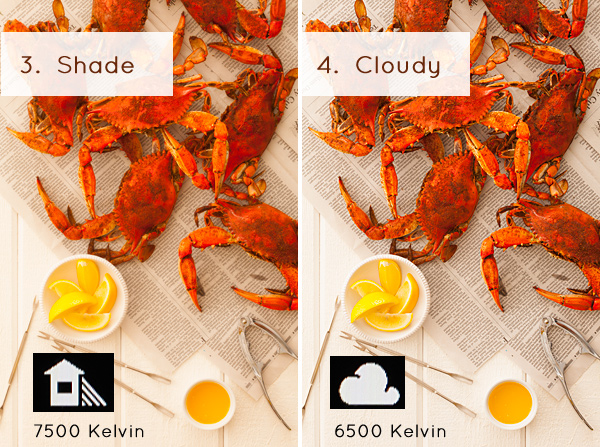
  3. Open Shade – the icon is showing a house with shade on the right side. This setting is for when you are taking a picture in the shade, no direct sun, and the sky is blue. This blue sky is actually color contaminating your shot. This setting will “warm” up your shot to counteract the blue light that is coming into your scene. Degrees Kelvin will be 7000-7500.
  4. Cloudy Day – this setting is for when you are shooting on a day when the sky is white with cloud coverage – no blue sky is coming through, the light is very neutral so you don’t need to counteract any blue light contamination. Degrees Kelvin will be 6000-6500.05White Balance 2
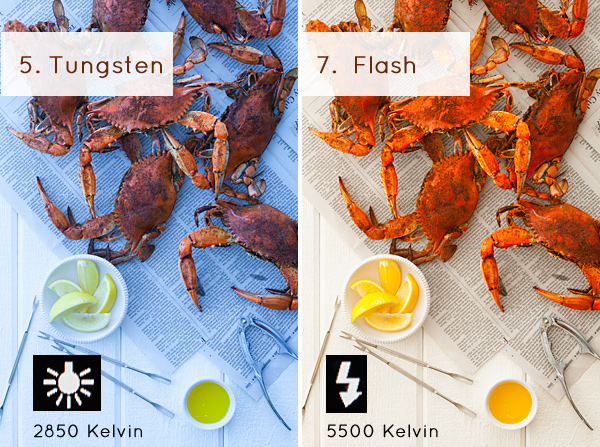
  5. Tungsten Light – this is your standard household light bulb, or studio hot lights. Degrees Kelvin will be 2800-3200.
  6. Fluorescent – this type of light is generally found in commercial spaces. It has a wild array of different colors and temperatures, and some cameras will have multiple choices in this category. Fluorsescent light also makes images look very green so this setting counteracts that by adding a magenta (pinkish) color to balance the shot. Degrees Kelvin is around 3400-3800 – please note – I did not take a shot with the Fluorescent setting because it would just be flaming magenta.
  7. Flash or Strobe Light – this type of light is emulating daylight so usually this setting is the same as full sun and sets the camera to 5000-5500 degrees. If you have a pop-up flash, your camera might change to this setting automatically.06White Balance 3
  8. Custom White Balance – this option is for creating a custom setting for your scene by photographing a white card (or a grey card), having the camera analyze the light on that card, and then setting your camera to this new custom color temperature number.
  9. Manually Set Degrees Kelvin – this setting is for the shooter who fully understands WB and wants to manually control the color temperature in camera.

Numbers 8 and 9 are more advanced, for those shooters who are making custom WB settings to either neutralize light that might be mixed colors, or to use the WB setting creatively. I use number 9 all the time to warm up my food images. I always like to set this to a “warm” setting. So if I am shooting in daylight (and depending on the time of day), I might put my setting at 7000 or 7500 degrees Kelvin to really warm up the shot, as I am always shooting in open shade, using natural light at my studio.

For those of you who are just starting out here in Digital Photography School, it’s very important to learn about your camera’s White Balance setting when shooting only JPGS. As I’ve mentioned above, adjusting the White Balance on JPG images can be challenging and not nearly as easy as RAW files. It simply doesn’t look as nice as when you tweak RAW files. Below you can see the difference in Lightroom between the White Balance adjustments for JPG versus RAW files. It’s on the very top with “Temp” and “Tint”. When you shoot JPGS, you are limited to a slider (left image below) that goes from blue to yellow with a scale range that does not relate to the actual color temperature in degrees Kelvin. On the right side, you can see that the “Temp” scale has degrees Kelvin right next to it so you can easily customize your images.

07Lightroom WB Setting

The image on the left is the editing tab for JPG files and the one on the right is the editing tab for RAW files.

Your assignment, should you choose to accept it

If you are still shooting JPGS, I suggest you give yourself an assignment to really get a feel for White Balance. This assignment is going to be called:

Natural Light White Balance Bracket Test

A bracket is a range of images of the same subject where each image has a setting that has changed. Figure out a shot you can take, preferably on a tripod to make this easier, when you have some time to do this. It doesn’t have to be a studio shot. This could be a landscape or a portrait taken outside. Figure out what your exposure should be. Then find where your White Balance setting is in your camera and take the same shot several times, each time changing the WB setting on your camera – TAKE NOTES. The point here is to learn what each setting looks like. Make notes of where you are shooting, the time of day, and your camera exposures.

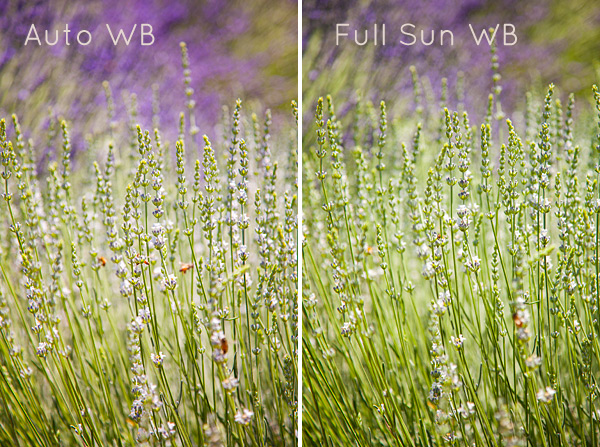
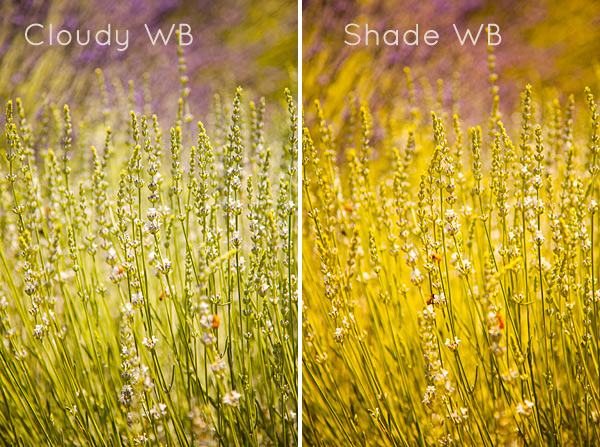
Now, for your bracket test – shoot in the following WB settings: Auto, Full Sun, Shade, and Cloudy. Download your files and have a look – which color do you like the best? Make a note of that for future reference. Try to bracket with different shots too. While you are learning photography, if you are shooting a scene that has mixed lighting or it’s just a moment you are capturing at an event or something, then the Auto WB setting will probably be fine for that. I do use Auto a lot if I’m shooting at a farm or something similar where I just don’t have time to fiddle with it.

A few precautions

I have to mention something here – when shooting outside it can be extremely hard to see your camera’s LCD screen, so you might not even see the difference on the LCD when you take the pictures with the different WB settings. You HAVE to look at these on the computer you edit your files on. Here’s the other thing that’s a total drag. Your camera’s LCD screen is very inaccurate for color and many times for exposure too, especially when you are looking at it outside in daylight. It’s very hard to know if you have the correct exposure or not. I’m assuming that you haven’t learned about your camera’s histogram yet for judging exposure, so until then, for this assignment, try to do this in a situation where you can download your files right away to make sure your exposures are good.

Do some test shots, download, adjust if needed, then shoot your bracket. After downloading your image, name each shot the WB setting it was taken in so you don’t get confused. This is why you took your notes. Some software will tell you what your settings are. If you don’t know whether yours does this or not – write down your info so you can just look up your shot number with your notes. Your assignment should look something like this:

08Lav Test 1

09Lav Test 2

When I took these shots above, it was a bright sunny day with a blue sky and white billowy clouds. Time of day was about 2:45 P.M. I prefer the “Full Sun”, or daylight WB. Now, keep in mind that with shots like these, the “correct” color balance can be very subjective and some people might like the warmer shots and some people might like the cooler shots. I think we can all agree that the shot taken in “Shade” is way too yellow for this scene. Until you learn how to edit RAW files, here is what I suggest you do. Set your WB to Auto if you are still nervous about this, OR match the WB to the lighting condition of your scene. If you have time with the shot, take a bracket of your settings.

What I always suggest to new students is to set your camera, if possible, to shoot in JPG and RAW files. The camera will actually create two images of the same exact shot, one as a JPG and the other as a RAW file. They will have the same image number, with a different file extension. Work on the JPG for now, then when you learn how to edit RAW files, you will have these to go back to, and you will be so happy that you did that. On Canon bodies, the menu settings to change the file format look like these below. Notice I am also picking the largest file size I can for each file type. I always do that in case I ever want to print anything.

Canon Quality Menu

Canon Quality Menu

Alright, now go out there, play with the White Balance and see what it does. Get control of that camera and take your photography to the next level.

The post Demystifying White Balance by Christina Peters appeared first on Digital Photography School.


Digital Photography School

 
Comments Off on Demystifying White Balance

Posted in Photography