RSS
 

Posts Tagged ‘Create’

How to Create Your Own Style by Using LUTs in Photoshop

03 Jun

It is important to have your own style. Everybody says that. It is one of the most important factors to avoid drowning in millions of other photos from other photographers. A style is many things. It is your compositions, what you shoot photos of, what light you shoot in, but one of the most important factors is, how you post-process your photos. In this article, we will look at a post-process technique that can give you your own unique look to all of your photos using LUTs in Photoshop.

There are many ways to apply a certain look to your photos, some are better and some are simpler than others. You can pick up a filter or a preset in some tool and it might look pretty good. But it will not really be your style no matter how cool it looks. Anybody with that tool can click that exactly same preset and have the same look.

mountains at dusk and reflections - How to Create Your Own Style by Using LUTs in Photoshop

Create your own look

If you want to have your own style or look, you will have to create it. A great way to do that is by creating your own “Color Look -Up Table” or simply called LUTs. This is a fairly easy way to make a quite drastic look which will be unique to your photos. This is also called color grading.

A LUT is a Color Look-Up Table, it maps one color into another. It is a technique used in the movie industry, to create certain styles to movies. The same technique can be applied in photography to create a distinctive and professional look to your photos.

In this article, you will first learn how to use LUTs, and then how to create your own LUT files. The LUT is your post-processing style. This technique requires Photoshop or GIMP (or any program that uses layers – Luminar is also capable of using LUTs). The examples in this article were done with Photoshop.

Before we start, remember that when you are post-processing not to overdo it only “do it” enough, or subtly.
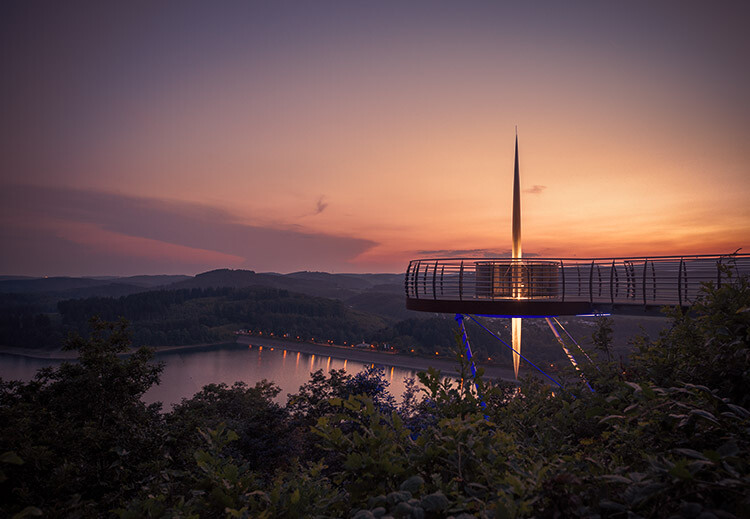
The Vista Point - How to Create Your Own Style by Using LUTs in Photoshop

How to use a LUT

Photoshop comes with a number of LUTs out-of-the-box, you apply them as an adjustment layer. They will change the colors of the image and some of them will also change the contrast. Let’s see how to add LUTs to a photo.

Path into the unknown - How to Create Your Own Style by Using LUTs in Photoshop

Step 1 – Open a photo in Photoshop

Start by opening a photo, maybe one that you have post-processed a bit to balance the contrast, highlights, and shadows.

Open a file in Photoshop - How to Create Your Own Style by Using LUTs in Photoshop

Step 2 – Add an Adjustment Layer

Then add an Adjustment Layer – choose “Color Lookup Adjustment layer”.

Add LUT adjustment layer - How to Create Your Own Style by Using LUTs in Photoshop

This layer will use a LUT file to make magic changes to your photo.

Step 3 – Pick a LUT

Make sure that you have the Properties tab of the adjustment layer opened. Click on the 3DLUT file drop-down menu and a list will appear. The list you see include the default LUTs shipped with Photoshop.

Open properties - How to Create Your Own Style by Using LUTs in Photoshop

Pick one and see what happens. Play around and try different default LUTs and see what happens.

Pick a LUT - How to Create Your Own Style by Using LUTs in Photoshop

Some are very dramatic, like for instance EdgyAmber, while others are a bit more subtle.

See the result of EdgyAmber - How to Create Your Own Style by Using LUTs in Photoshop

Resulting image using the EdgyAmber LUT.

At first, you may think that the dramatic ones are not useful at all, but try changing the layer opacity to 30% while you have the EdgyAmber LUT selected.

Change the opacity of the layer - How to Create Your Own Style by Using LUTs in Photoshop

As you can see the dramatic LUTs can also become subtle.

Change opacity Result - How to Create Your Own Style by Using LUTs in Photoshop

EdgyAmber LUT applied at 30% opacity.

Step 4 – Combining several LUT files

You can also create your own unique look. One that you can use for a particular series or even apply it on all of your photos as your style. You can do that by combining several Color Lookup (LUT) adjustment layers.

On each one, change the opacity level to something rather low, probably in the 5%-40% range. Once you have 4-6 layers, you can be pretty sure that the exact combination of layers, their order and opacity is unique.

Combined LUTs - How to Create Your Own Style by Using LUTs in Photoshop

Combining four LUTs for a unique look.

This is a pretty effective, yet simple, way to process your images to make them look like professional photographs.

Advanced tip!

You can also use some of the other kinds of adjustment layers to change the colors, to make more exact fine-tuning tweaks. Good adjustment layers for doing this are Selective Colors, Channel Mixer, and Color Balance. There are others, but they are even more advanced.

Once you have a selection of Color Lookup Adjustment (LUT) layers that you like, you can save this combination as your own LUT. This way you can achieve the same look on another photo, simply by applying just one LUT. It is almost as simple as clicking a preset button.

House in Hamburg - How to Create Your Own Style by Using LUTs in Photoshop

Requirement 1 – Your photo must be the Background Layer

To make this work, it is a requirement that the original image is the Background Layer. This will always be the case if you have opened the image normally.

Background layer - How to Create Your Own Style by Using LUTs in Photoshop

Requirement 2 – Do not use masks

Whatever color grading adjustment layers you use to change the colors, do not use any masks. Using masks will confuse the Color Look Table export tool and your LUT will probably not be usable.

The Lock House - How to Create Your Own Style by Using LUTs in Photoshop

Step 5 – How to use your own LUT

Once you have made a set of adjustment layers to your photo, you can save it to a LUT file by going to: File > Export > Color Lookup Tables…

How to save the LUT - How to Create Your Own Style by Using LUTs in Photoshop

In the export dialog box, you can name your LUT. You can also change the Grid Points. 64 is a good compromise between size/performance and quality. Finally, make sure that you have 3DL checked.

How to save LUT - Settings - How to Create Your Own Style by Using LUTs in Photoshop

If you save all your own LUTs to the same folder, they will be easy to access and find later. You can make a shortcut to the folder and very quickly apply one of your own LUTs to another image.

Step 6 – Using your own LUTs

It is very simple to use your newly created LUT file. Open a new image in Photoshop, add a Color Lookup Adjustment Layer and click Load 3D Lut.

How to load LUT - How to Create Your Own Style by Using LUTs in Photoshop

As you can see, it instantly transforms your photo.

Custom LUT loaded - How to Create Your Own Style by Using LUTs in Photoshop

If you apply this LUT to any photo they will share a common look and feel.

All the photos in this article are processed using the same LUT and the familiarity is easy to spot. The results are dark moody images with a yellow/orange tint in the highlights and a blue/purple ting in the shadow areas.

They were all created with just some basic contrast, highlight and shadows adjustments applied in Lightroom, before importing them into Photoshop. The post-processing need not stop here, but for the purpose of the example, these images were kept simple.

The outer Pier - How to Create Your Own Style by Using LUTs in Photoshop

Conclusion

By creating and using LUT files you can create a look for all your photos or even just to a series of images, that is unique. The LUT could be just a part of a more complex post-processing method or it could be the one spice that makes it your signature look.

As you grow more familiar with them you can create LUTs that you use for particular types of photos. One for sunny daytime photos, one for pre-sunrise, one for nighttime, etc. Have fun and be creative with using LUTs.

More LUTs

You can find tons of LUTs available on the internet. Some are free, some are not. However, I still recommend that you try to create your own, make it your style.

If you have any questions about creating or using LUTs, please ask in the comments area below.

The post How to Create Your Own Style by Using LUTs in Photoshop appeared first on Digital Photography School.


Digital Photography School

 
Comments Off on How to Create Your Own Style by Using LUTs in Photoshop

Posted in Photography


8 Ways to Create More Dramatic Flower Photos

27 May

Do you think flower photography is boring? Or even too easy and obvious? I mean, of course, when you point your camera at a pretty flower you’re going to get a pretty photograph. Right?

But a subject that you feel is boring and easy is actually the perfect one to challenge yourself with. Can you make a flower image that is creative and dramatic somehow?

Here are a few ideas to get you started making more dramatic flower photos.

1. Dramatic light

Often flower photos are made under soft lighting conditions, either in the shade or on an overcast day. This is because of the soft and delicate nature of a flower which lends itself to that type of light.

But it doesn’t have to be that way. For a more dramatic image, try to find a flower that has direct light on it and shade behind it. High contrast scenes feel more dramatic and your flower will stand out against a darker background.

Flowers in the Light - 8 Ways to Create More Dramatic Flower Photos

2. Change your perspective

Most flower photos are made from a perspective looking right into the open flower. Try other perspectives for more interesting compositions. You can look at the flower from above, from the side, or from underneath.

To make the image below, my camera was on the ground looking directly up at the flower. Because the sky was so much brighter than the flower, it created a more high-key type of image with light shining through the petals making them appear to glow.

Looking Up flower - 8 Ways to Create More Dramatic Flower Photos

When I made the next image, I was interested in the lines created by the petals of a dahlia the size of a dinner plate. Most photos would include the whole flower, but I only included a small portion of the huge flower taken from a side angle.

Giant Dahlia - 8 Ways to Create More Dramatic Flower Photos

3. Focus through

In one of my favorite techniques for flower photography, I use a telephoto lens and focus on a flower that is around five feet away. Then I position the lens so that another flower is right in front of it. Because the close flower is extremely out of focus, it creates a soft area of color in front of the main subject.

This is especially effective if you can find two flowers that are complementary colors (opposite) on the color wheel.

Focus Through Poppy - 8 Ways to Create More Dramatic Flower Photos

4. Let the wind blow

One of the most frustrating things you encounter when photographing flowers is wind. A little bit of wind you can handle with a faster shutter speed, but sometimes the wind is just too much and your flower is blowing all over the place.

When this happens, just go with the flow! Instead of trying to get a sharp image, go with a slow shutter speed and capture the motion of the flower moving in front of your lens.

Flowers in the Wind- 8 Ways to Create More Dramatic Flower Photos

5. Environmental portrait

Most flower photos contain only the flower with no context. But you can also make an environmental portrait that shows the flower and its surrounding environment, like the one below.

Storm Flowers - 8 Ways to Create More Dramatic Flower Photos

6. Echo

Another of my favorite techniques I refer to as an echo. For your main subject, find a flower that has another virtually identical flower behind it. Use a shallow depth of field and focus on your main subject letting the flower behind fall out of focus. This creates a sort of echo of the main subject.

Yellow flowers - 8 Ways to Create More Dramatic Flower Photos

7. Less than perfect flowers

When photographing flowers, most photographers search for perfect specimens to be the main subject. But perhaps more interesting subjects are the less than perfect flowers. They can be dead flowers, ones with flaws, or even flowers that have fallen over.

In the image below, I was attracted to the raindrops that were on the side of this fallen tulip. Flowers with raindrops are not uncommon, but the tulip on its side is a bit more unusual.

Fallen Tulip - 8 Ways to Create More Dramatic Flower Photos

8. Emphasize edges in post-processing

You can also introduce effects in post-processing to make unique and dramatic flower photos. Try experimenting with textures or edge effects.

For the image below, I added an edge effect in post-processing to draw the viewer’s attention to the shape of the petals.

pink Dahlia - 8 Ways to Create More Dramatic Flower Photos

What else can you think of? Flower photography doesn’t have to be boring or predictable. In fact, any subject that you find boring and predictable is a challenge waiting for you to unleash your own unique perspective. How do you make more dramatic flower photos?

The post 8 Ways to Create More Dramatic Flower Photos appeared first on Digital Photography School.


Digital Photography School

 
Comments Off on 8 Ways to Create More Dramatic Flower Photos

Posted in Photography


Apollo app for iOS uses dual-cam depth map to create impressive lighting tricks

25 May
Apple’s dual-camera setup can create a depth map to simulate background blur – but now, someone’s figured out how to simulate lighting effects with an impressive level of control.

Apple’s dual camera devices (the 7 Plus, 8 Plus and X to be precise) generate a depth map to create the effects of Portrait Mode and Portrait Lighting that we’ve all come to know well. Whether you love, hate or feel generally ‘meh’ toward fake background blur, things get interesting when Apple makes that depth map information available to third party app developers. Enter Apollo: Immersive illumination, a $ 1.99 iOS app with an unusual name and a few interesting tricks up its sleeve.

Apollo uses the depth map not for background-blurring purposes, but to allow users to add realistic lighting effects to photos after they’re taken. Up to 20 light sources can be positioned throughout an image, with the ability to adjust intensity, color and distance. With the depth information provided, light sources interact with subjects in a three-dimensional fashion, and can even be positioned behind a subject to create a rim light.

It’s hard not to be a little taken aback the first time you drag a light source around your image and see how it interacts with your subject

It’s essentially an interactive version of Apple’s Portrait Lighting, which applies different light style effects to images. Apollo’s effects are highly customizable, and with so many parameters to play with it’s naturally quite a bit more complicated to use than Apple’s very simple lighting modes.

In use

We’ve been messing around with the Apollo app (for an admittedly short period of time), and have to say we’re impressed with what it’s capable of – but that doesn’t mean we don’t have a few requests for the next version.

$ (document).ready(function() { SampleGalleryV2({“containerId”:”embeddedSampleGallery_7103999524″,”galleryId”:”7103999524″,”isEmbeddedWidget”:true,”selectedImageIndex”:0,”isMobile”:false}) });

Click through to see the images full-screen and see how many lights were used in the Apollo app.

It’s hard not to be a little taken aback the first time you drag a light source around your image and see how it interacts with your subject(s). You are able to adjust the color, brightness and spread of your source, which are all fairly self descriptive.

You can also change the ‘Distance’ of your light, or it’s position in Z-space; this means you can move the light to be closer to you, the photographer, or further away into the background of your scene.

Lastly, there are two global adjustments, ‘Shadows’ and ‘Effect Range.’ Shadows essentially controls overall image brightness, though it biases toward the darker tones. Effect Range adjusts the brightness of all of your lights simultaneously in the image, though keeping the brightness ratios between them constant as it does so.

Along the bottom are the parameters you’re allowed for each light source you create (up to 20). Two global adjustments are ‘Shadows’ which adjusts overall brightness and Effect Range which adjusts the brightness of all lights simultaneously.

Overall, it’s an incredibly neat – and kind of addictive – first effort. But there are a few things that we’d like to see addressed in future versions.

Currently, every new ‘light’ you create starts out with a certain set of default parameters. This is alright, except for the fact that the default color is a yellowy tungsten sort of thing; it should really just begin as ‘white.’

Also, if I’ve already tuned in a ‘light’ and just want another one based on those, it’d be nice to be able to duplicate one that I’ve already created instead of having to start from scratch each time.

And once you’ve finished with your new creation, you can save it out as a JPEG – but there’s no way to save the lights themselves so that you can come back and tweak later. Each time you exit to tackle another image, the app asks you, ‘Close photo and discard all changes?’ Well, I’d rather not discard them, but if I have to, then I suppose that’s that.

Lastly, it doesn’t look like there’s any way to preserve the blurriness of the background once you’ve added your lights. It’d be great to be able to still take advantage of the depth map and progressive blurring while adding in your own lighting sources.

Wrapping up

Okay, so those are some fairly major requests on our part. But we make them because we’re really blown away by what the app already offers, and are excited to see how it evolves. It wasn’t so long ago you’d need a powerful workstation and some serious software skills to manipulate lighting in the same way that this app does with a few taps and drags.

If you have a dual camera iPhone and want to give the Apollo app a try, head on over to the App Store yourself and take it for a spin.

Articles: Digital Photography Review (dpreview.com)

 
Comments Off on Apollo app for iOS uses dual-cam depth map to create impressive lighting tricks

Posted in Uncategorized


How to create the disintegration effect from ‘Infinity War’ in Photoshop

09 May

Photoshop tutorial website photoshopCAFE has published a timely new tutorial that demonstrates how to create the disintegration effect from Marvel Avengers: Infinity War in Photoshop. The tutorial—which is also available in written form—is a bit of a spoiler if you haven’t seen the movie yet, though it’s not a substantial one.

The tutorial is fairly short with only 13 steps total, and photoshopCAFE’s Colin Smith says he’s tried to add a bit of his own spin to the usual ‘dispersion effect’ tutorial (which you can find all over YouTube).

“I have put my own twist on it with the person turning into waves of particles as if they are being turned into dust,” explains Smith. “I call this the particle disintegration effect.”

Check out the video up top to learn this trick for yourself, and then head over to the photoshopCAFE website or subscribe to the YouTube channel if you want to see more of Smith’s retouching and photo-editing tutorials.

Articles: Digital Photography Review (dpreview.com)

 
Comments Off on How to create the disintegration effect from ‘Infinity War’ in Photoshop

Posted in Uncategorized


Use photography to create a meaningful gift for Mom

05 May

Editor’s Note: This article was originally published with images sourced from the stock photography service Unsplash. Unsplash’s business model has attracted some criticism from segments of the photography community, including among our readership. We have have reported on both sides of the controversy in recent months but given the strength of feeling among our community, we acknowledge that using images from Unsplash in this article was a poor decision, and they have been replaced.

We’ve been publishing tips for new photographers in the Amazon Prime Insider newsletter, and our most recent piece offered some ideas for using photography to create a meaningful gift for mothers.

In many parts of the world, Mother’s Day is just around the corner. But even if there’s not an official holiday coming up for you, it’s always a good time to tell the mom in your life how much she means to you and your family.

Particularly when kids are young, mom can play such an important role in every part of their lives. She’s there helping, fixing, teaching, comforting, and very often, taking the photos that will help you remember and cherish these moments. But too often, she’s behind the camera. This means that one of the most important players in your family’s history doesn’t show up in any of the photos! Although we should always be thinking about how to get mom in more photos, Mother’s Day is the perfect time to kick it off.

The picture you choose can amp up the emotional value of your gift…
or make it fall a bit flat

We all know that a picture is worth a thousand words. We also know that the picture you choose can amp up the emotional value of your gift… or make it fall a bit flat. Here are some ideas of pictures you can take or gather now to have ready in time for a Mother’s Day gift that means as much as she does. (And these ideas aren’t limited to just moms of young kids – you can do the same things for moms of adult children, for grandmothers and aunts, or for any mother-figure in your family’s life.)

Portrait

This is your classic family photo where everyone looks happy and presentable (and your outfits might even be coordinated) and the quality is high enough that you know that everyone will be in focus and well lit. You might already have these photos taken for your holiday cards or annual letter, and why not set up a shorter session where mom is the star? Many photographers offer “mini sessions” for just this type of occasion, or you can set up your own mini shoot or photo booth.

The thing to keep in mind for this one is that this is all about mom, and you can’t let her squirm out of the pictures. Make sure you get a few shots of just mom and the kid(s) or of mom with each child separately. Include fun props that highlight mom’s interests, invite the family pets in, or treat mom to a make-over for some glam shots just for herself. The possibilities are endless – just think about what she loves, photograph her enjoying those things, and give her beautifully framed prints that celebrate who she is.

Behind the scenes

This is for those moms who aren’t big fans of photo sessions. For these photos, your job is to pay close attention to the little things she does – those small tasks and interactions she does almost without thinking, but which make things run more smoothly in your family. Keep your camera nearby so that you can snap a photo when she’s pouring milk into the cereal, sorting through bills, helping with homework, absent-mindedly petting the dog while waiting on hold with the dentist office, picking up that stray sock, tucking the kids into bed. A collection of these photos in a book or collage shows her that you really “see” her, that the little things she does don’t go unnoticed and unappreciated.

Through my eyes

Enlist the help of the kids for this one! So often we experience things, tell stories, and take photos from our own perspective or from the perspective of other adults in our lives. But when it comes to mom, whose life is she impacting the most? The kids! So let them tell the story of who she is to them. Ask them what they think is special about their mom – a favorite outfit she wears or meal she prepares, an experience they shared, something she does or says to cheer them up, a goofy thing they do together, a habit she has – and help them get photos that either represent those things or show her actually doing them.

A printed book of these photos is a fun way for her to see herself through their eyes, and it can be even more meaningful if it becomes an annual project for her to look forward to every year.

Day in the life

In an earlier installment of this photo series, we described a ‘day in the life’ photo project in which you document a typical day in your family. Often these projects are done by moms who, aware of how quickly their families grow and change, want to be sure to capture the daily rituals that make up their lives. Why not do the same thing for her?

Pick an ordinary day and document what she does, from easing into the day over a cup of tea to tucking the last child in and settling on the couch with a book (or if your world is more like mine, from being woken up by the dog to tucking the last child in and getting on her laptop to finish some work before bed). The goal of this project is to be a photojournalist capturing an unedited view of what life looks like for her right now.

A series of these kinds of personal photo projects can offer a special view into the moments and details that make up her life. More importantly, they ensure that years from now when grown children are looking back through captured memories, Mom is included in their story.

Articles: Digital Photography Review (dpreview.com)

 
Comments Off on Use photography to create a meaningful gift for Mom

Posted in Uncategorized


How to Create a Dynamic Light Painting Portrait

27 Apr

Do you want a bit of action and dynamism in your portrait photography? Using your strobe to light your model in a portrait, while combining this with medium to long exposure can give you amazing results! A light painting portrait is a fun technique that you can play around with, and the equipment you need does not have to be too advanced. An entry-level DSLR camera will work well for this type of photography.

So in this article, I’ll break it down for you, explain what it is and how to do it.

How to Create a Dynamic Light Painting Portrait

Why not create your light painting portrait with some steel wool!? NOTE: Please take safety precautions when doing fire spinning!

What is light painting?

Light painting is the movement of light within your scene, captured using a long exposure. Broadly speaking, there are three types of light painting.

  1. Light painting with light trails – This means the camera stays still, and you move the light around in front of the camera during a long exposure. Photographing traffic light trails is a form of light painting, but the traffic is moving for you.
  2. Light painting an object – In this case, you’re not pointing your light source at the camera, rather you’re going to light up an object by shining a flashlight at it during a long exposure.
  3. Kinetic light painting – This type of light painting uses a light source that doesn’t move, and you move your camera to create the light painting. Examples of this type of light painting are the zoom burst or camera rotation.
How to Create a Dynamic Light Painting Portrait

The zoom burst can make for a dramatic portrait when used in the right place.

Using your flash in conjunction with light painting

So if light painting involves moving the light source or moving the camera during a long exposure, how will you be able to get a sharp portrait? The answer is you’re going to be using a two-part exposure.

A flash will be used for the portrait, and the second part will be a long exposure involving some form of light painting. Your light painting portrait can be achieved in a single exposure or frame. There are times when using more than one exposure is better, and blending the images in post-processing. However, for this guide, we are looking at doing this in a single exposure.

  1. Adjust your camera to full manual mode.
  2. The ambient light in the room you are in must allow you to expose for half a second or longer (it should be dim).
  3. The background should contain a light source, or you can’t light paint.
  4. Adjust your shutter speed to the amount of time you will need for light painting. This will depend on the type of light painting you intend to do.
  5. Now use your aperture to adjust the exposure value to be at around -1.
  6. Have your flash set to manual mode as well. The strength of your flash unit will determine how much power you will need to use to get the correct light, so adjust depending on your unit. The proximity of your model to the flash will also be a factor in setting the strength. The aim is to freeze them, without blowing out (overexposing) their face.
  7. Now that you’re ready with your settings you can take your photo. Check your results and vary the strength of the strobe, and the length of the exposure accordingly.
How to Create a Dynamic Light Painting Portrait

Make some magic with your light painting portrait! The desert in Mongolia was pitch black, this was ideal as there was no ambient light.

Different light painting techniques

As mentioned above, there are several different types of light painting. Now you’re going to see how those can be applied to a light painting portrait.

  • Camera rotation – This means rotating the camera after you have used flash to “freeze” the model. In order for you to get a good effect aim for around half a second exposure. Unless you have the equipment to mount your camera on a pivot this will be done handheld, so you will need a smooth motion.
  • Zoom burst – In order to make this effect, you will need a lens that is capable of changing focal length manually. The technique is similar in that you will expose for around half a second after the initial flash. Using a tripod isn’t necessary, but it will improve your results as the light lines will be straight. Typically you will want to zoom out during the exposure, though you can experiment with zooming in as well.
  • Camera shake – Once again an exposure of around half a second is best for this. After the flash has fired, move the camera around in a random way to make a more dynamic background. This technique can work well at a nightclub to give a sense of energy to the photo.
  • Light painting – In this type of photo, the camera must be mounted on a tripod, and you’ll likely expose for one second or even longer. Avoid area’s where there is a lot of ambient light, especially if that shines onto your model. Your model will need to stay completely motionless throughout the exposure, as you light paint through the scene. The longer the exposure the more difficult it will be to keep the model sharp, so avoid overly long exposure.

This light painting used a pixelstick to create the light.

Now go out and try a light painting portrait yourself!

So there you have it, this is how to make a dynamic light painting portrait! This is a fun technique to use while on a night out, or you can use it in a much more staged setting. Your friends will likely be impressed by the results, as it shows them in a vibrant energetic photo.

Have you ever tried to take light painting portraits like this? What was your experience? Please share your photos and experience both past and present in the comments section below. As always it’s great to get community engagement.

This was a stage portrait, using apartment building lights in the background for the zoomed light.

This can be a great technique to use in a night club, as it will add energy.

This photo used some camera rotation to achieve the result.

The post How to Create a Dynamic Light Painting Portrait appeared first on Digital Photography School.


Digital Photography School

 
Comments Off on How to Create a Dynamic Light Painting Portrait

Posted in Photography


Here’s how to create a super resolution photo with any camera

25 Apr
This is a super resolution image, creating by combining four photos in Photoshop.

We recently tested out the Pentax K-1 II’s new hand-held Pixel Shift mode which combines four images to create a ‘super resolution’ file in-camera with better detail, dynamic range and lower noise. Sadly, it also results in some unwanted processing artifacts.

But you can also create a super resolution photo without using Dynamic Pixel Shift by shooting a series of handheld images and combining them in Photoshop. Super resolution works essentially by sampling a scene multiple times with slight shifts in framing, which allows details to be localized with sub-pixel precision (since shifts are unlikely to be perfect multiples of one pixel). The result is a file with improved resolution, less noise, more dynamic range but no artifacts. The best part is you can do this with the camera of your choosing. For the sake of this example, we did it with the Pentax K-1 II.

$ (document).ready(function() { ImageComparisonWidget({“containerId”:”reviewImageComparisonWidget-10980295″,”widgetId”:603,”initialStateId”:null}) })

Following a simple step-by-step Photoshop recipe (listed below), we created a super resolution file stacking four images – the same number used by Dynamic Pixel Shift – and one stacking 20 images, just for fun. We down-sampled the files to the original resolution (36MP). Right off the bat, the difference between our four image stack and a standalone Raw file is like night and day.

Similarly, the difference$ (document).ready(function() { $ (“#icl-4014–1567822084”).click(function() { ImageComparisonWidgetLink(4014); }); }) between our 4 image stack and Dynamic Pixel Shift mode is also substantial. Areas where Dynamic Pixel Shift displays artifacts$ (document).ready(function() { $ (“#icl-4010-939092746”).click(function() { ImageComparisonWidgetLink(4010); }); }) look clean in our 4-stack. This is observable throughout our sample scene$ (document).ready(function() { $ (“#icl-4011–1901282620”).click(function() { ImageComparisonWidgetLink(4011); }); }). Interestingly, the difference between the 4 image and 20 image super resolution examples is less noticeable$ (document).ready(function() { $ (“#icl-4012–1917693503”).click(function() { ImageComparisonWidgetLink(4012); }); }). While there is some advantage$ (document).ready(function() { $ (“#icl-4013–396364473”).click(function() { ImageComparisonWidgetLink(4013); }); }) to stacking more images, returns are diminishing.

You’ll notice we’ve included two versions of our 4-stack and 20-stack: Median and Average, which refer to the stacking method used in Photoshop (described in detail below). Overall, the median method handles ghosting from moving objects$ (document).ready(function() { $ (“#icl-4015-104250703”).click(function() { ImageComparisonWidgetLink(4015); }); }) better than the averaging method.

Methodology

There are numerous tutorials providing instructions for creating a super resolution image in Photoshop – this one by Ian Norman on PetaPixel is among our favorites. Distilled down to its simplest terms, there are four easy steps:

  1. Bring all images into Photoshop as a stack of layers
  2. Resize the image to 200% width and 200% height using ‘Nearest Neighbor’
  3. Auto align all the layers
  4. Average the layers by setting each layer’s opacity to 1/layer number (the 1st layer will be 1/1 so 100% opacity, the 2nd layer will be 1/2 so 50% opacity, and the 4th layer will be 1/4 or 25% opacity, and so on).
  5. Sharpen the image using a Radius setting of 2, and a suitable Amount setting (we used 200% for the 4 image stack and 300% for the 20 image stack – the more images you stack the more amenable the composite will be to aggressive sharpening)

Alternatively, for the fourth step you can convert all layers to a ‘Smart Object’ and change the stacking mode to ‘Median’. This can help deal with ghosting from movement in your final image, but can also take longer to process.

Finally, you can resize the final output by 50% width and height (we prefer Bicubic resampling for this step) to get the shot back to its original resolution, but with far more detail and cleaner output. Or, you can opt to save the high-resolution file if you print big, but just keep in mind that for a 36MP camera, that’s a 144MP file. You can always re-upscale a super resolution file you’ve shrunk, and if you use the ‘Preserve Details 2.0’ resampling method in Photoshop to do so, the results are often impressive and hard to distinguish from the higher resolution super resolution file.

Takeaway

You don’t need any particularly special camera to generate images that look like they were taken with a higher resolution, larger sensor camera. Just use the technique outlined here or in Ian’s article.

And if you’re shooting landscapes and cityscapes, you likely already have multiple photos of the same composition captured with changing light. Chances are that due to the wind, natural vibrations, etc., the shots have at least some sub-pixel movement between them (you can always gently nudge your camera between exposures to ensure there’s at least some shift). So why not go back through your library and take advantage of super resolution?

Articles: Digital Photography Review (dpreview.com)

 
Comments Off on Here’s how to create a super resolution photo with any camera

Posted in Uncategorized


Google lens can now identify pet breeds, create pet photo books and compile pet movies

13 Apr

Google first introduced Google Lens with the Pixel 2 smartphone. The feature uses Artificial Intelligence to power its visual recognition algorithms and provide information about whatever your smartphone’s camera is pointed at, and recently it was made available on iOS devices and integrated in the Google Photos app.

With Google Lens now available to a very large customer base many more users will be able to enjoy some new functions. The app is now capable of not just identifying the pet you are pointing the camera at, but also the exact breed – pretty impressive. This works for cats and dogs, and reportedly also some other kinds of animals. Some additional information about the breed is provided as well.

In addition, Google Photos can now automatically create a photo book starring your pet. Again, artificial intelligence is used to find the best pictures. If you look what you see and are based in the US or Canada, all you need to do is decide if you prefer a hardcover or softcover and hit the order button.

There is also a movie option which in a similar way as the photo book feature. In the Assistant tab in Google Photos you’ll find a movie button. You’ll then be able to choose the “Meow Movie” or “Doggie Movie” option and select your pet. The best photos of your pet are then compiled into a movie, accompanied by pet-themed music.

Articles: Digital Photography Review (dpreview.com)

 
Comments Off on Google lens can now identify pet breeds, create pet photo books and compile pet movies

Posted in Uncategorized


Using Scanography to Create Images of Plants

30 Mar

black and white flower - How to Create Images of Plants With Scanography

Since its inception, photographers have found weird and wonderful ways to create photographic images in amazing styles and mediums. The first photograph, or more specifically, the earliest known surviving photograph made in a camera, was taken by Joseph Nicéphore Niépce in 1826 or 1827. He used a polished sheet of pewter coated with a thin layer of bitumen, a naturally occurring petroleum tar, which was dissolved in lavender oil, applied to the surface of the pewter and allowed to dry before use.

As cameras developed, the popularity of photography increased and the possibilities of the medium grew, opening new artistic avenues.

How to Create Images of Plants With Scanography - leaves

We’re a creative bunch, so it’s only natural that as technology progressed into the contemporary climate, advances in office technology such as the printer presented a whole new realm of artistic possibilities. Printers not only allowed for new aesthetics but provided the opportunity for more economical distribution too.

It’s the same with scanners. Modern scanners are considered the successors of early telephotography and fax input devices. The first modern scanner developed for a computer was a drum scanner built in 1957 at the US National Bureau of Standards. Led by a team headed by Russell A. Kirsch, the first image ever scanned on this machine was a 5cm square photograph of Kirsch’s then-three-month-old son, Walden.

Companies such as Acer, Microtek and HP began offering flat-bed scanners in the late 1980s, although hi-res (600 DPI or more), color versions didn’t become popular until the mid-1990s. Once the technology moved into mainstream use, people began experimenting with the flatbed scanner’s artistic potential. What they discovered was a new form of digital photography, called scanography.

How to Create Images of Plants With Scanography

Making your own scanography

The process of scanography is as simple as arranging objects on the scanner and capturing the resulting image. But a few extra steps can help refine the process for more successful images.

What you’ll need

  • Computer
  • Flatbed scanner
  • Objects to scan (flat, mailable objects like plants make great subjects)
  • Glass cleaner and cloth
  • Square of glass approximately A4 in size
How to Create Images of Plants With Scanography

For this image, I have combined two scanned images together and included the duct-tape frame that was on the piece of glass I used to compress the branches flush against the scanner bed.

Before you start

Because the scanning surface is made of glass, you’ll have to take care that the bed doesn’t get scratched or cracked. If you are particularly concerned about marking your scanner, try using a layer of glad-wrap as an extra barrier between your objects and the glass. Keep in mind that a scanner bed can only hold so much weight and exceeding this weight will break the scanner.

Method

First, open your flatbed scanner and give it a good wipe-down with glass cleaner and a cloth. This will reduce the amount of dust that will show up in your scanned image. Next, arrange your objects face-down directly on the scanner glass. For a nice, sharp image, I place a layer of glass over the top of my objects so they are flush with the scanner bed.

The depth of field of most scanners is very limited, usually no more than half an inch (12 mm), but the built-in light source provides excellent sharpness, color saturation, and unique shadow effects on objects pressed close to the bed. This is why flat objects like plants produce the most successful scanographic results.

How to Create Images of Plants With Scanography

Using a pane of glass will help keep your subject flush with the scanning bed, emphasizing detail. I’ve included the duct-tape border of the glass to create a more dynamic image.

The next step depends on whether you would like a black or white background for your image. For a white background, simply close the scanner lid and activate the scanner. For a black background, leave the lid of the scanner open and activate the scanner in a dark room. Once your scanner has finished processing, observe the results on the computer screen and make any necessary adjustments until you are happy with the finished result.

Post-processing

Once you are happy with your scanned image, open it up in Photoshop for a better look. Photoshop will allow you to remove any pesky dust marks or scratches that appear on your image. Personally, I don’t mind a few imperfections in the capture, as it embraces the quirks of the medium.

How to Create Images of Plants With Scanography

Experiment!

Once you have the technique down, the possibilities are endless. Why not try “branching out” and scanning some other objects?

How to Create Images of Plants With Scanography

Here are several scanned images of my pet rat that I’ve combined in Photoshop. I think it makes an interesting (and cute) study of movement, detail, and the scanner technology itself.

How to Create Images of Plants With Scanography

This creepy wavy effect was done by slightly moving my hands from side-to-side as the scanner arm passed over my fingers.

The post Using Scanography to Create Images of Plants appeared first on Digital Photography School.


Digital Photography School

 
Comments Off on Using Scanography to Create Images of Plants

Posted in Photography


Simple Portrait Setups You Can Create on a Tight Budget

28 Mar

In this article, I’ll show you several easy and simple portrait setups you can create even on a tight budget.

Find a model to trade with

Getting started in the photography business is difficult, especially if you have a tight budget and not a lot of extra cash floating around. The same can be said for starting a modeling career. The trick is to get noticed and get your name out there. You need to show people what you can do. That means you need to create a portfolio of work. People need to see what you are capable of creating.

Simple Portrait Setups You Can Create on a Tight Budget

One of the images from the shoot. I used just the one light and the flash.

Ironically, models need the same types of experiences. They need a portfolio they can show off. If you are just starting out in either industry, one of the best things you can do is find someone who is willing to trade services with you. Find a model looking to build their portfolio and then work with him or her to help you create a body of work that shows off your abilities.

It’s a win, win situation for both of you. The trick when starting out is to find ways to network and connect with people so that you are creating mutually beneficial relationships. My main focus has always been natural light and fine art photography. I do shoot family portraits and sporting events as well, but the majority of my focus is on natural portraiture and creating art.

Recently, I met a young woman who was interested in modeling. We got to talking and agreed to help each other out. I would supply her with finished images for an Instagram feed she wished to start. In exchange, she would help me with several upcoming projects and also help me create some images for my stock portfolio.

Simple Portrait Setups You Can Create on a Tight Budget

In this shot, we added props found at a thrift shop. You can see the wainscoting we used as flooring.

Doing it on a budget

The trick then became how to complete the project on a tight budget. I don’t own a strobe light or any beauty dishes. I use sunlight to create my portraits, and I own one flash which I rarely use. The reality is I prefer natural light. Given a choice between studio lighting or natural light, I will always choose the later.

Open shade is one of my favorite ways of creating beautiful soft even light that flatters every type of skin. The model in question wanted to create several different looks, and after discussing the images with her, I realized I would need some lighting. There was no way we could create those different looks she wanted using just natural light.

The project became more about following through with our plans on a very limited budget. Meghan, the model, agreed to be in charge of planning the wardrobe and finding the props. I needed to provide the photography expertise. Between the two of us, we created 10 different looks for less than $ 200.

Let’s take a look at the set up for three of those shots.

Simple Portrait Setups You Can Create on a Tight Budget

Cheap lights don’t have a lot of power. In this shot, you can see how close I had to position the lights.

Any artificial lighting used in the following images was created using a very cheap continuous lighting kit (under $ 100), my Canon Speedlite and a large piece of white styrofoam we used as a reflector. The backdrops are all old table clothes, the flooring we used is two pieces of wainscoting purchased from a local home reno store, and

Meghan’s wardrobe was a combination of her clothing, some borrowed from friends and items found at thrift shops.

Setup #1

This image was shot using natural light. I am very lucky to have a 9-foot wide window in my studio that never receives direct sunlight. It makes for lovely soft directional lighting. The backdrop was set up at a 90-degree angle to the window.

Then one of the small continuous lights was used to illuminate the backdrop. Meghan’s blue pants needed some separation from the blue background. Without the light, it would have been easy to lose her clothing in the backdrop.

Simple Portrait Setups You Can Create on a Tight Budget

The whole shoot took place in my house in my studio which I have converted from a living room.

One advantage to shooting indoors in a protected space is the luxury of tethering the camera to the computer so you can assess the images before shooting a bunch of different poses. In this case, the first few shots were created and assessed through a tethered camera but then once we had the settings correct we shot the remainder of the images untethered.

Here are the results of this first setup.

Simple Portrait Setups You Can Create on a Tight Budget

In this image, I edited the background and took the wrinkles out of the tablecloth. Please note this is my favorite type of light, natural.

Here’s the untouched image. Despite our best efforts to iron the backdrops before use, the wrinkles were quite evident. It’s a lot of work to remove the wrinkles.

Simple Portrait Setups You Can Create on a Tight Budget

Here is the file with the wrinkles. I do think that sometimes a less than perfect backdrop can add depth to an image.

Setup #2

The goal when creating a portfolio is to show some diversity, especially for the model. A model needs to adapt to different situations and be able to morph into different types of looks.

So with this in mind, this second set up is much different from the first set of shots. Natural light plays far less heavily into the look. In this case, the flash was used. The flash was aimed upwards and back at a piece of white styrofoam which bounced and diffused the light.

In this setup, the flash cast a large shadow on the backdrop. So to lessen the shadow on the backdrop, the large continuous light was once again placed behind and to the side of the model – this time to light the backdrop. This second look is far darker and different from the first set we created.

Simple Portrait Setups You Can Create on a Tight Budget

There are some slight changes to the lighting in this setup.

Simple Portrait Setups You Can Create on a Tight Budget

This is a much more dramatic look.

Simple Portrait Setups You Can Create on a Tight Budget

Here’s a headshot of the same clothing set up. The lighting was only changed slightly.

Setup #3

This final image was shot without the use of natural light at all. By this time it was 9 pm, and the light was completely gone.

The setup utilizes two continuous lights as well as the flash. One light was placed behind the backdrop. It shone through the red backdrop to create a vignette of sorts. The second light was placed on the left side of the model and illuminated her face.

The goal of this shot was to create something fairly dramatic. Once again a few simple adjustments allowed for a totally different look. The end of the softbox around the continuous light was also included in the frame again trying to create a diverse look.

The light placed behind the backdrop created a pretty glow and a natural vignette.

In Conclusion

The changes to the setup took very little time. We shot lots of different outfits and poses using just a few simple principles.

  1. Be diverse in the looks created.
  2. Highlight the beauty of the model.
  3. Be picky and get the best photo possible using the equipment available to you.

Setting up a photo shoot doesn’t have to be complicated. Be smart! Plan ahead! Find ways to make something that could potentially be an expensive endeavor work to your advantage.

Below is a collection of some of the other images we shot that day. It was hard work, but it was also a lot of fun.

Same clothing and backdrop as setup #3 but we moved both lights around the front and used the flash. Again a different look.

Converting images to black and white and using dramatic lighting is a lot of fun to try.

The post Simple Portrait Setups You Can Create on a Tight Budget appeared first on Digital Photography School.

Digital Photography School

 
Comments Off on Simple Portrait Setups You Can Create on a Tight Budget

Posted in Photography