RSS
 

Posts Tagged ‘Collection’

Top 5 Nik Collection Filters to Improve Your Landscape Photos

25 Sep

One of the best image editing programs available right now happens to be free. The Nik Collection by Google is a desktop photo editing software that was recently declared free of charge earlier this year. Today, the Nik Collection makes available over 55 filters that do everything from old camera and film simulation, to image sharpening, noise reduction, and basic retouching and correcting of photos. Of these many filters, there are 5 within the Color Efex Pro 4 toolset  that are particularly useful for landscape photos. This article will highlight these essential filters and why they are so valuable.

Nik Collection Color Efex Pro free photo editing software

Note that all tools and filters within the Nik Collection contain certain points that can be individually controlled to apply the filter effect as little, or as much, as you desire. You can also add the effects of several different filters, so be sure to play around with as many as possible to achieve the look you’re after.

#1 – Pro Contrast Filter

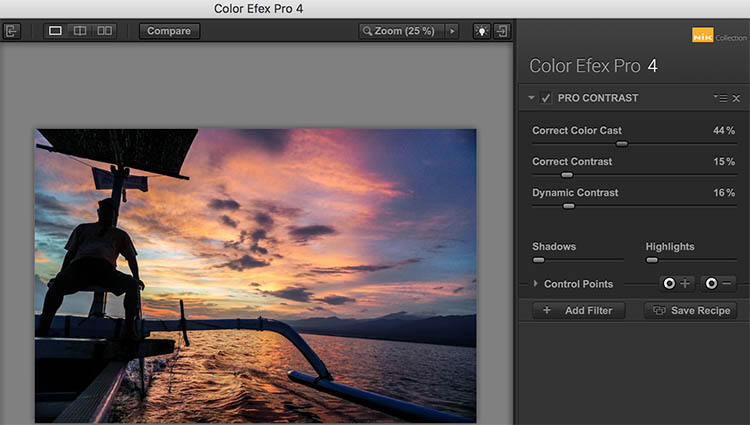
Have a photo that needs higher levels of contrast without sacrificing detail? The Nik Pro Contrast filter tackles this problem with three filter settings that you can tinker with.

  1. Correct Color Cast reduces any inherent color cast in an image, such as the orange hue the sunrise casts onto the water below.
  2. Correct Contrast offers general contrast adjustment.
  3. Dynamic Contrast delivers the most pop by boosting contrast in flat areas of the photo. The latter feature is also demonstrated in the Polarization After photo below.
Nik - Pro Contrast 1

Before

Nik - Pro Contrast 2

After – with the Pro Contrast filter applied

Nik - Pro Contrast

#2 – Polarization Filter

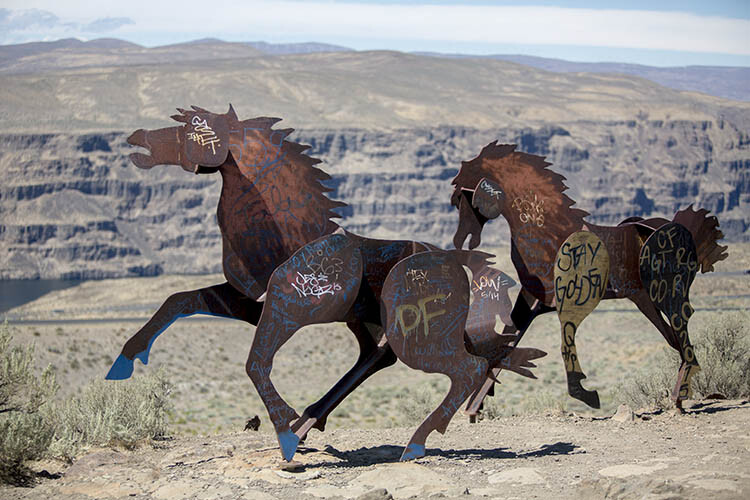
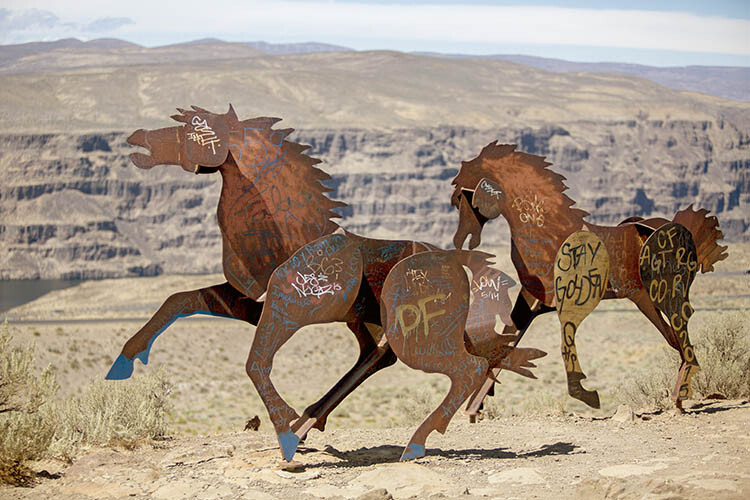
For landscape photographers, the circular polarizer is a must-have glass filter that enhances blue skies and reduces water glare. It is often said that the effects of a polarizer can’t be replicated in post-production. But Color Efex Pro 4 offers a pretty impressive Polarization effect that can be applied to any photo, even if it was taken without a glass circular polarizer.

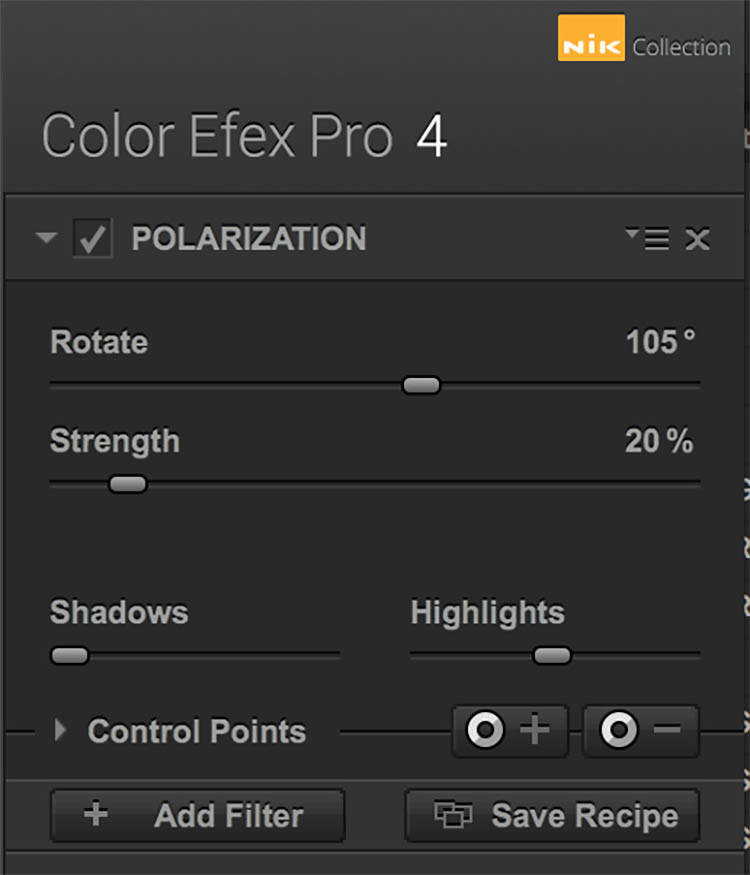
There are two Polarization filter settings that can be tweaked: Rotate, which simulates the effect of physically rotating the glass filter in front of your lens, and Strength, which controls how much of the filter effect is applied.

Nik - Polarizer 1

Before

Nik - Polarizer 2

After – with Polarization and Pro Contrast filters applied.

Nik - Polarizer

#3 – Skylight Filter

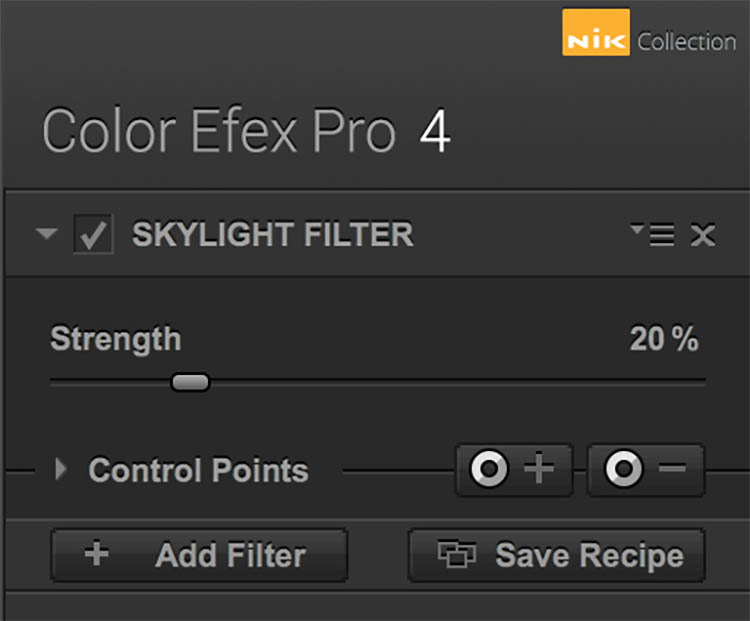
This handy filter simulates a glass warming filter by removing any blue color cast and applying a warming effect to your photo. Control the strength of the filter to determine how much warmth is added.

Nik - Skylight 1

Before

Nik - Skylight 2

After – with Skylight filter applied

Nik - Skylight

#4 – Graduated Neutral Density Filter

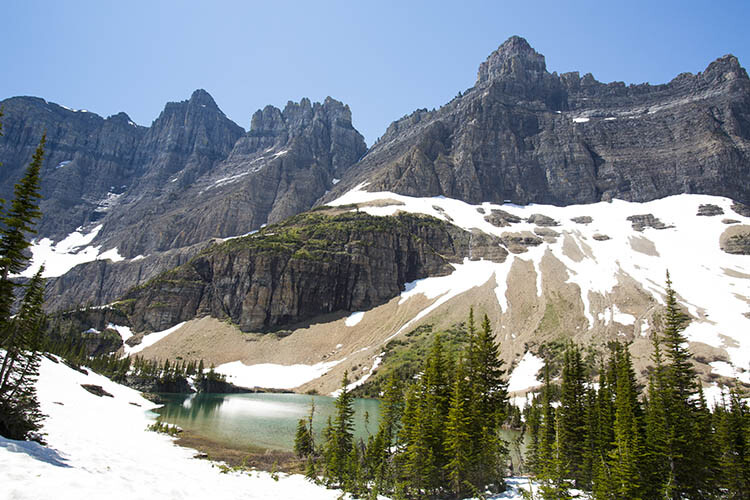
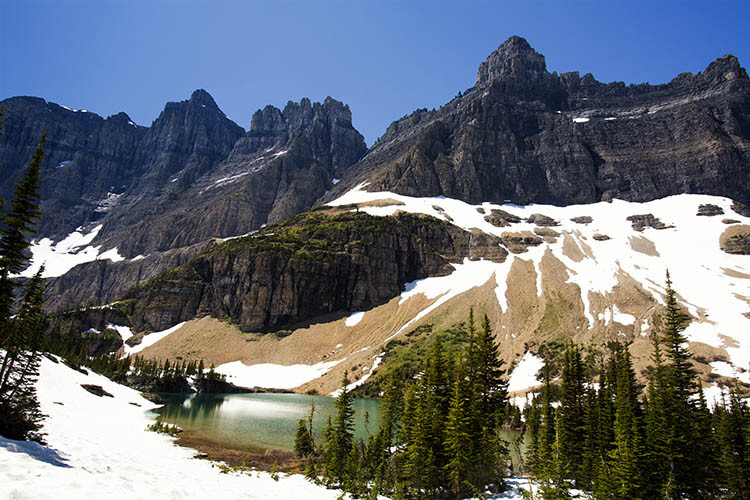
Similar to the glass circular polarizer, the graduated neutral density filter is a staple among landscape photographers as it helps lighten or darken just a portion of an image. Think about a landscape with perfectly balanced land and blown out sky. That is a job for the graduated neutral density filter.

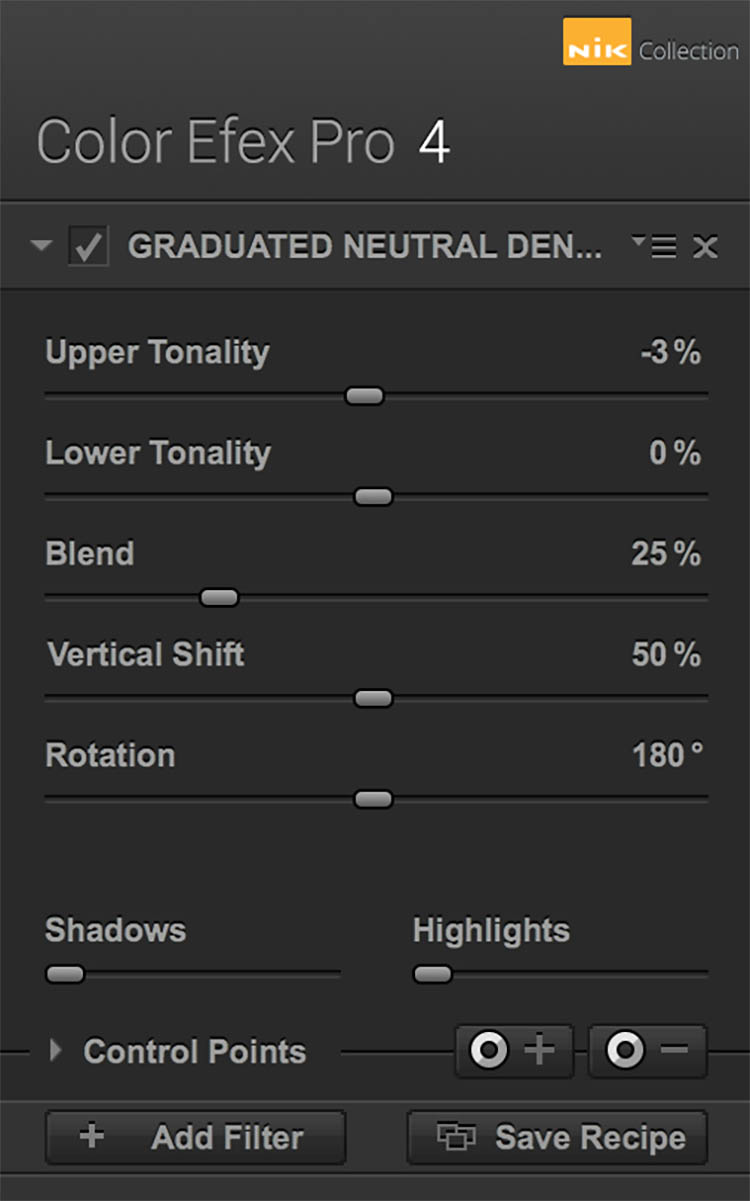
There are five different settings to play with for this filter. Upper and Lower Tonality let you adjust the brightness of the top and bottom portions of the image, Vertical Shift controls the placement of the filter’s horizon, while Rotation adjusts the angle of the horizon filter. Finally, Blend helps integrate the filter effect in a more natural way.

Nik - ND Grad 1

Before

Nik - ND Grad 2

After – with Graduated Neutral Density filter applied.

Nik - ND Grad

#5 – Reflector Efex

Nik - Reflector FX 1

Before

The reflector is a favorite photographer’s tool that has also been simulated by a Color Efex Pro 4 filter. Use this filter to control light in your image and open up shadows.

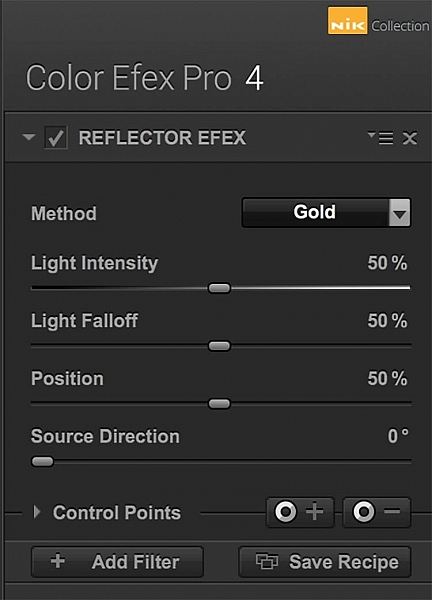
The Method setting allows you to choose from Gold (warm), Soft Gold (milder warm), and Silver (neutral) lighting colors. Light Intensity controls the amount of reflector light added, Light Falloff controls the abruptness of the lighting effect falloff, while Position controls where the falloff starts. Finally, Source Direction lets you choose where the reflector effect begins.

Nik - Reflector FX 2

After – with Reflector Efex Soft Gold filter applied.

Nik - Reflector FX

Over to you

There you have it! Five handy filters within the Nik Collection’s Color Efex Pro. It’s again worth noting that there are many more filters within the software, and each can add as subtle or dramatic an effect as you desire. At the very least, this photo editing software is available for free, so it’s worth trying out if you haven’t already.

What are your most used filters within the Nik Collection for your landscape photos? Let me know in the comments below.

googletag.cmd.push(function() {
tablet_slots.push( googletag.defineSlot( “/1005424/_dPSv4_tab-all-article-bottom_(300×250)”, [300, 250], “pb-ad-78623” ).addService( googletag.pubads() ) ); } );

googletag.cmd.push(function() {
mobile_slots.push( googletag.defineSlot( “/1005424/_dPSv4_mob-all-article-bottom_(300×250)”, [300, 250], “pb-ad-78158” ).addService( googletag.pubads() ) ); } );

The post Top 5 Nik Collection Filters to Improve Your Landscape Photos by Suzi Pratt appeared first on Digital Photography School.


Digital Photography School

 
Comments Off on Top 5 Nik Collection Filters to Improve Your Landscape Photos

Posted in Photography


Display your camera collection in style with these 3D-printed wall mounts

30 Aug

$ (document).ready(function() { SampleGalleryV2({“containerId”:”embeddedSampleGallery_4952012233″,”galleryId”:”4952012233″,”isEmbeddedWidget”:true,”standalone”:false,”selectedImageIndex”:0,”startInCommentsView”:false,”isMobile”:false}) });

Looking for a sleek, minimalist display for your vintage camera collection? LaudWorks, a purveyor of DIY project tools, has launched a small accessory called Hangie for easily mounting a camera on a wall. The 3D-printed mount is offered in both steel and plastic versions with multiple color options, and is nearly invisible when used, giving the impression that the camera is floating on the wall.

The Hangie mount is simple to install: first, attach the mount to a wall using two screws, then secure the camera using a tripod mount screw. The metal version of Hangie is made from bronze-infused stainless steel and is designed for heavier cameras; LaudWorks says it tested this version with a Canon EOS 7D and a EF-S 17-55mm lens attachment (1500g / 3.3lb). The plastic version, meanwhile, is made from white nylon plastic and is made for ‘small, lightweight cameras.’

Both products are available from Shapeways; the plastic version is $ 4 and the metal version is $ 21. 

Via: PetaPixel

Articles: Digital Photography Review (dpreview.com)

 
Comments Off on Display your camera collection in style with these 3D-printed wall mounts

Posted in Uncategorized


An Overview of Google’s Nik Collection Filters for Post-Processing

29 May

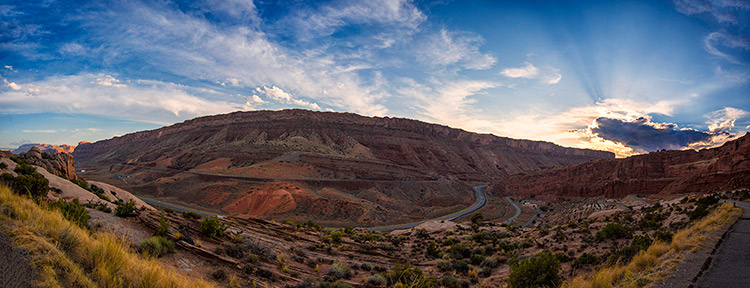
ArchesPanorama

By now, if you have not downloaded Google’s Nik Collection, at the very least you have heard that this once $ 500 software, was made free for download in March 2016. The Nik Collection, as it has been known for over a decade, is a set of photographic filter plug-ins, and image enhancement tools, that delivers another look and feel to your photo.

The Nik Collection is comprised of Analog Efex Pro, Color Efex Pro, Dfine, HDR Efex Pro, Sharpener Pro, Silver Efex Pro and Viveza. As you see, the suite is quite extensive, thus this overview will just touch on its potential uses, and hopefully encourage you to further explore the collection more in-depth.

The layout in each set is very similar, which translates to ease of use once you get the hang of it. Preset filters are listed down the left side panel of the dashboard. If you click any of them, the chosen filter is immediately applied to your preview, and you then have sub-options for that filter listed on the right panel, which gives you further control over its application.
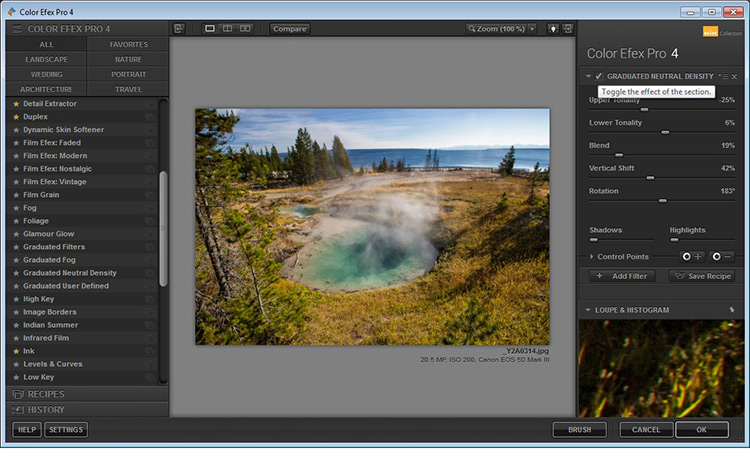
GlacierPrintScreen_NikCollection

An awesome feature that the Nik Collection utilizes is called Control Points, which is available in each plug-in. A control point, as the name implies, is a way to control the application of a filter to selected areas of your choice. Take note of this, as it will be referenced and elaborated on below, as the various plug-ins are discussed.

Analog Efex Pro

If you love the images produced by older cameras, or want to add a vintage look to your photo, Analog Efex Pro may be the set that appeals to you. It strives to pay homage to techniques used by photographers many years ago, and will help transport your image back in time.
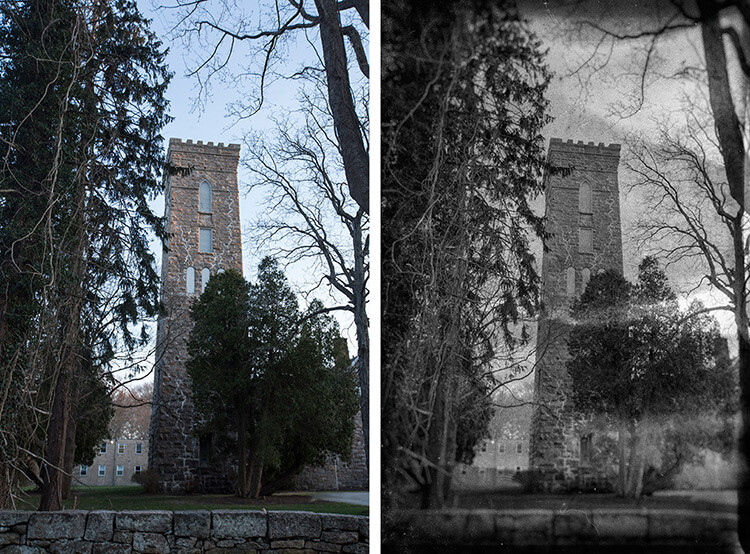
AnalogEfexProCastle_BeforeAfter

Original Image                                                                                                 Analog Efex Pro: Wet Plate preset applied

In the sample image above, the finish is one of the “Wet Plate” preset options available in Analog Efex Pro 2, inspired by an alternative processing technique of yesteryear. Along with Wet Plate, some of the preset filters in the left panel include Classic Camera, Vintage Camera, Toy Camera and the popular Double-Exposure – all of which require little effort to give your image a unique style.

AnalogDoubleExposureHeadstone_BeforeAfter

Original Image edit                                                                              Analog Efex Pro: Double-Exposure preset applied

With a few clicks, the application of this technique attempts to mimic processing techniques established in the darkroom, or in-camera double exposures. Each filter can further be fine-tuned to your desire, using the sliders and curve-adjustments included in the right panel; you can even add Dirt and Scratches to create a sense of age and give your digital photo a film-like feel.

Color Efex Pro

Color Efex Pro is a collection of visual presets that allows you to enhance, or get more creative with your photo. There are 55 filters in this set, but with the ability to stack filters, the possibilities are endless. Customized combinations can also be saved as a preset, so you can easily apply the same processing to other images with a single click.
ColorEfexProLH_BeforeSkylightFilter

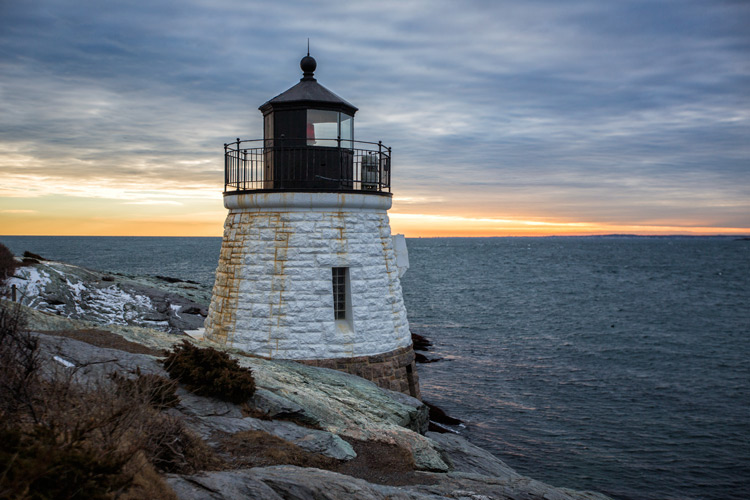
Original Image

Color Efex Pro: Skylight Preset Filter applied

Color Efex Pro 4: Skylight preset applied

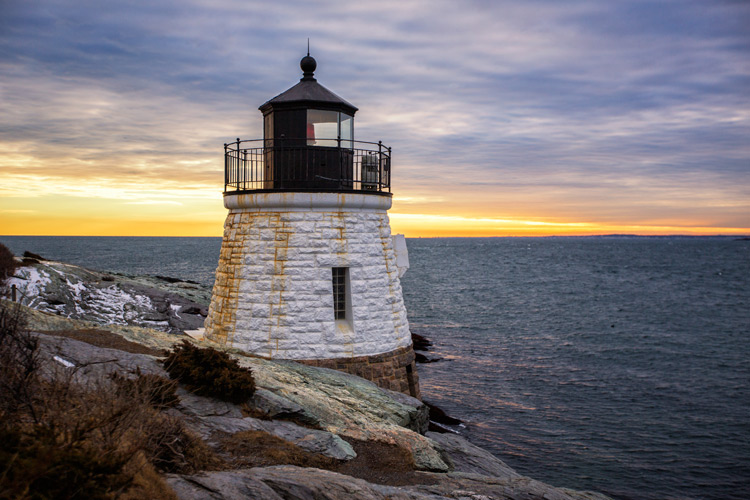
In the Lighthouse example shown above, the Skylight preset filter was used, which simulates a glass warming filter. It removes some of the blue color casts, and intelligently warms the colors in the photo for a more pleasing effect. You can use your right sub-options to make this as intense as you want, but in some cases less is more.
ColorEfexProHut_BeforeAfterTonalContrast

Original Image                                                                                            Color Efex Pro 4: Tonal Contrast preset applied

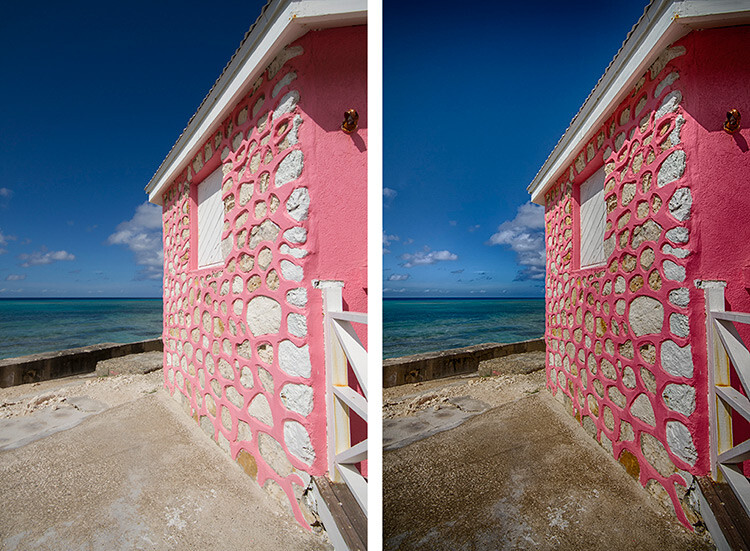
In the photo above, the Tonal Contrast preset was applied. This preset adjusts contrast and light levels on a small scale, as well as brings out some texture in the image. The sliders enable you to affect how dynamic the final result turns out.
Original Image Color Efex Pro: Wgite Neutralizer Preset Filter applied

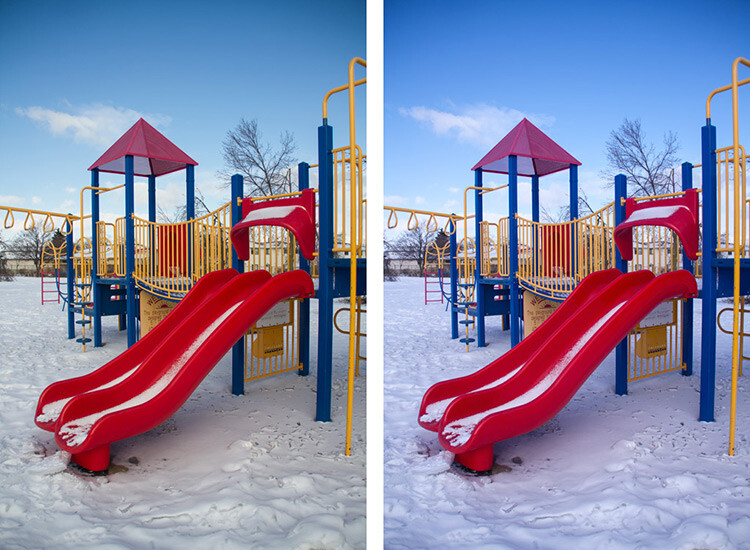
Original Image                                                                                            Color Efex Pro 4: White Neutralizer preset applied

Sometimes you need your whites to pop, for example the snow in the photo above. The White Neutralizer filter removes color casts from light objects and can be used to create bright, crisp whites without affecting the other colors of the photo. It is very useful for brides’ dresses and large expanses of white, such as snow or walls.

A very cool feature of Color Efex Pro is the ability to layer multiple filters on an image.
RockBeach_ColorEfex

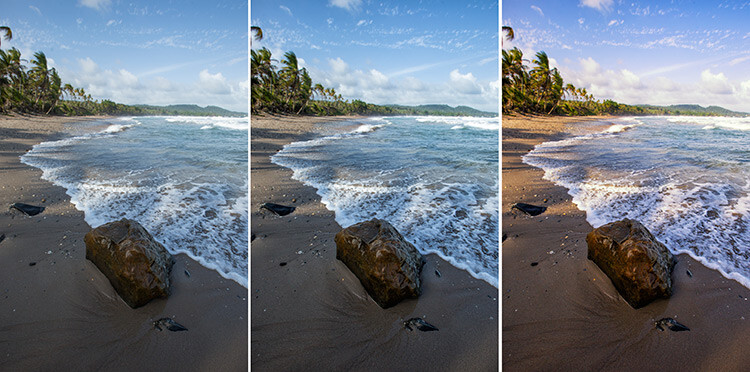
Original Image                                         Color Efex Pro 4: Tonal Contrast               Color Efex Pro 4: Sunlight filter

In the example shown, the Tonal Contrast preset was applied to the original image, then layered with the Sunlight filter. Layering equates to endless possibilities for your final edit.

Dfine

Dfine is Nik’s answer to noise reduction. Image noise characteristics deviate with exposure length, ISO settings and even temperature based on your camera. Dfine selects areas of your image and generates a “noise profile”. This allows the quick reduction of noise in your photos while retaining the edges, and in one click applies the calculated noise reduction to the image.
Dfine Dashboard

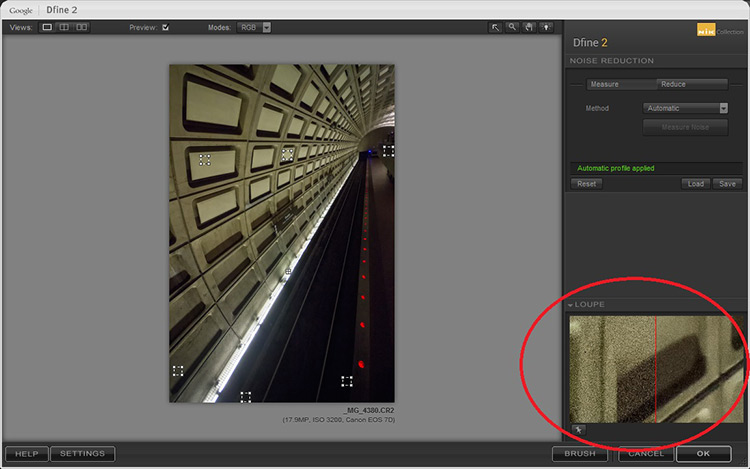
In the image above, the little squares denote what the software determined were areas requiring noise measurement. The loupe view (circled in red), shows the applied noise reduction on the right side – this view is at 100%.

On the right panel, the “Reduce” sub-option gives you two main methods to take away noise – either via the contrast or color. Both these adjustments affect the image differently, so play around with them and see which one works for your image.
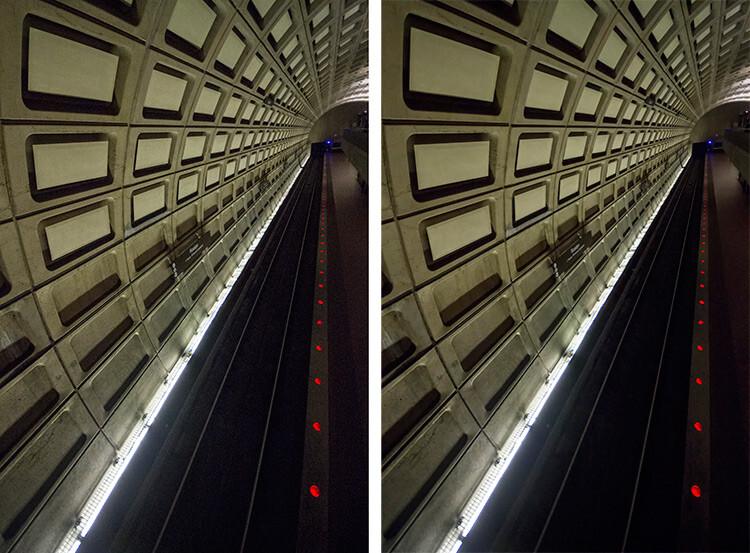
Subway_DfineProEdit

Original Image                                                                                                 Dfine 2: Auto Noise Reduction applied

Also included are some useful global adjustments for further refinement, such as the removal of JPEG compression artefacts and debanding.

Control Points in Dfine allows you to selectively apply noise reduction, which gives you the power to increase or decrease the noise reduction intensity in different areas of your image. So, even though Define auto-calculates the noise reduction needed, you can still maintain control over your noise processing.

HDR Efex Pro

High Dynamic Range (HDR) Imaging is a processing technique that has had mixed responses over the years. It was a trendy technique a few years ago, but has since matured into being used as a tool that extracts all the details of a scene available to the naked eye. HDR can be either overdone, or used subtlety, by exploring the differences between the darkest shadows and the brightest parts of the photo.

HDR Efex Pro is Nik’s contribution to this type of processing; where several images captured at different exposures, are translated into a single image that reflects a more dynamic range than your camera output is capable of creating (although camera advancement is starting to address this).
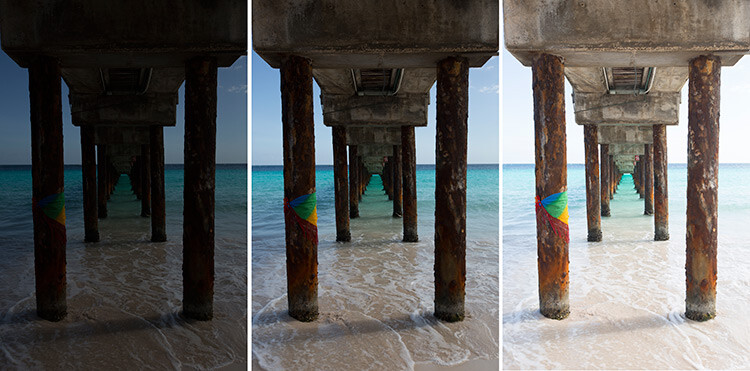
HDR_original

Original Images for HDR edit


HDR_HDREfexPro

Images combined using HDR Efex Pro 2

In the example above, three exposures are combined to bring back the lost highlights and shadows with tonality adjustments. This image can be pushed to look more realistic or even in the opposite direction.

Above its predecessors (such as Photomatix), HDR Efex Pro 2 has promised a simpler process and increased control and fine-tuning over the final image, along with an improved tone-mapping engine that claims to render color better. All tools are subjective, but no harm in trying this HDR tool out, even if just to verify some of Nik’s claims that they have improved Ghosting and Chromatic Aberration reductions.

Silver Efex Pro

Silver Efex Pro focuses on black and white processing. There are many programs quite capable of creating great black and white images, but various built-in tools like Dynamic Brightness, Soft Contrast, Amplify Whites, Amplify Blacks, and the advanced Grain Engine creates excellent diversity.
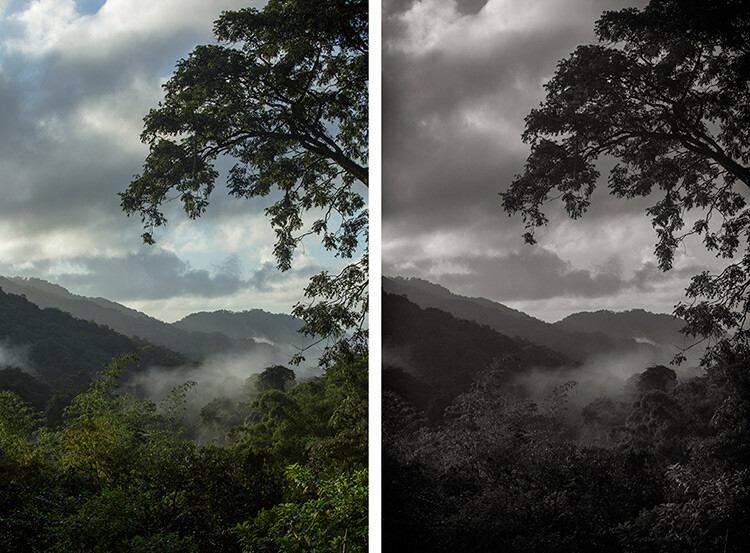
SilverEfexTree_BeforeAfter

Original Image                                                                                      Silver Efex Pro 2: Dark Sepia preset applied

Silver Efex Pro comes with quite a variety of presets, and of course you can also create your own. The easiest way to do this is use an existing preset, customize it by making your adjustments, then save it so you can apply it to other images later on. Saving a preset is especially useful if you are doing an image set, and want the photos to have the same look and finish.
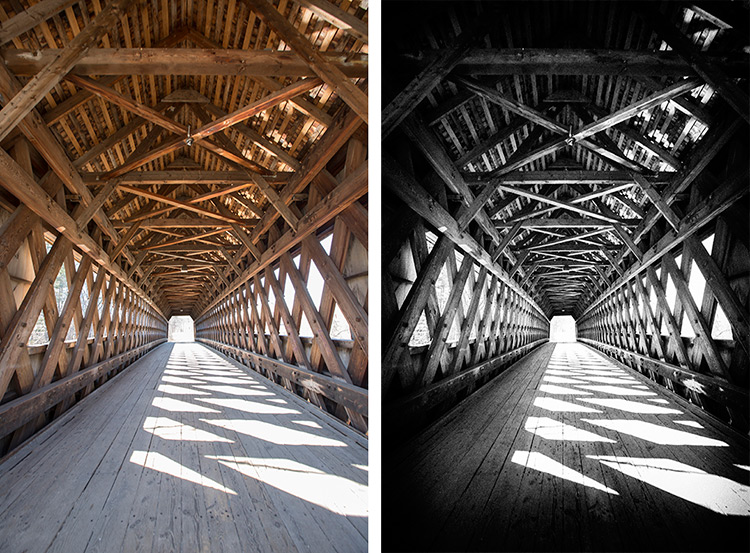
SilverEfexBridge_BeforeAfter

Original Image                                                                                      Silver Efex Pro 2: High Structure preset applied

The structure in this software adds depth to the photo by adding some sharpening. If you are into black and white photography, this is definitely a set you want to play around with.

Viveza

Viveza is an easy way to apply enhancements selectively without creating masks. Yes, you can still do global or image-wide adjustments, but it is very useful to be able to later refine only selected areas. Imagine the possibilities of applying structure, color, exposure changes, or doing shadow recovery to only areas you choose, knowing that the software is going to blend in your changes seamlessly.

You can use Control Points on any part of the image you want to change. As with the other software in the Nik Collection, the top control (on your control point) allows you to change the radius/size of your adjustment area.
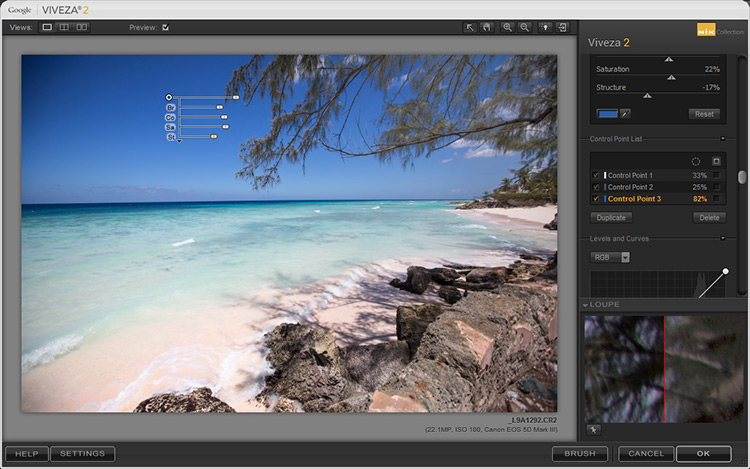
VivezaControlPointBlue

The Control Point shown in this image is on the blue sky. Based on the look you want, the radius of this area can be increased or decreased in size.

If you check the box next to the Control Point on the right (sub-options), all the affected areas will be shown in white, so you can decide if you want to adjust your work area.
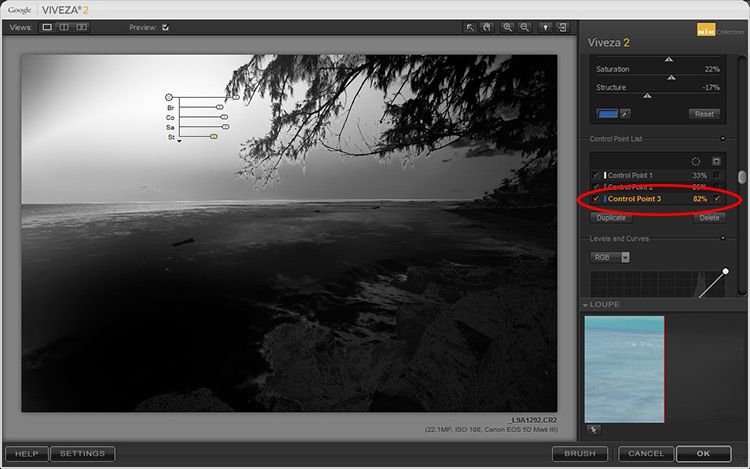
VivezaDashboardHighlight

In this example, the Control Point affects the blue in both the sky and sea, so any adjustments will apply to everything blue in the selected radius (highlighted in white on the image).

Selections, masks or adjustment layers may be your tool of choice to get precisely defined areas, but Viveza’s localized adjustments blend in with the surrounding areas quite well, and in some cases look more natural.

Sharpener Pro

While not everything in your image needs to be razor sharp, the best way to end up with a crisp finish and distinct edges, would be to start out with a properly focused image. Post-capture sharpening increases the contrast between adjacent pixels and significant edges within an image, which attracts your eye. Sharpening is thus used to enhance a focused image, as opposed to rescue elements of photograph that was captured out of focus.
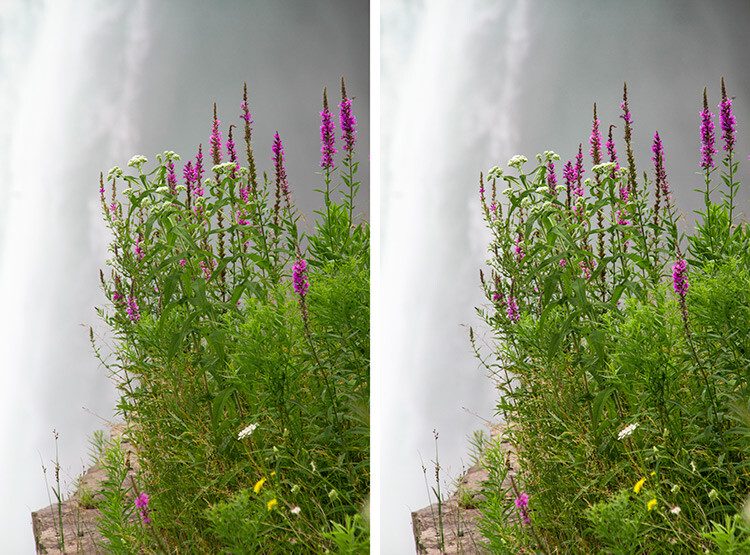
NiagaraFlower_SharpenerProBeforeAfter

Original Image                                                                                     Sharpener Pro 3: applied to show edges

In the sample image above, the sharpening is exaggerated to show the contrast effect that the software applies.

Sharpener Pro takes away some of the guesswork and gives you control over your sharpening, which is typically the last step in image processing. Control Points gives you the ability to selectively sharpen aspects of your image and allows the changes to blend in easily.

Conclusion

A great feature of each set in the Nik Collection is that it applies the effect on a duplicate layer. This is especially helpful if you want to dial back the effect and blend it with your original image, by simply changing the opacity of the layer.

Each plug-in has great potential, so do not be fearful to explore, test your creativity with preset combinations, and experiment with Control Points. It is a user-friendly collection and while this is a plus, it can also make it easy to overdo it.

Do share your thoughts and some of your images processed with Google’s Nik Collection of filters. How have they worked for you? Which is your favorite?

googletag.cmd.push(function() {
tablet_slots.push( googletag.defineSlot( “/1005424/_dPSv4_tab-all-article-bottom_(300×250)”, [300, 250], “pb-ad-78623” ).addService( googletag.pubads() ) ); } );

googletag.cmd.push(function() {
mobile_slots.push( googletag.defineSlot( “/1005424/_dPSv4_mob-all-article-bottom_(300×250)”, [300, 250], “pb-ad-78158” ).addService( googletag.pubads() ) ); } );

The post An Overview of Google’s Nik Collection Filters for Post-Processing by Nisha Ramroop appeared first on Digital Photography School.


Digital Photography School
 
Comments Off on An Overview of Google’s Nik Collection Filters for Post-Processing

Posted in Photography


5 Steps to Creating a Printed Photo Collection as Wall Art

28 Apr

In this digital age, where we wander about with thousands of digital images held captive in our smart phones, there is something special about printed photographs. They represent something tangible and reverent – something that was worth transforming into an enduring piece of artwork, to remind us of what is important in our lives.

One of the most rewarding aspects of my job is seeing the photographs I create for my clients hanging on their walls. To me, it is the icing on the cake, the cherry on top, the grand finale that tells me I have fulfilled my promise to the people who put their trust in me as a professional.

collection-dps-01

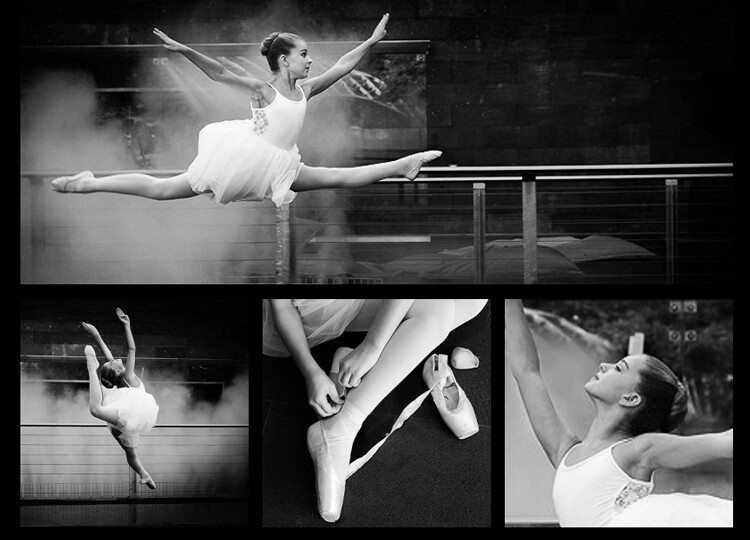
This image set by Darlene Hildebrandt

Like many portrait photographers, I began my career selling digital files on a USB stick. I found it disheartening and unfulfilling. Wall art collections were a revelation to me. As a photographer, they gave me a structure and framework to shoot within. My session times became shorter, because I was shooting with purpose. I now had something meaningful and lasting to offer my clients; collections that tell their story in all its detail, and represent something deep that they have revealed to me.

Photo collections can be about anything. In my case, they are invariably portraits, but if your thing is landscapes, travel, macro, nature etc., you can create collections that add life and personality to you home or office, and serve as visual reminders of what is important to you.

Step #1: Consider the space you want to fill

Think about the photographs you are capturing. What is the subject matter? What do these photos mean to you? Do you want to remember a favourite holiday destination, or how confident your son looks when he plays the violin? Do you want to capture the beauty of a rare flower you grew, or your young adult daughter who is about to leave home for college?

With this in mind, think about where in your home or office you would like to see these photographs every day. Consider how appropriate the subject matter is for where you want to display it, and take into account the style of the decor and other furnishings in the room. Often photographs are displayed above a piece of furniture – above your bed or the sofa, at the end of a breakfast nook, on the wall of a study, or cascading down a flight of stairs.

image showing photo collections

A collection to fit a long, narrow space.

Once you have decided where you want to display your photos, you should have a clear idea of what the layout should look like. Big spaces demand big photos, narrow spaces require long and thin, and a stairwell may need a staggered combination of large and small photos.

image showing photo collections

A different configuration using images from the same session. This would suit a larger space.

Step #2: Decide the layout before you pick up the camera

Think carefully about the configuration of your collection before you start photographing. For example, if you have a wide space to fill and you envisage a panoramic with two or three smaller prints underneath, your main photo will need lots of space to crop it into a panoramic shape, without compromising the composition or the quality of the image. You will be hard pressed to get a panoramic crop if you’re shooting in a vertical (portrait) orientation. When I’m shooting for a collection, I allow more space around my subjects than usual. This gives me some versatility when it comes to cropping.

Likewise with the smaller prints. Think about how you would like each photo to be oriented, and ensure you shoot from an angle that will enable this. I like to orient my detail shots inward, toward the main photo.

Image showing photo collections

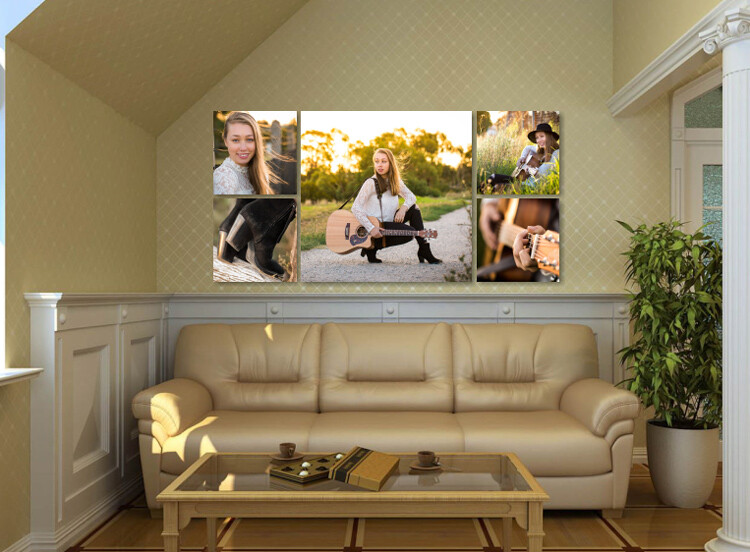
It helps if you know how you are going to display each photo before you capture it.

Image showing photo collections

This shows how the collection would appear on a wall.

Step #3: Keep the lighting consistent

A collection looks most cohesive when the lighting is consistent throughout. If three out of four photos in the collection are high key images with lots of white, a dark photo, or one with lots of colour, will look out of place. So, if you photographed your dog on the beach at sunset, that photo you took of him earlier in the bright midday sun will look mismatched, regardless of how adorable his expression is.

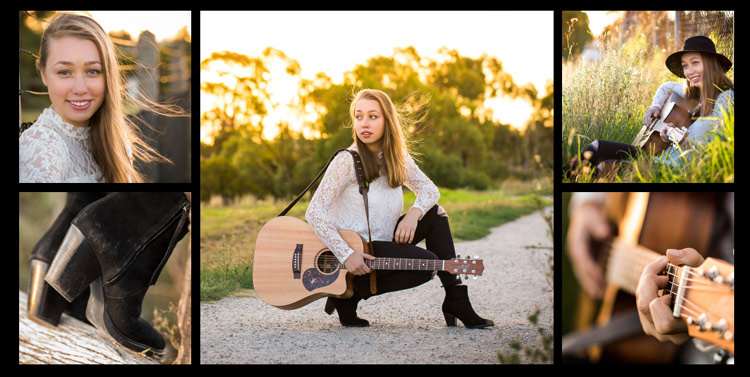
In the photo collections below, the silhouetted sunset image stands out as a mismatch. In the second version, it is replaced with an image that better matches the lighting.

Image showing photo collections

The silhouetted sunset shot in the middle looks out of place.

Image showing photo collections

In this collection, the images are unified by similar lighting.

Step #4: Stick to one subject per collection

Avoid the temptation to create a hodge podge by cramming every member of a family, or every flower in the garden, into one collection. Allow your subject to shine by devoting a whole collection to him, her (or it, in the case of an inanimate object). As a portrait photographer, my collections usually consist of one full body photo, and several detail shots which help tell a story.

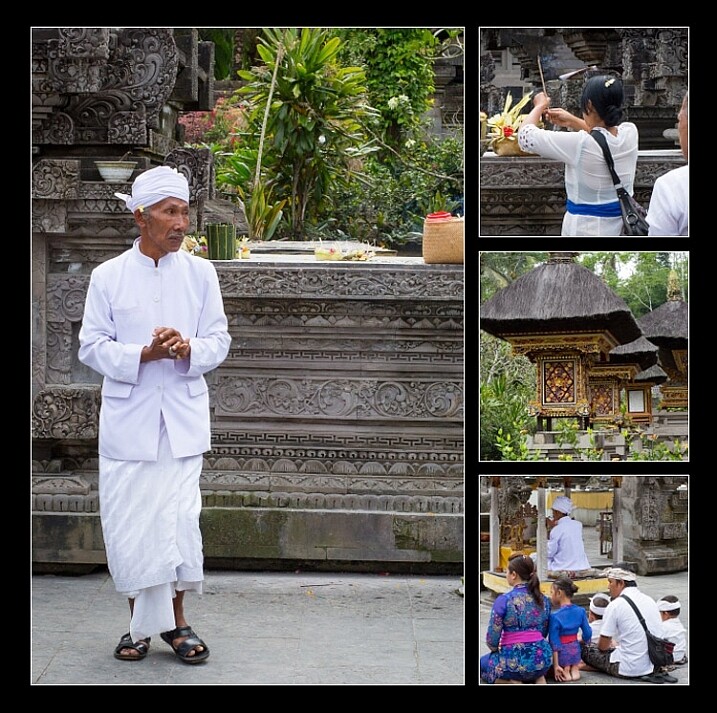
The photo collection below, taken at a water temple in Bali, depicts a sacred ritual. I took so many other photos I loved at the water temple, but to put them all together would detract from the story. I will save the other photos for a different collection.

image showing photo collections

Although it is tempting to cram every photo you love into a collection, the result is much more pleasing when you stick to one subject.

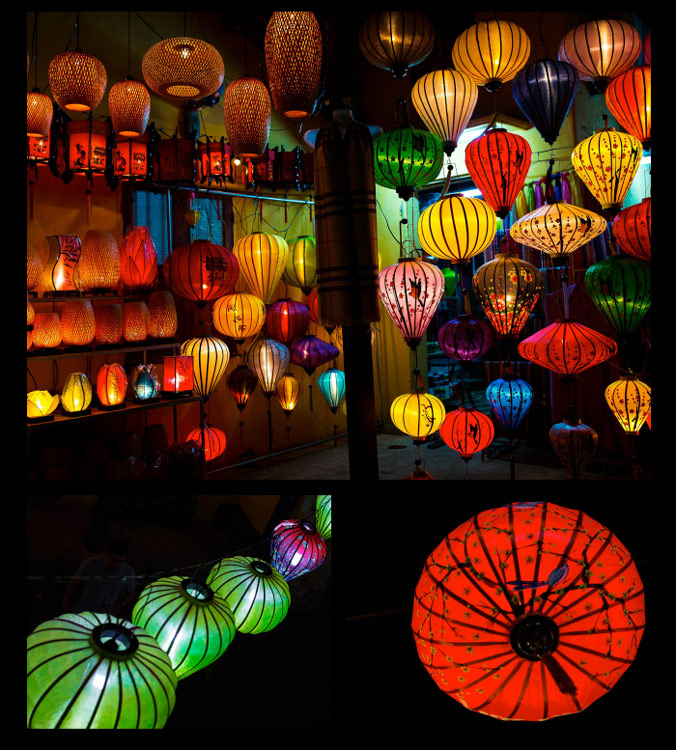
image showing photo collections

My main photograph in this collection is full of colour and a variety of shapes. To complete the collection, I have chosen closer-up detail shots of just two of the many lanterns.

Step #5: Collage or collection?

A photo collection can be made up of separate pieces displayed together, or you can create a collage to print as a single piece. Your decision will be influenced by the space you want to fill, the material you want to print on, and your budget.

A collection of separate pieces tends to look more luxurious than a collage. With some configurations such as stairs, it may be your only option. Another benefit of printing each piece separately is that you can change the layout later if you want to. Also, if one piece is not working quite the way you imagined, you can swap it out for a new one.

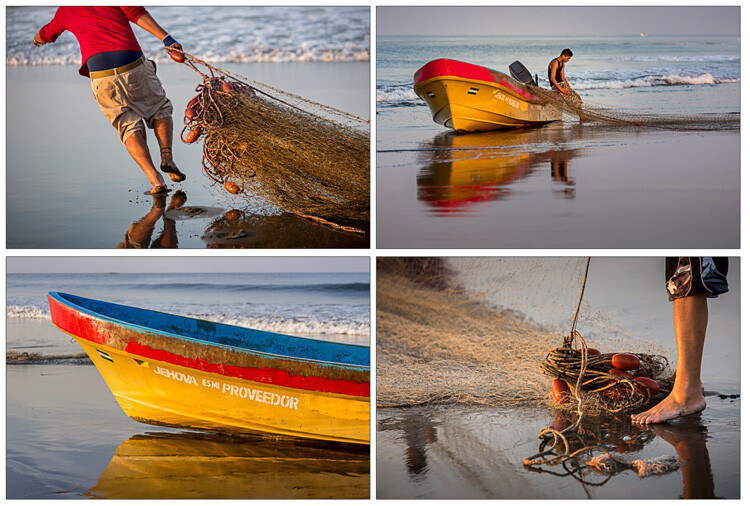
The photos below, taken at dawn on a beach in Vietnam, will be printed as separate pieces and hung together as shown.

image showing photo collections

Displayed together, the four photos tell a story.

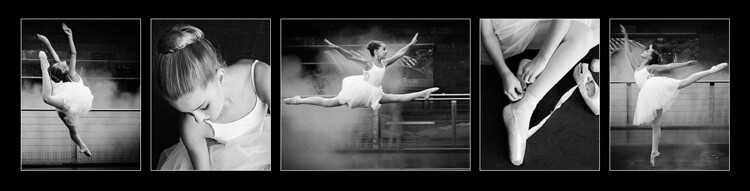
On the flip side, printing multiple pieces can be expensive, and it can be tricky to hang a multi-piece collection with the accuracy it deserves. Some configurations, such as the black and whites below, can look itsy-bitsy when printed separately, and look better printed as a single piece.

You can create hi-res collages like this in Photoshop, Lightroom, or the professional version of Proselect. Alternatively, you can buy ready-to-hang frames with cut-out mats designed for collections, or you can ask a framer to create a customized mat for your frame.

This collage was designed to be hung above a dining table, so the long narrow shape worked well. Background and borders are white to match the colour scheme of my clients’ home, and it is printed on metal to suit their contemporary decor.

image showing photo collections

This was designed to be printed as a single piece.

Collections and collages are a fun and interesting way to display your favourite images. With a little care and thought, they can make breathtaking displays that will last for a great many years. I hope this article inspires you to go and rescue those beautiful images of yours that are trapped in the digital world, and bring them to life!

Share in the comments section below your favourite photo collections or collages, or any hints or tips you have learned along the way.

googletag.cmd.push(function() {
tablet_slots.push( googletag.defineSlot( “/1005424/_dPSv4_tab-all-article-bottom_(300×250)”, [300, 250], “pb-ad-78623” ).addService( googletag.pubads() ) ); } );

googletag.cmd.push(function() {
mobile_slots.push( googletag.defineSlot( “/1005424/_dPSv4_mob-all-article-bottom_(300×250)”, [300, 250], “pb-ad-78158” ).addService( googletag.pubads() ) ); } );

The post 5 Steps to Creating a Printed Photo Collection as Wall Art by Karen Quist appeared first on Digital Photography School.


Digital Photography School

 
Comments Off on 5 Steps to Creating a Printed Photo Collection as Wall Art

Posted in Photography


A Colourful Collection of Images from The Holi Festival

27 Mar

Happy holi by Khan Clicks on 500px.com

Holi is a spring festival in India and Nepal, also known as the festival of colours or the festival of sharing love. It’s a wonderful festival for participants but presents photographers with an amazing opportunity.

The festival happened in the last week so we thought we’d put together a collection of images from it (and previous years).

If you’ve been – we’d love to see your images from it in comments below!

Holi Matura by Vichaya Pop on 500px.com

Holi-Festival of Colors by Muthu Krishna on 500px.com

Lost in the Echo by Mrigankamouli Bhattacharjee on 500px.com

Holi @ Banke Bihari Temple by Saravanan Dhandapani on 500px.com

"The Holy Chants" by Prakash singh on 500px.com

Colors Wave by WAEL ONSY on 500px.com

Holi Festival Girl by Ron Kimhi on 500px.com

~ Color Palette ~ by Rudra Mandal on 500px.com

color gaze by AMITABH KUMAR on 500px.com

The Colours Of Holi by Vichaya Pop on 500px.com

Intense Colours by sathis ragavendran on 500px.com

Faith by Sudarshan Das on 500px.com

Holi Melody by Utkarsh Chaturvedi on 500px.com

Rain of Colors by Sreejith  Babu on 500px.com

Colored Face by Tom  Abraham Dcruz on 500px.com

Colours of life by Prakhar Tripathi on 500px.com

Holi man by dimitris manioros on 500px.com

googletag.cmd.push(function() {
tablet_slots.push( googletag.defineSlot( “/1005424/_dPSv4_tab-all-article-bottom_(300×250)”, [300, 250], “pb-ad-78623” ).addService( googletag.pubads() ) ); } );

googletag.cmd.push(function() {
mobile_slots.push( googletag.defineSlot( “/1005424/_dPSv4_mob-all-article-bottom_(300×250)”, [300, 250], “pb-ad-78158” ).addService( googletag.pubads() ) ); } );

The post A Colourful Collection of Images from The Holi Festival by Darren Rowse appeared first on Digital Photography School.


Digital Photography School

 
Comments Off on A Colourful Collection of Images from The Holi Festival

Posted in Photography


Google offering Nik Collection photo editing applications for free

25 Mar

Starting immediately, Google’s Nik Collection of desktop image editing plug-ins is being offered free of charge. Nik’s Analog Efex Pro, Color Efex Pro, Silver Efex Pro, Viveza, HDR Efex Pro, Sharpener Pro and Dfine apps are all available as a free download from Google, a substantial savings over the previous $ 150 price.

Nik’s applications put a focus on ease of use and accessibility, compatible with Photoshop, Lightroom and Aperture. The company was purchased by Google in 2012, and prior to that each program cost around $ 100 for a total of up to $ 500 for the software suite. Google opted to offer the whole bundle for $ 150, and made it available for all of its supported applications via a single installer. 

To download the collection without dropping a dime, head to Google’s Nik Collection site.


System requirements:

Mac:

  • Mac® OS X 10.7.5 through 10.10
  • Adobe Photoshop CS4 (CS5 for HDR Efex Pro 2) through CC 2015
  • Adobe Photoshop Elements 9 through 13 (apart from HDR Efex Pro 2, which is not compatible with Photoshop Elements)
  • Adobe Photoshop Lightroom 3 through 6/CC
  • Apple® Aperture® 3.1 or later

Windows:

  • Windows Vista®, Windows 7, Windows 8
  • Adobe Photoshop CS4 through CC 2015
  • Adobe Photoshop Elements 9 through 13 (apart from HDR Efex Pro 2, which is not compatible with Photoshop Elements)
  • Adobe Photoshop Lightroom 3 through 6/CC

GPU Compatibility:

NVIDIA GeForce 8 Series, GeForce 9 Series, GeForce 100 Series, GeForce 200 Series, GeForce 300 Series, GeForce 400 Series, GeForce 500 Series, ATI Radeon HD2000 Series, Radeon HD3000 Series, Radeon HD4000 Series, Radeon HD5000 Series, Radeon HD6000 Series.

If no compatible card is available, GPU acceleration will be disabled and the CPU will be used.

Articles: Digital Photography Review (dpreview.com)

 
Comments Off on Google offering Nik Collection photo editing applications for free

Posted in Uncategorized


Pigment Library: Harvard’s Collection of 2,500 Global Colors

19 Feb

[ By WebUrbanist in Culture & History & Travel. ]

pigment glass cabinetry

Looking as much like a mad science laboratory as a conservator’s dream workshop, this pigment library is populated with color samples from around the world, all helping preservationists maintain and restore historical works of art and design.

historical pigment collection

pigment sample jars

The Straus Center for Conservation and Technical Studies at the Harvard Art Museums puts is jars, bottles and glasses on display for the public to see in glass cabinetry, but also uses them like a witch doctor would employ esoteric medicines. An analogy could also be drawn to seed vaults, which likewise store and preserve precious and sensitive materials for future use.

pigments of the world

From Colossal, “The Forbes pigment collection was started by its namesake—Straus Center founder and former Fogg Art Museum Director Edward Forbes who began the collection at the turn of the 20th century. Forbes would collect his samples from his travels all over the world, bringing back pigments from excavated sites at Pompeii to rare lapis lazuli found in Afghanistan.”

pigment library harvard

Forbes became interested in preservation when a 14th-Century piece he purchased began to visibly fade, sparking him to learn more about the materials and processes around paintings and their preservation.

pigments on display

The origins of the various colors are often stories in themselves, from modern synthetics to obscure organics, like an ‘Indian Yellow’ made from the urine of cows fed only mango leaves. (Images via Peter Vanderwarker, Zak Jensen and Andrea Shea/WBUR)

Share on Facebook


[ By WebUrbanist in Culture & History & Travel. ]

[ WebUrbanist | Archives | Galleries | Privacy | TOS ]


WebUrbanist

 
Comments Off on Pigment Library: Harvard’s Collection of 2,500 Global Colors

Posted in Creativity


Lego Landmarks: Elegant New ‘Architecture Skyline’ Collection

18 Dec

[ By Steph in Design & Products & Packaging. ]

LEGO skyline 1

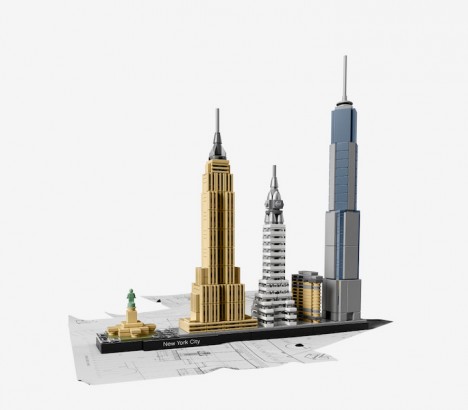
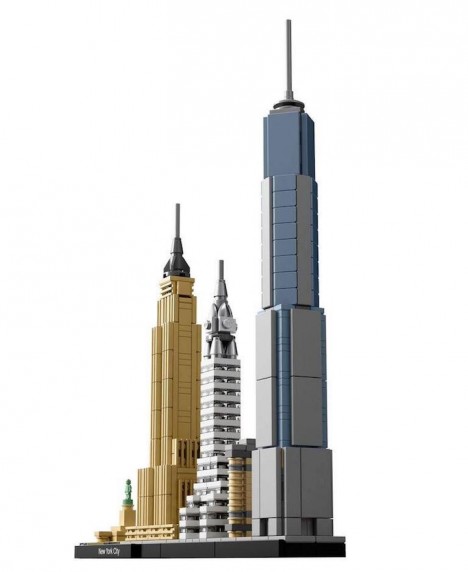
The phrases ‘adult toys’ and ‘city blocks’ take on a different meaning when applied to architecturally sophisticated LEGO sets like these, enabling you to make your own miniature replicas of the cityscapes including the Empire State Building, Statue of Liberty, Berlin TV Tower, St. Mark’s Basilica and much more. The Architecture Skyline Series explores the most famous architectural achievements of three cities: New York, Venice and Berlin.

LEGO skyline 3

These aren’t your ordinary blank slate LEGO bricks, from which all manner of creations can spring, but rather very specific pieces for very specific structures.

LEGO skyline 2

With the NYC package, you’ll get the Empire State Building, Chrysler Building, Statue of Liberty and Flatiron Building as well as the brand new One World Trade Center. Berlin includes the Reichstag, Victory Column, Deutsche Bahn Tower, Berlin TV Tower and Brandenburg Gate. The Venice model will give you St. Mark’s Basilica and Campanile, Rialto Bridge, St. Theodore and the Winged Lion of St. Mark, and the Bridge of Sighs.

LEGO skyline 4

LEGO skyline 5

LEGO has been teasing the release of these sets on Facebook for weeks, and has now revealed that they’ll be available on an unnamed date in January 2016. Follow the company’s Facebook page if you want to be among the first to find out so you can snatch up your own box.

LEGO louvre

LEGO architecture studio

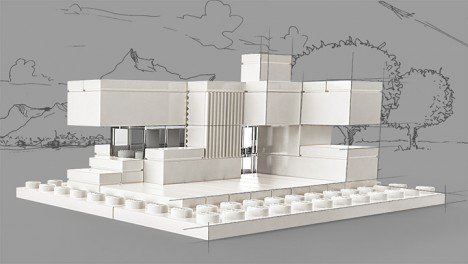
These upcoming sets arrive on the heels of a stunning model of the Louvre in Paris, as well as LEGO’s Architecture Studio, which offers 1210 white and transparent bricks to design and build the architecture of your imagination. Check out the LEGO Architecture series for other classic structures, like Rome’s Trevi Fountain and the Lincoln Memorial.

Share on Facebook


[ By Steph in Design & Products & Packaging. ]

[ WebUrbanist | Archives | Galleries | Privacy | TOS ]


WebUrbanist

 
Comments Off on Lego Landmarks: Elegant New ‘Architecture Skyline’ Collection

Posted in Creativity


Tenba Cooper luxury canvas and leather bag collection introduced

31 Oct

Tenba has introduced the Cooper, a luxury leather and canvas bags collection. The new collection is styled after classic messenger bags, and is made from canvas alongside full grain leather trim and other high-end touches. Tenba created the bags with photographers’ needs in mind, using Quiet Velcro to allow the bags to be opened silently when needed. Read more

Articles: Digital Photography Review (dpreview.com)

 
Comments Off on Tenba Cooper luxury canvas and leather bag collection introduced

Posted in Uncategorized


Countdown to PIX 2015: Getty Images Legacy Collection

04 Oct

It’s hard to believe that PIX 2015 is just over a week away. As we get closer to the show, we’re highlighting some of our amazing speaking and content partners. In the slideshow above you’ll find a preview of some of the iconic photos Getty Images will have on display in our gallery space. Find out more about the Legacy Collection from Getty Images Co-Founder Jonathan Klein. Read more

Articles: Digital Photography Review (dpreview.com)

 
Comments Off on Countdown to PIX 2015: Getty Images Legacy Collection

Posted in Uncategorized