RSS
 

Posts Tagged ‘Collage’

How to Make a Photoshop Collage (in 9 Simple Steps)

19 May

The post How to Make a Photoshop Collage (in 9 Simple Steps) appeared first on Digital Photography School. It was authored by Natalia Robert.

how to make a Photoshop collage

Looking to make a collage in Photoshop? You’ve come to the right place.

In this article, I’m going to give you an easy, step-by-step process for creating a stunning collage – one that looks like this:

final collage

(It’s a perfect way to share photos from an event, a real-estate shoot, or even a family photo session!)

Let’s get started.

Step 1: Choose your collage photos

Before you actually create the collage, you’ll need to pick your collage photos – and you’ll need to do this carefully.

I recommend selecting images connected by a theme (such as a location, an event, or even a concept). Include a mix of subjects at different scales; for instance, pick some wide shots that show the entire scene, as well as some detail photos that show lots of texture and personality. Without one or the other, the story won’t be complete. And it won’t carry the level of emotion that you’re after.

Speaking of storytelling: It often does help to focus on the story you’re trying to tell. Do you want to offer a narrative surrounding an event? Do you want to clearly convey a meaningful concept? Make sure to take this into account when picking photos!

One more tip: If possible, include at least three photos and no more than eight. Too few photos, and you won’t be able to tell the full story. Too many photos, and you’ll confuse the viewer with clutter (plus, it’ll be tough to show off individual details).

Step 2: Open the selected images in Photoshop

Once you’ve picked your photos, open them all in Photoshop.

To do this, you can drag and drop files directly onto the document window, or you can select File>Open and click on the relevant images.

opening your images

You should see the photos as separate tabs in the document window, like this:

the collage images open in Photoshop

Step 3: Create a new file for your Photoshop collage

Every Photoshop collage needs a background file where all the images will eventually be assembled.

While you can use an old collage template, if you’re making your first-ever collage, you’ll need to create a new document.

So select File>New in the Menu bar (or tap Ctrl/Cmd+N):

creating a new file

A New Document window should pop up, and you’ll need to dial in your file preferences.

selecting dimensions for your new file

The specifics will depend on what you plan to do with the collage as well as the sizes of your chosen photos. If you’re working with big JPEGs and you aim to print, you should probably pick a 5000+ pixel width and height. If you want to display your collage on a standard web page, however, a 1500 pixel width and height will do just fine (though you can always start big and resize later, as discussed in Step 8 below).

(I do recommend you make the file size a bit larger than the size you want in the end; that way, you can do a final crop to deal with any arrangement issues.)

Step 3: Add your images one at a time

Head to your first open photo, then select it.

To do this, you can drag with the Marquee tool:

marquee tool how to make a Photoshop collage

Or you can hit Ctrl/Cmd+A. You should see the marching ants around the border of your image:

selected image

Then choose Edit>Copy (or tap Ctrl/Cmd+C):

copying an image

Finally, head over to the new document, then choose Edit>Paste (or tap Ctrl/Cmd+V):

pasting an image

This will add the photo to the blank document, but on its own layer.

Depending on the size and resolution of the new image, you may need to make some adjustments with Edit>Free Transform (or Ctrl/Cmd+T). For instance, my first photo was way too large:

a too-large photo how to make a Photoshop collage

So I used the Free Transform option to scale it down:

using Free Transform

(Once you’ve activated Free Transform, simply drag the edge nodes until you get the result you’re after. You want an image that’s small enough to be comfortably moved around the canvas.)

Then repeat the above instructions for all the remaining collage photos.

Step 4: Arrange your photos

After you’ve added all the collage photos to your document, it’s time to do some arranging. This is where you shift the photos around until they tell your story.

After doing several collages, you’ll start to discover your preferred style; personally, I like to create symmetrical layouts as well as interlocking puzzles. But each story does have slightly different needs, so don’t be afraid to experiment!

To adjust the photo positions, you can select the Move tool (or tap V):

the Move tool

Then drag around all the images until you get a good result. If you’d like to resize any photos, use the Free Transform option discussed above.

With my pet collage example, I first tried a more symmetrical arrangement:

one version of the pet collage in Photoshop

But I settled on a puzzle-type composition:

another version of the pet collage in Photoshop

Step 5: Add image spacing

Once you’ve determined the layout and you’ve sized all the images, I recommend giving the design some space. It’s personal preference, but the effect is generally nice.

In other words, instead of a collage like this:

collage without spacing

You want one like this:

collage with spacing

It’s pretty easy to do; you simply create a thin, white border between the images. You can select each photo, then use the mouse or arrow keys to drag until you see white space. Or you can double-click on each image in the Layers panel:

selecting an image in the Layers panel

This will open the Layer Style menu, where you can select the Stroke option:

selecting Stroke

Make sure the Position is set to Inside, the Blend Mode is set to Normal, and the color is set to White:

adjusting the Stroke settings

Then increase the Size until you see a nice border appearing around your images.

changing the Stroke size

Unfortunately, this will crop the images somewhat – but depending on the look you like, it might be worth it.

Step 6: Merge all layers

At this point, you should have your collage laid out with perfect photo spacing.

Which means you’re ready to merge all the layers.

Simply select Layer>Merge Visible (or tap Ctrl/Cmd+Shift+E):

merging visible layers how to make a Photoshop collage

And the layers will merge into a single beautiful Photoshop collage!

Step 7: Crop the final image

Before you resize and export your collage, I recommend cropping any extra white space around the edges (you want the design to look even).

Just hit C or select the Crop tool:

selecting the Crop tool

Then drag at the edges of the photo to get rid of any unwanted areas:

cropping away unwanted space

Step 8: Resize

This step depends on your goals for the collage. If you want to print, you’ll need to resize based on printing requirements (which will generally involve leaving the image pretty large). If you want to post your collage on Facebook, Instagram, or Pinterest, however, consider sizing down to a maximum of 1500 pixels on the long end.

So select Image>Image Size (or tap Alt/Opt+Ctrl/Cmd+I):

adjusting the image size

Then dial in your preferred width and height.

Step 9: Save and export your collage

Last but not least:

Save and export!

You’ll want to select File>Save As:

saving your collage

Then choose a location and file name, make sure that Save as type is set to JPEG, and hit Save:

saving as a JPEG

And select your preferred image quality (I usually go for around 8):

JPEG options

And you’re done! Photoshop will save your collage in the specified location.

How to make a Photoshop collage: final words

Well, there you have it:

A simple process for creating a collage in Photoshop. It’s bound to look great, so don’t be shy; share it all over your social media pages!

the final collage in Photoshop

Now over to you:

Have you made any collages previously? Have any additional tips? Please share your advice (and collage photos!) in the comments below.

The post How to Make a Photoshop Collage (in 9 Simple Steps) appeared first on Digital Photography School. It was authored by Natalia Robert.


Digital Photography School

 
Comments Off on How to Make a Photoshop Collage (in 9 Simple Steps)

Posted in Photography


How to Elevate Your Photography Portfolio With Video Collage Creation in SmartSHOW 3D

05 Mar

When it comes to photography software, the most common names that come up are Adobe Lightroom, which is often used to work with RAW images, and Adobe Photoshop, which is often used to perform retouching tasks like smoothing out skin, removing blemishes, and fixing exposure. While these programs are fantastic for the editing process, photographers tend to be left to Continue Reading

The post How to Elevate Your Photography Portfolio With Video Collage Creation in SmartSHOW 3D appeared first on Photodoto.


Photodoto

 
Comments Off on How to Elevate Your Photography Portfolio With Video Collage Creation in SmartSHOW 3D

Posted in Photography


How to Make a Joiner Collage for a Retro-Style Panorama Image

24 Sep

Almost every camera can do a panoramic shot. A lot of apps and software can create a “little planet” image. So how can you capture that beautiful view and still stay creative? Try going vintage! In this article, I’ll show you how to do a patchwork-style collage (called a Joiner Collage) so you can do any panorama in an original way and end up with a one-of-a-kind image.

What is a Joiner Collage?

Back in the 80s, an artist called David Hockney was studying how human vision works and experimenting with an idea he created called Joiners. Using Polaroids at the beginning and commercial 35mm film later, he shot one subject from many different angles and then put them together into one image creating sort of a patchwork pattern.

Following on this idea, I’m going show you how to do some digital panoramas. By following these steps, you can capture any subject from every point of view that you want. Here is a panoramic I made of Milan that I’ll use to show you all the steps.

How to Make a Joiner Collage for a Retro-Style Panorama Image

How to make a Joiner

To start this project you already have to be thinking about it from the moment you make the photos. Three things you have to consider:

  1. You will want to shoot all the photos that you are going to need so that you don’t find yourself in front of the computer with a piece of your scene missing.
  2. If you decide to go with a regular shape like a square or a rectangle then try to visualize how many pieces you need per side and divide your scene like a grid (e.g. Five photos for the horizontal side and three for the vertical side).
  3. You need to set the resolution to a lower setting than you might be used to, because all the files will be combined into one (I’ll explain how further along). If you shoot each one at 25 MB for example, or the highest your camera can shoot, it will probably be too big for your computer to handle.

Once you have all the images, organize just the ones are you going to use, all into one folder.

How to Make a Joiner Collage for a Retro-Style Panorama Image

Merging the images

Now open the folder in Bridge and select all images. You can easily do this by holding the Shift key while clicking the first and then the last file; it will select all the images in between as well (or Cmd/Ctrl+A for select all).

With all the photos selected you can now go to the menu Tools > Photoshop > Load Files into Photoshop Layers.

How to Make a Joiner Collage for a Retro-Style Panorama Image

The result of this command is exactly what its name suggests. It will open one image composed of all the selected images as layers. However, the file will be the size as an individual image, so you need to make room to fit all of them.

Go to menu Image > Canvas Size and a window will pop up with the current measurements. In the drop-down menu choose Percentage and multiply it by as many photos you will line up in your panorama, plus one. So if you are doing a panorama of 5×3 you need to put a percentage of 600 x 400, that way you will have also some blank space to play with.

I like to leave the point in the center so that space will be created evenly on the sides. But you can move that around depending on how you feel it’s easiest for you to spread your images out on the canvas.

How to Make a Joiner Collage for a Retro-Style Panorama Image

Arrange the Joiner collage

Now all you have to do is use your creativity and arrange the photos to create your Joiner collage.

To make this task easy, use the Move tool from the tools panel. Tick the Auto-Select choice and choose Layer from the drop-down menu from the settings of the tool. This will allow you to just click on each image and move it without having to go back and forth to the layers panel. The tool will select it automatically.

How to Make a Joiner Collage for a Retro-Style Panorama Image

Tweak your final image

That’s it! Once you have the final layout you can add some adjustment layers if you want to fine-tune the levels, contrast, saturation or anything else on your panorama. Add a background color if you decide to incorporate some negative space around your Joiner, and flatten the image.

How to Make a Joiner Collage for a Retro-Style Panorama Image

You can also add some effects if you want to create different versions of the image. For example, you can turn it into negative.

How to Make a Joiner Collage for a Retro-Style Panorama Image

You can also do an abstract or surreal panorama by duplicating layers, forcing perspective, and anything you can imagine.

How to Make a Joiner Collage for a Retro-Style Panorama Image

Keep in mind that David Hockney, the creator of the Joiner worked mainly with portraits, so you don’t have to limit yourself to panoramas. Try all sorts of subjects, the sky is the limit!

How to Make a Joiner Collage for a Retro-Style Panorama Image

Conclusion

I hope you give this fun and easy technique a try. Please share your Joiner collage images in the comments below. We’d love to see what you create.

The post How to Make a Joiner Collage for a Retro-Style Panorama Image by Ana Mireles appeared first on Digital Photography School.


Digital Photography School

 
Comments Off on How to Make a Joiner Collage for a Retro-Style Panorama Image

Posted in Photography


How to Make a Photoshop Collage in 9 Simple Steps

10 Feb

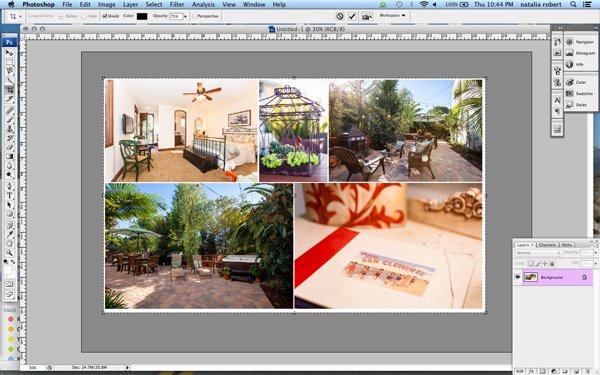
We all aim to tell a story through one single image. For many occasions, though, a well-assembled collage is an excellent way to pull the viewer in for a full experience. Consider this method for sharing photos from an event, a real estate shoot, or even a family photo session!

Collage4

Collages are easy to put together in Photoshop, so let’s walk through the steps. Note that I am working on a Mac with Photoshop CS3, so your system may have slight variations in the key commands needed.

Photo selection is crucial. You want to select a mix of scales that will span the entire event. That means you pick some wide shots that show the entire scene, and some detail photos that show lots of texture and personality. Without one or the other the story will not be complete, and won’t carry the same emotion that it could.

Step 1. Open the selected images in Photoshop

Open all selected photos in Photoshop. You’ll want to pick a minimum of three, but avoid getting cluttered with too many also. Typically, I limit my photo selection to no more than eight. Keep in mind that the more photos you select, the tougher it will be to see details of each one.

Step 2. Create a new file

Create a new file (File -> New). Be sure to make it a bit larger than the size you want in the end. I always make it 20×30″ at 150ppi.

Collage1

Step 3. Add your images one at a time

Go to one of the open photos and, using the marquee tool, select all (or press command+A). Press Command+C to copy. Click into the new document and press Command+V to paste. This will bring the photo into the new document on its own layer. Depending on the size and resolution of the photo you brought in, you may need to adjust the size. To do this, press Command+T to transform. Use the corner node and, while pressing Shift, adjust the scale of the photo until it is small enough to comfortably move around on the new document canvas.

Note: if you convert the image layer to a Smart Object first it will maintain integrity of the image quality as you size up and down.

Step 4. Create your layout

After you have added all images that you want in the collage, it’s time to lay out the photos! This is where you will shift the photos around until you feel they tell your story best. You’ll discover a style of your own after doing several collages. I generally like to either have symmetry in layouts, or make it look like an interlocking puzzle. That being said, each story has slightly different needs.

Collage2

Step 5. Add image spacing

When you have the layout figured out and the photos are all sized as they should be, you can create a thin white border between images to give a bit of visual space. This step is optional, and the amount of white space you put between photos is a personal preference.

To do this, select the image layer that you want to move then use the arrow keys to shift it in the direction you want. Using the arrow keys rather than shifting with the mouse will help keep track of distance so that the spacing in between photos is even.

Alternatively you can butt them up against one another and using a Layer Style (select Stroke > Inner) add a white or black border around each image. See screen capture below.

Screen Shot 2015 02 06 at 3 01 27 PM

Step 6. Merge all layers

Once you have your collage laid out and the photos are spaced as you want them, you are ready to merge all layers. To do this, press Command+Shift+E.

Step 7. Crop the final image

Once your collage is merged into one layer, crop any extra white space around edges so that it’s even. This outside white border is typically very narrow on my collages, so I don’t bother measuring. Be sure that it looks even all around.

Collage3

Step 8. Resize for online usage

To make sure your collage fits your social media needs, you may want to resize it once complete. I recommend saving your original flattened collage as a JPEG for possible future re-use.

To resize your collage and bring it down to social media friendly dimensions, press Opt+Command+I. Sizing varies per social media platforms, but I typically save it at 1000 pixels on the short edge and 150ppi.

Step 9. Add a watermark if desired

If you want to put a watermark on your masterpiece, now is the time. Bring in your watermark and be sure to merge all layers once more to save as a JPEG. You are now ready to share it with the world.

Collage4

Have you made any collages? Have any additional tips? Please share in the comments below.

googletag.cmd.push(function() {
tablet_slots.push( googletag.defineSlot( “/1005424/_dPSv4_tab-all-article-bottom_(300×250)”, [300, 250], “pb-ad-78623” ).addService( googletag.pubads() ) ); } );

googletag.cmd.push(function() {
mobile_slots.push( googletag.defineSlot( “/1005424/_dPSv4_mob-all-article-bottom_(300×250)”, [300, 250], “pb-ad-78158” ).addService( googletag.pubads() ) ); } );

The post How to Make a Photoshop Collage in 9 Simple Steps by Natalia Robert appeared first on Digital Photography School.


Digital Photography School

 
Comments Off on How to Make a Photoshop Collage in 9 Simple Steps

Posted in Photography


Joel Tjintjelaar’s Black and White Photography Collage

19 Nov

Follow me on plus.google.com to see my latest work. Most pictures are shot with a 10 stops ND filter to create a long exposure and I’ve used Silver Efex Pro for the post-processing. Check NIK software’s promovideo for Silver Efex Pro 2 to see me in action: www.niksoftware.com You can view all of my pictures larger on my Flickr page: www.flickr.com If you want to know how I created these images, take a look at my website: www.bwvision.com or http On the site are dozens of tutorials on black and white long exposure photography. Music by Debussy, Claire de Lune

Facebook.com PS Actions available at FashionActions.com http Behind the scenes of the photo shoot “Fallen Mists” Model: Elizabeth at Willow Model Management Hair/Makeup: Jen Kolhagen Photography: Emily Soto EmilySoto.com
Video Rating: 4 / 5

 
Comments Off on Joel Tjintjelaar’s Black and White Photography Collage

Posted in Photography Videos