RSS
 

Posts Tagged ‘Cinematic’

Wiral LITE cable system lets you capture cinematic shots almost anywhere

20 Oct

A simple cable cam system called Wiral LITE has launched on Kickstarter, where the campaign has already blown away its funding goal, raising nearly a quarter-million dollars in just a few days’ time. The system is comprised of a motorized, remotely-controlled device that rolls across a cable fixed to two poles or similar structures. A camera can be attached to the bottom of Wiral LITE, which itself rolls across the cable while the camera records cinematic motion shots.

The cable cam system is being presented as an alternative to portable motorized slider devices, offering the ability to record motion shots over much larger distances than the average portable slider.

Wiral LITE features a standard camera mount on the bottom and can handle camera/lens weights up to 3.3lbs / 1.5kg. The system includes a ball joint, a GoPro mount, cable, quick reel for retracting the cable, a tightening strap, end stop clips, batteries, and a battery charger.

The cable system offers multiple modes, including a time lapse mode that moves with a minimum speed of 0.006MPH, but the device’s top speed is 28mph / 45kmh.

The team behind the device explains that the Wiral system takes 3 minutes to setup, which involves attaching both ends of the reel to a pair of objects, tightening the cable between the two, and then mounting the Wiral LITE onto the cable. In other words, setup is a breeze:

And once you’re set up, you can capture long-range panning shots like this with ease:

Wiral LITE is being sold to backers for a pledge of $ 200. Bundles are also available for those who want to pledge a bit more, such as an ‘Ultimate Kit’ for pledges of $ 250 or an ‘Extreme Kit’ for $ 1,700.

To learn more or put a pledge in yourself, head over to the Kickstarter page.

Articles: Digital Photography Review (dpreview.com)

 
Comments Off on Wiral LITE cable system lets you capture cinematic shots almost anywhere

Posted in Uncategorized


Video: 4K cinematic footage captured with Apple’s new iPhone 8 Plus

28 Sep

Filmmaker Matteo Bertoli—who you may remember from his very popular iPhone 7 Plus cinematic video—recently got an iPhone 8 Plus to test out. And so he put on his walking shoes and spent some time shooting with the new phone all over the Los Angeles area.

The result is the 2:40 video above, all of it captured in 4K, all of it captured with the iPhone 8 Plus in either 24p, 48p or 60p, and most of it shot handheld with the exception of a few slider shots. All of the footage was captured using the Filmic Pro app (which allows Bertoli to shoot in Log, although it gave him some trouble with iOS 11), and then edited using DaVinci Resolve 14.

The results didn’t disappoint.

“I was super impressed by the colors this iPhone is able to pull out,” writes Bertoli in the video description. “Dynamic range is also very impressive and finally the second camera was improved at a point where you can actually use it for video. Bummer it doesn’t have OIS like the iPhone X.”

This video is one of the first well-rounded examples of 4K cinematic footage we’ve seen from the new phone, so if you’re curious what Apple’s latest smartphone can do with video, definitely give Bertoli’s creation a watch. Now we just have to wait for a few iPhone X models to make their way into the wild…

Articles: Digital Photography Review (dpreview.com)

 
Comments Off on Video: 4K cinematic footage captured with Apple’s new iPhone 8 Plus

Posted in Uncategorized


How to Create a Dramatic Cinematic Style Portrait Using Photoshop Color Grading

30 Jun

Cinematic style portraits are personally one of my favourites. What I like the most about them are the desaturated colours and the dramatic ambience.

Before we start the tutorial on colour grading, I will give you some of my best tips to achieve this cinematic look:

  • Use a large aperture, something between f/1.4 and f/2.0. If you have a long lens then you can also use that. The idea is to have a nice background bokeh (when things in the background are blurred). You also want to have nice separation between the model and the background.
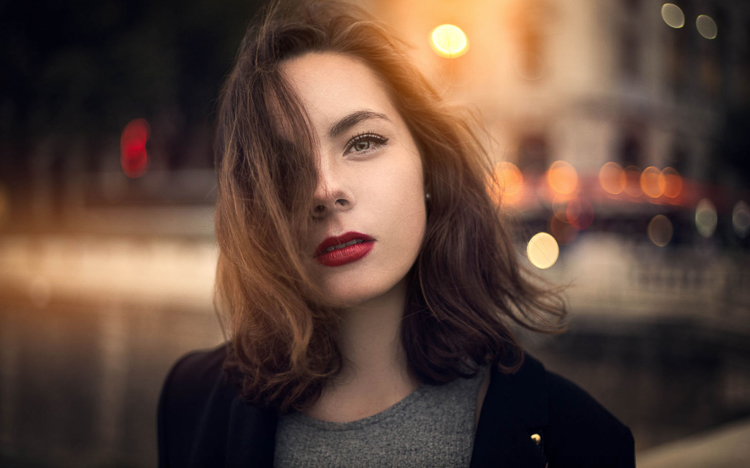
IMAGE 1

  • If you’re shooting indoors with strobes, then try to add ambience by adding shadows to the model’s face. You do not want flat lighting, it is boring.
  • If somehow you can’t get the dramatic lighting, don’t hesitate to enhance the contrast with some dodging and burning in Photoshop.
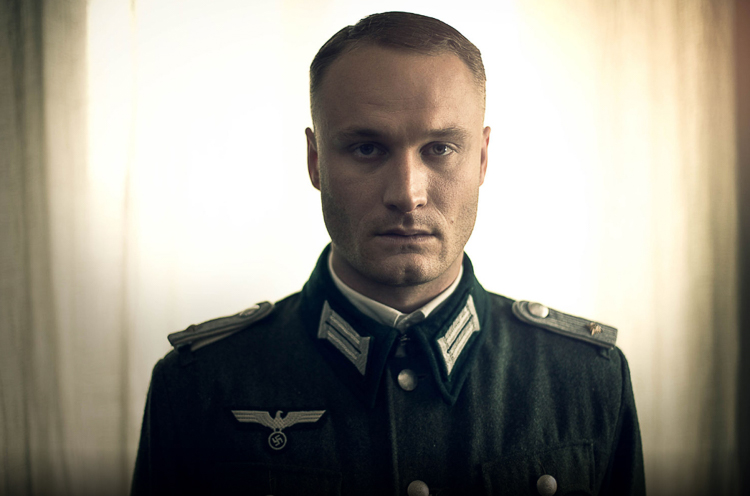
IMAGE 2

  • If you’re shooting outside, the I recommend shooting right after sunset. You will get nice soft light on the model’s face, and you will also have city lights behind them, to really get a cinematic feel. This only works with a large aperture, and it adds another point of interest.
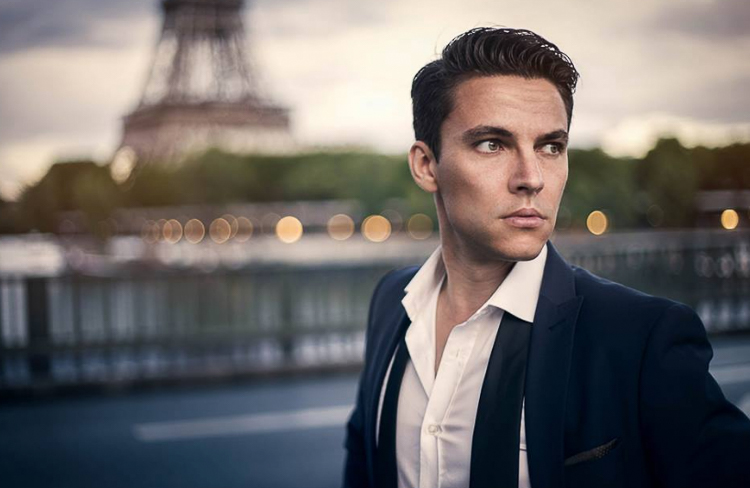
IMAGE 3

  • Your model should have a strong expression on their face, especially if it’s a male. Cute smiling images do not really work that well with this style.
  • Leave some space in the frame. You do not want your model to take up the whole frame, so leave some space around them, to add context to your image. You can get better results if the viewer is able to locate the spatiotemporal context of your image.
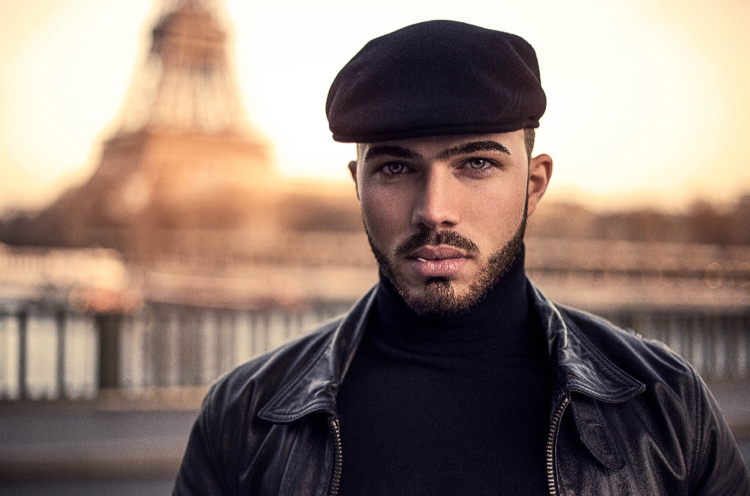
IMAGE 4

  • Your model should not wear something too flashy (something like pink or yellow), limit their clothes to sombre, subdued colours.
  • Try to use complementary colours as much as possible, it creates nice depth to your images. Usually in movies, the actor is either in blue and the background in yellow/orange, or vice versa. Try to keep your actor in a range of cold colours and your background in warm colours, it works the best. The opposite also gives you good results.
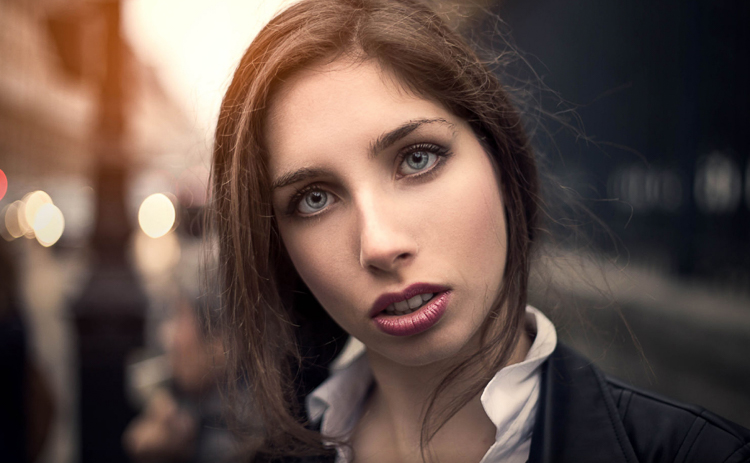
IMAGE 5

  • The most important thing is that your model should look like a character. Try to add accessories, clothes, or poses that make the character look credible. You can discuss with the model or stylist before the session, the look you want to give to your images, and have a look together at the wardrobe.
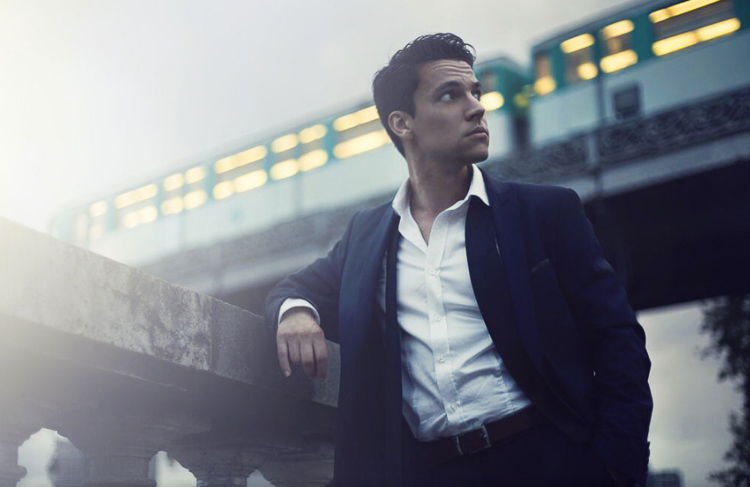
    IMAGE 6

Color Grading in Photoshop

For the colour grading tutorial I am going to work on this image:
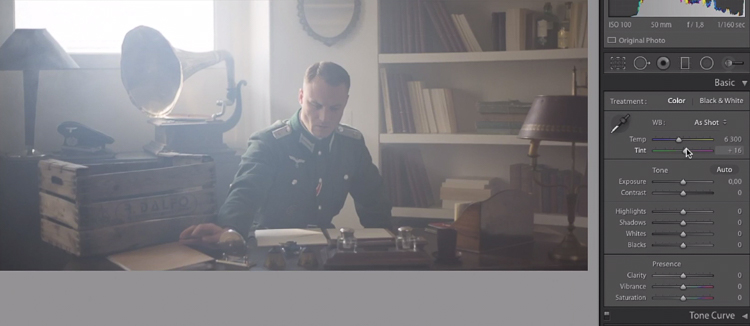
IMAGE 7

This image was taken on a Canon 6D, with an aperture of f/1.8, on a 50mm lens. This was taken during a short film where I was the photographer. There was a lighting behind the window aiming at the model, we added some fog to create this 1945 look.

What we’re going to do with this image is bring it back to life, by enhancing the contrast between the yellows in the highlights, and the greens in the shadows. We’re going to have a colour scheme based on analogous colours, going from green to yellow.

Let’s start with some basic exposure correction on Lightroom, this will depend on your image, so adjust accordingly.
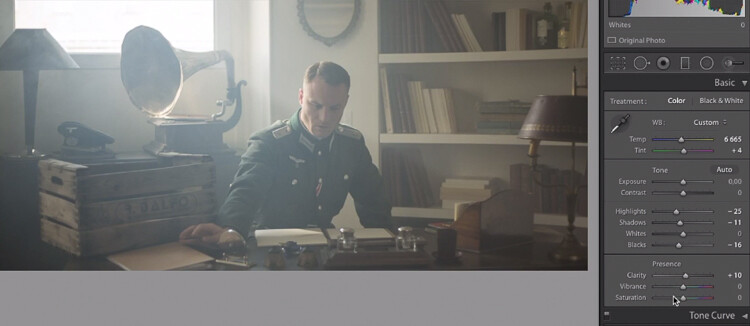
IMAGE 8

Do basic adjustments in Lightroom, or your program of choice, first.

After the basics are done let’s move the image over to Photoshop to start our colour grading. If you are using Lightroom just right click and choose Edit in Photoshop.

First, duplicate the layer in Photoshop so that you won’t do any destructive editing. You can always go back to the original layer if you don’t like the results.
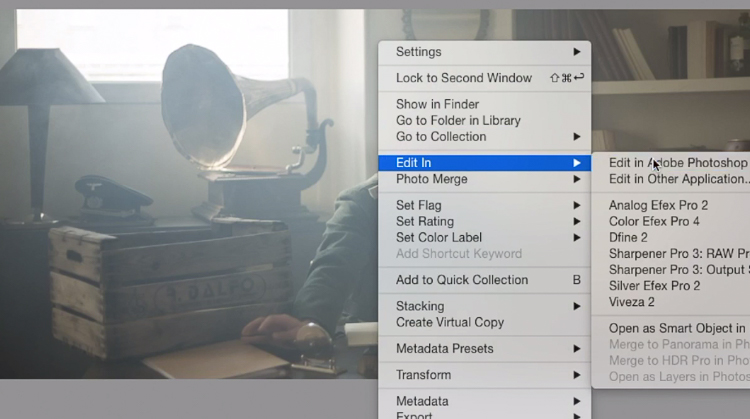
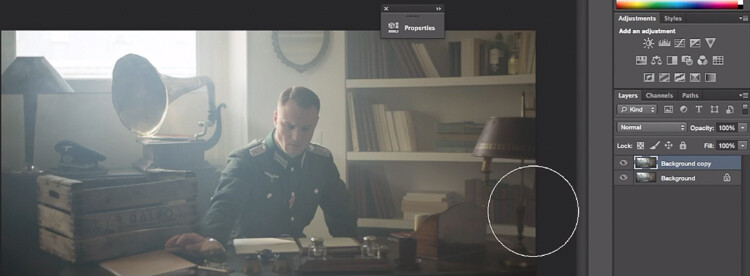
IMAGE 9

IMAGE 10

Make a duplicate layer.

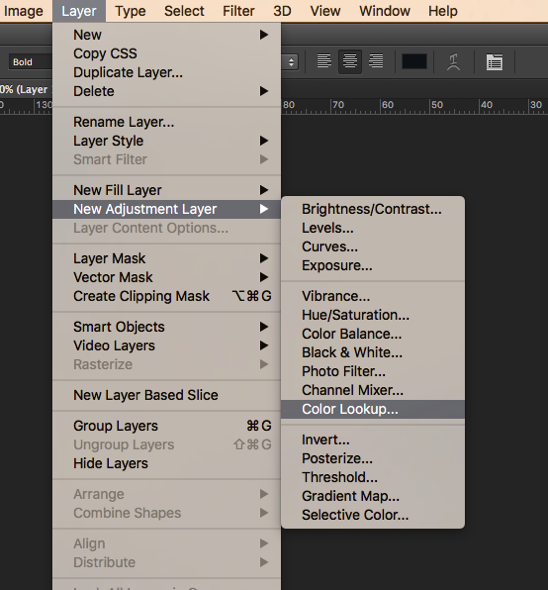
The first thing we’re going to do is to create a new layer adjustment, go to: Layer > New Adjustment Layer > Color Lookup…
Screen Shot 2016 06 23 at 2 08 13 PM

Pick filmstock_50.3dl and reduce the opacity of the layer to around 20%. You need to reduce the opacity otherwise the effect is going to be too strong.
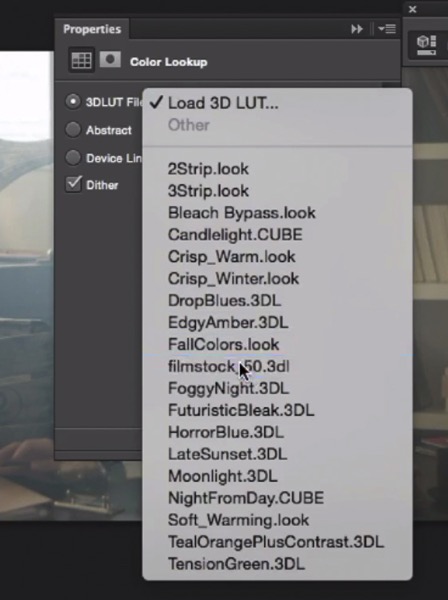
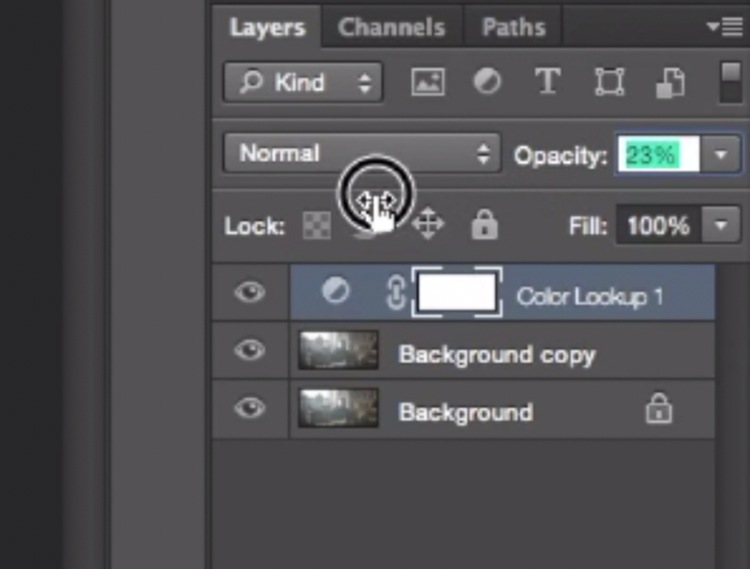
IMAGE 12

IMAGE 13

Next thing we’re going to do is create a curves layer and redo the contrast. This will really depend on your image, so adjust according to your taste.
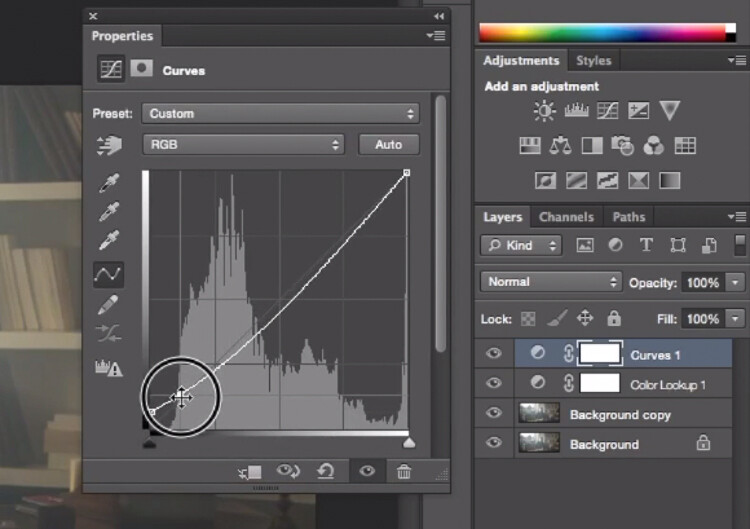
IMAGE 14

Adjustment layer Curves to add contrast.

Then create another curves layer, go to the blue curve and lower the top right extreme of the layer. This will add yellow to your shadows.
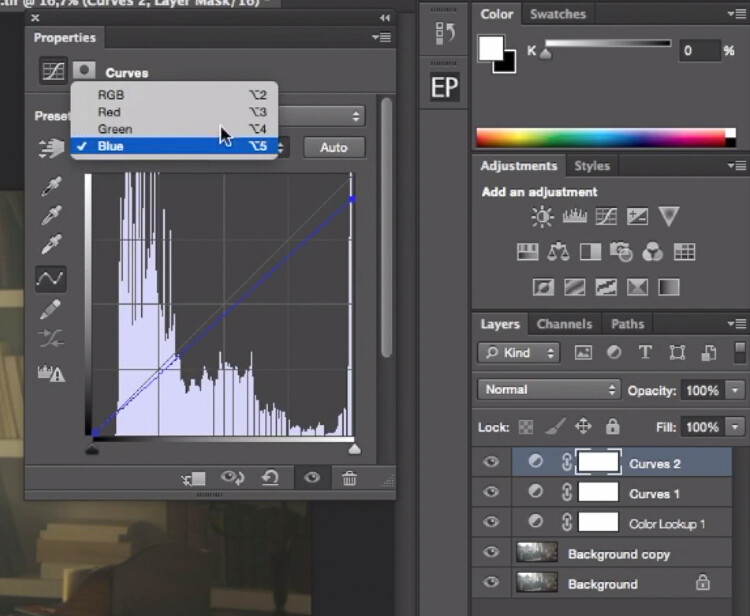
IMAGE 15

Add yellow to the shadow areas using this curve adjustment

Next step is to play around with the colour balance (make another new adjustment layer) to enhance to greens in the midtones and the yellows in the highlights. Once again just the sliders to add green and yellow to both the highlights and the midtowns.
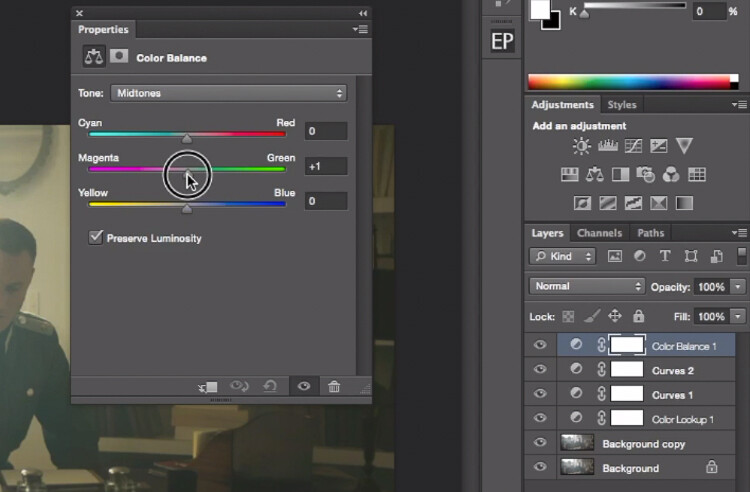
IMAGE 16

Select Midtones from the pull-down menu and add green and yellow.
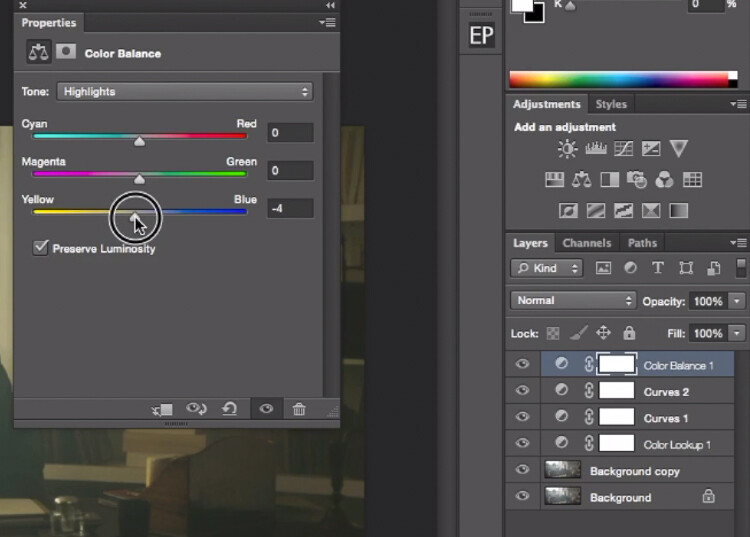
IMAGE 17

Select Highlights from the pull-down menu and add green and yellow.

Right now, we are basically done with colour grading. Lastly is to quickly dodge and burn, to enhance the light coming from the window, and to darken the image and the background. We are basically doing a manual vignette.

To lighten up the image, create a curves layer, make it brighter, and add a black layer mask (CMD/CNTRL+I to invert the layer mask). Call the layer Dodge, and paint with a white brush (because the mask is black) in the spots where you want to brighten up the image. Pick a brush with an opacity around 40% with and edge hardest of 0%

To create a dark layer, we will basically do the same thing but darken up the curves layer and paint over the spots in the image we want darker.
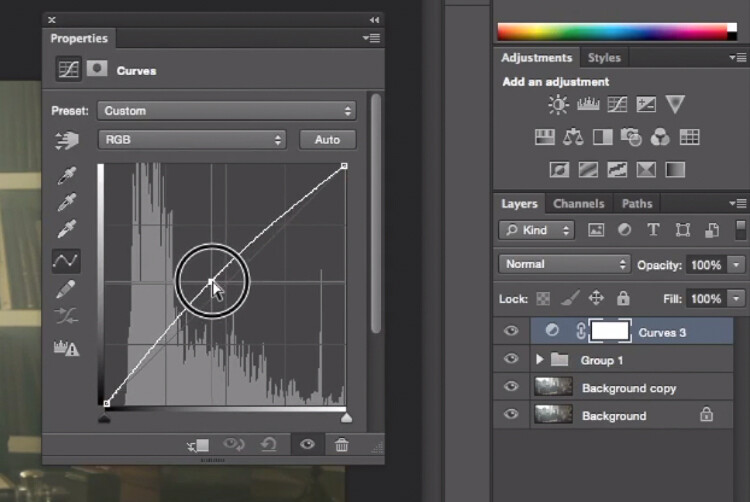
IMAGE 18

This Curves adjustment layer is for dodging or lightening areas of the image.
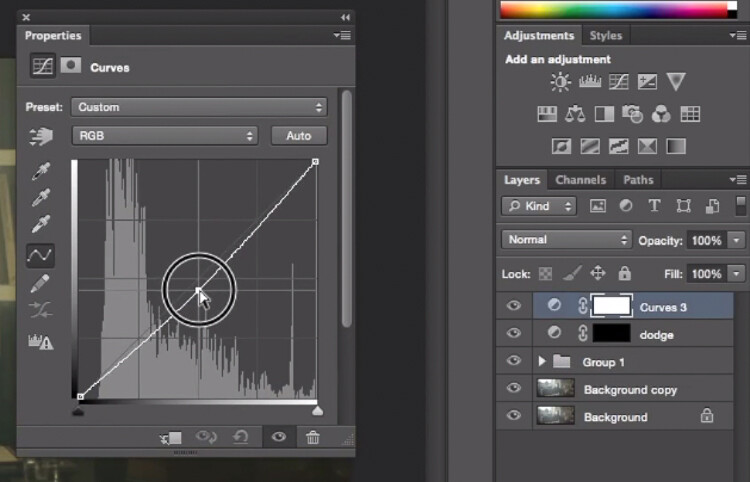
IMAGE 19

This Curves adjustment layer is for burning or darkening areas of the image.
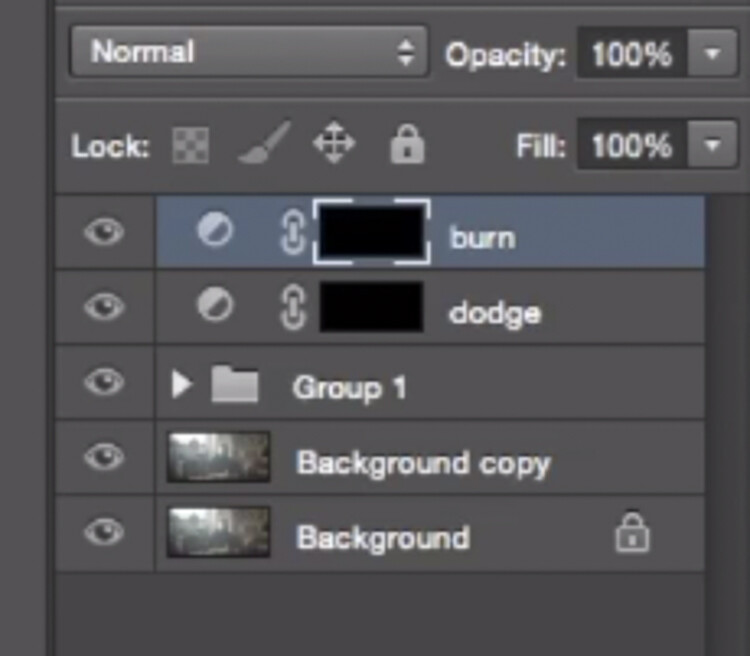
IMAGE 20

Rename your layers to identify them easier.
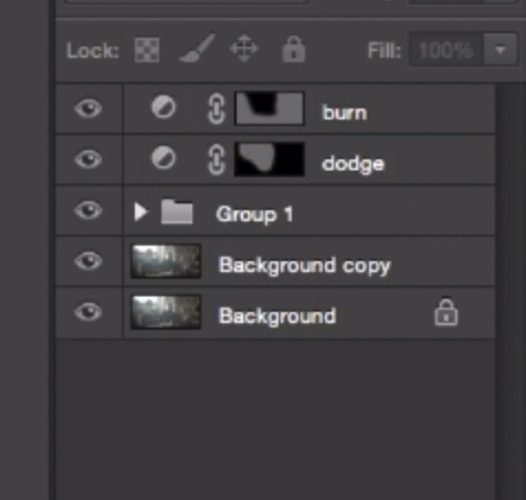
IMAGE 22

This is the final result:

IMAGE 23

Conclusion

Cinematic portraits rely heavily on great colour grading – but the lighting, model, camera settings and ambience should not be neglected. It all starts with a great image and ends with Photoshop to enhance your vision.

Enjoy the art !

googletag.cmd.push(function() {
tablet_slots.push( googletag.defineSlot( “/1005424/_dPSv4_tab-all-article-bottom_(300×250)”, [300, 250], “pb-ad-78623” ).addService( googletag.pubads() ) ); } );

googletag.cmd.push(function() {
mobile_slots.push( googletag.defineSlot( “/1005424/_dPSv4_mob-all-article-bottom_(300×250)”, [300, 250], “pb-ad-78158” ).addService( googletag.pubads() ) ); } );

The post How to Create a Dramatic Cinematic Style Portrait Using Photoshop Color Grading by Yacine Bessekhouad appeared first on Digital Photography School.


Digital Photography School

 
Comments Off on How to Create a Dramatic Cinematic Style Portrait Using Photoshop Color Grading

Posted in Photography


Cinematic Structures: Illustrating Famous Film Architecture

23 Dec

[ By WebUrbanist in Art & Drawing & Digital. ]

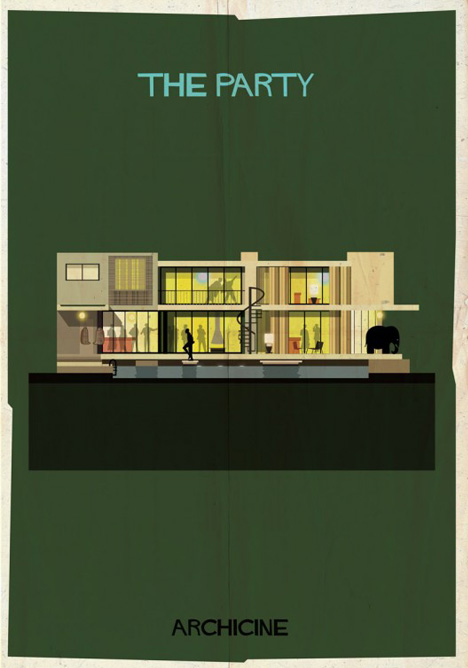
classic poster set

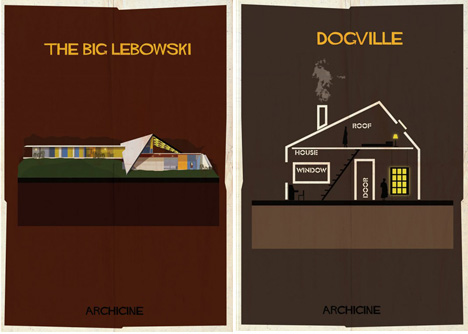
Some cinematic experiences are defined by their built environments, be it the minimalist architectural plan outlines of Dogville or the lavish Mid-Century Modern estate from the Big Lebowski.

classic the fountainhead home

classic vintage poster remake

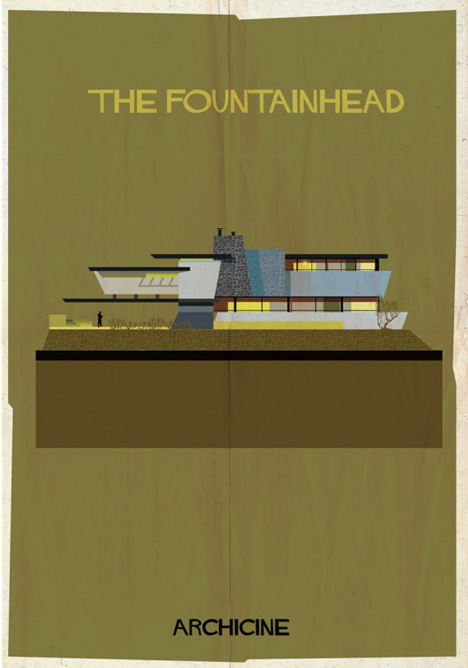
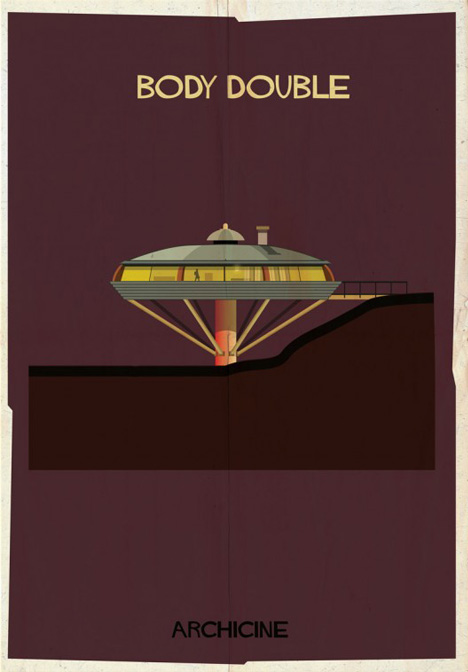
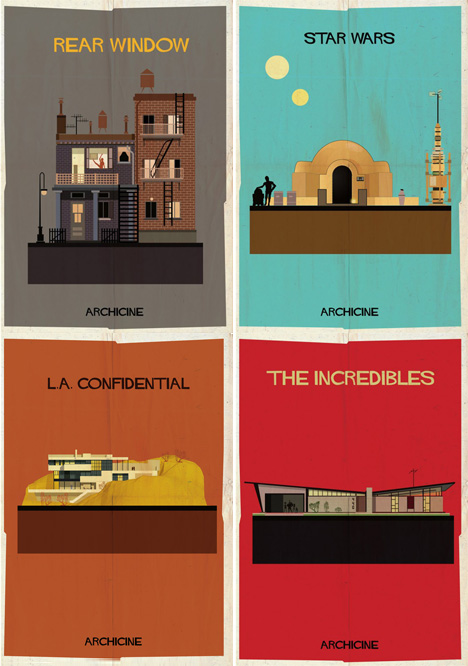
Illustrator Federico Babina has taken iconic structures from major motion pictures and rendered them in a way that both shows off the unique character of these charismatic buildings and ties them together aesthetically.

classic the party rendering

classic movie poster designs

This set of poster-worthy ARCHICINE prints features classics like Rear Window and Star Wars as well as contemporary sets including L.A. Confidential and The Incredibles.

Next Page – Click Below to Read More:
Cinematic Structures Illustrating Famous Film Architecture

Share on Facebook


[ By WebUrbanist in Art & Drawing & Digital. ]

[ WebUrbanist | Archives | Galleries | Privacy | TOS ]


WebUrbanist

 
Comments Off on Cinematic Structures: Illustrating Famous Film Architecture

Posted in Creativity


Cinematic Structures: Illustrating Famous Film Architecture

10 Dec

[ By WebUrbanist in Art & Drawing & Digital. ]

classic poster set

Some cinematic experiences are defined by their built environments, be it the minimalist architectural plan outlines of Dogville or the lavish Mid-Century Modern estate from the Big Lebowski.

classic the fountainhead home

classic vintage poster remake

Illustrator Federico Babina has taken iconic structures from major motion pictures and rendered them in a way that both shows off the unique character of these charismatic buildings and ties them together aesthetically.

classic the party rendering

classic movie poster designs

This set of poster-worthy ARCHICINE prints features classics like Rear Window and Star Wars as well as contemporary sets including L.A. Confidential and The Incredibles.

Next Page – Click Below to Read More:
Cinematic Structures Illustrating Famous Film Architecture

Share on Facebook


[ By WebUrbanist in Art & Drawing & Digital. ]

[ WebUrbanist | Archives | Galleries | Privacy | TOS ]


WebUrbanist

 
Comments Off on Cinematic Structures: Illustrating Famous Film Architecture

Posted in Creativity


Canon EOS 600D EF 50MM F/1.4USM Cinematic Look

23 Jan

Hi guys,last early morning sunday i took my 600D packed with my EF 50MM f/1.4 out for a stroll in town and stumbled upon this Vintage Volvo….decided to make some shots.Sorry for the hickups an minor shakes…im still learning how to smooth move my cam…..so damn hard 😛 here are some links to the stuff i used: EF 50MM F/1.4 USM www.amazon.com Enjoy, Jacques

Video of the ABS 11 Youth Regional Bouldering Competition at the Triangle Rock Club(TRC). Shot with the Panasonic DMC-GF1. The lenses I used are below: Panasonic 20mm Pancake F 1.7 Sigma 30mm F 1.4 Nikon Mount Canon 50mm F1.4 Canon Mount Olympus Zuiko 50mm F1.4 Nikon 50mm F1.8 Pancake Canon 35-70mm F2.8-4.0 Nikon 85mm F1.8
Video Rating: 4 / 5


Cinematic Look: Nikon D5100 (DSLR Film Look)

16 Dec

Facebook: facebook.com Our new YouTube channel: youtube.com We made a cinematic look video shot with Nikon D5100 in december 2011 in Frankfurt am Main. We used the Nikon 50mm f/1.8D AF Nikkor lens and color corrected the footage in Adobe After Effects CS5. Twitter: twitter.com More Nikon DSLR videos on our channel: www.youtube.com Official website: www.fenchel-janisch.com
Video Rating: 4 / 5


Ben Howard Old Pine – Cinematic Film

18 Nov

Watch in HD! First video I’ve made, sorry its a little shaky at times, leave a comment below and tell me what you think! Filmed with Nikon d3100 55-200mm lens. I do not own the music to this video.

*View in HD* Leighton and Josh messing around in Giddings, TX. Edited by Joshua Jack.
Video Rating: 3 / 5

 
Comments Off on Ben Howard Old Pine – Cinematic Film

Posted in Nikon Videos


T3i Canon 60D Movie (Cinematic Film Look) – Online Degree in Video Production

06 Nov

www.producemusicvideos.com Cheaper Than An Online Degree in Video Production and Media This is random footage I shot of my sleepy annoyed son Taylin, I primarily worked on making sure the exposure was correct, lighting, was subtle and various angles for variety. I used memorizing music and colorful melodies to add variety to the shots so they wont be static and boring images. The tools I used was as follows T2i Canon Rokinon 85mm 1.8 Sigma 28mm 1.8 Cinema Picture Style Color Correction Color Grading in After Effects www.producemusicvideos.com The Sigma 28 1.8 is around 0.00 and the Rokinon 85mm 1.4 is around 0.00, but I recommend the? Canon 85mm 1.8 over the Rokinon 85mm 1.4 for around 0.00 on Ebay, it’s worth it, I did a comparison and it’s very well worth the extra .00 bucks, your images will come out looking like magic! If you’re a newbie, you’ll be interested in my up coming tutorial bundle, teaching you everything you would ever need to know about DSLR video profession (It’s like a literal online degree….I will keep you posted. I teach you how to use the video production and editing software. This type of online education will cost you thousands, but I will offer this art degree course for a fraction of the cost. Hey, are you really paying attention, I MEAN EVERYTHING!!!!! STAY TUNED!!! T3i Canon DLSR Video Film Look – Online Degree in Video and Music Production http www.producemusicvideos.com This is a music video I produced with my baby boy Taylin

 
Comments Off on T3i Canon 60D Movie (Cinematic Film Look) – Online Degree in Video Production

Posted in Nikon Videos


Canon T3i/600D Cinematic look

28 Oct

www.youtube.com canon t3i film look cs5 adobe our videos will be the best 50mm 1.8 film look 600d/5kiss/t3i please subscribe
Video Rating: 4 / 5

 
Comments Off on Canon T3i/600D Cinematic look

Posted in Nikon Videos