RSS
 

Posts Tagged ‘Card’

SD card 5.0 protocol supports up to 8K video recording but risks confusion

03 Mar

The SD Association (SDA) has introduced a Video Speed Class rating, designed to identify cards capable of 8K, 4K, 3D and 360° video capture. The speed class, which guarantees minimum sustained performance, comprises five ratings: V6 (6MB/sec), V10 (10MB/sec), V30 (30MB/sec), V60 (60MB/sec) and V90 (90MB/sec).

Part of the Secure Digital 5.0 standard, the Video Speed Class ratings not only make use of the latest (and future) NAND technologies but are also closely tied to them. As such, a V30 card is only guaranteed to give sustained 30MB/sec performance when paired with a device that can make use of the relevant data transfer methods. In older devices it may give lower performance.

The SD Association’s intention is that device makers will specify the Video Speed Class requirements (and hence compatibility) of their devices so that customers know to buy a card of that rating or higher.

It all looks fairly simple until you realize that a V30 card may only operate at Class 10/U1 speeds if the device can’t make use of its transfer behavior. This explains why the SDA hasn’t just expanded the UHS speed class system, but risks adding further confusion if device makers don’t communicate their devices’ requirements much more prominently.

Another fine mess?

Unhelpfully, the latest speed classes will come in addition to the existing need to consider card type (SDHC or SDXC) and interface standard (UHS-I and UHS-II), and will run in parallel with the two current speed rating systems (Class 1-10 and U1/U3), which have confused consumers up until now. And, no doubt, card makers will complicate matters still further by quoting maximum read and write speeds, which do nothing to tell you whether a card will be fit for purpose (or any faster in real-world use).

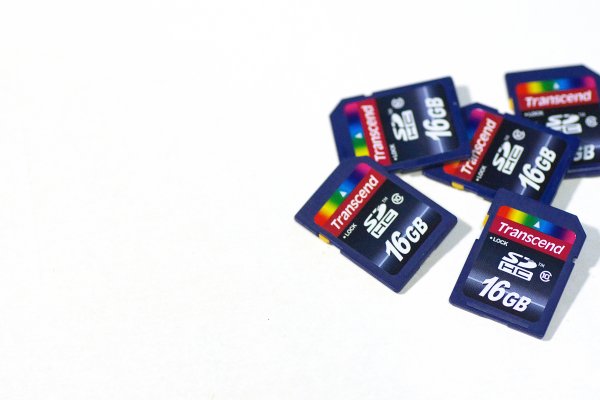
To illustrate the current complexity: shooting XAVC S video on the latest Sony cameras requires an SDXC card (which can handle larger individual files), and one that’s rated U3 to capture 4K. So, in this instance, the cards pictured at the top of this story, for all their promises of 240MB/s write speeds, would fail on both counts.

The Video Speed Class rating system doesn’t appear to simplify this system, since an SDHC card still could not record 4K on current Sony cameras, no matter what V rating is printed on it. The new system appears to do a good job of ensuring SD cards are able to make the best use of the next generations of memory technology, but will require widespread cooperation and communication to avoid even more customer confusion.

Products supporting the new Video Speed Class are anticipated to arrive on the market ‘soon.’

Via: SD Association

Articles: Digital Photography Review (dpreview.com)

 
Comments Off on SD card 5.0 protocol supports up to 8K video recording but risks confusion

Posted in Uncategorized


How to Use a Gray Card to Get More Accurate Exposures and Color

15 Jan
how-to-use-a-grey-card-1597

High contrast scenes with delicate colors can prove tricky for your camera’s meter and white balance settings.

If you’re familiar with the fundamentals of camera technique, then you know how much of an effect white balance can have on your images. Also, you probably have a basic understanding of how your camera’s meter works, or at least how to react to its output to change your settings appropriately.

Just beyond these basics, there are a few simple techniques that will allow you to fin- tune your white balance, and get more accurate meter readings from your subject. To take advantage of these techniques, you only need to add a single cheap piece of equipment to your camera bag: a gray card.

These humble accessories start at less than $ 10, yet the amount of control they give you over the final image, can be invaluable in tricky situations. For example, they allow you to obtain a good white balance reading from mixed light sources, or get an accurate exposure reading from your camera’s meter in a high contrast scene.

What is a gray card

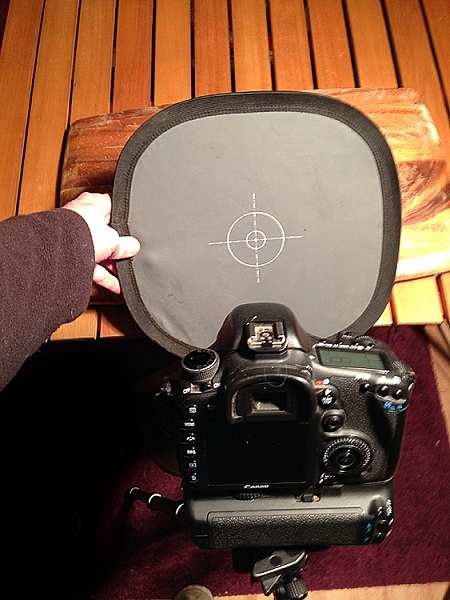
A grey card is exactly what it says it is. A card that is gray. More specifically, it is middle gray, or 18% gray. This number is important because 18% gray is what your camera’s meter is trying to calculate when it meters to expose for a scene. This means if you put a grey card in front of your subject, and take a meter reading off it, you will get a correct exposure regardless of any tonal contrast in the scene.

Additionally, when used in conjunction with a camera’s custom white balance feature, you can manually set a perfect white balance for everything you photograph. This becomes especially important when you need to faithfully recreate colors in your images, whether that may be for commercial purposes or record shots.

Metering

The more useful of these two techniques is metering. In this case, a gray card is the closest thing you’ll get to a magic bullet that will allow you to get a near perfect exposure, in almost any situation.

Spot metering

To get started, the first thing you’ll want to do is to set your camera to the spot metering mode. While this is not absolutely necessary, the fact that the camera will only be metering from a small section in the centre of the frame will help a lot, especially in circumstances where you cannot fill the entire frame with the gray card. It will also save you a lot of time if you use manual mode.

Metering

With your metering mode changed, all that you have to do now, to take advantage of this technique, is put the gray card in your scene, point the centre of the frame at it, dial in the exposure your meter gives you and then just take the gray card away. Providing that the light doesn’t change, you will now have an accurate exposure for any subsequent shots that you take in this setup.

Taking a meter reading with a grey card.

Taking a meter reading with a gray card.

Hints

There are a few things can do that will make this process easier and more accurate.

First, you should make sure that your subject remains in a similar position relative to the light source, from where you took your gray card reading. For example, if you’re taking headshots outdoors and the sun is lighting your subject from the front; that is one exposure reading. If you turn your subject to the side, or completely around, that will affect your exposure and you will need to take another reading.

The second tip is when you’re taking the exposure reading; fill the frame with the grey card as much as possible. This will help to ensure that your meter is only trying to expose for the card, and not anything around the edges.

White balance

Although the basic white balance settings in cameras can be pretty good, they do tend to struggle at times. For example, tungsten bulbs can vary greatly in color temperature, depending on their quality and power output. This may lead to the basic tungsten setting on your camera failing to give you an accurate representation of colors.

There are two ways to use a gray card to set your white balance. The first is to use it to set your camera’s custom white balance. The second method will allow you to use Lightroom to set a white balance for your images after they have been taken. You can also use Adobe Camera Raw (inside Photoshop) if you don’t have Lightroom.

Shifts in White Balance - Left: Daylight Center: Tungsten Right: Custom

Shifts in White Balance – Left: Daylight – Center: Tungsten – Right: Custom

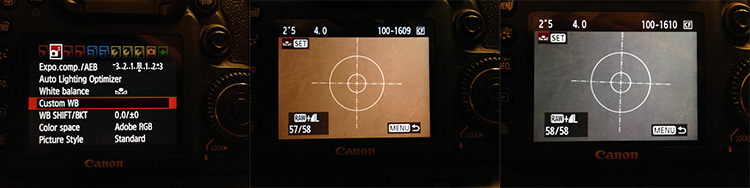
In-camera custom white balance

The technique described here is for Canon users. If you use Nikon, Sony, or any other brand, you will need to consult your manual for instructions on setting a custom white balance.

  • Step 1:  Take a photo of your grey card, ensuring that it fills the frame entirely. Try to make sure that it is flat in the frame and that it is lit evenly, and in the same way as your subject.
  • Step 2: Open the camera’s menu and find the option labeled “Custom White Balance” (or Custom WB). Press the select button and choose the photo of your gray card. Press select again and you have set your custom white balance. Set the camera’s white balance to use the new custom setting and start taking photos.

how-to-use-a-grey-card-canon

If something in your scene changes, such as the lighting, just repeat the steps above and all of your images should have an accurate white balance.

Post-production custom white balance

how-to-use-a-grey-card-1626

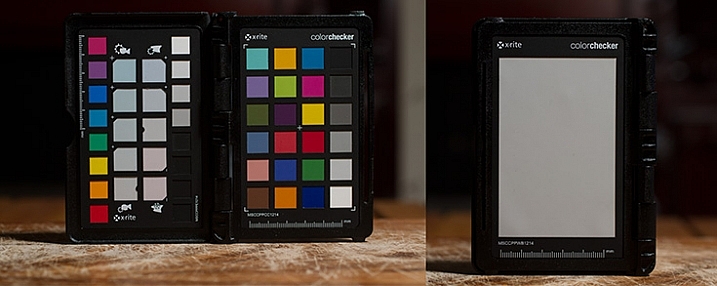
The ColorChecker Passport offers even greater control over white balance, and also has a section for setting a custom white balance in-camera.

For the post-production option, the only thing you need to do with your camera is to take a photo of your gray card in all of the scenes that you’re photographing. It may help with organization if you start off any sequence of photos with the gray card image. This way, you will always know which image to use to take a white balance setting from.

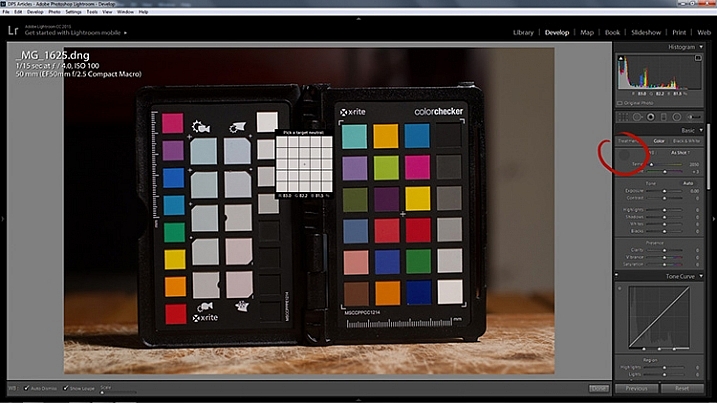
Once you’re on the computer, and have your images loaded into Lightroom, the steps are quite straightforward:

  • Step 1: Select the photo of a gray card that you want to take a white reading, from and enter the develop module.
  • Step 2: Select the eyedropper tool that’s next to the White Balance sliders in the right hand panel, and click anywhere on the image of the grey card. You should now have an accurate white balance setting.

how-to-use-a-grey-card-lightroom-1

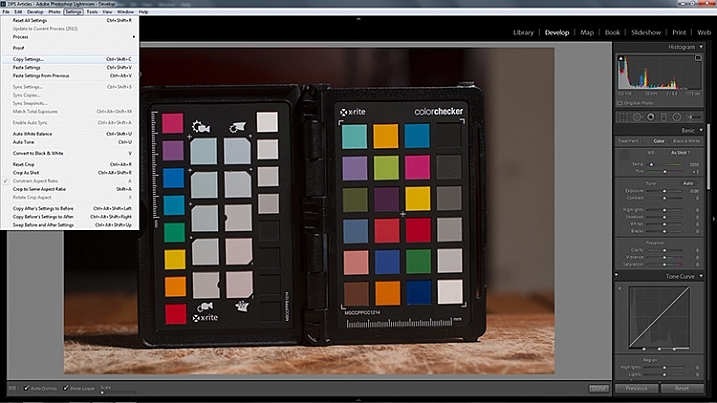
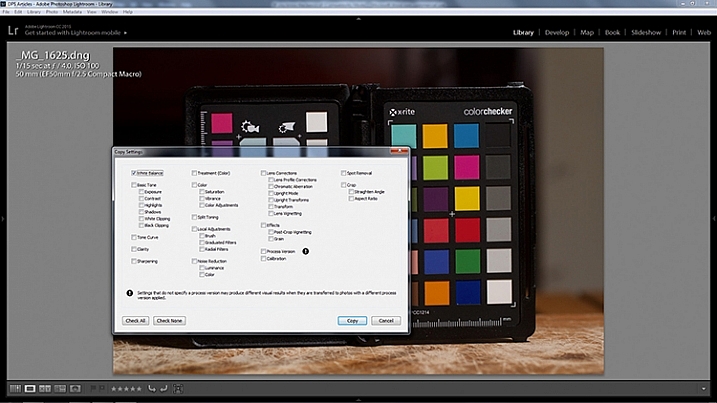
  • Step 3: In Lightroom, to copy your settings, press ctrl+shift+c (CMD+C on Mac) and check the White Balance boxes. Leave all of the other boxes unchecked.

how-to-use-a-grey-card-lightroom-2

how-to-use-a-grey-card-lightroom-4

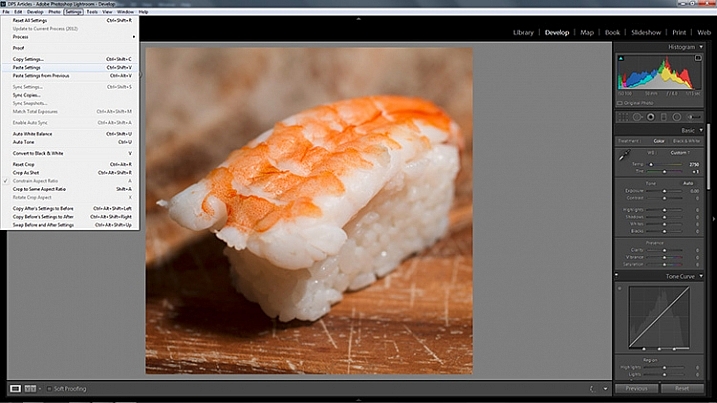
  • Step 4: In Lightroom, select all of the photos you want to correct (using the filmstrip at the bottom) the white balance on and press ctrl+shift+v (Cmd+V on Mac). Now all of photos you took should have a corrected white balance.

how-to-use-a-grey-card-lightroom-3

Summary

All of the techniques outlined here are simple, and not very time consuming, yet the amount of extra control they give you over your camera makes a gray card one of the most cost effective accessories in any camera bag.

Have you used one before? Do you have any other tips to add? Please share that or any questions you have below.

googletag.cmd.push(function() {
tablet_slots.push( googletag.defineSlot( “/1005424/_dPSv4_tab-all-article-bottom_(300×250)”, [300, 250], “pb-ad-78623” ).addService( googletag.pubads() ) ); } );

googletag.cmd.push(function() {
mobile_slots.push( googletag.defineSlot( “/1005424/_dPSv4_mob-all-article-bottom_(300×250)”, [300, 250], “pb-ad-78158” ).addService( googletag.pubads() ) ); } );

The post How to Use a Gray Card to Get More Accurate Exposures and Color by John McIntire appeared first on Digital Photography School.


Digital Photography School

 
Comments Off on How to Use a Gray Card to Get More Accurate Exposures and Color

Posted in Photography


Lexar to launch 128GB capacity Professional 2000x SDXC card

15 Oct

Lexar recently introduced a 128GB version of its Professional 2000x SDXC UHS-II memory card. Once it launches, this new version will be the fastest 128GB memory card to utilize the Ultra High Speed II, UHS Speed Class 3 standard. The card is built to support capturing 4K video and other demanding content. Read more

Articles: Digital Photography Review (dpreview.com)

 
Comments Off on Lexar to launch 128GB capacity Professional 2000x SDXC card

Posted in Uncategorized


Toshiba TransferJet 16GB SDHC card launches July 31 in Japan

02 Jul

Following some trade show demos, Toshiba is officially introducing a new 16GB SDHC card with TransferJet technology. The card, which looks to be available in Japan only first, is able to wirelessly transfer photos and videos from a camera to a TransferJet-compatible device. Read more

Articles: Digital Photography Review (dpreview.com)

 
Comments Off on Toshiba TransferJet 16GB SDHC card launches July 31 in Japan

Posted in Uncategorized


Toshiba expands its Exceria Pro SD card line to include 64GB and 128GB models

27 May

Electronics giant Toshiba has announced higher capacity models of its high-speed Exceria Pro SD cards, increasing the maximum storage available to 128GB. The 16GB and 32GB Exceria Pro cards have existed for some time in European markets. Toshiba claims they achieve read speeds of 260MB/s and write speeds of 240MB/s, and the new 64GB card is said to follow suit. The highest capacity 128GB card offers a read speed of 260MB/s but a write speed of 150MB/s. Read more

Articles: Digital Photography Review (dpreview.com)

 
Comments Off on Toshiba expands its Exceria Pro SD card line to include 64GB and 128GB models

Posted in Uncategorized


Successfully Copy Photos from Your Memory Card to your Computer

02 May

Before you can begin editing your photos you need to get them safely off your camera and onto your computer. Unfortunately this process is often hijacked by (well-meaning if misguided) software which purports to do the work for you but leaves you wondering just where your photos really are! So, to help you understand your options for getting your photos onto your computer, here’s what I recommend.

First of all: Take Charge!

The first thing to understand about getting photos from your camera card or camera onto your computer is that you’re in charge. Any application that opens and tries to grab your photos for you can be closed down. If it is not the application you want to use then do just that – close it.

Now you can take charge and manage the process in a way that makes sense for you.

Choose your application

If you’re using Photoshop then you can use Bridge to import your photos. If you are using Lightroom then you can launch Lightroom and import your photos using it. If you don’t have either program, or if you prefer to manage the process yourself, you can do so using Finder on the Mac or Windows Explorer on a PC. I’ll cover this process first, then look at Bridge and Lightroom.

Importing using Finder or Windows Explorer
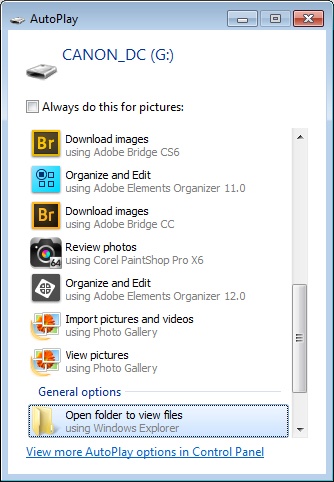
import-photos-using-Windows-1When attached to your computer, a camera or memory card works like any drive, so you can view its contents. You can also copy photos from the memory card onto your computer’s hard drive manually using Explorer or Finder.

On a PC, if the AutoPlay dialog appears when you insert your camera card or attach your camera, choose the Open Folder to View Files option.

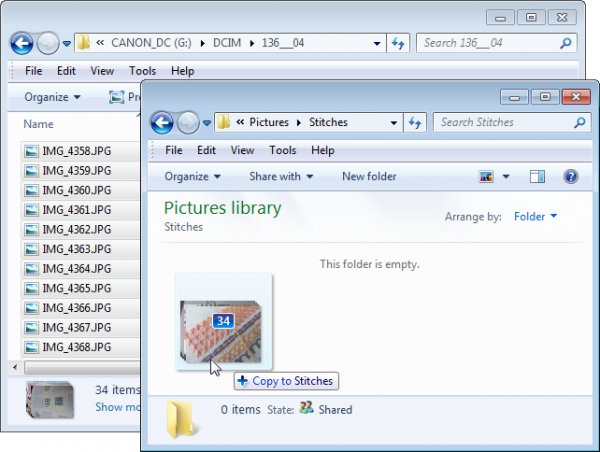
If the dialog doesn’t appear, simply launch Windows Explorer and select the drive that represents your camera or memory card.

Navigate to the folder that contains your photos – there may be multiple folders depending on how your camera stores images on the card. You can select the photos, then drag and drop them to the folder of your choice. It’s often easier if you first open the target folder in a second Windows Explorer window so you can drag from one to the other.
import-photos-using-Windows-2

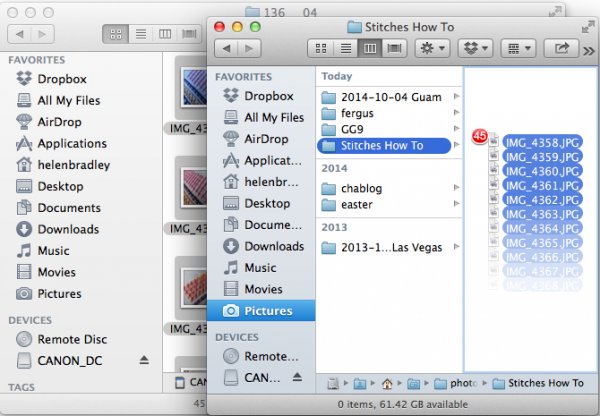
The process is similar using Finder on the Mac. If iPhoto launches – stop it from downloading any photos and close it. Then you can drag photos from your camera card open in one Finder window, to a folder of your choice open in a second window.
import-photos-using-finder-on-the-mac

Importing Photos using Bridge

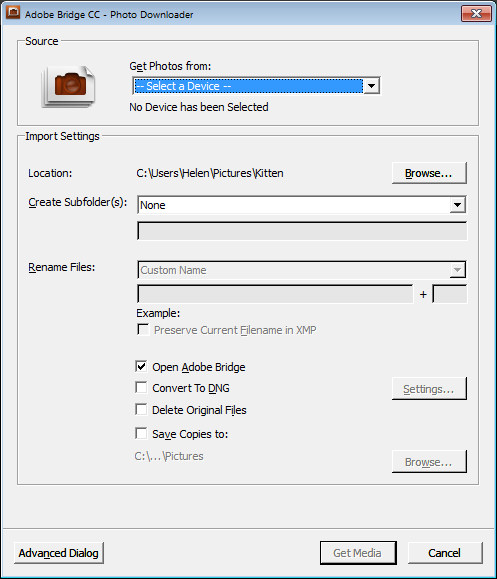
If you are using Photoshop, launch Adobe Bridge and choose File > Get Photos from Camera. Click the button to open the Advanced Dialog.
import-photos-using-bridge-1

From the “Get Photos from” drop down list select the drive letter that corresponds to your camera or card.
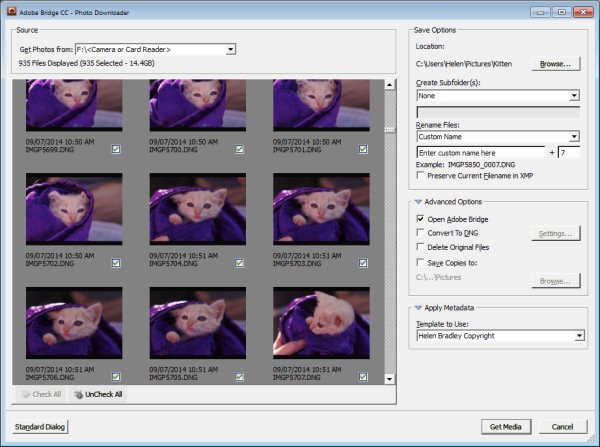
import-photos-using-bridge-2

You can now see and select the photos to import. This is one benefit of using Bridge over Windows Explorer – you will see thumbnail images of your raw files so you can see what you are importing.

On the right of the dialog select the folder in which to place the images. Typically this will be inside your My Pictures folder on your computer but you can choose any location that makes sense to you. However, if you want to find your photos later, on it is essential that you pay attention to the choices you make here.
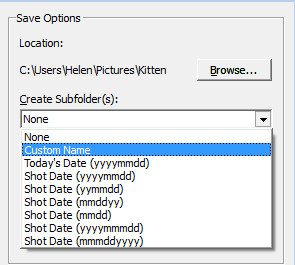
import-photos-using-bridge-3Once you have selected the folder to import the images into, you can, if desired, select a subfolder. In this way you can group photos by shoot, date or something that makes sense to you.  Bridge will create the folder for you if it doesn’t exist, so choose an option from the Create Subfolder(s) list and, if required, type a name for it or choose the date to use – either the capture date or today’s date. If you don’t want to organize photos in a subfolder then click None.
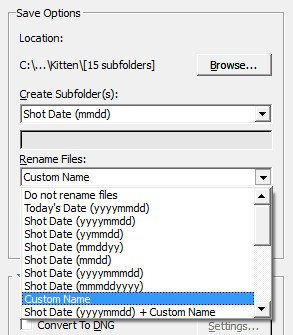
import-photos-using-bridge-4You can also select to rename files on import, or not. Choose Do not rename files if you don’t want them renamed or alternatively select a naming convention from the list.

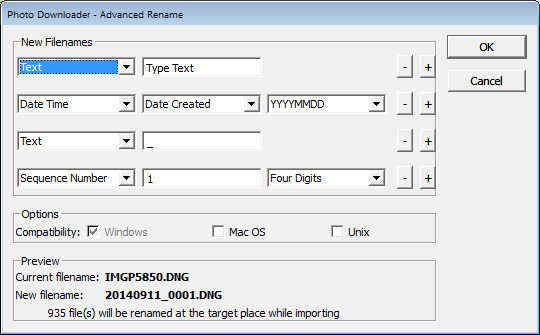
If you have advanced naming requirements for which the dialog does not provide an appropriate choice, scroll to the bottom of the list and click Advanced Rename to open the Advanced Rename dialog where you can create quite complex naming conventions. Whatever choice you make check the entry just below the dialog where Bridge shows you an example of the naming convention in place so you can check to see if it is what you want.
import-photos-using-bridge-5

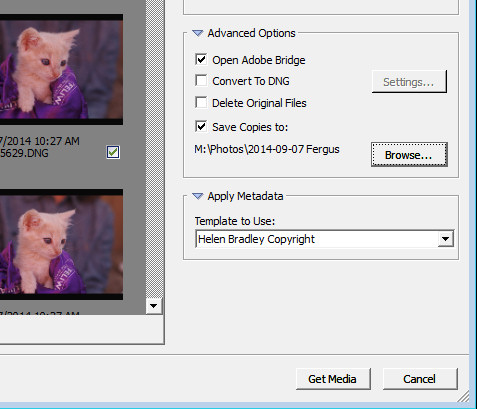
In the Advanced Options area you can choose other options including Convert to DNG – which is handy if your camera captures in a manufacturer specific format such as CRW, NEF, PEF and so on, but you prefer to work with DNG files. Select this option and Bridge will do the conversion for you.

You can also select Delete Original Files although this is not recommended. It’s best to make sure that the images are correctly copied onto your computer before the originals are deleted so I suggest you leave this option disabled.

Bridge offers a backup option so it will make a copy of your photos on import. To do this, click the “Save Copies To:” checkbox and select an alternate location (such as an external drive) in which to save a copy of your photos.
import-photos-using-bridge-6

If you have a metadata template already created you can select this from the Apply Metadata drop down list.

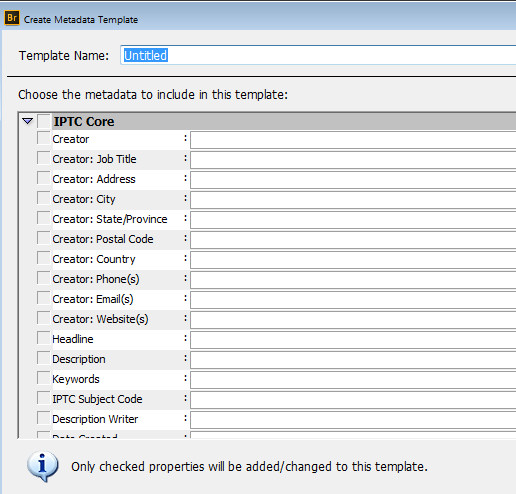
In future you can create such a metadata template in Bridge by selecting Tools > Create Metadata Template. I suggest that you complete the IPTC Core Data for Creator as well as Copyright Notice, Copyright Status and Rights Usage Terms. Also complete the Type Of Source entry in the IPTC Extension group. When completed this will give you a good all round metadata preset to apply to all your images. For more information on IPTC Copyright Metadata check out this article: Lightroom: Add your IPTC metadata on Import.
import-photos-using-bridge-7

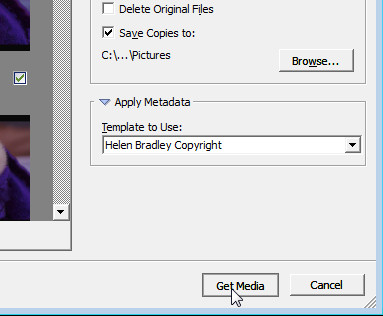
When you have your import settings selected and configured to meet your needs click Get Media to import the images.
import-photos-using-bridge-8

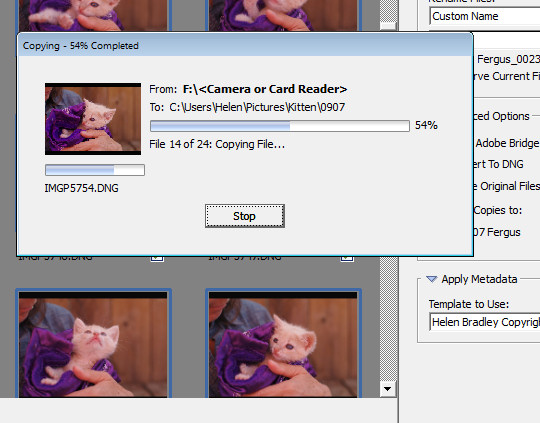
You will see a dialog showing you the progress of the import process.
import-photos-using-bridge-9

Importing Photos using Lightroom

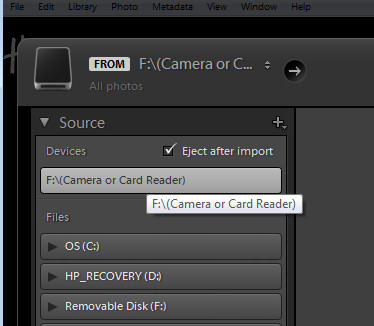
If you’re using Lightroom then it is the obvious choice for managing the process of importing photos from your camera or memory card. From the Library module click Import, then select the source in the top left corner of the Import dialog.
import-photos-using-lightroom-1

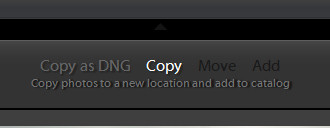
Across the top of the screen you will see only two choices, Copy as DNG and Copy. This reflects the fact that you’re importing images from a camera card or camera – the options Move and Add are not available for this process (if you do see Move and Add as available options, it appears that Lightroom isn’t recognizing your camera or camera card correctly and even though they may be available you should not use either of these choices).
import-photos-using-lightroom-2

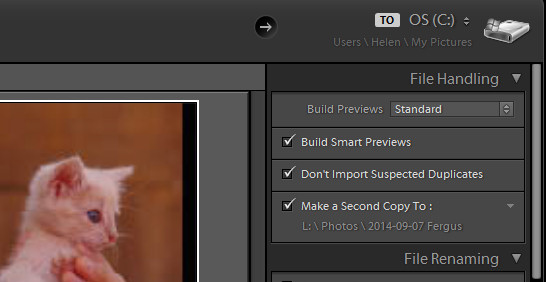
Next, open the File Handling panel on the right of the screen and select the kind of preview to create – Standard is a good choice. You can choose Build Smart Previews or not (if you’re unsure, check Build Smart Previews).

Checking Don’t Import Suspected Duplicates will ensure that Lightroom doesn’t import images again, that you’ve already previously imported. This is one feature available in Lightroom which is not also available in Bridge.

In Lightroom you can also choose to make a backup by making a second copy of your photos to an alternate location as you import them.
import-photos-using-lightroom-3

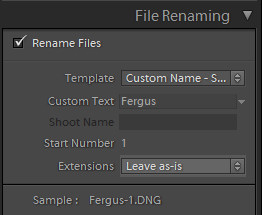
File Renaming panel allows you to rename images on import – you can select from a range of naming templates and even create your own. Here I’ve chosen to use the Custom Name – Sequence template so I’ve typed the Custom name and the sequence is set to start at 1:
import-photos-using-lightroom-4

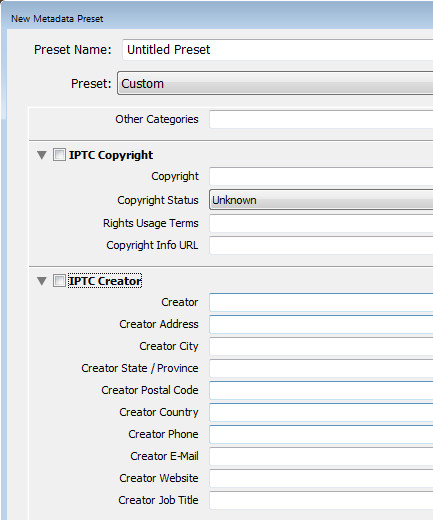
The Apply During Import panel has an option for applying metadata to the image upon import. Unlike Bridge the drop down list for Metadata presets also includes an option New which you can use to create your own metadata preset. I suggest you complete the IPTC Copyright and IPTC Creator details, and in the IPTC Extension Administrative select Original digital capture from a real live scene from the Digital Source Type drop down list. Type a name for the preset and from the Present drop down list click Save current settings as new preset.
import-photos-using-lightroom-5

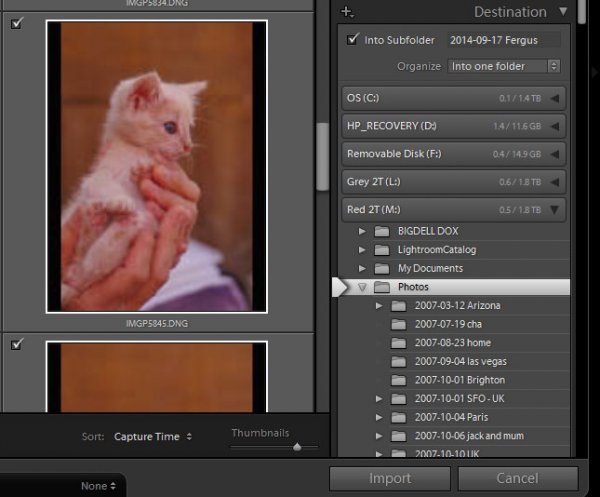
In the Destination panel you’ll need to select the location into which the images are to be copied. If you’re copying them to your hard drive then typically you’ll select your C drive, then your My Pictures folder which should be in your Users area.

If you save your images to an external drive then select the external drive and the folder into which the images should be imported.

If the folder does not exist you can create a subfolder on import by selecting the Into Subfolder checkbox and type a name for the folder that Lightroom should create to import the images into.
import-photos-using-lightroom-6

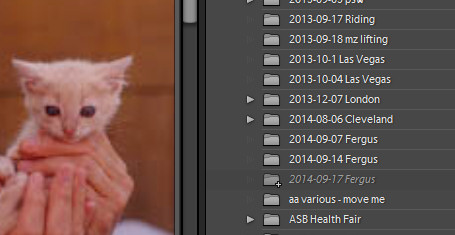
From the Organize drop down list you can select to put the images into this folder (Into one Folder) or to organize them by date. Whichever choice you make you can see a preview of what’s going to happen in the folder list, allowing you to check and make sure that everything is going to be imported and arranged to your requirements before you go ahead and complete the import process.
import-photos-using-lightroom-7

When you’re ready to import the images click Import.

Whatever process you choose to use for getting images off your camera card onto your computer the acid test for whether it is a good system or not will be if you can find your images later on. Also be aware that it’s advisable to make a backup copy of your images in case your computer is stolen, damaged or your hard disk crashes. For this reason a backup on a removable external drive is a sensible choice.

Having an import routine that you understand, and can reliably execute, is a necessary first step for any photographer. The worst possible scenario is to have copied your images from your camera card to your computer and erased them from your card, only to discover that you cannot find the images. It’s a scenario that way too many users have encountered – don’t let it happen to you!

Find a video version of this blog post here:

Do you have any other copy and import tips? Please share in the comments below.

googletag.cmd.push(function() {
tablet_slots.push( googletag.defineSlot( “/1005424/_dPSv4_tab-all-article-bottom_(300×250)”, [300, 250], “pb-ad-78623” ).addService( googletag.pubads() ) ); } );

googletag.cmd.push(function() {
mobile_slots.push( googletag.defineSlot( “/1005424/_dPSv4_mob-all-article-bottom_(300×250)”, [300, 250], “pb-ad-78158” ).addService( googletag.pubads() ) ); } );

The post Successfully Copy Photos from Your Memory Card to your Computer by Helen Bradley appeared first on Digital Photography School.


Digital Photography School

 
Comments Off on Successfully Copy Photos from Your Memory Card to your Computer

Posted in Photography


How to Select the Right Camera Memory Card

17 Apr

In today’s market if you want to buy a camera memory card, you may find it challenging to select the right one. A card comes with the following criteria; type, speed, price, capacity. If you want to buy a high capacity card with low price it might come with a low transfer speed. If you wish to buy a high transfer speed with high capacity card it may come with a really high price. If you want to strike a balance between both, you really have to compromise on quality.

Paul Hudson

By Paul Hudson

What is a memory card?

A small removable memory medium which can be used to store data on one medium and to transfer the data to another medium.

Let’s see each criteria which will help you decide on a memory card in detail.

Capacity

This one is fairly straightforward, and not a big deal. A 32GB memory card can hold up to about 1000 RAW photographs. Assuming that one RAW file size is 30MB, in general a Canon 5D MKIII will produce a RAW file between 25-35MB in size. Likewise a 16GB card can hold up to about 500 photographs, and so on. If you shoot in jpeg format, then a 32GB card can hold around 3200 photographs, assuming you have your jpeg settings as fine in detail, and large in file size. With that setting a jpeg file will come in at an average size of 10MB on a Canon 5D MK III camera.

Types

There are many types of memory cards available on the market ranging from Micro SD card, SD card, CF card, M2 (from sony). But there are only three type of cards being used primarily in the photography world, Secure Digital (SD) card, Eye-fi card, Compact Flash (CF) card.

Micro SD card

Micro SD card is a miniature version of the SD card and meant to be used in mobile phones. This card has capacity, as well as transfer speed restrictions. That is why it is used primarily in Smartphones where one can store music and apps, or any other relatively less active data.

Daniel Sancho

By Daniel Sancho

Secure Digital card (SD card)

This type of the card is widely being used in digital cameras, primarily in point and shoot cameras and secondarily being used in professional cameras. The constraint in using this card is the capacity of the card. The initial high capacity is only 2GB when introduced in 1999. But as the time and technology progressed a later version as SDHC is introduced with a higher capacity of 64GB in 2006 (HC means Higher capacity). The recent third iteration of SD card been announced in 2009 as SDXC cards (XC stands for extended capacity). This type of card offers up to 2TB and increased transfer speed.

Eye-fi card

These are unique SD cards that come with built-in WiFi. This allows you to transfer the data to your computer or a cloud based service or even to your Smartphone directly, thus enabling you to clear off the memory as you shoot, without having a need to replace the memory card. It is even possible to geotag your photographs with the available wireless service, but with less accuracy though.

Bfishadow

By bfishadow

There seems to be a promising future for this card!

Compact Flash card (CF card)

First introduced in 1994, CD cards have high speed, and high capacity. This is the reason why CF cards occupy the primary card slot in professional cameras. Present SD cards are equalling the speed and capacity of CF cards, but camera manufacturers are not leaving CF cards just yet. They often provide slots for both an SD and CF card, but some photographers wish they would offer two SD card slots instead. This provides some extra space inside the camera and saves money for the photographer (CF cards costs roughly twice that of SD cards). Hopefully they will switch the importance to SD cards in the near future.

As the name suggests this is a flash memory which aids high speed reading/writing speed, and has a higher capacity too.

Speed

Speed in SD cards

All memory cards come with speed, either mentioned or not. Speed here means both writing and reading. The one indicated on the card is the maximum speed the card can read, but the most important thing is the write speed. Read speed is the time taken to read the data from the card and the write speed is the time taken to write the data. Simply put read speed comes into action when you transfer the data from the card, write speed comes into play when you shoot. In general the write speed is about half of the speed of read speed in SDHC cards. In few other cards both the read and write speeds are about the same.

Simon Yeo

By Simon Yeo

The speed of cards have been classified into classes by the SD Association, which are referred to below. The speeds are primarily meant for video recording, where sustained recording (write) is required and it is supposed to be the minimum worst case scenario speed.

You really need to give weight to this one single-most important factor, when you buy a memory card. All SD cards have a class noted on them. Check the attached diagram below:

Class Minimum Speed
2 2MB/s
4 4MB/s
6 6MB/s
8 8MB/s
10 10MB/s

Later, in 2009 another class, UHS, was introduced by the SD association and is designed for SDHC and SDXC memory cards. UHS utilizes a new data bus that will not work in non-UHS host devices. If you use a UHS memory card in a non-UHS host, it will default to the standard data bus and use the “Speed Class” rating instead of the “UHS Speed Class” rating. UHS memory cards have a full higher potential of recording real-time broadcasts, capturing large size HD videos and extremely high quality professional HD.

Courtesy – SanDisk website.

UHS Class Minimum Speed
1 10MB/s
3 30MB/s

Speed in CF cards

Laurie Cooper-Murray

By Laurie Cooper-Murray

When it comes to CF cards the speed is often mentioned as X times and in many cards it’s been mentioned as MB per second, which is pretty straight forward. Whereas when the speed is mentioned as 600X or 1066X what exactly does it means? X means 150Kb per second. It is a standard brought over from optical media recording. Now to find out what exactly the speed is of 600X – to find this multiply 600 by 150 and divide the result by 1000. The final result is in MB per second. Eg., a 600X speed card is capable of 90MB per second read speed (600?150/1000).

The latest CF cards come with the UDMA 7 which improves in clearing the camera’s buffer memory quickly, which allows the camera to get ready for the next burst. Firmware upgrade is required for the Canon 5D MKIII (yours may require it also, check with the manufacturer) camera to make full use of UDMA 7.

Price

Phil Romans

By Phil Romans

When it comes to price, the fastest card is the primary criteria which decides the price. The next deciding factor is capacity of the card. An SD card is 50% of the price in the same capacity CF card. So, if you want to buy a high speed card with same capacity you will need to pay more. On the other side if you want to buy a high capacity card at a lower price, it is possible to do so but you’ll get a lower speed card.

Notes

  • If you use two cards at different speeds, the lowest speed is the deciding criteria for the burst. For instance if you use a CF card at 90 MB/sec in one slot and an SD card having the capacity of 45MB/sec (and you set RAW files for both cards) then you won’t get the advantage of 90MB/sec and the possibility of missing the shot. You have to use both cards at the same speed.
  • If you do not upgrade to the latest firmware for the 5D MKIII camera, the host memory will perform for UDMA 6 which significantly consumes more time in clearing the buffer memory.
  • I wish the camera manufacturers would switch to SD cards completely for both slots. The speeds of the SD card already matches with the CF cards, there is no point paying twice the price, and we’d get the added bonus of saving space inside the camera.
  • In few cases the SD card speed is higher than CF cards. For instance SanDisk Extreme Pro speed is 280 MB/sec but from the same manufacturer the CF card’s maximum speed is 160 MB/sec.

Hope you have gotten a bit of information from this article. Do share your thoughts in the comments.

googletag.cmd.push(function() {
tablet_slots.push( googletag.defineSlot( “/1005424/_dPSv4_tab-all-article-bottom_(300×250)”, [300, 250], “pb-ad-78623” ).addService( googletag.pubads() ) ); } );

googletag.cmd.push(function() {
mobile_slots.push( googletag.defineSlot( “/1005424/_dPSv4_mob-all-article-bottom_(300×250)”, [300, 250], “pb-ad-78158” ).addService( googletag.pubads() ) ); } );

The post How to Select the Right Camera Memory Card by Navan Viswa appeared first on Digital Photography School.


Digital Photography School

 
Comments Off on How to Select the Right Camera Memory Card

Posted in Photography


Eyefi launches Mobi Pro card with wireless Raw transfer

12 Mar

Eyefi, the maker of Wi-Fi memory cards, has today launched Eyefi Mobi Pro, a new 32GB WiFi SD card. It improves the existing Eyefi Mobi model by adding wireless transfer of Raw image files, along with new photo categorization and search functions. Read more

Articles: Digital Photography Review (dpreview.com)

 
Comments Off on Eyefi launches Mobi Pro card with wireless Raw transfer

Posted in Uncategorized


The Best Way to Delete Photos From Your Memory Card

01 Mar

When it comes to photography, we spend most of our time thinking about taking photos – lighting, composition, exposure, and posing. Then, once the photo is taken, we may start to think about post-processing, gently nudging the photo along until it becomes exactly what we’ve pictured in our mind’s eye. Once that’s accomplished, we do it all over again.

MeredithClark6.jpg

Back in high school and college, I shot film. I can vividly remember running out of film, and sometimes having to wait weeks until I was able to buy more. Our public high school relied heavily on donations of film, and sometimes when there wasn’t any left, our teacher would have us walk around campus with our pointer fingers and thumbs shaped into a rectangle, pretending to take photographs. Now that digital cameras are on the scene and we’re using memory cards in lieu of film, with the capability to erase images and write over them again, the number of photographs that we can take in any given week or month is nearly endless.

You may have noticed that I said, “nearly” endless, and that’s because memory cards do have a lifespan, and will not last indefinitely. That said, there are a few things that we can do to maximize the lifespan of our memory cards, including making sure that we are deleting our photos off the memory card in the most efficient manner possible. This isn’t something that’s talked about all that often, but when it comes down to it, it is really simple:

Less Desirable Ways to Delete

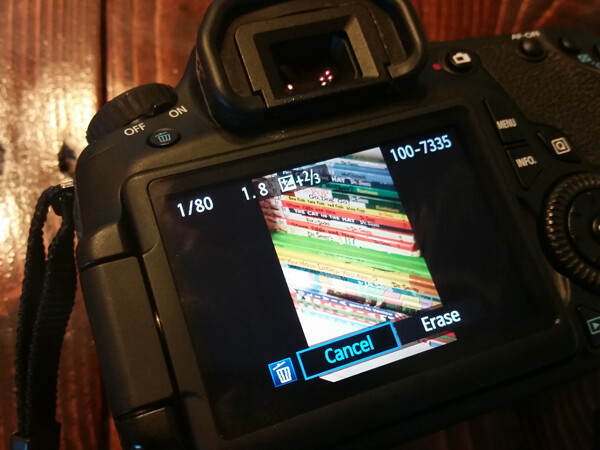
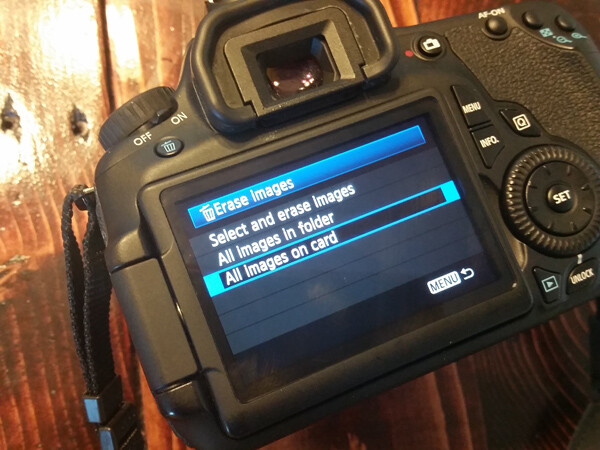
Deleting each photo individually through the camera by using the “Delete” or Trashcan Button

Del3

Deleting all photos through the camera by using the “Delete All” option

Del2

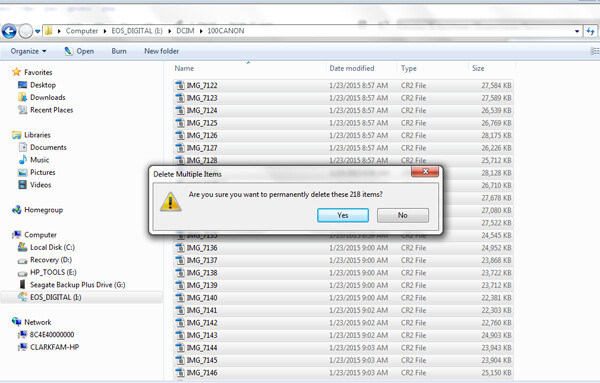
Plugging the camera into the computer, and dragging photos into the computer’s recycle bin and/or allowing your import software to delete the files from the card once they’re uploaded.

Del1

Most Desirable Way to Delete

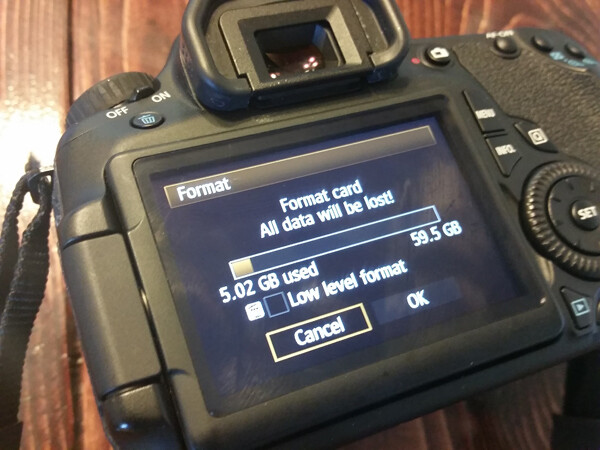
Using your camera’s Format function

Del4

In the end, all of the  above methods work toward the same end, in that they remove the images from your card. However, the first three ways to delete are actually more taxing to the memory card than using the card’s Format function. I’ve heard it explained like this:

Let’s pretend for a moment that your memory card has a shelf-life of 1,000 uses. Let’s say that you go out and take 500 photos, that’s 500 uses on your memory card. You then upload the photos to your computer, and then individually delete each photo using the delete button on your camera. Deleting each photo individually counts as another 500 uses on your card. So in all, you’ve just spent 1,000 uses of your memory card, leaving you with no uses left on that card.

Now, let’s pretend that you’ve uploaded your 500 photos, but instead of deleting them with your delete button, you use your camera’s Format function. Formatting works in a different way than deleting, and only deletes the directory files rather than the images themselves. This then allows the images to be overwritten the next time you take a picture. Because of this, formatting only counts as ONE use of your memory card, regardless of how many photos you’re deleting. So, in the scenario above, you’d have used only 501 of your memory card’s uses, as opposed to 1,000 with deleting manually. Certainly,  memory cards available today will be able to handle far more than 1,000 uses, but the illustration still rings true – formatting your card causes less wear and tear on your memory card than other ways of deleting images.

Additionally, because formatting only deletes the directory file instead of the images themselves, images on a card that has been formatted are typically much easier to recover (if needed) than those that are deleted manually, assuming that you did not overwrite them by taking more photos. Not a bad trick to have up your sleeve in case of emergencies, am I right?

I’d also like to add that I have personally seen a difference in both buffering time of the card, and also a decrease in the amount of corrupted images/cards that I’ve come across since I’ve been formatting cards rather than deleting in some other way. I’m not sure whether there’s an actual scientific basis there, but it definitely seems related in my book, and it is now pretty rare that I delete even a single image in any way other than formatting.

So, how often should you format? Some people like to wait until their card is totally full, and then format. Personally, I like to format my card before each new photo session. It just makes sense to me to start fresh each time, and be able to upload everything on the card to one location. This is really a matter of personal preference as far as I’m concerned. The one hard and fast suggestion that I do have when it comes to formatting cards is simply to be sure to format the card in whichever camera body you plan to use it in next.

How do you typically delete images, and why?

googletag.cmd.push(function() {
tablet_slots.push( googletag.defineSlot( “/1005424/_dPSv4_tab-all-article-bottom_(300×250)”, [300, 250], “pb-ad-78623” ).addService( googletag.pubads() ) ); } );

googletag.cmd.push(function() {
mobile_slots.push( googletag.defineSlot( “/1005424/_dPSv4_mob-all-article-bottom_(300×250)”, [300, 250], “pb-ad-78158” ).addService( googletag.pubads() ) ); } );

The post The Best Way to Delete Photos From Your Memory Card by Meredith Clark appeared first on Digital Photography School.


Digital Photography School

 
Comments Off on The Best Way to Delete Photos From Your Memory Card

Posted in Photography


How to Recover Lost Files from a Memory Card

17 Feb

Whether you’re a novice or veteran photographer, chances are you’ve experienced a moment of dread when you thought all of your precious photos were lost forever. Maybe you damaged a SD or CF card, or accidentally formatted a card before offloading your images. As long as your memory card can still be plugged in to, and recognized by your computer, there’s a good chance you’ll be able to salvage your photos, even if you did an accidental deletion. Sometimes you can achieve this all by yourself, and recover your lost files.

There are many programs and apps that can help you recover data from a memory card, but the one I’m going to introduce you to is SanDisk RescuePRO. Created by the same folks who produce trusty SanDisk memory cards, RescuePRO has in my experienced maintained the same reliability and quality that one can expect from SanDisk products. Their recovery program is straightforward, easy to use, and does a great job at recovering lost photos. So before you make an appointment with an IT professional, give this memory card recovery method a try.

SanDisk Recovery PRO memory card recovery

About SanDisk RescuePRO

RescuePRO is a downloadable, data recovery program available for Mac or Windows. Using proprietary media recovery algorithms, RescuePro will scan your memory card and display previews of any recoverable data such as photos (JPG and most RAW formats), video, and audio. The software will work with most brands of digital cameras and memory card types including; SD, SDHC, CompactFlash, Memory Stick, CDs, and DVDs.

There are two versions of RescuePRO, regular and deluxe, with the main difference other than price being in the extra formats of photos and video/audio that deluxe promises to recover. RescuePRO has a fee of $ 39.99 for the regular version and $ 59.99 for deluxe, but they do offer a free evaluation so you can verify if the program will work with your memory card before you purchase. Payment buys you a one year subscription, which must be renewed annually to continue using the service. But on the bright side, this is a small price to pay if you stand to recover important photos or videos.

How RescuePRO Works

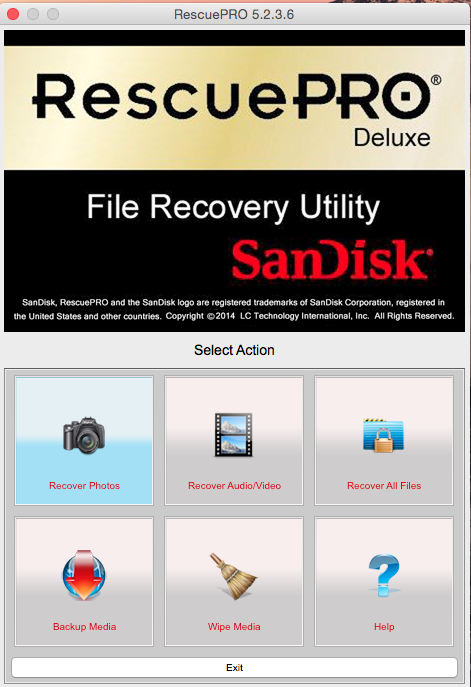
1. After you buy a subscription, download the RescuePRO program to your desktop computer. Insert your memory card into your computer and launch RescuePRO. The below menu will pop up on your screen, and you’ll want to select the option that’s relevant to your needs: either Recover Photos, Recover Video/Audio, or Recover All Files.

SanDisk Recovery PRO memory card recovery

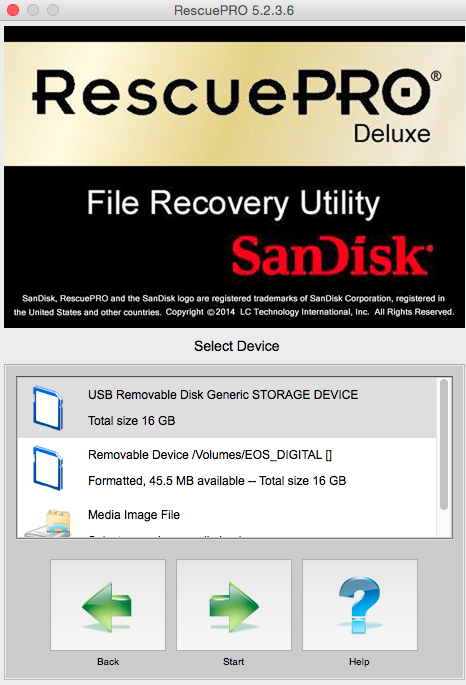
2. After you select your desired outcome, the below screen will prompt you to select the memory card in question. Be sure you have your memory card connected to the computer. Select your card and hit the green Start button.

SanDisk Recovery PRO memory card recovery

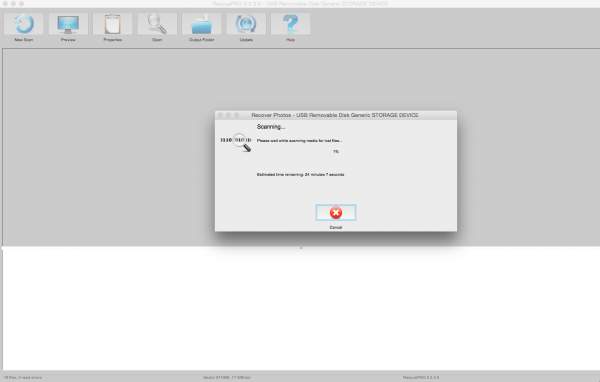
3. Now it’s time to sit tight and let the program do its thing. Feel free to pull up an Internet browser or Photoshop and multitask as you wait. Data recovery from your memory card can take a bit of time depending on how many files there are to be retrieved. In this particular instance, I had 927 files to recover from my CF card and it took about 30 minutes.

SanDisk Recovery PRO memory card recovery

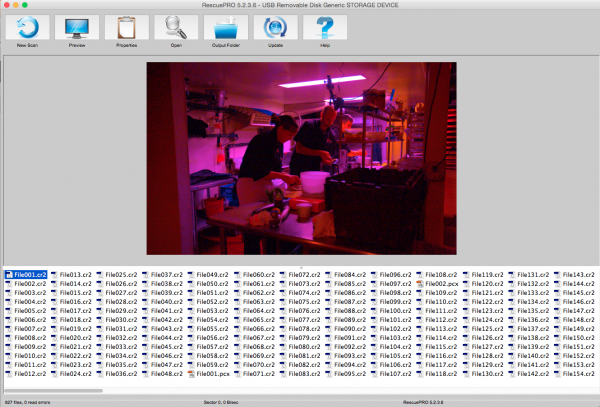
4. When the program is done recovering data, it unfortunately doesn’t do a great job at alerting you. There’s no fanfare, but you’ll know the recovery process is done when you see the bottom portion of the screen filled with recovered files. To verify what content the program has recovered, click on each individual file name and a preview will appear. In this particular instance, the previewed images were showing up tinted in pink, but the actual recovered images were just fine without any distortions.

SanDisk Recovery PRO memory card recovery

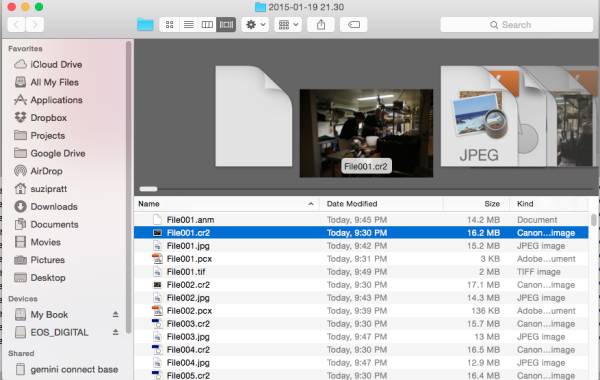
5. Once you verify that your files have indeed been saved, it’s time to locate them on your computer. The great part about RescuePRO’s long recovery process is that it includes saving the files on your device automatically. As a result, all you have to do to find the desktop folder full of your recovered images is click on the giant Output Folder button. The program should then pull up a desktop window like the one below, showing you a folder full of recovered data. Also, notice in the preview below that the recovered image does indeed, not carry over the extra coloring that RescuePRO’s software assigned to it in the preview.

SanDisk Recovery PRO memory card recovery

There you have it; a relatively simple, low cost way, to potentially get back precious photos that you thought were lost. Either way, do yourself a favor and remember to always format your memory card in your camera (not your computer) after every use; doing this will keep your memory card up to speed, and lessen the chance of it becoming corrupt over time.

Since this is one of many options, let me know in the comments below if you have a preferred method or program for recovering lost images.

googletag.cmd.push(function() {
tablet_slots.push( googletag.defineSlot( “/1005424/_dPSv4_tab-all-article-bottom_(300×250)”, [300, 250], “pb-ad-78623” ).addService( googletag.pubads() ) ); } );

googletag.cmd.push(function() {
mobile_slots.push( googletag.defineSlot( “/1005424/_dPSv4_mob-all-article-bottom_(300×250)”, [300, 250], “pb-ad-78158” ).addService( googletag.pubads() ) ); } );

The post How to Recover Lost Files from a Memory Card by Suzi Pratt appeared first on Digital Photography School.


Digital Photography School

 
Comments Off on How to Recover Lost Files from a Memory Card

Posted in Photography