RSS
 

Posts Tagged ‘Beginners’

The dPS Ultimate Guide to Photography for Beginners

31 May


Download “The dPS Ultimate Guide to Photography for Beginners”

We respect your email privacy

Photography can be a fun and rewarding thing to learn, but where do you start? How should you set up your camera, what skills should you work on first, how should you be processing your photographs? This in-depth guide for photography beginners aims to answer those questions and help you create a foundation for success as you pick up this exciting new hobby of photography.

Setting up Your First Camera

When you unpack your first camera you may be intimidated with the various menus, settings, and options for customization. The camera user manual, while it does contain valuable information, is often dry and technical which only compounds the issues of learning this new technology.

Manual - The dPS Ultimate Guide to Photography for Beginners

While you could embrace the good old “play with it” method of learning it can lead to frustration if your early results don’t live up to expectations. This method can also lead to learning less than optimal ways of using your camera making it more difficult to fix bad habits later on.

Each camera manufacturer has its own design, terminology, and specifications. So, it’s difficult to provide you with an exact guide for setting up your specific camera. As a result, for detailed instructions about your camera, I suggest searching YouTube or specific guides found on the internet. Just Google the brand and model of your camera to find more specific help.

Regardless of manufacturer, there are a few important steps you should take to make sure your camera is set up to your liking. Let’s go through those individually.

Image Quality

Determining what image quality to capture your photographs in can be a confusing task when you’re first starting out. What is JPEG, NEF (RAW), JPEG+RAW?

Image quality - The dPS Ultimate Guide to Photography for Beginners

The simplest route to take is to save your photographs in the highest quality JPEG option your camera offers. This will allow you to focus on learning how to take photographs while allowing the camera to handle the bulk of the image processing. You’ll still have the ability to add some minor touchups if you want to later, but you won’t have to process your images on your computer.

As you progress and become more comfortable with your camera and the techniques you’ll learn in the rest of this article, you may want to switch this setting to capture your images in a RAW format. The advantage of RAW format is that your images are left unprocessed by the camera, allowing you to choose the processing that reflects the image you saw when you captured it, not the preset processing that your camera performs when saving a JPEG (sharpening, contrast and saturation levels).

Due to this unprocessed nature of a RAW file, it turns out to be a much larger file. Depending on the size of your camera’s sensor this could be more than 10 times larger than your JPEG images. This means you’ll notice that the number of images you can capture on your SD card will drop substantially, so you may need to purchase additional or larger memory cards.

File Naming

Determining a file naming system for images is something that most people gloss over, but choosing this early on will help you start an organizational system that works for you.

This setting is primarily going to rest on your personal taste. You could save the image file with the date the image was captured. Or you could save images with a sequential numbering system. There’s no wrong way to set this up, it depends on whether you prefer to keep track of the dates of your shoots or the number of photographs you’ve taken.

Time and Date

Time date - The dPS Ultimate Guide to Photography for Beginners

Even if you don’t save your images by date, you’ll still want to set the time and date of your camera. This information will be recorded in the metadata (hidden in the properties of the file) of each image, which will allow you to search and find images based on date even if you don’t name them as such. However, if the date and time are set incorrectly, it could become very difficult to match up your events with the dates your camera thinks they were taken (although you can correct this in most photo editing software).

Metadata

Metadata - The dPS Absolute Beginner’s Guide to Photography

With each photograph, you take your camera records a lot of information about that exposure. This information is known as the metadata of the image. When you are setting your camera up, you can customize this to some extent. For example, you can embed your copyright information right into the metadata of every image you take.

Reading the metadata later can be a little confusing, but it can also tell you a great deal about the photographs you’ve taken. If you ever want to go back and try to reproduce it later or troubleshoot ones that went wrong, this data can be very useful.

Inside a program like Lightroom, the metadata is displayed and you can even add to it if you so choose. Lightroom will even let you search your library based on this information so if you want to see all photographs taken at 18mm, or shot using f/2.8, you can do that!

Metadata 2 - The dPS Absolute Beginner’s Guide to Photography

If you’re not using any software to process your photography, you can still view your metadata. The process is similar on both Windows and Mac. Find your image file and right click on it. On Mac you’ll want to navigate to “Get Info” and inside the window that pops up will be all the data attached to this image. Windows works in the same manner, but they call it “Properties” instead, and you navigate to the “Details Tab”.

As mentioned earlier, for more information on getting your specific camera set up, YouTube is a great place to start. You’ll be able to find walkthroughs of all the various menus, what they mean, and how to customize them.

For more on setting up your new camera read: 

  • Top 10 Things to do When Your New Camera Arrives
  • Getting to Know Your New Camera

Understanding How Your Camera Works

Now that your camera is set up, it’s time to understand a bit about how it actually works. When you take a photograph, what exactly is happening inside the camera that allows the scene to be saved to your SD card?

A camera is a simple device which is really only comprised of a few key parts. For standard DSLRs, there is the camera body with a lens attached. Your camera body contains everything needed to capture and process an image, while the lens is what focuses your image onto the sensor inside the camera.

The way these two components (the camera and the lens) work together is as follows. Light comes through the opening in your lens. When you are not shooting there is a mirror inside that reflects that light up through a prism (think periscope) and through the eyepiece, so you can view the image as seen exactly by the lens. When you press the shutter button to take a picture, the mirror flips up out of the way, and the lens adjusts to the chosen aperture (opening in the lens, more on that later). The shutter in the back of the camera then opens, allowing light to hit the sensor, creating your image. The camera saves the image to your memory card, the mirror returns to its original place and it’s all reset ready for you to shoot again. This all happens in less than the blink of an eye.

Looking viewfinder - The dPS Absolute Beginner’s Guide to Photography

Taking photo - The dPS Absolute Beginner’s Guide to Photography

If you have a Mirrorless camera they work a little differently. They do not have a moving mirror system. Instead, what you see in the viewfinder is a live feed of exactly what the image sensor is processing. This allows you to see things like Depth Of Field, the exposure, White Balance, and more before you even take the photograph. When you press the button of a Mirrorless camera, the lens adjusts to the chosen aperture, the shutter opens, and the image file is saved to your card.

Mirrorless versus dslr - The dPS Absolute Beginner’s Guide to Photography

Mirrorless camera (top) versus a DSLR (bottom) as a size comparison.

Your First Skills as a Photographer

Now that you have a basic understanding of how your camera captures a photograph, it’s time to start developing your skills as a photographer. There are three major concepts that you’ll need to develop; technical skills, artistic skills, and personality. These three skills break down in a number of ways, this guide will try to give you a place to start with each of them.

Technical Skills

The technical skills of a photographer revolve around what settings you choose to take the photo. That includes: just knowing how to use the camera and change settings, getting a good exposure, focusing a sharp image, getting the right color, etc. These are the things you need to learn to understand how to make your photographs sharp and properly exposed.

The Exposure Triangle

As you may guess by the name, the exposure triangle is made up of three components. These three components are; the aperture, the shutter speed, and the ISO. Learning to control these three settings is vital to achieving a properly exposed photograph.

Exposure triangle - The dPS Absolute Beginner’s Guide to Photography

Aperture

The aperture is simply the opening in your lens. Just like the pupil of your eye, it opens and closes to adjust the amount of light coming through the lens, and hitting the sensor. If your scene is dark, you can open it to let more light through the lens. When your scene is bright, you might make the aperture smaller to let less light pass through to the sensor

The aperture inside the lens opens and closes to control the amount of light entering through the lens.

The aperture not only allows you to control the amount of light passing through the lens, but it also affects the depth of field (amount of your image that is in sharp focus). You will learn more about this later just keep it in the back of your mind for now.

Shot at f/16. A small opening that provides lots of depth of field (in focus area of the image).

Shot at f/10.

Shot a f/5.6.

Shot at f.2/8.

Shot at f/1.8, a very large aperture which has a shallow depth of field. You can see how little of this image is sharp.

Shutter Speed

The amount of time that the shutter is opened allowing the imaging sensor is exposed to light is called your shutter speed.

Typically the shutter speed is measured in fractions of a second, for example, 1/200th or 1/8th of a second. However, there are cases where you may even allow your shutter speed to be open for seconds at a time. Extremely low light photography, shooting light trails, or capturing photographs of the stars are examples of where this might be the case. Make note that most cameras display two seconds like this – 2”.

Shutter 1 4000th - The dPS Absolute Beginner’s Guide to Photography

A shutter speed of 1/4000th of a second is needed to freeze fast moving subjects like this moth.

Shutter speed 1/3rd of a second.

Shutter speed 1/13th of a second.

Shutter speed 1/50th of a second.

ISO

The final leg of the triangle is often the most confusing to new photographers primarily because it’s not as easy to visualize as the other two. With aperture, you can picture the opening in the lens and with shutter speed, you can picture it moving faster or slower. ISO on the other hand – is a measure of sensitivity to light.

When you increase the ISO on your camera what essentially happens is that you are telling the image sensor to be more sensitive to light. This means that for the same size opening (aperture), and the same amount of exposure time (shutter speed), you capture more light, and thus achieve a brighter image.

The trade-off is that with a higher sensitivity you also get a great chance of generating more noise (unwanted grain or speckles) in your images. Camera manufacturers have come a long way in improving this, though, and many new cameras are capable of shooting at very high ISOs with minimal noise.

Shot with a low ISO.

Shot with a high ISO.

Shot at ISO 100.

ISO 100 at 100% crop.

Shot at ISO 5000.

ISO 5000 at 100% crop. Notice the presence of heavy noise (grain) in this image compared to the one at ISO 100.

For more information on the technical skills you need to learn, check out the following articles: 

  • Mastering the Exposure Triangle for Newbies
  • Understand Exposure in Under 10 Minutes
  • The Exposure Triangle Visualised: Cheat Sheet
  • How to Read and Use Histograms
  • How to Understand the Mysteries of ISO for Beginners
  • 6 Tips for Using ISO Effectively With Your Camera
  • Seeing in Depth of Field: A Simple Understanding of Aperture
  • Getting off Auto; Manual, Aperture and Shutter Priority modes explained
  • Demystifying Shutter Speed
  • An Exercise to Learn and Practice Shutter Speed at Home
  • 6 Ways to Use Shutter Speed Creatively

You may also want to have a look at our dPS beginner course Photo Nuts and Bolts – Know your camera, take incredible photos.

Putting it Together

It’s easy to talk about each of these elements individually, but when you’re in the field taking a photograph, it’s not good enough to only know about one of them. The key is to learn how each one affects the other two, and how they work together to allow you to capture the images you want. There are also a few other key settings you’ll want to know. Let’s look at them.

White Balance

The white balance of your photograph relates to both the color temperature and the tint of your image. The color temperature will affect the yellow to the blue (warm to cold) color of your images, while tint will affect the green to magenta of your images. Your camera has different white balance settings for you to choose from including an auto option as well as several presets.

All light sources and types of light have a color. Think about fluorescent light bulbs; you can get them in cool white, natural, or warm light – each having a slightly different hue. Other light sources are the same. For example, daylight and flash are fairly neutral, tungsten or incandescent bulbs are quite orange, shade is bluer, fluorescent is often a bit green. What the white balance setting in your camera attempts to do is to neutralize any tint from the light source so that your subject is rendered accurately.

So if you are shooting under tungsten lighting (incandescent or regular light bulbs) which is very orange – when you select the Tungsten White Balance preset the camera adds a blue filter which is the opposite color, to neutralize the orange tint. You can also use White balance creatively to add color such as in the case of shooting a sunset if you want it more orange choose the Shade preset on your camera.

The good thing about white balance is that it is consistent and predictable, so as a new photographer Auto White Balance is a good place to start. If you choose to shoot RAW format you’ll actually have a lot of control over the white balance of your images in post-production allowing you to make corrections should you need to later on. If you shoot JPG you need to make sure you get the white balance right in-camera.

White balance as shot in camera.

White balance adjusted to cloudy in post-processing.

White balance adjusted to daylight in post-processing.

White balance adjusted to custom in post-processing.

Learn more about White Balance here:

  • Demystifying White Balance
  • How Auto White Balance Can Hinder Your Photography
  • Setting The Mood By Adjusting Your White Balance
  • Guide to Creative White Balance for Landscape Photography

Learning How to Focus

In addition to learning how to properly expose your photographs, you’ll need to learn how to achieve the proper focus. Achieving sharp focus may be even more important than the perfect exposure simply because software is still unable to truly correct for soft focus.
Focus Modes

Your camera allows you to tailor the type of focusing it will do, to the subjects you want to photograph. Each manufacturer picks their own way to describe these modes, but they work in the same manner on all cameras.

  • Single Focus Mode: AF-S(Nikon) / One Shot (Canon) – When you specify this mode the camera assumes that your subject is not moving. When you press the shutter button half way down the camera will snap into focus and lock onto the subject. You can then recompose your image while holding the shutter button part way down to maintain this focus. Once you depress the shutter button fully your image will be captured.
  • Continuous Focus Mode: AF-C (Nikon) / AI Servo (Canon) – This is a continuous shooting mode which automatically tracks your initial focus point as the subject or camera moves. Use this mode for photographing active children, pets, sport, or other action related subjects.
  • Auto Mode: AF-A (Nikon) AI-Focus (Canon) – This option tries to guess which of the above two options is right for the situation you are currently photographing. While this may seem easier and more intuitive to use, it can also be frustrating as your camera starts doing one thing. It also has the chance of getting it wrong.

Focus Points

Focus points with the center one selected. This is where your camera will focus.

Your camera is also capable of focusing on a single point within your viewfinder’s frame or by using multiple points within that frame. In most cases you when your subjects are slow moving or stationary you’ll want to use single point focus mode. You’ll switch to a multiple focus point mode when you’re photographing action such as birds in flight or sports.

Learn more about focusing your camera here:

  • Getting Sharper Images; an Understanding of Focus Modes
  • 5 Beginner Tips for More Autofocus Success
  • How to Avoid Blurry Photos by Choosing the Right Autofocus Mode
  • 9 Mistakes That Can Cause Blurry Photos
  • Understanding Normal and Cross-Type Focusing Points
  • 4 Tips for Using for Live View to Get Sharper and More Creative Images

The Shutter Speed Rule

It’s simply a matter of physics, you can only hold a camera still for so long without the motion of your hands (camera shake) being detectable in the image you’ve captured. When this happens your image will look blurry. Nine times of out ten with newbie photographers a blurry image is caused by a slow shutter speed, not improper focus. The good news is that there’s a very easy formula to remember which will allow you to rarely worry about this dreaded issue.

Take the focal length of your lens and that becomes the shutter speed you cannot go below. For example, if you’re photographing at 50mm, your minimum shutter speed is 1/50th of a second. If you’re photographing at 200mm your minimum shutter speed is 1/200th of a second or faster.

Shutter speed rule - The dPS Absolute Beginner’s Guide to Photography

A couple of notes about this rule: These numbers are for 35mm equivalent focal lengths so if you are using a crop sensor camera (one which is not full frame) multiply by that first, and then apply the shutter speed rule (Nikon’s is 1.5x so if you’re shooting with a 200mm lens on a Nikon crop factor camera body go with 200 x 1.5 = 300 or 1/300th as your minimum shutter speed.)

Also, this rule tends to break down at the extreme end. For example, 1/20th may be too slow of a shutter speed even if you’re photographing at 20mm. The same goes for 1/500th with a 500mm lens because the weight and sensitivity to movement are so magnified at this end that you’ll probably need to shoot even faster – or use a tripod.

Many modern lenses have a setting called VR or IS. This stands for Vibration Reduction or Image Stabilization and they essentially do the same thing, try to minimize camera shake at slow shutter speeds when hand holding. High-quality systems may let you get away with even slower shutter speeds.

All this said, because everyone’s different, the best thing to do is to try to find your own personal shutter speed limits by taking test shots. If your photographs are soft or blurry, odds are good that it’s not the lens’s fault, but rather, that you’re not able to hold the lens still enough to capture a sharp image.

Proper Tripod Use

Investing in a sturdy tripod is important, but that’s only half the battle. You also need to learn how to use the tripod effectively in order to ensure you get sharp photographs.

There are situations when you’ll absolutely need a tripod. For example, if you want to create silky waterfall photographs, shoot photographs of the stars, or do any sort of light painting a tripod will be your new best friend.

Tripod waterfall - The dPS Absolute Beginner’s Guide to Photography

Some common errors many new photographers make are; extending the legs from the thin segments first. The thicker upper segments will provide more support so use those first, then use the thinner segments if you need more height. Only as a last resort should you extend the center column as it is the least stable piece of your tripod and any instability can result in camera shake, or worse, a damaged camera.

Another common mistake made with tripods is not balancing the center of gravity. A good quality tripod will allow you to adjust each leg’s angle independent of the others. By doing this you can negotiate difficult terrain. It might look awkward to have one leg at 45 degrees and the other two at 20 and 30 degrees, but if that’s what it takes to get the camera’s center of gravity straight down the middle then make sure that’s what you’re doing.

Mega article tripod - The dPS Absolute Beginner’s Guide to Photography

Use a High ISO When Necessary

There is a lot of fear among some photographer in using higher ISO settings. This may be the result of a hold-over from the days when digital cameras first made their appearance and high ISO settings were truly terrible. But today’s cameras are substantially more improved, meaning that you can get very usable images well above ISO 1000 on even most entry-level DSLRs.

This means that if you are in a low light situation or if you are trying to freeze fast motion and need a faster shutter speed, don’t be afraid to bump the ISO. Even if you do get a little bit of noise in the photograph, post-production software has gotten very good at removing and smoothing out noise that it probably will be recoverable in the end.

The moral of the story is that sharp photographs don’t require expensive lenses, but rather a solid understanding of the fundamentals of what causes blur in the first place. Know your camera’s focus settings and options, use the minimum shutter speed when hand holding and use a tripod properly when needed.

Mega article high iso - The dPS Absolute Beginner’s Guide to Photography

11mm lens, ISO 1250, f/2.8, 30 seconds.

More on using a high ISO here:

  • How I Learned to Stop Worrying and Love Auto ISO
  • Reasons to Shoot High ISO Images
  • Use a High ISO to Create Grainy Shots
  • Three Uses for High ISO you Might Not Know

Artistic Skills

While technical skills will allow your images to be sharp and well exposed, they won’t help you to capture interesting photographs. This is where your artistic skills will come into play. Things like composition, subject matter, and creating drama with light all play a role in determining the interest level of the photographs you capture.

Composition

There are a number of techniques you can use for composing your photographs and it is important that every new photographer learns at least a solid foundation in composition theory.

The composition of your photograph is arguably more important than the subject itself. After all, interesting subjects can be made to appear boring, while boring subjects, can be made to look quite interesting, all due to the way the photographer has chosen to compose the photograph.

The first rule of composition you will want to learn is the rule of thirds. This rule is one that is talked about over and over again. It’s such a fundamental part of photography that your camera manufacturer has more than likely provided a grid (that looks like a tic-tac-toe board) in your viewfinder to enable you to quickly compose images using this rule.

The basic concept of the rule of thirds is to place your subject, or your primary area of focus, (basically where you want your viewer to look) on one of the four cross sections of the grid in your viewfinder.

Thirds no overlay - The dPS Absolute Beginner’s Guide to Photography

A Couple of Key Things to Note

Leave room in front of your subject, not behind. In most cases, you will want to leave room in front of (i.e. where your subject is looking or leaning) rather than behind it.

Use one-third of your image for providing structure or grounding your viewer to the scene that you are presenting, and two-thirds to showcase the reason for photographing the scene.

Mega article humingbird - The dPS Absolute Beginner’s Guide to Photography

There are many more advanced composition techniques but get really comfortable with this rule before you venture out to more complex techniques. Plus, there are a number of composition tools that you can use within just this one technique. You will learn about those next.

Composition tools are what you use within your frame to drive your overall composition. These tools can be elements within your scene, or it can be the absence of these elements that drives the composition. It’s all about how you use them to your advantage when you compose a scene.

Leading Lines

Leading lines is a tool that you can use to pull your viewer into and through your photograph. On the most basic level, a leading line is simply a line within your photograph that leads the viewer to something interesting. The last word in that sentence is what’s important.

Important note: You cannot just photograph leading lines – they are just a compositional tool, not the subject of the photograph.

Snow leading lines - The dPS Absolute Beginner’s Guide to Photography

To compose with leading lines you’ll first want to find a good subject, anything that interests you. Next time you raise your camera to photograph first stop and ask yourself, “Is there something within this scene that I can use to lead my viewer towards this subject?”. Remember, the person viewing the photograph doesn’t have all the context that you had while you were on this scene. Therefore, any additional help you can provide to the viewer about what it was that caught your eye and made you take the photograph will help make the image more interesting.

Curves

Curves are similar to leading lines in a way but rather than straight, they are rounded. The great thing about curved lines is that they can meander through a photograph allowing you to hit upon multiple interesting elements across the entire frame. Curved lines work really well in landscape photographs as a result. This allows you to capture both interesting foreground elements and distant background elements while tying it all together.

River sunset - The dPS Absolute Beginner’s Guide to Photography

Symmetry

When you have a symmetrical subject, odds are good that you’ll want to use this tool in your photograph. Reflections are a great way to fill your scene with interesting elements. You can have a sunset reflected in a river, which leads toward the sunset itself for example.

Mega article symmetry - The dPS Absolute Beginner’s Guide to Photography

For more on composition read:

  • Five Ways to Improve Your Composition Skills
  • Tips for Using Natural Framing to Improve Your Composition
  • How to Improve Composition by Placing your Subject Off-Center
  • 10 Ideas to Instantly Improve Your Photography Composition
  • 6 Advanced Composition Techniques to Improve Your Photos
  • 4 Steps to Creating Images With More Meaningful Composition
  • How to Create Strong Compositions Using Color Contrast
  • How to Use Leading Lines Effectively in Landscape Photography

Your First Time Post-Processing Photographs

Your post-production skills are what can take a great photograph to the next level, but processing does not create great photographs. A great photograph is created the moment the shutter is released, not on within a computer, hours or days later. Therefore it is important for you to have at least a fundamental understanding of post=production as you begin taking you first photographs.

Software Choices

So many choices - The dPS Absolute Beginner’s Guide to Photography

There are a number of free image processing tools available and if money is extremely tight these options might be where you’ll want to start learning. However, if you can afford to invest in post-production software, I would highly recommend Adobe’s Creative Cloud package for photographers. This gives you access to both Lightroom and Photoshop CC which will allow you to process photographs with the same tools the pros use for roughly the same cost as a Netflix subscription. Considering the costs associated with lenses and cameras it is truly one of the best deals you will find in photography.

Post-production 101

No matter what software you end up choosing the initial learning experience will often result in a lot of experimentation. At the deepest level, post-production is a form of art. It is where you are able to add your own flavor to the images you’ve captured and make them your own.

While you can learn tricks and tips on how to process images and mimic these things in your own photographs, the best advice I can give you about processing is to experiment fearlessly. You will find that some experiments fail miserably, while others are truly magnificent. But because each photograph is different, learning high-level concepts of how the various sliders, buttons, and drop-down menus affect your image is more important than remembering +33 Exposure, -14 Shadows, etc.

Image before processing, right out of the camera.

Image after processing.

For more on post-processing images read these dPS articles:

  • Post-Processing Tips for Beginners
  • Understanding the Difference Between Photoshop and Lightroom
  • Photoshop Versus Lightroom Which is Right for You?
  • Post-Processing Tips for Overcoming Beginners Acts of Omission
  • The dPS Ultimate Guide to Getting Started in Lightroom for Beginners
  • 5 Common Post-Processing Mistakes to Avoid
  • 5 Easy Photoshop Tips for Beginners
  • 10 Things Photoshop Beginners Want to Know How to Do
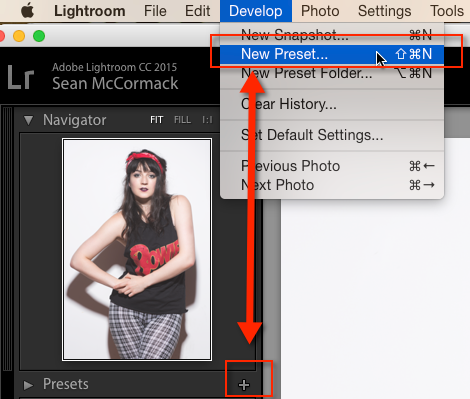
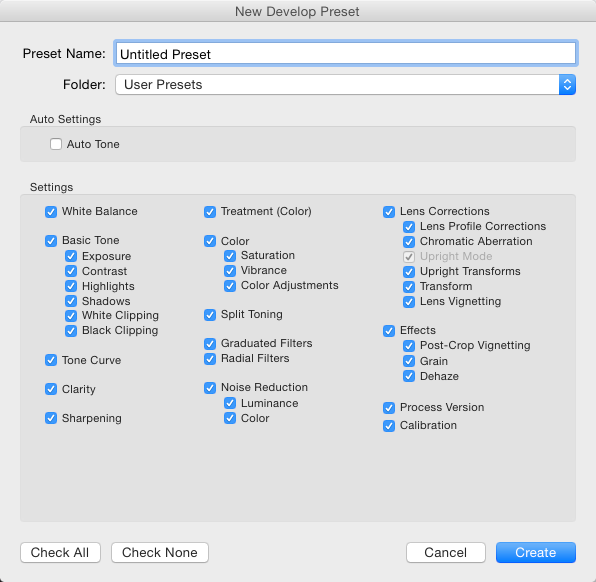
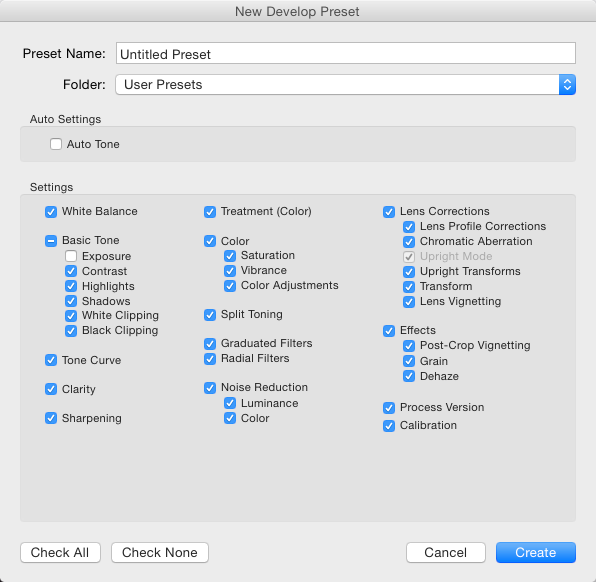
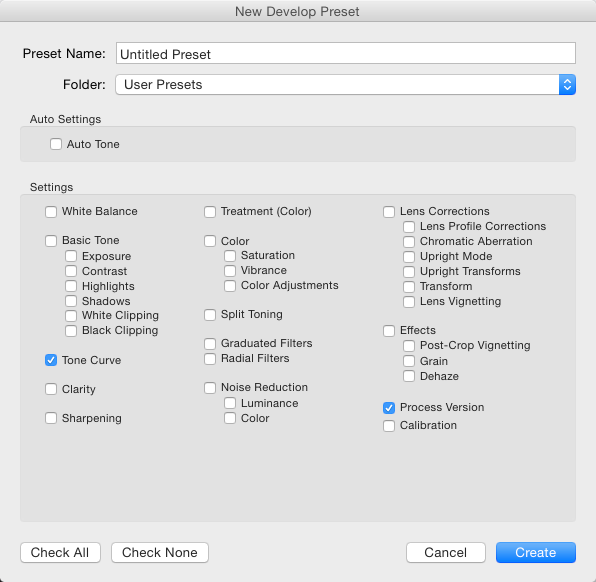
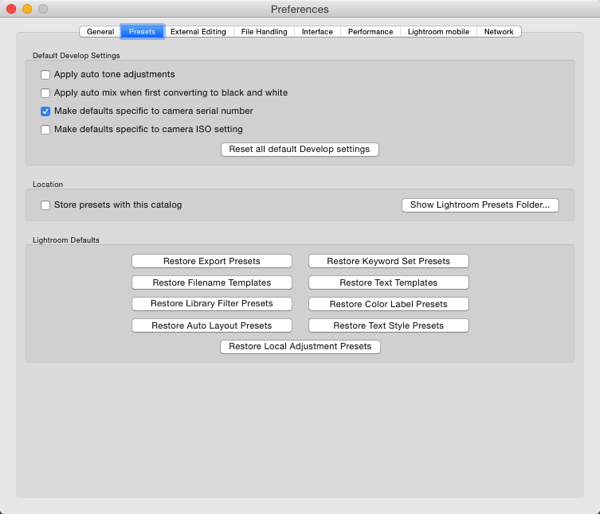
  • The Beginners Guide to Lightroom Presets
  • 6 Photoshop Tools Every Newbie Should Learn
  • 5 Practical Lightroom Tips for Newbies

For more in-depth learning check out our dPS course: Lightroom Mastery.

What Makes a Great Photograph

Understanding the concepts explained earlier is a great starting point. But great photographers, and ultimately great photographs rely on more than just the ideas and concepts. It’s about how these all interact with one another.

Great photography relies on a thoughtful composition. This means that you as the photographer are choosing the right composition for the specific subject you’re photographing. Just because The Rule Of Thirds is a great type of composition, it doesn’t mean that it’s the right one to use for every photograph.

The same can be said about other aspects of photography. Finding the right way to tell the story, the right way to expose the scene, the right way to process the final image – these all affect the final outcome. It takes a lot of practice, time, and energy to do these things as second nature, but that’s part of the reason you learn something new.

Finally – Never Stop Learning

Remember, photography is truly fun and can be extremely rewarding to learn as a skill, but it is a skill that can take a long time to develop. Over time you’ll find yourself asking questions about your composition or the exposure that you’ve chosen for a particular photograph. You’ll start to hear yourself analyzing the light in a scene as you’re walking down the street with friends. Photography can change the way you see the world if you let it.

Over the next several months if you continue to work at improving the skills mentioned in this article you should see improvement in your photography. Remember to compare your photographs with those that you’ve taken in the past and not against other photographers, even if they are starting at the same time as you are. We all learn at different speeds, so all you need to focus on is improving your own images.

Leading line fog - The dPS Absolute Beginner’s Guide to Photography

The final suggestion is for you to join a photography community. Whether it’s a Facebook Group, an online forum, or a local club, the support and encouragement you will get from other photographers will be priceless as you build upon these basic skills with more advanced techniques. Join us at the dPS Facebook group here, there’s usually a good discussion happening and lots of image sharing.

The best way to improve your photography is through developing a solid foundation of skills that you can build upon. This beginner’s guide was designed in a way that hopefully achieves that and as a result, we’ve made it into a printable PDF download which you can get here for free.


Download “The dPS Ultimate Guide to Photography for Beginners”

We respect your email privacy

The post The dPS Ultimate Guide to Photography for Beginners by John Davenport appeared first on Digital Photography School.


Digital Photography School

 
Comments Off on The dPS Ultimate Guide to Photography for Beginners

Posted in Photography


The dPS Ultimate Guide to Getting Started in Lightroom for Beginners

16 Apr

Note: this is one of the most comprehensive articles we’ve written on Lightroom. Read it below or get a free downloadable copy to print and/or refer to later by adding your email address below and we’ll send you a copy.


Download “The dPS Ultimate Guide to Getting Started in Lightroom for Beginners”

We respect your email privacy

If you’re new to Lightroom you may be wondering what it does, how it differs from other programs (like Photoshop), and how to use it to its full potential – this article will answer a lot of questions and help you get started.

The reason that Lightroom has become so popular is because it is a workflow application. You use it to manage your photos the moment they are downloaded from your camera’s memory card and saved on your hard drive. Once they are inside Lightroom you can organize them into Collections (a type of virtual folder) and process RAW, JPG, and TIF files.

You can also add photos to a map to organize them by location, create a photo book or slide show, print photos, or export them to other programs for further processing. Lightroom remains at the heart of your workflow as you do it all.

The Ultimate Guide to Getting Started in Lightroom for Beginners

Lightroom can be used for printing photos as well as processing and organizing them. It’s the complete workflow tool.

The Lightroom Catalog

The Lightroom Catalog is a database containing a preview of every photo you have imported into Lightroom. It also contains a record of each photo’s metadata (which includes all processing done to it) and the location where it is saved on your hard drive. Lightroom works by saving the edits you make to your photos as a series of text commands in the Catalog. This includes any and all processing instructions you set up for each image.

The benefit of working this way is that it saves a lot of hard drive space. This is especially true when working with RAW files, as there is no need to convert them to 16-bit TIF files first (as you do in Photoshop) to work on them. All processing in Lightroom is non-destructive, meaning you can undo any steps or everything, and return to the original state of the file at any time.

Lightroom Modules

Lightroom has seven modules (Library, Develop, Map, Book, Slideshow, Print, and Web). You can only work in one module at a time. This article concentrates on the Library and Develop modules, as they are the most important to learn first, and one you’ll use most often.

Scroll down to the end of the article for links to other articles I have written that explain how to use the other Lightroom modules. I’ve also linked to other articles throughout this guide that expand on the points within.
The Library Module

The Library module is the heart of Lightroom. It’s where you view, search, filter, and organize your imported photos. For example, if you want to find all your photos taken with a particular camera or lens, that’s easy in Lightroom (it takes seconds).

The Ultimate Guide to Getting Started in Lightroom for Beginners

This example search shows all the photos taken with my Fuji X-T1 camera and a 35mm lens in 2016.

But the real benefit of the Library module is that it lets you organize your photos any way you want. It does this by using Collections, a type of virtual folder system.

Folders are limited for organization purposes. Let’s say you took some photos of a friend called Peter in New York in September. You can only save those photos in one folder on your hard drive (which may be named Peter-New York-September or something similar).

But in the Library module you are free to add the photos to as many Collections as you want. In this example, you could have a collection named Peter, another called New York, and another named September. In fact, you can add the photos to as many Collections as you want. You have complete freedom to organize your photos how you see fit.
How to Import Photos Into Lightroom

As Lightroom is built on a database (the Catalog) you have to import photos before you can do anything with them. During the import process, Lightroom adds your selected photos to the Catalog and generates previews for viewing. Imported photos stay in the Catalog forever (or until you remove them) and don’t have to be imported again.

If this is the first time you have used Lightroom, then it will look something like this when you open it. There are no photos to see because nothing has been imported yet.

Lightroom tutorial 03

The screen is divided into four. This basic layout is repeated throughout the seven modules.

1. The Module picker: The bar at the top that tells you which module is currently active. Click the grey triangle (arrow) at the top to make it disappear, saving screen space.

2. The side panels: The left and right-hand panels containing all the Library module tools. Click on the grey triangles (arrows) to hide them.

3. The Filmstrip: This displays thumbnails of the photos in the currently selected Folders, Collection, or search results. Click the grey triangle (arrow) at the bottom of the screen hide it.

4. The Content window: This is the central display area. You view photos here after they have been imported into Lightroom. Use the keyboard shortcut Shift + Tab to hide all four side panels and see only the middle content window portion. This is handy when you are sorting and flagging images.

More on sorting and flagging images in Lightroom here: 4 of the Most Important Elements of the Lightroom Library Module.

Importing Photos into Lightroom

If this if your first import you will probably be adding photos that you have already downloaded from memory cards to your hard drive. You can also import photos directly from a memory card, or a connected camera or smartphone.

If you have already saved your photos in folders it is best to import one folder at a time. This gives you time to organize your images as you go along. Be aware that Lightroom will make you wait a long time while it builds previews if you import too many images in one go.

This is what happens during the import process:

  • Lightroom notes where the imported photos are saved and adds this information to the Catalog.
  • Lightroom reads each photo’s metadata and saves that in the Catalog. This includes the camera settings and file names, data that is used to help search images.
  • Lightroom creates a preview of each imported photo and saves it on your computer’s hard drive.
  • The previews are saved in a previews (.lrdata) file.

Please note the following: This is important and often trips up first-time Lightroom users. Your photos are not stored in the Catalog. Backing up the Catalog does not back up your images. Nor are your photos stored in the cloud if you’re a Lightroom CC subscriber. The Catalog only stores the metadata and processing information.

Always remember that your photos are saved on your hard drive. You can only back up your photos by backing up the hard drive on which you’ve saved them.

The Import Window

Get started by clicking the Import button. Lightroom opens the Import window. It’s divided into four areas.

The Ultimate Guide to Getting Started in Lightroom for Beginners

1. Source: This designates from where Lightroom will be importing the photos. All devices and hard drives connected to your computer are shown here.

2. Photo thumbnails: Ticked photos will be imported into the Lightroom Catalog when you press the Import button. You can choose Check All or Uncheck All at the bottom of the thumbnail window. To select several in a row tick one, hold the Shift key and select another – Lightroom will tick all of the images in between. To select random images hold the CMD/CTRL key and click each one individually.

3. Import options: These tell Lightroom what to do with the photos. You have four options, they are:

  • Copy as DNG – Lightroom copies your files and converts any non-DNG Raw files to the DNG format. Only select this if you understand the benefits (and disadvantages) of using the DNG format.
  • Copy – Lightroom copies the selected files without changing the format. Use this to copy files from a device or memory card over to a hard drive.
  • Move – Lightroom moves the selected files from their current location to a new one. This is the same as Copy, except that Lightroom deletes the originals afterwards. This option is NOT recommended if you are downloading from your memory card! Always use Copy for that, so that if anything goes wrong during the import process you still have your original images on the car.
  • Add – Lightroom adds the selected photos to the Catalog, without copying them. Use this if the imported photos are already saved in the correct place on your hard drive (i.e. you aren’t downloading them from a card).

4. Destination: Where you tell Lightroom to save the imported photos and what to do with them along the way.

If you select the Add option you’ll see two panels here. File Handling (where you can select the preview options and save a second copy to another drive) and Apply During Import (which allows you to apply Lightroom develop presets to all the images being imported, this can save a lot of time if you wish to apply things like Lens Corrections, a slight edge vignette, etc., to all your images).

If you select Copy as DNG, Copy or Move you’ll also see the File Renaming (where you can rename and number your images) and Destination (tell Lightroom where to put your actual images) panels.

Further reading: Make Lightroom Faster by Using DNG.

Putting it Together

Now it’s time to import your first photos. This initial workflow assumes that you’re importing files that you have already previously saved to a hard drive.

  1. Under “Source”, navigate to the folder containing your photo files.
  2. Select the Add option from the top section.
  3. Open the File Handling panel (on the right, click on the heading to open and close panels). Set Build Previews to 1:1.
  4. Open the Apply During Import panel and set Develop Settings and Metadata to None. This is just to keep your first import simple.
  5. Click the Import button. Lightroom takes you to the Library module and starts importing the selected photos. It takes a while to create the 1:1 previews, but the wait is worth it as it makes viewing your photos much quicker.

The Ultimate Guide to Getting Started in Lightroom for Beginners

At some point, you’ll want to import photos directly from a memory card, camera, or Smartphone. There are a couple of extra steps in this process.

  1. Under “Source”, navigate to your memory card containing your photo files.
  2. Select Copy (instead of Add) at the top of the Import window.
  3. Set the File Handling and Apply During Import panel settings as above.
  4. Ignore the File Renaming panel (advanced users only).
  5. Under “Destination Folder”, select where you would like to save the imported photos. You can create a new folder by right-clicking on an existing one and selecting Create New Folder.
  6. Click the Import button when you’re ready.

The Ultimate Guide to Getting Started in Lightroom for Beginners

How to Organize Your Photos in Lightroom

Photos are saved in folders (on your hard drive) and organized in Collections (in Lightroom). You can view both Folders and Collections in the Library module, but you can only view Collections in the other modules. This is one of the reasons why you will want to use Collections to organize your images.

You can create as many Collections as you like. The more you use Collections, the more you will appreciate how useful they are.

Lightroom has several types of Collections

Collections: Virtual folders to which you can add any photos imported into Lightroom.

Collection Sets: Another type of virtual folder. You can add Collections and other Collection Sets to a Collection Set, but not photos. They are for organizing Collections.

Smart Collections: Collections populated automatically according to criteria set by you. Lightroom already contains several Smart Collections, you can add more as you see fit.

Published Collections: These have a lot of uses, but the most common is for sending images to photo sharing websites like 500px and Flickr. This is for advanced users only.

For Further reading on this topic, check out:

  • How to Upload Photos to Flickr and 500px Using Lightroom 5 (the information applies to Lightroom 6 and Lightroom CC as well).
  • How to Publish Images Directly to Instagram From Lightroom.

Book, Slideshow, Print, and Web Collections: Created in Book, Slideshow, Print, and Web modules. These collections keep track of images used in these modules for specific projects you create.

This screenshot shows the icons used to represent Collections in Lightroom.

The Ultimate Guide to Getting Started in Lightroom for Beginners

  1. Devon (1) is a Collection Set that contains a Collection.
  2. Speke’s Mill Walk (2) is a Collection containing photos.
  3. Print (3) is a Print Collection.
  4. Web Gallery (4) is a Web Collection.
  5. The Collection Set Smart Collections (5) contains . . .
  6. The default Smart Collections (6) that come with Lightroom.

The numbers on the right tell you how many photos are in each Collection. We will concentrate on Collection Sets and Collections in this article.

Creating Collection Sets

1. Go to the Collections panel and click on the plus (+) icon. Select Create Collection Set.

The Ultimate Guide to Getting Started in Lightroom for Beginners

2. Give the Collection set a name. This might be something like the year or the country where the photos you imported earlier were taken.

The Ultimate Guide to Getting Started in Lightroom for Beginners

3. Right-click on the Collection Set you created and choose Create Collection. Give it a name (relevant to the photos you just imported), tick the Set as Target Collection Box and click Create.

The Ultimate Guide to Getting Started in Lightroom for Beginners

4. Go to the Catalog panel and click Previous Import. Lightroom displays the images you imported earlier in the Content window. Go to Edit > Select All to select all the photos and press the B key. Lightroom adds the selected photos to the Target Collection – the one you just created.

The Ultimate Guide to Getting Started in Lightroom for Beginners

Further reading

Now that you understand the basics of the Library module, you can learn more about organizing and searching your photos with these articles.

  • 5 Essential Things You Need to Know About the Lightroom Library Module
  • Use Lightroom Collections to Improve your Workflow
  • How to Organize Your Photos in Lightroom
  • Making Sense of Lightroom’s Grid View
  • The Hidden Secrets of Lightroom 5’s Loupe View
  • How to Find Your Best Images With Lightroom 5’s Compare View
  • Comparing Images with Lightroom 5’s Survey View
  • How to Create and Use Smart Collections
  • Four Advantages of Using Lightroom Collections
  • How to Use the Filter in Lightroom’s Library Module

The Develop Module

Now that you understand the basics of the Lightroom Library module, it’s time to get started post-processing some photos. To do so, select an image by clicking on it, then press the D key. This keyboard shortcut takes you straight to the Develop module.

The layout of the Develop module is similar to that of the Library module. The Filmstrip (bottom) and Module Picker (top) are the same. What have changed are the panels on the left and right-hand sides.

The Ultimate Guide to Getting Started in Lightroom for Beginners

When you’re ready, hide the Module Picker, Filmstrip and left-hand panels by clicking on the grey arrows (triangles). Your screen should look something like this – the photo you’re working on is in the centre of the screen (the content window) and there are some panels on the right.

The Ultimate Guide to Getting Started in Lightroom for Beginners

The panels on the right contain most of Lightroom’s RAW processing tools. You can jump around these in whichever order you want, but it makes sense to use a purposeful workflow and approach them in a logical order.

I’m going to show you my workflow. Follow this to start with (it works) but don’t be afraid to switch things around if you find a way that works better for you.

This article isn’t long enough to cover every tool in the Develop module, but I will cover the most important ones, and include links to articles that explore the other tools in more depth.

Camera Calibration Panel

There are two important settings you will want to take note of in this panel:

  1. Process: This should be set to 2012 (Current).
  2. Profile: The options here match the color profiles of the camera used to take the photo (and vary by manufacturer), plus the Adobe Standard option. Select the most appropriate for your photo. This should be done at the beginning of your post-processing as the profile affects both color and contrast.

The Ultimate Guide to Getting Started in Lightroom for Beginners

Don’t worry about the other sliders in the Camera Calibration panel they are for advanced users only.

I set Profile to Camera Landscape for this photo. This is the best profile to use as it brings out the soft blue hues of the early evening sky.

The Ultimate Guide to Getting Started in Lightroom for Beginners

By comparison, this version using the Camera Standard profile, is not as effective. There is a big difference between the colors in both photos, which shows why it is important to set the most appropriate profile at the beginning of your workflow.

The Ultimate Guide to Getting Started in Lightroom for Beginners

Lens Corrections Panel

Some photographers like to work with this panel near the end of their workflow. I place it near the beginning because it’s important to correct barrel distortion in landscape and architectural photos, otherwise you can’t straighten horizons using the Crop tool accurately.

To get started there are only two things you need to do inside the Lens Corrections panel. Both are found under the Profile tab.

1. Tick the Remove Chromatic Aberrations box. This tells Lightroom to automatically remove any chromatic aberrations in the photo. {Link to this URL with the highlighted text https://digital-photography-school.com/chromatic-aberration-what-is-it-and-how-to-avoid-it/ }

2. Tick the Enable Profile Corrections box. Lightroom should automatically detect the lens used to take the photo and apply the correct profile to eliminate barrel distortion and any edge vignetting that is present.

The Ultimate Guide to Getting Started in Lightroom for Beginners

There are two things to note here:

  1. The screenshot shown is from Lightroom CC. If you have Lightroom 6 or an earlier version of Lightroom the Lens Corrections panel has a different layout.
  2. Don’t tick the Enable Profile Corrections box if the Built-in Lens Profile applied message is displayed underneath. Some cameras have built-in lens profiles that are automatically applied by Lightroom. You won’t find profiles for them in the menu.

The Ultimate Guide to Getting Started in Lightroom for Beginners

If you have Lightroom 5 or earlier, the Built-in Lens Profile applied message isn’t displayed, even if the photo has one. If you can’t find the profile for your lens in the menu, it is either an old lens that Adobe hasn’t profiled or a new lens with a built-in profile (this mainly applies to lenses from Mirrorless camera systems).

Ignore the other tools in the Lens Corrections panel for the moment, they are for more advanced users.

Basic Panel

The Basic Panel is quite important as the work you do here establishes the tonal values and colors of your photo. Most of your post-processing is done here, and the tools in the other panels are used for refining the image.

White Balance Sliders

The Ultimate Guide to Getting Started in Lightroom for Beginners

Here you can use one of the presets (Auto, Daylight, Cloudy, etc.) or adjust the Temp and Tint sliders yourself. Move the Temp slider left to make the image cooler or move it right to make it warmer. The Tint slider is for removing green or magenta color casts (usually caused by fluorescent lights).

Alternatively, select on the eyedropper icon and click a neutral grey or white area in the image. Lightroom analyzes the pixels under the cursor and sets the White Balance sliders to remove any color cast (making the image color neutral).

There are three ways to use White Balance:

  1. Create an image with neutral color.
  2. Give the image a warm color tone. You might do this with a landscape taken during the golden hour (when the light is naturally warm) or a portrait (as warm colors are more flattering for skin tones than cool ones).
  3. Create a cool color tone to give the photo a cold feel (perhaps for a landscape photo taken in the winter).

Once you have decided which of these three paths you want to go down, you can adjust the sliders to suit. For example, I gave this portrait a warm tone by setting the White Balance to the Shade preset.

The Ultimate Guide to Getting Started in Lightroom for Beginners

Here, I set White Balance to Daylight. This gave the portrait a blue cast which is much less pleasing to the eye.

The Ultimate Guide to Getting Started in Lightroom for Beginners

Presence Sliders

There are two more sliders at the bottom of the Basic panel that affect color. They are called Vibrance and Saturation. Move them left to reduce the color intensity, or right to increase it.

The Ultimate Guide to Getting Started in Lightroom for Beginners

The Saturation slider affects all colors equally. The Vibrance slider has a greater affect on saturated colors. Play around with them on a few different photos to get a feel for how they work. Be careful – these sliders are best used for desaturation of colors (lowering the intensity) rather than increasing them (which often looks false).

The Clarity slider emphasizes texture when you move it right, and reduces texture when you move it to the left. Setting Clarity to +20 or +30 improves most photos (but beware of using it on portraits where it can over-emphasize skin texture and wrinkles and become unflattering to the subject). It may also change the brightness of the image.

This photo has Clarity set to zero.

Lightroom tutorial 16a

This version has Clarity set to +30, bringing out the texture in the bricks and roof tiles.

Lightroom tutorial 16b

Further reading: Four Ways to Improve Your Photos with the Clarity Slider.

Tone Sliders

The Tone sliders are for adjusting brightness and contrast. If you’re feeling lucky press the Auto button to see what happens. If you don’t like the effect simply go to Edit > Undo to step backward.

Lightroom tutorial 17

  • Exposure slider: Move it left to make the photo darker, right to make it brighter.
  • Contrast slider: Move it left to decrease contrast, right to increase it.
  • Highlights slider: Move it left to make only light tones darker, or right to make them lighter.
  • Shadows slider: Move it left to make only dark tones darker, or right to make them lighter.
  • Whites and Blacks sliders: Don’t worry about these sliders at this stage.

The best way to learn how to use the tone sliders is to use them and see what happens. Take the following photo as an example. This is how it looked before making any adjustments.

Lightroom tutorial 17a

In this version I set Shadows to -68 to make the bottom part of the image darker, and Highlights to +43 to make the sky lighter. Notice that this effectively increased the overall contrast of the image as well.

Lightroom tutorial 17b

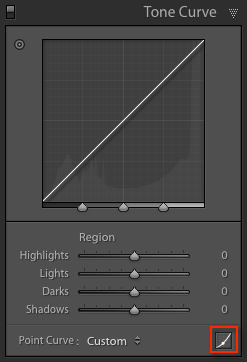
Tone Curve Panel

This is an easy one for newcomers to Lightroom, as my recommendation is that you avoid it for the moment. You can work just as effectively with the Tone sliders in the Basic panel.

There’s just one exception to this – some of you may be comfortable with the Tone Curve because you have used in extensively in another program like Photoshop. In that case you can go right ahead and use it in Lightroom too.

Lightroom tutorial 19

HSL / Color / B&W Panel

The sliders in this panel give you much greater control over the colors in your image. You can also use them to convert your photo to black and white. The complexities of this panel are a little beyond the scope of this article, so I’ll point you towards the following articles to learn more.

Further reading:

  • Mastering Color in Lightroom using the HSL Tab
  • How to Convert Photos to Black and White in Lightroom
  • Understanding the HSL Panel in Lightroom for Beginners

Lightroom tutorial 20

Split Toning Panel

This is another panel that is useful both when working in color (for color grading – adjusting the overall color balance of the image) and in black and white (for toning photos). Once again, it’s a little advanced for Lightroom newcomers, but you can learn more with these articles.

Lightroom tutorial 21

Further reading:

  • How to Split Tone Black and White Photos in Lightroom
  • How to Create a Vintage Look using Lightroom
  • Understanding the HSL Panel in Lightroom for Beginners

Detail Panel

The controls in this panel have two purposes. The Sharpening sliders are there because RAW files are slightly soft (they are unsharpened) straight out of the camera. The Noise Reduction sliders are for reducing noise caused by using high ISO settings or long exposures (longer than five minutes).

Lightroom tutorial 22

The best thing to do is leave them at their default settings. They are good enough for most photos.

Effects Panel

The Effects panel is used for adding vignettes, adding grain (to imitate the look of film) and (with the Dehaze slider, available only in Lightroom CC) for removing atmospheric haze.

Lightroom tutorial 23

It’s another panel you can skip over for the moment. This will give me space to tell you about something that will really help improve your photo processing in Lightroom – making local adjustments.

Local Adjustments

Local adjustments are kind of a big deal in Lightroom because they are what elevate your post-processing technique from good to great. There are very few photos that can’t be improved by some sort of local adjustment.

First, let’s look at a definition. A global adjustment is one that affects the entire image. All the Develop module tools you have learned to use so far are global adjustments.

Local adjustments affect only part of the image. If you have a Photoshop background, then you know that you can make local adjustments in Photoshop using selections or masks. The theory is the same in Lightroom, but the tools are different.

Lightroom has three tools for making local adjustments; the Graduated Filter, the Radial Filter and the Adjustment Brush. You have the same options for each one.

Lightroom tutorial 30

The most obvious use of a local adjustment is to make part of the image lighter or darker (using the Exposure slider). But you can also adjust contrast (with the Contrast slider), color (with the Temp, Tint or Saturation sliders) or emphasize texture (with the Clarity slider). The more you use your imagination the more uses you will figure out for local adjustments.

The Graduated Filter

This tool is named after graduated neutral density filters used by landscape photographers to make the sky darker. The Graduated Filter inside Lightroom does something similar. The key to making the most of the Graduated Filter is to look past its most obvious use in landscape photography, and think about how it can be used elsewhere.

To start, click the Graduated filter icon (marked below), or use the keyboard shortcut M. The Graduated filter panel opens beneath the histogram.

Lightroom tutorial 29

Add a Graduated filter by clicking on the photo and holding the left mouse button down. Hold it and drag the mouse down over the image.

The Graduated filter is marked by three lines, which spread farther apart as you move the mouse. The further apart you pull the lines, the softer the graduation of the effect you’re applying will be. You can move the Graduated Filter by clicking and dragging the grey pin at the center.

This may sound complicated, but a few minutes playing with the Graduated Filter tool is all that’s required to get the hang of it.

I used three Graduated Filters on the following image. This is what I started with:

Lightroom tutorial 24

This is the result:

Lightroom tutorial 25

These screenshots show you the location of each Graduated Filter (shown in red) and the settings used for each one.

Lightroom tutorial 26

Lightroom tutorial 27

Lightroom tutorial 28

The Radial Filter

The Radial Filter was introduced in Lightroom 5. It creates a circle or oval shaped selection. You can apply the affect to the area inside or outside the selection.

Click on the Radial Filter icon (marked below) or use the keyboard shortcut Shift+M. Hold the left mouse button down and drag the mouse across the photo to create the filter.

Lightroom tutorial 31

You can change the size and shape of the Radial Filter by clicking and dragging the four white squares around the edge. Rotate it by moving the cursor to the edge of the filter until it changes from a hand or plus icon to a double curly arrow. Click and drag on the arrow to rotate the Radial filter.

Use the Feather slider to set the softness of the gradient at the edges of the Radial filter. The default setting of 50 seems to work well, but you can change it as needed.

Lightroom applies the adjustments to the area outside the Radial filter by default. Tick the Invert Mask box to apply the adjustments to the area inside it instead.

One use for the Radial filter is to darken the edges of your image to draw the eye towards the subject. Here’s an example, using a photo of a dandelion that I decided would look better if I made the green area darker. This is what I started with:

Lightroom tutorial 32

Original image.

Lightroom tutorial 33

This is the difference with the Radial Filter applied.

This screenshot shows the location of the filter, the area affected by the adjustment (in red), and the settings used.

Lightroom tutorial 34

Further reading:

  • Lightroom’s Secret Weapon: The Radial Filter and How to Use it.
  • Understanding the Radial Filter in Lightroom.

The Adjustment Brush

The Adjustment Brush is for making local adjustments that can’t be easily carried out with either of the Graduated or Radial filters. Click the Adjustment Brush icon (marked below) or use the keyboard shortcut key K. The Adjustment Brush panel opens up underneath the histogram.

Lightroom tutorial 35

You’ll find sliders for setting the size, softness (feather0, and strength of the brush at the bottom. Start by selecting Brush A (if it’s not already selected). Use the [ and ] keys to adjust the brush (you can also use the Size slider).

Use the Feather slider to adjust the softness of the brush (or hold the Shift key down and use the [ and ] keys). The size of the Adjustment Brush is displayed with two circles. The inner circle shows the area fully covered by the brush. The outer circle shows the feathered area. The gap between the two circles changes as you adjust the Feather setting (make it bigger for a more gradual effect).

Lightroom tutorial 36

Here’s an example of the how to use the Adjustment Brush. I wanted to emphasize the texture in the baboon’s face. The Adjustment Brush is the best tool to use for this because I could paint over an area that matched the shape of his face.

This screenshot shows the masked area (in red) which will be affected. I set Clarity to +51 to bring out the texture in the animal’s skin and fur.

Lightroom tutorial 37

Lightroom tutorial 38

This is the starting image.

Lightroom tutorial 39

This is how it looks with the adjustment made.

You can create another Adjustment Brush by clicking on B and changing the settings. You can switch between the A and B brushes whenever you like. If you want another that is different just click New and you can add as many Adjustment Brushes as you need.

If you paint over an area you don’t want to effect, just select Erase then paint over the parts where you want to remove the mask.

Flow controls the opacity of the brush; density sets the maximum strength. For now, keep both at 100 (you can learn more about these controls if you get into advanced retouching techniques) and vary the strength of the effect with the slider settings.

Leave the Auto Mask box unticked for now. It’s bit of a specialized tool that often doesn’t work very well.

Further reading:

  • How to Retouch a Portrait with the Adjustment Brush in Lightroom
  • 5 Tips for Using the Lightroom Adjustment Brush Tool
  • How to Create and Import Custom Adjustment Brush Presets for Lightroom

Combining Local Adjustment Tools

In Lightroom 6 and Lightroom CC you can use the Adjustment Brush to refine the mask created by the Graduated and Radial filters. This is an advanced tool that is very useful for creating precise selections.

Further reading:

  • New Graduated and Radial Filter Features in Lightroom 6
  • How to Save Images Using Export in Lightroom

The Other Lightroom Modules

Lightroom has several other modules, which aren’t possible to cover here. These articles will help you learn more about the Map, Slideshow, Print, Book, and Web modules.

Further reading:

  • How to Create a Simple Blurb Photo Book in Lightroom
  • Two Useful Lightroom Print Module Custom Layouts
  • How to Create a Simple Slideshow in Lightroom
  • An Overview of Lightroom Web – What is it and who is it for?

Conclusion

Lightroom may seem intimidating when you are new to the program, but the reality is that once you understand the basics of importing and processing images it really is surprisingly straightforward to use. The lessons learned from this article lay a foundation on which you can build to truly master Lightroom. This powerful program will become the center of a new and efficient workflow that saves you time and is easy and enjoyable to use.

If you have questions about the content of this article then please let us know in the comments below. I’ll do my best to help.

For more Lightroom learning you can also check out our course Lightroom Mastery here on dPS.

Author bio: Andrew S. Gibson is a long time Digital Photography School contributor and the author of the Mastering Lightroom ebooks.

Note: did you enjoy this guide to Lightroom? – get a free downloadable copy to print and/or refer to later by adding your email address below and we’ll send you a copy.


Download “The dPS Ultimate Guide to Getting Started in Lightroom for Beginners”

We respect your email privacy

The post The dPS Ultimate Guide to Getting Started in Lightroom for Beginners by Andrew S. Gibson appeared first on Digital Photography School.


Digital Photography School

 
Comments Off on The dPS Ultimate Guide to Getting Started in Lightroom for Beginners

Posted in Photography


10 Must-Use Bird Photography Camera Settings for Beginners

09 Mar

With an overwhelming number of settings on the new DSLRs, it becomes increasingly hectic to know which ones to use. Then it takes an incredibly steep learning curve to understand how these settings work. It is much worse for a bird photographer, isn’t it? Bird photography is extremely challenging and a wrong setting might mean ruined photographs. It took several years for me to identify, practice, and stick to some of the key settings for bird photography.

Let me assure you that these settings are not reached in a philosophical way. They are tried and tested methods of achieving extraordinary results. These settings are the ones I teach to my photography workshop students as the first step towards making better bird photographs.

Set it and forget it

The key to making successful bird photographs is to select the settings and forget about them. Yes! Forget about them. Have only one or two variables so that you can focus primarily on making great bird photographs. Which is the art of photography.

In this article, I will give you 10 must-use camera settings that will help you improve your bird photography. These tips will relieve you of the persisting tension of changing the settings when the action unfolds. Remember, there are no retakes in bird photography. You have to be ready before the action unfolds.

So, let’s jump right in to find out how you can improve your bird photography with these 10 settings.

IMPORTANT NOTE: Please note that it’s not possible to give every step (for every camera) to configure a particular setting. I have given only just a few steps to show you the setting I have described. This is due to the constraint of space and the medium used.

bird photography camera settings

1. Shoot in RAW format

Always shoot in RAW format. If you have never used RAW, then make it a point to use it right now. Pick up your DSLR and set the Image Quality as RAW. Another option is to use RAW + Fine JPEG (or Basic JPEG) if you are unsure that you can handle a RAW file immediately. But, one day you may have to start working with RAW files. So, why not start shooting RAW from this day forward.

RAW Camera Settings for Canon DSLRs:

31 Canon 10 Must Use Bird Photography Camera Settings for Beginners

32 Canon 10 Must Use Bird Photography Camera Settings for Beginners

RAW Camera Settings for Nikon DSLRs:

01 Nikon 10 Must Use Bird Photography camera Settings for Beginners

10 Must Use Bird Photography camera Settings for Beginners

A RAW file holds all the data that your Camera Sensor captures. This means you are utilizing the sensor’s complete capacity. JPEG format, on the other hand, is an image compression standard. It compresses the data to reduce the size of the file, by throwing some of the data away. You don’t want to lose what your sensor captured, right?

Some of the key advantages of using RAW files are:

  • You can modify your White Balance settings during the post-processing stage.
  • The highest dynamic range that the sensor is capable of is stored in a RAW file. More data means more detail in both the shadow and highlight regions of your images.
  • You can bring back phenomenal detail in the shadow regions in the post-processing stage.
  • You can work on getting the perfect contrast and color in your image.
  • And much more.

Have you switched to RAW format yet?

bird photography camera settings

2. Use the Auto White Balance (AWB) Setting

The Auto White Balance (AWB) setting is a boon to every digital photographer. This is especially true for bird photographers. Imagine setting the white balance every time the light changes. On top of that, birds are constantly moving which means it’s almost impossible to set the white balance on the fly.

Even if you say, you can set the White Balance, remember that the light is changing throughout the day. Choosing just one standard white balance might yield wrong colors. Instead, the AWB setting will keep adjusting as the light changes. With newer DSLRs, the AWB setting does a tremendous job of getting the right colors, almost every time. Most often, it’s not necessary to change the white balance settings that the camera chooses for you.

So, use RAW format, set your camera on AWB mode, and then forget about it.

Auto White Balance Settings for Canon DSLRs:

10 Must Use Bird Photography camera Settings for Beginners

10 Must Use Bird Photography camera Settings for Beginners

Auto White Balance Settings for Nikon DSLRs:

10 Must Use Bird Photography camera Settings for Beginners

10 Must Use Bird Photography camera Settings for Beginners

Important Tip: If you use RAW format, you have complete control over the white balance during the post-processing stage. You can set it to any value you want. Tweak it to get the right colors.

3. Use semi-automatic modes like Av/A or Tv/S

It’s a common tendency to shoot in Auto mode as a novice bird photographer. But, you’ll have no control over the resulting exposure. Instead, start using the semi-automatic modes.

They are extremely simple to use and will give you incredible results. Start with the Aperture Priority (Av/A) mode. Most of the pros use this mode, including me. It allows you to choose the aperture (which will define the resulting depth of field), while the camera chooses the shutter speed for you. Combined with the Auto ISO setting (discussed next), it’ll ease your tension of worrying about the right settings.

bird photography camera settings

If you are unable to get the required shutter speed, in the case of low light, choose Shutter Priority (Tv/S) mode. It allows you to select the shutter speed (which helps you to either freeze the action or blur it), while the camera chooses the aperture for you. Combined it with the Auto ISO setting (discussed next) for ease of use.

Semi-automatic Camera Settings for Canon DSLRs:

10 Must Use Bird Photography camera Settings for Beginners

10 Must Use Bird Photography camera Settings for Beginners

Semi-automatic Camera Settings for Nikon DSLRs:

10 Must Use Bird Photography camera Settings for Beginners

10 Must Use Bird Photography camera Settings for Beginners

If anyone has told you that you should use Manual Mode to get the best bird photographs, forget about their advice. It’s not about which mode you use, it’s about how you use it. Forget about these petty talks. Instead, concentrate on making your life easier by using a semi-automatic setting. You’ll thank me, for sure.

4. Use the Auto ISO setting

The Auto ISO setting, if used properly, can solve a lot of problems in bird photography. Most often, you need higher shutter speeds to freeze the action in bird photography. This means you must use higher ISOs. Using higher ISOs, especially on the cropped sensors (like Canon 70D, 7DMarkII, Nikon D500, D7200, etc.), can result in a lot of noise, yielding an unusable photograph.

Most often you would have to work with ISO in the 400-800 range. Instead of setting the ISO to be at 400 or 800, it’s wise to set it to Auto ISO and select the Maximum Sensitivity to be 800. If you are using a full-frame camera (like Canon 1DX, 5DMark3, Nikon D4, D810, etc.), you can set the maximum sensitivity to ISO 1600 (or even 3200 depending on noise levels).

Auto ISO Settings for Canon DSLRs:

10 Must Use Bird Photography camera Settings for Beginners

10 Must Use Bird Photography camera Settings for Beginners

10 Must Use Bird Photography camera Settings for Beginners

Auto ISO Settings for Nikon DSLRs:

Bird Photography camera Settings for Beginners

Bird Photography camera Settings for Beginners

When you use Auto ISO instead of using a static ISO, you are allowing the camera to decide the ISO based on the changing light. Cameras are designed to keep the ISO value as low as possible, at all times.

Say you are working during the early morning when the light level is lower. The camera may start with ISO 800. But, as the light gets brighter and brighter, the ISO values will be smaller and smaller to compensate for the excess light. This means, your photographs will be much cleaner.

5. Use Auto ISO Combined With Minimum Shutter Speed

Many DSLRs allow you to choose the Minimum Shutter Speed in Auto ISO mode. This will ensure that the camera chooses the lowest possible ISO to achieve the Minimum Shutter Speed value. This gives you the best of both worlds. For instance, if you set the Minimum Shutter Speed to be 1/1000th of a second, the camera will alway try to select the lowest possible ISO value to meet your requirement.

bird photography camera settings

NOTE: If there is not enough light in the scene to achieve the required shutter speed despite choosing the maximum ISO, then the shutter speed will drop. So, keep an eye on the resulting shutter speeds.

Auto ISO and Minimum Shutter Speed Settings for Canon DSLRs:

Bird Photography camera Settings for Beginners

Bird Photography camera Settings for Beginners

Auto ISO and Minimum Shutter Speed Settings for Nikon DSLRs:

Bird Photography camera Settings for Beginners

Whenever you are unable to meet the minimum shutter speed that you need, just switch to normal ISO mode and set it to a higher value. But, I don’t recommend higher than ISO 800 on cropped sensors as the results will be too noisy and unusable. There are a few exceptions like the Nikon D500 and Canon 7D Mark II DSLRs that seem to work fine at higher ISOs. My suggestion: Test it. See how far you can push the ISO on your camera before the result looks too noisy.

6. Use the Evaluative/Matrix Metering Mode

The Evaluative (for Canon) and Matrix (for Nikon) options are default metering modes. But there’s a common belief that Spot Metering works best for bird photography. Although it’s true to an extent, it has too many limitations. It’s beyond the scope of this article to discuss it here.

bird photography camera settings

While Spot Metering mode considers just 3-5% of your image frame, Evaluative/Matrix metering mode considers many aspects such as; the subject in focus, other objects in the frame, the background, and uses a weighting system to arrive at the right exposure value. It’s more intelligent than Spot and Center-weighted metering.

When you combine the Exposure Compensation technique (discussed next) with Evaluative/Matrix metering mode, you can get perfect exposures. With recent DSLRs, I have seen that the default metering modes give the best results in the majority of situations. They are sufficient if the dynamic range of your camera is high enough.

Metering Mode Settings for Canon DSLRs:

Bird Photography camera Settings for Beginners

Bird Photography camera Settings for Beginners

Metering Mode Settings for Nikon DSLRs:

Bird Photography camera Settings for Beginners

Bird Photography camera Settings for Beginners

7. The Histogram is your best friend, learn to use it.

Yes, the Histogram is your best friend. If you are not using the Histogram, then you are missing a lot of image potential. There is enough material written about the subject, go ahead and embrace yourself with the knowledge. (Read: Histograms for Beginners)

Every time you take a photograph, you must check the Histogram. Don’t rely on the LCD monitor, check the Histogram. Why? LCD brightness and the ambient light can fool you into believing that a photo is under or overexposed. But, the Histogram gives you a clear cut exposure reading.

bird photography camera settings

Simply put, the Histogram is a graphical representation of the exposure. By looking at the graph you’d be able to see if the photograph is properly exposed, underexposed, or overexposed. Typically, if the graph is skewed towards the right-hand side of the Histogram, your image is overexposed (washed out whites or pure white areas with absolutely no detail).

Bird Photography camera Settings for Beginners Histogram

And if it is skewed towards the left, your image is underexposed (crushed blacks or pure black areas with absolutely no detail).

Bird Photography camera Settings for Beginners Histogram

You want to the Histogram to have the distribution not touching either the left-most end (underexposure) or the right-most end (overexposure). Typically, you are okay as long as the distribution is mostly in the middle.

The Histogram for Canon DSLRs:

Bird Photography camera Settings for Beginners Histogram

The Histogram for Nikon DSLRs:

Bird Photography camera Settings for Beginners Histogram

However, don’t expect the Histogram to look like a Gaussian curve. It needn’t be. Imagine an egret flying against a blue sky. Your Histogram will likely have two pillars on either side of the Histogram. One pillar (towards the left) would indicate the blue sky as it’s close to mid-grey and the other pillar (towards right) would indicate the egret. It’s a perfect exposure.

8. Enable the Highlight Indicator (Blinkies)

This is another useful and practical bird photography tip. The Highlight Indicator, widely known as Blinkies, clubbed with the Histogram and Exposure Compensation (discussed next) can assure you the best exposure at all times. Make sure you start using it from today.

bird photography camera settings

Make sure you keep detail in white feathers by using the histogram and highlight indicator.

The Highlight Indicator indicates any overexposed areas in your image. It’s very hard to know if you have overexposed your image or not, just by looking at the LCD monitor. I would say, never depend on the LCD monitor to review your image for exposure. The LCD monitor should be used for the sole purpose of checking your composition.

Check the Histogram for the exposure. Sometimes, it’s hard to find out if there are any overexposed areas on the Histogram. This is especially true if there’s just a slight overexposed area. That’s where the Blinkies comes in handy. You will see blinkers in the overexposed areas when you Enable Highlight Indicator or Blinkies.

In Canons, blinkies show up in the first screen itself, whereas you have to check RGB Highlights screen in case of Nikon. In any case, make it a point to check the Blinkies every time.

Highlight Indicator Settings for Canon DSLRs:

Bird Photography camera Settings for Beginners blinkies

Bird Photography camera Settings for Beginners blinkies

Bird Photography camera Settings for Beginners blinkies

Highlight Indicator Settings for Nikon DSLRs:

Bird Photography camera Settings for Beginners blinkies

Bird Photography camera Settings for Beginners blinkies

Bird Photography camera Settings for Beginners blinkies

If you develop this habit of checking the Histogram and Blinkies after every exposure, you are sure to improve your bird photography. Combine it with the Exposure Compensation technique you’ll see the improvement in leaps and bounds. Why not decide to use them from today?

9. Use Exposure Compensation (+/- Ev) to Tweak the Exposure

Here’s the best bird photography tip that I can offer: If you want to achieve the perfect exposure, then start using the Exposure Compensation technique right now. You’ll see a drastic improvement in your bird photography once you start using it.

The metering modes can only give you the exposure values based on some algorithms. It’ll never know what the subject is and how it should be rendered. For instance, it might render an egret in gray rather than white, and render a cormorant extremely dark. Because all the metering modes work on a concept called 18% Gray. I recommend you to read about it.

bird photography camera settings

Tweak exposure compensation to keep black feathers looking black.

It’s almost always necessary to tweak the exposure to record all the details in the scene. It’s especially important to render the subject in as much detail as possible. Simply put, expose for the subject.

By using Exposure Compensation technique, you can tell the camera to either underexpose or overexpose the scene by a particular value. Say, you chose -1 Stop Exposure Compensation using +/- button (as shown) on your camera. Then, the camera will underexpose the scene by 1-stop. If you select +1 Stop, then it will overexpose the scene by 1-stop.

Exposure Compensation Settings for Canon DSLRs:

Bird Photography camera Settings for Beginners

Bird Photography camera Settings for Beginners

Exposure Compensation Settings for Nikon DSLRs:

Bird Photography camera Settings for Beginners

Bird Photography camera Settings for Beginners

So, start using Exposure Compensation to improve your bird photography. You’ll see phenomenal improvement with just an exposure tweak of +/- 1/3 stops. Try it and you’ll see.

10. Learn to use AE/AF Lock or the AF-ON Button

One of the biggest issues that a bird photographer faces is to switch between AF-S (or One-Shot AF) to AF-C (or AI-Servo) mode. Normally you would need AF-S (or One-Shot AF) for the birds which aren’t moving (or perched birds) and AF-C (or AI-Servo) mode all other times.

bird photography camera settings

It’s quite easy now-a-days to fix this issue. If you have AF-ON button at the back of your camera, it’ll solve the issue. AF-ON button is used for back-button focusing (also known as rear-button focusing). Instead of half-pressing the shutter button to start focusing, you can use the AF-ON button to trigger autofocus functionality.

When you are using the back-button focusing, make sure you have set the shutter button to only take photos and to not autofocus. This will leave the focus only for the AF-ON button. Now, all that you have to do is, always use AF-C (or AI-Servo) mode so that you are ready for the action.

Whenever you release the AF-ON button it’ll automatically lock the autofocus, which means, it’ll work as AF-S (or One-Shot AF). If you don’t have AF-ON button, you can likely configure any other button, say the AE-L/AF-L button to do the same thing.

Focus Settings for Canon DSLRs:

Focus Settings for Nikon DSLRs:

Bird Photography camera Settings for Beginners

Bird Photography camera Settings for Beginners

Bird Photography camera Settings for Beginners

Bird Photography camera Settings for Beginners

Here’s when you use back-button focus:

For example, say a bird is currently perched. You want to make few compositions while it is static, but at the same time, you would like to be ready for any action like flight. All that you do is, be ready in AF-C (AI-Servo) mode, press the AF-ON button to achieve focus, and release it to lock the focus. Then start taking photos as if you are in AF-S (One-Shot Focus) mode. If you see any slight movement, press the AF-ON button and you are already in the AF-C (or AI-Servo) mode. It’s the best of both worlds, isn’t it?

This is one of the advanced bird photography techniques I have described here. It might take a while to understand but try it. You’ll love it.

bird photography camera settings

IMPORTANT NOTE: Please note that it’s not possible to give every step to configure a particular setting. I have given only just a few steps to show you the settings I have described. This is due to the constraint of space and the medium used. Consult the user manual for your camera if you need more help.

Conclusion

If you can bring these 10 camera settings into practice in your daily bird photography, you’ll see a drastic improvement in your images. But remember, settings and equipment can only take you so far. They are just the means to an end, not the end itself.

I strongly recommend you to read my most popular article 10 Incredible Bird Photography Tips for Beginners.

Remember, your goal is to make your life easy with the right camera settings. The fewer settings you have to deal with, the better. Don’t get bogged down by settings as such, concentrate more on making better bird photographs. If you know what you want, you’ll find a way. I would recommend you to find an easy way.

Another suggestion is to take it easy. Don’t try to pressurize or overwhelm yourself with the information. Take one tip at a time and practice it. As always, practice makes perfect.

Everything can be mastered over time. With the right mentor and right practice, you’ll eventually become an excellent bird photographer. Just keep at it.

Think Photography. Think Simple.

The post 10 Must-Use Bird Photography Camera Settings for Beginners by Prathap DK appeared first on Digital Photography School.


Digital Photography School

 
Comments Off on 10 Must-Use Bird Photography Camera Settings for Beginners

Posted in Photography


5 Easy Ways to Drastically Improve Your Photographs for Beginners

11 Feb

It’s the easiest thing in the world to take a photo. You aim and press, and you’ve captured a moment, which in time will turn into a treasured memory. But did you know that with just a little bit more effort and barely any time, you can turn those captures into something more? Something that offers the subject the respect it deserves. Something that is a pleasure to look at even before the shimmer of nostalgia is sprinkled onto it by time, and something you’ll be proud to share.

With these five basic steps, you will notice an immediate improvement in your photos. Once you’ve started giving it just a little bit more thought, it’ll become a natural part of your photography.

Let’s begin!

1. Get low, get high — it’s all about perspective

The easiest and most natural way is to photograph from the level of your own eyes. There is nothing wrong with that, but it’s just one of many viewpoints — and perspective is essential to the way we relate to a photograph.

5 Easy Ways to Drastically Improve Your Photographs for Beginners - perspective

Shot at human eye level.

Want to expand your perspective? Don’t be afraid to move, crouch, or if you’re up to it, lie down before taking your photo. Climb up on a chair even. If you’re photographing a child, get down to their eye-level and see what a difference it makes to your photo.

5 Easy Ways to Drastically Improve Your Photographs for Beginners - perspective

Shot at bug level.

2. Less space, more content

Do you tend to point and shoot, without composing the photo? This leads to two very common outcomes. One of them being a lot of unnecessary space around the subject, the other we’ll discuss in step three below.

Does the person you’re photographing take up only a small portion of the image? Most of the time, that’s unintentional, and it just makes it harder to enjoy the look of the subject, whether it’s a person, flower, or a sculpture.

Try filling the frame with a face. Don’t be afraid to get closer (unless you’re photographing a venomous snake).

5 Easy Ways to Drastically Improve Your Photographs for Beginners - get close 5 Easy Ways to Drastically Improve Your Photographs for Beginners - get close

3. A view askew (off-centered)

The other common result of pointing and shooting is that the subject almost always ends up being in the center of the frame. Sometimes, that works beautifully, but most of the time it’s just boring.

If you’re photographing a person, try to place them (particularly their eyes) off-center in the image. Be aware of their movement or line of sight, and leave room for that. Meaning, place the subject to the side they’re not moving into or looking at, and put more space in front of them in the direction they’re facing.

5 Easy Ways to Drastically Improve Your Photographs for Beginners - off-center

The statue is entered in the frame here and the image is very static (boring).

5 Easy Ways to Drastically Improve Your Photographs for Beginners - off-center

In this image there is more room in front of the statue in the direction the hand is pointing, leaving room for the little bird to “fly”.

To learn more about composition, check out these composition tips.

4. When too much is just right

If you’ve been doing photography for a while, you’ve probably heard how important it is to control the exposure of your images correctly (in other words avoiding both too little and too much light. It’s a basic rule of photography, but let me suggest that you try breaking it.

In my experience, too little light is more of a problem than too much, and sometimes, too much is just perfect — especially if your subject is backlit.

Try it and see what you think!

5 Easy Ways to Drastically Improve Your Photographs for Beginners

5. Space is cheap

Don’t worry about taking too many photos. Really! One of the great things about digital photography is that you can snap loads of shots and choose among them later for the best ones to keep. Don’t miss a moment because you hoped to capture it perfectly in one go.

5 Easy Ways to Drastically Improve Your Photographs for Beginners

5 Easy Ways to Drastically Improve Your Photographs for Beginners

5 Easy Ways to Drastically Improve Your Photographs for Beginners

Try taking photos the way you would normally, then experiment with the steps presented above. When you look through your photos, choose the ones you like and delete the rest. Think a bit about why you like the ones you kept and why you chose to delete some. It’s a fun, easy, and cheap way to learn and to find your own style.

Lastly

As always, rules are meant to be broken! But remember that the more familiar you are with the rules, the more creative your breaking of them can be. If you try out any of these steps, I’d love to see your creations in the comments below!

googletag.cmd.push(function() {
tablet_slots.push( googletag.defineSlot( “/1005424/_dPSv4_tab-all-article-bottom_(300×250)”, [300, 250], “pb-ad-78623” ).addService( googletag.pubads() ) ); } );

googletag.cmd.push(function() {
mobile_slots.push( googletag.defineSlot( “/1005424/_dPSv4_mob-all-article-bottom_(300×250)”, [300, 250], “pb-ad-78158” ).addService( googletag.pubads() ) ); } );

The post 5 Easy Ways to Drastically Improve Your Photographs for Beginners by Hannele Luhtasela-el Showk appeared first on Digital Photography School.


Digital Photography School

 
Comments Off on 5 Easy Ways to Drastically Improve Your Photographs for Beginners

Posted in Photography


Beginner’s Guide to Doing DSLR Video Clips

06 Oct

The video function on your camera is probably one that you don’t play with very often. It’s often disregarded – after all, DSLR cameras are not exclusively video cameras are they? But did you know that some big budget films, including The Avengers, have scenes shot on DSLR cameras? In fact, The Avengers used the Canon EOS 5D Mark II and 7D cameras on the set!

Dave Dugdale

By Dave Dugdale

Understanding your camera’s video mode opens a world of opportunities to you. Filming is great for recording a developing scene, rather than trying to record a sequence in a still image. As a wildlife photographer, I use film to record sequences of behaviour with wildlife. For obvious reasons, it’s much easier to convey something that occurs over time with moving images. Whether you work with wildlife or not, I hope the following guide to taking DSLR video helps you to unlock the potential of your camera’s video mode.

#1 Understand frame rates

When you’re shooting a video, you’re actually recording images at a very fast frame rate. These are then played back so quickly that the human brain sees one moving image. Depending on where or what you are shooting, the frame rate you go for will vary. It’s worth noting that the frame rate your camera can shoot video at is different to the frame rate at which it can shoot still images.

Movies are shot almost exclusively at 24 frames per second. Television doesn’t have an internationally accepted frame rate. For example, in Europe and many other countries, videos are shot in PAL format at 25 fps. In North America, and also Japan, videos are shot in NTSC format and at 29.97 fps (often written as 30 fps).

Steven Worster

By Steven Worster

#2 Choose your shutter speed

Big movie cameras will likely have rotary shutters. They are semicircular and spin around to expose the sensor for each frame. Filmmakers would then adjust the shutter angle to alter the amount of motion blur in a video and how smooth the movement appears to the eye.

DSLR cameras almost exclusively use curtain shutters. You don’t need to worry too much about the workings of the shutter for this. Just remember that to convey normal motion in your video, and avoid static uncomfortable viewing of your video, you should shoot at 1/ double the frame rate.

So, if you are shooting at 25 frames per second, then you should choose a shutter speed of 1/50th second. You can balance the exposure using the aperture or ISO. The following video illustrates the differences in motion blur with different shutter speeds.

#3 Do both wide and close-up shots

It can be easy to train your camera on an event, set it to record and leave it alone. But how many films or videos have you watched where the camera angle or composition never changes? Very few, if any. One of the best ways to keep the viewer’s attention, and add a professional touch to your videos, is to shoot one scene in a number of different compositions.

This is why shooting video with a zoom lens is so handy. You can zoom out to record your wide shots, and then zoom in to record close-ups that highlight the details of whatever you are filming. It allows you to jump between clips, keeping the viewer’s attention.

If you were to just show one clip for 30 seconds solid, it is likely that the viewer would become bored. If you cut between compositions, then their interests are peaked. It also allows you to skip through time, cutting between more interesting parts of a sequence (although you need to be careful that the scene looks the same and flows – that’s known as continuity).

Take a look at this example:

#4 Focus manually

It’s super tempting to use autofocus when you first start filming, especially if you’re recording a moving subject. But autofocus makes the lens search for the focus, and once it starts trying to refocus in your video then it looks very amateur. Instead, pull the focus manually.

You’ll need to practice this technique, but it’s not as hard as it sounds. Using a smaller aperture helps too. In big film productions, there are entire jobs for focus pullers – this is a guy who manually focuses the lens for the cameraman.

#5 Take filler shots

Make sure you record the little details around your subject of the film. It might be water hitting a leaf, or the wind blowing through trees. It could be anything. But filler clips let you pad out your final film with extra details, meaning that you don’t require footage of your target throughout the whole film.

This is particularly useful in wildlife films, as it helps to transition time and events more easily by breaking up different clips. It works in a similar way to the wide and close-up shots mentioned in tip #3 above.

#6 Record sound externally

Big productions never record sound directly from the camera. They’ll have a sound man with a boom pole, holding it over people talking. This removes the interference of you actually working the camera, but it also ensures sound receives the attention it deserves. A film without sound is often a bad film, but a film with only sound can paint a picture easily.

For wildlife, we record sound at a later date. Very rarely is it recorded at exactly the same time. Instead, it is dubbed onto the footage during editing. Here’s an example:

Notice how it helps the clips to flow into one another? I am definitely not a sound expert, but it helps to make a conscious effort to improve your sound recordings.

In Conclusion

Video is a fantastic medium, I love it. There is a reason we are transfixed by film and television. Quality film production is an art, just like photography, and it is great fun to try your hand at it. So switch over to the video mode of your camera and see what you can put together.

If you’ve made any DSLR films yourself, please share them in the comments below.

googletag.cmd.push(function() {
tablet_slots.push( googletag.defineSlot( “/1005424/_dPSv4_tab-all-article-bottom_(300×250)”, [300, 250], “pb-ad-78623” ).addService( googletag.pubads() ) ); } );

googletag.cmd.push(function() {
mobile_slots.push( googletag.defineSlot( “/1005424/_dPSv4_mob-all-article-bottom_(300×250)”, [300, 250], “pb-ad-78158” ).addService( googletag.pubads() ) ); } );

The post Beginner’s Guide to Doing DSLR Video Clips by Will Nicholls appeared first on Digital Photography School.


Digital Photography School

 
Comments Off on Beginner’s Guide to Doing DSLR Video Clips

Posted in Photography


5 Tips for Getting Started with Wildlife Photography for Beginners

26 Jul

There is just something about the natural world that seems to touch us humans to the very core of our being, especially when it involves wildlife of any form. When we hear the words “wildlife photography”, wide open planes of the African Savannah with herds of zebras, wildebeests and antelope come to mind.

But that is just one part of the natural world pie! Don’t get me wrong, visiting Africa and going on safari are really high on my bucket list of places to visit and things to photograph, but I get equally excited when I am hiking in a national park that is frequented by bears, bison, eagles and pronghorn deer. There are several brilliant wildlife photographers out there, and every image they produce has a jaw-dropping reaction from most of their fans and followers. If you spend some time and really study their work, you will notice a consistent method to their approach. There are some simple basic guidelines that budding wildlife photographers can follow to creating their own Kodak moments!

Here are a few things to keep in mind for a safe, productive, and exciting wildlife photography trip.

1 – Research and planning

Memorable Jaunts Getting started with wildlife photography-5

I spent three hours of the afternoon exploring the wonderful forest lodge at Jim Corbett National Park in India because the park roads closed in the afternoon hours to allow animals to move about freely in the jungle without the noise created by countless jeep safaris – something that is not mentioned in most guide books.

Traveling itself is one of those tasks that needs an incredible amount of planning and research. So it is no surprise that when you are planning a wildlife photography expedition, you need to add a lot more to the mix. Scope out the best places to photograph animals, the best time of day, travel times to and from, as well as any permits and paperwork needed, well ahead to time to avoid any disappointments once you get to the location.

Memorable Jaunts Getting started with wildlife photography-15

Once we were back in the park on our safari, I was able to see this juvenile elephant walk across the path on his way to the deep jungle.

2 – Selecting the right gear

This is a very important part of any photographic expedition and quite possibly an article in itself. Choosing the right gear for your wildlife excursions is key. A lot of factors will determine what lens and cameras you need to carry with you.

Are you primary going to be traveling in a car? If so, you could bring more than one camera, and a long telephoto lens. Are you going hiking/camping, and will you be constantly on the move while looking for animals? If so, then maybe you’ll need to limit yourself to one camera, and a medium telephoto lens to reduce your load. Is there a possibility for you to get up-close and personal with the animals? Then, carry a smaller focal length like an 85mm or 50mm lens.

Are you planning on photographing landscapes too? You may need a wide angle lens if so. Will you have access to your computer frequently? If not, you may need a portable external hard drive to backup your images. How many batteries do you need?

As you can tell, having a plan for where, and what you are looking to photograph, is really critical in determining what gear you pack.

Memorable Jaunts Getting started with wildlife photography-3

Driving around in Yellowstone National Park one December morning found me face to face with this coyote (above) – who was simply enjoying his morning run. I was too surprised to remember the appropriate lens choice, camera setting, etc. I just took the snap, and while it may not be technically perfect, it is one of my favorite images. Just look at the trot in his paws.

Memorable Jaunts Getting started with wildlife photography-8

On the other hand, a photographic expedition into Yellowstone National Park a few days later gave me a chance to use a 400mm super telephoto lens to capture this moose feeding along the hillside.

3 – Safety

When doing wildlife photography, it is very important to keep safely in mind. It doesn’t matter if you are going on safari, or hiking alone in national parks. Wild animals by nature are unpredictable, and it would behoove us to remember that we are in their space, and we need to be respectful of that.

Rules and guidelines in wilderness areas are there for a reason – your safety and security. Make sure you follow them so that you, or others around you, don’t get hurt or injured. Whenever possible, travel in a group, or at least with one other person. There is security in numbers, and that can work to your advantage.

Seek help from experts who have made the journey before you and listen to their advice. Hiking a nesting area or denning area is never a good idea, for a reason! Take care of your gear. Especially if you are away in remote locations, you don’t want to be careless and risk your gear malfunctioning just when you need it. Dust and dirt are difficult to clean when you are out in the field.

Memorable Jaunts Getting started with wildlife photography-10

On a 10 mile alpine hike in Glacier National Park in Montana, USA, the only gear I could comfortably carry was my 24-70mm lens and I was able to snap this picture. Not the closeup I really wanted, but this conveys a message unlike any closeup shot I could have gotten. Bonus points for spotting what everyone was looking at!

4 – Practice and patience

Wildlife photography, like most other genres, needs a lot of practice, and an even greater amount of patience. People spend hours and hours to get the perfect shot – often in less than perfect conditions like the cold, rain, and even overnight in a bind waiting for the sunrise shot. So depending on what you are looking to photograph, be prepared to be patient and wait it out.

Practicing is a little harder to accomplish unless you happen to live close to a national park or wildlife frequented area. A good alternative may be to spend time at the local zoo and try to capture photographs of animals there. A lower cost alternative to testing out your gear as well as playing around with settings.

You could also try this – Guide to Attracting Critters to Your Garden for Backyard Wildlife Photography

Memorable Jaunts Getting started with wildlife photography-12

A pond close to my house is a watering hole for many birds during the spring and summer months. I am always out there practicing trying to get a clear shot of these cranes feeding. Perhaps one of these days, lady luck will be on my side!

5 – Enjoy the experience beyond the camera LCD

I don’t know about you, but I absolutely hate experiencing my vacation through the back of my camera. My life is quite busy and hectic with kids, family, and a full time business. Vacations are always a welcome, and much needed break to get away from it all, and time to do the things we all enjoy.

Yes, I absolutely want to capture moments through my camera, but I also want to be physically, and emotionally present with my family. I am just as happy seeing that exotic bird or that elusive wild animal with my own eyes, as I am getting a shot of it – I don’t need to prove it to the world!

Memorable Jaunts Getting started with wildlife photography-9

While we were hiking in Glacier National Park in Montana, we saw a wolverine – yes, we truly did! About 10 minutes after this photo was taken, the path turned really narrow with a steep incline, so I did the most sensible thing I could do, and put the camera away. A few minutes after that, we saw a brown patch of fur run along the path! A ranger later confirmed that a wolverine was frequenting the area we had just hiked. Yes, I have no photographs to prove it, but I have the most wonderful memory of seeing one of the rarest (to see) animals in the wild! Wolverines are a shy species, so don’t expect to see one out in the wild. They live in dens made out of snow tunnels, rocks and boulders and can be found in remote forests and tundra.

What are some of the most interesting wild animals you have photographed? Share your experiences in the comments below.

googletag.cmd.push(function() {
tablet_slots.push( googletag.defineSlot( “/1005424/_dPSv4_tab-all-article-bottom_(300×250)”, [300, 250], “pb-ad-78623” ).addService( googletag.pubads() ) ); } );

googletag.cmd.push(function() {
mobile_slots.push( googletag.defineSlot( “/1005424/_dPSv4_mob-all-article-bottom_(300×250)”, [300, 250], “pb-ad-78158” ).addService( googletag.pubads() ) ); } );

The post 5 Tips for Getting Started with Wildlife Photography for Beginners by Karthika Gupta appeared first on Digital Photography School.


Digital Photography School

 
Comments Off on 5 Tips for Getting Started with Wildlife Photography for Beginners

Posted in Photography


A Beginner’s Guide to Minimalist Photography

24 Jul

Minimalism is splitting the world in two. Love it or hate it, it’s a style with a very defined outline, one that has its roots in in the painted arts of the 20th century and that continued to branch out in other domains. These days, minimalism is especially present in design, fashion, and photography. A simple scout around websites such Continue Reading

The post A Beginner’s Guide to Minimalist Photography appeared first on Photodoto.


Photodoto

 
Comments Off on A Beginner’s Guide to Minimalist Photography

Posted in Photography


A Beginner’s Guide to Minimalist Photography

12 Jul

Minimalism is splitting the world in two. Love it or hate it, it’s a style with a very defined outline, one that has its roots in in the painted arts of the 20th century and that continued to branch out in other domains. These days, minimalism is especially present in design, fashion, and photography. A simple scout around websites such Continue Reading

The post A Beginner’s Guide to Minimalist Photography appeared first on Photodoto.


Photodoto

 
Comments Off on A Beginner’s Guide to Minimalist Photography

Posted in Photography


How to Understand the Mysteries of ISO for Beginners

03 Jul

Josh Cripps has many really helpful videos on his YouTube channel. In this one he will help you get a handle on one of the elements of the exposure triangle that is often confusing and perplexing to many beginners – ISO.

Watch as his gives real world examples, learn what ISO is, when to change it, when you should raise it or lower it and why. Ultimately having a better grasp of ISO will help you take better photos, and get the results you want.

He also mentions his teacup video where he explains the relationship of aperture and shutter speed. You can see that one below for your reference as well:

I hope these videos have given you a good idea about ISO and how to use it in your photography.

googletag.cmd.push(function() {
tablet_slots.push( googletag.defineSlot( “/1005424/_dPSv4_tab-all-article-bottom_(300×250)”, [300, 250], “pb-ad-78623” ).addService( googletag.pubads() ) ); } );

googletag.cmd.push(function() {
mobile_slots.push( googletag.defineSlot( “/1005424/_dPSv4_mob-all-article-bottom_(300×250)”, [300, 250], “pb-ad-78158” ).addService( googletag.pubads() ) ); } );

The post How to Understand the Mysteries of ISO for Beginners by Darlene Hildebrandt appeared first on Digital Photography School.


Digital Photography School

 
Comments Off on How to Understand the Mysteries of ISO for Beginners

Posted in Photography


The Beginners Guide to Lightroom Presets

20 Jun

Presets this and Presets that. It’s like the world has gone Lightroom Preset mad of late. Some people hate them, others rave about them! So where do you start? Well, the beginning is best really.

When Lightroom was only a beta program (and for Mac only), one of the big features was that you could make changes to an image in the Develop Module, and save those settings to apply them to another image directly! They didn’t even have to be in the same shoot. (Lightroom organized by shoots then, not folders). Unlike Actions in Photoshop, the setting changes were immediate, and easy to undo. These were the first Presets. While they worked pretty much like Presets today, they weren’t as versatile as they are now.

What are Lightroom Presets

Presets are files that allow Lightroom to apply particular Develop settings to an image. They appear in the Left Panel of the Develop Module in the Presets Panel. They’re also available in a drop down menu in the Quick Develop panel in Library.

Presets1

Lightroom ships with a range of Presets, which are stored in folders based on the type of Preset within. This organization suggests a great way to store Presets: organize by what the preset does.

Presets2

With the Preset and Navigator panels open, hover over one of the default Presets (you may need to click on the folder triangle to open it). You should see the Navigator preview change to show what the preset would do to the image if you click and apply it. Now if only you could make the preview bigger!

Presets3

A preview of the preset will appear in the Navigator window top of the left side panel.

Making your own Presets

You can get a handle on Presets by making them, exporting them, sharing them, and even importing Presets from other people. First you need to make changes to your image to be able to save a preset. You could start with a Tone Curve adjustment. First, go to the Tone Curve panel, and click on the Point Curve icon (indicated with the red box).

Presets4

Next, click about one third of the way from the bottom. Finally, click the square point on the bottom right of the box, then drag it up while holding the Shift key. The blacks in your image will fade to give a nice retro, matte-finish look. You can see the difference by pressing the Y key to see a before and after view.

Presets5

To save this look to use again, go over to the Presets panel and click the plus (+) in the panel header. You can also choose New Preset in the Develop menu or use the keyboard shortcut: Shift + Control + N on PC, or Shift + Command + N on Mac. This opens the New Develop Preset dialog box, where you save your settings.

Presets6

This is a good time to talk about what to include when you save your Presets. You can just save everything into the Preset (which is the default). There’s no harm in that, but generally it means the preset will only work on images that look similar to the one you started with. It also means that preset will overwrite all develop settings in the image, so any other work you’ve done to the image will be lost.

Presets7

But, there is a better way. The second option (besides saving all settings) is you exclude Exposure from your preset. This means any changes to the apparent brightness of the image you made remain intact. That’s a win straight away.

Beginners Lightroom Presets8

The third option you have, is to save only the settings that are making the change to the images. You’ve just used the Tone Curve here, so you could press the Check None button, and then tick Tone Curve, followed by Process Version – it’s best to always include that last one so that all the other settings apply correctly.

Beginners Lightroom Presets 9

For organization, you could also create create a new Folder for these Presets. To do that, click the Folder menu and choose New Folder at the top of the menu. Name the Folder Tone Curves. Finally, you can give the Preset a useable name. While flowery names might work for selling your Presets as artsy product, in reality, you’re better off using a name that reminds you what the Presets does. You could use Fade Blacks, or Lighten Blacks, for this one.

Beginners Lightroom Presets 10

Applying the preset to other images

This Preset can now be applied to any other image. You could test with an image that has other settings already applied, like a black and white photo for example. Notice how the image remains black and whie after applying the Preset? If you’d saved everything into the preset, the image would’ve turned back into color, because one of the options selected was the B&W Treatment.

Beginners Lightroom Presets 11

Sharing the preset with others

You can also share this Preset by right clicking on it, and choosing Export. Notice that you can also choose Import from here (as well as Apply on Import) which is how you also get shared, or purchased Presets, into Lightroom. Apply on Import is different, and refers to when images are being Imported into Lightroom, selecting that will change the settings on each photo brought into Lightroom automatically. Also in this menu is, Update with Current Settings. This allows you to make changes to your settings, then save them to an existing preset instead of making a new one.

Beginners Lightroom Presets 12

Back to Export: When you click Export, you get an OS Save window. The suggested filename will be the name you gave the preset, followed by ‘.lrtemplate’, which is the required file extension for Presets. Save them somewhere useful, like a folder called Saved Presets.

Beginners Lightroom Presets 13

Where are your Presets stored?

You might be wondering where the Presets you haven’t exported are stored. Fortunately Lightroom does allow you access to them. You can get to them by opening Lightroom Preferences (which you’ll find in the Edit menu on PC, and the Lightroom menu on Mac). Click the Presets tab (in blue below) when the Preferences box opens. In the middle is a button that says Show Lightroom Presets Folder. If you click that a folder will open, with a subfolder called Lightroom selected. Open that folder to see all of Lightroom’s Presets and Templates folders for Develop, Slideshow, etc. The one you want is called Develop Presets.

If you have a lot of downloaded or purchased Presets to add to Lightroom, it is quicker to open this folder, drag the new Presets into it (preferably in their own folder for organization) and then restart Lightroom to load them. Another way to get to a Preset is to use the Show in Finder/Explorer option from that right click menu earlier.

Beginners Lightroom Presets 14

The last thing worth a mention in this article is the Store presets with this catalog checkbox. This does what is says, but the practical reality is that it means if you then use another catalog, you don’t have access to your Presets. So in general I recommend not using that option.

Hopefully now you know a lot more about Lightroom Presets than when you started. If you have any questions or comments please share them below.

googletag.cmd.push(function() {
tablet_slots.push( googletag.defineSlot( “/1005424/_dPSv4_tab-all-article-bottom_(300×250)”, [300, 250], “pb-ad-78623” ).addService( googletag.pubads() ) ); } );

googletag.cmd.push(function() {
mobile_slots.push( googletag.defineSlot( “/1005424/_dPSv4_mob-all-article-bottom_(300×250)”, [300, 250], “pb-ad-78158” ).addService( googletag.pubads() ) ); } );

The post The Beginners Guide to Lightroom Presets by Sean McCormack appeared first on Digital Photography School.


Digital Photography School

 
Comments Off on The Beginners Guide to Lightroom Presets

Posted in Photography