RSS
 

Posts Tagged ‘Beginners’

A beginner’s guide to lighting tools – with stay-at-home-friendly DIY versions

26 Apr

DIY studio lighting solutions

One of the most important skills that photographers can learn is how to control and manipulate light. After all, it’s the very definition of photography! So if you aren’t already a master of photography lighting, use this quarantine time at home to explore and practice lighting techniques. In this article, I’ll show you some of the most popular lighting solutions that professional photographers use, and DIY versions that you can make with regular household products.

This guide is geared towards those with little-to-no knowledge of lighting, but it can also be useful for professionals. Gear can malfunction at any time, and it is helpful to know how to hack quick solutions, especially on paid jobs.

Light sources: Pro Photographer Version

The lights that professional photographers use can fall into two broad categories: natural light and artificial light. Natural light simply means any available ambient light, most commonly sunlight. The plus side to natural light is that there is plenty of it available, and you can use it as-is or with modifiers such as a reflector (more on this below).

However, the downside to natural light is that it changes throughout the day, and is not always consistent. Natural light at sunrise or sunset has very different qualities than that of midday natural light.

While it’s beneficial for pro photographers to know how to use natural lighting, understanding how to use artificial lighting is also valuable since one cannot always rely on natural lighting to be available. Most photographers incorporate artificial lighting in the form of strobes, Speedlights, or LED panel lights.

Strobes and Speedlights are external flashes that produce a bright burst of light at high power. In comparison, LED panels are external lights that are always on, giving you a real-time preview of what your subject will look like with lighting on. The main downside to LEDs is that they are generally not as powerful as strobes or Speedlights.

Light sources: DIY Version

The best DIY light source is a flashlight. This can be a dedicated flashlight or the one on your cell phone will do just fine.

From here on out, we’ll talk about lighting modifiers. The most important thing to understand about a modifier is that it (naturally) can’t be any brighter than the light that already exists, so it is best to start off with the most powerful light you can find. For the DIY versions of these modifiers, don’t worry if your materials are wrinkled, stained or dirty. All we’re doing is using them to reflect light, so little imperfections are fine.

Light Modifier: Reflector – Pro Photographer Version

The most basic and inexpensive light modifier is a reflector. This tool manipulates light by bouncing it off of reflective surfaces. There are several different kinds of reflectors out there, but the handiest by far is the 5-in-1 reflector. This gives you five different tools to work with:

  • A silver side for highly reflective, neutral-colored light.
  • A gold side for highly reflective, warm-colored light.
  • A white side for reflecting soft light.
  • A black side for absorbing or blocking light.
  • A translucent panel for diffusing light.

Light Modifier: Reflector – DIY Version

5-in-1 reflectors are quite cheap, so get one if you can afford it. But if you want to use household items, you can recreate the effects of the 5-in-1 reflector with some common materials:

Tools Needed

  • Tape, scissors, binder clips or clamps, large foam boards (most of these can be found in a craft or hardware store).
  • A silver side – aluminum foil works fine.
  • A gold side – this is more tricky to reproduce, but gold gift wrap could work.
  • A white and black side – white or black foam board is the best option.
  • A translucent panel – parchment paper (explained use is in the next section).

Step 1: Cut the large foam boards into your desired size, but keep it in a rectangular or square shape to help it stay balanced. Determine the ideal size by figuring out what kind of photo subject you are trying to light. A larger photo subject = a larger foam board.

Step 2: The foam board can be used as-is if you simply want a white or black surface to bounce light off of. Simply attach the binder clips or clamps to the bottom of the reflector to give it feet to stand on, and start using it.

Step 3: If you have aluminum foil or metallic gift wrap, take it a step further by wrapping the foam board cutout with the reflective material. It doesn’t matter if the foil or gift wrap is wrinkled – all you want is the reflective quality of the material. After your foam board is wrapped and secured with tape, attach the binder clips or clamps for feet, and you’re ready to go.

Light Modifier: Softbox – Pro Photographer Version

Similar to the translucent panel of a reflector, a softbox diffuses light. It can turn harsh light with heavy shadows into soft, even light. Like all other lighting modifiers, softboxes vary in terms of size and shape. When choosing softboxes, consider the size of your photo subject – a larger softbox is needed to light larger subjects – and if your subject has any reflective surfaces. Softboxes can often be seen in reflections (ie. glass bottles, or a photo subject’s eyes). This may impact the shape of the softbox that you should use.

Bottles of wine or other beverages are often shot with rectangular softboxes so that the reflection compliments the bottle’s form.

Light Modifier: Softbox – DIY Version

In the previous section, the use of parchment paper was not explained because you would use the parchment paper in much of the same way you would make this DIY softbox.

Tools Needed:

Tape or glue, Exacto knife (or scissors), large clamps, large foam boards, parchment paper (most of these can be found in a craft or hardware store).

Step 1: Cut the foam board into a certain size, if desired, but it is best to use the largest foam board that you have available.

Step 2: Cut out a generous portion of the middle of the foam board, leaving a foam board frame. This is easiest done with an Exacto knife.

Step 3: Tear off a piece of parchment paper large enough to fill in the foam board hole. Tape or glue the parchment paper to the foam board frame.

Step 4: Depending on the size of your DIY softbox, you may be able to balance it on a surface if you use large clamps as feet. If you have a really large softbox, use an assistant to hold it in place, or set your camera on a timer and hold the softbox yourself.

To get the best light out of your DIY softbox, play around with the placement of your light source and the softbox. A good rule of thumb is that the larger the softbox, the softer the light quality. However, the proximity of the softbox to your photo subject also affects the light output – the closer your photo subject is to the light source, the softer the light appears.

Light Modifier: Snoot – Pro Photographer Version

The last type of photography lighting modifier I’ll discuss is the snoot. A snoot is a long tube that fits on the front of a light, producing a targeted beam of light, similar to a spotlight. Photographers often use snoots as a hair light in portrait photography to create separation between the subject and background.

Light Modifier: Snoot – DIY Version

There are many ways to DIY a snoot. Which tool is best for you really depends on the size of your light source, since the snoot needs to tightly fit around the end of your light. Assuming that you are using a relatively small flashlight, the cheapest and easiest way to DIY a snoot is to use the inner cardboard piece of a toilet paper or paper towel roll. Simply cut and toilet paper piece and rearrange it to tightly fit around the end of your light, and tape or glue the shape into place.

And there you have it – plenty of ideas to experiment with around the house. Watch the video below to see these DIY solutions in action, and let us know your best household item lighting hacks in the comments!

Articles: Digital Photography Review (dpreview.com)

 
Comments Off on A beginner’s guide to lighting tools – with stay-at-home-friendly DIY versions

Posted in Uncategorized


Focusing Tips for Beginners – Ways to Achieve Spot-on Focus in Photography

06 Mar

The post Focusing Tips for Beginners – Ways to Achieve Spot-on Focus in Photography appeared first on Digital Photography School. It was authored by Kevin Landwer-Johan.

focusing-tips-for-beginners

Focus is vital. Capturing your subject in crisp, sharp focus requires skill and practice. You need to understand the various auto-focus controls on your camera. Here are some focusing tips for beginners to help you get sharp photos more consistently.

Focusing Tips for Beginners, Thai models

© Kevin Landwer-Johan Nikon D800, Lens 105mm f/2.8, 1/400 sec., f/3.2, ISO 500

There’s no fixing an out-of-focus photo

Many digital photographers like to use the various sharpening options available in software. Don’t be tempted. I have never known an out-of-focus photo to be well improved with post-production manipulations.

Sharpening in post can, however, help images that are a little soft. This is often due to lens quality rather than poor focusing. Either your photos are in focus or they are not. Focusing tips for beginners are important to understand. There is no fixing an out of focus photo with your computer.

Focusing Tips for Beginners Asian Photographer

© Kevin Landwer-Johan Nikon D800, Lens 35mm f/1.4, 1/400 sec., f/2, ISO 100

Focus on your subject

Pick your point and focus on it. Having the wrong part of your composition in focus will not result in a good photograph. You must decide what’s in your frame that’s most important and focus on it.

Focusing tips for beginners often contain information about operating your camera better. I will include these tips here also. But first, it’s important to know what you want to focus on. This is something I prefer not to let my camera choose for me.

As you are composing your photo, be mindful of your main subject. Consider it’s depth. Is most of your subject the same distance from your camera? Or is some of it closer to you than other parts?

Photographing a bicycle that’s side on to you, most of it is about the same distance from your camera. Taking a photo of the bike as it faces the camera will mean you need to choose whereabouts on it to focus. If you focus on the back wheel, the front wheel may be out of focus.

One rule of thumb I use most of the time is, if your subject has eyes, focus on them. If one eye is closer to your camera than the other, focus on the closest one. Subjects with eyes that are out of focus rarely look good in photos.

Young girl looking up at the camera

© Kevin Landwer-Johan Nikon D800, Lens 35mm f1.4, 1/800 sec., f/1.4, ISO 400

Multi or single point auto-focus?

Digital cameras usually have various setting options for choosing your focus point. You can set your camera to only focus on a single point. Or you can set it to choose from multiple points. More advanced cameras allow you to set the area and number of focus points.

I prefer to have my camera set to single point auto-focus. This allows me to be precise and in control of what I focus on. Having your camera set to multi-point auto-focus means your camera chooses what part of your composition to focus on.

Some camera models allow you to move the single focus point to position it where you want in the frame. In other cameras, the single point for auto-focusing is central in the frame and you cannot move it. To use the single point on these cameras, you must shift your camera to focus where you want and then re-compose. I would find this frustrating. It will not always provide correct focus when you are using a very wide aperture setting.

Iron Bridge at night in Chiang Mai, Thailand

© Kevin Landwer-Johan

Using a camera where you can precisely control the single point the camera will auto-focus on, gives you control. You can move the point to the portion of the frame where you want to focus easily. This may take some practice to become quick at it, but it’s worthwhile when you want to be in control.

About the only time I use multi-point auto-focusing, is when I am tracking a moving subject that is constant. The camera will often be able to lock on and keep with a subject unless the subject is moving erratically. Accuracy when using this mode can also depend on how fast your subject is moving. Your subject will be easier to track when it’s slow-moving.

Focusing Tips for Beginners Asian photogrpaher and her camera

© Kevin Landwer-Johan Nikon D700, Lens 105mm f/2.8, 1/640, f/3. ISO 400

Continuous or single-servo auto-focus?

Choosing continuous or single-servo auto-focus is another important decision. When you choose continuous focus, your camera will always be refocusing while you have the focus button activated. With single-servo auto-focus, pressing the focus control, it will focus once and remain set on that point – even when your subject or camera moves.

Continuous-servo focusing is most useful when you have a moving subject, or you are moving with your camera. If I am using continuous-servo focus, I am often also using a multi-point setting. However, most of the time, I use single-servo focusing.

Focusing Tips for Beginners Tricycle taxis in Chiang Mai

© Kevin Landwer-Johan

Back button focus

By default, cameras are configured to use the shutter release button to focus. You will half depress the shutter button to focus. Some cameras allow you to turn off focusing on the shutter button and assign the focus function to another button.

Many photographers like to change the focus function to be controlled by one of the buttons on the back of the camera. Hence the name, back button focus.

Doing this allows you to focus independently from taking a photo. Assigning a button other than the shutter release to control focus, gives you more flexibility. You can focus and take photos independently when different buttons control these functions.

Back button focus can take a little getting used to, but I have found it well worthwhile because it gives me more control of my focus.

There are many situations where you might want to take a photo without refocusing, and back-button focusing allows you to do this.

rice fields and blue sky

© Kevin Landwer-Johan Nikon D800, Lens 55mm, 1/500, f/11, ISO 400

Using manual focus

Another of the focusing tips for beginners is manual focusing. Some may think that manual focusing is too slow or difficult, but it’s not if you practice it.

You can become proficient in a short space of time if you commit to learning. Once you know how you will be surprised at how often manual focus skills come in handy.

Auto-focus is a wonderful technology, but it’s not always perfect. When you find your lens searching for a focus point and struggling to find one, it pays to switch over to manual if you know what you are doing.

Manually controlling your focus in low light can often be faster and more precise than your camera’s auto-focus. Learning to focus manually is also a lot cheaper than upgrading to a higher quality camera that has better auto-focus.

Portrait of a Karen man in northern Thailand

© Kevin Landwer-Johan Nikon D800, Lens 105mm f/2.8, 1/200 sec., f/6.3, ISO 400

Focus technique

I hope you have found these focusing tips for beginners useful. Remember, don’t leave it all to your camera. Getting well-focused images is not all about managing your camera’s auto-focus system. You need to work on your focus techniques and know what to do when you are photographing different subjects. This is particularly important when your subject is moving.

Sometimes you’ll want to track focus. At other times you’ll want to pre-focus and wait for your subject to enter your frame. When doing macro photography, it can be useful to set your focus and then move your camera or subject forwards or back a little to fine-tune.

Practice, as always, will make you sharper, and your images too.

Do you have any other focusing tips for beginners that you’d like to share? If so, please do so in the comments.

The post Focusing Tips for Beginners – Ways to Achieve Spot-on Focus in Photography appeared first on Digital Photography School. It was authored by Kevin Landwer-Johan.


Digital Photography School

 
Comments Off on Focusing Tips for Beginners – Ways to Achieve Spot-on Focus in Photography

Posted in Photography


Nikon Z50 Hands-On Review – The Best Mirrorless Camera for Beginners? (with bonus video)

29 Jan

The post Nikon Z50 Hands-On Review – The Best Mirrorless Camera for Beginners? (with bonus video) appeared first on Digital Photography School. It was authored by Suzi Pratt.

nikon-z50-hands-on-review

In November 2019, the Nikon Z50 debuted as an entry-level mirrorless camera for beginners. It is the first crop-sensor (DX) camera of the Z-series line, and it is much smaller and cheaper than the Nikon Z6 and Z7. This Nikon Z50 review will go over some key features of this camera and ultimately answer the question, “should you buy this camera?”

I tested this camera through the Nikon Yellow Program that allows you to try out the Nikon Z50 for 30 days, or return it for a full refund. This is a temporary pilot program that only lasts through March 2020, but I hope Nikon lets it run longer. The mirrorless camera market is a crowded one, and the only way for potential customers to truly know if a camera is suitable for them is to test it out for themselves.

Nikon Z50 Review

Nikon Z50 Specs

The Nikon Z50 features are competitive with many modern APS-C mirrorless cameras such as the Sony a6400, Canon EOS M6 Mark II, and Fujifilm X-T30. Compared to the rest of these cameras, the Z50 is the largest and heaviest, but it offers some features that the competition does not.

  • 20.9MP CMOS sensor
  • Up to 11 fps shooting with AE/AF, 5 fps with live view
  • 4K video at up to 30p and 120fps slow-motion capture at 1080p
  • 2.36M-dot OLED viewfinder
  • Rear touchscreen tilts up by 90° or down by 180°
  • Built-in flash plus hot shoe mount to add external flash if desired
  • Single SD memory card slot
  • Deep grip for a comfortable hold
  • Approximately 300-shot battery life
  • Bluetooth-enabled Wi-Fi (via Snapbridge app)
  • Compatible with the FTZ mount adapter to use F-mount DSLR lenses
  • Priced at $ 860 (body-only) or $ 1000 (with 16-50mm) or $ 1350 (with 16-50 and 50-250)

Along with the Z50 camera body, Nikon also released two DX Z lenses to use with it. The Nikkor Z DX 16-50mm f/3.5-6.3 VR kit lens is super compact and basically a pancake lens. It’s a great size to keep your camera kit very small.

Meanwhile, the Nikkor Z DX 50-250mm f/4.5-6.3 VR is a telephoto lens with a great zoom range.

Both lenses are very plastic but lightweight and affordable as a result. If you want the maximum flexibility with the Nikon Z50, and don’t have any F-mount lenses to use, get both of these lenses.

One little quirk about both lenses: you have to rotate the zoom ring to extend the lenses before shooting with them. It only takes a few extra seconds, but it’s a strange thing to get used to.

Nikon Z50 Review

Ease of Use

Camera layout

The Nikon Z50 has a pretty straightforward layout.

All of the buttons and controls are on the right-hand side of the camera, making it easy to use one-handed. The biggest dial on top of the camera lets you select camera modes. There is Aperture Priority, Shutter Speed Priority, and Manual to appeal to the experienced photographer.

But the Z50 shows its colors as a beginner-friendly camera with the addition of several auto functions on the dial.

In addition to “P” and “Auto” modes, the Z50 has SCN or “Scene Mode” to automatically adjust the camera settings for a variety of situations, including Portrait, Landscape, Food, Night Portrait, Snow, Close up, and more.

There is also a dial selection “EFCT” for shooting in “Special Effect Mode,” where you can automatically see effects such as Night Vision, Super Vivid, and Pop applied to the scene before you snap a photo.

Many cameras have a similar scene and special effect modes in their settings, but they are usually buried deep in the menus and hard to find. On the Nikon Z50, these modes are literally at your fingertips, making them very accessible.

Touchscreen LCD

While you can use the physical buttons and dials on the camera to control settings, you don’t have to. The Nikon Z50 LCD touchscreen is very responsive and lets you select settings, set autofocus points, and swipe and pinch to zoom when previewing images.

The LCD screen also can flip down so you can see yourself when taking a selfie or filming a vlog. This is a feature that seems great at first – until you realize you can’t see the LCD screen if the camera is attached to a tripod. Ideally, the LCD screen would flip out to the side as it does on most Canon and Panasonic mirrorless cameras.

Speaking of selfies, I used the Z50 to snap a few family group portraits where I had to set the camera on a timer and run to be a part of them. A useful feature was the self-timer setting that included the option to take up to 9 photos in a row. This is so helpful in group settings when you will inevitably have closed eyes or goofy faces in some shots.

Nikon Z50 Review

Nikon Z50 Review

Autofocus

The Nikon Z50 comes with hybrid (phase and contrast detection) autofocus (AF) with 209 AF points. It also includes Eye AF and Subject Tracking. When paired with its 11 frames-per-second continuous shooting mode, this makes for a decent portrait and sports photography camera, in theory.

In practice, the autofocus performed decently, but still pales in comparison to other cameras, namely Sony, which is still king of autofocus. However, this is only a negative point for shooting fast-moving subjects. When working with still or slow subjects, the Z50’s autofocus is generally good.

I found the camera performed the best when left in single-point autofocus, where I could select the focus point myself. Word of caution – there is not a joystick for autofocus point selection. Instead, use the wheel or touchscreen.

Wireless transfer and smartphone connection

With the inclusion of extra auto modes and a flip screen, this is a camera geared toward influencers and those wanting to post photos and videos to social media.

Luckily, the Nikon Z50 is equipped with built-in Wi-Fi and Bluetooth, making it easy to transfer media to your phone. All you need to do is download the SnapBridge app to your phone and enable the Wi-Fi connection on the camera.

When using a Samsung Galaxy S10, photo transfer was very fast and intuitive; video transfer took a bit longer, which is understandable considering the larger size of video files.

Another cool feature is the ability to use your smartphone as a remote monitor to control the Z50. This function also worked very seamlessly.

Image Quality

When it comes to colors and image sharpness, the Nikon Z50 does not disappoint. For those who gripe about Sony color science, you won’t be disappointed with Nikon’s. Photos are great as JPGs straight out the camera, but you can also shoot in RAW format for more flexibility when editing photos in post-production.

As an APS-C camera, the Z50 does not have the best low light performance when compared to a full-frame camera. However, images captured at ISO 6400 are acceptable with just mild color speckles and image grain.

Nikon Z50 Review

Nikon Z50, Nikkor Z DX 50-250mm f4.5-6.3 VR, Focal length: 250mm (in 35mm: 375mm), 1/400 sec, f6.3, ISO 12800, Aperture Priority, pattern metering

Video features

For those interested in filming, here is a quick Nikon Z50 review of the video features. Just like its big brothers, the Z7 and Z6, the Z50 can film in up to 4K30p resolution, plus 120fps slow motion at 1080p.

Unlike the Z6 and Z7, the Z50 lacks IBIS (in-body image stabilization). This means that shooting handheld video or photos at low shutter speeds will be more challenging on the Z50.

However, this can be slightly alleviated if shooting with a lens that has VR (vibration reduction). Note that VR on lenses must be enabled via the Optical VR setting in the camera as the lenses do not have a VR switch.

The Z50 comes with both an Interval Timer Shooting Mode and a Timelapse Movie Mode. Both of these settings result in a timelapse, but the former will produce individual images that you must edit and stitch together in post-production.

Meanwhile, Timelapse Movie Mode automatically creates a timelapse video in-camera, and it is a wonderful feature that is very easy to use.

While the Z50 has a mic jack for attaching an external microphone, it lacks a headphone jack for simultaneously monitoring audio.

In terms of ports, the Z50 has only two: a micro HDMI port for adding an external monitor or viewing media on a TV, and a micro USB port for charging. It’s puzzling why a micro USB port was added instead of a USB-C port, but very helpful in that you can charge the camera via a wall plug or external battery.

Nikon Z50 Review

Nikon Z50, Nikkor Z DX 16-50mm f3.5-6.3 VR, Focal length: 15mm (in 35mm: 25mm), 1/50 sec, f3.5, ISO 2000, Aperture Priority, pattern metering

In conclusion

If you are on the market for a beginner-friendly mirrorless camera, you have a LOT of options out there. As of January 2020, the Nikon Z50 is the newest of them all, and it offers many of the same features you’ll find on other similar cameras.

While it is not the best camera when it comes to features like autofocus, it is still a very capable camera that will give you high-quality stills and video in a small form factor. Its usability is also very intuitive, and its extra auto settings will get you up and shooting fairly quickly, even if you are a photography novice.

If you have any Nikon F-mount lenses, the Z50 is a great option, since you can use those lenses with the FTZ adapter. Even if you don’t have any lenses, the two optional DX kit lenses are a great deal and result in an ultra-lightweight kit with a flexible zoom range.

I hope you enjoyed this Nikon Z50 review. Please leave any thoughts or questions in the comments below!

Nikon Z50 Review

Nikon Z50, Nikkor Z DX 16-50mm f3.5-6.3 VR, Focal length: 16mm (in 35mm: 24mm), 1/25 sec, f3.5, ISO 3200, Aperture Priority, pattern metering

Nikon Z50 Review

Nikon Z50, Nikkor Z DX 16-50mm f3.5-6.3 VR, Focal length: 29mm (in 35mm: 43mm), 1/50 sec, f6.3, ISO 280, Aperture Priority, pattern metering

Nikon Z50 Review

Nikon Z50, Nikkor Z DX 16-50mm f3.5-6.3 VR, Focal length: 29mm (in 35mm: 43mm), 1/80 sec, f6.3, ISO 280, Aperture Priority, pattern metering

Nikon Z50 Review

Nikon Z50, Nikkor Z DX 50-250mm f4.5-6.3 VR, Focal length: 210mm (in 35mm: 315mm), 1/800 sec, f6, ISO 250, Aperture Priority, pattern metering

Image: Nikon Z50, Nikkor Z DX 50-250mm f4.5-6.3 VR, Focal length: 75mm (in 35mm: 112mm), 1/320 sec,...

Nikon Z50, Nikkor Z DX 50-250mm f4.5-6.3 VR, Focal length: 75mm (in 35mm: 112mm), 1/320 sec, f6.3, ISO 250, Aperture Priority, pattern metering

Nikon Z50 Review

Nikon Z50, Nikkor Z DX 50-250mm f4.5-6.3 VR, Focal length: 250mm (in 35mm: 375mm), 1/400 sec, f6.3, ISO 1100, Aperture Priority, pattern metering

Image: Nikon Z50, Nikkor Z DX 50-250mm f4.5-6.3 VR, Focal length: 105mm (in 35mm: 157mm), 1/1250 sec...

Nikon Z50, Nikkor Z DX 50-250mm f4.5-6.3 VR, Focal length: 105mm (in 35mm: 157mm), 1/1250 sec, f6.3, ISO 250, Aperture Priority, pattern metering

Image: Nikon Z50, Nikkor Z DX 50-250mm f4.5-6.3 VR, Focal length: 250mm (in 35mm: 375mm), 1/640 sec,...

Nikon Z50, Nikkor Z DX 50-250mm f4.5-6.3 VR, Focal length: 250mm (in 35mm: 375mm), 1/640 sec, f11, ISO 250, Aperture Priority, pattern metering

Image: Nikon Z50, Nikkor Z DX 50-250mm f4.5-6.3 VR, Focal length: 50mm (in 35mm: 75mm), 1/250 sec, f...

Nikon Z50, Nikkor Z DX 50-250mm f4.5-6.3 VR, Focal length: 50mm (in 35mm: 75mm), 1/250 sec, f11, ISO 250, Aperture Priority, pattern metering

Image: Nikon Z50, Nikkor Z DX 16-50mm f3.5-6.3 VR, Focal length: 31.5mm (in 35mm: 47mm), 1/50 sec, f...

Nikon Z50, Nikkor Z DX 16-50mm f3.5-6.3 VR, Focal length: 31.5mm (in 35mm: 47mm), 1/50 sec, f5, ISO 2500, Aperture Priority, pattern metering

Image: Nikon Z50, Nikkor Z DX 16-50mm f3.5-6.3 VR, Focal length: 34mm (in 35mm: 51mm), 1/320 sec, f5...

Nikon Z50, Nikkor Z DX 16-50mm f3.5-6.3 VR, Focal length: 34mm (in 35mm: 51mm), 1/320 sec, f5, ISO 320, Aperture Priority, pattern metering

Image: Nikon Z50, Nikkor Z DX 16-50mm f3.5-6.3 VR, Focal length: 16mm (in 35mm: 24mm), 1/800 sec, f6...

Nikon Z50, Nikkor Z DX 16-50mm f3.5-6.3 VR, Focal length: 16mm (in 35mm: 24mm), 1/800 sec, f6.3, ISO 320, Aperture Priority, pattern metering

Nikon Z50 Review

Nikon Z50, Nikkor Z DX 50-250mm f4.5-6.3 VR, Focal length: 125mm (in 35mm: 187mm), 1/200 sec, f5.3, ISO 2200, Aperture Priority, pattern metering

Bonus video: The Nikon Z50 review.

?

The post Nikon Z50 Hands-On Review – The Best Mirrorless Camera for Beginners? (with bonus video) appeared first on Digital Photography School. It was authored by Suzi Pratt.


Digital Photography School

 
Comments Off on Nikon Z50 Hands-On Review – The Best Mirrorless Camera for Beginners? (with bonus video)

Posted in Photography


Why DaVinci Resolve 16 is the best video editing software for beginners

03 Jan

Blackmagic Design DaVinci Resolve 16
Free | blackmagicdesign.com

Resolve 16, a tool for all creators?

The explosion of user generated video content for websites like YouTube has led to the launch of several competing non-linear-editors (NLEs) aimed at consumers, which vary in terms of price, feature set and upgradability. So, how do you choose which one to use?

One great option is DaVinci Resolve 16 from Blackmagic Design. The software is available for free from Blackmagic, but it’s not the only low-cost entry in the NLE arena, so what makes it different, and why is it so attractive to users getting into video editing for the first time?

First, a little bit of history. Originally created by da Vinci Systems in 1985, the software was designed mainly for color grading and color correction and ran on hardware costing more that $ 150,000. It has evolved both in terms of features and pricing model since Blackmagic Design acquired it in 2009. The most recent version, Resolve 16, introduces a more streamlined and less complicated workflow for many users, particularly those new to using NLEs, to edit video.

First time users

Opening up the software for the first time can be rather intimidating for those who haven’t used an NLE before. The sheer number of windows and buttons can be rather daunting. The only NLE I can think of which doesn’t introduce this sort of shock is iMovie, however that program has limitations for users who might want to move their work into the professional arena.

When opening Resolve you’re initially greeted with a window that allows you to open an existing project or create a new one. Once you have a project open in the main interface, you’ll see a row of workspaces for various parts of your edit along the bottom of the window. Blackmagic calls them ‘pages’. These are termed Media, Cut, Edit, Fusion, Color and Deliver, and are arranged left to right in order to assist with the workflow. You can jump between pages at any point.

The newly introduced Cut page allows a more simplified workflow.

Is it complicated?

The introduction of the new Cut page in Resolve 16 has simplified some of the traditional workflow that was visually complicated. The inclusion of a page with fewer options will attract a number of new users. It’s very easy to quickly add shots to the timeline and trim them without having to invoke the more complicated Edit page, which can be a little complicated.

The quick export option allows access to some render presets without the need for the Deliver page.

That’s not to say that you have to use the Cut page since at any time you can jump between any of the pages. This might seem confusing at first, but it’s done in a way that allows you to use the more complicated features when you’re ready. When you start out, for example, you may find that you don’t need to use the Fusion page (for VFX work) or Fairlight page (for audio), but inevitably you will probably want to use some of the features these pages offer as your skills and requirements change. The other great thing about the Cut page is that a number of common functions can also be accessed there. For example, there’s no need to go into the Deliver page to render files as you can export your edit within the Cut page.

One thing you don’t get is any sort of guided workflow. Some basic previous knowledge is assumed, but there are plenty of excellent online tutorial videos available on YouTube from channels like learncolorgrading and JayAreTV.

The Fairlight page enables fine tuning of your audio with features like EQ and dynamics filters.

As with any new version of software , the launch of Resolve 16 brings a lot of added features and improvements. For example, with previous versions it was easy to start editing only to realize later that the key settings – resolution and frame rate – had not been set correctly. In the past this could mean that you had to start again for optimal results. This is no longer a problem with Resolve 16 as a new timeline can be created with the correct settings without the need to create a new project.

How much?

I mentioned this selling point in a previous paragraph, but what exactly is the cost of Resolve 16?…$ 0. Yes, that’s correct, you can download and use Resolve 16 for free. No time limited trial, no logo burn in and no limitation to the length of your final output.

Yes, that’s correct, you can download and use Resolve 16 for free.

The free version of DaVinci Resolve does have some limitations, although a lot of these may not be important for those just starting out or even the more advanced user. Some key limitations are that the free version doesn’t offer HDR support or timelines with a resolution greater than UHD 4K. You’re also limited to using a single GPU, and I’ve found that the rendering speeds with the studio version are appreciably quicker. This is because you can select native Cuda acceleration in the Deliver page if you have an Nvidia graphics card.

There are other limitations as well which are detailed here, although the linked table should only be used as a guideline since, at the time of writing, it hasn’t been updated to Resolve 16 yet.

The Deliver page enables multiple exports for different platforms.

Will it work with my hardware?

There are, of course, some minimum hardware requirements for Resolve but these are quite reasonable. (It would be great to get a definitive requirements list from Black Magic Design, but that doesn’t seem to be available.)

To give you an idea of what’s possible, I previously ran version 14 on a 2012 Macbook Pro and, although a little slow, it did work. My current setup uses an AMD Ryzen 1700x with 32GB of RAM, along with an Nvidia GTX 1070Ti, and it works well for me. That’s not to say things wouldn’t be much quicker with better hardware but that’s a nice thing to have rather than a necessity.

One of the many upgrade options: the dedicated Resolve 16 keyboard, which includes a real jog shuttle wheel.

What’s the catch?

So why does Blackmagic offer such a full featured video editor for nothing? Well, they’re hoping that you like the free version of Resolve so much that you want to buy into their ecosystem. The upgrade path to Resolve Studio costs $ 299, but Blackmagic also sells a number of related hardware products that will assist you in your editing. These range from a dedicated editor keyboard at $ 995 to a control grading surface at $ 1025, and even a full production suite which retails at a staggering $ 30,805. This might seem like overkill for people just starting out, but you should know that Resolve is also used in professional post production facilities world-wide. There are options for all budgets.

The next question is which version should you get, the free version or Studio? There’s no penalty in trying the free version and then upgrading later if you need features in the Studio version. Why upgrade? For me it meant faster renders, and time is money. I also considered some of the additional VFX filters that are included for $ 299 and it made sense for me.

You can also upgrade the Studio version without cost to the next version. I went from 15 Studio to 16 Studio without paying any extra. Traditionally, this has been a selling point of Resolve.

Resolve 16 offers comprehensive color grading tools, including power windows

Help, I’m stuck

In addition to YouTube there’s a very active user community via the Blackmagic forums where developers and industry professionals with hundreds of years of combined experience can help you out. There are always more features that could be included, and as the number of users of Resolve has expanded so have the feature requests. Blackmagic is listening, hence the introduction of the Cut page and the ability to create timelines in the same project that have different frame rates and resolutions.

There’s also the recently published Beginner’s Guide to Using Resolve 16, but at 444 pages it may take some time to get through.

Is it for you?

The short answer is, it depends. I’d say give it a go, after all it costs nothing to try it. If you find it difficult to use then try watching some of the videos linked above. I find myself watching some of them when new features are introduced or if I need to look at a function that I’ve never used.

There are many functions you may never use, but it’s great to know they’re available if you ever need them. If you’re not limited by the software, you can develop your skill set as and when required.

What we like

  • Free version works for most users
  • Modest hardware requirements
  • Available for Windows, Mac and Linux
  • Excellent support resources, especially via YouTube
  • Reasonable upgrade cost if you require additional functions ($ 299)

What we don’t like

  • Can appear intimidating to new users
  • Lacks some support documentation

Articles: Digital Photography Review (dpreview.com)

 
Comments Off on Why DaVinci Resolve 16 is the best video editing software for beginners

Posted in Uncategorized


Photoshop Sharpening for Beginners – Unsharp Mask, High Pass and Smart Sharpen Explained

02 Jan

The post Photoshop Sharpening for Beginners – Unsharp Mask, High Pass and Smart Sharpen Explained appeared first on Digital Photography School. It was authored by Nisha Ramroop.

photoshop-sharpening-for-beginners

With the constant improvement of technology, it is realistic to expect tack sharp images straight out of your camera. Many times, though, the image appears sharper on your camera than when uploaded to your computer. This is because images need to be sharpened for their specified output. In Photoshop sharpening for beginners, we look at why and how to sharpen your images. Also, you will review some of the sharpening filters and techniques that help make a huge difference to the overall quality of your final edit.

Image: F/5.6 1/200/ ISO800 @420mm

F/5.6 1/200/ ISO800 @420mm

Why sharpen?

Before we delve into the photoshop sharpening tools, it is important to know why and when you need to sharpen your images. The premise of sharpening is that it increases the contrasts around the edges in your image.

As previously mentioned, you need to sharpen images for their specific output types. This means you sharpen an image displayed on the internet differently than one meant for print.

Sharpening is also very useful when it comes to correcting smaller focus issues. For example, if you are shooting a portrait and the focus is on the ear instead of the eyes.

Sharpening the subject’s eyes brings the attention back where you intended. In other genres of photography, use sharpening in pretty much this same way. Sharpen the areas you want to draw the viewer’s eyes to and decrease the sharpness in areas you want to “fall away”.

Photoshop-Sharpening-for-Beginners

Sharpen for your respective output: web vs print. Details make a difference F/11 1/250 ISO200 @10mm

Keep in mind that while sharpening takes your image to the next level, there are times when it is not needed. While sharpening a person’s eyes and lips can take their portrait to the next level, you want to avoid sharpening their skin!

How to sharpen

As with other editing techniques, Photoshop sharpening filters are destructive (when applied directly to your image). Use layers and smart objects, to maximize the following sharpening tools and avoid permanently changing it.

Bonus Tip: When post-processing, save the application of your sharpening technique for last.

Unsharp Masks

While the name “unsharp” sounds like a tool that would make your images less sharp, this counter-intuitively named filter is, in fact, a sharpening tool. Interestingly enough, it was regarded as the best tool to sharpen images in earlier iterations of Photoshop.

While it is still useful, some of the other tools afford you a greater amount of control.

Photoshop-Sharpening-for-Beginners

Photoshop sharpening for beginners notes: When you sharpen an image too much, it starts to look a little noisy.

To use Unsharp Mask:

  • Duplicate your original/background layer
  • Right-click on your new layer and choose “Convert to Smart Object”
  • Go to Filter -> Sharpen -> Unsharp Mask. This brings up a dialog box with the options: Amount, Radius and Threshold


Remember, we said that sharpening basically increases the contrasts around the edges in your image? Well, building on that will make these sliders easier to understand.

Use the Amount slider to increase or decrease the amount of contrast in the edges of your image.

Radius manages the level of detail. So a smaller radius will manage the smaller details, while a large radius affects a bigger area.

The last slider, Threshold, affects the areas of higher contrast.

Photoshop Sharpening for Beginners – Unsharp Mask, High Pass and Smart Sharpen Explained

When using these sliders, a good starting place is to figure out your radius first. Do you want to sharpen the smaller details or the larger ones? If you are still unsure how to work with Photoshop sharpening for beginners, experiment!

In this example, push your radius up and then work back down until you affect the areas that you want. From here, you can start moving around the other two sliders until you get your desired results.

One of the downsides of using Unsharp Mask is that it is Layer specific. This is because it affects your entire image, so you need Layer Masking to discard areas that you don’t want sharpening.

Smart Sharpen

The Smart Sharpen tool is like a child of Unsharp Masks, as it gives you some more options. One of the cool things with Smart Sharpening is that it ignores skin detail and focuses on areas with higher contrasts e.g. eyes, eyebrows, lips.

Use the same workflow as above to access the Smart Sharpen filter. The dialog box gives you more advanced options than the previous Unsharp Mask. Amount and Radius work the same way as previously described.

Image: F/5.6 1/1600 ISO100 @420mm

F/5.6 1/1600 ISO100 @420mm

A drop-down menu allows you to remove different types of blurs such as Gaussian, Lens and Motion blur. Lens blur is the most common removal used in this menu.

Image: In Photoshop CC, your menu looks a little differently but has all the same options. Additiona...

In Photoshop CC, your menu looks a little differently but has all the same options. Additionally, it includes a useful option to reduce noise.

Smart Sharpen also allows you to create presets. This is helpful if you are sharpening a batch of images at similar focal lengths. Remember, when you apply your filters/filter preset to a Smart Object, you can further adjust/refine it.

High Pass Sharpening

Another photoshop sharpening for beginners is the High Pass Sharpening technique. While it is a little more advanced than the other tools, you can still easily apply it. It is not a filter found in the Sharpen Menu like the Unsharp Mask and Smart Sharpen filters. What it is, however, is a combination of steps that sharpens your image.

To process with High Pass Sharpening:

  • Duplicate your layer
  • Desaturate your new layer. It seems like a strange step, but since sharpening increases saturation around your edges, your image may start to look surreal.
  • Right-click on your desaturated layer and choose “Convert to Smart Object”
  • Go to Filter -> Other- > High Pass. Your entire image now turns to gray, and when you move the radius slider, you will see the targeted detail areas affected.
Photoshop-Sharpening-for-Beginners

Left: Using High-Pass in the default normal mode, see how your edges are defined. Right: Using High-Pass in Overlay Blend Mode allows you to see your changes in real-time

There is, of course, an alternate way to this gray image where you see your edit in real-time.

Prior to the last step above:

  • Select your desaturated layer and go to Blend Modes
  • Select Overlay
  • Then go to Filter -> Other -> High Pass and adjust


Photoshop-Sharpening-for-Beginners

At full size, you don’t always see that the eyes are not as sharp as they can be. Like Smart Sharpen, the eyes and lips are sharpened, but the skin is unaffected. F/7.1 1/125 ISO100 @70mm

Note: This sharpening technique is the only one that lets you apply sharpening with different blend modes.

Conclusion

Remember, sharpening should be the last step in your post-processing workflow. These filters and techniques in Photoshop Sharpening for Beginners will take your image to that next level. It helps to know when and why to sharpen an image and as with all processing, applying correctly makes a huge difference to your final image.

Do you have any other photoshop sharpening for beginners tips you’d like to share? Please do so in the comments!

The post Photoshop Sharpening for Beginners – Unsharp Mask, High Pass and Smart Sharpen Explained appeared first on Digital Photography School. It was authored by Nisha Ramroop.


Digital Photography School

 
Comments Off on Photoshop Sharpening for Beginners – Unsharp Mask, High Pass and Smart Sharpen Explained

Posted in Photography


Your first interchangeable lens camera: a beginner’s guide

25 Dec

Just getting started with your first interchangeable lens camera? Don’t be intimidated – we’re here to help.

Articles: Digital Photography Review (dpreview.com)

 
Comments Off on Your first interchangeable lens camera: a beginner’s guide

Posted in Uncategorized


Photoshop Layers for Beginners – What, When and How to Use them Best

03 Nov

The post Photoshop Layers for Beginners – What, When and How to Use them Best appeared first on Digital Photography School. It was authored by Nisha Ramroop.

photoshop-layers-for-beginners

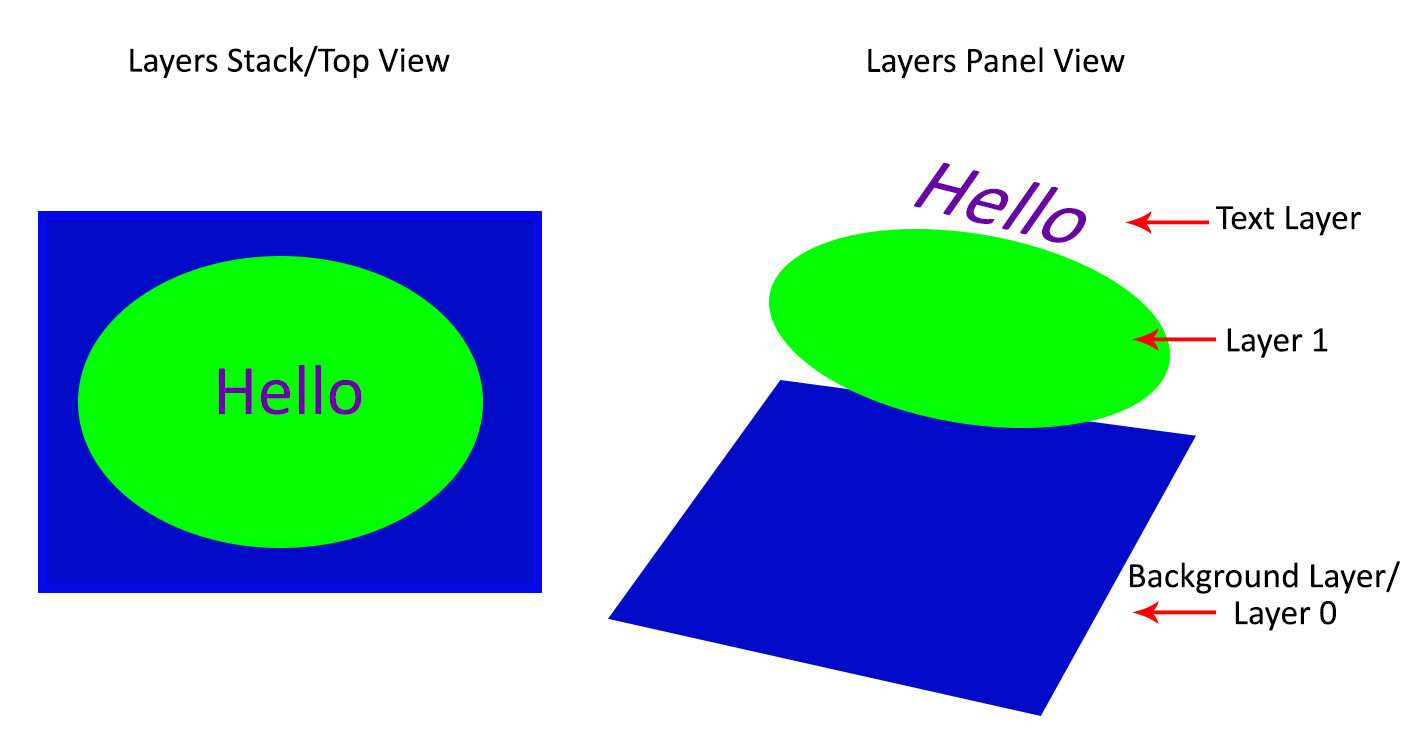
This introduction to Photoshop Layers for beginners will help you learn a great editing habit. So, what exactly is a Photoshop layer? Quite simply put, if you imagine a stack of transparent paper, each sheet is equivalent to a Photoshop layer. When you add/change/remove any of the layers, what you see at the top of the stack forms your entire image.

The first time you open Photoshop, by default, the layers panel is on the right side of your screen and your image opens as a layer named “Background”. Keep this in mind as you read on.

Photoshop Layers for Beginners – What, When and How to Use them Best

Why use Photoshop Layers?

Now that you have an idea of what a layer is, here is why you should use them:

1. It is a way to work non-destructively

Destructive editing occurs when you move and change the pixels directly in your original image. This happens if you edit your original image/background layer when working in Photoshop. While you can undo your changes, if you exceed the number of “undos” you can apply, those changes commit. Also, you may like some changes, but not others, and there is no way to go back to just that change without undoing other changes you have made too.

Alternatively, when you edit your image on separate layers, both the edited image and the original save (they are saved to a .psd file and this maintains all your layers). This allows you to go back to your original image at any time, simply by hiding layers, or deleting them entirely.  This is a form of non-destructive editing.

One thing to remember, however, is that if you resize your entire document (via menu->image->image resize) at any point, that is a form of destructive editing, and you will lose image quality if you try to resize it back to the original size later.

As your editing style evolves, you will appreciate the option of going back to original images at a later date.

Image: Easily add text without affecting your original image

Easily add text without affecting your original image

2. It allows organized and flexible editing

Photoshop is usually a great option when you want more control over your editing process. While you start off with a certain end result in mind, you may change your mind, during (or even at the completion of) your process. Surely there are better ways than undoing multiple changes or starting over from scratch right?

Enter, layers.

Image: Since your original image is unaffected, you can change the text at a later date

Since your original image is unaffected, you can change the text at a later date

Layers allow you to work with your vision without affecting/destroying the original. Since you can work on each layer separately, you have major flexibility. With layers, you can also combine several images into one (composite), These include (but is not limited to), swapping out elements from your image, changing color, tones, and lighting, adding text and resizing, replacing or rotating an object independent of everything else in your image.

Image: You can use layers to replace a plain sky

You can use layers to replace a plain sky

This non-destructive editing style allows you to undo a change at any point in time, and you have control over each individual layer. This means you can work with different objects and elements of your image without affecting anything else.

How to use Photoshop Layers

If you do not see the Layers Panel on the right-hand of your screen, you need to turn it on. To do so, go to Menu->Window->Layers.

As mentioned before, when you open an image in Photoshop, it opens as a background layer. You will notice that there is a small lock icon on the right side of the background layer. This lock is intended to prevent inadvertent changes.

The first step is usually to duplicate this layer. That way, the background layer remains untouched (original).

Photoshop Layers for Beginners – What, When and How to Use them Best

To start, duplicate your background layer:

  1. Open an image in Photoshop
  2. Right-click on the thumbnail image in your layers panel named “Background,” and choose the duplicate layer option
  3. Click OK. A new layer will appear above your original layer with the default name “Background Copy” – you can rename it to anything you want. I suggest renaming it to something that relates to the changes you are making. This makes it easier to find later if you have many layers.

photoshop-layers-for-beginners

As you become comfortable working with layers, you will find yourself making new layers for each change you want to make e.g. if you are retouching an image or replacing a sky. This comes with the knowledge that, later on, you can adjust the intensity of any of those changes independently.

Image: I used Layers for Sky Replacement, with a Layer Mask to recover the top branches

I used Layers for Sky Replacement, with a Layer Mask to recover the top branches

Adjustment Layers

Photoshop also has another layer type called Adjustment Layers. These layers are not a duplicate of other layers; instead, they adjust the information of the layer directly beneath it. Thus you can simply use an Adjustment Layer to effect change on the image without changing the original layer image. For example, you can increase/decrease the contrast or brightness of your layer.

photoshop-layers-for-beginners

Notice how adjustment layers look different from other layer types. These adjust the layer below them.

Adjustment layers do not actually contain any pixels but instead are a series of instructions for Photoshop on what changes you ask it to make. You can access the Adjustments Layer menu at the bottom of the Layers panel or choose Windows and check the Adjustments option.

Layer Masks

A Layer mask is another non-destructive editing technique in Photoshop, used to control the transparency of the layer you apply it to. An even simpler definition is that a layer mask can make a layer visible or invisible. This is done by painting either white (to make it visible) or black (to make it invisible).

photoshop-layers-for-beginners

Blending Modes

At the upper left corner of the Layers panel is the blend modes drop-down menu. These “modes” are set to Normal by default and control how pixels on the different layers interact with each other. An easy way to understand what the different blending modes do is to duplicate your image (as described above) and cycle through them.

photoshop-layers-for-beginners

An example of how different blend modes change the look and feel of your image: 1. Normal 2. Multiply 3. Soft Light 4. Vivid Light 5. Hue 6. Luminosity

Important layering notes for beginners

When there are several layers, your changes only affect the layer that is active or selected. This is why it is a good practice to name your layer (Step 3 above) based on what you are using the layer for.

You can save the edits as a Photoshop (PSD) file, close it and open it at a later date to find all your layers (and changes) as you left it. Of note, saving it this way increases the size of your file. If you are finished with your edits and don’t need a large PSD file, you can merge all the layers (or flatten the file) and save it to a smaller, more compressed file type, such as a jpeg. Of course, in doing so, you will no longer have the ability to access those individual layers later.

Layers work in order. This means that the layer on top “covers” everything below it. You can, however, reorder your layers by moving them up or down by simply dragging them. Keep in mind that the layer on the top will be most visible.

photoshop-layers-for-beginners

Conclusion

The key thing to remember as a beginner is that Photoshop layers are a recommended non-destructive way to work. It is flexible, which allows you to organize your work, effect change in selected areas, and undo changes easily.

When you do not merge your layers, you can open your Photoshop file years later and make changes, all without affecting your original image.

I hope you can utilize these Photoshop Layers for Beginners tips, and if you have any tips on this topic, please share in the comments below.

The post Photoshop Layers for Beginners – What, When and How to Use them Best appeared first on Digital Photography School. It was authored by Nisha Ramroop.


Digital Photography School

 
Comments Off on Photoshop Layers for Beginners – What, When and How to Use them Best

Posted in Photography


The Absolute Beginners Guide to Camera Settings

11 Oct

The post The Absolute Beginners Guide to Camera Settings appeared first on Digital Photography School. It was authored by Mat Coker.

beginners-guide-to-camera-settings

When you bought your fancy camera with all its buttons and dials, you began a journey that few can endure.

Most people who buy a DSLR, never figure out how to use it. But the fact that you’re reading an article like this means that you’re determined to learn.

One of the most difficult phases of photography you’ll pass through is figuring out how your camera works. But once you understand even a little bit, the world of photography opens its doors to you.

If you’re new to photography, then this Absolute Beginners Guide to Camera Settings is for you.

Absolute-Beginners-Guide-to-Camera-Settings-Start in auto mode

The Olympus Tough TG-6 comes with auto mode, more than a dozen scene modes, as well as aperture mode (one of the most used settings by photographers). This photo was taken by a child using a DSLR in auto mode.

Photographs are made with light

Buying paint and canvas does not guarantee that you will produce a nice painting, nor does buying a camera guarantee a good photo.

Your camera is a complicated piece of technology designed to capture the moment you see with your eye and make a picture. However, the main ingredient it uses is not ink or paint but light.

A poor photograph may be due to a lack of creativity. But many creative photos are ruined due to a wrong combination of camera settings used to make a picture. The most important camera settings are about what the camera does as it makes a picture out of light.

Using Auto Mode with Window Light

Small steps

Sure, cameras differ in their capability and quality, but it’s not really the camera that is ultimately responsible for how the photo turns out. You must have control over the camera to make it do what you want it to.

Every time you snap a picture, you need to make some decisions that are affected by camera settings:

  • Do I want my background to be in focus or not?
  • Should I freeze the action or capture motion blur?
  • Do I want my photo to be warm or cool-looking?
  • Is it best to capture a series of shots in burst mode or just one photo at a time?

These decisions, and many more, are represented by “camera settings.” You select certain settings so that the camera knows what to do when it takes a picture.

There are many settings and I want to walk you through some of the most important.

The best way to learn something is by taking small steps. Learn one step, and don’t move on until you understand it. Bookmark this and other articles so that you can come back to them as you grow in your understanding.

Confused about camera settings

This was my attempt to capture my son’s first steps with an advanced camera that I didn’t know how to use.

Auto mode

Let’s begin in Auto mode. Look for the dial on the top of your camera. You’ll either see the word auto or perhaps just a green box or icon.

Absolute-Beginners-Guide-to-Camera-Settings-Auto Mode

What does Auto mode do? It means that your camera will make all the decisions for you and choose all the settings. All you have to do is take the picture!

When you put your camera in Auto mode, you’re basically saying, “I don’t know how to work this thing!” There is no shame in not understanding how your camera works. If you are determined, you will learn over time.

It is possible to take nice photos in Auto mode. Part of the reason that auto mode can work so well is that it frees your mind from the technical aspects of photography that you don’t understand yet. Auto mode allows you to focus on the creative elements and use of light that you’re more likely drawn to.

Auto Mode Examples

Auto mode exercise

Go ahead and put your camera in Auto mode. Get out into the world and take lots of pictures. As you sort through your photos, make a list of the problems you run into. It’s easier to learn photography and grow when you’ve got specific problems that you can ask questions about.

Problems with Auto mode

You’re going to run into lots of problems in Auto mode, but how come? Shouldn’t your camera be smart enough to take a great picture on its own?

First, your camera has no idea what it’s looking at. So, it doesn’t know what you’re taking a picture of and it doesn’t know what you want the picture to look like.

All it’s trying to do is take a picture with the right exposure. Exposure refers to how bright or dark your photo is and it’s all the camera really cares about in auto mode.

You may see an inspiring scene in front of you, but the camera doesn’t. All it’s trying to do is expose your photo properly, and even that doesn’t work well many times.

Motion blur in auto mode.

Common problems in Auto mode include motion blur.


Blown highlights

Overexposed highlights are another major problem in Auto mode.

Over time, you’ll have a pretty good idea of what you wish you could make your camera do. You’ll say, “I wish I could tell my camera to…”

The good news is, there is actually a way to tell your camera what you’re taking a picture of and how you wish it would look.

How to tell your camera what you’re taking a picture of

If you tell your camera what you’re taking a picture of, you’ll increase the odds of getting a better photo.

The way to tell your camera what you’re taking a picture of is to use the scene mode option on your camera. Scene mode covers the most popular photography situations such as landscape, portrait, close-up, sports, etc.

Absolute-Beginners-Guide-to-Camera-Settings-Scene mode

Absolute-Beginners-Guide-to-Camera-Settings-Scene modes


When you select the appropriate scene, you’re telling your camera what you’re photographing. Your camera will choose a combination of settings that are best suited to that situation. It’s going to choose roughly the same settings that an experienced photographer would use.

Sports Mode

You can use Sports mode when photographing quick moving kids, or when you’re photographing any action. There will still be imperfections in your photos, but you’re more likely to freeze the action.


Absolute-Beginners-Guide-to-Camera-Settings-Freeze Action

Freeze quick-moving subjects with Sports mode.


Absolute-Beginners-Guide-to-Camera-Settings-Portrait Mode

Portrait mode will help your camera achieve an out-of-focus background. That background blur is referred to as bokeh.


Landscape mode

Landscape mode will favor a greater depth of field in your photo. This will keep more of the foreground, midground, and background in focus. It tends to make colors more vibrant too.


Your camera will have all sorts of scene modes to explore. Consider the situation you’re in and see if your camera has a scene mode to help you out.

But still, your photos might not turn out great. Why? Because ultimately your camera is most obsessed with making your photo bright enough. And you might be pointing it at a scene that is really hard for the camera to capture properly.

Light and creativity

When you put your camera on Auto mode, it has to balance three main settings in order to make a picture out of light.

The three settings are ISO, aperture, and shutter speed. Each of these three settings contributes to the overall brightness or exposure of your photo. But aperture and shutter speed have creative effects as well.

Aperture contributes toward brightening or darkening your photo, but will also help make your background out of focus, or keep it in focus.

Shutter speed contributes toward brightening or darkening your photo, but will also help freeze the action or make your photo blurry.

ISO contributes toward brightening or darkening your photo but doesn’t really have its own creative effect.

I’ll show you how to begin taking control of aperture, shutter speed, and ISO settings so that you can get a predictably good photo. I mean a photo that is bright enough without being too bright, a photo where the action is captured as you wish and the background is in or out of focus as you desire.

A little more like the photo on the right than the photo on the left!

Good vs Bad Photo

Make one decision

The good news is, you can take some control of your camera without the burden of having to take full control. You can take control over one of the three main settings that are part of the exposure triangle. But how do you choose which one?

You can make this decision by asking yourself what’s more important; freezing the action, or blurring the background?

If you’re taking pictures of birds, sports, or other quick-moving subjects, you’re likely most concerned with freezing the action. If you’re taking a portrait, you’re most likely concerned with an out-of-focus background or, bokeh.

In order to achieve an out-of-focus background, we’ll begin with a setting called aperture.

Aperture Mode

If you’re most concerned with whether or not your background is in focus, choose Aperture mode (also known as Aperture Priority).

  • For Nikon and most other cameras, turn your dial to A.
  • For Canon, turn it to Av.
  • If you’re using a Fuji, you control the aperture with a ring on the lens.

Absolute-Beginners-Guide-to-Camera-Settings-Aperture Mode

When you put your camera on Aperture mode, you’re telling your camera that you want to control the aperture but you want the camera to control the shutter speed and ISO.

You use aperture to control whether or not your background is in focus, but what exactly is aperture?

To understand aperture, think about your kitchen sink. Picture turning the tap on full-blast. The water will come rushing out of the tap. But you could also turn the tap on gently so that there is a slow trickle of water.

That’s what aperture is, except with light.

Open your aperture up and get a strong flow of light coming through your lens. Close the aperture, and you’ll only have a trickle of light.

The creative effect of aperture

Open up your aperture and your background will be more out of focus (great for portraits). Close your aperture a bit and your background will be more in focus (great for landscapes).

The aperture is measured in numbers such as 1.8 or 3.5 or 5.6 or 8 or 11, etc. The smaller the number, the more open the aperture. The larger the number, the more closed.

Open aperture

This was an aperture of f/4. The background is out of focus. The more you bring your subject away from the background, the more out of focus the background will look.


In focus background

The aperture was set to f/11 for this photo so that the background is more in-focus.


The smaller the number and the more open the aperture, the more light that comes in and the more out of focus the background.

The larger the number and the more closed the background, the less light that comes in, and the more in-focus the background.

When you’re in Aperture mode, you use the scroller on your camera to open and close the aperture.

Choose Aperture mode when you’re most concerned about whether or not your background is in focus.

Image: If you close your aperture a bit, then you’ll have a greater depth of focus in your pho...

If you close your aperture a bit, then you’ll have a greater depth of focus in your photo. This photograph was made at f/5.6, but I would even recommend f/11 for landscape photos. Closing your aperture will help to keep both the foreground and background in focus.


beginners-guide-to-camera-settings-50mm lens

If you want your background to be blurred, then open your aperture as much as you can. That might be f/3.5 or f/5.6 on the lens that you’re using. If you have a 50mm lens then you can open all the way to f/1.8.


Absolute-Beginners-Guide-to-Camera-Settings-50mm bokeh

The other way to help your background to go blurry is to step closer toward your subject.


50mm close up

The closer you get to them, the more the background goes out of focus.


ISO

Remember, ISO doesn’t exactly have a creative effect.

So what is ISO and when do you use it?

ISO is a magical setting that helps your camera to see in the dark.

So you would set your ISO according to the lighting conditions that you’re in.

  • Is it a bright sunny day? Then set your ISO to 100 or 200.
  • Perhaps the sky is overcast? Set your ISO to 400 or 800.
  • Are you in dim indoor light? Set your ISO to 1600 or 3200. Maybe even 6400!

You have two main options when it comes to ISO:

  • Set it to Auto and let the camera figure it out.
  • Take control of it yourself.

I recommend playing in Aperture mode with your ISO set to auto. That way, you can experiment with aperture and let the camera figure out ISO and shutter speed for you. In a moment, we’ll look at shutter mode. In that case, I recommend leaving your ISO on auto as well. Take control of ISO when you feel comfortable with the other settings.

A word of caution about ISO

The higher you raise your ISO to help capture the light, the more noise or graininess will be introduced in your photo – especially in low light. The noise or grain is intensified all the more if you brighten your photos in post-processing (with a program such as Lightroom).

I don’t always mind a little noise or graininess in my photos. Noise and graininess are normally considered an imperfection in our photos. To me, it reflects the graininess or imperfection of everyday life and the moment by moment struggle that we have as photographers when we take pictures.

My photos are filled with imperfections, as am I in real life. If everything in my photo looks good except for the grain, then I am happy. I have an old iPhone that I keep around just for its nostalgic graininess.

High ISO Grain

The grain or digital noise is easily seen in this high ISO photo. Generally, the newer the camera and the larger the sensor, the less of a problem you’ll have with noise.

Shutter Mode

If your main concern is freezing the action, then you should choose Shutter mode (also known as Shutter Priority).

  • Nikon – set your dial to S.
  • Canon – set your dial to Tv.
  • Fuji – look for the dial with numbers like 125, 250, 500, etc.

Absolute-Beginners-Guide-to-Camera-Settings-Shutter mode

If the aperture is how much flow of water is coming out of the tap, then shutter speed is how long the water comes out for.

Aperture controls how much flow of light comes into the camera, while shutter speed controls how long that flow comes in for.

The quicker the shutter speed, the less light that comes in.

The slower the shutter speed, the more light that comes in.

It’s generally the case that in bright light you should have a quicker shutter speed, and in dim light, you need a slower shutter speed. The danger with a slower shutter speed is that your photo may become blurry.

Why will your photo become blurry with a slow shutter speed?

Consider shutter speed being how long it takes for your camera to take a picture. A quick shutter speed means that the photo is taken so quickly that the action is frozen in the photo. But a slower shutter speed means that the camera takes longer to take the photo and any movement in the scene becomes smeared across the photo.

Two circumstances lead to a blurry photo. The first is that you have moved the camera while taking the picture – often referred to as camera shake. Maybe your hand shakes, or the camera vibrates as you take the photo.

Camera shake motion blur

You must hold the camera still and consider using a tripod when your photos turn out like this.


Another possibility is that your camera is perfectly still but your subject is moving. If the person you’re photographing is moving, they may be smeared across the photo.

Motion blur

But even if you put your camera on a tripod, a moving subject may cause motion blur.

So what does it take to freeze the action?

You’ll notice that shutter speed is measured in fractions of a second. You’ll see numbers such as 1/125th or 1/2000th. Basically, the smaller the fraction, the more likely you are to freeze the action.

So 1/2000th will likely freeze the action, but 1/60th likely will not.

Slow shutter speed mtion blur.

Shutter speed of 1/40th of a second. The camera was held still so that the background was sharp, but the motion is blurred.


Absolute-Beginners-Guide-to-Camera-Settings - Freeze the action

A shutter speed of 1/500th of a second froze the motion of her hair as she turned.


Freezing the action.

A shutter speed of 1/2500th froze him as he bounced in the air.


Slow shutter speed creative effects

Silky waterfall shutter priority

These silky waterfalls were captured using a slow shutter speed. ISO 100, 1-second shutter speed


Slow shutter speed panning

The panning technique uses a combination of slow shutter speed and following the movement of your subject with the camera. The shutter speed was 1/20th of a second.

Other articles to explore

You now have enough knowledge to control the amount of background blur in your photo and to freeze or blur the action. You can also use ISO to help your camera see better in the dark.

Now it’s up to you to practice one little bit at a time until you’re comfortable and ready to move on.

Here are some more advanced concepts that may help you down the road.

  • Stops
  • Light Metering
  • Exposure compensation
  • White balance
  • Raw vs JPEG

Many people find it harder to master the introductory stage of camera settings than the advanced stages. Advanced techniques are easy to learn once you know the basics. Don’t be discouraged, and feel free to leave questions in the comment section below.

The post The Absolute Beginners Guide to Camera Settings appeared first on Digital Photography School. It was authored by Mat Coker.


Digital Photography School

 
Comments Off on The Absolute Beginners Guide to Camera Settings

Posted in Photography


What is the Essential Underwater Photography Equipment for Beginners?

21 Aug

Photography is a very appealing hobby and  many people will be tempted to capture their holidays and all the places they’ve visited. This is one of the best opportunities to bring your camera underwater and do some unique photography with amazing results.  With underwater equipment, you can capture reefs, go snorkeling, get pictures of fish, capture shipwrecks, and so on. Continue Reading

The post What is the Essential Underwater Photography Equipment for Beginners? appeared first on Photodoto.


Photodoto

 
Comments Off on What is the Essential Underwater Photography Equipment for Beginners?

Posted in Photography


Essential Photography Equipment For Beginners?

03 Jul

Every photographer is unique in their own photography style and gear preference. To get you started on your photography journey, this article will help you choose the only really essential photography equipment for beginners. You will also find specific brands and explanations for why they were chosen. This photography basics bundle has everything you need to get started! I will Continue Reading

The post Essential Photography Equipment For Beginners? appeared first on Photodoto.


Photodoto

 
Comments Off on Essential Photography Equipment For Beginners?

Posted in Photography