RSS
 

Posts Tagged ‘Beams’

Create Light Beams in GIMP that Glow Without Any Plug-ins

01 Apr

The post Create Light Beams in GIMP that Glow Without Any Plug-ins appeared first on Digital Photography School. It was authored by Ana Mireles.

Create Light Beams in GIMP that Glow Without Any Plug-ins

Do you want to create light beams with GIMP? While previous versions of GIMP used a process called Alpha to Logo, it’s not available in the latest version. Not to worry, you don’t have to download any plug-in or script-fu, as I’ll show you a step-by-step example to do them manually.

Create Light Beams

GIMP’s open-source nature can be the most attractive thing for some people and the most off-putting for others. Create light beams used to be a one-click operation, but the script-fu was removed since version 2.10.4. There’s a way to get it back and install it separately, but you can also create them using GIMP’s basic functions.

How to Create Light Beams in GIMP

1. Design the shape

Open the image or canvas where you want to create light beams.

Now create a new layer, I strongly recommend you to name them as you go because you will need a few of them.

Do this in the designated space on the top. Then choose Fill With Transparency and click OK.

Add transparency layers

In this new layer, draw the shape of your light beam using the Path Tool. Make sure the Edit Mode is set to Design and start drawing.

If you want to create curves, just hold the mouse button and drag the anchor point.

Design light beams

Once you have the shape you want, choose the color by clicking in the patches you find on the left panel.

Then right-click in any anchor point of your shape and choose Edit > Stroke Path from the menu.

Stroke the designed path

This will open a pop-up window.

Select Paintbrush and Emulate Paintbrush.

This will apply the effect using the settings you have in your Paintbrush tool as if you had painted the shape.

2. Create the beam

Now, the stroke needs to start looking like a light beam. For this, you need to draw a lighter outline to it. The easiest way is to right-click on the layer and choose Alpha to Selection.

Alpha to selection

Go back to the color swatches and choose a lighter hue, or even white.

Create another transparency layer, then go to Edit > Stroke Selection. In the pop-up window choose Stroke Line and set the value that will determine how thick you want it.

Create light beams outlines
Here I disabled the visibility of the first stroke. You don’t have to do this, it was only to show you how the second stroke does an outline.

Deselect everything and click on the Layer Mask button.

Set it to black (full transparency). This will cover the entire outline you created before, but that’s OK, you’ll make it visible in the next step.

Pick the Paint Brush tool and set the color to white.

Then lower the opacity of the brush and paint over your light beam to slowly make the outline visible. After that, with full opacity, paint over some parts to create highlights.

add some highlights
I used full opacity only in the curves because that’s where I want the highlights to be.

3. Make it glow

Duplicate this layer and delete the mask. Lower its opacity and then go to Filters > Blur > Gaussian Blur. The value is up to you, I started with 22. Repeat this process a second time, this time changing the values in the Opacity and the Blur filter.

create light beams that glow

This is how you can create light beams that appear to glow. If you feel like adding a neon effect, keep on reading to learn how.

4. Add some color for a neon effect

With the top layer selected, add a new transparency layer.

Then set the color you want in the swatches.

Since you’re going for a neon effect, I recommend you choose something ‘electric’.

Use the Paint Brush tool to add some colored splats on your design.

create neon light beams

Change this layer to Soft Light blending mode at the top of the Layers panel.

Then create another one and do the same with another color. Change this one to HSL Color.

create light beams using GIMP

That’s it! Your neon glowing light beam is ready.

Feel free to skip any step or add some more to make it your own.

Remember, the good thing about doing them manually is that you have full control over the outcome.

Extra tip:

If you want it to swirl around something, like mine, just erase or cover with a layer mask the parts that should go behind the subject.

Incorporate light beams in your photography

Conclusion

Scripts and plug-ins can save some time, but they aren’t necessarily available or easy to install. Granted, you don’t always know the individual commands that were automated and that makes it difficult.

This process, however, is meant as a starting point to make it less daunting and allow you to get creative. I hope you liked this technique to create light beams in GIMP without any plug-ins.

Want to learn more GIMP Tutorials? You may like:

  • A Brief introduction to GIMP Software
  • Creative Uses for the GIMP Jigsaw Pattern
  • How to Use Gimp for Basic Photo Re-Touching
  • Make your Photos Sparkle with GIMP
  • 5 Top Tips for Working with Gimp

The post Create Light Beams in GIMP that Glow Without Any Plug-ins appeared first on Digital Photography School. It was authored by Ana Mireles.


Digital Photography School

 
Comments Off on Create Light Beams in GIMP that Glow Without Any Plug-ins

Posted in Photography


How to Realistically Enhance Light Beams in Photoshop

23 Jun

The post How to Realistically Enhance Light Beams in Photoshop appeared first on Digital Photography School. It was authored by Adam Welch.

As a general nod to creative decency, in my work, I tend to steer clear of the “influencer” types of photographs. You know the ones I mean. The photos of people standing at the edge of some gorgeous vista, smiling, but, of course, seldom looking at the camera. They usually have some brand name product conspicuously visible in the frame. It’s not that those kinds of images are wrong, neither in execution or intent, but rather slightly tired and overdone.

With that said, there is one type of photo that I find myself producing again and again, that I admit would fall into the category I attempt to keep myself away from most of the time. I love making photos at night time with light beams shining off into the dark of space.

The problem is, that without an enormously powerful light source, achieving highly pronounced light beams is fairly difficult to achieve. In short, your average consumer flashlight or headlamp likely won’t pack enough luminous punch.

This is where a super simple piece of Photoshop magic can make these types of photographs truly stand out. In this tutorial, I’m going to show you an easy way to enhance the light beams in your images using Photoshop.

Before we begin

As with most any type of photography, your finished results are directly dependent on the quality of the starting material. You should always strive to get as much right in-camera as possible before you move to post-processing. This means correct exposure relative to the elements of your images, accurate focus, and appropriate ISO settings.

While this technique can enhance light beams in any photo, the outcome will vary enormously in terms of both quality and realism depending on the solidity of the original digital file.

Alright, now let’s have some fun!

Process first

It’s a good practice to save the enhancing of the light beams in your photos until the very end of your post-processing. This means that you should process all other aspects of the image as you would like them to appear in the finished photo before you apply the steps we’re about to discuss. Here is the RAW file of our example image before any post-processing.

Here is that photo after I have finished the global and local adjustments. In short, aside from the somewhat lackluster beam emitted from the headlamp, the image shown here looks exactly the way I like.

I have completed all exposure, contrast, color adjustments, sharpening and noise reduction. Regardless of what software you use to complete your post-processing, you will need to bring the image into Photoshop to finish your work. Since I use Lightroom Classic CC, I choose ‘Edit in Photoshop.’

How to enhance the light beam

After you’ve kicked your image into Photoshop, it’s time to begin the incredibly easy process of enhancing that beam of light. We’ll do the entire operation with some super simple layer masking. To get started, select the polygonal lasso tool (keyboard shortcut ‘L’).

We’re going to imagine that we are drawing a shape which corresponds to how the light will naturally diverge from the source. In this case, the headlamp. So, beginning at the base of the light beam we’ll create our shape. Simply click and let go, then draw the first line. I recommend extending this first line past the canvas of the image. I’ll explain why in a moment.

Connect the dots

Now it’s just a matter of drawing more lines and connecting them. Click each point to anchor the lines together until you reach back to the beginning point. This will complete the shape automatically. At this point, the shape will also appear to be moving with the so-called “marching ants.” It will essentially look somewhat like a triangle.

It’s this shape from which we will create our first mask. Believe me, this is all about to make perfect sense!

Add a Brightness Adjustment Layer

Click on the Brightness Adjustment Layer icon to add a brightness and contrast adjustment layer. Photoshop automatically creates the mask for this layer based on the shape we’ve just drawn.

This is where the magic happens. Increase the brightness slider.

Boom. Isn’t that cool?! All that has happened is that the brightness increase only affected the shape we created with the polygonal lasso tool.

Feather the mask

There’s still a light problem, though. Look how unnatural the beam emitted from the headlamp now looks. We can fix this by adjusting the feathering of our mask. Click on the mask icon within the adjustment mask window.

Increasing the feathering of the mask makes the edges softer and appear as if they are naturally diverging from a finite point of origin.

Doesn’t that look so much better already?

Create multiple masks

At this point, we could be completely finished, or we could repeat the steps we’ve already learned to “stack” additional layer masks based on shapes we’ve drawn using the polygonal lasso tool. In this particular image, I’m going to create another more intense beam inside the one we’ve already made.

Then it’s just a matter of adding another brightness adjustment layer just as we did before. Then adjust the brightness and mask feathering.

Don’t think that your masks are limited to brightness adjustments. You can add any adjustment that you choose.

In this case, I want to cool down the beam to better match the original color of the headlamp light. To do this, I’ll draw another shape with the polygonal lasso tool, but this time, I’ll select the ‘photo filter’ adjustment and add a cooling filter.

And remember when I said there was a reason we extended the mask past the actual border of the image canvas? We’re going to learn why in the next section. It all comes down to realism.

Fine adjustments

When it comes to this type of adjustment, it’s always crucial you understand the mechanics of the effect you are either simulating or enhancing. In this case, we are enhancing the way light travels from a given source.

As you probably are aware, light diverges as it travels, hence the widening of our light beam. Not only that, but the further it perceivably travels, the less bright it becomes to our eyes. The light essentially disappears into space.

To mimic this natural principle, we will “dim” the light beam as it extends further towards the edge of the frame using the brush tool.

We’ll select each layer, and selectively adjust the masks so that the light appears to dissipate softly. Make sure you set your brush to black.

This is where you will need to exercise your own judgment based on your particular image. Experiment with different opacity and flow rates. If you remove too much, just switch the brush to white and paint the effect back in as needed.

Isn’t Photoshop great?

And that’s it! Here is our final photo with the enhanced light beam.

Considering this is what we started with…

…the overall creative power of this cool edit is obvious.

Let’s recap

When it comes to enhancing (and even simulating) light beams in your images, you’ll want to remember a few key  guidelines:

  • Begin with the best image possible
  • Save your light beam enhancements until the very end of your processing
  • Maintain realism by understanding light – it diverges and dissipates (in our perception) as it travels
  • Stack as many masks as you need
  • Remember to feather your masks!
  • Don’t be afraid to adjust the color of the enhanced light beams

At its core, enhancing light beams in Photoshop is an extremely easy way to add some immediate power to your images. Even though we’ve used the example shown here, you can apply this technique to any scene with point sources of light such as car headlights, street lights or in any scenario where you might want to creatively pump up the luminosity of light beams.

Try it out, experiment and, as always, be sure to share your results with us!


How to Realistically Enhance Light Beams in Photoshop

The post How to Realistically Enhance Light Beams in Photoshop appeared first on Digital Photography School. It was authored by Adam Welch.


Digital Photography School

 
Comments Off on How to Realistically Enhance Light Beams in Photoshop

Posted in Photography


Ultimate Wooden House Made of Jenga-Like Stacked Beams

27 Dec

[ By Steph in Architecture & Houses & Residential. ]

Jenga House 1

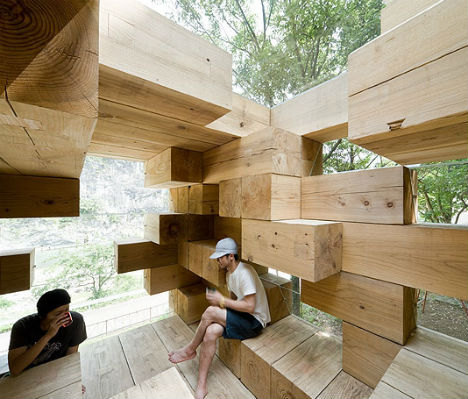
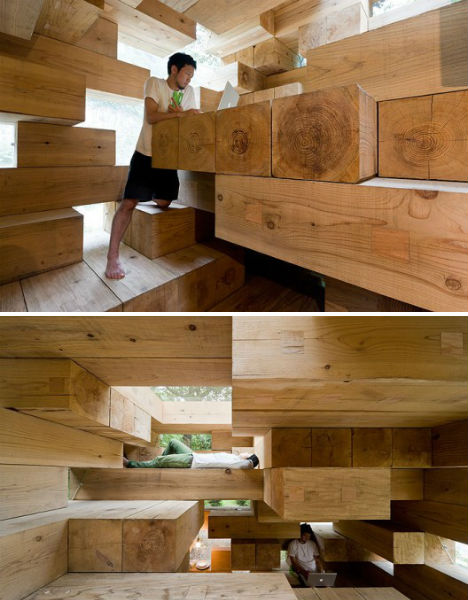
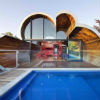
Explore the seemingly endless platforms and hidden nooks of this Jenga-like house, conceived as an example of “ultimate wooden architecture” by Sou Fujimoto Architects. Located in Kumamoto, Japan, ‘Final Wooden House’ consists of massive wooden blocks randomly stacked together with irregularly shaped openings covered in glass.

Jenga House 2

The architects were inspired by primitive conditions before architecture, like cave dwellings, where humans made the most of the surroundings as they found them.

Jenga house 3

Forget conventional rooms and staircases – this home is like a massive playhouse, requiring the inhabitants to climb from one block to another. The wooden blocks offer all manner of supports for various activities, but you’ll have to use your imagination to determine just how to use each one.

Jenga house 4

Of course, climbing around inside this minimalist jungle gym requires care, an able body, and perhaps a hard hat. Getting from one area to another in the dark might be an intimidating task. The house may not be terribly practical, but what it lacks in livability, it makes up for in pure fun.

Share on Facebook


[ By Steph in Architecture & Houses & Residential. ]

[ WebUrbanist | Archives | Galleries | Privacy | TOS ]


WebUrbanist

 
Comments Off on Ultimate Wooden House Made of Jenga-Like Stacked Beams

Posted in Creativity