RSS
 

Posts Tagged ‘Backup’

9 Ways To Backup Photos While Traveling Without A Computer

26 Jun

Picture this. You’re on an amazing trip. You’ve been taking photos left and right. You’re absolutely ecstatic because of the incredible images you’ve been blessed to capture. Then, on the last day of your trip, something happens. It could be anything, your camera gets stolen, or you lose the memory card, or you douse the whole kit and kaboodle in Continue Reading

The post 9 Ways To Backup Photos While Traveling Without A Computer appeared first on Photodoto.


Photodoto

 
Comments Off on 9 Ways To Backup Photos While Traveling Without A Computer

Posted in Photography


How to Backup Your Photos While Shooting Tethered so You Never Lose Them

01 Aug

The post How to Backup Your Photos While Shooting Tethered so You Never Lose Them appeared first on Digital Photography School. It was authored by Darina Kopcok.

Whether you’re working with clients or shoot as a lone ranger, you need to back up your work. As the saying goes, when it comes to hard drives, it’s not a matter of if they will fail, but when they will fail.

Working with image files requires a lot of power and is very taxing for your computer. This increases the chance of hard drive failure. You need to have a system of backing up your images that works for you. This is also important to backup your photos while shooting tethered.

how-to-backup-your-photos-while-shooting-tethered-3

Backup your photos while shooting tethered

There are various programs that allow you to connect your camera to a laptop or desktop computer via a USB cable. This allows you to view a larger and more accurate version of your image on the computer screen. Tethering is crucial in genres like food and still life photography, but also very useful in other niches, like studio portrait photography.

When shooting tethered while on location, an efficient workflow around the backup process will make your life a lot easier and ensure that you have several copies of your image files should an unforeseen incident occur.

If you’re like me and shoot tethered to a laptop but edit on a desktop, you already have the bonus of an extra copy of your images, since you’re using two computers.

If you transfer the images from the laptop to desktop via a detachable external hard drive, there is your third copy. However, if you use a card reader or transfer your images from your camera via a USB cable, you should have at least one more hard copy of your images. Also, what if something happens to your laptop while you’re on a shoot? Remember, it’s a question of when.

Do you use Lightroom as your tethering program of choice? You then have the option of saving your images to your SD cards as you take them. However, Capture One Pro doesn’t offer this option. This makes image capture instant, but it doesn’t give you an extra sense of security by providing additional copies of the images you’ve shot.

You cannot just set up Lightroom or COP to save to two places. You need file synchronization software to make sure that your work is being backed up while you’re shooting tethered. 

Types of backups

There are two types of backup: specific project backup and overall data backup. You need to concern yourself with both.

While you’re shooting, you need to back up every single file. You also need to do a backup of your whole computer. You should create backups on external hard drives and also in a cloud-based system. Don’t simply rely on cloud solutions for your backups.

Storing photos in the cloud basically outsources the storage of your photos. The data in the cloud is not necessarily safe or under your control. Risks with cloud storage are having your data hacked and deleted, being locked out of your account, or having it be closed if you make late payments. Also, these types of online services can suddenly shut down or otherwise cease to exist. 

A word about digital data

The problem with digital data is that storage formats change over time. You might keep your photos “safe,” but they’ll be useless to you if you can’t read or open them. 

Operating systems, software and file formats keep changing, so just because you can see a file on your computer doesn’t mean you can actually load it.

One example is the attempts to replace the standard .jpg file format with JPEG 2000, PNG (Portable Network Graphics) and several others. JPG is fine for now, but you can never say never because this sort of thing actually happens all the time as technology changes.

A word about disk drives

Hard drives are great for storing images because they are relatively inexpensive, they provide fast access to data, and it’s very easy to copy one hard drive to another. 

However, backup drives are not an all-in-one perfect solution. Your data is at risk of being stolen or destroyed by fire, flood or some other disaster.

Also, the data is vulnerable to malicious software and human error.

You can accidentally delete a folder, or make mistakes when copying files. If your PC is infected by malware, it will usually encrypt files on external hard drives as well.

I personally have had several hard drives fail. One time I had a hard drive and a laptop fail at the same time! Some hard drives fail after several years of use, while others fail after only a few months. There is no way of knowing when the case may be.

Therefore, you can’t store your photos on a single drive. A minimum of two is recommended. I have backups on a couple of 1TB external, portable hard drives, as well as on two 4TB hard drives that are plugged into my desktop computer. 

You should keep one of your backups off-site, like at a relative’s home or even in a bank safety deposit box. 

how-to-backup-your-photos-while-shooting-tethered-2

How to back up while shooting tethered

Chronosync is one backup software that I recommend you use while shooting tethered if you use a Mac. If you’re a PC user, check out Bvckup.

Goodsync can be used with either system.

This type of software allows you to look at a given folder and copy everything to another folder on a separate hard drive. For example, you might want to shoot images on your laptop and have them sync to an external portable hard drive. Or you may want to use two separate portable hard drives. Basically what you’re doing is telling it what folder to look at and make an exact duplicate of it to another drive.

You can set it on a schedule or have it running in the background. Setting it on a schedule is great if you always have a hard drive plugged into your laptop.

Here is an example of how to do it with Chronosync.

1. Open up the application and choose, Create a New Synchronizer Document

How to Backup Your Photos While Shooting Tethered so You Never Lose Them

2. Decide what drives you want to synchronize by selecting >Choose from the Source Target and Destination Target menus accordingly. It will give you several choices of how you might want to back up from the dropdown menu under >Operation.
My recommendation is that you choose >Backup Synchronize Bidirectional. This will ensure that everything that is on one drive will also appear on the other.

How to Backup Your Photos While Shooting Tethered so You Never Lose Them

3. Click on >Synchronize in the top left-hand corner. It may take a few minutes for the synchronization to take place. Once it’s complete you’ll see the message below.

How to Backup Your Photos While Shooting Tethered so You Never Lose Them

It’s as simple as that. With synchronization software like Chronosync, you’ll ensure that all your files and folders are backed up for a very low price.

Other backup software

Many large companies offer photo storage services including Amazon, Google, Microsoft (OneDrive), and Apple (iCloud). However, this can be expensive if you need a lot of storage. With some, downloading large files is cumbersome and data such as file names and EXIF Data may not be preserved. Some services don’t preserve your photos as you uploaded them, and others just don’t work very well (Time Machine, I’m looking at you).

Here are some other paid-for options that are worth a look:

FoldersSynchronizer – a popular program for Mac OS which synchronizes backup files, folders, and disks.

Super Duper – great for disk backups on a Mac. It allows you to create a bootable clone of your disk which you can easily copy from one hard disk to another. This makes moving from one computer to another during an upgrade virtually painless.

Smug Mug – an all-in-one solution that allows photographers to display and sell their images, with unlimited uploads.

Backblaze – a cloud-based backup system that will continually back up your data while your computer is on. Use to restore data after a drive failure.

How to Backup Your Photos While Shooting Tethered so You Never Lose Them

To sum up

To ensure that you have all your bases covered when backing up your files, you should backup specific shoots as well as regularly do backups of your whole computer(s).

Have a couple of backups on hard drives, as well as a cloud-based backup.

When shooting tethered, I recommend backing up your images manually as you’re shooting, one at a time, to ensure that each image exists in at least two places at that time. Once you’re finished shooting, back up your portable hard drive to another one, preferably a larger, more robust hard drive where you store a copy of all your image folders.


how-to-backup-your-photos-while-shooting-tethered

The post How to Backup Your Photos While Shooting Tethered so You Never Lose Them appeared first on Digital Photography School. It was authored by Darina Kopcok.


Digital Photography School

 
Comments Off on How to Backup Your Photos While Shooting Tethered so You Never Lose Them

Posted in Photography


Create a Backup Today! Here is Why and How

30 Mar

The post Create a Backup Today! Here is Why and How appeared first on Digital Photography School. It was authored by Ian Johnson.

Are your files protected?

Insurance policies. We deal in them every day – car, home, life, renters, medical and more. The list goes on and on, but what are you doing to ensure your photos are insured against loss? The loss comes in many ways entirely out of your control – hardware failure, theft, or calamity. This article is your wake up call to consistently backup your work.

I am writing it because 5 months ago when my house burned I had my wake-up call. Don’t worry, my wife and I are fine, and there was no loss of life – only property. Why am I telling you this very personal bit of my life? Simple. Catastrophe can come in any form and at any time. Learn from my mistakes and back up as soon as you complete this article.

Fire, House, Pictures, Backup

This picture of my house burning is meant to convey reality. Calamity can happen at any time. Do you have a backup solution to protect your files in the face of disaster?

Let me take you back to six months ago because it is likely my backup strategy may reflect your own. I am a pretty serious photographer and create much content of professional and family-related photos.  I had a 24tb server backing up my files with redundancy. From the server, I kept an off-site backup of files by copying to a hard drive and then storing it. As I’ll highlight later, that way of doing a backup is adequate as long as you stay up on it.

Unfortunately, I had not completed an offsite backup for two years! Consequently, ALL of my professional work and memories during that time were vulnerable as my living room went up in flames and the water from fire hoses quenched them. One of the first things I thought when I arrived to see my house spurting 20-foot flames from the roof was, “what about my server?”

Backup, Failure

Your computer is fragile, but yet we trust them to hold a lot of incredibly important information. Whether its fire, theft, water, or failure, be sure your backup solution protects you. Establish one today!

Backup strategies

It may seem intimidating to back up your work, but thanks to the advances of high-capacity, affordable hard drives there has never been an easier time to do it! Once you have a system in place it becomes even easier. Digital Photography School has published several articles on the subject and most advocate for the “3-2-1” strategy.

This means :

3: Have three copies of your data.

2: Keep them in two separate places.

1: At least one must be offsite.

If this sounds like it is too hard, fear not, and do not tune out yet! I’ll outline three strategies to back up your work in easy to understand ways that serve both beginner and professional photographers. To help show off the strategies I’ve created some schematics (hopefully entertaining and fun ones) to show you how each system works.

Back up to a hard drive

Hard drives are cheap. A quick search shows you can purchase a 6TB (terabyte) hard drive for $ 125! Before you think to yourself “I can’t afford $ 125,” consider it is cheaper than any insurance policy you currently pay for, and if your photos are like my photos, it is an insurance policy protecting your memories and business.

Purchasing and rotating two hard drives consistently allows you to keep a backup of your work current. You may want to consult these guidelines for purchasing a hard drive.

Most major hard drive brands come with built-in software to automatically backup your files for you. This makes it incredibly convenient to back up your work. You can use two hard drives (“#1” and “#2) to  adhere to the 3-2-1 rule by:

  • keeping a copy of your files on your computer
  • using the hard drive’s software to back up to hard drive #1
  • taking #1 offsite to a place such as your office or your extended family’s house
  • setting up a new backup on #2
  • rotating hardrives #1 and #2 periodically. Your backup software will update the files each time you re-attach the hard drive. I recommend doing this at least every two weeks, but you can choose an interval that works for you. Once you choose an interval set up a repeating reminder for yourself on your phone.
Backup, Hardrive, shematic

Use these easy steps to establish a back-up system using two hard drives.

This solution is your cheapest option and requires the most work on your part. As long as you set up the backup using your hard drive’s software, it will automatically backup your files to hard drives #1 and #2 as you rotate them on and off-site. This system will FAIL if you do not adhere to rotating the hard drives consistently!

Backup to the cloud

Cloud services have become relatively cheap (about $ 100/year or less) and perform backups of your images with the caveat that you have a regular internet connection. Most cloud services can back up local files and files on attached external hard drives. You can adhere to the 3-2-1 rule by:

  • Keeping a local copy of files on your computer
  • Using the backup service provided by the hard drive to back up to a hard drive
  • Using a cloud service to back up the hard drive
  • Storing a hard drive off site
Backup, cloud, pictures, computer

Use this simple system to backup your files to a hard drive and to the cloud.

This is a pretty good option depending on how much content you are creating. If you are generating hundreds of gigabytes of content regularly or if you live in an area of slow internet this may not be feasible for you. Cloud services work best if the file structure doesn’t change. Moving files to new folders create a duplicate and the need to upload more data to the cloud. This option is middle-of-the-road for the expense. It is necessary to pay for a hard drive (or two) and a cloud service for a total of ~$ 300 annually.

Maintain a server

Servers (refer to NAS Servers) are arrays of hard drive that give you redundancy in case of hard drive failure. Housing all of your images on a server and backing them up from there is a great way to establish a relatively low-maintenance backup of your files. To adhere to the 3-2-1 rule:

  • Have a copy of your images on a server
  • Backup the server to the cloud, a hard drive for off-site storage, or mirror the server to an offsite storage site.
Backup, solutions, nas, hard drive, cloud

Having a server may seem complex, but can be the backbone of the rest of your backup system. This is the system I advocate for your if you are able to afford it!

This is the most expensive solution, and will likely cost $ 1,000 or more to set up. However, that cost becomes distributed over several years since you no longer need to purchase several individual hard drives. This system is overall the most reliable and requires the least amount of work on your part once set up.

Backup now!

I hope my story of personal loss is compelling enough for you to start researching backup solutions immediately. Do you have a story of image loss you are comfortable sharing? Leave it below to add to the mounting evidence of the need for future readers. My story has a surprising ending because my server survived and I was able to recover the files. There is almost no chance I’ll ever be that lucky again. As I always say, “Pixels are cheap.” I say that at the end of all of my articles. However, just because they are cheap, doesn’t mean they are not emotionally or economically valuable. Please back your pixels up today!

The post Create a Backup Today! Here is Why and How appeared first on Digital Photography School. It was authored by Ian Johnson.


Digital Photography School

 
Comments Off on Create a Backup Today! Here is Why and How

Posted in Photography


The Gnarbox 2.0 SSD lets you backup photos, make selects, review footage and more

03 Apr

If you’re looking to seriously speed up your on-location photo and video workflow without carrying around a laptop, the new Gnarbox 2.0 SSD should probably be at the top of your gear wishlist.

Debuted earlier through crowdfunding platform Kickstarter, Gnarbox 2.0 SSD allows you to backup your photos and video in the field, review and rough-cut footage, cull and edit images, showcase selects, and seamlessly transition all of this into your professional workflow once you’re back in the studio.

Gnarbox does so much it’s kind of hard to describe, but the video above and Gnarbox’s own description from the Kickstarter campaign below do a pretty good job.

GNARBOX 2.0 SSD is a rugged backup device for content creators who prefer to travel without a laptop. Unlike other portable hard drives, we have assembled an ecosystem of mobile applications that serve the professional workflow from the field to the studio.

With single-step backup, dedicated workspaces for photographers and videographers, and integrated access to professional editing software, GNARBOX will save you time and make you a more reliable creator.

The Gnarbox 1.0—which we actually recommended in last year’s holiday gift guide—provided a compelling solution for photographers and videographers who do a lot of work on-location. And everything 1.0 could do, the Gnarbox 2.0 SSD can do better and faster.

Inside the newest build you’ll find a 2.4 GHz Intel Quad Core processor, 4GB of RAM, and up to 1TB of NVMe SSD storage; photos and video can be uploaded to the device using either the SD card slot or one of the two USB-C ports; and the whole thing is powered by a replaceable battery that promises enough juice to back up 36,000 photos, review up to 10 hours of 4K video, and transfer one full TB of data.

All of that hardware works together with a set of dedicated apps—Safekeep, Selects, Sequence, and Showcase—that allow this little computer-in-a-box to do all of the things mentioned above.

  • Safekeep: The most complete field backup experience, with tailored file/folder organization and sleek tools to manage file transfers across your devices.
  • Selects: Provides super-fast RAW image preview and easy-to-use tools to mark your selects, manage metadata, and save time preparing your shots for edit.
  • Sequence: Has the tools you need to review footage, start rough cuts in the field, and seamlessly transition your video project to the studio.
  • Showcase: Lets you view your photos and videos in high resolution on any HDMI-enabled screen.

Here’s a closer look at the new Gnarbox 2.0:

$ (document).ready(function() { SampleGalleryV2({“containerId”:”embeddedSampleGallery_2237999140″,”galleryId”:”2237999140″,”isEmbeddedWidget”:true,”selectedImageIndex”:0,”isMobile”:false}) });

As we said at the top, this is a pretty compelling solution for on-location photographers and videographers who don’t want to carry a laptop. And apparently, we’re not the only ones who think so: it only took 39 minutes for the new Gnarbox 2.0 to breeze past its Kickstarter funding goal.

As of this writing, with 59 days to go, the company has already raised nearly $ 200,000, which makes us pretty confident they’ll deliver product come December.

To learn more about the Gnarbox 2.0 SSD or order one for yourself—pledges start at $ 300 for a 128GB version and max out at $ 700 for the largest 1TB build—head over to the Kickstarter campaign. If you’re quick, you might even snag one of the very last Early Bird deals still available when we hit Publish.

Articles: Digital Photography Review (dpreview.com)

 
Comments Off on The Gnarbox 2.0 SSD lets you backup photos, make selects, review footage and more

Posted in Uncategorized


Ten Times a Backup Power Bank Will Really Save the Day

16 Oct

Warning: preg_replace(): The /e modifier is no longer supported, use preg_replace_callback instead in /home/forge/content.photojojo.com/content.photojojo.com/wordpress/wp-content/plugins/ozh-better-feed/inc/feed.php on line 134


Photojojo

 
Comments Off on Ten Times a Backup Power Bank Will Really Save the Day

Posted in Equipment


Google introduces Backup and Sync for Photos and Drive

16 Jul

Google Photos is a very efficient tool for storing and sharing your images online, and can be conveniently used via dedicated mobile apps for iOS and Android. Now, using the service has become easier for desktop computer users as well.

Google has just introduced the Backup and Sync desktop app for Windows PCs and Apple Mac computers to replace the existing Google Photos desktop uploader and Drive for Mac/PC.

Google says the new app is a simpler, speedier and more reliable solution than the previous tools, and safely backs up files and photos from your computer or connected memory cards and cameras. Simply choose the folders you want to back up, and the app takes care of the rest.

Backup and Sync is now available for download on the Google website. More information on how Backup and Sync works is available in the Google Help Center.

Articles: Digital Photography Review (dpreview.com)

 
Comments Off on Google introduces Backup and Sync for Photos and Drive

Posted in Uncategorized


How to Create a Solid Backup Strategy for Your Photos

09 Mar

Most people take reasonable precautions when engaging in activities that are potentially unsafe or harmful, like wearing seat belts in a car or even washing your hands before eating. The benefits of these basic procedures are easy to understand which is one reason these practices are so widely adopted. But things look quite different where our digital lives are concerned; in other words, a backup strategy.

Every mobile phone, laptop, and personal computer stores your photos, documents, and other data on either a small memory chip or a spinning hard drive and it is not uncommon for these to fail. In fact, due to the nature of how hard drives (which are still by far the most common method of storing data) operate, they are guaranteed to wear out over time. It’s just a question of when. Anyone even remotely concerned with making sure their digital files are safe and accessible one, five, 10, or even hundreds of years from now needs to have a solid backup strategy in case the unthinkable happens.

Solid Backup Strategy for Your Photos

Don’t let your photos disappear when your computer fails.

The challenge

One problem with creating a backup strategy is that it can seem so complex and convoluted it’s difficult to even know where to begin. From clouds to closets to safe deposit boxes, the world of data backup has so many options it’s enough to make your head spin. I’m going to explore three common options in this article, but before I get too far I want to remind you of the words of Carl von Clausewitz who said, “The enemy of a good plan is the dream of a perfect plan.”

Don’t get so caught up with finding the ideal backup strategy that you don’t do anything at all. The important lesson, no matter which method you use, is to create copies of your data – especially your photographs – so you can still get them if something bad happens.

3-2-1 Strategy

One of the best ways to approach backing up your data is the 3-2-1 strategy:

  • 3: Have three copies of your data.
  • 2: Keep them in two separate places.
  • 1: At least one must be offsite.

This might seem like a lot of hassle, but it’s similar to most things in life that require small behavioral changes. Once you get over the initial setup of utilizing a backup strategy it becomes a habit or better yet, a completely transparent activity that just happens in the background. As someone who has lost data, and has had friends and family lose thousands of photos thanks to computer failures and hard drive corruption, I can confidently say that it is well worth your time to back up your data. It won’t save your physical life, but it could save your digital life.

Solid Backup Strategy for Your Photos

A good backup solution doesn’t have to be complicated and can help make sure your memories stand the test of time.

Option #1 – External hard drives

Inside nearly every personal computer is a spinning hard drive that rotates at a mind-numbing speed of 5400-7200 rotations per minute, every day, for as long as the computer exists. Over time, hard drives have proven themselves to be simple cost-effective vessels for storing massive amounts of data. However, their mechanical nature makes them not only prone to failure but quite expensive and time-consuming to recover your files and photos if something does happen.

Because of these caveats, one of the simplest methods of backing up your data is to use software to make a clone of your hard drive onto – you guessed it – another hard drive. This duplicates everything on your computer so you can instantly access it in the case of an emergency. Thanks to the relatively inexpensive nature of external hard drives and backup software (which is often bundled with hard drives) the process is mostly painless.

Solid Backup Strategy for Your Photos

Backup hard drives are a cheap and effective way of making sure your data is safe.

File recovery

Mostly, that is, until it comes time to actually recover your data. In my experience, this method of file backup is best when your entire computer dies and you need to start from scratch, at which point a clone of your hard drive can be used to create an exact copy on a new computer. I have had to do this a few times with excellent results, and except for re-registering some serial numbers with Adobe I was up and running again in no time.

However, if you accidentally delete some data, such as an entire folder of images, and need to recover just those specific things from your backup it can be tricky depending on the software solution you are using. Apple’s Time Machine, for example, is designed to facilitate the easy recovery of an entire computer’s worth of data but many people (myself included) have found themselves more than a little frustrated when restoring individual files or folders. Microsoft includes software called Backup and Restore which will do the same thing for Windows users. Either one of these is a great solution if you want a simple way of making sure all the data on your computer is saved and stored in the event of a complete hard drive failure.

One significant benefit of both Time Machine and Windows Backup and Restore is that they run automatically in the background so you never have to think about it once you set them up. However, one drawback is that because they only backup to external hard drives, if you lose data to a catastrophic event such as a fire or flood, chances are your backup drive will be toast also. For that reason I like to keep a second backup hard drive at the office where I work and switch the hard drives out every Monday. That way even if my house explodes in a freak meteorite incident everything but the very latest files and photos will still be available on my backup drive at work.

Solid Backup Strategy for Your Photos

Mac users can use Time Machine to easily create automatic backups on an external hard drive.

Extra options

If you really want to go the extra mile with an external hard-drive-based backup plan, you can set yourself up with a multi-drive solution where all your data is copied to not only one, but several hard disks at the same time. This is called a RAID (Redundant Array of Independent Drives) system and while it’s more costly than a single drive solution, it’s virtually guaranteed to protect against data loss. If one of the drives in a RAID array fails you can usually just swap it out with a fresh drive and continue backing everything up.

Finally, if you are going to use external backups it’s important to keep them encrypted so prying eyes or thieving scoundrels can’t peek at your data. Time Machine lets you do this with the click of a mouse, and Windows has an option to do this as well using a setting called BitLocker. This adds a huge layer of security to your backups while taking almost no effort on your part. I highly recommend doing this.

Solid Backup Strategy for Your Photos

BitLocker offers a great solution for Windows users who want a simple and effective backup strategy.

Hard drives are so cheap these days that it’s hard to go wrong with this type of solution. If your backup drive ever goes belly-up you can buy another one for the price of a few movie tickets. I recommend buying a drive that is double the capacity of your computer’s internal hard drive which means you can restore old copies of files long after they have been deleted from your computer.

Option #2 – Save your data to the cloud

If you don’t want to bother with the hassle of setting up an external hard drive, encrypting your data, and switching out drives every week or every month, another good option is to go with a cloud-based backup service like CrashPlan, BackBlaze, or Carbonite. These companies offer paid plans that backup all the data on your computer, or just a portion that you specify, to their own servers automatically. In terms of convenience, these services are hard to beat since they require almost no interaction from you after the initial setup.

Drawbacks

One of the downsides is the price, as they require a recurring monthly or yearly fee which, though usually not too expensive, can add up over time. They also make the act of restoring all your data, such as in the event of a fire or flood, more difficult than just hooking up a spare hard drive with a full copy of everything. Thankfully many cloud-based services will actually mail you a hard drive with a full copy of your data on it for an additional fee if you really need to do a full restore of your entire computer. You also have the option of logging into your account from a web browser and selectively downloading individual files or folders, which can be useful if you just need to retrieve specific items and not restore your entire computer.

Solid Backup Strategy for Your Photos - CrashPlan, BackBlaze, or Carbonite - cloud options

One of the major drawbacks of cloud-based backup options involves actually getting your data to them in the first place. While broadband internet access is becoming increasingly common around the world, upload speeds still lag far behind download speeds. According to BackBlaze, a typical home internet connection will let you upload 2GB to 4GB per day, which means it could take several months to backup your entire hard drive! If you shoot in RAW and are constantly filling up your memory cards, you might find cloud-based backup services to be quite limiting unless you have a very fast internet connection!

Other cloud-based options are available that specifically address the needs of photographers. Google Photos allows unlimited storage for JPG pictures up to 16 megapixels, and Amazon allows unlimited photo storage for Prime members. Flickr, that longtime stalwart of online photo sharing, gives users 1TB (Terabyte, or 1024 GB) of storage for free. Services like Dropbox, OneDrive, and Apple’s iCloud offer paid plans that allow you to backup massive amounts of photos and other data for a fee while also syncing them across your devices.

Solid Backup Strategy for Your Photos

Even if you already share pictures on social networks, it’s a good idea to have a full backup of all your images and a dedicated cloud-based solution is a nice way to accomplish this.

Shop around for the best cloud option for your needs

If you are thinking about using a cloud-based solution I would encourage you to investigate some options and see what you think would work best for your needs. I have used CrashPlan, BackBlaze, and Carbonite, as well as solutions like Arq which store your data on the Amazon cloud. Each of these has its own strengths and weaknesses and because of that, it is difficult to recommend a single cloud-based solution as every individual has their own needs.

All of them are good, and you really can’t go wrong with any of them if you currently don’t have a backup solution in place. I also like to caution people that when you utilize free services like Google Photos or Flickr it’s a good idea to review their Terms of Service so you know exactly what information and personal data you are giving up in exchange for the free use of their storage.

Option #3 – DVDs and Blu-Rays

Longtime computer users might fondly remember the days when CD-ROM drives first entered the scene. In those heady days of the mid-1990s the idea of putting as much data as you could fit on an entire 500MB hard drive onto one single CD was basically a computing miracle, and as CD drives became more prevalent they also became a good way to backup data such as documents and photos.

However as digital cameras rose to prominence in the early 2000s it became painfully obvious that backing up data to CDs and, subsequently, DVDs was too slow and cumbersome to be a good solution. Burning the discs took time, and getting files off them could be a chore especially as more and more computers abandoned these types of disc drives altogether.

So why in the world would this type of solution even be considered as part of a balanced backup strategy in 2017?

Solid Backup Strategy for Your Photos CD and DVD

Behold the classic Compact Disc. You might not give this type of media much thought nowadays, but it can still be an essential component of a comprehensive backup strategy.

Cost and drawbacks

The answer to this question is mostly related to cost. Blank discs are cheap, and even if your computer doesn’t have a disc burner you can buy an external one for about $ 50-100. CDs hold about 600 MB of data, or enough for your vacation photos if you shot on medium-quality JPG. DVDs hold about 4.5 GB of data or a couple months of pictures (if you shoot RAW this will be more limited). Blu-Ray discs hold about 25GB of data or enough for an entire year’s worth of JPG images which make them very well suited for long-term image backup. Even if you already use a hard drive or cloud solution, it’s still a good idea to make regular backups of your pictures to some type of physical disc that you can then store in a safe deposit box or even mail to a trusted friend or family member.

One of the notable downsides to disc-based backups is that this media is prone to the same harsh realities of time as any hard drive. Sooner or later all discs that you create at home will fail due to a concept known as “bit rot” which is when the layer of dye inside a CD, DVD, or Blu-Ray that actually contains your data deteriorates over time. It might be a few years or 50 years, but it’s almost certainly going to happen to every disc you burn.

Thankfully some drives are capable of burning a special format of Blu-Ray called M-Disc which is supposed to keep your data safe for hundreds of years. Even though the actual discs are a little more expensive it could be well worth it to make sure your images aren’t lost to dust and decay over the years.

Solid Backup Strategy for Your Photos

It might be worth your time to dust off that old DVD or Blu-Ray burner and use it as part of your photo backup plan.

Annual plan

When adding a disc-based component to your backup strategy I recommend making it part of an annual ritual instead of something you do monthly or weekly. Get a Blu-Ray burner so you can store all your pictures from the whole year and make the process of burning a disc and taking it to a safe deposit box an annual tradition. It might seem silly at first, but it could really save your digital life if you ever need it.

The Solution

The great challenge with backing up your digital images is that all methods have their positive and negative aspects, no one single solution is best. And very few things in life are truly permanent, so even if you physically print your pictures they will eventually fade and will also be susceptible to mold, moisture, or physical damage.

Any digital backup option is better than none at all. If you leave your photos on your computer or phone without duplicates then you are at risk of putting all your eggs in one basket which is almost certainly guaranteed to fail. The solution, then, is to do something to make sure your pictures don’t meet a premature digital demise. It could be a second hard drive, a cloud-based solution, making a Blu-Ray disk, using a combination of all three, or another method I didn’t even mention.

My father still has a hard drive sitting in his closet filled with thousands of images he may never see again. The disk failed years ago and was not backed up. The same thing has happened to many photographers around the world. Don’t let it happen to you.

Read more here:

What about you? What solution do you use to make sure your pictures are backed up and ready to access if you need them? There are hosts of other solutions I didn’t address in this article and I’m sure other DPS readers would like to know what ideas you have and what works for you. Please share in the comments below.

The post How to Create a Solid Backup Strategy for Your Photos by Simon Ringsmuth appeared first on Digital Photography School.


Digital Photography School

 
Comments Off on How to Create a Solid Backup Strategy for Your Photos

Posted in Photography


Seagate 5TB Backup Plus Portable is ‘world’s largest capacity’ mobile storage drive

16 Nov

Seagate has introduced the 5TB Backup Plus Portable, calling it the world’s largest capacity portable external storage drive. The Backup Plus Portable features the BarraCuda 5TB internal drive in a 20.5mm-thick aluminum case; it supports both macOS (with an NTFS driver) and Windows with USB 3.0 connectivity.

Seagate announced the BarraCuda internal hard drive last month, and lists the 5TB model with data transfer speeds up to 140MB/s. At this capacity, the drive can store up to 600 hours of HD video, according to Seagate. The new Backup Plus offering will be available later this month in red, black, blue, and silver color options for $ 190.

Via: Seagate

Articles: Digital Photography Review (dpreview.com)

 
Comments Off on Seagate 5TB Backup Plus Portable is ‘world’s largest capacity’ mobile storage drive

Posted in Uncategorized


How to Do a One Light Portrait Setup and Use it as Your Back-up Plan

21 Apr

one-light-beauty-setup-3320

When photographing people, every session is different and every subject is different. This leads to a lot of scope when it comes to lighting choices and experimentation. This variety is fantastic, and it’s a large part of why portraiture is such a rewarding pursuit.

Unfortunately, with too much experimentation, it is all too possible to end a session with a collection of sub-standard images. Yes, this exactly how to grow and develop as a photographer, but where does that leave your subject? Often enough, this situation means that you’ve gotten what you need from the session, chiefly experience, but the subject is left with less than stellar photos for their time. This isn’t much of a problem if you’ve wrangled your kids to sit for you, or if you have paid someone else to pose for you. If you’ve been paid for this portrait session, however, this becomes problematic and can be devastating to your future efforts.

A good way to alleviate this is to always include a technique that you’ve practiced thoroughly. Doing this may not ignite your creative spark, but once it’s done, you can experiment until your heart’s content, while safe in the knowledge that you will still have something usable at the end of the day.

one-light-beauty-setup-3251

This article will give you a simple, yet solid, one light technique that works with strobes, flashguns (speedlights) and even window light. It will work with just about any modifier and suits men, women, children, and other subjects just fine.

Equipment

Here’s a list of what you need:

  • A light source: Either flash or window light will work. In terms of modifiers, beauty dishes and softboxes are a great starting point.
  • A white reflector: Don’t have a dedicated reflector? A sheet of white poster board or foam core is a perfect and cheap substitute.

Set up

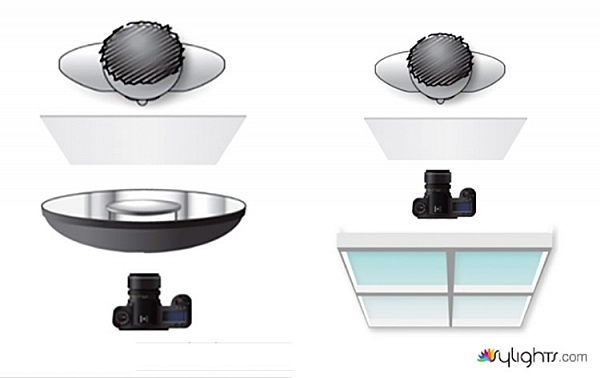
First, have your subject stand or sit where you need them. If possible, keep them at least five feet from the background. Place your light source directly in front of them, between two and four feet away (60-120cm). Angle the light source (if using flash) so it’s pointing directly at your subject. Watch the shadows falling under their nose and mouth. For this technique, you’re looking to minimize the contrast on your subject’s skin. If the shadows are too long, lower your light source until they are minimized (also make sure you can see the light in their eyes as a catch-light).

Place your reflector directly against your subject, and parallel to the ground at waist level. For ease, you can place it on a stool or a card table. If your subject is sitting, just have them hold it across their knees.

one-light-beauty-setup-diagram

Because the light source will be so close to your subject, you will need to shoot from directly underneath it. Calculate or meter your exposure and take a test shot. If all is well, you should have a good, clean portrait with soft light.

one-light-beauty-setup-3205

Backgrounds

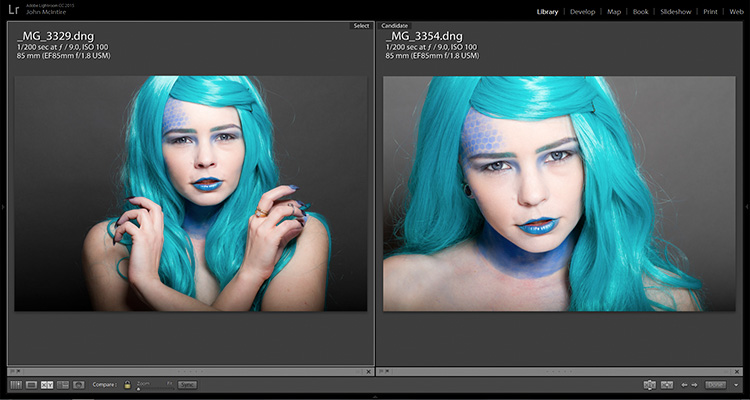
You can change the way your background appears in the image by moving your light source if you’re using flash, or by moving your subject if you’re using window light.

With flash, to get a darker background, you simply move your light source closer to your subject. To get a lighter background, move your light source away from your subject. Moving your light source will require you to change your exposure. You can do this with your aperture settings or on the flashes themselves (turn the power up or down accordingly); it’s your choice.

With window light, you’re forced to move your subject instead. For a darker background move your subject closer to the window. For a lighter background, move them farther away. As with flash, this will also result in changes to your exposure. This time you can choose between shutter speed and aperture.

one-light-beauty-setup-3354-2

Farther from the window

one-light-beauty-setup-3329

Closer to the window

one-light-beauty-setup-comp

You should also be aware that the softness of the light is changed when you adjust the distance between your subject and the light source. If the distance between your light source and your subject decreases, the light will be softer. If that distance increases, the light will be harder.

Tip: If there are shadows falling on the background in your frame, your subject is too close to the background. Try moving your whole setup away from the background a few feet.

Angle of light

You can place your light as high as you want and still get good results; however, for really soft, bright skin you will want to minimize the contrast in blemishes and skin texture. To do this, make sure your light is only slightly higher than your subject, and pointing directly at them. As above, watch for the shadows under the mouth and nose. If they’re long and pronounced, try lowering your light until they disappear.

Window light

If you’re using window light for this technique, the biggest thing to watch out for is you. Because you are lighting your subject from the front, it is all too easy to find yourself blocking your light source. With extremely large windows, this isn’t much of a problem, but with a window in an average home, it can be a pain. One way to sort this is to have your subject sit. That way you can sit, squat or kneel and avoid blocking any light.

In the end

one-light-beauty-setup-3318

This technique may seem simplistic in writing, but it is effective and it yields good results. It also takes only a few attempts to nail down. By adding this technique to your toolkit, you’ll be giving yourself something solid to fall back on, should things not go to plan in other ways.

If you decide to give it a go, please feel free to share your results or ask any questions you may have.

People photography week

This week on dPS we’re featuring articles all about different kinds of people photography including portrait, event and travel photography. See all the previous ones below, and watch for more people photography articles over the next few days.

  • How to Take Low Key Head-shots

googletag.cmd.push(function() {
tablet_slots.push( googletag.defineSlot( “/1005424/_dPSv4_tab-all-article-bottom_(300×250)”, [300, 250], “pb-ad-78623” ).addService( googletag.pubads() ) ); } );

googletag.cmd.push(function() {
mobile_slots.push( googletag.defineSlot( “/1005424/_dPSv4_mob-all-article-bottom_(300×250)”, [300, 250], “pb-ad-78158” ).addService( googletag.pubads() ) ); } );

The post How to Do a One Light Portrait Setup and Use it as Your Back-up Plan by John McIntire appeared first on Digital Photography School.


Digital Photography School

 
Comments Off on How to Do a One Light Portrait Setup and Use it as Your Back-up Plan

Posted in Photography


On the Road? Backup Without the Bulk-Up

02 Jun

I seldom review gadgets these days, but sometimes something is so useful that it's worth telling people about. Such is the case with the SD card-enabled Western Digital My Passport Wireless hard drive.

Read more »
Strobist

 
Comments Off on On the Road? Backup Without the Bulk-Up

Posted in Photography