RSS
 

Posts Tagged ‘Backing’

Some Options for Backing Up Your Photos Online

27 Jan

Backing up your data is an essential part of your photography workflow. While many photographers still advocate for using physical external hard drives, there are also many online services where you can store your images. In this article, I will go over the pros and cons of several popular sites to backup your photos online. Please note that these photo solutions are constantly changing their features, so always check with them directly to verify any details.

Photo backups versus photo sharing sites

Some Options for Backing Up Your Photos Online

It’s important to note the differences between a designated photo backup services and photo sharing websites. Traditional photo backup services such as Backblaze and CrashPlan focus purely on backing up data and can be set to backup an entire computer or hard drive. This is good in the sense that you can have everything you’ve ever created on your computer saved to the cloud. However, these backups end up being extremely large files and they take extra time to retrieve. So if you need to constantly and quickly access your backed up photo data, it may not be wise to rely solely on these types of providers.

Photo sharing sites, on the other hand, are not meant to be comprehensive backups of your entire computer. Many of these sites impose limits on the types and sizes of files that can be uploaded. Thus, photo sharing websites are best used to upload, store, and share edited photos.

How I backup my photos

My advice is to have a backup for your backup. As a professional photographer who shoots primarily in RAW, I have terabytes of data to store, but I don’t generally need frequent access to those original files. I opt for CrashPlan to do automatic backups of my RAW images, in addition to storing them on external hard drives.

Charles Wiriawan

Image By Charles Wiriawan – external hard drive method of backing up.

My photography business is such that I constantly need to dig up old high-resolution photos to present to clients, and CrashPlan doesn’t give me easy, immediate access to those files. So I save edited, high-resolution copies of every photo I take and upload them to SmugMug. This way, I have quick access to the photos and can easily prepare an online gallery to share and sell images to clients. I also have Google Photos set to do automatic online photo backups anytime I save a new JPG image to my computer. In the end, I have four ways of backing up my photos.

Backup Services

These are comprehensive backup and cloud storage solutions meant to hold large amounts of data. Set them to automatically backup your entire computer or hard drive, and practically any file type or size will be accommodated. On the plus side, these backup solutions are pretty affordable for what they offer. However, it can take a long time to backup huge files, and file restoration can also take a bit of time.

Backblaze

One of the most popular backup solutions, Backblaze can automatically backup an unlimited amount of data from a single computer (note; it will connect and backup external drives as well). There’s no restriction on file type or size, and there’s only one pricing plan. It costs $ 5.00 per month or $ 50 USD per year for a Backblaze account. You can even pre-pay $ 95 for a 2-year plan. It’s an affordable and reliable solution for making sure everything on your computer is backed up.
Some Options for Backing Up Your Photos Online backblaze

CrashPlan

Virtually the same as Backblaze, CrashPlan also offers automatic computer backups. The main difference is that CrashPlan offers several different subscription plans. Included in the free plan is an automatic backup to a local hard drive or another computer. If you want to backup your data to CrashPlan’s cloud, the cost is $ 5 per month to backup one device for unlimited cloud storage and mobile file access. To add an extra device (as many as 10), the Family Plan is available for $ 12.95 per month.

crashplan Some Options for Backing Up Your Photos Online

Amazon Cloud Drive

At $ 11.99 a year for unlimited photo storage (or free for Amazon Prime members), Amazon offers competitive cloud storage solutions, but at some expenses. The main downside to Amazon Cloud at the moment is its lack of features when compared to other more established solutions. For example, a desktop client must be used to upload files larger than 2GB, there are no automatic backup features, and stored files are not automatically updated. Given these underdeveloped features, Amazon Cloud Drive at this moment seems more like an off-site hard drive rather than a true backup solution.

amazon-online-photo-backup

Microsoft OneDrive

Formerly known as SkyDrive, OneDrive is Microsoft’s cloud storage solution that works with Windows, Mac, iOS, and Android devices (but still no Linux). Base plans include a generous 15GB of free storage. Paid plans start at $ 1.99 a month for an extra 100 GB, or $ 6.99 for 1TB of space. The main downsides are a slow upload and download speed, a 10GB size limit per file, and the need to have a Microsoft, Outlook, or Xbox Live account in order to access OneDrive. This may be a hurdle for those who don’t use any Microsoft or Windows products.

onedrive-online-photo-backup

Google Photos

The photo storage solution offered by Google takes a slightly different approach than that of Dropbox or Flickr. Google Photos offers unlimited backup of a wide variety of file formats (including RAW images). You can also set automatic backups to occur whenever a new photo is taken on your mobile device or saved to your computer. However, all photos and videos must be under 16 megapixels or 1080p HD video.

If you upload larger files under the unlimited plan, your files will be compressed to fit these maximum size requirements. The only way to upload original, full resolution images is to opt for a plan with limited storage. In a way, this makes sense. You pay for more storage space if you need it.
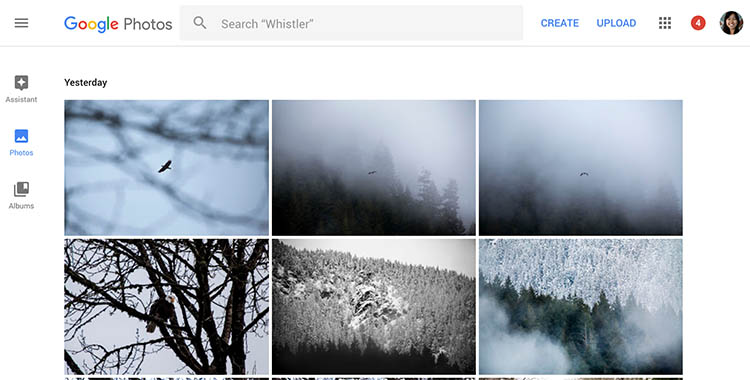
google-photos-online-photo-backup

Photo Sharing and Image Hosting Websites

These websites were not originally meant to be comprehensive backup solutions. However, many photographers have begun using them as such. Most of these websites have limitations when it comes to data storage or file types that you can upload. Thus, they may not be the best all-around backup solution for your photos, depending on your needs.

Dropbox

One of the most popular tools to backup photos online is Dropbox. It exists in the form of a mobile app, website, and desktop app and allows you to store all types of media including photos, documents, videos, and other files. Anything you add to Dropbox can be immediately accessed anywhere when you log in via the corresponding website or app.

Using the free version gives you 2MB of storage space, but you can purchase additional space. Dropbox made an attempt at pushing an automatic photo backup feature in the form of Dropbox Carousel. However, this app along with Dropbox’s email app Mailbox shut down in early 2016. Thus, it’s questionable if they will make future investments into further feature development.

dropbox-online-photo-backup

Flickr

Yahoo’s venerable photo solution, Flickr, has withstood the test of time and continues to be popular among amateur and professional photographers. Even with a free account, you get 1TB of photo storage space. However, you cannot get more than 1TB of space, even with a paid Flickr Pro account. Instead, the paid account just removes ads and gives you access to your account stats. While Flickr isn’t the best for sharing photos with clients, it does give you the option to license and sell your photos.

The main downside to Flickr has to do with file size limits. Uploaded photos cannot be more than 200MB and videos must be 1GB or less in size. Additionally, RAW images cannot be uploaded.

flickr-online-photo-backup

SmugMug, Zenfolio, and Photo Shelter

These three paid photo-sharing websites are popular for presenting and selling photos to clients:

  1. SmugMug
  2. Zenfolio
  3. PhotoShelter

However, the push for offering unlimited photo storage has elevated these sites into becoming viable ways for photographers to backup images. All three sites also offer components that help you build your photography website. SmugMug and Zenfolio are among the most affordable, while PhotoShelter is more expensive.

In Conclusion

So which photo backup solution is best for you? It truly depends on what media you are looking to backup, how often you will access it, and your budget. Whichever solution you choose, remember to always have a backup for your backup. Also, please remember that these services are constantly offering new promotions and features. The information in this article may change, so always check directly with the provider to verify details.

How do you backup your photos? Let us know in the comments below.

googletag.cmd.push(function() {
tablet_slots.push( googletag.defineSlot( “/1005424/_dPSv4_tab-all-article-bottom_(300×250)”, [300, 250], “pb-ad-78623” ).addService( googletag.pubads() ) ); } );

googletag.cmd.push(function() {
mobile_slots.push( googletag.defineSlot( “/1005424/_dPSv4_mob-all-article-bottom_(300×250)”, [300, 250], “pb-ad-78158” ).addService( googletag.pubads() ) ); } );

The post Some Options for Backing Up Your Photos Online by Suzi Pratt appeared first on Digital Photography School.

Digital Photography School

 
Comments Off on Some Options for Backing Up Your Photos Online

Posted in Photography


Step by Step Plan for Backing Up Your Images While Traveling

11 Nov

Planning how to back up your images while you travel isn’t nearly as exciting as planning your itinerary or buying gear for your upcoming trip. But it’s an important step in the travel planning process. Especially if you’re going someplace rugged and amazing like Iceland in the dead of winter, having a plan for uploading and backing up your images while you travel will help you ensure that all of your images are securely stored in multiple locations. After all, if you finally get a chance to photograph ice caves and the aurora borealis, you don’t want to worry about getting those hard-won images safely home with you.

Backing up images traveling 01

Following is a step-by-step plan for backing up your images starting with preparing to travel, guidelines for backing up during your trip, and how to complete the process once you return home.

Part I. Before you leave on your trip

Step #1 – Examine, reformat and test all of your memory cards

Before you leave on your trip, make sure that you have plenty of memory cards. I budget approximately two 32gb cards per day. You may need more or fewer, depending on your style of shooting.

First, examine all of your memory cards for damage. If any are visibly bent, warped or deeply scratched, it might be time to retire them.

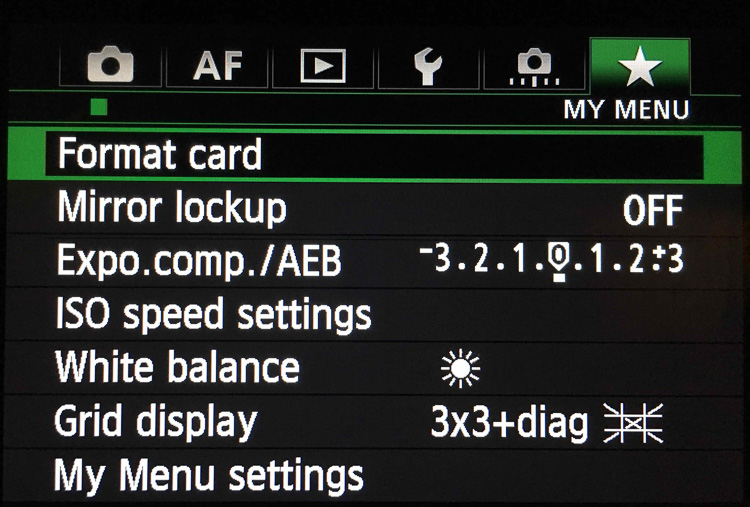
Next, reformat all your memory cards in your camera. Take and save several images on each memory card and then upload the images, one card at a time. This test verifies that each memory card is still in good working order. If a memory card does not pass the upload test, retire it.

Backing up images traveling 02

Step #2 – Buy smaller memory cards to reduce risk

If you need to buy additional memory cards, evaluate using smaller cards like 32gb and 64gb. You have to change memory cards more often while you’re shooting but if one memory card goes bad, you’ll have endangered far fewer images than if a huge 256gb or 512gb memory card corrupts.

Use stickers to indicate if memory cards are full or empty.

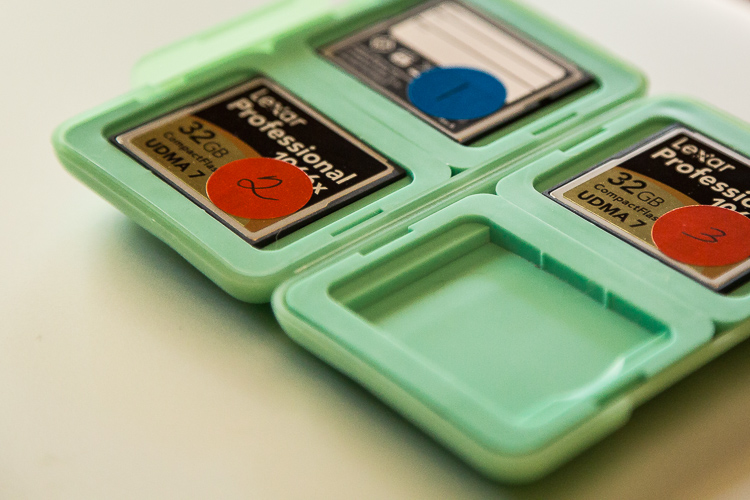
Create a system to keep full memory cards separate from empty memory cards. An easy method is to buy a memory card case or folder with clear pockets. Put blue sticker dots on one side of your memory cards. Put red sticker dots on the other side of your memory cards.

Blue sticker dots mean used or full cards. You can remember this mnemonically since blue, used and full all contain the letter U in them. Red sticker dots mean empty cards. You can this remember this mnemonically since red and empty all contain the letter E in them.

Memory cards case stickers Image C

Step #3 – Number your memory cards sequentially

Before placing the stickers on the cards, I also like to number the sticker dots one through however many cards I have. I file the memory cards numerically in the case. On day number one of my trip, I’m using cards numbered one and two. On day number two of my trip, I’m using cards three and four. By numbering the cards, I ensure I rotate them which further reduces the chance of corruption since no one card is used excessively. Then if I do lose a card, it’s also easier to keep track of which card from which day has gone missing if the memory cards are numbered sequentially.

Lastly, if a card does corrupt, it’s easy to keep track of which one because it’s numbered. I usually pull it out of my case and stow it separately in a secure pocket elsewhere in my bag. If memory card number four goes bad on a trip, I want to ensure I don’t accidentally reformat it or save more images to it before I’ve tried to recover the images.

After you test, number, and sticker all of your memory cards, place them in the case with the red sticker dot facing up. While you’re traveling, place full (used) memory cards back into the case sequentially with the blue dots facing up. If you’ve budgeted the amount of cards you need for your trip correctly, on the last day of your trip, all of the memory cards in your case should have blue dots facing up.

SD or CF cards or both?

If your camera has two memory card slots, evaluate carefully whether or not you want your main memory card to back up to the second card while you’re shooting. My Canon 5D Mark III has two memory card slots. One is a CF card slot and the other is for an SD card. I typically only use the CF card slot because they write faster than SD cards. Since I photograph horses and wildlife and set my camera to high-speed burst mode, I want my images to write to my memory card as fast as possible. Since my camera defaults to the write speed of the slowest card, I leave the SD card slot empty.

While this method works for me, your camera might function differently than mine. You may also have different priorities than I do when you shoot. Landscape photographers, for example, don’t use high-speed burst mode very often. Neither do macro photographers. If you specialize in landscape or macro photography, automatically creating a backup in camera by writing your RAW images to two memory cards simultaneously might be a good failsafe for you.

Step #4 – Buy two identical portable hard drives for travel

Travel Hard Drives Image D

I recommend uploading your travel images to two identical, high-quality, portable hard drives. I use 1TB drives. One terabyte is typically enough for my style of shooting since I rarely travel for more than 10 days at a time. Digital storage is inexpensive these days. So evaluate the best size portable hard drive for you by reviewing your image files from past trips. Buying more storage than you think you need is more effective in the long run. So if you think you need 500gb drives, buy 1TB. If you think you need 1TB, buy 2TB.

Step #5 – Protect your new hard drives

Now that you have two new hard drives to keep your images safe, you need to physically protect them. Use rubber bumpers or cases to protect the drives in case they fall out of your bag or are dropped. If you’re shopping online, you can usually find the correct size bumper or case listed on the same web page as your hard drive.

Step #6 – Label your portable hard drives

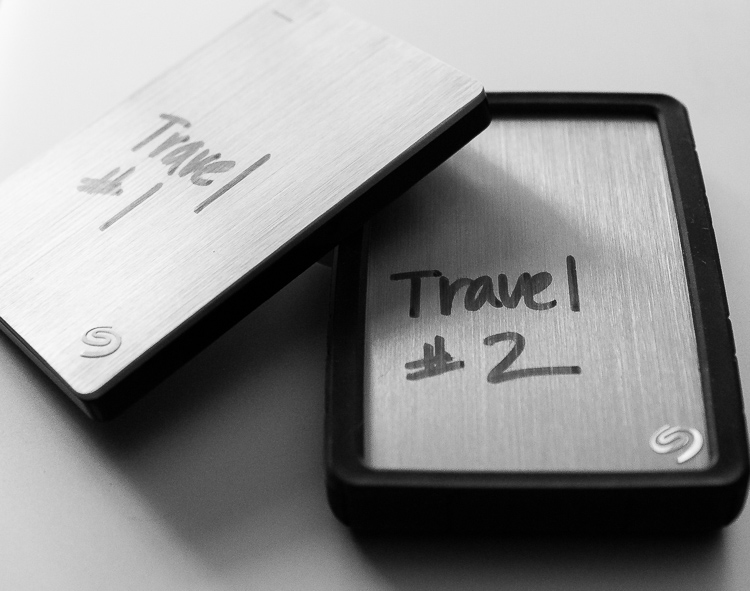
When you are setting up your new portable hard drives, label each one clearly. I literally use a thick permanent marker to do this. Keep the names consistent since you’ll be referencing these drives frequently. Mine are simply called Travel #1 and Travel #2.

Step #7 – Format and set up your portable hard drives

Format your new portable storage drives according to your operating system – usually OSX or Windows. When you’re formatting the hard drives, you’ll probably also be prompted to register them with the manufacturer. Registering your new drives might seem like a silly step but it often activates your warranty or image rescue software so don’t skip it.

Step #8 – Create a backup recipe

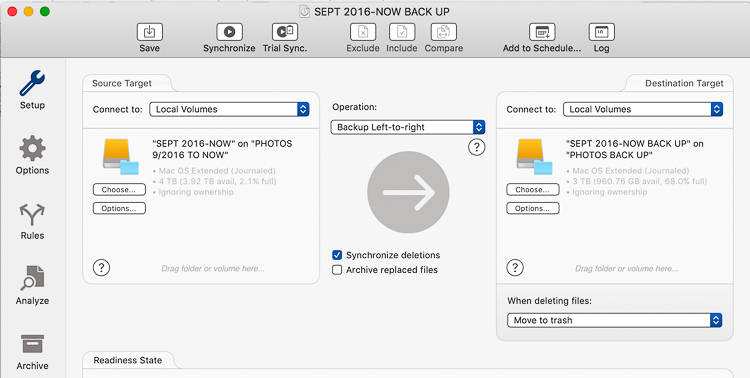
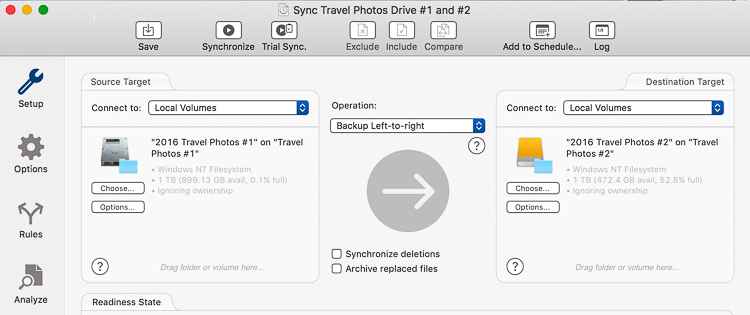
Once my new portable hard drives are set up and working, I create a folder on each drive called Travel Photos #1 (on drive Travel #1) and Travel Photos #2 (on drive #2). I use a software program called Chronosync (for Mac) to create a recipe that when it is run, backs up drive Travel #1 to drive Travel #2. There are many options for backup software and I would encourage you to do a little research to find the software that’s best for you.

Backing up images traveling 05

Step #9 – Back up and update your laptop

Right before you go, back up the entire contents of your laptop. I use a MacBook Pro so I run Time Machine. After the backup finishes, I have an up-to-date copy of everything on my laptop on a small hard drive that I leave at home. That copy will come in handy if my laptop is stolen or damaged while I’m traveling. Also, I also check for software updates – especially any related to security – and install those as well.

I skip beta versions or major operating system upgrades since sometimes those are glitchy. I want my laptop software as safe and secure as possible while I travel but I don’t want to have to deal with any new OSX headaches.

Now that you’ve done all that prep work, it’s time to pack, hit the road and make some memorable images.

Part II. While you’re traveling

I know that after a long day of travel, the last thing you want to do is unpack your laptop, upload, and duplicate your image files. But get in the habit of doing it anyway. After a while, it will become routine, like brushing your teeth or washing your face, and you won’t dream of skipping it.

When your friends tell you their horror stories about losing images while they travel, you’ll have to work hard to wipe the smug look off your face because you’ll know you’ve minimized your chances of that happening to you.

Step #1 – Upload images with Lightroom

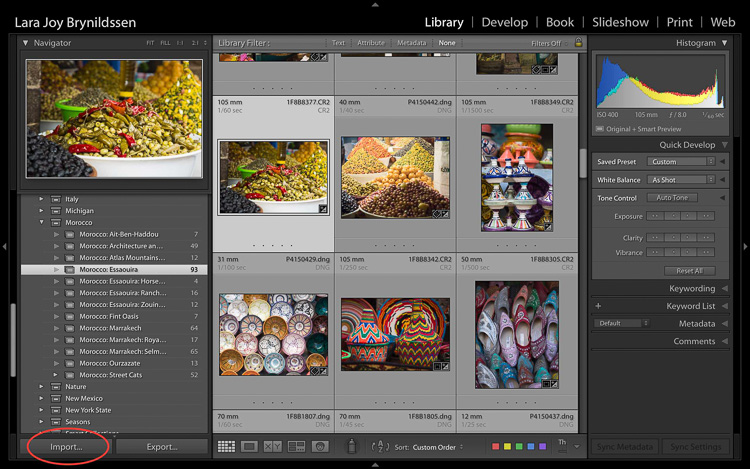
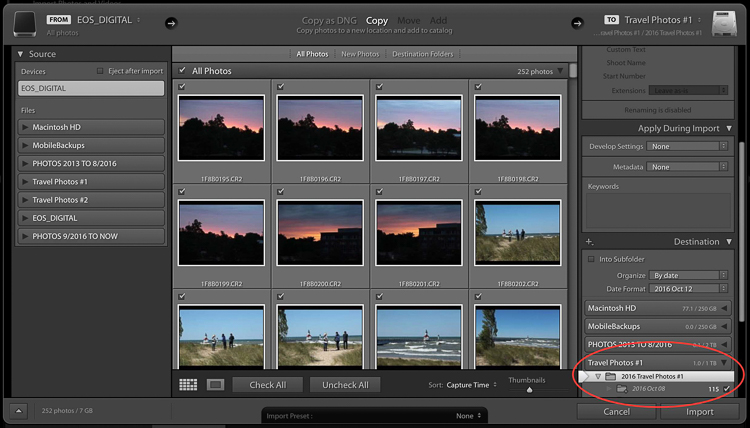
My first step when I upload images is to plug in my hard drive called Travel #1, then I plug in my CF card reader, insert the memory card and open up Lightroom CC. I always use Lightroom to catalog all of my images. When uploading, I tell Lightroom to import the day’s images to the folder called Travel Photos #1 on the portable hard drive called Travel #1.

Backing up images traveling 06

Step #2 Option A – Duplicate images on import

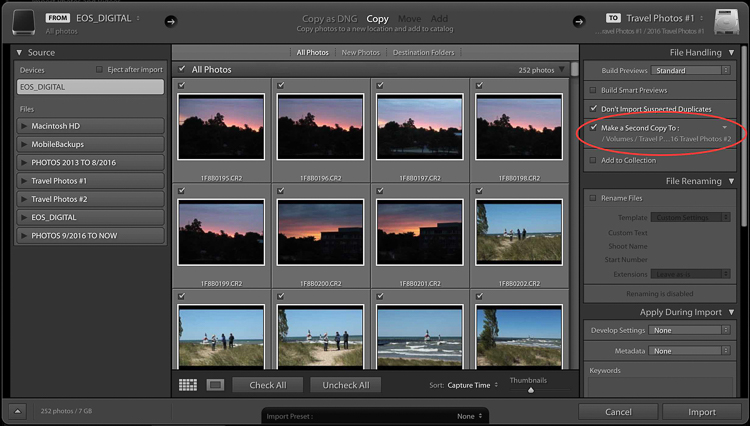
In the Import Dialog, you can check a box to tell LR to “Make a 2nd copy to” and duplicate your images by importing them to two locations at once. If you check that box, you also want to click the tiny arrow to the right, click Choose Folder and select the location you want the duplicate images to be stored.

In my case, I would choose the folder called Travel #2 on the portable hard drive called Travel #2. I normally do not duplicate on import because I only have two USB ports on my MacBook Pro. During the import process, both are in use: one for the hard drive Travel #1 and one for my CF card reader. If you have space in your camera bag, you can carry a USB port hub that enables you to attach more drives to your laptop at the same time.

Backing up images traveling 07

Backing up images traveling 08

Step #2 Option B – Use software to create a backup

Since I don’t carry a USB port hub, instead of checking the “Make a 2nd copy to” box in the LR import dialog, I use Chronosync to sync one drive to another. This is the backup recipe we set up above. After the images are loaded to my first drive, I run my Chronosync recipe to duplicate them to the second drive. Once I’m done, I have three copies of each image; one on the original memory card and one on each portable of my portable hard drives, Travel #1, and Travel #2.

Don’t erase your memory cards

If possible, don’t erase the images on your memory cards while you’re on the trip. Instead, save them in the memory card holder you prepared in Part I.

Step #3 – Upload after every shoot

When you travel, I encourage you to upload and back up images after every shoot. If you have one shoot per day at sunset, upload and back up before you head out to dinner.

Tip: This is a good time to plug in and charge your batteries too.

Before you head to bed, verify that the image files are mirrored on each drive. Swap the batteries in your charger before bed too to make sure you’ll be all set to shoot again in the morning.

If you have two photo shoots per day, follow these same steps, except do them twice a day. In addition to uploading before dinner, I upload before lunchtime. I usually sneak in a quick nap then too.

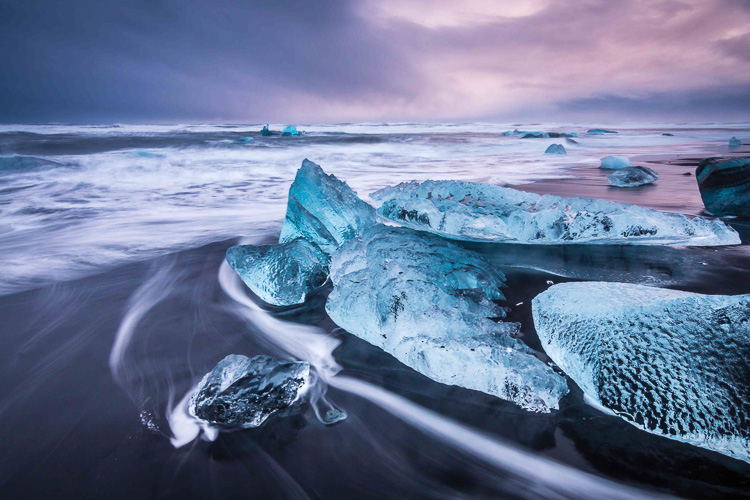
Aurora borealis Image A

Step #4 – Sync images to the cloud

If you have an excellent Wi-Fi connection you might also consider syncing to your cloud service. I normally don’t have very strong Wi-Fi service when I travel so I don’t waste time with this step.

Step #5 – Store your hard drives in different locations

Now that you’ve done all this work setting up this system to back up your travel images, you have one more step to ensure their safety while you travel. You want to keep each of your two drives in different locations. For example, keep one drive in your camera bag and keep one in your luggage.

Always make sure to keep one drive in the bag on (or very near) your person. Keep your luggage with your second drive in your hotel room (or locked in the trunk of the car if you are traveling between locations). In the case of theft, accident, or fire, one copy of your images will be safely stored on the drive in the alternate location.

Part III. When you return home

Once you return home, you need to move your images from Travel Drive #1 to your main photography hard drive. The easiest way to do this is to do it inside Lightroom.

Step by step

Here’s a step-by-step guide for moving your images from your travel drive to your main photography storage drive:

  1. Attach Travel Drive #1 to your laptop.
  2. Attach your main photography hard drive to your laptop. In this example, my main drive is called PHOTOS 9/2016 TO NOW.
  3. Open Lightroom CC in the Library module.
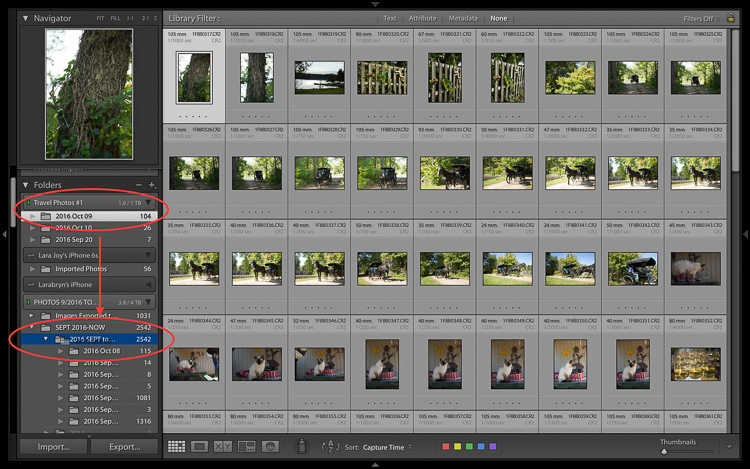
  4. One by one, drag and drop each folder of your images from Travel Drive #1 to your main storage drive.

Backing up images traveling 09

  1. Note that at this stage, since I keep all my images organized chronologically I drop my travel images into the folder on the drive labeled 2016 SEPT to DEC. Next year I’ll drop images into the folder labeled 2017.
  2. Be patient while your computer works. It takes a few minutes for Lightroom to show you that this task is complete and your images have been successfully moved to your main storage drive. Tip: This is a good time to clean your gear.
  3. Now that your images are on your main drive, run another backup.

Backing up images traveling 10

  1. I use a Chronosync recipe to back up my drive called PHOTOS 9/2016 TO NOW to my drive called PHOTOS BACK UP.
  2. After completing this step, verify that the images have been moved. I do this by opening a Finder window on my MacBook Pro and checking that the image file names match on both my main storage drive and my backup drive.
  3. After you verify that you have two copies again, you can wipe your travel hard drives and memory cards to prepare them for your next trip.
  4. At this point, it’s good idea to back up to your cloud service so that you once again have three copies of your images.

Final notes

Since I travel often, I find it easiest to keep my entire Lightroom catalog on my MacBook Pro. If I need to work on a bigger screen, I connect to an external display.

If you keep your main Lightroom catalog on a different computer than the one you travel with, rather than dragging and dropping as I’ve instructed above, attach your travel hard drive and your main photography storage drive to your home computer, open Lightroom and go through the complete import process to your main storage drive. After you’ve imported your travel images to your main Lightroom catalog on your home computer, in addition to formatting your memory cards and wiping your travel hard drive, I’d recommend completely removing the images from the Lightroom catalog on your laptop.

Now you can go unpack and do laundry. Or, if you’re like me, you can start to cull, edit, and create collections with your travel images.

Backing up images traveling 12

googletag.cmd.push(function() {
tablet_slots.push( googletag.defineSlot( “/1005424/_dPSv4_tab-all-article-bottom_(300×250)”, [300, 250], “pb-ad-78623” ).addService( googletag.pubads() ) ); } );

googletag.cmd.push(function() {
mobile_slots.push( googletag.defineSlot( “/1005424/_dPSv4_mob-all-article-bottom_(300×250)”, [300, 250], “pb-ad-78158” ).addService( googletag.pubads() ) ); } );

The post Step by Step Plan for Backing Up Your Images While Traveling by Lara Joy Brynildssen appeared first on Digital Photography School.

Digital Photography School

 
Comments Off on Step by Step Plan for Backing Up Your Images While Traveling

Posted in Photography


Backing Up Your Digital Photos: Is Cloud Storage Right for You?

04 Oct

In today’s digital era, it’s so simple to copy your photos onto your laptop hard drive and forget about them, thinking they’ll be there whenever you need them. But if your laptop crashes or gets stolen, and you haven’t backed up your photos in another place, then they’re gone forever. Most forms of digital storage are unreliable in the long term. Hard drives crash, computers die, and CDs and DVDs get scratched up and become unusable.

If you want to preserve your digital photographs then it is important to develop a strategy to back them up. Many people have started looking to the cloud as a place to store their photos. Could cloud storage be right for you?

2015 08 24 providence 8

Here are a few questions you should ask yourself if you’re considering cloud storage:

  • Do you want to use a free storage service, such as Google Photos or Apple Photos? Or are you willing to pay for a service with more features? If so, how much are you willing to pay?
  • Do you want to use cloud storage as a backup solution for all of your photos or just some key ones? How much data do you have? How often will you need to access your photos?
  • What types of files do you have? Camera raw files? Tiff files? JPEGs? All of the above?
  • How fast is your internet connection? Uploading files to the cloud can be very slow.

There are a few free applications, such as Google Photos and Flickr. These services could be a good option to back up your digital photo library if you don’t want to spend any money. The problem with a lot of them is that they either compress your photos, which means a loss in resolution and quality, or dditionally they don’t support RAW or TIFF files. So if you’re a raw shooter then this isn’t a great solution for archiving your photo library.

Luckily there are a number of services which will store your digital photographs for a small fee. There are many different companies that provide cloud storage, so I’ve decided to focus on only a few in the rest of this article. Be sure to do your research and find a service that fits your backup needs.

A Few Options for Cloud Storage

Google Drive

Google Drive is a relatively cheap and reliable cloud storage service. All Google accounts are given 15GB of free storage. From there you can pay as little as $ 1.99/month for 100GB, $ 9.99/month for 1TB, and up to $ 299.99/month for 30TB. Google Drive allows you to organize your own folders and supports all photo file types.

Amazon Cloud Drive

Amazon Cloud Drive touts an impressive unlimited photo storage plus 5GB for video and other file types for only $ 11.99/year. Additionally, if you have an Amazon Prime account, then this service is already included as part of your subscription. The one catch is that file uploads are limited to 2GB per individual file, so if you have files that are larger than that then you may not be able to upload them.

Microsoft One Drive

Microsoft One Drive has plans that offer 15GB for free, 100GB for $ 1.99/month, and 200GB for $ 3.99/month. Additionally, Microsoft is currently running a deal where you can get the Office 365 application package and 1TB of storage for $ 6.99/month. A big disadvantage to this service is that you cannot store more than 200GB without purchasing additional apps from Microsoft. But if you have less than 200GB, then One Drive is a really cheap option for back up.

Dropbox

The Basic plan gives you 2GB of storage for free. Upgrading to a Pro account will give you 1TB of storage for $ 9.99/month. The highest level plan is a Business account which will give you unlimited storage for $ 15/month per user. Dropbox doesn’t offer the most competitive prices among cloud providers but it’s a popular option that you may find reliable. However, if you have more than a terabyte of data, and files that break the size limits of some of the other unlimited providers, then Dropbox may be the best option for you.

Mediafire

Mediafire is one of the cheapest cloud storage options among the major players in the market. They offer 10GB of storage for free and up to a terabyte for only $ 2.49/month. Most impressively, their Business accounts offer up to 100 terabytes of storage for $ 24.99/month. If you’re looking to get into cloud storage for relatively cheap, then Mediafire is definitely a good bet.

2015 07 01 chestnut hill reservoir 19

Alternatives to Cloud Storage

Cloud services are not the only option you should investigate as a place to store your digital photos. Like any other digital backup, cloud storage isn’t full-proof. A quick internet search will show you numerous horror stories of peoples’ data being lost in cloud storage glitches and failures. This section of the article will explore a few other possibilities for saving your digital photos.

External Hard Drives

External hard drives are a good option if you need a lot of readily accessible storage for an affordable price. I use one terabyte Toshiba drives that only cost about $ 60. There are many other brands that offer similarly priced drives. One advantage external hard drives have over cloud storage is speed of access. You can store these files and keep them in your home or office, meaning they are readily accessible. Trying to download files you have stored on the cloud can be extremely time consuming.

Another advantage is cost; hard drives are relatively cheap when compared to continuously paying for monthly fees for cloud storage over the longterm. The drawback of hard drives is that they will eventually fail. Many are only reliable for 2-5 years, so it is important to back up your files to multiple places. But if you can’t afford a RAID hard drive system and you have a lot of data to backup, external hard drives are a good place to start.

2015 08 27 tufts obsoletemedia 5

Flash Drives

USB flash drives are another option for backing up data in your home or office. Prices are continually dropping on flash drive storage. Flash drives don’t have a lot of storage capacity, but 16GB flash drives are as cheap as $ 6. This makes them one of the most inexpensive options to back up your most prized images. I use them to back up my portfolio and store the memory sticks at a relative’s house. It’s not a solution for all of my data, but it gives me an added layer of backup that could save some of my best photos in the event of a disaster.

CDs/DVDs

You can also back up your data on CDs or DVDs, but at this point I wouldn’t recommend it. This kind of media is quickly becoming obsolete, and while it’s cheap, CDs and DVDs are easily damaged or corrupted. Additionally, you can’t store that much data on discs. Most CDs have a capacity of 700MB and DVDs cap out at less than 5GB. On top of this, many computer manufacturers, such as Apple, aren’t including disc drives in a number of their products. This means you’ll have to purchase an external drive just to read your discs in the future. You’re better off storing files on a hard drive or flash drive with a USB connection.

2015 06 03 alaskaday05 matanuskaglacier 22

Conclusion

Ultimately, there is no holy grail, one-size-fits-all solution for backing up your digital photos. The main theme is that you should not rely on a single source of backup because it can easily become a point of failure. If you haven’t stored your photos in more than one place and that one backup fails, you’re likely going to be out of luck.

Backing up your photos doesn’t need to be expensive; it just requires that you be strategic. I believe that cloud storage is best utilized as part of an overall storage strategy for your digital photographs, rather than the only point of backup.

Is cloud storage right for your backup needs? That is for you to decide. I hope this article gives you a starting point to get you on the path to reliably backing up your digital photos.

googletag.cmd.push(function() {
tablet_slots.push( googletag.defineSlot( “/1005424/_dPSv4_tab-all-article-bottom_(300×250)”, [300, 250], “pb-ad-78623” ).addService( googletag.pubads() ) ); } );

googletag.cmd.push(function() {
mobile_slots.push( googletag.defineSlot( “/1005424/_dPSv4_mob-all-article-bottom_(300×250)”, [300, 250], “pb-ad-78158” ).addService( googletag.pubads() ) ); } );

The post Backing Up Your Digital Photos: Is Cloud Storage Right for You? by Dan Bullman appeared first on Digital Photography School.

Digital Photography School

 
Comments Off on Backing Up Your Digital Photos: Is Cloud Storage Right for You?

Posted in Photography