RSS
 

Posts Tagged ‘5’s’

Comparing Images with Lightroom 5’s Survey View

26 Nov

Using Survey View

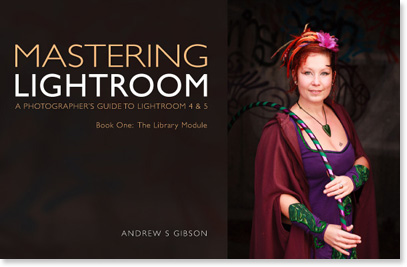
Andrew S. Gibson is the author of Mastering Lightroom Book One: The Library Module, on offer now at SnapnDeals for a limited time.

‘Working the subject’ is an expression often used in photography to describe the process of taking a series of photos of the same subject. The idea is to work your way closer to the ‘perfect’ photo (if there is such a thing) by varying the camera angle, focal length, point-of-view and other factors. As part of the editing process it’s the photographer’s job to select the best images to process. In the old days this meant poring over a lightbox or contact sheet with a loupe. Some people still do it this way, but most of us work with digital images. One of the benefits of this is that software like Lightroom makes it very easy to view images side-by-side and organize the keepers into a “Collection” for processing.

When I use Lightroom’s Library Module to cull my photos, I start off in Grid View and then use either Compare View or Survey View to compare similar images. The previous article in this series showed you how to use Compare View, and today I’m going to take a look at Survey View.

Compare or Survey View – which one to use?

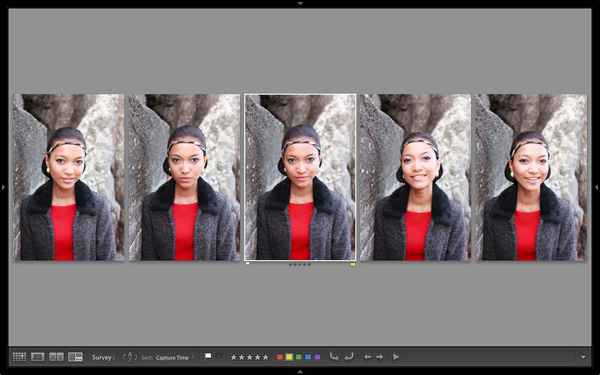
What’s the difference between the two? The main difference is that you can only compare two images at one time in Compare View, but as many as you want in Survey View. Here’s an example:
Using Survey View

To arrive at this view I selected five images in Grid View and used the ‘N’ keyboard shortcut to go to Survey View. Lightroom arranges the images in the way that fits the screen space best so you can look at them all together. A little common sense is required here – Lightroom will try and squeeze as many photos as you select into the one screen, but the thumbnails will soon become too small to be of any practical use. The practical limit is probably somewhere between eight and 20 images, depending on your monitor size.
Using Survey View

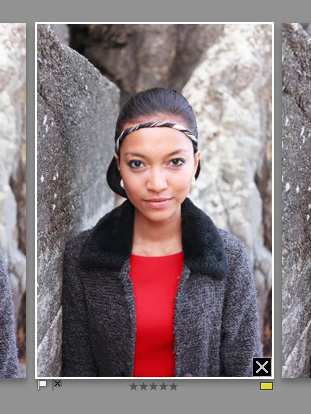
The ‘most selected’ image is displayed with a white border, and if you have assigned a flag, star rating or colour label it is displayed underneath. These also appear in the Toolbar at the bottom of the screen (press ‘T’ to reveal the Toolbar if you don’t see it):

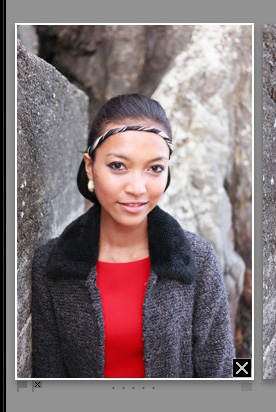
If you hover over one of the images you can assign a flag, star rating or colour label by clicking one of the icons displayed underneath (you can also do this in the Toolbar). You’ll also see a white X in a black square in the bottom right-hand corner of the image. Click this to remove the image from the selection. Lightroom removes it from the screen when you do so, and the remaining images rearrange themselves. If you click the X by mistake, press Ctrl-Z (PC) or Cmd-Z (Mac) to bring the de-selected photo back.
Using Survey View

What do you do once you’ve decided which images are keepers? I find the simplest approach is to flag each image that I want to process, and send them to a new Collection (see my article Use Lightroom Collections to Improve Your Workflow for more information on this).

Another useful feature of Survey View is that you can press the Space bar whenever you like to view the most selected image in Loupe View – useful if you want to see it in a larger size or zoom in to check for fine detail such as accurate focusing. Simple press the Esc key or use the ‘N’ key shortcut to return to Survey View.

Mastering Lightroom
Using Survey View

My latest ebook Mastering Lightroom Book One: The Library Module is a complete guide to using Lightroom’s Library module to import, organize and search your photo files. You’ll learn how to tame your growing photo collection using Collections and Collection Sets, and how to save time so you can spend more time in the Develop module processing your photos. It’s available now over at Snapndeals, for a special price for a limited period.

Post originally from: Digital Photography Tips.

Check out our more Photography Tips at Photography Tips for Beginners, Portrait Photography Tips and Wedding Photography Tips.

Comparing Images with Lightroom 5’s Survey View

The post Comparing Images with Lightroom 5’s Survey View by Andrew Gibson appeared first on Digital Photography School.
Digital Photography School

 
Comments Off on Comparing Images with Lightroom 5’s Survey View

Posted in Photography


How to Find Your Best Images With Lightroom 5’s Compare View

15 Nov

Using Lightroom 5's Compare View

For decades photographers have faced the question of how to determine which of their images are the best. I’ve been through it all, from squinting at 35mm slides through a loupe on a lightbox, to creating contact sheets from negatives and marking the best with a red marker, to scanning negatives and slides through to the modern version of looking at Raw files on the camera’s LCD screen or in the various programs I have used over the last few years. Of those, there’s no doubt that Lightroom is one of the best for the task of comparing images and selecting the best ones.

Compare View

The tool I use for comparing images in Lightroom is the aptly named Compare View (I also use Survey View, to be covered in a future article).

To get the most out of Compare View, you should use Collections to organise your images, and Grid View to view thumbnails. Click the links to learn more about both.

Using Lightroom 5's Compare View

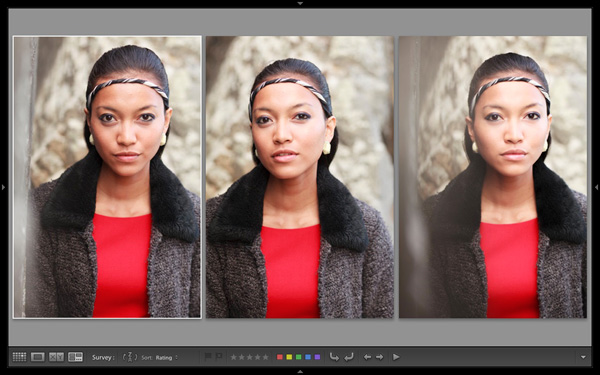
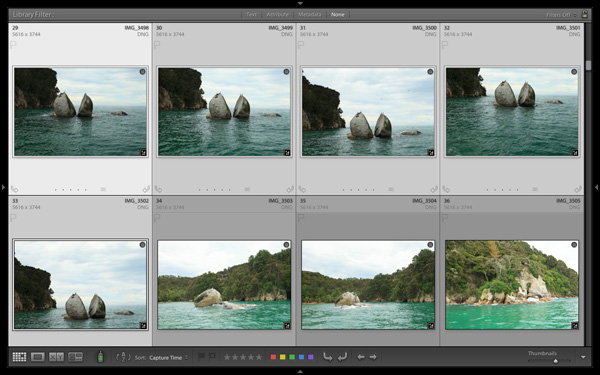
Grid View is the starting point for using Compare View. Select the images that you want to compare. It may be just two, or you may want to compare more. In this example (above) I selected five images.

Using Lightroom 5's Compare View

The first image that you select is, in Lightroom terminology, the most selected image. It is surrounded by a lighter frame than the other selected photos. In the screenshot above the photo on the left is the most selected.

Using Lightroom 5's Compare View

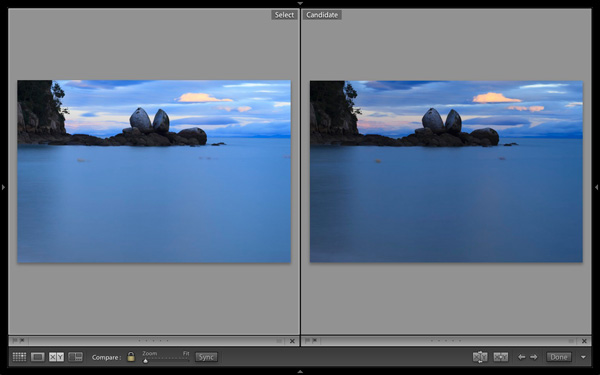
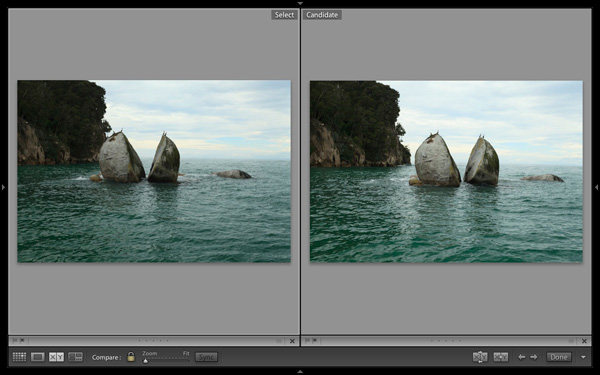
Images selected, press ‘C’ on your keyboard to go to Compare View. The most selected image is displayed on the left. Lightroom calls this photo the Select. The next image in the selection is displayed on the right. This one is called the Candidate.

The idea is to compare the Select with the rest of the images in the selection. Test it out by using the left- and right-arrow keys on your keyboard. If your selection contains more than two images, Lightroom cycles through the remainder of the selection, displaying each image as a Candidate.

Compare View icons

The icons along the bottom of the window in Compare View help you tell Lightroom what to do with either the Select or Candidate images. The first set is located underneath each photo:

Using Lightroom 5's Compare View

1. Click on these icons to flag the photo as a Pick (left) or a Reject (right).

2. Click on these dots to give the photo a Star rating.

3. Click on the faint grey square to apply a Colour label.

4. Click on the X to deselect the photo. Lightroom removes it from Compare View when you do this.

The icons change to indicate the updated status of the image.

If the photo changes when you click any of these options, it is because you have the Auto Advance option ticked. Turn Auto Advance off by going to Photo > Auto Advance. I find it easiest to use Compare View with Auto Advance disabled.

The Toolbar icons

The rest of the icons are displayed in the Toolbar at the bottom of the Compare View window (press ‘T’ on your keyboard to reveal the Toolbar if you don’t see it).

Using Lightroom 5's Compare View

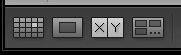
This indicates that you are in Compare View. From left to right, these icons show Grid View (G), Loupe View (E), Compare View (C) and Survey View (N). You can switch between these modes by clicking on the icon or using the keyboard shortcuts (indicated in brackets).

Using Lightroom 5's Compare View

With the padlock icon in the locked position (above) you can zoom into both the Select and Candidate image simultaneously by clicking once on either one. The magnification is set by the Zoom slider and both images move in tandem with the hand tool. This is useful for comparing two near identical images for fine detail such as accurate focusing or noise.

Using Lightroom 5's Compare View

With the padlock icon in the unlocked position you can zoom into either image without affecting the other. Press the Sync button at any time to bring the second image into sync with the first.

Using Lightroom 5's Compare View

These icons are perhaps the most important in Compare View, as they help you navigate around the images in the selection.

The two arrows on the right are straightforward. Click on them to navigate through the selection, just like you did with the arrow keys earlier.

The Swap button (X|Y with two arrows) tells Lightroom to swap the Candidate and Select images. Use it when you decide that the Candidate is the strongest image in the selection, and you want to compare it to the others.

The Make Select button (X|Y with one arrow) tells Lightroom to turn the Candidate image into the Select. The Select is removed from the display, and the next image in the selection becomes the new Candidate.

Using Lightroom 5's Compare View

If you press the Done button Lightroom takes you to the Loupe View and displays the Select image. Alternatively, you can use the ‘G’ shortcut to return to Grid View.

Click the White arrow icon to add or remove icons from the Toolbar.

Putting it together

The main purpose of Compare view is to let you compare similar image so that you can decide which ones you want to process in the Develop module (you can also use it to compare photos that you have processed, or partly processed in the Develop module – but that’s another topic). Use the arrow keys to cycle through the images in your selection, and the Swap and Make Select buttons to compare different images. If this is new to you, it won’t take much practice before you settle into a rhythm. You’ll be pleasantly surprised at how quickly you can work you way through even hundreds of images using Compare View.

While some photographers use Star ratings and Colour labels to help organise their images, by far the simplest method is to use Flags. If you decide to process an image, click the grey flag icon underneath the photo (it’s on the left) to flag it as a Pick. If decide not to process it, leave it unpicked. Then, when you have finished, all you have to do is return to Grid View and choose the Flagged option in the Filter bar to remove the unwanted images from view. Then go to Edit > Select all to select all the flagged images and send them to a new Collection containing only the images that you want to process in the Develop module (using Collections to organise your images is covered in this article).

Mastering Lightroom Book One: The Library Module

Using Lightroom 5's Compare View

My latest ebook Mastering Lightroom Book One: The Library Module is a complete guide to using Lightroom’s Library module to import, organise and search your photo files. You’ll learn how to tame your growing photo collection using Collections and Collection Sets, and how to save time so you can spend more time in the Develop module processing your photos.

Post originally from: Digital Photography Tips.

Check out our more Photography Tips at Photography Tips for Beginners, Portrait Photography Tips and Wedding Photography Tips.

How to Find Your Best Images With Lightroom 5’s Compare View

The post How to Find Your Best Images With Lightroom 5’s Compare View by Andrew Gibson appeared first on Digital Photography School.

Digital Photography School

 
Comments Off on How to Find Your Best Images With Lightroom 5’s Compare View

Posted in Photography


The Hidden Secrets of Lightroom 5’s Loupe View

31 Oct

Lightroom 5 Loupe View

Last week I showed you how to use Lightroom’s Grid View. Once you have customised the Grid View to suit your needs, it is time to move on to the Loupe View. Getting there is easy. Just press the letter ‘E’ on your keyboard. This will take you to the Loupe View from anywhere in Lightroom. Alternatively, if you are in the Grid View, you can press the space bar.

On the surface, Loupe View looks simple. But there are a few things I’d like to show you that you may not be aware of. They are the ‘hidden features’ of Lightroom’s Loupe View, and will help you when you view your images, and assess their potential for creative processing.

Lightroom 5 Loupe View

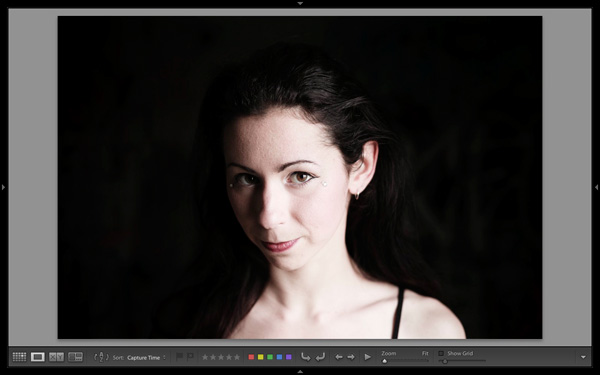
This is what the Loupe View looks like, with all four side panels removed (use the Shift+Tab keyboard shortcut to hide them from view).

Lightroom 5 Loupe View

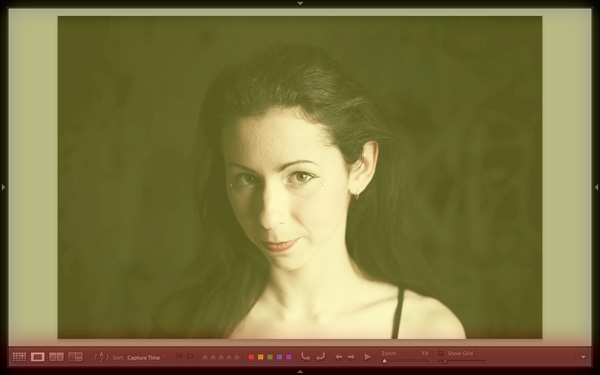
The Loupe View is divided into two parts. The Content window (yellow) occupies the main part of the screen. The selected photo is displayed here.

The Toolbar (red) lies along the bottom. Press ‘T’ to reveal it if it isn’t there. The same key hides the Toolbar if you press it again.

The main difference between the Loupe View and the Grid View is that you can only view one image at a time in the Loupe View.

The hidden features

Of course, these features are not really hidden. But if you are not aware of them they may just as well be. They are all useful, so it’s worth taking a few minutes to learn how to use them.

Library view options

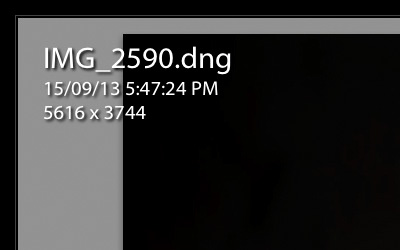
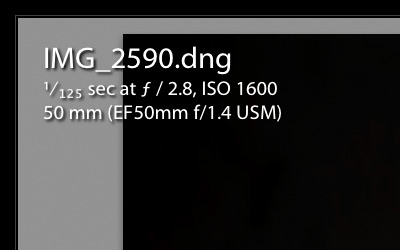
When you press the ‘I’ key on the keyboard Lightroom displays some information about the photo you are looking at in Loupe View. Press the ‘I’ key again and the information changes. Finally, press it once more to hide the information:

Lightroom 5 Loupe View

The first information overlay displays the filename, the time and date the photo was taken, and the image size (in pixels).

Lightroom 5 Loupe View

The second overlay shows the filename, the exposure settings (shutter speed, aperture and ISO) and the focal length and lens used. This is handy for checking the camera settings when you are viewing your images.

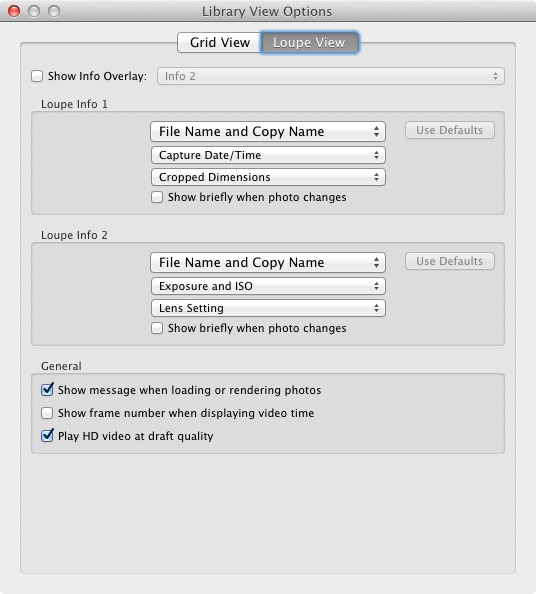
Here’s the hidden feature: Did you know you can customise the information overlays to display the information that you want them to? Go to View > View Options to bring up the Library View Options window. Here you can tell Lightroom which information to display in each information overlay:

Lightroom 5 Loupe View

Mirror image mode

Wondering how your photo would look if it was back to front? Just go to View > Enable Mirror Image Mode to see:

Lightroom 5 Loupe View

Grids and guides

Lightroom 5 Loupe View

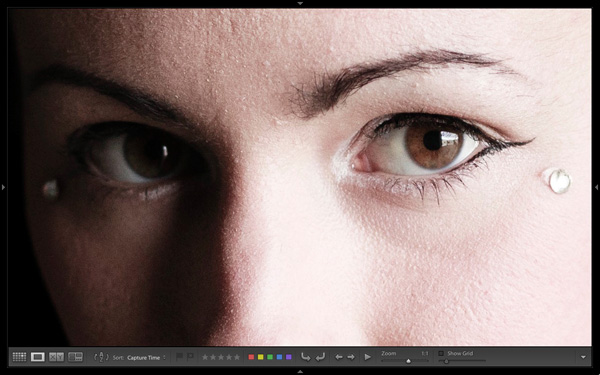
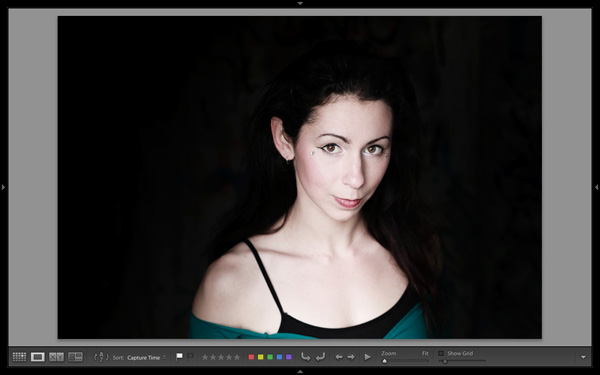
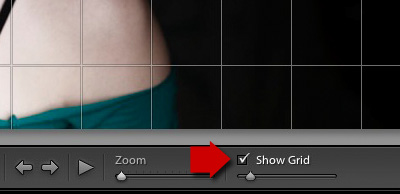
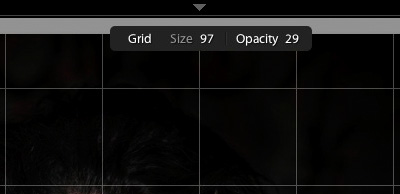
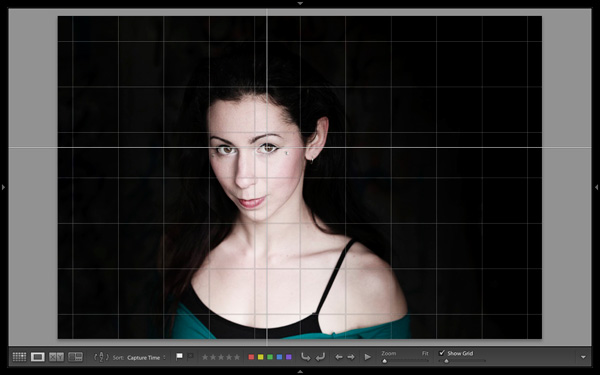
To reveal the grids and guides, tick the Show Grid box in the Toolbar. Use the slider to set the size of the squares. If you hold the Cmd key down (PC owners should use the Ctrl key) you can also alter the size of the grid and the opacity of the lines by mousing over the Size and Opacity settings displayed at the top:

Lightroom 5 Loupe View

Note: If you don’t see the Show Grid box, click on the white arrow on the right hand side of the Toolbar and select Grid Overlay from the menu. Lightroom removes any unticked options in this menu from the Toolbar.

Lightroom 5 Loupe View

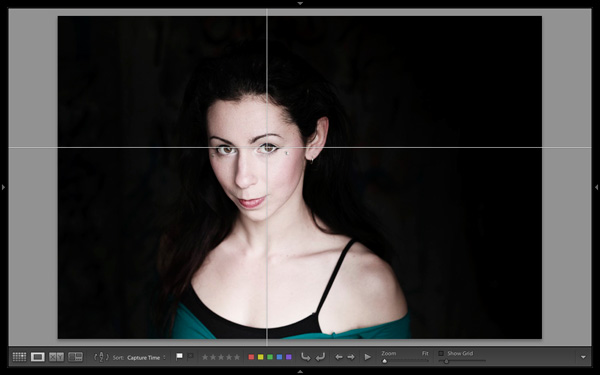
Next, go to View > Loupe Overlay and select the Guides option. This turns the central horizontal and vertical grid lines into guides that you can move by holding down the Cmd (Mac) or Ctrl (PC) keys. They come in useful for checking things like the straightness of horizons and buildings.

Lightroom 5 Loupe View

Untick the Show Grid box to see the Guides by themselves.

The Loupe Overlay

The final hidden feature is something that is more likely to interest professional photographers than hobbyists. But it comes in handy as a creative exercise if you have any interest in submitting images to stock libraries or to magazines.

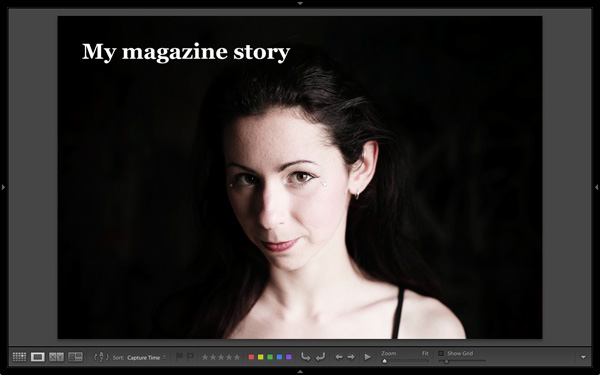
When buying images for editorial use, magazines often look for photos with empty space where they can lay out headings or text. The Loupe Overlay feature lets you display an overlay containing text over the top of your image so you can see whether the composition of your image provides enough space. While pros can obtain an official file from their client, there’s nothing to stop you making up your own.

Go to View > Loupe Overlay > Layout Image. Navigate to the folder containing your overlay and open it. The file must be saved as a PNG file, which supports transparency.

Lightroom 5 Loupe View

In this example, you can see that the portrait isn’t composed in a way that works with the sample text. It would have been better if the model was further to the right in the frame.

Mastering Lightroom Book One: The Library Module

Lightroom 5 Loupe View

My latest ebook Mastering Lightroom Book One: The Library Module is a complete guide to using Lightroom’s Library module to import, organise and search your photo files. You’ll learn how to tame your growing photo collection using Collections and Collection Sets, and how to save time so you can spend more time in the Develop module processing your photos.

Post originally from: Digital Photography Tips.

Check out our more Photography Tips at Photography Tips for Beginners, Portrait Photography Tips and Wedding Photography Tips.

The Hidden Secrets of Lightroom 5’s Loupe View

The post The Hidden Secrets of Lightroom 5’s Loupe View by Andrew Gibson appeared first on Digital Photography School.


Digital Photography School

 
Comments Off on The Hidden Secrets of Lightroom 5’s Loupe View

Posted in Photography