RSS
 

Posts Tagged ‘2018’

2018 National Geographic Travel Photographer of the Year winner announced

29 Jun

2018 National Geographic Travel Photographer of the Year winners

Nature 1st Place – and Grand Prize winner
Photo and Caption by Reiko Takahashi / National Geographic Travel Photographer of the Year Contest | MERMAID

Reiko Takahashi’s image of a humpback whale calf’s tail has been named Grand Prize winner of this year’s National Geographic Travel Photographer of the Year contest. Her caption for the photo reads:

I was fortunate to have encountered a humpback whale with her calf on my first day snorkeling near Japan’s Kumejima Island. Most of the time, the calf stayed close to her mom. At one point, the calf began jumping and tapping its tail on the water near us—it was very friendly and curious. Finally, the mother, who was watching nearby, came to pick up the calf and swim away. I fell in love completely with the calf and it’s very energetic, large and beautiful tail.

Winners in three categories have also been chosen, from over 13,000 total entries. Takahashi’s photo, titled Mermaid, also took first place in the Nature category – Cities and People round out the categories.

Take a look through the winning images above and see more outstanding photos from the weeks leading up to this announcement at National Geographic’s website.

2018 National Geographic Travel Photographer of the Year winners

Nature 2nd Place
Photo and Caption by hao j. / National Geographic Travel Photographer of the Year Contest | FLAMINGOS TAKING OFF

Thousands of flamingos are seen taking off from the colorful Lake Natron in Tanzania. Before taking off, flamingos need to take a short run on water to build up some speed. At that moment, their long, red legs create a series of water ripples on the surface of the lake. Looking down from the helicopter, these ripple lines look like giant aquatic plants flowing in the water. This photo was taken from a helicopter.

2018 National Geographic Travel Photographer of the Year winners

Nature 3rd Place
Photo and Caption by Marco Grassi / National Geographic Travel Photographer of the Year Contest | MARS

These natural sand towers, capped with large stones, are known as the Earth Pyramids of Platten. They are situated in Northern Italy’s South Tyrol region. Formed centuries ago after several storms and landslides, these land formations look like a landscape from outer space and continuously change over the years and, more accurately, over seasons. This natural phenomenon is the result of a continuous alternation between periods of torrential rain and drought, which have caused the erosion of the terrain and the formation of these pinnacles. As the seasons change, the temperatures move between extremes and storms affect the area, pyramids disappear over time, while new pinnacles form as well.

2018 National Geographic Travel Photographer of the Year winners

Cities 1st Place
Photo and Caption by Hiro Kurashina / National Geographic Travel Photographer of the Year Contest | ANOTHER RAINY DAY IN NAGASAKI, KYUSHU

This is a view of the main street from a tram in Nagasaki on a rainy day. The tram is vintage, but retrofitted with modern ticketing equipment. A conductor is no longer on board—only the lone driver. The quiet streetscape seen through the front windshield of the tram somehow caught my attention. This view presents quite a contrast to busy urban centers in Japan, such as Tokyo and Osaka. The ride on a vintage tram through the relatively quiet main street was a memorable experience during our week-long visit to the historic city of Nagasaki.

2018 National Geographic Travel Photographer of the Year winners

Cities 2nd Place
Photo and Caption by Enrico Pescantini / National Geographic Travel Photographer of the Year Contest | Geometry of the Sun

Teotihuacan means ‘the place where the gods were created,’ and that’s the exact feeling visitors have when they walk along the Avenue of the Dead at this Mexican archeological site. This pyramid was dedicated to the god of Sun, and I found it mesmerizing how the rising sun in the picture conquered just half the image, while the other half is in the shadows. I have always loved archeology and ancient civilizations, so I couldn’t wait to visit Mexico and explore the remains of the pre-Columbian civilization. I planned my visit to Teotihuacan at sunrise, to get a combination of golden sunlight, play of shadows, and few crowds around. I flew my drone to see if the image I had in my mind was really out there: luckily for me, this frame was just waiting for my camera!

2018 National Geographic Travel Photographer of the Year winners

Cities 3rd Place
Photo and Caption by Gaanesh Prasad / National Geographic Travel Photographer of the Year Contest | REFLECTION

On an early morning, I wanted to photograph the fog, which is epic in Dubai every year from December to January—and almost every photographer’s dream in this part of the world. Sadly, I could not get access to the rooftop and so I peeped through the glazed window on a lower floor. I was overwhelmed and excited to see how beautiful the city looks, and my excitement was quadrupled as soon as I saw the reflection of the road and building on the building that I was in. I immediately opened the window to the maximum permissible amount and clicked a single shot with stretched hands.

2018 National Geographic Travel Photographer of the Year winners

Cities Honorable Mention
Photo and Caption by Gary Cummins / National Geographic Travel Photographer of the Year Contest | ALONE IN THE CROWDS

In this photo, I tried to bring the intense and stacked living conditions that Hong Kong is famous for into perspective for the viewer. With so many people living in small spaces, it’s strange to see all these amenities empty. As a solo traveler, I’m often alone in crowds and this photo resonates with me. I barely scratched the surface of this incredible urban environment, but this image really summarizes my experience here.

2018 National Geographic Travel Photographer of the Year winners

People 1st Place
Photo and Caption by Alessandra Meniconzi / National Geographic Travel Photographer of the Year Contest | TEA CULTURE

For a long time, I have been fascinated by the ancient Mongolian method of hunting with Golden Eagles. In early 2018, I followed one family of eagle hunters during their migration from winter camp to spring camp. Mongolia is sparsely populated, but the inhabitants have a very hospitable and welcoming culture. Tea for Kazakh culture is one of the attributes of hospitality. Tea isn’t just a drink, but a mix of tradition, culture, relaxation, ceremony, and pleasure. Damel, seen here wrapped in heavy fur clothes, drinks a cup of tea to keep warm from the chilly temperatures in Western Mongolia.

2018 National Geographic Travel Photographer of the Year winners

People 2nd Place
Photo and Caption by TATI ITAT / National Geographic Travel Photographer of the Year Contest | LEIDA AND LAELLE – I WILL LIFT YOU UP

Since 2016, I’ve been involved with Haitian immigrants and refugees living in my city, Estrela. I have become friends with some families, and especially with twin sisters, Leïda and Laëlle. They say living in Brazil is like living in paradise—very different from the reality of their country of origin. They dream of becoming models and teachers, as a way to earn money to bring their other relatives from Haiti to Brazil, to live all near one another. On this day, they were playing in front of their home, improvising exercises to develop their imagination and creativity, as if they were actresses, and playing an imitation game with poses. Laëlle reached for Leida’s face and lifted her head up, showing her where she should look. At this brief moment, I took the photo.

2018 National Geographic Travel Photographer of the Year winners

People 3rd Place
Photo and Caption by MD Tanveer Hassan Rohan / National Geographic Travel Photographer of the Year Contest | CHALLENGING JOURNEY

This photograph was taken from Dhaka’s airport rail station during the Eid vacation. People were returning to their village homes to spend Eid with families, and the rush at the last hour was immense. One man caught my attention: he was dangling on a train’s handle with his family, trying to get inside the train. At that time, rain started and the train began to slowly move. The family had tickets to board the train, but couldn’t get to their seats. There are many people like him, who come to Dhaka for work—leaving their families and home villages—so when they get vacation, they don’t want to miss the opportunity to spend time with dear ones, no matter what.

Articles: Digital Photography Review (dpreview.com)

 
Comments Off on 2018 National Geographic Travel Photographer of the Year winner announced

Posted in Uncategorized


Adobe reveals record-breaking quarterly revenue in Q2 2018

20 Jun

Adobe has announced a new quarterly revenue record of $ 2.20 billion for its 2018 second fiscal quarter. The company saw 22% growth to $ 1.55 billion in its Digital Media segment, which includes $ 1.30 billion for Creative and a record $ 243 million for Document Cloud. The company’s Digital Experience segment experienced 18% growth to hit $ 586 million during Q2 2018, as well.

Overall, Adobe saw its year-on-year net income increase 77% on a GAAP-basis, as well as a 39% operating income increase. Looking at its Digital Media Annualized Recurring Revenue (ARR), Adobe saw its second fiscal quarter end with a $ 343 million increase to $ 6.06 billion. The Creative ARR hit $ 5.37 billion, while Document Cloud ARR increased to $ 694 million.

Talking about the record quarter, Adobe President and CEO Shantanu Narayen said:

Adobe delivers all the capabilities to enable transformative digital experiences, including content creation and management, predictive analytics and commerce. Our record results in Q2 reflect continued execution against this significant opportunity where Adobe is the clear market leader.

Narayen cited a partnership with Microsoft as a factor contributing to the favorable quarterly results, according to CNBC. Having beat analysts expectations this in Q2, Adobe anticipates third fiscal quarterly revenue of $ 2.24 billion.

Via: Adobe

Articles: Digital Photography Review (dpreview.com)

 
Comments Off on Adobe reveals record-breaking quarterly revenue in Q2 2018

Posted in Uncategorized


How to do Creative Editing with Layers in ACDSee Ultimate Photo Studio 2018

20 Jun

In my first article on ACDSee Ultimate Photo Studio 2018, I covered all the elements of the program that a beginner would need to know about. This article covers editing in more detail, starting with processing your RAW file in Develop Mode and then doing some creative editing using Layers in Edit Mode.

Layers are a critical part of editing your images. Either in doing your RAW process and then tidying up areas that need it with curves, levels, and other adjustments. Or if you want to add more creativity to your images, with textures, decorative flourishes, fancy text embellishments. Finally, you can go all the way up to compositing, and using layers is the best way to achieve that.

textured image of flowers - How to Edit Using Layers with ACDSee Ultimate Photo Studio 2018

Let’s look at what ACDSee Ultimate Photo Studio 2018 has to offer for editing a RAW file. Then we’ll add a creative edit with texture layers, embellishment layers, and using masks to create a vintage grunge effect.

I am going to assume that you have a basic understanding of RAW editing and using layers and masks and not detail absolutely every step worked through in this process. If you need more help, go back and read: ACDSee Photo Studio Ultimate 2018 Guide for Beginners first.

Editing a Raw File in Develop Mode

First, open up Manage mode and find the right folder to select an image. For this exercise, I liked the Gerbera Still Life image and decided that the final version should have a grungy vintage look added at the end.

How to Edit Using Layers with ACDSee Ultimate Photo Studio 2018 - image thumbnails

This is the selected image of three crimson gerbera flowers, with a pair of pointe ballet shoes and some sheet music. It’s a bit dark and dull and needs some tweaking which we will do in the Develop mode of ACDSee Ultimate Photo Studio 2018.

original image before editing - How to Edit Using Layers with ACDSee Ultimate Photo Studio 2018

Original unedited RAW file

After some basic editing, the image is brighter and the colors are better balanced.

How to Edit Using Layers with ACDSee Ultimate Photo Studio 2018 - edited with basic adjustments

However my final vision for this image is more of a vintage look, and the colors are too bright and rich. So, further editing to bring the saturation down and darken the crimson was applied. This now provides the basis for the layers and creative elements, so it’s saved and then we move into Edit mode.

How to Edit Using Layers with ACDSee Ultimate Photo Studio 2018 - image with lower saturation

Creative Editing Using Layers

Switching to Edit Mode by clicking on EDIT with the edited RAW file open will change your workspace. Now the Layers palette is laid out on the right. As there is only the one image open, it shows up as Layer 1.

At the bottom of the Layers palette are the different layer options – hover over each one to find the one you need and click to activate it. For this exercise, we are going to bring in some grunge textures and additional elements to make it look vintage, old, and more artistic.

Textures

I use a lot of textures from 2LilOwls, The Daily Texture, and Distressed Textures. If you are patient you can also make your own but there are plenty of places to acquire them online. The ones used in this article were from 2LilOwls.

How to Edit Using Layers with ACDSee Ultimate Photo Studio 2018

My preferred option to add extra layers is to use a second monitor, open up Windows Explorer to the desired folder, find a texture I like and then drag across to my image. Note, when using ACDSee, you have to drag it into the Layers Palette (rather than onto the image directly).

The other option is to click on the “Add A File As A Layer” button which allows you to search for a file within your directory and add it. This was a useful feature which I used several times.

By default, the texture is applied in Normal mode which means only the top layer is visible, which is the texture in this instance. In the Layer Palette it is visible as Layer 2.

How to Edit Using Layers with ACDSee Ultimate Photo Studio 2018 - texture layer

The first texture layer has been added – it’s showing in Normal mode so you can only see this layer and not the one below (the image of the flowers).

Blend Mode

Next, change the blend mode of the layer to something that suits the image – either Overlay or Soft Light are good choices to start with. Also, dial down the layer opacity to soften the effect and make it look more pleasing.

How to Edit Using Layers with ACDSee Ultimate Photo Studio 2018

Masking parts of the layer

This texture has some heavy vignetting around the edges that is a bit too dark. So to solve that, add a Layer Mask and select a large soft brush at around 30% opacity. Dab the brush in the darker edges and corners to reduce the effect.

How to Edit Using Layers with ACDSee Ultimate Photo Studio 2018

The Layer mask is white and it shows up the areas you brush in grey (or black) – you can see where it has been applied in the corners.

How to Edit Using Layers with ACDSee Ultimate Photo Studio 2018

Image with texture and layer mask applied with softer tones in the dark corners now

Add more grunge

It needs more grunge so let’s apply a second texture layer. This one has lots of cracks and scratches for a nice vintage effect. It is also a bit lighter around the edges so should balance out the first texture nicely.

How to Edit Using Layers with ACDSee Ultimate Photo Studio 2018

The texture file is a different size than the original image but you can drag it out to fit by clicking on the yellow squares on the outside edges and corners.

This layer also had the blend mode changed and the opacity adjusted to suit. The crack effect was quite strong on the flowers so a mask was applied with a soft brush at low opacity that was brushed over the flowers.

More embellishments

The top left and right corners felt a bit empty so I added some decorative embellishments. On the left, is a butterfly with some fancy handwriting and another textural element was added on the right. Both are PNG files that are blended in with low opacity and Soft Light blend mode.

layers - How to Edit Using Layers with ACDSee Ultimate Photo Studio 2018

Each element goes onto a separate layer for full control.  Masks are applied to remove the effect from the flowers.  These become Layers 6 and 7.

Finally, a Photo Effect (Somber) was applied to add a bit more contrast and punch.

How to Edit Using Layers with ACDSee Ultimate Photo Studio 2018 - photo effect

Before and after images

Here we have the RAW file after it was edited in Develop mode and some creative adjustments for Saturation and Vibrance applied.

before layered editing - How to Edit Using Layers with ACDSee Ultimate Photo Studio 2018

Here we have the final image after the texture layers, embellishments, Photo Effect and masks have been applied.

How to Edit Using Layers with ACDSee Ultimate Photo Studio 2018 - final image

Additional Notes

As an advanced Photoshop user, I was comfortable using all the layer tools and functions available in ACDSee Ultimate Photo Studio 2018. Most of the usual tools were available and functioned as expected.

The one major issue I found was the inability to change the brush shape. It does not appear possible to import .abr files to add creative brush shapes. The only options for changing the brush are blend mode, size, and opacity and the only shape is round.

You can change the size, hardness, and opacity of the brush but not the actual shape of it. This limits the creative choices available. Some of my brush files were present as PNG images so I was able to import them as individual layers.

Additionally, there were several extra features that were new to me which I found useful. The “Add A File As A Layer” button was extremely helpful and I used that on several occasions. There is also a button for “Adding a Blank Layer”, “Duplicating a Layer” and “Deleting a Layer”. All things that happen frequently and usually require a right mouse click, then a selection and second click. ACDSee made these steps much quicker with a single click.

There were extra adjustment layer functions, in particular, “Photo Effect” that offer a range of predesigned creative effects you can apply as a separate layer, to blend and edit as desired. A Vignette option (similar to Lightroom) was also available to quickly add a vignette.

Conclusion

If you are a beginner to using layers and masks then it can be a bit complicated to get your head around. The good news is that with ACDSee Ultimate Photo Studio 2018 everything that you would expect to be able to do and use to work with layers is all present and accounted for. It looks and functions very similar to Photoshop, so is comfortable for anyone transitioning over.

Except for the ability to change your brush shape, everything necessary to do a basic layer edit was easily recognizable and usable with pretty much no additional learning curve. That is a real bonus for anyone coming across from other programs.

There are also some nice new features that added extra value and made the experience better – in particular, “Add A File As A Layer” is something that I could easily get used to using. For anyone only using one monitor (like on a laptop) that makes adding another image as a layer so much easier. The Move function in Photoshop is really not user-friendly. This is a definite bonus if you are like me and add lots of extra files to your layers when editing.

Working in Edit mode and making a layered image with ACDSee Ultimate Photo Studio 2018 was not difficult and the additional features added real value in unexpected places.

Disclaimer: ACDSee is a dPS advertising partner.

The post How to do Creative Editing with Layers in ACDSee Ultimate Photo Studio 2018 appeared first on Digital Photography School.


Digital Photography School

 
Comments Off on How to do Creative Editing with Layers in ACDSee Ultimate Photo Studio 2018

Posted in Photography


ON1 Photo RAW 2018 – A Beginner’s Guide

29 May

When people start photography, or even after they have been doing it for a while, they find a time when they want to start learning how to do some processing on their computer. Then they are faced with a heap of options. There are so many choices and trying to work out which one to choose can be hard. One option that is becoming very popular is ON1 Photo Raw 2018.

You can buy the software outright, so you don’t need to worry about any monthly subscription costs like others are offering. It is easy to learn and you will find that ON1 can likely do everything you need to do. One of the best aspects is the community of photographers around the program as well.

On1 Photo RAW 2018 - A Beginner’s Guide - textured image

Having fun with layers and the textures.

Here is a beginner’s guide to help you find your way through ON1 Photo RAW 2018 and give you the confidence to start working on your photos. You can download the program from their website.

There is a 30-day free trial available to see if you like it before buying, which of course you will. You can also just pay for it which isn’t very expensive either. Finally, if you do purchase it you will have the peace of mind knowing it is backed by a 30-day money back guarantee.

Browse Module

This is where you start when you open the program. Here you can find all your folders that contain your images. This is where you should start exploring what is possible inside ON1 Photo RAW. You can’t break anything and it is good to see what is available.

Hover over all the menu items along the top of the main window. You will see File, Edit, Album, etc., each of those has different options. While you may not use many of them at first, it is always good to know what is there. It will help you understand what is available and if you watch the many ON1 videos you will understand what they are saying and how easy it is to learn.

ON1 Photo RAW 2018

In the Browse module. Hover along the top to see what is in each of the menus.

On1 Photo RAW 2018 - A Beginner’s Guide - photo of a marina

An image with only basic adjustments made to it using ON1 Photo RAW 2018.

The most important thing to do is to find where your photos are located. Then click on Browse and look below. You may have to go searching, but just use the same process that you would if you were looking for them on your computer.

Again, it’s simple. Just point Browse to where your photos are located for them to appear. You don’t have to import photos to start working. You can add folders, subfolders, albums and smart albums (collections) so that they are easier to find in the future as well.

ON1 Photo RAW 2018

In Browse, you can see all your folders and subfolders.

Now it is time to pick a photo. Once you have one selected, double-click on it, press Enter, or you can just go to the side panel on the right, go to Develop, and your image will open there. Watch the short video below on the Browse module.

Develop

In this module, you can start to make changes to your images. This is where you can begin the process of creating the image that you had in your head when you took it. This is also where the first steps in raw processing will occur if you are shooting raw files.

Overall Settings

In Develop you can make many of the most common adjustments. Most images need something, whether that is changing the exposure, or perhaps bringing out the shadows, and you can do it all in the Develop module. If you’re just starting out with editing, the Tone and Color Mode is a good place to begin. From there you can make many adjustments to your image that will help make it look a lot better.

ON1 Photo RAW 2018

Overall Settings is where you can make most of the adjustments you will need to do.

You should play with all the sliders to see what they each can do. Don’t worry about going too far, nothing is fixed, and you can undo everything. In the photography industry, we call that non-destructive editing. You aren’t doing anything to your image that is permanent.

When using the sliders you don’t have to click on the actual pointer, just click anywhere you want and the pointer will catch up to you. You can slide along underneath it as well.

ON1 Photo RAW 2018

You will make the changes by using the sliders in the appropriate panels.

Go to the Extremes

Another reason for going too far is that it can help you work out where you need to be with your image. Take the slider to the max, and then you bring it back to where you think it should be. As you do this, you will start to understand what each slider is for and how you can use it. Don’t forget to try it in both directions.

ON1 Photo RAW 2018

Take the sliders to the extreme, see how far you can go. Don’t forget to bring them back.

Resetting or Undoing

If you want to go back to where you were at the start simply go to the top of the section (where the heading is) for example, Tone and Color. On the right, you will see a half-circle with an arrow. Click on that and everything will be reset.

ON1 Photo RAW 2018

Press the icon in the top right of the adjustments window to reset everything you have done.

For individual sliders, if you would like to reset just one, double-click on the name of the slider.

You can see in this section you can also change the white balance, vibrancy, and saturation. You can add structure to the image, though this should always be applied with caution. Many people think it will help sharpen their image, but if the image is not sharp already structure will not do that. What it does do, is give your sharp lines more definition.

ON1 Photo RAW 2018

This is the section where you can change the color aspects of your images, like White Balance.

There are a couple of other settings used for portraits. If you are doing photos with people you should try them out and see how they work with your images.

Lens Corrections

Most lenses affect your images and it is in the Lens Correction area of ON1 Photo RAW that you can correct that. Most of the time the software can detect your lens is, but if you use an unusual lens then you may have to add its profile or tell the program which lens was used. You don’t have to do this, but if you are using a wide-angle lens then it can be good to apply this setting.

Lens Correction is where you can fix the distortion that your lens can cause.

Details

The Details section is where you can reduce noise in your photos and do some sharpening. Both need to be used with caution. Overdoing it can cause unwanted halos and give your images a weird harsh texture.

As with the other sections, you should play around with all the sliders to see what they each do. Some will seem to make a difference, while others will look like they’ve done nothing. To really see what they do try enlarging the image to 100 or 200 percent. Some of them only work on individual pixels.

Details is the area where you can sharpen your image and reduce the noise in it.

Along the top of Details, you can see a default, low, high, and other options. These are like presets that you can use, or you can set your own and save it.

On1 Photo RAW 2018 - A Beginner’s Guide - pink flower

Using Detail to help reduce noise and sharpen the image.

Show More

Under Overall Settings, you will see a button that says Show More, click it. More adjustments will then be shown. If you select one a new window will appear under the others. Scroll down so you can make the necessary changes. Like many of the other settings try them all to see what you can do.

Under Overall Settings, you will see Show More. You will be given more options for adjustments to your image.

Local Adjustments

If you would like to make adjustments to particular areas of your image only, then this is the place for you to do so. Local Adjustments allows you to target parts of your images as opposed to global edits that apply to the entire image.

Local Adjustments is next to the Overall Settings tab.

If you decide that you want to make a certain part of the image darker or lighter (or add vibrance or detail) then choose Add Layer and a brush will come up. The brush has feathering which you can change to suit your image. The solid circle in the middle is how big the solid part will be and the dotted line around the outside is how far the feathering will go. To change that you can do it along the top, click on Feather, and move left or right to change the size.

The brush comes with feathering and it is good to know how to adjust it.

Along the top is where you change the brush settings.

Choose a setting that will make a big a difference for your image, like lighten or darken. Brush it over the area you want to change, this is how to make your selection. This is a good way to figure out and select the area that you want to edit or adjust.

In Local Adjustments, you can make the selection of the part of the image you want to work on.

Once you have the area you want to adjust selected, you can change the settings however you want. Undo the lighten or darken, go to the adjustments in that window and make the changes you really want. You can add as many layers as you want to make lots of changes to different parts of your image.

Experiment with this. Have a go at all of them to see how they work. It is a good way to learn what is possible. When you are done testing, you can delete any unwanted layers. Click the cross in the top right corner of each one.

Tools in the Develop Module

On the left side of the program, there are some tools. Some of them you can use straight away, other tools you can only use within the Local Adjustments tab.

Straightening Your Image

One of the questions that I get asked the most is “Why are all my images crooked?” It is such a common problem and something everyone does. Part of my answer is that it is so common, that most editing software has very easy ways to correct it. ON1 Photo Raw is no different.

The first tool in the left-side panel is the Crop Tool. Click on it and then look at the top panel across the image where you will see a small level. Click on that.

To make your image level you need to click on the crop tool first, and then look for the level icon along the top.

Pick a straight line to use in your image, like the horizon, or a tall building. Click on one end of your straight line, then hold and drag down to the other end. Keep the line along the straight edge and then click at the other end. You will see the image straighten, then just press enter to apply and crop it. The image should now be level.

Click along a straight line to make the image level.

Sometimes it can take a few times to do this, so if it doesn’t look level then just undo and repeat.

The image is now level or straightened.

On1 Photo RAW 2018 - A Beginner’s Guide

Making an image straight and level.

?

Removing things from your image

It is in the section, that you will find the tools you need to remove unwanted items from your images. The Healing Brush, the Eraser, and the Clone Stamp are all here. Again, you should play around with them to see how they each work and the effect they will have.

The tools you will use to remove unwanted things in your images.

Use Ctrl/Cmd+Z to undo what you have done.

The first two options, Erase and Heal are like brushes so you can apply them to the items you want to remove.

The third one is called Fix, but you need to take a sample of the image to copy over the unwanted thing. You can do this by looking for an area that can be copied and then apply Fix to that area. Once you have selected the area press Alt or Option and a circle with a cross will appear, click on that area. Now you can release the Alt or Option key and then click on what you want to get rid of.

Using those tools to remove a duck from this image.

It might take a few attempts, so don’t be discouraged. Just make sure that what you are replacing the area with something that will match.

Presets

There are a number of presets that you can apply to your image. These are great when you first start as they can really show you what is possible with the program. You can add a preset, but each time you add a new one it will cancel out the previous one. If you want to stack presets on top of each other, simply right-click on the preset thumbnail preview, and choose Insert Preset.

On the right-side, you will see a number of new windows appear with all the adjustments that were made to help get that effect. If you study them you will start to understand how ON1 Photo RAW works and what you can apply to your own images.

ON1 Photo RAW comes with a series of presets.

As all the adjustments are there from the preset, you can also make your own changes to fine-tune the preset to your liking You might find parts of it are not exactly how you would like them.

On1 Photo RAW 2018 - A Beginner’s Guide

The preset Firenza was added to this image.

When you go to Develop you can see all the presets on the left. Click on the different folders and quite a few of them will come up. You can see them applied to your image in small preview versions.

There are many different presets that you can use. You can see a small version (thumbnail) of each as a preview of how it will look applied to your image.

However, if you would like to see them a lot bigger then all you need to do is click the square in the top right corner of the window with the presets. It has four small squares inside a larger one.

Click on the four dots in the upper left corner to get bigger previews of the presets.

This will give a grid view and you can see how each one will look applied to your image. This is a much easier way to plan and choose which one to use.

The larger previews.

If you would like to see even bigger versions then simply click Ctrl or Cmd and the plus key. You can really see how the preset will look on your image. To exit, press Escape or the arrow in the top left corner.

Applying the preset to your image.

Moving on to Effects

One of the first things you will notice in the Effects Module is that there are more tools available. There are brushes and gradients that have masks attached to them. The mask will make it easier to make changes and corrections later on if you decide you don’t like them. Masks are good to use, but you do need to get used to them. It takes a bit of practice.

When you go to the Effects Mode you get a lot more tools to start using. Many come with masks.

Presets and Filters

Over where the presets were in the Develop mode, you will now find a series of Filters that can be applied to your image. As you did with the previous module, you can click on one, then the four preview thumbnails of the filters for that set on your image.

In Effects, you also get to use special filters to apply to your images.

You can also select the filters on the right under Overall Settings. If you know which one you want to choose then you can just select it there. When you do make the selection you will see that a new window will open up. In there you can adjust the filter as you want it. You can change the opacity, along with other settings that are used to make the filter. You don’t have to accept everything the filter gives you, feel free to tweak the options to your liking.

Click on the four dots again to get larger previews.

Over on the right under Overall Settings and Local Adjustments, there is a button called Add Filter, click it to see a list of the ones available.

Once again, you should try them all and see how they work. Try adding several filters to the same image. If you don’t like it you can press Ctrl/Cmd+Z to remove it. Otherwise, click the cross in the top right corner.

For each filter there are windows where you can make adjustments to the filters you have applied.

Working with Layers

Layers can be scary, but once you know what they are and how to use them you will see a lot more opportunities open up for your image.

The Layers Module has a lot more tools and adjustments you can use. Plus it also gives you the added bonus of being able to apply other images and work with layers.

You can change the sky if you aren’t happy with what is there in your shot. ON1 makes this very easy with the masking brush. You can make it so that you only mask particular colors, for example, so you can remove just that one and show the image that is below.

To replace your sky or to add textures you have to be able to work with layers and learn about blending them. It can be very hard to grasp at the beginning, but if you keep experimenting you will figure it out.

Here you can see the effect of several textures added and blended to completely change the look of the image.

Resizing Images

This is where you can resize your images depending on what you are going to do with them. For most of us, that is probably going to mean doing images for Social Media. However, there are a lot of other options available so you can prepare your images for printing or whatever you need.

If you want big prints, Resize uses Genuine Fractals® technology to enlarge your images.

Resize is where you can get your image ready for social media or printing.

The ON1 RAW Community

If you really want to go to this level then consider watching the many videos available on their YouTube channel or on their website under product training. ON1 also has a great community (called ON1 Plus Pro, which is $ 149 annually, regular price) and always includes the latest edition of ON1 Photo RAW as a perpetual license. Or you can buy the lower priced standard membership, ON1 Plus, for just $ 49.99 per year without the upgrade to the next version of ON1 Photo RAW. ON1 Photo RAW 2018 is available for $ 119.99 for new customers and an upgrade price of $ 99.99 for previous owners.

The entire community is always happy to help you learn. The membership also includes different coaches, themes, and topics each month to teach to the Plus community. Some of the names coming to ON1 Plus this year include Matt Kloskowski, Tamara Lackey, Don Komarechka, Colin Smith, Hudson Henry, Colby Brown, James Brandon, Jim Welninski, and Dan Harlacher the Product Director.

You will find many videos that take you through the more complicated parts of the program step by step. Dan has a great voice and is a great instructor. They are all really good.

Editing Your Photos

Whether you are a beginner or more advanced user, ON1 Photo RAW will have what you need. It isn’t a hard program to learn, especially with all the added support that ON1 offers. If you are a very beginner then it is the perfect place to start and grow into.

Disclaimer: ON1 is a dPS advertising partner.

The post ON1 Photo RAW 2018 – A Beginner’s Guide appeared first on Digital Photography School.


Digital Photography School

 
Comments Off on ON1 Photo RAW 2018 – A Beginner’s Guide

Posted in Photography


DPReview TV: Waterproof camera shootout 2018

20 May

This week on DPReview TV, Chris and Jordan prepare for the summer holiday season by putting several popular waterproof cameras to the test, including the Olympus TG-5, Nikon W300, and Fujifilm XP130. They also take an early look at the brand new Panasonic TS7 (FT7).

If you’re considering a rugged camera for the beach or pool this summer, or if you just want to see what a Chris and Jordan fishing show might look like, tune in.

For more information about some of these cameras read Carey Rose’s take on the Olympus TG-5, as well as Jose Francisco Salgado’s travelogue of the Olympus TG-5 and Nikon W300 in Puerto Rico.

Carey Rose’s take on the Olympus TG-5

The Olympus TG-5 and Nikon W300 go to Puerto Rico

Finally, make sure to subscribe to our YouTube channel to get new episodes of DPReview TV every week.

Subscribe to our YouTube channel

Olympus TG-5 sample gallery

$ (document).ready(function() { SampleGalleryV2({“containerId”:”embeddedSampleGallery_3307890093″,”galleryId”:”3307890093″,”isEmbeddedWidget”:true,”selectedImageIndex”:0,”isMobile”:false}) });

Nikon W300 in Puerto Rico sample gallery

$ (document).ready(function() { SampleGalleryV2({“containerId”:”embeddedSampleGallery_9166972522″,”galleryId”:”9166972522″,”isEmbeddedWidget”:true,”selectedImageIndex”:0,”isMobile”:false}) });

Olympus TG-5 in Puerto Rico sample gallery

$ (document).ready(function() { SampleGalleryV2({“containerId”:”embeddedSampleGallery_8708008253″,”galleryId”:”8708008253″,”isEmbeddedWidget”:true,”selectedImageIndex”:0,”isMobile”:false}) });
Articles: Digital Photography Review (dpreview.com)

 
Comments Off on DPReview TV: Waterproof camera shootout 2018

Posted in Uncategorized


ACDSee Photo Studio Ultimate 2018 Guide for Beginners

15 May

ACDSee Photo Studio Ultimate 2018 was released recently and it has a lot of options included in a single software program. It offers a combination of features covered by the likes of Lightroom, Bridge, and Photoshop in one setup at a competitive price.

ACDSee Photo Studio Ultimate 2018 Guide for Beginners

Depending on your skill level, it caters to beginner through to advanced users. This new 2018 version combines previously standalone programs into one with some new features added. Development for future versions is also underway, so it’s an option that is undergoing improvement.

For the purposes of this article, I will be using Lightroom and Photoshop as the basis for comparison as those are the tools I currently use.

Let’s work through the usual steps that this software would be used for, from the point of view of a beginner photographer and someone new to the software as well.

Contents

  1. Setting up the program
  2. Basic layout
  3. Import images
  4. Raw image editing
  5. Edit mode with layers, etc.
  6. General comments

1. Setup and Install

Setup and installation are fairly standard. You are required to set up an account as part of the install process (I tried to skip out of it but it canceled the Install when I did) which then requires an extra registration step with an email confirmation. However, once that is done there are no other impediments to using or starting up the program.

It does allow you to choose which drive/directory/folder you want to install it into as well if you want to use a non-standard install path.

2. Basic Layout

ACDSee Photo Studio Ultimate 2018 Guide for Beginners

Basic layout when the software first opens.

This is the default setup upon opening up the program. It’s set to view the Pictures Library and is in Manage Mode. The modes are on the right-hand side at the top of the screen and take you to the different functions available. The Modes we will be looking at in detail are Manage, Photos, View, Develop and Edit in this article.

ACDSee Photo Studio Ultimate 2018 Guide for Beginners

Catalog tab where you can view images which have been rated or labeled or by other categories.

On the left-hand side under the File menu, are three tabs. First is the Folders tab which is the default file structure. Next is the Catalog tab which appears to allow you to view/sort images that have been rated with numbers or colors. It did pick up the color labels I had previously applied to images within Lightroom, which was interesting.

By going back to the Folder tab to select the folder and bring up the images, you can then go back into Catalog. If you select an image you are then able to rate it with a number or color.

ACDSee Photo Studio Ultimate 2018 Guide for Beginners

Manage mode with a folder of images loaded up for viewing.

View and Manage Modes

Back in the Folders tab in Manage Mode, if you select an image it comes up with EXIF data and a histogram in the bottom left panel.  The right-hand panel pops up with all the metadata and also allows you to rate the image there as well.

ACDSee Photo Studio Ultimate 2018 Guide for Beginners

Photos mode offers three different ways to view your images. In the bottom right-hand corner it has three numbers; 7, 31, and 365 – these allow you to sort by week, month or year. The above image shows the images sorted by year. You can scroll visually through all your images.

While you can move easily between Photos and Manage Modes. But if you want to go to View mode you have to click on an image within Photos Mode to open it. Double-clicking on an image in Photos mode will automatically open it in View Mode.

view mode - ACDSee Photo Studio Ultimate 2018 Guide for Beginners

View Mode default layout.

View Mode is similar to Adobe Bridge, where you have a filmstrip to view images at the bottom and some basic edit functions on a toolbar on the left just above the thumbnails.

Given that at this point in time no image editing has happened, and the tools are basic automated functions, you may not want to do anything here.

Develop Mode

ACDSee Photo Studio Ultimate 2018 Guide for Beginners

Develop Mode default layout with the editing panel on the left

Develop Mode is the Raw Editor. It is laid out very similar to Lightroom except the edit panel is on the left.  However, it can be customized and moved to the right if you prefer.

Edit Mode

ACDSee Photo Studio Ultimate 2018 Guide for Beginners - develop mode

Edit mode with workspace modified slightly – the Layers panel is on the right

Edit Mode is the advanced edit functionality. This is where you find layers, masks, text, and other features generally found in Photoshop. The tool palette on the left-hand side originally went along the top of the image but I moved it.

The 365 mode offers options for subscription licensing which is probably not relevant if you bought the perpetual license.

The Dashboard Mode

ACDSee Photo Studio Ultimate 2018 Guide for Beginners

Dashboard Mode default layout.

The Dashboard Mode offers interesting ways of interrogating your database for information – how many files you have, what camera is used most often. It doesn’t appear to be editable beyond the data it provides so you can’t find out things like your most commonly used lens focal lengths or apertures.

The last mode is a Message Center. I had no messages to view.

In summary – there are three different ways to view your images, a raw editor, an advanced editor and other functions of less relevance.

3. Importing Images

As I have been a Lightroom user since LR3, I have several years of images already stored on my computer. I store my image files on a NAS (Network Attached Storage) so I was interested to see if they would be found and accessible, as some programs have issues with NAS functionality.

The good news is ACDSee happily found the images on my NAS and I was impressed at how quickly it loaded them up for preview. It was significantly faster than LR usually imports images and loads previews.

ACDSee Photo Studio Ultimate 2018 Guide for Beginners

Manage Mode showing the network with the NAS folders viewable.

Therefore doing an image import test was also necessary.

File > Import >From Device found my CF card plugged into my computer and an Import Panel allowed a preview of the images, selection of images, destination choice, and file renaming. Again the image preview was very quick.

ACDSee Photo Studio Ultimate 2018 Guide for Beginners

Import image panel in ACDSee Photo Studio Ultimate 2018.

On clicking Import, a light grey box opened up in the bottom right-hand corner, with a progress bar and it flicked through all the images as it was importing them. I imported 28 images and it took less than a minute.

Once it’s finished you are asked if you want to view the imported images. Clicking Yes takes you to the image folder for viewing all the images.

4. Raw Image Editing in Develop Mode

ACDSee Photo Studio Ultimate 2018 Guide for Beginners

Unedited RAW file.

Develop Mode is laid out very much like Lightroom. The editing panel by default is on the left-hand side but I moved it over to the right as that is my preference. The histogram is visible with the different elements of it in different colors, but you can’t click on them and move/edit them within the histogram itself.

The main edit panel is Tune, and the others are Detail (sharpness, noise reduction), Geometry (perspective, lens corrections, and crop) and Repair (Heal and Clone).

It’s not entirely obvious but the white bits with the triangle out the bottom are the sliders, and you move them to make your adjustments. You can also change the numbers or click on the arrows. It does not appear to reset to zero if you double click on the bar as the whole bar is active.

ACDSee Photo Studio Ultimate 2018 Guide for Beginners

Image after edits applied.

The above image has been edited with the settings visible, plus a few other panels. In general, I found it a bit more aggressive than LR would be in comparison so if you prefer a more subtle approach, be delicate with your application of the sliders.

The main blueberry in my image had a mark on the front so I decided to test out the Heal function. While it was a bit slow to apply and appeared to do it in stages, I was quite surprised at how well it worked. Upon viewing at 100%, there are some blue color blotches that would look a bit unnatural if this image was printed, but to the casual glance (or online viewing) it’s not obvious this image had been healed. A much better job than my LR6 can do.

ACDSee Photo Studio Ultimate 2018 Guide for Beginners - heal tool

Image before Heal applied and scratch visible – viewed at 100%

ACDSee Photo Studio Ultimate 2018 Guide for Beginners

Image after several brush strokes of Heal applied – viewed at 100%.

I also experimented with other things in the Develop Mode. There is an option to copy and paste settings between images, you can apply a vignette, and tweak its settings.

To save the image there are several options. Done opens up a dialog box to Save or Save As like a standard file-save function in Windows. Save gives you a drop-down box to Save As, Save a Copy, or Export.

The Export option opens up this window which allows you to choose things like destination, change the name, format, and size. Similar to the standard Export functionality in Lightroom.

ACDSee Photo Studio Ultimate 2018 Guide for Beginners

Export images panel.

5. Edit Mode – Layers and other options

ACDSee Photo Studio Ultimate 2018 Guide for Beginners

Edit mode with an image open for editing.

Edit Mode is where you can do the kind of editing for which Photoshop is often used. It has support for Layers, Masks, Adjustment Layers, Text, etc. I moved a few panels around to make the workspace more familiar but otherwise, the above screenshot shows the basic Edit Mode setting.

One of the new features of Edit Mode is the Actions – which seem to be a combination of LR Presets and PS Actions. They are only available in Edit Mode under Tools. There are several different categories and a Preview Browser offers an idea of what the final outcome will be.

ACDSee Photo Studio Ultimate 2018 Guide for Beginners

Actions browser showing a preview of the effects.

To apply hit Play. The effect is applied directly to the base layer which is a bit limiting as you cannot edit the effect in any way and it is applied with quite a lot of enthusiasm. Adding a blank layer and applying to that didn’t work, which was a shame as you could have applied edits to the action layer that way.

ACDSee Photo Studio Ultimate 2018 Guide for Beginners

Image after Grunge Action applied.

For comparison, I edited my image manually by adding a couple of texture layers and masked off the heavy texture with a soft brush to have a more gentle effect.

ACDSee Photo Studio Ultimate 2018 Guide for Beginners

An alternative version of the image with some grunge texture layers manually added, adjusted individually, and heavy texture masked off to soften the overall outcome.

One limitation in adding texture layers manually was not being able to drag them across from an open instance of Windows Explorer, which I can do with Photoshop.

Once you’re ready to save the file you have File>Save/Save As/Save as a Copy/Export to choose from.

6. General Comments

Looking at this from a beginner’s perspective, someone new to photography and new to editing, ACDSee Photo Studio Ultimate 2018 has a lot of benefits:

  • It’s available as a perpetual standalone license or a subscription.
  • It offers image management, RAW editing, and advanced editing features.
  • For a novice, it has all the functionality you are likely to need in one program.
  • Image editors are not the easiest programs to learn and use but this doesn’t make it any more complicated.
  • It looks familiar in comparison with other popular programs in the market.

As an advanced user of both Lightroom and Photoshop, there are a few things that I’d prefer worked differently as follows:

  • Visually the dark grey tone in the background is darker than I prefer and I was unable to easily find an option to change it.
  • When adding other images or textures, it’s easier to find them in a second monitor via Windows Explorer and drag it onto my image – this is easy to do in Photoshop but ACDSee didn’t allow it in the Develop mode, only in Layers. It does have an “Add a File as a Layer” button which is a good workaround.
  • In Develop Mode I was able to select a second monitor for viewing my image, but it stayed static on the original image view and didn’t reflect any of the changes I made to the image which was a bit baffling.
  • If you are in Edit mode and have applied Layers to the image you cannot go back into Develop mode unless you save the flatten it. Not a really a complaint, just that it works a bit differently than I was expecting.

Conclusion


The full price of ACDSee Photo Studio Ultimate 2018 is $ 149.99 USD for the standalone perpetual license and there is also a free 30-day trial. It also offers a monthly (or annual) subscription which allows use on up to five devices, updates, and cloud storage as an alternative. Prices for the subscription vary depending on Personal or Business use.

At less than $ 100 USD for an upfront one-off cost, it offers an image management feature, a RAW image editor with a lot of features and functionality and advanced editing via layers, masks, adjustment layers and other extras.

For a beginner to either photography or editing, there is a lot on offer with ACDSee Photo Studio Ultimate 2018. Yes, it has some quirks and annoyances in comparison to other programs but nothing that renders it difficult to use (unless your eyesight is bad).

As a package to get a beginner started and provide everything you are likely to need, this is a competitive software solution for the general purpose user. Strong contender both on price and the fact it offers everything you are likely to need in one place, making it consistent and easy for a beginner to use and manage.

Disclaimer: ACDsee is a dPS advertising partner.

The post ACDSee Photo Studio Ultimate 2018 Guide for Beginners appeared first on Digital Photography School.


Digital Photography School

 
Comments Off on ACDSee Photo Studio Ultimate 2018 Guide for Beginners

Posted in Photography


GoPro reveals unit growth in Q1 2018, but revenues are still down

05 May

GoPro has announced its fiscal first quarter 2018 financial results, revealing 3% year-on-year unit growth with $ 202 million in revenue. The figures exceeded analysts’ expectations, sending GoPro’s stock upward on the news, and company CEO Nick Woodman expects a similar positive outcome in the company’s second quarter.

According to Woodman, HERO5 Black and HERO6 Black sell-through drove the company’s Q1 revenue, as well as the newly launched $ 200 GoPro HERO action camera. “Initial demand for HERO is promising,” said Woodman, “and we expect it to improve as large retail partners like Target and Walmart begin selling the product in the second quarter.”

Though unit growth was up, GoPro saw a 7% year-on-year decrease in revenue. The company previously restructured multiple times to address its financial issues. In its latest financial announcement, the company said its GAAP operating expenses were reduced by 24% year-on-year.

Despite the drop in revenue versus its first quarter last year, GoPro still dominates in the US action camera market, saying it held 86% and 95% of the market share based on unit and dollar volume. “Our first quarter performance makes it clear that there is significant demand for GoPro, at the right price,” says Woodman.

Articles: Digital Photography Review (dpreview.com)

 
Comments Off on GoPro reveals unit growth in Q1 2018, but revenues are still down

Posted in Uncategorized


Top 10 Ways to Improve Flickr for 2018

28 Apr

Having spent thousands of hours on Flickr over the past 15 years or so, on a personal level I’ve become fairly invested in the site. To date I’ve published over 140,000 of my photographs there. I publish 40 or so new photos there every single day. It’s my primary archive of my photography work on the internet. I’ve also been actively involved in groups over the years which have led to many personal friendships for me. I’ve favorited over 720,000 photos that I’ve browsed over the years. I blog about it. I search it for photos to map as I’m going about my project of documenting America. It’s my favorite site on the internet.

That said there are some significant ways that Flickr can improve and given the new recent ownership change I thought now would be a good time to write about some of the ways Flickr can improve from here. Jef Poskanzer another early Flickr user also made his own excellent to do list for Flickr here.

The power of Flickr in my opinion has always been the community. I think there are ways that Flickr can recapture some of the community spirit that it did have in years past and grow to become the primary community for photographers on the web going forward. This will take work but will be worth it in the end for the community, it’s users and now SmugMug.

Flicker Meetup, 7-7-2005, #3
Flickr Meet Up, Crossroads Cafe, 2005.

1. Community. In the earliest days of Flickr when a new user would join co-founder Caterina Fake would greet them personally on the site and welcome them — not a bot or a script, but Caterina herself. While this would not scale today, I think the original founders of Flickr realized how important community development was in the early success of the site. I remember shortly after I joined Flickr going to some of my first photo meetups in San Francisco at a local coffeehouse. Flickr’s other co-founder Stewart Butterfield would show up and so would Cal Henderson and many of the other early Flickr staff and engineers. They eventually brought Heather Champ on as Community Manager and her sole focus was in managing this new community that was growing at Flickr.

Stewart and the Skatepods
Flickr Co-Founder Stewart Butterfield introducing Flickr Photographers at a group show at the Apple Store, 2005.

Back in those early days Heather organized an event at the San Francisco Apple Store where some Flickr photographers shared their photos on the giant large screen upstairs in the old Apple Store off Market Street. There was a show where Flickr photographers from all over the world sent in a photo and Flickr printed them all for a group gallery show at 111 Minna. There were active meetups and drinkups and photowalks and even a giant party hosted by Flickr once a year. Flickr Fiesta, Flickr Turns 2, Flickr Turns 3…

I think what Flickr realized early on was that getting users to connect personally offline after first meeting online could be a powerful thing. Friendships were created. A group I was in started doing phototrips together. We did a trip to Miami, a trip to Detroit, a trip to Las Vegas a trip to Toronto. These trips would originate and be planned out in groups on Flickr. When out of town Flickr friends came to town you’d meet up and go shooting together. Meeting Mr. Chalk for the first time in person was fantastic! Because Flickr was the online community bringing all of these people together, it became a very beloved site for so many early Flickr users.

The challenge now is to try and restore much of that sense of community that over the years has been lost in my opinion. I think SmugMug should invest in this aspect of Flickr more than any other. They should hire perhaps a few community managers. They should host events. They should engage directly with the most active users on the site and promote Flickr evangelists from their user base who work to build and maintain that photography community at Flickr. I think Don MacAskill (SmugMug’s CEO) is the type of guy who will be good at this. It was good to see him engaging publicly about the acquisition on Hacker News shortly after the purchase. Management most of all has a role in actively engaging with the users of the site following the early example of Caterina Fake.

2. Groups. Much of Flickr’s early success was built around groups. More than just places to post a photo about a certain topic the group threads were vibrant conversations. Conversations about photography and Flickr itself sure, but also conversations about politics, about popular movies and television, about really anything and everything. Through some redesign over the years group discussions lost ground to the photos themselves. Discussions became harder and harder to track and follow. Facebook showed up and many people moved conversations over there, etc.

There are some significant ways that Flickr could rebuild group conversations.

The single most significant thing Flickr could do to improve group discussions would be to allow users to subscribe to individual discussion threads and then give them a central page where those conversations are bumped as activity/conversations happens in those threads. These are the conversations that I care the most about.

Many Flickr users belong to many different groups. Having to go to each individual group discussion page one by one just does not work for monitoring all of the conversations you are a part of. I may really care about a conversation about William Eggleston’s photography, but if there is only one new update to that conversation a week, as much as I care about it, I may not be checking it as regularly as I should. What’s more, the best time to see a conversation is as quickly after it happens as possible because that’s when others in that conversation still might be online. If I reply to a conversation 10 minutes after it happens that generates much more activity than if I reply 1 day after it happens. Giving users the ability to track all of the conversations they are interested in across the site would be a powerful tool.

Conversation begets more conversation. Activity begets activity. Give users the tool to track all of the group conversations across Flickr that they care about. This thread subscription page should be easily accessed in the mobile app as well.

After building conversation subscriptions, Flickr should also allow users to hide conversations in groups. Groups can get very noisy at times. The most recent group discussion is bumped to the top of the discussion page. If I don’t care about Game of Thrones, but that is the conversation that is repeatedly being bumped to the top of the threads I should allowed to hide it and make it disappear for me.

Flickr should identify 50 or so of the most active groups and have their community managers personally be involved in those groups and conversations. People should know that they can interact with management there. Flickr’s help forum is a bit like this, but the help forum is really only about Flickr help which can be boring at times. Flickr should promote these groups across the site and do everything that they can to make them as active as possible. If the discussions are not active in a group people stop coming. If the discussions are active it becomes a wonderful watering hole where people will spend hours online engaging with each other.

In the early days of Flickr Stewart Butterfield was active in Flickr Central threads. He’d frequently chime in and interact with the community there. This was a great thing.

I should also be able to mute certain users in a group. Inevitably trolls can/will invade groups and while some trolls can be charming and funny, others can be destructive. Allowing me to mute certain people gives me a bit of control over these conversations.

Groups should have photo pools, but these should really be secondary to the discussion threads and the groups pages should be designed to reflect this.

Flickr Explore
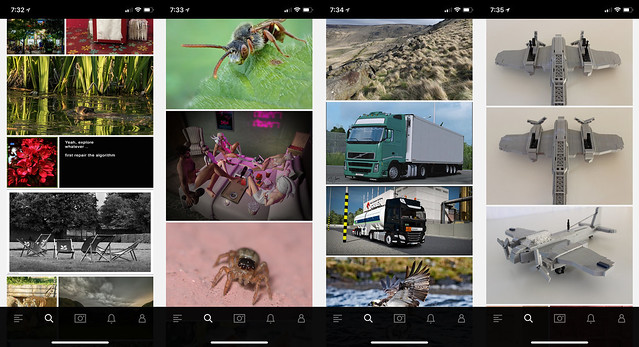
Some sample photos from yesterday’s Flickr Explore page.

3. Explore is so broken. There are so many bad photos regularly in Explore. The algorithm screens out more active users (like myself and many others). I looked at Explore for the first time in months yesterday and what do I see? Exactly the type of photos I don’t want to see on Flickr. Macro photos of insects. Lots of photos with signatures and watermarks. Three photos in a row of a LEGO airplane. Some screengrab of some user mocking Explore. Photos of big trucks and other transport. I don’t mind great train shots actually, but shots of boring city busses and big trucks that some Flickr transport fans collect are less interesting to me.

As much as I dislike Instagram and their world of ads, of all things, Instagram is doing a great job with their version of Explore. When I click on the search bar on Instagram it populates their version. What do I see there? Lots of photos of neon signs. Interesting analog photography. Great architecture.

The problem is that everyone sees the exact same version of Explore. In today’s world of AI Flickr should be smart enough to look at the photos I’m favoriting and serve me up my own customized version of Explore. Photos that I might be interested in based on what it knows about me.

Do I never favorite the classic bee on a flower shot? Then don’t show more to me. Someone who favorites 10,000 Second Life screengrabs might like to see more of them that they don’t know about on the site. I don’t. I love neon signs. Show me the most kickass photos of neon signs that I haven’t seen yet on the site from the past 24 hours. If I hate watermarked photos and never favorite them, don’t show them to me. If someone else watermarks their own photos and only favorites watermarked photos, show lots of them to them.

4. Maps. Although Stig’s excellent Flickr Fixr already fixes this, put a link to the Google Maps location under the map of a geotagged photo on Flickr. Google’s maps are the best in the world — and while it may be too expensive to actually license the maps to embed themselves, put a link there so users can go actually find the place. As it is now the Flickr maps are worthless. They won’t show you where something is. They will provide you the general vicinity of where something is, but they won’t show you exactly where it is.

If I am going on a trip and want to research a new city on Flickr, I want to know EXACTLY where things are so I can build a Google Map to go see and photograph those things myself.

5. Fix the Yahoo Log In. This is probably easy to do and from what I’ve read Don MacAskill is already on this one as a first priority. The Yahoo Login system (and especially for those using old legacy AT&T, PacBell, etc, versions of the login) is much too difficult to use. Pre-yahoo Flickr had a very simple user name / password log in that you set yourself. Users should be given an easy option to have that again and to get back into their Yahoo accounts that so many seem to be locked out of.

6. Fix the jumpy problem in photos from your contacts. Jef Poskanzer mentioned this one in his post as well. For years now whenever you browse photos by your contacts, right before you are about to favorite a photo on that page Flickr will inexplicably jolt and jump to some other random area on the page making you lose your place. Worse, right when you press the favorite button, because the page has suddenly jolted somewhere else you will accidently click on a photo which will take you away from that page and you have to press the browser back bar to get back and reload your contact’s photos page from the beginning. It’s a frustrating user experience and something that has been broken for YEARS now. It is time to fix it. Photos from your contacts is a very popular page and it is a problem that your most active users are having.

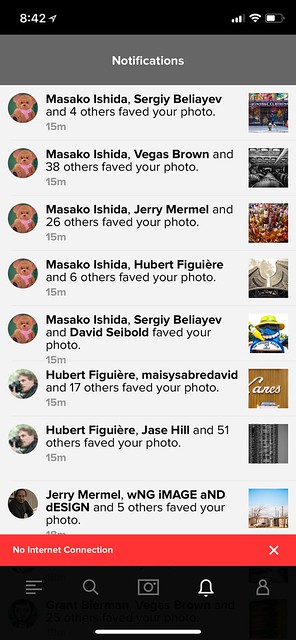
Flickr No Connection Issue

7. Flickr app connection issues. The Flickr photo app has a connection problem that other apps don’t. Just about every single day at some point you get a red “no internet connection” message at the bottom of the app. Even if you are connected to the internet and even if all your other apps work just fine. Flickr will not work. The only way to make the Flickr app work again is to quit the app and relaunch it. I think what may be happening is that at some point the Flickr app loses internet connection and isn’t smart enough to try and re-establish connection. So the app is dead and the only way to re-establish the connection is to quit it and relaunch it.

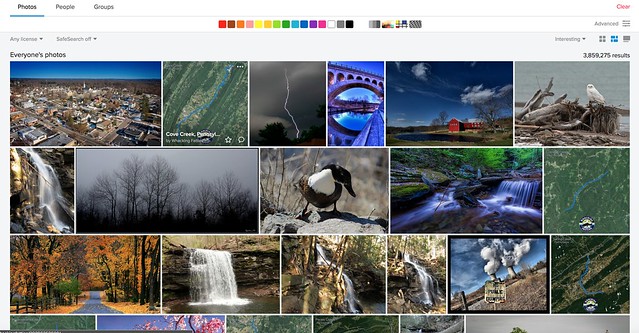
Searching Pennsylvania by Interestingness

8. Fix search. I’ve got a trip to Pennsylvania planned in a few months. Why when I search “Pennsylvania” (over 3.5 million photos on Flickr by the way) and sort by interestingness is the 2nd most interesting photo on all of Flickr a dumb aerial map screengrab with a squiggly blue line with a “whacking fatties” watermark? The photo has zero faves, zero comments and only 11 views. In fact there are four “whacking fatties” screengrabs in the top 20 most interesting of the millions of photos of Pennsylvania. This is dumb. If Flickr’s interestingness algorithm is so broken that it puts this photo as the 2nd most interesting photo in all of Pennsylvania at least give me the option to sort the photos by favorites. If I sort the photos by favorites chances are that some of the most favorited photos might be better and more interesting photos. While favorites alone might not be the best indicator of what photos are most interesting, at least give me that option. Alternatively, stop showing photos with low faves, comments, views on the first page of search results by interestingness.

9. Fix recent activity. The recent activity page is the most important page on Flickr. I load it more than any other page. For me (and many others) recently it stopped loading. It times out the majority of the time and returns a server error. I can get around this error by changing my recent activity settings from “since the beginning” to “in the last month” but I shouldn’t have to. I should be able to get it to load reliably 100% of the time since the beginning. Your most active users are users are your most valuable users. This should be fixed.

10. Let users favorite multi photo batches from the Flickr homepage. At present if I go to the main flickr homepage at flickr.com and I hover over a single photo there I’m given an option to favorite that photo by pressing a little star. This is great. But if I hover over a batch of photos that a user has uploaded I am not given this option. The only way there I can favorite a photo is to click through on the photo and leave a favorite. Flickr should treat all photos whether individual or batch on that page the same giving me a hover over star to favorite the photos.

Bonus: The “taken on” date on a photo’s photo page, really should be a hyperlink that you can click that will take you to that date in your camera roll.

That’s all for now. Much more later. See you on Flickr.

You can find me on Flickr here. ?


Thomas Hawk Digital Connection

 
Comments Off on Top 10 Ways to Improve Flickr for 2018

Posted in Photography


New 2018 dPS Reader Survey – Tell Us More About You

27 Apr

At dPS we value you, our readers, above all else. We want to help you take better pictures.

By doing this survey you will be helping dPS serve you better. By knowing what kinds of things are you struggling with, and the types of articles you want to see we can work toward providing more of what you need to move your photography forward.

We value your time, and you, as our regular reader and always strive to improve – you will help us by completing this form, for which we will be especially grateful.

Click on this link, or the image below to start the survey.

dPS-annual-reader-survey

Thank you for your continued support and being a dPS reader. We wish you all the success on your photography journey.

The dPS Team

The post New 2018 dPS Reader Survey – Tell Us More About You appeared first on Digital Photography School.


Digital Photography School

 
Comments Off on New 2018 dPS Reader Survey – Tell Us More About You

Posted in Photography


These are the winners of the 2018 Sony World Photography Awards

21 Apr

2018 Sony World Photography Award Winners Announced

After first revealing the shortlist and later the Open category and National Award winners, the World Photo Organization has finally unveiled the overall winners of the 2018 Sony World Photography Awards. This includes the coveted Photographer of the Year, Open Photographer of the Year, Youth Photographer of the Year, and Student photographer of the year awards, as well as the 10 winners of the Professional categories.

This year’s winners vary greatly in both style and substance: from stark portraiture, to dreamy landscapes, to an ecologically-minded photo project that sheds light on the problem plastic pollution.

The overall winner and 2018 Photographer of the Year accolade goes to British photographer Alys Tomlinson, whose project Ex-Voto:

The winning work encompasses formal portraiture, large format landscape and small, detailed still life images of the ‘ex- votos’ (offerings of religious devotion) found at pilgrimage sites of Lourdes (France), Ballyvourney (Ireland) and Grabarka (Poland).

Tomlinson’s project was selected as the best from the 10 Professional category winners, where she also took home top prize in the Discovery category. The title comes with $ 25,000 worth of prize money.

Open Photographer of the Year was awarded to IT specialist and self-taught photographer Vaselin Atanasov for his photograph Early Autumn; Youth Photographer of the Year was earned by 16-year-old Megan Johnson for her image Still; and Student Photographer of the Year went to Canadian student Samuel Bolduc for his series The Burden, shot on behalf of College de Matane, Quebec.

Scroll through the slideshow to see the Overall, Open, Youth, Student, and all 9 remaining Professional category winners, then head over to the World Photo Organization website to see all of the 2018 winners and runners-up.

Press Release

Overall winners revealed for 2018 Sony World Photography Awards

  • British artist Alys Tomlinson named Photographer of the Year
  • 10 Professional category winners and finalists revealed
  • Overall Open, Youth and Student winners announced

London, April 19, 2018 – The World Photography Organisation today names the overall winners of the prestigious 2018 Sony World Photography Awards at a London ceremony.

The coveted Photographer of the Year title was presented to British artist Alys Tomlinson for her series Ex-Voto, winning the photographer $ 25,000 (USD). The work was praised by the jury for its beautiful production, technical excellence and sensitive illustration of pilgrimage as a journey of discovery and sacrifice to a greater power.

Tomlinson was selected from the 10 category winners of the Professional competition who were announced today alongside those in 2nd and 3rd place in each Professional category. The overall winners of the Awards’ Open (best single image), Youth and Student Focus competitions were also revealed.

All winners were flown to the London awards ceremony and received Sony digital imaging equipment, publication in the winners’ book and their work will be shown as part of the 2018 Sony World Photography Awards Exhibition at Somerset House, London.

Outstanding Contribution to Photography recipient Candida Ho?fer was also at the ceremony to collect her prize.

Produced by the World Photography Organization, the Sony World Photography Awards is the world’s most diverse photography competition. The 11th edition saw a record breaking 320,000 submissions by photographers from more than 200 countries and territories, presenting some of the world’s finest contemporary photography captured over the past year.

The Awards’ annual London exhibition brings together the best established and emerging talent from around the world, providing winning and shortlisted photographers the opportunity to showcase their work on an international stage.

Photographer of the Year – Alys Tomlinson, British

Ex-Voto is a personal project by London-based photographer Tomlinson (age 43). The winning work encompasses formal portraiture, large format landscape and small, detailed still life images of the ‘ex- votos’ (offerings of religious devotion) found at pilgrimage sites of Lourdes (France), Ballyvourney (Ireland) and Grabarka (Poland).

The photographer mainly explores themes of environment, belonging and identity. She recently completed an MA (Distinction) in Anthropology of Travel, Tourism and Pilgrimage and has been recognized by a number of photography prizes.

Open Photographer of the Year – Vaselin Atanasov, Bulgaria

Selected from 10 category winners as the best single image in the world, Atanasov is recognized for his work Early Autumn and receives a $ 5,000 (USD) prize. An IT specialist, Atanasov is a self-taught photographer who began shooting in 2014. The winning photograph captures autumn in the Central Balkan National Park.

Professional Category Winners and Finalists

From insightful documentation of worldwide cultural and political events to showcasing the natural world, the photographers below were selected by judges as the best series of photographs in the world.

  • Architecture: Gianmaria Gava, Italian with Buildings
    2nd Edgar Martins, Portuguese / 3rd Corentin Fohlen, French
  • Contemporary Issues: Fredrik Lerneryd, Swedish with Slum Ballet
    2nd Margaret Mitchell, British / 3rd Alfio Tommasini, Swiss
  • Current Affairs & News: Mohd Samsul Mohd Said, Malaysian with Life Inside the Refugee Camp
    2nd Luis Henry Agudelo Cano, Colombian / 3rd Rasmus Flindt Pedersen, Danish
  • Discovery: Alys Tomlinson, British with Ex-Voto
    2nd Antonio Gibotta, Italian / 3rd Maria Petrenko, Ukranian
  • Landscape: Luca Locatelli, Italian with White Gold
    2nd Rohan Reilly, Irish / 3rd Tomasz Padlo, Polish
  • Natural World & Wildlife: Roselena Ramistella, Italian with Deep Land
    2nd Mitch Dobrowner, American / 3rd Andrew Quilty, Australian
  • Sport: Balazs Gardi, Hungarian with Buzkashi
    2nd Behnam Sahvi, Iranian / 3rd Matteo Armellini, Italian
  • Still Life: Edgar Martins, Portuguese with Siloquies and Sililoquies on Death, Life and Other Interludes
    2nd Tristan Spinski, American / 3rd Werner Anderson, Norwegian

Youth Photographer of the Year – Megan Johnson, American, Age 16

Open to photographers aged 12-19, Johnson was awarded for her image Still.. Shot on the cliffs near her house in Connecticut, the black and white image captures the complex and intricate solitude the photographer faces in everyday life.

Student Photographer of the Year – Samuel Bolduc, Canadian, Age 20

Bolduc was chosen by the judges from students worldwide for his photographic series The Burden. The work beautifully illustrates the physical burden of plastic waste in the environment to highlight the urgent need to half plastic pollution. Bolduc represented College de Matane, Quebec and has won 30,000 Euros worth of Sony photography equipment for the institution.

Outsanding Contribution to Photography – Candida Höfer

As one of the world’s foremost contemporary photographers, German artist Candida Höfer is renowned for her precise methodology and technique. Her powerful portraits of vast, empty interiors are held in collections around the world. The Awards recognize the artist for her contribution to the medium.

The news of the overall winners joins the March announcement of 2018’s 10 Open competition category winners and 63 National Awards winners, to complete the announcement of 2018’s awards. All winning, shortlisted and commended images can be seen at the 2018 Sony World Photography Awards Exhibition at Somerset House, London from April 20 – May 6th www.worldphoto.org/2018exhibition.

Sony World Photography Awards

The objective of the Sony World Photography Awards is to establish a platform for the continuous development of photographic culture. The Awards do this by recognizing great advancements in photography through the Outstanding Contribution to Photography prize as well as finding and promoting new talents of the future, whether this be in the Professional, Open, Youth or Student Focus competitions. Sony is committed to supporting global photography. This is demonstrated not only via the Awards, but also by its significant grant program which offers winners of the student competition $ 3,500 USD and professional competition $ 7,000 USD to develop personal projects.

The 2019 Sony World Photography Awards opens for entries 1 June, 2018. All entries are free at www.worldphoto.org.

Photographer of the Year and 1st Place, Discovery

Photo © Alys Tomlinson, United Kingdom, Photographer of the Year and Winner Professional Discovery category, 2018 Sony World Photography Awards


Image Description: Untitled from the series ‘Ex-Voto’

Series Description: A handwritten note neatly folded and hidden in the crevice of a rock, crosses etched onto stone, ribbon carefully wrapped around piles of twigs. These are all offerings of religious devotion, known as ‘Ex-Votos’ and found at Christian pilgrimage sites worldwide. Often placed anonymously and hidden from view, pilgrims leave ex-votos as expressions of hope and gratitude, creating a tangible narrative between faith, person and the landscape.

Taken at the pilgrimage sites of Lourdes (France), Ballyvourney (Ireland) and Grabarka (Poland), the project encompasses formal portraiture, large format landscape and small, detailed still-lifes of the objects and markers left behind.

Shot on 5×4, large format film, the images evoke a distinct stillness and reflect the mysterious, timeless quality present at these sites of great spiritual contemplation. People and landscape merge as place, memory and history entwine. NB all images untitled and taken in 2016/2017

Open Photographer of the Year

Photo © Veselin Atanasov, Open Photographer of the Year, Open, Landscape & Nature (2018 Open competition), 2018 Sony World Photography Awards


Image Description: The autumn has begun to decorate with its colors the woods of the Balkans. National Park – Central Balkan, Bulgaria.

Youth Photographer of the Year

Photo © Megan Johnson, United States of America, Youth Photographer of the Year, Youth, Your Environment (2018 Youth competition), 2018 Sony World Photography Awards


Image Description: This image was shot on October 22, 2017 on the cliffs right near my house. It was taken on an iPhone 7 for the following: life, to me, has more detail in black and white.

The image represents my current state at home and school. Despite having a social group and a caring family, I often find myself alone, left to watch what goes on around me, all the while being caught up in the very center of it. This glimpse through the trees of the figure on the cliff represents the courage it takes to be one’s self in today’s society, and how even when you’re on the inside, you can be pushed out.

Student Photographer of the Year

Photo © Samuel Bolduc, Canada, Student Photographer of the Year, Student Focus, 2018 Sony World Photography Awards


Series Description: My photographic series for this second brief are staged poetic photographs illustrating people bearing the burden of plastic wastes in the environment. With these images, I want to show the actions we have to take regardless if pollution continues at this speed or not. Through commitment of my characters, I also want to evoke the hope of changes about the accumulation of plastic wastes in the environment. The vast winterly territories reveal the contrast between their magnitude and the small place humankind has.

My creative process was guided by the three guidelines of AIR strategy: Avoid by the awareness of what should be done to counter this pollution, Intercept by the involvement of human in a realistic and durable solution and Redesign by the characters’ collaboration in the production of the staged photographs.

These images were created in the Lower Saint-Lawrence region in Quebec, Canada, in February 2018. The characters represented in the photographs are friends, acquaintances and people from the recycling milieu who agreed to collaborate to this project. At each encounter, I explained the issues of the project and the impacts plastic wastes have on the environment.

1st Place, Architecture

Photo © Gianmaria Gava, Italy, 1st Place, Professional, Architecture (Professional competition), 2018 Sony World Photography Awards


Image Description: November 2017. Vienna, Austria. Because the building had the right criteria to be photographed for my project “Buildings”. Shot on tripod.

Series Description: The project Buildings is a research about the archetypical forms of architecture. When functional elements have been removed, the constructions appear as pure geometrical solid shapes. As such, they seem uninhabitable. Nevertheless, these buildings arise questions about the function and accessibility of architecture in both the public and private space.

1st Place, Contemporary Issues

Photo © Fredrik Lerneryd, Sweden, 1st Place, Professional, Contemporary Issues (Professional competition), 2018 Sony World Photography Awards


Image Description: Lavenda and Wendy are rushing into the classroom where the ballet is held after changing clothes around the corner of the house

Series Description: Every Wednesday at Spurgeons Academy, a school in the middle of the indecipherable maze of Kibera’s narrow streets and alleys, students take the chairs and benches out of a classroom and sweep the floor. The school uniforms are switched to bright-coloured clothes. When teacher Mike Wamaya enters the classroom, the students get into position and place one hand on the concrete wall as though it were a ballet bar. Classical music plays out of a small portable speaker, and the class begins.

The Ballet class is part of Annos Africa and One Fine Days charity activities in slum areas around Kenya. In Nairobi they work together with two schools in Kibera and one school in Mathare, another slum closer to the city centre. The dance is a way for the children to express themselves and it strengthens their confidence in life, and a belief that they can become something great.

Some of the children are now dancing several days a week in a studio called “Dance center Kenya” in a upper-class area of Nairobi and living in a boarding school, so thanks to their talent they have taken themselves away from the harsh conditions in the slum.

1st Place, Creative

Photo © Florian Ruiz, France, 1st Place, Professional, Creative (Professional competition), 2018 Sony World Photography Awards


Series Description: In the snowy landscapes of the heights of Fukushima, I have captured the invisible pain of radiation. Inspired by the drawings of Japanese engravings, I hoped to capture the fleeting moments, the ever-shifting perceptions of nature, where radiation accumulates the most.

The title is the measure of contamination of landscapes in becquerel (Bq), a unit that expresses atom disintegration and its mutation’s number per second. By a process of staggered superimpression, I intended to show the atom’s alteration in my pictures. The transparency effects, the broken perspectives give rise to a shape that is in motion, an impermanent world. Then, I created a vibration, a departure from the reality of the subject that reveals the presence of radiation in the image.

The process reinvents and twists the very landscape, leading to a sort of vertigo, a threatening danger hidden behind the purity of the white of the landscapes.

1st Place, Current Affairs & News

Photo © Mohd Samsul Mohd Said , Malaysia, 1st Place, Professional, Current Affairs & News (Professional competition), 2018 Sony World Photography Awards


Image Description: Bangladesh military control the situation, as Rohingya refugees wait to receive food aid at the distribution point in Balukhali refugee camp, Bangladesh on September 28, 2017.

Series Description: Ethnic Rohingya in Rakhine state has taken a turn for the worse, where on Aug 25, more than 400 houses were burnt, and within this two weeks, nearly 125,000 Rohingya refugees left Myanmar for Bangladesh.

International organizations have reported claims of human rights violations and summary executions allegedly carried out by the Myanmar army. Now Over 400,000 Rohingya Muslims have fled from Myanmar into Bangladesh since violence erupted in the Rakhine state. This pictures show their life inside the Balukhali camp in Cox’s Bazaar, Bangladesh

1st Place, Landscape

Photo © Luca Locatelli, Italy, 1st Place, Professional, Landscape (Professional competition), 2018 Sony World Photography Awards


Image Description: A view of Torano’s “marble valley” in the Apuan Alps, one of Italy’s most marble-rich area, where the abundance is surreal. What we admire as pristine white stone was born hundreds of millions of years ago in overwhelming darkness. Countless generations of tiny creatures lived, died and drifted slowly to the bottom of a primordial sea, where their bodies were slowly compressed by gravity, layer upon layer, until eventually they all congealed and petrified into the interlocking white crystals we know as marble.

Some eons later, tectonic jostling raised a great spine of mountains in southern Europe. Up went the ancient sea floor. In some places they rise more than 6,000 feet.

Series Description: Rarely has a material so inclined to stay put been wrenched so insistently out of place and carried so far from its source. In Italy’s most marble-rich area, known as the Apuan Alps, the abundance is surreal. Hundreds of quarries have operated there since the days of ancient Rome and Michelangelo sculptured most of his statues from this stone. Now the trade is booming due to the demand in Saudi Arabia and other gulf states.

The photographs of this area’s majestic quarries reveal their own isolated world: beautiful, bizarre and severe. It is a self-contained universe of white, simultaneously industrial and natural.

1st Place, Natural World & Wildlife

Photo © Roselena Ramistella, Italy, 1st Place, Professional, Natural World & Wildlife (2018 Professional competition), 2018 Sony World Photography Awards


Image Description: Luigi a young Sicilian. The economic crisis, high unemployment rate is re-directing young Sicilians from small rural communities back to their lands and working in agriculture. Luigi helps his father cultivate small fields and take care of their farm animals.

There isn’t a day in which he doesn’t dirty his hands to try to save some money to assist his young fiance’, a Romanian national that he met while working in the fields and can now pay for her trip back to Sicily and start a new life together.

Series Description: Deepland is a personal journey that started on May 2016. I traveled on the back of a mule the old Sicilian trails, starting at Nebrodi, passing through the Madonie, Peloritani and all the way to the Sicani Mountains. The mule track is a rural road similar to a trail, but also suitable for the circulation of pack animals. Prior to the development of the modern road network itself, it represented the link and trade route between the towns and the farmland.

Until about fifty years ago, mules had a prominent role in Sicilian country life providing employment and assistance to the local farmers. Due to the economic crisis, many people are moving back to the countryside, especially the young, who have chosen to react to this difficult historical moment by working the land, planting local crops and breeding livestock, creating a new rural economy.

The project is divided into two parts, research of local communities still living in remote areas and the track of a new map, a document of what remains of the old mule tracks, the last update comes back to the 50’s. Ongoing.

1st Place, Portraiture

Photo © Tom Oldham, United Kingdom, 1st Place, Professional, Portraiture (Professional competition), 2018 Sony World Photography Awards


Image Description: Colin Anthony, singer, in the back bar From the series ‘The Last of The Crooners’.

Series Description: The Last of The Crooners is a portrait of what was. Long before Gilbert and George made art in the East End of London, in a corner of every pub at weekends you’d find pub singers crooning their way through a set of jazz standards, entertaining audiences all over Hackney and Bethnal Green.

These sharply turned out ladies and gentlemen entertained the throngs—and kept them in the pub. The audience for this form of entertainment has obviously changed over the decades, with only one notable venue still continuing to honour this tradition, with the rigid commitment of consistently hosting guest singers, three times every single weekend for over forty years, The Palm Tree in Bow, E3.

Rich in warmth and familiarity, The Palm Tree is world famous for maintaining its original East End atmosphere despite the impact of gentrification, land value, council pressures and independent pubs generally feeling the pressure of the shifts in habits of its clientele. It is a rich culture, though now sadly remains as a unique and lone stalwart. These really are The Last of The Crooners.

After several years of asking, this family-run pub has finally allowed me access to document the many great characters who still perform here, in a bid to capture this slice of time while it hopefully remains as it always has been—a beautiful and celebrated discovery, cherished by every visitor.

1st Place, Sport

Photo © Balazs Gardi, Hungary, 1st Place, Professional, Sport (Professional competition), 2018 Sony World Photography Awards


Image Description: Horsemen fight for a headless calf carcass during a buzkashi match on the day of Nawroz, or Persian New Year, in Mazar-e Sharif, Afghanistan on March 21, 2017.

Series Description: In buzkashi, Afghanistan’s violent and ancient national pastime, riders battle for control of an animal corpse that they carry toward a goal. Sixteen years after the U.S.-led invasion that ousted the Taliban, the sport is dominated by rival warlords who will do anything to maintain power in a turbulent country that once again is up for grabs.

1st Place, Still Life

Photo © Edgar Martins, Portugal, 1st Place, Professional, Still Life (Professional competition), 2018 Sony World Photography Awards


Image Description: Letter of departure written on an academic notebook.

Series Description: Siloquies and Soliloquies was produced at the National Institute of Legal Medicine and Forensic Sciences (INMLCF), in Portugal. A significant number of the images produced at the INMLCF depict forensic evidence, such as suicide notes, letters and other objects used in suicides and crimes as well as inherent in the work of the pathologist. The images here included represent a variety of suicide letters written by individuals who took their own lives.

The work explores the tension between revelation and concealment questioning, amongst other things, the ethical implications of representing and divulging sensitive material of this nature. Edgar Martins’ decision to work in the National Institute of Legal Medicine stems from his interest in highlighting the historic and symbolic role of one of the places that, in the context of modernity, institutionalized—through scientific practice and judicial discourse—the representation, analysis and scrutiny of death and the dead body.

In this sense, the incursion of a photographic artist into a place so charged with scientific character (medical, judicial, ideological) necessarily calls on epistemological, psychological and semantic questioning: e.g. what distinguishes a documental image of a corpse or a crime scene from an image that reproduces the staged creation of a mental image of a corpse or a crime scene? What effect do these differences have in the viewer’s imagination? How do the retrospective and prospective horizons appear in the face of these different types of image?

The Suicide tool as Destinerrance proposes to scrutinize the tensions and contradictions inherent in the representation and imagination of death, in particular suicide, and, correlatively, the decisive but deeply paradoxical role that photography—with its epistemological, aesthetic and ethical implications—has played in its perception and intelligibility.

Articles: Digital Photography Review (dpreview.com)

 
Comments Off on These are the winners of the 2018 Sony World Photography Awards

Posted in Uncategorized