RSS
 

Posts Tagged ‘Photoshop’

Two Ways to Create a Snowstorm Using Photoshop

11 Nov

The holidays are upon us and you want to have the perfect photo but it’s just too cold, slippery, or you missed the snow all together? There are times that regardless of your will, the weather won’t allow you to go outside to shoot the photos you want. Fortunately, it’s easy to recreate a snowstorm using Photoshop to give that final touch to your image.

Two Ways to Create a Snowstorm using Photoshop

Select an appropriate image

First, you have to choose an image that will be believable as having been shot during a snowfall. It can be a snowed-in landscape or a holiday view like the ones I’ll use here to show you the technique. However, you can get as creative as you like. In this tutorial, I’ll teach you two different techniques to make it snow in Photoshop so you can choose which suits you best.

#1 – Snowstorm with layers

With your image open in Photoshop, duplicate it as a layer by going to Menu > Layers > Duplicate Layer. An exact copy of your image will be created on top of the original and as a default will be called Background copy. However, if you want to rename it “snow” for organization purposes just double-click the layer name.

With this new layer selected, go to Menu > Filter > Pixelate > Pointillize. In the pop-up window, you can choose how big or small you want the snowflakes to be by dragging the slider and when you’re happy click OK.

Note: Your background color should be set to white.

Pointillize - Two Ways to Create a Snowstorm using Photoshop

While on the same layer, go to Menu > Image > Adjustments > Threshold to make it monochrome. The higher the number, the less dense the snow will be and therefore it will look more real.

Threshold - Two Ways to Create a Snowstorm using Photoshop

Layer blend mode

Once you click ok you will only see a black canvas with white spots. So to merge it with your image you need to change the layer blend to Screen; you can do this in the drop-down menu of the layers tab.

Now you need to give the snow some movement to make it look like it’s falling. For this you can go to Menu > Filter > Blur > Motion Blur. When you adjust the angle you will change the direction in which the snow will appear to be coming down. The Distance setting changes the space between the “snowflakes”. When you’re happy with it click OK.

Two Ways to Create a Snowstorm using Photoshop

There you have it, a digitally created snowstorm! You can adjust the opacity of the layer if you want the effect to be less intense. You can also repeat the process to create more layers and change the values of the Motion Blur to make it less homogeneous and therefore more realistic.

Snowstorm Two Ways to Make it Snow in Photoshop

However, this will always be a bulk effect, if you want to do it more precisely and more controlled then follow the next set of steps in method two.

#2 – Snowfall with brush strokes

First, you need to create a personalized brush for the snow. To do that, open a new canvas with a white background and then paint some uneven circles (with a black brush) that will be your snowflakes. Make two or three in different sizes, remember that you can adjust the size of the brush in the top left menu. It’s also good to use a soft brush to avoid any hard edges.

To turn this canvas into a brush, you need to go to Menu > Edit > Define Brush Preset. In the pop-up window, you can rename it as Snow. Now you can close this document without saving it because it was already saved as a brush that you can now use on any image. Now you can open the photo in which you want to make it snow.

Brush Two Ways to Make it Snow in Photoshop

Paint in the snow

Having your desired scene as the background, you need to create a new layer by going to Menu > Layer > New Layer. This is where you are going to paint the snow using the new brush you just created, but first, you need to set the properties of the brush.

First click on the brush tool, choose the snow brush from the pop-up menu and set your foreground color to white. Then open the Properties window by going to Menu > Window > Brush or by pressing F5. Here you can change many things to adjust the brush to suit your needs, in this case, I did the Scattering, the Shape Dynamics and the spacing of the Brush Tip Shape, but you can play around until you’re happy.

You will always see the applied effect of what you’re doing in the preview window at the bottom right-hand side of the screen. You can also activate or turn off each of the settings with the check sign to the left of the brush preset name.

Brush Properties - Two Ways to Make it Snow in Photoshop

Refine the snow

To make it more realistic, go to Menu > Filter > Blur > Gaussian Blur. In the pop-up window, you can change the radius to soften the snowflakes.

Now you can create more layers to give the impression of depth. The snowflakes you did before form the base, think of those as being the farthest away. Then repeat the process on another layer in which the flakes are going to be closer, for that they need to be bigger, which is controlled by the brush size. You also need to show motion, so instead of the Gaussian Blur, this time, use a Motion Blur.

Snowfall - Two Ways to Make it Snow in Photoshop

You can add and paint snow on as many layers as you want. Of course, you can always colorize it with some hue if your scene has a different tonal palette, adjust the layer opacity, and mix the two techniques described here in order to make your image look just right, as shown below.

Both - Two Ways to Make it Snow in Photoshop

Conclusion

Please give this a go, and share your before and after snowstorm images in the comments below.

The post Two Ways to Create a Snowstorm Using Photoshop by Ana Mireles appeared first on Digital Photography School.


Digital Photography School

 
Comments Off on Two Ways to Create a Snowstorm Using Photoshop

Posted in Photography


How to Super-Charge the Spot Healing Brush Tool in Photoshop

28 Oct

The Spot Healing Brush Tool is often used in portrait photography to remove blemishes, wrinkles, and other distracting elements. By default, this tool works great, but sometimes you will need to add an extra level of control to get the results that you want.

In this tutorial, you will learn how to use the Spot Healing Brush Tool with Content-Aware to quickly remove blemishes and other imperfections from your photos.

Getting Started

First, create a new layer to work non-destructively (Shift + Ctrl/Command + N).

Then select the Spot Healing Brush from the Toolbar. Make sure that “Content-Aware” is the selected Type and that “Sample All Layers” is checked in the Options Bar.

How to Super-Charge the Spot Healing Brush Tool in Photoshop

Spot Healing Brush Tool – Normal Mode

With the Spot Healing Brush Tool active, just paint over any distraction to remove it. In most cases, the Spot Healing Brush Tool will do an excellent job in eliminating the problem.

02 spot healing comparison

However, there are times where the Spot Healing Brush Tool will destroy the original detail and texture found in the photo, giving you very unrealistic results.

In the example below, the Spot Healing Brush Tool removed the wrinkles under the eye by adding a skin texture that made the image and problem worse.

03 spot healing normal

Left before using the Spot Healing Brush. Right – after using it in Normal mode.

Using Modes to Enhance the Spot Healing Brush

For a more realistic result, you need to keep as much of the original detail as possible and only remove the distracting element.

To do so, first consider the blemish, wrinkle, or distraction you are trying to remove. Is it darker than the skin tone? Or is it brighter than the skin tone?

If the distraction is lighter, select Darken from the Mode in the Options bar. If the distraction is darker, select Lighten. In this case, the wrinkle is darker than the skin tone. That means that we want to lighten the wrinkles. So in the Options Bar, under Mode, select Lighten.

04 lighten

With the brush mode set to Lighten, Photoshop will only replace pixels that are darker than the good portion of the skin. Since the wrinkles and other skin distractions in this photo are darker than normal skin tone, only the distracting elements are removed, leaving more of the original texture surrounding it intact.

Notice that as you paint over a wrinkle, you don’t lose the original highlights and you keep a lot of detail. The example below shows the results between using Normal and Lighten to apply the same correction.

05 spot healing normal

Comparing results from different brush modes. Left: Spot Healing Brush in Normal Mode. Right: Spot Healing Brush in Lighten mode.

Additional Notes

To work faster, keep in mind that you can switch between Modes by holding the Shift key and pressing the + or – keys.

This technique also helps you remove blemishes in areas that contain detail that you would like to keep.

In the example, below you can see how by using the Lighten mode we were able to remove the skin blemishes while leaving the white hair strands intact.

06 spot healing forehead

This technique works in this case because the hair strands are lighter than the skin tone, and the blemishes are darker than the skin tone. The Lighten Mode makes the Spot Healing Brush target only darker pixels, so the fine white strands of hair are left intact.

This tutorial is part of my Content-Aware series on YouTube. There are more videos there if you would like to learn more about how content-aware works in Photoshop.

The post How to Super-Charge the Spot Healing Brush Tool in Photoshop by Jesus Ramirez appeared first on Digital Photography School.


Digital Photography School

 
Comments Off on How to Super-Charge the Spot Healing Brush Tool in Photoshop

Posted in Photography


How to do Pixel Stretching in Photoshop

21 Oct

As photographers, we’re all too aware of the abundance of ways to edit a photograph in post-production. And as technology progresses, so will the potential for image making. Pixel stretching is one way to investigate the construction of a digital image through creative means.

How to do Pixel Stretching in Photoshop

Compared to other glitch-style editing techniques, pixel stretching is pretty straight-forward. The process involves selecting a single row or column of pixels and stretching them out over an image to create a warped, surrealistic visual effect. The results highlight the nuances of a digital image and explore the action of altering photographs through non-traditional means.

Getting started

First, open an image in Photoshop. It doesn’t have to be anything special, just an image with a few varying tones or colors. I’m using this photograph of blossoms because its colorful and I’m excited that it’s finally spring, here in Australia.

How to do Pixel Stretching in Photoshop

Duplicate your original image, which will be labeled as Background in the Layers panel. Right-click on the Background layer and select Duplicate Layer. It’s important that you don’t apply the pixel stretching technique directly to the original image in case you need to revert back to earlier stages of the project.

To preserve layers, photographers use Adjustment Layers to apply adjustments to an image without altering it directly. This process is called non-destructive editing. Pixel stretching, however, is by nature a destructive technique. The process applies an effect directly to the layer you have selected. This means that if your history is so stretched that you can’t return to a certain spot during editing, there’s no going back.

How to do Pixel Stretching in Photoshop

The process

On the Photoshop tools pallet, select the Single Marquee Tool. You may have to click and hold down the mouse over the Rectangular or Elliptical Marquee Tool until it reveals a small menu.

The Marquee Tool panel will reveal a choice between the Single Row Marquee Tool and the Single Column Marquee Tool. I’m going to use the Single Row Marquee Tool, but you can easily come back and experiment further once you get the hang of the technique.

How to do Pixel Stretching in Photoshop

With the Single Row Marquee Tool selected, click on an area in your image that you think is interesting. A dotted line stretching across your image will appear. This outlines the row of selected pixels that line up with the point you clicked on.

How to do Pixel Stretching in Photoshop

Once you have your pixels selected, click on Edit in the menu bar and select Free Transform. You can also select Free Transform by right-clicking on the dotted line of the Marquee Tool.

How to do Pixel Stretching in Photoshop

After you click on the Free Transform option, the cursor will appear as two opposing arrows when you hover over the Marquee Tool line. Click on the line where the opposing arrows appear and slowly drag the cursor down over the image.

You’ll see that whole row of pixels will stretch as far as you drag the mouse. When you’ve finished stretching the selection, press enter and there you go. Looks kind of neat, right?

How to do Pixel Stretching in Photoshop

How to do Pixel Stretching in Photoshop

How to do Pixel Stretching in Photoshop

Shaping the area of pixels to stretch

The next step is to fit our stretched pixels into the landscape of the image. This time, open a photograph featuring straight, hard lines. Bridges and streets are good subjects to start with.

Select the Single Column or Single Row Marquee Tool and align the Single Marquee Tool with a hard line in your image. Again, I’m using the Single Row Marquee Tool but feel free to experiment with the Single Column Marquee Tool instead.

How to do Pixel Stretching in Photoshop

Once you have your Single Marquee Tool lined up, select the Rectangular Marquee Tool from the Photoshop toolbar. You’ll need to depress the cursor over the Marquee Tool icon to reveal the Rectangular Marquee Tool.

How to do Pixel Stretching in Photoshop

With the Rectangular Marquee Tool selected, click on the Subtract option just below the menu bar (big red arrow below). The Subtract mode of the Rectangle Marquee Tool means that any portion of the selected line of pixels within the perimeter of the rectangle will be deleted. Drag the Rectangle Marquee Tool over an area of the Single Marquee Tool line and release the mouse.

How to do Pixel Stretching in Photoshop

Rectangular marquee in subtract mode on the left of the image.

You’ll notice that a section of the Single Marquee Tool line will be deleted. This means that only the remaining Single Marquee Tool line will be available for stretching pixels later. For the image below, I deleted the lines that intruded outside the perimeter of the staircase. It’s hard to see, but the remaining dotted line is still aligned with the top of the green staircase.

How to do Pixel Stretching in Photoshop

Now that you have a smaller portion of pixels selected, right click on the remaining dotted line and select Free Transform. This time when you drag the selected line of pixels up or down the image, only the remaining pixels selected by the Single Marquee Tool line will be stretched.

How to do Pixel Stretching in Photoshop

Pixels stretched up but only within the staircase area.

Conclusion

Now that you know the basics of pixel stretching, it’s time to experiment. This simple process has some distinctive painterly characteristics that alter the perspective of an image. The nature of digital photography often yields predictable, formulaic results…But be careful, you never know exactly how a pixel stretched image will turn out – which makes it quite addictive!

I would love to see your creations in the comments below. Happy pixel stretching!

How to do Pixel Stretching in Photoshop

How to do Pixel Stretching in Photoshop

The post How to do Pixel Stretching in Photoshop by Megan Kennedy appeared first on Digital Photography School.


Digital Photography School

 
Comments Off on How to do Pixel Stretching in Photoshop

Posted in Photography


How to Use Soft Light Blend Mode in Photoshop to Improve Exposure and Contrast

19 Oct

Do you have an overexposed sunny side and an underexposed shadow on the other side of your image? Or maybe a well-exposed photo that needs more vibrancy? There’s a tool so versatile that can help you fix any of these problems and more: the Soft Light Blend Mode.

What are Layers?

Imagine your photo as a printed one. Then you take a sheet of acetate and draw on it. Then you take another sheet and you put it on top of the others and obscure a part of it; and so on, and so forward. Each acetate sheet is a layer and you can make as many alterations as you want on top of your original this way.

To create layers in Photoshop you need to go to Menu > Layers > New. A pop-up window will appear where you can name your layer, choose the color, the blending mode and the opacity. When you click OK the new layer will appear on the Layers panel window on top of the background, which is the original image.

Layers - How to Use Soft Light Blend Mode to Improve Exposure and Contrast

What is the Blend Mode?

The default setting of a new layer is normal blending mode. This covers the background or the layer underneath. However, Photoshop gives you the option of choosing a different Blend Mode, which changes the way your edit affects the pixels. You can change it in the pop-up window of the new layer.

Blending Modes - How to Use Soft Light Blend Mode to Improve Exposure and Contrast

In the case of the Soft Light blending mode it is similar to using the dodge or burn tool. In other words, every color that is lighter than 50% grey will get even lighter, like it would if you shine a soft spotlight to it. In the same way, every color darker than 50% grey will get even darker. However it will never reach pure black.

So, why not use dodge and burn instead?

First of all, when you work in layers you don’t lose any information. You can always discard the layer and start over because there is no damage to the original image.

With layers, you can change the opacity or transparency of each one, which allows you to control how evident your edit is in the final image. You will find the opacity tool on the Layers panel with a slider that goes from 0 to 100 %.

Note that there is another slider next to it called Fill. There are 8 blending modes in which these two sliders make a difference, however, Soft Light is not part of these “special 8” so the Fill opacity and Standard opacity have the same result when using this Blend Mode.

Opacity - How to Use Soft Light Blend Mode to Improve Exposure and Contrast

Another advantage is that you can change the blending mode of each of the layers. In this article, we are exploring the use of Soft Blend, however, each mode offers different possibilities. One blending mode can have different uses, here are three of them.

3 ways to use Soft Light Blending Mode

1. Add punch to your image

Increase the contrast and saturation to have more vivid colors and give a punch to your image. You can do this by duplicating the background layer: Menu > Layer > Duplicate Layer and changing the blending mode from normal to Soft Light. Finally adjust the opacity until you are happy with the result.

Duplicate Layer - How to Use Soft Light Blend Mode to Improve Exposure and Contrast

BeforeSoftLight - How to Use Soft Light Blend Mode to Improve Exposure and Contrast

AfterSoftLight - How to Use Soft Light Blend Mode to Improve Exposure and Contrast

2. Gradient tool to balance the lighting

If you have an image that is underexposed on one side and overexposed in the other you can easily even it out with a Soft Light blend layer. First go to Menu > Layer > New Layer. Pick the Gradient tool and draw a line from the brightest side to the darkest one. The gradient will look like this:

Gradient How to Use Soft Light Blend Mode to Improve Exposure and Contrast

Then change the layer blending mode to Soft Light and lower the opacity to find the best results.

Before Gradient - How to Use Soft Light Blend Mode to Improve Exposure and Contrast

Before gradient

After Gradient - How to Use Soft Light Blend Mode to Improve Exposure and Contrast

After gradient

3. Dodging and burning with a Soft Light layer

The past workflows altered the entire image, however, if you need to do a more precise job you can also do that using Soft Light. First, add a new layer with Soft Light blending mode like you did in the previous procedure. Only this time instead of the gradient tool, you are going to use the brush tool. When you select it you can choose the size of the brush on the top menu and the color on the bottom.

Brush How to Use Soft Light Blend Mode to Improve Exposure and Contrast

If you paint with black you will darken the image:

Darken - How to Use Soft Light Blend Mode to Improve Exposure and Contrast

Painting with white will lighten certain areas, and with different shades of grey, you can also control tones of your image.

Painting - How to Use Soft Light Blend Mode to Improve Exposure and Contrast

Keep going until you are happy with the contrast and exposure of your image.

Before Painting - How to Use Soft Light Blend Mode to Improve Exposure and Contrast

After Painting - How to Use Soft Light Blend Mode to Improve Exposure and Contrast

Conclusion

Now you know that blending modes have a lot of potential, so keep exploring. How do you use Soft Light Blend Mode? Please share your ideas and tips in the comments below.

The post How to Use Soft Light Blend Mode in Photoshop to Improve Exposure and Contrast by Ana Mireles appeared first on Digital Photography School.


Digital Photography School

 
Comments Off on How to Use Soft Light Blend Mode in Photoshop to Improve Exposure and Contrast

Posted in Photography


Adobe updates Photoshop CC with new tools, 360° image editing, HEIF support and more

19 Oct

$ (document).ready(function() { SampleGalleryV2({“containerId”:”embeddedSampleGallery_2078864935″,”galleryId”:”2078864935″,”isEmbeddedWidget”:true,”standalone”:false,”selectedImageIndex”:0,”startInCommentsView”:false,”isMobile”:false}) });

The all-new Lightroom CC (and newly-renamed Lightroom Classic CC) might be hogging the spotlight at Adobe MAX 2017, but Adobe didn’t forget to throw some love Photoshop’s way. In addition to the standard performance enhancements you expect with every update, Photoshop CC has been gifted with a slew of new features, including: the new curvature pen tool, 360° spherical image editing, HEIF format support, Select and Mask improvements and more.

All of the improvements are summarized in the list below, and while none of them will blow your mind, there’s plenty there for regular Photoshop users to be happy about:

According to Adobe, the most requested improvement that ships with the new version of Photoshop CC is actually the enhanced Brush Presets and Brush Preset Management, which you can see demonstrated in the video below:

And with the explosion of 360° images into the mainstream and the release of iOS 11, the ability to open & edit spherical 360° panoramic images in Photoshop, as well as HEIF format images, is a big deal as well.

Other notable improvements include the new color and luminance range masking tools that were also added to Lightroom CC, the Curvature Pen Tool that Adobe teased us with just last month, and improved Select & Mask functionality overall. You can see these new features in action in the YouTube videos embedded below:

As with all previous updates to Photoshop CC, you won’t have to pay anything extra if you’re already a subscriber. The $ 10/month Creative Cloud Photography Plan now includes 20GB of cloud storage, Photoshop CC, Lightroom CC, and Lightroom Classic CC; or you can upgrade to 1TB of storage for $ 15/month until next year, when that price will go up to $ 20/month.

To learn more about these updates from Adobe itself, head over to the Adobe Photoshop blog by clicking here.

Articles: Digital Photography Review (dpreview.com)

 
Comments Off on Adobe updates Photoshop CC with new tools, 360° image editing, HEIF support and more

Posted in Uncategorized


How to Use Puppet Warp in Photoshop

14 Oct

One of the most powerful distortion tools in Photoshop is the Puppet Warp command. First Introduced in Photoshop CS5, Puppet Warp is a handy command that allows you to easily bend and shape parts of your image as if it were a puppet. You can use this distortion tool on almost any photo, but in this tutorial, I am going to give you a crash-course on how to make the most out of Puppet Warp command when distorting people in your photos.

Puppet Warp provides a visual mesh that lets you drastically distort specific image areas while leaving other areas intact. Applications range from subtle adjustments to severe limb distortions. In most cases, you will keep your distortions subtle to keep them realistic.

How to Use Puppet Warp in Photoshop

However, in this tutorial, we will push the Puppet Warp Tool to the max and make drastic adjustments to completely reposition the arms and legs of the man in this composite.

Isolating Your Subject

The first step to using the Puppet Warp command is to isolate the person (or object) that you would like to distort. This often involves making a selection of the individual and masking-out the background.

In this example, the man jumping was extracted from his background via a Layer Mask and placed into a Smart Object. Smart Objects allow you to apply filters, commands, and distortions nondestructively; which means that you can always come back and adjust any changes that you’ve made.

02 isolate - How to Use Puppet Warp in Photoshop

Puppet Warp works even if you don’t extract the subject from the background, but the tool becomes less efficient and less intuitive.

Apply The Distortion Pins

The Puppet Warp command allows you to distort an image by clicking-and-dragging pins which distort the pixels to which they are attached.

After you isolate the person in your scene, you will need to add the distortion pins so that you can start manipulating the pixel in your image. Start by selecting the layer that contains your foreground element, in this case, the layer of the man jumping, and Go to Edit > Puppet Warp.

03 mesh How to Use Puppet Warp in Photoshop

By Default, you will see a mesh around your layer. This mesh can be distracting; I encourage you to disable it by unchecking the “Show Mesh” checkbox from the Options Bar.

04 disable mesh

You can now click anywhere on your subject to create the pins that will allow you to move (or pin down) the pixels in the image. When working with people, create the pins near the joints such as the wrist, shoulders, knees, ankles, and in any other area where the body would normally bend. You can also create pins in areas that you want to keep pinned down.

05 add pins How to Use Puppet Warp in Photoshop

Adjusting Pins and Distorting the Image

With your pins in place, click on a single pin to activate it, and drag it to a new location. You will see that the image will be distorted as you drag the pin. The distortions will become more extreme the further you drag it from its original location.

06 move pins How to Use Puppet Warp in Photoshop

Rotating Pins

After making a distortion, you may find that the image does not look realistic because of how the pins bend the surrounding pixels. To help fix this issue, you can use the Rotate control in the Options Bar to rotate a single point and help correct some of the unrealistic distortions.

07 rotate options

You can also select a pin and hover over it while holding Option/Alt to reveal a Rotate UI element that you can click-and-drag on to rotate the mesh.

08 rotate

This method is much more intuitive, and it allows you to rotate the pin much easier. But for more subtle and precise rotations, the Rotate control in the Options Bar will be the better option.

Pin Depth

In this example, you’ll notice that the model’s leg has been placed over his right leg. But if you would like for his right leg to be in front, then you can adjust the Pin Depth.

Select the pin that controls his right leg, and in the Options Bar, under Pin Depth, Click the Move Forward icon to push that pin forward.

09 pin depth

After changing the Pin Depth, the model’s right leg will appear in front of his left leg.

09 leg behind

You can do the same with any of the other pins in your image to change the depth of the corresponding body part.

Options Bar Settings

The Options bar also give you a few extra options that will determine how the mesh will behave and it will, of course, affect how the pixels are distorted.

  • The Mode option lets you decide how stretchable the mesh should be.
  • Density controls the spacing of the mesh’s points. Adding more points makes your edits a lot more accurate, but the processing time takes longer to complete.
  • Expansion allows you to expand or contract the outer edges of the mesh.

Conclusion

If you prefer to watch me do this and follow along by video, see below:

Remember that when using the Puppet Warp command, or any other distortion tool in Photoshop, you should do so with restraint. Small changes can have a significant impact and go unnoticed. However, extreme adjustments could quickly become unrealistic and distracting to the whole image.

The post How to Use Puppet Warp in Photoshop by Jesus Ramirez appeared first on Digital Photography School.


Digital Photography School

 
Comments Off on How to Use Puppet Warp in Photoshop

Posted in Photography


How to Make a Little Planet Quickly and Easily in Photoshop

12 Oct

Do you find your panoramas a bit flat? Would you like to create a whole little planet out of a single street or square? Do you want to make fun, eye-catching images in just a few minutes without any new equipment or apps? Then this article is for you!

What is a Little Planet

Maybe you’ve heard about the “tiny planet” or “little planet” effect but don’t know exactly what that is. Maybe you have seen them but don’t know how to do them. Well, let’s start by explaining that a tiny planet is a spherical panorama and is technically called a stereographic projection.

The result of this effect is that your traditional landscape will now be circular and thus look like a planet floating in space, water, or sky depending on the background of the panorama you’re using.

PlanetReggio - How to Make a Little Planet Quick and Easy in Photoshop

Little planets are very trendy since it became possible to capture 360 x 180 degree panoramic shots. However, in this tutorial I’m going to show you how to do them from any straightforward bi-dimensional rectangular photo. I’m using Photoshop for this, but you can do it in most post-processing programs, even the free ones like GIMP.

Subjects for a Little Planet

A landscape or a panorama are the best choices, however you can get interesting results applying this effect to other kind of scenes. For example, I used it in this photo from the interior of a library, see how the spiral lines add depth to the space?

Library How to Make a Little Planet Quick and Easy in Photoshop

Also, if you apply it to a portrait the result is like looking through a peephole.

Clown How to Make a Little Planet Quick and Easy in Photoshop

How to Make a Little Planet

Okay, back to the instructions. First you need to open your image in Photoshop and alter the proportions of your photo so that it becomes a square. To do this go to Menu > Image > Image Size. Once the Image Size pop-up window opens, make sure you deactivate the “constrain proportions” option or else the entire image will resize proportionally. Once you do that, make sure the width and the height values are the same.

Size How to Make a Little Planet Quick and Easy in Photoshop

Now you will see your image distorted, like stretched out. Don’t worry about it, that’s what we were looking for here.

Rotate the Image

Distortion How to Make a Little Planet Quick and Easy in Photoshop

Now that you have your square you need to rotate it. To do it you go to Menu > Image > Image Rotation > 180 degrees.

Rotation

Now you will see the image upside down.

Upsidedown

*Note: if you want your planet to be inside out you skip this step! At the end, I’ll show you the results with and without this rotation.

Apply the Effect

The final stage is to apply the effect. Go to Menu > Filter > Distort > Polar Coordinates. In the pop-up window you will see a preview of your little planet; make sure that the Rectangular to Polar option is marked and click OK.

PolarCoordinates

Voila a Little Planet

There you go, your own little planet! You can rotate the image (like you did in step 2) until you find the orientation that works best for your image. You can also use the clone tool if you need to blend the merging of the borders or iron out any final details. And of course, you can fix contrast and exposure, as you would do with any photo.

Final How to Make a Little Planet Quick and Easy in Photoshop

And here is the one inside out if you skipped the second step and didn’t rotate the image:

Insideout How to Make a Little Planet Quick and Easy in Photoshop

So you see, it was only a matter of three steps. However, to get better results, especially if it’s your first few planets let me give you some tips and tricks:

Tips and Tricks

Use a photo with a wider ratio, like 2:1 and more. If you don’t have that, a landscape (horizontal) photo will still do better than portrait (vertical) one.

StartLandscape How to Make a Little Planet Quick and Easy in Photoshop

Compose your photo with the rule of thirds leaving the top and bottom sections with minimal information and the details in the middle area. In this example, I have the sky on the top, trees in the middle, and ground on the bottom.

Make sure the horizon line is completely straight. If it wasn’t like that in the original shot, it’s very easy to fix. First, pick the ruler tool from the toolbox (if you don’t see it just press and hold the eyedropper and you’ll find it). Then click and drag a straight line from one side to the other. Finally, click on the Straighten Layer button on top.

Ruler How to Make a Little Planet Quick and Easy in Photoshop

The edges will merge better in the planet if the left and right edges of your panorama are similar. When possible, like it would be in the case of a forest, for example, you can copy the left side, flip it and paste it on the right side. That way they will match perfectly.

Edges How to Make a Little Planet Quick and Easy in Photoshop

Your Turn

Now you can create a whole universe of little planets from nature to urban landscapes, the possibilities are endless.

UrbanPlanet

I invite you to share your planets here in the comments section below.

The post How to Make a Little Planet Quickly and Easily in Photoshop by Ana Mireles appeared first on Digital Photography School.


Digital Photography School

 
Comments Off on How to Make a Little Planet Quickly and Easily in Photoshop

Posted in Photography


Adobe unveils Photoshop Elements 2018: Can open closed eyes, find your best photos and more

04 Oct

A before and after of Photoshop Elements’ new Open Closed Eyes featured at work.

While the professional photography market waits with bated breath to see what Adobe has in store for us at AdobeMAX, the company behind Lightroom and Photoshop unveiled something that appeals to a bit broader of an audience today: Photoshop Elements 2018 and Premiere Elements 2018.

The new, user-friendly versions of Adobe’s photo and video editors come with some really creative and easy-to-use features that the company says are aimed at “memory keepers.” The idea was to create two programs that make finding, enhancing and sharing the precious memories hidden away inside random memory cards, hard drives and (most likely) smartphones almost totally automatic.

Photoshop Elements 2018

Photoshop Elements 2018 tackles the same problem that everyone—Google’s Photos App, Apple Photos, etc.—is trying to tackle: how do you help the typical shutterbug find their best images out of the thousands they take every week on their smartphone, and enhance those images so they look ‘professional’ and worth sharing on social media?

As with everybody else, Adobe is leaning heavily on machine learning and computer vision (different types of ‘AI’) for this trick.

It starts with an easy-to-use Organizer view and something called Auto Curation, which uses computer vision and some nifty algorithms to guess (because it can’t REALLY know, can it?) which of your images are the best. So if you have a group of 200 images, you can ask Photoshop Elements to cull those down automatically to just 15.

Once you’ve selected your shots, you can use the program’s new Guided Edits and a new feature called Automatic Selection to do things like drop in a new background, create a double exposure effect using two of your images, or add ‘artistic’ overlays.

The coolest feature, though, has to be Open Closed Eyes, which allows you to select two frames, and replace the closed eyes in one with the open eyes from another. The results are incredibly lifelike given that whole thing can be done in a matter of seconds.

Premiere Elements 2018

Like Photoshop Elements, Premiere Elements 2018 also leans heavily on AI-powered features to make video editing as automatic and pain-free as possible.

Smart Trim does for videos what Auto Curate does for photos, namely: it asks you what ‘style’ of video you want to create, tries to intelligently find the best clips that match this style, and tosses out the rest to create a coherent clip.

Another interesting addition is a feature called Candid Moments, which tries to find the best candid ‘photo’ hidden within a video clip and pull it out for you. With new smartphones like the iPhone 8 Plus shooting gorgeous 4K 60p, we could see this feature being a huge hit with those ‘memory keepers’ Adobe is all trying to target.

Admittedly, neither Photoshop Elements 2018 nor Premiere Elements 2018 are really targetted at more professional photographers out there (read: many of the people who enjoy reading DPReview). But as these beginner-focused programs get more and more powerful, amateur photographers who are allergic to the subscription model and don’t like to do much post-processing anyhow might actually enjoy using Photoshop and Premiere Elements 2018.

Of course, that’s not to say we won’t be keeping a very close eye on AdobeMAX this year.

To learn more about Photoshop Elements 2018 and Premiere Elements 2018, head over to the Adobe blog by clicking here, or visit their dedicated landing pages by clicking on the program names above. Both programs are available now for $ 100 new or $ 80 as an upgrade. You can also buy them together for $ 150 new or upgrade both programs at once for $ 120.

Articles: Digital Photography Review (dpreview.com)

 
Comments Off on Adobe unveils Photoshop Elements 2018: Can open closed eyes, find your best photos and more

Posted in Uncategorized


5 Reasons for Lightroom Photographers to Use the Edit In Photoshop Feature

01 Oct

Since its Version 1.0 release in 2006, Adobe Lightroom has gone from strength to strength, firmly establishing itself as the go-to software for photographers around the globe. With each new update, you’ll be relieved to find you have fewer reasons for awakening the software’s fuller-figured big brother, Photoshop CC.

That said, there are some limitations with Lightroom that have stood the test of time. Thankfully, with more signups for the Creative Cloud Photography plan, there are now few photographers without access to both solutions. But for the times you need it, here are five reasons you’ll likely find yourself firing up Photoshop CC for better results.

1 – Cloning and Healing

Lightroom is a whiz at removing simple sensor spots from that top left corner of your images (Nikon users, you know what I’m talking about!). Punching Q then A allows me to quickly visualize any distracting spots with the handy white on black overlay, and their removal is typically a swift one-click solution using the Spot Healing tool.

However, the same cannot be said when attempting to remove distractions from more complex textures such as dust spots in the grass, for example, or people, as in the image below. For those situations, I rely on the smarter algorithms and expanded capabilities of Photoshop.

Cloning before - 5 Reasons for Lightroom Photographers to Use the Edit In Photoshop Feature

Want to feel like the only person at Angkor Wat? Then, you’ll need Photoshop!

To remove and replace objects that Lightroom cannot handle, start by right-clicking the image and choosing Edit in Photoshop. Then create a duplicate layer (CTRL/CMD + J) of your image in Photoshop (I generally do this every time I start processing so I can always get back to the original if I make a mistake or don’t like the result).

Next, erase the distraction with the Eraser Tool (E) so that you can see a “missing piece” where the culprit used to lie (be sure to turn off the visibility of the original background layer if nothing appears to have been erased). Select the area using the wand tool (W) and then in the menu bar at the top of your screen choose Select > Modify > Expand (choose around 5 pixels as your setting).

Next, choose Edit > Fill and select “Content-Aware” in the Contents dropdown list. Hit OK and Photoshop will attempt to replace what you’ve erased with something sensible.

Cloning demo - 5 Reasons for Lightroom Photographers to Use the Edit In Photoshop Feature

A before, during, and after shot showing the simple removal of people from an image using Erase and Content-Aware Fill.

I’ve been able to seamlessly remove crowds of people from the image you see here using this technique, and the process took only around two minutes. Whereas Lightroom relies on finding a similar texture it can use to cover up distractions/blemishes, Photoshop uses its clever algorithms to create its own texture.

Cloning final - 5 Reasons for Lightroom Photographers to Use the Edit In Photoshop Feature

Going, going, gone! Photoshop makes light work of the unwanted people in the image.

2 – Digital Blending

Sometimes you just can’t quite capture enough dynamic range in your image to get away with a single exposure (at least not without introducing an unacceptable amount of noise or strange artifacts). While Lightroom has attempted to cater to those who wish to combine exposures with the introduction of HDR Photo Merge, using the feature can sometimes lead to incredibly flat images that are tricky to process (and in the case of the image you see below, caused the sun to completely disappear by virtue of it not appearing in both of the photographs).

Hdr both frames - 5 Reasons for Lightroom Photographers to Use the Edit In Photoshop Feature

Pulling up the shadows on the darker of these two exposures would introduce too much noise, and so HDR seemed the way to go.

Lightroom hdr attempt - 5 Reasons for Lightroom Photographers to Use the Edit In Photoshop Feature

…if only it wasn’t for Lightroom’s attempt to fix global warming.

Lightroom hdr after post-production - 5 Reasons for Lightroom Photographers to Use the Edit In Photoshop Feature

The plight of a freezing earth aside, even after post-production in Lightroom, the blended exposure looks flat and uninteresting.

The advanced masking abilities of Photoshop, combined with a technique called Luminosity Masking makes combining exposures much simpler. Using this technique, you choose exactly what appears from each exposure, so blending images that have uncommon elements (as in the case of the sun in the example image) is simple.

Photoshop hdr blend - 5 Reasons for Lightroom Photographers to Use the Edit In Photoshop Feature

Not only is the sun retained, but the image looks punchier overall, too.

3 – Advanced Tone and Color Control

The local adjustment tools in Lightroom including the Adjustment Brush (K), Graduated Filter (M) and Radial Filter (Shift+M) give you far less need for Photoshop than was the case before they were introduced. They are excellent targeting tools, yet they all suffer a major weakness – there is no access to HSL (Hue, Saturation, and Luminosity) adjustments.

In daytime landscape images, you’ll often want to deepen the blue of the sky. While this can be done using the HSL panel, the problem is that blue is not a color found exclusively above the horizon, as is the case with the walls and clothing in the example image below. The only way I could deepen the blue here would also cause detrimental effects to the blue everywhere else. Targeting the sky with the Adjustment Brush didn’t give me access to the necessary HSL sliders.

Color control before - https://digital-photography-school.com/understanding-the-hsl-panel-in-lightroom-for-beginners/

I wanted to bring a bit of life to the sky in this image. But in Lightroom, there is no way to adequately control the blues without affecting the same tones in other areas of the image.

Color can be better controlled in Photoshop by hitting Select > Color Range, then using the eyedropper tool to select a color you want to affect in isolation. You can then create an adjustment layer of your choice to affect the selected area; most often you’ll find a Hue/Saturation adjustment is the best method.

The benefit of this last method is a dramatic one: Whereas in Lightroom you can only make wholesale adjustments, i.e. changes that affect the entirety of the image, to Hue, Saturation, and Luminosity, you aren’t subject to the same limitation in Photoshop. By selecting an appropriate color, then masking out the effect in undesirable areas, you’ll retain more control, as is the case with the image below.

Color control after - 5 Reasons for Lightroom Photographers to Use the Edit In Photoshop Feature

Targeting only specific areas while retaining full access to every adjustment Photoshop offers is hugely appealing. Note the sky is darkened here but not the wall or people’s clothing.

To achieve my aim, I simply created a Hue/Saturation adjustment layer and then masked away the effect from everywhere but the sky. I’d tried all manner of adjustments in Lightroom but could only get the sky to look how I wanted at the expense of adding too much blue elsewhere.

Another great option when this happens is to simply create two virtual copies in Lightroom, one with the sky (or another problem area) as you want it, and another before you did the damage with the other edit. You can then blend the two together in Photoshop.

4 – Stitching Panoramas

When Adobe announced they’d be adding the Panorama Photo Merge feature to Lightroom, I figured that’d be yet one more thing scratched from my “Must use Edit in Photoshop” list. Alas, it wasn’t to be, predominantly because of the likelihood of “blank canvas” – the phenomenon where you’ll find blank, white space in your Lightroom panoramas. Try it for yourself. CTRL/CMD + Click to select all of the images you wish to stitch, then right-click and select Merge > Panorama. I bet there’s an area missing from the photograph.

Lr pano demo - 5 Reasons for Lightroom Photographers to Use the Edit In Photoshop Feature

Here you see Lightroom’s attempt at creating a 6-frame panorama.

The effect is caused by the distortion inherent to some degree in every lens, and Photoshop will produce near identical results. Where Photoshop excels, however, is in its ability to offer a more flexible solution. In Lightroom, you are left to merely crop away the now-useless areas. But in Photoshop you can use the same Content-Aware Fill method described in #1 above to cleverly re-create a convincing replacement area of sky (although you may want to try expanding your selection by 20 or so pixels, as opposed to the 5px recommended for removing smaller items).

Left to the solutions in Lightroom, I’d have been forced to crop away more of the sky than I’d have liked in this image. With Photoshop I was even able to replicate some tricky texture in the water at the bottom of the frame. I still needed to crop away a little of the image, but nowhere near as much.

Pano in photoshop - 5 Reasons for Lightroom Photographers to Use the Edit In Photoshop Feature

Pano complete - 5 Reasons for Lightroom Photographers to Use the Edit In Photoshop Feature

Photoshop’s Content-Aware Fill allowed me to retain much more of the final image and forced less cropping.

5 – Chromatic Aberrations

Lightroom generally does a pretty good job of dealing with chromatic aberration, the color fringing that can appear where dark and light tones meet. You’ll often see this in daytime cityscapes where the top edges of buildings meet a bright sky, for example, usually manifesting itself as a green or purple edge straying into the brighter tone.

Chromatic aberration before - 5 Reasons for Lightroom Photographers to Use the Edit In Photoshop Feature

While this nun is a holy person, the blue glow on the shoulder is a bit much.

Lightroom has a couple of ways of dealing with this. First, there’s the Remove Chromatic Aberration checkbox in the Lens Corrections panel. I’d say 90% of the time, this is enough to correct the problem. Where the fringing persists, heading into the manual tab of the same panel allows you to grab the Fringe color Selector (the eye-dropper-like icon) and click on the offending area.

This will generally fix a more complex problem, but every once in a while you’ll encounter fringing so stubborn that Lightroom can’t handle it. This happens most frequently with blue fringing, which Lightroom is pretty much powerless against. Fortunately, blue fringing is quite rare, but it does happen.

Fringe color selector - 5 Reasons for Lightroom Photographers to Use the Edit In Photoshop Feature

Lightroom is powerless against the dreaded Blue Glow!

You could try to desaturate the offending edge with Lightroom’s adjustment brush but you run the risk of accidentally straying into the surrounding area. Alternatively, you could try to completely desaturate the blue and cyan in the HSL panel. In this case, I didn’t want to do either of those as it would put my blue-green background at risk, making it look far too much like color-select for my liking.

Photoshop affords so much more control in fixing this problem. It’s as simple as heading to the menu bar to hit Select > Color Range and then clicking on the color fringing with the eyedropper tool that appears automatically. This will create a selection based on that very blue causing the problem.

By altering the “Fuzziness” you’re basically setting color sensitivity. The lower the number, the more precisely Photoshop will select that color; the higher the number, the more leeway you give the software to find similar colors. Don’t worry if there’s an identical or similar color elsewhere in the image that Photoshop picks up on; it’s easy to mask that out later.

Once you see that your mask has isolated the problem area well enough, open a Hue/Saturation adjustment layer, which should have automatically applied your selection as a mask. Reduce saturation in the Blues and Cyans until the problem is gone. If you’ve accidentally desaturated some other important area of your photograph, click on your mask, grab the black brush, and mask it out. Easy.

Color range with mask - 5 Reasons for Lightroom Photographers to Use the Edit In Photoshop Feature

Targeting doesn’t get any easier.

Chromatic aberration demo

The nun’s blue glow is successfully removed. I’m not quite sure how she’d feel about this.

Conclusion

The next time one of the few remaining weakness of Lightroom is exposed, you can try one of the above techniques so the software doesn’t have to get in the way of your vision.

Have you found any other Lightroom limitations? Please share in the comments below.

The post 5 Reasons for Lightroom Photographers to Use the Edit In Photoshop Feature by Chris Cusick appeared first on Digital Photography School.


Digital Photography School

 
Comments Off on 5 Reasons for Lightroom Photographers to Use the Edit In Photoshop Feature

Posted in Photography


Using Lightroom Alongside Photoshop: Working with Smart Objects

19 Sep

What software do you use to process your digital images? As of the writing of this article, Adobe Lightroom sports over 1.4 million Likes on their official Facebook page. And Photoshop? That Facebook page is pushing 7.7 million Likes. If those numbers are any indication of the overall use of the editing software, then it’s safe to say that you are likely using one of the two programs right now (you’re reading this after all). Lightroom and Photoshop arguably set the standard for all other post-processing software platforms.

If you’re like me you use both of them, in tandem, to edit and process your photos. There are literally limitless possibilities when it comes to using Lightroom and Photoshop together. Out of those possibilities comes the idea of “Smart Objects”.

Do you know about Smart Objects? Have you ever used them before in your workflow? If not, I’m going to show you exactly how useful (or not) working with Smart Objects between Lightroom and Photoshop can be. Don’t worry, it’s all easy to understand. Let’s have a look at what Smart Objects can do for you and your photography when it comes to working with both Lightroom and Photoshop.

What are Smart Objects?

Think of Smart Objects as being a larger suitcase. All your edits in Lightroom are non-destructive. This is because you aren’t actually editing your original file in Lightroom. Rather, you are working with a virtual copy of your image. When you go from Lightroom to Photoshop, like this…

Using Lightroom Alongside Photoshop: Working with Smart Objects

You package everything into the suitcase and send it off to Photoshop Land. What do you put in your suitcase? You might put your Lightroom edits, the original file information, or a mix of the two. The key is that you don’t want to do anything to your photos that you can’t take back. While you can edit your images between Lightroom and Photoshop non-destructively, there are ways to remain more flexible than others. One of these is by using smart objects.

While you can edit your images between Lightroom and Photoshop non-destructively, there are ways to remain more flexible than others. One of these is by using smart objects.

Using Lightroom Alongside Photoshop: Working with Smart Objects

Smart Objects pack more into the suitcase when you move your editing between Lightroom and Photoshop. When your image opens as a Smart Object in Photoshop, you’ll notice a special little icon on the layer thumbnail.

Using Lightroom Alongside Photoshop: Working with Smart Objects

This lets you know that you are now working with a Smart Object layer. From here, work with your image in Photoshop as you do normally.

The benefits of using Smart Objects

The great thing about using Smart Objects when jumping from Lightroom to Photoshop is that you are taking an original version of your image with you so that editing becomes much more versatile once in Photoshop. Not only can you change the edits you made in Lightroom but you can also work more effectively when transforming or resizing your photo.

This all sounds a little complicated, but I can assure you it’s not. Let me show you some of the perks of using Smart Objects when working between Lightroom and Photoshop.

Real-time edits of Lightroom adjustments

Using Smart Objects, you can make dynamic changes to your Lightroom edits using Adobe Camera Raw just as you would in Lightroom itself. This lets you augment your Lightroom edits on the fly and when you save your image back to Lightroom there will be less need to make those final tweaks. Double click the Smart Object thumbnail and your photo will open in ACR.

Using Lightroom Alongside Photoshop: Working with Smart Objects

Apply any edits you want while in ACR and they will go back with you if/when you bring your photo back into Lightroom.

Smarter resizing and transforming

There’s a problem that plagues editors when it comes to downsizing and upsizing images in Photoshop. It’s pixelization. Because, spoiler alert, digital images are made up of pixels (except vector images). When you scale an image down in Photoshop, the program removes pixels to make the image smaller. This is all well and good until you decide you want to make the image larger again. Since you’re missing pixels, the photo can lose a lot of quality and look pixelated. Let me show you what I mean.

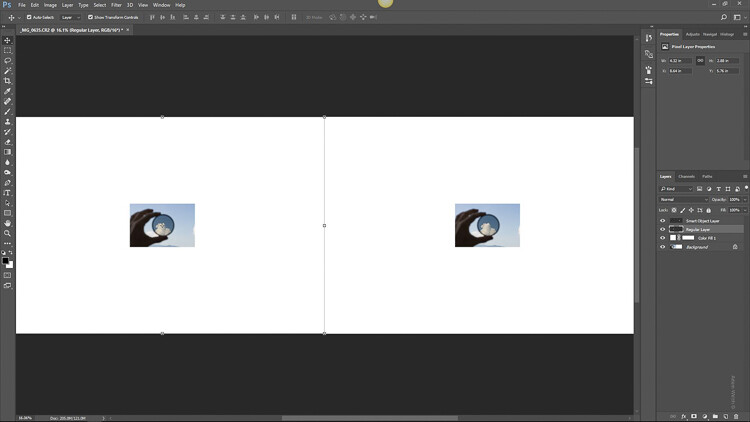
Here we have that same photo that we imported to Photoshop. I’ve duplicated the image with the one on the left being our regular “Pixel Image” and the one on the right is the same photo only converted to a Smart Object (select layer>layer menu>convert to Smart Object.).

Using Lightroom Alongside Photoshop: Working with Smart Objects

I scale both photos down to 10% of their original size.

Using Lightroom Alongside Photoshop: Working with Smart Objects

Then, being the hypothetical indecisive photographer that I am, I decide to then bring the photo back to its original 100% size. Which gives us this.

Using Lightroom Alongside Photoshop: Working with Smart Objects

Not much difference, right? Wrong. Let’s take a closer look. Here’s the regular image after scaling it back to its larger size.

And now look at our Smart Object…

The smart object image has kept its clarity and sharpness because Photoshop didn’t touch the pixels when it was downsized and used the additional information in the Smart Object to edit non-destructively. This is the power of working with Smart Objects when using Lightroom and Photoshop together.

The Downside

No, it’s not all sunshine and rainbows when working with Smart Objects. The biggest problem is that since you are including the RAW file information when you jump from Lightroom, the final file sizes can become rather large after you edit your image in Photoshop. Depending on the size of your original image file this can make for a lot of hard drive real estate being consumed resulting in poor performance during your processing.

Final thoughts on Smart Objects

Using Lightroom alongside Photoshop essentially gives you the best of both editing worlds. You have the simplistic adjustment capacity Lightroom while being able to perform more intricate edits using Photoshop. Smart Objects simply sweeten the pot. Using Smart Objects allows you to edit your images more efficiently and completely non-destructively.

Resizing images from Smart Objects means no loss of quality when you upscale or downscale. Throw in the fact that you have the fluidity of accessing and changing your Lightroom edits while in Photoshop using ACR and you quickly begin to run out of reasons not to incorporate this into your editing workflow. The increased file size, in my opinion, will be well worth the added benefits Smart Objects will bring you.

Have some of your own processing tricks while using Lightroom and Photoshop together? Please share them in the comments below.

The post Using Lightroom Alongside Photoshop: Working with Smart Objects by Adam Welch appeared first on Digital Photography School.


Digital Photography School

 
Comments Off on Using Lightroom Alongside Photoshop: Working with Smart Objects

Posted in Photography