RSS
 

Archive for December, 2020

Halide developers break down the technology powering Apple’s new ProRAW image format

16 Dec

Apple’s new ProRAW format is now available to iPhone 12 Pro and 12 Pro Max users running iOS 14.3. The new format promises the power of Apple’s image processing capabilities with the flexibility of a Raw image. But what exactly is a ProRAW image, how useful is the format and what sort of results can we expect from it?

Ben Sandofsky, one of the developers behind the iOS camera app Halide, has answered all of those questions and more in a thorough overview of the ProRAW technology, with illustrations and example photos from Halide designer, Sebastiaan de With.

Sandofsky’s overview is effectively broken down into three parts. That first part explains how a digital camera ‘develops’ an image using the data from the sensor. The second part explains the pros and cons of traditional Raw files. And the third part is where we learn what’s unique about Apple’s ProRAW technology and why it ‘changes the game’ despite ‘its few remaining drawbacks.’

We suggest taking Sandofky’s advice and grabbing a coffee if you plan on reading the entire post, but we’ll summarize a few of the standout details here on DPReview as well in the case you’re in a rush or are out of coffee.

Since most DPReview readers are familiar with how a camera processes data from the sensor, as well as the pros and cons of Raw files, we’re going to skip right to Sandofky’s rundown of the new ProRAW technology from Apple.

Sandofsky gets straight to the point, answering a question we’ve seen a few people ask in the comments of previous articles on Apple’s new ProRAW technology — ‘Technically, there’s no such thing as a ProRAW file.’ ProRAW image files, as he explains, are simply regular DNG files that use little known features in the DNG file format specifications, as well as a few new features Apple worked with Adobe to implement in the new 1.6 specification.

Specifically, Adobe and Apple worked together to add a new set of tags for the open Raw format that enable much of what Apple is doing with its ProRAW-branded DNG files. In fact, the new DNG 1.6 specification went live the day Apple released the iOS 14.3 public beta, showing just how closely the two worked together on the new specification.

As Sandofsky points out, Apple opting to use the DNG format means, despite their attempt at rebranding the technology as its own Raw format, nothing about the resulting files is proprietary. The photos should, in theory, be able to work with any other device or program that chooses to make the most of the new DNG 1.6 standard.

Sandofsky goes on to state that ProRAW images store pixel values after the demosaic step. These demosaiced color values still contain all of the original colors and dynamic range of the scene, he says, they just cut out the step of choosing what demosaic algorithm will be used on that data—something usually done in post-processing based on the editing software you’re using.

Sandofsky argues that, aside from saving time and taking another step out of the equation, it’s ‘quite possible that iOS can do a better job demosaicing your images than any third-party RAW editor’ considering Apple’s strength of its vertical integration of hardware and softrware. That is, Apple ‘know[s] exactly the sensor you’re using, and how it behaves with different ISO settings.’ Sandofsky even points out that with Apple’s image recognition technology, iOS could apply a specific demosaic algorithm depending on the scene to achieve an optimal result.

One example he uses is a set of starscape images from photographer Austin Mann, who has also shared a detailed breakdown of the new ProRAW technology on his website alongside a beautiful collection of images.

A ProRAW file before and after editing.

Another benefit of this approach is Apple could, in theory, start to develop its own sensors, eschewing the current bayer sensors they use. By doing so, they could tailor-make the best sensor possible for their smartphones and as long as the resulting image is saved as a ProRAW file, ‘it would work from day one in every pro photography process and app like Lightroom without having to wait for Adobe to write a new demosaic algorithm’ for the new sensor.

Next, Sandofsky explains how Apple is baking in the ‘local tone mapping and other computational photography goodies’ right inside the DNG using the new tags found in the DNG 1.6 standard. By using the new tags, Apple is able to apply its Smart HDR and Deep Fusion technology to the ProRAW images. While Halide is opting to not use all of this technology — Sandofsky explains why in detail within his post — it’s still there to leverage in the image editor of your choice or use with another third-party camera app should the developers choose to. ProRAW images also store semantic maps — the depth data used in Portrait mode — which gives developers yet another piece of information to work with.

A comparison image showing the semantic maps of an image next to the original photo.

Sandofsky goes on to explain the file size flexibility of ProRAW files. A standard ProRAW file, captured with the default 12-bit data, is roughly 25MB. But it’s possible for developers to drop that to 10-bit, which roughly halves the file size while still getting ‘most of the ProRAW benefits.’ If that’s not small enough, it’s also possible for developers to use lossy compression on ProRAW files, which drops the files down to as little as 1MB, but as Sandofsky notes, this results in a ProRAW file that isn’t much more versatile than a standard 8-bit JPEG.

A list of Raw and ProRAW shooting options the Halide team has implemented into its camera app.

Another neat trick is that it’s possible to store a fully-processed JPEG version of an image directly inside the DNG file. Apple doesn’t do this by default in its iOS Camera app, third party developers can choose to do this, which would ensure apps that don’t support DNG files, such as Instagram, can still use the processed JPEG image. Halide says it’s added this option in its app, but do note it will add an extra 4MB or so to the file size, due to the extra baggage.

In conclusion, Sandofsky notes that ProRAW ‘is a leap forward for everyone, but it will be especially impactful for beginning photographers.’ With Apple supporting Raw editing directly in its iOS Photos app, even casual photographers will be able to have the flexibility of editing a ‘Raw’ file format — even if they’re not using more advanced editing apps such as Affinity Photo, Adobe Lightroom, Capture One, etc.

Sandofsky wraps up his post talking about how the Halide team is further pushing the boundaries of ProRAW with its app, but we’ll let you read that over on the full post, linked below. You can download the Halide camera app in the iOS App Store.

Understanding ProRAW


Image credits: All images and illustrations by Halide, used with permission.

Articles: Digital Photography Review (dpreview.com)

 
Comments Off on Halide developers break down the technology powering Apple’s new ProRAW image format

Posted in Uncategorized


How to Merge Photos in Affinity Photo: A Step-by-Step Guide

16 Dec

The post How to Merge Photos in Affinity Photo: A Step-by-Step Guide appeared first on Digital Photography School. It was authored by Kevin Landwer-Johan.

merge photos in affinity photo

If you want to merge photos in Affinity Photo, the process is surprisingly simple. But there are a few tips and tricks that will help you merge two or more photos – and help you make adjustments so your final image looks just the way you want it.

Digital imaging allows for endless manipulation and combining of photographs. Having a clear idea of what you want to achieve will make for a more efficient workflow. If you’re more interested in messing around and experimenting with how you can merge photos in Affinity, give yourself some time to play around. The possibilities are endless.

Getting started with merging photos may seem daunting. But the tools in Affinity Photo are designed to help you merge photos easily. The process can be completed quickly or it can take ages, depending on the photos you choose and the degree of detail you want.

Merge photos in Affinity Photo
Here’s a Tuktuk driver leaning on his vehicle in Khao San Road, Bangkok. This part of the city is very popular with budget travelers and is known for its bars and cheap accommodations.

What is a photo merge in Affinity Photo?

A photo merge in Affinity Photo is the combination of two or more images to create a new one. You can merge similar or very different images. 

For instance, I love creating photomontages. This involves merging many photos to create a single, cubist-like picture.

Merging several near-identical photos with different exposure values is known as high dynamic range (HDR) blending. You can also take a series of photos to make a panoramic image and merge them in Affinity Photo. These are very specific merging techniques that will not be covered in this article – but you will notice there are options under the top File menu for these functions.

In this article, I’ll take you through a step-by-step workflow for how to merge two photos in Affinity Photo. This will be helpful if you have two similar images you want to combine into one final, great-looking result.

For example:

If you’ve taken some portraits and your subject has blinked in many of the photos, you can use this technique to select their eyes from a photo where they are open and merge them with photos where their eyes are closed. That way, you can combine the best pose and facial expression with the best shot of your subject’s eyes.

two photos merged of a woman blinking
© Kevin Landwer-Johan | Nikon D800 | 85mm | 1/800s | f/2.8 | ISO 400

How to merge photos in Affinity: A step-by-step guide

Now let’s take a look at how to merge two images in Affinity Photo, starting with:

Step 1: Select your photos

One of the most critical aspects of merging photos in Affinity is selecting suitable images. This depends on what your aim is. You may want to create a very realistic-looking merge, or you might want to make an image that is a complete fantasy. 

Knowing what you want to achieve with your merge project will guide you in selecting photos. Picking photos taken with the same or a similar focal length lens is important when you want to achieve a realistic look. Trying to combine one photo taken with a 20mm lens and another with a 200mm lens will not look natural.

Photos taken from a similar perspective are also easier to merge for a more natural look. If you have one image taken from a low angle and the other taken looking down from above, then it will be very difficult to merge them so the final image looks realistic.

Lighting is also an important consideration. Having one of your photos taken in the shade and the other in full sunshine will make it more challenging to combine them for a natural-looking result.

To keep things simple, I am using two photos taken with the same lens and at the same location from a similar perspective:

Tuktuk driver in Bangkok for merging
This Tuktuk driver photo will be used for the background.
Nikon D700 | 20mm | 1/250s | f/5.6 | ISO 400
© Kevin Landwer-Johan
guy with a flaming wallet for merging
This guy with a flaming wallet will be merged with the background image.
Nikon D700 | 20mm | 1/125s | f/4 | ISO 400
©Kevin Landwer-Johan

Step 2: Combine and size your images

Select the photo you want as the foreground. Copy and paste it onto your background image. 

If one of the photos is bigger than the other, you’ll need to resize it. Select the Move Tool from the Tools panel (or tap the “V” key to select it).

Then click on the layer you want to resize in the Layers panel. Click and drag a corner of the bounding box that surrounds the photo. If you are resizing the background layer, you’ll first need to check the padlock icon in the Layers Panel to unlock it.

You can reduce the opacity of your top layer as you resize and position your photos. Drag the slider in the Layers panel down to about 50%. This makes it easier to see when your photo is the right size and in the best location. Then turn the opacity level back up to 100% again.

Affinity photo screen grab

Step 3: Mask out unwanted content

Using the Selection Brush Tool (“W” on the keyboard), carefully select the areas of the foreground photo that you want to keep. This tool will auto-select based on contrast. So where there are elements with little contrast between what you’re selecting and the background, you may have to manually refine your selection.

Zoom in on problem areas and reduce the brush size, then select with precision. In places where the selection accidentally covers an area you don’t want to select, press and hold the Alt key (Option on a Mac) and paint over the area to deselect it.

Finally, look over the entire edge of your selection to ensure you’ve only selected areas that you want to be selected.

Once you’re satisfied with your selection, click the Refine button in the Tool menu above the image. A dialogue box will appear with various options, all designed to help you refine your selection. Use the various sliders to make adjustments. How much you need to move the sliders is somewhat based on the size and resolution of the photos you’re working on.

When you’re finished, click Apply.

At the bottom of the Layers panel, click on the Mask Layer icon. This is a light rectangle with a dark circle in it. The unwanted parts of your image will become masked out. You can make further alterations to this layer mask using the Brush tool. To remove more of the image, paint with a black brush. You can switch to a white brush to restore the areas you painted out.

Affinity photo screen grab illustrating refining a selection

Step 4: Make further adjustments

Now your two images should be merged and looking more how you want them to.

However, depending on the photos you’re working with, you may still want to make some changes. If the lighting in both photos is different, you can use a Linear or Radial Gradient filter to add light. 

In my example, I used a Blur filter on the background image to help create a sense of depth. To do this, select Filters>Blur>Gaussian Blur from the top menu. Move the slider until you have a satisfactory amount of blur.

I also used a Levels adjustment on my background layer so that it better matched the tones of my foreground photo.

This step can be endless. There are many adjustments you can make to get your two photos looking as similar or as different as you like.

merge photos in Affinity screen grab

How to merge photos in Affinity: conclusion

You can merge photos in Affinity Photo with great ease and effectiveness.

Note that having a clear idea of what you want to create helps speed up the process of merging images. When you are not sure of the final outcome, you can spend endless hours experimenting until you get a result you are happy with.

Practice with the various tools and learn how to use them well. Duplicating your layers and preserving the originals is a good safety step. If you’ve duplicated your layers and hidden them, you can always revert back to the original if you make a mistake or overwork a layer.

Have fun while you learn to merge photos in Affinity. Take your time, experiment, and be as creative as you like!

The post How to Merge Photos in Affinity Photo: A Step-by-Step Guide appeared first on Digital Photography School. It was authored by Kevin Landwer-Johan.


Digital Photography School

 
Comments Off on How to Merge Photos in Affinity Photo: A Step-by-Step Guide

Posted in Photography


Nikon Z6 II review

15 Dec

Introduction

$ (document).ready(function() { SampleGalleryStripV2({“galleryId”:”6763511768″,”isMobile”:false}) })

Sample photoSample photoSample photoSample photoSample photo

Product shots: Dan Bracaglia

The Nikon Z6 II is an updated version of the company’s 24MP multimedia full-frame mirrorless camera. It gains more processing power to add improved autofocus and a few other tweaks to an already well-rounded feature set.

Key specifications

  • 24MP full-frame BSI-CMOS sensor
  • Continuous shooting at up to 14 fps (in 12-bit Raw with single AF point)
  • Full-sensor UHD 4K video at up to 30p
  • UHD 60p from an APS-C crop promised in future firmware update
  • Two card slots (1x CFexpress/XQD, 1x UHS-II SD)
  • 3.69M-dot EVF with improved blackout times
  • Tilting 2.1M-dot read touchscreen
  • USB-C socket for recharging or powering the camera
  • Battery rating of 410 (LCD) and 340 (EVF) shots per charge
  • Connectors to allow battery grip with portrait orientation controls

The Z6 II launched at the same price as its predecessor, with a recommended selling price of $ 1999 body-only or $ 2599 with the Z 24-70mm F4 S lens. It is available now.


What’s new and how it compares

The addition of a second card slot will be welcomed by some photographers.

The Z6 II is a subtle refresh of the existing Z6, extending the capabilities a little, but offering a mostly similar, well-rounded stills and video feature set. In terms of hardware, the main difference is that the Mark II gains a second Expeed 6 processor, with most of the performance and feature improvements stemming from this additional processing power.

Autofocus

Nikon says the autofocus performance has been incrementally improved over the original Z6, but the most notable feature change is the addition of face and eye detection (both human and animal) to the wide area AF mode. Previously these features were only available in ‘Auto’ area AF, meaning the camera decided where to focus. By adding them to wide area, you are able to narrow-down the region in which that camera hunts for faces, giving you a way of pre-selecting the face you wish to focus on.

Nikon says autofocus now works in light
as low as -4.5EV

The variants of Wide Area AF with human and animal face/eye AF have been added to the list of AF modes accessible from the ‘i‘ quick menu, meaning you don’t have to separately engage those functions.

Nikon says the focusing system now works in light as low as -4.5EV (a one stop improvement, and the equivalent of moonlight somewhere between gibbous and quarter), when using an F2.0 or faster lens. And that’s without using the low light AF mode, which extends AF to light levels a further two stops lower, at the expense of longer acquisition speed.

Shooting rate

The Z6 II’s maximum burst speed tops out at an impressive 14 frames per second, but only if you use a single AF point and you’re willing to shoot JPEGs or take the slight dynamic range hit of shooting 12-bit Raws. If you want the camera to choose an AF point or track a subject, it shoots at a still very respectable 12 frames per second.

Video

The (paid) Raw upgrade will allow an output that an Atomos recorder can encode as ProRes RAW or, after February 2021, a Blackmagic Video Assist to encode as Blackmagic Raw.

The Z6 II builds on the Z6’s already pretty strong video feature set, with the promise of UHD 4K 60p support in a free firmware update due in February 2021. This higher rate footage will come from an APS-C crop of the sensor, and will only be available for internal capture.

In addition, the camera’s video output options have been expanded, with the Mark II able to output 10-bit HLG HDR footage, in addition to N-Log, to an external recorder. An optional paid upgrade enables a 12-bit line-skipped 4K Raw stream can be sent to an external recorder to be encoded as ProRes Raw or, after a February 2021 firmware update, as Blackmagic Raw.

Line-skipping means less detail, more noise at higher ISOs and greater risk of moiré. You gain more flexibility in the footage but ProRes Raw from the camera doesn’t have the required metadata to let you use the White Balance or ‘ISO’ adjustment tools in Final Cut Pro.

Viewfinder

The viewfinder in the Z6 II is the same 3.68M-dot OLED as in the original model (and the Z7/II). Nikon points out that the optics and coatings are of its own design and says it’s decreased both the refresh lag and the blackout time between shots. However, the company hasn’t put a number on either improvement.

Compared to…

Despite being a relatively subtle update, the Z6 II remains broadly competitive with other cameras with launch prices around $ 2000. The Canon EOS R6 is the outlier: priced at a higher level but offering better specifications (though it can’t always deliver the full promise of its video capabilities).

We haven’t included the Sony a7C here, since it seems more focused on compactness than being an enthusiast’s main camera, but its specs are similar to the Sony a7 III’s, just without the AF joystick.

Nikon Z6 II Canon EOS R6 Panasonic S5 Sony a7 III
MSRP (body) $ 1999 $ 2499 $ 1999 $ 1999
Pixel count 24MP 20MP 24MP 24MP
Sensor tech BSI-CMOS CMOS CMOS BSI-CMOS
AF system On-sensor PDAF

Dual Pixel
(On-sensor PDAF)

Depth from Defocus
(Contrast Detection-based)
On-sensor PDAF
Image stabilization 5-axis 5-axis + sync with lens IS 5-axis + sync with lens IS 5-axis
CIPA rating Up to 5EV Up to 8EV Up to 6.5EV Up to 5EV
Maximum frame rate 12 fps
(14 fps*)
12 fps mech shutter
20 fps electronic

7 fps (AF-S)
5 fps (AF-C)

10 fps
Flash Sync speed 1/200 sec 1/250 sec** 1/250 sec 1/250 sec
High Res mode No No Yes No
Viewfinder
res / mag
3.68M dots
/ 0.80x
3.68M dots
/ 0.76x
2.36M dots / 0.74x 2.36M dots / 0.78x
Rear screen 2.1M-dot tilting touchscreen 1.62M-dot fully articulated touchscreen 1.84M-dot fully articulated touchscreen 921k-dot tilting touchscreen
AF joystick Yes Yes Yes Yes
Top-plate settings display Yes No No No
Video capture UHD 4K 30p
(full sensor)
UHD 4K 60p
(1.5x Crop)***
UHD 4K 60p
(1.05x crop)

UHD 4K 30p
(full sensor)
UHD 4K 60p
(1.5x Crop)
UHD 4K 24p
(full sensor)
UHD 4K 30p
(1.2x Crop)
Log/HDR modes

N-Log
HLG
10-bit (HDMI)

C-Log
HDR PQ
10-bit Internal

V-Log/V-Gamut
HLG
10-bit Internal
S-Log2 / 3 / HLG
8-bit Internal
Memory cards 1x CFexpress B
1x SD (UHS-II)
Dual UHS-II SD 1x UHS-II SD
1x UHS-I SD
1x UHS-II SD
1x UHS-I SD
Battery life (CIPA) LCD/EVF 410 / 340 510 / 380 440 / 470 710 / 610
USB-charging Yes Yes Yes Yes
Dimensions 134 x 101 x 68 mm 138 x 98 x 88 mm 133 x 97 x 82 mm 127 x 96 x 74 mm
Weight (CIPA) 675 g 680 g 714 g 650 g

* When shooting 12-bit Raw using a single AF point
** In electronic first-curtain mode: 1/200th with mechanical shutter
*** Promised in Feb 2021 f/w update

Back to top


Body and handling

The camera’s ergonomics are essentially the same as the original Z6, which is a good thing.

The body and handling of the Z6 II is basically the same as its predecessor, which means it remains a solidly built camera with a comfortable grip. The weather-sealed body is primarily constructed from magnesium alloy, providing a good balance of weight and solidity.

The grip itself is comfortable and the front and rear dials very well positioned so that they are readily accessible when you’re holding the camera. There are two customizable Fn buttons next to the lens mount, which can be configured independently or set to perform paired functions (such as aperture open and close during video capture).

Viewfinder and screens

Although the spec of the Z6 II’s viewfinder isn’t particularly stellar by 2020 standards, the camera does at least use its resolution to its full potential (there are rival cameras with high dot-count finders that then drive the screen at lower resolutions). We haven’t been able to shoot much sports to test the EVF refresh rate, though Nikon says that compared to the original Z6 there’s less blackout when you take a shot.

The rear screen is also unchanged, meaning it has a decent resolution but only a tilt up/down design. We find we prefer the two-axis screens used by the likes of the Fujifilm X-T3 for stills or a fully articulated screen for video.

Menus and interface

The camera’s menus are consistent with most Nikon cameras made over the last decade or so. This means the menus are quite dense with options but the key ‘Customs Settings’ section is well arranged and color-coded, which makes it easy to navigate. A My Menu tab can be configured with either your preferred options or a list of your most recently used options.

In terms of the user interface, the main change is the addition of Wide Area + face detect and Wide Area + animal detect to the ‘i‘ quick menu, meaning that you can more quickly engage human face or animal face detection as part of your AF mode selection.

Battery

The Z6 Mark II comes with the latest EN-EL15c battery. It’s a 20% higher-capacity version of the 15b that came with the previous model. The camera is compatible with earlier EN-EL15 batteries but will perform much better with the more recent versions. USB-charging is only available with the type b and c units.

The camera is rated as delivering 410 shots per charge if you use the rear LCD and 340 shots per charge if you use the viewfinder. As always, these ratings are based on very challenging usage, and it’s not uncommon to get at least twice as many shots per charge in practice, depending on how you use the camera. We tend to find a rating of around 400 is sufficient for a day’s committed shooting or a weekend of fairly active photography, but not enough for something as photographically intense as a wedding without charging and carrying spares.

If you need more than this, you can power the camera over its USB-C socket or add the MB-N11 battery grip, which provides space for a second, hot-swappable, battery.

Back to top


Image quality

Our test scene is designed to simulate a variety of textures, colors and detail types you’ll encounter in the real world. It also has two illumination modes to see the effect of different lighting conditions.

$ (document).ready(function() { ImageComparisonWidget({“containerId”:”reviewImageComparisonWidget-47576980″,”widgetId”:788,”initialStateId”:5254}) })

The Z6 II’s image quality is indistinguishable from that of its predecessor, including at in low light, at high ISO settings$ (document).ready(function() { $ (“#icl-5255-103829304”).click(function() { ImageComparisonWidgetLink(5255); }); }). This is to say the Raw files have plenty of detail$ (document).ready(function() { $ (“#icl-5253-30029708”).click(function() { ImageComparisonWidgetLink(5253); }); }) (with the Z 85mm F1.8 appearing a touch sharper than the Z 50mm F1.8 used on the older camera), and noise levels$ (document).ready(function() { $ (“#icl-5256-1587979363”).click(function() { ImageComparisonWidgetLink(5256); }); }) are comparable to its peers.

JPEG color$ (document).ready(function() { $ (“#icl-5257-620068565”).click(function() { ImageComparisonWidgetLink(5257); }); }) appears good, with warm, rich yellows and greens. Pinks lean a fraction towards magenta, rather than the orange that produces such pleasing skin-tones in Canon’s rendering, but it’s less noticeable than with Sony and Panasonic. The camera’s sharpening$ (document).ready(function() { $ (“#icl-5258–813117957”).click(function() { ImageComparisonWidgetLink(5258); }); }) is a touch more crude than its rivals: the Canon R6 is showing finer detail despite its lower pixel count, and the Sony a7 III$ (document).ready(function() { $ (“#icl-5259-1939670”).click(function() { ImageComparisonWidgetLink(5259); }); }) pulls out more subtle detail from its very similar sensor. Noise reduction is pretty good but blurs edges$ (document).ready(function() { $ (“#icl-5260-106209426”).click(function() { ImageComparisonWidgetLink(5260); }); }) a little more than the competition, which means lower apparent detail.

The camera has an ‘Auto’ shutter mode that uses electronic first curtain at shutter speeds where shutter shake could appear, then uses the mechanical shutter to both start and end the exposure for very short exposures. The prevents the glitch that electronic first curtain shutters exhibit with bright lenses at fast shutter speeds, that causes part of the bokeh circle to get chopped-off.

Dynamic range

Like its predecessor, the Z6 II uses a dual gain sensor, meaning that high ISO settings have lower noise. As such the low ISO settings (where the higher gain step would cut into dynamic range) are inherently a little noisier. The difference isn’t huge, though: even in the low-gain mode the sensor is adding very little noise to the image. It also means that, instead of using a very high ISO setting, if you want to protect highlights, you can use the high ISO exposure but keep the camera at ISO 800, where the higher gain is used: there’s little-to-no noise benefit to increasing it above that point.

There’s no sign of the AF banding that could appear in the deep shadows of its predecessor

Our Exposure Latitude test emphasizes how little noise the camera’s sensor and electronics are adding. Even if you reduce exposure significantly, to capture additional highlight information, the Z6’s images are at least as clean as any of its peers. And there’s no sign of the AF banding that could appear in the very (very) deep shadows of its predecessor.

Back to top


Autofocus

Autofocus performance and usability has become one of the key areas of difference between the latest mirrorless cameras, and the Z6 II is strong in both respects, but still a little behind the best in its class.

Autofocus interface

The Z6 II offers a series of AF area modes, from the tiny contrast-detection ‘Pinpoint AF’ region (AF-S only) up to the ‘Auto Area’ mode that selects a subject from anywhere in the frame.

People or Animal detection are available as variants of Wide-L and Auto Area modes. You can limit which AF area modes are accessible if you want to make mode selection quicker.

Instead of the human and animal detection modes being a separate setting, they’re now accessed as variants of the Auto Area and Wide-Area AF (L) area modes. This means you can use the ‘Wide Area AF (Large – People)’ mode to select where in the frame the camera should focus and look for a face, so it’s possible tell the camera to focus on a specific person or focus on a non-human subject, without risk of it getting distracted by other faces in the scene. You’ll need to keep the box over your subject if they move too far, though.

It’s important to change your AF mode to suit your subject, rather than the camera automatically doing so, as rivals do.

Subject tracking mode is activated with a button-press from the Auto Area modes. It gives you a focus box that then tracks a subject when you half-press the shutter button. This is distinct from face detection: you can either use face detection or the subject tracking mode to follow your subject but, unlike some of its rivals, the camera won’t utilize face and eye detection if the subject you ask it to track is human.

This makes it more important to change your AF mode to suit your subject: rather than the camera automatically using its full capabilities on whatever you point it at, as Sony and Canon’s latest systems will.

AF Perfomance

We conducted our standard AF tests, first checking the camera’s ability to refocus on an approaching subject, then asking the camera to identify a weaving subject and choose an appropriate AF point, too. These tests were shot using the Nikkor Z 70-200mm F2.8 VR S.

6 7 8

Shot 12 is one of the most significantly mis-focused images of the ~500 shots we took in subject tracking mode. In addition, while this tracking performance appears similar to that of the original Z6, we’ve found the Mark II seems better at fixing on a subject if you set the focus subject and recompose, where the older camera would sometimes drift off your intended subject.

In terms of tracking people, the Z6 II does a good job of using eye detection, face detection or just staying focused in roughly the same region, if your subject looks away. But, perhaps because human detection and subject tracking can’t work together, the Auto Area mode will sometimes find a more compelling subject if your intended target isn’t recognizable for a while.

Eye detection seems improved over the original Z6, with the camera focusing closer to the pupil rather than eyelashes in most instances.
Nikkor 85mm F1.8 | ISO 100 | 1/640 sec | F1.8

In terms of Eye AF, we still find the camera will occasionally focus on the eyelashes instead of the eye itself and, like most systems, doesn’t judge focus quite as well when the subject is wearing glasses. Overall, though, we found Eye AF to be the most reliable way of getting perfect results (rather than pinpoint AF or manual focus).

Video AF

AF in video works very similarly to that in stills, both in terms of operation and performance, which is something not all its peers manage. We’ve found the tracking to be very dependable, with a decent amount of control over AF speed and willingness to re-focus. The stepper motors used in most Z lenses can contribute a little bit of ‘chatter’ to the internally captured audio, and there can be occasional overshoot as the camera refocuses, but for all but the most demanding work, it’s one of the most reliable video AF systems.

Ultimately, you can expect the Z6 II to perform well in a wide variety of situations. If you’re used to the behavior of an older camera, the AF is likely to seem excellent. But there are rivals that are that bit more dependable and that make the whole process simpler.

Back to top


Video

The Z6 II is a pretty adept video camera. Nikon says it will add a Super 35 (APS-C) 4K/60p video mode that will bring it broadly into line with the specs of its 24MP peers. However, unlike the Canon EOS R6 and Panasonic Lumix S5, the Z6 II is unable to record 10-bit footage internally and instead requires an external recorder for Log, HDR or Raw capture.

In its favor, though is an intelligent separation of stills and video settings. Out of the box the camera will use different exposure settings for both modes, but in almost every other regard, you get to choose whether video mode should take its settings from stills mode or use its own, distinct values. This means you can just jump across and use the same white balance, if you wish, or use a preset value for video that won’t then mess up your stills.

Add to this a pretty capable video AF mode, that works more similarly to stills mode than many of its peers, and you have a camera that makes it easy to shoot casual clips or shoot high quality stills and video back-to-back.

$ (document).ready(function() { ImageComparisonWidget({“containerId”:”reviewImageComparisonWidget-16514630″,”widgetId”:791,”initialStateId”:null}) })

In terms of video quality, the Z6 II is a match for its predecessor, with highly detailed 4K footage but rather less impressive, rather moiré-prone 1080$ (document).ready(function() { $ (“#icl-5264–536311894”).click(function() { ImageComparisonWidgetLink(5264); }); }), at up to 120p. We’ll have to wait until a firmware update promised in 2021 to see how its APS-C 4K/60p will compare with the R6’s full-frame version.

In terms of rolling shutter, we measured a rate of 22ms for both 4K/24 and 30p, which is much better than the Canon EOS R6 and comparable to the similarly sensored Panasonic S5 (and S1H, for that matter). That’s a long way short of the 10-15ms figures we get with more video focused cameras such as Panasonic’s GH cameras or the Sony a7S III.

The camera’s Raw video stream is sub-sampled: skipping pixels to deliver 4K output from its 6K sensor, but we’ll look at that in more detail in a separate article.

Back to top


Conclusion

What we like What we don’t
  • Excellent image quality
  • Compact body with well-designed ergonomics and plenty of control points
  • Strong video features
  • Solid AF performance in a range of situations
  • Consistent experience and performance in video AF
  • Good build quality
  • Auto shutter mode avoids shutter shock or bokeh truncation
  • USB charging and operation
  • External battery charger is provided
  • AF features not as well integrated into user interface as the best of its peers
  • AF can hunt when making big shifts in focus distance
  • Battery life is middling
  • 10-bit Log or HLG video requires external recorder
  • Raw video output is sub-sampled, lowering quality
  • Some menu sections becoming long with insufficient navigation cues

The Z6 II is an extremely capable camera that will support the photographer in almost any situation you throw it into. It’s comfortable to use, takes great photos, has a highly effective AF system and can be used to capture very good video footage.

It’s not a huge step forward from the original Z6 but the ability to add a battery grip with vertical controls, and the addition of a second card slot only help to expand its already broad-ranging ability. With these changes and the various small improvements we’ve seen, we can recommend the Z6 II for everything from family photography to weddings and sports shooting.

The Z6 II is an extremely capable camera that will support the photographer in almost any situation

However, while it does very well in most regards, it’s noticeable that there are cameras that offer comparable AF performance with less need to switch modes, and others that offer more flexible 10-bit video footage without the need of an external recorder. The quiet chattering of the Z-series lens motors and the split-second hunting that precedes a big change in focus distance serve as reminders that ‘very good’ is the minimum required just to remain competitive in 2020.

The Z6 II’s ergonomics are superb, the menus are generally well organized and, AF foibles aside, it’s a very enjoyable camera to shoot with. Battery life might impinge on your experience on long shoots or during extended periods of video capture, but generally it’s an easy camera to live with. Even the Bluetooth/Wi-Fi system works pretty smoothly once you’ve set it up.

It’s a camera very much worth considering, but one that doesn’t stand out from its rivals in any particular respect. This breadth of capability takes the Z6 II beyond the likes of the D750 and D780 (two of the best DSLRs ever made, when they were launched), but against competition that’s just as good, it doesn’t dazzle to the degree necessary to gain our Gold award.

Compared to its peers:

Canon EOS R6: it’s hardly a surprise to find that Nikon’s most pressing competition comes from Canon. The R6 is more expensive and offers fewer direct control points than the Z6 II, but offers a simpler AF experience, impressive image stabilization, 10-bit internal video, larger area 4K/60 capture and the choice of some fast, quiet-focusing Nano USM lenses. But the Nikon’s video is still very good and exhibits less rolling shutter, the AF performance is broadly comparable, and the range of F1.8 primes may be more appealing than Canon’s rather exotic initial offerings. Your individual needs or ergonomic preferences are likely to swing this decision more than either camera being decisively better.

Sony a7 III: the Sony offers a wider range of lenses and significantly better battery life, but doesn’t have the latest AF refinements that would help it stand out from the Z6 II. The Nikon has a nicer viewfinder, better video autofocus and ergonomics that we overall prefer. The very similar Sony a7C offers a size advantage over the Nikon but we prefer the Z6 II unless you really need that extra portability.

Panasonic S5: there are a lot of similarities between the Z6 II and the Panasonic S5, in terms of price, feature set and sensor performance. The big distinction is AF performance, with the S5 falling behind, particularly in terms of video autofocus. Which is unfortunate, since the S5’s video feature set is the stronger of the two, especially when used with Panasonic’s co-operative lens+body IS system. But as an all-rounder, the Nikon would be our pick.


Sample images

Please do not reproduce any of these images on a website or any newsletter / magazine without prior permission (see our copyright page). We make the originals available for private users to download to their own machines for personal examination or printing (in conjunction with this review), we do so in good faith, please don’t abuse it.

$ (document).ready(function() { SampleGalleryV2({“containerId”:”embeddedSampleGallery_0329383169″,”galleryId”:”0329383169″,”isEmbeddedWidget”:true,”selectedImageIndex”:0,”isMobile”:false}) });

Back to top


Nikon Z6 II scoring

Scoring is relative only to the other cameras in the same category. Click here to learn about the changes to our scoring system and what these numbers mean.

Nikon Z6 II
Category: Mid Range Interchangeable Lens Camera / DSLR
Build quality
Ergonomics & handling
Features
Metering & focus accuracy
Image quality (raw)
Image quality (jpeg)
Low light / high ISO performance
Viewfinder / screen rating
Performance
Movie / video mode
Connectivity
Value
PoorExcellent
Conclusion
The Z6 II is a camera that does well at just about everything. It's comfortable to shoot with and its performance is reliably good. Its AF system is effective, though not at simple to use as its rivals', and battery life isn't particularly impressive, but if you're looking for an enthusiast camera that will do a bit of everything, it's well worth considering.

Good for
Stills and video capture in a variety of situations

Not so good for
Carefree shooting in fast-changing conditions
89%
Overall score

RegularScoreCompareWidget({“mainElementId”:”scoringWidget”,”mainProduct”:”nikon_z6ii”,”scoringSchema”:{“id”:”SLRs”,”variables”:[{“id”:”BuildQuality”},{“id”:”ErgonomicsAndHandling”},{“id”:”Features”},{“id”:”MeteringAndFocusAccuracy”},{“id”:”QualityRaw”},{“id”:”QualityJpeg”},{“id”:”LowLightHighISO”},{“id”:”ViewfinderScreenRating”},{“id”:”Optics”},{“id”:”Performance”},{“id”:”Movie”},{“id”:”Connectivity”},{“id”:”Value”}],”categories”:[{“id”:”EntryLevel”,”label”:”Entry Level Interchangeable Lens Camera / DSLR”,”shortLabel”:”Entry Level”},{“id”:”MidRange”,”label”:”Mid Range Interchangeable Lens Camera / DSLR”,”shortLabel”:”Mid Level”},{“id”:”EntryLevelFullFrame”,”label”:”Entry Level Full Frame Camera”,”shortLabel”:”Entry Level Full Frame”},{“id”:”MidRangeFullFrame”,”label”:”Mid Range Full Frame Camera”,”shortLabel”:”Mid Range Full Frame”},{“id”:”SemiProfessional”,”label”:”Semi-professional Interchangeable Lens Camera / DSLR”,”shortLabel”:”Semi-professional”},{“id”:”SemiProfessionalFullFrame”,”label”:”Semi-professional Full Frame Camera”,”shortLabel”:”Semi-professional Full Frame”},{“id”:”Professional”,”label”:” Professional Interchangeable Lens Camera / DSLR”,”shortLabel”:”Professional”},{“id”:”LargeSensorCompactEntry”,”label”:”Entry Level Large Sensor Compact Camera”,”shortLabel”:”Entry Level Large Sensor Compact”},{“id”:”LargeSensorCompactEnthusiast”,”label”:”Enthusiast Large Sensor Compact Camera”,”shortLabel”:”Enthusiast Large Sensor Compact”},{“id”:”VideoCamera”,”label”:”Video Camera”,”shortLabel”:”Video Camera”}]},”helpText”:”Choose one or more cameras from the drop-down menu, then roll your mouse over the names to see how their scores compare to the camera on review.”})

Back to top

Articles: Digital Photography Review (dpreview.com)

 
Comments Off on Nikon Z6 II review

Posted in Uncategorized


Learning about Exposure – The Exposure Triangle

15 Dec

The post Learning about Exposure – The Exposure Triangle appeared first on Digital Photography School. It was authored by Darren Rowse.

the exposure triangle

Bryan Peterson has written a book entitled Understanding Exposure. I highly recommend you read it if you want to venture off of your digital camera’s Auto mode and start experimenting with its manual settings.

In Understanding Exposure, Bryan illustrates the three main elements that need to be considered when setting your exposure. He calls them the “exposure triangle.”

Each of the three aspects of the triangle relates to light and how it enters and interacts with your camera.

So if you’re ready to become an expert in exposure…

…read on!

The three elements of the exposure triangle

The exposure triangle has three corners:

  1. ISO – the measure of a digital camera sensor’s sensitivity to light
  2. Aperture – the size of the opening in the lens when a picture is taken
  3. Shutter speed – the amount of time that the shutter is open

It is at the intersection of these three elements that an image’s exposure is determined.

Now, exposure refers to the overall brightness of an image.

So depending on your camera settings, you might end up with an exposure like this, which is too bright:

learning about the exposure triangle overexposed rose

Or an exposure like this, which is too dark:

learning about the exposure triangle underexposed rose

Or an exposure like this, which is just right:

learning about the exposure triangle well-exposed rose

Here’s the most important thing to remember:

A change in one of the elements will impact the others.

This means you can never really isolate just one part of the exposure triangle. You need to always have each corner of the exposure triangle in the back of your mind.

3 metaphors for understanding the digital photography exposure triangle

Many people describe the relationship between ISO, aperture, and shutter speed using different, easy-to-follow metaphors. And in the next section, I’ll share with you three of those metaphors.

A quick word of warning first, though:

Like most metaphors, these are far from perfect and are just for illustrative purposes. So learn from them, but make sure you don’t take them too seriously.

The window

Imagine your camera is like a window with shutters that open and close.

The aperture is the size of the window. If the window is bigger, then more light gets through and the room is brighter.

Shutter speed is the amount of time that the shutters of the window are open. The longer you leave the shutters open, the more light that comes in.

Now imagine you’re inside the room and are wearing sunglasses (hopefully this isn’t too much of a stretch!). The sunglasses desensitize your eyes to the light that comes in, and this represents a low ISO.

There are a number of ways to increase the amount of apparent light in the room. You could increase the time that the shutters are open (i.e., decrease the shutter speed), you could increase the size of the window (i.e., increase aperture), or you could take off your sunglasses (i.e., increase the ISO).

It’s not a perfect illustration, but you get the idea.

Tanning

Another way to think about exposure in photography is to think about taking a photo as getting a suntan.

Now, a suntan is something I always wanted when I was growing up. But unfortunately, because I was very fair-skinned, it was something that I never really achieved. All I did was get burned when I went out into the sun. In a sense, skin sensitivity is like an ISO rating, because some people are more sensitive to the sun than others.

Shutter speed, in this metaphor, is the length of time you spend outside. The longer you stay in the sun, the higher your chances of getting a tan (of course, spending too long in the sun can mean being overexposed!).

Aperture is like sunscreen that you apply to your skin. Sunscreen blocks the sun at different rates, depending on its strength.

Apply a high-strength sunscreen, and you decrease the amount of sunlight that gets through. As a result, even a person with highly sensitive skin can spend more time in the sun. (In photography terms: Decrease the aperture, and you can slow down the shutter speed and/or increase the ISO).

The garden hose

A third metaphor I’ve heard used is the garden hose.

Here, the circumference of the hose nozzle is the aperture, the time that the hose is left on is the shutter speed, and the pressure of the water is ISO.

If you increase the circumference of the nozzle, increase the length of time the hose is left on, and increase the water pressure, then your garden is going to get really wet (i.e., it’ll get overexposed). But if you decrease the circumference of the nozzle, shorten the time the hose is left on, or decrease the water pressure, your garden will stay relatively dry (i.e., it’ll get underexposed).

The key is to find a nice balance of nozzle size, length of time, and water pressure; that way, you can have a perfectly-watered (i.e., well-exposed!) garden.

As I’ve said, none of the metaphors are perfect. But they all illustrate the interconnectedness of shutter speed, aperture, and ISO on your digital camera.

Bringing it all together

Mastering the art of exposure is something that takes a lot of practice. In many ways, it’s a juggling act, and even the most experienced photographers experiment and tweak their settings as they go.

Keep in mind that changing each element doesn’t just impact the exposure of the image. Each exposure element influences other aspects of your photo, as well.

Changing the aperture changes the depth of field; changing the ISO changes the graininess of the shot; changing the shutter speed impacts how motion is captured.

The great thing about digital cameras is that they’re ideal for learning about exposure. You can take as many shots as you like at no cost. Plus, digital cameras generally have semi-automatic modes like Aperture Priority and Shutter Priority, which allow you to make decisions about one or two elements of the exposure triangle while the camera handles the rest.

learning about the exposure triangle swans on a pond

The exposure triangle: conclusion

A lot more can be said about each of the three elements in the exposure triangle. So check out these articles, which cover each point of the triangle in greater depth:

  1. ISO Settings in Digital Photography
  2. Introduction to Aperture in Photography
  3. Introduction to Shutter Speed in Digital Photography

The post Learning about Exposure – The Exposure Triangle appeared first on Digital Photography School. It was authored by Darren Rowse.


Digital Photography School

 
Comments Off on Learning about Exposure – The Exposure Triangle

Posted in Photography


Capture One 21 Has Been Released, a Powerful Alternative to Lightroom

14 Dec

The post Capture One 21 Has Been Released, a Powerful Alternative to Lightroom appeared first on Digital Photography School. It was authored by Jaymes Dempsey.

Phase One releases Capture One 21

Just last week, Phase One launched the latest version of their Capture One software: 

Capture One 21, which offers several powerful new features, plus all the tools that made the post-processing program so compelling in the first place. 

While Capture One is often pitched as a Lightroom alternative, it’s known among photographers as the “advanced” all-in-one photo editor, geared toward serious hobbyists and professionals looking for extensive editing capabilities in a single package.

In other words:

Compared to Lightroom, Capture One is more difficult to learn – but also the better program, once you get the hang of it. In nearly every area, Capture One (including Capture One 21) matches Lightroom edit for edit. But the program also outperforms Lightroom in a few key ways, which is why more and more serious photographers have been making the conversion to Capture One.

So what does Capture One 21 offer? 

First, the new features: 

Capture One 21 now boasts a Dehaze slider, which removes haze from your photos for a crisp, contrasty look. 

Capture One 21 release dehaze slider

You also get improved color profiles for certain cameras, including Sony’s high-end mirrorless models, plus a handful of Nikon and Canon DSLRs and MILCs.

Phase One has also promised performance upgrades, claiming that with Capture One 21 it’ll be “faster than ever to search and browse photos.” There’s also a brand-new “Speed Edit” feature, which lets you quickly edit images without using sliders; instead, you can make changes with a few hotkeys and the scroll wheel.

Additional new features include Capture One’s support of 8-bit HEIC files, so you can edit your HEIC smartphone photos directly in Capture One, and a set of integrated tips and tutorials for mastering Capture One 21 as quickly as possible.

Of course, Capture One 21 also packs its usual standout features. First, there’s the class-leading color tools, which allow you to take your photos to the next level with selective color adjustments and precise color grading. 

Capture One 21 release color tools

Then there’s the powerful digital asset management capabilities, which allow for both session-based and catalog-based organization, plus keywording, comprehensive export options, and seamless Photoshop integration. 

Finally, there’s a suite of powerful adjustment tools, including layers, luminosity masking, levels, curves, and more. 

For advanced photographers looking for a comprehensive alternative to Lightroom, Capture One 21 is the way to go. You can grab it here starting at $ 129 USD for a one-time license, or you can purchase a subscription starting at $ 9.99 USD per month. Alternatively, you can download a 30-day free trial right here. 

Now over to you:

Have you tried Capture One software? Are you a fan? And which do you prefer, Capture One or Adobe Lightroom? Share your thoughts in the comments!

The post Capture One 21 Has Been Released, a Powerful Alternative to Lightroom appeared first on Digital Photography School. It was authored by Jaymes Dempsey.


Digital Photography School

 
Comments Off on Capture One 21 Has Been Released, a Powerful Alternative to Lightroom

Posted in Photography


Hands-on: What you need to know about the Leica SL2-S

13 Dec

Hands-on with the Leica SL2-S

Leica’s third full-frame L-mount camera, the SL2-S, has just landed. Based on the SL2 which launched just over a year ago, the SL2-S has a 24MP sensor and it’s a bit more video-focused than its higher-resolution forebear.

If you’re familiar with the SL2, there frankly isn’t much that’ll surprise you about the SL2-S. But if you’ve overlooked the SL2 previously or are just new to the Leica SL-series in general, then follow along for a closer look at the newest model in the lineup.

Sensor, grip and logo

The most immediate change on the SL2-S relative to its sister model is right here, front-and-center: the sensor. It’s a 24MP unit that sits on an in-body stabilizer, and it grants users the ability to capture oversampled (meaning, very detailed) 4K/30p video using the sensor’s full width. You can also opt for 4K/60p capture, though you’ll need to crop in to a smaller APS-C portion of the sensor to access that. There a few other nitty gritty video details to cover as well, which we’ll get to shortly.

As for the rest of the camera, the most obvious outward change on the SL2-S relative to its sister model is the blacking-out of the ‘LEICA’ lettering on the viewfinder hump. It does make for a slightly more subtle look, but of course, the bright red dot next to it will probably still draw some attention for those in the know. Lastly, the grip remains pretty comfortable despite its blocky shape, helped by an indent for your fingertips just visible in the shadow here.

Rear controls and screen

On the rear of the camera, along the screen’s left side, you’ll find Leica’s standard set of buttons. ‘Play’ enters playback, ‘Fn’ can be pressed once to access a custom function, or can be ‘long-pressed’ to select a different custom function for the next time you short press. It’s a handy way to change the button’s behavior without diving into the full menus.

Hitting the ‘Menu’ button enters a quick menu where you can control some key functions via the touchscreen, including the shooting mode, drive mode, focus settings, and more. A further press of the Menu button brings up the main menus, which let you delve a little deeper into the camera’s settings. You can continue to press the ‘Menu’ button to navigate along the six pages of options, or you can use the top command dial to do so. The rear dial will navigate up and down various settings.

Speaking of that rear dial, it’s also how you quickly change shooting modes without entering the quick menu at all; you press it in, and then rotate it to swap between PASM modes.

The AF Joystick allows you to move your AF area around the frame, and it allows you to manipulate settings in the main and quick menus as well. The button next to it defaults to manually swapping between the LCD screen and electronic viewfinder (EVF), but a long-press allows you to change its behavior, just like the ‘Fn’ button. Speaking of the EVF…

Viewfinder

The viewfinder alone could be a reason for someone to consider an SL2-S. It’s big, bright and detailed, offering 5.76M dots of resolution. The only other 24MP camera you’ll find that type of detailed picture on is the Panasonic Lumix S1; other comparable 24MP offerings from the likes of Nikon, Canon and Sony have viewfinders that are a similar size but lower resolution.

The ring surrounding the viewfinder is a large diopter adjustment dial for those glasses-wearers among us; its size makes it easy to set it just right, but there’s enough resistance that you won’t knock it out of place accidentally.

Top plate controls

On the top of the camera we see a generously sized display that shows pertinent exposure and camera settings. To its right are two more custom buttons that, again, you change the behavior of using a long press. A close look reveals, in fact, two more custom buttons well-placed to be manipulated with your middle or ring fingers on the front of the camera, though we wish they were separated a bit more.

You also get a flash hot-shoe, and on the right side of that you’ll see an engraving reading ‘LEICA SL2-S’, the only place on the camera you’ll find its model name. (A rather cryptic ‘Type no.: 9584’ is printed on the bottom of the camera.)

Video

The headline video spec of the SL2-S is 4K at up to 60p, which, on paper, looks a lot like that of the SL2. There are differences, though. The SL2 shoots sub-sampled video from nearly the full width of its sensor for all of its video modes, whereas the SL2-S shoots full-width oversampled video for its 24, 25 and 30p modes. This means the SL2-S is using all its pixels to shoot 6K footage which is then downscaled to 4K. This should give more detailed video and possibly better low-light performance. The ‘S’ uses an APS-C region for its 60p footage, which gives up some of this benefit but should still look good.

In addition, the SL2-S includes features such as built-in display correction LUTs to give a usable preview when shooting in Log gamma (both of which are also available as ‘Cube’ files which can be applied as you edit the footage). A future firmware update will add options such as waveforms for assessing exposure, and the ability to set exposure time as shutter ‘angle’ rather than shutter speed, along with a ‘tally’ lamp mode that indicates when the camera is recording.

Ports

Behind a thick, flexible rubber door on the left side of the camera body are headphone and microphone ports, which also double as remote release ports, as well as a full-sized HDMI port (which feels a lot sturdier than the ‘mini’ or ‘micro’ ports on many competing cameras). Immediately beneath these, behind its own rubberized door, is a USB-C port that supports charging, tethered shooting and image transfer.

Storage

On the other side of the camera is a set of SD card slots; both support the faster UHS-II type memory cards, and you’ll likely want to use reasonably quick cards if you’re planning on using the 25 fps silent shutter burst feature, or shooting at the camera’s highest video quality settings.

Battery

On the bottom of the Leica SL2-S you’ll find a BP-SCL4 battery pack, the same as you’ll find in the SL2 and the Q2 and Q2 Monochrom fixed-lens cameras. It’s good for a CIPA-rated 510 shots per charge, though you’ll likely get many more than that in normal use. We find that a rating of 500 or so is good for at least a couple of days of focused photography if you’re, say, exploring a new city.

Interestingly, there’s no battery ‘door’ per se; the entire unit pops out and leaves a hole in the bottom of the camera. But each BP-SCL4 has its own gasket around the bottom, ensuring that the camera lives up to its IP54 weather-sealing rating.

Hands-on with the Leica SL2-S

And there you have it: Leica’s latest full-frame mirrorless camera, the SL2-S. Although compared to the SL2, the exterior differs only by the blacked-out logo, its lower resolution sensor will likely be welcomed by those who don’t need 47MP of resolution, or those who need better quality video (which will be augmented further in a promised firmware update next year). The SL2-S also comes with its own high-res shot mode, which can churn out 96MP files on the occasion that you do need more resolution (though you also need a tripod and a pretty static subject).

What do you make of the SL2-S? Is it something you would consider adding to your camera bag? Let us know in the comments.

Articles: Digital Photography Review (dpreview.com)

 
Comments Off on Hands-on: What you need to know about the Leica SL2-S

Posted in Uncategorized


7 Tips for Taking Better Photographs of Cars

13 Dec

The post 7 Tips for Taking Better Photographs of Cars appeared first on Digital Photography School. It was authored by Desmond Louw.

car photography

Taking photos of cars is such an interesting activity; it’s like doing science. Every time you shoot a car, you’ll learn something from it!

That’s why I would like to share some basic guidelines to get you started with car photography.

And by the time you’ve finished this article, you should be one step closer to getting gorgeous photos of cars!

1. Shoot at the right time of day

This is by far the most common mistake people make when shooting cars.

You see, the best time to do car photography is a few minutes after sunset (or a few minutes before sunrise). Use a tripod and get that perfect soft light on the paint.

This photo was taken for Top Gear a few minutes before sunrise:

Car photography BMW M135i

2. Be on the lookout for reflections

You must carefully control what reflects in the car. Have a look around you, then look closely at the car and see what reflects off its surface.

A car (especially a new, shiny one) is like a mirror. So try to have an open space behind you, like a field. Also, try to avoid shooting with buildings or trees in front of the car. One of the most important things you want to show in your car pictures is the design lines of the car. But reflections can spoil these lines very quickly.

Also, be very careful not to include your own reflection in the photo. If you can’t avoid your own reflection, it’s best to put the camera on a tripod, set the timer, and move out of the shot. Just look at this photo I took of a dark shiny BMW 428i (below); behind me was nothing except the horizon. In fact, you can clearly see the horizon reflecting in the car:

Car photography tips BMW428i

3. Take driving shots

One very easy way to get a cool image is to shoot the car out of another moving car. (Please be super careful when doing this!) 

For instance, try shooting the car out of a window while driving at 37 mph (60 km/h) with a shutter speed of 1/100s or so.

By doing this, you’ll get some nice movement on the road and on the wheels. You can even decrease the shutter speed further, though this will increase your chances of ending up with blurry photos.

This Audi S3 was shot before sunset; it was driving at 70 km/h (43 mph), and I used a shutter speed of 1/125s:

Car photography tips S3 driving shot

4. Pay attention to the color of the car

All types of paint react differently at different times of the day with different light. Most colors hate direct sunlight, but some colors actually handle direct sunlight really well.

Just look at this baby blue Beetle shot in the middle of the day:

Car photography tips beetle

5. Choose your background carefully

Make sure your background suits the car and the theme. Avoid including objects in the background that will distract the eye.

Things like dustbins, power lines, and other cars can kill a picture. For this Aston Martin shot (below), I used a simple background. The yellow paint matches the car’s color:

Car photography aston martin

6. Pan for motion blur

A cool way to get some motion in your car photography is to stand next to the road and let the car drive past you.

Follow the car with your lens in one smooth action and set the shutter speed to 1/125s. You will be amazed by how easy this is!

This Ferrari was shot at 1/125s at 200mm. The car was driving roughly 37 mph (60 km/h):

Car photography tips ferrari

7. Let the car interact with nature

Here’s another way to capture a photo that speaks to you:

Make the car interact with its surroundings.

Examples of this could be a car creating dust or a 4×4 driving over an obstacle. Look at this Chevrolet Trailblazer climbing over a rock:

Car photography tips trailblazer

And this G-Class AMG drifting on loose sand:

Car photography tips G AMG

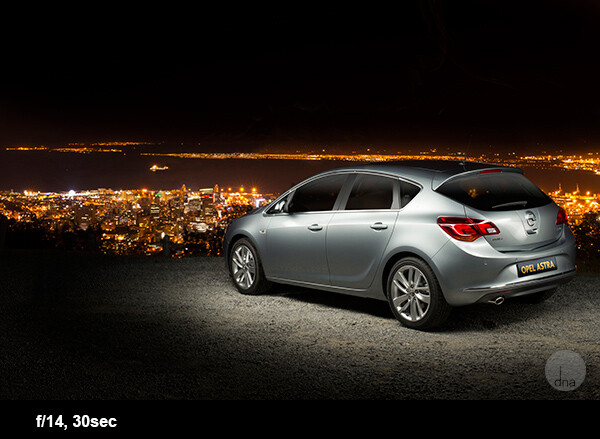
8. Shoot at night

Photographing cars at night might sound daunting, but you will be amazed by how easy and awesome it is! The biggest secret here is to find a spot where it’s completely dark; any streetlights or even a full moon could make life tricky.

Once you’ve found the right spot, set up your camera on a tripod. Set your ISO to 100, the shutter speed to 30 seconds, and the aperture to f/9.

When the shutter opens, take a strong constant light source and walk around the car, “painting” it with your light. A normal household flashlight works for this.

There are no rules here. Paint the car in different ways to get different effects, and you will be blown away by the results! Here are some examples of this technique:

Car photography tips Opel Astra
This is an Opel Astra shot next to Table Mountain with Cape Town in the background.
Dodge Charger with the skyline of Detroit City
This is a Dodge Charger with the skyline of Detroit in the background. The photo took me no longer than five minutes to set up and capture.

Tips for taking better photos of cars: conclusion

Car photography may seem difficult, but with these handy tips, you’re well-equipped to take some stunning car photos of your own.

So pick your favorite technique from the article, get outside, and start shooting!

Do you have any other car photography tips or favorite images you’ve taken of cars? Please share them in the comments below.

  • Light Painting Part One – The Photography
  • Showing Speed: Using Panning When Shooting Action
  • 3 Tips for Creating Dramatic Images Using Motion
  • Do You Pack Up and Leave After Sunset and Miss the Fun of Night Photography?

The post 7 Tips for Taking Better Photographs of Cars appeared first on Digital Photography School. It was authored by Desmond Louw.


Digital Photography School

 
Comments Off on 7 Tips for Taking Better Photographs of Cars

Posted in Photography


DPReview TV: Nikon Z6 II review

12 Dec

The Nikon Z6 II looks a lot like its predecessor, but Nikon has made some significant updates to its current midrange full-frame interchangeable lens camera. These include more processing power, a bigger buffer, faster shooting and better low-light autofocus performance.

Oh, yeah – and dual card slots!

Chris and Jordan have been shooting with the Z6 II for a little while up in the frozen wastes of Alberta. Watch their video review to find out how they got on.

Subscribe to our YouTube channel to get new episodes of DPReview TV every week.

  • Introduction
  • Sample Photos
  • Dual Card Slots
  • Image Quality
  • Screen Articulation
  • Interface
  • Displays
  • Autofocus
  • Battery Performance
  • Video Performance
  • Who is it for?

Nikon Z6 II sample gallery (DPRTV)

$ (document).ready(function() { SampleGalleryV2({“containerId”:”embeddedSampleGallery_6664732276″,”galleryId”:”6664732276″,”isEmbeddedWidget”:true,”selectedImageIndex”:0,”isMobile”:false}) });
Articles: Digital Photography Review (dpreview.com)

 
Comments Off on DPReview TV: Nikon Z6 II review

Posted in Uncategorized


Posing Guide: 21 Sample Poses to Get You Started with Photographing Couples

12 Dec

The post Posing Guide: 21 Sample Poses to Get You Started with Photographing Couples appeared first on Digital Photography School. It was authored by Guest Contributor.

poses for photographing couples

This is a guest post by Kaspars Grinvalds from Posing App.

In this posing guide series, we’ve looked at posing female subjects, posing male subjects, and posing children. In those individual portraits, the main subject is a single person with a single personality. But couple photography is more about connection, interaction, and above all, feelings between two people. Generally, you’re working with very deep and passionate feelings, which is what makes couple photography so delightful and positive.

Couples are pretty easy to engage in a photoshoot. If they are initially a bit shy or feeling uncomfortable, just ask them to show you how they felt and looked when they met for the first time. You will touch them on an emotional level, providing you with natural and loving expressions in their portraits.

However, creating strong couple poses presents its own difficulties. That’s why we’re offering 21 simple, easy poses for photographing couples – so you can get started taking stunning couple photos, today.

1. Standing face to face (but looking at the camera); one partner should hold an arm on the other partner’s chest

Make sure you take both close-up and vertical shots.

Posing Guide: 21 Sample Poses for Photographing Couples

2. Standing close together and looking toward one another

Ask the couple to stand very close to one another to create intimate close-up portraits. Don’t be afraid to zoom in and crop real tight!

intimate close up pose

3. Hugging from behind

This is a very easy and cordial pose, with one partner holding the other from behind. The couple may look straight into the camera or at each other. They can even kiss for a more emotive shot.
Posing Guide: 21 Sample Poses for Photographing Couples

4. Holding from behind

This is a fun and loving pose, with one partner holding onto the other partner’s back and shoulders.

Pay attention to hand positioning; it should be simple and natural.

Posing Guide: 21 Sample Poses for Photographing Couples

5. Holding from behind (alternative)

This is just a variation on the previous pose, with one partner holding the other from behind.

Remember that the couple doesn’t necessarily have to look into the camera. For better results, make them interact with each other by talking, offering flirtatious looks, laughing, etc.
Posing Guide: 21 Sample Poses for Photographing Couples

6. Holding and looking out

This pose creates a very romantic mood, and it works best when outdoors with some open space in the background.

Shoot only slightly from behind the couple.

And remember that you have to be far enough to the couple’s side to capture each person’s closest eye. Otherwise, you will create an impersonal, empty shot.

Posing Guide: 21 Sample Poses for Photographing Couples

7. Looking up

Find some elevation and shoot your subjects from above.

A common pose shot from an unusual angle is always creative and will often reward you with surprisingly good results.

shoot from above

8. Intimately holding hands

This is another romantic pose. It works best outdoors with some open space in the background.

It also works very well as a silhouette against a bright background (in front of a sunset, for example).

Posing Guide: 21 Sample Poses for Photographing Couples

9. The gentle, staggered pose

This is an easy-to-create pose for a full-height shot. It’ll give your photos a calm and affectionate mood.

Posing Guide: 21 Sample Poses for Photographing Couples

10. The piggyback pose

This one’s a fun pose, but don’t assume that it only works with younger people. If an older couple feels fine with it, this pose will work superbly with them, as well.

Try different framings, take full-height shots, half-height shots, and close-ups.

Posing Guide: 21 Sample Poses for Photographing Couples

11. Standing face to face and kissing

This is a very nice way to show the affection a couple felt when they first met each other.

It works very well in crowded places, such as a famous meeting point in a city, at a train or metro station, etc.

couple kissing

12. Jumping and hugging

This pose offers a little bit of fun!

The crucial part is the leg positioning of your jumping subject; each leg should be bent at different angles.

Oh, and take a close-up portrait shot, as well.

woman jumping into a man's arms

13. Walking and holding hands

Take shots of the partners walking hand in hand as they approach from a distance.

Shoot in Burst mode only, because the majority of your shots will look awkward thanks to the leg movement. Therefore, the second part of your job is to select the photos with the best leg movement and positioning afterward.

couple pose holding hands

14. Walking and holding each other

This is another pose with a walking couple. This time, the couple should walk close together and hold onto each other.

As with the previous pose, take several shots and choose the ones with the most elegant leg positioning.

Posing Guide: 21 Sample Poses for Photographing Couples

15. Walking away from the camera

Never forget that there are often good opportunities when shooting from behind! This is a simple pose, but one that looks amazing when done right.

couple walking together

16. Lying on the ground

For this one, the couple should lie close together on the ground.

Ask them to lift their upper bodies a bit and use their arms for support. One partner might embrace the other partner gently. Shoot from a very low angle.

couple lying together on the ground

17. Lying on the ground and looking at each other

Here’s another variant with the couple lying on the ground, but this time with a little space between the partners.

Posing Guide: 21 Sample Poses for Photographing Couples

18. Cuddling on the ground

This is a nice example of an asymmetrical pose, with one person positioned slightly above the other.

Posing Guide: 21 Sample Poses for Photographing Couples

19. Lying together, looking up

This is an informal and fun way to pose – with the couple lying on their backs.

couple lying on backs

20. Sitting together on a sofa

Here’s a very cordial pose; ask the couple to sit comfortably on their favorite sofa.

couples sitting on a couch

21. The classic maternity pose

Shooting a couple may mean maternity photography.

Some poses from this couples series work pretty well for such an occasion. Simply adjust the pose accordingly to show the couple’s feelings about the baby!

This one here is a classic, and looks nice for pretty much any couple:

maternity pose

Grab our printable posing guide for photographing couples

Here’s 16 of our favorite couple poses for you to print and take with you on your next couple shoot:

Posing Guide for Photographing Couples

Also, make sure you look at these couple poses as a starting point only.

That’s the reason why they are rough sketches instead of real photos. You cannot, and should not, repeat the poses exactly; instead, adjust the poses creatively according to your shooting environment and scenario.

Check out the other posing guides in this series

  • Posing Guide: Sample Poses for Photographing Women (Part 1)
  • Posing Guide: Sample Poses for Photographing Women (Part 2)
  • Posing Guide: Sample Poses for Photographing Men
  • Posing Guide: Sample Poses for Photographing Children
  • Posing Guide: Sample Poses for Photographing Groups of People
  • Posing Guide: Sample Poses for Photographing Weddings

Grab our guide to portrait posing

Posing Guide: 21 Sample Poses to Get You Started with Photographing Couples

The post Posing Guide: 21 Sample Poses to Get You Started with Photographing Couples appeared first on Digital Photography School. It was authored by Guest Contributor.


Digital Photography School

 
Comments Off on Posing Guide: 21 Sample Poses to Get You Started with Photographing Couples

Posted in Photography


Weekly Photo Challenge – Landscape 2020

12 Dec

The post Weekly Photo Challenge – Landscape 2020 appeared first on Digital Photography School. It was authored by Sime.

We’ve done ‘Landscape’ before now, but after Darren posted this over on our Facebook page, and with the number of awesome replies, I thought it might be a nice time to see what landscape photographs you’re taking, around where you live, in 2020.

Make sure you tag your photograph #dPSLandscape2020 if you post on social media

If you haven’t had a look at the images that jumped out at us from our November Challenges, take a look over here, and see all of the previous challenges HERE.

Weekly Photo Challenge - Landscape 2020

We want to see your ‘landscape’ and for some, that might be the confines of your house or your local area, you can interpret the theme to suit your environment, or you can wander out into a forest – take a moment, get outside and make your landscape photograph.

Make sure you tag your photograph #dPSLandscape2020 if you post on social media

Great! Where do I upload my photos?

Simply upload your shot into the comments field (look for the little camera icon in the Disqus comments section) and they’ll get embedded for us all to see. Or, if you’d prefer, upload them to your favourite photo-sharing site and leave the link to them.

Weekly Photography Challenge – Looking Up

Share in the dPS Facebook Group

You can also share your images in the dPS Facebook group as the challenge is posted there each week as well.

The post Weekly Photo Challenge – Landscape 2020 appeared first on Digital Photography School. It was authored by Sime.


Digital Photography School

 
Comments Off on Weekly Photo Challenge – Landscape 2020

Posted in Photography