RSS
 

Archive for October, 2020

Field review: The Olympus M.Zuiko 12-100mm F4 IS Pro goes to Oz

28 Oct
Silver Award

84%
Overall score

The Olympus 12-100mm F4 IS Pro is a rugged, professional-level zoom lens with a focal length range that can cover almost any everyday situation. It also focuses impressively close, only adding to its versatility. It’s the kind of one-lens solution that might tempt you for travel photography in particular, but these types of lenses often trade convenience for outright image quality – so is that the case here? Let’s find out.


Key specifications:

  • Focal length range: 12-100mm (24-200mm, 35mm equiv.)
  • Stabilization: Up to seven stops with Olympus bodies
  • Filter thread: 72mm
  • Close focus: 1.5cm (0.6″) at 12mm; 27cm (10.6″ at 100mm)
  • Maximum magnification: 0.3x at wide end of zoom (0.6x 35mm equiv.); 0.21x (0.42x 35mm equiv.) at tele end
  • Diaphragm blades: seven
  • Hood: LH-76B (included)
  • Weight: 561g (1.24 lb)
  • Optical construction: 17 elements in 11 groups
The Olympus 12-100mm F4 is pretty much up for anything. Like a good Port Douglas sunrise.
ISO 200 | 1/6400 sec | F4 | 47mm

Back in 2018, which feels more like two decades ago instead of two years, I took the Olympus 12-100mm F4 on a vacation to Australia for three weeks as my main lens alongside a single bright prime. Mounted on an OM-D E-M1 Mark II, it seemed to me to fit the bill of a reasonably sized solution for just about everything I’d want to photograph. Plus, I knew from prior experience that the Olympus kit would stand up to just about anything mother nature could throw at me.

Full disclosure: I organized and paid for this personal trip on my own, and the choice to bring Olympus gear was my own as well.

All images edited in Adobe Camera Raw 13 with adjustments limited to white balance, exposure, highlights, shadows, white and black levels. Sharpening at ACR defaults; noise reduction at 25 luminance, 25 chroma.


Handling and design
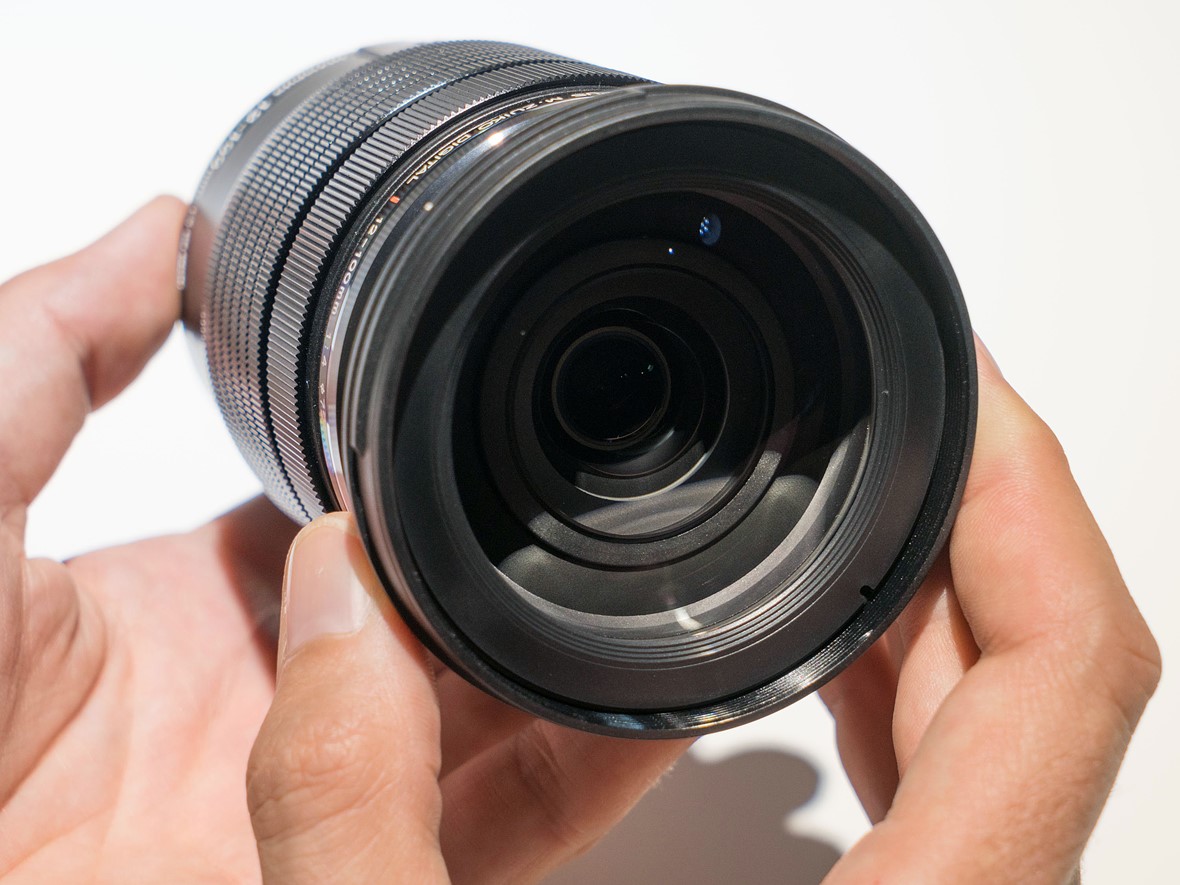
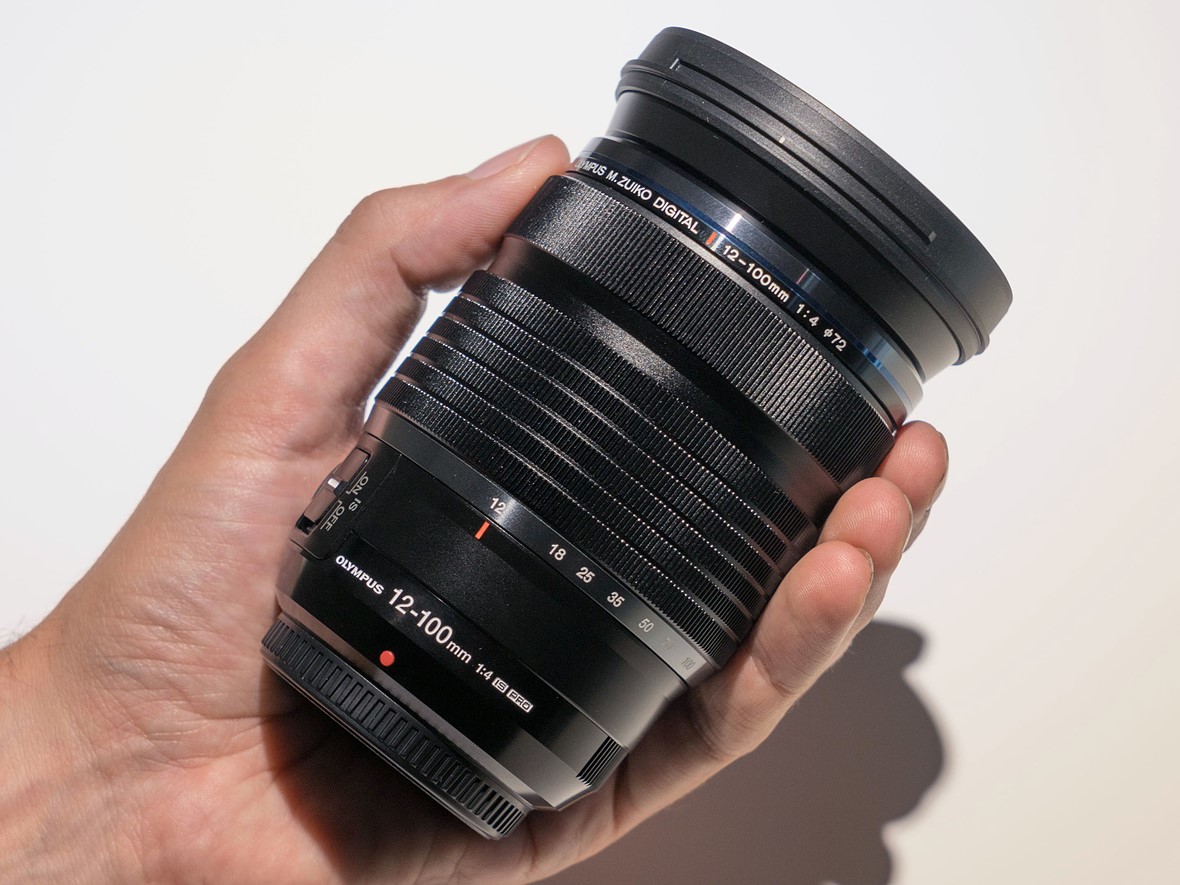
The M.Zuiko 12-100mm F4 joins Olympus’ Pro lineup of prime and zoom lenses, offering top-notch build quality, with claims of dust-proof, splash-proof and freeze-proof construction. It has a manual focus clutch mechanism, giving the feel and very nearly the response of a mechanical focus ring, even though it’s technically a focus-by-wire system. The large, metal-ribbed zoom ring has just the right amount of resistance to it.

The manual focus clutch mechanism in its pulled-back position The stabilization switch and customizable L-Fn button

There’s no denying it, hold this lens in your hand and it just oozes quality. Nearly everything is metal, though even the plastic IS switch on the side of the lens doesn’t so much ‘snap’ into place as ‘thunk’.

What you get in exchange for this feeling of solidity, though, is some heft. At 561g (1.24 lb), it’s very nearly the weight of an Olympus E-M1 Mark III, and significantly weightier than the E-M5 Mark III and E-M10 Mark IV. That said, the larger grips of the E-M1 Mark III and E-M1X mean it actually balances quite well on those bodies.


Autofocus and stabilization

Autofocus on the Olympus 12-100mm F4 is extremely quick, whether you’re shooting close-up or far away. The bokeh isn’t half-bad either, considering that’s fencing in the background. A more in-depth look at bokeh is coming up later in the review.
ISO 200 | 1/250 sec | F4 | 100mm

The Olympus 12-100mm F4 racks through the entirety of its focus range really quickly. It’s perhaps not quite as quick as some Panasonic lenses designed to take advantage of those cameras’ Depth-from-Defocus technology, but it’s more than fast enough for any wildlife I encountered, both inside and outside the Australia zoo.

The rapid AF speeds also make it easy to use the lens when you’re near minimum focus distance, allowing for easy capture of close-ups without necessarily needing to resort to manual focus.

Great stabilization with slower shutter speeds helped to keep my ISO values low a lot of the time, even when working around the F4 max aperture.
ISO 250 | 1/3 sec | F4.5 | 12mm

The stabilization promised by the combination of the 12-100mm F4 and the E-M1 Mark II was part of the reason I could see past this lens’ F4 maximum aperture for general use. It wouldn’t be great for shooting fast action in failing light, but it was perfect for images like this travel snap of a crazy-colored hostel under warm sunset light.

And really, the nice thing about the M.Zuiko 12-100mm F4 is that unless you need to stop down for depth of field or another reason, the lens is more than sharp enough to just shoot wide-open all the time.


Image quality

Olympus’ line of Pro lenses has a history of being renowned for their great image quality, and the M.Zuiko 12-100mm F4 is a strong performer in most respects.

Sharpness

The lens maintains a great level of sharpness throughout the zoom range, and it doesn’t get hazy or fall apart if you’re close to your subjects. So while there were times on this trip where I stopped the lens down, it was usually to get more depth of field, not to increase sharpness.

Things stay nice and sharp even at 200mm (equiv.), and with a relatively close distance to the subject.
ISO 200 | 1/200 sec | F4 | 100mm

On the wider end of things, the 12-100mm is more than a match for the 20MP sensor in the E-M1 Mark II even at F4. This is great news for users that might be leery of a Micro Four Thirds lens that ‘only’ opens up to F4, as well as those users that want to take advantage of the high-res shot mode.

Wide open, the Olympus 12-100mm is plenty sharp across the frame for the 20MP sensor. Click-or-tap-through for the full-size image.
ISO 200 | 1/2500 sec | F4 | 12mm

Vignetting and distortion

As is the case with most lenses designed for mirrorless systems, the M.Zuiko 12-100mm F4 Pro has some non-optional software corrections built into its design. These are applied automatically to the Raw files. So while characteristics like vignetting and distortion appear really well-controlled, it’s likely that software is partly responsible. You can see in the image above that there’s still some vignetting in the extreme corners, but it clears up somewhat as you zoom in.

There’s a bit of vignetting at the wide end of the zoom, but it’s not too objectionable.
ISO 200 | 1/5 sec | F4.5 | 12mm

Again, likely due to built-in software corrections, there’s not much to complain about with regards to distortion either. There looks to be a small amount of barrel distortion at the wide end of the zoom, and without much in the way of pincushion distortion at the longer end of the zoom. Check out the vertical lines present in the two images below to get a sense of how the lens’ distortion will (or won’t) impact your images.

At longer focal lengths, there’s not much in the way of distortion at all.
ISO 200 | 1/500 sec | F5.6 | 80mm
Click through to see a small amount of barrel distortion in this image at wide-angle.
ISO 1250 | 1/10 sec | F4 | 12mm

Bokeh

While this lens was never going to be a bokeh machine owing to its F4 maximum aperture, you can absolutely get some subject isolation depending on your distance to subject and focal length.

For snapshot portraiture, you can get some subject isolation even in the middle of the zoom range.
ISO 200 | 1/250 sec | F4 | 54mm

In most cases, the bokeh is nice and smooth. You’ll struggle to really blur the background fully away unless you’re real close to your subject and at near maximum zoom. Unfortunately, if your background is full of lots of out-of-focus highlights, you may sometimes notice it looks a bit ‘busy’, with rings around the outsides of the ‘bokeh balls’ and in some cases some ‘onion ring’ effects.

I found the bokeh in this image to be a bit ‘busy’ for my taste.
ISO 200 | 1/800 sec | F4 | 100mm
For smaller subjects, you can get close and zoom in for nice isolation.
ISO 640 | 1/60 sec | F4 | 70mm

Flare and sunstars

Flare and loss of contrast aren’t serious issues on the 12-100mm F4, even with the sun in the frame. What I was never really sold on, though, were the sunstars. They just didn’t ‘sharpen up’ even as I stopped down further, which then softened up the rest of the image due to diffraction.

After all, F11 on Micro Four Thirds is F22 equivalent for full-frame systems, so if you’re stopping down to the same aperture you would on 35mm to get better sunstars, your sharpness will drop off a cliff. Admittedly, I did put up with some diffraction to get some fantastic sunstars with the M.Zuiko 17mm F1.2 on this trip, so it seems like this is just a slight weak point of the 12-100’s design.

Flare is pretty well controlled, but I’m not super sold on the sunstars; stopping down might help more, but on Micro Four Thirds, that’s guaranteed to soften the image. (And apologies for those couple specks of dust, as well).
ISO 200 | 1/800 sec | F8 | 13mm

Lateral and longitudinal chromatic aberration

The M.Zuiko 12-100mm F4 does a pretty good job keeping chromatic aberrations at bay. If you look closely, though, you will see some fringing in challenging situations. The bottom-left corner of the below image shows some residual fringing around the leaves; the built-in corrections look to have taken care of much other fringing, but left the purple behind. At least this type of CA (lateral) is easy to remove.

Less easy to deal with is the bit of fringing around the slightly out-of-focus sticks just to the right of the center of the frame; this is longitudinal CA, and you can see a bit of it in as green/cyan fringing in the reptile image earlier in the review. So it’s there, but we’ve definitely seen worse.

Bats. So. Many. Bats.
ISO 200 | 1/200 sec | F4 | 100mm

But jumping back to bokeh for a moment, I think the biggest issue with this image (other than the subjects, if you’re not a fan of bats) is the severe onion-ring bokeh in the highlights behind the flying mammals.


Conclusion

What we like What we don’t
  • Sharp across the zoom range
  • Built like a tank
  • Resistant to flare
  • Incredibly versatile range
  • Very good stabilization
  • Low distortion
  • Bokeh can be busy
  • Sunstars aren’t the best
  • Some CA present, even with built-in corrections
  • Heavy
  • Expensive

And so, as happens occasionally on this site, I will be forced to eat some of my previously published words. I’ve said before that I don’t need a zoom on vacation. And I said I like cameras that are small and light, maybe even pocketable. Well, it turns out that I may have become a convert to zooms, depending on the destination.

If I myself was in the Olympus ecosystem, this is a lens I’d strongly consider. Also, this is the beach on which I got sunburned through my shirt. That Australian sun is no joke.
ISO 200 | F9 | 1/320 sec | 20mm

The M.Zuiko 12-100mm F4 provides such a versatile range in such a well-built package that I really did feel ready for anything. From dimly lit church interiors and landscapes to portraits and wildlife, the 12-100mm can handle pretty much anything. No, it won’t blur backgrounds to oblivion most of the time, and when you do get some subject isolation, the backgrounds will occasionally look a bit busy. Sunstars aren’t the best (nor the worst), and some people will have trouble accepting an F4 zoom on a Micro Four Thirds body.

On the other hand, the stabilization offered by this lens (when mounted to a compatible body) is pretty insane, which allowed me to keep my ISO values lower much of the time. I also love being able to hand-hold images at 1/10th of a second to get some motion into a scene while the surrounding environment stays tack sharp.

ISO 200 | 1/160 sec | F4 | 28mm

I think the biggest knock against this lens is the price; with an MSRP of $ 1299, it’s a costly proposition. There are a few Olympus options that fall within this focal range that are less expensive and built similarly well, but that’s just the nature of this particular offering.

If you want solid image quality and don’t want to be fumbling around and changing lenses on a beach next to a sweltering Australian rainforest, the M.Zuiko 12-100mm F4 IS Pro is well worth considering.


Scoring

Olympus M.Zuiko Digital ED 12-100mm F4.0 IS Pro
Category: Superzoom Lens
Optical Quality
Build Quality
Autofocus
Image Stabilization
Ergonomics and Handling
Value
PoorExcellent
Conclusion
The Olympus M.Zuiko 12-100mm F4 Pro IS is a solid option for travel and generalist photographers using the Micro Four Thirds system. It doesn't grant you the blurriest backgrounds nor the most compact dimensions available among other Olympus lenses, but it's well-built, offers excellent stabilization and gives a great zoom range to match almost any situation you find yourself in.

Good for
Travel and generalist photography, including landscape and architecture work.

Not so good for
Situations where you need a fast aperture as well as a fast shutter speed to freeze the action, as in low-light sports imagery.
84%
Overall score

RegularScoreCompareWidget({“mainElementId”:”scoringWidget”,”mainProduct”:”olympus_12-100_4p0_is_pro”,”scoringSchema”:{“id”:”Lenses”,”variables”:[{“id”:”OpticalQuality”},{“id”:”BuildQuality”},{“id”:”Autofocus”},{“id”:”ImageStabilization”},{“id”:”ErgonomicsAndHandling”},{“id”:”Value”}],”categories”:[{“id”:”Wideangle”,”label”:”Wideangle Lens”,”shortLabel”:”Wideangle”},{“id”:”Normal”,”label”:”Normal Lens”,”shortLabel”:”Normal”},{“id”:”Telephoto”,”label”:”Telephoto Lens”,”shortLabel”:”Telephoto”},{“id”:”Superzoom”,”label”:”Superzoom Lens”,”shortLabel”:”Superzoom”}]},”helpText”:”Choose one or more lenses from the drop-down menu, then roll your mouse over the names to see how their scores compare to the lens on review.”})


Sample gallery

Please do not reproduce any of these images without prior permission (see our copyright page).

$ (document).ready(function() { SampleGalleryV2({“containerId”:”embeddedSampleGallery_6403402487″,”galleryId”:”6403402487″,”isEmbeddedWidget”:true,”selectedImageIndex”:0,”isMobile”:false}) });
Articles: Digital Photography Review (dpreview.com)

 
Comments Off on Field review: The Olympus M.Zuiko 12-100mm F4 IS Pro goes to Oz

Posted in Uncategorized


Color Management in Affinity Photo: The Ultimate Guide

28 Oct

The post Color Management in Affinity Photo: The Ultimate Guide appeared first on Digital Photography School. It was authored by Glenn Harper.

In terms of color management, no photo software is more complete than Adobe Photoshop. It’s easy to take this for granted until you switch programs (which you might do to escape subscription costs).

That’s why this article looks at color management in Affinity Photo, a popular standalone alternative to Photoshop.

Affinity Photo welcome screen color management in Affinity Photo
Affinity Photo welcome screen.

Choosing a working color space in Affinity (Photo Persona)

The working color space you use in an editing program is a bit like a box of crayons. You are defining how big a box you use to describe your photos. Even if you can’t see all the colors inside that “box” on your screen, sometimes there is good reason to use them.

Choose your working space based on the likely output for your images. For example:

  • sRGB = publishing and printing online
  • Adobe RGB = CMYK/inkjet printing
  • ProPhoto RGB = archiving and top-quality workflows

Each choice has its own pros and cons.

The ability to make this choice seems mundane until it’s taken away. Some programs force you to use sRGB as the working space, for instance, which means you forfeit many of the colors digital cameras can capture.

So what does Affinity give us here?

Setting the working color space in Affinity is simple, though it’s not labeled a “working space” as such. You simply go to Preferences>Color>RGB Color Profile. By default, this is set to sRGB. You can change it to suit your photography and the purpose of your photos, as detailed above. Do the same with the 32bit RGB Color Profile setting.

Color management in Affinity photo - color preferences
Color preferences in Affinity Photo.

Other color preferences

For most of us, the color preference settings in Affinity can be left alone, except perhaps for the RGB Color Profile option at the top.

That said, you’ll generally want black point compensation switched on. You also won’t want the software to convert all open files to the working color space. And it’s better to be warned if a photo without an embedded profile is being assigned the working profile. This gives you a heads-up that the color may display incorrectly.

Note that each of the above options can be ticked on and off in the Color Preferences window.

Monitor profile

Affinity Photo accesses the default monitor profile assigned in your operating system. Unlike Photoshop CC (but like Lightroom), I don’t believe you can confirm the prevailing profile via Affinity itself. Past and present monitor profiles appear in drop-down menus, but you should never select these; the monitor profile is automatically applied.

Your monitor profile is a key component of color management in Affinity Photo.

Display profile in Windows color management in Affinity Photo
Windows color management display settings. (You wouldn’t want to use sRGB as a display profile except for diagnostic purposes.)

Soft proofing (Photo Persona)

Soft proofing lets you preview the output color of your photos, whether the output is an inkjet printer, an RGB printer like those often used in minilabs, or even a specific audience (e.g., color-blind individuals). Soft proofing is available in Photoshop CC and Lightroom, but isn’t offered by many other programs. What about Affinity Photo?

In Affinity Photo, soft proofing comes in the form of an adjustment layer. You won’t find it among the menus at the top of the screen like in Photoshop. This is quite handy, because it’s so easy to flick layers on and off to see the effect of soft proofing and edits.

Color management in Affinity photo - soft proofing
Soft proofing using a photo lab’s profile.

Color blindness settings in Affinity are located among the built-in LUT adjustment layers. The LUTs help you visualize colors as seen by three types of dichromats: protanopes, deuteranopes, and tritanopes.

Affinity Photo color blindness LUTs color management in Affinity Photo
Tritanope LUT for visualizing a type of color blindness.

Simulating dynamic range

The simulate paper color option you get in Photoshop is already applied in Affinity. You can’t switch it off.

But you do have the option of switching on black point compensation. This reduces the dynamic range of your screen image to mimic the look of paper and ink. It makes the on-screen photo look duller. That’s why professional photographers sometimes avoid showing clients the comparison.

Affinity photo black point compensation color management in Affinity Photo
Blocked shadows caused by a lack of black point compensation (BPC). Usually, the effect is less drastic than with this Newsprint profile. Note that BPC has more effect with a relative colorimetric rendering intent. It has less of an effect or no effect with other rendering intents.

Gamut differences

The Gamut Check option in Affinity Photo shows you which colors are not reproducible with any given output. You can fiddle with the color of the photo until all color is in gamut, but you’ll often do more harm than good.

It’s better to rely on the rendering intent setting if you want colors to be as close as possible to the original. The relative colorimetric rendering intent keeps colors looking relatively accurate and shifts non-reproducible colors back into gamut, but you’re free to pick the rendering intent that looks best to you.

Affinity Photo gamut warning color management in Affinity Photo
The gray area tells me which area of red will be out of gamut (i.e., not reproducible on output). This is the Gamut Check option in Affinity soft proofing. Its practical use is somewhat limited, since you’ll often do more harm than good by trying to edit colors into gamut.

Creating a duplicate

When soft proofing, you may want to work on duplicate images side by side, so you can reference the original color and tone. In that case, create a duplicate image in Affinity by hitting Select All>Copy>New from Clipboard.

You can make adjustments to the soft-proofed image by adding extra adjustment layers to the background layer.

Duplicate images in Affinity photo side by side
Having a duplicate image is useful if you want to get your output looking similar. A relative colorimetric rendering intent does most of this work for you.

Convert and assign ICC profile settings

As with Photoshop, color management in Affinity Photo includes the ability to assign or convert ICC profiles. The distinction between these two is important. You’d assign a profile if the photo you open has no embedded profile; you give it one that looks okay. This only becomes permanent if you save changes to the image.

Color management in Affinity Photo - assigning the wrong profile
By assigning the wrong profile to this image, I’ve oversaturated the color and started to lose textural detail.

When you convert from one profile to the other and know what color space the image is in, use Convert ICC Profile. One way of confirming the current profile is to look for it in the drop-down list. It should be highlighted:

Color management in Affinity Photo - embedded profile - tagged image
The highlighted profile in the Convert ICC Profile window is the one currently embedded in the image.

The choice of rendering intents when converting between ProPhoto RGB, Adobe RGB, and sRGB working color spaces is usually moot. By default, these matrix profiles use a relative colorimetric rendering intent. The same situation exists in Photoshop.

Embedding profiles

The process of embedding ICC profiles is uncomplicated: You just check a checkbox. This is true whether you’re using Save As in Photoshop or exporting files from Affinity. In Affinity Photo, the Embed ICC Profile option is under the More heading when exporting. It’s checked by default.

There aren’t many instances when you’d deliberately leave the ICC profile out of images. Ironically, photo libraries and gallery websites might do this because the profile adds a couple of kilobytes to each file. In those instances, it’s an economical choice. In the past, photographers removed profiles to avoid confusing minilab printer drivers.

Embedding ICC profiles into images color management in Affinity Photo
Photos in large color spaces generally look okay in browsers as long as the profile is embedded. In Affinity, just as in Photoshop, embedding a profile is merely a matter of checking a box. Or not unchecking it.

Many people’s color woes when publishing photos online stem from not embedding the profile. This is less critical when publishing sRGB images, but photos in larger color spaces will often look dull unless the profile is present.

Simple features, such as the ability to embed or remove ICC profiles, are often absent in photo-editing programs. But here, Affinity keeps pace with Adobe.

Affinity RAW processing color (Develop Persona)

The Affinity Photo Develop Persona assigns the ROMM RGB color space to RAW files. ROMM RGB is the original name for ProPhoto RGB. This color space encompasses the output of a digital sensor, whereas smaller spaces such as Adobe RGB and sRGB do not.

Histogram comparison

In Lightroom, the histogram is in Adobe’s proprietary “Melissa RGB” space. This is the same as the Affinity histogram, but with an sRGB tone response curve applied, which adds slightly more editing headroom in the shadows. Extra marks to Adobe for cleverness.

The Affinity RAW histogram is more akin to that of Adobe Camera RAW. If you convert to ProPhoto RGB or ROMM RGB in Affinity, the histogram should stay the same.

Affinity histogram - Develop Persona
The sRGB profile here has pushed magenta hues off the left side of the RAW histogram. This is one reason to use larger color spaces when creating inkjet prints.

Recent versions of Lightroom enable users to preview the output histogram by turning on soft proofing. In other words, you’ll see which colors will be clipped, if any, in your destination color space. This might influence the edits you make prior to converting the file or even the color space you select. Does Affinity allow this?

If you select an output profile in Affinity Photo’s Basic panel, the histogram changes accordingly. With certain colors, you’ll see sRGB pixels move to the edges of the histogram. This tells you they are nearly or completely clipped. Running the cursor along the histogram shows you how many pixels are present at any level. ROMM or ProPhoto RGB is especially useful for preserving detail in bright yellows.

color management in Affinity Photo
Neither sRGB nor Adobe RGB can contain the yellows in a photo like this.

A common misconception

You needn’t convert RAW files to the same profile as your working RGB space in the Photo Persona. This is a common misconception. Affinity can open and handle images in any color space, just like Photoshop. The working space only represents your most commonly-used color container.

Color management in Affinity Photo: Conclusion

I’ve used many photo-editing programs, and some are more frustrating than others in terms of their color preferences and controls.

Color management in Affinity Photo differs from that in Photoshop, but it doesn’t cut any major corners that I’ve found. So use it with confidence!

And if you have any questions at all, be sure to leave them in the comments section!

The post Color Management in Affinity Photo: The Ultimate Guide appeared first on Digital Photography School. It was authored by Glenn Harper.


Digital Photography School

 
Comments Off on Color Management in Affinity Photo: The Ultimate Guide

Posted in Photography


FeiyuTech releases new AK2000C gimbal with 2.2kg (5lbs) payload, 7-hour battery life

28 Oct

Hot on the heels of DJI releasing its latest gimbals, Chinese gimbal manufacturer FeiyuTech has released the AK2000C, its latest three-axis handheld gimbal for mid-sized camera systems.

The AK2000C is a lightweight handheld gimbal that can hold just shy of 2.2kg (5lbs) worth of camera gear and run for up to seven hours on a single charge. This payload would be enough to hold recent cameras, such as the Canon EOS R/R5/R6, Fujifilm X-T3, Nikon Z6/7 and Sony a7 III with standard primes and zoom lenses attached.

The frame of the gimbal is constructed of an aluminum alloy and, much like DJI’s gimbals, it features quick-release locks on all three axes for keeping everything secure when packed away. The gimbal comes in at just over 1kg (2.5lbs) and folds up to 69mm (2.7”) x 208mm (8.1”) x 348mm (13.6”).

FeiyuTech says the AK2000C is powered by its W7 algorithm, which includes pre-programmed shooting modes, such as timelapse, 360 pans, selfie mode, vertical shooting and more. Both camera and gimbal settings can be controlled right on the gimbal using its new OLED touchscreen (FeiyuTech doesn’t specify what specific cameras work with the gimbal though).

The AK2000C is currently avaialble to purchase through FeiyuTech’s online store, Amazon and authorized FeiyuTech retailers for $ 229.

Articles: Digital Photography Review (dpreview.com)

 
Comments Off on FeiyuTech releases new AK2000C gimbal with 2.2kg (5lbs) payload, 7-hour battery life

Posted in Uncategorized


Slideshow: Winners of All About Photo’s AAP Magazine #13 Shapes competition

28 Oct

Winners of All About Photo’s AAP Magazine #13 Shapes competition

Earlier this month All About Photo selected 25 photographers from 11 countries as winners of its “Shapes” competition. Winning images appear in the 13th edition of AAP Magazine, which can be purchased here. The subject matter displayed in these works illustrates shapes and patterns found in place settings, architecture, abstractions, and more.

The top 3 winners, who were rewarded a $ 1,000 cash are as follows:

First place winner: JP Terlizzi (United States)
Second place winner: Wendel Wirth (United States)
Third place winner: Klaus Lenzen (Belgium)

The remaining mentions, whose images also appear in print alongside the winners are: Maureen Ruddy Burkhart (United States), Zak van Biljon (Switzerland), Hyun De Grande (Belgium), Hans Wichmann (Germany), Steven Raskin (United States), Fabrizio Spucches (Italy), Deborah Bay (United States), Donell Gumiran (United Arab Emirates), Marcus Trappaud Bjørn (Denmark), Kevin Lyle (United States), Songyuan Ge (China), Nicola Ducati (Italy), Axel Breutigam (Canada), Frank Lynch (Switzerland), Barry Guthertz (United States), Karine Coll (France), Francesco Pace Rizzi (Italy), Abdulla AL-Mushaifri (Qatar), Rosario Civello (Italy), Ursula Reinke (Germany), Golnaz Abdoli (United States) and Don Jacobson (United States).

All About Photo is currently accepting entries for their Solo Competition.

1st Place Winner: ‘Marchesa Camellia with Rhubarb’ by JP Terlizzi (United States)

Artist Statement About the Series: The Good Dishes integrates memory, legacy and metaphor with my response to loss. As I witness an early generation of family members pass, my cousins and I were each faced with the emotional task of cleaning out the family home. Sorting through the heirlooms, we would determine which items to toss, sell or preserve. Without fail, when it came to the family’s fine china, that item was always given to the person that most cherished its memory and sentimental value.

Growing up in a large Italian family, everything was centered around food and the family table. I remember vividly my mother’s vintage marigold stoneware dishes that she bought at the grocery store back in the early 1970s. She used them every day for as long as I could remember, and they had a life of their own. Along with my mother’s everyday dishes she had one set that she kept on display behind glass that only she handled, only she washed, and only she hand-dried; these were deemed ‘the good dishes.’ Whenever I heard, ‘I need to use the good dishes,’ that meant one of two things in our household: the priest was coming over for dinner or it was a very special occasion. Either way, the food presentation, table dress and table manners all changed whenever ‘the good dishes’ came out.

Eating is a physical need, but meals are a social ritual. Utilizing the passed down heirlooms of friends and family, The Good Dishes celebrates the memory of family and togetherness. It borrows the stylized rituals of formal tableware and draws inspiration from classic still life paintings. Background textiles are individually designed and constructed to reflect patterns found in each table setting while presentation, etiquette and formality are disassociated by using food and fine china in unconventional ways as metaphors for the beauty and intimacy that are centered around meal and table.

2nd Place Winner: ‘Wood III’ by Wendel Wirth (United States)

?Artist Statement: In the winter months, the muted horizon parades elemental forms; barns and grain elevators, cow houses, cowsheds, granges as they have been called.

3rd Place Winner: ‘Architecture Minimal I’ by Klaus Lenzen (Germany)

Artist Statement: The photo shows the contours of a cooking plant, seen in Duisburg in the Ruhr area in the western part of Germany.

Merit: ‘Triangle Theorem’ by Deborah Bay (United States)

?Artist Statement: Image from the Traveling Light series exploring the interaction of light and color with optical objects. The series follows in a long lineage of experimental studies that investigate the most elemental components of photographic processes: light and lenses.

Merit: ‘Working Class Virus’ by Fabrizio Spucches (Italy)

Artist Statement: Under the umbrella of Corona Virus, current matters such as integration, global warming, conspiracy theory, ecology are depicted through a series of portraits.

Merit: ‘City Waves’ by Hans Wichmann (Germany)

Artist Statement: Skyscraper in Vienna/Austria photographed upwards with light from the side. Edited with hard contrasts in Photoshop. The sky was photographed separately and then inserted.

Merit: ‘Untitled’ by Hyun De Grande (Belgium)

Artist Statement: Attendre dans l’espace de rien (wait in the space of nothing).

Merit: ‘City Center, Las Vegas, NV’ by Axel Breutigam (Canada)

Artist Statement: Buildings and structures are fascinating to me, in particular, modern and contemporary designs.

Exploring a building from all possible angles of view and finding the parts of the structure which lead to another layer of abstraction is what I am seeking visually. To do so it is often necessary to give space and put things into a reductive perspective.

Merit: ‘Shape of Desert’ by Donell Gumiran (United Arab Emirates)

?Artist Statement: Liwa Desert lies 155 miles Southwest of Abu Dhabi, and about 62 miles south of the Arabian Gulf. It’s at the edge of the Rub’ al-Khali, aka the Empty Quarter – a 255,000 square-mile desert that has more sand in it than the Sahara. The area has an assortment of villages and farms – situated along the top of the T – in the midst of the ‘endless landscape of undulating sand shape dunes.’

Merit: ‘City Shapes’ by Ursula Reinke (Germany)

Artist Statement: N/A

Articles: Digital Photography Review (dpreview.com)

 
Comments Off on Slideshow: Winners of All About Photo’s AAP Magazine #13 Shapes competition

Posted in Uncategorized


Sony a7C review: Compact size, big sensor image quality

28 Oct

$ (document).ready(function() { SampleGalleryV2({“containerId”:”embeddedSampleGallery_5104195094″,”galleryId”:”5104195094″,”isEmbeddedWidget”:true,”selectedImageIndex”:0,”isMobile”:false}) });

Silver Award

87%
Overall score

The Sony a7C is the company’s latest and smallest full-frame interchangeable lens camera. It fits a 24MP full-frame sensor and image stabilization into a body more closely resembling the APS-C sensor a6600.

A lot of work has clearly gone into making this one of the smallest full frame cameras available, whereas a lot of the features and capabilities are familiar. A new retractable kit zoom is being launched along with the a7C to help maintain those size savings.

Out of camera JPEG.
ISO 500 | 1/40 sec | F9 | Sony FE 35mm F1.8
Photo by Carey Rose

Key specifications

  • 24MP BSI CMOS full-frame sensor
  • Bionz X processor (same as in the a7 III)
  • ‘Real-time tracking’ AF system with human head, face, eye, and animal recognition
  • Oversampled 4K video at up to 30p, including 8-bit S-Log and HLG
  • Continuous bursts at up to 10 fps
  • Fully articulating 921K dot touchscreen
  • 2.36M dot EVF with 0.59x mag.
  • Mic and headphone sockets
  • Large ‘Z-type’ battery, rated to 740 shots per charge

The Sony a7C is available at a price of around $ 1799 ($ 2399 CAD) or with the new collapsible 28-60mm F4-5.6 kit zoom for around $ 2099 ($ 2699 CAD).


Review contents

From the camera’s controls to the image and video quality it’s capable of, find out what exactly what you want to know about the a7C right here.

What’s new and how it compares

The a7C fits almost all the capabilities of the a7 III into a body that has more in common with the a6000 series. This means a smaller viewfinder but few other compromises.

Read more

Body and handling

The a7C has three dials, all controlled using your thumb. It still handles pretty well, though, with a solid body and a small but pretty comfortable grip.

Read more

Initial impressions

The a7C’s main strengths are its size and convenience. This could make it a powerful travel or family camera. But there’s a price to be paid, and this isn’t necessarily a budget option.

Read more

Image quality

The a7C produces both Raw and JPEG images that are a match for any of its peers. Dynamic range is excellent but you need to shoot large, uncompressed Raw files to get the full benefit.

Read more

Autofocus and video

The a7C’s main improvement over the a7 III is an autofocus system that integrates all its subject recognition capabilities so you don’t need to mess around changing modes to get the most out of it.

Video is good but its operation can be a little awkward.

Read more

Conclusion

The a7C’s combination of size, image quality, AF performance and battery life make it a superb travel camera, but some awkward aspects of operation, including its small viewfinder, hold it back as a photographer’s choice.

Read more

Sample gallery

We’ve been shooting the a7C with both its kit zoom and the sensibly compact FE 35mm F1.8, to see what the camera offers.

See the gallery

Articles: Digital Photography Review (dpreview.com)

 
Comments Off on Sony a7C review: Compact size, big sensor image quality

Posted in Uncategorized


Researchers create 100 billion FPS 3D camera with lens that mimics human eyes

28 Oct

A study recently published in Nature Communications details the creation of an ultra-fast 3D camera capable of recording at 100 billion frames per second. The development comes from Lihong Wang and his team at Caltech, where the researchers developed this new camera using the same foundational technology found in Wang’s previous 70 trillion frames per second project.

The newly detailed camera produces what the researchers call ‘single-shot stereo-polarimetric compressed ultrafast photography’ (SP-CUP), a technology that records video at insanely fast speeds in three dimensions. This is made possible, in part, by creating the camera to perceive the world in a way similar to how a human sees — with two eyes, or in the case of the camera, with a halved lens that simulates looking at the world with two eyes.

The result is a camera that records video at insanely fast speeds in three dimensions. The technology is able to capture ‘non-repeatable 5D … evolving phenomena at picosecond temporal resolution,’ according to the study, referring to space, time of arrival, and angle of linear polarization. The study goes on to explain:

Disruptively advancing existing CUP techniques in imaging capability, SP-CUP enables simultaneous and efficient ultrafast recording of polarization in three-dimensional space. Compared with available single-shot ultrafast imaging techniques, SP-CUP has prominent advantages in light throughput, sequence depth, as well as spatiotemporal resolution and scalability in high-dimensional imaging.

Wang and his lab first detailed the 70 trillion frames per second camera back in May, explaining that such speeds were capable of capturing the fluorescent decay from molecules and waves of light as they traveled.

That particular camera technology was called compressed ultrafast spectral photography (CUSP), and it followed Wang’s past work on similar technologies, including the phase-sensitive compressed ultrafast photography (pCUP) device, Caltech had explained in a release.

With the newly detailed SP-CUP technology, the camera captures stereo imagery — 10 billion images in the blink of an eye — using a single lens that has been halved in order to capture two different slightly offset channels of the subject. This is similar to how the human eye works, enabling humans to perceive depth. The image data can be processed to create 3D content, which itself exceeds the capabilities of the human eye by including data on the polarization of light.

The sum total of this new photography technology opens the door for various scientific applications, including research in the field of physics. In particular, Wang sees the potential use of this camera in exploring the mystery of sonoluminescence, a phenomenon in which sound waves produce small bubbles in liquids that, when they collapse, produce tiny bursts of light.

Wang explained:

Some people consider this one of the greatest mysteries in physics. When a bubble collapses, its interior reaches such a high temperature that it generates light. The process that makes this happen is very mysterious because it all happens so fast, and we’re wondering if our camera can help us figure it out.

The study titled ‘Single-shot stereo-polarimetric compressed ultrafast photography for light-speed observation of high-dimensional optical transients with picosecond resolution’ is available in Nature Communications.

Articles: Digital Photography Review (dpreview.com)

 
Comments Off on Researchers create 100 billion FPS 3D camera with lens that mimics human eyes

Posted in Uncategorized


Ricoh shares the name and specifications of its forthcoming Pentax APS-C DSLR

27 Oct

Ricoh Imaging has officially given its forthcoming flagship APS-C DSLR a name and confirmed a few specifications we can expect from the camera.

In both the above video and on a development update on its website, Ricoh Imaging says its new DSLR will be called the Pentax K-3 Mark III. The camera will feature an entirely redesigned 26-megapixel CMOS sensor, 5-axis in-body image stabilization (CIPA rated for 5.5 stops of compensation), dual SD card slots (no details on whether both or just one is UHS-II), an ISO range of 100–1,600,000 and a maximum burst rate of 12 frames per second.

The viewfinder will have approximately 100% coverage, the rear of the camera will have a 3.2” 1.62M-dot LCD live view display and the autofocus will be powered by the SAFOX 13 sensor with 101 points (25 cross-type points).

Ricoh Imaging says the Pentax K-3 Mark III is scheduled to launch ‘around the period of the CP+ camera exhibition,’ which is set to take place from February 25 to 28 in 2021. No pricing has been decided at this point in time, but the video does note it will retail in the ‘upper 200,000 yen (approximately $ 1,900) range.’

You can find more detailed specifications on the Ricoh Imaging progress report page.

Articles: Digital Photography Review (dpreview.com)

 
Comments Off on Ricoh shares the name and specifications of its forthcoming Pentax APS-C DSLR

Posted in Uncategorized


Image Size and Resolution Explained for Print and Onscreen

27 Oct

The post Image Size and Resolution Explained for Print and Onscreen appeared first on Digital Photography School. It was authored by Helen Bradley.

One of the most confusing things for a new photographer is understanding image size, resolution, and printing.

So in this article, I’ll explain what these terms mean.

And I’ll show you how to resize your images depending on what you want to do with them.

Let’s get started.

What is resolution in digital cameras?

When talking about digital cameras, resolution refers to the number of megapixels produced by an image sensor.

This, in turn, generally corresponds to the amount of detail a camera can capture.

So if your camera packs 20 megapixels (often written as 20 MP), it captures less detail than a camera with 30 megapixels, which in turn captures less detail than a camera with 40 megapixels.

But what is a megapixel, really? And how does it affect your ability to print and display photos?

Megapixels and photo size

Find information about a photo (including resolution) using File > File Info

Technically, a megapixel is equal to 1,048,576 pixels; in reality, camera manufacturers round this number to 1,000,000 when stating how large of an image the camera will capture.

So my camera, for example, captures 14.6-megapixel images, which is around 14,600,000 pixels per image (14.6 x 1,000,000). This information tells you nothing about the actual pixel dimensions of the image – it only tells you the total number of pixels that make up the image.

My camera, like most DSLRs, captures images with an aspect ratio of 1.5. So the ratio comparing the number of pixels along the long edge of the image to the short edge of the image is 3:2.

Each of my full-sized RAW images is 4672 x 3104 pixels in dimension. So by multiplying the number of pixels along the image width by those along the image height, we get the actual number of pixels in the image (4672 x 3104 = 14,501,888). You and I might call this 14.5 MP, but camera manufacturers round this up and call it a 14.6 MP camera.

You can check the width and height of an image using your photo editing software. In Photoshop, you can open your image, then choose File > File Info > Camera Data. The image above shows the resulting information dialog box.

Now, a pixel itself is a single picture element – and for our purposes, it’s the smallest element that your photo can be divided up into. A pixel can only be one color, and a photograph is made up of a grid of thousands of pixels, each of the different colors that together make up your image.

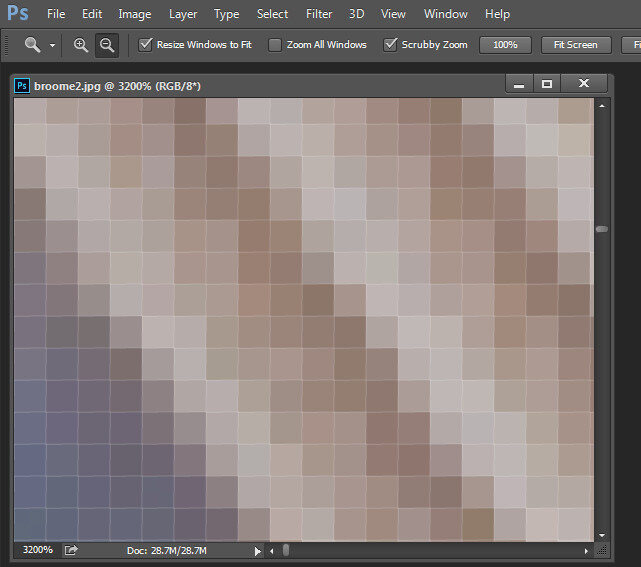
You can see these pixels if you open a photo and zoom in until you see single blocks of color (as shown below). Each of these blocks is a pixel:

An image of pixels in a photo

Why size is important when printing

When you’re printing an image, you may encounter the term PPI or pixels per inch. This literally refers to the number of pixels in an inch-long line of an image.

Most printing services, and indeed your own printer, will require a certain density of pixels in the image (PPI) to be able to render a print that looks good (i.e., with smooth color transitions so you can’t see each individual pixel).

Typical printing PPI values range from 150 to 300 PPI, although some high-end magazines may require images that are 1200 PPI.

So for example, if you want to print a 4 x 6 inch image at 300 PPI, then you need a file that has at least 4 x 300 (1200) pixels along its short side and 6 x 300 (1800) pixels on the long side. In other words, it needs to be at least 1200 x 1800 pixels in size.

To print an 8 x 10 inch image at 300 PPI, use the same math:

Multiply the printed image’s width and height in inches by 300 pixels. The result is 2,400 x 3,000 pixels, which is the image resolution you need to print an 8 x 10 image at 300 PPI.

Therefore, when cropping and sizing an image for printing, you’ll need to know what PPI the image should be. Your printer manual or printing service should be able to tell you this.

Below is a screenshot from the MpixPro.com website, showing their optimal and minimum image sizes for standard print sizes. Their printer outputs at 250 PPI (but can handle 100 PPI images), though other services may differ, so always check before preparing your images.

Print size required for MpixPro printing

Use the crop or resize feature in your software to size your image to the desired width and height and the desired PPI resolution.

Here, an image cropped to a size of 3000 x 2400 pixels is being adjusted from 72 PPI to 300 PPI in preparation for printing at 300 PPI. There is no resampling required, as the image is already the correct dimensions and only the resolution requires adjusting.

Adjusting resolution in a photo without resampling it

Photoshop, like other applications, will also crop an image to a fixed size and resolution if you type your desired values into the options bar when you have the crop tool selected (see below). If your image is smaller than the typed dimensions, then the image will be enlarged using the default resampling method. While it isn’t generally advisable to enlarge images, provided the image is already close to the desired size, enlarging it a little generally won’t cause a noticeable loss of quality.

When cropping in Photoshop, you can specify image size and resolution

Sizing for the screen

When it comes to displaying images on the screen, you need far fewer pixels than you do for printing.

This is because the density of pixels on the screen is far less than what is required for printing. For example, a typical monitor is 1920 x 1080 pixels in size; to fill the monitor, you only need an image that is 1920 x 1080 pixels in size. That’s about the same size image you need for a 4 x 6 print at 300 PPI – yet the 1920 x 1080 pixel image displays perfectly on a 23-inch monitor.

The post Image Size and Resolution Explained for Print and Onscreen appeared first on Digital Photography School. It was authored by Helen Bradley.


Digital Photography School

 
Comments Off on Image Size and Resolution Explained for Print and Onscreen

Posted in Photography


SLC-1L-12: A Garden of Ideas

27 Oct

At first glance: a simple, one-light portrait of activist gardener Janssen Evelyn.

Dig deeper: a look at tonal mapping via specular highlights, stretching the range of your modestly powered flash, and how to discover your next project.

Read more »
Strobist

 
Comments Off on SLC-1L-12: A Garden of Ideas

Posted in Photography


BCN Retail shows Canon catching Sony in the Japanese full-frame MILC market, Nikon stagnant — for now

27 Oct

BCN Retail, a Japanese analyst firm that collects daily sales data of mirrorless interchangeable lens cameras from online and in-person points of sale in Japan, has published (translated) its latest numbers, showing the breakdown of Japanese domestic market share in the full-frame mirrorless interchangeable lens camera (MILC) market.

BCN Retail starts its report with partially encouraging news, noting the camera market, at least in Japan, has almost entirely recovered from the pandemic drop, with unit sales in the month of September being down just 2% and revenue from those sales down just 10% year-over-year (YoY). Lower numbers YoY is never a good thing, but considering the state of the camera market even pre-pandemic, these drops aren’t terrible.

According to BCN Retail’s latest numbers, Canon and Panasonic have seen a rise in market share over the past few months, while Nikon has more or less stayed even. Meanwhile, both Sony and Sigma have seen their market shares drop over the past few months.

Full-frame mirrorless market share numbers: Brown (Sony), Red (Canon), Yellow (Nikon), Blue (Panasonic), Grey (Sigma). The dark blue and red bars at the bottom show unit sales and revenue (as a percentage of overall interchangeable lens camera (ILC) camera sales), respectively.

BCN Retail says Canon’s rise in market share — now 34.7% — can be attributed to the release of its R5 and R6 mirrorless cameras, while Panasonic’s rise — now 5.8% — is attributed to the launch of its S5. Nikon’s market share saw a small increase in July, which could likely be attributed to the release of its entry-level Z5, but since August its market share has more or less stayed stagnant, sitting at roughly 13%. It’s possible its forthcoming Z6 II and Z7 II mirrorless cameras could give the company a boost, though.

Meanwhile, Sony has seen its market share drop from roughly 60% back in May to now just 43.9%, only 9% ahead of Canon who, at the start of the year, had just 15% of the market share. Sigma, too, has seen its market share drop to just 2.6% after once being ahead of both Nikon and Panasonic back in May when the FP sales were hot.

The Canon EOS R5 was the most popular full-frame mirrorless interchangeable lens camera (MILC) of September, according to BCN Retail.

It’s worth noting these market share numbers are specific to the Japanese market and greatly impacted by new cameras launched within a given month or quarter.

Back in the summer of 2018, Sony effectively had 100% of the full-frame MILC market share, as there were no other competitors. Within six months of both Canon and Nikon introducing their respective full-frame mirrorless cameras, Sony’s market share was effectively halved and since then, it’s been further chipped away at by Canon.

This doesn’t necessarily mean Canon or Nikon were eating into Sony sales at the beginning when the two first entered the market, as you can see unit volume also rose when Canon and Nikon introduced their mirrorless cameras, but now that sales have more or less returned to their pre-pandemic volume and Sony is further dropping in market share, it is possible we’re starting to see Canon starting to pull away some of Sony’s customers a bit.

Canon EOS RP (left), Nikon Z5 (right).

What should be interesting to see is whether Nikon’s new Z6 II and Z7 II take more market share from Canon or Sony or is simply converting more DSLR users and therefore adding to the sales volume rather than taking from elsewhere in the full-frame MILC market. In the past, it seems Canon’s numbers are more affected by the rise and fall of Nikon’s market share, whereas Sony’s are more affected by the rise and fall of Canon’s market share, but even with the charts, it’s difficult to get the full picture without knowing the precise number of units being sold and the price at which they’re selling for—two numbers that prove challenging to extrapolate from BCN Retail’s numbers or even CIPA.

BCN Retail also notes that full-frame sales have hit 10.7% of the overall interchangeable lens camera (ILC) market, marking the first time it’s been in double-digits. Revenue from full-frame MILC, as a percentage of the overall ILC market, also saw a dramatic jump to 25%. These are both the highest-ever numbers for the full-frame market, but BCN Retail does note this is because the average cost of a full-frame MILC tends to be 2.3x as much as a crop sensor ILC —¥230,000 (~$ 2,200) to ¥100,000 ($ 955), respectively.

Articles: Digital Photography Review (dpreview.com)

 
Comments Off on BCN Retail shows Canon catching Sony in the Japanese full-frame MILC market, Nikon stagnant — for now

Posted in Uncategorized