RSS
 

Archive for December, 2019

500px combines Terms of Service and Contributor Agreement, confusing some users

24 Dec

Photography community 500px recently updated its Terms of Service, adding its Contributor Agreement into the TOS to provide a single destination for both. As tends to be the case any time a social network or other service updates its TOS, some users have picked through the text and come away frightened. A recent analysis of the changes by PetaPixel, however, finds little to be concerned about.

500px released its updated Terms of Service earlier this month; users were alerted to the change when the service prompted them to read and agree to the latest TOS. A number of users posted concerns about various snippets on social media, questioning the terms and, in some cases, demanding the company make changes.

PetaPixel recently dug into the latest Terms of Service and compared it to 500px’s older archived TOS, finding that the language has remained essentially unchanged. Some users may be surprised by the changes because of the inclusion of the Contributor Agreement within the updated TOS. Those added terms only apply to users who choose to sell images through the platform, however.

Users always retain the option of deleting their 500px account. The latest Terms of Service explains that:

Upon termination (by 500px or you), 500px will remove your Visual Content from licensing within 180 days and will inform all distributors that the Visual Content should be removed during that time period, provided however that 500px (and our distributors) may retain digital copies of Visual Content for archival and record-keeping purposes. 500px will continue to make payments due to you after termination in accordance with these Terms.

Via: PetaPixel

Articles: Digital Photography Review (dpreview.com)

 
Comments Off on 500px combines Terms of Service and Contributor Agreement, confusing some users

Posted in Uncategorized


Try our most popular photography training resource for just $13

24 Dec

The post Try our most popular photography training resource for just $ 13 appeared first on Digital Photography School. It was authored by Darren Rowse.

dPS Deal 12

Day 12 of dPS Holiday Deals gives you a taste of our most popular course of all time, for just $ 13! Try the 31 Days to Becoming a Better Photographer Printable Guides + Assignments and you can credit your purchase towards the full course starting on the 27th of January.

Save 55% now

We all want to take stunning photos like you see in galleries or magazines and other places. But the question is: how do you get there? How do you learn the skills and master the techniques to take amazing photos?

Instructor Jim Hamel has condensed key learnings from each day of our most popular course into one-page printable cards. Take the tips into the field with you, either printed out or on your device.

31 Printable Course Cards and Assignments

And there’s 31 detailed field assignments to help you consolidate what you have learned by putting theory into practice, getting out there and achieving results you may not have thought possible.

(Not included: Access to the course videos, Full downloadable course notes for each day, Access to the private Facebook Group and Instructor)

Usually $ 29, you can now grab the set of all 31 printable guides and assignments for just $ 13 USD. And if you love it you can credit your purchase towards the full course starting in January.

Check it out before the next deal arrives in less than 24 hours.

Best wishes,

Darren and the team at dPS

PS – You can still grab yesterday’s deal today and save $ 100 on Portrait Fundamentals by Digital Photo Mentor. Check it out here.

The post Try our most popular photography training resource for just $ 13 appeared first on Digital Photography School. It was authored by Darren Rowse.


Digital Photography School

 
Comments Off on Try our most popular photography training resource for just $13

Posted in Photography


Photographer Brandon Hill shoots portraits with the Sony Xperia 1 and Xperia 5

23 Dec

Sony’s Xperia 1 and Xperia 5 smartphones offer powerful photo and video features, including advanced face and eye-detection autofocus technologies inherited from Sony’s Apha-series mirrorless cameras. Sony’s Eye-AF works by analyzing the scene in front of the camera in real-time, and identifying and focusing on human eyes. If the camera or subject move, detected eyes and faces are tracked within the frame. A green square shows that an eye has been identified.

Portrait and commercial photographer Brandon Hill took the Sony Xperia 1 and Xperia 5 to House Studios recently, here in Seattle, to see how they performed. During a busy portrait shoot, Brandon worked with model and athlete Krista Armstead to put together several shooting scenarios, including indoor and outdoor lighting, and even a trampoline, to test the phones’ high-speed shooting and 4K video capabilities.

Sony Xperia portraits – pictures by Brandon Hill

$ (document).ready(function() { SampleGalleryV2({“containerId”:”embeddedSampleGallery_4314198486″,”galleryId”:”4314198486″,”isEmbeddedWidget”:true,”selectedImageIndex”:0,”isMobile”:false}) });


This is sponsored content, created with the support of Amazon and Sony. What does this mean?

Articles: Digital Photography Review (dpreview.com)

 
Comments Off on Photographer Brandon Hill shoots portraits with the Sony Xperia 1 and Xperia 5

Posted in Uncategorized


DPReview TV: The great ultra-wide sunstar shootout

23 Dec

We compared sunstars from eight ultra-wide full frame lenses, including both DSLR and mirrorless lenses, from Canon, Nikon, Panasonic, Sigma, Sony and Tamron, including:

  • Canon EF 16-35mm F2.8 III
  • Canon RF 15-35mm F2.8 IS
  • Nikon F 14-24mm F2.8
  • Nikon Z 14-30mm F4
  • Panasonic 16-35mm F4
  • Sigma 14-24mm F2.8
  • Sony 16-35mm F2.8 GM
  • Tamron 17-28mm F2.8

Who’s the winner? Watch the video and look at the samples below, then tell us which one you think is best in our poll (below).

Subscribe to our YouTube channel to get new episodes of DPReview TV every week.

Sample gallery from this episode

$ (document).ready(function() { SampleGalleryV2({“containerId”:”embeddedSampleGallery_5532213454″,”galleryId”:”5532213454″,”isEmbeddedWidget”:true,”selectedImageIndex”:0,”isMobile”:false}) });


Have your say

$ (document).ready(function() { Poll({“pollId”:”9073297854″,”openForVoting”:true,”mainElementId”:”poll0″,”slot”:null,”isSingleChoicePoll”:true,”minNumberOfChoices”:1,”maxNumberOfChoices”:1}); })

Which lens produced the best sunstars in our sunstar shootout?
You need to login to vote

Articles: Digital Photography Review (dpreview.com)

 
Comments Off on DPReview TV: The great ultra-wide sunstar shootout

Posted in Uncategorized


Review: Lensbaby OMNI Color Expansion Pack for the OMNI Filter System

23 Dec

The post Review: Lensbaby OMNI Color Expansion Pack for the OMNI Filter System appeared first on Digital Photography School. It was authored by Anabel DFlux.

lensbaby-omni-expansion-pack

What’s the best way to stand out from the crowd and exhibit some eye-catching colors? By applying some colored gels to a Lensbaby Omni effects system, of course!

Home to some of the most unique lenses in the world (fondly called “art” lenses), Lensbaby pride themselves on developing equipment that gives you a slew of unusual in-camera effects. Their newest mind-boggling contraption, the Lensbaby OMNI Filter System, now has an expansion pack for the color enthusiast in us all.

Review: Lensbaby OMNI Color Expansion Pack for the OMNI Filter System

What is the Lensbaby Omni Filter System?

If you’re an out-of-the-box photographer who hasn’t heard of the OMNI yet, you’re missing out.

In simple terms, the Omni Creative Filter System is a metal ring that holds various effect wands in front of the glass to produce an effect. And it works by using the power of magnets. These effect wands come in the form of crystals, panels, and other doohickeys that opens a world of possibilities when used.

The awesome thing about this product is that you can sort-of ‘make a Lensbaby’ out of any existing lens that you own.

As you can imagine, there is a lot of room for growth with this system. This is where the brand new Color Expansion Kit comes into play.

What does the Color Expansion Pack add to the mix?

lensbaby-omni-color-expansion-pack

The main original OMNI kit only includes three Effect Wands, a long arm to hold the Effect Wand, a short arm to hold the Effect Wand, two magnetic mounts (each mount holds up to two Effect Wands), and a small carrying case to tie it all together. While this is absolutely awesome, and the effect wands are great, they have the downside of, well… not having color. They are all clear wands.

So how does one fill the gap if they have a bit of an inclination towards color and rainbows?

Boom – the Color Expansion Kit.

Color quickly seeps into your work via two multicolored crystals, a rainbow diffraction film, and a variety of luminescent and textured films and gels (that are held up conveniently by the Effect Wands).

The gels and films come in a variety of colors, and depending upon your positioning of them can be very vibrant and intense or just provide a subtle light leak.

Practical, real-life use

Review: Lensbaby OMNI Color Expansion Pack for the OMNI Filter System

Much like the main OMNI system, this expansion pack is self-explanatory and quite easy to use.

There is a large-ringed, donut-shaped disc that holds the magnetic arms that, in turn, hold the effects wands. This disc, depending on your lens filter thread, can either be screwed on directly or use a step-down/step-up ring to attach to your lenses’ glass element.

The filters and microgels are just thin strips that slide into the same effects holder as the diffraction film. This holder is solid and sturdy and ensures that your films don’t slide around. The wind picking up could not cause these to budge!

Shallow depths of field tend to work very nicely with this particular expansion pack, and the filters turn into a part of the bokeh and spread across the frame rather than showcase their rectangular shape.

The wider the focal length you use, the more room you have to play with each of the new components. For example, the crystals work better with 35mm frames than, say, 85mm, as the effect becomes more prominent.

This filter set works best in bright, good lighting as opposed to low light as the filters do darken the frame quite a bit.

Review: Lensbaby OMNI Color Expansion Pack for the OMNI Filter System

Pros

  • A myriad of possible effects.
  • Great color range.
  • Easy to use and simple to learn.
  • Comes with a carrying case.

Cons

  • The individual pieces are small and easy to lose? I’m grasping at straws here for a con. This expansion pack is marvelous.

Final thoughts

Review: Lensbaby OMNI Color Expansion Pack for the OMNI Filter System

The Lensbaby OMNI gets your creative juices flowing, pushes you to try new things, and adds a brand new spark of life to your images. Offer your subjects something different! The addition of color only expands your horizons further.

Can you achieve the same with a do-it-yourself method? Probably. But there is so much room for error or frustration there, versus a system that is already tried and true! I love playing with this system, and I have no doubt whoever nabs it next will too.

They also have a Crystal Expansion Pack, and you can read a review about them here, along with the main filter system.

Have you used any of the Lensbaby OMNI filter systems? Share your thoughts with us in the comments.

The post Review: Lensbaby OMNI Color Expansion Pack for the OMNI Filter System appeared first on Digital Photography School. It was authored by Anabel DFlux.


Digital Photography School

 
Comments Off on Review: Lensbaby OMNI Color Expansion Pack for the OMNI Filter System

Posted in Photography


How to Create Twinkle Lights for Christmas Tree Portraits in Photoshop

23 Dec

The post How to Create Twinkle Lights for Christmas Tree Portraits in Photoshop appeared first on Digital Photography School. It was authored by Jackie Lamas.

how-to-create-twinkle-lights-in-photoshop

Christmas is almost here and like you, many photographers are getting ready to photograph their holiday sessions and are likely using Christmas trees. In this article, we’re going to show you how to add a little more twinkle to your Christmas photos so that you can wow your clients. Even if your trees have lots of lights, this will show you how to create twinkle lights in Photoshop so you can add more cheer to your photos!

Image: Learn how to add twinkle lights to your holiday photo sessions in this article.

Learn how to add twinkle lights to your holiday photo sessions in this article.

Step 1. Create your twinkle lights pattern

In order to add the twinkle lights to the lights and create more lights, you’ll need to first create the brush preset. This isn’t as difficult as it seems. Of course, you could download brush presets online, but there’s nothing like having the perfect brush you’ve created for your photos.

1.1 Create a new document. It doesn’t have to be a large document. Use a predetermined one and make sure you aren’t using artboards and that your resolution is at 300dpi. A white background will help you see what you’re doing.

Image: Create a new document. It doesn’t have to be large since you’ll end up with a bru...

Create a new document. It doesn’t have to be large since you’ll end up with a brush preset that can be sized after.

1.2 Next, go into Brush Settings. If you don’t see this on the icon menus on the left (or where you have your tools), you can open it by going to Windows -> Brush Settings and the window with the settings will pop up.

How to Create Twinkle Lights for Christmas Tree Portraits in Photoshop

Choose the round brush with zero hardness – it should be brush 30 in the brush menu. It’s a predetermined brush.

Here, you’ll want to select the roundness of the brush to around 8%. This will make sure your brush is flat to make the different strokes of the twinkle.

For this tutorial, we’ve made our twinkle with 5 points, but you can get creative with the size and add in additional points if you like.

Image: You can see how the brush is flattened.

You can see how the brush is flattened.

1.3 Choose the angles of your brush. Respectively, they are 90-degrees, 180-degrees, 45-degrees, and -45-degrees to make the five points. You can set a ruler to help guide you, making sure the lines intersect in the middle. For this one, I just painted with the brush by eye.

How to Create Twinkle Lights for Christmas Tree Portraits in Photoshop

1.4 Once you have all five points or as many points as you want for your twinkle, go back to the Brush Settings and change the roundness back to 100%. With this brush, go to the center of your star and fill in the middle with a couple of clicks to add more to the middle.

This will give the twinkle a little more fullness and make it look like an actual light in the Christmas tree.

How to Create Twinkle Lights for Christmas Tree Portraits in Photoshop

1.5 We’re almost done! Finally, we’ll add in a nice Gaussian Blur to the twinkle so it looks more real in the background and the points on the starburst aren’t too harsh when you’re adding them into the images.

Of course, this is preference and you can make one brush with the blur and another brush without so you have options. We’ve added the blur to our starburst. Go to Filter -> Blur -> Gaussian Blur and choose how much blur you want.

How to Create Twinkle Lights for Christmas Tree Portraits in Photoshop

1.6 Now you have a nice full twinkle light! From here, we’ll need to create the Brush Preset pattern so that you can use it in the future on any image in Photoshop. Go to Edit -> Define Brush Preset -> Change the name to what you’d like to call it and click OK.

How to Create Twinkle Lights for Christmas Tree Portraits in Photoshop How to Create Twinkle Lights for Christmas Tree Portraits in Photoshop

This will create your brush pattern! Now you have your twinkle light brush ready to use and you can change the color and size.

Step 2. Clone lights to make the twinkle lights look more real

If you add your twinkle lights to the photo, it will look oddly out of place. This is because it needs an actual light to shine off of an actual light source. The best way to do this is to clone a light in the original photo to other parts of the tree before using the twinkle light brush.

While you could just paint on dots, they don’t have the same color and gradient as a light that is already in the tree and may look out of place.

2.1 To do this, first create a new layer so that your twinkle lights can become moveable after you’ve added them. Also, this will keep you from cloning and using the brush on the original image in case you need to start over, you can simply delete the layer.

How to Create Twinkle Lights for Christmas Tree Portraits in Photoshop

2.2 Now go to the layer of your original image, click on the Stamp Tool. In the menu bar at the top, make sure that you uncheck where it says Aligned. This will make sure to only clone the light as you click on various parts of the layer.

How to Create Twinkle Lights for Christmas Tree Portraits in Photoshop

Click on ATL and click a light. Make sure the brush is just large enough for the light tip so you don’t clone too much of the tree/background.

2.3 Once you’ve made your selection of which light you’ll clone, go back to the new layer and click on the parts of the image you see that you want to add the lights in. Don’t worry, you’re not cloning on the image itself, this layer is transparent and that’s why you can see the photo in the layer below. It helps to see where you’re putting the extra lights.

How to Create Twinkle Lights for Christmas Tree Portraits in Photoshop

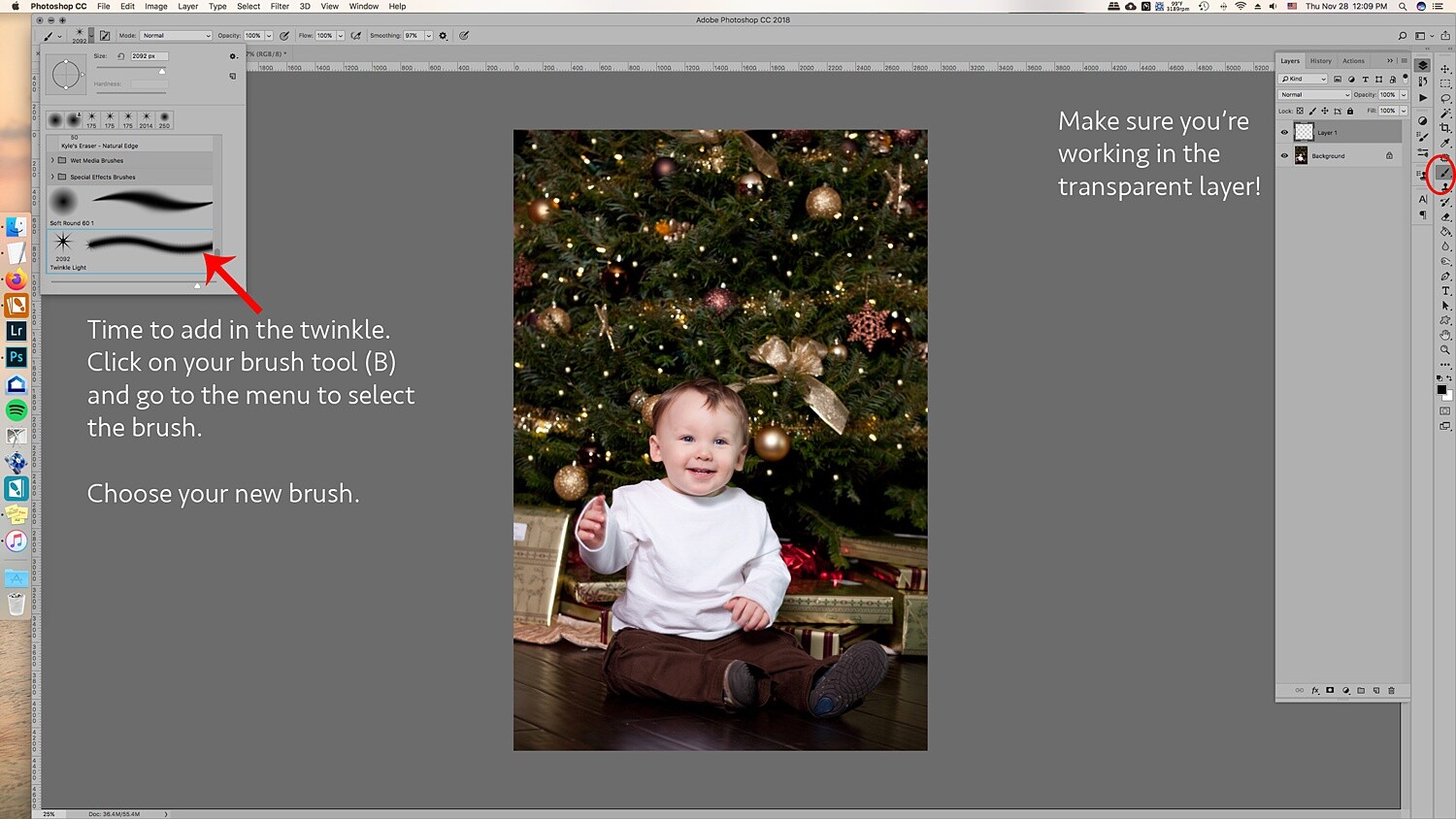
2.4 All right, now that you’ve added more lights to the tree, you are ready to add in the twinkle lights brush! Go to Brush and choose the brush you just created. Usually, new brushes show up at the end of the brush list.

Choose your twinkle light brush. Make sure that the color for your brush is set to white. Alternatively, you can choose the color picker and get a warmer yellow color that matches the lights. It’s your choice! You can also add colored lights if you wish!

Leave the hardness and opacity at 100%, go to your new layer where you’ve cloned the lights on. Go to each light and add in the twinkle onto it. Adding the lights and the twinkle makes the twinkle look real and not too fake.

How to Create Twinkle Lights for Christmas Tree Portraits in Photoshop How to Create Twinkle Lights for Christmas Tree Portraits in Photoshop christmas-twinkle-lights

Change the size for a few of the twinkles so they look more random.

How to Create Twinkle Lights for Christmas Tree Portraits in Photoshop

3. Add in additional colors

The great thing about doing the twinkle lights this way is that because you’ve added them onto a transparent layer, you can move them around and resize them as you need.

The amazing part is that you can duplicate the twinkle lights layer, move it around, and add colors to it to create colored twinkle lights. Here’s a break down of how you do that for multiple colors:

3.1 Duplicate the twinkle lights layer.

How to Create Twinkle Lights for Christmas Tree Portraits in Photoshop

3.2 Move it around and transform it so that it’s not directly on top of the other twinkle lights. If you’re going to add in more colors, I suggest that you don’t add in too many twinkle lights in the original layer so that you can fill in those empty spots with the colored twinkle lights.

3.3 Go to Layer -> New Fill Layer -> Solid Color. Choose a color. I did blue, green, and red. But you can add in any color.

How to Create Twinkle Lights for Christmas Tree Portraits in Photoshop

3.4 You’ll end up with a solid color onto your images. Don’t worry, right-click on the layer and choose Create Clipping Mask to clip it to the twinkle light duplicate layer.

How to Create Twinkle Lights for Christmas Tree Portraits in Photoshop

How to Create Twinkle Lights for Christmas Tree Portraits in Photoshop
3.5 Go to Blending modes at the top of the layer window and choose Color. This will overlay the color on the twinkle lights and make it look more real.

How to Create Twinkle Lights for Christmas Tree Portraits in Photoshop

How to Create Twinkle Lights for Christmas Tree Portraits in Photoshop

3.6 A great tip is to merge each color to the twinkle lights layer. Then add a mask so that you can go into the layer with your brush and take out the twinkle lights for that layer without having to deal with the color clipping mask and all that.

It’ll make removing them easier. This is ideal in case you need to remove one from an ornament or face.

How to Create Twinkle Lights for Christmas Tree Portraits in Photoshop

You can also add a clipping mask to the original twinkle lights layer to help brush out unwanted twinkle lights as well.

Image: Using a mask on the layer can help you to take out unwanted twinkle lights.

Using a mask on the layer can help you to take out unwanted twinkle lights.

And that’s it! That’s how you add in additional twinkle lights in color to your image!

Image: Before and after with the twinkle lights in color. You can make it more subtle by adding fewe...

Before and after with the twinkle lights in color. You can make it more subtle by adding fewer twinkle lights.

Use in non-holiday images as well

Use this tutorial on other images where you’d like to add in some twinkle too! It doesn’t have to just be for holiday sessions, simply just use the brush only with a color set.

Image: Use the twinkle lights brush on other portraits that you’d like to add some sparkle to.

Use the twinkle lights brush on other portraits that you’d like to add some sparkle to.

Make sure you’re working on the transparent layer and play with opacity levels and additional colors.

How to Create Twinkle Lights for Christmas Tree Portraits in Photoshop

In a new transparent layer, I selected the twinkle lights brush and added the twinkle lights to various parts of the layer in white in different sizes. Then, set the blending mode to Overlay to get the right look. I also lowered the opacity.

Twinkle lights with more than 5 points

The great thing about adding in twinkle lights is that you’re creating your own brush preset! This lets you create different types of brushes, and one might be adding more points to the twinkle light.

Image: Here’s a comparison of no twinkle lights, a five-point twinkle, and a multi-point twink...

Here’s a comparison of no twinkle lights, a five-point twinkle, and a multi-point twinkle light.

Go through all of the steps in Step One, only this time add more angles and add in more points. It also looks great when you change the size within the same brush.

Image: In the close-up, you can see that the brush preset has more points than the five-point twinkl...

In the close-up, you can see that the brush preset has more points than the five-point twinkle light brush we made previously.

It’s really all about preference, so play around and see what look is the right one for your portraits.

In conclusion

Image: Before and after on another photo. This is more subtle and only uses white twinkle lights.

Before and after on another photo. This is more subtle and only uses white twinkle lights.

It may sound complicated the first time you give it a try, but with time it gets easier! Adding in additional twinkle lights can give your holiday photos a little more twinkle and pop that will make your clients very happy to see in their final images!

Will you be using this tip to add in twinkle lights to your images?

The post How to Create Twinkle Lights for Christmas Tree Portraits in Photoshop appeared first on Digital Photography School. It was authored by Jackie Lamas.


Digital Photography School

 
Comments Off on How to Create Twinkle Lights for Christmas Tree Portraits in Photoshop

Posted in Photography


Gear of the Year 2019 – Rishi’s choice: Sony FE 135mm F1.8 GM

23 Dec
Photo: Dan Bracaglia

I love shooting wide. No, really: I made a whole video about how I even shoot portraits with wide-angle lenses. Wide-angles provide a sense of depth, dramatic perspectives, a glimpse into the subject’s surroundings and even provide an intimacy to portraits by giving the perspective of an observer standing very close to the subject. So you may be surprised by my choice of Gear of the Year: the Sony FE 135mm F1.8 GM.

Perhaps it’s just that I needed something different. Spice up my life, venture beyond 35mm, you know, my favorite ‘telephoto’ lens. Or, maybe Sony just made an amazing lens in the 135mm GM. Perhaps it’s a bit of both.

135mm F1.8 allowed me to focus on my backlit subject, and nothing else. Look at that creamy background.

I took the Sony FE 135mm with me on a recent trip with family and friends, enjoying time together at a cabin and celebrating three years of keeping our daughter alive.

135mm really allows you to isolate your subject, and make it about nothing else, even if some of the environment is included. Rather than jumping around the frame from one point of interest to another, the viewer’s eye can just focus on one story which, below, is a simple one of one sibling looking up to another.

The ‘tunnel vision’ a long focal length paired with a fast aperture provides allows you to create simplistic images that tell just one story, like the love shared between these siblings.

That’s not to say that 135mm doesn’t allow you to portray your subject against its surroundings, it’s just that things are a bit different compared to a wide angle composition. Rather than include an expansive view of your subject’s surroundings with an enhanced sense of depth, the longer focal length allows you to compress your subject against only an isolated – and magnified – portion of its environment.

Take the image below: A wide-angle lens would have included the foliage, the sky, the ground, and other potentially distracting elements, all situated at different depths. This creates a more complex image with an enhanced sense of, well, depth. That can certainly be nice, but sometimes I like the simplicity of the subject and the background essentially appearing at just two different focal planes.

The 135mm focal length allowed me to ‘compress’ the scene, bringing the trees in the background closer to my subject(s), and allowing me to frame my subjects against the green foliage. The long focal length allowed me to magnify only a small portion of the background, allowing me to exclude distracting elements like the sky above or the ground below my subjects.

Technically, the FE 135mm GM lens is superb. Optically, the lens is literally the sharpest lens our friend Roger Cicala at LensRentals has ever tested. That’s at least in part due to the XA (extreme aspherical) element designed to minimize spherical aberration.

The Super ED and ED glass used in the elements in the front group replace traditional large and heavy negative elements commonly used to suppress longitudinal spherical aberration. The result is very little, if any, longitudinal chromatic aberration, commonly seen as purple and green fringing in front of, and behind, the focal plane, respectively.

The 135mm focal length allowed me to easily isolate my subject in this otherwise small and busy indoor space. And thanks to the excellent optics, there’s no distracting green fringing in the high contrast ‘Title’ text behind our subject, despite the fast aperture.

Sony’s 10 nanometer mold precision and other recent improvements ensure smooth aspherical surfaces, meaning that onion-ring bokeh is non-existent. An 11-blade aperture ensures circular out-of-focus highlights, and generally smoother bokeh, even when shooting stopped down. Sure, there’s some mechanical vignetting that leads to a ‘cat’s eye’ effect, but that’s to be expected of a lens of this type, and isn’t severe enough to result in swirly bokeh in the family portrait above.

Just as important as optical quality is the focus performance: especially for candid portraiture. And here the FE 135mm GM is industry leading: focus is lightning fast thanks in part to its four XD (‘extreme dynamic’) linear induction motors. These motors are far faster than the previous piezoelectric design of Sony’s ‘Direct Drive SSM’ system, and are capable of moving larger, heavier elements.

Paired with the excellent autofocus system of Sony’s recent cameras such as the a7R Mark IV, focus is fast enough that I could easily nail focus on the eyes of erratically running toddlers, even with the aperture wide open at F1.8:

This boy was running through a wading pool and momentarily smiled at the camera. Real-time tracking (with Eye AF) coupled with the extremely fast autofocus speeds of this lens allowed me to nail this moment effortlessly.

I’ll admit I’d rarely shot with 135mm primes in the past, typically sticking to a trio of primes (24, 35, and 85) for weddings, or 70-200mm F2.8 lenses for engagement and portrait shoots. I’ve found the 135mm F1.8 to be a different beast, requiring me to think and shoot differently, while often finding myself running further and further backward to get enough space in between my camera and my subject.

The results were, to me, very rewarding. The ‘tunnel vision’ effect of stepping back and using a longer focal length to isolate your subject and compress it against a small portion of its surroundings yields a unique look, particularly when paired with a fast enough aperture so that the background is pleasingly blurred and not distracting. Below, you’ll see my daughter surrounded by others in a park, but by herself in the wading pool happily marching to her own beat.

I couldn’t sum her up any better.

Marching to her own beat.

Note the exceedingly low magenta fringing (longitudinal chromatic aberration) around the water droplets splashing about in front of our subject, despite the magnifying glass the high resolution 60MP sensor of the a7R IV holds up to any lens’ optical aberrations.

Sony FE 135mm F1.8 GM sample gallery

$ (document).ready(function() { SampleGalleryV2({“containerId”:”embeddedSampleGallery_3945628308″,”galleryId”:”3945628308″,”isEmbeddedWidget”:true,”selectedImageIndex”:0,”isMobile”:false}) });


* Of course I kid: my wedding kit always includes an 85mm, and I happily use 200mm for compression when I want to isolate my subject amidst its surroundings.

Articles: Digital Photography Review (dpreview.com)

 
Comments Off on Gear of the Year 2019 – Rishi’s choice: Sony FE 135mm F1.8 GM

Posted in Uncategorized


Finally, a Road Map to Taking Better Photos of People!

22 Dec

The post Finally, a Road Map to Taking Better Photos of People! appeared first on Digital Photography School. It was authored by Darren Rowse.

Finally, a Road Map to Taking Better Photos of People!

Day 11 of dPS Holiday Deals brings you this fundamental portrait photography course like no other – and it’s from our previous long-time Editor Darlene Hildebrand of Digital Photo Mentor.

Save $ 100 now

If you’re feeling lost when it comes to taking photos of people then you need Portrait Fundamentals: a road-map to portrait photography skills and confidence for beginners. 

Especially if you are disappointed by how your portrait shots turn out, or don’t even take photos of other people for fear of messing it up!

  • Unsure what camera settings to use for portraits?
  • Can’t get sharp, well-exposed images consistently?
  • So overwhelmed by all the technical stuff you struggle to focus on your subject and enjoy the portrait process?

Then, let Darlene and her team from Digital Photo Mentor guide you. They’ll give you a plan to follow so you can start improving your portraits immediately. 

Portrait Fundamentals Product

This is no ordinary course, it includes over 6 hours of video lessons, a 245-page PDF notebook, 21 practice exercises, quizzes at each stage, and a private Facebook group for students to interact with each other.

Learn to take great portraits even if you are a beginner!

Save $ 100 and get the course now for only $ 97 USD (usually $ 197)

Check it out before the next deal arrives in less than 24 hours.

PS – Did you miss yesterday’s deal? You can save 50% on Andrew Gibson’s Art of Black and White in Lightroom and Beyond course. Check it out here.
We receive an affiliate commission when you purchase from our trusted partners.

The post Finally, a Road Map to Taking Better Photos of People! appeared first on Digital Photography School. It was authored by Darren Rowse.


Digital Photography School

 
Comments Off on Finally, a Road Map to Taking Better Photos of People!

Posted in Photography


Fun winter photo projects for the long, dark days of winter

22 Dec

With the nights and mornings pretty close together for the next few months, and the sun taking some time out to recoup, many photographers head indoors to escape the dark and the rain. Plenty of us are tempted to hang up our cameras until the Spring, with a brief interlude should a decent amount of snow make an appearance.

Don’t be one of those photographers.

Just because bright light and blue skies are a rarer occurrence in the winter months doesn’t mean we have to stop taking pictures. There’s still plenty you can do, provided you’re prepared to use some imagination. Here are a few ideas to keep you shooting until the better weather returns.

Still life

I used a gold sheet of card from a craft store to send a little warmth back into the subject from the left hand side. The diffused flash was positioned on the right, and contrasting the white light from the flash with the gold light from the reflector emphasizes the warm effect

A good mastery of still life photography should help improve your photography across the board, and the winter months are a very good time to get some practice in. Working with a few objects on the table top with just a single light and a reflector is an ideal way to teach yourself more about lighting, exposure and composition.

If you are new to this area I suggest starting with just an orange and a table lamp, moving the lamp around the orange to see how the direction of the light changes the way the orange looks. Once you’ve done that and looked carefully at the way highlights and shadows control the sense of three dimensions in the image you can move on to everyday objects laying around the house.

Keep things simple by using just one or two objects in your scene, and try lighting with just one source and a couple of reflectors to moderate the shadows.

Here I used a single LED panel at the top of the frame, and a couple of mirror tiles to the left and right of the handle to throw some light back in the opposite direction. A wide aperture created a shallow depth-of-field to draw the eye diagonally up the handle to the point of focus.

The blueberry doesn’t need to be sharp for us to know it is a blueberry, and it is used as a counterweight to the main area of interest

Knives, forks and spoons offer interesting shapes and compositional challenges, and natural objects saved from the autumn, like nuts or dried leaves, give you the chance to bring nature into your work. The supermarket is also filled with interesting fruit and vegetables, and home stores and hardware stores stock nice cups, glasses and industrial looking bolts, screws, springs and fascinating sheets of metal/plastic/wood that will make interesting backgrounds.

One of the nice things about still life is that you can take your time and there is usually no rush, so you can look really carefully, try things out and try again when it doesn’t work the first time.

Tips:

  • Work slowly and really look at the effect of the light on your subject
  • Use silver, gold, white and black cards to bounce/block light
  • When used as a reflector, mirrors throw back so much light they can save you having to buy a second flash

Macro

Planning ahead for your winter shooting can involve collecting interesting items from the garden during the Fall. If you didn’t manage to do that don’t worry as your local florist will almost certainly thought of it. Here a little light either side is used to demonstrate the three-dimensional qualities of the seed head and the stem, and to lift it from the black-cloth background. I used a pair of hotshoe flash units fired through mini-softboxes attached to an adapter ring

An extension of still life, macro photography will test your ability to see details and to look more closely than usual. Successful macro photography is all about finding hidden textures, patterns and features of everyday objects as well as capturing tiny plants and animals that might otherwise escape our attention.

Macro does require at least some specialist equipment, whether that’s a reversal ring, a coupling ring to mount one lens backwards on another or an actual dedicated macro lens. Using a lens designed for macro will make your life a lot easier and will deliver the best quality without too much effort, but high-quality macro lenses can be costly.

Extension tubes are very affordable, and can be added to a standard lens to help you get a little, or a lot, closer, and a micro adjustment platform for your tripod head can help when it comes to getting accurate focus in the closeup range without having to move the tripod.

Lights don’t need to be expensive. This was lit with a small pocket flashlight positioned to make these pasta shells glow in the dark. A sheet of white paper under the lens was enough to throw a touch of light back to reveal some of the details of side of the shells closest to the camera

Cable and remote release devices will help to avoid camera shake with dramatic magnifications and tethering software will allow a bigger preview to ensure anything is perfect before you trip the shutter. How about using the long winter months to teach yourself focus stacking so you can control exactly what is and isn’t sharp in your images?

Tips:

  • Having a dedicated macro lens will make your life easier
  • Use a tripod or support, don’t think you can do this handheld
  • Be aware that depth-of-field is tiny in macro work, so add lots of light if you need small apertures

Window portraits

Late afternoon light on a winter’s day softly passing through a bay window was all that was needed for this portrait. I kept the sitter well back from the window to produce nice soft contrast but still retaining enough to show the shape of her head and features. Using the white balance in Daylight mode shows the coolness of the light and lets us know this is a winter image

It doesn’t matter what time of year it is actually – daylight gliding through a north-facing window will always provide some of the best kind of lighting for natural-looking portraiture. On rainy and overcast days the light levels might be lower but that light will also be softer and more flattering.

Position your subject close to the window if you want more contrast and further away for less, and try turning them 3/4 against the light to get a more dramatic effect. Using a black card on the unlit side of the face can help to deepen shadows if there’s more light than you want bouncing around the room. A net curtain or sheet of thin paper across the window can diffuse the daylight on a sunny day or when you only have south-facing windows to play with.

Positioning the subjects directly in front of a sunny window gives them this stark and very direct frontal lighting. I stood with my back to the window and pulled the shutters across to create the stripes on the groom’s jacket. The light on his face is reflected from the white top-side of the shutters.

As he is close to the window the light drops off quite quickly, leaving his friends visible but much darker. This helps to express who is the most important player in the scene, and who are the secondary elements.

Extra diffusion will also cut down the light making it easier to achieve a wide aperture if you want shallow depth-of-field.

Try experimenting with white balance too, so you can create a warm or cool effect whatever the conditions outside.

Tips:

  • Try the sitter at different distances from the window to vary contrast
  • Move your sitter between each end of the window to alter how the light wraps around their face
  • Use net curtains, bubble wrap or paper to diffuse the light even more

Home studio

Using quite a small soft light creates strong direction but avoids razor-sharp edges to the shadows. The small light also allows a rapid fall off, so the subject’s head is lit more brightly than her body, and positioning the light just slightly behind illuminates the front of her face while leaving the side closest to the camera dark – drawing attention to her closed eyes. A small direct light from behind her lifts her shoulders from the background and helps to create a sense of depth in the picture.

Opera singer Golda Schultz for the BBC Proms Magazine

When there’s not too much natural light coming through the windows, or we need more for smaller apertures and lower ISO settings, it’s a good time to think about alternative light sources. Domestic lights can be very useful for lighting in a home studio but they don’t always deliver enough power, so sometimes we need to look at flash.

There have never been so many flash units available for photographers so we have plenty of choice. Big studio monoblock type studio flash offer the advantage of power and a modeling bulb so we can see what we are doing, but they can feel expensive for the enthusiast. A useful alternative is to use one of the host of hotshoe flash units that are available – either from the manufacturer of your camera or from one of the many independent brands that have sprung up over the last ten or so years.

This is the set-up for the shot above. You can see that I believe in keeping things simple. The lights are Rotolight Annova Pro on the left and the Neo2 on the right. I used a Veydra Mini Prime 35mm T2.2 cinema lens – for a softer feel – on the Panasonic Lumix DC-G9

Modern hotshoe flash units are remarkably powerful, flexible and easy to use, and with auto and TTL modes they can be set to do all the work for you. In manual mode they offer more straight forward options and with wireless control becoming the norm you don’t have to leave the camera position to make your changes – or to check the results of any adjustments you’ve made.

What makes hotshoe style flash units so useful now is the mass of accessories and modifiers that can transform their light to be indistinguishable from that of a professional studio flash. I use adapter clamps so that my flash units can fit inside the softboxes, dishes and snoots that I use with my main studio units, and enjoy the convenience, the shorter set-up time and that they fix in smaller spaces.

Tips:

  • Keep the flash/light source away from the camera for a more three-dimensional effect
  • Bounce light from a white wall/ceiling to create a larger/softer light
  • Use an adapter that allows you to use soft-boxes and accessories with your flash head for a wider range of lighting looks

Summing up

I’d find it easier to hold my breath all winter than to keep my lens cap on between the end of November and the middle of February. In fact, shooting in the winter months is exactly as exciting as shooting when the sun shines all day, we just have to think differently and to create shooting situations rather than relying on nature to do it all for us. Indoors we can still enjoy the wonders of natural light but just through a window, and when there’s black clouds we can use normal domestic lights or a pop of flash to do the same thing.

All that’s required for winter shooting indoors is a little imagination and sometimes a tripod to support those longer shutter speeds. So take a look around your home to see what/who you can aim your camera at, and perhaps take a trip to a florist/hardware store or secondhand shop to see what treasures you can find. The cold weather and shorter days are no excuse – keep on shooting and keep those creative juices flowing until Spring.

Articles: Digital Photography Review (dpreview.com)

 
Comments Off on Fun winter photo projects for the long, dark days of winter

Posted in Uncategorized


Camera Color Spaces Explained – sRGB vs Adobe RGB vs RAW

22 Dec

The post Camera Color Spaces Explained – sRGB vs Adobe RGB vs RAW appeared first on Digital Photography School. It was authored by Herb Paynter.

camera-color-spaces-explained

Your camera is probably able to capture color images in a variety of different color containers called “spaces.” These camera color spaces collect colors in one of several size light buckets labeled sRGB, AdobeRGB, and RAW.

Each bucket gathers slightly increased varieties of light, similar to the way Crayola crayons are packaged and sold in increasingly inclusive collections of colors; small, large, and jumbo.

Camera color spaces offer photographers a variety of different size boxes.

Camera color spaces

camera-color-spaces

Scenes that include both brilliant colors and bright lighting are excellent candidates for capture with AdobeRGB color space.
F/3.5, 1/1000, ISO 400, Lumix G Vario 2.8, 35mm


A debate in the photo community usually arises over which camera color spaces to choose in the camera’s preferences. Some color spaces capture more of the hues and saturated colors than others. Pictures captured in one space may include more colors than another.

Each space is ideally suited for certain purposes, and the question of which camera color space to choose needs a bit of explanation. In addition to the capture question, choosing a color space for post-production editing will depend on the image’s ultimate usage.

Your camera’s color spaces involve not just color data, but additional parking space on the drive. Larger color spaces provide more bit-depth (explained below), which occupies more digital real estate on the memory card. So, the choice of which to use does have practical importance.

What camera color space to use

There is no singularly perfect color space choice, so let’s examine which is best for specific situations.

camera-color-spaces

Images that do not include highly-saturated color but contain significant detail in the shadow areas will benefit from RAW format capture and high-bit processing. F/10, 1/1600, ISO 800, Lumix G Vario 2.8, 200mm


Unless the sole purpose of a photo is to display as a high-resolution digital image, you might want to convert the file’s original color space for a less demanding result. However, keep in mind that every time a file mutates from a larger color space to a smaller color space (RAW to AdobeRGB, or AdobeRGB to sRGB), the image’s color intensity and integrity may diminish in the process. Some imaging applications are less demanding than others.

While copies of digital files remain identical in size and intensity to the original regardless of how many times they have been copied, when a digital file mutates to a lesser color space, it will always lose some critical color information. Your camera color spaces in general, and device color spaces, in particular, are all unique. Each serves a particular purpose.

Image: The extreme dynamic range and saturated skies benefitted from the RAW capture and editing in...

The extreme dynamic range and saturated skies benefitted from the RAW capture and editing in AdobeRGB. Detail buried in the shadows was possible because of the 14-bit capture. F/14, 1/300, ISO 3200, Lumix G Vario 2.8, 12mm


It’s a matter of depth

The difference between camera color spaces boils down to an issue called bit depth. Bit depth is a mathematical description of how many visible distinctions between shades of color can be recognized and reproduced by different devices (a techie term for scanners, cameras, computer monitors, and printing machines). Unfortunately, not all devices can reproduce all colors the same (which is the primary stumbling block amidst all color issues).

Every device reads and reproduces color using a different process. While this sounds like a fixable problem, there is a sad and unsolvable reality behind the problem. There are at least three different interpretations of color at play in every capture-display-print cycle.

Image: These colorful seat cushions and deep shadows were captured in RAW format, edited in AdobeRGB...

These colorful seat cushions and deep shadows were captured in RAW format, edited in AdobeRGB, and saved in sRGB for upload to our camera club’s server for display as part of a club field trip slideshow. F/7.1, 1/320, ISO 400, Lumix G Vario 2.8, 19mm


First, cameras capture color by recording intensities of light as electrical signals and interpreting those signals as colors. Each color is assigned a specific number.

Second, these numbers are then sent to the computer. Here, they get translated into another process that interprets those electrical signals into a process that turns on tiny lights (called pixels) on a backlit screen.

And third, those pixels are then sent to a printing machine that instructs those pixel values to spit tiny splatters of colored ink onto paper.

It’s a very complicated process that color scientists have tried for years to make simple. Unfortunately, it just ain’t that simple!

Anyway, during this hair-on-fire digital transition, different methods are employed that utilize the various color spaces in a way that transforms the colors from one device to another as accurately as possible. Sometimes the color translations don’t convey the colors as accurately as we would like, which is why sometimes the monitor colors don’t match the printer colors.

camera-color-spaces-explained

Science uses charts like this to plot the characteristics of camera color spaces. While these charts are referred to as “theoretical” because they are not visible to the human eye but represent what each color “bucket” can capture versus what the eye can see.


The ultimate referee

The only comprehensive color space that plots the full scope of what the human eye can see is what the science community calls L*a*b* (inverted horseshoe diagram) space.

The human eye is the ultimate arbitrator in the color wars, and all device capabilities (camera, display, and printer) are defined by how they match up to the eye’s master gamut. This is why this strange horseshoe shape is referred to as the Reference Space. All other devices, whether camera, display, or printer, can only recognize and utilize portions of this “reference space,” and they usually disagree with each other.

Color is a very diverse and dysfunctional family. Each device speaks a different dialect of a similar language. Each produces colors that cannot be faithfully reproduced on other devices. Color is a very messy topic.

color-spaces-explained

Crayola crayon boxes contain varying numbers of colors just as color spaces collect varying amounts of color. The lightest and darkest color crayons are the same value, but larger boxes contain more colors than smaller ones.


Some devices can express color more completely than others. Unfortunately, no device created by humans can reproduce all the colors that can be seen by humans. Also, the colors captured by one device that fall outside the gamut (Crayola box size) of other devices, get clipped, lost, or compressed during the handoff. Those colors never come back home.

This is the tragic truth about digital color reproduction. The trick to color reproduction is in retaining as much of the common color as possible during the process. Fortunately, this same human eye (and brain) are very forgiving about accepting the limitations of non-human devices.

Color reproduction is a true application of the law of diminishing returns and the visual science of physics. Photographers understand this law quite well.

Very rarely can a camera actually capture all the color and dynamics of an original scene. Moreover, nature’s color gamut extends even further than the colors that the human eye can identify. Any time a digital image gets transposed from one form into any another form, that transformation is a diminished-value exchange.

As an image is transferred from one device to another, those pixel values located outside the color gamut of the destination device always get lost in the translation. The object of color management is to mitigate color loss and maintain as much of the appearance of the original as possible, all the way through the reproduction process.

RGB spaces (sRGB, AdobeRGB, ProPhoto RGB)

It all begins with the camera’s color settings that are in place when you capture the scene. All cameras capture light through red, green, and blue filters (RGB color space). While there are a number of RGB color spaces to choose from, each sports a slightly different color gamut.

camera-color-spaces-explained

Each device in the photography chain interprets colors slightly differently, and each responds to the individual color spaces uniquely.


Each color space (sRGB, AdobeRGB, ProPhoto RGB, etc.) provides a unique collection of color attributes, and each space satisfies specific display and reproduction requirements.

Gamuts are descriptions of the range of colors that a device can recognize, record, display, or print.

Shooting a vibrant, saturated scene with the camera requires a larger color space. Using a camera color space with a smaller gamut could significantly diminish the raw, harsh emotion of the scene. This is why most photography experts encourage photographers to set their cameras to capture images in AdobeRGB.

sRGB

Almost all digital cameras are factory-set to capture colors using sRGB as the default color space for a plausible reason; most of the pictures we take never get printed! At best, we view them on computer monitors or social media. Quite honestly, most of the pictures we capture never make it past the initial glance at the camera’s LCD screen. Capturing those images in higher-bit color space is a total waste of disk space.

camera-color-spaces-explained

sRGB color space remains largely unchanged since it was defined in the 1950s to compress video images into a manageable size for broadcast. While the format has been updated slightly, the basic intent is the same.


sRGB was developed by HP, Microsoft (and others) back in the early days of television to address the color gamut needs of most televisions (early versions of computer monitors), and the standard was set long ago. The airwaves and Internet browsers live on an sRGB diet. As such, the sRGB color space standardizes the way images are still viewed on monitors and televisions.

Adobe RGB

If the ultimate destination for your picture is monitor or display-based presence (presentations, Internet, or television displays), this is probably the best choice to capture images. However, if you shoot for print on paper, both AdobeRGB 1998 and ProPhoto RGB RGB contain a wider gamut of colors and are thus more suited for preparing images for print.

camera-color-spaces-explained

The brilliant dynamics and saturated colors are always captured best in the deepest color bucket of all – RAW. The degree of adjustments provided by RAW capture and ProPhoto RGB editing is perfect for images like this. F/6.3, 1/800, ISO 400, Lumix G Vario 2.8, 26mm


RAW

Actually, the most ideal bucket for capturing images actually exceeds the gamuts of all three of these camera color spaces. I’m speaking of course of your camera’s ability to capture images in RAW format. This is a format that supersedes any defined color spaces.

RAW files capture color in the highest bit depth possible; up to 14-bits per color. RAW is not an acronym; it is more of a description. It is the recording of all the limited color depth and uncompressed dynamic range of the original scene. Start RAW and strip down from there.

Camera color spaces explained – Conclusion

Congratulations on sticking with this article through all the minutia.

By now, it probably seems like camera color space is more like outer space, but it doesn’t have to remain this technical. Simply remember to capture images in RAW format (perhaps in addition to capturing them as JPG) and then transform the colors down the chain of reproduction as the need dictates.

Edit images in the camera color spaces of ProPhoto RGB or AdobeRGB to retain as much color elbow room as necessary. Those images destined for print should be transposed to AdobeRGB, and reduce those images destined for the Internet or slideshows to sRGB. Simple, enough!

The post Camera Color Spaces Explained – sRGB vs Adobe RGB vs RAW appeared first on Digital Photography School. It was authored by Herb Paynter.


Digital Photography School

 
Comments Off on Camera Color Spaces Explained – sRGB vs Adobe RGB vs RAW

Posted in Photography