RSS
 

Archive for September, 2019

An In-Depth Look at Kenko DG Auto Extension Tubes

02 Sep

The post An In-Depth Look at Kenko DG Auto Extension Tubes appeared first on Digital Photography School. It was authored by Megan Kennedy.

Extension tubes are neat little photographic accessories that allow you to create macro-like images without a macro lens. Are you considering getting into macro photography but don’t have the funds for a dedicated macro? Extension tubes could be the way to go.

There are plenty of different makes and models of extension tubes. The variety we’ll be looking at here are by a Japanese company called Kenko, which produces some of the most popular extension accessories available, the DG Auto series.

kenko extension tubes

What are extension tubes?

An extension tube is essentially a hollow spacer that locks between a lens and camera body. An extension tube adjusts the minimum focusing distance (the closest point a subject can be from the camera’s sensor while still being able to focus) by moving the lens further from the camera sensor.

You can stack extension tubes for greater magnification. The thicker the stack of tubes, the closer you’re able to get to a subject and still achieve focus.

comparison extension tubes with a coin

A comparison reveals the different capabilities of the Kenko DG Auto extension tubes. Taken with a Canon 50mm f/1.8 II.

Why use extension tubes?

There are numerous benefits that extension tubes have over a conventional macro lens.

Generally, extension tubes are much cheaper than a dedicated macro lens, making macro photography a lot more accessible.

Another benefit is the lack of additional glass between the lens and the sensor. You won’t have to sweat about the quality of extra glass degrading your image. The lack of glass also means extension tubes are quite durable.

Finally, extension tubes are light and easy to carry. So if you don’t want to lug around heavy lenses, extension tubes can be a great option.

extension tubes on camera

What are the drawbacks of extension tubes?

Extension tubes are suited to lenses with small or medium focal lengths and generally work best with prime lenses.

Extending the amount of space between the sensor and the front lens element results in a reduction of light reaching the sensor. This requires an adjustment in shutter speed, ISO, or aperture to compensate. But when aperture controls the fine depth of field balance in a macro image, your only real options are a longer exposure, more noise, or a combination of both.

Also, because extension tubes increase the magnification of the lens, they magnify any flaws in a lens’s design.

In addition, extension tubes require you to remove your lens from the camera body each time you want to adjust the lens extension. This increases the chance of dust settling on the camera sensor.

While some extension tubes (like the Kenko DG Autos) offer autofocus compatibility, the results are generally mixed. Switching to manual focus is your best bet, and this isn’t entirely a bad thing, but it can slow you down in the field.

flower abstract

Not all macro photography has to be razor-sharp. For a softer effect, try adjusting your focus to just in front of your subject.

How do the Kenko DG Auto extension tubes perform?

Construction

Available for Canon, Sony, and Nikon makes, Kenko DG Auto extension tubes usually come in a set of three: one 12mm tube, one 20mm tube, and one 36mm tube. These can be used individually or in a stack.

extension tubes together

Each tube has a diameter of approximately 62mm with clear alignment markings to show where you should connect the tube to the camera body and lens. Unlike some cheaper plastic varieties of extension tubes, the Kenko DG Autos all have metal mounting mechanisms.

36mm extension tube with grip

The 36mm Kenko DG Auto extension tube has a grip running around the outside of the tube.

Out in the field

For my close-up photography, I’ve been pairing my Kenko DG Auto extension tubes with my trusty Canon 50mm f/1.8 II. Without the added complications and weight of a zoom lens, the setup is simple and easy to assemble. The wide maximum aperture of the 50mm also helps compensate for the reduction in light that reaches the sensor as a consequence of the extension tubes.

One thing I look out for with the Kenko DG Autos: I ensure each tube has clicked firmly into place. While I haven’t had any accidents (thankfully), the mounts can be a bit soft sometimes. The potential amount of switching between extension tubes during a single shoot makes the chance of a misalignment higher, so make sure you fully lock each component.

bottle fly macro photo

A beautiful and rather patient bottle fly. This image required my 12mm, 20mm, and 36mm extension tubes attached.

Kenko DG Autos are designed with all the circuitry and mechanical coupling to maintain autofocus and TTL auto-exposure (provided there is enough light). However, as I mentioned before, the autofocus can still be a bit iffy. Plus, when taking an extreme close-up, there is such a small area of sharpness that any extra control over the focus of your composition is crucial. I still switch to manual focus 90% of the time for that degree of control.

As with all close-up photography, I use a tripod in a lot of cases to reduce camera shake. In addition, because of the reduction in light reaching the sensor, I often have to compensate with a longer exposure – which makes the tripod a valuable piece of equipment to have on hand.

Price

The Kenko DG Auto set is markedly cheaper than offerings from Canon. While a Canon EF 25 II extension tube is about $ 150 USD on Amazon, the Kenko DG Auto set (the 12mm, 20mm, and 36mm) is priced at just over $ 100 USD. Given that the tubes contain no glass, they have no optical difference and are very similar in construction. The largest difference between the two brands online is the release levers. The Canon tube release lever is reportedly smoother to that of the levers on the Kenko tubes.

gerbera flower macro

A flower head photographed with a 36mm Kenko DG Auto extension tube

Conclusion

Extension tubes have made macro photography much more accessible. If you’re interested in macro photography, it may well be worth investing in the set offered by Kenko. For their price and utility, the Kenko DG Auto extension tubes are a definite staple in my photography kit.

kenko-extension-tubes

The post An In-Depth Look at Kenko DG Auto Extension Tubes appeared first on Digital Photography School. It was authored by Megan Kennedy.


Digital Photography School

 
Comments Off on An In-Depth Look at Kenko DG Auto Extension Tubes

Posted in Photography


5 Basic Post-Processing Tips to Instantly Improve Your Photos

02 Sep

The post 5 Basic Post-Processing Tips to Instantly Improve Your Photos appeared first on Digital Photography School. It was authored by Nisha Ramroop.

Are you a beginner looking to improve your post-processing skills?

That’s what this article is all about. In it, you’ll discover five post-processing tips that will immediately take your photos to the next level. Best of all, these tips aren’t even difficult to follow, and they require nothing more than the most basic image-editing program.

Let’s dive right in.

post-processing tips boats on water edited

1. Straighten your horizon for professional-looking photos

When the horizon isn’t straight, even the untrained eye picks up that something is off. They might not know exactly what’s wrong, but they’ll be aware that the scene seems out of order.

Which is why you absolutely must make sure your horizon is straight.

Fortunately, it’s very easy to correct the horizon; you can do it in any post-processing program.

Here are the instructions for straightening the horizon in Photoshop:

Step 1: Select the Crop tool

Step 2: Click the Straighten option at the top

Step 3: Click one side of your horizon and drag across the horizon line before you release

Your horizon will instantly straighten!

straightening boats in photoshop

2. Adjust the white balance for natural-looking images

White balance is a setting used to balance the color of the light you shoot, in order to get it close to a neutral white.

You see, when the color of your subject is distorted by the existing lighting conditions, you need to use the white balance setting to save the day.

Now, one way to set the white balance correctly is to get it right in-camera. However, some photographers prefer to shoot in RAW with an auto white balance setting, and then adjust the white balance afterward.

If that’s your preference, then you’ll need to choose your white balance in a post-processing program. It’s generally easy to select a white balance option that adjusts for the lighting of your shot. You’re also free to experiment with different white balance options so you can choose the one that most reflects your creative vision.

For instance, the scene below has a Fluorescent white balance applied to it using Adobe Camera Raw.

adobe camera raw white balance

And here’s the same scene but with a Shade white balance applied:

white balance adobe camera raw post-processing

3. Boost your contrast to create images that pop

Do your images look a little flat?

One of the simplest ways to make your photos pop is to adjust the contrast. A contrast adjustment further separates the darkest and brightest areas of your image. In other words, it makes the dark tones darker and the light tones lighter.

beach scene

Increased contrast, therefore, makes tones stand out and gives your photos a more three-dimensional feel. Compare the image above to the image below; I added contrast to the second image, which gives it a subtle pop.

beach scene with increased contrast

Pretty much every image editor has a contrast slider. And boosting the contrast is often as simple as pushing the slider to the right.

So just remember:

If you’re struggling to make your photos more lively, try increasing the contrast. It’s a simple post-processing tip, but one that really works!

4. Boost the saturation or vibrance sliders for better colors

The saturation and vibrance adjustment sliders usually sit next to each other and can be confusing. Both of these add an extra color punch to your image, but they do so in different ways.

You see, saturation adjusts the intensity of all the colors in your image at once. If you push the saturation slider, you’re going to see color saturation increase across the board. Therefore, it’s an adjustment you want to use sparingly.

Vibrance, by comparison, is a “smarter” saturation tool, one that adjusts only the duller colors in your image. Increasing the vibrance will boost the less-saturated colors, but won’t affect colors that are already saturated.

Look at these two photos:

lighthouse with increased colors

I boosted the saturation of the photo on the left, and I boosted the vibrance of the photo on the right.

Note that when you lower the saturation of your colors, your image takes on a more muted effect, like this:

reduced saturation lighthouse

In general, boosting the vibrance or the saturation will instantly improve your images.

5. Sharpen your photos for the best display on the web

Your images are most likely going to be displayed on the internet.

However, when you export your photos from most image-editing programs, you’re going to end up with blurry photos. Unless you sharpen for the web, that is.

There are a few ways to sharpen in Photoshop. Here is one you can try:

Step 1: Resize your image to the size you want it displayed. (If you sharpen your high resolution/original image and then resize it, the image will appear to lose its sharpness. Sharpening an image at your display resolution works better.)

resizing images post-processing tips

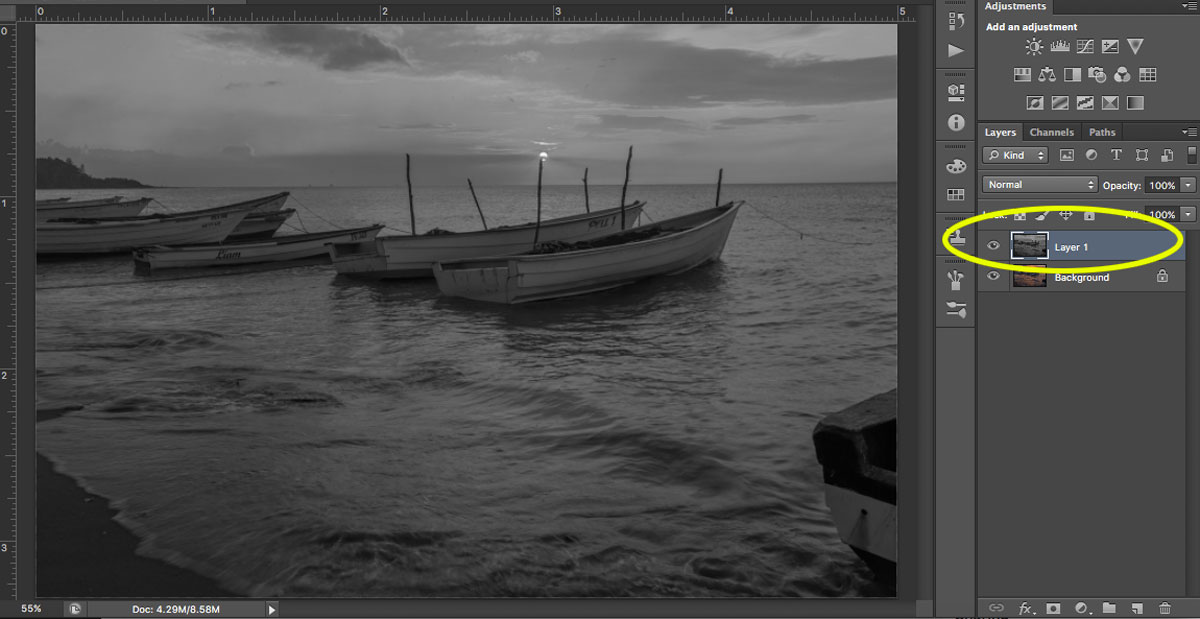
Step 2: Duplicate your layer.

Step 3: Desaturate your new layer (from Menu, Image > Adjustments > Desaturate).

sharpening your images

Step 4: Change your blend mode to Overlay. (Alternatively, you can use the Soft Light blend mode for a more subtle effect.)

Step 5: Now apply a High-Pass filter (from Menu, Filter > Other > High Pass) and choose a radius around 2.0 for an image of 730 pixels (on the long side). The Overlay option you chose above allows you to see how the radius affects the image so you can play around with it.

Note: The bigger your image, the larger your radius will be.

If the sharpness doesn’t look good on the entire image, you can use a layer mask and paint black over the areas where you want to hide the effect.

Step 6: Save for the web (from Menu, File > Save for Web). Check the Convert to sRGB box if unchecked.

Conclusion

If you’ve just begun your photography journey or if you’re looking to improve your basic editing skills, then these post-processing tips are a great place to start.

In fact, basic editing is often all you need to dramatically improve your photos.

So follow these tips, and watch as your images improve!

The post 5 Basic Post-Processing Tips to Instantly Improve Your Photos appeared first on Digital Photography School. It was authored by Nisha Ramroop.


Digital Photography School

 
Comments Off on 5 Basic Post-Processing Tips to Instantly Improve Your Photos

Posted in Photography


3 Tips for Becoming a Unique and Successful Photographer

02 Sep

The post 3 Tips for Becoming a Unique and Successful Photographer appeared first on Digital Photography School. It was authored by Kevin Landwer-Johan.

If you want to become a successful photographer, then there are a few things you absolutely must know.

That’s what you’re going to learn in this article:

Three key tips for becoming a truly masterful photographer.

successful photographer two people with bright clothing

© Kevin Landwer-Johan

Will it be a fast journey? Probably not.

But it doesn’t have to be difficult, either. If you enjoy photography, then you’ll have a ton of fun!

So if you’re ready to become a unique and successful photographer…

…then let’s get started.

Tip 1: Don’t get hung up on what you ‘should’ do

Many photographers read tutorials and watch videos. Then they try to mimic exactly what is being taught. They try to create the same photos the instructor is telling them to.

But if you learn photography this way, you’ll end up having photos that look like everyone else’s. You won’t discover a unique style of your own.

Sure, it’s good to study and learn from those who have more skill and understanding. But there is no formula for perfect photography. There is no absolutely correct way to make a picture.

Whether you’re taking a senior portrait or photographing products for a catalog, there are no hard and fast rules. There are guidelines. If you follow some of them you’ll make sharp, well-exposed photos that are well-composed. But if you try to rigidly stick to a method, you will not make creative photos.

Thai Model and Elephant

© Kevin Landwer-Johan

Every scene you photograph is different. Even if you photograph the same garden or building every day, things will change. The light will be different. It may be sunny one day and raining the next. Your subject may change over time.

So you must take what you’ve learned and adapt it to the situation. Apply photography techniques that best suit your subject and the current circumstances.

Inle Lake Fishermen

© Kevin Landwer-Johan

Obtain the skills and learn the rules. Know these things well, so your thoughts aren’t consumed by them each time you want to take a photograph.

But don’t apply a set of rules to your photography. Doing this may bring technically correct results. But often photography which is only technically correct is rather dull and boring.

You can find examples of very similar sets of images posted on social media and photo-sharing sites, and in all manner of ‘how to’ photography books. They all look repetitively similar because the photographer has only followed the rules.

Instead, apply your own creative thinking. Consider the rules, but don’t apply them unless they enhance your photo the way you want them to.

Tip 2: Put feeling into your photography for masterful images

If you want to be a truly great photographer, learn how to infuse your photography with feeling. Put something of yourself into your pictures.

This is what will make your photos unique. Nobody else has the same worldview you do.

This is not an easy concept for many photographers to grasp, but all you need to do is look at some of the best photos. The ones which attract you the most.

Ask yourself why you like them so much. Look at the greats. Admire the work of Irving Penn, Ansel Adams, Henri Cartier-Bresson, and the like. What is it about the way they have seen the world and photographed it that makes their photographs special?

boys in sunbeams

© Kevin Landwer-Johan

Look at favorite photos you have taken. What’s special about them? Are they only technically correct, or is there more to them? Do they capture a unique moment? Do they include feeling?

Photos which embody emotion are more powerful. Capturing the moment that conveys emotion, regardless of technical considerations, often results in the most compelling photographs.

Technical imperfection can even enhance the feeling in a photograph. A moment of laughter mistakenly overexposed can add to the spirited feeling. An underexposed photo of someone feeling sad will add to the expression of their despair.

portrait of a young girl

© Kevin Landwer-Johan

Here’s the bottom line:

If you can include feeling in your photos, if you can communicate something to viewers about your perspective, then you’ll be well on your way to being a truly successful photographer.

Tip 3: Study your craft and photograph often

Here’s the great thing about photography:

The more you pick up your camera, the faster you will develop as a photographer.

Your technical skills will improve, and your ability to see what makes a great photo will improve, too.

cultural abstract

I suggest you commit yourself to learning a new photography technique every month, or even every week. Get the new technique ingrained into your subconscious mind so you don’t have to concentrate on what camera settings to use. Then the settings will come to you automatically, even when you do choose to use Manual mode.

Reaching a high level of ability takes time. Like any artist, you have to start by mastering the essentials. Once you have, you will be free to express yourself.

Learning to play the piano or to dance well involves hours and hours of patient, determined practice. Photography is the same! The more you study and practice with your camera, the more expressive you will become with it. The less you have to think about the adjustments you need to make, the more focus you can give to being creative.

So engross yourself in your favorite genres of photography. Photograph often and with the desire to make improvements each time you do.

Over time your photographic skills will advance.

And, pretty soon, you’ll be a successful photographer.

Laughing Lady with umbrella

© Kevin Landwer-Johan

Conclusion

I believe we are all inherently creative. We are created to be creative.

This means that every one of us has the potential to be a great photographer.

You just have to work hard at your photography.

Eventually, you’ll be creating stunning, unique photos.

How to become a Unique and Successful Photographer Iron Bridge in Chiang Mai

The post 3 Tips for Becoming a Unique and Successful Photographer appeared first on Digital Photography School. It was authored by Kevin Landwer-Johan.


Digital Photography School

 
Comments Off on 3 Tips for Becoming a Unique and Successful Photographer

Posted in Photography


Review: Mikme Pocket wireless microphone with audio-sync

01 Sep

Mikme Pocket
From $ 387 | mikme.com

The Mikme Pocket Pro and App, a simple high quality wireless audio for your smartphone?

There are a lot of lapel microphones out there, and a lot of recorders to plug them into, so any new product designed to compete in this space either needs to have standout performance or do something unique. In the case of the Mikme Pocket, it does a bit of each.

A common challenge with wireless microphones is signal dropout, usually as a result of moving out of range or working in areas with a lot of radio congestion. This is where the Pocket has a trick up its sleeve. It uses Bluetooth to connect to your smartphone (using your phone as the receiver/recorder) and records to both the phone and its own internal memory. If you experience a dropped connection during recording, the Pocket automatically syncs and uploads any missing audio as soon as it comes back within range.

It works with a companion app which allows quick and easy setup. However, you can use the main functions of the Pocket without the app. (At the time of writing it’s only available for iOS; an Android version is promised for later in the year.)

The company is squarely targeting video shooters who use smartphones as their camera, although because it records internally it can also be used with mirrorless cameras and DSLRs to sync audio in post production.

The Pocket is available in two versions: a more expensive Pro variant that includes a higher quality microphone and lifetime subscription to its PRO app ($ 719) as well as a less expensive version with a standard microphone and no app subscription ($ 387). Mikme initially launched the Pocket on Kickstarter, and after a successful campaign have launched on Indiegogo as well (where discounted crowd-funding prices remain in effect).

Key Features

  • Simultaneous internal and wireless audio recording via Bluetooth
  • Automatic wireless sync of audio if the connection is dropped
  • Lapel microphone with locking connection
  • Choice of app or direct device control
  • Auto or manual audio level control
  • 16GB internal storage for 30+ hours of recording
The large central button enables multiple functions and encompasses a multi color status LED.

The Mikme Pocket offers features I’ve not seen before and I was keen to test it out. This little box, measuring 78 x 66 x 22 mm, includes a lapel mic. The pre-production version of the Pocket Pro I tested included the somewhat smaller pro mic option.

The unit I had for testing records .m4a files (at 44.1Khz) or uncompressed .wav files (44.1, 48 or 96Khz at 24bit) to its built-in 16 GB storage. At the highest quality this allows just over 30 hours of audio to be stored. The higher quality WAV files are only available if you’re using it with with a device that doesn’t have Bluetooth. If you’re using a smartphone you are limited to m4a files.

The mic connection is via a locking mini XLR

When using the Pocket with a smartphone over Bluetooth the auto sync function is enabled. This ensures that even if you manage to move out of range (approximately 10 m, or 30 ft.), the audio will automatically be downloaded and synchronized when the connection is re-established. This feature means that transmission range is not a problem as it is with traditional wireless mics, although you do lose the ability to monitor the audio on your phone when the Pocket is out of range.

The bottom edge houses most of the controls (not final labeling).

As with a lot of things these days it’s an app based product. However, I was pleased to see that you could achieve some functionality without the need to use the app all the time. The main button on the body of the pocket serves several functions. You can use it to start and stop recording, start playback of the last recorded file and switch between auto and manual audio levels. It houses a multi-color status LED that blinks when the audio level is clipping so that you can adjust it, which is achieved either using the 2 buttons on the body of the pocket itself or in the app. The body of the pocket also has a built in 3.5mm headphone jack for monitoring.

If you experience a dropped connection during recording, the Pocket automatically syncs and uploads any missing audio as soon as it comes back within range

The preferable way to control the unit is with its associated app as it adds a lot more functionality. You can select 3 recording modes: audio, video or remote. You can use it to select sample rate and set recording levels. It also lets you monitor battery life and remaining storage capacity, which is updated live as you record.

It’s early days for the app and I’ve been using the Pro version in beta that includes some extra functionality that will only be available by subscription. This will include the ability to use more than one Pocket at the same time as well as the ability to add pre- and post-roll videos and watermarks. It will also offer movable windows to select areas used for exposure metering and auto focus points as well as some other features.

There is also basic version of the app which includes what you would need for day to day operation, missing out on some of the extras above.

The included mic and adapter protrude quite a bit, which might cause issues when worn next to the body.

Recording Quality

When I tested audio quality I was pleasantly surprised; the sound of the included microphone in the pro package was very good. It’s an omni directional mic with a drop in high frequency sensitivity to the rear (cable entry side), which is to be expected, and very useful for inverted mounting to reduce sibilance and plosives.

It’s not quite up to one of the industry standard Sanken Cos-11 mics, but to have something like this included for the price was a real bonus. The mic itself uses a Micon to mini 3 pin XLR adapter to connect to the Pocket and the main body connection is a mini 3 pin XLR.

I’m pleased to say that the killer function of this mic – the auto sync function – worked perfectly every time I tried it

Unfortunately, I don’t have the ability to give you accurate figures for the noise floor of this microphone as my anechoic chamber is only in the planning stages. My room tone currently bottoms out around -56 dB and the self noise was not evident above this level (this is without any filtering). The self noise seems to be below about 180Hz and a configurable high pass filter will tame it. Mikme told me that this is something that will be selectable in a future version of the app. The low end response is great for some vocals but will prove a problem with wind noise if the capsule isn’t properly protected. It may also cause issues when used in vehicles due to subsonic resonances.

All this is subject to change, however, as the final version of the hardware and software has not yet been confirmed.

The included pro lapel mic is high quality and a lot smaller than some of it’s competitors.

I’m pleased to say that the killer function of this mic – the auto sync function – worked perfectly every time I tried it. Not only that, but the audio syncs faster than real time, although I would think that if you are in a high traffic area for wireless signals this might slow things down a bit.

When recording, I thought I’d spotted a bug with the audio while I was testing. If I stopped a recording using the button on the pocket I would end up loosing about 0.2 seconds off the end. Not a big issue but I did report it, and it turns out that this is deliberate so that the mic itself doesn’t record the click of the physical button. Nice thinking.

The supplied Pro lavalier mic uses a Micon to XLR adapter.

The Pocket also has some wider appeal as it offers the ability to offload the files via USB. It can even be used as a USB microphone if required. It was immediately detected in Windows once the Pocket had been switched into USB Audio device mode by a combination of connecting it without the Bluetooth transmitter enabled.

The Pocket can even be used as a USB microphone if required

It takes about three hours to charge the built-in battery via micro USB and a full charge lasts approximately 2 hours and 15 minutes in my tests. This was with Bluetooth switched on; without it you can get around an additional 15 minutes, but then you loose the key selling point of this mic. I’d really like to see longer battery life, although you can use it while charging with an external battery pack.

Minor issues

I encountered a few niggles in testing, which is to be expected with pre-production units. There’s a small issue with the fact that the included foam wind shield does not locate snugly onto the microphone capsule itself and it’s sure to go missing while shooting. I also saw a little bug in the app regarding the update rate for the amount of storage left on the device. It was not updating as quickly as I would like, causing some alarm when it reported 0% and I had only been recording for 20 minutes.

I contacted Mikme about these test results, and I’m assured that most, if not all, of my observations are being looked at – after all, that’s what beta testing is designed for.

Conclusion

Having a wireless lav mic that records to itself is not new, and that function has been available for a few years, albeit at different price points and feature sets with products from Zaxcom and Sennheiser.

What Mikme has achieved with the Pocket is the integration of a number of useful features not seen before in a single product. The internal recording together with auto-syncing of audio, manual and auto level control and the additional app functions all work well together. This makes recording good wireless audio much easier than with traditional products, especially with a smartphone or tablet.

What we like

  • Easy to use
  • Audio syncing prevents audio loss that sometimes occurs on lavalier mics
  • Included high quality mic (Pro version)
  • Comprehensive control via app (not always required)
  • USB microphone function
  • Headphone monitoring on device and on smartphone

What we’d like to see improved before shipping

  • Improved reporting of remaining memory
  • Addition of a switchable high pass filter
  • Addition of level control in app in Remote mode
  • Addition of strain relief to mic capsule
  • Lower profile connection between mic and body

(Based on a pre-production model)


Disclaimer: Remember to do your research with any crowdfunding project. DPReview does its best to share only the projects that look legitimate and come from reliable creators, but as with any crowdfunded campaign, there’s always the risk of the product or service never coming to fruition.

Articles: Digital Photography Review (dpreview.com)

 
Comments Off on Review: Mikme Pocket wireless microphone with audio-sync

Posted in Uncategorized


Canon EOS M6 Mark II and 90D sample galleries from DPReview TV

01 Sep

Our DPReview TV team had a chance to shoot the new EOS M6 II and EOS 90D for a couple days at Canon’s launch event in Atlanta. Take a look – their sample galleries include Raw files from both cameras.

Get new episodes of DPReview TV every week by subscribing to our YouTube channel!

EOS M6 Mark II sample gallery from DPReview TV

$ (document).ready(function() { SampleGalleryV2({“containerId”:”embeddedSampleGallery_3890485237″,”galleryId”:”3890485237″,”isEmbeddedWidget”:true,”selectedImageIndex”:0,”isMobile”:false}) });

Canon 90D sample gallery from DPReview TV

$ (document).ready(function() { SampleGalleryV2({“containerId”:”embeddedSampleGallery_7051572497″,”galleryId”:”7051572497″,”isEmbeddedWidget”:true,”selectedImageIndex”:0,”isMobile”:false}) });
Articles: Digital Photography Review (dpreview.com)

 
Comments Off on Canon EOS M6 Mark II and 90D sample galleries from DPReview TV

Posted in Uncategorized