RSS
 

Archive for May, 2019

Asus ZenFone 6 features rotating camera module

17 May

Asus has revealed its latest its latest high-end device, the ZenFone 6, and the new model comes with quite a unique design feature: a rotating camera module. This means there is no requirement for a front camera (and therefore no display notch), as the main module can simply be rotated to point towards the front.

It also means you get rear camera image quality when taking selfie images or recording selfie videos, which could be a real bonus for some users. The rotation angle of the module can be adjusted via the camera app, so the feature is also useful for capturing subjects that are located further down or higher up.

Asus says the camera module housing is made with Liquidmetal technology that is 4x stronger than stainless steel but lighter. It has been tested for 100,000 actuations and closes automatically when a drop is detected. In addition, the rotation mechanism can be used to automate panorama panning or to help with motion tracking to keep your subject in frame.

Inside the rotating module Asus has implemented a 48MP Sony IMX586 Quad-Bayer sensor that produces 12MP image output for a wide dynamic range and low noise. It is combined with an F1.8 aperture lens. There is also a 13MP ultra-wide-angle camera with a 125-degree field of view but, likely due to space constraints, no tele.

In video mode the camera can record 4K videos at 60fps with electronic image stabilization and like most recent high-end devices, the Asus also comes with a multi-frame-based night mode that offers better image quality in very low light.

Images can be viewed and composed on a 6.4” IPS LCD that covers 92% of the front. The device is powered by a Snapdragon 855 chipset and up to 8GB of RAM. Up to 256GB of storage is available and storage can be expandable via a microSD card. The 5,000mAh battery should provide plenty of usage time.

The ZenFone 6 will first be available in Europe for €500 (approximately $ 560). No information on pricing and availability in other regions has been released yet.

Articles: Digital Photography Review (dpreview.com)

 
Comments Off on Asus ZenFone 6 features rotating camera module

Posted in Uncategorized


Ariana Grande sued for $50K after she allegedly shared his photos without permission

17 May

The latest in a line of celebrities caught using pictures without permission, singer Ariana Grande is being sued over images she allegedly posted on Instagram without permission.

Two pictures she posted to promote her album ‘Sweetener’ at the end of last year were liked over three million times, and photographer Robert Barbera is claiming $ 25,000 for each of them in damages because Grande allegedly didn’t have the rights to use them. Below is an Instagram post from Barbera with one of the images Grande allegedly posted without permission.

View this post on Instagram

Sweetener is out!

A post shared by PapCulture (@papculture) on

New York-based Barbera describes himself as a celebrity photographer, supplies paparazzi images to agencies such as Corbis and Splash News and goes under the name ‘Papculture’ on Instagram. He has an extensive collection of street-shot pictures of music, fashion and film stars on his page and has over 37,000 followers of his own.

The pictures Grande allegedly used without permission feature her holding a bag with ‘Sweetener’ written upside down on it, and she posted them on the day her album was released. She has since taken the pictures down but not before many of her 154 million followers had viewed and liked them.

According to the London Evening Standard, other recently sued by photographers for using pictures without permission include Jennifer Lopez, Gigi Hadid, 50 Cent, Jessica Simpson, and Khloe Kardashian.


Photo credits: Image by Melissa Rose, used under CC BY 2.0

Articles: Digital Photography Review (dpreview.com)

 
Comments Off on Ariana Grande sued for $50K after she allegedly shared his photos without permission

Posted in Uncategorized


The ‘world’s fastest’ 1TB microSDXC card is now available to purchase — for $449

17 May

Earlier this year, SanDisk announced the impending arrival of what it claims is the ‘world’s fastest’ 1TB microSD card. Now, the ridiculously dense memory card is available for purchase and, as you might expect, it doesn’t come cheap.

The 1TB SanDisk Extreme UHS-I microSDXC card features read speeds up to 160MBps and write speeds up to 90MBps (30MBps minimum). It’s rated as a Video Speed Class 30 (V30), UHS Speed Class 3 (U3) card with the SD Association’s A2 specification.

The card isn’t labeled as ruggedized, but it’s quite robust according to SanDisk’s specifications. According to the SanDisk, the card is shockproof, waterproof, X-Ray proof and capable of operating in temperatures between -25 to 85°C (-13 to 185°F).

The SanDisk 1TB Extreme UHS-I microSDXC card, which comes with an SD adapter, is currently available to pre-order on B&H for $ 449.99, although that appears to be a temporary discount of $ 25 through May 18, 2019.

Articles: Digital Photography Review (dpreview.com)

 
Comments Off on The ‘world’s fastest’ 1TB microSDXC card is now available to purchase — for $449

Posted in Uncategorized


Pros and Cons of Adobe Portfolio For Your Professional Gallery

17 May

The post Pros and Cons of Adobe Portfolio For Your Professional Gallery appeared first on Digital Photography School. It was authored by Ian Johnson.

I am going to tell you one of the worst parts about running a photography-based website, and you can tell me if you agree with me: maintaining your image galleries. Galleries are one of the greatest ways to show off your content to the world and to show everyone what you are all about. As you grow as a photographer, you need to continually update your public face and what you want to tell your followers. However, curating the content is so time-consuming that I often wonder if it’s worth it! I, (and surely you) would rather be out making more images and bringing visions to life, not spending more time in front of the computer. I have great news – you can use Adobe Lightroom’s workflow, coupled with Adobe Portfolio, to create beautiful and dynamic galleries in record-breaking time!

This collection set in Adobe Lightroom syncs directly to my Adobe Portfolio. Any edits that I make to images in this collection sync automatically to the online gallery making it incredibly easy to keep up-to-date galleries on a website

Adobe Portfolio? What is it?

Adobe Portfolio is Adobe’s online website-for-dummies platform to display your images in stunning galleries. It links directly to Adobe Lightroom using collection sets. Updating the gallery is as easy as adding or removing an image from the collection! If you are already paying for their annual Adobe Cloud membership, you have access to Adobe Portfolio without paying another dime. This is a great option if you run your own low-budget website and are doing your best to keep your costs at a minimum.

This is a look at my Adobe Portfolio website in design view. Adobe Portfolio offers easy website creation with dynamic, beautiful galleries connected directly to Lightroom.

How to do it?

To set up your Adobe Portfolio there’s really three main steps:

  1. Set up an Adobe Portfolio account,
  2. choose a template, and
  3. sync photos from your Adobe Lightroom collections to the website.

Presto! In his article, Andrew Gibbon claims you can set up a full Adobe Portfolio website in 15 minutes. His step-by-step tutorial makes it easy! Since making a tutorial as thorough as Andrew’s would be simply re-writing the wheel, I’d like to instead turn to the pros and cons of Adobe Portfolio so you can determine if this service is right for you.

Cons

I always like to get the bad news before the good. So here’s a couple of cons for your consideration.

1. Cannot sell imagery from it

If selling your imagery through a savvy e-commerce solution is what you most desire, then Adobe Portfolio is not for you. Technically you can hyperlink your image to a sales page, but the likelihood of losing the shopper is high. There are multiple other web platforms such as Fine Art America, Smug Mug, Square Space, Weebly, and so many others that allow you to sell your imagery directly.

2. Redirects traffic from your primary website

If you run a website through another host, you will need to connect your websites. I outlink the galleries using a custom link in my WordPress site. If you feel you need to keep people on your primary website to sell them something or deliver a message, then you may choose to avoid Adobe Portfolio and look for integrated gallery options. I will say though; Adobe Portfolio gives you lots of options on their templates to re-direct people where you want them to go (such as sales) after they view your gallery.

I outlink to my Adobe Portfolio galleries which directs traffic away from my primary website. If you need to keep traffic on your primary website, then Adobe Portfolio may not be for you.

3. Templates are pretty, but not highly customizable

The templates within Adobe Portfolio do not give you access to CSS or other mechanisms to customize them. Although you can change the color of the theme, your options are very limited here.

Pros

The way I want to use Adobe Portfolio, the pros outweigh the cons. The pros below are listed in importance (most important to least) for my own workflow and website needs.

1. Show image edits in Lightroom instantly

How many times do you re-edit an image? There are so many reasons why you continue to tweak an image. In most website galleries, a new image edit would require taking down the old edit and uploading the new. Not so with Adobe Portfolio. Any edits sync (color, crop, clarity, any of them!) to your Adobe Portfolio and can be updated on your website with just a few clicks. In my eyes, this is the #1 reason that Adobe Portfolio shines for my needs.

In each of these thumbnails, you can see a double arrow in the upper right-hand corner. That means all changes are automatically synced to my gallery online!

2. “Free” if you already pay for an Adobe Creative Cloud membership

There’s a good chance that you do not want to pay for more services than you already do. Camera gear, website fees, and everything else add up! As long as you already pay the annual membership for Adobe Creative Cloud, Adobe Portfolio is included.

3. Automatically resizes images

Adobe Portfolio’s galleries are very beautiful. Even though a RAW file is being synced to the Adobe Cloud, they automatically reduce the resolution of the image to optimize load time and viewing. This also makes it is less useful to a copyright thief. Having this built-in functionality removes any need to research optimal DPI, web color space, and pixel widths you would need to do if exporting your images for the web.

4. Lots of templates that easily outlink to your other content

I mentioned in the cons that you have to outlink to your Adobe Portfolio. However, all of the Adobe Portfolio templates provide lots of links back to your other work.

This landing screen of my Adobe Portfolio has five links where viewers can click to redirect back to my website and two links to my social media websites. In my opinion, if you can hook them with your beautiful galleries it is likely they will follow your links.

5. You can create as many collections as you want

In Adobe Portfolio, collections act as a page on your website. There are no limits to the number of pages you can create. This gives you a huge amount of flexibility because you can create very specific collections (say for an individual wedding or a species of animal) and have personalized galleries for each one.

6. No coding necessary

There is absolutely zero coding needed to set up an Adobe Portfolio website. If you want to have heavy customization privileges over your website, this isn’t for you. However, I found most of the templates to have characteristics that I liked, and I’m not looking for a lot of control over this website. That’s in stark contrast to my WordPress site where I like to have CSS control for each element in a theme.

The Bottom Line

The bottom line is there are SO many ways to display your images on a website – many ways to “skin that cat” if you will – that finding the best solution for you can be challenging. I think many users will find the ease of creation and low cost of Adobe Portfolio to be very appealing, but it may not be desirable for high-level web users.

I’m all ears and happy to discuss Adobe Portfolio further, and my experience or yours. Please provide your constructive thoughts, and I’ll be sure to respond!

The post Pros and Cons of Adobe Portfolio For Your Professional Gallery appeared first on Digital Photography School. It was authored by Ian Johnson.


Digital Photography School

 
Comments Off on Pros and Cons of Adobe Portfolio For Your Professional Gallery

Posted in Photography


Instagram’s redesigned Explore tab is now live: Stories, shortcuts and more

17 May

Instagram has launched a redesigned Explore tab that adds Stories, topic shortcuts, and direct access to ‘more immersive’ IGTV and Shopping experiences. With the update, Explore now provides users with direct access to Stories, a feature utilized by more than 500 million users daily. Users will now see personalized Stories recommendations in the Explore grid.

Explore recommendations include Stories that are relevant to each user’s interests based on topics they interact with. Users will start seeing these personalized Stories recommendations in Explore in the near future; Instagram says it will be rolling out the addition ‘over the coming weeks.’

Additionally, the redesigned Explore tab features shortcuts in the navigation bar that direct users to topic channels, such as Travel and Art. Users will also now see shortcuts that take them directly to IGTV and ‘Shop,’ the latter of which will produce category filters for specific product types directly in the navigation bar. The IGTV link directs users to the recently updated video home page with a personalized feed of suggested video content.

The redesigned Explore tab is intended to help users find new content they’re interested in viewing, and will likewise help photographers gain exposure to potential new followers interested in the types of content they share.

Articles: Digital Photography Review (dpreview.com)

 
Comments Off on Instagram’s redesigned Explore tab is now live: Stories, shortcuts and more

Posted in Uncategorized


Honor 20 Pro to come with first F1.4 aperture on a smartphone

16 May
Honor 20 Pro, night mode

The Honor 20 Pro, the latest flagship smartphone of Huawei’s Honor sub-brand, is scheduled to launch next week but Zhao Ming, President of Honor smartphone, has already given us a preview of the device’s camera capability, revealing some sample photos captured on the phone.

Two images were captured with the upcoming device’s new night mode and the results looks pretty promising, with similar exposure and dynamic range to what we’ve seen on the Huawei P30 Pro. The EXIF-data also reveals that the 20 Pro will be the first smartphone to come with an ultra-fast F1.4 aperture.

Honor 20 Pro, night mode

The third shows a capture from the 20 Pro’s 12MP ultra-wide angle camera.

Additional information provided by the manufacturer confirms a quad-camera setup including a time-of-flight depth sensor, a 48MP primary sensor that will likely output 12MP images for improved noise levels and dynamic range. In combination with the fast aperture and night mode that could make the upcoming a Honor an interesting option for smartphone night photography.

Honor 20 Pro, ultra-wide-angle

Other specs that are already known include a 6.26″ IPS display with FullHD+ resolution, a Kirin 980 chipset and 6GB of RAM. Looking at the sample shots and specs the Honor 20 Pro could potentially be the 2019 smartphone of choice for those mobile photographers who don’t want to spend Huawei P30 Pro or iPhone XS Max money. We’ll know more next week.

Articles: Digital Photography Review (dpreview.com)

 
Comments Off on Honor 20 Pro to come with first F1.4 aperture on a smartphone

Posted in Uncategorized


Review: Edelkrone DollyONE with FlexTILT Head 2

16 May

Edelkrone DollyONE and FlexTILT Head 2
$ 699 and $ 149 | edelkrone.com

Let’s face it, we’re all on a journey to improve our shooting, and some shots can be especially challenging in video work. There are lots of situations where incorporating some camera movement can create additional interest in shots. I’ve recently started using a combination of tools that have proven quite useful in this respect.

The Edelkrone DollyONE (DO) is an app-controlled, motorized flat surface camera dolly. The dolly can be used either in a simple track along a straight line or an arc around a subject.

The FlexTILT Head 2 (FTH2) is a lightweight head. The head extends, tilts and pans and it can to be mounted on any standard 1/4″ or 3/8″ screw mount or it can be used on its own on a flat surface.

Combining these two products allows easy camera mounting, re-positioning and movement either for video work or time lapse photography.

Key Features

  • Arcing and linear movements without a track
  • Control of dolly movements via an app
  • Ability to create different position presets
  • Speed Control including ease in and ease out rate
  • Remote triggering of cameras with optional cable
  • Head allows vertical extension
  • Head folds flat
The DollyONE with the low profile FlexTILT Head 2. The vertically extending head is a really great idea.

Uses

I first discovered Edelkrone as a company some years ago when they launched their unusual take on the slider, the SliderPLUS. Then later I found out that they had launched a motorized system and I was very interested in using some of their products to help with my work. While not cheap, they have a very professional feel to them and their customer service is second to none. I’ve been using Edelkrone’s sliders for a couple of months, and decided that maybe I should be looking at branching out to some longer tracking shots and more importantly, some arcing ones.

While I tried to get similar-looking shots with my existing equipment, I just wasn’t happy with the results. The fact that this combination allows you to combine long tracking shots with the time-lapse function in the app meant that I could explore other avenues in my work.

The dolly operates on a single Canon LP-E6 battery.

Specifications

On picking up the box I was first struck by the weight of the DollyONE, measuring 160 x 160 x 57.5mm (6.3 x 6.3 x 2.26 in) and weighing in at 1.6 kg (3.52 lbs), while the dolly itself can handle loads of up to 6.8 kg (15 lbs). In addition to the DollyONE I chose to use the FlexTILT Head 2 to mount the camera to the dolly. It is possible to use a small tripod head instead, as the dolly uses a standard retractable 3/8″ screw for mounting.

Why then use the Edlekrone head? It offers the ability to vertically extend the camera position and tilt it without having to change the height of the dolly, something I found incredibly useful. I couldn’t use a tripod with the dolly by its very nature so I needed a way of easily changing the height of the camera. The maximum vertical extension is 180mm (7.25 in) which doesn’t sound like much but covers quite a lot of situations for me in close-up product work.

The FlexTILT Head 2 can be used without a mount.

The head also allows panning, though not quite through 360 degrees. At first this might seem like a problem, however there is a good reason for this; it allows you to easily tighten the head on to the screw mount on the dolly. This is achieved by rotating the head until the stop is reached and then using the end stop to tighten the head down. The mount on the head is a standard 3/8″ screw thread and Edelkrone includes a couple of 3/8″ to 1/4″ adapters in the box for other applications.

Tensions on the FlexTILT Head 2 can be altered for tilt and extension.

The FlexTILT Head 2 also provides the ability to adjust the tensions on each of the joints, and this includes the pan friction. I did this almost immediately as with a Sony a7 III and Sony 24-105mm F4 it was a little too loose. Your setup will probably be different but the the head is rated for loads up to 2.5 kg (5.5 lb) so some adjustment may be necessary. I’m pleased to say I’ve not encountered any loosening of the joints since I adjusted them. The Hex keys required to make all these adjustments are included in the box. One other feature is a small leveling bubble embedded into the base.

Tensions on the FlexTILT Head 2 can be altered for panning as well.

Setup

As with the other Edelkrone products I’ve used before the setup on the DollyONE was quick and easy. There are no buttons on the unit, just two adjustment wheels for tension and two sockets for camera control. There’s not even a power button.

After attaching the FlexTILT Head 2 to the dolly, inserting the battery in the base (Canon LP-E6) and waiting for the confirmation beep I could then start the app. This is the only way to control the Edelkrone range of motorized products. There is a single app for all product combinations and it is available for iOS and Android devices.

Control

When starting the app it checks for neighboring compatible Edelkrone devices that are powered up. It is possible to use 3- or 4-axis control and there are a number of Edelkrone products which can be controlled at the same time. This includes the HeadONE and HeadPLUS, the SliderONE V2 and SliderPLUS, the DollyPLUS and even the Focus Module. The interface itself changes according to the devices it finds, in this case as I had only one device it offered a relatively simple 1-axis control.

The first thing to do is decide what sort of movement you need as you have three choices when selecting the ‘Path’ button on screen: Slide, Arc or Dolly In/Out.

Of course you can choose to pan the camera on the head so that the movement is not either directly parallel or at 90 degrees to the direction of travel.

The three options available when choosing the path of the dolly:

A basic slide with the lens pointing perpendicular to the direction of travel.

An arcing movement. The angle is calculated when the camera moves automatically to an off center position. You have to angle the camera with an on screen button for the arc to be calculated.

An in out move, note here that the lens is at 90 degrees to the arrow on the dolly.

The result is that you can create three distinctive movements depending on how you program the device in the app. The video below shows some real world examples of these movements.

Programmable movements include Slide, Arc, and Dolly In/Out.

Moving experience

My first attempt at a move was a simple dolly move from left to right. After setting the path type I was then able to set preset positions with the pose button. There are three positions available to start with, which increases to six when the first three have been used. The pose buttons allow saving shots from the camera on a smart device; the photo is saved on the pose button to act as a reference. Simply tapping the respective button will initiate the move.

At 100% I was slightly worried that the dolly might not stop the first time I selected it – it’s that quick. I shouldn’t have been concerned though. It’s also possible to set it to a crawl, and with a gentle in and out curve it’s incredibly slow. I set it to make a move with the speed set to 1% and the ease in/out set all the way to the left. A move over a distance of 44cm (17.25 in) took eight and a half minutes, at 100% set to minimum ease in/out it took four seconds.

When initiating any move you get a read out on the button of the time remaining, which changes when you adjust any of the sliders. Although the move can’t be updated live you need to stop the current move for the new settings to take effect. However, sometimes the real-time readout of how long this is going to take doesn’t update every second when moving very slowly.

The app has a simple single axis control with just a DollyONE.

Power Mode adds more torque for heavier payloads.

The Path lets you choose between Slide, Arc or Dolly In/Out.

The three pose buttons allow you to set individual dolly positions. You can move between them by tapping, You can also save reference photos to each position.

When all three are set these buttons shrink to reveal three more.

Speed control from scarily fast to hardly perceptible.

Ease In/Out can have a huge effect on overall movement duration.

Additional Time-Lapse and Stop Motion functions which are highly configurable.

The speed of this move and the ease in and ease out dynamic can be adjusted with the appropriate slider underneath the row of pose buttons. You can cancel or delete moves by tapping the pose button at the top right hand side, denoted by the usual ‘x’. You can also quickly reposition the dolly by double tapping on the pose button. Another function is the ability to loop back and forth by tapping simultaneously on the two poses that you want the dolly to move between.

The app also offers some additional buttons, one is a very tempting ‘record’ button that doesn’t do much at the moment apart from bringing up a ‘feature that we’re working on’ message. I reached out to Edelkrone about this and they told me that it’s going to be enabled for the DollyONE in the near future. It is available when using other Edelkrone products.

This button will allow the recording of bespoke timings using the on screen controls via a macro record function. This will allow an amazing flexibility in terms of moving between poses in a non-linear way and even allowing movement to be terminated and reinitialized if required mid-move. This becomes even more powerful when you combine this with other Edelkrone motorized products. It’s even possible to convert these movements into time lapse and stop-motion tracking movements.

The main time lapse option page.

It also offers the ability to change the interval dynamically as well as the step size.

Intervals can be set in 0.1 second increments.

Number of exposures can be set here.

The app also easily enables you to send feedback messages to the customer support team. I found myself doing this on a few occasions, to ask questions or suggest new ideas. Customer support with Edelkrone products has been excellent. Included in the app are links to the various product set-up videos on YouTube which can be really useful.

The app contains some other functions behind the buttons on the bottom. Time lapse and stop frame both can be used with the correct cable by plugging into the right hand socket to trigger the shutter on your camera. The left hand socket is for LANC control which is going to be supported in upcoming updated firmware.

The LANC and remote shutter sockets.

In actual use I found the app very intuitive, a minor issue was getting the timing right for the tapping on two pose buttons to get the loop function working. Due to limitations of this sort of system i.e. a Dolly that isn’t on tracks, there is some drift in repeated looping movements. Edelkrone advise that repeated movements are only accurate for around five to ten loops. Set-up is key to getting the best performance.

The two tension controls on the side of the dolly need to be set appropriately for the weight of the camera, lens and head. They have to be set so that the dolly doesn’t drag across the surface it’s on, but they also have to be set so that there is no rocking of the dolly during movement. This can be tested by gently pressing alternately on the sides that don’t house the tension wheels to see if there is any side to side movement.

In practice I found that I was able to get acceptable results over quite a few more than that with careful adjustment – around 100. While there was a drift of around 12mm (1/2 in) perpendicular to the move it was almost perfect along the length of travel. Your mileage will vary as this depends on the balance of the camera and also the resistance of the surface you are using.

The tension adjuster, one per dolly wheel.

Setting up arcing movements was also easy. You do need to follow the instructions in the app to first place the camera at the start position, line it up with the on-screen controls and then the DollyONE will move slightly to one side. You then need to use the on-screen buttons to re-center the camera – this provides the dolly with enough information to derive an arc which can then be used for 360-degree movements around a subject. You can of course make a different sort of arcing move and re-orient the camera so that it faces outward. This can be useful for parallel moves around subjects placed in an arc.

Practical considerations

I got around 90 minutes of battery life when setting it up in loop mode at 30% over a 75cm (30 in) move. Edelkrone states that the expected life is 60 minutes when set to 100%. I did find that the in-app battery level meter was rather pessimistic. It showed the battery to be exhausted when in fact I had around 30% of life remaining. An update to make this more accurate is being worked on by their R&D department.

You may find from time to time that the main control slider disappears and is replaced by the message ‘recover path’. You then have to select this option and the dolly relocates itself to recalculate the original position. This only tends to happen if the DollyONE gets moved manually either deliberately or by accident.

While using the dolly I found that there are surfaces you should avoid – basically ones that are glossy and uneven. Glossy will cause issues with traction; heavily varnished wood for example isn’t great. Uneven ones can also cause traction problems but will also introduce some vibration and can be noisy if that’s a consideration. You can’t use it on carpet and rugs as the clearance of the wheels underneath is only about 5mm (0.2 in).

One of only 2 dolly wheels.

Ideas for improvement

As usual nothing is perfect and there are a few things that could be improved. I’d like the ability to use external power as the run time with a single LP-E6 can be a little limited when using the time lapse function over extended periods.

One thing that is not as easily available as it could be with the DollyONE is the ability to rotate 360 degrees around its own center axis via a single button press. It is feasible to make your own 360 degree arc. You do this by setting it up in such a way that the second position that you choose to orient the dolly is 90 degrees to the first position. This is not as intuitive as it could be but I’m told that a simpler way of doing this will be added at a later date.

For the FlexTILT Head 2 I do wish that the tension adjustments were tool-less. I realize that accommodating this and maintaining a low profile head might prove difficult. Although not having to adjust up to eight hex bolts would be beneficial, even though the need for it is rare.

Conclusion

What at first may seem like quite niche products have actually given me more inspiration for new shots than I thought possible. I haven’t even touched on the fact that you could actually mount things on the DollyOne and use it as a movable platform for some subjects. I’m sure there are many more uses that I haven’t even considered yet.

These are not budget products but I’m a firm believer that you get what you pay for. My old, cheap dolly skater and head were used once and they haven’t been out of their boxes for over two years. The DollyONE and FlexTILT Head 2 are a natural pairing and I eagerly await the updates that will make this system even more creativity-inspiring.

What we like

  • Ease of use
  • Build quality
  • Low noise
  • Extensive time lapse options
  • Customer support

What we’d like to see improved

  • Battery Life indication accuracy (planned for future update)
  • No one-button 360 degree panorama option (planned for future update)
  • Tools required to adjust head tensions

Articles: Digital Photography Review (dpreview.com)

 
Comments Off on Review: Edelkrone DollyONE with FlexTILT Head 2

Posted in Uncategorized


8 Creative Ways to Photograph Trees

16 May

The post 8 Creative Ways to Photograph Trees appeared first on Digital Photography School. It was authored by Simon Bond.

A favorite subject for many photographers is the tree. Tree’s can be found everywhere, so wherever you are in the world, you’ll have a chance to photograph them. In this article, you’ll see how adding a tree to your composition can add oxygen to your photography! So take a deep breath and learn how inspiring tree photography can be by using these seven different approaches to photograph trees.

1. The lone tree

A lone tree frames a typical landscape scene in southern England.

The lone tree alone in a field or on the brow of a hill really is a photo for the ages. It’s as strong a main subject as you’ll ever take in landscape photography. Whether you position this tree in the center of your frame or the left or right third, the photo is likely to work. The main thing is to ensure the tree is truly isolated and doesn’t have other rival trees in the frame competing for attention. The challenge, of course, is to find such a tree. In some cases, these tree’s are famous like the one at Wanaka lake in New Zealand. The chances are you’ll find a tree near where you live though.

Lens choice

The choice of lens you use may well help you isolate that tree once you’ve found it.

  • Wide angle – This type of lens works well when you want to get close to the tree, yet want to show the tree in its entirety. Through the use of this lens you might be able to create a minimalist style photo containing just the tree, the sky, and some fields where the tree is located.
  • Telephoto – When that tree is a long distance away, and is perhaps inaccessible because it’s on private land, a telephoto lens could work.Of course, make sure you’re not impinging on someone’s privacy when taking that photo. You’ll also be able to zoom in to isolate a lone tree, which is perhaps near to other trees and removing those other trees from your composition.

2. The tree tunnel

Another popular type of photo is the tunnel. These contain a strong leading line and an infinity point. They’ll also work very nicely with portrait photos, where the model acts as a foreground element in front of this tunnel. When it comes to trees, you’ll find they’re naturally good at creating tunnels. This happens when a mature tree has an arching main trunk, and branches that hand down to the side of the tree. Another place you can see a tree tunnel is a path or road that has trees on both sides, where those trees form a roof of interlocking branches. Photos of tree tunnels like this are usually more dramatic taken at longer focal lengths, where the comprehension that gives will enhance the effect of the trees creating the tunnel.

Tree lines work very well in photography.

3. The change of seasons

As with all things in nature, they’ll change with the seasons. As long as you’re not in the tropics, you’ll be able to see the change in a tree throughout the year. The most powerful way to record this is to choose one composition and photograph it for each of the four seasons. Whether that composition is a single lone tree or a path with trees along it will be up to you.

You don’t necessarily need to make your seasonal set from the same location though. You could choose to show photos of trees in the country you’re from, with clear markers that you’re in a particular country from your photos. Each scene you show can show the different seasons, and show the trees of that country.

Autumn is one of the most popular times to take photos of trees, and with good reason.

4. Applying creative techniques

There are many photography techniques out there which you can try. A lot of these techniques are adaptable to use with tree photography. Here is a selection you could try the next time you photograph a tree:

  • Silhouette – This works great with trees, especially those trees with beautiful branches that show the detail of the tree when silhouetted. Silhouettes are relatively easy to achieve. Expose for the sky, and aim towards the sky. The tree should naturally silhouette as long as you’re photographing with the sun in front of you.
  • Refraction – Another classic for tree photography involves using a lensball. Here you’ll see an inverted image of the entire tree all captured with a small glass sphere.
  • Infrared – Choose a sunny day with some clouds in the sky. You’ll want to choose the summer as well, as this technique needs green leaves on the tree. These photos can be taken with infrared filters or repurposed cameras. You’ll need to adjust the white balance in post processing. Once done, you’ll produce a beautiful dreamscape image.
  • Long exposure – The tree itself won’t benefit from long exposure. However, on days when clouds are moving across the sky, this technique looks great. The static tree juxtaposed against blurred moving clouds will work very well.

This is a slightly different take on the lone tree photo, and uses a lensball to achieve it.

5. Details photos

Having taken plenty of photos of entire trees, it’s a good idea to balance this with some detail photos. You’re really spoiled for choice when it comes to the type of photos you take here. All areas of the tree offer potential.

The following ideas can guide you:

  • Leaves – Detail photos of leaves could take different forms. You could focus on a single leaf, and produce a bokeh background behind it. You might use a macro lens and focus on all the detail the veins of the leaf give you. Photographs of leaves work very well with the sun shining through the leaf from behind.
  • Bark – The texture of bark is a natural fit for a detail photo. Look to side light the bark to get maximum texture in your photo.
  • Trunk – The trunk is not just about the bark on the tree. Focus on the root system around the trunk, and all the patterns you can find at the foot of the tree.
  • Branches – Looking up works equally well. Interlocking branches make for great pattern photos, especially when silhouetted.

One of the best places to photograph trees is the jungle. This photo show the detail at the tree trunk.

6. Portrait work

The use of trees as backgrounds for portrait photos is a popular idea. There is a good reason for that; much of which is related to the points made earlier in this article. Tree’s have the potential to form natural frames, especially where branches arch back from the trunk towards the ground. A line of trees forms a leading line, one that can draw the eye towards your model.

In the summer months, you’ll find leaves are amazing for creating a natural bokeh background for your portrait. Your model will be able to interact with the tree, perhaps mimicking the shape of the branches. There are many ways trees can add to your portrait work. So using trees for portrait work is another way to use trees creatively.

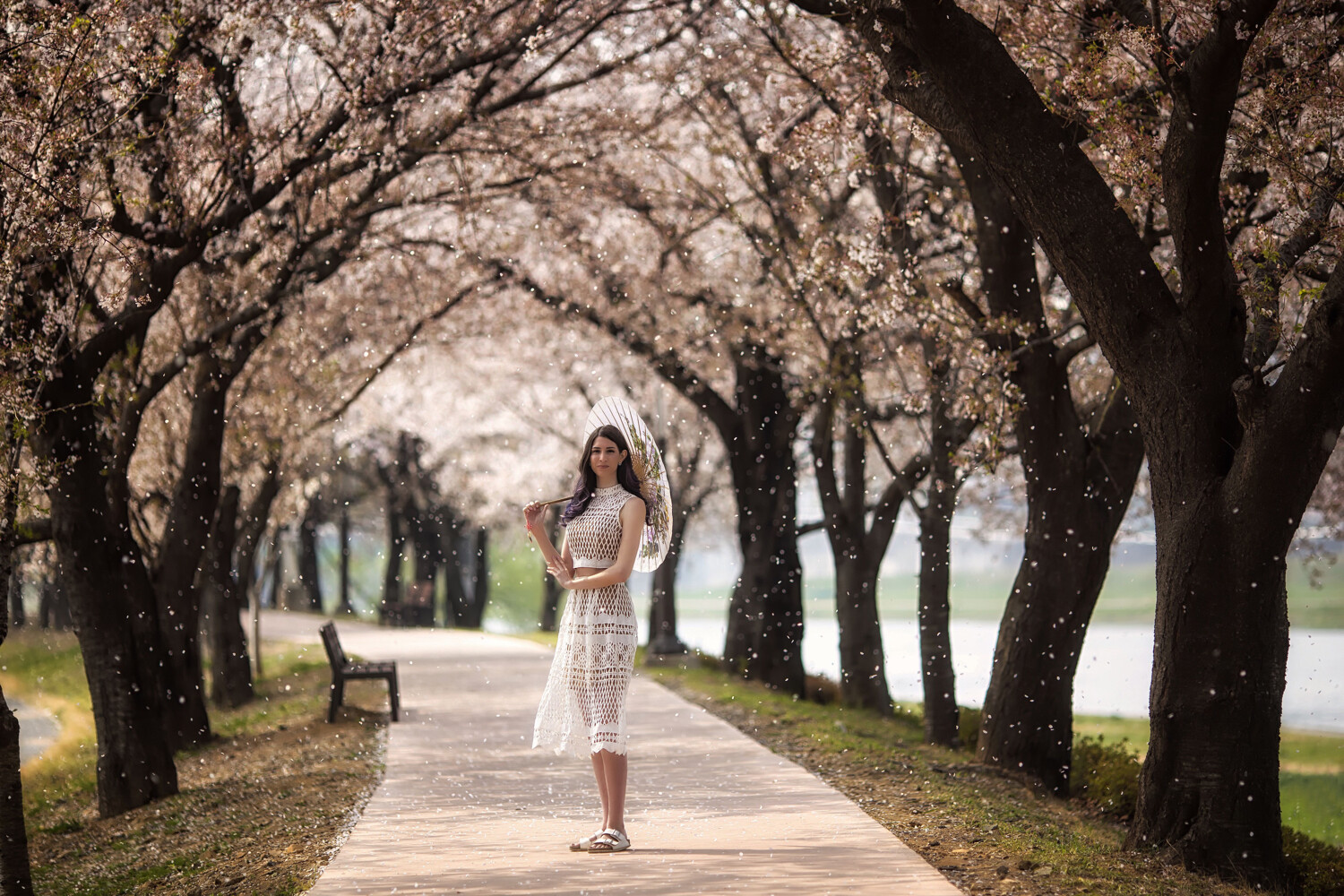
In this photo the model stands under cherry blossom trees as the petals fall down.

7. Different perspectives to photograph trees

Another way to photograph trees more creatively is to change the perspective. There are lots of angles you can use, though you’ll need to be close to the tree to utilize some of these. Take a look at the angles you could be using, and see how you can apply them to your work.

  • Low angle – Either from a distance or closer to the tree, photographing from a low angle will give you a different perspective. Foreground elements will show up a lot more in the frame, so you could place flowers in the foreground with the tree in the background.
  • Worm’s eye view – Low to the floor, but now looking up at the sky. This is a great angle when there are several trees together, and you stand in the middle between them.
  • Bird’s eye view – Should you have a way of getting an overhead photo of the tree, or a canopy of trees, this is a great angle.
  • Framing – Look for ways to frame a tree, perhaps use another tree in the foreground to frame a tree in the background.

This photo uses the branch of one tree to frame another tree in the background.

8. Wildlife photography

It goes without saying that a tree is a living ecosystem. Many living things rely on trees for life, including humans. In terms of photography, you could start small by looking for beetles in the soil, or under the bark. Leaves will also be home to a lot of smaller life such as caterpillars. So you’ll be able to get your macro lens out and explore the world of insects.

Of course, larger creatures feed on these insects, and you’ll be able to photograph them as well. You’ll find lots of species of birds, squirrels, and other animals. Photographing these is trickier, and you’ll certainly need a longer focal length. The use of camouflage gear and bird-watching huts also enhance your chance of photographing life within a tree.

In some countries the wildlife in the trees is a little bigger than a squirrel.

Conclusion

A tree is an interesting subject for a photo and has been used by photographers many times to create photography projects. In this article, you’ll have seen several methods you could use to photograph a tree.

Are there any in this list that interest you? What other approaches to tree photography have you used that aren’t discussed here?

At Digital Photography School, we’d love to see examples of your tree photography, together with your thoughts about this article.


The post 8 Creative Ways to Photograph Trees appeared first on Digital Photography School. It was authored by Simon Bond.


Digital Photography School

 
Comments Off on 8 Creative Ways to Photograph Trees

Posted in Photography


Is the Sony a6400 right for you?

16 May

Is the Sony a6400 right for you?

We’ve put the wraps on our full review of Sony a6400, where we look at its image quality, autofocus and more. But is it the right camera for you, and the style of photography you enjoy? Taking the a6400 into account as a whole, here’s how we think it stacks up for these common photographic use cases.

  • Family and moments
  • Travel
  • Video
  • Lifestyle and people
  • Sports and action
  • Landscape
  • Candid and street
  • Formal portraits

Family and moments

Sometimes, a killer new feature comes along that really changes the way you take photographs – in this case, that feature is Sony’s Real-time Tracking AF. Once you get the camera set up, all you really need to do is place an AF area over the subject you want to track, whether it’s a human or not. If it’s not a human, the system will track that object very tenaciously as you recompose the scene. If it is a human, the system will automatically switch to face or eye detection and reward you with incredibly accurate focus, almost regardless of lighting or subject movement, and even at wide apertures. It’s really something.

As a point-and-shoot family cam, the a6400 is hard to beat

There’s a lot else that the a6400 gets right for this use case, as well. First of all, with the proper prime or the 16-50mm F3.5-5.6 power zoom kit lens, it makes for a compact package that’s easy to toss into a bag or jacket pocket (the very nice 18-135mm F3.5-5.6 kit lens adds quite a bit of bulk, but a very flexible zoom range). There’s above-average battery life, and if you do happen to let the battery drain, the a6400 will charge over its micro USB port. Claimed weather-sealing means a little drizzle doesn’t need to dampen your photographic creativity, and the selfie screen will be handy for, well, selfies.

Marks against the a6400 include a complex menu system that could overwhelm more novice users, and we’ve found the auto white balance can ‘overcorrect’ daylight images, making them look a little cold for our tastes. But overall, as a ‘point and shoot’ family camera, the a6400 and its Real-time Tracking autofocus are hard to beat, especially at this price point.

Photo by Rishi Sanyal


Travel

Everyone travels differently, but we believe that the a6400 comes with some merits (and, of course, demerits) that will apply broadly to the type of people that like to bring a dedicated camera with them while traversing the globe.

First off, like all of Sony’s a6x00 cameras, the a6400 is compact and lightweight. Despite this, it still comes with claims of weather-sealing, which is a nice touch should you run into inclement weather. Wireless connectivity, including NFC, is a strong point, so it’s easy to get your photos up onto the web from anywhere, without needing a dedicated computer. There’s an awful lot of lenses in the E-mount ecosystem to choose from at this point, from the flexible 18-135mm F3.5-5.6 Sony kit zoom to Sigma’s excellent 16mm, 30mm and 56mm F1.4 primes. Add on the ability to charge the a6400 from the same power bank that you can use to charge your phone, and you have a strong proposition for a travel camera right here.

The a6400 is compelling option for you to pack into your carry-on for the next adventure

But there are a couple of things to consider. Unfortunately, Sony is one of the few remaining manufacturers to not allow in-camera Raw processing. This is a shame, because we’ve found the auto white balance can sometimes result in unpleasant colors in JPEGs, and JPEGs are harder to correct than Raw files. This means that, if you’re a power user and really like to fine-tune your photographs, you may actually find you want a laptop with you to give those Raw files a look. This could be mitigated if Sony’s Imaging Edge app allowed the transfer of Raw files to mobile devices, but at the time of this writing, it doesn’t.

Still – if you’re primarily a JPEG shooter and don’t mind taking some more control over your JPEG and white balance settings, the a6400 is a compelling option for you to pack into your carry-on for your next adventure.

Photo by Carey Rose


Video

The new screen mechanism on the a6400 tilts all the way up for selfies, yes, but that also opens a window of opportunity for those looking to ‘vlog.’ But aside from vlogging, there’s quite a bit to unpack here, so let’s start with the basics.

The a6400, like the a6300 and a6500 before it, offers oversampled (read: highly detailed) 4K video capture. Autofocus during video is another strong point, requiring a minimum of input from the user for most types of shooting. The microphone input makes it easy to get higher-quality audio recorded in-camera, and Log capture gives power users more flexible files for post-processing. Sony has also updated the processor in the a6400, and in room temperature conditions, the camera will record 4K continuously until the battery runs out, or the card fills – without fear of overheating.

The a6400 is a great B-cam for interviews, and decent for vlogging – but it’s worth checking out the competition

But the market hasn’t stood still. Against competitors like the Fujifilm X-T30, the a6400 has an awful lot of rolling shutter – which is that sort of jiggly, jello-y effect you can often see in shaky footage. And without a stabilized lens, you’ll have a lot of shaky footage, since the a6400 doesn’t include in-body image stabilization. Plus, in 4K/30p, you’ll have an additional crop factor, meaning it will be difficult to get wide-angle footage with standard zoom lenses. There isn’t a headphone jack to make sure your audio sounds alright during recording, and that flip-up screen can be blocked by any microphone you want to put in the hot shoe.

So thanks to its unlimited recording time, the a6400 makes a great B-cam for interviews, and with Sony’s 10-18mm F4 E-mount lens, which happens to be stabilized, you have a decent option for vlogging as well (just watch that crop if you shoot in 30p). It’s just that, at this point, it’s worth checking out the competition to see if other options have a more modern feature set that will work best for the kind of video work that you want to do.


Lifestyle and people

We again see Sony’s Real-time Tracking autofocus playing a major role here; even with a wide-aperture primes, like Sigma’s 56mm F1.4 or Sony’s 24mm F1.4 GM, the a6400 will reliably lock focus on a subject’s eye with incredible accuracy.

Not only that, but malleable files with plenty of dynamic range give you more flexibility for shooting in harsh lighting conditions, and good low light performance means you don’t necessarily have to stop shooting when the sun goes down. Good connectivity options will let you send those files off to your subjects quickly and easily, so long as you’re happy with the JPEGs – it’s probably best to dial in your white balance manually for best JPEG results.

Photo by Barney Britton


Landscape

The a6400’s 24MP sensor offers a solid amount of resolution for landscape work – and there aren’t many APS-C cameras out there to offer significantly more resolution at this time, anyway. And though it’s the exact same sensor as in the older a6300, it’s still a very good sensor in terms of dynamic range, and so you’ll be able to brighten shadows significantly in high-contrast scenes without introducing a ridiculous amount of noise.

If you’re a tripod shooter, the tilting LCD will be a help for working at lower angles, though if you like to shoot in the vertical orientation, you’re out of luck on that front – the LCD only tilts on its horizontal axis. There’s a strong selection of lenses, both from Sony and third parties, particularly wide-angle primes. The claimed weather-sealing is of course a welcome addition if you’re finding yourself out in the elements, as is USB charging if you’re operating off the grid for any period of time. There’s also a robust built-in intervalometer for time lapse work, if that’s your jam.

The inability to process Raw files in-camera or transfer them to your phone may be frustrating

But for those wanting to travel light, the inability to process Raw files in-camera or transfer Raw files to mobile devices may be frustrating. The a6400 is also one of the few APS-C cameras on the market to only offer lossy compressed Raw files, meaning that you might see some artifacts if you really push your high-contrast files, such as those taken at sunrise or sunset. Overall, though, the a6400 – with the right lenses – is a solid choice for landscape shooters looking to travel light.

Photo by Carey Rose


Sports and action

Sorry to sound like a broken record (do the kids know what records even are, these days?), but Sony’s Real-time Tracking AF is a revelation for sports and action photography, as well. Whether you’re photographing your child’s soccer game or a low light concert, the a6400’s autofocus system is capable of getting you an incredible number of in-focus ‘keepers’, even if you’re firing away at a maximum burst rate of 11 fps. And as stated earlier, the system doesn’t need an eye to latch onto for accuracy – the a6400 will tenaciously track any subject, whether it’s a race car or a helmet, as long as you’ve initiated tracking over that subject.

We’re pleased with the deep buffer, but less pleased with the slow write-times

We’re pleased to find that the a6400 comes with a pretty deep buffer, but are less pleased to say that the card slot is only UHS-I. This means that write-times are on the slow side, and that the buffer will take a while to clear after a long burst. While you can still enter playback while images are being written to the card, some functions – like burst speed – cannot be changed until the buffer has finished clearing. Lastly, we’d recommend a grip extension of some sort for use with larger telephoto lenses, as the small grip on the a6400 will be uncomfortable with those lenses after extended use.

It’s worth adding that the touchscreen on the a6400 can be used for AF point placement, so you can move the area around if that makes it easier to initiate tracking on your given subject. We still prefer a joystick for AF area movement, however, but the touchscreen is better than the fiddly ‘click-click-click‘ of the rear four-way controller / dial.

Photo by Carey Rose


Candid and street

For candid and street, the a6400 is likewise a compelling option. With a tilting screen, shooting from the hip (and using the touchscreen for AF area placement) is a cinch. If you want to be able to react even faster to what’s happening around you, the ‘Wide’ AF area does a surprisingly good job of automatically deciding what to focus on without any intervention from the user. The compact size won’t be terribly intimidating or attract too much attention, and the a6400 comes with a silent electronic shutter for extra discretion.

The one caveat here, though, is that the scan rate of the electronic shutter is on the slow side. This means that if you’re using that electronic shutter and panning or photographing fast-moving subjects, you may see some odd distortion artifacts, and you may also see very pronounced banding if you’re capturing candids under artificial light.

Photo by Carey Rose


Formal portraits

Formal portraits are actually another situation in which the a6400 performs well. Again, the reliable Eye AF implementation ensures accurate focus, and though there’s no flash sync port, you can add any number of adapters to the camera’s hot shoe. The flash-sync speed of 1/160 sec isn’t great for outdoor use (though you can always use high-speed sync), but should be fine for use indoors. A nice bonus is that the a6400 can shoot tethered using Capture One software, and there’s a wide variety of excellent prime lenses available, including the excellent Sigma 56mm F1.4 that will give you a standard 85mm equivalent field of view on the a6400.

Photo by Carey Rose


The wrap-up

We wrote in our full review that the a6400 is ‘a near-universally capable midrange camera,’ a statement which is borne out through our examination of its merits across these use cases. It’s not a perfect camera – no camera is – but it’s hard to argue against the fact that Sony has created a remarkably flexible camera at an attainable price point for many people. That’s unequivocally a winning combination.

Whether you’re photographing your own family, stylized portraits, sports or looking for a photographic travel companion, the a6400 probably has just about all you need to get the shot in those situations. We have to admit, though, that some of the less tangible aspects of the camera – such as how engaging it is to use – are less impressive to us. But that doesn’t take away all that a photographer can do with the a6400, once they’ve wrapped their head around the controls and interface.

If you own or are looking into a Sony a6400, let us know in the comments what types of photography you’re into and how the camera is working for you.

Articles: Digital Photography Review (dpreview.com)

 
Comments Off on Is the Sony a6400 right for you?

Posted in Uncategorized


Nikon firmware update improves AF performance, adds eye-detection to Z6 and Z7

16 May

Nikon has announced firmware version 2.0 for its full-frame Z6 and Z7 mirrorless cameras, and it’s all about autofocus.

The most notable upgrade is the addition of Eye AF, which is available when using the Auto-area AF mode. Nikon says that it will stay locked on eyes if the subject changes poses, or if they are partially obscured by another object. Switching between eyes and detected faces in the scene can be done using the multi- or sub-selectors.

The update has also improved AF performance in low light, extending the AF detection range from -1EV to -2EV on the Z7, and -2EV to -3.5EV on the Z6. If you’re using the ‘low-light AF function on these cameras, Nikon claims that the Z6 can focus down to -6EV, while the Z7 remains unchanged at -4EV.

Lastly, Nikon has added the ability for the Z6 and Z7 to shoot continuously with full-time auto exposure at the fastest burst rates: 12 fps on the Z6, and 9 fps on the Z7.

The update is now available for download on Nikon’s website.

Press Release:

NIKON RELEASES THE NEW Z SERIES VERSION 2.0 FIRMWARE WITH ENHANCED FEATURES AND PERFORMANCE INCLUDING EYE-DETECTION AF

Firmware Upgrade Brings Further Improvements to the Nikon Z 7 and Nikon Z 6 FX-Format Mirrorless Cameras by Adding Eye-Detection AF, Improving AF Performance in Low Light, and Adding Auto-Exposure Tracking to the Continuous High-Speed (Extended) Mode

MELVILLE, NY (May 16, 2019 at 2:00 a.m. EDT) — Nikon Inc. is pleased to announce the release of firmware Ver. 2.0 that will further enhance the performance of its full-frame mirrorless cameras, the Nikon Z 7 and Nikon Z 6.

Users will enjoy three main additional features following the Ver. 2.0 upgrade. These include:

  1. Eye-Detection autofocus (AF) for still-image shooting
  2. Extension of the low-light AF detection range
  3. Addition of auto-exposure (AE) tracking capability to the continuous high-speed (extended) mode

These enhanced shooting functions will further increase camera functionality and performance and are a response to customer feedback for new and innovative ways to capture and create.

PRIMARY FEATURES OF THE NEW FIRMWARE

1) Eye-Detection AF for still-image shooting

The new firmware offers Eye-Detection AF functionality that automatically detects and focuses on human eyes when using the Auto-area AF mode in both AF-S and AF-C. When the eyes of multiple subjects are detected, the multi-selector or sub-selector can be used to select the eye upon which the camera should focus. This enables precise focus on the eye of the intended individual, even when looking through the Electronic Viewfinder. This function is applicable even when the subject’s face is partially covered by another object, or in the event when a subject is frequently changing their pose.

2) AF performance improvements in low-light situations

The new firmware enables even faster autofocusing when capturing photos and video in dark or dimly lit scenes, for both stills and video. It will extend the AF detection range*1 from ?1 EV to ?2 EV with the Z 7, and from ?2 EV to ?3.5 EV with the Z 6. In addition, the Z 6 will be able to autofocus with even darker scenes, as the available low-light AF detection range*1 will be extended*2 from ?4 EV to ?6 EV when the Low-light AF function is enabled.

  • With still-image photography in AF-S mode, ISO 100, f/2.0 lens, at 20° C/68° F.
  • The low-light AF detection range will remain the same with the Z 7.

3) AE tracking in continuous high-speed (extended) mode

With earlier firmware versions, auto exposure (AE) was locked with the first shot in a burst of high-speed continuous shooting at approx. 9 fps (Z 7) or 12 fps (Z 6) in continuous high-speed (extended) mode. Firmware Ver. 2.0 adds support for AE tracking in continuous high-speed (extended) mode, allowing the cameras to track exposure just as it does focus (AF tracking). This helps to ensure that all images captured with a burst of high-speed continuous shooting are in focus and exhibit optimal exposure, even when the brightness of the scene changes.

The new firmware can be downloaded (free of charge) from Nikon’s Download Center at the following link: https://downloadcenter.nikonimglib.com. Users will be prompted to follow the instructions provided to successfully install the firmware.

Nikon will continue to flexibly respond to the evolving needs of our users and offer next-generation imaging experiences that foster creativity. For more information on the latest Nikon products, including the Nikon Z series, please visit www.nikonusa.com.

Articles: Digital Photography Review (dpreview.com)

 
Comments Off on Nikon firmware update improves AF performance, adds eye-detection to Z6 and Z7

Posted in Uncategorized