RSS
 

Archive for April, 2019

Report: Huawei P30 Pro uses Sony image sensors and technology from Corephotonics

17 Apr

With its quad-camera (triple-camera plus ToF-sensor) the Huawei P30 Pro is, from an imaging perspective, definitely the most exciting new smartphone this year.

The analysts from French company System Plus Consulting now have had a closer look at the camera hardware, which was co-designed with Leica, and talked about their findings with EE Times. According to costing analyst expert Stéphane Elisabeth, all four image sensors have been supplied by market leader Sony.

The primary camera module uses a RYYB color filter (Red, Yellow, Yellow, Blue) instead of the usual RGGB, which increases light sensitivity, while the wide-angle and tele camera units still rely on an RGB filter. The green channel is usually used to make up the luminance (detail) information in an image so yellow filters, which let in red as well as green light, would give cleaner results than an RGGB sensor, at the cost of some ability to distinguish between colors.

Unlike some other devices, the time-of-flight (ToF) sensor is not only used for augemented reality applications but also to measure subject distance for autofocusing. Signals from all three cameras are processed to create a map of a scene and let the photographer focus on a specific object.

Arguably the most innovative element of the camera is the periscope-style tele lens, though. It is placed horizontally inside the body and a mirror angled at 45 degrees channels light into the optics and onto the sensor. This allows for an extended optical unit – generally a requirement for telephoto lenses. The result is the first 5X tele zoom in a smartphone. Super resolution and computational techniques allow for 10x digital zoom using the 5x tele unit, though image quality drops. The analysts also believe the entire camera unit has been assembled by Chinese company Sunny Optical Technology using IP from Corephotonics in Israel. The latter is particularly interesting as Corephotonics has just been acquired by Huawei rival Samsung.

Articles: Digital Photography Review (dpreview.com)

 
Comments Off on Report: Huawei P30 Pro uses Sony image sensors and technology from Corephotonics

Posted in Uncategorized


RAW vs JPEG Format Editing in Lightroom

17 Apr

The post RAW vs JPEG Format Editing in Lightroom appeared first on Digital Photography School. It was authored by Kunal Malhotra.

As a photographer, you have most likely heard or read discussions about RAW vs JPEG file formats. It is said that a RAW file consists of a lot more data and details as compared to a JPEG file. How about we conduct a few experiments and talk about why one file format is better than the other?

If you are someone who mostly edits in Lightroom CC, get ready to know some shocking reasons why you must avoid using JPEG files. Going forward in this article I am sharing a few experiments that I conducted using the JPEG and RAW files of the same shot. I am sure that by the end you will be convinced to always edit using the RAW file format.

Experiment 1

Adjusting Highlights and Whites

The left image shows the jpeg file, while the right image shows the RAW file.

In this first experiment, I am going to import a JPEG file as well as a RAW version of the same frame in Lightroom. You can see these in the image above. You will notice that the sky in this frame is overexposed and the details are not visible because I exposed for the foreground. In this test, I am going to bring down the highlights as well as the whites all the way to -100 and see what happens with both JPEG and RAW files.

The left jpeg image has struggled to retrieve the highlights, while the RAW file on the right has retrieved the highlights well.

Surprising, isn’t it? If you look at the sky in both the JPEG and RAW files, you can see the difference quite clearly.

The details of the clouds in the JPEG (left) file become ruined when I reduced the highlights and whites to recover the details. Whereas, the RAW file (right) does an excellent job in recovering the details in the sky – even though it was completely overexposed.

This experiment concludes that if you wish to recover the highlights in a photo, RAW files achieve much better results. The JPEG file would fail at recovering details from highlights and whites.

Experiment 2

Detail and Sharpness

The JPEG image on the left is soft, while the RAW file on the right is sharp.

In this experiment, for reference purposes, I again placed the JPEG file on the left and the RAW file on the right. In the image above, I have a 1:1 zoom in Lightroom CC to show you something very interesting. Look at the difference in the sharpness and details on the face of the person. The difference is quite shocking. One would conclude that these are two different shots, with the left one being softer. However, that is not the case here. This is the same shot but just in different file formats.

Next time if you are shooting portraits or events, you know that shooting in RAW can help you preserve far more details than the JPEG file. I usually shoot in RAW and JPEG. Then I use the RAW file to edit my photos while using the JPEG files for reference or shortlisting purposes only.

Experiment 3

White Balance Adjustment

Experimenting with White Balance, I moved the slider to the warmer end of the White Balance scale. The JPEG image on the left, has lost detail and is flat, while the RAW file on the right, is far more usable.

In this last experiment, I wanted to check if adjusting the white balance does make any difference. You may have heard that a RAW file allows you to later adjust the white balance as per your desire? But how different is it from JPEG? Let’s find out in this experiment.

Here I moved the temperature slider all the way to the warmer side in both the RAW and the JPEG files. Interestingly, the JPEG file (left in the image above) was almost unusable for me. At this stage, the sky was almost flat and lacked contrast. Whereas, the RAW file with the same exposure had so much information stored that at this stage the elements in the frame had details and contrast.

Conclusion

The above experiments demonstrated a few key reasons why I always prefer using a RAW file in Lightroom to ensure my final image has maximum details. My advice here would be to shoot in RAW and JPEG to be on the safe side. If you wish to make a quick edit or directly use the image for social media, go with JPEGs. If you wish to edit the same image seriously, use the RAW file.

I hope next time you import an image to Lightroom, these experiments will encourage you to shoot and edit in RAW format.

Feel free to share your views in the comment section.

The post RAW vs JPEG Format Editing in Lightroom appeared first on Digital Photography School. It was authored by Kunal Malhotra.


Digital Photography School

 
Comments Off on RAW vs JPEG Format Editing in Lightroom

Posted in Photography


Aerial Time Lapse Basics with DJI Mavic Pro 2 Drone Specific Examples

17 Apr

The post Aerial Time Lapse Basics with DJI Mavic Pro 2 Drone Specific Examples appeared first on Digital Photography School. It was authored by Peter West Carey.

Drones can capture images and footage you might have only dreamed of in the past. Now that ability is easily extended to time lapse photography.

I prefer to refer to my drone as a flying camera. While there is certainly some fun to be had in the simple joy of flying around and looking at stuff from high up, I use my drone primarily to create images and footage with an eye toward cinematic appeal. Time lapse imagery can convey a sense of place that still images and videos lack.

The Basics

This post is written based on experience with the latest model DJI Mavic 2 Pro. While manufacturers differ how they handle time-lapse creation, the tips below are meant to introduce you to what’s available. Some tips will be specific for this model but I will also offer more tips for aerial time-lapse creation in general.

Some drone manufacturers will compile the time lapse video for you while others simply record each individual photo, allowing you to compile the video yourself.

It’s important to note that all experimentation and practice should be done in an open space, away from people, buildings, pets and in accordance with all laws and regulations for your location. I practiced over land many, many times before I felt confident using the automatic modes for time lapses over water.

Tips Before Getting Started

Check exposure and anticipate

Changing exposure during a timelapse shoot, be it on land or in the air, is often a tricky endeavor. I suggest, when getting started, to anticipate your lighting situation and not attempt to change exposure during a timelapse shoot if your drone allows it.

It can be difficult to make exposure adjustments depending on your brand of drone (and some don’t allow it at all) – it’s hard enough to safely fly a drone while shooting. Try not to add too much complexity on top of that.

Try different interval timings and drone speed, 2 seconds is a lot different than 10 seconds

The speed of your drone, distance to objects and the length of your interval will have a large impact on your time lapse. There’s a reason DJI limits the speed of the drone in certain modes (explained below) to 4.5MPH. Anything faster than that and the video shows way too much motion to be palatable.

But if you’re flying slow, a 10-second interval might be ideal for helping show the movement of slow-moving clouds or shadows.

Let me show you the difference between a 2-second interval (at 1.6MPH) and a 5-second interval (at 4.5MPH) while a drone circles me.

It’s going to take some experimenting to get it right.

Look at your total time to create 

DPS writer, Ryan Chylinski, explains the importance of shoot length in this helpful post. When flying a drone, it’s even more important to make sure you don’t run out of card space and that you judge the movement of your drone compared to the total time it will take to shoot your time lapse.

Will you cover too much ground? Will your drone still be in line-of-sight (which most countries require as part of drone flying regulations)? What obstacles might your drone encounter when flying that long?

Plan ahead to avoid simple mistakes.

Point one way, film another

Facing one direction while flying another can offer a dynamic look to your video, rather than simply flying straight ahead. You can use a backward facing drone to get a typical pull-back shot or point slightly off of perpendicular for a dolly shot, such as the sunrise below.

Leave yourself time to return home

Do you have enough battery to shoot and return?

This is one of the most important question to ask. Some drones will warn you, but some won’t.

I had a frightening experience when I misjudged distance and return time while shooting a time lapse over water and nearly lost my drone (and polluted the environment). Midway through the flight I aborted the shoot and returned with a safe margin of battery, but I lost the shot.

Work altitude shifts into your scene

Altitude shifts are a like using a typical slider, but on steroids. You’re not limited to the four or 10 feet of a ground-based slider so the changes can be over a much larger distance. You also don’t need to stay moving parallel to the ground the whole time.

Here’s a simple example of a pullback that covered about 1000ft over land/water while steadily climbing 140ft in altitude.

Fly smooth

Using a pre-built, computer-controlled mode, like the ones mentioned below, help ensure smooth flight and operation. If you are controlling your drone manually while shooting a time lapse, ensure that your movements are slow and steady, allowing for your camera to shoot enough photos for a smooth video.

Here’s an example of what happens when I panned down then up too fast while shooting.

Result: Ruined video. Also, to my liking, the pan left and right are too fast.

DJI’s different methods – What do they mean?

DJI fits all of their time lapse modes into a section it calls Hyperlapse. Hyperlapse is just a cool sounding phrase meaning a moving time lapse. The Hyperlapse modes will all shoot and compile the video for you, typically in 1080p and 25 frames per second. You can also choose to save the individual RAW files if you wish to use your own time lapse software.

Safety Note: While the drone uses its side, front, rear, top and bottom sensors to detect objects, it still requires your attention at all times. If it finds an object in its path, it will stop shooting. It is very important to remain in control of the drone and ready to intervene. In Course Lock and Waypoints modes, if you make any adjustment to the controls of the drone, it will exit those modes and stop shooting.

Course lock

Course lock is the mode I use most often and it’s the one I’m going to start with. It allows you to aim the drone in one direction for flight and then either point the camera any way you like, or choose a subject to be tracked.

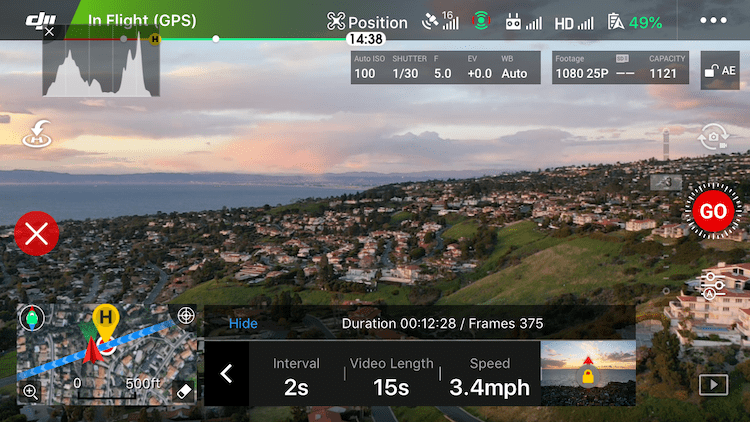
You start by setting course and then the interval, video length and speed. Each item is set by first tapping it and then moving the slider accordingly.

Setting the course is as simple as pointing the drone in the direction you wish to go and tapping the lock icon next to interval, video length and speed. In this case, I pointed the drone directly at the sun. The little image of a lock means my course is locked.

Next, you’ll want to point the drone’s camera in the direction you want to film. Then adjust the shooting settings.

In this example, I left the interval at 2 seconds but then set the video length to 15 seconds.

With that change to video length and interval, the app shows me how many photos it will take and the length of shooting.

After that I set the speed to 3.4MPH.

All that is left is to hit GO and watch the scene unfold! (Notice the course lock section still shows the drone’s intended direction toward the sun.)
Free/Manual

Free Mode is straight forward and gives you the most control. After setting the shooting interval and video length as you would in Course Lock Mode, you are free to fly any which way you please. Up, down, backward, forward, left and right.

But be warned: fast course changes or high speeds will cause your video to be anything less than smooth.

At any time you can press the C1 button (on the underside of the controller) to lock course and speed.

As Free Mode can be used while the drone is on the ground, you can actually use it as a still camera for time lapse.

Circle

As you saw in the videos up top, choosing your speed and interval is important for Circle Mode.

Start by setting the distance from your subject for your drone. Ensure the circle your drone will subscribe in the sky does not encounter any obstacles. If need be, adjust your drone’s height or distance from your subject to achieve the framing you desire.

Next, select Circle Mode from the Hyperlapse options.

Now set your interval, video length and speed as described in the Course Lock Mode. Then select the direction your drone will fly; either clockwise or counterclockwise.

Above these settings, the program will tell you how long the shoot will take and how many frames will be shot. In the example, that will be 5 minutes and 48 seconds to take 175 frames.

Most importantly, choose your subject! You do this by drawing a box on the screen by pressing and dragging until it highlights your subject.

Press GO and your drone will start snapping and moving. When it is finished, you will see a screen as the drone creates (synthesizes in DJI speak) the video.

In the example above, you will notice the path the drone took, which is a very pretty circle (with my initial flight path to get the drone in place mixed in). All Hyperlapse modes require this video synthesizing and the length of time depends on the number of shots. Until video creation is complete, you cannot take any photos or video, but you can fly the drone as normal.

Waypoints

Waypoints Mode is a bit trickier to work than the others, but offers a lot of control and unique results.

After selecting Waypoints Mode you will set your interval and video length as the other modes. You will then set the waypoints your drone will fly. You can set up to five waypoints and a minimum of two.

To do this, fly to the first waypoint, orient your view as you like and press the + symbol in the Hyperlapse tray at the bottom of the screen to lock that waypoint. Continue this method, flying to each waypoint and pressing +.

In this example, I have set two of my five waypoints and will continue adding until all five are set. The map on the left side shows each waypoint with a number and the direction the camera will face.

When you are finished plotting each waypoint, you have the choice to fly the waypoints in order marked or in reverse. If you choose “In Order”, the drone will fly itself to the first waypoint and begin. Otherwise, the drone will begin at the last waypoint selected and fly backwards (but will pay attention to your selected camera orientation for each waypoint).

While the drone flies, you will see the waypoints on the map along with a timer showing how long the drone has been flying and the total time it will fly the route. Next to that is the number of images taken followed by the total images to be shot.

More Examples

Course Lock while facing perpendicular to flight path

Course Lock while flying backward

Course Lock while flying backward with an upward pan for clouds

?

Conclusion

Time Lapse videos from a drone offer a unique and sometimes challenging option. They take planning not only to consider the subject matter and lighting, but also for the safe operation of your drone while it is taking photos.

Each mode offers different options and it’s best to play with them in a safe environment to get the hang of what you can accomplish.

Have fun and post some examples as you try out this technique. I’d love to see them!

The post Aerial Time Lapse Basics with DJI Mavic Pro 2 Drone Specific Examples appeared first on Digital Photography School. It was authored by Peter West Carey.


Digital Photography School

 
Comments Off on Aerial Time Lapse Basics with DJI Mavic Pro 2 Drone Specific Examples

Posted in Photography


2019 Pulitzer Prize photography award winners announced for Breaking News, Feature Photography

17 Apr

Editor’s note: Some of the photographs in the winning selections are graphic in nature. We have taken the liberty to censor a few of the more graphic images and provide uncensored links in the gallery description, but even some of the uncensored images are tough to look at. Please keep this in mind when proceeding through the award-winning images.


The 2019 Pulitzer Prize winners have been announced, including two in their respective photography categories: the photography staff of Reuters for Breaking News Photography and Lorenzo Tugnoli of The Washington Post for Feature Photography. Both winners have been awarded $ 15,000 each.

The photography staff of Reuters was awarded a Pulitzer Prize for their ‘vivid and startling visual narrative of the urgency, desperation and sadness of migrants as they journeyed to the U.S. from Central and South America,’ it was announced. The photography staff of Reuters was awarded the Feature Photography Pulitzer Prize in 2018, as well. Below is a gallery of the winning photographs in the Breaking News Photography category:

$ (document).ready(function() { SampleGalleryV2({“containerId”:”embeddedSampleGallery_0351352454″,”galleryId”:”0351352454″,”isEmbeddedWidget”:true,”selectedImageIndex”:0,”isMobile”:false}) });

Reuters congratulated the winners on Monday. The publication’s Editor-in-Chief Stephen J. Adler said in a statement:

While it’s gratifying to be recognized for the work, public attention should be focused more on the people about whom we report than on us: in this case, the Rohingya and the Central American migrants.

In addition, Lorenzo Tugnoli of The Washington Post was awarded a Pulitzer Prize for his ‘brilliant photo storytelling of the tragic famine in Yemen, shown through images in which beauty and composure are intertwined with devastation.’ The work was moved from the Breaking News Photography to the Feature Photography category by the Pulitzer jury. Below is a gallery of the winning photographs in the Feature Photography category:

$ (document).ready(function() { SampleGalleryV2({“containerId”:”embeddedSampleGallery_6894478642″,”galleryId”:”6894478642″,”isEmbeddedWidget”:true,”selectedImageIndex”:0,”isMobile”:false}) });

Tugnoli was joined by Craig F. Walker of The Boston Globe and Maggie Steber and Lynn Johnson of National Geographic, who were nominated as finalists. In the Breaking News Photography category, the photography staff of Associated Press and Noah Berger, John Locher and Ringo H. W. Chiu of Associated Press were nominated as finalists.


Photo credit: Photos by their respective photographers/organizations, used with permission from the Pulitzer Prize organization

Articles: Digital Photography Review (dpreview.com)

 
Comments Off on 2019 Pulitzer Prize photography award winners announced for Breaking News, Feature Photography

Posted in Uncategorized


ThinkTank launches PhotoCross 15 rugged backpack

16 Apr

ThinkTank has announced the MindShift PhotoCross 15, a new rugged 20-litre backpack designed for toting photography gear around outdoors. The bag features an extra-large side panel alongside tripod straps, wide shoulder straps, a breathable 320G air-mesh back panel, customizable interior dividers and a seam-sealed rain cover.

The PhotoCross 15 is made with a variety of durable, weather-resistant external materials, including 420D high-density nylon and heavy-duty nylon Tarpaulin. The backpack’s interior features removable closed-cell foam dividers, as well as a polyurethane-backed velex liner, P210D liner and a polyurethane-coated 210T seal-sealed taffeta rain cover.

ThinkTank’s new bag can accommodate an ungripped DSLR with three to five lenses (including a 70-200mm F2.8 lens) and up to a 15-inch laptop. Zippered interior pockets can be used to store memory cards, spare batteries and other small accessories. Other features include a 1L water bottle pocket, front pockets and both top and side carrying handles.

The ThinkTank PhotoCross Backpack 15 retails for $ 169.99 USD in Carbon Grey and Orange Ember color options. This model joins the smaller PhotoCross 10 and 13 backpacks.

Articles: Digital Photography Review (dpreview.com)

 
Comments Off on ThinkTank launches PhotoCross 15 rugged backpack

Posted in Uncategorized


Loupedeck+ now supports Adobe Audition and Final Cut Pro X

16 Apr

Loupedeck+, the customizable post-production controller, has added Final Cut Pro X and Adobe Audition to the list of supported programs.

Last year alone, the Loupedeck+ gained support for Adobe Premiere Pro CC, Adobe After Effects CC, Adobe Photoshop CC, Capture One and Skylum Aurora HDR. Now, the device is even more capable with support for Apple’s professional video editing program, Final Cut Pro X, and Adobe’s audio editing program Audition.

With Final Cut Pro X, the Loupedeck is now able to color grade and color correct with its HSL color wheels, adjust/trim clips and scrub through the video timeline. The other keys and dials on the keyboard can also be customized to control more than 400+ additional functions and assign various keyboard shortcuts. Loupedeck+ configurations can also be imported and exported for syncing across multiple units.

In Adobe Audition, the Loupedeck+ can manage single track and multitrack projects with the ability to trim/nudge audio clips, add fades and effects with the click of a button, and adjust the volume for different channels with the scroll wheels.

The software update can be installed directly from the Loupedeck program if you already have it installed on your computer. Otherwise, Loupedeck version 2.6 can be downloaded from the Loupedeck website.

The Loupedeck+ controller unit is available from Loupedeck for $ 249 / 229€ with free worldwide shipping. Loupedeck also has a YouTube channel with various tutorials showing how to make the most of the Loupedeck+ controller.

Articles: Digital Photography Review (dpreview.com)

 
Comments Off on Loupedeck+ now supports Adobe Audition and Final Cut Pro X

Posted in Uncategorized


Parrot Anafi Thermal drone brings FLIR camera, lighter weight and higher price

16 Apr

Drone company Parrot has announced Anafi Thermal, an updated version of the Anafi folding quadcopter it launched last year. The new Parrot Anafi Thermal features a 4K HDR camera with a 21MP Sony sensor alongside a FLIR Lepton thermal sensor, enabling operators to capture both RGB and thermal images. The drone can be used with the Pix4DModel app to generate 3D images from the thermal data.

The newly added FLIR camera features a 160 x 120 resolution and the ability to detect a temperature range from 14F / -10C to 752F / 400C. The thermal sensor is embedded with the 4K RGB camera on a three-axis stabilized gimbal. Drone operators can use the thermal camera and FreeFlight 6 app to detect heat loss and isolate subjects, according to Parrot, making the drone useful for industrial use and rescue missions.

The aforementioned FreeFlight 6 app can be used to merge both RGB and thermal images; ‘visual representations’ of temperature contrasts and thermal leaks are superimposed on the final image. The cameras also offer 3x digital zoom.

The Anafi Thermal drone weighs 315g / 11.1oz, which is 10 grams lighter than the 2018 model. The quadcopter can handle wind speeds up to 50km/h / 31mph and it has a top flight speed of 55km/h / 34mph. Operators can utilize three batteries that offer a cumulative flight time of 78 minutes (26 minutes per battery); the power cells support recharging from any source using USB-C.

$ (document).ready(function() { SampleGalleryV2({“containerId”:”embeddedSampleGallery_4938417913″,”galleryId”:”4938417913″,”isEmbeddedWidget”:true,”selectedImageIndex”:0,”isMobile”:false}) });

The companion Parrot Skycontroller 3 remote control operates over WiFi with a range of 2km / 1.2mi. Built-in sensors enable the drone to operate on autopilot. Operators can set flight parameters that include altitude, geofences, and custom FlightPlan routes.

The Parrot Anafi Thermal drone will be available starting in May. According to The Verge, this model will have a $ 1,900 price tag, which is substantially higher than the non-thermal model’s $ 700 cost.

Articles: Digital Photography Review (dpreview.com)

 
Comments Off on Parrot Anafi Thermal drone brings FLIR camera, lighter weight and higher price

Posted in Uncategorized


5 Secrets for Stunning Creative Bird Photography

16 Apr

The post 5 Secrets for Stunning Creative Bird Photography appeared first on Digital Photography School. It was authored by Jaymes Dempsey.

Do you want to capture stunning bird photography…

…that goes beyond the usual, standard bird photos?

You can!

In this article, I’ll give you 5 bird photography secrets that will ensure you consistently create incredible bird images.

Images that are creative, unique, and original.

Sound good?

Let’s dive right in!

1. Get Low for Gorgeous Bird Photography Backgrounds

Here’s the bread-and-butter of creative bird photography:

Get down low.

Really low.

It may seem tough. You might prefer to stay up high, away from the dirt and water and mud.

But if you want incredible bird photos, you’ve got to get out of your comfort zone. You’ve got to get down low.

Specifically, you need to get on a level with the bird. Your lens should be about even with the bird’s eye.

Why is this so important?

When you shoot from down low, the distance between the bird and the background is greatly increased. And that causes the background to be far more blurred.

Therefore, you’ll capture some beautiful bokeh.

And beautiful bokeh?

Makes for a stunning bird photo.

This is how professionals capture such dreamy backdrops in their bird photography.

They get down as low as they can go. That’s all.

It really does make a huge difference!

Try it. I can guarantee that you won’t regret the resulting shots.

2. Shoot in water for stunning reflections

Do you want to capture especially gorgeous bird photography?

One of my favorite ways to do this…

…is to shoot reflections.

Let me explain:

A photo of a bird is nice. It’s standard. It can be beautiful.

But if you add a reflection, the image immediately becomes far more captivating. Viewers are instantly sucked into the scene.

The reflection adds a sense of subtle beauty and delicateness – one that you can’t get any other way.

Now, here’s how you capture gorgeous bird reflections:

First, shoot by still water.

Mudflats (with puddles) work well. Same with sheltered lakes.

If you’re struggling to find water still enough to generate full reflections, try shooting during the early morning. That’s when the wind tends to be a lot less noticeable.

Second, make sure the sun is low in the sky. (The lower, the better.) This will ensure that the reflection includes some nice colors.

You also have to be careful not to get too low over the water.

Why?

If you’re too low, the full reflection won’t come through. And a broken reflection has far less power than a full reflection.

Bottom line?

Find some birds near the water, and start taking photos!

3. Capture action for compelling bird photos

One of the biggest problems with beginning bird photography…

…is that it’s static.

The bird just stands in the frame.

And while there are methods of making this type of photo work, it’s often just a boring photo.

That’s why you should spice up your bird photos using action.

Once you’ve found a subject, watch it through your camera. Keep your finger on the shutter button.

Then, as soon as it starts to move, take a burst of photos. The more photos, the better!

Of course, you’re going to have a lot of failed shots. But you’ll also capture some keepers. And these will (with a little luck) blow you away!

Some of my favorite shots involve birds flapping their wings, preening, or feeding. If you wait for this behavior, you’ll get some stellar action shots.

One thing I’d recommend:

When you’re watching a bird through the camera viewfinder, keep some space between the bird and the edge of the frame.

Because birds can rapidly change their size – just by opening their wings. And clipped body parts are one of the easiest ways to ruin a bird photo.

Just remember these tips, and you’ll be capturing some great action photos in no time!

4. Shoot through vegetation for unique images

Another way to capture original images…

…is to find a subject.

Get down low.

And shoot through some vegetation.

This creates a gorgeous foreground wash – one that frames the subject without dominating the photo.

To pull this off, you generally have to lie flat on the ground. I advise experimenting with a few different angles – move around your subject, testing different possible foregrounds.

Note: It’s important that the vegetation is very close to your lens (and very far from your subject). Because the farther the vegetation is from your lens, the more in focus (and distracting) it becomes.

It’s also important to limit the amount of vegetation in the photo. You don’t want to cover up the bird entirely. Instead, you want to frame the bird with the vegetation.

Make sense?

Then start taking some shots with a foreground wash. You’ll love the shots you get.

5. Capture silhouettes for dramatic bird shots

Here’s one more way to capture creative bird photos:

Shoot silhouettes!

Silhouettes are really easy to pull off – and they look incredible.

Here’s how you do it:

Go out as the sun is just about to set. Find a subject (birds with a clear outline are best).

Then change your position so that the bird is between you and the setting sun. Ideally, the bird blocks the sun from your camera. This will prevent the sky from being completely blown out.

Make sure that the bird is in front of as much of the sky as possible.

That is, you want to frame the bird with sky – and you don’t want any dark patches behind the bird (from trees or other objects).

If you’re struggling with this, try getting down as low as you can. Because the lower you get, the more sky you’ll include in the frame.

Finally, ensure that you drastically underexpose your subject. One trick is to set the exposure based on the sky next to the bird.

That way, you’ll get a beautiful sky – with a nicely silhouetted subject.

Creative bird photography: next steps

Now you know how to capture stunning, original bird photos.

You know how to produce amazing backgrounds.

You know how to generate interest.

And you know how to capture incredible foregrounds.

The next step…

…is to get out and shoot!

Have any tips for creative bird photography? Share them in the comments!

The post 5 Secrets for Stunning Creative Bird Photography appeared first on Digital Photography School. It was authored by Jaymes Dempsey.


Digital Photography School

 
Comments Off on 5 Secrets for Stunning Creative Bird Photography

Posted in Photography


The Etch-A-Snap (probably) the world’s first Etch-A-Sketch camera

16 Apr

Meet the Etch-A-Snap, the Frankenstein’d creation of self-taught programmer Martin Fitzpatrick. As the name alludes to this creation is the result of mashing together a Pocket Etch-A-Sketch, a Raspberry Pi Zero, and onboard camera module, a couple servo motors and a number of other goodies to create what is ‘probably’ the world’s first Etch-A-Sketch camera.

The photos captured with the onboard camera are shrunk down to a 240×144 pixel image and converted to a 1-bit black and white color palette. Once processed, the resulting image is then processed and subsequently converted into plotter commands. Those commands, which look a bit like an Etch-A-Sketch drawing on their own, are then converted into an analog Etch-A-Sketch image through two 5 v stepper motors that are mounted into a custom 3D printed frame.

The Etch-A-Snap is powered by four ‘AA’ batteries and three 18650 LiPo cells, making it a self-contained unit that can be carried around (although not easily, based on the looks of it). According to Fitzpatrick, it can take anywhere from 15 minutes to one hour to create a sketch, depending on the complexity of the photo. He says the device now runs at 20 pixels per second, a dramatic improvement over the two pixels per second it was running at in earlier tests.

In addition to the above clips, Fitzpatrick has also shared a number of photos and videos on Two Bit Arcade explaining the process. If you’re feeling brave, he’s also provided all of the materials and assets he used to create the device at the bottom of the post. It isn’t for the faint of heart though from the looks of it, not to mention you’ll need access to a 3D printer.

Articles: Digital Photography Review (dpreview.com)

 
Comments Off on The Etch-A-Snap (probably) the world’s first Etch-A-Sketch camera

Posted in Uncategorized


The Real Consequences of Taking a Break from Photography

16 Apr

The post The Real Consequences of Taking a Break from Photography appeared first on Digital Photography School. It was authored by John McIntire.

Have you ever felt fed up with your photography? Disillusioned? Frustrated? Uninspired? Burnt out? If that’s the case for you, you are not alone in those feelings. Most of us feel that way at some point or another, often on multiple occasions. Fortunately, there is and always has been a lot of sound advice available for when you feel that way.

Advice that prompts you to try new techniques for a different perspective and a fresh outlook is one great example of common advice that may help you to overcome the frustration.

Sometimes doing something different, like getting out of the studio, can be enough to give you a fresh perspective on things.

This article discusses one particular piece of common advice that’s given to photographers a lot. You will have probably heard (or read it) given to someone else at some point, even if it hasn’t been given to you. That advice is when you feel this way, take a break from photography. On the surface, this can seem like a great idea and a great piece of advice. However, once you dig a bit deeper and dissect the possible outcomes (as this article does), you should see that the repercussions of following through with a break from photography can be significant.

Where is this coming from

This topic is quite personal. I followed this advice several years ago after struggling with severe burn out. Because of this, the topics discussed in this article are based on some of the things I experienced after taking a break. That said, even though this is quite personal, I try to keep that aspect out of this article as much as possible and keep things analytical and leave the anecdotes to a minimum.

Even so, you’re situation and experiences won’t be the same as mine. I may have experienced these consequences, but that doesn’t mean you will. If you are considering taking a break from your photography, do have a good, hard think about if any of this applies to you.

There are benefits

Taking a break did allow me the chance to spend time creating images that matter to no one other than me.

As mentioned, the advice photographers often get is to take a break from photography. This does have some benefits (and I did experience those).

By taking a step back, you can gain both space and time to give things an honest appraisal and discover exactly what is causing the feelings of frustration that led you to the point of wanting to take a break in the first place. This a huge advantage and if used well, you can take that insight and fix, or cut out, whatever was causing your frustrations.

Some of the things that are easier to evaluate from a safe distance include: what you like and don’t like, the direction your photography is heading in, your working habits, and your personal values and how they apply to your photography.

I used to use a white background a lot because I loved it. At some point, I stopped loving it and became bored, but didn’t realize until I took a long step back.

That time can also give you the opportunity to let some information sink in. If there’s a concept or a technique that you just can’t wrap your head around, stepping away from actively pursuing it gives your brain the opportunity to work on the problem in the background.

The downsides

While the positive consequences of taking a break can be obvious, some of the potential negative consequences are less so.

Habits and systems

As you develop as a photographer, so does your list of processes and systems that help you achieve what you do. A post-processing workflow is just one example of something that may be disrupted by taking an extended break from photography.

If you’ve been involved with photography for any amount of time, you have gradually built a series of habits and systems that you go through every time you take photos. This could be your post-processing workflow, it could be the way you research locations, or it could be the way you conduct yourself on social media.

The thing is, these habits and processes were built step by step. You didn’t just wake up one day and have a complete post-processing workflow in place.

When you decide to take a break, you’re taking a break from your habits and routines. If these were developed over years of practice and daily ritual, what happens when your break is over? Chances are, when you come back, you may very well struggle to jump back into those complex habits. Instead of building things up gradually, you are trying to get back into a routine all at once. This can extremely difficult at the best of times.

While on my break, I spent a fair amount of time shooting landscapes for fun and as an excuse to be outside. While fun, landscape photography requires a very different approach and set of processes to portraits.

If you think about this just in the context of social media, posting content everyday (or at least regularly) can be a significant job with plenty of work going into each post. Stopping that routine and then trying to come back to it months later could be overwhelming and it might take significant effort to overcome a challenge like that.

Once you add that to the possibility that once you step away from social media, you may very well recognize just how toxic it can be, which makes it all the harder to willingly step back into that arena.

Things change

Depending on how long your break is for, things that you take for granted can change dramatically. My break lasted a couple of years. In that time, Photoshop transformed into something only slightly recognizable. Lightroom transformed into the go-to for photographers, and Instagram went from iOS users only to taking over the world.

You can probably see the disadvantages here. In this technological world, everything changes at a ridiculous pace. By taking time out, you are removing yourself from a position where you can adjust to these changes as they happen. When you decide to come back, you now have an enormous workload of stuff that you have to learn or relearn just to put yourself at the same level you were before.

People change

If you’re a portrait photographer, or any sort of social photographer, this is probably the most applicable point to you.

Much as the tools of the trade change over time, so will your network. Once you’re on a break, any previous contacts or clients will move on and find another photographer. Models, make-up artist and other collaborators may move on or change focus themselves.

Over time, your network of clients, collaborators and co-conspirators changes organically. However, if you’re on a break, you don’t have as many opportunities to add new people to your network.

This applies equally to social media and real life networking.

If you weren’t on a break, this would still happen, but your network would still be growing naturally. However, if you’re not there to grow that network, the holes that these people leave will be empty once your break is over. If your break is an extended one over a couple years, you may come back to find that the network that you put a significant amount of time and effort into building is decimated.

Piecing it back together

All of these things on their own may not seem insurmountable, but once you add them all together, they can accumulate to an enormous challenge that will set you back in both time and effort.

Having to refocus on these things also means that once you’ve decided that you’re ready to come back to photography, you have to put a great deal of time into the things that aren’t photography.

For a lot of people who are frustrated and disillusioned with their photography, it is often these ancillary administrative tasks that cause the feelings of frustration and disillusionment in the first place.

Weigh your choices

If you are in a position where you are considering taking a break, I understand and I empathize. A lot of photographers have been there before.

Before you make a decision, please, please take the time to consider all of the possible consequences of taking a break.

Again, my circumstances will be different from yours and your consequences may not look remotely like mine, but there will be consequences that you may not be able to see yet. Please try to take them into account.

Have you taken a break from photography or considering it? Feel free to share your experiences in the comments below.

The post The Real Consequences of Taking a Break from Photography appeared first on Digital Photography School. It was authored by John McIntire.


Digital Photography School

 
Comments Off on The Real Consequences of Taking a Break from Photography

Posted in Photography