RSS
 

Archive for February, 2019

EXCLUSIVE: Hands-on with Fujifilm 100MP GFX medium-format

11 Feb

EXCLUSIVE: Hands-on with Fujifilm 100MP GFX

Announced back at Photokina in September 2018, Fujifilm’s next-generation GFX medium-format camera is getting closer to becoming reality. Sporting a 100MP BSI CMOS sensor and built-in image stabilization, the GFX 100 represents a significant evolution of the GFX 50S, which debuted the basic body shape and control philosophy of Fujifilm’s current medium-format lineup.

We’re at the Gulf Photo Pro event in Dubai, where Fujifilm gave us a sneak peek at the first working prototype of the upcoming camera, to see for ourselves how it’s shaping up. Click through for a closer look.

EXCLUSIVE: Hands-on with Fujifilm 100MP GFX

This is an early prototype, with many key features in-place and working, but not all. This particular camera is literally ‘unfinished’ in another sense, because it’s still waiting for its final cladding. The current smooth rubber covering will be replaced by a textured finish, similar to that used on the GFX 50S.

EXCLUSIVE: Hands-on with Fujifilm 100MP GFX

At a casual glance, the GFX 100 looks a lot like a GFX 50S with a lighter gray finish and battery grip attached, and from an ergonomic point of view that’s not too far off being accurate, in many respects. The ‘grip’ is integral to the camera, providing more space inside the body for large components like the mechanical shutter and IBIS unit, which has to stabilize a sensor 1.7X larger than full-frame (43.8mm x 32.9mm).

With the relatively lightweight GF 45mm F2.8 attached, the GFX 100 feels more like a professional full-frame DSLR than a medium-format mirrorless camera. Exact dimensions and final weight are still secret, but my sense from handling the GFX 100 with the 45mm F2.8 is that it has about the same kind of heft as something like a Nikon D5 or Canon EOS-1DX II with a fast prime attached.

EXCLUSIVE: Hands-on with Fujifilm 100MP GFX

From the top, the GFX 100 starts looking a lot less like the GFX 50S that went before it. It’s blockier and a little more industrial-looking for a start, and lacks the retro-style dials that are a characteristic of previous GF and X-series cameras.

A large high-contrast information panel dominates the upper right of the top-plate, while a large 3-position dial on the left is used to switch the camera between movie, stills and multiple exposure modes. The ‘drive’ button at its center allows you to determine your desired frame-rate, in combination with the camera’s control dials.

EXCLUSIVE: Hands-on with Fujifilm 100MP GFX

The top screen on this prototype is not fully activated, but it will show a comprehensive status display of major exposure parameters, including exposure compensation. It is hoped that in this way, users of the new camera won’t miss the large shutter speed and ISO dials of its predecessor too badly.

A major and very welcome change in the GFX 100 compared to the earlier 50S is the electronic viewfinder. At Fujifilm’s request I have to be a little vague about the exact specifications of the finder, but I can tell you that in terms of clarity and resolution it compares well to the excellent EVF in the X-H1, and is free from the pixelation and noticeable lag which affected the finder of the 50S, especially when autofocus was initiated.

EXCLUSIVE: Hands-on with Fujifilm 100MP GFX

Just like the GFX 50S, the viewfinder unit is removable, and will be interchangeable with the viewfinder from the earlier camera. However, GFX 50S users hoping to save some money might be disappointed – when the GFX 50S finder is attached to the GFX 100, they won’t get the benefit of the greatly improved resolution of the newer EVF.

EXCLUSIVE: Hands-on with Fujifilm 100MP GFX

From the rear, more differences compared to the GFX 50S are obvious. The focus mode dial has been swapped from the left to the right of the viewfinder, playback has been relocated to the lower right of the screen, and the 4-way controller of the older camera has been deleted entirely.

As well as the larger top-mounted display there’s an all-new OLED ribbon display on the back, below the main LCD. Not activated in this prototype, the intention is that this display will serve to show the status of key camera settings. I was hoping it might be touch sensitive, but apparently not.

EXCLUSIVE: Hands-on with Fujifilm 100MP GFX

The rear LCD assembly isn’t quite flush with the rest of the rear controls but it sticks out a lot less than the original GFX, partly because of the relocation of the large battery to below the screen, inside the grip.

Like the GFX 50S, the main rear display is tilting and touch-sensitive, which is good because also like the 50S, the small rear joystick (which is duplicated in the GFX 100) is rather small and recessed. Setting AF point by touch might be a little easier in some situations, especially when the camera is tripod mounted.

EXCLUSIVE: Hands-on with Fujifilm 100MP GFX

Here’s a closer look at the duplicated controls on the integrated vertical grip. While the main shutter dial has an on/off switch collar, the same control on the secondary shutter release serves to lock/unlock the button.

EXCLUSIVE: Hands-on with Fujifilm 100MP GFX

Inside the ‘grip’ is a tray which accepts two of the same NP-T125 batteries first introduced in the GFX 50S. Battery life figures have yet to be confirmed, but I’m told that Fujifilm is aiming for around the same rating as the older camera, i.e., ~400 shots (CIPA) per single charge, which would double presumably to ~800 shots when both batteries are loaded into the GFX 100.

While two batteries will double the battery life, the GFX 100 will work perfectly happily with only one.

EXCLUSIVE: Hands-on with Fujifilm 100MP GFX

Two batteries, and two card slots, but somewhat surprisingly, both are SD. Despite its high pixel count Fujifilm has opted not to include support for the next-generation XQD/CFexpress media in the GFX 100, but apparently this is being discussed for future products in the GFX lineup.

EXCLUSIVE: Hands-on with Fujifilm 100MP GFX

I/O ports are as expected, with microphone and headphone jacks, plus HDMI and USB, courtesy of a USB 3.0 Type C port. A traditional PC socket is positioned on the side of the camera, under a threaded cap (just visible here between the two open port covers.

While unconfirmed, the lightening bolt symbol on the port door suggests that it will be possible to charge the GFX 100 over USB. I suspect that to operate the camera under remote power, the 15V DC IN socket will need to come into play.

EXCLUSIVE: Hands-on with Fujifilm 100MP GFX

At the heart of the GFX 100 is a newly developed 100MP BSI CMOS sensor, which at a component level we understand is similar to the sensor used in the X-T3 . In addition to extra pixels, the new sensor also incorporates phase-detection AF pixels (details still TBD) and support for 4K/30, 10bit, 4:2:0 video internally and 10bit 4:2:2 externally via HDMI. Perhaps most importantly, from the perspective of many photographers is in-camera stabilization – a first for medium format.

EXCLUSIVE: Hands-on with Fujifilm 100MP GFX

While the exact details of expected performance are still secret, a quick hotel conference room handheld shooting test with the GF 45mm F2.8 delivered plenty of sharp images at 1/20sec and a couple of acceptably sharp shots at shutter speeds as low as 1/6sec. Rest assured that as soon as we get our hands on a final camera, this is something we really want to test.

In theory, we’re told that the GFX 100 could support sensor-shift features in future, such as higher-resolution capture. While such modes probably won’t make it into the initial shipping product, there’s a chance that extra features could be added via firmware.

EXCLUSIVE: Hands-on with Fujifilm 100MP GFX

Something else we really want to test is the GFX 100’s autofocus performance. In another highly unscientific hotel conference room test, AF speed appears very good, and certainly greatly improved over the original GFX 50S. This is certainly due in part to the new phase-detection autofocus system, and also the substantially more powerful on-board processor of the higher-resolution camera. Also, compared to the ‘hair trigger’ of some current Fujifilm cameras, the shutter button response on this prototype GFX 100 has a little more travel, and feels similar in responsiveness to a Nikon or Canon DSLR.

Pictured here is Makoto Oishi, who is in charge of the GFX 100’s development. His team still has a lot of work still to do, but he is confident that the camera will be available on-time, in late spring or early summer. Price is still to be confirmed, but is expected to be in the region of $ 10,000.

What do you think? Let us know in the comments.

Articles: Digital Photography Review (dpreview.com)

 
Comments Off on EXCLUSIVE: Hands-on with Fujifilm 100MP GFX medium-format

Posted in Uncategorized


You Are Your Own Best Teacher – Learning From Your Photography Mistakes

11 Feb

The post You Are Your Own Best Teacher – Learning From Your Photography Mistakes appeared first on Digital Photography School. It was authored by Herb Paynter.

Personal experience is the very best teacher. Reading tutorials, studying the professionals, and mastering the fundamentals will certainly incrementally improve your photographic skills, but you’ll grow exponentially when learning from your photography mistakes. This is most true when you study your mistakes. You only learn when you make a mistake and know why.

James Baldwin

Learning from your photography mistakes

Conversely, if you don’t seriously study the shots that you captured from each outing (both good and bad), you’ll be more prone to make those mistakes again and again and never clearly understand why. Discovering how camera settings and scene lighting produced specific results can give you real insights that even a private tutor may not deliver. You are your own best teacher because this kind of lesson is concentrated on you alone and concerns you alone. You aren’t competing with anybody else, nor are you being judged by anyone else.

Metadata and EXIF Information

Metadata is the techno-term for the settings your camera uses to capture digital pictures; which includes File Properties and Exif (camera capture data). Every camera collects facts that describe just about everything your camera knows about the pictures it takes.

Metadata and Exif information accompanies every image captured and is disclosed by a variety of different software applications, and it is exhaustively disclosed in Adobe’s Bridge software. The illustrated examples in this article have were captured from Bridge. While Lightroom delivers a small subset of this information, Bridge lists virtually everything and acts as a “bridge” (clever name) between the files and other Adobe software to catalog and process the images.

1 - Learning from your photography mistakes

Metadata reveals that this photo was set up in Auto mode with AWB (Auto White Balance) and Matrix metering which opened the Aperture to 3.5, evenly exposing the scene and allowing the camera to correctly balance the colors based on the neutral gray elements in the scene.

2 - Learning from your photography mistakes

This shot illustrates the danger of setting the camera for full Manual operation but incorrectly selecting Tungsten lighting as the light source which biases the colors toward the cooler (blue) side of the spectrum. Tungsten setting expects the yellow cast of tungsten lights, however, the outdoor lighting was shaded sunlight. The Aperture was set manually to f/22 which did not allow enough light to expose the darkened scene.

Discover what works and what doesn’t

Get hard on yourself and discover what works and what doesn’t. Then try to repeat the results you received from your best shots. If you make this exercise a habit, and seriously analyze why some shots worked, and others didn’t, you’ll improve with every outing. Learn to appreciate the “keepers” but don’t view the rejects as failures… they are merely lessons from which to learn.

Note the difference that the time of day makes and the angles (and severity) of the shadows produced during different hours of the day. Take notes on why some shots are 5-star picks, and some others are rejects. Become a student of your work and watch your learning curve shorten.

This metadata also teaches you the limitations and restrictions of specific settings. Sometimes processes that fail are caused by equipment failure rather than judgment error. Here’s an example of the camera being set up for a flash image but encountering an entirely different lighting condition when the flash failed to fire. The ripple effect of a flash misfire caused a massive failure in the camera’s exposure, focus, and color.

3 - Learning from your photography mistakes

The metadata reveals that this image was captured correctly. All processes functioned as expected, resulting in a color-correct, well-exposed picture.

4 - Learning from your photography mistakes

The metadata in this file reveals why the image is overexposed, grossly discolored, and blurry. While the flash was instructed to fire, it failed (probably because the flash was fully charged and ready to fire). This resulted in an image that the camera’s settings (Aperture Priority and Auto exposure) forced the camera to compensate the lack of flash lighting with extremely slow shutter speed. The yellow cast was the result of tungsten lighting in the room while the image sensor’s color balance expected daylight (flash temperature) settings.

Develop a routine

Develop a routine and a personal discipline that forces you to shoot during the same time of day for a full week. Note that I said “force,” rather than try. Personal discipline is a wonderful trait and one that can improve your photographic skills very quickly. Who knows, it might actually affect other areas of your life that need improvement too.

If you only shoot occasionally, you’ll develop skills at a slower pace. Moreover, if you only critically review your work occasionally, you’ll learn at a snail’s pace. Make the review process a regular exercise, and it becomes habit… a good one. I once had a professor who stated in almost every class, “repetition is the exercise of your mental muscle.” The advice sounded strange back then, but it makes perfect sense now.

Every session you shoot produces winners and losers. Make it a habit to examine all metadata from your session to deduce what went right and what didn’t. More importantly, you’ll learn why. Take ownership of your mistakes, especially errors in judgment. You only grow when you recognize a mistake and work to overcome it. While you’ll always be very proud of the great shots you take, you’ll learn more from the shots that didn’t work!

5 - Learning from your photography mistakes

The metering used in this shot was Pattern or Matrix, which averages light readings from the entire frame to influence the shutter speed. The average exposure was based on middle-tone (18%) gray. The sunlight reflecting from the sand on the ground and the black feathers in the bird’s wings established the outer parameters of the exposure, producing an unacceptably dark overall exposure. Had I chosen Spot metering, the picture would have considered only the tones in the middle of the frame, thus lightening the overall exposure.

More often than not, this examination shows you how your camera reacts to specific lighting in a scene. It sometimes produces profound shifts in exposure from small differences in the framing of a scene. Weird but true. While cameras are thought to have “intelligence,” in reality they have no intelligence or no judgment capabilities of their own. They’re merely algorithms that affect settings based on the lighting observed in the scene.

6 - Learning from your photography mistakes

The camera angle was shifted to reduce the amount of sunlight reflection in the frame which, in turn, changed the lighting ratio and lightened the resulting exposure. Reviewing this result taught me to carefully evaluate a scene for content before choosing a metering system.

There are many ways to learn

There are many ways to learn. Taking courses online, reading tutorials and technique books, and tips and tricks columns all teach us a little something more. Years ago I decided to learn how to play the game of golf. After shooting some very embarrassing and humbling rounds, I realized that I desperately needed help. I bought many golf magazines and tried to mimic the stance and swings pictured in the exercises. I watched a large number of video tutorials and listened to advise from everybody, but my game remained poor.

Nothing improved and I only became discouraged. It was when I practiced the disciplines on a regular basis and took serious notes on what worked and why that my game began to improve. I continued to fail simply because I didn’t analyze (and learn from) my mistakes. You learn a lot when you expose yourself to the valuable experience of others, but you’ll only truly grow in your photography skills after you study your own results. So here’s an exercise:

An exercise to help you learn

Open any of the excellent software packages that display both the Metadata (aperture, metering type, ISO, color mode, and shutter speed) and Camera Data, or Exif information (exposure mode, white balance, focal length, lens used, light source, flash behavior, etc.) from both RAW and formatted photos.

Set the View in the software so that you can observe the images in browser or catalog mode, allowing you to see thumbnail views of the files in each session. Also, set the window to display the settings for each image as you step from one image to another.

Whether you shoot in Manual, Aperture or Shutter priority, or even Auto mode, the software lists the individual camera settings exhaustively for each image.

Next: note the variations in lighting between the images and recognize what changes in the camera settings cause the small shifts in the results. Each variation gets linked to one or more of the camera settings; sometimes just a small shift in ISO.

If you allow Auto to control any aspect of your shots, the camera makes subtle changes to shutter speed, ISO, or aperture. Using Auto can be very beneficial in this learning stage because you’ll see how each of these controls affects the appearance.

Make a short columned note card and enter the basic settings for the keepers. Add the weather and lighting conditions that existed at the time of the shot.

Keep this note card in your camera bag and try to replicate the results from the keepers.

Repeat this exercise regularly and watch your results, judgment, and predictability improve.

Conclusion

You are your best teacher and your camera’s metadata and EXIF information recorded automatically with every shot is the notebook recording detailed information about every shot. Your confidence and efficiency should improve along with your photography when you study your notes. Who knows, this could be the shot-in-the-arm that pushes you forward.

Share with us how you have learned from your own mistakes in the comments below.

The post You Are Your Own Best Teacher – Learning From Your Photography Mistakes appeared first on Digital Photography School. It was authored by Herb Paynter.


Digital Photography School

 
Comments Off on You Are Your Own Best Teacher – Learning From Your Photography Mistakes

Posted in Photography


GoPro Hero 7 Black Review – 5 Things I Love and Dislike About this Camera

11 Feb

The post GoPro Hero 7 Black Review – 5 Things I Love and Dislike About this Camera appeared first on Digital Photography School. It was authored by Suzi Pratt.

The GoPro Hero 7 Black is hands down the best action camera on the market right now. With meaningful updates such as incredible stabilization, improved built-in sound, and better app integration, GoPro makes a compelling case for even its most loyal user base to upgrade to the latest model. If you’re on the market for an action camera, read on to find out 5 big reasons why the GoPro Hero 7 Black is the best one for you.

GoPro Hero 7 Black Review

Specs

GoPro released three new action cameras in September 2018: the Hero 7 Black, White, and Silver. The Hero 7 Black is their most premium model at US$ 399, with the other two being stripped down versions. GoPro’s mid-tier camera is the Hero 7 Silver. Priced at US$ 299, the Silver has most of the features of the Hero 7 Black minus Hypersmooth; it’s also capped at taking 10-megapixel photos compared to the Hero 7 Black’s 12 megapixels. GoPro’s new entry-level camera is the Hero 7 White. At US$ 199, you get the same 10-megapixel sensor as the Hero 7 Silver. Most features are retained except for the ability to shoot in 4K video.

Besides the price difference, the Hero 7 Black is also the only model to receive three new key features: HyperSmooth, live streaming, and TimeWarp video. More on all of these features below.

Look and feel

The Hero 7 Black retains the same rubberized design that was first introduced with the Hero 5 Black. Side-by-side, it looks almost identical to the Hero 6 Black. Both cameras have the same 2-inch touchscreen, button placement, and the same ports (USB-C and micro HDMI). They even use the same replaceable batteries.

Before you gripe about GoPro retaining the same camera design, consider this: reusing old designs means you can keep using the same GoPro accessories. This is key as GoPro, and many third-party manufacturers such as Joby have created some truly helpful accessories to get more use out of the camera. So if you have mounts, cages, or adapters for the Hero 5 or 6, rest assured that you can use them all with the Hero 7 Black as well.

GoPro Hero 7 Black Review

5 things I love about the GoPro Hero 7 Black

1. Hypersmooth

Hands down the best feature about the GoPro Hero 7 Black is Hypersmooth. GoPro claims it is the very best in-camera video stabilization on the market, adding gimbal-like stabilization to video footage. After profuse testing, it’s hard to argue. Shooting with Hypersmooth enabled does indeed produce ultra-smooth footage akin to what you would get if you used a gimbal. In turn, this seems to kill the GoPro Karma Grip gimbal as it seems the Hero 7 Black can record video just fine without it.

You can shoot in Hypersmooth even when shooting at 4K 60fps at full resolution. Just be mindful that Hypersmooth can’t be enabled when shooting in 4:3 aspect ratio, and also when shooting in Full HD at 240fps and 120fps.

2. TimeWarp

Also new on the Hero 7 Black is a feature called TimeWarp. In a nutshell, this is timelapse video with HyperSmooth applied. The resulting effect is being able to capture timelapse videos that are ultra stable. This is key for time-lapsing anything with movement, such as driving, hiking, walking, running, or biking. When using TimeWarp, you have the option to record at several different speeds including 2x, 5x, 10x, 15x, and 30x.

3. Same form factor as Hero 5 and 6

On the outside, GoPro made almost no change to the Hero 7. It looks exactly the same as the Hero 5 and 6, and even uses the same batteries. This is actually a good thing. If you’ve invested in GoPro cages or batteries before, you can reuse them with the Hero 7. Also, many third-party companies have created accessories for the Hero 5 and 6. You can use these just fine with the Hero 7.

One design change I’d love to see in future GoPros: a camera that comes with its own mount and doesn’t need to be put in a cage.

4. Touchscreen with revamped UI

While GoPros have had touchscreens for several models now, the user interface has been revamped in the Hero 7 Black. Key information such as resolution and framerate are condensed at the bottom of the screen, while battery life and remaining memory card space are in the upper portion of the screen. Portrait mode has also been added, allowing you to shoot vertical photos and videos for platforms such as Instagram Stories or IGTV.

Speaking of social media, the Hero 7 Black now allows for live streaming. Using WiFi or cellular service, you can conduct a 720p live stream on Facebook. At this time, live streaming to other platforms (ie. YouTube) isn’t yet enabled.

GoPro Hero 7 Black Review

5. Seamless smartphone integration

One of my biggest gripes about modern cameras is how terribly unreliable their smartphone integrations are. While most cameras offer Wi-Fi and Bluetooth connectivity for remote control via smartphones and easily transferring images, it’s always hit or miss whether or not these features will work. With the GoPro, connectivity is the most responsive and reliable I’ve ever seen on a camera. This makes it very easy to use your smartphone to control the GoPro and review photos and videos immediately after capture. Well done, GoPro.

5 things I dislike about the GoPro Hero 7 Black

For all of the things that GoPro improved in the Hero 7 Black, there is still room for improvement. Here are 5 features in particular that I would like to see refined and improved in future generations.

1. Unresponsive screen

While the Hero 7 Black’s touchscreen is largely improved, it has one major shortcoming: it’s not very responsive! This problem also extends to GoPro’s other two buttons. In general, it’s hit or miss whether the GoPro will react to buttons being pushed or the touchscreen being swiped. This can be very frustrating, especially when trying to shoot spontaneously.

GoPro Hero 7 Black Review

2. Voice commands are unreliable

Another feature that is hit or miss is voice control. New on the Hero 7 Black are two voice commands that can control the GoPro: “GoPro capture,” and “GoPro Stop capture.” While useful in theory, these voice controls seem to work about half of the time.

3. No mic jack

In the past, GoPro was notorious for having awful built-in microphones. All of that changed with the Hero 7 Black, which offers remarkably improved in-camera sound. However, there are still instances that require enhanced sound capture via a lavalier (lapel) microphone or shotgun mic. Unfortunately, GoPro has withheld the mic jack from the Hero 7 Black, opting instead to give us USB-C and micro HDMI ports. GoPro does offer a solution in the form of a mic jack adapter. However, it is bulky and expensive, and you must use GoPro’s adapter (other brands will not work).

GoPro Hero 7 Black Review

4. Battery life

Of all the things GoPro improved in the Hero 7 Black, one thing that remains unchanged is battery life. It’s hard to give an estimated battery life as it depends on how you are using the camera. But in general, one battery lasts about an hour when shooting in 4K. Luckily, all three Hero 7 models come with a USB-C port to allow for charging via a wall socket or external battery. However, it is still a wise idea to carry several spare batteries with you.

GoPro Hero 7 Black Review

5. Low light performance

All three Hero 7 models have an f/2.8 aperture. This means they are decent at shooting in low light, but the video and photo quality still leaves room for improvement. In the case of the Hero 7 Black, it also seems that HyperSmooth is automatically disabled in low light conditions, further worsening the low light performance. In general, you’ll get the best photo and video performance out of your Hero 7 if you use it in daylight or good lighting conditions.

In Conclusion

Despite some shortcomings, the GoPro Hero 7 Black is easily the best action camera on the market right now. GoPro made significant and actually useful improvements on this camera and it is worth using not only for action scenarios but everyday use as well. Agree or disagree? Let me know in the comments below!

GoPro Hero 7 Black Review


You may also like these reviews from Suzi:

Moment Smartphone Lens Review for Photography and Videography

Fujifilm X-T3 versus Fujifilm X-H1: The Best Mirrorless Camera for You?

Essential Tools for Making Videos on Your Mirrorless Camera

Gear Review: Lensbaby Sol 45 Field Test

Equipment List for Making Better Smartphone Videos

The post GoPro Hero 7 Black Review – 5 Things I Love and Dislike About this Camera appeared first on Digital Photography School. It was authored by Suzi Pratt.


Digital Photography School

 
Comments Off on GoPro Hero 7 Black Review – 5 Things I Love and Dislike About this Camera

Posted in Photography


So You Want to Build a Website? Part 5: SEO

11 Feb

The post So You Want to Build a Website? Part 5: SEO appeared first on Digital Photography School. It was authored by Carl Spring.

Well, this is it. We have gone all the way from choosing your platform through to generating content (see article links at the bottom of the article). Hopefully, this series of articles has persuaded a few of you to update your website and even more of you to create one.

The final step in the series is to optimize your website for Search Engine Optimization (SEO). Doing SEO is the hardest part – it can even give many web professionals nightmares sometimes! Constant Google changes, and advice that seemingly contradicts other advice, can make it a mine field. This article is not the complete solution to your SEO and doing these things does not guarantee to get to page one on Google. It will, however, start you on the right path. These tips are simple, easy to follow tips that to help you optimize your site and aide your user experience. With that said, let’s get started.

1. Register with Google Search Consoles

You want to rank well in Google. The first step is to make sure you get your site registered for Google Search Console. This is an essential set of tools to tell you how your site is performing, how people are searching for you, and any issues that Google detects when going through your site.

Search Console (like SEO in general) can be daunting but bear with it. Do some reading and utilize what you find. Search Console is the number one tool for helping your website rank better. To add Search Console to your website, you need to register your website and then verify it using a code snippet on your site. It is simple to do. WordPress folks, if you have Yoast installed (if you haven’t – stop what you are doing and go and install it), they have tools to help with this.

The first step when registered is to submit your sitemap. This is normally located at www.yourdomain.com/sitemap.xml. When you submit this you are basically showing Google how your site is laid out and showing them how to crawl it. 

Once you have Search Console installed, you will be able to see how people are coming to your site, what they are searching for and any issues that may be affecting your ranking in Google. 

Impressions and CTR

It is simple to see how your site is performing direct from the source. Google Search Console is the number one must do.

2. Optimize your images

Speed is king. People like fast-loading websites and Google likes websites that load fast too. With photography websites, the best way to help with this is to properly size and compress your images. This is a simple thing to do, but if your site already has hundreds of images, it can take time. You need to check your website for image sizes and then make sure that you export images at that exact size. The reason for this is smaller images equal smaller file size, which equals quicker loading.

Regarding compression when exporting from image software, make sure you reduce it to around 70% or so. You can compress images further using specific software such as JPEG Mini, but this does come with a cost. You can also use a free online tool such as Squoosh or Bulk Image Resize, but this takes a little longer to do. It is amazing how much smaller you can make the size of a webpage by doing this.

If you want further checks on how fast your site is, and what you can do to improve it, Google has a tool called Page Speed Insights. This free tool shows you how your site loads and what you can do to improve it.

Using a free app like Squoosh really can make a difference to your image sizes. Every little bit adds up when it comes to website speed.

3. Build backlinks

To get yourself higher up in the rankings, one of the best resources is backlinks. Getting a link to your website from other sites shows Google that your website has the respect of others. Getting links can be hard, especially those that help to boost your ranking. The links you want to try to get are those that are for popular websites in the specific field. It used to be that you could pay and your website would have links from lots of websites and boost your ranking. However, Google got smart to this very quickly, and this practice now may actually make your site going down in rank, not up.

Genuine, quality backlinks are what you should aim to achieve. The more domain authority a website has (how well Google rates it), the more valuable the link.

As a wedding photographer, I have weddings featured on blogs. The links to my website from these blogs do two things: Firstly, potential customers may read this blog and click. Secondly, Google sees that well-respected wedding sites are linking to my site. So when people search for wedding photography in my area, Google knows that high-quality wedding blogs link to me, so my site must contain quality and relevant content.

How do you get them? You approach people. Flat out asking can lead to refusal, but offering value can work wonders. Asking a blog if you can write a guest post or asking a local business if you can exchange backlinks (so you both benefit) is an excellent way of getting some links (and building relationships).

3. Make it mobile friendly

We live in an age where most web browsing happens on a mobile device. Therefore you need to make sure that your website runs well on mobile devices. For those of you who are creating new websites, this is pretty simple. Pretty much every template is now optimized for mobile browsing. For those of you with older sites, you may want to check. Google ranks mobile first, and therefore you must make your site mobile friendly.

Tools such as such as AMP (Accelerated Mobile Pages) helps here. Again, setting this up depends on your platform and theme. In Squarespace, it is simple to turn on AMP in settings. In WordPress there are plugins that get AMP up and running on your site.

Website Mobiel view

I’m up to here…

4. Create quality content

Content is also king. Google has advanced and continues to advance. It used to be constantly cramming your keyword into your written content would mean you ranked well, however, that has all changed. As Google makes advances in machine learning, they now read websites more as a human would. Google love content that is helpful for the person searching. So if the user is searching for tips on how to take better photos, Google knows what they are looking for and shows the user sites that answer that question well.

The best way to do this on a continual basis is through a blog. A blog keeps your website fresh, helps Google see your website is updated regularly, and it gives you a place to offer content that is useful for people.

There is so much to blog about in every type of photography, from recent shoots and the latest equipment you have bought, through to how you got a great shot. Having new content gives people a reason to revisit your website and is a way to get new readers to your site. Continual blogging can be tough, but like anything the more you do it, the easier it gets.

5. Turn on SSL

Google likes websites to be secure when using the web. Having a secure website using SSL (Secure Socket Layer) is an easy way for you to help protect people who visit your website.  Having an SSL on your website is essential in 2019. It is super simple. Check with your host if you are using self-hosted WordPress. On Squarespace, it is as easy as turning it on. This is the simplest tip on this list. Just go and do it.

6. Bonus tip: Keep going – it’s a long game

Ranking well in Google takes time and effort. Don’t expect to see the fruits of your labour after a couple of weeks. To rank well can take months. Just remember the golden rules:

  • Keep your images correctly formatted.
  • Work on getting backlinks. Not only does it help your SEO, it helps people see your content.
  • Start as you mean to go on with things like title tags, etc. Going back when you decide you need to do it is a real pain. Start with good habits. 

Well, that’s it. Our website series is finished. I hope you enjoyed it. I’m hoping it got some of you to build your first site. For those with websites, I hope it gave you some ideas to make your sites better or something new you could try. As always, let’s see your sites below. 

Other tutorials in this series:

Part 1: Squarespace versus WordPress

Part 2: How to Create a Website

Part 3: Creating Your Portfolio

Part 4: Adding Website Content


The post So You Want to Build a Website? Part 5: SEO appeared first on Digital Photography School. It was authored by Carl Spring.


Digital Photography School

 
Comments Off on So You Want to Build a Website? Part 5: SEO

Posted in Photography


CineStill launches powdered versions of its B&W and color film development kits

11 Feb

CineStill has released powder-based versions of its Df96 monochrome and C-41 color film development kits. The new kits only require a bit of distilled water to bring them to life and make both storing and shipping easier for both retailers and consumers.

Unlike liquid chemicals, which are often limited in shipping options due to weight and various hazardous materials restrictions, powdered chemistry isn’t nearly as restricted. This means these new kits will be more affordable to ship — up to 75% cheaper according to CineStill — and more easily accessible outside of mainland United States and Europe with better shipping times, due to the ability to ship in First-Class and Priority envelopes, which aren’t as regulated for transportation.

The chemicals are identical to their liquid counterparts once mixed according to the instructions. The kits have an ‘indefinite’ shelf-life according to CineStill, until mixed, after which the chemicals should be good for up to one year in a sealed bottle. The Df96 development kit is rated for use with 16 rolls of monochrome film while the Cs41 development kit is rated for 24 rolls of color film.

Beyond saving on shipping, the price of the kits themselves are more affordable. The Df96 monochrome development kit costs $ 16.99, while the Cs41 color development kit costs $ 24.99, $ 3 and $ 1 cheaper than the liquid versions, respectively.

The Df96 ‘Developer&Fix’ B&W monobath and Cs41 ‘Color Simplified 2-bath kit are available for purchase on CineStill’s website.

Articles: Digital Photography Review (dpreview.com)

 
Comments Off on CineStill launches powdered versions of its B&W and color film development kits

Posted in Uncategorized


Fujifilm announces FW 3.0 for X-T3 coming in April: Improved AF and face/eye detection

11 Feb

At its X-Summit event in Dubai, Fujifilm announced a major firmware update for the X-T3, coming in April. Firmware 3.0 will bring improvements to Eye-AF, and should provide faster AF tracking performance and face detection. Face selection will be added, and ‘touch operability’ will also be improved.

You can see a preview of the changes in the video above, which will start playing at the relevant point in the presentation.

Read our review of the Fujifilm X-T3

Articles: Digital Photography Review (dpreview.com)

 
Comments Off on Fujifilm announces FW 3.0 for X-T3 coming in April: Improved AF and face/eye detection

Posted in Uncategorized


EXCLUSIVE: Hands-on with upcoming Fujifilm XF and GF lenses

10 Feb

Hands-on with upcoming Fujifilm XF and GF lenses

We’re in Dubai, where Fujifilm is showing off pre-production and prototype samples of three upcoming lenses – the GF 50mm F3.5 – a compact, lightweight standard lens for medium format – the XF 16mm F2.8, and the XF 16-80mm F4 – both of which designed for the company’s range of APS-C format X-series cameras.

Click through for an exclusive first look at all three, including detailed specifications.

Fujinon GF 50mm F3.5 LM WR

First up is the GF 50mm F3.5, which was placed on Fujifilm’s GF roadmap back in September. Shown here on the medium-format GFX 50R, the GF 50mm F3.5 covers a focal length equivalent to 40mm in 35mm terms, making it a so-called ‘normal’ standard lens. In terms of subject isolation, you can think of it as offering F2.8 full-frame equivalent depth-of-field, thanks to the reverse 0.79x crop factor. As you can see, for a lens designed for a modern medium-format system, it’s impressively small.

Even more impressive when you consider that the GF 50mm F3.5 contains nine elements in six groups, including one aspherical element. Note the small front element – more on that in a minute.

Fujinon GF 50mm F3.5 LM WR

An ideal companion for the (relatively) compact GFX 50R, the 50mm F3.5 provides a versatile and very portable solution for day to day photography. Autofocusing performance seems good, from our brief time with this pre-production sample, and focus acquisition is fast and quiet. Manual focus (as with all GF lenses) is ‘focus by wire’, via the slim focus ring towards the front of the lens.

Fujinon GF 50mm F3.5 LM WR

This shot shows the rear element of the GF 50mm F3.5. Compare this with the markedly small front element, and you might spot a theme with modern prime lenses designed for mirrorless systems. The short flange back and wide diameters of dedicated mirrorless camera mounts compared to legacy SLR systems allow optical designers to include large rear elements, positioned close to the imaging surface. Large rear elements allow for the potential to keep light rays at the peripheries of the image somewhat perpendicular to the sensor – in other words, less oblique. As such, higher resolution, lower chromatic aberration, and less vignetting can be achieved nearer to the edges of the frame. This can also mitigate the need for complex software corrections.

Furthermore, by making the rear elements of lenses like this slightly convex relative to the imaging surface, light that reflects back from the sensor can mostly be bounced outwards, beyond the imaging area. This reduces the risk of ‘ghosting’ when bright highlights appear in a scene.

The GF 50mm F3.5 will be available later this year, pricing still TBD.

Fujinon XF 16mm F2.8 R LM WR

Next up is the XF 16mm F2.8 for Fujifilm’s X-series APS-C format cameras, which was added to Fujifilm’s XF roadmap last summer. Equivalent to a 24mm F4.2 lens in full-frame terms, the XF 16mm is a tiny lens, perfect for street photography and landscape work, where portability is more important than a bright aperture.

Fujinon XF 16mm F2.8 R LM WR

Similar in general styling to Fujifilm’s 23mm, 35mm and 50mm F2 primes, the XF 16mm F2.8 really is tiny, and weighs in at only 155g. Despite its compact dimensions, it is sealed against dust and moisture incursion – you can just make out the rubber gasket around the lens mount in this shot.

Fujinon XF 16mm F2.8 R LM WR

Optical construction of the XF 16mm F2.8 comprises 10 elements in eight groups, including one aspherical element. Autofocus from this near-final sample (we tried it on an X-H1) is very fast and effectively silent. It will be available next month, pricing still TBD.

Fujinon XF 16-80mm F4 R LM WR

Finally, here’s the XF 16-80mm F4. Also added the roadmap last summer, the 16-80mm is optically stabilized and covers an equivalent focal length range of 24-120mm, with equivalent depth-of-field of a F6.0 lens. It’s a versatile standard ‘do everything’ zoom lens for Fujifilm’s XT-class mirrorless cameras. As you can see, at its 16mm position this lens is highly compact.

Fujinon XF 16-80mm F4 R LM WR

Zoomed in all the way to 80mm however, it almost doubles in size. Inside the barrel you’ll find 16 elements in 12 groups, including no fewer than four aspherical elements and one ED. The relatively large front element supports a 72mm filter thread.

Fujinon XF 16-80mm F4 R LM WR

Like the XF 16mm F2.8, the XF 16-80mm F4 is ‘WR’ (weather resistant). Pricing and availability has yet to be confirmed.

Articles: Digital Photography Review (dpreview.com)

 
Comments Off on EXCLUSIVE: Hands-on with upcoming Fujifilm XF and GF lenses

Posted in Uncategorized


How To Make Amazing Photomontages. Part 2: Compiling Photomontage Photos

10 Feb

The post How To Make Amazing Photomontages. Part 2: Compiling Photomontage Photos appeared first on Digital Photography School. It was authored by Kevin Landwer-Johan.

In Part One of this three-part series on How to Make Amazing Photomontages, you learned how to approach and take your photos for your montage. Here in Part Two, you’ll learn about compiling photomontage photos. To compile your Photomontage images using the following steps, you require Photoshop or other imaging software that has the ability to create layers.

Lanna Chic 1 How To Make Amazing Photomontages

© Kevin Landwer-Johan

Part 2: Compiling your photos

1. Get organized

Managing your photos well can save you getting in a mess further along in this process.

Import all your images into one folder. Go through and pick out your strongest images – ones that stand out to you.

Naturally, you’ll have lots of photos that won’t be worth looking at on their own, but among them should be some key images. Put these into a separate folder and label it ‘Group 1’ or something useful to you.

Next, you need to choose the bulk of the photos you want to use. Think about the images you want to go around the edges. Which ones are for the main body of your photomontage? These are likely the first photos you took. Place these into another folder and label it ‘Group 2’ or something useful to you.

Drop the remaining images into a third folder and label it.

Ceramic Artist How To Make Amazing Photomontages

© Kevin Landwer-Johan

2. Save as and resize all your images

Save all your photos as jpeg files with a resolution of 300ppi. At this resolution, they are a little large but will be the same size when you get them printed later.

What dimensions do you want your finished photomontage to be? Think about how many photos you made along the horizontal axis. Calculate how wide each one should be, so they fit within the finished size you want your montage.

If you want a montage one meter wide (3.3 feet) and have taken seven photos across the horizontal, make each photo 14 centimeters wide (5.5 inches.) This gives you a starting point. As you start laying the photos out, this can change entirely so you may have to resize the images again later.

Run a batch command to resize them all. Save them to new folders because it is helpful if you need to resize the originals again later.

Chedi Luang How To Make Amazing Photomontages

© Kevin Landwer-Johan

3. Prepare a clear canvas

In Photoshop or your preferred software, make a new canvas. Make the ppi resolution 300 to match your image files. Make the size a little larger than you want your finished Photomontage to be.

4. Import your photos

Photoshop allows you to import a series of images to a single working file, so they retain their original file names. To do this, go to the top menu and choose File->Scripts->Load Files To Stack. These open into a new canvas. Select them all and drag and drop them onto your montage canvas.

Do this with the three folders of resized images you’ve made. Arrange them in the layers panel so they are in three groups to make your workflow easier.

Lanna Chic 2 How To Make Amazing Photomontages

© Kevin Landwer-Johan

5. Lay out your photos

Right now you probably have all the layers stacked so you can only see the top photo. Turn off the visibility of the Group 1 and Group 3 folders.

Select all the layers in the Group 2 folder and drag all the photos to one corner of your canvas.

Now select only the top layer and drag and drop it roughly in the position you want it. Do the same with each layer. Don’t worry at all about positioning anything precisely at this stage. Everything from here is likely to be shuffled around a number of times.

Once you’ve added all the photos in Group 2 and have them laid out, repeat this process with images in Group 1. Then from Group 3, but only if you really need them.

Drag photos up and down in the layers panel hierarchy to place them above or below other photos on the canvas.

As you add more photos, you should start noticing the relationship between the images. Keep nudging and tweaking all the layers until you are satisfied they’re all in the best position.

When I am working with large numbers of layers, I color code them to help me keep track of them. You might like to make the layers with the images on the left, middle and right of your montage all separate colors.

Colored Layers How To Make Amazing Photomontages

© Kevin Landwer-Johan

6. Turn unused layers off

You may now have many layers visible with lots of overlapping. Begin to turn layers off for images you may not want to include in your finished montage. Don’t delete them at this stage, just turn their visibility off.

Now you’ll see fewer photos on your canvas, and it’ll be easier to arrange the images you have visible.

At this stage, you may be seeing some gaps in your montage. This is where the images in Group 3 may be useful if you haven’t added them already. You can always duplicate similar layers and drag the copied layer to fill the space. If this does not work, you may need to go back and take some more photos.

Once you are happy with the way your montage looks, go ahead and delete all the layers you have turned off.

Harleys How To Make Amazing Photomontages

© Kevin Landwer-Johan

7. Go back and take more photos (optional)

Having big gaps in your photomontage may look okay. Alternatively, you may have completely covered the whole area and edges, and have ample images. If not, you’ll need to have another session and make some more images.

Use the same camera and lens, at the same focal length. Make your new photos at about the same time of day and ensure you have similar lighting. If the light’s not right, you’ll have a hard time making the new set of photos match.

A few additional layout tips

There’s no right or wrong way of laying out your Photomontages, but you’ll be more pleased with some layouts than others.

If you get stuck and can’t get the photos arranged so they look good, start again. Duplicate the whole file. Keep the original one and re-work the new file. Move the images around differently and change their positions in the layers hierarchy. Experiment until you are content.

Aim to build cohesion in your composition. Too much fragmentation can make your montage difficult for people to view. Follow strong lines in your montage to help keep the flow. In my montage of the taxi trucks in Chiang Mai, following the lines of the vehicles was vital.

Songtao How To Make Amazing Photomontages

© Kevin Landwer-Johan

Don’t worry about ragged edges. I don’t often make montages that fit a regular shape. However the edges of your montage are formed, make sure they enhance the overall image.

Tweaking individual photos may sometimes improve the overall look of your montage. When you have the images laid out, take a step back and consider your composition. Are there individual images which are too dark or too bright? Do some contain colors that don’t fit well? How would the whole montage look in black and white?

Be prepared to go with the flow of new ideas you’ll have during the process. As I said, there’s no right or wrong way to make these. It’s up to your creative process. Starting with some idea of how you want it to look is important. However, you don’t need to stick to it strictly when you feel fresh ideas emerging.

Conclusion

Take your time. The process of compiling a montage until you are satisfied can take a long time.

Tuktuk How To Make Amazing Photomontages

© Kevin Landwer-Johan

Often I have been on the verge of giving up because I just can’t get a montage looking right. I had started my Tuk Tuk montage then it sat on my hard drive for months without being touched. Finally, I got back to it with some fresh inspiration, and it came together well.

Experiment with the placement of your photos on the canvas. Look at how each one relates to the images around it. Zoom out and sit back often to keep an eye on how the overall montage is taking shape.

Let’s see what you are working on and your thought process in the comments below.

In the next article in this series, I outline how to compile a print version of your Photomontage.


https://digital-photography-school.com/

The post How To Make Amazing Photomontages. Part 2: Compiling Photomontage Photos appeared first on Digital Photography School. It was authored by Kevin Landwer-Johan.


Digital Photography School

 
Comments Off on How To Make Amazing Photomontages. Part 2: Compiling Photomontage Photos

Posted in Photography


Photographing Small Things – A Personal Voyage

10 Feb

The post Photographing Small Things – A Personal Voyage appeared first on Digital Photography School. It was authored by Mark C Hughes.

1 - Photographing Small Things - A Personal Voyage

Souvenir Mask

When you photograph an item for a marketing campaign, or to record its physical condition, it’s called product photography. This is a very specialized type of photography. While you may never be commissioned to photograph a commercial product, some of the techniques used in product photography may have relevance to your personal life.

Perhaps these techniques offer a solution to a problem many people don’t recognize – hanging on to reminders of people, places or events from the past.

2 - Photographing Small Things - A Personal Voyage

Ostrich Egg on a pedestal

A collection of small things

My wife’s uncle Larry recently passed away. Larry was an incredible guy and was a man of good taste. For a period of about 10 years during his late 60’s and 70’s, he traveled to many far-flung parts of this blue orb we call home. During his travels, he acquired an extensive collection of items that I reluctantly call souvenirs.

To Larry, these items represented mementos, memories and valued objects from his travels. Now that he has passed, any monetary value of these objects is unknown. The stories of their origin, that ultimately made them of personal value to Larry, have been lost. It is left to us to figure out what to do with his extensive collection. There are boxes and boxes of these things, most of which are unlabeled.

Going beyond Larry’s collection, when I look around my house, I see pieces of furniture that remind me of my long passed parents. Most of these are not functional, nor do they match my personal taste. I keep them around because they evoke memories. My wife came up with a novel idea that seemed to resonate with everyone: create a photographic series to preserve the memories that the collection of material objects represents. Perhaps more correctly, for me to create this collection. This digital photographic record would certainly occupy less space than the physical objects.

3 - Photographing Small Things - A Personal Voyage

Small figure on a black background

Combining approaches to product photography and archival photography

For this project, I am combining the approaches to product photography and archival photography. I am photographing the objects as though I am going to sell them, and recording the images from many perspectives so that the record of their existence is complete. We may also be able to use the resulting images to figure out if the objects have any value outside of our family. From there, we can decide what to sell, what to give away, and what to keep for ourselves and other family members.

4 - Photographing Small Things - A Personal Voyage

African Mask, a larger piece on a black background

To give you an idea of the project scale, I have 15 boxes containing between 10 and 20 objects each. So we are talking about 200 – 300 objects. Although I have made a dent in the collection, at the time of writing, I still have a long way to go. However, my workflow and objective are solidifying.

In doing product or archival photography, you need good, controlled light with limited shadows. Shadows are great for portraits and drama, but they detract from an image captured for archival purposes where you want to capture the object’s details. You also need to control reflections and ensure that the light appears to come from everywhere.

5 - Photographing Small Things - A Personal Voyage

This glass bowl with gold leaf gilding was highly reflective

Equipment

I considered using a studio strobe setup. It’s a great way to light things, but it can get complicated when dealing with smaller objects. It also takes up a great deal of space. It’s generally intended for bigger objects in larger spaces. I needed a more compact footprint that would allow me to do the photographs in my home when it was convenient for me.

6 - Photographing Small Things - A Personal Voyage

A small 24-inch lightbox for product photography

The collection I’m photographing contains objects ranging from 1 cubic inch to large, skinny objects that are almost 18-inches long. I decided it was worth investing in a small portable lighting cube designed for product photography. The 24-inch portable cube has reflective walls, LED lights, and a selection of backgrounds. It packs up into a skinny portfolio sized carrying case and provides flexibility to accommodate all of the objects in a relatively confined space.

I use the cube in conjunction with a small card table and my tripod. There are many brands of this type of set up, but for my purposes, I used the Promaster Still Life Studio 2.0.

7 - Photographing Small Things - A Personal Voyage

Lightbox interior with a black background and small box to elevate objects

Right from the start, a few challenges presented themselves. Some objects don’t stand well on their own, and some objects really benefit from sitting off the background to make them stand out more. Finding interesting supports or display blocks all of a sudden seemed important.

White balance

In addition, I discovered that I needed to get a baseline for white balance. When you use Auto white balance in this kind of environment, even if you are using a white background, color management becomes problematic. By establishing a baseline white balance, you can color correct all the images in post-production (provided you shoot RAW files) or in camera if you use and set a custom white balance.

Be careful when you use custom white balance settings on a camera that you use for other purposes. If you’re like me, you may forget that the white balance has changed which only creates problems with the other work.

8 - Photographing Small Things - A Personal Voyage

Some objects have their own stands

The portable studio has a set of LED lights at the top of the cube, a diffusion panel underneath the lights to make a bigger light, highly reflective side panels, and a set of backgrounds in white, black, grey, and light blue/grey. When you take a photograph there is a small hole (either in the front or the top) where you insert your lens, so the lighting is fairly even all around. It works pretty well. Most items are lit well right out of the gate.

9 - Photographing Small Things - A Personal Voyage

Choice of colors for backgrounds

Depth of field and exposure

Once you’ve set your white balance (either by using a grey card or a custom white balance), you need to consider the depth of field and exposure. The cubes are very well lit, so there’s plenty of light. This light dominates, and you don’t have to worry much about ambient light interfering with your white balance or exposure.

Because many of the objects I’m shooting in my project are small, I need to be close but not quite at a macro scale. Due to this factor, the depth of field becomes a big issue. If I shoot wide open, part of the object is out of focus. Shallow depth of field is necessary when you need to create separation from the background. In this project, the background is akin to seamless paper, which means I don’t need to create that separation. Instead, I can choose a wider depth of field to ensure that the entirety of the smaller object is in focus.

10 - Photographing Small Things - A Personal Voyage

To get a complete record of an object you need to see it from all sides

I come from a background in forensic engineering investigations. Here, I photographically documented objects to ensure the preservation of as much visual information as possible.

To capture your items, reasonable depth of field (maybe around f/8) should give the right amount of depth of field without diffraction effects. Of course, this depends on the size of the camera sensor.

Because I set the portable studio on a small card table, I can elevate all items I am photographing. When shooting stationary objects, use a tripod to set up the shots, and move the object relative to your camera. Due to the items being three dimensional and digital images are flat (2D), you need more than one image to capture each object adequately.

To be thorough, it is a good idea to capture around ten images. One from the front, back, two sides, four corners, top, and bottom. Depending upon the nature of the item or how complex it is, sometimes it’s fine to take fewer images. In this case, it works best to keep the camera in a great position, set for white balance, depth of field and exposure, and then to turn the item around.

11 - Photographing Small Things - A Personal Voyage

The depth of field helps show the incredible details of the objects

Labeling the items

In the next step, I labeled my items. You don’t want to photograph an item, only to never be able to find it again! My items were bubble wrapped, so I labeled the boxes with a letter and gave each bubble wrapped item a number. To keep track of all the items and their associated numbers, photograph the letter/number then photograph the item, labeling it with the number when finished with it. By putting an identifier at the beginning of the series of images for that item, you can easily see the name of the images plus the images together.  I have used this technique frequently for event photography as well.

Once I had all my images, I corrected the white balance and then ran the images through a batch process droplet to get the images the way I like them.

In the end, I have a great collection of images, and you can too. You can use either a website or a proofing gallery to look and share all the images. It makes it easier to manage all the images for all of the items.

12 - Photographing Small Things - A Personal Voyage

Lots of detail in this mask

Conclusion

Taking this approach to photographing meaningful objects from life seems like a way to preserve the memories of meaningful objects without retaining the physical objects. Sometimes I hang onto things because they mean something to me or remind me of people or happier times. However, I don’t have space or need the items, and I don’t want them in my life other than to remind me of others.

For instance, I have a small french provincial style buffet that I have had for as long as I can remember. It was important to my parents and reminds me of them. They passed away many years ago. Through objects like this, I connect to my past when they were here. As a consequence, while it is a meaningful object that connects me to my parents, it’s of a style that doesn’t fit into my house, and it’s large and impractical.

In the end, maybe just a photographic record of the furniture, without keeping it, is all I need. I just need to make sure that the images of all the items both large and small are reasonably accessible for those moments I want to remember my parents or uncle Larry.

Feel free to share your comments below.

The post Photographing Small Things – A Personal Voyage appeared first on Digital Photography School. It was authored by Mark C Hughes.


Digital Photography School

 
Comments Off on Photographing Small Things – A Personal Voyage

Posted in Photography


FOB Kitchen, Great New Filipino Hot Spot in Oakland, California

09 Feb

FOB Kitchen, Oakland, California

I had the pleasure to try FOB Kitchen last night, a hot new Telegraph Avenue Oakland Filipino menu in Oakland (Thanks cristina_thebaker!). 5179 Telegraph Ave, Oakland, CA 94609. You would not know it from the unassuming Temescal strip mall setting, but once inside you are treated to an amazing and flavorful Filipino menu from this former San Francisco pop up. The decor and setting make you feel like you are being transported to a swanky tropical beach bar in the Philippines and once you dive into the family style offerings you will be hooked. The friendly service is first rate and definitely take their recommendations when ordering for the first time.

Chef Janice Dulce (right), FOB Kitchen, Oakland, California
FOB Kitchen Chef Janice Dulce (right).

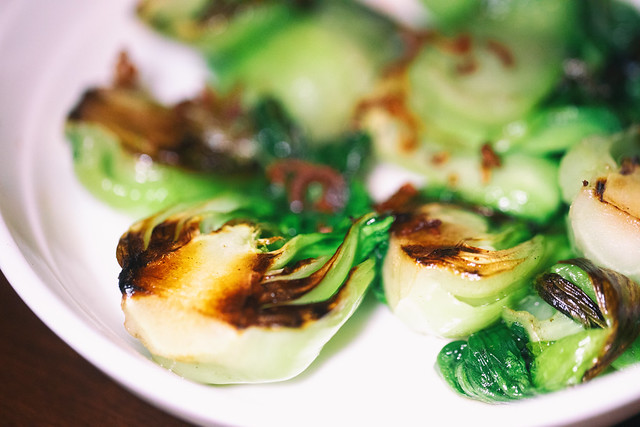
My favorite dish of the evening was their popular and well regarded Pork Adobo (palm vinegar, soy, garlic, annatto). The succulent chunks of pork go perfectly with the savory sauce which is also perfect to pour over the rice served with dinner. I also enjoyed the cornucopia of flavors in another recommended vegetarian dish the Ensalada Talong (eggplant, jicama, tomato, sea bean, cilantro, scallion, coconut vinegar, soy, rice cracker). I’m a huge brussel sprouts fan and FOB Kitchen prepares theirs perfectly — and as a bonus they also have bok choy as a side as well. Of the three desserts I tried I think I liked the turon the most, which are Filipino fried banana rolls served with ice cream. While these dishes were some of my favorite standouts, I loved everything I tried there.

Beautiful well crafted cocktails, savory regional cuisine and a flight of excellent desserts with family celebrating my second oldests 17th birthday made for a memorable evening. I will definitely be back!

FOB Kitchen, Oakland, California

FOB Kitchen, Oakland, California

FOB Kitchen, Oakland, California

FOB Kitchen, Oakland, California

FOB Kitchen, Oakland, California

FOB Kitchen, Oakland, California

FOB Kitchen, Oakland, California

FOB Kitchen, Oakland, California

FOB Kitchen, Oakland, California

FOB Kitchen, Oakland, California

FOB Kitchen, Oakland, California

FOB Kitchen, Oakland, California

FOB Kitchen, Oakland, California

FOB Kitchen, Oakland, California


Thomas Hawk Digital Connection

 
Comments Off on FOB Kitchen, Great New Filipino Hot Spot in Oakland, California

Posted in Photography