RSS
 

Archive for August, 2018

How to Organize Your Photos by Location in Lightroom

09 Aug

You likely know Adobe Lightroom as a powerful piece of photo-editing software. It’s known as the industry standard for photography post-production, especially when paired with Photoshop. You may also know that its photo management features are pretty impressive. If you so choose, you can use this one piece of software to upload, rename, keyword, review, edit, export and organize your photos.

camper van on the grass - How to Organize Your Photos by Location in Lightroom

How you use Lightroom is entirely up to you, and it’s unlikely that two photographers will use it the same. The way you organize your catalog will depend on many factors, including which genre of photography you choose, who you’re shooting for, and how you have your computer hardware arranged. There is no right or wrong way to organize things, and it will likely change over time.

If you’re a portrait or wedding photographer, you might choose to organize your catalog around sessions or dates. As a landscape and travel photographer, it makes sense for me to organize my photos based on locations. Whether a location is a city, country, or even a continent, it helps me to keep things organized so I can always find what I’m looking for without wasting time searching through thousands of photos.

There are a few different ways to find photos based on location in Lightroom, but they only work if you take a few simple steps when you import them.

Import

Whenever you import photos into Lightroom, try to follow the same steps.

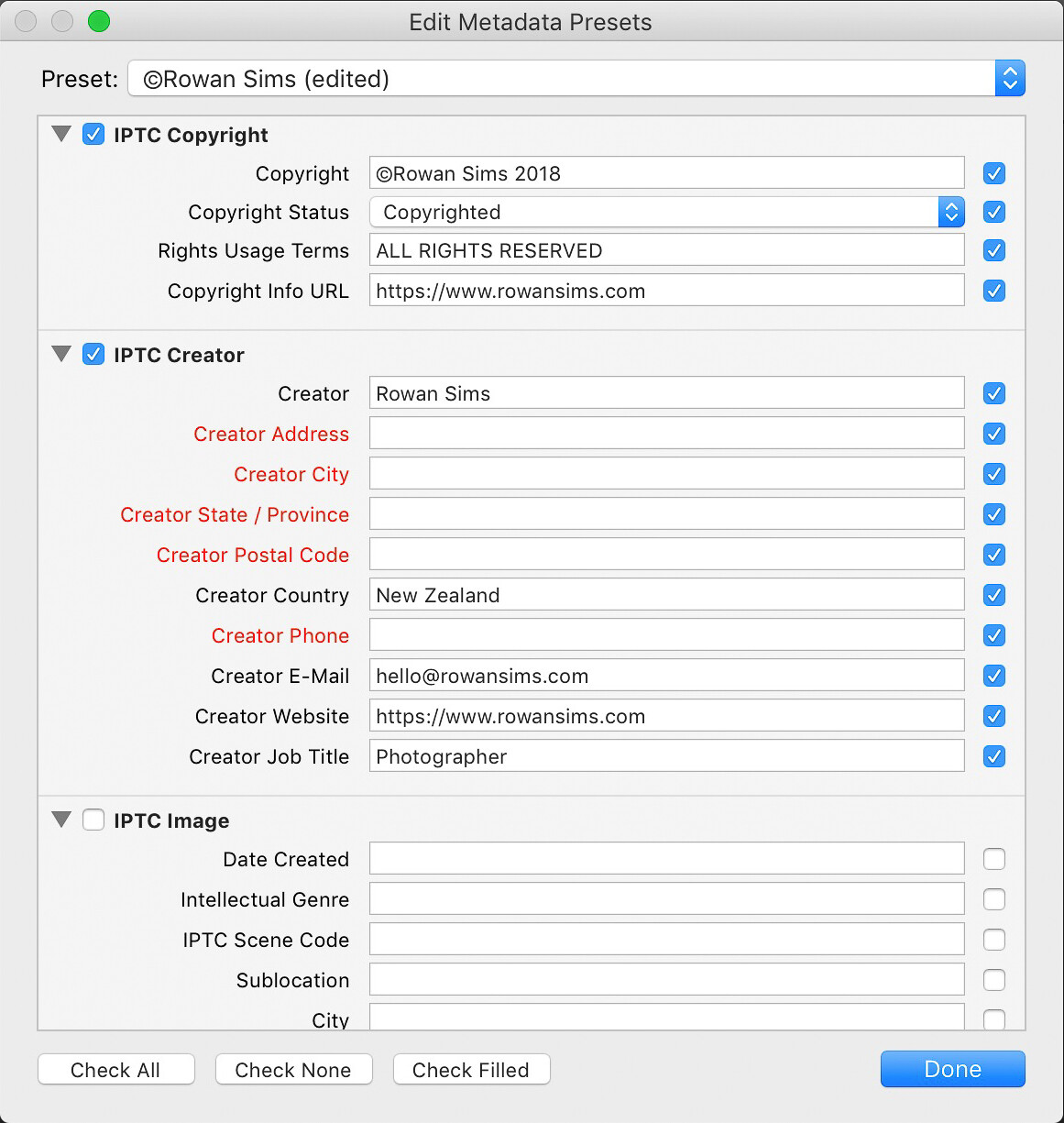
It’s a good idea to create some templates for the Develop and Metadata settings. This makes it easy to apply some standard settings and metadata to every one of your photos. You should at least apply your copyright information to your photos with a metadata preset.

metadata organizing lightroom photos by location

Keywords

The single most important thing you can do to simplify the process of finding photos is keywording. You don’t need to add a long list of keywords, just a few relevant ones that will help you later on when you search.

When organizing by location, I always add the name of the country, region, and specific place name. I’ll also add any other relevant keywords that I may want to search for, such as aerial or long-exposure.

When renaming my images during import I always include the location in the name. Something like “noosa-beach-qld-australia” works well. The words in your filenames become searchable keywords themselves (make sure to use a dash between words). I don’t use dates in my file names, but it’s up to you whether you want to or not.

How to Organize Your Photos by Location in Lightroom

Folders

Using a good folder structure will make your life far easier, especially when you have tens of thousands of images.

To organize your folders by location, you can create a new folder for each specific location or one for each city or country. I have one folder for each country I visit and just keep adding to it. Even if I visit that country again years later, I’ll still keep using that same folder. It makes it far simpler and I know where I can find a photo from anywhere on earth.

It also makes it simpler to find image files on my computer as the folder structure I set up is identical both inside and outside Lightroom. Organizing folders by date or some other number-based system would never work for me.

Collections

Collections are another one of Lightroom’s great features that can help you keep everything organized by location. Where Folders contain every photo from a given location, Collections contain only the photos you choose. Again, I’ll create a new Collection for each country, but I only put the keepers in there.

How to Organize Your Photos by Location in Lightroom

In the past, I’ve done this manually, but I now create a Smart Collection for each location. I only need to add two rules to each Smart Collection: Flag and Keyword. Based on these settings, any photo that I flag that has that keyword is automatically added to the collection.

smart collections - How to Organize Your Photos by Location in Lightroom

Map

As a travel photographer, my favorite Lightroom tool for finding photos based on location is the Map module. One of the first things I’ll do after I’ve finished importing new photos into Lightroom is to add GPS coordinates. There are a couple of ways you can do this.

If you know the coordinates you can add them manually in the Metadata panel. The easiest way is to select all your images (Cmd/Ctrl+A) then go into the Map module, search for the location in the search bar above the map, then drag all your photos onto the right location on the map.

Depending on your camera, your photos may already have GPS coordinates embedded in the file. This is often the case with drone photos or any other GPS-connected camera or device. If not, you can record the GPS coordinates by taking a photo with your phone then grabbing them from that photo’s metadata.

map module - How to Organize Your Photos by Location in Lightroom

Searching for Photos

Now that you’ve imported your photos with location-based keywords and filenames, organized them into location-based Folders and Collections, and geotagged them with GPS coordinates, finding them later is simple.

I use a different approach depending on whether I’m looking for a specific image or a group of images from a specific location.

If it’s a specific image you want, and you know you flagged it, select the Collection associated with that location. If you’re not sure if it’s flagged, select the folder. Then search inside the collection or folder using the Library Filter.

Click on Text, select Any Searchable Field in the first drop-down menu, then Contains All in the next menu, then type your keywords in the search field. The more keywords you add, the more specific the search becomes.

library filter - How to Organize Your Photos by Location in Lightroom

If I’m looking for an image or group of images from a specific location, I like to use the Map module. Select All Photographs in the Catalog panel on the left then go to the Map module and type the location name into the search bar. Any geotagged images in that area will show up on the map.

You can zoom in or out on the map to make your search location more or less specific. Images in the specified location will appear along the filmstrip below the map.

Summary

A little forethought and organization when importing your images are worth the effort. It doesn’t take much time to apply these settings but can save you a lot down the road.

If you’re anything like me and have tens of thousands of photos in your catalog, you’ll be doing yourself a favor, and future you will thank you for your efforts.

The post How to Organize Your Photos by Location in Lightroom appeared first on Digital Photography School.


Digital Photography School

 
Comments Off on How to Organize Your Photos by Location in Lightroom

Posted in Photography


Epson FastFoto FF-680W, world’s fastest personal photo scanner, now available

09 Aug

Epson has launched its new FastFoto FF-680W High-Speed Photo and Document Scanning System, a model it claims is the fastest personal photo scanner currently available. At max speed, the FastFoto FF-680W can scan a photo every second at 300dpi (up to 36 photos per batch).

The FF-680W, which builds upon the existing FF-640 model, supports a variety of media types, including Polaroids, postcards, and panoramic photos, as well as scanning in 300dpi (“easy sharing”), 600dpi TIFF (“archiving”), and 1200dpi (“enlarging”) modes. More than one mode can be used per photo batch. The scanner also supports document scanning with OCR.

Both USB and wireless connectivity is supported. Users can directly share scanned images to Google Drive and Dropbox, capture handwritten notes on the back of an image during a single scan, and perform modest photo restoration and edits using Epson’s ScanSmart software.

The Epson FastFoto FF-680W scanner is available through the company’s website and at select retailers, including Amazon, for $ 599.99 USD.

Articles: Digital Photography Review (dpreview.com)

 
Comments Off on Epson FastFoto FF-680W, world’s fastest personal photo scanner, now available

Posted in Uncategorized


Samsung starts mass producing high-performance 4TB QLC SSDs for consumers

09 Aug

In 2016, Samsung launched a 4TB SSD with a prohibitively expensive $ 1499 price tag. In a statement this week, Samsung revealed that it has started mass producing a less expensive variant, ushering in the industry’s first 4-bit quad-level cell (QLC) 4TB SATA SSDs. The 4TB model will be part of a consumer QLC SSD lineup released later this year alongside 1TB and 2TB capacities.

…its new 1-terabit V-NAND chip enables it to efficiently produce 128GB cards for mobile devices

The three new consumer-tier QLC SSDs will utilize a 2.5″ form factor, making them compatible with a variety of PCs and external enclosures. According to Samsung, these SSDs have a sequential read speed of 540MB/s and write speed of 520MB/s, offering the same performance as 3-bit drives via the use of TurboWrite tech and a 3-bit SSD controller.

In a press release, Samsung executive VP of memory sales and marketing Jaesoo Han said, “Samsung’s new 4-bit SATA SSD will herald a massive move to terabyte-SSDs for consumers.” In addition, the company says its new 1-terabit V-NAND chip enables it to efficiently produce 128GB cards for mobile devices, paving the way for high-performance mobile storage.

Prices and release dates haven’t been revealed yet.

Articles: Digital Photography Review (dpreview.com)

 
Comments Off on Samsung starts mass producing high-performance 4TB QLC SSDs for consumers

Posted in Uncategorized


Tips for Using Flash for Beach Portraits

09 Aug

The beach is a beautiful location for any type of portrait session, however, you might find yourself competing with the sun if it sets behind the ocean. For this, you’ll need the use of reflectors and perhaps even a flash unit. Don’t be intimidated by using flash, it can instantly create beautifully lit portraits where you are able to see the sunset and its incredible colors.

Using Flash for Beach Portraits - family portrait on the beach

Use flash to fill in light during beach sessions.

Manual Mode

While TTL flash mode is okay for most scenes, during your beach portraits, you’ll want to have full control over your flash.

In TTL, the flash meters the light and gives enough power to light the scene, resulting in different flash outputs each time you take a photo. In manual mode (on the flash), however, you are able to set the power of the flash and maintain consistent output while you are photographing your client.

portrait of an elderly couple - Using Flash for Beach Portraits

Manual Mode on your flash can help you get the exact amount of light for different times of the day.

This means that in manual flash mode, you have full control over your flash and its output power. During your session, you can switch from different outputs to get the right mix of fill flash and ambient light so that both your client and background are evenly lit.

Using Flash for Beach Portraits - portrait of a couple

TTL Mode

TTL uses the internal meter on the flash to determine how much power it will fire when you take a photo. This also means that the power output can vary from photo to photo, which makes it less consistent than manual mode.

portrait of young family by the water - Using Flash for Beach Portraits

Use TTL to let your flash meter how much light your scene needs.

However, TTL is a great place to start because you can control the flash compensation but don’t necessarily have to worry about setting the exact power output.

For example, you can have your flash in TTL mode and put it at +1/3 to get an extra boost of light out of your flash. Or you can put it at -1 to tone down the power output (and underexpose the flash as compared to the ambient light).

wedding couple on the beach - Using Flash for Beach Portraits

The photo on the right doesn’t have flash fill. The photo on the left does. Use flash to fill in shadows especially during sunset.

It’s also great to use when you need to photograph quickly or don’t have a lot of time to set up your flash. TTL is especially useful during weddings or portraits with children.

Check the manual for your flash to see how to switch quickly from TTL to manual and back. This can be really useful when you have a mix of moving subjects, like children, and posed portraits, like a couple.

When to use your flash at beach sessions

It all depends on how much ambient light you have and if you are going to be competing with the sun, or lighting your subjects during a sunset. Perhaps you’ll need the flash to act as a fill light.

maternity photo on the beach - Using Flash for Beach Portraits

Competing with the sun is where the flash units are most useful. Midday sun can be harsh on a beach and can cause the backgrounds to wash out. First, get your exposure of the background. Then attach your flash onto your camera, or wireless trigger, and set the power to 1/4 power. Take a few test shots and adjust the flash so that you get the right amount of light that you need.

couple's portrait on the beach - Using Flash for Beach Portraits

Use your flash to fill in shadows and compete with the harsh light of the sun.

Using high-speed sync will allow you to operate the flash at a higher shutter speed. This means that you are able to photograph your clients at 1/300th of a second or faster and still have the flash fire and affect the image.

This option is mainly so that the flash acts as a fill light to the already existing light. Perfect for really bright days or if your clients are in a shady area and the beach is brightly lit.

wedding portrait on the beach - Using Flash for Beach Portraits
In the event that it is overcast, the flash acts as a fill light and can get rid of the high contrast that overcast days create. This helps to avoid washout of the background while still lighting your subjects. Overcast days also create shadows on the face (dark eyes) and a little pop of light can really create a difference.

family photo on the dock - Using Flash for Beach Portraits

Flash can be useful for overcast and cloudy days at the beach.

During sunsets, set your camera around 1/250th to 1/400th (set your flash to high-speed sync if you go over the sync-speed of your camera) shutter speed so that you are able to capture the colors of the sunset. Once you have the right settings for the sunset, set your flash to around 1/16th power and adjust your aperture accordingly as you photograph your clients to let in more light or less light until you have the look you are going for.

family in white on the beach - Using Flash for Beach Portraits
NOTE: It’s important to note that if you are using flash while you’re in the water at the beach, watch out for any reflections that the water might make from the light of the flash. This can create weird reflections on your client’s legs or other parts of their bodies.

Differences between flash positions

On-Camera

At beach sessions, especially during sunset and brightly lit scenes, you will have to position your flash straight at your clients so that it lights the whole scene evenly. Angling the flash will not allow enough light to fall onto the body of your clients and can create a division of light in your photograph.

bridal party photo of the ladies - Using Flash for Beach Portraits

Use the flash on the camera to spread light evenly onto all your subjects.

However, this doesn’t mean that you can experiment with the flash at different positions. Trying different angles will also give you a better look at what will work best for the type of session you’re having.

Use a bounce modifier to diffuse the light and light your clients evenly. You might need to increase the power of your flash so that you can get enough light.

couple at sunset - Using Flash for Beach Portraits

On-camera flash can work well when the sun is setting in the background.

Off-camera

Using your flash off-camera at beach sessions can give you more versatility and can create different types of lighting effects.

For example, a couple walking along the shore is lit with the flash perpendicular to the camera can give you perfect lighting on the couple with shadows that fall off into the background.

wedding couple on the beach - Using Flash for Beach Portraits

Off-camera flash at a 45-degree angle from the camera can give you shadows and more drama to the photo.

This creates more drama within the photo. Also allows you to be further away from the clients during the session while keeping the light the same. For this, you’ll need wireless triggers to remotely trigger the flash and a tripod or assistant to help with moving the light where you want.

wedding portraits by the ocean - Using Flash for Beach Portraits

Experiment with different angles and reflections of the water. Use a modifier to change the light and give you more range.

Using your phone flash or flashlight

Flash units and wireless triggers can be a little costly when you’re first starting out so your phone flash or a flashlight can give you that pop of fill light that you need to get a great photo.

couple in white - Using Flash for Beach Portraits
When you use either, the closer you are to your client, the sharper the light will hit them and be less spread throughout. The farther you are, the more dispersed the light is but it’s also less intense. You could use more than one phone flash or flashlight so you get more light.

Practice makes perfect

Practicing using your flash at the beach during different lighting situations can help you to get an idea of where to start when you do have a client session.

Taking the time to practice will help to get familiar with the power output of your flash and what look you like best. Then when you are at a paid session you aren’t taking too much time trying to get it right.


When you’re out practicing, take notes of what power output you used on which photos. Unfortunately, the metadata for flash only lets you know if the flash triggered, not the power output or if you used flash compensation.

With a little time and a lot of practice, you’ll be able to set your flash just by looking at the light.

Large groups like this, the flash is very subtle, however still useful in filling light across the entire frame.

Conclusion

wedding couple

Use flash to fill in on really bright days so the background doesn’t wash out.

Using a flash, whether on the camera or off, can be extremely useful during beach portrait sessions because the light is so harsh and you’ll need some fill light at some point.

At your next session, practice and experiment with different flash power outputs and angles for drama. Use your flash at midday to get rid of shadows or during sunset to be able to capture that beautiful setting sun in the background.

The post Tips for Using Flash for Beach Portraits appeared first on Digital Photography School.


Digital Photography School

 
Comments Off on Tips for Using Flash for Beach Portraits

Posted in Photography


AirSelfie2 pocket-sized camera drone launches with slight improvements

09 Aug

AirSelfie2, an update to the original AirSelfie drone launched in late 2016, is now available for purchase. The new model, which was introduced during CES 2018, improves upon the original AirSelfie by increasing the camera resolution from 5MP to 12MP, including a 16GB integrated microSD card versus the original’s 4GB capacity, and increasing flight time by two minutes.

The AirSelfie2 features an anodized aluminum casing with overall dimensions slightly larger than a smartphone at 3.8″ x 2.8″ x 0.5″ / 9.7cm x 7cm / 1.3cm. The internal 400mAh battery provides up to five minutes of flight time per charge, with four turbo brushless fans providing lift. Users wirelessly control the miniature drone using a mobile app available on iOS and Android; range is vaguely stated as “over 60ft.”

The drone’s camera captures still images and Full HD videos with an 85-degree FOV. The company behind the device, AirSelfie Holdings, promises new features and “experiences” delivered to AirSelfie2 drone owners via future updates. The drone is available from AirSelfie and select online retailers in gold, rose gold, black, and silver colors for $ 200.

Via: Android Police

Articles: Digital Photography Review (dpreview.com)

 
Comments Off on AirSelfie2 pocket-sized camera drone launches with slight improvements

Posted in Uncategorized


Tips for Taking Better Pictures from a Moving Vehicle

08 Aug

Have you ever been stuck in a car or a bus and seen all this great photographic potential passing you by? Fantastic landscapes, funny signs, unusual animals, and stunning compositions seem to always appear when I’m stuck in the passenger seat of a car. It’s frustrating, especially if the car can’t stop to let you capture the view.

A landscape photographed from a car on a highway. - Tips for Taking Better Pictures from a Moving Vehicle

A fantastically colorful landscape by the highway in the Atlas mountains of Morocco.

The Challenge

For someone who actually doesn’t like the idea of just driving through an area and taking photos of it through the window (maybe because it feels so impersonal), I’ve done a surprising amount of it. Often because it’s a now-or-never situation; the view won’t be there later, or I won’t be returning in the near future.

Sometimes I’m on a highway and can’t stop, or there are so many photos I’d like to take that I feel bad asking the driver to stop over and over again. Also, taking photos from a car or bus can be great for people who have a hard time walking.

A landscape seen through a bus window in Iceland. Tips for Taking Better Pictures from a Moving Vehicle

I couldn’t resist this view seen through a bus window in Iceland.

In a car, bus, or train, there are many contexts in which it’s inappropriate, difficult or impossible to take a photo. Fortunately, there are also many situations in which you don’t have to leave completely empty-handed. It is possible to take photos from a moving vehicle, but it takes a bit of knowledge and planning.

It’s a suboptimal situation but sometimes you just have to find a way to make the best of it. Most likely it’s better than not trying at all! In this article, I hope to give some tips to help make your trips more enjoyable and creative. Let’s begin!

A house seen from a car in the Rif mountains of Morocco. Tips for Taking Better Pictures from a Moving Vehicle

The amazing houses and views in the mountains of northern Morocco were difficult to resist, even though it was a bit tricky to compose well.

When to try and when not to shoot

Safety is paramount

Even though trying is almost always better than not, there definitely are situations where you shouldn’t be taking photos from a moving vehicle. Remember that you’re sitting in a metal box moving through space at high speeds!

It goes without saying that you shouldn’t be doing any photography if you’re the driver. But as a passenger, you also need to be aware of how your photography may pose a danger to you or others. In short: think about safety.

Make sure you don’t block the driver’s line of sight or disturb them in some other way. Communicate with the driver and the other passengers. If you’re on a tour bus, don’t block other the passengers’ view through the window.

A woman on a donkey in rural Morocco. Tips for Taking Better Pictures from a Moving Vehicle

A very old photo I took through a car window. There are clearly some issues in terms of sharpness and composition, but it’s still a lovely memory.

If you’re in a car and planning to open a window, make sure nothing can fly out and be aware that there might be branches or objects by the side of the road that can hit you or your camera. Also be aware of oncoming traffic, and don’t lean out! Only slow down if it won’t disrupt the flow of traffic and if you convince the driver to stop the car for a photo break, make sure it’s in a safe place.

Is it worth it?

Even if everything’s okay in terms of safety, there are a few other things to consider before you start photographing.

Can the car stop for a little while instead of you attempting to take pictures through the window? If not, can the window be opened? Is there enough light for photography? Will doing so mean that you’ll miss out on seeing and enjoying the view?

There may also be places where I wouldn’t recommend photographing through a window. Driving through a city or village pointing a telephoto lens at people could be considered a bit creepy.

A mountain landscape seen from a highway in Morocco. Tips for Taking Better Pictures from a Moving Vehicle

This is how you do it

Enough of the don’ts and the warnings. It’s time to learn how to take great photos in this challenging situation.

Expose right

Not surprisingly, the most challenging part of this kind of photography is dealing with movement. In a moving car, your subject matter might swoop by at very high speeds.

In practical terms, this means using a shutter speed that can freeze that movement, finding an aperture that allows for enough depth of field, and choosing the ISO that makes all of that possible.

A view of rural Morocco. Tips for Taking Better Pictures from a Moving Vehicle

Here, the car was moving quite slowly so I got quite a sharp photo with a relatively wide angle. The dark and rainy weather made exposure a bit challenging, but it also made the sky much more dramatic.

The desired exposure depends a lot on what kind of a photograph you want. To get a sharp landscape photo from a moving vehicle, it’s important to have a fast enough shutter speed.

How fast depends on how fast you’re moving, but faster is generally better. I would suggest using at least 1/400th, but preferably faster. Be aware that the foreground is more likely to reveal signs of movement, whereas photographing something that’s further from the road is more likely to be successful.

Between the mountains and the desert in Morocco. Tips for Taking Better Pictures from a Moving Vehicle

A photo with a lot of depth, taken from a moving car.

If we continue with the example of a landscape photo, it’s also important to have a large enough depth of field to get a sharp capture of the whole view. This means you’ll need to use a small aperture, preferably around f/8.0, also depending on the sweet spot of your lens.

If you have the chance, try different settings, but if you can only take one or two photos, aim for a small aperture. Again, this depends a lot on what kind of photograph you’re aiming for and light levels.

Geological features photographed from a highway in the Atlas mountains of Morocco. Tips for Taking Better Pictures from a Moving Vehicle

I was aiming for a sharp photo of these beautiful geological features rushing past the car in the Moroccan Atlas mountains.

The last element of exposure, ISO, doesn’t make as much of a difference to this kind of photography as shutter speed and aperture do. ISO has the effect it always has, so the lower it is, the better.

Still, with modern DSLRs, using a higher ISO might be the key to allowing you to use the shutter speed and aperture you need while not adding a lot of noise.

An urban landscape near Casablanca, Morocco. Tips for Taking Better Pictures from a Moving Vehicle

It was cloudy and rainy, but by aiming for silhouettes and a dark atmosphere, this industrial view turned out sharp enough.

Plan well

It might seem difficult to plan in these situations, but there are usually some things that can help you create as good a photograph as possible. Even before you take your photo you can observe the light levels outside, which can help you with exposure.

You may also be able to get a good composition by observing the landscape outside and imagine what it might look like behind that curve or beyond that next hill. You can also see when there will be power lines appearing in your photo. I find that one of the most annoying parts of this kind of photography is power lines. They always get in the way!

Also, remember that this is one of those situations where taking a lot of photos is not a bad thing.

Signs and advertisements after a storm. Tips for Taking Better Pictures from a Moving Vehicle

Really annoying power lines! Still, I decided that I wanted to document the aftermath of a pretty bad storm outside Rabat, Morocco.

Optimise

To get as good a photo as possible, you should open the window to avoid unfortunate reflections or dirt in your photo. A closed window will also limit your movement and your options when it comes to composing.

There are many situations in which opening the window isn’t really a great idea, though. Remember that the most important thing is safety. If you can’t open the window, use the viewfinder and possibly a polarizing filter to try to avoid getting reflections and dirt in your photo.

A mountain landscape in Morocco. Tips for Taking Better Pictures from a Moving Vehicle

I didn’t have time to open the window so I photographed this view of houses seemingly pressed between mountains and clouds through the window.

Conclusion

Have you taken photos out of a car, bus, or train? I find the hardest part to be composing the photo.

What do you think? What benefits and challenges have you noticed? Do you have any tips for better photography on the road?

The post Tips for Taking Better Pictures from a Moving Vehicle appeared first on Digital Photography School.


Digital Photography School

 
Comments Off on Tips for Taking Better Pictures from a Moving Vehicle

Posted in Photography


How to use Colored Gels to Create Unique and Creative Portraits

08 Aug

We’ve all seen the usual studio set up –  beautifully crisp white light, maybe some strobes, diffusers, and other things of the sort. However, what can you do beyond that to make your portraits stand out? Add some color! In this article, learn how to use colored gels to add some spice to your images.

musician portrait with pink background - How to use Colored Gels to Create Unique and Creative Lighting

Colored gels are filters that go on your light in order to change the output color. They are usually sold at photography stores and clamped onto your lights. They range in size, thickness, color cast, and most importantly, price. Be very mindful of how hot your lights are because we’ve had gels melt on the set before during long sessions (such as music videos). 

However, you can also make your own colored gels using cellophane and tape. Just take some really saturated cellophane from a local party or art store and wrap them around your softbox or LED light (so long as the LED runs cold and won’t melt the plastic paper) and fasten with tape.

This may not look like the most professional setup, but I suppose that matters little so long as the final outcome is fantastic!

spooky photo with double exposures - How to use Colored Gels to Create Unique and Creative Lighting

There are limitless possibilities with gels. In regard to color combinations, I suggest making sure all of your gels are saturated the same in order to match with one another (and not become a headache in the editing room later).

Here are some of my favorite gel lighting arrangements to create some new and unique imagery. As a personal preference, I use continuous light, but the same can be achieved with studio strobes or speedlights.

One Color Gel Setup

The simplest and most traditional gel lighting look. There isn’t any fancy setup for this look, you can photograph your model in any fashion and just replace the white light with a color. Make sure your colored gel is really vibrant or the image may fall flat. 

portrait of a girl with amber gel - How to use Colored Gels to Create Unique and Creative Lighting

Play with distance, shutter speed, and some light post-processing to see how far you can get the light to spread. That can add a unique and unexpected twist to your one-light setup!

A good use of the one color set up is backlighting! Take your light and place it behind the subject.

backlighting with gels - How to use Colored Gels to Create Unique and Creative Lighting

Double Colored Gel Setup

My personal favorite is the double colored gel setup. All this requires is two lights, each gelled with different colors. Set them to the side of your model and watch the magic happen!

The division can be very eye-catching and intriguing.

model with red and green lights - How to use Colored Gels to Create Unique and Creative Lighting

lighting diagram - How to use Colored Gels to Create Unique and Creative Lighting

Be mindful of your model’s physical structure. You want to make sure that the color division hits the proper place. Aim for the lighting to (generally) divide right at the center of the nose (split lighting).

Tri-Color Gel Setup

How to use Colored Gels to Create Unique and Creative Lighting

You can go as intense with colors as you like, but when I do three color looks, I like one of those colors to be white. The white softens the whole look and doesn’t make it overly exaggerated.

However, if you prefer a color, I suggest placing a lighter color in the center of your arrangement and the darker colors on the sides.

portrait with 3 colors of light - How to use Colored Gels to Create Unique and Creative Lighting

For three color looks, my favorite arrangement is the traditional triangle light setup. This includes one light in front of the subject and two lights at the sides.

Depending on the look you want to achieve, you can set up the two side lights behind the model and just turn them towards the model. That keeps the light from being too harsh. For a more intense look, place the lights directly at the model’s sides.

lighting diagram - How to use Colored Gels to Create Unique and Creative Lighting

Rim Light Colored Gel Setup

girl with rim lighting - How to use Colored Gels to Create Unique and Creative Lighting

Always a very dramatic and edgy look, using gels for rim lights can bring a bit of flair to your portraits. It does depend on your model’s structure as to where you place the lights. What I do is set up a white light in front of the model and two colored gels on lights to the side pointed forward.

The best colors I’ve found for the rim light look are purples, blues, reds, and greens – oranges tend to get a bit lost with the white light.

How to use Colored Gels to Create Unique and Creative Lighting

Background Light Gel Setup

How to use Colored Gels to Create Unique and Creative Lighting

The quickest way to liven up any location is to aim some lights with colored gels attached toward the background wall.

You can photograph your subject in any traditional studio light manner, and just shoot two gelled lights to the back wall. This allows your subject to be really well separated from the background (something we always strive for in studio photography).

How to use Colored Gels to Create Unique and Creative Lighting

Now go out there and play with colors!

The post How to use Colored Gels to Create Unique and Creative Portraits appeared first on Digital Photography School.


Digital Photography School

 
Comments Off on How to use Colored Gels to Create Unique and Creative Portraits

Posted in Photography


A Quick Primer On Resolution and Photo Scanning

08 Aug

When you are setting out to digitize your collection of old photos and film, scanning resolution is an important attribute to consider. This number is crucial when you are thinking of printing your scanned images rather than just viewing them on a screen. Since most people, at some point or the other, will want to create memorable keepsakes – framed Continue Reading

The post A Quick Primer On Resolution and Photo Scanning appeared first on Photodoto.


Photodoto

 
Comments Off on A Quick Primer On Resolution and Photo Scanning

Posted in Photography


Cactus launches bare bulb wireless monolight on Kickstarter

08 Aug

Lighting manufacturer Cactus has officially launched its RQ250 bare bulb wireless TTL flash unit on the Kickstarter crowd funding website. Plans for the flash were originally announced at the beginning of the year, and now the company says it will be ready for delivery in October.

The head offers a maximum output of 250Ws and a recycle time of 1.1 seconds at full power

The RQ250 is ‘barely larger than a speedlight’ according to the manufacturer but offers the flexibility of a studio head. It can be controlled wirelessly via the Cactus V6 II radio transceiver system and allows TTL metering across the six main camera brands. Those who prefer manual control can adjust it in 0.1EV steps from full power down to 1/512th power, while the 4-cell lithium ion rechargeable battery provides 520 full-power bursts per charge. The head offers a maximum output of 250Ws and a recycle time of 1.1 seconds at full power. An integrated fan is designed to maintain a decent temperature in the head during intensive shoots, and the aluminum reflector helps by dissipating heat away from the body.

A range of modifiers will be available that connect to the head with via a twist lock bayonet system. The bayonet-mount reflector has a magnetic rim which allows further modifiers to be switched very quickly. The range that can be used will include softboxes, umbrellas and a reflector, as well as a set of magnetic gel holders, a snoot, a diffuser dome and barn doors. Initially it was said that the head would have a Bowens S-Mount bayonet, but it seems Cactus has changed this to its own mount but will offer an optional Bowens S-Mount adapter.

An LED in the head can be used as a 20W modeling bulb as well as an AF assist lamp that comes on only as the camera’s shutter release is depressed

The head can be used in two modes – Color or Speed. Color aims to produce consistent color balance as output varies, while Speed is designed for short flash duration to freeze motion in the image. High speed sync is also available.

An LED in the head can be used as a 20W modeling bulb as well as an AF assist lamp that comes on only as the camera’s shutter release is depressed. It can be kept on all the time at full brightness or linked to the selected level of output to give proportional lighting in multi-head set ups. Additional Speedlights can be used in one of four groups with the RQ250, and wireless control can be achieved with 2.4Ghz radio or optical slave settings.

The Cactus RQ250 is designed and assembled in Hong Kong, measures 194mm x 80mm x 80mm and weighs 1235g (2.7 lb) with the battery, reflector and tube loaded. It will cost $ 699 but can be snapped up for an early bird price of around $ 550 / £430 on Kickstarter.

See the Cactus website or the RQ250 Kickstarter page for more information

Press Release

Cactus RQ250 is now on Kickstarter

The Cactus RQ250, a palm-sized, 250Ws, Li-ion battery-powered TTL wireless monolight, is now on Kickstarter!

Cactus, the award-winning manufacturer of the world’s first cross-brand wireless trigger, is proud to present its first project on Kickstarter: The RQ250 Li-ion battery-powered TTL wireless monolight.

With the freedom of going wireless using portable flashes, location shooting is much easier than before. “Over the years, Cactus started to think about making a flash with all the essentials of a studio strobe, powerful yet portable enough like a speedlight, a light that can pair up with various kinds of modifiers to shape the light photographers want. A light photographers can use on location, fast and smart,” says Henry Chan, the head of R&D at Cactus.

The Cactus RQ250 is small, versatile, fits all kinds of light modifiers in just a click, and addresses all location shooting needs.

Small but Powerful

The RQ250 is so compact it can sit on the palm of your hand. Barely larger than a speedlight, it comes with 250Ws of power and a range of 10 stops, from 1/512 to full power.

Uni-body Design

What makes the RQ250 unique is its special flash head design. The 63-degree optical optimized reflector, which is equivalent to speedlight zoom setting of 35mm, not only makes it good to shoot with on its own, but it is also a perfect match with a lighting umbrella.

Inside the flash head sits Cactus TubeOneTM, the proprietary bare bulb that can be put instantly in a softbox. Coupled with the aluminium flash reflector and Cactus bayonet mount, changing instantly from a round head diffusion disc flash to bare-bulb requires only one click.

Magnetic Clip-on Modifier System Kit

With built-in magnets on the RQ250’s reflector head, clip-on light modifiers can be snapped into place and easily stacked to create the desired lighting effect. The optional kit to the RQ250 includes a barn door, a colour gel set, a diffuser dome, a honeycomb, and a snoot.

Instant Recharge and Fast Recycling Time

The RQ250 maximizes the power of its four-cell battery pack using our proprietary UltroEDTM transformer, which recycles in 1.1 seconds and fires a whopping 520 full power flashes on a single charge.

The RQ250 is also the only monolight of its size equipped with an integrated cooling fan and thermal sensors that allow optimal cooling in any environment photographers are working in. Together with the aluminium flash reflector that dissipates heat, the RQ250 can take a beating and still not overheat.

Colour Mode and Speed Mode

With colour mode on, the RQ250 is able to produce consistent colour temperatures across the entire 10-stop power range and over hundreds of shots, saving photographers a tremendous amount of time during post-editing.

In speed mode, lightning fast flash duration at low power outputs allows photographers to freeze the fastest of movements. With power adjustment steps as fine as 0.1EV, the 10-stop power range from 1/512 to 1/1 enables full manipulation of the RQ250 power band.

TTL on Eight (8) Camera Brands

The RQ250 is a wireless TTL monolight for Canon, Fujifilm, Nikon, Olympus, Panasonic, Pentax, Sigma, and Sony when triggered by a Cactus V6 II or V6 IIs. It supports TTL, high-speed sync (HSS/FP) as well as manual power control and works simultaneously with any portable flashes compatible with the Cactus V6 II or V6 IIs.

Modelling Light and AF-assist

A modelling light has always been an exclusive feature in professional studio lights, but we managed to put one in the small body of the RQ250. The RQ250 not only has one, but it has 20W, making it powerful enough to light any subject and allowing photographers to work freely in any environment. The modelling light can be used as an AF-assist to help photographers achieve accurate and efficient focus.

Kickstarter

The new RQ250 (MSRP: US$ 699.00) and its accessories will be available on Kickstarter for a pre-sale discount beginning August 6, 2018.

About Cactus

Headquartered in Hong Kong, Cactus is a brand under the R&D company Harvest One Limited. The RQ250 is designed, engineered and assembled in Hong Kong.

The manufacturer of the award-winning Cactus wireless flash triggers and flashes, the world’s first and only wireless triggering system that supports TTL/HSS across eight (8) brands of camera and flash systems, Cactus stands firmly behind its products and closely works with photographers to always cater to their needs.

Cactus has distributors and dealers worldwide. Learn more about the RQ250 and Cactus’s other products at www.cactus-image.com.

Articles: Digital Photography Review (dpreview.com)

 
Comments Off on Cactus launches bare bulb wireless monolight on Kickstarter

Posted in Uncategorized


Tips for Processing Night Photography with ON1 Photo RAW 2018.5

07 Aug

For many students, as they start learning photography they want to know how to take photos at night. It is a mystery to them and they often think it is so complicated that they will never be able to do it. That is until they try it and discover just how easy it is. The next step is editing those images and ON1 Photo RAW 2018.5 has a lot of tools and adjustments that are perfect for processing night photography.
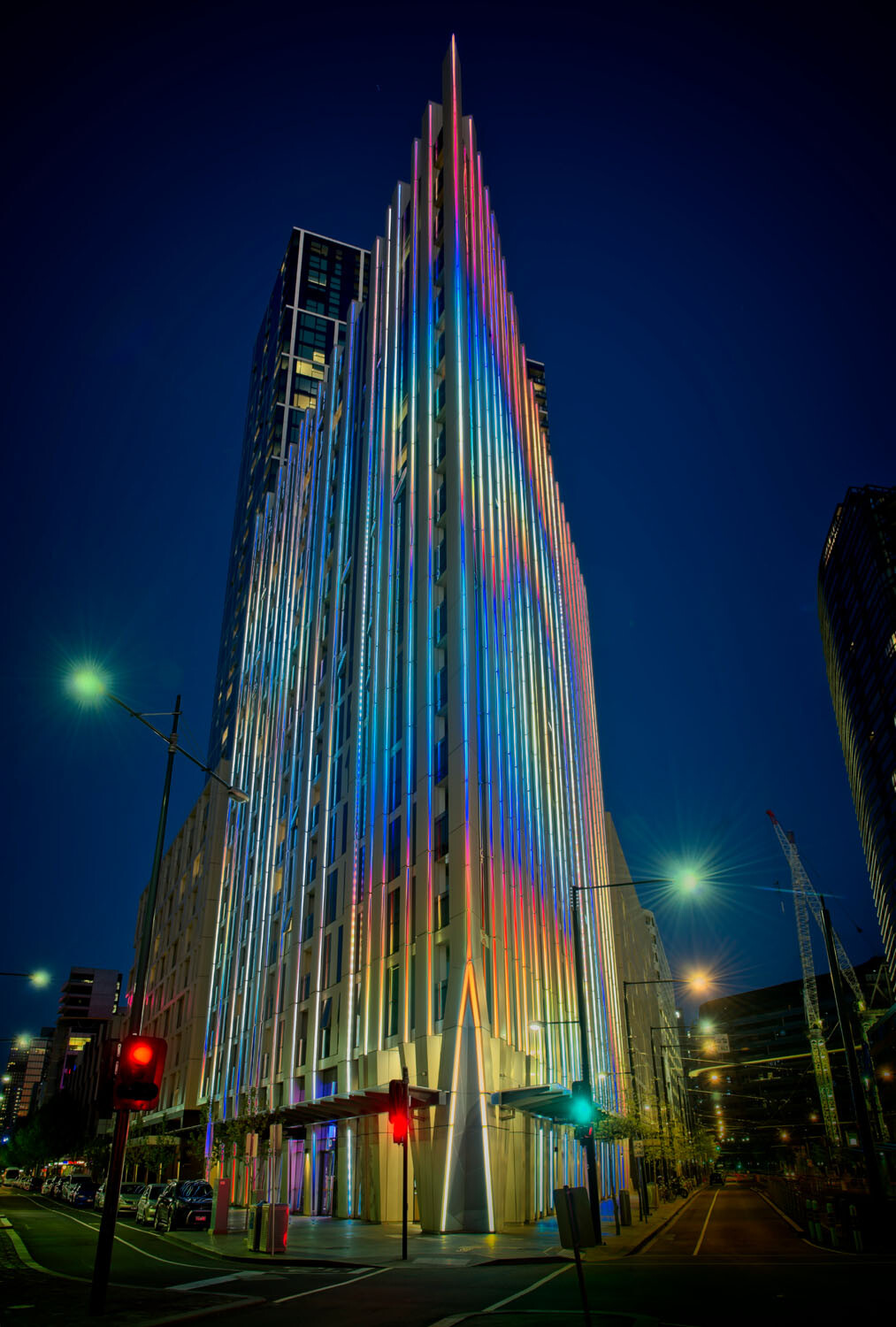
HDR architecture image - Tips for Processing Night Photography with ON1 Photo RAW 2018

An image created using the HDR option in On1 Photo RAW 2018.

Night photography options

First, we should take a look at the different types of night photography that you can do. There is the easiest option of setting your camera up on a tripod and photographing lights somewhere.

The city at night is very popular if you live in an urban area. Perhaps capturing town lights can also be good. You just need something that is making light. HDR has had a lot of bad press, but it really is good for some images, and night shots of cities are perfect for it. ON1 Photo RAW’s HDR processing is one of the best I’ve seen.

When the sun has gone down and there is a lot of traffic you can photograph light trails. Taking longer exposures with your camera on a tripod will make all those lights look like streaks. If you want to make it look like there were a lot, then you can stack the images together, so all the streaks will show in one final image.

One type of night shot that is hugely popular right now, especially in Australia, is astrophotography. Photographing the Milky Way. It is the season for it here and with the low population, you are spoilt for choice where to do them. If you have ever tried doing any astrophotography then you will also be aware that your images have to be processed or they can look at washed out. ON1 Photo RAW 2018.5 has you covered there as well.

Tips for Processing Night Photography with ON1 Photo RAW 2018 - astrophotography milky way image

An astrophotography image processed with ON1 Photo RAW 2018.5

Photographing the City

Night time in the city can be so magical and to be taking photos of it even more so. Processing your images taken at night is much the same as processing any of your images.

Open your image in ON1 Photo RAW and take it into the Develop module. Make the adjustments as you would for other images. Move the sliders around to see what you can get. Take them too far and then bring them back.

sliders in ON1 Photo RAW - Tips for Processing Night Photography with ON1 Photo RAW 2018

When learning it is good to take the sliders too far, see what happens.

If you want to make adjustments to particular areas, then look at local adjustments which is the best place to do that.

However, what if you want to do something to your image to really make it pop?

HDR photography, or High Dynamic Range, can be perfect for this. It is a process that has copped a lot of criticism over the years. People say it is too much, that the images can be ugly. But that really only happens when you don’t use it for the right images, or overdo it.

There are some scenes and images that are perfect for HDR and night photography is one of those times.

HDR Night Photography

When you are to decide which images would work best for HDR, look for ones that have a lot of dark areas, and a lot of bright parts as well. Usually, your camera will struggle with getting an even image of a high contrast scene. It will either make the image too bright or too dark. Night images have those problems. Once you get the lights exposed right, all the shadows become too dark or black.

The best way to do HDR is to take a series of images or bracketed shots. If your camera will allow you to bracket then it will sort out the exposures you need. The most common number of shots is 3 or 5. For this article, five images were taken.

Next, select all of your bracketed images inside the ON1 Photo RAW browse module. You can do that by clicking the first then pressing the shift key followed by clicking on the last image. If you have put the images into a subfolder you can then just use Ctrl/Cmd+A.

Tips for Processing Night Photography with ON1 Photo RAW 2018 - bracketed set of images

Work out which images you want to use.

Once they are selected you should be able to see the HDR button over on the right-hand side of your screen, underneath all the different modes.

select images and HDR button - Tips for Processing Night Photography with ON1 Photo RAW 2018

Select all your images.

ON1 Photo RAW will then merge all your images together. The first time you do it, a window will pop up asking you what look you would like. The options include Natural, Natural Auto, Surreal and Surreal Auto. You can make the changes once the image has been merged to HDR. There are lots of choices with ON1.

Let’s take a look around the HDR working window

Tips for Processing Night Photography with ON1 Photo RAW 2018 - HDR looks

Selecting your HDR look in ON1 Photo RAW.

There are several places where you can set the amount of de-ghosting (remove spots where something moved between brackets) you want the program to do. You can change the HDR look you wanted if you think you made a mistake. You can select which image you think should be the main one.

Go through and change the image to suit the look you are after. I know I say this a lot, but the best way to learn is to play around with the settings.

HDR options - Tips for Processing Night Photography with ON1 Photo RAW 2018

All the different things you can do to your image.

Like most images, you need to experiment to see what you like. Remember that ON1 is non-destructive so you won’t ruin anything. Try everything, it is the best way to learn. Take it all too far and then bring it back.

Lastly, choose where you want your image to go when you are done. You can have it open in Develop, Effects or go back to Browse. The last choice is Cancel. If you want to save it then click Save.

Tips for Processing Night Photography with ON1 Photo RAW 2018

Taking the image further.

Once the image is opened in the Develop module, you can then make more adjustments to as you would normally.

Develop module - Tips for Processing Night Photography with ON1 Photo RAW 2018

Where to go next.

ON1 Photo RAW is one of the best programs for doing HDR. You can make so many changes to it as it is happening and after it is done. Nothing is final.

final HDR - Tips for Processing Night Photography with ON1 Photo RAW 2018

The final HDR image.

Astrophotography

For anyone who has ever done astrophotography, you know that the images always need to be processed.

Here is an image that was taken a couple of years ago. This is the raw file and you can see that it needs a lot of work.

night image Milky Way and lighthouse - Tips for Processing Night Photography with ON1 Photo RAW 2018

Raw image from astrophotography shoot.

Open the image up in ON1 Photo RAW and go to the Develop module. Everything you need to make the best astrophotography images is all right there.
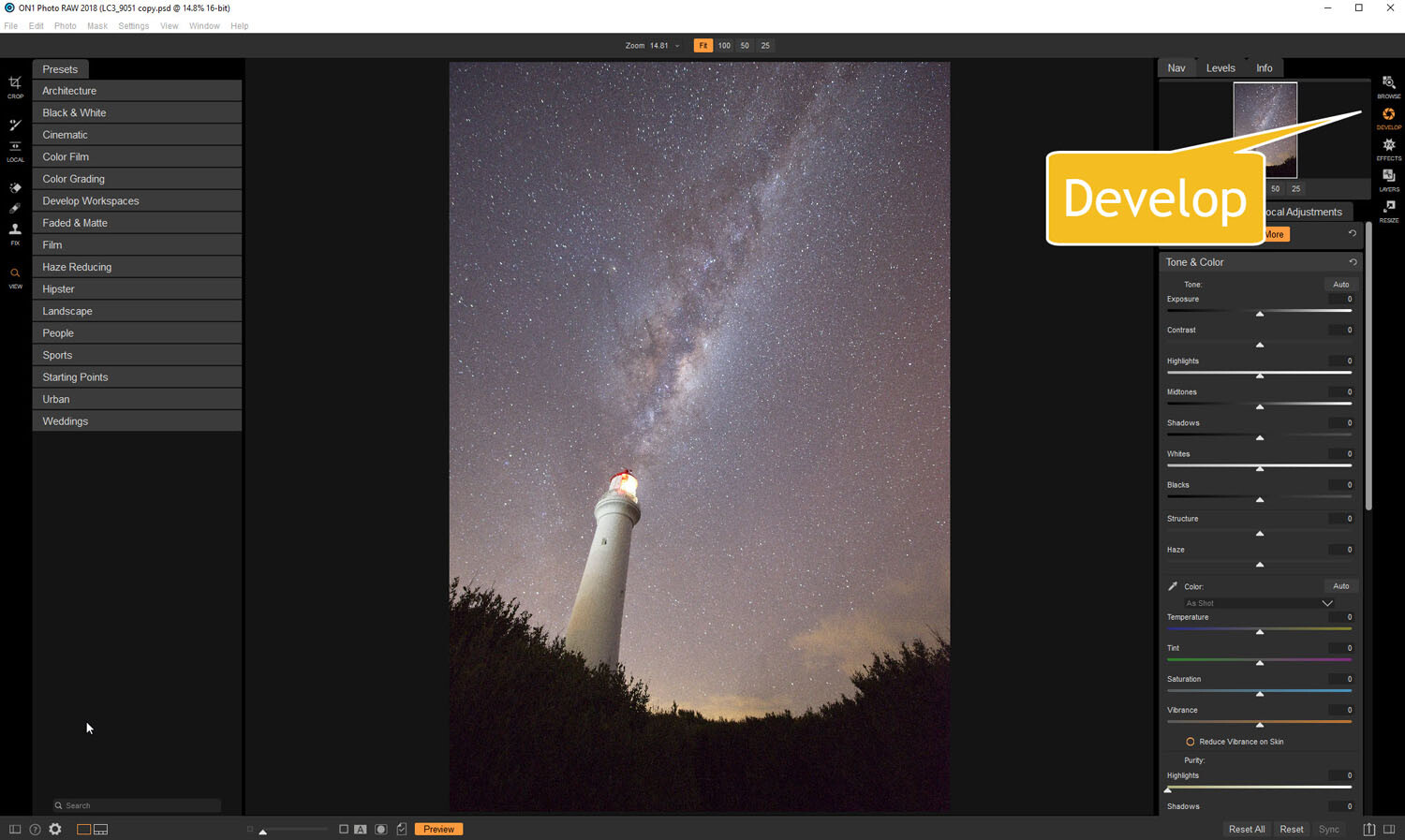
develop - Tips for Processing Night Photography with ON1 Photo RAW 2018

Open in the Develop module.

Noise reduction

The first thing you want to do is to work on the noise in the image. All astrophotography images have a great deal of noise. You have to increase your ISO quite high in order to get the Milky Way in your image. Usually, it is going to be somewhere between ISO 3200 up to 6400.

The image for this article was taken at f/2.8, for 30 seconds at ISO 6400. It was taken at 14mm using a 14-24mm lens.

In the Develop module go to Details. This is where you can help reduce the noise in your image. Click on the image to zoom in so you can see the noise better.

noise and details section of develop - Tips for Processing Night Photography with ON1 Photo RAW 2018

The first thing to do is to fix the noise in the image.

Under Noise Reduction, you will see a Luminance slider. Move that along until the noise almost disappears. Be careful not to go too far or you might lose all the stars (noise is just white specs so the stars can easily be misinterpreted as noise if you go too far).

This slider smooths out the image and you can lose a lot of detail if you go too far. Bring up the Detail slider to help maintain it. It is about experimenting and seeing what you like as well.

You can also bring up the Sharpening amount as well but be careful. Over sharpened images can look terrible. Go easy with this slider.

noise adjustments - Tips for Processing Night Photography with ON1 Photo RAW 2018

You can see how much was changed.

Tone & Color

It is time to go back to Tone & Color and make more adjustments.

tone and color - Tips for Processing Night Photography with ON1 Photo RAW 2018

Take the image back to Tone & Color to make basic changes.

The main things you want to add back into your image are the blacks and lots of contrast. The added contrast will help the stars stand out more from the dark sky. The blacks will allow the darker parts of the sky to appear as you saw them when you shot the image.

The highlights can be brought down to stop the lighthouse from blowing out too much. If you take the shadows down it helps make the darker parts of the sky richer as well. However, be aware that it can also make other parts of the image go black, like the foliage at the bottom of this image.

The whites were brought up a fraction, as this helped to lighten up the Milky Way and make it jump out more.
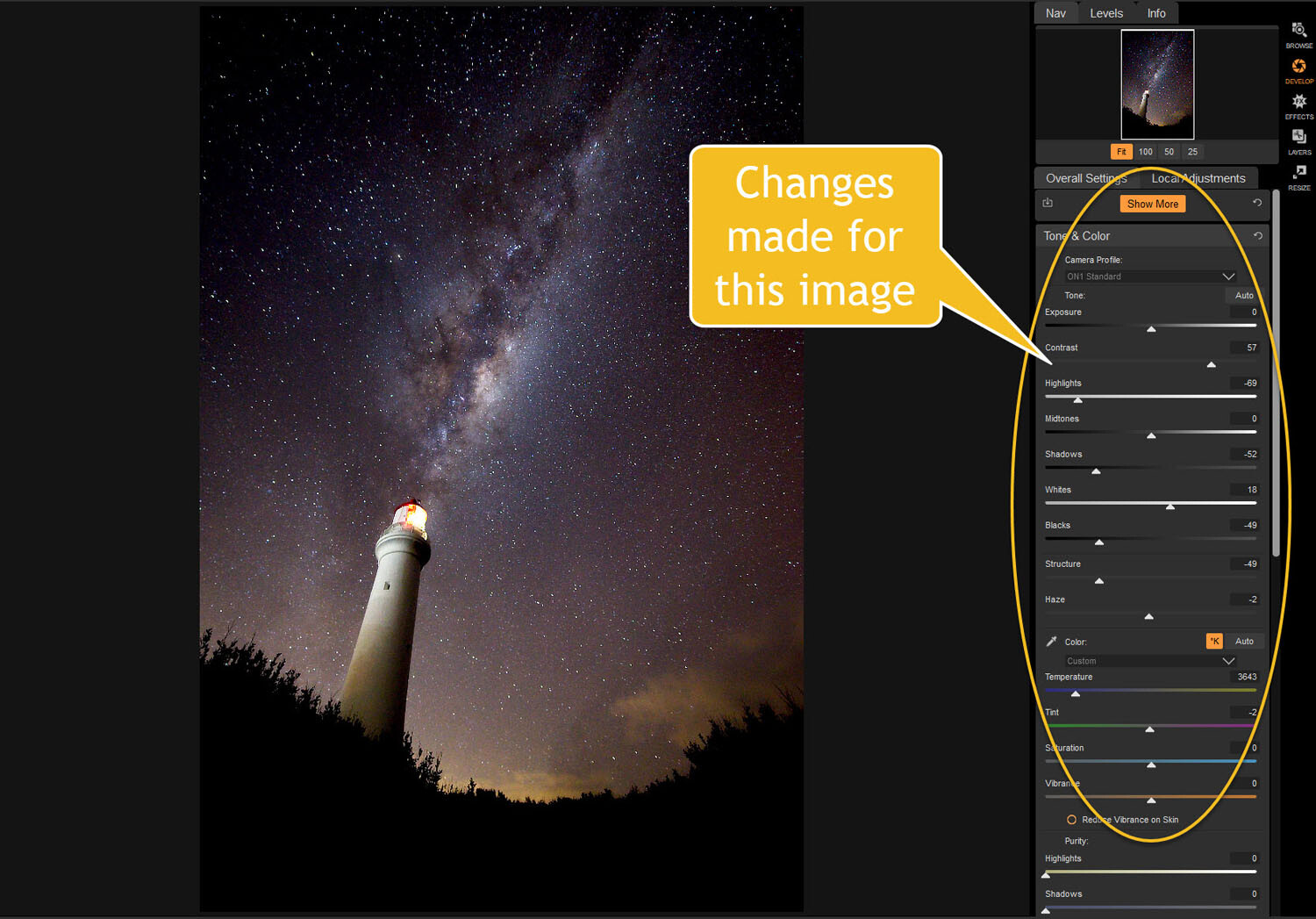
slider adjustments - Tips for Processing Night Photography with ON1 Photo RAW 2018

Some of the changes that were made in Tone and Color.

Color Adjustments

Most of the changes are made to the image now, but if you look closely there is quite a bit of blue in it. It shouldn’t be there and to remove it you need to go to Show More and then Color Adjustments.

color cast - Tips for Processing Night Photography with ON1 Photo RAW 2018

Taking out the blue cast color in the stars.

A new window for this will open up down below the other adjustment windows.

As it is the blue you want to change, click on that color square. Once it is selected you can move the saturation slider until the blue in the image disappears or is to your liking.

reducing blue saturation - Tips for Processing Night Photography with ON1 Photo RAW 2018

Changing the saturation of the blue.

You can try adding presets to your image as well, though most people with astrophotography just do the basics and leave it there.

You will need to play around with your photos to see what you can do and what is to your tastes. These are just suggestions as to what other photographers do. Experiment, take the sliders too far and then bring them back.

This is the final image.

final image of lighthouse - Tips for Processing Night Photography with ON1 Photo RAW 2018

The final image of the Milky Way over the top of the lighthouse.

Light Trails

In cities, or anywhere there is a lot of traffic, you will see photographers trying to capture the trails of the lights as the cars go past. For most places, the best time to capture this is during peak hour when a lot of vehicles are moving. However, it also needs to be dark.

Unfortunately, there are times of the year where it is impossible to get both at the same time. For instance, in Australia during the summer daylight saving means it doesn’t get dark until after 8 pm. Getting good light trails is reduced because there isn’t enough traffic at that hour.

However, there is a way to make it look like there was more traffic, that is to stack your images. You can also do this for star trails too.

Stacking light trails

Work out which image will be the first one. Take it the Develop module in ON1 Photo RAW and do what you want to process it normally first.

But do not straighten it or do any lens correction on the image. If you do then the other images won’t align up properly, you can do all that after.

original image for light trails - Tips for Processing Night Photography with ON1 Photo RAW 2018

The first image used for the light trails.

Once you have your image ready, go to the Layers module.

layers - Tips for Processing Night Photography with ON1 Photo RAW 2018

Take the image to the Layers mode.

Next, add all the other photos that will make up the final image. The best way to do this is to put all the images into a subfolder. Select the images you want to use, then right-click and go to Add Subfolder.

add subfolder - Tips for Processing Night Photography with ON1 Photo RAW 2018

Putting your images into a subfolder.

A window will pop up once you click Add Subfolder. You can name it as you want, or ON1 will name the folder the same as the filename for the first image. Make sure the box is ticked for Move Selected Items into Subfolder.

add subfolder - Tips for Processing Night Photography with ON1 Photo RAW 2018

Creating the subfolder.

Now you are ready to add all those images as layers to the original photo.

Get your image to the Layers module which is where you will add the images for your light trails. Go up to File in the main menu at the top. Select Add Layer(s) from File.

add images from file - Tips for Processing Night Photography with ON1 Photo RAW 2018

Now it is time to add the layers.

A window will pop up where you can go to the subfolder that you put the images into. Select all the images, Ctrl/Cmd+A, then press Open.

select images - Tips for Processing Night Photography with ON1 Photo RAW 2018

Selecting all the images you want to use.

ON1 Photo RAW will ask you if you want to open them all, say yes. Depending on how many images you are trying to do it can take some time for this to happen. The images used for this demonstration are quite large and took a few minutes.

images added as layers - Tips for Processing Night Photography with ON1 Photo RAW 2018

All the images are added.

Next, you need to blend each layer. You want the lights to shine through from each but not everything else. For each layer, go up to the blending pull-down and select Lighten.

blending options - Tips for Processing Night Photography with ON1 Photo RAW 2018

Blending all the layers with Lighten.

You can now save the image and then you can do more processing if you wish. If the image needs straightening, lens corrections, etc., you can do it in the Develop module.

light trails image - Tips for Processing Night Photography with ON1 Photo RAW 2018

The final image.

Star Trails

If you enjoy doing star trails then you will be able to use this same method for processing and stacking those images using ON1 Photo RAW. Just add them all as layers and use the Blending option Lighten.

Conclusion

There are many things you can do with your night photos in ON1 Photo RAW 2018.5. With things developing constantly you will be able to do more and more with time. The HDR feature is one of the best I’ve seen and I’m sure most of you will enjoy that.

With all software, experimenting is the key. Take what you learn and see what else you can do with it.

Disclaimer: ON1 is a dPS paid partner.

The post Tips for Processing Night Photography with ON1 Photo RAW 2018.5 appeared first on Digital Photography School.


Digital Photography School

 
Comments Off on Tips for Processing Night Photography with ON1 Photo RAW 2018.5

Posted in Photography