RSS
 

Archive for June, 2018

5 Camera Filters That Can Enhance Your Photography

27 Jun

Photography can be an expensive hobby, with equipment improvement really making a hole in your wallet. What if I told you there was an inexpensive piece of equipment, which can greatly improve your work! You’d want to know what that is right? Well, step forward the humble camera filter.

Although in truth, there are some camera filter systems that are quite pricey, you can also get ones that are a great value. So let’s take a closer look at what camera filters are all about.

What is a camera filter?

In the age of smart phone filters, it’s worth explaining what the term “filter” used to mean in photography. A filter is something that attaches to the front of your camera lens and is used to alter or adjust the light coming into the camera in some way.

5 Camera Filters That Can Enhance Your Photography - orange warming filter

Camera filters allow you to add more creativity to your photography.

Filters come in two different shapes

  • Circular Filters – These filters screw directly onto the front of your lens. You’ll need to buy a filter of the same diameter of the front of your lens (look at the back of your lens cap for the correct size). It is also possible to buy step-up or step-down rings that will allow you to attach your filter to camera lenses of different diameters.
  • Square Filters – These sometimes come as a rectangular filter, and always as part of a system that allows you to attach them to the front of your lens. There is typically a bracket, which itself attaches to a round ring, that you will screw onto the front of your lens. Systems like this make stacking filters easier and are better for graduated filters.

There are in fact many different filters which you can use, and not all of them are going to be mentioned here. Many people like to use a UV filter to protect the glass on the front of their lens. This is a functional use, and this article seeks to look at the creative use of lens filters.

A few notable omissions to this list are the starburst filters, and the softeners/diffusers used in portrait photography. With all this covered, let’s take a look at the five best camera filters that you can use to enhance your photos.

5 Camera Filters That Can Enhance Your Photography - set of different filters

Circular filter are one of the main options out there.

#1 – Circular Polarizing Filter

The circular polarizer is a great filter, it’s a must-have in your bag. Its primary use is for landscape photography, though it can be useful for outdoor portrait scenes as well. This filter works by only allowing polarized light into the camera, that means light traveling from one direction. This has several effects on your photo.

  • Reflections – A circular polarizing filter can enhance or remove reflections from a scene, depending on what you desire. As you rotate the filter, you will see the reflection either increase or decrease.
  • Saturation – This filter can also add more saturation to your photo, giving it more impact with the viewer. You can adjust how much by rotating the filter.
  • Clouds – Related to the increase in saturation, is the enhancement of clouds. On days where there is a mixture of sky and cloud, this is especially effective.
5 Camera Filters That Can Enhance Your Photography - blue sky and a green field

Circular polarizing filters are great for enhancing skies like this one.

#2 – Neutral Density Filter

Neutral density filters are ones that block the light in varying amounts depending on the strength of the filter. The strength ranges from the ND2 to ND1000, weakest to strongest respectively. These filters are mainly used for either portrait work, or landscape work with the stronger filters used in landscape photography.

The darkness these filters add is referred to as a stop, and a stop means one exposure value (1EV). That means an ND2, which is a 1 stop filter, darkens the photo by -EV1. The ND1000 filter is referred to as a 10-stop camera filter.

  • Portrait filters – ND2, ND4, and ND8 filters can broadly be described as portrait filters. They are used with prime lenses when there is too much light for that lens to be used with a large aperture. Their other function, when using a strobe (flash), is to block enough light so you can use the flash at the camera’s regular sync speed (without the need for high-speed sync HSS).
  • Landscape filters – While there are times you might want to use some of the weaker ND filters for landscape photography, typically you’ll be using an ND110 or ND1000 for landscape photography. This allows you to make dramatic long exposure photos during the day, ideal for moving water or clouds.
  • Solar eclipse – Should you be lucky enough to witness a solar eclipse, you’ll want to use the 16-stop ND100000 filter (a special solar filter).
5 Camera Filters That Can Enhance Your Photography - long exposure scene

If you want to take a daytime long exposure you’ll need a strong ND filter.

#3 – Graduated Neutral Density Filter

These filters are the domain of landscape photographers. Graduated Neutral Density filters come in two types, hard and soft. They’re used to make the sky darker, so it balances out the exposure of the image in relation to the foreground.

Purist photographers who like to create their photos from a single image, and avoid techniques like HDR or digital blending like to use these filters. Even those who like to blend their images will use them, as it makes post-processing easier later on.

If you’re looking to buy one you should look at the square variety, as this gives you the ability to adjust where the horizon line is. Let’s look at the types you could use.

  • Hard – This means there is a sharp line between the dark and light areas of the filter. They are more difficult to use but create nice results when applied correctly.
  • Soft – Soft graduated filters have a more graduated transition from dark to light. Easier to use, and better when the horizon line isn’t sharp if it contains buildings or trees.
  • Strength – As with the regular ND filters these vary with strength. You can get ND2, ND4 and ND8 graduated filters.

Note – The quality of the ND filters will be better the more you spend. Cheaper varieties may introduce a color cast to your image and are therefore not entirely neutral. If you have the money to spend, the Lee filter system is highly recommended.

Read these dPS reviews for more on these filters:

  • Comparison – HDR Versus Graduated Neutral Density Filters for Landscape Photography
  • Review of the Vü Professional Filter System
  • Review of the Wine Country Camera Filter Holder System
  • How to Use Graduated Neutral Density Filters for Landscape Photography
5 Camera Filters That Can Enhance Your Photography

The square shape is best for graduated filters.

#4 – Graduated Filter

Progressing on we now look at the Graduated Filter. These are used to enhance the color in the sky. They work just like the graduated ND filters but instead add color. This type of filter will often be used to make a sunset sky even more dramatic, by making the sky orange, or perhaps rose red.

Other options for graduated filters are adding sepia to the top half of your photo. Even more experimental is adding one color to the bottom of the image, and another color to the top by using two of these filters together. This is a great camera filter to be creative with, but you need to apply it to the right place.

Those wishing to try their hand at this type of photography with a filter should look at this excellent guide.

5 Camera Filters That Can Enhance Your Photography - colored filters

You can use filters to add color to the sky, even when it’s not there yet.

#5 – Infrared filter

Do you want to create a dreamscape from your photos, with foliage that looks like it’s from a snowstorm? Then you’ll need to learn how to make infrared photos.

One of the most accessible ways to do this is by using a filter. When you buy a filter like this it will appear black, that’s because the human eye can’t see the infrared spectrum of light. A popular filter for infrared photography is Hoya’s R72. Even with a filter, you’ll need a camera that will perform with this filter attached, and some cameras are better at this than others.

Most manufacturers will block infrared light from reaching the sensor to some extent, the stronger that block is the less effective this filter will be. Should you choose to use this kind of filter on a non-converted camera expect your exposure times to range from 30 seconds up to 4 minutes, depending on your ISO and aperture settings.

Read more: My First Time Shooting Infrared Photography

5 Camera Filters That Can Enhance Your Photography  - b/w infrared style image

Infrared photography is a lot of fun to try. This photo was shot with the Hoya R72 filter.

What camera filters do you use?

There are lots of methods you can add creativity to your photography, a good camera filter is one of those ways. In this article, you’ve seen five of the best filters available to add that little extra to your image.

Have you used any of these filters? Is there another filter that you use in your photography, that can add more creativity? Those who take black and white photos will no doubt point to the effects that red, orange and yellow filters can add to this genre. As always we’d love to see examples of your photos in the comments section, together with hearing about your experience using filters.

5 Camera Filters That Can Enhance Your Photography  - landscape scene

Filters can be used to darken the sky in landscape photography. This can make it more dramatic.

The post 5 Camera Filters That Can Enhance Your Photography appeared first on Digital Photography School.


Digital Photography School

 
Comments Off on 5 Camera Filters That Can Enhance Your Photography

Posted in Photography


MagnetMod launches Kickstarter for new ‘revolutionary’ softbox system

27 Jun

MagnetMod has launched a new crowdfunding campaign for a trio of new products that makes up what it calls a ‘revolutionary new softbox system,’ The three new products are the MagShoe, MagRing and MagBox and as the naming scheme suggests, these products are made to work together to create an easy-to-use studio setup on the go.

The first piece of the puzzle is the MagRing. Designed to simplify softbox setup times, the MagRing is a magnet-based speedring that lets you mount one or two speedlights to a tripod in a matter of seconds. The MagRing is constructed of a metal base with two locking plastic doors to keep your speedlight(s) in place.

Next up is the MagBox, ‘the world’s first magnetic softbox,’ according to MagnetMod. Hyperbole aside, the MagBox is a 24-inch octabox that includes a built-in gel holder, a zipper for easily swapping out gels, and a unique set of diffusers to help you get just the look you’re going for.

Specifically, the MagBox includes a standard cloth diffusion panel that you’d find inside most soft boxes. However, it also includes what MagnetMod calls the FocusDiffuser. This internal diffuser is designed in such a way that it supposedly recreates the look of a gridded softbox or beauty dish without the light loss you’d get actually using a grid. Based on the GIF below, it appears to work as advertised.

If you’re worried about magnets being the only thing holding the MagBox to the MagRing, there’s not much reason for concern. As MagnetMod shows, the hold is strong enough that a small ‘Magnetic Field Disrupter’ is needed to release the MagBox from the MagRing. In the words of MagnetMod, ‘even if you tilt your softbox at a deep angle or (for some reason) shoot inside a wind tunnel, the MagBox and the MagRing are staying put.’

The last of the three new products is the MagShoe, ‘the baller coldshoe of the future.’ This redesigned coldshe attachment improves upon traditional mounts in almost every way imaginable. Speedlights lock into place with a simple twist of a lever and a squeeze trigger makes it easy to tilt back and forth to get the angle you want. It even has a built-in hole for mounting an umbrella.

As will all of MagnetMod’s past Kickstarter campaigns, this new trio of products has surpassed its $ 100,000 goal with 57 days to go. Pledges start at $ 49, which will get you a single MagShoe, and go up from there. To find out more and secure your pledge, head on over to the Kickstarter campaign.

Articles: Digital Photography Review (dpreview.com)

 
Comments Off on MagnetMod launches Kickstarter for new ‘revolutionary’ softbox system

Posted in Uncategorized


Rumor: Samsung Galaxy S10 to feature triple-camera

26 Jun

We only recently published our Samsung Galaxy S9 Plus review but the smartphone business is extremely fast moving and we are already seeing the first rumors surrounding Samsung’s next generation Galaxy S10 models which should be due for release sometime around the end of February 2019.

The S10 will mark the 10th anniversary of the Korean manufacturer’s high-end Galaxy S line and is expected to come in three variants, with the the top-of-the-line model featuring a Huawei P20 Pro-style triple camera.

Little is known about Samsung’s approach to the triple-camera concept but it’s fair to assume it will offer similar features and specifications as Huawei’s solution

On the Huawei a wide-angle RBG camera is combined with a monochrome sensor and a tele-camera with 3x zoom factor. So far little is known about Samsung’s approach to the triple-camera concept but it’s fair to assume it will offer similar features and specifications as Huawei’s solution. That said, Samsung is expected to develop and implement its own sensors to differentiate the Galaxy S10 from the competition.

The Galaxy S10 base model is rumored to come with a single-camera and a 5.8″ display. The second variant in the line is expected to offer a dual-camera, likely an upgraded version of the Galaxy S9 Plus setup, and the same display size, albeit with with Samsung’s trade-mark curved edges.

The top-end version could feature a larger screen with under-display fingerprint reader and the aforementioned triple-camera. For now Huawei’s P20 Pro is still the only smartphone with a triple-camera in the market but it looks like next year could see both Apple and Samsung enter the triple-camera segment.

Articles: Digital Photography Review (dpreview.com)

 
Comments Off on Rumor: Samsung Galaxy S10 to feature triple-camera

Posted in Uncategorized


Understanding Creative Profiles in Lightroom Classic CC

26 Jun

In April of 2018, Adobe took a much-anticipated advance in the way it allows users to process their images in Lightroom. Beginning with the version 7.3 release of Lightroom Classic (and ACR 10.3) Adobe now offers the use of something called “Adobe Profiles” as well as “Creative Profiles”.

For us photo nerds, this is a BIG deal.

Understanding Creative Profiles in Lightroom Classic CC

Image courtesy Adobe Blog https://theblog.adobe.com/april-lightroom-adobe-camera-raw-releases-new-profiles/

But exactly what are these new “profiles” and how can you use them in your everyday image processing? Well, sit back and relax because I’m about to tell you all about the brand new creative profile section in Lightroom Classic. If you can’t tell…I’m really excited about this!

What are Creative Profiles?

Before we go too far it’s important to note that you’ve probably used profiles before either in Lightroom or right inside your camera. All those settings in your camera for things like Vivid, Standard, Landscape or Portrait are all considered profiles.

Understanding Creative Profiles in Lightroom Classic CC - camera profiles landscape

All of those modes found in your camera are just a way that your camera’s tiny internal computer can process your images. When you shoot RAW, those profiles are simply bypassed in favor of more control in your editing later. The new creative profiles in Lightroom Classic work in essentially the same way.

Think of the profiles as ways to “cook” your RAW files while not needing to sacrifice any editing power. Furthermore, Lightroom’s new profile feature harnesses the user-friendliness of develop presets and integrates that creative simplicity with the power and flexibility of what’s called a color LUT (look up table). I won’t go too far into explaining LUTs in this article but just know that they are used extensively to color grade images.

The great thing about the creative profiles is that they allow you to use custom made LUTs in your editing.

How to Use Creative Profiles

Making use of the new profiles feature in your editing is extremely easy. These profiles can be applied just like develop presets…only not. What I mean by this is that a profile is similar to a develop preset in that it instantly performs edits for you with simply a click of the mouse. But this is where the similarity between profiles and presets end.

The difference comes down to how the nature of the profiles and how they apply their edits. Develop presets are simply saved blueprints of adjustment slider settings. This means that develop presets override the current setting of each adjustment slider and set each slider according to the saved value on the preset.

Understanding Creative Profiles in Lightroom Classic CC - LR preset settings

While develop presets are a powerful tool for any workflow, you can still run into trouble when you begin to use multiple develop presets while editing the same image.

Applying Profiles

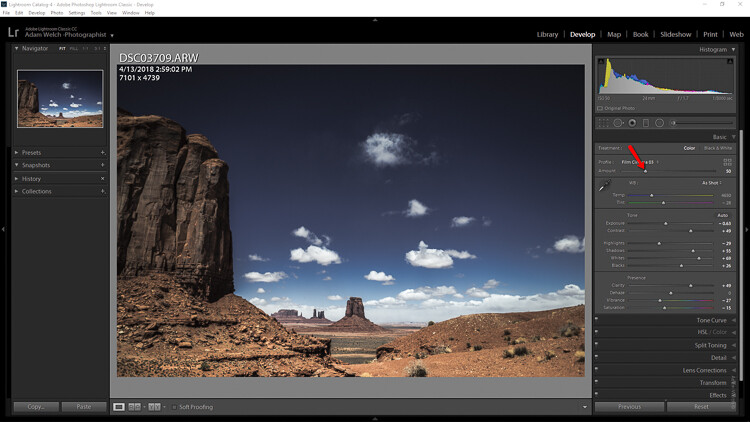
A creative profile works differently from a preset in that it does not rely on the adjustment sliders to make changes. This means that a profile can be added at any time during your processing workflow without affecting the edits you might have already made. Let me show you.

This image has had some basic processing and now I’m going to apply one of my presets.

Understanding Creative Profiles in Lightroom Classic CC - scene of a desert and dark blue sky

Have a look at the adjustment sliders before…

Understanding Creative Profiles in Lightroom Classic CC - sliders in LR

…and now after the develop preset is applied.

Understanding Creative Profiles in Lightroom Classic CC

The preset will automatically change the respective sliders that I saved when I made the preset. This can cause some problems especially if you choose to apply the preset at the end of your editing. It can be one big post-processing headache.

Next, we’re going to take that same image and apply a creative profile.

Just look at the image and the sliders as compared to before we applied the profile. The profile has applied edits without affecting those we already have made.

Understanding Creative Profiles in Lightroom Classic CC

I don’t have to tell you how extraordinarily convenient it is to be able to impart a certain look to the photo without disrupting the things I’ve already adjusted.

Adjusting Profile Density

Not only can profiles be used completely autonomously of the current image adjustments, but you can also control how much of the profile is applied. Think in terms of opacity and intensity.

You can now determine how much or how little of the effect you need and then dial in the desired setting using the amount slider.

Understanding Creative Profiles in Lightroom Classic CC

Here’s the profile effect at approximately 75%…

Understanding Creative Profiles in Lightroom Classic CC

…and now with about 25%

Understanding Creative Profiles in Lightroom Classic CC

Something to keep in mind when using profiles is that even though they are more flexible than develop presets that doesn’t mean they don’t come without their limitations.

The main one being that you can only apply one profile at a time. So don’t get any ideas of stacking profiles…at least not yet.

Final thoughts on Creative Profiles

I love presets. I love making presets. In fact, a good bit of my work revolves around the developing and constructing of develop presets for Lightroom. So when I say that I love the direction Adobe is heading with the profiles feature in their latest versions of Lightroom Classic CC hopefully you’ll want to give them a try as well.

Profiles are extremely similar to develop presets in that they allow you to perform a lot of processing in the fraction of the time it might normally require. The difference between profiles and presets is not in their outcome but rather in the little detours each one takes to reach the final destination.

Will profiles ever totally replace develop presets? I don’t think so, at least not for a while. And why should they? Like most aspects of photography, each small link in the chain serves to pull together a greater whole; it’s in this way that presets and profiles complement each other.

Once you understand the basics of using Adobe’s new creative profiles each one of them will serve you extremely well. As always, use presets and profiles up to and never beyond the point of your own creative vision for your images. Less is usually more. Have fun and enjoy shooting!

The post Understanding Creative Profiles in Lightroom Classic CC appeared first on Digital Photography School.


Digital Photography School

 
Comments Off on Understanding Creative Profiles in Lightroom Classic CC

Posted in Photography


Leica SL 16-35mm F3.5-4.5 sample gallery

26 Jun

$ (document).ready(function() { SampleGalleryV2({“containerId”:”embeddedSampleGallery_2997892453″,”galleryId”:”2997892453″,”isEmbeddedWidget”:true,”selectedImageIndex”:0,”isMobile”:false}) });

The 16-35mm F3.5-4.5 is currently the widest lens in Leica’s full-frame SL system, and it’s one that the company hopes will cover a lot of use-cases for SL owners. With a loaner lens in hand and plenty of daylight hours to burn, we’ve been out shooting with the 16-35mm long enough to determine that it’s very, very sharp. It’s no lightweight of course, and feels every bit as solid as its 990g / 2.2lb suggests. Take a look through our sample images and see what it can do.

Articles: Digital Photography Review (dpreview.com)

 
Comments Off on Leica SL 16-35mm F3.5-4.5 sample gallery

Posted in Uncategorized


Amusement Parks to go to This Summer months months months

26 Jun

As summertime time approaches, quite a few vacationers pack up and head to a amount of of North America’s most well-known amusement parks. When hordes of thrill seekers head in to the domestic staples like Disney and Cedar Trouble, many of America’s best subject issue parks deliver different hours of spouse and youngsters entertaining with distinctive touches you will not routines within the mega-parks. Tourists in search of to improve up the Disney routine undoubtedly have to study out the subsequent amusement parks home page.

Indiana Seaside entrance front, Monticello, Indiana

Indiana Seaside entrance has every thing you can want along with the strategy park, which include things like thrilling rides also a h2o park, with distinct touches together with lake-front cabins and cottages, a boardwalk, in addition being a whole golfing schooling education class. In essence by far the most worthwhile portion is generally that Indiana beach is refreshingly affordable.

Knoebels, Elysburg, PA

Knoebels payments by alone as conventional subject matter make any difference park, showcasing free of charge of demand admission and fairly priced journey price ranges. This Pennsylvania strategy park has rides which will go on to help keep the many family and friends shoppers joyful, furthermore the park is harmless ample to permit additional mature tiny styles operate wild freely.

Storyland, Glen, New Hampshire

Nestled in New Hampshire’s White Mountains, Storyland will be the quintessential spouse or partner and youngsters amusement park. You’ll find much more than numerous sights for youthful youngsters, and almost all rides make certain it truly is feasible for additional mature individuals right now and kids to journey, so homes could potentially get satisfaction from jointly. Not similar to a large amount of overpriced matter parks, Storyland’s meals items and souvenirs are within your means.

The post Amusement Parks to go to This Summer months months months appeared first on Photonovice.

Photonovice

 
Comments Off on Amusement Parks to go to This Summer months months months

Posted in Equipment


Sony RX100 VI vs Panasonic ZS200 vs Panasonic ZS100: which is the best travel companion?

26 Jun

Intro

Sony’s RX100 may have ushered in the era of the 1″ sensor compact, but it took Panasonic to combine these larger sensors with the long-lens flexibility that defines a travel zoom. This shouldn’t be a surprise, since Panasonic spearheaded that type of camera back in the days when small sensors ruled the Earth.

The RX100 VI, with its 24-200mm equivalent lens, marks Sony’s entry into the travel zoom sphere, pitching it squarely up against Panasonic’s ZS/TZ models: the ZS100 and ZS200. So how do they compare?

Body

The Panasonics, with their longer lenses, are a little larger in every dimension. They have viewfinder eye-pieces extending slightly from their upper left-hand corners. This extra space finds some use, though, with both cameras offering control dials on their top right shoulders, which the Sony lacks. The ZS200 even finds space for a rubber strip down the front of the camera, making it much easier to grip in a stable manner.

The RX100 M6 is still a pretty reasonable size for an 8x travel zoom

The Sony comes closest to counting as pocketable. The RX100 series have added a couple of mm here and there over their lifetime, but although they’ve been creeping up in size compared with enthusiast compacts, the RX100 M6 is still a pretty reasonable size for an 8x travel zoom.

All three cameras have metal bodies but in each case it’s a fairly thin shell, so don’t expect any of them to put up with much rough-and-tumble.

Lenses

The Lumix DC ZS200 has by far the greatest lens range of this trio but, in order to keep the size of the camera down, also has the least bright lens of the three. Its F3.3-6.4 maximum aperture is the most limited in terms of low light performance, and it gives a little less control over depth-of-field at traditional portrait focal lengths.

The ZS100 sits in the middle of the group, with a 25-250mm equivalent lens and F2.8-5.9 maximum aperture, while the Sony opts for the most modest zoom range (~24.5 to 200mm equivalent) but in combination with the brightest aperture range.

The RX100 VI maintains a value of F4 up to and a little beyond 100mm equivalent, meaning it can shoot passable portraits

F2.8-4.5 isn’t much to shout about if you compare it with the short, bright zoom on the RX100 V, but it’s noticeably brighter than those of the Panasonics. The RX100 VI maintains a value of F4 up to and a little beyond 100mm equivalent, meaning it can shoot a passable portrait, as well as a wide range of holiday snaps.

Autofocus

We’ve been pretty impressed with the autofocus performance of the Panasonic ZS / TZ cameras. It’s not pro sports level but it’s pretty good at subject tracking and produces a pretty reasonable hit-rate, even when shooting at 10 fps.

However the RX100 VI is playing at a rather different level. One of the main things you’re paying for in this camera is its fast sensor with on-sensor phase detection. This, along with algorithms Sony developed for its a9 pro sports camera, means hugely impressive autofocus performance. Even at its maximum shooting rate of 24 frames per second, it’s able to track moving subjects very effectively.

Sony’s Eye AF system outperforms the Panasonics by a significant degree, in terms of both speed and accuracy.

Even if you don’t shoot fast-moving subjects or rattle-off 24 fps bursts, the RX100 VI’s autofocus can be very useful. While the Panasonics are able to identify and focus on subjects’ eyes as part of its Face Detection mode, the Sony’s Eye AF system outperforms it by a significant degree, in terms of both speed and accuracy. If you hold down a button to engage Eye AF you can essentially depend on your subject being perfectly focused.

Viewfinders

All three cameras feature viewfinders, which is hugely useful when shooting in bright light, adding to the flexibility of all these cameras. The ZS100 has the smallest, lowest-resolution finder of the three, followed by ZS200, with the RX100 VI offering the highest resolution as well as the largest viewfinder image.

Camera Resolution Magnification
(35mm equiv)
Technology
Panasonic Lumix DMC ZS100 1.17m dot equiv 0.46x Field-sequential LCD
Panasonic Lumix DC ZS200 2.33m dot equiv 0.53 Field-sequential LCD
Sony Cyber-shot DSC RX100 VI 2.36m dots 0.59x OLED

The Sony has the upper hand in this respect, since it has a bright contrasty OLED viewfinder, whereas the Panasonics use field-sequential lower contrast LCDs. These refresh one color after another, rather than showing red, green and blue at the same time. The resulting ‘rainbow effect’ can be off-putting for some users and becomes more visible in low light.

Image Quality

All three cameras perform very well in terms of image quality, compared with older travel zooms or contemporary smartphones, thanks to their large, 1″-type sensors. A 13.2 x 8.8 mm chunk of silicon isn’t much when compared with most interchangeable lens cameras, but it’s enough to offer in the region of a 3EV difference to a smartphone shot at the same F-number (though multi-shot and computational techniques allow some of the latest phones to compete).

Panasonic and Sony have historically ranked somewhat poorly in our estimation when it came to JPEG color, but both have made significant improvements with their recent models. These improvements, combined with some of the most sophisticated noise reduction and sharpening available see us leaning towards the Sony when it comes to JPEG quality.

Lens performance tends to be somewhat variable with the complex, collapsible lenses used in this class of camera

Lens performance tends to be somewhat variable with the complex, collapsible lenses used in this class of camera but we’ve been impressed by what we’ve seen of the Sony lens, so far, whereas we haven’t encountered a ZS200 that could maintain sharpness across its full (extensive) zoom range.

Low light performance is somewhat hindered by the cameras’ relatively slow maximum apertures, which give them less access to light, meaning noisier images than you can get with the likes of the RX100 V or LX10 with their shorter but brighter lenses.

Video

All three cameras offer 4K video at up to 30 frames per second but they achieve it in very different ways. The Sony samples the full width of its sensor then processes and downsizes this higher-res footage to UHD 4K resolution. This allows it to capture more detail than the Panasonics, which use a 3840 x 2160 pixel crop from the center of their sensors.

Using a crop means the Lumixes are effectively using smaller sensors, which means less total light capture and noisier footage, as well as losing any wide-angle capability from their lenses. The Sony also offers a range of advanced video features such as the ability to shoot Log footage.

However, a major drawback for all three cameras is that none of them incorporate ND filters in their lenses, nor do they include filter threads for attaching one. This suggests video was fairly low down on the list of priorities in their design.

A major drawback for all three cameras is that none of them incorporate ND filters in their lenses, nor do they include filter threads for attaching one

Aftermarket options exist that glue a threaded mount onto the front of the lens. However, given how delicate these lenses are, we think you’d have to be pretty committed to shooting video to take this approach (and, ideally, fairly careful each time you apply torque to attach a filter).

The Panasonics limit their 4K recording to 15 minutes, while the RX100 VI claims only 5. In each case, these results are likely to be even shorter when shooting in warm environments, which may further restrict your shooting.

Add to this the lack of mic sockets on all three cameras, and you can pretty much rule them out for serious video work, unless you’re really fond of the booming, rasping interruption of wind noise or are willing to give up the convenience and compactness of the camera by carrying a separate audio recorder.

Controls

All three cameras have comparatively limited direct control. Each has a mode dial from which it’s entirely possible to engage P, A, S or M exposure modes, but none of them appears designed with constant settings changes in mind.

As alluded to earlier, the Panasonics do have an edge here though, thanks to the additional control dial on their top right corners. The function of this dial can be reconfigured, which you may wish to do, depending on how you like to shoot. This ability to customize the dial’s function and its more convenient location make it much more convenient than the small, fiddly dial on the back panel of the Sony, which you need to re-arrange your hand position to reach.

The RX100 VI has the most sophisticated Auto ISO system, whereas the ZS200 doesn’t offer quite so much scope for fine-tuning

The RX100 VI has the most sophisticated Auto ISO system, reducing your need to directly control this, the ZS200 doesn’t offer quite so much scope for fine-tuning and the ZS100 is the least clever, with you just having to hope it’ll make the right choices for you.

All three cameras have free-rotating dials around their lenses. These are great for controlling continuously adjustable settings, such as zoom or manual focus but give no tactile feedback to help indicate when you’re adjusting discrete settings, such as aperture value, ISO or exposure compensation, which can lead to accidental settings changes.

Touchscreen

The RX100 VI is the first of its line to include a touchscreen and, like other recent Sonys, this can be used to position the AF point, both when the rear screen is being used and as a touchpad when the camera is to your eye.

Panasonic was the first brand to use the rear screen as a touchpad, so it probably shouldn’t come as a surprise that its touchscreen implementation is rather more polished. The Lumixes may lack the ability to specify which areas of the screen should/shouldn’t be active in touchpad mode, but they allow the use of the touchscreen for a much wider range of functions.

Panasonic was the first brand to use the rear screen as a touchpad

The menus in the ZS100 and 200, while different, are both touch sensitive. Both cameras also offer a customizable version of their Q.Menus, which are designed with large, easy to press buttons. You can customize the Sony’s comparable ‘Fn’ menu but you can’t interact with it via the touchscreen.

Conclusion

Overall, then, it looks like an easy win for the Sony. It’s the smallest, and has the brightest lens. It may be the shortest zoom of the three, but it includes a range that will be enough for most applications, so this shouldn’t be limiting.

Our impressions so far are that it also has the best lens, the best autofocus and video that’s both cleaner and more detailed. There are also a couple of things the RX100 does that the Panasonics can’t. Its frankly ridiculous continuous shooting performance may be a differentiator for some photographers, and its Eye AF performance alone would make a huge difference for anyone taking portraits.

Where it loses out is in terms of control. The Panasonics have an extra control dial and make much more extensive use of their touchscreens, which makes it easier to take control over them when you’re shooting. They also trounce the Sony in terms of battery life, offering between 25 and 50% longer battery life depending on the model. This may be a deciding factor for anyone traveling.

The Sony certainly promises a lot more but you also have to pay for that.

Then, of course, there’s the price. Even at list prices, the RX100 VI’s $ 1200 price tag makes it 50% more expensive than the ZS200 and 70% more expensive than the ZS100. This price difference on the street is likely to be still larger, given how long the ZS100’s price has had to drop since launch.

The Sony certainly promises a lot more but you also have to pay for that. Whether it’s worth it for you is something we’ll try to establish in our forthcoming review.

Articles: Digital Photography Review (dpreview.com)

 
Comments Off on Sony RX100 VI vs Panasonic ZS200 vs Panasonic ZS100: which is the best travel companion?

Posted in Uncategorized


A Few Common Photography Abbreviations Explained

26 Jun

For a visual medium, photography is a bit of an alphabet soup when it comes to abbreviations. AWB, DOF, RGB… Even for the seasoned photographer, photographic abbreviations can be a confusing encounter. Here are a few of the most common photography abbreviations to help you tell your TIFF’s from your TTL’s.

A

Aperture priority commonly abbreviated to A or Av (for aperture value) is a setting on your camera that allows you to adjust the aperture value (otherwise known as the f-number or f-stop) while the camera automatically selects a shutter speed to produce an image with the correct exposure.

As you adjust the aperture for different photographic effects, the camera’s internal light meter measures the lighting conditions of the scene and adjusts the shutter speed accordingly.

Read more here: Getting off Auto – Manual, Aperture and Shutter Priority modes explained

AF

AF is an abbreviation for autofocus. The AF feature automatically adjusts the camera lens to focus on a subject, creating a sharp image.

There are several types of AF focus modes. Single focus, known as AF-S (Nikon) or One Shot AF (Canon) will cause the camera to lock focus on a subject and the camera won’t re-focus while you keep the shutter actuator depressed half way. Continuous or tracking focus – AF-C (Nikon) or AI Servo (Canon) on the other hand, continuously readjusts the focus if you keep the shutter button half-depressed. This maintains focus on moving subjects. Some cameras also have a mode called AF-A (Nikon) or AI Focus AF (Canon) that switches between the two modes automatically.

Read more here:  5 Beginner Tips for More Autofocus Success

Auto

Auto is short for automatic and is sometimes signified by a small green rectangle on the camera’s shooting mode selector wheel. In this mode, the camera calculates and adjusts all camera settings for correct exposure, taking into account shutter speed, aperture, focus, white balance, ISO and light metering automatically.

Some cameras have automatic modes programmed to specialize in taking photographs of a particular subject. For example, action or sports mode prioritizes a higher ISO value and faster shutter speeds. It is represented by a running figure on your dial if your camera offers such modes.

A Few Common Photography Abbreviations Explained - camera mode dial

Auto mode is sometimes signified by a small green rectangle on the camera’s shooting mode selector wheel.

AWB

Light is different under different conditions. AWB or Automatic White Balance works in-camera to measure the white balance (WB) of a scene and remove any color casts that may impede on a photograph. In short, it tries to automatically analyze and color correct your scene. It works fairly well in most cases but can be tricked.

Note: if you shoot in RAW format you can easily tweak the White Balance later in post-production.

Read more: Auto White Balance: Yay or Nay?

B

B stands for Bulb, a mode designed for longer exposures like those often seen in time-lapse photography. In Bulb mode, when you depress the shutter button, the shutter will remain open until the button is pressed again (or until it is released, depending on your camera).

This mode is usually used in conjunction with a tripod and a remote shutter release and is necessary to achieve exposures longer than 30 seconds (the maximum exposure time on most cameras).

Read more: How to Use Bulb Mode for Long Exposure Photography

CMYK

CMYK stands for cyan, magenta, yellow and black. Black is referred to as K which is shorthand for the key plate – a printing tool which makes the artistic detail of a picture in black ink. CMYK is the color space used for most color reproduction printers (magazines, posters, business cards, etc.). This four-color mode utilizes each color in set amounts to create a color print. It is a subtractive process, so each additional color means more light is absorbed to create colors.

Because RGB (the color space in which your camera records an image) provides a larger range of colors available on the digital screen, a printed image will be inconsistent with the image you see when you press “print”. Converting an image to CMYK in Photoshop or Illustrator before printing will produce an image on the screen that is much closer to the printed product, allowing you to print an image accurately.

DOF

Depth of Field or DOF is the zone of focus in a photograph. Depth of field is affected by the aperture. A large aperture creates a shallow depth of field with a small amount of the image will be in focus. A small aperture creates a large depth of field with more in focus. Depth of field is also defined by lens focal length and the distance from the subject to the camera.

Read more: Seeing in Depth of Field: A Simple Understanding of Aperture

A Few Common Photography Abbreviations Explained

A small aperture creates a large depth of field with more in focus

DPI

DPI or dots per inch is often used interchangeably with PPI or pixels per inch. Technically, DPI measures the number of dots that can be printed in a line within the span of one inch. PPI also measures the number of dots in a line within the span of an inch but on a computer screen instead. Printers and screens with higher DPI or PPI values are clearer and more detailed.

You need to know the DPI of your printer or lab to correctly size your images for printing. Read more: How to Choose Your Lightroom Export Settings for Printing

DSLR

DSLR stands for Digital Single-Lens Reflex camera. A DSLR camera has a mirror that reflects the light coming in from the lens and directs it through a prism or set of mirrors to the viewfinder. This arrangement allows you to see what you are shooting by looking through the viewfinder. When the shutter button is depressed, the mirror flips up and allows the light coming through the lens to reach the camera sensor.

Canon 5D Mark IV full-frame DSLR camera – Image by dPS writer Mark Hughes. 

Read more: The dPS Ultimate Guide to Photography Terms – a Glossary of Common Words and Phrases

F-stop or f-number

The f-stop or f-number is a term that indicates the size of the aperture opening on your lens. Every aperture is expressed as an f-stop or f-number, like f/8 or f/2.8.

Read more: How to Take Control of Aperture and Create Stronger Photos

IS

IS stands for Image Stabilization. This technology goes under several names; Vibration Reduction, SR, VR, and VC are a few. Image stabilization is a feature in your lens (not all lenses have it!) that enables you to photograph sharper images when shooting handheld at lower shutter speeds, in dark conditions, at longer focal lengths.

Note: Some cameras have the stabilization inside the camera body. Read your user manual to be sure.

ISO

ISO stands for International Standards Organization. In film photography, ISO (or formerly ASA) was an indication of how sensitive a roll of film was to light. In digital photography, ISO measures the relative sensitivity of the camera sensor. This value can be adjusted in-camera.

The higher the number, the more light the sensor can capture. However, the greater the sensitivity of the film or sensor, the grainier the image will be (in digital photography it’s called noise).

Editor’s Note: Before you jump up and down and add a comment below about the fact that the sensitivity of the camera sensor does not actually change, let’s agree to keep it simple for the purpose of this article and these definitions. No, it isn’t that simple, but people new to photography need to take baby steps in understanding these terms, so please accept that we’ve simplified it here.

A Few Common Photography Abbreviations Explained - digital noise and bokeh

The graininess in this image is caused by a high ISO value.

JPEG

JPEG (sometimes shortened to JPG) is an image file format. It stands for “Joint Photographic Experts Group” – the name of the group that created the format. It’s one of the most common image formats saved by digital cameras, the other being RAW.

JPEG files are lossy which means that images in this file format are compressed. Lossy formats are smaller and easier to handle, but they suffer from a loss of quality.

Read more: RAW Versus JPEG – Which one is right for you and why?

M

M or Manual Mode is a shooting mode on your camera that when activated, means that you have complete control over every setting on your camera. This includes the aperture, shutter speed, ISO, white balance, metering mode, and more.

Note: Manual Mode and Manual Focus are NOT the same thing and are not exclusive of one another. Meaning you can shoot in Manual Mode using Autofocus, or in an Automatic mode using Manual Focus.

Read more: Simplifying Manual Mode to Help You Take Control of Your Images

M4/3

M4/3 is short for Micro Four Thirds and it is also known as MFT. Developed by Olympus and Panasonic in 2008, the M4/3 is a mirrorless interchangeable lens system for digital cameras and lenses. This mirrorless system means that the camera does not have an optical viewfinder system like conventional SLR/DSLR cameras, but an electronic viewfinder (EVF) instead. This system is simpler, lighter and allows for smaller cameras than DSLRs.

Read more: The 19 Most Popular Compact System and Mirrorless Cameras with Our Readers

The Olympus OM-D EM-10 is a micro four-thirds camera which means it has a smaller sensor size but is every bit as capable as most other cameras on the market.

P

P stands for Program Mode. This shooting mode has the camera adjust aperture and shutter speed automatically, while allowing you to adjust other settings like ISO, flash, white balance and focusing functions.

Read more: Your Guide to Understanding Program Mode on Your Camera

RGB

Based on the human perception of colors, RGB stands for Red, Green, and Blue. RGB is an additive color space designed for viewing imagery on digital displays (see CMYK above).

Read more: Adobe RGB Versus sRGB – Which Color Space Should You Be Using and Why

S

Shutter Priority Mode (also known as SP or TV for Time Value) is a setting that allows you to select the shutter speed while the camera automatically adjusts the aperture for proper exposure. As you adjust the shutter speed the camera’s internal light meter measures the lighting conditions of the scene you’re shooting and adjusts the aperture accordingly.

This mode is best used for shooting fast moving objects or when you want to blur or freeze a moving subject.

Panning a moving target is a good time to use Shutter Priority Mode.

Read more: Getting Your Priorities Straight – A Guide to Selecting Your Shot Priority

SLR

SLR or “single lens reflex” refers to a non-digital camera with single-lens reflex capabilities (see DSLR).

TIFF

Short for Tagged Image File Format, TIFF is a file format for digital images that does not lose color and detail in the way that lossy compression formats such as JPEG files do. This type of file format is described as lossless.

TTL

TTL stands for Through the Lens and refers to an automatic flash metering system. The flash fires a short burst prior to the actual exposure, the camera reads the amount of light coming through the lens, and sets the power of the flash according to the selected aperture. This mode is most often used with the flash on the camera.

Read more: How to Understand the Difference Between TTL Versus Manual Flash Modes

TTL versus manual flash – image by dPS writer Kunal Malhotra.

USM

USM stands for Ultra Sonic Motor, a type of autofocus motor in lenses trademarked by Canon. Equivalent systems include Nikon’s SWM (Silent Wave Motor), Sigma’s HSM (Hyper-Sonic Motor) and Olympus’ SWD (Supersonic Wave Drive Motor). They are designed to have the lens’s autofocus work as silently as possible.

WB

WB stands for White Balance, the act of balancing the color cast found in different lighting conditions for an accurate image (see AWB). White Balance can be set in-camera and adjusted in post-processing if you have shot in RAW format.

Read more: How to Use White Balance as a Creative Tool

Conclusion

There you have it. Of course, there are plenty more photography abbreviations where they come from. But knowing these basics will get you on the right track to navigating the alphabet soup that is photographic lingo! Be sure to add any extra abbreviations you’d like to see in the comments below.

The post A Few Common Photography Abbreviations Explained appeared first on Digital Photography School.


Digital Photography School

 
Comments Off on A Few Common Photography Abbreviations Explained

Posted in Photography


How to Use Conceptual Contrast in Photography

26 Jun

Contrast is one of the most important aspects of any photograph. It adds focus, distinction, and punch, and gives the viewer both a first impression of the image as well as a journey into its details.

How to Use Conceptual Contrast in Photography - cat on a tire

At its most basic, contrast is defined as a difference. The most common types, which you’re probably quite familiar with, are tonal contrast and color contrast. In this article, I want to introduce yet another kind of contrast to your photography toolbox: conceptual contrast.

What is Conceptual Contrast?

How to Use Conceptual Contrast in Photography - plant in an electrical box

The photograph above has conceptual contrast. Can you figure out what it is? Conceptual contrast is different from tonal and color contrast; it’s more abstract and perhaps less obvious. It has to do with ideas and as the name suggests, concepts, not with physical aspects such as light levels or color.

Just like other kinds of contrast, conceptual contrast can add punch by bringing together things that you might not normally expect to see in the same image. It makes a photograph more interesting and raises questions about the contrasting parts of the image.

When it’s done well, conceptual contrast can help tell a story, function as an eye-opener, surprise the viewer, and jar them into considering their response.

How to Use Conceptual Contrast in Photography - police and people dressed up

Why should you use conceptual contrast?

Visual storytelling is a part of any great photograph. It’s how your photo goes beyond being just aesthetically pleasing, how you get people to stop and really look at your photograph, and how you create an emotional response in the viewer.

Conceptual contrast is not only a great way to add depth to your photographs but also an opportunity for you (the photographer) to learn to look at and become aware of your surroundings in a new way.

How to Use Conceptual Contrast in Photography - red and yellow subjects

You can use this technique to share a sense of wonder, to make a point, and to bring the viewer out of their comfort zone and make them think. What could be more important than that?

waterfall and garbage - How to Use Conceptual Contrast in Photography

So how do you do it?

It takes some forethought and observation to create a photo with conceptual contrast. Coming up with an idea that works will be the hardest part; the rest is as easy or hard as taking any photograph. The steps I’ll be talking about focus on photography outside of the studio, but it can also be a very powerful tool for posed photographs.

How to Use Conceptual Contrast in Photography - paddle boarder with relics in the ocean

The first and most basic stage is observation. You can find good material for conceptual contrast almost everywhere if you pay enough attention.

Try it right now! Move around in the space where you’re reading this, and see if you can find something that stands out and could make an interesting photograph.

banana leaves and fruit - How to Use Conceptual Contrast in Photography

After finding something to capture, the second stage is developing the idea. Just because the contrast is obvious to you doesn’t mean that it will be to others.

It doesn’t have to be obvious, but think about how you want to take the photo to make it both interesting to look at and eye-opening to explore.

For the best effect, your photo should contain more than just the conceptual contrast. To bring the viewer in and give them a chance to notice and react to the less obvious aspects of the photo, you should use everything else you know about photography to make it stand out and draw them in.

rows of sticks for vines and mountains - How to Use Conceptual Contrast in Photography

The final stage is capturing your photograph. This is the technical part where your abstract idea takes physical form. After you share it with others, it will gain a life of its own as viewers enjoy your photo and interpret it from their own perspective.

man on a beach in the fog - How to Use Conceptual Contrast in Photography

Conclusion

Is conceptual contrast something you have used or will try to use in your photography? What good examples of conceptual contrast have you seen? I’d love to see your images with conceptual contrast and hear your feedback and ideas in the comments below, please share.

The post How to Use Conceptual Contrast in Photography appeared first on Digital Photography School.


Digital Photography School

 
Comments Off on How to Use Conceptual Contrast in Photography

Posted in Photography


Adobe AI spots tampered images by focusing on noise and artifacts

26 Jun

Adobe researchers have developed a neural network that can identify Photoshopped images. The technology was detailed in a newly published study [PDF], which points out that it is often difficult for humans to notice altered parts of an image. However, differences between the original image and edited elements typically persist despite any attempts to obfuscate them, such as applying a Gaussian blur, and machines can be trained to spot those discrepancies.

Various differences may exist between original and edited image elements, such as different noise patterns and contrast levels. Manual adjustments to these edited elements can make them virtually indistinguishable to the human eye. Adobe’s neural network, however, can not only identify these changes, but also determine the type of tampering technique used to edit the image.

The system involves a two-stream Faster R-CNN network with end-to-end training in identifying manipulated images. The first, called an RGB stream, looks for various tampering artifacts, including big contrast differences and altered boundaries. The second, called a noise stream, looks for inconsistencies in the image’s noise to identify edited elements.

In the study, researchers explain:

We then fuse features from the two streams through a bilinear pooling layer to further incorporate spatial co-occurrence of these two modalities. Experiments on four standard image manipulation datasets demonstrate that our two-stream framework outperforms each individual stream, and also achieves state-of-the-art performance compared to alternative methods with robustness to resizing and compression.

Such technology could prove useful for verifying the authenticity of images used in photojournalism, photography contests, and similar situations.

Via: CNET

Articles: Digital Photography Review (dpreview.com)

 
Comments Off on Adobe AI spots tampered images by focusing on noise and artifacts

Posted in Uncategorized