RSS
 

Archive for January, 2018

3 Tips for Setting Boundaries to Avoid Burnout in Photography

11 Jan

Whether you’re a professional photographer or a hobbyist, there have likely been times when you’ve felt ready to throw in the towel and quit photography forever. Those feelings are normal and are usually the result of added stress from things like a looming deadline or a project that you don’t feel prepared to tackle.

Often, once the added stress subsides, so does the desire to quit photography. However, if that stress becomes chronic it can cause physical, emotional, and mental burnout that’s much more difficult to bounce back from.

3 Tips for Setting Boundaries to Avoid Burnout in Photography

One of the most effective things that photographers of all levels can do to prevent and avoid burnout is to set appropriate boundaries. In this article, we’ll discuss a few different boundaries that you may want to consider setting now in order to protect yourself from future burnout.

1. Set Office Hours

Between smartphones and wi-fi access, it’s easy to be available all the time. It’s easy to respond to a quick text while you’re on vacation. Replying to a midnight email when you’re already awake doesn’t seem like a big deal.

On one hand, being accessible to your clients (whether paid or unpaid) can make them feel appreciated and enhance the client experience. On the other hand, it can also lead to exhaustion and burnout because it always feels like you’re “on duty”.

It’s actually okay not to be available 24/7. In fact, it’s more than just okay. Setting boundaries in terms of availability is crucial to a healthy balance between your work and your personal life.

3 Tips for Setting Boundaries to Avoid Burnout in Photography

Consider setting business/office hours, and do your best to stick to them! The client experience is primarily driven by the quality of the service they receive rather than the speed with which they receive it. Most current or potential clients will be satisfied to receive a response within 24-48 hours.

Just because you happen to see a midnight email pop through doesn’t mean you need to respond to it right away! If you’ve always been immediately accessible and are concerned about making this transition, it’s easy to set an auto email or Facebook Messenger reply to let potential clients know that you’ve received their inquiry and when they can expect a response back from you.

3 Tips for Setting Boundaries to Avoid Burnout in Photography

2. Build in Downtime

I know as well as anyone that it can be really difficult to build downtime into your schedule because doing so often feels like you’re either losing opportunities or income. However, when you’re very busy with photography, it’s important to remember to schedule two kinds of downtime in order to prevent burnout – processing time, and days off.

In the spring, summer, and fall, it can be tempting to book photo sessions every night and weekend. It’s not a bad thing to fill your schedule, but don’t forget that your work generally isn’t done once you leave the session itself. Most sessions require some degree of processing time, which could include everything from culling, editing, social media posts, communication with your clients, and arranging for delivery.

When you’re creating your calendar of availability, don’t forget to factor in all the time you’ll spend after the actual session itself and build in that processing time (or plan to outsource it) accordingly.

3 Tips for Setting Boundaries to Avoid Burnout in Photography

In addition to processing time, I have discovered that there’s tremendous value in blocking out a day or two on my calendar as personal days, even during my busiest season. For me, this is so important both in terms of self-care and also in terms of prioritizing and preserving relationships with my family.

Although I started doing this in order to save my own sanity, I’ve discovered that setting and communicating boundaries in terms of my availability has been helpful in other ways as well. Potential clients tend to book more quickly than they used to because they know that my availability is limited. I also receive far fewer last minute requests to reschedule to a different date or time for the same reason.

3 Tips for Setting Boundaries to Avoid Burnout in Photography

3. Communicate Your Timeline

Another small thing that can greatly reduce your stress and frustration is to communicate your timeline with your clients up front and let them know what they can expect in regards to receiving their images.

Make sure that this timeline is realistic. Factor in all scheduled sessions, your post-session processing time, and your scheduled downtime. By doing so, you’ll be able to give clients a more realistic timeline for receiving their images, while also decreasing the number of all-night editing sessions for you.

3 Tips for Setting Boundaries to Avoid Burnout in Photography

Obviously, the timeline for a professional photographer with five weddings in their queue is going to be totally different than a hobbyist photographer taking photos of a friend’s children. However, you don’t know who a client has worked with in the past, or what their expectations are as they enter into a session, which is why it’s so important to clearly communicate your timeline from the beginning!

Conclusion

Do you have any other advice for setting boundaries to avoid burnout in photography? Have you experienced it? What did you do to prevent it from happening again? Please share your thoughts in the comments below!

The post 3 Tips for Setting Boundaries to Avoid Burnout in Photography by Meredith Clark appeared first on Digital Photography School.

Digital Photography School

 
Comments Off on 3 Tips for Setting Boundaries to Avoid Burnout in Photography

Posted in Photography


Panasonic Lumix DC-GH5S vs Sony a7S II low light shootout

11 Jan

We shot the Panasonic GH5S against the Sony a7S II to see whether the video-centric Lumix can wrest the low-light crown away from its full frame rival. We’ll let you draw your own conclusions, but our initial assessment is that the Panasonic comes closer than we expected, and outperforms the Sony when you need to maintain a certain depth-of-field or when you shoot in Log.

Click here to download a ProRes version of the video (8.0GB)

Notes:

We shot both cameras side-by-side, which explains the slight perspective difference. The GH5S’s oversized ‘multi aspect’ ratio sensor means it also offers a wider field of view even when using equivalent focal lengths.

We shot at a range of ISOs in both the camera’s REC709 modes and their respective Log gamma modes, then matched the footage up alongside one another. We’ve kept all post-processing to a minimum, with only very minor color and brightness adjustments applied to provide consistency between the two cameras.

We felt Panasonic’s noise reduction is significantly more effective than Sony’s

Most sequences were shot so that both cameras had the same exposure settings. These are marked as ‘Exposure Matched’ in the video. However, there are times when you need to achieve a certain depth-of-field. These clips, which required us to stop the Sony down by two stops, are indicated as ‘Depth-of-Field Matched.’

We felt Panasonic’s noise reduction is significantly more effective than Sony’s and, especially when combined with its ability to shoot 10-bit 4:2:2 footage, helps it perform well when compared with the Sony, especially below ISO 12,800 and when shooting in Log. However, it’s also worth noting the yellow blocking that can infest high ISO footage from the GH5S.

For a more detailed assessment, head to our first impressions review.

Read our Panasonic Lumix DC GH5S
First Impressions Review

Articles: Digital Photography Review (dpreview.com)

 
Comments Off on Panasonic Lumix DC-GH5S vs Sony a7S II low light shootout

Posted in Uncategorized


Best Photos of 2017 by JMG-Galleries Blog Readers

11 Jan

_A2A1077M-2

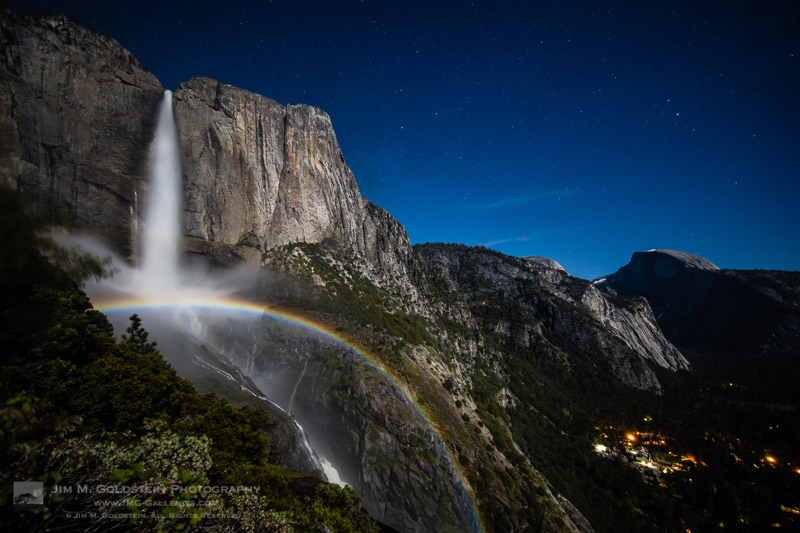
Get ready to start 2018 off on the right foot with some creative inspiration. The results of my 11th annual Best of Photos project hopefully will provide just that by introducing you to photographers and their work from all over the world. Get ready to travel around the world in 100+ links.

For those who are new to my blog project, photographers taking part span the gamut of photo enthusiasts to professionals. The great thing about photography is that no matter what your skill level we all can relate equally in our love for the art of photography and visually exploring. With that in mind I encourage you to reach out to photographers whose work you enjoy to keep sharing & growing as an artist.  I am incredibly thankful that this tradition has been embraced and enjoy seeing how familiar faces have evolved their work & grown over the years.  I hope reviewing your best photos of the year and comparing them to years pasts keeps you inspired and aware of your progress as a photographer.

If you’d like to take part next year and be informed when submissions open for the “Best Photos of 2017? blog project add your name to my mail list. You won’t be spammed. I send out newsletters quite infrequently.

Thank to everyone who took part!  I invite you to visit each link below as I have and introduce yourself to many of the participating photographers.

Best Photos of 2017

  1. Jim M. Goldstein – Best Photos of 2017 by Jim M. Goldstein
  2. Randy Langstraat – My Ten Favorite Photos of 2017
  3. Michael Russell – My Top 10 Photos of 2017
  4. Phil Colla – Best Natural History Photos of 2017
  5. Greg Russell | Alpenglow Images – 2017 year in review
  6. Mike Matenkosky – My Favorite Photos from 2017
  7. Khürt Williams – 2017 Favourites
  8. Carl Donohue – Expeditions Alaska
  9. Kevin Ly – Kevin Ly | Best of 2017
  10. Martin Quinn – Quinn Images – Best of 2017
  11. Robin Mayoff – RHM Images Best of 2017
  12. Craig L. Howe – On the Move
  13. Johann A. Briffa – 2017: A Photographic Retrospective
  14. Harold Davis – Harold Davis—My Best of 2017
  15. Denise Goldberg – top photos :: 2017
  16. William Bean – Bill’s Blog
  17. Greg Clure – Best Images of 2017
  18. Rick Holliday – Best Images of 2017
  19. Peter Carroll – Peter Carroll – Favourites of 2017
  20. Mike Chowla – My 10 Best Photos of 2017
  21. Wendy M. Seagren – wendy seagrens best photography 2017
  22. QT Luong – 2017 in Review, Favorites, and Seasons Greetings
  23. Jenni Brehm – Changing Perspectives
  24. Rachel Cohen – Rachel Cohen Photography
  25. Brian Knott (FMKphoto) – 2017 year in review
  26. Shikha Shrivastava – My favorite photos of 2017
  27. Dave Wilson – Dave Wilson Photography – Best of 2017
  28. Larry Millican – Millican Photography
  29. Alexander S. Kunz – My Favorite Photos from 2017
  30. Mark Duffy – 500px
  31. Stefan Baeurle – Top 10 Favorites of 2017
  32. Adrian Klein – Favorite Photos of 2017
  33. Alan Majchrowicz – Photo Highlights 2017
  34. Russ Bishop – Russ Bishop Photography | 2017 – The Year in Pictures
  35. Todd Henson – Best Photos of 2017: My Favorites of the Year
  36. Peter Tellone – My 2017 Top Ten Best Images
  37. Aaron Hockley – thisGruntled – Best Photos of 2017
  38. Tony Wu – Favorite Photos of 2017
  39. T.M. Schultze – T.M. Schultze Website
  40. Andrew S. Gibson – My Favorite Photos From 2017
  41. John Pemberton – JPSquared – Images of 2017
  42. Scott Thompson – Scott Shots Photography’s Top 10 Tahoe photos of 2017
  43. ElDuro Tuco – ElDuro Tuco
  44. The DarkSlides – The DarkSlides
  45. Jon McCormack – From Ancient Cities to Endangered Animals – 2017 in Photographs
  46. Fred Mertz Photography – Fred Mertz Photography
  47. Richard Valenti – Richard Valenti Photography
  48. Jeff Hubbard – My Favorite Photos of 2017
  49. Andrew Scharlot – 2017 Best Pictures
  50. Deb Snelson – Favorite Photos of 2017
  51. Richard Wong – Favorite Photos From 2017 – Richard Wong
  52. Caleb Weston – Dubland
  53. Gary Crabbe / Enlightened Images – My Favorite Landscape Photos of 2017 – A Year-End Retrospective
  54. Tom Whelan – Nature Diary
  55. Robert Varley – Robert Varley
  56. Kyle Jones – Favorites from 2017
  57. Neil Creek – Neil Creek – Photographer
  58. tim fiddimore – North Devon 2017
  59. Richard Murphy Photography – Best of 2017
  60. Alan Dahl – Favorites of 2017
  61. Gabor Ruff – Natural History Photography – Highlights from 2017
  62. Kevin Ebi – Living Wilderness: Best of 2017
  63. Clint Losee – 10 Best Landscape and Scenic Photos of 2017
  64. Mark Hespenheide – Best of ’17
  65. Ilias Katsouras – Okrivadas
  66. David J Grenier – 2017 Top 12 Photographs
  67. J. J. RAIA – 2017 Jim Goldstein Project
  68. Rob Tilley – Best of 2017 – My Favorite Images of the Year
  69. Björn Göhringer – Top 14 From 2017
  70. Bernt-Inge Madsen – Bernt-Inge.com
  71. USKestrel Photography (Pete Miller) – My favorite images of 2017: A Different Perspective
  72. Milan Hutera – 2017 in Pictures
  73. Fred Murphy – Fred Murphy Photography
  74. Harry Hitzeman – My Top Photographs of 2017
  75. Andrew Thomas – Best of 2017 – Aerials
  76. Dean Foster – 2017: Year in Review
  77. Simon Ng – 2017 A Year of Water
  78. Michael Katz – Michael Katz Photography
  79. Drake Dyck – Top Ten (favourite) Images of 2017
  80. Jose Manuel Santos – The Magnificent Douro Valley
  81. Gary Buzel – Gary Buzel Studios
  82. Bryan William Jones – Top Photos of 2017
  83. Peter Knott – 2017 Favourites
  84. Kamala Venkatesh – Kamala Venkatesh
  85. Jason Frye – My Top 10 of 2017
  86. Jackson Frishman – Favorites of 2017
  87. Thomas Yackley – Top Ten Landscape and Nature Photos of 2017
  88. Mark Graf – 2017 – A Year of Despair and Dragons
  89. Kurt Lawson – 10ish Favorites of 2017
  90. Jorge Ramirez – Selection 2017
  91. William Neill – William Neill’s Light on the Landscape Photoblog
  92. Daniel Leu – Favorites – 2017
  93. Derrald Farnsworth-Livingston – Top 10 Favorite Images from 2017 ~ Journey of Light
  94. Photography
  95. Mike Christoferson – 2017 Has Come and Gone
  96. Carol Schiraldi – Best of 2017 – My Top Images
  97. Robin Black – My 10 best photos (or personal favorites, anyway) of 2017
  98. Bryn Tassell – Favourites of 2017
  99. Steve Luther – SkyVista Photography Best of 2017 Images
  100. George Stark – George Stark Images
  101. Josh Meier – Josh Meier Photography Best of 2017
  102. Werner Priller – My Favorite Images of 2017
  103. Peter Krogh – Best of 2017 Photographs by Peter Krogh
  104. Under Pressure Photography by Scott F McGee – Top 10 Photos of 2017
  105. Joseph Smith – 2017 Favorites – A Year’s Review
  106. Chuq Von Rospach – 2017 BEST PHOTOS OF THE YEAR
  107. Charlotte Gibb – Twelve Months – Twelve Photographs
  108. Holly Davison – Holly Davison Photography
  109. Colleen Miniuk-Sperry/CMS Photography – Favorite Photos From 2017
  110. Anne McKinnell – Top 10 Landscape Photos of 2017
  111. Jim Stamates – My Favs of 2017
  112. Neil Corman Photography – Ten Images from 2017
  113. Eric E Photo – Analog: 2017
  114. Phyllis Whitman Hunter – Phyllis Whitman Hunter Photography
  115. Catalin Marin – My favourite shots of 2017
  116. Catalin Marin – Corporate work – My favourite client shots of 2017
  117. Simon Ponder – Sponderpoints
  118. Greg A. Lato – latoga photography Favorite Photos of 2017
  119. Paul Rosenblum – Best Shots of 2017
  120. Patricia Davidson – My Top 10 Favorite Photos of 2017
  121. Tim Aston – Favorites from 2017
  122. Yosemite and Bay Area Photography by John Harrison – “My Best Nature
  123. Sue Shuey – Best Overall 2017
  124. Ron Niebrugge – My Photo Blog
  125. Michael Frye – My Top Photographs of 2017
  126. Jao van de Lagemaat – Jao van de Lagemaat’s Best images of 2017
  127. David Leland Hyde/Landscape Photography Blogger – Best Photographs of 2017
  128. Mike Cavaroc – Free Roaming Photography
  129. Patrick Endres – 2017 Favorites
  130. Alex Buisse – Best of 2017

Have a great 2018!

The post Best Photos of 2017 by JMG-Galleries Blog Readers appeared first on JMG-Galleries – Landscape, Nature & Travel Photography.


JMG-Galleries – Landscape, Nature & Travel Photography

 
Comments Off on Best Photos of 2017 by JMG-Galleries Blog Readers

Posted in Equipment


ACE Eyewear are $100 social-media connected camera sunglasses

11 Jan

If you are the kind of person who likes friends and social networks to ‘participate’ in what’s going on in your life in real-time, the ACE Eyewear camera sunglasses might just be what you’ve been waiting for. These glasses allow for hands-free recording and live-streaming of video from your own point of view, all at a price of $ 100.

The glasses feature an 8MP camera with a 120-degree wide-angle lens, which also allows you to record video at just under Full-HD resolution (1792 x 1168) and 24 frames per second. When connected through a smartphone’s Wi-Fi hot spot, the ACE can live-stream your video footage to Facebook, Instagram or YouTube.

A button at the top of the glasses starts recording and a built-in microphone takes care of the sound.

Thanks to a Dual Core MIPS 1.2GHz processor, power consumption during recording is low, allowing for up to 90 minutes of HD video recording or 40 minutes of live-streaming in addition to an 80-hour standby battery life. There is also 4GB of built-in memory, and files are managed via an accompanying app. All this technology fits into a pair of glasses that weighs only 50g (1.76oz) and comes with an IP65 rating for dust and splash resistance.

So far smartglasses have not really caught on with consumers, but the ACE Eyewear’s low price and ability to stream to multiple networks give it an advantage over most competitors, and might make it more appealing to a larger audience.

You can find more information and pre-order a pair for yourself on the Ace Eyewear website. Delivery is planned for summer 2018.

Articles: Digital Photography Review (dpreview.com)

 
Comments Off on ACE Eyewear are $100 social-media connected camera sunglasses

Posted in Uncategorized


LaCie unveils DJI Copilot 2TB portable hard drive with built-in display

11 Jan

Seagate has just announced the LaCie DJI Copilot, a portable hard drive for photographers and videographers who use camera drones. The device features a 2TB drive, as well as an integrated screen for viewing the drive’s available capacity, the status of any data transfers that are underway, and how much power remains on the device’s built-in battery.

The company describes the new LaCie drive as a full backup on-set solution (BOSS) that enables drone users to review their footage without carrying around a laptop. This is achieved via the Copilot BOSS companion app for smartphones and tablets, which supports full-resolution playback on mobile devices and enables users to organize and manage their content on-the-go.

The LaCie DJI Copilot also functions as a power bank for charging USB devices, such as a smartphone or action camera.

According to Seagate, the 2TB capacity is ample enough to store up to 65 hours of 4K/30fps footage and 20,000 or more raw images. Users can directly copy data from USB storage devices (including USB-C), cameras, SD cards, and drones to the drive. Other features include durable construction that is resistant to dust, splashes, and drops, an included 3 year ‘Rescue Data Recovery’ plan, and a 1-month Adobe Creative Cloud All Apps subscription.

$ (document).ready(function() { SampleGalleryV2({“containerId”:”embeddedSampleGallery_0087604314″,”galleryId”:”0087604314″,”isEmbeddedWidget”:true,”selectedImageIndex”:0,”isMobile”:false}) });

Seagate will start shipping the LaCie DJI Copilot portable storage drive this Spring for $ 350 USD. To learn more, head over to the LaCie website by clicking here.

Press Release

Seagate Teams Up With Industry-Leading Partners To Offer New Mobile Data Storage Solutions At CES 2018

Enables consumers and creative professionals to work, play and collaborate on-the-go, to get the best out of their data

LAS VEGAS, NV – CES 2018 – Seagate Technology plc (NASDAQ: STX), a world leader in data storage solutions, today announced a range of new products at the CES 2018 conference designed to equip the world’s increasingly mobile population with solutions that solve key challenges they face when creating, processing and accessing their data on-the-go.

“Our world is becoming more data-centric, connected and mobile. This means creating, transferring, storing and accessing data quickly and reliably is critical to unlocking the potential of everything – from data created in the field, to data powering self-driving cars, AI personal assistants or virtual and mixed reality experiences,” said Tim Bucher, senior vice president of Seagate consumer solutions. “At Seagate, we’re constantly pursuing innovative ways to address our customer needs so they can gain a competitive edge in whichever field they play.”

For example, videographers who want to capture footage in the field can now streamline their on-set workflow thanks to the second product offering from Seagate’s strategic partnership with DJI, the world’s leading manufacturer of unmanned aerial vehicles, which looks to advance data solutions for the UAV ecosystem. The new LaCie® DJI Copilot, with design by Neil Poulton, is a complete backup on-set solution – enabling drone users to quickly ingest and review their content in full resolution without a PC. This changes the game by allowing creative professionals and consumers to playback, copy and manage their drone footage from their mobile device without the hassle of leaving the field or booting up a computer. Users can quickly connect and reference the built-in screen to initiate direct file transfer from an SD card to LaCie DJI Copilot – without the need of a laptop or a mobile network. The Copilot BOSS (Back-up On-Set Solution) app by LaCie allows users to playback video in full resolution as well as manage and organize files with their mobile phone or tablet, and a built-in power bank recharges your mobile devices. With 2000GB (2TB) of storage, the LaCie DJI Copilot enables users to easily store up to 65 hours of 4K 30fps video footage and 20K+ RAW photos. The LaCie DJI Copilot’s street price in the U.S. will be $ 349 and will be shipping in the spring.

Another challenge facing many mobile users today is extending the storage and battery life of their smartphones so they can capture, access and view content for longer periods of time. For consumers in China and Indonesia – two countries with some of the highest concentrations of smartphones on the planet – owners of Android mobile devices can significantly extend the battery life and capacity of their smartphone or tablet with the new Seagate® Joy Drive. Whether consumers are on their morning commute or just out with friends, the Seagate Joy Drive enables them to access videos and other content anywhere, without the need for a WiFi connection or cellular service. Available first in China this March through an exclusive partnership with JingDong, one of China’s largest online retailers, the Seagate Joy Drive is available in 1000GB (1TB) capacity and has a street price in China of 660 CNY ($ 99). Seagate is also evaluating potential future markets and partners for this product.

In the meantime, on-the-go consumers worldwide can keep their files and lives in motion with the new Seagate® Fast SSD – an ultra-portable flash drive that teams fast performance of up to 540MB/s transfer rates, with shock-resistance and USB-C connectivity. Users can backup or sync their content using Seagate’s new Toolkit software. The Seagate Fast SSD is available in 250GB, 500GB and 1TB capacities and has a street price in the U.S. of $ 99, $ 169 and $ 349, respectively and will be shipping in the spring.

Data security is one more growing concern for anyone using a mobile device. To address this challenge, Seagate is introducing the latest addition to its popular line of LaCie Rugged drives: the LaCie Rugged® Secure. Built to withstand all-terrain extreme conditions from photo shoots in sub-zero temperatures to repeated drops on hard studio floors, the Rugged Secure, with design by Neil Poulton, is the first Rugged drive to include hardware encryption using Seagate Secure™ technology. This new drive gives creative professionals and other users peace of mind that they can control access to their content. A simple disconnection of Rugged Secure from a computer will automatically lock the drive and access to the data stored and will remain password-protected via new Toolkit software. The LaCie Rugged Secure street price in the U.S. will be $ 139 for 2TB and will be shipping in the spring.

And for creative professionals and enthusiasts looking to try out the latest graphic design and video editing software from Adobe Systems, an expanded partnership between Adobe and Seagate now provides limited-time, no-cost access to Adobe’s latest applications bundled with popular Seagate and LaCie drives. Two new offerings available immediately include two complimentary months of the “Adobe Creative Cloud Photography plan” (worth $ 19.98) – which features the new cloud-based photo service, Adobe Photoshop Lightroom CC – across the full range of Seagate Backup Plus and LaCie Porsche Design devices, as well as packaging one complimentary month of the “Adobe Creative Cloud All Apps plan” (worth $ 74.99) – which features Adobe Photoshop CC, Adobe Illustrator CC and much more – with all LaCie Rugged, LaCie d2 and LaCie big devices.

For more details, come ‘get your game on’ during CES 2018 in the Seagate Experience Zone at The Venetian. There you’ll find interactive product demos and live experiences that showcase how the latest Seagate and partner technologies are teaming up to unlock the potential of creative workflows, smart home technologies, gaming, edge computing and more. We’ll also be joined at CES by our partners including Adobe, Blackmagic, CyArk, DJI, Grab Games, ioSafe and Synology. You’ll be right in the middle of the action as you explore a hands-on studio for creative professionals, a drone stadium and a future technologies pavilion. You can also find more information on new products at:

DJI Copilot

https://www.lacie.com/professional/dji-copilot/

Rugged Secure

https://www.lacie.com/professional/rugged/#secure

Fast SSD

https://www.seagate.com/consumer/backup/fast-ssd/

Joy Drive

https://www.seagate.com/consumer/backup/joy-drive/

Articles: Digital Photography Review (dpreview.com)

 
Comments Off on LaCie unveils DJI Copilot 2TB portable hard drive with built-in display

Posted in Uncategorized


Hasselblad reveals the winners of the 2018 Masters Awards

10 Jan

$ (document).ready(function() { SampleGalleryV2({“containerId”:”embeddedSampleGallery_5419437314″,”galleryId”:”5419437314″,”isEmbeddedWidget”:true,”selectedImageIndex”:0,”isMobile”:false}) });

Eleven lucky photographers will be receiving a Hasselblad medium format kit after winning their categories in the Hasselblad Masters Awards 2018 competition. The company says the number of photographers that entered the contest increased by 175% this year, and a total of 31,500 images were submitted.

Ten categories were set with a generally open brief, with an additional section for photographers 21 years and younger. For the first time an aerial category was included, which was won by Jorge de la Torriente, a photographer from the USA. The USA produced three winners—the most from any one country—with other entries coming from Europe, Asia and Australia.

Entries were accepted taken on any brand of camera, with the only stipulation being that entrants should have been professional photographers for at least three years (other than for the under-21 category, of course).

For more information, and to see all the winning images, scroll through the gallery above, check out the video below, or visit the Hasselblad website.

Press Release

Hasselblad Announces Winners of the Masters Awards 2018

Hasselblad Masters is widely acclaimed as one of the world’s most prestigious professional photography competitions. The winners are chosen through a combination of a public vote and a professional Masters Jury – comprised of internationally renowned photographers and imaging experts.

Every Hasselblad Masters award winner will hold the title of ‘Hasselblad Master’ and be a brand ambassador for two years. In addition, they will receive a brand new Hasselblad medium format camera and be invited to shoot for a collaborative project with Hasselblad.

This project will be printed and released in the bi-annual Hasselblad Masters book.
Winners will receive their awards, medium format cameras, and trophies at a special Photokina 2018 ceremony in Cologne, Germany this September.

Bronius Rudnickas, Hasselblad Marketing Manager: “Over 30 000 images were submitted to this year’s competition and that was a record, we are glad to see the competition is growing every year.”

Masters Jury member and professional photographer Tom Oldham said: “It really struck me how progressive many of the entries were this year and how far the entrants were willing to push the brief. These were the photographers who caught my eye – the ballsy, out-there risk-takers who make compelling pictures that refuse to be ignored. I’m proud to have helped to get this great kit into their hands – their images deserve it.”

The Hasselblad Masters Awards 2018 winners are:

  • Aerial – Jorge de la Torriente – Miami, USA
  • Architecture – Kamilla Hanapova – St. Petersburg, Russia
  • Art – Maria Svarbova – Bratislava, Slovakia
  • Beauty & Fashion – Michal Baran – Trim, Ireland
  • Landscape – Benjamin Everett – Lopez Island, USA
  • Portrait – Tina Signesdottir Hult – Torvastad, Norway
  • Product – Marcin Gizycki – Warszawa, Poland
  • Project//21 – Nabil Rosman – Kota Bharu, Malaysia
  • Street / Urban – Ben Thomas – Kyneton, Australia
  • Wedding – Victor Hamke – Leipzig, Germany
  • Wildlife – Karim Iliya – Haiku, USA

The Hasselblad Masters Awards 2018 jury are:

  • Tom Oldham – Photographer
  • Ali Rajabi – Past Master
  • Martin Hausler – Photographer
  • Katrina Belkina – Past Master
  • Swee Oh – Past Master
  • Lars van de Goor – Past Master
  • Tim Flach – Photographer
  • Kevin Then – Photographer
  • Bara Prasilova – Past Master
  • Damien Demolder – Journalist
  • Blair Bunting – Photographer
  • Hans van Ommeren – Past Master
  • Mads Nissen – Photographer
  • Kevin Raber – Journalist

For more information and images, visit http://www.hasselblad.com/masters


Full Disclosure: Damien Demolder was one of the judges for this year’s Hasselblad Masters Awards.

Articles: Digital Photography Review (dpreview.com)

 
Comments Off on Hasselblad reveals the winners of the 2018 Masters Awards

Posted in Uncategorized


Panasonic Lumix GH5S vs GH5: What’s new?

10 Jan

Introduction

The Panasonic GH5 is one of the the most capable video cameras available, but it’s a hybrid camera that aims to please a stills-shooting crowd too. So what kind of camera could it be if it was only focused on shooting video? The GH5S is the product of Panasonic engineers grappling with that question. Here’s a breakdown of what’s changed from the GH5 in the quest to make it an even stronger video camera.

Low light / Dual Gain

The new sensor features dual gain design, which Panasonic refers to as ‘Dual Native ISO’ technology. The sensor uses two separate read-out circuits – one that maximizes dynamic range at lower ISOs, and one that maximizes noise performance (at the cost of dynamic range). The first is used from ISO 160-640, with the camera switching to the second at ISO 800, allowing better high ISO performance than the standard GH5.

We’ve seen this technology before but we’ve not previously seen the option, present on the GH5S, that allows the camera to be locked into one of its modes (and limiting the available ISO options). We’re not entirely sure what the benefit of this is supposed to be.

Note that, while Panasonic refers to ‘Native’ ISO settings of 400 and 2500, this is rather woolly videography terminology, which should not be confused with the concept of ‘base’ ISO.

Multi-aspect sensor

We’ve long been a fan of Panasonic’s multi-aspect sensors for stills shooting, and it makes an appearance in the GH5S. The camera’s total resolution is 12.5MP with a sensor larger than the Micro Four Thirds image circle: it offers up to 10.2MP crops of that total area, rather than further cropping in from the 4:3 area. This makes native DCI and UHD 4K recording possible, without having to keep cropping in further and further.

This means devoting the most possible sensor area to each of its crop modes, which benefits image quality and means that your wide-angle lenses are just as wide in ~17:9 DCI 4K mode as they are for standard 4:3 stills.

DCI 4K at 60/50p

The GH5 is capable of UHD 4K 60p/50p capture, but DCI capture tops out at 24p. Not so on the GH5S: it’s capable of 60p, 50p, 30p and 25p DCI as well as 24p. Thanks to that multi-aspect sensor, the GH5S’ angle of view when capturing DCI footage should also be noticeably wider.

14-bit Raw but slower shooting

The GH5S adds a 14-bit Raw option, which as we all know, means greater potential for dynamic range capture. The GH5 was already bumping up against the limits of how much DR could be fitted into a 12-bit file, and the GH5S’s larger pixels mean that it should benefit from a little more room. That said, the real-world differences will only become apparent if you use those really deep shadows in your images.

It can be used in burst shooting, though at a cost to speed: 7 fps with autofocus and auto exposure, versus 9 fps at 12-bit in the GH5. The GH5S can be switched to 12-bit mode, at which point it’ll reach 8fps with continuous AF.

No Stabilization

The camera’s sensor-based stabilization is gone, which may on the surface sound like an odd decision, but makes a lot of sense for pro video shooters who are often working with their own stabilized rigs and gimbals. The floating sensor design used by the GH5’s stabilization system can interact with gimbals even when it’s turned off, so removing it entirely solves the problem. It’s another clear appeal to pro video shooters, rather than a stills shooter looking for an occasional ‘run and gun’ video solution.

We’ve seen a degree of scepticism about Panasonic’s reasoning but, if you assume there’s some heat dissipation benefit for bonding the sensor to a solid object and you recognize that the camera is already shooting out to the edges of the Micro Four Thirds image circle, there may be no way of doing what the GH5S does and providing stabilization.

More VFR options

Variable framerate options have been expanded. The GH5S can capture a maximum of 240 fps in full HD and 60 fps for both DCI and UHD 4K, for slowdown to between 24 and 60p. The GH5 only offers up to 180 fps in FHD and its 60 fps 4K is limited to UHD mode. This makes it possible to create up to 10x slow-motion footage in FHD with the GH5S, though we’re told there’s an additional crop and loss of quality if you exceed 200 fps capture.

Timecode in/out synchronization

Timecode in/out synchronization is supported via the camera’s flash sync terminal. This makes it easier to incorporate the GH5S into a multi-camera setup; when files are brought into an editor like Final Cut Pro, the timecodes are automatically detected and synchronized.

A flash sync socket to BNC adaptor lead is included in the box.

Mic options

While the GH5 offers a standard microphone plug-in, the GH5S offers a more robust option that supports line in and phantom power, allowing its use with a wider range of audio sources.

120fps viewfinder

The GH5S uses the same 3680k-dot OLED panel used by the GH5 with one key difference – and improved 120 fps refresh rate. We’d wager a guess that this possible because less pixels need to be read out from the sensor. Whether or not that’s true, 120 fps will give a more natural view of the world that anyone looking at it can appreciate.

VLogL as standard

V-LogL came to the GH5 after launch as an optional firmware upgrade. In the GH5S, it’s a standard feature. An LUT (look up table) can be uploaded to the camera via SD card, making it possible to preview grading corrections that will eventually be applied to the flat-looking V-LogL footage.

Whereas a Log-upgraded GH5 can apply this correction LUT to its live preview, the GH5S can also apply it when playing back the footage.

Different AF performance

Panasonic claims the GH5S can autofocus down to -5EV, or roughly as dark as a moonlit night with no other light source. This appears to come at a slight cost of speed, however. The GH5 claims a maximum AF acquisition speed of 0.05 seconds; the GH5S claims 0.07 seconds.

Cost of lower resolution

The most easily identifiable difference between the two cameras’ spec sheets is sensor resolution: the GH5S offers 10.2MP resolution compared to the GH5’s 20.3MP. It provides the 4K resolution that video shooters require, but allows Panasonic to use larger pixels. Coupled with 14-bit Raw mode, this presents a dynamic range benefit, but it also means there are fewer pixels to read out. This should result in less rolling shutter.

So the move to a 10MP sensor seems like a no-brainer: do away with resolution that video shooters don’t really need. It also means the GH5S can have an anti-aliasing filter tuned to reduce the risk of moiré when video shooting. But in addition to this benefit, there are some drawbacks.

The sensor’s lower resolution means it can’t offer the GH5’s ‘6K’ high resolution anamorphic modes, but it can still show a de-squeezed preview with framing guides. The GH5’s ‘6K Photo’ modes are also absent from the GH5S.

Conclusion

With the GH5S, Panasonic’s engineers have taken on a challenge to convert a hybrid camera into an even more movie-centric shooter. While the two cameras are identical on the outside, Panasonic has made some interesting moves to optimize the camera for video pros’ needs.

Articles: Digital Photography Review (dpreview.com)

 
Comments Off on Panasonic Lumix GH5S vs GH5: What’s new?

Posted in Uncategorized


40 kg ‘Fake Leica’ steel sculpture by Liao Yibai appears on eBay for $100,000

10 Jan

A smaller version of the stainless steel “Fake Leica” sculpture made by Chinese artist Liao Yibai (and found in the Leica Store LA) has appeared on eBay with a buy it now price of $ 99,995 USD. The auction was posted by Leica Store Lisse in the Netherlands, which is also accepting offers from potential buyers via the online auction.

Though this is a smaller version of the original, the “Fake Leica” in the auction is quite hefty at 40kg / 88lbs, resulting i $ 350 in shipping cost—then again, if you’re already spending almost $ 100K on the thing, what’s an extra $ 350 for shipping?

The sculpture measures about 44,8 x 76,2 x 48,9cm / 17 x 30 x 19.25in and is very rare, having the serial number 8/12. This sculpture, as with the original, is highly detailed.

This doesn’t appear to be the first time Leica Store Lisse has listed this particular auction. Leica Rumors reported back in early 2016 that the Netherlands store was selling a small “Fake Leica” sculpture with the serial number 8/12. In its most recent auction, the store notes that a different “Fake Leica” sculpture sold in November 2013 through Westlicht Auction for 96,000 Euro (~$ 115K USD by today’s exchange rate).

Articles: Digital Photography Review (dpreview.com)

 
Comments Off on 40 kg ‘Fake Leica’ steel sculpture by Liao Yibai appears on eBay for $100,000

Posted in Uncategorized


Your Guide to Understanding the Luminar 2018 Dashboard

10 Jan

With Macphun (soon to be Skylum) keen to promote Luminar 2018 as a replacement for Lightroom, there’s no doubt that there are many photographers who are interested in trying it. Unfortunately, that’s where the confusion may start as the Luminar interface is completely different from both Lightroom and Photoshop.

If you’re new to Macphun software then it can take time to find your way around the new interface. But if you’ve already used some of their other programs you’ll find that Luminar is very familiar, as Macphun tends to use the same layout in most of its software.

Note: The screenshots in this article are taken from the Mac version of Luminar 2018.

Luminar Dashboard Layout

When you open a photo in the program for the first time, you see something like this.

Luminar dashboard

The photo you’re working on is displayed in the center. Presets are shown along the bottom (red). The side panel on the right is where you apply filters and create workspaces (green). There are more tools along the top (yellow). See the image below.

Luminar dashboard

Let’s take a look at each of these in more detail.

Luminar Presets

One of the benefits of using Luminar is that it comes with lots of presets that you can use. If you don’t like presets, that’s okay – presets are optional and you can ignore them, or hide the panel if you do not use them.

Luminar presets are intelligent and each one comes with an amount slider. If you like a preset but the effect is too strong you can reduce the intensity. That means Luminar presets are adaptable and you can use them in a subtle way if that’s what you prefer.

Click on any preset to apply it to your photo (marked below). In this example, I selected a preset called Center of Attention. Afterwards, you’ll see an amount slider which you can set anywhere on a scale from zero to 100. You can also click on the star icon to add the preset to your list of favorites so you can find the ones you like quickly.

Luminar dashboard

Click on the Categories button (marked below with the big red arrow) to reveal a list of preset categories available in your version of Luminar. Click on any of the categories to display the presets underneath.

Luminar displays Basic presets by default, but you can choose from categories such as Street, Dramatic and Portrait. You can also click on Favorites to show any presets you have marked as a favorite. Clicking on “Get More Presets” takes you to a page on the website where you can get additional sets of preset (some which are paid, and some that are free).

Luminar dashboard

Workspaces, Layers, and Filters

If you’re a Lightroom user then Luminar’s right-hand panel will look familiar as they are similar to the panels in Lightroom’s Develop module. There’s a histogram at the top, layers underneath that (yes, Luminar has layers!) and then filters below.

Luminar dashboard

This area might look a little bare at first, but that’s only because the workspace is clear. In Luminar, a workspace is a selection of filters displayed which are ready for you to use.

Filters are Luminar’s equivalent of the right-hand panels in Lightroom, or the various Layer adjustments available in Photoshop. The reason Luminar doesn’t display all the available filters is that there are so many of them (50 in total). Instead of showing all the filters, Luminar arranges them into workspaces. You can use one of Luminar’s built-in workspaces or you can create your own.

Click on the Clear workspace button (below) to choose one of Luminar’s built-in workspaces. Here, I chose the Portrait workspace. It has nine filters which, as you might expect, are useful for developing portraits.

Luminar dashboard

Click on the gray arrow (marked below) to open up a filter and reveal its settings and sliders. The screenshot below shows the Develop filter, which is similar to Lightroom’s Basic panel.

Note: When working with RAW files this filter is called RAW Develop, and when working with JPGs is simply called Develop.

Luminar dashboard

Another benefit of using workspaces is that you can customize them to display only the filters that you want to use. You can start by removing and adding filters to one of Luminar’s built-in workspaces.

To remove a filter click on the white arrow next to the filter name (marked below) and select Delete from the pull-down menu.

Luminar dashboard

To add a filter, click the Add filters button (marked below). Luminar opens the Filters Catalog to the left, and they are displayed in helpful categories as you can see below like; Issue Fixers, Creative, etc. Here, you can select a filter to add it to your workspace.

Luminar dashboard

When you hover over the name of a filter in the filters Catalog Luminar displays an information panel to tell you what the filter does.

Luminar dashboard

To save the workspace, click on Custom workspace (marked below) and select Save As New Workspace. Now, your new workspace will appear in the list and you can select it any time you want.

Luminar dashboard

The Luminar Toolbar

Finally, the Toolbar at the top of Luminar contains some extra commands and tools that you will find useful. Most of these are self-explanatory. When you hover the mouse over an icon Luminar displays a strip of text to explain what it does. In the screenshot below, you can see that the mouse pointer is over the Compare icon.

Luminar dashboard

As you can see, the Luminar interface is simple and easy to use. The biggest obstacle to using Luminar is understanding how presets, workspaces, and filters work. Once you understand how to use these tools then you can start exploring the potential of Luminar to create beautiful photos.

Disclaimer: Macphun, soon to be Skylum, is a dPS advertising partner.

The post Your Guide to Understanding the Luminar 2018 Dashboard by Andrew S. Gibson appeared first on Digital Photography School.


Digital Photography School

 
Comments Off on Your Guide to Understanding the Luminar 2018 Dashboard

Posted in Photography


Sony Xperia XA2 and XA 2 Ultra put high-end camera tech in mid-range phones

10 Jan

Most mobile manufacturers tend to unveil new flagship smartphones at or around MWC in February or IFA in September, but occasionally interesting mid-rangers pop up at CES as well. That’s the case with the Sony Xperia XA2 and XA2 Ultra devices, which were just launched this morning at the Las Vegas show.

Powered by Qualcomm’s Snapdragon 630 chipset and sporting 1080p Full-HD displays, the new devices fit squarely in the mid-range bracket of the market, and yet they boast a lot of camera technology from the Japanese manufacturer’s high-end Xperia XZ flagship models, making them an appealing option for mobile photographers who can do without the most powerful processor or highest screen resolution.

Both models feature 1/2.3-inch 23MP Exmor RS sensors in the rear camera. The imager chip is coupled with an F2.0 aperture and the camera offers a 24mm equivalent focal length, phase detection autofocus, LED flash and 4K video recording. There’s also a 120 fps slow-motion mode; however, XA2 users will have to make do without the XZ models’ unique 1000 fps ultra-slow-motion feature. In typical Sony fashion, optical image stabilization has been omitted as well.

While the main cameras are identical on the standard XA2 and the Ultra model, there is a difference at the front. The XA2 features an 8MP camera with a 120° field of view, while the Ultra model features an additional stabilized 16MP camera with a 80° field of view, allowing users to easily switch between solo and group selfies. Other differences between the two models are pretty much limited to screen size (5.3-inch on the XA2 vs 6-inch on the Ultra) and battery (3200 mAh on the XA2 vs 3500 mAh on the Ultra).

The XA2 models will be available from February, and will retail at 350 Euros (~$ 420 USD) for the standard XA2 and 450 Euros (~$ 535 USD) for the Ultra—no word yet on official US pricing. To find out more about these phones or check out some image samples shot with the XA2 and XA2 Ultra, visit the Sony website.

Articles: Digital Photography Review (dpreview.com)

 
Comments Off on Sony Xperia XA2 and XA 2 Ultra put high-end camera tech in mid-range phones

Posted in Uncategorized