RSS
 

Archive for December, 2017

Happy Holidays 2017

25 Dec

Happy holidays from the team at dPS! It’s Christmas day already in Australia where most of the management team is based, and we’d like to wish you the happiest of days from all of us.

Thank you for being a regular reader and fan of dPS and for helping to provide photography articles and tutorials for you and other photography enthusiasts. However you and your loved ones celebrate this holiday season, we hope you have a good one.

Cheers!

The post Happy Holidays 2017 by Darlene Hildebrandt appeared first on Digital Photography School.


Digital Photography School

 
Comments Off on Happy Holidays 2017

Posted in Photography


2017 in review: a look back at May

24 Dec
Well it was either this or the Kathy Griffin severed Trump head photo… Boeing’s 737 Max 9 went up for its first flight in May, and we were there. With our cameras. Because planes are cool.

Thinking back to May we struggled to recall anything much happening, but once we actually went back through the archives and looked, it turns out that May was a pretty busy month. Sony and Nikon released a brace of excellent new lenses, and as rumors of a forthcoming ‘D820’ started to swirl, Nikon announced an ominous-sounding ‘reshuffle’.

Meanwhile Photokina declared that it was ‘repositioning’ to become an annual show, and Panono – maker of one of our favorite 360-degree cameras – announced bankruptcy. At the other end of the solar system, NASA’s Juno probe sent back the first images of Jupiter’s pole.

May was also the month that a huge chunk of California’s Big Sur area slipped into the Pacific (here are the pictures to prove it), President Trump let a Russian press photographer into a closed briefing in the White House, and comedienne Kathy Griffin got in trouble for a photoshoot where she was pictured holding his (fake, obviously) severed head. Trump’s head – not the photographer’s. He probably runs the FSB by now (the photographer – not Trump).

A museum in the Netherlands put on an exhibition of 19th Centry photography pioneer Anna Atkins’ cyanotypes

Speaking of The Swamp, a museum in the Netherlands put on an exhibition of 19th Century photography pioneer Anna Atkins’ cyanotypes, documenting rare varieties of British algae. They’re prettier than you might think.

At DPReview, we weren’t pretending to behead anyone – we were busy reviewing the Sigma Quattro H and nerding out over the first flight of the new Boeing 737 Max 9*.

Tomorrow – June!

* The first flight actually happened in April, but it took us a while to go through all the images in Lightroom and we were really busy doing other things and our dog got sick so we had to take it to the vet and we couldn’t find our keys.


Nikon releases 28mm F1.4, 8-15mm fisheye and DX 10-20mm

Nikon’s AF-S Nikkor 28mm F1.4, released in May, is an excellent fast-aperture wideangle prime lens for FX and DX-format DSLRs.

Nikon release three new but very different lenses in May. The AF-S NIKKOR 28mm f/1.4E ED is a high-quality wideangle prime for full-frame, which offers excellent sharpness and a very bright maximum aperture. The AF-P DX NIKKOR 10-20mm f/4.5-5.6G VR sits at the other end of the scale, and offers an effective focal length range of 15-30mm on Nikon’s APS-C format DSLRs. Meanwhile, the AF-S Fisheye NIKKOR 8-15mm f/3.5-4.5E ED is even wider – and a lot of fun.

Read more about Nikon’s latest lenses

Sony unveils FE 12-24mm F4 G and 16-35mm F2.8 GM

Sony’s new FE 12-24mm – an affordable and extremely high-quality ultrawide zoom for Sony’s full-frame a7 and a9-series cameras.

Sony put a lot of energy into updating and expanding its full-frame lens lineup in 2017, and May saw two major releases. We’re big fans of both the FE 12-24mm F4 G and 16-35mm F2.8 GM, which have proved themselves to be excellent performers on Sony’s a9 and a7-series mirrorless cameras.

Read more about Sony’s FE wideangle zooms

New images of Jupiter’s pole show enormous, gorgeous storms

Jupiter is pretty. Some day we hope to visit this place.

Since 2011, NASA’s Juno probe has been steadily, quietly, and without any fuss been making its lonely way to Jupiter. It entered Jovian orbit in 2016, and in May it sent back the first high-resolution color images of the massive storm raging at the planet’s poles. Isn’t science beautiful?

Take a detailed look at the storms on Jupiter

Rare collection of algae cyanotypes goes on display

Yep. Algae.

Read more

Articles: Digital Photography Review (dpreview.com)

 
Comments Off on 2017 in review: a look back at May

Posted in Uncategorized


2017 in review: a look back at April

23 Dec

Ahh, April: the beginning of Spring. The sun starts to come out after a long winter, flowers are blooming and bears come out of hibernation. Who am I kidding, this is Seattle – winter ends in July.

April was a pretty busy month for camera announcements, including some real blockbusters. First out of the gate was the Nikon D7500, the company’s midrange APS-C digital SLR and in many ways a mini D500. We created a ton of content around that launch, including comparisons against the D7200 and aforementioned D500.

Probably the most significant launch in April was Sony’s a9, which was a tour-de-force of new technology when it was announced. With its full-frame, 24MP stacked CMOS sensor and hybrid AF system, the a9 is capable of lengthy 20 fps bursts with continuous autofocus. The a9 also has in-body image stabilization, a huge, high-res viewfinder, dual media card slots and a weather-sealed body. We took a close look at many aspects of the a9, including its image quality and AF performance, and how much it would cost a photographer to switch to Sony’s full-frame system.

The most significant launch in April was Sony’s a9, which was a tour-de-force of new technology when it was announced.

There were a ton of lenses announced in April as well, ranging from Micro Four Thirds to medium format. Some of the more interesting lenses include the Panasonic Leica 8-18mm F2.8-4 super-wide, the Sony FE 100-400 F4.5-5.6 GM, Fujifilm’s medium format 23mm and 110mm lenses and Canon’s EF-S 35mm F2.8 Macro, which has a built-in ring light.

We published a number of reviews in April, including those for the medium format Fujifilm GFX 50S, Panasonic’s video-centric DC-GH5 and Canon’s ‘high-end entry-level’ EOS 77D.

The DPR staff managed to get out of the office once or twice, including for a field trip to the University of Washington to photograph the famous cherry blossoms.

Come back tomorrow to see what happened in May!

Click here to see all April 2017 content


Sony announces a9 full-frame mirrorless camera

Sony went ‘all in’ with its flagship full-frame mirrorless camera, the a9. Highlights include a 24MP stacked CMOS sensor, a 693-point hybrid AF system, in-body 5-axis image stabilization, 4K video and much, much more.

View our Sony a9 launch coverage

Drone sales doubled in 2016

Photo by Halftermeyer

Features like autopilot and follow-you modes helped double drone sales in 2016, according to NPD. While entry and midrange models were projected to continue to drive the market in 2017, NPD says that new form factors and technology will keep the premium models selling, as well.

Read the full article

Midrange Nikon D7500 DSLR arrives

Those who had been waiting for a replacement to the venerable Nikon D7200 need wait no longer: the D7500 is here. This $ 1250 DSLR features the same 20.9MP sensor and Expeed 5 image processor as the D500, a tilting touchscreen display, 8 fps burst shooting and 4K video capture.

View our complete Nikon D7500 coverage

National Parks Service shows us America from space

National Parks Week took place back in April, and the National Park Service worked with NASA to capture some of America’s most beautiful spots from space.

Read the
full article

Articles: Digital Photography Review (dpreview.com)

 
Comments Off on 2017 in review: a look back at April

Posted in Uncategorized


6 Tips for Working with Unruly Animals in Pet Photography

23 Dec

Whenever I do an event that promotes my pet photography, there are always one or two potential clients that have reservations about booking due to their beloved furry family member’s “unruly” behavior. Whether it be a hyperactive puppy that does not yet know how to sit still or a feline that runs the roost, some owners believe their pets to be impossible to photograph!

Working with Unruly Animals in Pet Photography

But you see, this perspective comes from someone who lives with their critters. Those who specialize in pet photography know just how to work with all sorts of four-legged personalities that find themselves in front of the camera. Here are some tricks for working with the hyper, the untrained, the unruly, or the camera-shy to help you bring out their best sides.

Please note that the tips provided below are not intended as a pet training mechanism or a deep insight into animal behavior – they are only to be used for individual photography sessions.

Working with Unruly Animals in Pet Photography

#1 – A Tired Dog is a Good Dog

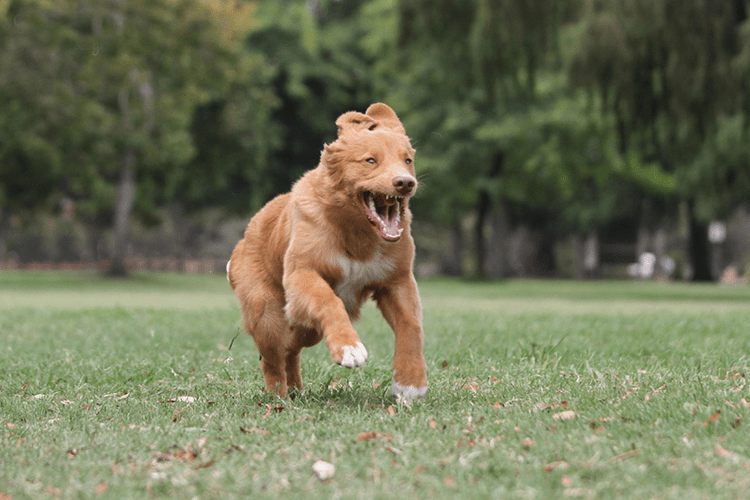
Each old saying has a grain of truth to it, and in this case, significantly more than just a grain. An animal that is tired is less likely to have the energy to misbehave! A key tip in working with untrained pets is getting them too tired to exert their boisterous behavior or protest having to stay still. Playing, running, and stimulating the dog, cat, or even parrot before a session will keep them mellower when it comes time to take the photographs.

Depending on how you run your photo sessions, you will either suggest this for your client or proceed to take on the responsibility of doing it yourself. If your client is the one to do this, ensure that they time the play effectively so that their furry family member isn’t so stimulated that the presence of a photographer causes stress or anxiety. The key is to get the animal to the level of tired that they no longer care about what is happening around them. Combined with other techniques as I am about to discuss, this is a sure way to get a great photo session.

Do keep in mind that it certainly depends on the age of the animal you are working with in regards to how long they remain tired or how long one should play. Puppies and kittens tend to tire out very easily, while an adult dog and cat take a longer amount of time. Baby or young animals may also remain tired for less time than an adult counterpart, as their energy comes in bursts.

Working with Unruly Animals in Pet Photography

#2 – Become Boring John or Jane Doe

Unruly animal behavior can often be linked to excitement, overstimulation, or anxiety about something new in the pet’s home or immediate location. Animals communicate with body language and conduct. Because pets cannot speak words to us, their method of expressing emotions is very physical.

Knowing this means that we, as photographers, must find a way to dull the reaction our own presence causes. Allowing pets to become familiar with us is a good way to do so, such as letting a dog sniff us and our equipment or having a cat circle around and check us out. Letting owners interact with the photographer as they would any familiar person can also help the animal become more familiar.

Working with Unruly Animals in Pet Photography

For fearful pets, getting down to their level (sitting on the ground, for example) and letting them come to you is key. Try not to look at them or pay much mind until they become insistent on receiving attention from you. Depending on the personality and temperament of the pet, giving the animal their favorite treat can also aid. Try not to act overly excited or exceptionally grabby or touchy with the pet, as many animals take that as “play”.

#3 – Tap Into Your Inner Mind Reader

Working with Unruly Animals in Pet Photography

The following tip can be applied to all animal photography, whether it be wild animals or domestic. Ensuring that you are always ready to capture the perfect moment whenever it may occur is key. A good way of knowing when to raise the camera and click the shutter is to predict the animal’s behavior.

Much of this does come from experience and exposure to various kinds of pets, but you can often use common sense to figure out what your subject is going to do next. If a dog is about to run, practice your panning technique! If a cat is about to jump from the back of a couch, prepare yourself to capture that action.

Working with Unruly Animals in Pet Photography

#4 – Become an Observer

Sometimes, the best pet photography shots are those in which you play no involvement and sit back as an observant photographer rather than one who dictates the session. It is often to your benefit to sit farther back with a telephoto or zoom lens and not interfere with what proceeds to occur.

This does depend on what your client wants from the photo shoot, what you expect, or what the animal you are working with is like – but certainly, give it a thought!

Working with Unruly Animals in Pet Photography

#5 – Toys and Treats Capture Hearts

Depending on the pet you’re photographing, toys and treats can become your best friend. Though you do not want to overstimulate the pet, keeping their attention can be equally important. Treats, toys, and noises can often do this for you.

You may even be able to teach a dog to sit during your photo session or keep a cat looking at you as you take pictures, depending on how you are with animals. The key with treats is to use high-value treats, a common term used among dog trainers. High-value treats are goodies that the pet finds irresistible, and that becomes a big motivator for them to do what you want.

Working with Unruly Animals in Pet Photography

Certain types of toys can be the same. Toys and noises are also a great way to get alert ears and a happier facial expression.

#6 – Be Creative

This is the most important piece of advice anyone can give you – just be creative. A successful photographer is one who knows how to adapt to any situation thrown their way, and an animal that isn’t behaving is just another circumstance to overcome.

Take your creativity for a spin as you adapt to what you’ve been given, and find new and unique ways to capture the creature’s personality on camera. Whether it’s using a different lens or changing your perspective and composition, doing something new based on what’s happening is a great way to work with animals.

Of course, all animals are different. Your reaction should be based on the individual animal’s personality, reaction, and needs. Pet photographers must display a sensitivity and empathy towards their subject, and act accordingly!

Conclusion

Hopefully, these tips have given you some ideas or inspiration to work with all kinds of animals, mellow and not-so-mellow!

Working with Unruly Animals in Pet Photography

The post 6 Tips for Working with Unruly Animals in Pet Photography by Anabel DFlux appeared first on Digital Photography School.


Digital Photography School

 
Comments Off on 6 Tips for Working with Unruly Animals in Pet Photography

Posted in Photography


5 Must-Know Photoshop Retouching Tips and Tricks for Photographers

23 Dec

Here are five quick tips for doing retouching in Photoshop that are essential to know. Learn them to do better retouching on your photos.

#1 – Load Luminosity as a Selection

In Photoshop you can use the luminosity of an image (the bright pixels) as selections. The easiest way to make a selection out of the bright pixels of a photo is by pressing Command+Option+2, (Windows: Ctrl+Alt+2).

If you cannot remember the keyboard shortcut, you can also load luminosity as a selection by holding Cmd/Ctrl and clicking on the RGB thumbnail in the Channels panel.

01 selection - 5 Must-Know Photoshop Retouching Tips and Tricks for Photographers

With a selection active, you can create an Adjustment Layer to apply the selection to the Layer Mask.

02 adjustment mask - 5 Must-Know Photoshop Retouching Tips and Tricks for Photographers

This Adjustment Layer will only target the brighter pixels of your image. If you make an adjustment, you’ll notice that you will only affect the bright pixels and not the dark ones.

03 adjustment lights - 5 Must-Know Photoshop Retouching Tips and Tricks for Photographers

You can target dark pixels by inverting the selection. To do so, Select the Layer Mask, and clicking on Invert in the Properties panel.

04 invert mask - 5 Must-Know Photoshop Retouching Tips and Tricks for Photographers

Now if you make an adjustment, the dark pixels will be affected and not the bright.

05 adjustment darks - 5 Must-Know Photoshop Retouching Tips and Tricks for Photographers

#2 – Spot Healing Brush Tool Modes – Lighten and Darken

One way to remove wrinkles, blemishes, and other distractions from the face quickly and efficiently is to use the Modes in the Spot Healing Brush Tool and Content-Aware.

First, think of the blemish, wrinkle, or distraction that you are trying to remove. Is it darker than the skin tone or is it brighter than the skin tone?

06 portrait - 5 Must-Know Photoshop Retouching Tips and Tricks for Photographers

In this case, the wrinkles are darker than the skin tone. That means that you want to “lighten” those wrinkles.

With the Spot Healing Brush Tool selected, in the Options bar, click on Content-Aware, and under the Mode drop-down menu, select Lighten.

07 lighten - 5 Must-Know Photoshop Retouching Tips and Tricks for Photographers

Then start painting with a small brush and small strokes over the wrinkles to remove them. But you will not lose essential details in the highlights. The Spot Healing Brush tool is only targeting dark pixels which are the wrinkles.

08 before after - 5 Must-Know Photoshop Retouching Tips and Tricks for Photographers

If your blemish or distraction is brighter than the skin tone, such as the bright wrinkles above the lip, then select Darken from the Mode drop-down menu, and paint them away.

10 final heal - 5 Must-Know Photoshop Retouching Tips and Tricks for Photographers

To learn more about how this technique works, check out this video on the Spot Healing Brush Tool:

#3 – Open the Same Image in Two Windows

In Photoshop, you can open the same image in two windows and set them side-by-side to work on both details and the overall image at the same time.

This technique is great when you are working with two monitors. But even with one monitor, this technique can be very useful.

To open the same document in two windows, go to Window > Arrange, “New Window for [Name of Document].” Then go to Window > Arrange > Two up Vertical to put the two tabs side-by-side. You can then Zoom into one window, and zoom out on the other.

same doc two windosw - 5 Must-Know Photoshop Retouching Tips and Tricks for Photographers

These are not two separate files. They are the same document, and any adjustments that you make to one will reflect on the other instantly.

#4 – Targeted Selections with Color Range

The Color Range command can be an excellent tool for selecting difficult areas of an image. However, if you simply use the Color Range on a problematic image, it may not give you the results you want. Sometimes there is too much information on a single image, and you need to focus on just one area.

To focus the Color Range in only one area, create a selection around the object that you want to select. A simple rectangular selection will be fine.

12 selection - 5 Must-Know Photoshop Retouching Tips and Tricks for Photographers

Then go into Select > Color Range, and you will see that Color range is now focusing solely on the selected area.

13 color range - 5 Must-Know Photoshop Retouching Tips and Tricks for Photographers

Select a red color on the shirt using the eyedropper, then use the fuzziness slider to adjust the selection.

Keep in mind that it is going to be next to impossible not to select the hands or the railing that she’s leaning on because the skin tones and the paint on the railing are very similar in color to the red that you are trying to select.

But you can use the Lasso tool to quickly deselect those areas, leaving only the red in the shirt selected.

14 selection only red - 5 Must-Know Photoshop Retouching Tips and Tricks for Photographers

With a selection active, you can create a Hue and Saturation Adjustment Layer that will just target the red in the shirt.
Then use the Hue slider to change the color of the shirt.

15 change color - 5 Must-Know Photoshop Retouching Tips and Tricks for Photographers

#5 – Use the Lab Color Mode

Most of the time, you will work with RGB or CMYK while in Photoshop. But there is another Color Mode that you can use that can be very useful in certain situations. If you go to Image > Mode > Lab Color, you will change your photo’s color mode to Lab.

16 color mode - 5 Must-Know Photoshop Retouching Tips and Tricks for Photographers

The Lab color mode has three channels: Lightness, A, and B.

  • The Lightness channel contains the detail of the image – the Luminance values.
  • “A” is the relationship between green and magenta. These are the same colors as the Tint slider in Lightroom and Camera Raw.
  • “B” is the relationship between blue and yellow. These are the same colors as the Temperature slider in Lightroom and Camera Raw.

17 lab graphic

One of the most significant advantages of working with the Lab color mode is that Lab separates detail (luminosity) from color. This separation allows you to work with color without affecting detail and vice versa.

17 red dress - 5 Must-Know Photoshop Retouching Tips and Tricks for Photographers

For example, you could turn a red dress green by duplicating the layer, and then selecting “A” from the Channel’s panel, and pressing Cmd/Ctrl+I to invert the channel.

18 a channel

Notice that the color of the image changed, but the detail was left intact.

19 green layer - 5 Must-Know Photoshop Retouching Tips and Tricks for Photographers

You could then use a Layer Mask to contain the adjustment to only the dress.

20 mask dress

Another advantage of using the Lab color mode is that you can sharpen without affecting the color of a photo. If you apply any sharpening filter to the Lightness channel, you will only target the detail and will leave the color intact.

The example below has the same Sharpening filter applied to both the regular image and the Lightness channel in Lab Color. I’ve made sharpening effect an extreme one for demonstration purposes, to make the results more noticeable.

Notice that when you apply sharpening to the Lightness channel (right), the colors on the edges are not saturated or changed. They only become brighter or darker. While the sharpening on the regular layer increases the saturation of the edge pixels.

21 sharpening

As a side note, Photoshop doesn’t really add detail to an image when you apply sharpening. It creates the illusion of detail by adding contrast to the edges in the photo. You can see that edge contrast in these extreme adjustments.

You can learn more about sharpening in this video on sharpening photos in Photoshop:

One important thing to note is that the Lab color mode does not have access to all the Adjustment Layers, and some Adjustment Layers will work a bit different than their RGB counterparts.

If you are working with Adjustment Layers and you would like to go back to the RGB color mode, you will have to put the image, and the Adjustment Layers in a Smart Object then make the conversion. Otherwise, Photoshop will ask you to delete the Adjustment Layers or flatten the image.

Conclusion

I hope you found these tips helpful for retouching or editing your images in Photoshop. Do you have any other tips or tricks that you use? Please share in the comments below.

The post 5 Must-Know Photoshop Retouching Tips and Tricks for Photographers by Jesus Ramirez appeared first on Digital Photography School.


Digital Photography School

 
Comments Off on 5 Must-Know Photoshop Retouching Tips and Tricks for Photographers

Posted in Photography


The 2 Minute Lightroom Workflow Toolkit

23 Dec

Sick of struggling with Lightroom? Disappointed with one-click presets and want to know how to produce stunning, natural images in under 2 minutes… read on!

Earlier this year we offered dPS readers an amazingly simple Lightroom Workflow by professional Aussie photographer Johny Spencer. It was one one of our most popular offers of the year.

As part of our dPS Christmas Deals, we’ve brought this amazing offer bundled with 2 of Johny’s other awesome Lightroom resources: Mastering Lightroom & Ultimate Lightroom Finishing Moves

Three Lightroom Resources for the Price of One

For the next 48 hours you can get this toolbox of Lightroom resources for 67% off. Normally you’d pay $ 237 for this collection, but you can get them now for just $ 79.

Here’s what’s included:

  1. Ultimate Lightroom Workflow – Johny’s own workflow he uses every day to process 1000’s of photos in minutes.
  2. Mastering Lightroom – The definitive guide to using Lightroom to process landscapes and nature photographs.
  3. Ultimate Lightroom Finishing Moves – the secret final steps pros use to take their Images from stunning to spectacular

Johny know his stuff. He has every photographer’s dream job: Professional Landscape and Nature photographer for the National Parks Service in Australia. This means he takes thousands of photos a month… and then edits them in Lightroom.

Grab the Ultimate Lightroom Workflow Toolkit while you can. This deal ends in 48 hours.

Parter Bonuses

Access our exclusive Partner Bonus Offers from New York Institute of Photography, KelbyOne, Perfectly Clear and ON1 when you purchase any dPS Christmas Deal. Check your purchase receipt email for the access link!

Christmas Deals:
Bonus Offers

Bonus Offers

Brought to you by

ON1
Athentec Perfectly Clear
KelbyOne
New York Institute of Photography

The post The 2 Minute Lightroom Workflow Toolkit by Darren Rowse appeared first on Digital Photography School.


Digital Photography School

 
Comments Off on The 2 Minute Lightroom Workflow Toolkit

Posted in Photography


Canon PowerShot G1 X Mark III review

23 Dec

Introduction

The Canon PowerShot G1 X III is a high-end compact camera with a 24MP APS-C sized sensor, Dual Pixel autofocus and a 24-72mm equivalent F2.8-5.6 zoom lens. It’s Canon’s new flagship for the PowerShot G-series, and the sensor is the largest they’ve ever fitted to a fixed-lens camera. It also has the company’s latest DIGIC 7 processor, Wi-Fi with Bluetooth connectivity, and promises a degree of dust and water resistance.

While sales of compact cameras at the low end continue to evaporate, manufacturers are still churning out premium, high-end models in an attempt to lure enthusiasts and amateurs with deep pockets. The G1 X III is certainly an interesting proposition in this segment – indeed, it’s the only compact on the market with an APS-C sensor and a lens that zooms, and is designed to be weather sealed to boot.

Key Features

  • 24MP APS-C CMOS sensor
  • Dual Pixel autofocus for stills and video
  • DIGIC 7 processor
  • 2.36M-dot electronic viewfinder
  • 3″ fully-articulating LCD
  • 9fps burst shooting (7fps with continuous AF)
  • 1080/60p video recording
  • Wi-Fi and NFC with Bluetooth
  • 200 shot-per-charge battery life (CIPA standard testing)
Processed and cropped to taste in Adobe Camera Raw.
24mm equiv | ISO 125 | F2.8 | 1/1000 sec
Photo by Carey Rose

There are, of course, sacrifices to be made when shoehorning such a large sensor into such a small body. First, the MSRP is pretty high, even for this market segment. Though the lens has a respectable range, its maximum aperture range isn’t exactly impressive, and battery life is just plain bad. Regardless, as an overall package, the G1 X III is likely to attract the interest of a wide variety of photographers.

Compared to…

That the G1 X III is a unique offering makes it difficult to really draw comparisons to other models; regardless, those shopping for a fixed-lens pocketable compact at this price are likely to stumble across the RX100 V and the older RX100 IV. They offer much smaller sensors, but come with similar zoom ranges and brighter maximum apertures for their lenses.

Canon G1 X
Mark III
Sony RX100 V Sony RX100 IV
MSRP $ 1299 $ 999 $ 899
Sensor 24MP APS-C CMOS 20MP 1″-type
stacked BSI CMOS
20MP 1″-type
BSI CMOS
Lens 24-72mm equiv. F2.8-5.6 24-70mm equiv. F1.8-2.8 24-70mm equiv. F1.8-2.8
ISO range
(native)
100-25600 125-12800 125-12800
AF system Dual Pixel on-sensor phase detect On-sensor phase detect Contrast detect
EVF 2.36M-dot 2.36M-dot 2.36M-dot
LCD 3″ 1.04M-dot fully articulating
(720 x 480 RGB)
3″ 1.28M-dot tilting
(640 x 480 RGBW)
3″ 1.28M-dot tilting
(640 x 480 RGBW)
Touchscreen Yes No No
Burst rate with AF 7fps 24fps 5.5fps
Video 1080/60p 4K/30p 4K/30p
Wireless WiFi w/NFC + Bluetooth WiFi w/ NFC WiFi w/ NFC
Battery life (CIPA 200 shots 220 shots 280 shots
Dimensions 115 x 78 x 51 mm 102 x 58 x 41 mm 102 x 58 x 41 mm
Weight 399 g 299 g 298 g

It’s worth noting that there are older options (in some cases, discontinued) that may be of interest. The Panasonic LX100 comes with a 4/3-type sensor and similar zoom range, but only offers 12MP of resolution. Fujifilm’s X70 and Ricoh’s GR II both have 16MP APS-C sensors and are even smaller than the Canon, but both have fixed 28mm-equivalent prime lenses.

In terms of other current cameras that aim to strike a balance between being pocketable and taking decent photos, Panasonic’s LX10 comes with a 24-72mm equiv. F1.4-2.8 lens in front of its 1″-type sensor, and Canon’s own G7 X Mark II has a 24-100mm equiv. F1.8-2.8 lens in front of its 1″-type sensor. And they’re all much cheaper than the G1 X III.

The lens

What’s likely to cause the most consternation for serious photographers considering the G1 X III is the lens. The camera is impressively compact, but as noted earlier, at the expense of its maximum aperture range. This limits the usefulness of the larger sensor, particularly in terms of depth of field control (blurry backgrounds) and low light capability – though you should retain a dynamic range advantage in bright light.

Let’s see how it compares to some of the other zoom-equipped models we’ve mentioned here.

LensEquivalentApertures([“Equivalent focal length (mm)”,”Canon G1 X II”,”Panasonic LX100″,”Canon G7 X II”,”Panasonic LX10″,”Sony RX100 V”,”Canon G1 X III”], [[24,3.84,”Canon G1 X II at 24mm: F3.8″,3.7434,”Panasonic LX100 at 24mm: F3.7″,4.90909090909091,”Canon G7 X II at 24mm: F4.9″,3.8181818181818183,”Panasonic LX10 at 24mm: F3.8″,4.90909090909091,”Sony RX100 V at 24mm: F4.9″,4.5170606663860564,”Canon G1 X III at 24mm: F4.5″],[25,4.224,”Canon G1 X II at 25mm: F4.2″,3.9636,”Panasonic LX100 at 25mm: F4.0″,null,””,4.0909090909090917,”Panasonic LX10 at 25mm: F4.1″,5.454545454545455,”Sony RX100 V at 25mm: F5.5″,null,””],[26,4.8,”Canon G1 X II at 26mm: F4.8″,4.1838,”Panasonic LX100 at 26mm: F4.2″,null,””,4.90909090909091,”Panasonic LX10 at 26mm: F4.9″,6.0000000000000009,”Sony RX100 V at 26mm: F6.0″,5.1623550472983508,”Canon G1 X III at 26mm: F5.2″],[27,5.3759999999999994,”Canon G1 X II at 27mm: F5.4″,4.404,”Panasonic LX100 at 27mm: F4.4″,null,””,5.454545454545455,”Panasonic LX10 at 27mm: F5.5″,null,””,null,””],[28,null,””,4.6242,”Panasonic LX100 at 28mm: F4.6″,null,””,6.0000000000000009,”Panasonic LX10 at 28mm: F6.0″,6.8181818181818183,”Sony RX100 V at 28mm: F6.8″,null,””],[29,null,””,null,””,null,””,6.8181818181818183,”Panasonic LX10 at 29mm: F6.8″,null,””,5.646325832982571,”Canon G1 X III at 29mm: F5.6″],[30,6.144,”Canon G1 X II at 30mm: F6.1″,4.8444,”Panasonic LX100 at 30mm: F4.8″,null,””,null,””,null,””,null,””],[31,null,””,null,””,null,””,7.6363636363636367,”Panasonic LX10 at 31mm: F7.6″,null,””,null,””],[32,null,””,null,””,6.0000000000000009,”Canon G7 X II at 32mm: F6.0″,null,””,7.6363636363636367,”Sony RX100 V at 32mm: F7.6″,6.4529438091229379,”Canon G1 X III at 32mm: F6.5″],[34,null,””,5.0645999999999995,”Panasonic LX100 at 34mm: F5.1″,null,””,null,””,null,””,null,””],[37,null,””,5.2848,”Panasonic LX100 at 37mm: F5.3″,null,””,null,””,null,””,7.2595617852633048,”Canon G1 X III at 37mm: F7.3″],[39,null,””,null,””,6.8181818181818183,”Canon G7 X II at 39mm: F6.8″,null,””,null,””,null,””],[40,6.72,”Canon G1 X II at 40mm: F6.7″,null,””,null,””,null,””,null,””,null,””],[41,null,””,5.505,”Panasonic LX100 at 41mm: F5.5″,null,””,null,””,null,””,null,””],[44,null,””,5.7252,”Panasonic LX100 at 44mm: F5.7″,null,””,null,””,null,””,null,””],[45,null,””,null,””,null,””,null,””,null,””,8.0661797614036725,”Canon G1 X III at 45mm: F8.1″],[52,null,””,6.1655999999999995,”Panasonic LX100 at 52mm: F6.2″,null,””,null,””,null,””,null,””],[54,null,””,null,””,7.6363636363636367,”Canon G7 X II at 54mm: F7.6″,null,””,null,””,null,””],[57,null,””,null,””,null,””,null,””,null,””,9.0341213327721128,”Canon G1 X III at 57mm: F9.0″],[70,null,””,null,””,null,””,null,””,7.6363636363636367,”Sony RX100 V at 70mm: F7.6″,9.0341213327721128,”Canon G1 X III at 70mm: F9.0″],[72,null,””,null,””,null,””,7.6363636363636367,”Panasonic LX10 at 72mm: F7.6″,null,””,null,””],[75,7.4879999999999995,”Canon G1 X II at 75mm: F7.5″,6.1655999999999995,”Panasonic LX100 at 75mm: F6.2″,null,””,null,””,null,””,null,””],[100,null,””,null,””,7.6363636363636367,”Canon G7 X II at 100mm: F7.6″,null,””,null,””,null,””],[120,7.4879999999999995,”Canon G1 X II at 120mm: F7.5″,null,””,null,””,null,””,null,””,null,””]], {“isMobile”:false})

As you can see, both Panasonic models offer larger aperture diameters at the widest end of their zooms, meaning greater scope for low-light work. Meanwhile, the Canon G7 X II offers more subject isolation and potential for low light image quality once you pass 29mm – all of this is in spite of the fact that the G1 X Mark III’s sensor is the largest, by a fair margin. It speaks volumes to the trade-offs that have been made in getting the G1 X III to fit in your coat pocket.

Articles: Digital Photography Review (dpreview.com)

 
Comments Off on Canon PowerShot G1 X Mark III review

Posted in Uncategorized


Houston neighborhood removes photography ban after sidewalk compromise

23 Dec
Historic Broadacres neighborhood of Houston, Texas. Photo by Ed Uthman, used under CC 3.0 license.

Broadacres, a wealthy Houston neighborhood, has reversed its ban on photography following a previous attempt to prevent photographers from holding photo shoots in the area. The issue, according to the Broadacres Homeowners Association (BHA), was that commercial photographers were blocking public sidewalks. “It’s the abusive commercial photographers that have ruined it for everyone,” BHA president Cece Fowler said in a statement to the Houston Chronicle.

The neighborhood has attracted an increasing number of photographers who use it as a picturesque backdrop for wedding photos and more. This has resulted in 50 or more photo shoots every week, according to residents, which at times are said to include large props and groups. Fowler claims that some of these shoots have even caused damage, such as when a Jeep was reportedly driven onto the neighborhood’s esplanade.

Some of these shoots have even caused damage, such as when a Jeep was reportedly driven onto the neighborhood’s esplanade

Frustrated by this, Broadacres put up signs that read, “Welcome to Broadacres; No Photo Shoots.” That resulted in quick backlash on social media, however, and the signs have since been removed. Photography is again permitted in the neighborhood, but with one exception: photo shoots can’t take place on the sidewalks due to city ordinances. Residents have been advised to call the city’s 311 line if such obstructions appear in the future.

According to the Chronicle, Houston Public Works public information officer Alanna Reed said, “We hope the community will be respectful of the neighborhood. Remember the Golden Rule — would you want somebody coming into your neighborhood doing the same thing?”

Via: Fstoppers

Articles: Digital Photography Review (dpreview.com)

 
Comments Off on Houston neighborhood removes photography ban after sidewalk compromise

Posted in Uncategorized


How to Photograph Fireworks to Create Impressionistic Images

23 Dec

I love experimenting with different techniques and ideas. So when our editor here at dPS, Darlene, asked if someone was willing to try out a technique and experiment with fireworks. I jumped at the chance. I love being creative and pushing the limits of new ideas. Her idea for an article about creating artistic images of fireworks came from this article – Bloom or boom? Photographer captures the moment fireworks erupt into life – creating amazing images that look like flowers.

How to Photograph Fireworks to Create Impressionistic Images

Here’s a fairly typical image of fireworks.

Successful recreation

I loved the look of the images and this type of artistic experimentation is right up my alley. I try this type of stuff all the time. Sometimes it works. Other times it’s not such a success, but the point is to learn and grow as an artist and photographer.

These first set of shots were taken using the technique described by the photographer in the article. Yes, it is copying someone else’s technique, but there’s nothing wrong with that. Imitation can lead to ingenuity. I used a long exposure and then tried to time my movements of the focus ring with the explosion of the fireworks. Timing is everything with this technique, and it’s hard to master. It took me almost the entire fireworks display to get some images that copied his technique.

Note: you don’t need to crank the focus ring. A small movement out of focus will create the desired effect.

How to Photograph Fireworks to Create Impressionistic Images

I like the look of these fireworks. The explosions remind me of flower petals.

How to Photograph Fireworks to Create Impressionistic Images

These blurred images of the firework create a more artistic and impressionistic image.

It’s okay to fail!

I’m quite satisfied with the look of these images. I used a 70-200mm lens and set the exposure at 0.6 seconds, with an aperture of f/2.8 and ISO 250. It worked fairly well. The timing was by far the hardest part of this whole endeavor.

I had an awful lot of failed images. There were times when the shot was too far out of focus. The result was some really nice bokeh lights that I’ve since used as image overlays. Usually, black and white art shots and blended them in to create light and interest. Every shot can have a use, so don’t always delete your “failures”.

How to Photograph Fireworks to Create Impressionistic Images

In this case, I turned to focus ring too far and created some pretty bokeh.

How to Photograph Fireworks to Create Impressionistic Images

While the colors are pretty, this one is a fail too.

The images that were never planned

Other images didn’t turn out exactly as the other photographer’s work but I think the results are still successful. The images are pretty and have turned out to be successful images for birthday cards.

I still used the same technique he did, but I didn’t get the timing correct so these images don’t have the same look as the first ones. They are still appealing though and there is nothing wrong with these unexpected surprises.

How to Photograph Fireworks to Create Impressionistic Images

I accidentally moved the camera while turning the focus ring. It’s a mistake but I still like the effect.

How to Photograph Fireworks to Create Impressionistic Images

I love this shot. The lights remind me of popcorn for some reason.

How to Photograph Fireworks to Create Impressionistic Images

These lights remind me of rain or comets.

Using fireworks was tough. The timing was very difficult to master. I was only able to capture a handful of shots during the 30-minute firework display. This fact led to another experiment. This time sparklers were used. The night was fairly windy so I used my garage as a studio.

Pushing the experiment further

NOTE: Lesson learned – wait for a night when there is no wind to shoot with sparklers. The fumes from the sparklers filled the garage, and I had a headache after shooting. Of course, I should have thought of this before attempting, but when in the moment…

For the following shots, I used the same premise as I did shooting the fireworks. The one difference was my f-stop. This was my mistake. I set my camera to f/16. This was a huge mistake on my part. I couldn’t replicate the out of focus look for my photos. You need to use a wide open aperture for the experiment to be successful. As a result, the images I created are considerably different from the impressionistic flowers created at the fireworks. There are still a lot of interesting images in this collection, but it wasn’t the look I was hoping to capture.

How to Photograph Fireworks to Create Impressionistic Images

I used a longer lens for this shot but didn’t use the focus ring.

How to Photograph Fireworks to Create Impressionistic Images

I love how this seems to look like exploding rain.

Making mistakes

The settings for these shots used a range in aperture from f/16 to f/32. They are still pretty I think, and I will find a use for them for sure.

The next step in the experiment involved getting closer to the sparklers and capturing something different. I attached an extension tube to my lens and got very close to the sparkler. Perhaps a little too close, it is possible to damage your sensor by shooting something too bright. The aperture was small however so this may have saved my camera.

How to Photograph Fireworks to Create Impressionistic Images

This quick phone shot my son took shows the distance between the camera and sparkler with the extension tube in place.

Using an extension tube

Here are the results of the experiment. The images allow us to see how the base of the sparkler ignites. These are also interesting images and worth the time it took to create them.

How to Photograph Fireworks to Create Impressionistic Images

I used my 12mm extension tube on my 50mm prime lens for this shot.

How to Photograph Fireworks to Create Impressionistic Images

Here’s a shot where I captured the sparks as they fell from the sparkler.

Being creative in post-processing

It was also fun to play with color during the post-processing stage. An adjustment to the color temperature slider changed the sparkler lights from a warm yellow to an intense orange.

Again this is all experimentation. The process may not result in a finished image, but it’s all about playing with settings and trying to create different effects in your photography.

How to Photograph Fireworks to Create Impressionistic Images

I simply moved the slider to adjust the color of the light.

How to Photograph Fireworks to Create Impressionistic Images

I adjusted this shot using the split-tone sliders in Lightroom.

Trying one more time

Naturally, the experiment continued with a second try at the sparkler images. This time I set a much wider aperture. Here are the results using the same method as I used to create the firework images.

How to Photograph Fireworks to Create Impressionistic Images

I like the effect of the wide open aperture. Only a few of the sparks remained in focus.

While the sparklers did not recreate the blooming flower impressionistic type effect, I still like the look of these shots. The sparkler allowed me to focus more easily on the task at hand. While I still had to move quickly it wasn’t as rushed as shooting the fireworks. Both activities were enjoyable and challenging in their own way.

How to Photograph Fireworks to Create Impressionistic Images

The focus here is more exact.

How to Photograph Fireworks to Create Impressionistic Images

There are some unique lines created by the flares in this image.

Give it a shot!

It’s almost New Years and time for fireworks once again. Share with us some of your experiments and results. It doesn’t have to be fireworks. You could use lights or flashlights. Be creative! Show us what you’ve created!

My next experiment will involve spinning the sparkler while I shoot. What kind of effect will that create?

How to Photograph Fireworks to Create Impressionistic Images

Just one more shot.

If you want some tips on shooting fireworks with a more traditional approach try these articles: 

  • 15 Tips for Successful Fireworks Photography
  • How to Photograph Fireworks

The post How to Photograph Fireworks to Create Impressionistic Images by Erin Fitzgibbon appeared first on Digital Photography School.


Digital Photography School

 
Comments Off on How to Photograph Fireworks to Create Impressionistic Images

Posted in Photography


Weekly Photography Challenge – Holiday Images

23 Dec

Nothing hard this week for the photography challenge. Just show us your holiday-themed images. How do you celebrate with your family? Is it a big festive meal? Then photograph that. Do you deck the house out with sparkly lights? Photograph that!

Weekly Photography Challenge – Holiday Images

Time to practice shooting bokeh with your Christmas tree or holiday lights. Or maybe try some fireworks if your city sets them off for the holidays.

Editor’s note: A crazy but true story, I was in Matagalpa in Nicaragua on December 25th last year and that city set off the official fireworks in the local central park – but that wasn’t the only ones! All around our hotel we saw fireworks in every direction, right at midnight. And it went on for about 30 minutes! We were doing our Christmas tradition – watching Die Hard – and at first, we ignored it. But it went on for so long we had to go look. They really like fireworks in Nicaragua and call them “bombas” or little bombs. 

Or try these if you need more ideas: Five Fun Ideas for Making Festive Holiday Images

Simply upload your shot into the comment field (look for the little camera icon in the Disqus comments section) and they’ll get embedded for us all to see or if you’d prefer, upload them to your favorite photo-sharing site and leave the link to them. Show me your best images in this week’s challenge. Sometimes it takes a while for an image to appear so be patient and try not to post the same image twice.

Share in the dPS Facebook Group

You can also share your images in the dPS Facebook group as the challenge is posted there each week as well.

The post Weekly Photography Challenge – Holiday Images by Darlene Hildebrandt appeared first on Digital Photography School.


Digital Photography School

 
Comments Off on Weekly Photography Challenge – Holiday Images

Posted in Photography