RSS
 

Archive for December, 2017

How to photograph the northern lights

17 Dec

After publishing my recent 2017 Gear of the Year article, in which I highlighted a lens I used for shooting the aurora borealis, numerous people reached out to ask if I would write a follow-up article on how to photograph auroras. So, I decided to team up with DPReview contributor, astrophotographer, and aurora tour guide, José Francisco Salgado, to share some insight into capturing this amazing natural phenomena.

The aurora is the Earth’s own special effects show, seen here from Grundarfjörður, Iceland.
ISO 2500 | 30 sec. | F2.8
Photo by José Franciso Salgado

What causes the lights?

The Northern Lights, or aurora borealis, are natural displays of light that occur in the upper part of Earth’s atmosphere due to interaction between charged particles from the Sun and the Earth’s magnetic field and atmosphere.

The Sun releases charged particles (including electrons) into space in a continuous stream, called solar wind, as well as in sudden and violent releases called Coronal Mass Ejections. Several days after leaving the Sun, these particles can reach our planet. Most are deflected by the Earth’s magnetic field, but some find themselves inside the magnetic field and populate reservoirs within the field. Different events, including interactions with the solar wind, accelerate these particles towards an oval around the magnetic poles.

The Northern Lights are produced when these charged particles, guided by the magnetic field of the Earth, precipitate through the atmosphere and collide with nitrogen and oxygen. These collisions lead to atomic processes called ionization and excitation, which result in the emission of lights of varying color. A corresponding phenomenon in the southern hemisphere is called the Southern Lights, or aurora australis.

The aurora occurs when charged particles, guided by the Earth’s magnetic field, collide with nitrogen molecules and oxygen atoms in the upper atmosphere.
ISO 6400 | 3 sec. | F2.8
Photo by José Francisco Salgado

Getting to where the auroras are visible

Auroras are typically produced in a band known as the auroral zone, which can be 3° to 6° wide in latitude and between 10° and 20° from the geomagnetic poles. This means that auroras are normally seen at very high latitudes (north and south). The region where auroras occur at any given time is called called the auroral oval. Auroras are also produced in the dayside of the Earth, but since sunlight is about a million times brighter this renders them invisible during the day.

Although it’s easier to see auroras at higher latitudes, solar activity can cause the auroral oval to enlarge, making them visible at lower latitudes, including the northern regions of the continental US. Since geomagnetic activity responds to solar activity several days later, it’s possible to forecast auroral activity to help with your planning.

NOAA provides long-term (3 days) and short-term (30 min) aurora forecasts online. Also, there are several alert systems including email notifications from spaceweather.com or smartphone apps that can provide alerts when the aurora is active at your location, such as My Aurora Forecast & Alerts (iPhone; Android) and Aurorasaurus (iPhone; Android).

NOAA’s 30-minute forecast shows the intensity and location of the aurora forecast for the time shown at the top of the map.

When Northern Lights are forecast to be visible, find an open field with an unobstructed view of the north. If you don’t want to wait for that to happen, or if you want to see the most intense aurora, you’ll need to move to higher latitudes. Before traveling to a particular northern location, consider three factors:

  • Is the location within the auroral zone?
  • Is the weather usually clear at that location during the month you’re planning to visit? (Clouds occur at much lower altitudes than auroras, which occur above 100 km.)
  • Will local light pollution impede your observations and photography? The website Lightpolutionmap.info can be of assistance here.

Some locations to consider are:

  • Fairbanks, Alaska
  • Yellowknife, NT, Canada
  • Churchill, MB, Canada
  • Outside Reykjavik, Iceland
  • Norwegian Lapland, Norway
  • Swedish Lapland, Sweden
  • Finnish Lapland, Finland
  • Stewart Island, New Zealand
  • Ushuaia, Argentina
  • Antarctica
Photographing the Northern (or Southern) Lights is not very difficult, but you do need to get to a location where you can see them. One of the advantages of shooting from frozen lakes in Yellowknife, Canada, is the unobstructed views they provide of the entire sky.
ISO 5000 | 5 sec. | F2.8

Remember, locations at extreme latitudes will have almost no nighttime close to the summer solstice, so avoid visiting these place from mid-April to mid-August in the northern hemisphere, or mid-October to mid-February in the southern hemisphere.

Equipment

There’s no ‘correct’ gear for taking pictures of the auroras, but having the right equipment can translate into higher quality images and provide more creative options.

Camera: A camera with a full frame sensor will provide better high ISO performance than those with smaller sensors. That said, modern sensors are extraordinarily good, and it’s possible to get great aurora photos even if you don’t have a full frame sensor, so don’t let that stop you. On a recent trip, some friends of ours captured great aurora pictures using a Sony RX100 III, a camera with a 1”-type sensor.

This photo was captured using a Sony RX100 III, a camera with a 1″-type sensor. The Big Dipper and Ursa Major can be seen in the sky behind the aurora.
ISO 3200 | 6 sec. | F1.8
Photo by Steve and Colleen McClure

Lens: A fast, wide lens will let you capture as much light as possible. Anything wider than 24mm will work, though a 14mm or 16mm lens will allow for more dramatic shots. A lens with a maximum aperture of F2.8 is a good starting point, but faster is better. For example, a lens with an aperture of F1.8 has 2.5x the light gathering ability of a F2.8 lens. That’s a big difference in low light.

Tripod: Exposures are usually measured in seconds, so a sturdy tripod is a must. ‘Sturdy’ is the key word. It doesn’t have to be a fancy, state of the art carbon fiber model. As long as it holds your camera steady it will do the trick.

There are some optional accessories worth considering as well. If you plan to capture time-lapse sequences, an intervalometer is required, and these are included on many cameras today. A remote trigger, such as a cable release or smartphone app, will make it easy to trigger the shutter without touching your camera. Finally, since you’re working in the dark, a headlamp that allows you to see what you’re doing while leaving your hands free to work will be useful. (Fellow observers will appreciate you using a headlamp with a red light.)

Footage from The Legend of the Northern Lights, a film shot and produced by José Francisco Salgado to augment symphony orchestra concerts. These time-lapse sequences were shot in 2014 with the Nikkor 14-24mm f/2.8G lens on a Nikon D4 and D3s.

Taking photos

Shooting aurora isn’t technically difficult, but every night is different and you may need to experiment a bit. It’s best to operate your camera in manual mode, with manual focus, for predictable, consistent results.

File format: Set your camera to capture Raw files. This provides the best image quality and the most latitude for making adjustments in post processing, particularly useful if you need to tweak settings like exposure or white balance. Don’t depend on a manufacturer’s baked-in Jpeg profile.

Focus: Focusing directly on the aurora is little bit like trying to focus on smoke. Fortunately, relative to your position, the aurora is effectively at infinity. It may be tempting to just rotate the focus ring on your lens to the infinity marker, but on many lenses that’s really more of an approximation.

Aurora in Canada’s Northwest Territories.
ISO 3200 | 4 sec. | F2.8
Photo by Dale Baskin

If you’re focusing at night, use your camera’s live view feature. Point the camera at the brightest star you can see, magnify the view to the maximum, and rotate the focus ring until the disk of the star looks the smallest. Once you think you’ve achieved critical focus, take a test shot and review the image for sharpness. If adjustment is needed, repeat.

Once focus is achieved, a useful technique is to lock the focus ring in place with gaffer’s tape to prevent it from moving. Alternatively, you can place marks on the lens with a marker in order to return the ring to the same position. These methods can also be used if you want to focus on a distant object during the day and save the focus position for later.

Aperture: Set your lens to its widest aperture to let in as much light as possible. If you’re concerned about optical performance wide open you can stop the lens down a bit, but doing so will quickly reduce the amount of light reaching the sensor. If at all possible, shoot at F2.8 or wider.

Shutter speed: Optimal shutter speed will depend on the brightness of the aurora and how quickly it’s moving. A short shutter speed will capture detail and structure that would otherwise be averaged out over a longer exposure. On the other hand, a slight motion blur can make an aurora photo more aesthetically pleasing. Take a few test shots to find the optimal balance, but 5-10 seconds is a good starting point to work from.

If the lights are dancing around quickly, shorter shutter speeds will let you capture more of the detail and structure of the aurora that would be otherwise be averaged out in a longer exposure.
ISO 1600 | 3.2 sec. | F1.8
Photo by Dale Baskin

ISO: Set your ISO to the highest level that gives you acceptably clean results on your camera. This will allow you to keep shutter speeds as low as possible in order to capture more detail in the aurora. Depending on conditions, you may be able to get by with ISO 800, though you may have to go to 6400 or higher.

Long exposure noise reduction: If you’re planning to take individual photos, turning this on will provide some benefit; however, it will effectively double exposure time while the camera shoots a dark frame. If you plan to shoot time-lapse sequences, leave this feature off to avoid long delays between exposures.

Other considerations

Embrace the landscape. Part of what makes the aurora interesting are the remote places where it’s frequently seen. In Alaska, photos may contain mountains. In northern Canada, it might be silhouettes of trees in the taiga forest. Iceland might present you with glaciers. Each place is unique and part of the story behind the photo.

Embrace landscape features and even man-made objects to enhance your aurora photos.
ISO 6400 | 8 sec. | F2.8
Photo by José Francisco Salgado

When creating compositions, think about other features or objects you could include. Snow and water can reflect light from the aurora, though in very different ways. Man-made structures can provide interesting elements in a scene or silhouettes. Since a wide aperture will produce a shallow depth of field, avoid objects close to the camera unless you want them to be way out of focus on purpose.

Know your equipment. Depending on where you are, aurora can quickly go from being a slow, undulating wave to a rapidly moving, multi-colored light show. Be prepared to shift gears and adjust your settings quickly to avoid missing great photo opportunities.

Finally, be patient. Mother Nature works on her own schedule, and you’ll need to work around it. If at first you don’t succeed, keep trying. It’s worth it.


José Francisco Salgado, PhD is an Emmy-nominated astronomer, science photographer, visual artist, and public speaker who creates multimedia works that communicate science in engaging ways. His Science & Symphony films through KV 265 have been presented in 200 concerts and lectures in 15 countries.

José Francisco is a seasoned night sky and aurora photographer and filmmaker. If you would like to view, photograph, and learn about the Northern Lights then you can inquire about his Borealis Science & Photo Tours in Yellowknife, Canada.

You can follow him on: Flickr, Instagram, 500px, Facebook, and Twitter

Articles: Digital Photography Review (dpreview.com)

 
Comments Off on How to photograph the northern lights

Posted in Uncategorized


Shooting K?lauea Volcano, Part 2: Grounded

17 Dec

In the first part of this series, I talked about shooting Kilauea’s lava surface-flows using a drone. Now, I’d like to take a step back and talk about shooting the lava in a more traditional method: using a DSLR on the ground.

If you’re inside the Hawaii Volcanoes National Park and can’t fly a drone, this is the only affordable way of shooting the surface flows. But even if a drone is an option, shooting from the ground is different and will give you unique opportunities and some challenges.

Shooting with a DSLR might be the least technically challenging way of shooting the lava in Kilauea, but it’s not as easy as you might think.

First of all, there’s the challenge of traversing the lava on foot. You’re basically walking on very hard, sometimes jagged terrain, and moving from point to point searching for compositions can be strenuous. As I’ve mentioned before, it’s a 7-8 km hike to get to the surface flow area, but there’s much more hiking on location to get the actual shots.

When shooting, you often want to get as close as possible to the lava, in order to get more detail and/or a desired perspective. This might be a problem in some cases, as the lava is about 1100 degrees Centigrade, and this temperature can be felt very well even from several meters away.

In some of the shots, I felt like I was inside an oven. I had to find my composition quickly, take a few images, and run away, since staying there would become unbearable after several seconds.

This particular shot has a slightly narrower depth of field than I’d like it to have. The reason is that lava was flowing underground very close to where I was standing, and because of the intense heat, I didn’t have the time to set the tripod. I had to shoot hand held and run for my life!

Protective gear is very important. The bare minimum would be a long-sleeve shirt, sturdy, ankle-high hiking boots, long pants and, of course, gloves. The latter are needed both because the skin on your hands is struck by radiating heat from the lava, and because the tripod can get very hot after staying near the lava for some time. I would also recommend a beanie to protect your forehead and ears from the heat.

Don’t neglect listening to your body—if you ignore the heat and the pain, you might find yourself with second-degree burns. I’ve mentioned it before, but a good guide is very important when hiking to dangerous surroundings, and can keep you in the safe zone (if you so wish).

Last but not least, there’s the heat-haze problem. The heat creates this well-known blur, which means some shots cannot turn out sharp, no matter how well-focused they are.

A decent solution can be waiting for the wind to blow the hot air and supply a short relief from the haze, but the wind doesn’t always cooperate. You’re left with the option of talking multiple shots in hope that some turn out relatively sharp. Another approach is using the haze to your benefit in an artistic way. It surely conveys the feeling of heat to the viewer.

The Hawaiian sunset is brief, which means the really good light is short-lived, and after that’s gone you’re going to need a tripod to keep stable. This naturally makes shooting much more cumbersome, and prevents the shoot-and-run-away technique mentioned above. The upside is that there’s beautiful contrasty details to be shot, which makes for good abstracts.

Regarding photographic equipment, I mostly used the telephoto end of my focal-length range. One lens I didn’t use was my 11-24mm, since it was way too wide, and the 16-35 was also left in the bag most of the time. The lenses I used the most were my 24-70mm and especially my 70-300mm.

The latter enabled me to get the intimate details of the lava from a safe (or rather possible) distance.

Next time I’ll talk about shooting the lava from a boat.


Erez Marom is a professional nature photographer, photography guide and traveler based in Israel. You can follow Erez’s work on Instagram and Facebook, and subscribe to his mailing list for updates.

If you’d like to experience and shoot some of the most fascinating landscapes on earth with Erez as your guide, take a look at his unique photography workshops in locations such as southern Iceland, Northern Iceland, The Lofoten Islands, Patagonia, Greenland, Namibia and the Faroe Islands.

More in The K?lauea Series:

Part 1: How to Melt a Drone

Selected Articles by Erez Marom:

  • Parallelism in Landscape Photography
  • Winds of Change: Shooting changing landscapes
  • Behind the Shot: Dark Matter
  • On the Importance of Naming Images
  • On Causality in Landscape Photography
  • Behind the Shot: Lost in Space
  • Behind the Shot: Spot the Shark
  • The Art of the Unforeground
  • Whatever it Doesn’t Take

Articles: Digital Photography Review (dpreview.com)

 
Comments Off on Shooting K?lauea Volcano, Part 2: Grounded

Posted in Uncategorized


What to do When it Starts to Rain – Are you Prepared to Keep Shooting?

17 Dec

I live in a country where the climate is described as temperate. This is just another euphemism for not so great weather! Typically, the seasons sort of merge together and the annual rainfall can dampen anyone’s spirits, pun intended.

It was when living in Paris, France for a couple of years that I truly understood the real meaning of the four seasons. Spring in Paris is actually spring – chilly but with clear blue skies and sunshine. And in summer, my favorite season, it is gloriously hot.

Rain and water, in general, are not a good mix when it comes to camera equipment, especially when it comes to your camera bodies and lenses. But there are times when you can get caught literally out in the rain. So what do you do? Panicking is an option, albeit not a practical solution.

What to do When it Starts to Rain - Are you Prepared to Keep Shooting?

In this article, I aim to provide some useful tips to keep you and your gear protected from the elements. The following tips are for when you find yourself caught out in a light rain shower that doesn’t last long, but want to stay on location to continue shooting.

The first thing to do before stepping outside your door is to check the weather forecast. If you have to travel to your chosen destination, the weather may change when you arrive, so be prepared for that. Most smartphones have a weather app built-in. I recently downloaded the rain radar app. It’s free too (for Android here – for iOS as well, just search for the right one for your area).

5 Useful items to have in case it rains

  1. Rain pack and a towel
  2. Lens hood
  3. Camera rainsleeve or a Ziplock bag
  4. Silica gel packs
  5. Umbrella
What to do When it Starts to Rain - Are you Prepared to Keep Shooting?

Hiking boots plus my stuff bag which has my waterproofs and a towel.

Preparation is key here. Inevitably, when shooting outdoors, you are at the mercy of the weather. I have a designated rain pack that I can throw into the boot (trunk) of my car along with my hiking boots. I use this type of bag so as I can stuff my waterproofs and towel inside at short notice. Plus, the bag itself takes up so little space for storing away afterward.

What to do When it Starts to Rain - Are you Prepared to Keep Shooting?

My waterproofs & hiking boots ready to go in the boot of my car

What to do When it Starts to Rain - Are you Prepared to Keep Shooting?

My handy stuff bag, otherwise known as a dry bag for storing scuba fins!

The towel is for wiping surface water off your gear, especially your tripod legs, before collapsing the legs down. Or indeed yourself!

What to do When it Starts to Rain - Are you Prepared to Keep Shooting?

Handy anti-rain items for cameras

The humble lens hood can sometimes get overlooked for its usefulness. This small lightweight bit of plastic is key in not only preventing unwanted strong light hitting the lens at an angle, which produces lens flaring and ghosting. It can also help stop the rain from hitting the front of the lens element. Another bonus for the lens hood is protecting your expensive glass against a fall or knock.

Another permanent fixture in my camera bag is the camera rainsleeve by OP/TECH USA. However, I haven’t yet had to use it but knowing that it’s there is reassuring. It is probably the cheapest camera gear item you will ever buy. I think it’s worth paying $ 6.95 USD. It is inexpensive and takes up so little room in your camera bag. Of course, you can always improvise and use a ziplock bag instead.

What to do When it Starts to Rain - Are you Prepared to Keep Shooting?

Camera Rainsleeve by OP/TECH USA – a great inexpensive solution to protect your camera in the rain.

Moisture absorbent silica gel packets, the little 5g packets that are used for storage or dispatch of electronic products. I tend to keep them when I get a parcel delivered, so I have a couple in my camera bag at all times. You can also buy these silica gel packs online quite cheaply too.

What to do When it Starts to Rain - Are you Prepared to Keep Shooting?

Silica Gel Sachets – a handy item in your camera bag for keeping moisture away from your camera. Just make sure to check them from time to time for wear and tear. Inside the sachets are very small hard translucent gel balls, which can get lodged in unusual places.

Tip: Do check these little sachets from time to time for wear and tear. Recently, I had one split open not in my camera bag but in my laptop case. I tried to insert a flash drive into the USB Port. The USB key wouldn’t insert completely. Thankfully, I didn’t try to force it. I couldn’t see anything obvious when I checked the USB Port. However, when I got a flashlight to have a better look. I could see this very small translucent ball stuck in the corner. Luckily, I was able to get it out without damaging the USB Port.

Cover yourself too

Last but not least on my list is the ubiquitous umbrella. If you are by yourself, you might be able to hold a small umbrella to protect your camera while shooting. A little awkward at best but it could work in a pinch. On the other hand, if you are with someone else. It’s ideal, as he/she can hold the umbrella over you and your camera.

Umbrellas also act to protect your subjects from getting wet. On one occasion, I used my shoot-through-white umbrella to protect my model from getting wet. It also acted as a great backdrop for the shot.

What to do When it Starts to Rain - Are you Prepared to Keep Shooting?

Girl holding a white see thru umbrella that I used to keep my model dry and it provided a great backdrop too.

Tip: An umbrella can be used as a great prop for an image. For example, a red umbrella or a differently shaped umbrella can really add an interesting dimension to your image.

Summary

Shooting outdoors does indeed bring its own challenges but with a bit of planning and having a few essential items to hand, all may not be lost. We can’t control the weather, so at best all we can do is prepare for it.

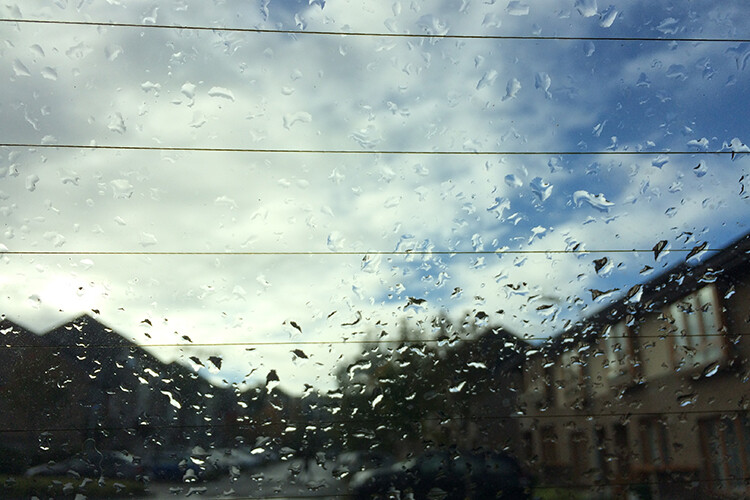
For example, for the shot of the Sony camera inside the waterproof case (see top photo). The camera is sitting on the bonnet (hood) of my car and I was nice and dry underneath the front porch of my house four feet away. If the rain persists or is simply too heavy to venture out, use this time to take actual shots of the rain against the window of your house or car.

Before

After

Before

After

What makes these shots more interesting is the type of background and the light reflecting off the rain droplets. For example, in the following image. I was in my own car and shot the car in front of me with my iPhone. I switched the wipers off to let the rain build up on the windscreen. The lights from the oncoming traffic gave it this Blade Runner abstract type shot.

Before

After

Disclaimer: I wasn’t driving the car when I took these shots. The traffic was at a standstill.

I hope you found this article useful. I’d love to hear your tips and advice on how you battle the elements when out shooting in the rain or other inclement weather. Please leave your comments below.

The post What to do When it Starts to Rain – Are you Prepared to Keep Shooting? by Sarah Hipwell appeared first on Digital Photography School.


Digital Photography School

 
Comments Off on What to do When it Starts to Rain – Are you Prepared to Keep Shooting?

Posted in Photography


Top 5 news stories of the week on DPReview

16 Dec

Top 5 Photography News Stories of the Week

The world of photography news moves fast, with tens of interesting, tragic, educational, and inspirational stories breaking sometimes daily. To help parse through the noise and focus on the signal, each week, we’re going to recap the 5 top photography news stories from the previous seven days.

This week, the tragic story of a young photographer’s death was the most popular—and controversial—of the news stories we covered on DPReview. This was followed by a shocking story of a musician kicking a photographer in the face, an inspirational round up of the best Nature photos of 2017 and, finally, a pricey announcement from Apple and a Leica sensor test rounded out our list.

Scroll through the slideshow for a quick recap of each story, and then follow any of the big blue buttons to dive deeper.

Famed Chinese rooftopper falls to his death from 62-story skyscraper

In November, 26-year-old Chinese rooftopper Wu Yongning fell to his death from atop the 62-story Huayuan Hua Centre skyscraper when a photo stunt for an unnamed sponsor went horribly wrong. The story—and a video of his fall—only came to light this week, shining a tragic light on the dangerous lengths some photographers will go to for an exciting shot.

Read the Full Story


Photo: Weibo

Musician kicks photographer in the face during rock concert, sending her to the ER

Queens of the Stone Age frontman Josh Homme found himself the subject of heated criticism and disgust this week, after a video and photos seem to show him purposely kicking photographer Chelsea Lauren in the face during a performance.

His apologies—first over Twitter, and later over Instagram video— have not gone over well.

Read the Full Story


Photo: Screenshot from YouTube video

These are the winners of National Geographic’s Nature Photographer of the Year 2017

Moving from tragedy and anger to inspiration, National Geographic revealed the winners of its annual Nature Photographer of the Year contest. And as you might have expected, every shot from the Grand Prize winner down to the Honorable Mentions and People’s Choice awards were fantastic.

The Grand Prize went to photographer Jayaprakash Joghee Bojan of Singapore, who beat out 11,000 other entries with his intense wildlife portrait of an orangutan crossing a river in Indonesia’s Tanjung Puting National Park.

Read the Full Story


Photos courtesy of National Geographic Nature Photographer of the Year 2017

A fully loaded iMac Pro will cost you $ 13,200

On December 14th, Apple finally put the “most powerful Mac ever,” its new iMac Pro, up for sale. And now that the powerhouse of an all-in-one is live on the Apple Store online, we were able to check how much a fully loaded version would cost you.

No surprise here: an 18-core iMac Pro with 128GB of RAM, a 4TB SSD and Radeon Pro Vega 64 graphics card costs about as much as a modest sedan!

Read the Full Story


Photo: Apple

DxOMark: The full-frame Leica M10 is ‘on par’ with the best APS-C sensors

DxOMark finished their review of the Leica M10 sensor this week, giving the sensor an overall score of 86.

The Good News: this means that the sensor inside the M10 outperforms almost every other digital Leica ever made, coming in second only to the Leica SL with its overall score of 88.

The Bad News: the expensive camera still falls significantly short of the top-of-the-line full-frame sensors out there, performing “more on par” with the best APS-C sensors DxOMark has tested.

Read the Full Story


Photo: DPReview hands-on photo by Barney Britton

Articles: Digital Photography Review (dpreview.com)

 
Comments Off on Top 5 news stories of the week on DPReview

Posted in Uncategorized


How to Know What to do and Where to Start with Photo Editing in Photoshop

16 Dec

Do you struggle to know what to do with your images in post-processing? Do you know where to start with photo editing? Can you relate to this?

Before and after photo editing.

I recently received a message for help from another photographer, “I’m so frustrated with Photoshop. I don’t know what to do or where to even start!?!?” So I asked, “What’s the plan? What are you trying to achieve?” His reply, “I’m not sure…”.

The uncomfortable truth is that we’ve all been there. Staring at Photoshop wondering which of its tools will achieve the look we’re so desperately trying to replicate. You try clicking on every button, using every tool and creating 1000 different layers to add complexity to your image under the illusion that this will instantly make it awesome.

Frustrated, you give up. And if you’re anything like me, you probably walk into the kitchen, open the pantry and look for answers inside a packet of cookies.

This overwhelming hurdle of frustration can cause you to stumble, fall out of love with editing and certainly begin to make everything feel too hard and unachievable. In this tutorial, I’ll show you a very simple technique that will have you soaring over this hurdle so you can continue on your journey to craft beautiful images.

After some thoughtful and carefully planned out photo editing.

It’s all in the preparation

It doesn’t take long for the process of editing in Photoshop to feel chaotic.

It’s easy to take a look at your photo and instantly get to work by creating a layer on top of layer targeting all sorts of adjustments as you see them. Add a bit of contrast here, some brightness there, sharpen this up and blur that… It’s fast. It’s reactive.

Before you know it, you’ll have curves in places you didn’t know you had and more level adjustments than an ergonomic office chair.

You may find yourself stumbling your way through the edit, the process will probably feel a little clunky but you’ll be somewhat happy with the outcome until you click on the next photo. Where the whole process starts again and you don’t know what to do, where to start, and worst of all – you’ve run out of cookies.

What happens if we remove the chaos?

Creating beautiful images is a craft. And much like any craft, a lot of unsexy work goes into the preparation before the fun stuff starts happening.

  • Landscape photographers spend their time scouting locations, researching where the sun will set (or rise) and studying the weather before they venture out at 4 am to capture the magic.
  • Quality chefs spend hours sourcing and preparing their ingredients before they serve their masterpieces.
  • Painters clean, dust and prime their brushes and canvas before bringing their vision to life.
  • Authors spend hours creating a structure and a content plan before putting pen to paper.
  • Builders draw up blueprints and intricate floor plans before laying bricks and building houses.

Preparation is the key to delivering the best possible final version of your craft. Preparation sets up the foundations from which you can begin to form consistency and style, and it helps you focus and stay on track.

So, what does preparation look like?

Well, just like a builder doesn’t turn up to a site and randomly lay bricks to build a house, or a Michelin-star chef doesn’t turn up on a night of service and create a menu from what’s laying around in the cupboards. You, as a photographer and image editor, should try to avoid randomly plowing your way through Lightroom or Photoshop, aimlessly slapping on layers and adjustments without creating a plan that details what you are trying to achieve.

So, when you approach your image – you know what to edit, where to start and what you’re doing. There is no chaos – it’s systematic and as a result, you’re cool, collected, and methodical.

Pfffft! Who has time to plan!?

It’s easy to become frustrated with Lightroom and Photoshop. And it’s even easier to buy your way out of it with presets and actions. I get it, you want rapid results, you want to see instant progress, you don’t want to stop, think and plan – you just want to do.

The truth is, editing beautiful images is a craft. It’s something to take pride in. It’s the final step for you to infuse your images with your personality and style before you share your work with your clients and followers. Therefore, sometimes it’s a good idea to give the editing process a little more love and care than the press of a button.

Doing so can be the difference between your clients and friends thinking, “Oh that’s nice…” and saying “Oh my! That’s AMAZING! Can I order a copy!?”

So, if you want to know how to build something beautiful — something with craftsmanship, something you’re proud of, something that your audience will love – spend time on the preparation stage and create a plan for your edits. The reality is, it takes a little more effort than pressing a preset button. Here’s how you can make a simple plan.

Step #1 – Load Photoshop

Open your image in Photoshop. You can do this from within Photoshop by navigating to FILE > OPEN and selecting your image. Alternatively, you can load your image into Photoshop from within your Lightroom Library. Do this by right-clicking on your photo inside your Lightroom Library and navigate to EDIT IN > EDIT IN ADOBE PHOTOSHOP.

1 Open Image Photoshop - How to Know What to do and Where to Start with Photo Editing in Photoshop

Step #2 – Convert to Black and White

To establish what to edit and where to start with your image, it’s helpful to begin by temporarily removing the distraction of color. This strips back the information and makes it easier for your eyes to clearly see what is going on inside your image. Convert your image to black and white using the Adjustment Layer menu and navigating to Black and White.

BlackandWhite Adjustment Layer -How to Know What to do and Where to Start with Photo Editing in Photoshop

Photoshop BlackandWhite Conversion - How to Know What to do and Where to Start with Photo Editing in Photoshop

Step #3 – What do you see?

Ensure that you can see the entire image on your screen. At this stage, you’re only taking a high-level look at your image to get an idea of what catches your eye. Navigate to VIEW > FIT ON SCREEN then hold down CMD (Mac) or CTRL (PC) + press the minus key (-) a couple times to zoom out of the image.

While looking at your image ask yourself these questions.

  • What story is the photo trying to tell?
  • Where do your eyes get drawn to first?
  • Where do your eyes go next?
  • What elements enhance the story?
  • Which elements weaken the story?

There’s no need to write an in-depth analysis here. Spend a few seconds on each question and listen to your instincts. What you are trying to do is look at your image from the viewer’s perspective and establish whether or not they are seeing what you want them to see.

Controlling the attention of your viewer’s eye is crucial to a good photo. It’s about leading them on an uninterrupted journey so they can soak up all the goodness of the story within your image.

Have you ever tried to read a book or watch a movie while someone is talking to you? It’s distracting, you disengage from the story and lose focus. The same applies to your eyes when you look at a photo. Eyes are easily distracted and the moment this happens you’ll lose your viewer’s attention and the story breaks down. Eliminating these distractions is key to creating stronger images.

Take a look at your image. As you do so, make a note of the areas, objects, and elements that your eyes are naturally drawn to and settle on. Typically, these areas will be the brightest parts of the image and areas with the most amount of contrast or sharpness. It’s your job to determine whether or not these areas enhance the story or distract the viewer’s attention and therefore weaken the story.

In the next step, we’ll take a look at this example image and establish the distractions so we can create a simple editing plan.

4 Thailand Boat Man Before - How to Know What to do and Where to Start with Photo Editing in Photoshop

Step #4 – Creating your plan

Create a new layer and rename it “Notes”. On this layer, you can use the brush tool to mark-up the areas of your image that you want to pay attention to based on your answers from step #3.

5 Photoshop Notes Layer - How to Know What to do and Where to Start with Photo Editing in Photoshop

The example image is trying to tell the story of a Thai man taking his boat out on the water for a snorkel while trying to keep cool in the harsh midday sun. However, you may find that your eyes are distracted by the flapping black strap, the rope, and what appears to be a random metal pole protruding into the frame.

Mark any distractions and things to remove or hide

With your notes layer selected, use a brightly colored brush to circle the distractions, adding them to your plan. You can also use the Type tool to clarify your thoughts so you don’t forget what your markups are referring to when you go to edit them later.

6 Remove Distractions - How to Know What to do and Where to Start with Photo Editing in Photoshop

7 Reduce Highlight - How to Know What to do and Where to Start with Photo Editing in Photoshop

Mark elements you want to bring more attention to

Continue to let your eyes explore the image and mark-up the elements that enhance the story. In the example image, you’ll notice that the subject is wearing a nice pair of sunglasses and that his face is a little dark. Drawing the viewer’s attention to this area will most definitely enhance the story.

8 Lighten Face Enhance Shades - How to Know What to do and Where to Start with Photo Editing in Photoshop

The example image uses a lot of horizontal leading lines such as the horizon, the edge of the boat, and the canopy. While these are effective at leading your eye across the image towards the subject, you don’t want them to be too effective and allow your viewer’s eyes to continue along those lines and off the image.

A good way to prevent this from happening is to darken the right side of the photo. This will help to control the viewer’s focus by bouncing it back into the frame and onto the subject.

9 Darken Edges - How to Know What to do and Where to Start with Photo Editing in Photoshop

Another element of this example that could potentially enhance the story is the light source. Adding a sun or lens flare may help to add some interest and balance out any adjustments made to the subject’s face and sunglasses.

10 Add Flare - How to Know What to do and Where to Start with Photo Editing in Photoshop

View the image in color again

When you are finished exploring the image and marking-up your notes, it’s a good idea to disable the Black and White adjustment layer you created in step #2 and take a look at the image in full color. As you do so, ask yourself whether the colors you see align and enhance your story or weaken it?

It’s likely that you’ll find one or two additional distractions in the form of color. These might be objects of a particular color that don’t align with the mood of your story or perhaps an overall color cast that you might want to remove or enhance.

In the example image, you can see that disabling the Black and White Adjustment Layer reveals a bright pink object that causes a distraction.

11 Desaturate Pink - How to Know What to do and Where to Start with Photo Editing in Photoshop

Finally, we can work with the overall color of the image to align with the story. Given that the example image is telling a story about a man trying to keep cool under the hot summer sun, adding a subtle warm-to-cool color tone may help to convey the story and pull the image together.

12 Colour Transition - How to Know What to do and Where to Start with Photo Editing in Photoshop

Step #5 – Create a Group

When you are finished making your notes it’s time to group them all together. You can do this by clicking on your Black and White adjustment layer, holding down the SHIFT key on your keyboard and clicking on your NOTES layer (and any other Type layers that you may have created).

13 Shift Click Group - How to Know What to do and Where to Start with Photo Editing in Photoshop

With your layers selected, click on the Group icon to put all of your selected layers into a new group. You can then rename the group to “Edit Plan”.

14 Edit Plan Group - How to Know What to do and Where to Start with Photo Editing in Photoshop

With your editing plan in place, you can now systematically work your way through the image. If at any point during your edit you begin to feel a little distracted, lost, or overwhelmed, just refer to your editing plan to get right back on track.

Here you can see the example image post-edit with minimal distractions. You may notice that your eye settles on the subject’s face a lot quicker than they did before, and it’s easier to absorb the story without the distracting elements.

Before

Before

15 Thailand Boat Man After - How to Know What to do and Where to Start with Photo Editing in Photoshop

After

Conclusion

Spending just a few minutes marking-up your photos and creating a plan can have enormous results. It tells you what to edit and where to start, and it provides clarity when the editing fog starts to settle in.

Yes, it takes a little more time and perhaps it’s not for every image. But if you want to create something with craftsmanship, something beautiful, something your clients and audience will love – it’s worth every second.

So, I encourage you to spend a little time planning your edits the next time you open up an image in Photoshop. Try to resist the temptation to join the trigger-happy chaos – instead, stop for a minute. Spend twice the time on the preparation, be clear on what you want to achieve, and craft something you’re proud of.

The post How to Know What to do and Where to Start with Photo Editing in Photoshop by William Palfrey appeared first on Digital Photography School.


Digital Photography School

 
Comments Off on How to Know What to do and Where to Start with Photo Editing in Photoshop

Posted in Photography


Have your say: Best entry-level ILC of 2017

16 Dec

The most important camera you’ll ever own is the first one you buy. This year was relatively quiet on the entry-level ILC front, but the quality of the cameras released in this market segment was universally excellent. Vote while you can – polls close Monday!

Articles: Digital Photography Review (dpreview.com)

 
Comments Off on Have your say: Best entry-level ILC of 2017

Posted in Uncategorized


The Olympus TG-5 and Nikon Coolpix W300 go to Puerto Rico

16 Dec

José Francisco Salgado is an astronomer, science photographer, and visual artist. His series of Science & Symphony films that have been presented in more than 200 concerts in 15 countries. He is a native of Puerto Rico.

Editor’s note: The events described in this article took place several weeks prior to the arrival of Hurricane Maria, which caused catastrophic damage to Puerto Rico and other islands in the Caribbean.


Last summer I traveled to Puerto Rico to do some night photography for a new Science & Symphony film I’m producing. I was planning to photograph the Milky Way and the ocean at the same time, though it’s difficult to visit tropical beaches and limit yourself to work.

I shoot my time-lapse sequences with Nikon DSLRs, but decided to bring along two ‘rugged’ cameras, the Nikon Coolpix W300 and Olympus TG-5, for casual shooting. These point-and-shoot cameras are shockproof (rated to resist drops from at least 2.1m / 7ft) and waterproof (to depths of at least 15.2m / 50ft), so my motivation was to use them while snorkeling with my fiancée, Paula.

She was more than happy to try these cameras, and since she’s not a professional photographer I thought it would be good to get her impressions of them as well. I wanted to find out how intuitive the controls were myself, so I decided to consult the manuals only when needed.

Olympus TG-5 sample gallery

$ (document).ready(function() { SampleGalleryV2({“containerId”:”embeddedSampleGallery_8708008253″,”galleryId”:”8708008253″,”isEmbeddedWidget”:true,”selectedImageIndex”:0,”isMobile”:false}) });

One big difference between the cameras that’s worth calling out is Raw support: the TG-5 allows you to capture Raw images, but the W300 shoots only in JPEG. I found myself processing the images from both cameras quite a bit in Adobe Lightroom to get pleasing results, though with the Nikon I was limited to editing out-of-camera JPEGs.

I really like the fact that both cameras have built-in GPS for geotagging photos. (You can read the metadata in the sample galleries if you want to know exactly where these photos were taken.) Unfortunately, after returning from the trip I noticed that the cameras, especially the TG-5, didn’t geotag consistently.

Nikon W300 sample gallery

$ (document).ready(function() { SampleGalleryV2({“containerId”:”embeddedSampleGallery_9166972522″,”galleryId”:”9166972522″,”isEmbeddedWidget”:true,”selectedImageIndex”:0,”isMobile”:false}) });

Since the W300 doesn’t save Raw files, I’ve included both out-of-camera JPEGs and my edited JPEGs in this sample gallery.

After landing in San Juan, we headed eastward toward our base in Playa Azul in Luquillo. Playa Azul, aka the Costa Azul, is a beach with golden sand and turquoise water. We took some photos along the surf and started to familiarize ourselves with the cameras. Paula noticed how much easier it was to operate the zoom lever on the TG-5, which is sideways and closer to the shutter, than on the W300, which moves up and down. Nevertheless, the optical zoom itself worked well in both cameras. Paula also preferred the grip on the TG-5.

We then headed to Cabo Rojo in the southwest corner of the island to photograph the disk of our Galaxy setting in the Caribbean Sea in the context of the rugged coastline and promontory of Los Morrillos. We returned to the site during the day with our point-and-shoot cameras to photograph the coastline and the popular stone bridge.

Puerto Rico’s Playa Azul has golden sand and turquoise water.
Olympus TG-5
ISO 100 | 1/400 sec. | F8
Photo by Paula Bressman

After Cabo Rojo, we spent a night at the Punta Tuna Wetlands Nature Reserve in Maunabo in order to photograph The Milky Way and the Punta Tuna Lighthouse. We did some scouting around the wetland and Playa Larga, where we appreciated the advantage of shooting in Raw on the TG-5. In the split-screen image below, you can see how much more information I was able to extract by processing the Raw file in Lightroom.

Olympus TG-5 (SOOC) Olympus TG-5 (Processed in Lightroom)

Our next site was Culebra, an island-municipality east of Puerto Rico, which is quickly reached by plane. During the 15-minute flight, Paula captured a nice photo of a young boy transfixed by the view from the small plane using the W300. I was able to pull a bit more shadow detail from the JPEG file, but decided not to so the viewer could focus on the boy’s attentive face.

Then it was finally time to take the cameras underwater, so we took them to a couple of beaches in Culebra, Playa Melones and Playa Tamarindo. (We preferred Playa Melones due to its abundance of coral reefs and marine life.)

To use the cameras underwater all you need to do is secure a lock (or two, in the case of the TG-5) and enjoy! Considering that these cameras don’t float, I recommend using the included straps to avoid accidental loss in deep water. Regardless of how much underwater photography you’re interested in doing, it’s good to know that you can bring these cameras into the water instead of leaving them unattended on the beach.

My fiancée, Paula, captured this photo during our flight to Culebra.
Nikon W300
ISO 400 | 1/1000 sec. | F2.8
Photo by Paula Bressman

The color rendition on the TG-5’s underwater photos was much better, so I decided to shoot more with it while snorkeling. Underwater, colors change based on lighting conditions, depth, water transparency, and amount of sunlight, so I was also intrigued to see how the TG-5’s flash would perform underwater. I found that many of the images came out overexposed or washed out, so I stuck to using the best natural light possible (read waiting for passing clouds).

The TG-5 has an Underwater Mode that, according to the manual, is optimized for underwater photography using natural light, so I decided to use it. According to the manual it should automatically set the ISO sensitivity with a priority on image quality. That is, the camera starts with a low ISO value and sets the corresponding exposure parameters (speed and aperture), then increases the ISO value as needed.

Snorkeling near Playa Tamarindo.
Olympus TG-5
ISO 100 | 1/320 sec. | F2.8
Photo by Jose Francisco Salgado

As sunlight started to diminish, it surprised me that the TG-5 would lower the speed all the way down to 1/60 second while maintaining ISO 100 instead of increasing the ISO! I understand that auto-ISO increases the ISO as a last recourse, but I was shooting in Underwater Mode. This mode should consider that sea currents are moving the photographer, who is often trying to capture moving fish or other animals. A speed of 1/60 second won’t cut it.

I decided to manually change the ISO to a higher value, but alas, it was impossible to figure out how to change this setting without reading the manual, and therein lies my frustration. I can deal with a program mode not giving the results that I expect, however I do expect to be able to look at the buttons and quickly figure out how to change the parameters that I need to change. The problem wasn’t pressing small buttons underwater, but not having an intuitive way to change values. As a result, some of the sea creatures I photographed are motion-blurred. Nevertheless, I’m content the photos I got of the carey de concha (Hawksbill sea turtle).

Throughout a day of snorkeling I got the impression that battery life on the W300 was underwhelming compared to the TG-5.

Shooting underwater with the Olympus TG-5.

On our last day in Culebra, stormy weather moved into the Caribbean. Conditions were windy, but safe, so we hopped into our rented golf cart and ventured out to enjoy two beaches which have been rated among the most beautiful in the world, Playa Flamenco and Playa Zoní.

Upon arrival at the Playa Zoní, it took us sixty seconds to make new friends, Magdamarys, Michelle, and Javier. Michelle, an awesome salsa dance instructor, proceeded to teach Paula how to salsa as seen in the video below, shot with the W300. It was the perfect way to end our stay in Culebra.

I captured this salsa dancing at Playa Zoní, considered one of the most beautiful beaches in the world, using the Nikon W300.

Back on the main island, we used the cameras one last time in El Yunque Rainforest, where Paula enjoyed the cool and refreshing water of the Juan Diego Waterfall.

Video of the Juan Diego Waterfall in El Yunque Rainforest, captured by the Olympus TG-5.

Final Thoughts

Although we didn’t drop or mishandle these cameras, they appear to be very rugged. They’re definitely waterproof, and it was easy to operate them underwater, however the user interfaces could be much simpler. I have apps on my iPhone than can control the camera in a simpler and more intuitive way than either of these cameras. Then there’s image quality. Lack of Raw support on the W300, and the poor image quality of the resulting JPEG files, disqualifies the camera for me.

Although I appreciated having more processing latitude with the TG-5’s Raw files, that doesn’t mean I’m very impressed with the image quality either. Nevertheless, it’s definitely superior to the image quality produced by the W300, even when comparing out-of-camera JPEGs. When processing images from the TG-5 be ready to correct for chromatic aberration, because it can be severe (this wasn’t an issue with the W300).

Although I appreciated having more processing latitude with the TG-5’s Raw files, that doesn’t mean I’m very impressed with the image quality either.

The TG-5 also failed to focus several times under normal indoor lighting conditions, including once outside right after sunset. I didn’t encounter any focusing issues with the W300. I was also happy to see that the TG-5 has a panorama feature, but it completely failed several times and produced horribly stitched images.

These cameras are a great option for you if you’re looking for a rugged point-and-shoot camera that works underwater, which is their main strength. If you’re just looking for a camera that’s more compact than a DSLR, or that has a better zoom range than your smartphone, they’ll work for that as well. However, considering the prices, you might also want to consider other compact cameras or even stick with your smartphone.

Readers wishing to contribute to ongoing hurricane relief efforts in Puerto Rico are encouraged to visit United for Puerto Rico.


José Francisco Salgado, PhD is an Emmy-nominated astronomer, science photographer, visual artist, and public speaker who creates multimedia works that communicate science in engaging ways. His Science & Symphony films with KV 265 have been presented in more than 200 concerts and lectures in 15 countries.

José Francisco is a seasoned night sky and aurora photographer and filmmaker. If you would like to view, photograph, and learn about the Northern Lights then you can inquire about his Borealis Science & Photo Tours in Yellowknife, Canada.

You can follow him on: Flickr, Instagram, 500px, Facebook, and Twitter

Articles: Digital Photography Review (dpreview.com)

 
Comments Off on The Olympus TG-5 and Nikon Coolpix W300 go to Puerto Rico

Posted in Uncategorized


Have your say: Best mid-range ILC of 2017

16 Dec

This year saw several cameras released in the mid-range ILC class, from full-frame DSLRs to super-compact APS-C mirrorless models. Take a look for a reminder of the key mid-range ILCs released in 2017, and don’t forget to vote for your favorites.

Articles: Digital Photography Review (dpreview.com)

 
Comments Off on Have your say: Best mid-range ILC of 2017

Posted in Uncategorized


DxOMark: The full-frame Leica M10 is ‘on par’ with the best APS-C sensors

16 Dec

DxOMark has just finished a new sensor test, and for once it’s not a “highest rated camera in the world” announcement. Instead, the testing and consulting company put the new Leica M10 to the test to see how it compares to the rest of the luxury brand’s lineup. The results: they’re calling it “a classic reinvented.”

Unlike the top-scoring Nikon D850 and Sony a7R III—both of which scored 100 and sit at the top of DxO’s full-frame sensor rankings—the M10 pulls in a meeker score of 86. However, that still makes it the second highest scoring Leica ever, just behind the Leica SL with an overall score of 88.

What’s intriguing is that, in terms of sensor performance, the Leica M10 actually scores “more on par” with the best APS-C chips DxO has tested, outperforming them significantly only in the low-light ISO category thanks to its physically larger sensor:

Image: DxOMark

DxO summed up these results well for us in an email:

Overall, better image quality can be found elsewhere for less money, but the Leica offers first-class engineering, and a digital camera with similar proportions to analog M cameras will be hugely appealing to Leica enthusiasts. Add to that compatibility with almost all Leica lenses ever made, as well as its simplicity of operation, and the M10 will be an attractive proposition to those who appreciate the quality of the Leica system.

No doubt a good chunk of our readers will bold-face and underline what DxO said above: “better image quality can be found elsewhere for less money.” But does the massive lens library, top-notch engineering, ‘simplicity of operation,’ and that pretty red dot help balance out the cost at all?

Head over to DxOMark to read the full review, and let us know what you think about these results in the comments.

Articles: Digital Photography Review (dpreview.com)

 
Comments Off on DxOMark: The full-frame Leica M10 is ‘on par’ with the best APS-C sensors

Posted in Uncategorized


Weekly Photography Challenge – Black and White Portraits

16 Dec

There is something very appealing about the simplicity of a portrait in black in white. It becomes less about the setting, background and environment and more about the person being photographed.

This week we want to see what you can do to create your best black and white portraits. Here are some articles to help if you need assistance:

  • How to Create Good Black and White Portraits
  • 5 More Tips for Making Better Black and White Portraits
  • 3 Simple Steps to Craft Better Black and White Photos
  • Avoid These 5 Common Mistakes in Black and White Photography
  • A Guide to Black and White Conversion in Photoshop
  • A Guide to Black and White Conversion in Lightroom

Weekly Photography Challenge – Black and White Portrait

Simply upload your shot into the comment field (look for the little camera icon in the Disqus comments section) and they’ll get embedded for us all to see or if you’d prefer, upload them to your favorite photo-sharing site and leave the link to them. Show me your best images in this week’s challenge. Sometimes it takes a while for an image to appear so be patient and try not to post the same image twice.

Share in the dPS Facebook Group

You can also share your images in the dPS Facebook group as the challenge is posted there each week as well.

The post Weekly Photography Challenge – Black and White Portraits by Darlene Hildebrandt appeared first on Digital Photography School.


Digital Photography School

 
Comments Off on Weekly Photography Challenge – Black and White Portraits

Posted in Photography