RSS
 

Archive for November, 2017

Sony Cyber-shot RX10 IV review

14 Nov

Introduction

The Sony DSC-RX10 IV is premium superzoom bridge-camera (DSLR-like form factor) with a 24-600mm F2.4-4 equivalent zoom lens and a 20MP 1″-type stacked BSI-CMOS sensor: the same used by the Sony RX100 V. This new sensor brings phase detect autofocus to the RX10 series for the first time, adding the depth-awareness that is important for focusing long lenses. The camera is also faster than its predecessor and can shoot at 24 fps with AF and auto exposure (compared to 5 fps).

The processor is borrowed from the flagship Sony a9, which should mean excellent subject tracking. In short, this camera packs speed, AF ability and lens reach into a convenient package, not to mention 4K video. So is it the most capable all-in-one camera on the market? Read on…

Key specs:

  • 20MP 1″-type stacked BSI-CMOS sensor
  • 24-600mm equivalent F2.4-4 stabilized zoom lens
  • 24 fps burst shooting in JPEG + Raw, with full AF and AE
  • 315-point phase-detection autofocus system covers 65% of frame
  • Detailed 4K video capture with well-controlled rolling shutter
  • High frame rate video capture
  • Touchscreen
  • Bluetooth connectivity
  • Updated menus

We feel like this camera will appeal to a variety of users including those seeking an all-in-one camera with serious reach for casual shooting, travel or vacationing. But advanced videographers may also find this camera tempting thanks to a laundry list of video features and good quality UHD capture.

Key features compared

The body is almost identical to that of its predecessor, using the same outstanding lens. However the RX10 IV offers a touchscreen that can be used as a touchpad for placing AF points with your eye to the finder or for selecting a point of focus in still or video mode. There are a few other minor differences between the two cameras as well:

Sony RX10 IV Sony RX10 III Sony RX10 II Panasonic FZ1000 Panasonic
FZ2500
MSRP $ 1699 $ 1499 $ 1199 $ 899 $ 1199
Sensor 20MP 1″-type stacked CMOS sensor 20MP 1″-type stacked CMOS 20MP 1″-type stacked CMOS 20MP 1″-type BSI-CMOS 20MP 1″-type BSI-CMOS
ISO range (native) 100-12800 100-12800 100-12800 125-12800 125-12800
Lens (35mm equivalent) 24-600mm F2.4-4 24-600mm F2.4-4 24-200mm F2.8 25-400mm F2.8-4 24-480mm F2.8-4.5
Built-in ND filter No No Yes No Yes
AF system Phase detect Contrast detect Contrast detect Contrast detect Contrast detect
AF points 315-point 25-pt 25-pt 49-pt 49-pt
Fastest shutter speed

1/32,000 sec
(e-shutter), 1/2000 (mechanical)

1/32,000 sec
(e-shutter),
1/2000 (mechanical)

1/32000 sec
(e-shutter),
1/2000 (mechanical)

1/16000 sec
(e-shutter), 1/4000 (mechanical)

1/16000 sec
(e-shutter), 1/4000 (mechanical)

EVF resolution 2.36m-dot 2.36m-dot 2.36m-dot 2.36m-dot 2.36m-dot
LCD 3″ 1.44M-dot tilting 3″ 1.23M-dot tilting 3″ 1.23M-dot tilting 3″ 921k-dot fully articulated 3″ 1.04M-dot fully articulating
Touscreen Yes No No No Yes
Burst rate 24 fps 14 fps 14 fps 12 fps 12 fps
Video 4K/30p 4K/30p 4K/30p 4K/30p 4K/30p
High-speed video Up to 960 fps @ 800 x 270

Up to 960 fps @ 800 x 270 Up to 960 fps @ 800 x 270 120 fps @ 1920 x 1080 120 fps @ 1920 x 1080
Wi-Fi Yes, with NFC and Bluetooth Yes, with NFC Yes, with NFC Yes Yes
Battery life (CIPA) 400 shots 420 shots 400 shots 360 shots 350 shots
Weather sealing Yes Yes Yes No No
Dimensions 133 x 94 x 145mm 133 x 94 x 127mm 129 x 88 x 102mm 137 x 99 x 131mm 138 x 102 x 135 mm
Weight 1095 g 1051 g 813 g 831 g 915 g

As you can see, the RX10 IV stacks up nicely next to its siblings and direct competitors. For someone primarily concerned with stills, the RX10 IV seems like the obvious choice, especially if you plan on shooting action: it’s got the fastest burst rate of the bunch and is the only camera in its class with phase detection.

But for videographers, the FZ2500 with its fully-articulating touchscreen, built-in variable ND filter and similar zoom range might make it the more sensible choice, especially given its lower price point (though we found its lens performance inferior to its Sony counterparts). You don’t get the cool, super-high-speed frame rate options offered by the Sony cameras, but 1080/120p is not too shabby.

Availability

The RX10 IV is available now for an MSRP of $ 1699.

Articles: Digital Photography Review (dpreview.com)

 
Comments Off on Sony Cyber-shot RX10 IV review

Posted in Uncategorized


Camera battery explosion causes chaos at Orlando International Airport

14 Nov
Photo by Ashim D’Silva

An exploding lithium-ion camera battery caused a panic at the Orlando International Airport on Friday, resulting in 24 flight cancellations as well as temporary chaos as a terminal was evacuated. Witnesses say the exploding battery made a sound similar to a gunshot, prompting people to flee the area.

Though frightening, the situation proved mostly harmless as officials discovered the source of the sound: a camera battery that had exploded inside of a traveler’s bag, which began smoking as a result. Orlando Police have since posted tweets advising the public that no shots were fired in the airport, but instead that “a lithium battery in a camera exploded in a bag … the bag was smoldering.” No one was hurt in the incident.

The incident follows a recent recommendation by the FAA that airlines ban passengers from checking devices with lithium-ion batteries in bags due to their volatility and the fire risk they pose, instead suggesting they pack them in their carry-on luggage.

Articles: Digital Photography Review (dpreview.com)

 
Comments Off on Camera battery explosion causes chaos at Orlando International Airport

Posted in Uncategorized


Luminar – The New Powerhouse for Fine Art Black and White Conversions

14 Nov

I recently embarked on a project of creating black and white images for an upcoming exhibit at an art gallery. The images have been shot, now the only question that remains is how will I handle the post-processing. In years past I’ve relied heavily on Lightroom and also Nik Silver Efex (yep remember that program). I have found, however, that the black and white conversions and looks created by the Nik Collection are starting to get a little dated.

It was very trendy some years ago to process in Silver Efex, but now that Google is no longer updating the program I find that the presets are not working as well for creating looks that appeal to today’s art buyers.

Luminar - The New Powerhouse for Fine Art Black and White Conversions

One of the images in the collection. I used Lightroom for some initial adjustments then used Luminar as a plugin to finish off the editing.

So I decided to process my images using Luminar by Macphun. I was already familiar with the program and the easy to use interface, so I thought I would push myself a little further and edit these images looking specifically to process for black and white.

Preset Black and White Workspace

One of the first things to be aware of is that Luminar offers a Black and White specific workspace. By clicking on the workspace tab, you will bring up a variety of tools that will help you to process for black and white conversions.

The workspace includes some filters like Colour filters, Exposure/Contrast, Highlights/Shadows, as well as Clarity/Detail, and a few others. The Curves filter is nicely constructed in that you can adjust RGB as well as the separate colors with just a simple click of the mouse.

Luminar - The New Powerhouse for Fine Art Black and White Conversions

In this image, you can see that I’ve set the workspace to B&W for black and white conversion.

I was also able to add additional filters to the list and remove others quickly and easily. For the majority of my images, I don’t tend to use textures, so I removed this filter from the workspace. If I were to process another set of images, I might use this filter, but for now, it was easier to remove it. You will notice that once you start adding or removing filters, the workspace becomes a custom setup.

Create your customized Workspace

One of the features that I like about Luminar is the fact that I can create a customized workspace. I am still in the process of tweaking my black and white filters so I can quickly and easily choose a specific workspace with which to start. One that will offer me the filters I need for easy black and white conversions aiming at a variety of different looks. For instance, I can create workspaces for grungy black and white conversions as well as ones that would mimic vintage film looks.

So I added filters to the workspace and made a custom set for processing to my tastes. Filters I removed; Texture Overlay, Grain, Soft Glow, Curves, and Vignette. I added the Advanced Contrast filter. You can also collapse any of the filters you aren’t working at the moment by clicking the little triangle icon just left of the filter name. That will give you more work area and less need to scroll up and down the filters panel.

Adjustment Brushes

Luminar also offers users the opportunity to make specific local adjustments with the Brush and Radial Mask tools. For one specific image, I used the brush to paint in my adjustments to only specific parts of the image. The brush tool creates a mask where you can selectively apply edits to your image.

Read more about this technique here: How to use Filter Masks in Luminar for Powerful Local Adjustments

Here you can see how I am applying the Highlight/Shadow filter only to a select area using the brush and a filter mask.

Workflow

So without further ado, I will take you through the steps I used to edit this image. As you will see, Luminar is a very quick and simple to use program that lets you edit your work in the matter of a few moments.

Step 1 – Presets

I always start by viewing my images in the presets. Who knows, one of them might just work and then my job is done. Luminar has these huge previews of each preset at the bottom of the screen, I find them very useful. This one is called “Bloody Mary”. I like the hint of color it includes but for this upcoming exhibit it won’t fit with the rest of the images so I’ll have to save this effect for later.

Step 2 – Black & White Workspace

Next, I chose the Black and White workspace and then started to adjust the black and white points. I like to make sure that each of my images contains the full range of tones right from pure white to pure black. This is always one of my first steps. I make sure that my histogram touches both the left and right edges. This step is very important as it gives my prints a lot of depth.

Before adjusting the Black and White point sliders. Notice the lack of contrast in the image.

After adjusting the Black and White point sliders. This sets the pure black and pure white in the image and adds contrast.

Step 3 – Color Filters

My next step was to play with the color filters and sliders and see how they would affect the look of the image. Sometimes using a filter makes a specific part of the image pop. For this particular shot, I want to emphasize the bands of light that played across the tree trunk.

To do this click on “Edit” next to the colored circles, and then on the Luminance (brightness) tab. That will allow you to adjust the tones of each color individually. Play with them each to see how they affect your image.

In this image, if I move the red slider all the way to the left, you will see that the tones on the rock get considerably darker. While moving the slider to the left adds light to this part of the shot.

Before adjusting the color sliders.

Red slider to the left darkens any tones in the image that are red.

Red slider to the right lightens red and darkens opposite colors.

Step 4 – Structure

I wanted this shot to be much grittier and defined, so I adjusted the Structure Filter as well. The texture in the bark is important for the effect of the light on the trunk. The structure slider helps emphasize this.

These two shots show the effect Structure has on this image. In this first image, I’ve purposely moved the slider all the way to the left so you can see the effect. The second shot shows the slider moved further to the right. The ridges of the bark become much more defined as I played with this slider.

Structure Slider pulled all the way to the left.

Final toned-down Structure Slider.

Step 5 – Split Toning

For this series of images, I am pairing urban shots with nature shots. All the nature shots, however, were taken somewhere within the city of Toronto. The photos will also contain a slight hint of blue. I love that tone when it’s printed out on my textured fine art paper. I also like to pair this hint of blue with a slightly grey/blue matte when I frame the images for the gallery exhibit. It’s a subtly unique look.

You can see here I’ve exaggerated the saturation to determine if I liked the color. Then, once I had the hue I liked, I toned the colors down to add just a subtle hint of blue to the black and white image. I also adjusted the balance so that the tone of blue will show more in the shadows than in the highlights.

Exaggerated Split Toning Filter to judge the color.

Final Split Toning settings and look.

Step 6 – Final Adjustments

Finally, I added an Advanced Contrast filter. I wanted to give the details within the image some punch and this slider worked beautifully on this image. You can play around with the highlights, mid-tones, and shadows separately. After some adjusting, I shifted the highlight slider further to the right adjusting the effect of the contrast on the tree bark.

Advanced Contrast Filter turned off.

Advanced Contrast filter added.

Conclusion

Well, that’s it, folks. The editing was very quick and simple. The image is complete for now. I always like to leave my work for a few days and then come back to view the image again. A set of fresh eyes always helps in fine-tuning the details.

In closing, Luminar has proved to be a very quick and easy-to-use tool for completing black and white conversions. It offers the same versatility and creative opportunities as other programs and is truly a powerful application.

Before and after comparison. You can use the handy before/after slider to see all the changes you’ve made to your image. Just click the little icon at the top that looks like an open book, and move the slider across your image to see the effects.

Before and after image, side-by-side.

I like the fact that I can use it as both a stand-alone product and a plug-in for Lightroom. The interface is certainly easier to navigate than other programs and I enjoy working in Luminar. That certainly says something as I’m not the type who likes to mess around with post-processing.

Disclaimer: Macphun is a dPS advertising partner.

The post Luminar – The New Powerhouse for Fine Art Black and White Conversions by Erin Fitzgibbon appeared first on Digital Photography School.


Digital Photography School

 
Comments Off on Luminar – The New Powerhouse for Fine Art Black and White Conversions

Posted in Photography


Stunning ‘orbital drone-lapse’ captured by flying a drone in huge circles

14 Nov

It’s difficult to stand out when creating a time-lapse these days—from the storm-lapses of Mike Oblinski, to the ‘flow-motion’ hyperlapses of Rob Whitworth, to the award-winning work of Michael Shainblum, it seems like it’s all been done. Until, that is, someone comes up with something like ‘Low Earth Orbit.’

This drone-lapse from Folegandros Island, Greece was captured by Hong Kong-based production company Visual Suspect using a simple ‘orbital’ technique; translation: they flew a drone in massive circles while recording time-lapse.

The results look like something out of Google Earth, but instead of static low-res images from orbit, you have living landscapes captured in HD. Here’s an explanation of the “how” and “why” by the creators themselves:

Orbital drone movements are the ones with power to convert two dimensional images into dancing focal layers escaping out of the frame. We wanted to further explore the technique, with high altitude long orbits, along with ones very close to the ground, we call them “Orbital drone-lapses”. These shots are a mix of automatic and manual flights.

Articles: Digital Photography Review (dpreview.com)

 
Comments Off on Stunning ‘orbital drone-lapse’ captured by flying a drone in huge circles

Posted in Uncategorized


Why You are not in the Photography Business – You are in the People Business

14 Nov

I did photos for a high school senior recently who remarked that many of her friends were having their class pictures taken by one of the teachers at school. We chatted about this as I snapped away with my full-frame Nikon D750 and accompanying 70-200mm f/2.8 lens, a setup that delivers good results but often gets quite heavy and cumbersome after a long photo session.

As we walked around and continued to take pictures, she told me how much her friends liked the teacher’s photos. She said how happy they were with the results while assuring me that she was enjoying our photo session in the park.
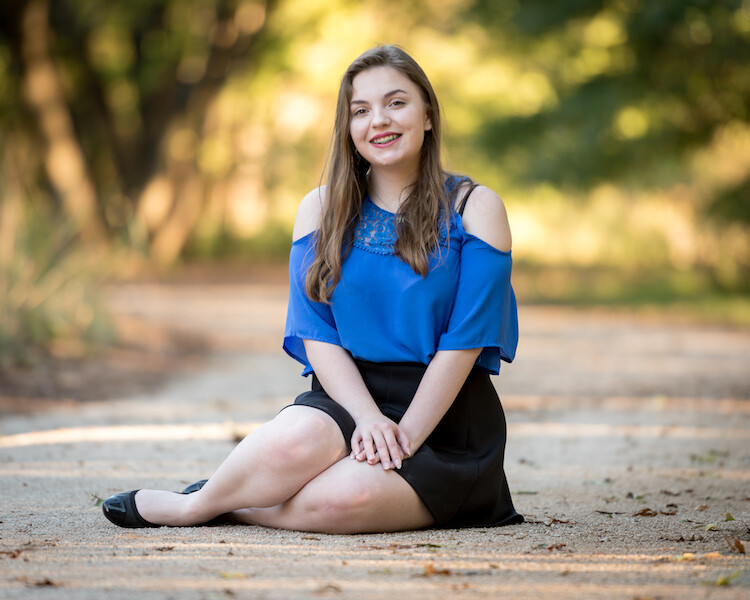
I casually asked if she knew what kind of camera the teacher was using, and her response surprised me. Although in hindsight, I suppose I should have seen it coming a mile away. “Oh, he’s got one of those new iPhones with portrait mode,” she replied as my shoulder cramped up just a bit under the weight of my camera gear.

This story illustrates a painful truth about those of us in the photography business; we can’t think of ourselves as just photographers anymore.

Longtime photography veterans have known this for years. But for people like me who are relatively new to photography or those just starting to get serious, there are a few things we need to keep in mind if we want to pursue our hobby and eventually use it to put food on our tables or gear on our shelves.

You are not in the Photography Business - You are in the People Business

You’re in the People Business

As Liam Neeson might say, you have a very particular set of skills as a photographer. You understand lighting and composition. You know how to choose good locations, you get how colors work, and you might be proficient with off-camera flashes and external light meters. Photoshop is your domain and you know Lightroom like the back of your hand.

You probably have a decent amount of gear in your collection, built up over the years thanks to hard work, saving, and honing your craft. The thing is, your clients don’t care about any of that. They aren’t going to be impressed with your Creative Cloud membership or the fact that you have the newest full-frame camera on pre-order from B&H.

What they want are good photos. You and your skill set and gear (and your high price tag) are competing with mobile phones that in the eyes of your client can make awesome photos. So what option do you think your potential clients are going to go with when it’s time to sign on the dotted line? As technology gets more advanced and the line between professional photographer and rank amateur becomes ever blurrier with the increasing capability of mobile phones, you have to do something to differentiate yourself.

Differentiate yourself

There’s a line in the movie Office Space where the manager of a kitschy all-American restaurant is trying to explain why one of his servers needs to wear what he calls “pieces of flair” on her outfit. In a moment of biting condescension, the manager explains that “People can get a cheeseburger anywhere, okay? They come to Chotchkie’s for the atmosphere and the attitude.”

It might seem silly, but as time marches on we photographers have to adopt the same type of work ethic if we want to survive, pick up new clients, and keep existing ones coming back time after time. Photography, whether we like it or not, has been commoditized to the point that anyone can do it and get pretty decent results. So we have to ask ourselves, what do we bring to the table that would make clients want to use our services if what they want, like the cheeseburger example, is available pretty much anywhere?

Focus on the experience

The answer to this lies in the same movie quote. We have to stop thinking of ourselves as photographers first and make our craft one of fun, excitement, engagement, and ultimately create an experience that our clients will remember.

Advertisers have known this for decades. When you see commercials for cars, clothes, or vacation getaways the focus is rarely on the items being sold but the experiences and emotions those brands attempt to create. You can’t rely on years of training or expensive gear to sell yourself as a photographer.

Instead, you have to work hard to create experiences your clients will remember for years to come and also share with others. Whether you photograph weddings, kids, families, high school seniors, or work with clients to take pictures of real estate, products, or promotional materials, you have to make the whole experience something they will appreciate, enjoy, and remember.

Get personal

This might sound complicated but it’s not all that hard to do, and it often involves many simple things. For example, take time to get to know your clients and call them by their first names. If you’re saying things like, “Hey you over there with the red jacket, I need you to scoot over to your left just a bit” that person isn’t going to care how sharp your photos are or that you shot with a really expensive lens! Instead, he will be wondering why he didn’t just pay the neighbor kid $ 50 to shoot pictures with the Canon Rebel camera that he got on sale at Target last week.

Talk with your clients, have fun with them, play with the kids, and ask for their input. Even if you don’t use the shots, they will at least feel like their contributions were valued. And whatever happens, don’t bark out orders like you’re at a military academy.

Make it fun – keep it light

You might be stressed after hours of shooting a wedding, but don’t let your clients see that. Smile, ask people politely to do what you need, but also don’t be afraid to take charge and direct the shoot the way you want it. People appreciate leadership and professionalism, but you can have that without being rude and obnoxious.

Just like in the movie example, people can get photos from anyone nowadays. But they come to you for the fun, excitement, enjoyable attitude, and all the other intangible elements that come together to create a photo session to remember.

Recommendations go a long way

When my wife and I moved from one part of the country to another, several years ago, we had to figure out all sorts of ways to integrate into our new city; where to buy a house, where to shop for groceries, what church to attend, and even mundane decisions like where to get our car repaired when it broke down. I looked through the Yellow Pages phone book (remember those?) and saw page after page of advertisements for mechanics who were Fast, Efficient, Cheap, Highly Trained, Professionally Certified, and The Best in Town. We were so overwhelmed with choices that we just asked around. Several of our friends recommended a particular place that we still go for all our auto repairs, eight years later.

When we talked to our friends about which shop to use, can you guess what they said about the one we ended up choosing? I’ll give you a hint, it had almost nothing to do with the quality of their work. Any auto shop can replace an alternator or change brake pads, but the reason so many people recommended that one particular shop had everything to do with the friendliness, attentiveness, and respectfulness of the staff.

Perception shapes quality

The hard truth of the matter for those of us involved in any type of service industry such as photography is that there is no objective plumb line by which our clients can consistently gauge quality. Just like choosing an auto repair shop, your clients or potential clients would probably be happy getting their pictures taken by any number of professional or amateur photographers in your area.

How they perceive the quality of the final result won’t necessarily be judged by the sharpness of the images, the intricacies of the editing, or the price of the gear used to take said photos. Instead, they will think about the whole experience of getting their pictures taken and use that as a measuring stick by which to judge the quality of the images. It seems strange and perhaps frustrating to those of us who have spent years or decades honing our craft.

But there’s no getting around the fact that the way in which people judge quality is highly influenced by their perception of the experience.

Research proves it

The concept of consumer perception and its role in shaping quality has been studied by researchers for decades. In 1992 J. Joseph Cronin, Jr. and Steven A. Taylor published a paper in the Journal of Marketing in which they concluded that among other things;

  • “Service quality is an antecedent of consumer satisfaction”
  • “Consumer satisfaction has a significant effect on purchase intentions”
  • “Service quality has less effect on purchase intentions than does consumer satisfaction”

The implications of this and other similar research for photographers is profound! Basically, if your clients had a good time at your photography session and were pleased with your service, they will view your photos as higher quality.

Good experience = they will like you = happy clients

So what can you, the humble photographer, do about all this? How can you deliver high-quality results to clients who might be perfectly happy with any other photographer or mobile-phone-wielding teenager in the area?

Differentiate yourself not by the quality of your photos but by the experience you offer. In doing so, your clients will perceive their pictures as sharper, more expressive, and just plain better than others. This is true even if your photos aren’t actually as good on a technical level – which is a real kick in the head for photographers who have amassed years of knowledge, experience, and gear.

Think of the many times you have seen photos that friends and family have posted on social media or sent out in Christmas cards to which your reaction was one of shock and horror. The lighting is all wrong! The background is so distracting! Aunt Ginny is out of focus! Nevertheless, the pictures are seen by the clients as high-quality because they enjoyed the experience as a whole and received an outstanding degree of service. Photographers who can do that are the ones getting likes, shares, recommendations, and bookings.

Improving Customer Experience

In an interview with NPR, Tony Hseih, the founder of the online shoe retailer Zappos, described his approach to selling shoes which, ironically, had nothing at all to do with shoes. He said that as his company grew, “A big turning point was really deciding we wanted to build our brand to be about the very best customer service and customer experience.”

He really meant it, and if you visit Zappos you won’t see shoes and handbags that are cheaper than other retailers. They don’t even try to compete on price at all but by offering the best service of any clothing retailer in the market today.

Walker Information, a company that studies business marketing and consumer habits, recently released a study that predicted customer experience as being the single most important way for brands to differentiate themselves by the year 2020. And that, I would argue, is the silver lining to the clouds that can easily darken a photographer’s horizon these days.

I honestly wasn’t a huge fan of this image and I think some of the others I delivered to my client were superior. But the mother was thrilled with it because I had her sprinkle leaves on her daughter while I shot photos. She had fun doing it, and as a result, viewed the final image as high-quality even though there are others that I think are probably better. My client was happy with the picture and that’s what ultimately matters.

Customer service is king

Photography has been available to everyone ever since Kodak invented the Brownie camera in 1900, but never have cameras been so powerful, ubiquitous, or easy to use as they are now. With such a crowded marketplace in which almost anyone can take high-quality photos, (even if you might not think they can hold a candle to your high-res, ultra-sharp, professional-style shots) you have to do something to stand out from the crowd and give people a reason to hire you.

That differentiating factor is the complete customer service experience. From the moment you make the first contact with potential clients, to the photography session, to the communication afterward, and even the way in which you deliver photos all matter. (You’re not handing clients a CD-ROM with watermarked JPG files, are you?)

The trump card you have up your sleeve is that you can do the best of both worlds. You have all the skills that make you a highly capable photographer and you likely have a growing collection of cameras, lenses, and software to help you achieve outstanding results. In addition to that, you can also provide a fantastic all-encompassing photography experience that your clients will remember for years while also recommending you to their friends and family.

I actually see the onset of mobile phones and computational photography as an opportunity, not a threat, and a way for me to show others how my work really does stand out.

Conclusion

I started this article by mentioning a photo session for a high school senior. After I delivered her final edited pictures, what really stuck in my mind was how she and her parents talked about the experience as a whole. Her parents told me how much fun she had and expressed appreciation that I was able to bring their normally camera-shy daughter out of her shell a bit to get some gorgeous images of their daughter that they don’t normally see.

I say this to illustrate a point about the core lesson of this whole article. You are in the photography business, but in today’s world, you can no longer afford to be just a photographer. You have to be so much more.

You have to create memorable experiences for your clients, allow them to elevate the quality of your work because of those experiences, and be attentive to their needs throughout the photography process. Even though this might take a bit of work, the results will pay off in the long run and people will see with their own eyes, and hear from their friends, about why your work is a cut above the rest.

The post Why You are not in the Photography Business – You are in the People Business by Simon Ringsmuth appeared first on Digital Photography School.


Digital Photography School

 
Comments Off on Why You are not in the Photography Business – You are in the People Business

Posted in Photography


5 Tips for Mastering Shadows in Your Photography

14 Nov

Walking into a dimly lit room can be a photographer’s worse nightmare. Dark walls, low lighting, and weird shadows are enough to give even the calmest photographer a case of anxiety. Does this sound familiar? It did to me when I was first starting out and claimed to be a natural light photographer.

Because let’s face it, I did not know how to use my flash and more importantly did not know how to read light. Yes, I said that right. As a photographer, you not only see light but also need to learn the art of reading light – the type of light, the quality of light and also how the light will affect your final image.

The more I started to photograph people and places, the more I realized that but finding light among the shadows wasn’t really that scary or daunting.

How to Embrace Shadows in Your Photography

Master the shadows

Imagine for a moment the confidence you would feel if you can walk into any indoor lighting situation and think to yourself, “Yes, I got this”. And I don’t mean using your off-camera flash or strobes to light up the whole scene like the fourth of July fireworks display. I mean using only available light to create some magical photos.

Now don’t get me wrong, I still love images taken in natural light as they feel really light, airy, and inviting to me. But shooting in a low-key style, embracing shadows to create some dramatic portraits is just as fun and exciting.

For the past few years, I have felt a little limited in my photography in terms of only photographing in bright, open, natural light conditions. Living in Chicago, our summers are quite short and fall is usually a mix of rain, thunderstorms and more rain. I learned very quickly that I needed to get out of my comfort zone and figure out how to photograph indoors and do it confidently and creatively.

A less I quickly learned is that shadows play such an important role in shaping light, setting the mood, rendering depth, and creating drama. In the absence of floor-to-ceiling multi-windowed, light-filled rooms to photograph in, embracing shadows may be the perfect solution for unleashing your creativity.

#1 Gear choices

Dark and Moody Lifestyle Portraits - How to Embrace Shadows in Your Photography

If you have a choice between prime and zoom lenses, choose the former. Primes are generally considered fast lenses with an aperture of f/1.8 or larger and allow what light there is to reach the camera’s sensor. My Canon 50mm f/1.2 is on my camera 80% of the time I am photographing indoors.

Make sure to also meter appropriately. I use spot metering most of the time and have my center spot set to the brightest area on my subject’s face/skin. This, in itself, will help to get a dramatically lit image. It will expose the highlights properly and allow the rest of the scene to have shadows for a range of tones.

Ensure you expose properly as well. If the capture is underexposed, attempting to correct it in post-processing only adds noise. In general, I tend to overexposure my photos by at least 1/3 stop no matter where I am photographing. I have found that this allows me to minimize noise and retain as much detail as possible in the shadows.

My White Balance is set to Auto. You can choose to set White Balance via the custom Kelvin function so that it can cut down processing time later. I find that being in Auto works really well in most cases and I am okay with minor adjustments in post-processing if required. Learn to embrace a bit of noise by increasing the ISO especially if the room is really dark.

Dark and Moody Lifestye Portraits in Shadows - How to Embrace Shadows in Your Photography

#2 Single light source

A single light source such as a small window or open door can work wonders for your image. When you are working with dark spaces and limited light, you’ll be surprised how little light you actually need.

If you have north-facing windows, they tend to bring in a softer and more directional light as opposed to east or west facing. Those tend to bring strong light depending on where the sun is in the sky at the time you are photographing.

Dark and Moody Wedding Portraits in Shadows - 5 Tips for Mastering Shadows in Your Photography

Backlight magic.

Dark and Moody Wedding Portraits in Shadows - 5 Tips for Mastering Shadows in Your Photography

The bride is facing the window and her profile is evenly lit. But the dark drapes behind her render the background almost black – I quite love the drama of light and dark happening in this photo – achieved by just placing the subject in a specific spot.

#3 Direction and quality of light

Both the direction and the quality of light play significant roles in the mood of an image. So understanding the variety, nature, and use of each will help you make informed decisions about how to achieve your end goal.

Hard, focused light tends to amp up the overall drama of the image, emphasizing texture and detail, and producing contrasty shadows with sharp, defined edges. Soft, diffused light gives shadows soft, feathered edges that recede gently (dither away), making it flattering and versatile for human subjects for the way it minimizes texture and detail (i.e., flaws).

The angle and direction of the light you choose depend on your shooting style and your intent for the image or session. Typically, I do not position the subject facing the light source because it gives a flat, one-dimensional look to the subject’s features. I prefer lighting my subjects from the side for the depth and dimension the shadows give the subject’s features and the rest of the frame.

Backlighting the subject has its uses, particularly if your intent is to somewhat abstract the subject to get an airy, dreamlike feel.

Dark and Moody Wedding Portraits in Shadows - 5 Tips for Mastering Shadows in Your Photography

On the left, the bride is facing the window straight on, so the light on her face is even and soft. On the right, the bride is facing the window but at a 45-degree angle. So her portrait is a mix of more dramatic light as well as darker shadows.

#4 Mathematics in photography

The mathematical law of the Inverse Square describes how the illumination from a light source diminishes over distances.

Imagine the beam of a spotlight as it widens and grows dimmer in the distance. Now center a subject in the beam close to spotlight itself and the light will be harsh. But if you move the subject in a straight line to stand about 6 feet from the light, how much less light is hitting the subject them? With the distance doubled, the light hitting the subject is diminished by three quarters.

In a real-world context, let’s say you’ve got a background to work with and maybe a surface to bounce light into the scene. Plus all kinds of diffusers and filters to modify the light source, and a choice of where to place the subject in relation to the background and the light source as well as placing yourself and the camera.

Generally, you can add drama to the image by positioning your subject close to the light source and away from the background. The light will illuminate the subject and everything behind her will dwindle into shadow. That’s a quick and easy way to create a dark background in-camera. Conversely, placing the subject further from the light source and closer to the background will create a more evenly lit scene with a more gradual shift between light and shadow (the background will be lighter as well).

Dark and Moody Wedding Portraits in Shadows - 5 Tips for Mastering Shadows in Your Photography

On the left, the bride is farther away from the light source and hence she is more in the shadows as compared to the image on the right where she is facing the window light and is closer to the light source. So more of her face is being illuminated with the light coming from the window.

#5 Modify or mold your light source

If you find yourself with an over-abundance of natural/available light, using modifiers is an easy way to control the amount and intensity of the lighting on your subject.

Sheer curtains and blinds can be used to reduce or diffuse light, making it softer and subtler. You can decrease the size of the light source to increase shadows and increase drama with the use of blackout curtains or by partially shutting doors. Remember, the more light you let in, the less intense the shadows.

I hope these examples motivate you to look differently at shadows. There are no photography monsters hiding in them! They are, in fact, quite useful in adding some drama and interest in your photographs.

The post 5 Tips for Mastering Shadows in Your Photography by Karthika Gupta appeared first on Digital Photography School.


Digital Photography School

 
Comments Off on 5 Tips for Mastering Shadows in Your Photography

Posted in Photography


Ten Nikon D5 DSLRs will arrive at the International Space Station tomorrow

14 Nov

Back in August, NASA’s love affair with Nikon cameras made the news when the space agency ordered 53 unmodified Nikon D5 DSLRs that it would use on the International Space Station and for ‘training purposes’ here on Earth. Ten of those D5 cameras are scheduled to make it to the ISS this week.

Packed aboard the Orbital ATK OA-8 Space Station Cargo Resupply Mission that took off this Sunday at 7:19am Eastern time, and are scheduled to arrive at the ISS tomorrow morning around 4:50am (you can actually watch live coverage of the rendezvous on NASA TV starting at 3:15am).

Nikon tells us that NASA is “reusing Nikon lenses and accessories previously launch with the Nikon D4 and D2Xs cameras,” and are planning to keep the D5 cameras in circulation for 12-18 months. With any luck, the astronauts aboard the space station will use them to capture more images like these:

$ (document).ready(function() { SampleGalleryV2({“containerId”:”embeddedSampleGallery_9349612405″,”galleryId”:”9349612405″,”isEmbeddedWidget”:true,”standalone”:false,”selectedImageIndex”:0,”startInCommentsView”:false,”isMobile”:false}) });

NASA’s relationship with Nikon began in 1971, when the Nikon Photomic FTN (a modified Nikon F) went to the moon with the astronauts of Apollo 15. Fast forward to 2008, and NASA ordered its first digital cameras for use in space, a set of six Nikon D2XS DSLRs, followed by an order for 11 Nikon D3S cameras in 2009, 38 Nikon D4 DSLRs in 2013, and another 10 D4s in 2016.

The only question now, I suppose, is when is the Space Agency going to replace its glass? NASA’s latest order of Nikon glass was placed in 2010, when 64 NIKKOR lenses were delivered to the space agency. If astronaut photographers are anything like us Earth-bound folk, that means they’ve been drooling over ‘better’ lenses than they currently have since about… three days after they got those lenses.

Articles: Digital Photography Review (dpreview.com)

 
Comments Off on Ten Nikon D5 DSLRs will arrive at the International Space Station tomorrow

Posted in Uncategorized


Kodak will lay off 425 employees after reporting millions in losses

14 Nov

Kodak recently disclosed its third quarter fiscal results, revealing that it had a GAAP net loss of $ 46 million on $ 379 million in revenues during its Q3 2017. This marks a sharp downturn of fortunes for Kodak, which saw $ 12 million in net earnings during the same quarter last year. “An overall print market slowdown and rising aluminum costs have impacted our commercial print business,” explained Kodak CEO Jeff Clarke in a release.

Clarke went on to explain that Kodak is, “taking immediate actions to accelerate cost reduction and reduce investments to sharpen our focus as we continue to actively pursue changes to the Kodak product and divisional portfolio.” According to New York Upstate, “accelerate cost reduction” translates to the Eastman Kodak Company cutting 425 jobs.

The quarter had its upsides for Kodak, however, which reports that its Kodak Sonora Plates saw a 24% growth in Q3 and its Flexcel NX revenue grew 2% year-on-year. Overall, Kodak’s CFO David Bullwinkle said the company anticipates generating cash during Q4 2017. “We plan to improve our cash balance through reducing working capital and through cost actions,” Bullwinkle explained, “including focusing investments in technologies most likely to deliver near-term returns.”

Articles: Digital Photography Review (dpreview.com)

 
Comments Off on Kodak will lay off 425 employees after reporting millions in losses

Posted in Uncategorized


Affinity Photo for iPad Review

13 Nov

Affinity Photo for iPad
$ 20 | Affinity.serif.com | Buy Now

We’ve come to expect less from iOS software on the iPad compared to desktop applications because, in most cases, they’re mobile—and “mobile” has traditionally meant “limited.” A lot of that has been due to hardware: even as the iPad’s main processors improved, most models included a minimal amount of RAM that made it difficult to pull off operations expected of a modern image editor, such as smoothly dealing with many layers and real-time effects.

The arrival of the iPad Pro, along with a commitment in iOS to take advantage of the hardware, has opened the door for more powerful applications. One of those apps is Affinity Photo for iPad, a full-fledged image editor that doesn’t feel as if the developers had to remove features from a whiteboard to make the app a reality. Whereas some companies have chosen to make multiple apps that specialize in a few image editing features—a big photography shop that begins with an A comes to mind—Serif has packed the gamut of features into Affinity Photo for iPad. It’s not a literal translation from the desktop version, nor should it be.

Key Features

  • Full suite of image editing features
  • Sophisticated layers enable compositing
  • Projects can be edited in Affinity Photo for iPad and desktop
  • Interface smartly designed for touch operation

Allow me to head off a common talking point at the outset: Yes, devices such as the Microsoft Surface give you a mobile tablet experience running desktop applications, including Serif’s Affinity Photo for Windows. That works for some people, and not for others, for various reasons. A few readers commented in our review of Affinity Photo for Mac that the performance of the Windows version lags on some systems.

Affinity Photo for iPad runs on the following models: iPad Air 2, iPad 2017, iPad Pro 9.7-inch, 10.5-inch, and 12.9-inch.

Importing Photos

If you’re importing photos from a camera’s memory card, they must still be transferred using the default method of copying them first to the Photos app. However, you can also import from cloud sources, such as iCloud Drive, Dropbox, Google Drive, and others. Under iOS 11, this is made easier by tying into the architecture used by Apple’s Files app, which also acts as go-between for other apps that support it. For example, Affinity Photo can copy images directly from the app Cascable, which is a utility for transferring images using the Wi-Fi built into some cameras.

We’re accustomed to simply opening an image file to work on it; as long as your files are stored on some cloud platform or a compatible app, you can do the same on the iPad

This seems like a pedestrian point to make—ooh, thrilling, opening files!—but Apple’s traditional insistence that everything pass through the Photos app has always been just awkward enough to be annoying. In Affinity Photo, it’s possible to open images, including Raw files, without going through the Photos workflow. On the desktop, we’re accustomed to simply opening an image file to work on it; as long as your files are stored on some cloud platform or a compatible app, you can do the same on the iPad.

Interface and Workflow

A long list of features is impressive (and there are plenty of features), but if using them is frustrating, people won’t stick with the app. Affinity Photo has wisely tailored the interface for a small-screen, touch-based experience. The layout of tools and modes prioritizes visibility of the image you’re editing.

Tools are arranged around the edges of the screen, taking up minimal space.
The main tools, called out by pressing the ? button.

It’s an efficient use of space that may seem confusing at first—and occasionally requires some exploration until you’re familiar with it—but the interface has been well thought out.

For instance, the controls for adjusting brush sizes and other tool properties seem almost clumsy at first. Instead of customary sliders for everything, a tool’s options appear at the bottom of the screen as configurable circles. To make a brush larger, for example, drag from the middle of the control up or to the right; the pixel dimensions appear in the middle, and a solid border snakes around the perimeter to indicate how far the value is from the maximum or minimum value. The same mechanism controls opacity, flow, hardness, and other attributes. Tap the More button there to reveal a screenful of other options, such as blending mode, wet edges, and custom dynamics that affect Apple Pencil interaction.

That’s not intuitive if your brain has been wired to use Photoshop, or even Affinity Photo on the desktop. But it’s no coincidence that the control is finger-sized. Since it’s occupying a small portion of the bottom of the screen, you get control without sacrificing a lot of screen real estate. That said, using the gesture seems almost sloppy at times, because the sensitivity depends on the speed and distance you move your finger or Pencil.

Controls are easily available using your left hand, leaving the right hand for applying edits or making selections.

As with the desktop version of Affinity Photo, the app is split into multiple personas (modules). The Photo persona contains most of the editing tools, layers, and the like. Opening Raw files brings you into the Develop persona to apply Raw edits, which you must apply before you can access the app’s other personas and editing tools; you can also edit individual layers in the Develop persona. The Liquify persona gives you control over pushing, pulling, and warping pixels for retouching purposes. And the Tone Mapping persona applies HDR style effects to a layer.

Additionally, “studios” along the side break out tasks and other tools, such as Layers, Adjustments, Filters, Color, and so forth.

Different from the desktop software is a Selections persona that’s dedicated to making selections. It’s a bit odd to switch to a new persona just to select areas of an image, but after a short amount of time I appreciated that its 11 tools were all exposed by switching personas, versus tapping and waiting on a tool to reveal its alternates (which still happens for many of the basic tools), or digging through menus, as in the desktop software.

One thing you’ll find yourself doing often is working two-handed. For instance, with an Apple Pencil in my right hand and working in the Selections persona, I can quickly toggle between the Add and Subtract modes of the Smart Selection Brush tool using my left hand, just as if I were using Option or Alt on the desktop. Commands such as Deselect or Invert Selection are a finger-tap away at the top toolbar. Turning on Left-Handed Mode reverses the interface.

Articles: Digital Photography Review (dpreview.com)

 
Comments Off on Affinity Photo for iPad Review

Posted in Uncategorized


Professional photographers explain why they shoot Panasonic Lumix

13 Nov

Being a professional photographer used to mean carrying around heavy SLRs and medium-format camera, tripods and cumbersome accessories. As cameras have evolved to become smaller and smaller, those days are over.

Panasonic was a pioneer in the mirrorless camera market, and over the past decade its G and GH-series cameras have been adopted by a wide range of photographers, including professionals in various different fields. In a new video by filmmaker Griffon Hammond, professional photographers Daniel J. Cox, Ben Grunow, William Innes and Jennifer Maring explain why they choose to shoot with Panasonic Lumix cameras.

Panasonic’s latest G-series camera is the impressive flagship Lumix DC G9, which features a suite of powerful features including high frame-rate stills shooting and 4K video.

Read more about the G9 here

$ (document).ready(function() { SampleGalleryV2({“containerId”:”embeddedSampleGallery_8049518911″,”galleryId”:”8049518911″,”isEmbeddedWidget”:true,”standalone”:false,”selectedImageIndex”:0,”startInCommentsView”:false,”isMobile”:false}) });
Articles: Digital Photography Review (dpreview.com)

 
Comments Off on Professional photographers explain why they shoot Panasonic Lumix

Posted in Uncategorized