RSS
 

Archive for March, 2017

Better Than Before: 10 Unwanted Structures Transformed for New Uses

02 Mar

[ By SA Rogers in Architecture & Houses & Residential. ]

time capsule factory

Creative conversion projects transform old disused structures like factories, churches, grain silos, cisterns and slaughterhouses for new purposes, helping them avoid demolition. Often abandoned yet still bearing historic, aesthetic and functional value, these buildings become the basis for unusual homes, offices, spas and museums.

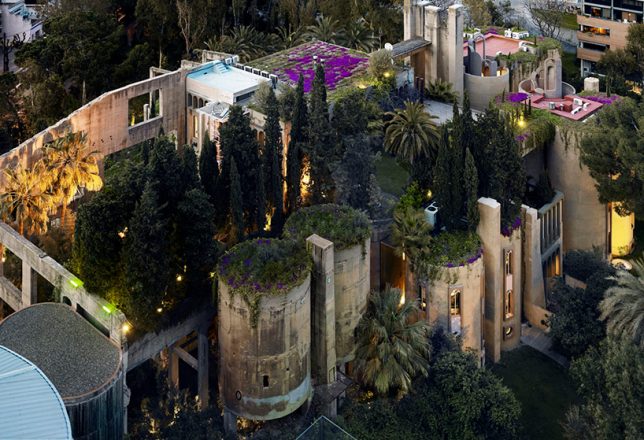
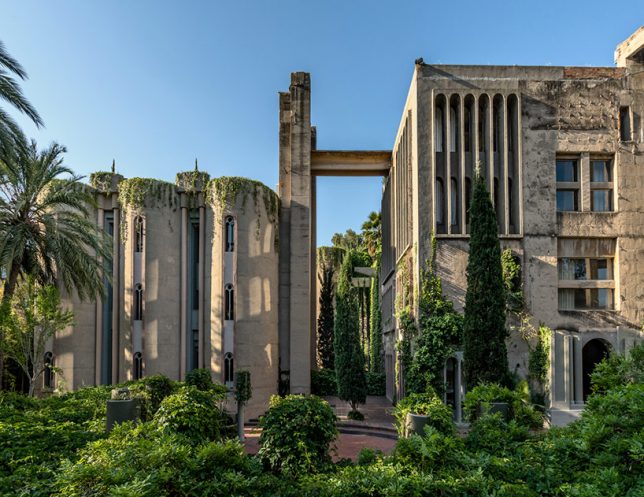
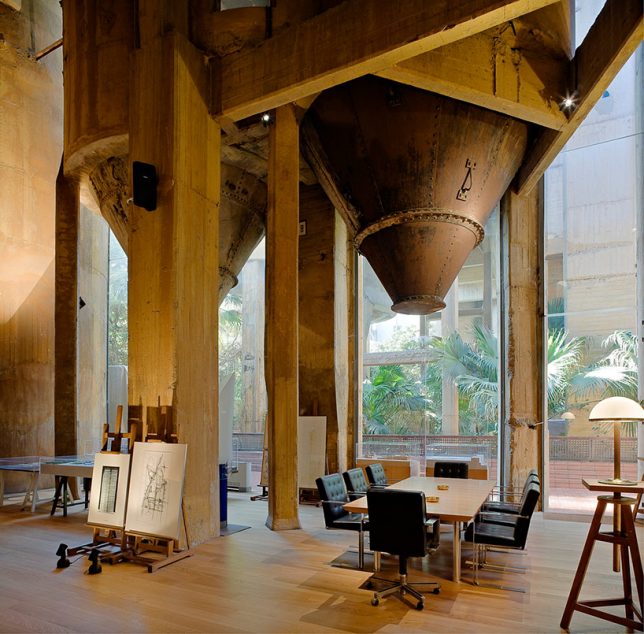
La Fabrica: Cement Factory Turned Private Residence, Barcelona, Spain

time capsule factory 2

time capsule factory 3

time capsule factory 4

time capsule factory 5

A sprawling cement factory in Barcelona, built in the post-World War I era and containing structures in all sorts of interesting shapes, has become architect Ricardo Bofill’s home and studio. Bofill transformed the complex by demolishing strategic areas to create voids for open-plan spaces interspersed with gardens. Years after he began, the home is covered in greenery in a way that seems chaotic at first, as if nature is taking the formerly abandoned space over whether it was converted or not. But a closer look reveals planned rooftop gardens atop cylindrical silos, palm trees and lush ivy. Many elements of the original structures were preserved as interesting architectural details.

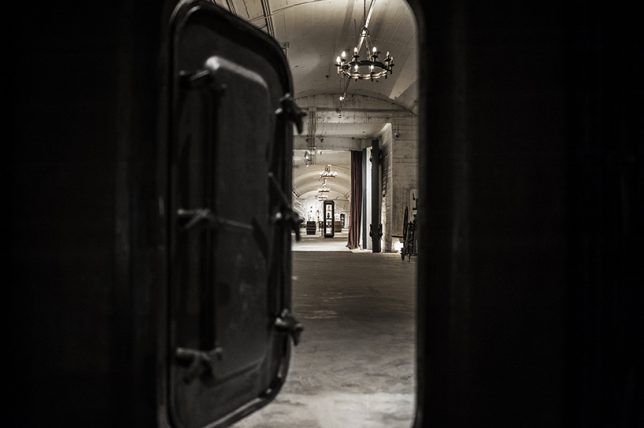
Military Bunker Turned Wine Museum, China

china bunker to wine museum

bunker to wine museum 2

bunker to wine museum 3

bunker to wine museum 4

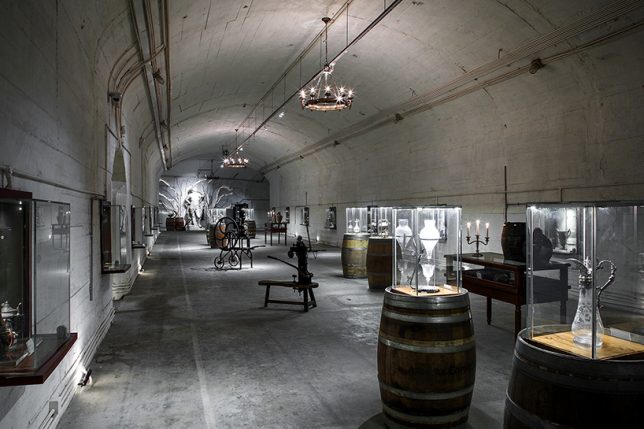
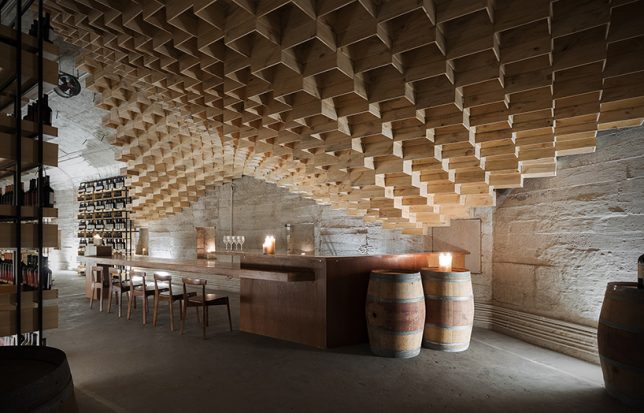
An old military bunker 1.5 hours outside Shanghai is now an unusual industrial-style winery, transformed by China-based wine lifestyle and consulting firm Shanghai Godolphin. Built inside a Chenshan Mountain cave over 80 years ago, the structure was once used to store artillery and anti-aircraft machine guns. Today, organic installations of wooden wine boxes almost seem to have populated the space naturally, like bees building their honeycomb in an abandoned vehicle.

Underground Crypt to Spa, France

crypt to spa 2

crypt to spa 3

crypt to spa

crypt to spa 4

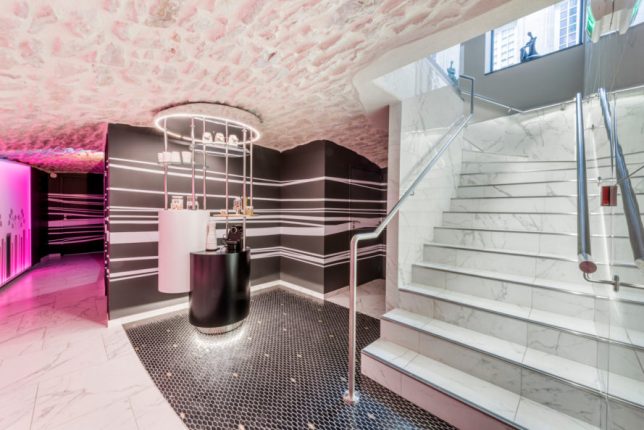
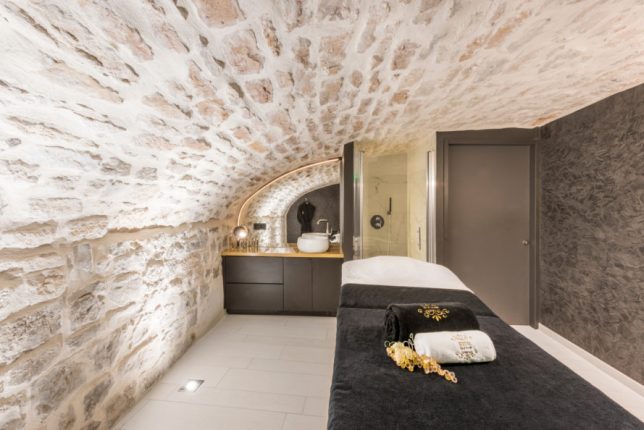
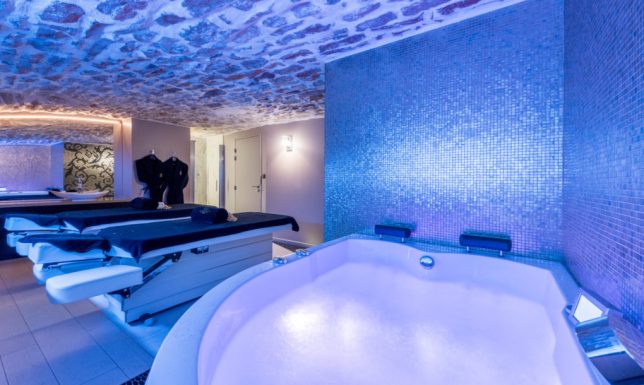
Hundreds of years ago, this subterranean space near Saint Pierre’s Church in eastern France was likely used as a crypt. Now, the underground facility serves as the luxurious Atrium Spa & Beauté, transformed by Italian designer Alberto Apostoli into a series of soothing rooms full of tubs and massage tables.

Abandoned 1920s Bank to Co-Working Space, Montreal

bank to coworking space

bank to coworking space 2

bank to coworking space 3

bank to coworking space 4

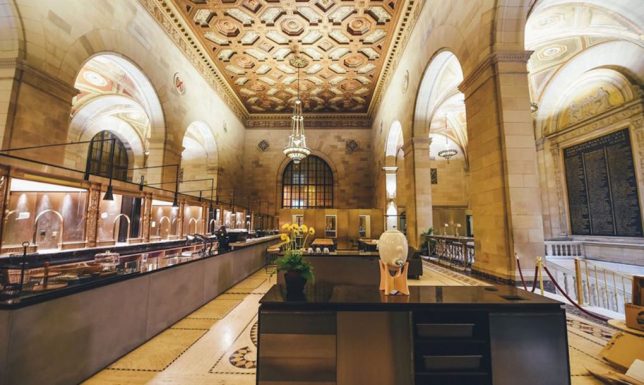
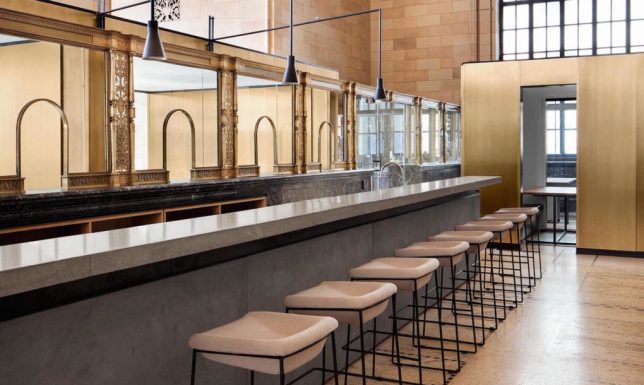
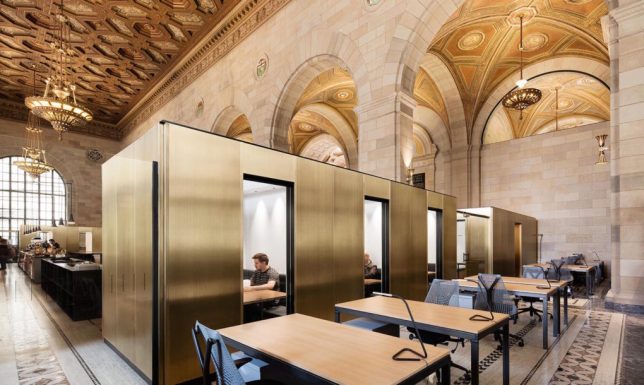
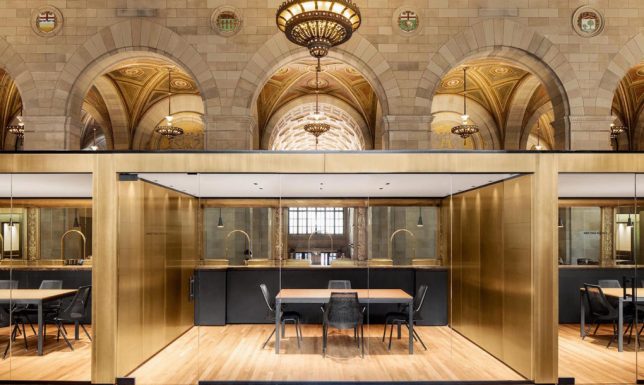
How would you like to go do your daily work or write your novel in a gorgeous historic space instead of your local Starbucks? Architect Henri Cleinge oversaw the conversion of an opulent former 1920s bank into co-working space ‘Crew,’ inserting plenty of tables and private pods beneath the dramatic vaulted ceilings of the 12,000-square-meter space.

Water Cistern to Private Home, Madrid

water cistern home

water cistern home 2

water cistern home 3

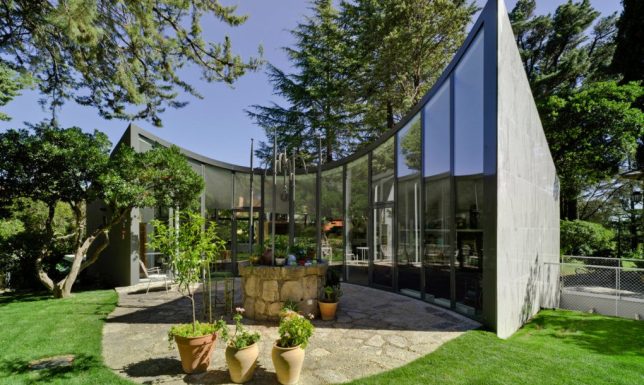
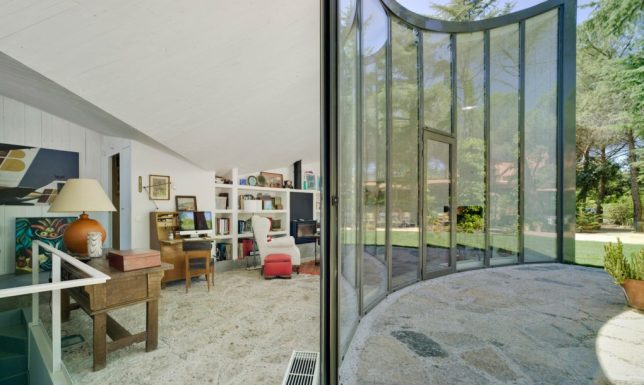
A two-level water cistern site near Madrid is now a stunning sculptural home after an adaptive renovation by Valdivieso Arquitectos. This is one example of a conversion that uses the original structures as a guide, but mostly leaves them behind, the final product showing few signs of what the home used to be. Yet the shapes of that cistern determined the unusual curves of the residence, including the glazed wall looking onto a courtyard.

Next Page – Click Below to Read More:
Better Than Before 10 Unwanted Structures Transformed For New Uses

Share on Facebook


[ By SA Rogers in Architecture & Houses & Residential. ]

[ WebUrbanist | Archives | Galleries | Privacy | TOS ]


WebUrbanist

 
Comments Off on Better Than Before: 10 Unwanted Structures Transformed for New Uses

Posted in Creativity


Nikon D5600 review: making connectivity a snap?

01 Mar

The D5600 is the company’s mid-range DSLR and it’s the smallest and best-connected, yet.

Nikon has been on something of a roll, making solid DSLRs with good ergonomics, dependable metering, some of the best image sensors, often very good (often industry-leading) autofocus and a JPEG engine that gives results that lots of people like.

However, falling camera sales and rivalry both from smaller mirrorless models and the convenient, perpetually available smartphone means that producing a really good little DSLR isn’t quite enough. The D5600 aims to address this by making it as painless as possible to get the images from the camera to your phone, meaning that you get the huge benefit of a large sensor camera but with as small an energy barrier as possible.

As such, the addition of SnapBridge is virtually the only change between this and the older D5500. It may sound like a minor change but, to us, we feel it’s likely to be the making or the downfall of this model and perhaps it makes more sense than adding an array of clever but bewildering additional features and modes, as many rival makers seem to do.

Key Features:

  • 24MP APC-S CMOS sensor
  • 39 point AF sensor with 9 central cross-type points
  • 2,016-pixel RGB sensor assists AF tracking and metering
  • Up to 5 fps continuous shooting
  • ‘SnapBridge’ Bluetooth/Wi-Fi communication
  • 1080/60p video capability
  • Time-lapse movie feature

SnapBridge

At its heart, SnapBridge is primarily a Bluetooth-based system which uses a low-energy connection to stay connected to your smart device (and sidestep the hurdles that mobile OSs might otherwise place in your way) and to transfer images. Although the camera is Wi-Fi capable, that capability is used solely for remote live view operation and video transfer.

We weren’t very impressed the first time we encountered SnapBridge: it seemed unfinished and not very well suited to the D500 where it first appeared. The high likelihood of the photographer wanting full resolution files and the camera’s propensity for generating lots of images made it a poor fit for that camera. However, on the mass-market D3400 it seemed much more likeable: you take the photos and 2MP versions appear on your phone shortly afterwards.

The needs of the D5600’s users are likely to lie somewhere between these two extremes, so we’ll see how well it does.

Review based on a camera running firmware v1.0. All SnapBridge commentary amended to reflect the behavior of firmware v1.1 and both iOS and Android app version V1.20

Articles: Digital Photography Review (dpreview.com)

 
Comments Off on Nikon D5600 review: making connectivity a snap?

Posted in Uncategorized


18 Furry Images of Man’s Best Friends – Pets

01 Mar

Man’s best friend is said to be the dog. But in reality, many furry, feathered, scaled, and finned critters make loving pets in many family households.

Who better to photograph than these little guys. Here are a few photos of our furry friends.

By Nuwandalice

By Allen Skyy

By John Clare

By A_Peach

By Virginia State Parks

By akamarpreet

By sualk61

By Philip Watts

By Harald Henkel

By fine_plan

By Torrey Wiley

By Roberto Taddeo

By Scottie Mew

By laurence lallemand

By Nicholas Blumhardt

By Ian Livesey

By Ref54

By myri_bonnie

The post 18 Furry Images of Man’s Best Friends – Pets by Darlene Hildebrandt appeared first on Digital Photography School.


Digital Photography School

 
Comments Off on 18 Furry Images of Man’s Best Friends – Pets

Posted in Photography


CP+ 2017: the weird, wonderful, and everything in between

01 Mar

Best of CP+ 2017 in Japan

While there weren’t a lot of new announcements at CP+, the theme of the show seemed to be glass: Sigma launched four new lenses, Tamron showed off two, Pentax announced the development of two full-frame primes, Fujifilm showcased a line of affordable cinema primes for Sony E-mount users and a ton of third-party brands had their latest glass creations on display.

So take a peek through our gallery for a rundown of the best of CP+ 2017… and some other stuff we found along the way.  

Fujifilm GFX 50S

While not newly announced, CP+ 2017 was the first time we were able to shoot with a final production Fujifilm GFX 50S medium-format digital camera. As you might expect, it’s an absolute peach to use. Barney and I spent most of the time in Japan fighting over who’d get to use it, which should tell you all you need to know. Simply put, we both found its form factor to be fabulous (it’s surprisingly light), and as for image quality – well, take a look for yourself.

Sigma 14mm F1.8 DG HSM

Sigma announced four new lenses at CP+, three of which join the growing ‘Art’ series. They include a 24-70mm F2.8, a 135mm F1.8 and the one we are most excited for: a 14mm F1.8. In addition, the company also launched a 100-400mm F5-6.3 DG OS HSM lens which is part of the company’s more modestly-priced ‘Contemporary’ series. 

But back to the 14mm F1.8. It’s the fastest 14mm in existence, yet despite its wide angle of view, distortion appears almost non-existent. It also appears to be crazy sharp! We’re hoping to be able to post some sample images very soon to prove it. 

Nikon D5 100 Year Anniversary Strap

Nikon didn’t launch any new products at CP+, but as part of its continuing 100th year anniversary celebration, it did unveil several special edition 100 year anniversary items including this swanky leather strap (and a gunmetal grey edition D5 and D500). We have no idea if these straps will eventually be for sale, or if acquiring one also means buying a D5/D500, but we’d hang them round our necks.  

HandeVision Iberit 75mm F2.4

We stumbled on a bunch of cool mirrorless lenses from HandeVision, including this matte grey Iberit 75mm F2.4 (shipping versions will be finished in chrome or black). Build quality seems good, and at just over $ 700, it’s a semi-affordable option for mirrorless (and Leica M) manual focus shooters. On crop sensor bodies it gives a 112mm effective field of view. Check out the other lenses HandeVision had on display. 

Sigma 135mm F1.8 DG HSM

In addition to the 14mm F1.8, Sigma also dropped a 135mm F1.8 at this year’s show. It’s pretty large, and a little heavy, but it sure is pretty, especially that big front element. The lens mount also has a rubber gasket to keep dust and water out, something not offered in previously released Sigma’s ‘Art’ series lenses. And a 9-blade aperture should ensure attractive bokeh (as much as you can expect at 14mm, anyway) and hopefully nice sunstars, too. Simply put, we’re pretty jazzed to get it in the office and getting shooting. 

Exploded gear/gear cut in half

There was a lot of bisected and exploded gear at this year’s show (as always). As has become tradition, we made this gallery to highlight some of the best examples. 

Ricoh Pentax D FA* 50mm F1.4

Ricoh added two new full-frame prime lenses to its lens lineup this year, including this 50mm F1.4 as well as an 85mm F1.4. The 85mm wasn’t on display, but we were able to lay eyes (and our cameras) on a mockup of the new 50mm, tucked inside a very reflective and very secure plastic case. Details about the lens are forthcoming, but it’s certainly large. 

Canon EOS 77D

We didn’t get our hands on Canon’s new EOS 77D at the show, mainly because of the sizable crowds in the Canon booth, but we’d already seen it a few weeks ago back in the US. The EOS 77D is built around a 24MP APS-C sensor, Digic 7 processor and 45-point AF system. Take a look at our hands-on for more info. 

Sigma 24-70mm F2.8 DG OS HSM Art

We’ve included all three new Sigma Art lenses in this gallery because frankly, they’re all really enticing. The 24-70mm F2.8 is impressively small and light weight (for an Art-series prime). And like the 135mm it has a rubber gasket at the base to keep dust and moisture out. Even more impressive: it’s stabilized. Check out our hands-on for more. 

Pigeon camera

Every year, in the back corner of CP+ is a small camera museum exhibit. And one of my absolute favorite cameras on display was the Michel Pigeon Camera, which is exactly what it sounds like. Though the pigeon is no longer with us (we assume – it could just be very well-trained), the camera still looks pretty functional. You can read more about the Michel Pigeon Camera here. 

Used camera fair

Another fixture of CP+ is the used camera fair, which takes place upstairs. A great place to find weird old rangefinder lenses, camera cases, obscure film compact cameras. As such, a great place to spend money. We were disappointed when we missed the end of the fair when we returned on Sunday, but to be honest, it was probably for the best. 

Voigtländer Macro APO-Lanthar 65mm F2

Voigtländer unveiled three new manual focus Sony E-mount lenses at CP+ including this 65mm F2 macro. The build quality on these lenses, as you might expect, is marvelous. And unlike older Voigtländers, these lenses have electronic contacts, so they’ll communicate with the camera body to which they are attached. the 65mm F2 offers a 1:2 max magnification. Take a look at the other two lenses Voigtländer announced in our hands-on slideshow. 

Canon EOS Rebel T7i

Canon’s flagship Rebel, the T7i is the first in the series to incorporate Canon’s Dual Pixel AF. Take a look through our previously-published hands-on to find out more.

Ricoh Pentax KP

We were able to get closer look at the insides of Pentax’s latest APS-C DSLR. How cool is it to see the pentaprism cut right down the middle? In many respects a miniature Pentax K-1, the KP is well-featured, and weather sealed (when it hasn’t been cut in half). Also in the Pentax booth was a pretty cool demo showing off the company’s image stabilization. You can find a short video of that here. And for more on the Pentax KP, check out our hands-on. 

Tamron SP 70-200mm F2.8 Di VC USD G2

There’s a lot of buzz surrounding Tamron’s 2nd generation SP 70-200mm F2.8 lens and we were pretty excited to check it out in person. Compared to its predecessor, Tamron promises faster autofocus and better stabilization. It also offers a completely overhauled optical and mechanical design. Available in Canon, Nikon and Sony mounts, this high-end telezoom will only set you back $ 1500, making it a bargain compared to it’s non-third party counterparts.

Tamron was also showing off its new 10-24mm F3.5-4.5 Di II VC HLD. You can read more about both lenses here. 

This poor man

It was freaking hot on the tradeshow floor! And this poor man had to spend all four days dressed in what seemed like fairly un-breathable getup all while posing with anyone who passed by and wanted to get a photo. Did he lose a bet? We have no idea.

Fujifilm MK cinema lens series 

Fujifilm is entering the affordable cine lens market with the launch of the MK series for Sony E-mount (and X mount, coming later). These lens are an affordable alternative to much more expensive cinema lenses and cover a Super 35 or APS-C imaging area. The lenses include an 18-55mm T2.9, and a 50-135mm T2.9. 

We recently made a short video using the MK18-55 T2.9. Take a look. 

Sony a7S rig for the International Space Station

Did you know that the International Space station has a Sony a7S mounted on it for low-light photography? Here’s a copy of the rig it sits in, in while flying around the Earth at 17,150 miles per hour. 

Mini space station

And just for reference, here’s a full-size model of the ISS. It’s smaller than you expect.

Articles: Digital Photography Review (dpreview.com)

 
Comments Off on CP+ 2017: the weird, wonderful, and everything in between

Posted in Uncategorized


DPReview to produce regular segment on The New Screen Savers

01 Mar

We’re excited to announce that DPReview is partnering with the TWiT Network (named after its flagship show, This Week in Tech) to produce a regular segment for The New Screen Savers, a popular weekend show hosted by technology guru Leo Laporte.

On this week’s show, DPReview editor Dale Baskin joins Leo and guest host, Iain Thomson of The Register, to talk about the Panasonic GH5. Tune in to the entire episode to also learn about the discovery of a solar system with 7 Earth-sized planets that could potentially support life, a large internet security bug, and a report on the new Nintendo Switch.

You can watch The New Screen Savers live every Saturday at 3pm Pacific Time (23:00 UTC), on demand through our articles, the TWiT website, or YouTube, as well as through most podcasting apps.

Articles: Digital Photography Review (dpreview.com)

 
Comments Off on DPReview to produce regular segment on The New Screen Savers

Posted in Uncategorized


OPPO 5x smartphone zoom system sample images

01 Mar

Yesterday smartphone maker OPPO announced an innovative 5x zoom system for smartphone cameras that uses a dual-camera in combination with a prism and periscope-style lens design. It’s only 5.7mm tall, and therefore could fit into even the thinnest smartphones. Unfortunately, OPPO did not release too much technical information but there are a few prototype devices available to shoot with at the OPPO both at the Mobile World Congress. We gave the camera a quick try, and had a closer look at the sample images and embedded EXIF to find out more.

The camera app on the prototype phones is kept very simple, with the main feature being a big zoom button. One tap on the latter makes the camera jump from wide-angle to a 2x zoom factor; a second tap jumps to the full 5x magnification. There are no intermediate zoom settings. The sample images below were taken at those respective lens settings and show a well-illuminated test scene at the OPPO booth.

 Wide-angle, ISO 189, 1/189 sec
 2x zoom, ISO 115, 1/100 sec
 5x zoom, ISO 111, 1/50 sec

The camera produces 12MP images and in the EXIF data aperture at all zoom settings is reported as F2.0. At ISO 189, sensor sensitivity is the highest at the wide-angle setting. It decreases to ISO 115 at the 2x zoom setting and ISO 111 at the 5x setting. Shutter speed is reported at 1/100 sec at the wide-angle and 2x setting and 1/50 sec at the tele setting.

There is no way of knowing if the reported EXIF is accurate but, looking at the scene and considering the tele-portion of the lens construction is optically stabilized, it could well be the case that at the tele settings the light fall-off on the OPPO system is much less significant than on a conventional zoom with changing apertures. The image quality of the samples seems to support the ISO data, with the zoomed images not showing noticeably more image noise or less detail than the wide-angle shot.

Of course, we are looking at a prototype device here and the image output of an eventual production phone might look very different. Nonetheless, the sample images out of the prototype do look promising and we hope to see an OPPO device with the 5x zoom system being launched soon.

Articles: Digital Photography Review (dpreview.com)

 
Comments Off on OPPO 5x smartphone zoom system sample images

Posted in Uncategorized


CP+ 2017: HandeVision shows off prime lenses for mirrorless and Leica M

01 Mar

CP+ 2017: HandeVision shows off prime lenses for mirrorless and Leica M

Originally announced in late 2015, German-Chinese company HandeVision’s collection of Leica-inspired, full-frame ‘Iberit’ prime lenses is on display at this year’s CP+ tradeshow in Yokohama, Japan.

HandeVision is a brand created through cooperation between German lens manufacturer IB/E Optics and the Chinese company Shanghai Transvision Photographic Equipment Co – the company behind the Kipon brand. Reportedly, the brand name came about because the first three letters – ‘Han’ signify ‘China’ in Mandarin, while the following two letters ‘De’ represent the first two letters of ‘Deutschland’.

All of the Iberit series are available in Leica M, Leica T, Sony E and Fujifilm X mount, and the Iberit 50mm F2.4 will cost ¥82,000 (~$ 730).

CP+ 2017: HandeVision shows off prime lenses for mirrorless and Leica M

Here’s the Iberit 75mm F2.4, in a matte gray finish. At ¥79,800 (~$ 712) this is a relatively affordable prime lens for mirrorless manual-focus fans, and covers an effective focal length of 112mm on APS-C formats.

CP+ 2017: HandeVision shows off prime lenses for mirrorless and Leica M

Shown here in a chrome finish, the Iberit 24mm F2.4 is the most recent addition to the lineup. This compact wideangle prime and will be available for ¥92,000 (~820).

CP+ 2017: HandeVision shows off prime lenses for mirrorless and Leica M

Here’s the most compact lens in the Iberit lineup, the 35mm F2.4. Like all of the other Iberit lenses, the¥88,900 (~$ 790) 35mm is made in China, from anodized aluminum, brass and stainless steel.

CP+ 2017: HandeVision shows off prime lenses for mirrorless and Leica M

The Ibelux 40mm F0.85 is a different beast altogether, The world’s fastest commercially-produced lens, the Ibelux is available in Sony E, Canon EF and M43 mounts, and weighs in at a hefty 2.6 pounds (1.2kg). As you can see, it looks more like a short telephoto prime than a 40mm. Costing around $ 2000, the Ibelux might be of some interest to filmmakers, but we’d think twice before buying it for stills shooting. 

Articles: Digital Photography Review (dpreview.com)

 
Comments Off on CP+ 2017: HandeVision shows off prime lenses for mirrorless and Leica M

Posted in Uncategorized


First Look: Polaroid BrightSaber Travel LED Wand

01 Mar

Portable light sources are essential to your photography toolkit when you’re ready to progress beyond natural lighting and take your images to the next level. While off-camera flash photography can be intimidating, LED lights can be quality solutions that are much easier to operate. One of the leading LED lights for photographers is the popular, yet pricey, Westcott Ice Light. If you’re looking for a similar solution that is significantly more affordable, the Polaroid BrightSaber Travel LED Wandd might be for you!

First Look: Polaroid BrightSaber Travel LED Wand

BrightSaber Pro Versus BrightSaber Travel

As its name suggests, the Polaroid BrightSaber looks very much like a sci-fi lightsaber, so it has the immediate bonus of functioning as a fun conversation piece or photography prop. But the main intent of the BrightSaber is to serve as a handheld portable continuous (LED) light source for photography or videography.

To be clear, there are two versions of this light, and they are quite different. The Polaroid BrightSaber Pro looks more like the Ice Light; it is more powerful, and thus more expensive at $ 169.99. There is also the BrightSaber Travel, which is less powerful, yet much more affordable at $ 69.99. This article is focused on the travel version.

BrightSaber Travel Specs

  • Dimensions of 16.4 x 5.4 x 2.1 inches
  • Item weight of 1 lb (450g)
  • Array of 98 efficient, low heat 32000k bulbs
  • 10 power settings for variable lighting output
  • Three included color filters and diffuser
  • Easy disassembly
  • 50,000 hour LED life
  • Tripod screw at the base for mounting on a light stand or tripod

What’s in the Box

  • Polaroid BrightSaber Travel portable lighting wand
  • Detachable wand handle
  • 3 color temperature filters and diffuser
  • Rechargeable lithium ion batteries and battery charger
  • Battery charger cables

First Look: Polaroid BrightSaber Travel LED Wand

Pros

Intuitive and easy to use

Out of the box, the devices arrives in two separate pieces that must be snapped together. The button controls are located on the handle, which is also where the two included lithium ion batteries must be inserted. For most people, assembling the BrightSaber Travel will be a pretty intuitive process. Once assembled, the light works as advertised. The few buttons enable you to turn the light off and on and choose from 10 power settings to adjust the level of brightness needed. Unlike most other lightsaber LED lights out there, the BrightSaber Travel is flat rather than round. A thinner profile truly makes it easier for traveling.

Nice quality of light

The BrightSaber Travel packs an array of 98 low-heat 32000K LED bulbs that produce a very nice quality of light. If you wish to change the color temperature, you can simply slide on one of the three color gels included, or snap on the included diffuser panel. Due to the specific size and shape of the BrightSaber, it’s not very easy to get your hands on other color gel choices without resorting to a DIY solution.

First Look: Polaroid BrightSaber Travel LED Wand

Lighting was done with the Polaroid BrightSaber Travel LED Wand

Affordable

It’s really difficult to argue about the low price point of the Polaroid BrightSaber. Even the Professional version is significantly more affordable than the popular Ice Light, and the Travel version is even cheaper! While there are other competitively priced light saber-esque LED lights on the market, none of them are produced by as reputable a brand as Polaroid.

Cons

No bag included

As mentioned above, there are quite a few moving parts to the Polaroid BrightSaber Travel. There are the two pieces that must be snapped together, two lithium ion batteries, three color gels, and one diffuser.

Unfortunately, there is no bag included that will hold all of these pieces together, thus increasing the chance of losing parts. The lack of a bag is especially perplexing since this device is intended for travel use and its unique shape and size make it difficult to fit into standard camera bags.

Non-standard batteries

Another downside to the BrightSaber Travel is its use of two non-standard batteries. They look like elongated versions of double AA batteries, and in my experience, they take an extremely long time to charge. It would be preferable for the device to use either one single rechargeable battery like the BrightSaber Professional does, or to use two standard batteries that can be more easily replaced.

In Conclusion

If you’re seeking a portable, handheld LED light to one-up your photography, I highly recommend checking out the Polaroid BrightSaber. It comes in either the BrightSaber Pro version or the more affordable, slightly less powerful Travel version. Both work very well at extremely affordable prices.

First Look: Polaroid BrightSaber Travel LED Wand

The Polaroid BrightSaber Travel LED Wand next to the Ice Light.

First Look: Polaroid BrightSaber Travel LED Wand

Side by side with the Ice Light

The post First Look: Polaroid BrightSaber Travel LED Wand by Suzi Pratt appeared first on Digital Photography School.


Digital Photography School

 
Comments Off on First Look: Polaroid BrightSaber Travel LED Wand

Posted in Photography


Sony Xperia XZ Premium features 960 fps slow-motion and 4K display

01 Mar

Sony has today announced two new high-end Android smartphones, the Xperia XZ Premium and the Xperia XZs, which both use a 19MP 1/2.3 image sensor that is based on Sony’s recently announced 3-layer stack technology for smartphones. The camera, which Sony calls Motion Eye, also features a 25mm equivalent lens, F2.0 aperture, laser-assisted AF and an RGBC-IR sensor for natural color rendering. In video mode it can record 4K footage and comes with Sony’s very efficient SteadyShot 5-axis digital stabilization. Sony also says it has improved the panorama mode which is now capable of capturing higher resolution images. 

Thanks to the 3-layer sensor’s fast readout times the camera’s highlight feature is a 960 fps slow motion video mode that can record 720p footage. The new sensor technology also reduces the rolling shutter effect in both still images and video. The two new models also the same front camera which comes with a 13MP 1/3.06” sensor and 22mm equivalent focal length. 

While the camera looks impressive the Xperia XZ Premium offers the best of the best in all other departments as well. The Android 7.0 operating system is powered by Qualcomm’s latest Snapdragon 835 chipset and 4GB of RAM. Images can be viewed and composed on a 5.5” display with 4K resolution that also supports HDR technology. The phone is completely wrapped in Gorilla Glass 5 and waterproof (IP68). The 3,230mAh battery supports Quick Charge and the power button doubles as a fingerprint reader. 

The Xperia XZs comes with the same new camera as the XZ Premium but, with a 5.2″ 1080p screen and Snapdragon 820 processor, is otherwise more or less identical to the current XZ. The Xperia XZs will be available early April at approximately $ 700. The XZ Premium will launch later in spring. No pricing information on the higher-end model has been released yet. 

Sony Xperia XZ Premium key specifications:

  • 19MP 1/2.3 CMOS sensor
  • 25mm equivalent lens
  • F2.0 aperture
  • ON-sensor phase detection and laser-assisted AF
  • RGBC-IR sensor
  • 4K video
  • 5-axis digital stabilization
  • 960fps slow motion at 720p
  • 13MP front cam with 1/3.06” sensor and 22mm equivalent focal length
  • Android 7.0
  • Qualcomm Snapdragon 835 chipset
  • 4GB RAM
  • 5.5” 4K display
  • Waterproof (IP68)
  • 3,230mAh battery with Quick Charge

Articles: Digital Photography Review (dpreview.com)

 
Comments Off on Sony Xperia XZ Premium features 960 fps slow-motion and 4K display

Posted in Uncategorized


Basic Portrait Post-Processing Workflow Tips to Help You Save Time and Stay Organized

01 Mar

This article will walk you through some tips for how to set up a basic portrait post-processing workflow that can help you save time and stay organized.

The problem

When you’re new to photography, everything is exciting. Every time you come home with a full memory card, it’s a mad rush to the computer to see what you have captured. You’re eager to see every image and each one is treated as a separate entity with every technique you’ve come across. This is great. That excitement is what will keep you moving forward with photography and it is how you rapidly learn and grow as a photographer. That’s how it was with me, at any rate.

What happens, however, as you start taking more and more images? For example, regular portrait sessions a couple times a week can lead to an overwhelming amount of photographs. Approaching every frame as an individual becomes time-consuming and inefficient. If you’re not careful, you’ll have a backlog of images going back months and months. Often, many of your photos will be forgotten at the wayside.

The solution to this problem is to develop a portrait post-processing workflow.

Defining workflow

Basic Portrait Post-Processing Workflow Tips to Help You Save Time and Stay Organized

Straight out of the camera before any adjustments in Lightroom or Photoshop.

Basic Portrait Post-Processing Workflow Tips to Help You Save Time and Stay Organized

After portrait post-processing workflow steps in this article were applied.

In the simplest terms possible, a workflow is a checklist of repeatable actions that you work through as you go through a task. If it helps, in business the equivalent be would systems and in manufacturing, it could be compared to an assembly line.

You can have a workflow for any part of the photographic process, from planning and coordinating sessions to setting up and tearing down equipment and finally the post-processing stage.

This article will outline the steps of the post-processing workflow that I’ve been using on my portraits for a few years.

Starting point

Because every photographer has their own way of importing, organizing and editing their images in Lightroom (and other software), this article starts at the beginning of the post-processing stage for individual images. It assumes you will have already imported your photos into Lightroom and you have already edited (culled) down to the keepers.

Lightroom

This workflow uses both Adobe Lightroom and Photoshop. Each program offers its own strengths. To take advantage of them, consider using both with the Adobe Photographer membership – get 20% off (only $ 7.99/month) by using this link only for dPS readers.

Color corrections

The first step is to conduct any color corrections to your image. I do this in one of two ways. The first involves a ColorChecker Passport. If you don’t have one, just skip past it (or purchase one here on Amazon.com and follow along).

Xrite ColorChecker Passport

In your Lightroom catalog, find the photo you took with the ColorChecker Passport in it. Go to File>Export and export the image as a DNG to a folder where you can find it.

Basic Portrait Post-Processing Workflow Tips to Help You Save Time and Stay Organized

To work in the ColorChecker Passports proprietary software, you need to export your image as a DNG.

Now open the software that came with your Xrite ColorChecker Passport, and import the DNG you just exported into it.

The software does a pretty good job of aligning the photo to the ColorChecker, but if it fails, just follow the instructions on the screen.

Basic Portrait Post-Processing Workflow Tips to Help You Save Time and Stay Organized

The Xrite ColorChecker Passport’s software allows you to create custom color profile unique to each lighting setup.

Press the Create Profile button and give it a name that has something to do with the images you are going to be working on. For example, if you’re working on portraits of Jane Doe in a wedding dress which you took on April 15th of 2017, you could name the profile: JaneDoeWeddingDress041517. That’s optional, of course, but it will help you should you decide to revisit these photos in six months time.

Now, reopen Lightroom, find the image of the ColorChecker Passport, and open it in the Develop Module. Scroll down the panels on the right until you find the Calibration tab.

At the top, there will be the word Profile followed by Adobe Standard. Click there and choose the profile name that you just made in the external software (in the example below I called it “PortraitWorkflow”.

Basic Portrait Post-Processing Workflow Tips to Help You Save Time and Stay Organized

Once created and imported into Lightroom, color profiles can be returned to at any point in the future.

This process has built a custom color profile, individual to the lighting present in the scene. This is a vital step if you want to get the most accurate colors in your photographs.

White balance with the ColorChecker Passport

In the right-hand panel, scroll back up to the top basic panel. Select the eyedropper. To correct the white balance in your image, click in any of the white or gray boxes on the ColorChecker in your image. That will correct your white balance automatically. Each box will have a different effect on your images, so feel free to go through them all to see which works best, or which you prefer.

Basic Portrait Post-Processing Workflow Tips to Help You Save Time and Stay Organized

Any of the white and gray squares can be used to set your white balance. They all have different effects, so experiment until you’re happy.

Press CTRL/CMD+Shift+C and in the dialog box click the Check None box. Tick off only the boxes for Calibration and White Balance, and then click Copy.

Basic Portrait Post-Processing Workflow Tips to Help You Save Time and Stay Organized

Setting the color profile and white balance to an entire set of images at once can save you heaps of time.

With your settings copied, you can go back to the Library Module and select all of the photos that you want these settings applied to. Select them and press CTRL/CMD+Shift+V to do this.

Make sure you deselect the group of images afterwards by pressing CTRL/CMD+D.

White balance in Lightroom

If you don’t have a ColorChecker Passport, you can set your white balance manually by using the eyedropper (click on something neutral in the image) and sliders at the top of the Basic tab. Once you’re done, you can copy and paste the settings to the other images in your set as described above.

Basic Portrait Post-Processing Workflow Tips to Help You Save Time and Stay Organized

To adjust white balance manually, use the eyedropper and sliders at the top of the Basic panel.

Lens Corrections

The next step is to find the Lens Corrections tab and click both the Enable Profile Corrections box and the Remove Chromatic Aberration box.

Portrait Post-Processing Workflow Tips - lens corrections

Enabling lens corrections will correct any distortion, vignetting and chromatic aberrations in your images.

Doing this will correct any distortion caused by your lenses and it will usually deal with any chromatic aberrations. It’s a simple step, but it can make a world of difference to your final images.

Before you move on, however, always zoom in and move around your image looking for any chromatic aberrations (look at the edges of the image) the software failed to correct. It’s usually very good, but sometimes it will fail in tricky lighting situations where there’s a lot of backlighting. For portraits, pay close attention to catch lights in the eyes. If you find any chromatic aberrations there, simply go to the Manual section of the Lens Correction tab, choose the eyedropper and click into any color halos that you find.

Basic Adjustments

For portraits, I try to keep my basic adjustments at this stage to a minimum. I will use the exposure slider as needed, the White and Black sliders minimally, keep the Clarity slider between +15 and -15, and often reduce the Vibrance to -10.

Portrait Post-Processing Workflow Tips - basic adjustments

For more natural portraits, keep your adjustments subtle.

The reason for keeping these adjustments minimal is that they are global adjustments (apply to the entire image). I prefer to work with local adjustments in Photoshop, which give you much more control over the image. But, it is also possible to do local adjustments in Lightroom using the Adjustment Brush, Radial Filter and Graduated Filter if you would prefer.

Client proofs

NOTE: When working on proofs to send to clients so they can make their final image selections, this is where I usually stop. There is little need to spend up to an hour retouching a photo that will never see the light of day. Colour corrections and maybe a few small contrast adjustments are almost always enough at this point.

Black and White (optional)

If you intend to work in black and white and you like doing your conversions in Lightroom, this is the stage where I do the conversion process using the black and white sliders.

If you intend or prefer to do your conversion in Photoshop, then skip this part and make it the first step once your image is opened inside Photoshop.

Export

With the Raw processing complete, it’s time to export (or open) your image into Photoshop. Press CTRL/CMC+Shift+E to bring up the Export dialogue box. Choose a location and name appropriate to your own organizational system and export the image as a TIF or PSD (either of those formats will retain all your layers when you save your work). Close Lightroom and open your image in Photoshop.

NOTE: Alternatively you can open your RAW file directly from Lightroom into Photoshop by right-clicking the image and selecting: Edit In > Edit in Adobe Photoshop – OR – Edit In > Open as Smart Object in Photoshop.

Photoshop

Blemishes

The first step of this workflow in Photoshop is to remove temporary blemishes from your subject’s skin. Create a new empty layer by pressing CTRL/CMD+Shift+N and pressing OK.

You can use either the Spot Healing Brush Tool or the Healing Brush Tool, or a combination of both. Once you’ve selected your tool, ensure that the All Layers option is selected in the drop-down menu labeled Sample. Also, ensure that you are working on the new empty layer (you just created above) in order to keep things non-destructive.

While using the healing brushes, zoom in to at least 200% on your image and use a brush that is only slightly larger than the blemish you are trying to remove. If you are using the Healing Brush tool, take a new sample after every click by pressing Alt/Option+Click to ensure the best results.

How far you go is going to be a matter of personal preference. I like to limit this step to only temporary blemishes and leave scars and beauty marks unless I’m asked to remove them by the subject.

Portrait Post-Processing Workflow Tips - blemish removal

Before blemish removal.

Portrait Post-Processing Workflow Tips - blemish removal

After blemish removal.

Note: It is possible to remove blemishes in Lightroom, but it is a time consuming and awkward process compared to Photoshop in my opinion. If Lightroom works better for you, go ahead and use it.

Color casts

Although we already covered color corrections in the first step, I like to revisit it at this stage. For example, in this image, the background is still too warm for my taste. Create a new Hue/Saturation adjustment layer.

Portrait Post-Processing Workflow Tips - hue/saturation layer

In the Properties tab, find the icon that looks like a pointing hand. Click it and then find a place in the image you want to adjust the colors. In this image, it’s in the background.

Portrait Post-Processing Workflow Tips

With the pointer selected, click into any area of a colour cast you want to change.

Now adjust the sliders in the Hue/Saturation Layer until it has the desired effect on the color you are trying to change.

In this image, the background and the subject shared a lot of the same warmth. To keep them separate, use a layer mask. Click into the layer mask on your Hue/Saturation layer and press CTRL/CMD+I to invert it (hide all).

Now select the Brush tool (B) and set your foreground color to white and your opacity and flow to 100%. Paint into the areas (on the mask not the layer) you want to be affected by your Hue/Saturation layer. If you mess up, just switch your foreground color to black and paint over the mistake.

Portrait Post-Processing Workflow Tips

Before Hue/Saturation Adjustments

Portrait Post-Processing Workflow Tips

After Hue/Saturation Adjustments

Dodging and burning

The next step is to deal with contrast. Instead of using the contrast sliders at the raw processing stage, it is best to use a technique like dodging and burning for small, local adjustments to get the most control over your images. There are a lot of different methods for dodging and burning, but I prefer the gray layer method.

By using multiple layers, you can obtain really fine control over the contrast and the tones in specific parts of your image with little effort. For example, you can have a set of layers for skin tones, another set for the clothes, a set for hair, and another set for eyes all independently adjusted. You can learn how to dodge and burn here.

Portrait Post-Processing Workflow Tips - dodge and burn

Before dodging and burning.

Portrait Post-Processing Workflow Tips - dodge and burn

After dodging and burning.

High Pass Filter

The last step of my workflow before saving is to use a High Pass filter to sharpen things up a bit. To use the High Pass filter, merge all of your existing layers into a new one by pressing CTRL/CMD+alt+Shift+E. Zoom into 100%, select the layer that was just created, and go to Filter>Other> High Pass.

Portrait Post-Processing Workflow Tips - high pass filter

As long as you are working with a high-resolution file, set the radius between two and five. If you’re working with a smaller file, move the slider to the left until the preview image looks like a faint outline of your original image (as seen below). Press OK.

Portrait Post-Processing Workflow Tips - high pass filter to sharpen

It’s pretty easy to go overboard with the High Pass filter. Try to keep it as subtle as possible.

On the Layer Palette, change the blending mode to Soft Light or Overlay. This is more personal preference than anything, but Overlay will give a far more pronounced effect than Soft Light. I prefer Soft Light for portraits and Overlay for other subjects. The last step is to reduce the opacity of the High Pass layer. Zoom into 100% and move the opacity slider to the left until you can barely see the effect.

Portrait Post-Processing Workflow Tips

Use either the Soft Light or Overlay blending modes for your High Pass layer. Soft Light will be more subtle, while Overlay will be more pronounced.

Saving your image

When the image is finished it’s time to save it. This will different for everyone depending on your own organizational system, but I prefer to save files as 16-bit TIFFs with layers intact. Doing this means that you can go back and adjust any part post-processing at any time. It also means you can go back to your full resolution file at any time to create smaller images for web use and the like without potentially losing them. The downside to this is that 16-bit TIFF files can get very large and they do take up a fair amount of hard drive space, but to me, the peace of mind is worth it.

In the end

Portrait Post-Processing Workflow Tips

Straight out of the camera and before any adjustments in Lightroom and Photoshop.

Portrait Post-Processing Workflow Tips

After adjustments and retouching in Lightroom and Photoshop.

The amount of time it takes to get through this workflow varies from image to image. Some photos take five minutes, others take closer to an hour. Overall, having a workflow like this will save you countless hours of work. Knowing exactly what steps you’re going to take before you sit down removes a lot of guesswork and saves time. This is invaluable when you start doing sessions a couple times a week.

Obviously, this exact workflow may not be for you. However, I encourage giving it a try and then developing your own workflow that fits in with your style and existing skills.

The post Basic Portrait Post-Processing Workflow Tips to Help You Save Time and Stay Organized by John McIntire appeared first on Digital Photography School.


Digital Photography School

 
Comments Off on Basic Portrait Post-Processing Workflow Tips to Help You Save Time and Stay Organized

Posted in Photography