RSS
 

Archive for August, 2016

Primax Electronics to manufacture dual-camera in iPhone 7, reports say

24 Aug

According to a report on the Chinese-language publication Economic Daily News that has been quoted by Digitimes, Taiwanese company Primax Electronics will be the manufacturer of at least some of the dual-camera modules in the upcoming iPhone 7. 

Primax recently increased its production capacity for camera modules by 10 percent and can now supply approximately 12 million units per month. Apparently about 70 percent of the manufactured modules come with a 13MP resolution which could be an indication for where the iPhone is going in terms of camera resolution. That said, Apple is not Primax’s only customer. 

After an abundance of camera-related iPhone 7 rumors over the past few months it now seems pretty well established that the smaller 4.7″ model will feature a conventional camera with optical image stabilization and the larger ‘Plus’ model will come with a dual-camera setup. There is no information yet on how the latter will be used but the dual cam could offer optical zoom, as on the LG G5, improve image detail and reduce noise, like on the Huawei P9, or simulate a narrow depth-of-field, like on the HTC One M8 and a number of other dual-camera phones.

Articles: Digital Photography Review (dpreview.com)

 
Comments Off on Primax Electronics to manufacture dual-camera in iPhone 7, reports say

Posted in Uncategorized


How to Size and Export Images from Lightroom for Facebook and Print

24 Aug

One of the most confusing features of Adobe Lightroom for many users, is how to get your final results out of the software, to show them to friends or to send to customers. Different from other programs, there is only one way to “save” thing out of Lightroom – that is to an Export Images. This article will walk you through some of the options to help you demystify this often confusing function, so you can post your images on Facebook, and get them printed, all using the right sizes.
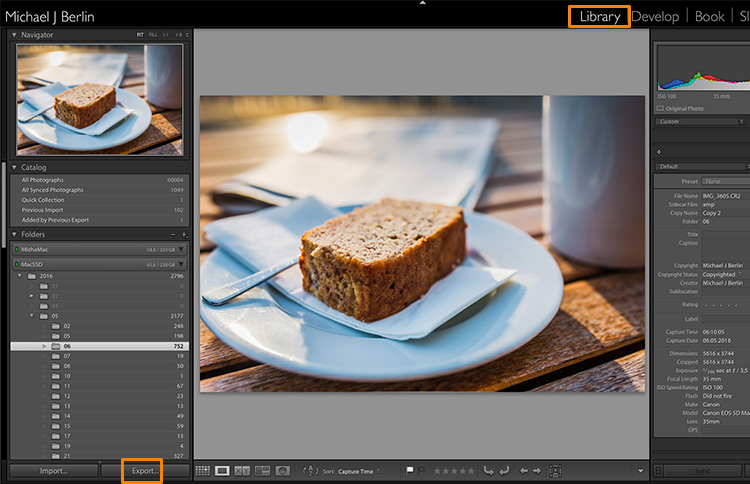
Lightroom export images

The reason is that Lightroom does not actually store your images, they are not really within its database. Lightroom merely keeps a list of locations where your original images are located, generates its own internal previews of those images to work with, and stores the changes you have chosen to make to the files. But until this stage all you are seeing in Lightroom is purely a visualization, there is no actual finished images created yet.

For this, you will have to learn to use the Export feature. While it is one of the essential features of Lightroom, it seems to confuse many people at the start. Part of the confusion certainly comes from the huge amount of options Lightroom offers when trying to save images:
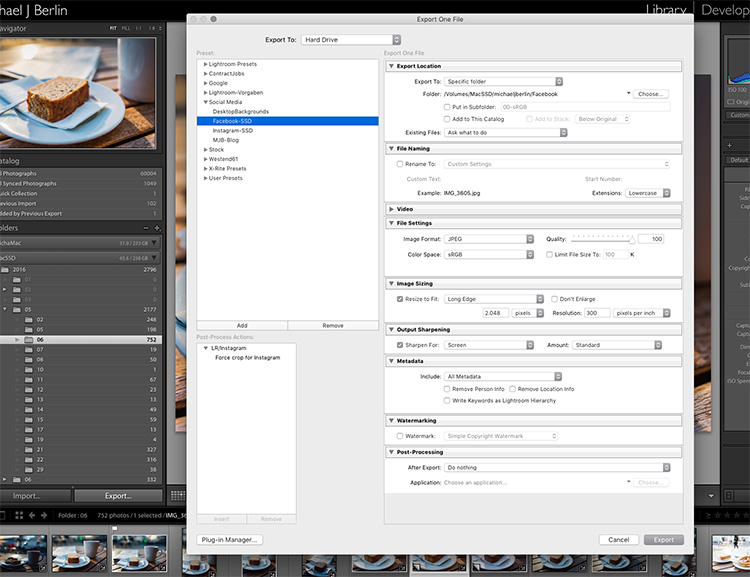
Lightroom export images

So let’s have a look at the most common cases for using the Export functionality to get the best results:

Export an image for Facebook

There are many discussions about how an image should be saved for Facebook. I trust Facebook’s own recommendations most and have had good experiences relying on that article. Typically I export images at the highest resolution Facebook will accept, the 2048 pixels mentioned in the help article.

So, first of all, you have to tell Lightroom where we want to save your image. Lightroom offers a lot of choices, one of them being to save the new resulting image into the same folder as the original. Remember, until now only the original image exists somewhere on your hard drive, no changes have been made to it.
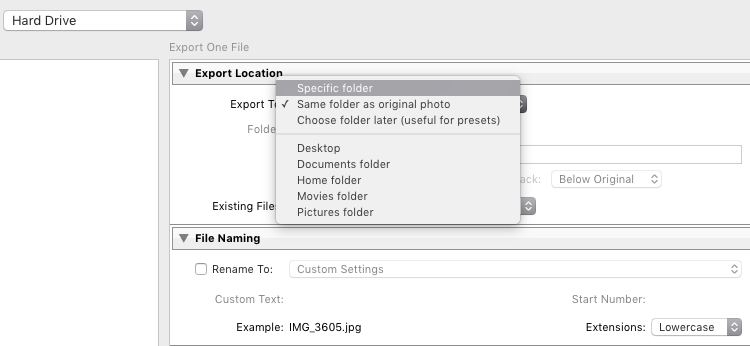
Lightroom export images

It can be a good idea to keep the original and your final copies in the same space. However, I typically save images into a subfolder to the original – named “For Facebook” for example – so when my original RAW image is in a folder structure by date “2016/05/06”, I would save my Facebook images into the sub folder “2016/05/06/For Facebook”.
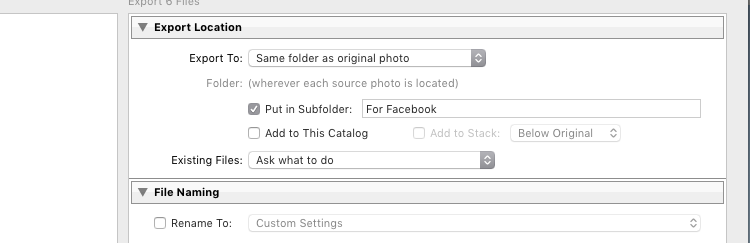
Lightroom export images

Another option at this point that I regularly use, is to define a “Specific folder” for my outputs. This allows you to send all exported images to the same location on your hard drive, for example to keep a specific folder containing all the images you have uploaded to Facebook. This also works great to automatically save files into an online cloud storage such as into a Dropbox folder on your disk.

File format

Further down on the Export screen, you get to choose the file format you want to make the exported image. For internet purposes, you would mostly choose JPEG as the desired file format. JPG is a compressed format which allows faster transmission of images, so most internet based platforms use this format to store photos. PSD and TIFF will allow you to store images in full detail in with a wider range of colors (16 bit instead of 8 bit). Some printers (photo labs) will accept TIF files because of the additional details stored in the images, but you should make sure your printer does before trying to send files that can reach more than 100 MB.
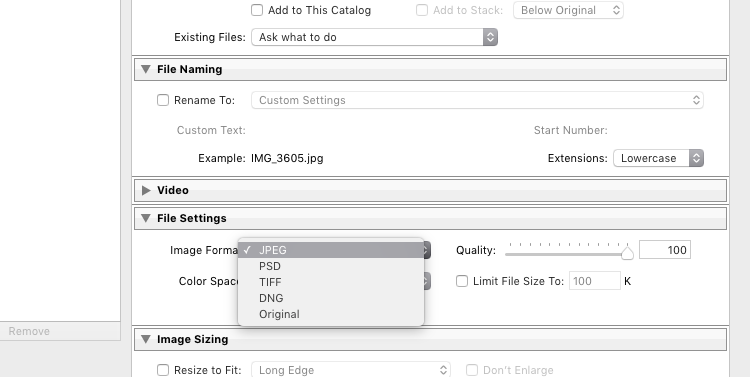
Lightroom Export 05 File Format

With the JPEG format, you also have to choose the Quality level. As JPEG tries to find areas of similar colors to make the file size smaller, the quality setting defines how “different” a color section needs to be before a compression is being applied. The lower the quality, the more compression artifacts you might see in the final image, in exchange for a lower file size. In most cases, values around 80-90% will not show critical changes over the full 100%, and only in rare occasions (when file size is very critical) you should go below 60%.

Color profile

Besides the format and quality settings, there is another drop down box in this section showing the color profile to be used. In simple terms, the color profile defines how many (and which) colors can be accurately stored. The smaller a color profile is, the less color information it contains, but also the smaller the file sizes will also be.
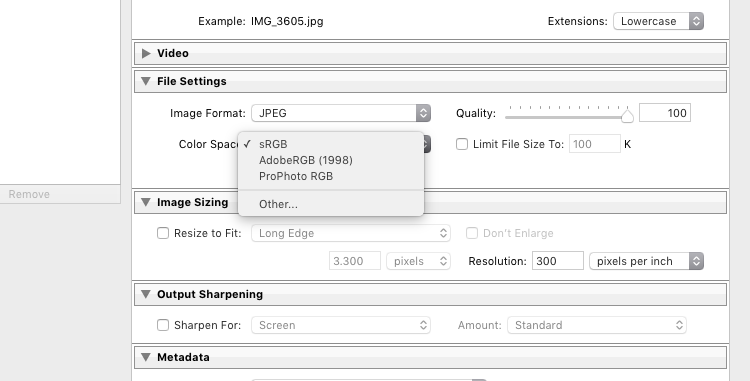
Lightroom Export 06 Color Space

In general, sRGB is the best choice for all images that are meant to be displayed on electronic screens, from large computer monitors, to smart phones, on your website, or on Facebook. The other options (AdobeRGB and ProPhoto RGB) both contain more color information, which can be advantageous if you want to apply further changes to the images at a later stage, for example in Photoshop or in the pre-print processing.

Just as with generating TIF or PSD files, you should only use these other color spaces when sending images when you know in advance that the recipient at the target location can work with them. Most online print services today are prepared to accept images in JPEG format and sRGB color space, as this is what most consumers produce with their cameras.

Sizing your images

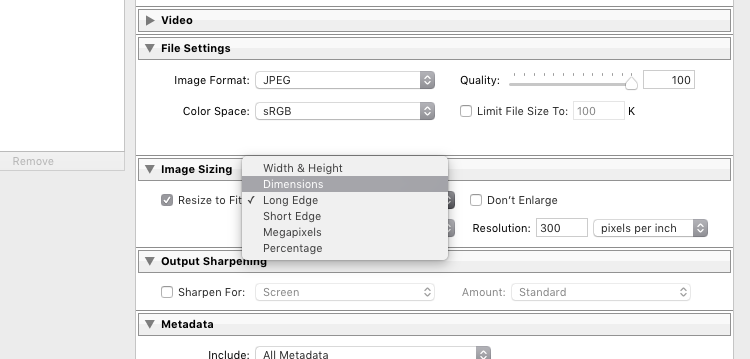
The final section you need to address before exporting your images are the resizing options:
Lightroom Export 07 Resize

For images you plan to upload to the internet – be it your blog, to Facebook, or Instagram – you probably don’t want to upload the full resolution of 16 or 24 megapixels that your camera probably shoots. As mentioned in the linked help article above, Facebook only accepts up to 2048 pixels on the wide side, and if you upload larger images they will automatically be downscaled. So it is preferable to save the file in the recommended size, to save upload time.

With these settings, you could now export your image for sharing on Facebook. There are a few sections below like Output Sharpening (you can choose “Screen” and “Standard”, and compare the results to a version without output sharpening to see the difference) or adding a Watermark to your images automatically, but those are topics for a another article in the future. But just wait a second before you press the Export button right now, there is something else we should look at first.

Save your settings as an Export Preset in Lightroom

Now that you have taken the time to understand the settings on the Export screen and have come to a result you’re happy with, you want to be able to use the same settings in the future without having to think about getting them all right for every new image. This is why Lightroom allows you to save these settings as an Export Preset. Just press the “Add” button below the list of saved presets on the left half of the window, to add your personal preset – you can even have them sorted in Folders for different purposes:
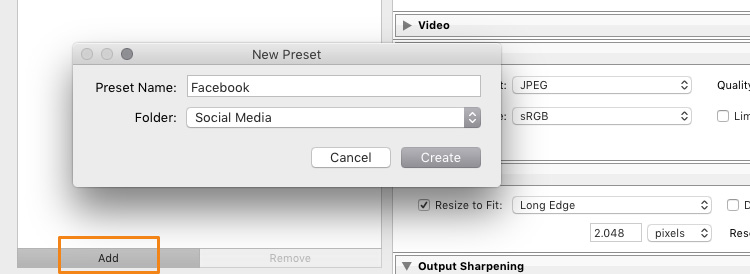
Lightroom Export 08 Add Export Preset

Once it is saved as an Export Preset, selecting the same settings is simply a matter of a single click. As you can see from the next screenshot, I have defined my personal Export Presets for different social media uses like my blog, Facebook, and Instagram, as well as usage as a new Desktop Background for my own computer.
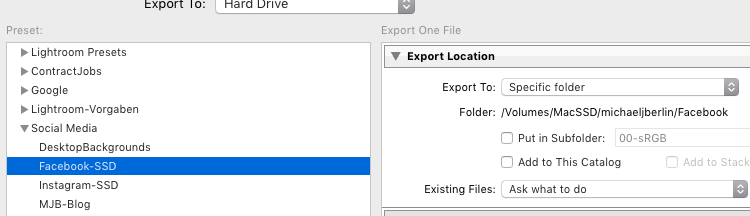
Lightroom Export 09 Use Export Preset

Cropping images for desired format before the Export

With all the settings, we have looked at in the first part of this article, there is one important part that has to be done before entering the Export screen: Cropping your images when you want to use them into a format (proportion) that does not match your camera’s output.

Most modern cameras produce images in a 3:2 aspect ratio, so the long side of an image is 50 percent longer than the short side – in a 24 megapixel camera this translate to 6,000 x 4,000 pixels. However, traditionally there are different popular formats, especially when it comes to printing images:

  • From the age of large format cameras, the 5:4 format (or 8×10 prints) is still very popular in some regions.
  • Medium format cameras usually produced images in 6 x 4.5 (so a 4:3 ratio) or in 6×6 square format.
  • The square format has also been Instagram’s unique format until recently.
  • TV screens, and a growing number of computer monitors, come in the 16:9 standard defined by high definition TV.

To print a full image in one of those different formats would cause distortion, as the image information would have to be squeezed to fit to the shorter sides. In general, printers will not distort the image but instead cut them off at the side. To avoid a random crop in print, what you need to do is to crop your images to fit the desired output format.

Make Virtual Copies

Bonus Tip: If you want to keep the original format for easy access and/or offer your customers different print formats, I recommend to create a Virtual Copy (keyboard shortcut is: Command/Control+’ or right click the image and select Create Virtual Copy, see screenshot below) from your image before doing the cropping. This way, you will have two (or more) versions of your images, one in original aspect ratio and others in the cropped format. Within Lightroom this will only take a minimal amount of space, as Virtual Copies do not duplicate the original file but are just an additional set of data within the database.
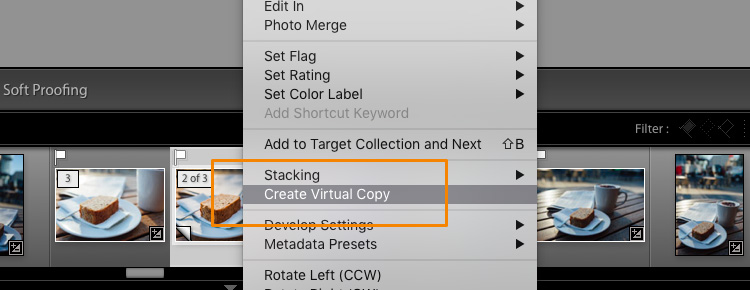
Lightroom Export 10 Virtual Copy

When you select the Crop tool in Lightroom’s Develop module, you will find a list of presets covering the most popular aspect ratios in a dropdown menu. Choose the desired format from the list, or choose a Custom Format if you don’t find the aspect ratio you are targeting.
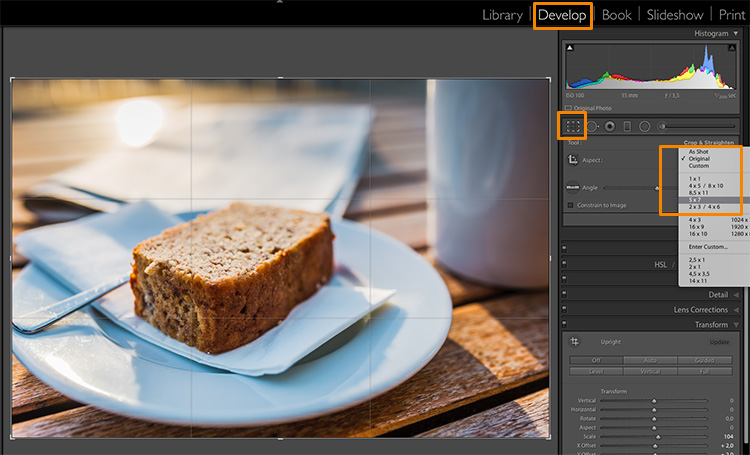
Lightroom Export 11 Crop Tool

If you select a 5×4 crop, you will see the crop guides highlighting the parts of your image that will remain in the final result, and the darkened parts on both sides of the photo that would be cropped off. You can now move the crop area to your liking to the right or left – or drag one of the corners in case you want to close in to your main subject a little more. Reminder: As everything in Lightroom, this is a non-destructive process, you can change the chosen crop at any stage and even return to the original size.
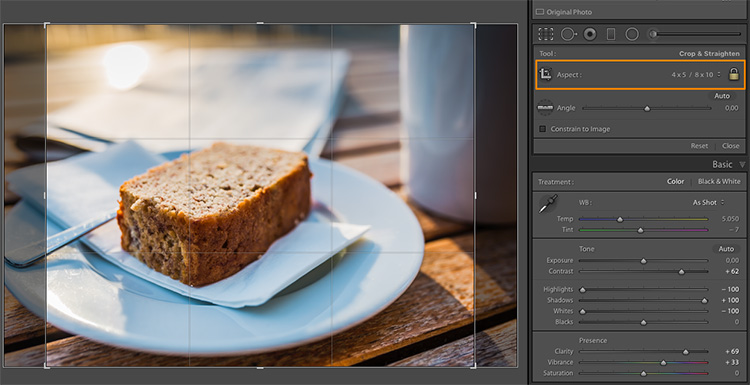
Lightroom Export 12 5x4 Crop

To give you an idea how the different crops can impact an image, I have created five virtaul copies, in addition to my original 3:2 format image, and have applied the five most popular aspect ratios as follows:
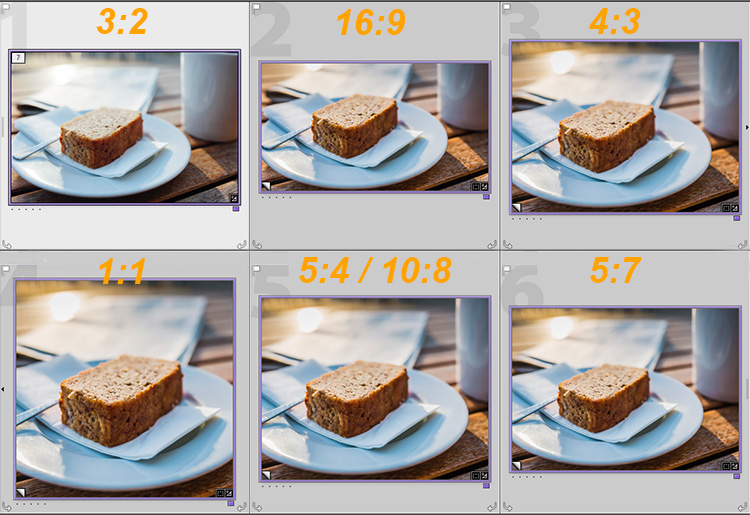
Lightroom export images Crop Comparison

Image size settings

Once you are happy with your crop, you can go back to the Export screen from the Library module. Now let’s have a look at the Image Sizing section again. As you can see, I have now chosen to make Lightroom fit the image to a 8 x 10 inch print format. Please note that I have changed the measure from “pixels” to “in” in the drop down box for this – if you prefer the metric system, there is a “cm” option for centimetres as well.
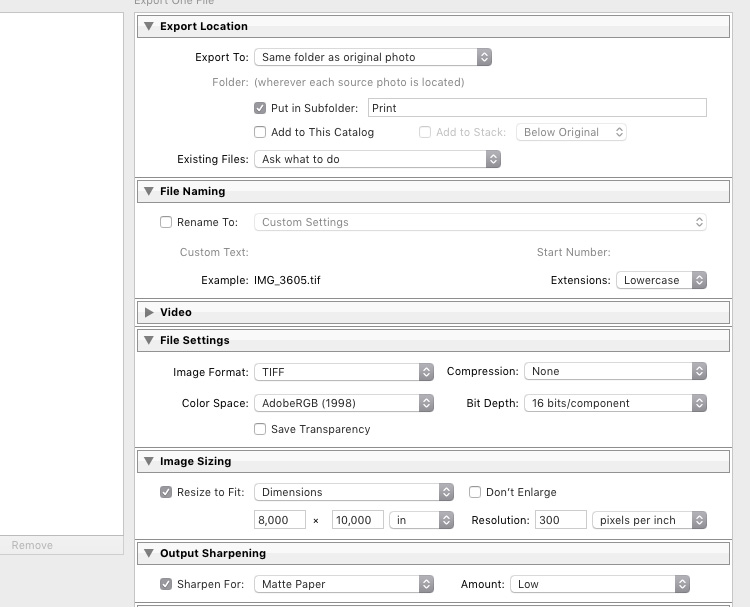
Lightroom export images Print

I have also set the Resolution to 300 pixels per inch which is the typical requirement for most printers. With these settings, Lightroom will now automatically save the image to the desired aspect ratio and file size. Remember to store these settings as another Export Preset if you are happy with the results, so you can use the same settings for future exports.

Also, please note that I have changed the File Settings in this case to TIFF, and AdobeRGB with 16-bit, to show the settings that will save the most information with the file. As discussed in the first part, this is only recommended if you know that the printer can handle the resulting large file size. If you want to deliver printable files to your clients, I would recommend you stick with JPEG and sRGB, as you can’t say in advance which printers they will use and most services will be able to handle those images as well.

Summary

I hope this article helped you to understand the basics of exporting images to different formats from Lightroom. In case you have questions, feel free to leave a comment below this article or join the Digital Photography School group on Facebook where I am available to answer questions as well.

lightroom-mastery.jpg


For more training using Lightroom check out our new course Lightroom Mastery!

googletag.cmd.push(function() {
tablet_slots.push( googletag.defineSlot( “/1005424/_dPSv4_tab-all-article-bottom_(300×250)”, [300, 250], “pb-ad-78623” ).addService( googletag.pubads() ) ); } );

googletag.cmd.push(function() {
mobile_slots.push( googletag.defineSlot( “/1005424/_dPSv4_mob-all-article-bottom_(300×250)”, [300, 250], “pb-ad-78158” ).addService( googletag.pubads() ) ); } );

The post How to Size and Export Images from Lightroom for Facebook and Print by Michael Zwahlen appeared first on Digital Photography School.


Digital Photography School

 
Comments Off on How to Size and Export Images from Lightroom for Facebook and Print

Posted in Photography


World’s First Art Exhibition for Dogs Features Fountains, Fans & Cars

23 Aug

[ By WebUrbanist in Art & Installation & Sound. ]

dog gallery wall art

British inventor, artist and satirist Dominic Wilcox is at it again, this time with a contemporary art exhibition aimed at canine attendees with a range of interactive installations purpose-built for pups.

Play More in London has an array of dog-oriented artworks set low on the gallery walls as well as other more directly experiential displays.

dog car dispaly

Cruising Canines, for instance, includes a cardboard car with cut-out windows and a fan to simulate a brisk drive through the English countryside.

dog giant bowl

Dinnertime Dream consists of a giant dog bowl that serves as a ball pit, the balls looking like extra-large pieces of dried dog food.

dog bowl side

A series of normal-sized doggy bowls operate as fountains, shooting water between them that can be used for bathing or drinking by so-inclined canines.

dog painting colors

“Contemporary art has long been an important source of inspiration and fascination for humans,” says Wilcox, “but never before has it been created with a view to drawing the same kind of emotions out of animals instead.”

dogs with art

Complimenting the interactive elements are a series of original paintings and multimedia displays by artists Nick White, Clare Mallison, Joanne Hummel-Newell, Robert Nicol and Michelle Thompson. While amusing for human companions as well, these works were tailored to be visible to dogs in terms of their colors and shades. The exhibition and its contents were all crafted in consultation with dog experts and veterinarians. It really is, as they say, for the dogs.

Share on Facebook


[ By WebUrbanist in Art & Installation & Sound. ]

[ WebUrbanist | Archives | Galleries | Privacy | TOS ]


WebUrbanist

 
Comments Off on World’s First Art Exhibition for Dogs Features Fountains, Fans & Cars

Posted in Creativity


How Having a Play Camera Can Boost Your Creativity

23 Aug

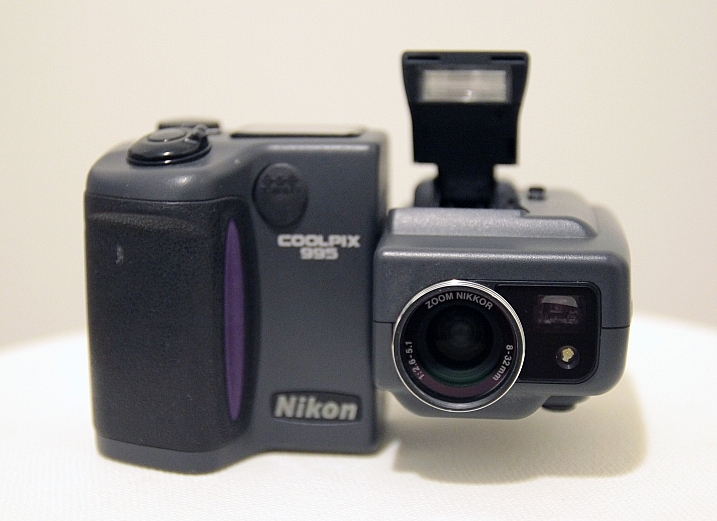
In 2001, after many years as a film photographer, I bought my first digital camera. It was a Nikon Coolpix 995, and I still remember how excited I was when I opened the box and took my first pictures with it. I was really amazed with what those three megapixels were able to do. Since then, I followed the digital road, and never looked back.

I took really good care of that camera, bought all the accessories and lens adapters for it, and took it everywhere with me. For a while it was my pet or play camera.

Chung Chu

Nikon Coolpix 995 – By Chung Chu

I remember the feeling of falling in love with photography all over again, and I believe that some of the best pictures in my portfolio were made with that camera.

Advances in technology

After that, the first decent resolution DSLRs came on the market, and I decided to invest in one to keep up with the professional photography market demand. My Coolpix started being used less and less, in no time those three megapixels were just ridiculous compared to what DSLRs could do, and my play camera just got stored on the back of my equipment closet, never to be used again.

I had a lot of compact cameras after that, but none of them replaced my play camera, the fact is that each time I downloaded the pictures and looked at them in a computer screen, they all just seemed to have a really poor quality compared to the files I was getting with my DSLRs. Sadly I had become a pixel peeper.

One more try at having a play camera

Recently my wife bought me a Canon EOS-M as a gift, which was the first attempt by Canon on the mirrorless market. Well, if you are into photo equipment at all, then you likely know that this camera was the biggest flop on the market of recent digital camera history. Besides having really bad focusing issues, it was no competition for what other brands had already launched, which is my wife was able to buy the kit for about $ 300, as everyone was dumping their inventory of it.

I would never have bought this camera myself, but it was a present, so I decided to give it a try.

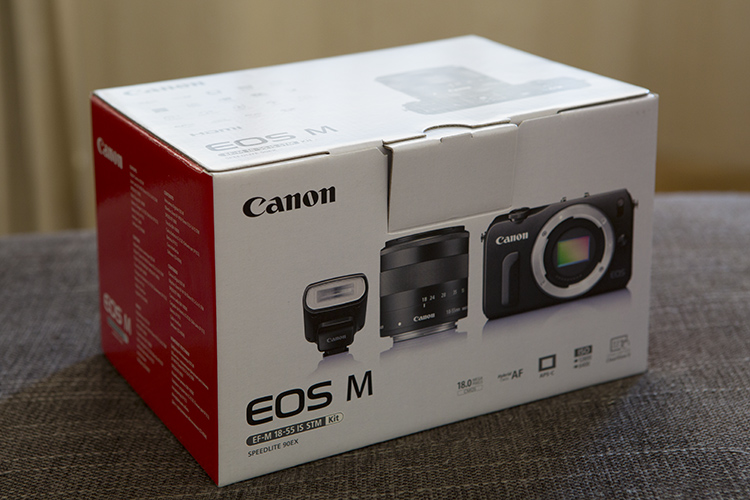
01

I opened the box and it reminded me of my beloved Coolpix 995. The EOS-M is a really good looking camera, with a great design, and the fact that it was just not a simple compact camera got me a lot more interested on it. The test shots I made after a firmware update fixed some focussing issues, got me back to that loving feeling all over again.

Those were great images, and the pixel peeper inside me was happy with the image quality when I looked at them on the computer screen. The fact that everybody was considering this camera Canon’s ugly duckling, made me love it even more, because it had some kind of “misfit” attitude amongst all the other mirrorless camera out there.

Why have a play camera?

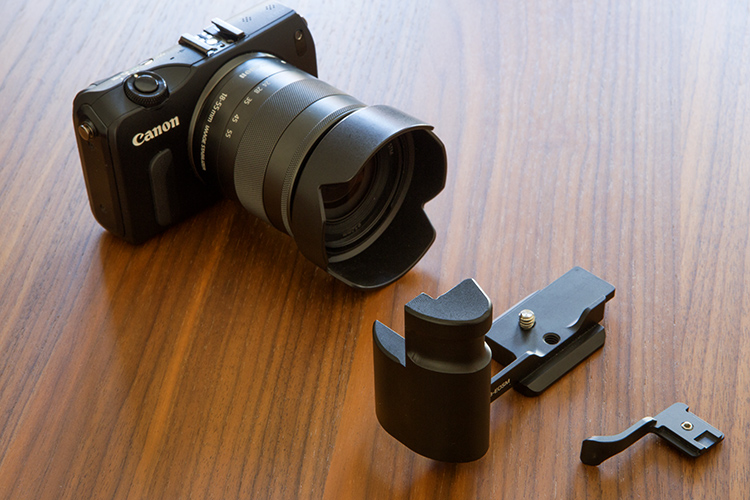
Pretty soon I was buying accessories, and taking it everywhere with me. At last I had a new play camera – the point of which is to have it and use it all the time! A grip and a thumb rest were the obvious first things to buy, as the camera seemed so small in my hands and it made me feel like I was going to drop it every time I photographed.

02

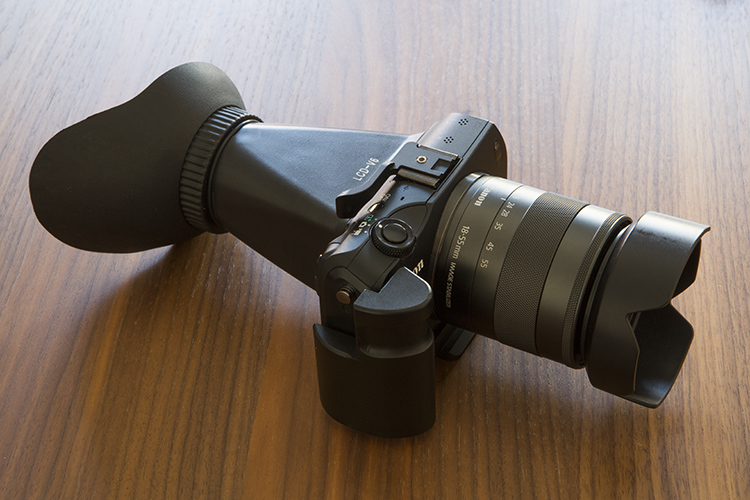
03

An added LCD loupe helps block the ambient light on the LCD, and gave me a better sense of the exposure and focus.

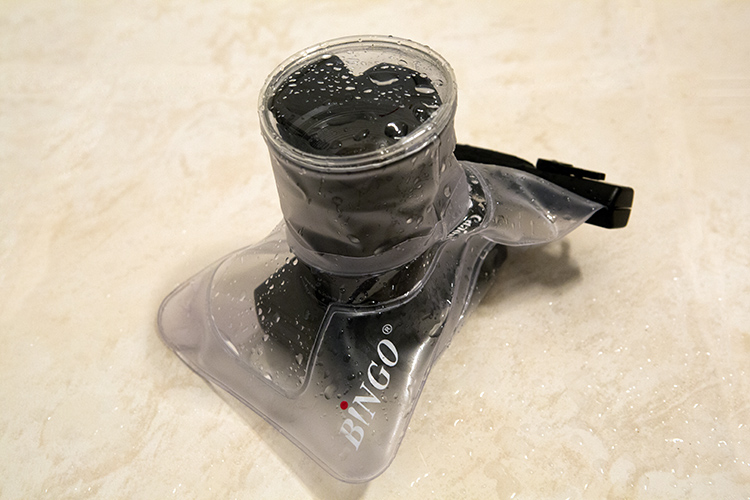
The fact that it didn’t cost a lot of money, made me comfortable using this camera in situations I would never use my expensive DSLRs, like underwater with a cheap protective bag.

04

There were no limits for what I could do with this camera, and even when I had a lot of commercial work, I made an effort to find some time to get back to my personal photography projects.

I must say that my favorite feature on this camera, is the fact that it is able to use not only the dedicated EF-M series lenses Canon launched with it, but with a special adapter it is also able to use EF or EF-S lenses also, keeping all the automatic features.

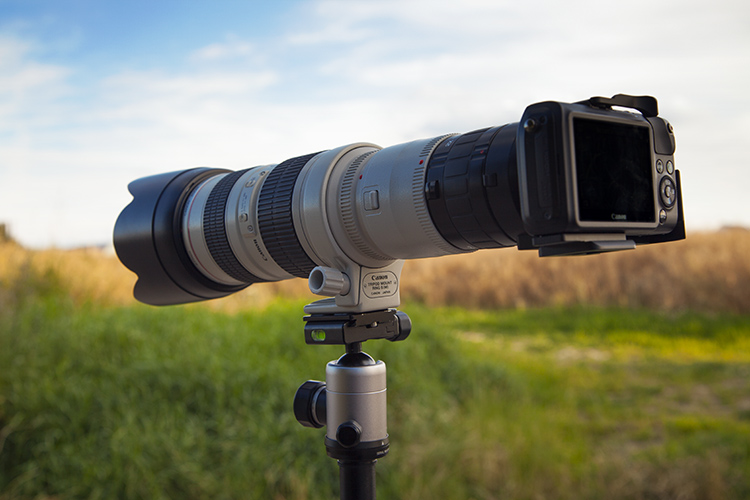
Over all these years as a Canon DSLRs user, I have collected some serious L-glass along the way, so the fact that I could use all those lenses on this tiny mirrorless body was a huge plus in my book. I must admit though, that it looks a bit ridiculous to see this camera together with an L-series lens, but the fact is that it works.

Try new and whacky things

It even got me carried away experimenting with some crazy extender combination with my EF 70-200 2.8L coupled with the Canon 2x extender and the Kenko 2x Teleplus Pro 300, giving me some serious telephoto ability for wildlife pictures.

05

200mm X (APS-C 1.6 crop factor) X (Canon extender 2x) X (Kenko 2x converter) = 1280mm equivalent.

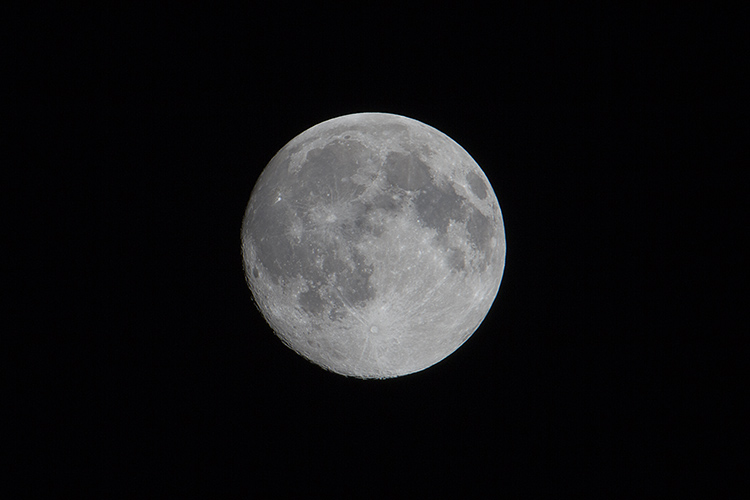
This telephoto ability also got me into moon photography, as it is the perfect focal length to capture great pictures from my bedroom window.

06

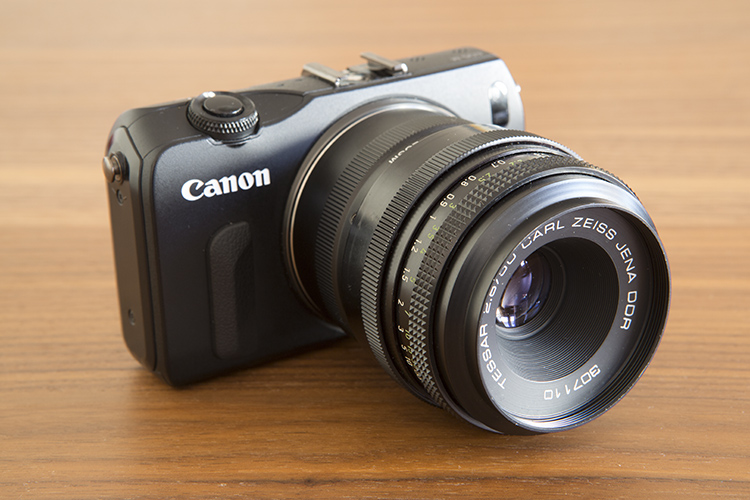
Another great thing is that you can even take it beyond EF lenses. With third party adapters you can make the camera body work with almost any lens you want, even though you lose autofocus ability. To me it’s great to again use old lenses I totally forgot I had, like this M42 50mm f/2.8 Carl Zeiss Jena Tessar that has a really fantastic image quality, and makes me go back to when I was a young kid using my old Pentax with a split prism focusing screen.

07

Bottom line

So, the bottom line is that even though this camera was released in 2012 and the EOS-M2 and the EOS-M3 were released after that, I still have great fun with it and don’t feel any need to upgrade to a newer model.

I guess I just feel really free experimenting with this camera without being worried about damaging it, or being bothered to carry it around. For me this is what a pet camera means despite of brand, model or type of camera.

Photography is about taking pictures, and the best camera is the one you feel more comfortable with, for what you want to shoot.

Do you have a play camera? One you take with you everywhere, one that you don’t worry about losing or damaging? Do you feel you are more creative with it than your regular camera? Share your experience in the comments below.

googletag.cmd.push(function() {
tablet_slots.push( googletag.defineSlot( “/1005424/_dPSv4_tab-all-article-bottom_(300×250)”, [300, 250], “pb-ad-78623” ).addService( googletag.pubads() ) ); } );

googletag.cmd.push(function() {
mobile_slots.push( googletag.defineSlot( “/1005424/_dPSv4_mob-all-article-bottom_(300×250)”, [300, 250], “pb-ad-78158” ).addService( googletag.pubads() ) ); } );

The post How Having a Play Camera Can Boost Your Creativity by Ivo Guimaraes appeared first on Digital Photography School.


Digital Photography School

 
Comments Off on How Having a Play Camera Can Boost Your Creativity

Posted in Photography


One iconic moment, two viral photos: Rio photographers capture Bolt’s smile

23 Aug

The Rio Olympics have come to a close, and there’s no doubt that these summer games have been memorable. World records were smashed, heroes were made and the best sports photographers in the game captured it all. But what may go down as one of the most memorable images from the games is actually two photos, captured by two photographers a fraction of a second apart.

Photo by Kai Pfaffenbach / Reuter’s.

Embed from Getty Images

Cameron Spencer of Getty Images and Kai Pfaffenbach of Reuter’s snapped nearly identical photos of Bolt and his grin as he neared the finish line of the 100m race. It’s not easy to spot the difference until you notice that Bolt’s right hand is sharp in one image and blurred in the other.

Naturally, the nuance was entirely lost on the internet, particularly on Twitter where the photos quickly became the subject of countless memes. As is the way with memes, both photos went viral without credit to either of the photographers who took them. The dual photos even confused a well-meaning Sports Illustrated writer who gave credit to Spencer while tweeting the photo taken by Pfaffenbach. After the error was brought to his attention he issued an apology.

Most news coverage used (and credited) Spencer’s photo. Articles that document the popularity of the meme mostly reference the Getty photo as well, even though Pfaffenbach’s photo appears to have been used more widely.

Did you notice the different photos in circulation? Why do you think one photographer got more attention and credit for his photo? Let us know in the comments.

Articles: Digital Photography Review (dpreview.com)

 
Comments Off on One iconic moment, two viral photos: Rio photographers capture Bolt’s smile

Posted in Uncategorized


3 Ways to Take Advantage of Bad Weather

23 Aug

In Norway we grow up hearing, “there’s no such thing as bad weather, only bad clothes”. While this wasn’t what you wanted to hear when you were eight years old, and had to go to school even though it’s -20c and a snowstorm, it’s what we are used to. Instead of complaining about the cold weather we would wear an extra layer of clothes and go about our day as normal.

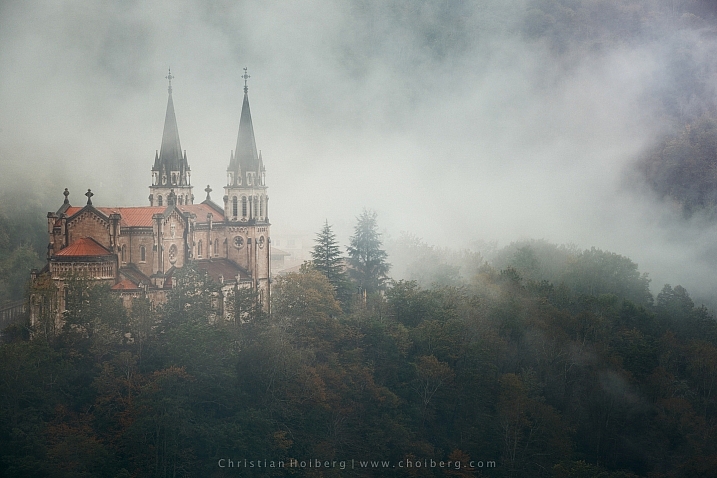
Foggy sunrise at Covadonga cathedral in Asturias, Spain

Foggy sunrise at Covadonga cathedral in Asturias, Spain

This way of thinking has in many ways impacted my photography and made me go out with a camera, even though it’s rainy, windy or just bad weather. What many seem to neglect is that even though the weather is bad, there are still a whole lot of great images waiting to be captured. They are just a little harder to find. Here are three ways to take advantage for bad weather conditions and still get good photos.

#1 – Drop the sky and zoom in

Bad weather often means a grey sky without contrast. Personally, there’s not much I dislike, more than that in a landscape image. Most of the time this uninteresting sky will take unnecessary attention from the subject, and do more harm than good.

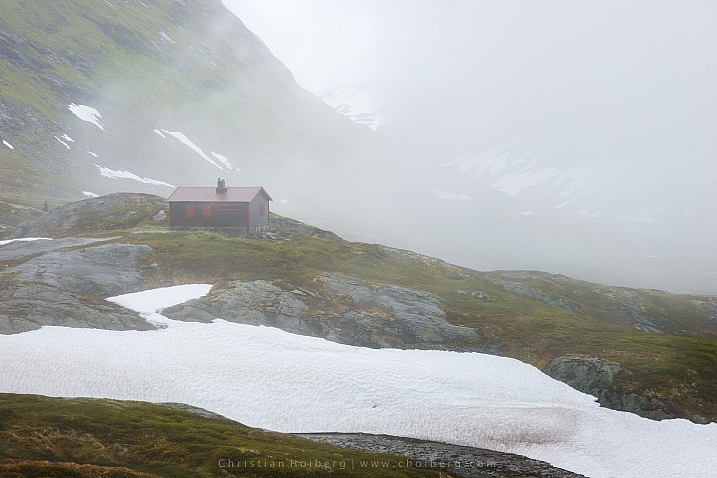
Jotunheimen-Cabin-Fog

Remote cabin in Jotunheimen in foggy weather

So, instead of including a sky that lacks contrast, use a telezoom and focus on a smaller detail in the landscape. Perhaps there’s a cabin, a river, or maybe even a deer in the area around you. Use your zoom and make these subjects into the main part of your image.

This can also be a good exercise for your creative vision, as it forces you to slow down and pay attention to your surroundings. It forces you to carefully look through the landscape and notice every single

In fact, I’ve found using a telezoom beneficial for my photography in general, as I’ve become more aware of the scenery, and I’m constantly searching for something that sticks out.

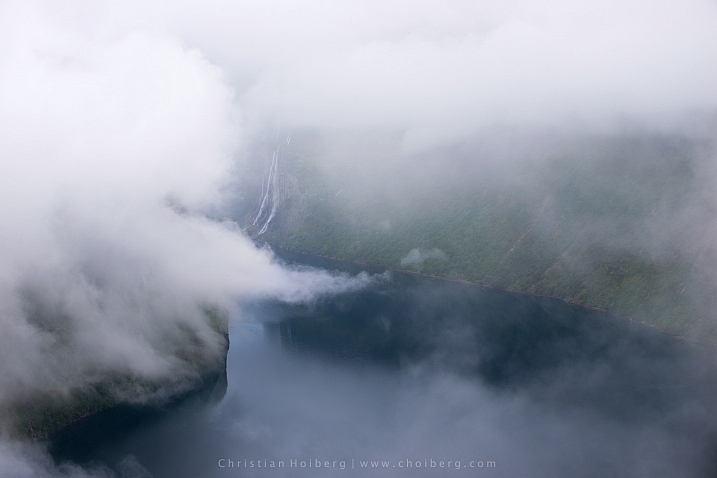
Geirangerfjorden-fog

The low clouds made an interesting framing of this waterfall in Norway

#2 – Photograph waterfalls

On sunny days it’s very hard to get good images of waterfalls, as the light is hard and the reflections are bad. Most likely the water will look hard and “shiny” even though you’re using a long exposure.

When the sky is grey, it’s raining, or when there are a lot of clouds, you’ve got the perfect excuse to go photograph waterfalls. Since the sun is not an issue, the light will be softer, and you’ll have no problems with hard light on the water. This lets you do both short and long exposures, and still have decent light.

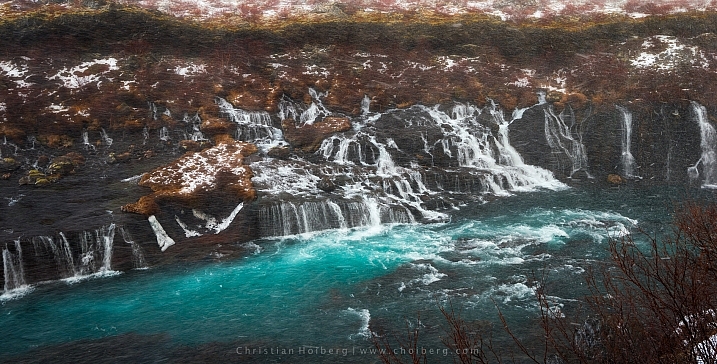
Hraunfossar-snowstorm

A quickly passing snowstorm gave interesting light to this waterfall on Iceland

If it’s raining you should consider using a polarizer filter, though, as the rocks (if any) around the waterfall might reflect some light. The polarizer will kill most of the remaining reflections and you’re left with a great result.

#3 – Take a hike in the woods

My last piece of advice on how to take advantage of bad weather, is to take a walk in the woods. This is something I often do when it’s a rainy day, both with and without my camera. Sometimes it’s nice just to go for a hike in familiar terrains, while other times it can be really rewarding to bring the camera.

ShenandoahMistFall

Misty morning in Shennandoah National Park

Personally, I do not often bring my camera in the woods when I’m going during the daytime. The reason is that I find the mood to be much more compelling when it’s early in the morning, or late at night. At this time the light is even softer, and you can get some dark moody images, or perhaps you’re lucky to even get the light shining through.

Another benefit of going early in the morning is that you increase the possibility to encounter deer or other animals. Just be sure that you don’t make too much noise when hiking, as that will scare away most wildlife.

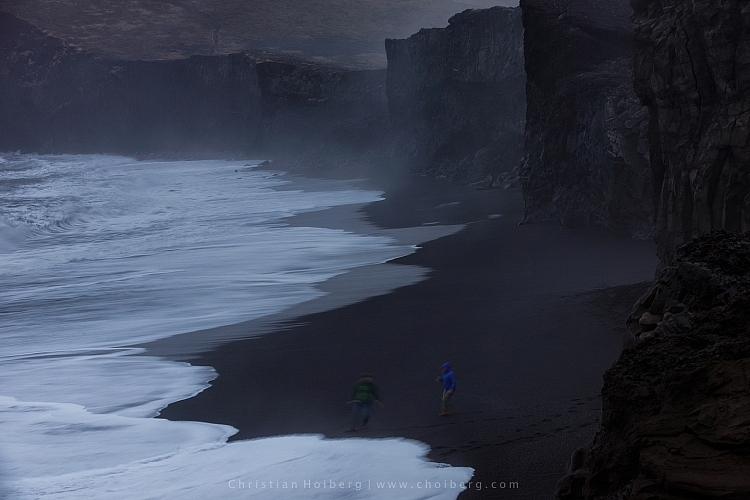
Dyrholaey-people

Bonus tip: Bring rain gear for both yourself and the camera! Also, bringing both an air blower and a microfiber cloth is important when you’re photographing in bad conditions.

What do you prefer to photograph when the weather is challenging? Let us know in the comments below, and share your images of bad weather as well.

googletag.cmd.push(function() {
tablet_slots.push( googletag.defineSlot( “/1005424/_dPSv4_tab-all-article-bottom_(300×250)”, [300, 250], “pb-ad-78623” ).addService( googletag.pubads() ) ); } );

googletag.cmd.push(function() {
mobile_slots.push( googletag.defineSlot( “/1005424/_dPSv4_mob-all-article-bottom_(300×250)”, [300, 250], “pb-ad-78158” ).addService( googletag.pubads() ) ); } );

The post 3 Ways to Take Advantage of Bad Weather by Christian Hoiberg appeared first on Digital Photography School.


Digital Photography School

 
Comments Off on 3 Ways to Take Advantage of Bad Weather

Posted in Photography


Toasteroid: Print Your Own Custom Toast Design With This App

23 Aug

[ By SA Rogers in Gadgets & Geekery & Technology. ]

toasteroid

You don’t necessarily need skills to be a food artist these days, now that smartphone apps make it possible to do things like print custom designs on your breakfast. A gadget called the Toasteroid (a toaster on steroids?) caters to those who demand more than just the browning of bread from the typically simple kitchen appliance, boasting that it also functions as a personal weather forecaster, private messenger and doodle pad. If Kickstarter is any gauge, there’s been a long-simmering demand for just such a device.

toasteroid 2

The Toasteroid comes with a companion mobile app, and you connect your smart phone to the toaster via Bluetooth. Choose from a collection of templates available within the app or draw your own design, which will have to be fairly simple and pixelated by virtue of the way the toaster works. You can also request that the toaster prints today’s weather right onto your breakfast. There’s a fairly sensitive brownness control, and if you don’t feel like fussing with it, an ordinary lever on the side lets you use it like a normal toaster.

toasteroid 5

toasteroid 4

If you know somebody else who has a Toasteroid, you can send them a private message via toast. Presumably, the app will prompt them to stick a piece of bread into their own toaster so they can receive it. The makers also note that you can leave yourself or a loved one a reminder that’s hard to ignore – at least, until you stuff it into your mouth. Probably the most useful function is pleasing picky kids who demand that their favorite cartoon characters be visible on every conceivable surface.

toasteroid 6

toasteroid 8

If you’re still asking why, Toasteroid is ready with an answer: “Because why not.” Sure, not everything in our homes should be a needlessly complicated smart gadget, but the Toasteroid does have all the same functions as any high-end toaster and costs less than a lot of them if you get in on the pre-sale. 

Share on Facebook


[ By SA Rogers in Gadgets & Geekery & Technology. ]

[ WebUrbanist | Archives | Galleries | Privacy | TOS ]


WebUrbanist

 
Comments Off on Toasteroid: Print Your Own Custom Toast Design With This App

Posted in Creativity


Canon applies to patent double-sided micro lenses designed for better edge performance

23 Aug

Canon engineers have developed a new design for the micro lenses it uses on imaging sensors that it claims will reduce vignetting and false coloration at the edges of the picture. The new designs have a bi-convex lens that uses the upper surface to collect light and the lower to channel the light more effectively to the photodiode. The patent application shows the lower face of the micro lenses with a convex surface featuring an off-center vertex. Canon says these would be placed at the edges of the sensor to direct light approaching from a steeper angle. The idea is to direct more of the light toward the photodiode than can be achieved with standard single-micro-lens designs.

As pixels have depth it can be difficult to channel light from the camera’s lens down the ‘well’ to reach the photodiode unless it approaches straight-on. When a pixel is positioned at the edge of the sensor array it becomes more difficult because light approaches from an extreme angle and can miss the photodiode, as the refractive index of the micro lens isn’t high enough to bend it directly down the well. Since certain colors experience different refractive indices, some wavelengths of light don’t make it to the photodiode either. Thus, pixels outside the central area can report less light – and false colors – compared to those in the middle of the sensor.

Canon’s new dual micro lens design aims to take more control of the light as it enters and exits the micro lens, and to channel it in a more vertical direction down the well so that less is lost. This should in theory improve both vignetting and false coloration nearer to the edges of the image.

For more information see Canon’s full patent application.

Extract from the patent:

The lower surface 102 of the microlens 103 has an asymmetrical shape with a position nearest to the photoelectric conversion device 104 (a position at which the thickness from a center plane 130 of the microlens 103 is the maximum) shifting from the center position of the microlens 103 to the central side of the pixel array 110A. The lower surface 102 of the microlens 103 has a convex shape with respect to the photoelectric conversion device 104.

Each microlens 103 is formed from a material having a higher refractive index than a material in contact with the lower surface 102 at a position between the microlens 103 and the photoelectric conversion device 104. The microlens 103 is formed from, for example, a color filter material.

The upper surface 101 of each microlens 103 has a convex shape with respect to the incident side of incident light. The incident light 111, incident light 121, and incident light 131 entering the microlens 103 from the same direction as that of the straight line 115 each are refracted by the upper surface 101 of the microlens 103 and focused onto the photoelectric conversion device 104. In this case, if the upper surface 101 of the microlens 103 lacks in refractive power with an increase in curvature radius, the lower surface 102 of the microlens 103 compensates for the refractive power to cause the incident light 111, 121, and 131 to enter the photoelectric conversion device 104. At this time, the refractive power of the lower surface 102 of the microlens 103 is larger than that of the upper surface 101 of the microlens 103. As described above, the microlens 103 can focus incident light onto the photoelectric conversion device 104 by using the upper surface 101 having a convex shape extending upward and the lower surface 102 having a convex shape extending downward with respect to the center plane 130.

Articles: Digital Photography Review (dpreview.com)

 
Comments Off on Canon applies to patent double-sided micro lenses designed for better edge performance

Posted in Uncategorized


Motor Magnificence: 11 New Supercar Joyrides for the Super Rich

23 Aug

[ By SA Rogers in Technology & Vehicles & Mods. ]

sin 5

Mere fantasy rides for most of us, the world’s most luxurious high-performance supercars take all the elements that make driving a vehicle pleasurable and ramp them up about 10 levels, from advanced surround-sound to wildly powerful engines. A number of opulent luxury automobile creations debuted this August at car shows around the world, including limited editions, custom-painted showcases and other elite motor vehicles accessible only to the rich and famous.

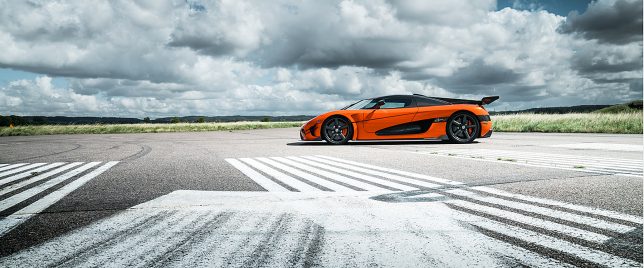
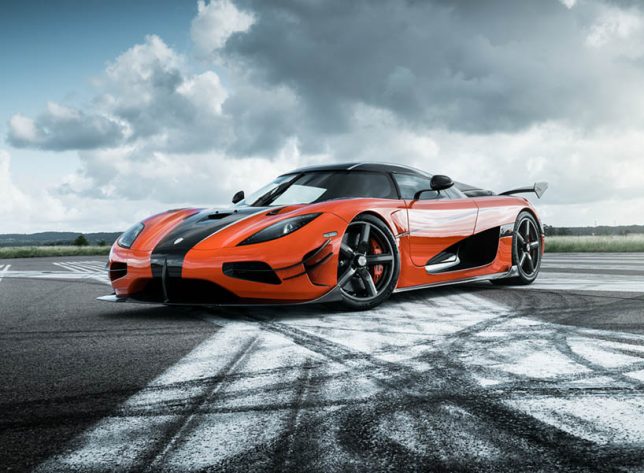
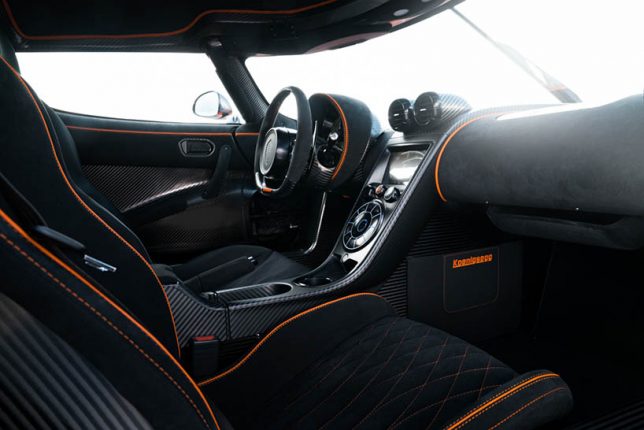
Agera RS by Koenigsegg

agera 1

agera 2

agera 3

agera 4

Billed as the world’s first ‘megacar,’ the Koenigsegg Agera RS (with a single, one-of-a-kind ‘XS’ version located in the United States) is set to become one of the most powerful street-legal production cars on American roads and features a lightweight removable hardtop that stows away under the front hood. It features a 5-liter twin turbocharged V8 engine and a CIMA 7-speed paddle-shift transmission and weighs just 3075 pounds.

McLaren 570GT MSO Concept

mclaren 1

maclaren 2

mclaren 3

mclaren 4

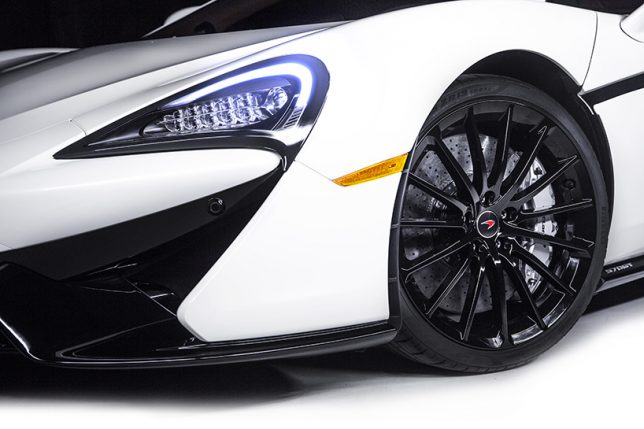
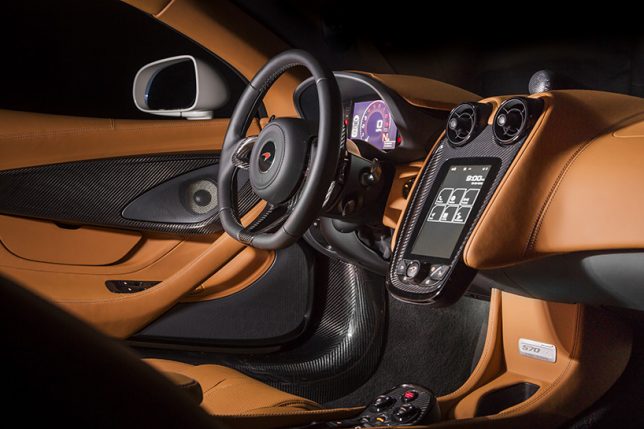
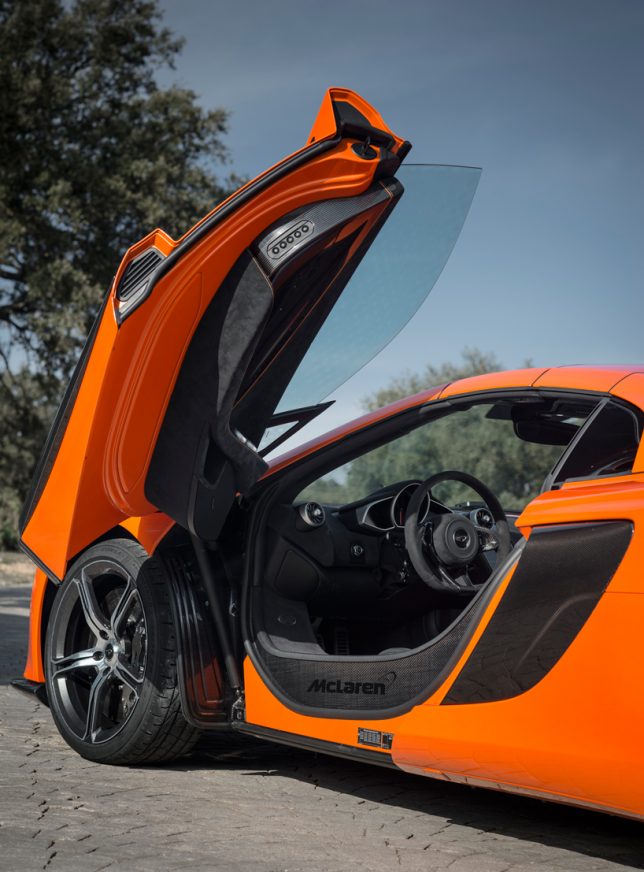
The 570GT MSO concept by McLaren aims to be the “ultimate sports car experience that’s perfect for daily use, longer journeys and weekends away,” with a rear-opening glass hatch, panoramic roof and leather-trimmed touring deck. Its exhaust system is made from titanium to be 30% lighter than a standard stainless steel system and for a richer tone, with visible heat shields that change color as the system heats and cools. An integrated 12-speaker surround-sound system provides a top-of-the-line aural experience while driving.

McLaren 650s Spider

spider 1

spider 2

spider 4

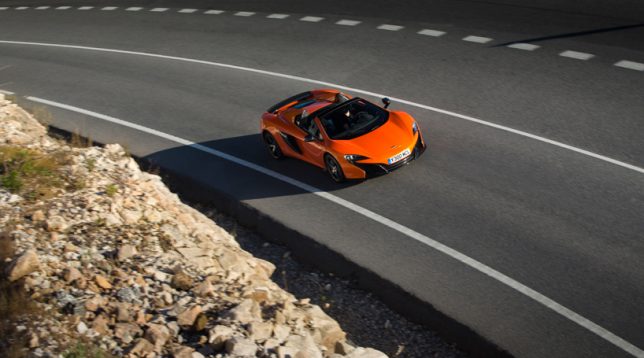
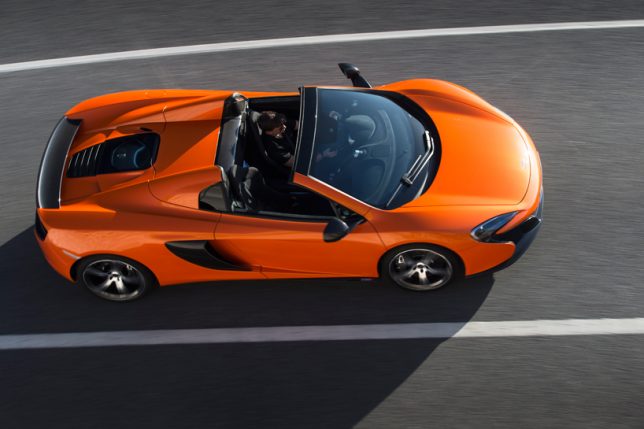
A convertible version of the luxury automaker’s 650s is an open-top super car that reaches 62mph in 3 seconds and a top speed of 204 miles per gallon, all while getting 24.2 miles to the gallon. Door blades direct air to the front splitter to enhance cornering grip and balance. The convertible handles and rides just like the coupe version of the 650s, and its retractible hard top and roof mechanism can automatically raise or lower in less than 17 seconds.

Pagani Huayra BC

pagani 1

pagani 2

pagani 4

pagani 3

The lightest supercar yet to be built weighs in at 2,685 pounds ( a full thousand pounds lighter than the Porsche 918) thanks to its carbon fiber and titanium construction. The $ 2.6 million dollar Pagani Huayra features 789 horsepower and 811 lb-ft of torque with 75 millisecond shifts. A large back wing, front splitter and new body panels update the latest Huayra from previous versions; only 20 will ever be produced.

Next Page – Click Below to Read More:
Slick Supercars 11 New Joyrides For The Super Rich

Share on Facebook


[ By SA Rogers in Technology & Vehicles & Mods. ]

[ WebUrbanist | Archives | Galleries | Privacy | TOS ]


WebUrbanist

 
Comments Off on Motor Magnificence: 11 New Supercar Joyrides for the Super Rich

Posted in Creativity


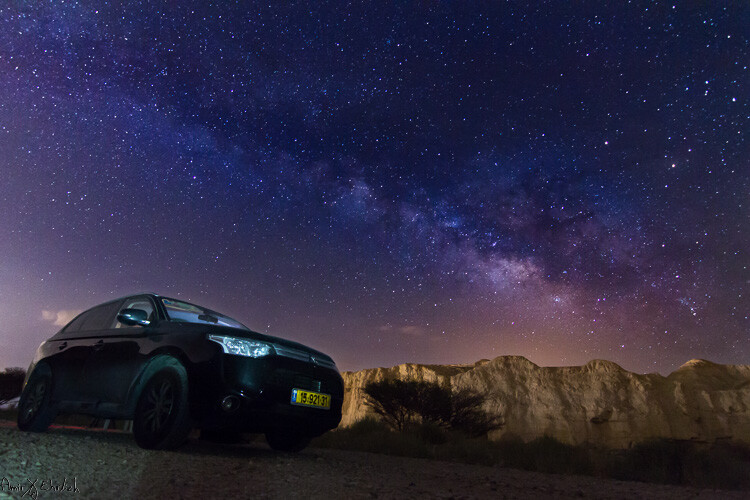
Tips for Shooting the Milky Way

23 Aug

Seeing the Milky Way with your own eyes is what you may call a jaw dropping experience, but one that can be truly achieved only in complete darkness. While stars are visible even in light polluted areas, the Milky Way’s beauty, which is actually caused by concentrations of stars, gas and dust, fades away in the light polluted areas and cannot be seen.

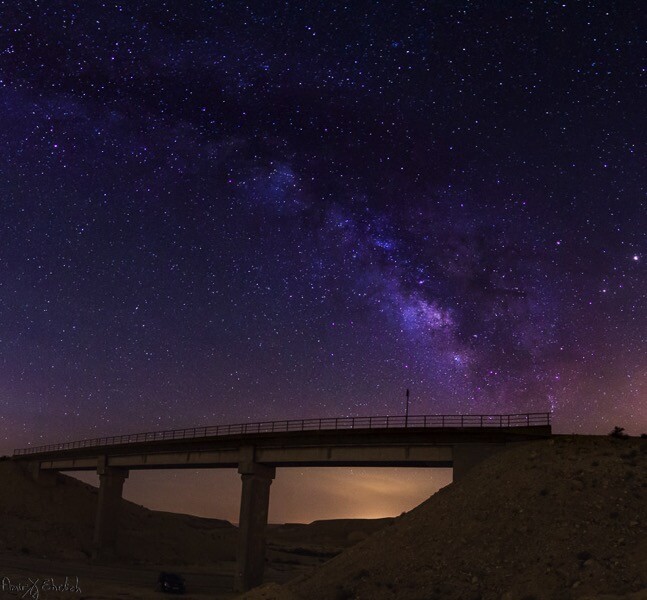
2 frames portrait

Before going in to practice, you need to understand few things about the appearance of the Milky Way:

  • The part that you want to shoot is the center of the galaxy, and it is not visible all year long. In the northern hemisphere the Milky Way is best observed between April and September. During April and May it is almost parallel to the horizon (the best time for Milky Way panoramas) while in June to September it gets more vertical.
  • Unlike star trail photography, when shooting the Milky Way your goal is to achieve a sharp image, where the stars are seen as points and do not smudge.
  • At the beginning of the Milky Way season, it rises above the horizon late at night – and as the months pass, it rises earlier and earlier.
  • Getting a good photograph requires quite a lot of editing, in order to emphasis the Mily Way’s colors and shapes.

Planning ahead

Before going out to shoot the Milky Way, there is some planning that needs to be done.

  • Choose your location carefully (there is no place for spontaneity). There are several things to consider, but most importantly you need a dark location, as far as possible from light polluted areas. Consider that city halos are visible at night for a very long distance, so get as far as possible from light sources. The darker the area you’re in, the clearer the Milky Way will be seen.
  • Consider an interesting item to be used as your anchor in the photo. It is not enough to shoot the Milky Way, you want to have a nice foreground to make your photo interesting and unique. Find yourself a big tree, an interesting rock formation, a pier on a lake, or any other item to be used as your anchor. Try to make your foreground correspond the the Milky Way’s view.
  • Learn about the weather and lunar (moon) phases – to get a good, clean shot you need a good, clear and dark sky. Choose that period of the month when the moon is not visible in the night sky, and make sure the forecast does not predict too many clouds. High humidity is also not good, as it may accumulate on your lens and result in blurry frames.

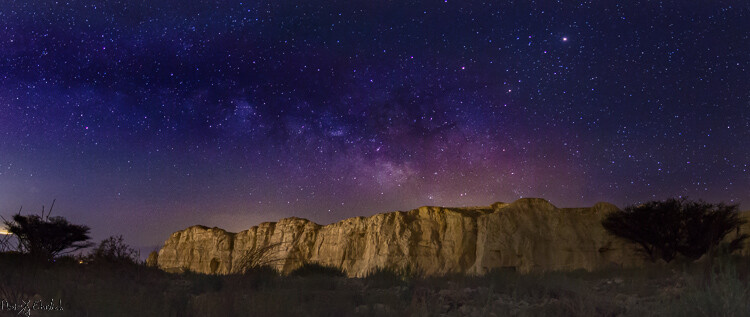
2 frame landscape

Prepare your gear

Before you head out make sure you are prepared with:

  • A DSLR camera with a fully charged battery. Unfortunately – not any DSLR (or mirrorless) camera will work for you. You need to be able to go to a minimum of ISO 2,000 and preferably even higher.
  • Plenty of room on your memory card. Shooting in RAW is crucial for post-processing.
  • A wide angle lens. Anything between 10-20 mm will give you good results. You can shoot also with narrower lens but results will be less impressive. A wide aperture is also essential to allow lower ISO.
  • A strong, steady, tripod. When placing it, make sure nothing will cause it to shiver from a passing wind.
  • A remote control can help but it is not mandatory – you can program your camera to shoot in delay mode or self-timer.

3 frames

Getting started

Single frame option:

Although you may want to show as much of the Milky Way as possible, it cannot stand alone. Your photo must rely on a strong anchor, or foreground, if you want your viewers to be really impressed. You also need to consider that it is impossible to have all of the Milky Way in your frame, and shooting a panorama may be a good solution.

In most cases, it will be quite difficult, to the verge of impossible, to build your composition at night, in total darkness. So, it is better to arrive before night falls and it gets too dark to see. The last minutes of the day are your best time to plan and build your composition. But, remember to consider the expected location of the Milky Way in the sky. Use one of the many sky apps available to help you plan.

1 frame

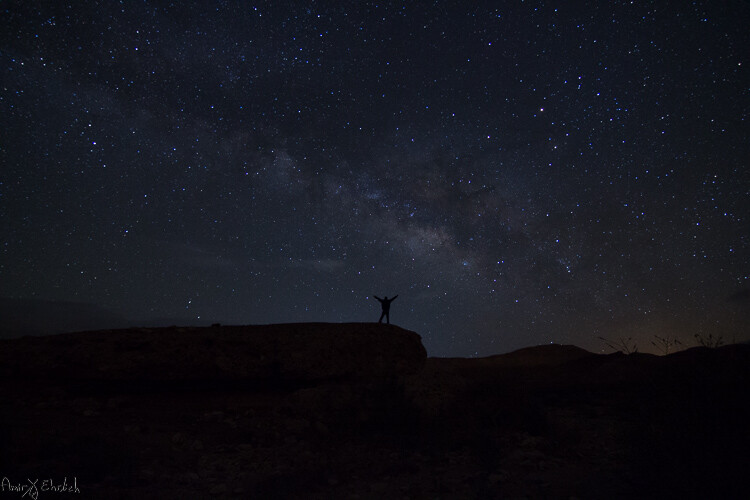
Single frame shot.

Take the first shot which will be used as the foreground of the frame. If you want your foreground to be a silhouette then all is good but, if you want details to be shown, you will need to have at least one frame lit. This can be achieved in a few ways:

  • Shooting one frame during twilight (to be blended in during post-processing later).
  • Using a high ISO and longer exposure.
  • Using an outside light source such as flash (with a flash it is better to use a CTO gel for the right temperature).
    Your goal here is to get one frame that has good appearance of your chosen foreground. It is better to take a few options; using different ISO level, exposure time, lightning options, to be able to choose the best rest afterward. When satisfied, you can move on.

Set your camera to the widest aperture you have on your lens, the highest ISO bearable, manual focus to infinity, and longest possible shutter speed, considering the rotation of earth (see below).

Choosing the correct shutter speed:

  • If your exposure is too long, the rotation of earth will start to have impact, and the stars will start to arch in your frame.
  • Calculate the longest possible shutter speed while keeping the stars clear and sharp using the 500 Rule. This rule considers your focal length to determine when star movement will start to be seen in your image. The calculation is 500 divided to the focal length equals time in seconds. This calculation is for full frame cameras and in crop sensors you need to add the crop factor to the calculation (1.6 for Canon / 1.5 for Nikon). Here are couple of samples:
    • Using a 10mm focal length on a full frame sensor: 500 / 10 = 50. You can use up to 50 seconds as your shutter speed with this lens/camera combination.
    • Using a 10mm focal length on a Canon crop sensor: 500 / (1.6*10) = 31.25. You can use up to 31 seconds as your shutter speed with this combination.
    • Using a 10mm focal length on a Nikon crop sensor – 500 / (1.5*10) = 33.33. You can use up to 33 seconds as your shutter speed with this gear.

Panoramic option:

9 frames

9 frame panoramic shot.

There is no change in the settings for your camera when shooting a panorama.

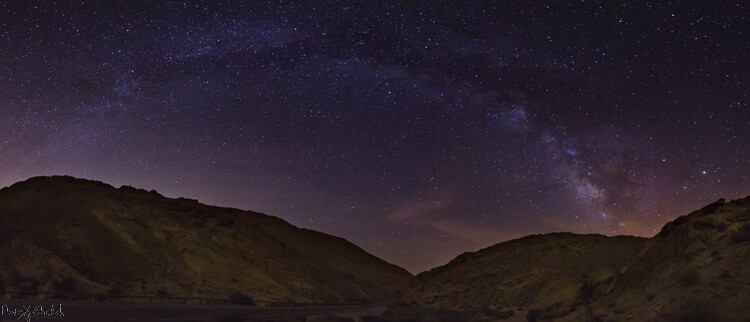
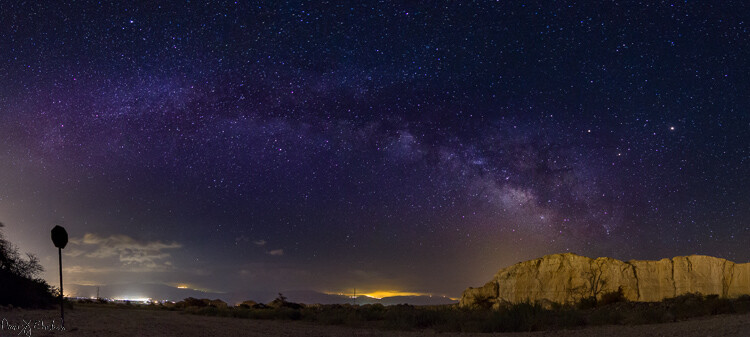
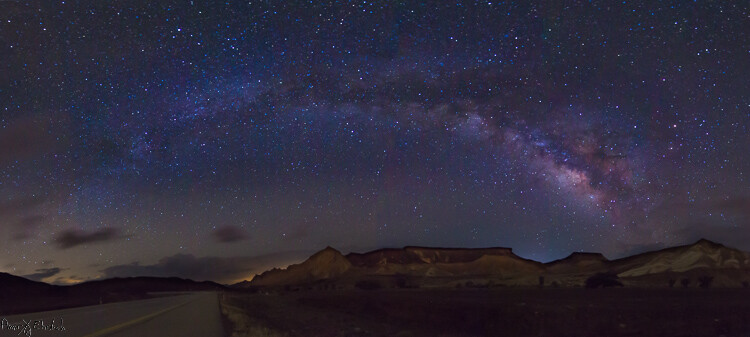
You may want to consider the appearance of the Milky Way though. If it is relatively horizontal it is a good idea to aim for a wide panorama, showing it from side to side. If it is vertical, you may want to build your panorama upwards.

In a panorama it is recommended that you have a 30% overlap, but when shooting at night it is more difficult to see – so it is even better to have a larger overlap between the frames. Better to be on the safe side, than discover later that you have gaps in your final result.

When shooting a Milky Way panorama you may want to position your camera in portrait orientation (vertical). Although you will need more frames from one side to the other, you will have more sky, and a chance of catching the entire Milky Way. If shooting in landscape position, you may need to shoot two “floors”, in order to catch the entire Milky Way together with the ground.

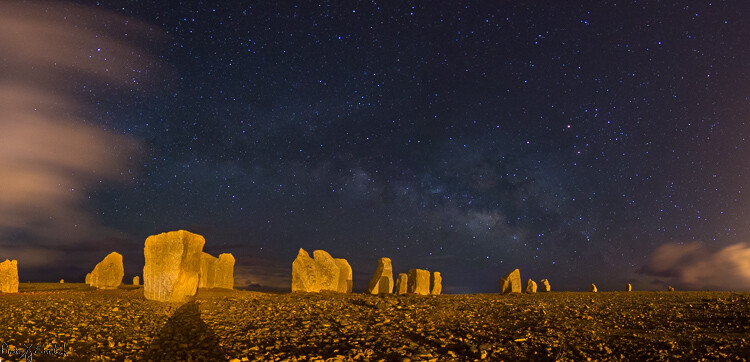
10 frames

10 frame pano shot.

18 frames

18 frame pano shot.

Post-processing your Mikly Way photos

Milky Way frames require a lot of post-processing work, which deserves its own article. There are also many ways to approach post-processing of the Milky Way, and it depends on the software you are using and your personal taste.

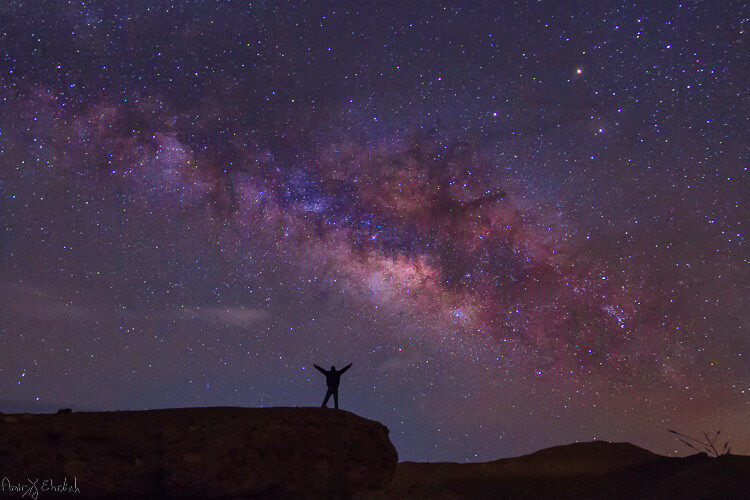
I’m working with Lightroom and Photoshop. Starting with Lightroom, I use the Dehaze and clarity sliders, tone adjustments, saturation and noise reduction. After reaching the best possible outcome, I move to Photoshop for some additional adjustments by playing with curve layers.

1 frame original

Before post-processing.

1 frame edited

Final processed image.

Your turn

Have you tried to capture the Milky Way before? Please share your experiences, questions, and your images in the comments below.

googletag.cmd.push(function() {
tablet_slots.push( googletag.defineSlot( “/1005424/_dPSv4_tab-all-article-bottom_(300×250)”, [300, 250], “pb-ad-78623” ).addService( googletag.pubads() ) ); } );

googletag.cmd.push(function() {
mobile_slots.push( googletag.defineSlot( “/1005424/_dPSv4_mob-all-article-bottom_(300×250)”, [300, 250], “pb-ad-78158” ).addService( googletag.pubads() ) ); } );

The post Tips for Shooting the Milky Way by Amir Ehrlich appeared first on Digital Photography School.


Digital Photography School

 
Comments Off on Tips for Shooting the Milky Way

Posted in Photography