RSS
 

Archive for June, 2016

2 Long Exposure Photography Hacks to Try if You Don’t Have an ND Filter

20 Jun

We all love long exposures, well I personally do. They are a great way to create dynamism, movement, and add depth to your images.

In this tutorial, I’ll show you two long exposure hacks that can be useful if your Neutral Density filters are not dark enough, if it’s too bright outside and you cannot get a long exposure, or if you simply don’t have any ND filters. Dark ND filters can be really expensive, so this is a good alternative.
IMG 8076

Long exposures create this surreal, and yet very pleasing effect to give a WOW factor to your images. Whenever you take a photo at night you will automatically get a long exposure, unless you use a very high ISO. For this tutorial I am talking about long exposures during the daytime, which are a bit more complicated to achieve.

The two hacks involves taking nine different images, and stacking them together. Now before I actually explain them, I will briefly give you the best camera settings and shooting conditions:

Shooting and camera settings

  • You will ultimately get the best results if you shoot on a cloudy day with a lot of wind. Why? Because on a cloudy day you will get clouds, and the wind is going to give them movement, and that’s what you want – movement. On a cloudy day, you will also get the minimal amount of light to be able to extend your shutter time.
  • You absolutely need a tripod, first all of all because your images need to be aligned, and you want your images as sharp as possible. With a shutter speed slower than 1/60th, you will start to get blurry results without a tripod.
  • Use a cable release or a 2-second timer every time you take an image. This again is a great way to avoid camera shake and get sharp results.
  • Focus on your subject and put the lens to manual focus, before you start taking your images. DO NOT refocus between the nine shots you are going to take.
  • Use an ISO of 100. You are on a tripod, so you don’t really need a higher ISO.
  • Use a very small aperture, like f/22. This will cut down the light entering your camera as much as possible and with an ISO of 100, will help slow down the shutter speed.
  • Shoot one or two hours before sunset, then you will also have a minimal amount of light to extend your shutter speed even slower.
  • Use your ND filters if you have some. If your ND filters are very dark (10 stop for example) you won’t need these hacks because you will directly get long exposures. If your filters are not dark enough, I would still recommend using them even if you have a one second exposure.
  • I recommend exposing, and focusing before putting your ND filters on, because after that – well you won’t be able to see clearly.

Hack #1 – multiple exposure mode

The first hack consists of using the multi-exposure mode on your DSLR. If you do not have this mode, don’t worry the second hack works for all cameras. I personally use a Canon 6D, but this multi-exposure mode is mostly available for all sorts of advanced DSLRs.

You will find this mode on your menu, you just need to enable it.
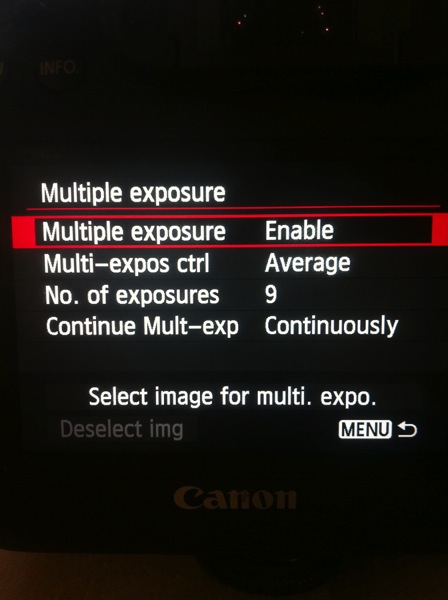
IMAGE1

For the settings:

  • Average for the Multi-expos ctrl option
  • Continuously for Continue Mult-exp setting

You have the choice to pick how many exposures you want to shoot, the maximum will depend on your DSLR. I usually pick nine exposures to get as much movement on the clouds as I want.

This mode will allow you to multiply your shutter speed by the number of exposures you shoot. For example, If you shoot a single image with an exposure of one second, you will get a total exposure of nine seconds if you shoot nine exposures. It works the same if you have an exposure of 15 seconds.

With this mode, the camera will automatically stack the images together and give you one single image with all the cloud movement. This trick also works if you want some nice silky water.

If the clouds are moving really fast, then I recommend waiting around two seconds before you take another shot. The main trick is to not have the clouds at the same position one shot after the other. If the clouds are moving very slowly then I recommend waiting around 10-15 seconds between shots.

This mode will also tell you on your screen, how many images you have left to complete your multi-exposure.

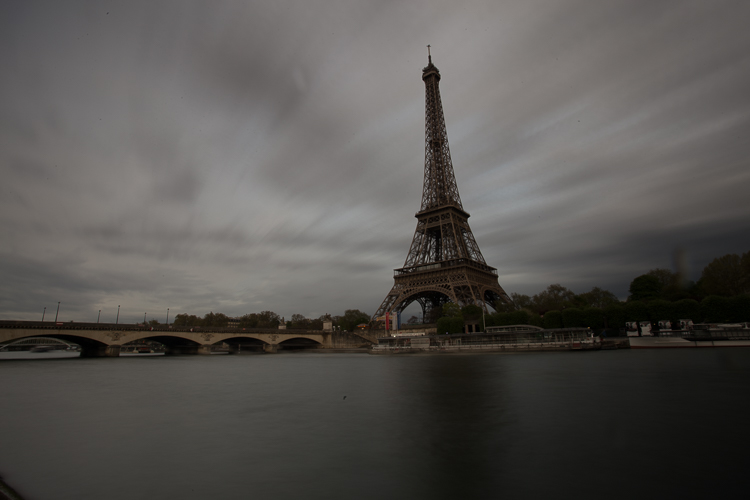
This is an example of a long exposure I got using this method. My aperture was f/22, ISO 100, and I had a shutter speed of one second after using my ND filters. That wasn’t enough to get a long exposure with stretchy clouds, so I decided to use the multi-exposure mode. I took a total of nine shots, and you can see below the before and after using this mode. You can see that it does not only affect the clouds, my water looks nice and silky as well.
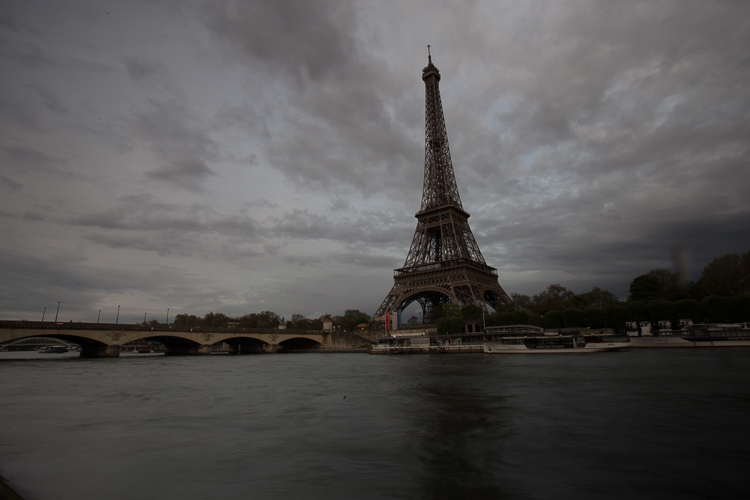
IMAGE2

Single image

IMAGE3

Nine shots using multi-exposure in-camera.
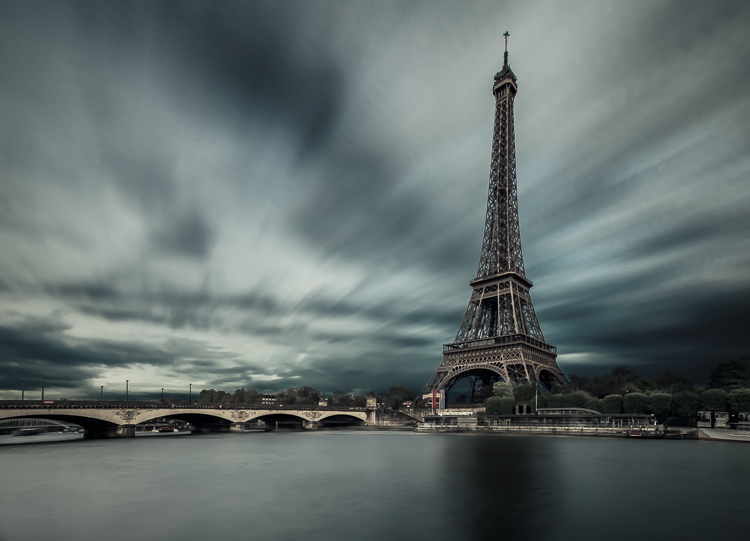
IMAGE4

After some retouching, I got this result!

Hack #1 – multiple exposures merged in Photoshop

The second hack consists of doing exactly the same thing but manually. If you are used to shooting time lapses, then this shouldn’t be too complicated to understand.

The multi-exposure mode in-camera gives you automatically, and directly, the long exposure result in one image. For this hack, will shoot nine separate images, one after the other.

You need to use the same camera settings I mentioned above (manual mode, manual focus, tripod, small aperture, ISO 100, release cable or 2-second timer). For the shooting conditions I would also recommend the same thing, and use ND filters if you have some.

You will basically shoot a time lapse of nine images only. Do not forget to have an interval of 10 seconds minimum between each shots. This process can be quite boring. I personally use the magic lantern camera hack that has an intervalometer built inside the camera. I can then pick how long I want my interval to be between each shot, and the camera will automatically take an image every 10 seconds, for example, until I decide to stop.
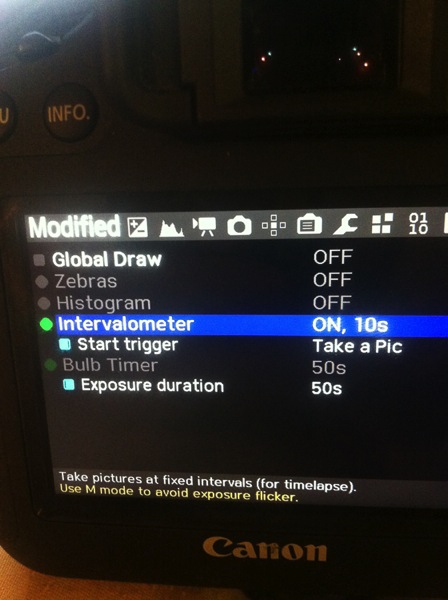
IMAGE5

You can buy an intervalometer or use the timer on your phone to count your intervals. It’s really up to you.

Here’s an example of nine images I shot one after the other with an interval of 15 seconds between each. You can clearly see that the clouds are moving. For demonstration purposes, I have intentionally underexposed these shots.
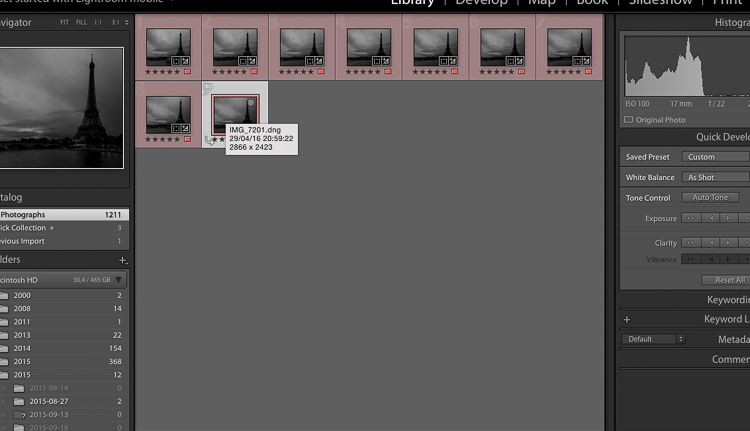
IMAGE6

So after you get all your images, import them into Photoshop as layers (from Bridge or Lightroom whatever fits with your workflow).
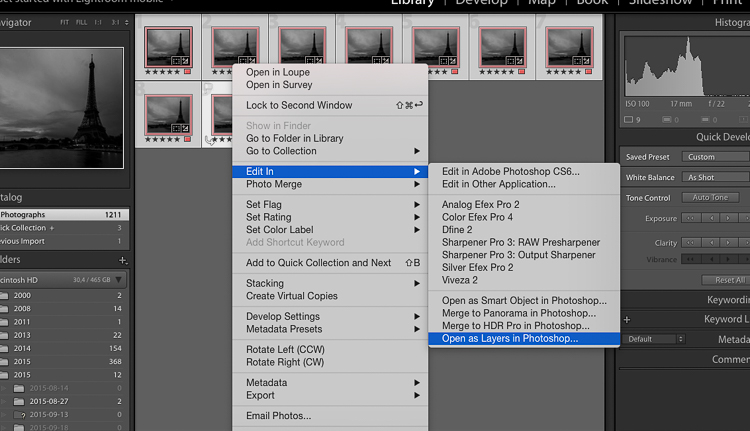
IMAGE7

Open as Layers in Photoshop after selecting the images in Lightroom.

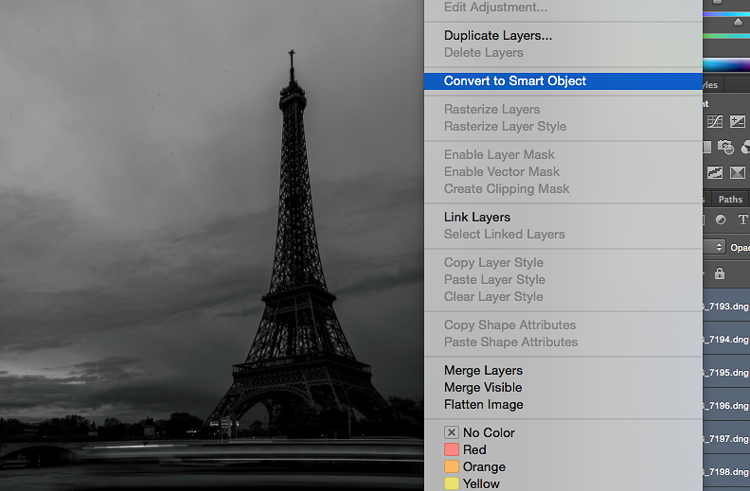
Then next thing you want to do is to select all the layers, and create a smart object.
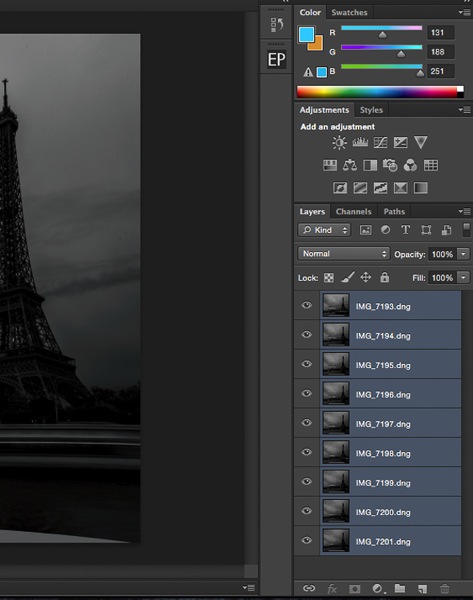
IMAGE8

IMAGE9

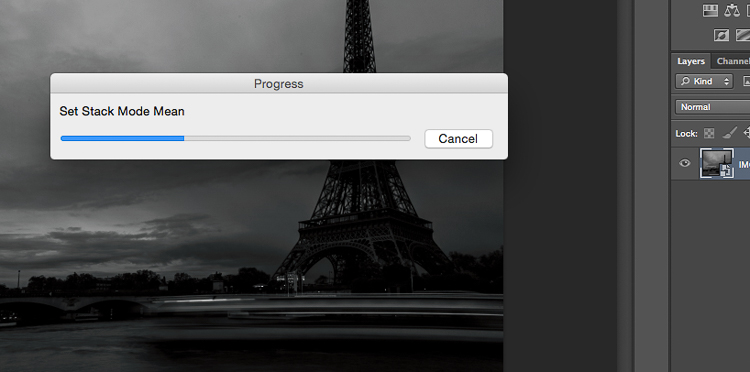
After that go to Layers -> Smart Objects -> Stacking -> Mean.
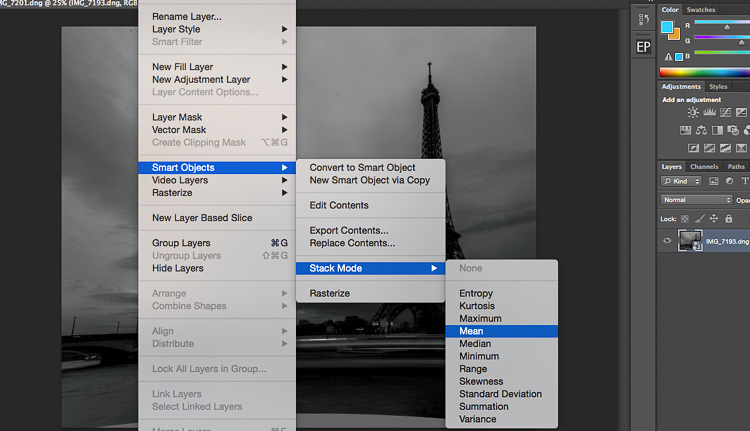
IMAGE10

IMAGE11

Photoshop will create a nice long exposure now, combining all the layers.
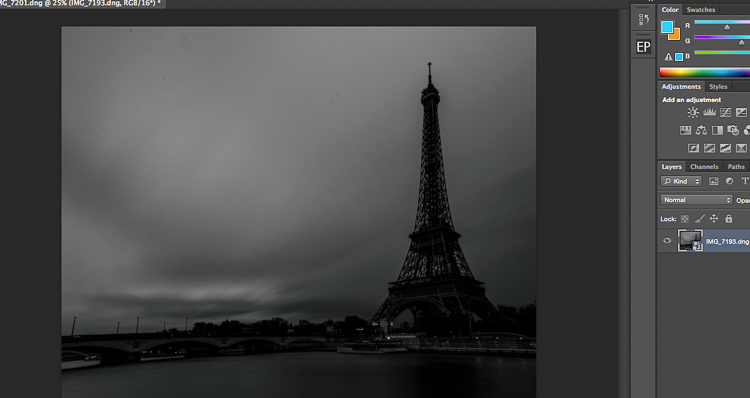
IMAGE12

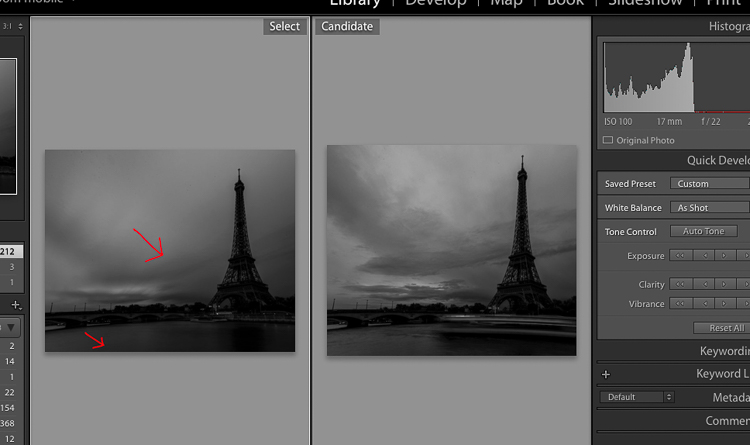
Here’s the before and after:

IMAGE13

Before is on the right of a single image – after is on the left.

Conclusion

You don’t need super dark expensive filters to create long exposures. Of course, you will get the best results with them, but this is a pretty cool alternative. Now personally as a 19 year old student, I cannot spend a lot of money on gear, and so far these two hacks have worked perfectly for me.
IMG_7663-Edit

Enjoy the art, and share your hacked long exposure images in the comments below. I’d love to see your results.

googletag.cmd.push(function() {
tablet_slots.push( googletag.defineSlot( “/1005424/_dPSv4_tab-all-article-bottom_(300×250)”, [300, 250], “pb-ad-78623” ).addService( googletag.pubads() ) ); } );

googletag.cmd.push(function() {
mobile_slots.push( googletag.defineSlot( “/1005424/_dPSv4_mob-all-article-bottom_(300×250)”, [300, 250], “pb-ad-78158” ).addService( googletag.pubads() ) ); } );

The post 2 Long Exposure Photography Hacks to Try if You Don’t Have an ND Filter by Yacine Bessekhouad appeared first on Digital Photography School.
Digital Photography School

 
Comments Off on 2 Long Exposure Photography Hacks to Try if You Don’t Have an ND Filter

Posted in Photography


10 Tips for Great Butterfly Photos

20 Jun

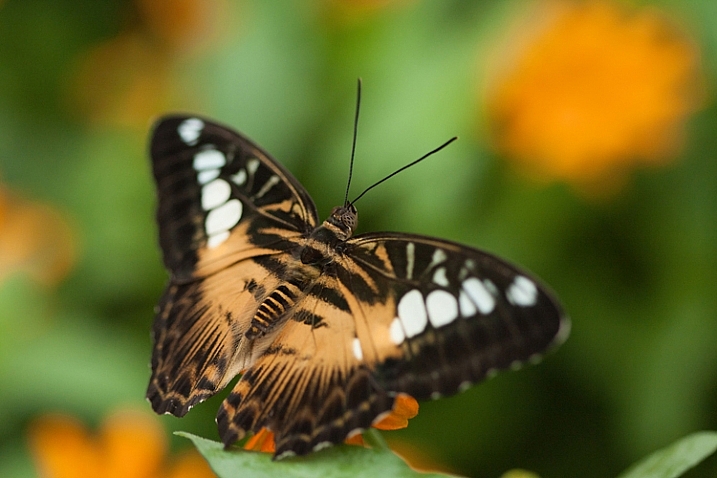
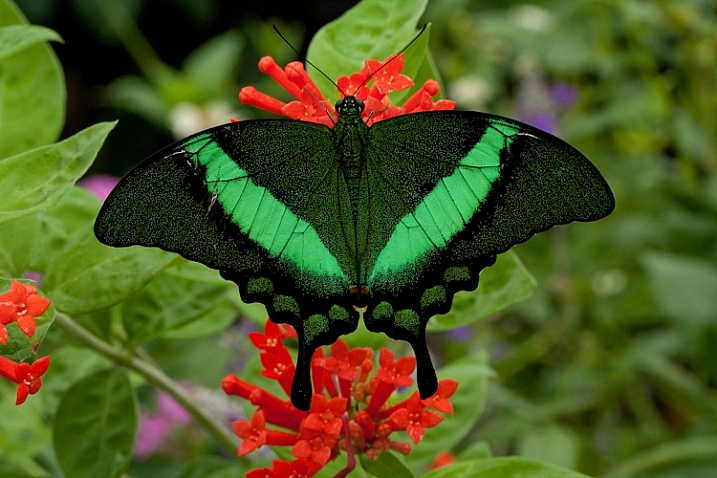
Butterflies are wonderful subjects for photographs, but not always the easiest subject to shoot. You don’t have to wing it anymore, and let good shots be a product of chance. Follow these tips and you’ll come home with some great butterfly photos.

how-to-photograph-butterflies

1. Consider shooting with a telephoto macro lens

To shoot close-ups of butterflies, you’ll want to use a telephoto macros lens. To get great shots, you need to get close to the butterfly, and having a 100mm or longer macro will help. If you don’t have a macro, don’t be discouraged, you can still make great shots with your zoom lens, you’ll just need to shoot more of the environment, but you can make beautiful images that way too.

2. Find a location with flowering plants that attract butterflies

how-to-photograph-butterflies2

Specific plants, such as the butterfly bush, are known to attract butterflies. See if you can find a location in a park, zoo, or arboretum that has a flower garden with plants chosen specifically to attract butterflies. The more subjects you have to photograph, the better your chances are at nailing the perfect butterfly shot.

3. Pick a spot and wait for the butterflies to come to you

how-to-photograph-butterflies4

Once you’ve found your garden, find an area that seems to have a lot of butterflies around. While photographing butterflies in flight seems like a great idea, it’s pretty difficult, and it will likely leave you frustrated.

Take a minute or two and just observe. Butterflies seem to come back to the same flower over and over again. Just watch, then pick a flower and wait for the butterfly to come to you. I usually choose a flower that is in the shade. Harsh shadows take away from the beauty of the photograph. I also watch the background to make sure that it compliments the butterfly.

4. Use a monopod or a tripodHow-to-shoot-butterflies1

If you use a tripod, don’t lock it in. Leave the head loose, to give you some flexibility. I like using a tripod over a monopod for shooting butterflies. It helps me keep the camera in place and ready, and I can take my eye from the viewfinder as I watch and wait for them to come to my flower. Using a tripod also helps me to frame my photo ahead of time to keep the background very clean.

5. Shoot in manual exposure mode

In a situation like this, I prefer to shoot in manual mode. When I am focused on one particular area, the lighting, and therefore my exposure, isn’t going to change, or at least not very much. I like to shoot at least 1/500th of a second. I prefer to use a wide aperture for a narrow depth of field. But, if you are just starting out, give yourself a break by using an aperture that will give you more depth of field – f/8 would be a great starting point and you can adjust from there.

how-to-photograph-butterflies5

6. Focus on the butterfly’s eyes

Some photographers like to focus on the wings, I choose to make sure the eye is as sharp as can be, and if the wings fall off focus a little bit, that’s okay. It’s easier to use a bigger depth of field, like f/8 or f/11, so I encourage you to try that first.

I like to use a smaller f/stop in order to throw the background out of focus. It is much more challenging to shoot that way, but I like the effect it gives. It makes the butterfly really stand out from the background instead of blending in to its surroundings.

7. Shoot the butterfly in profile

how-to-photograph-butterflies6

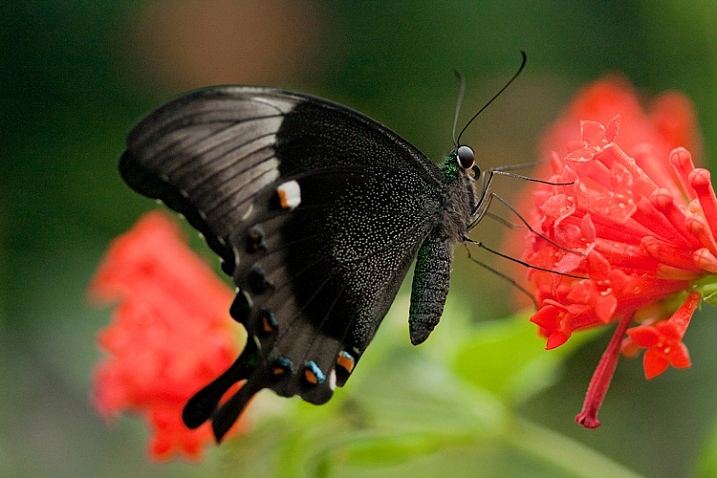
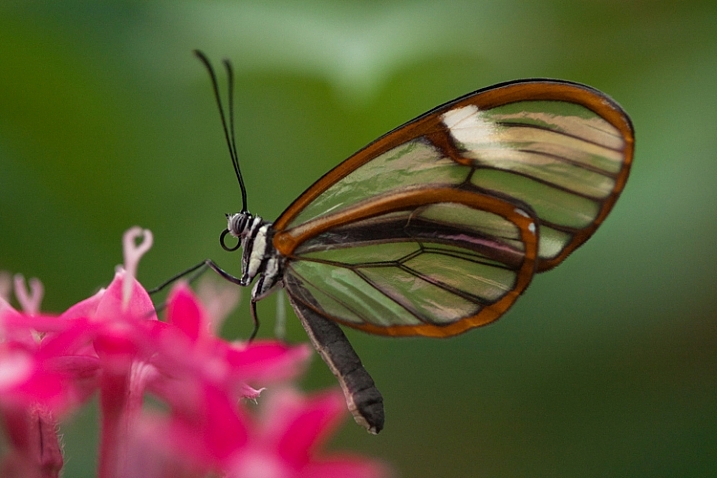
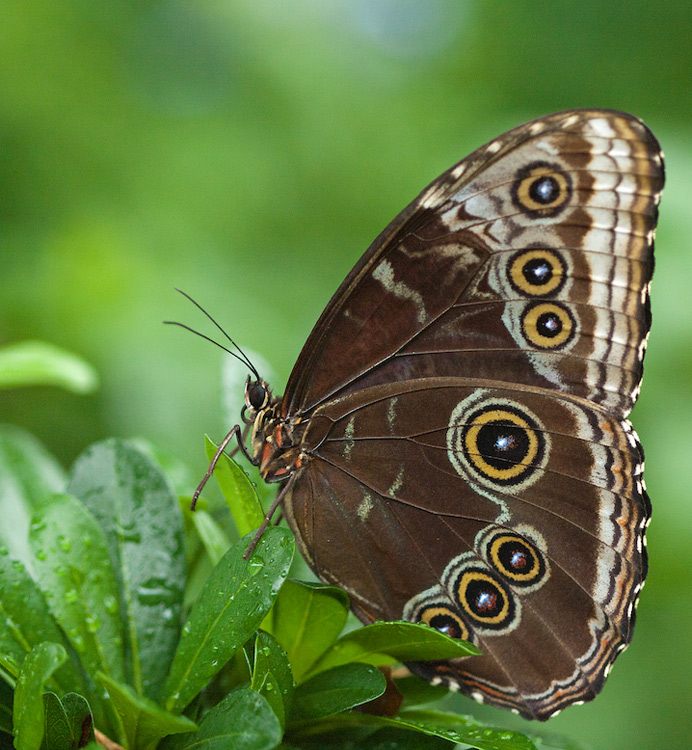
If you are using a larger aperture, and shallow depth of field – shoot the butterfly in profile. That way, you have more of the butterfly in focus. I also love to see how the antennae stands out from the background, and love the details of their legs. Yes, there is beauty in the wings, but there is also an awe in those tiny legs that support the butterfly, as well as its tendril. Look beyond the obvious, to details for outstanding photographs.

8. Shoot tight as well as loose to capture the environment

how-to-photograph-butterflies3

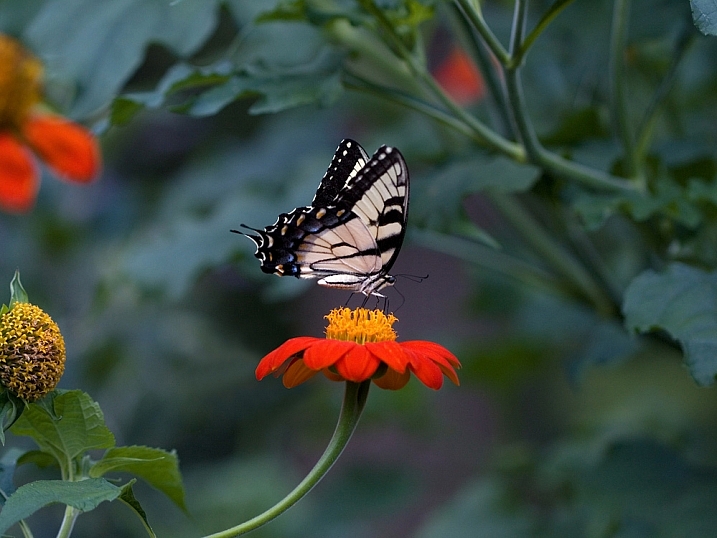
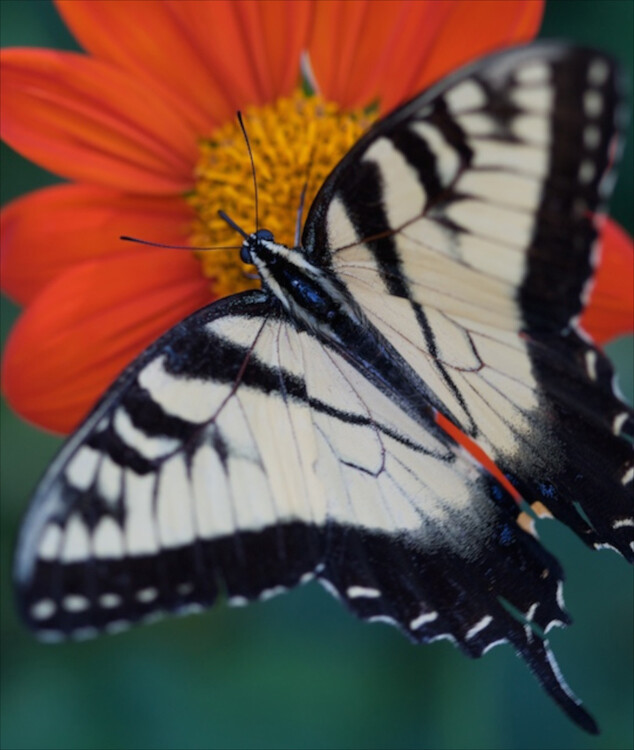
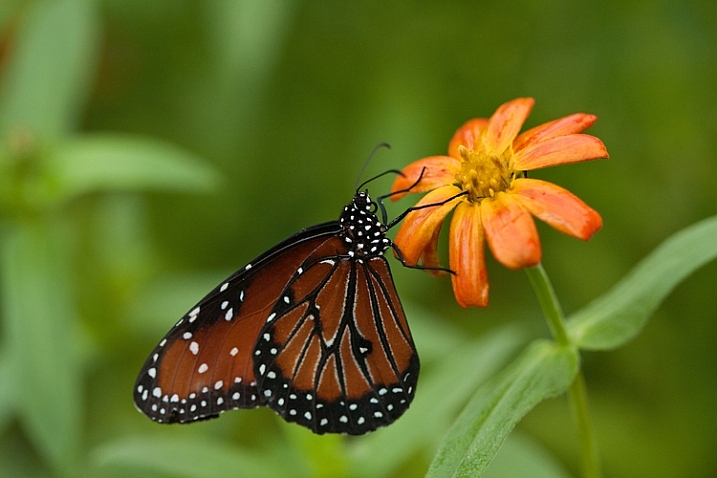
Notice the differences between the photographs above and below. It’s the same species of butterfly, in the same field of flowers – but one shot is cropped tighter and one is framed looser, with more space around the butterfly. Both are successful. Take note in the top photograph, how the antennae are framed with the orange flower to make them stand out. If my angle had been such to have the darker green in the background, it may not have been as successful.

Also note that the orange in the wings mimics the orange flowers. Shooting great butterfly shots goes beyond just taking sharp photographs of wings!

how-to-photograph-butterflies7

9. Break the profile rule (above)

I love this photograph because it feels like this butterfly is moving forward, into a new place. The head is sharp and the lower wings fall out of focus due to the narrow depth of field, but in this case, it really works because it pulls out attention to the butterfly’s eyes, and into the photograph. It gives the viewer the feel of looking over the shoulder of the butterfly into some new place.

how-to-photograph-butterflies8

This photo is successful because it moves beyond recording what the wings look like and creates a mood and sense of movement and anticipation.

10. Have patience and have fun!

Beautiful butterfly photos take time and patience, but they are worth it. If you don’t get it your first time out, keep trying. It’s a great chance to hone your skills and you might get an amazing shot.

Please share your questions and butterfly images below and also remember to post them on the weekly challenge: Butterflies and Bugs happening here.

googletag.cmd.push(function() {
tablet_slots.push( googletag.defineSlot( “/1005424/_dPSv4_tab-all-article-bottom_(300×250)”, [300, 250], “pb-ad-78623” ).addService( googletag.pubads() ) ); } );

googletag.cmd.push(function() {
mobile_slots.push( googletag.defineSlot( “/1005424/_dPSv4_mob-all-article-bottom_(300×250)”, [300, 250], “pb-ad-78158” ).addService( googletag.pubads() ) ); } );

The post 10 Tips for Great Butterfly Photos by Vickie Lewis appeared first on Digital Photography School.

Digital Photography School

 
Comments Off on 10 Tips for Great Butterfly Photos

Posted in Photography


Scrubbed: 12 Washed Up & Washed Out Abandoned Bathhouses

20 Jun

[ By Steve in Abandoned Places & Architecture. ]

abandoned-bathhouses-0
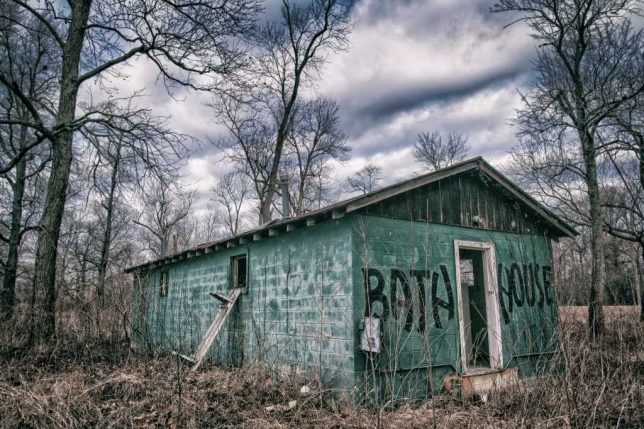
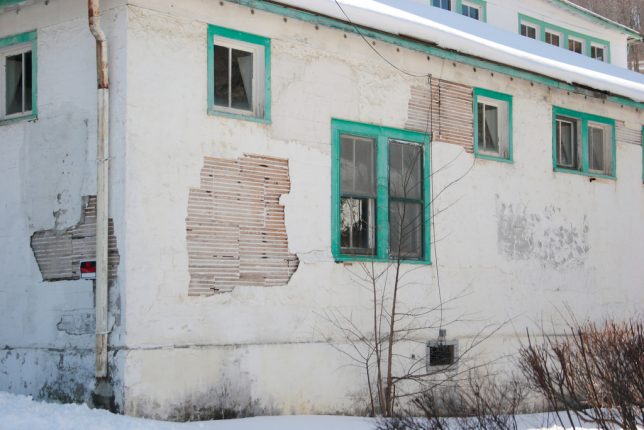
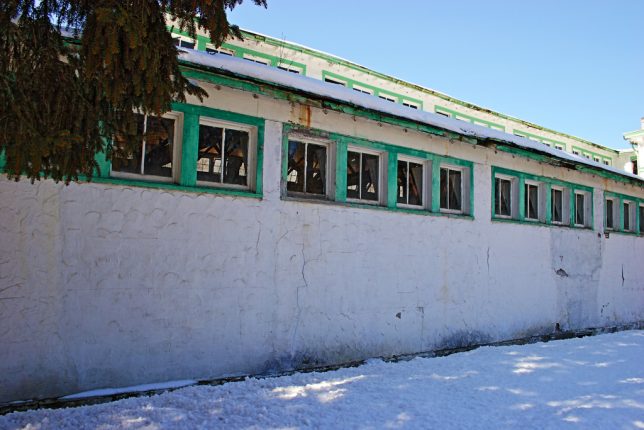
Public baths may have a checkered history and a not-so-squeaky-clean image but these dozen abandoned bathhouses prove things aren’t always cut & dried.

abandoned-bathhouses-1a

abandoned-bathhouses-1b

abandoned-bathhouses-1c

What have the Romans ever done for us? Anyone? Bueller? Well, apart from better sanitation and medicine and education and irrigation and public health and roads and a freshwater system and, of course, the aqueduct, those toga-wearing empire builders introduced the public bathhouse to western civilization.

abandoned-bathhouses-1d

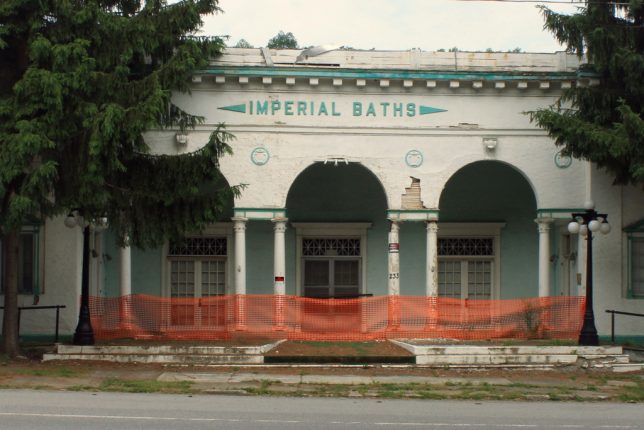
That noble heritage is referenced in the name of the abandoned Imperial Baths in Sharon Springs, NY., and while the historic spa village itself is enjoying somewhat of a revival, it comes too late for this and other grandiose bathhouses. Kudos to Flickr users Paul (fotofish64) and Mark Barnette, who scouted out the former upstate New York getaway in March of 2009 and June of 2013 respectively.

Zans Clothing Optional abandoned-bathhouses-2a

The ancient Romans may have raised the bar when it came to public baths but by no means did they have a monopoly on group bathing. Take the exotic and stylish abandoned bathhouse above, gently deteriorating for who knows how many years in the wilds of Zanzibar, an island in the Indian Ocean off the east coast of Tanzania. Flickr user Arlo Midgett (acmidgett) snapped the “Abandoned Persian bathhouse” in early January, 2013.

Michigan Ragged

abandoned-bathhouses-3f

abandoned-bathhouses-3e

abandoned-bathhouses-3d

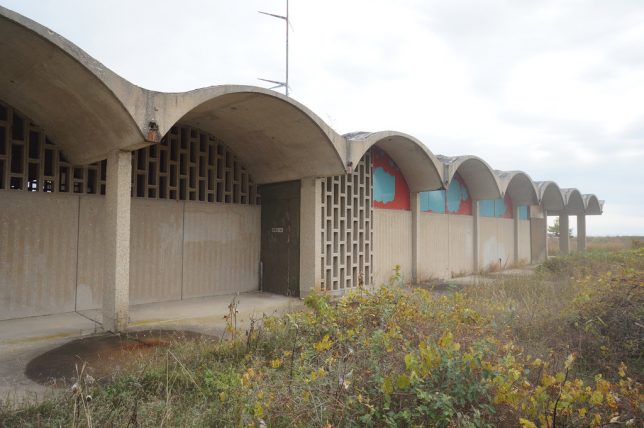
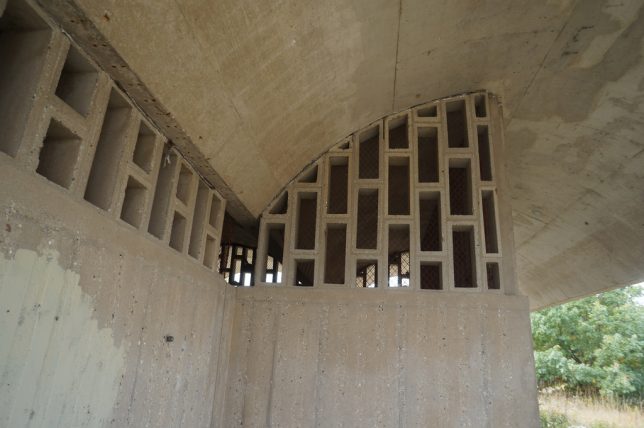
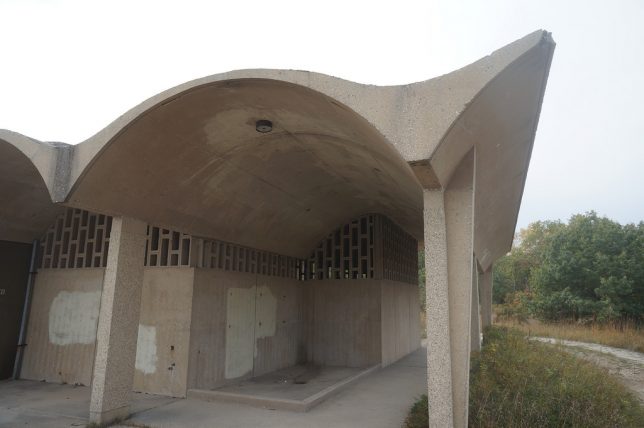
So swimming in Lake Michigan was a thing, and not just for unlucky stiffs whacked by the mob. This abandoned bathhouse in Illinois Beach State Park shows off some impressive mid-century modern style that still looks great after years of abandonment.

abandoned-bathhouses-3b

abandoned-bathhouses-3g

abandoned-bathhouses-3c

abandoned-bathhouses-3a

Flickr user Eli Naeher (enn-here) visited the empty edifice in late October of 2013 to take these slightly eerie (oops, wrong lake!) images. Nice to know the state parks & rec folks are into graffiti remediation and care enough to advise park-goers of the chance of random asbestos.

Next Page – Click Below to Read More:
Scrubbed 12 Washed Up Washed Out Abandoned Bathhouses

Share on Facebook


[ By Steve in Abandoned Places & Architecture. ]

[ WebUrbanist | Archives | Galleries | Privacy | TOS ]


WebUrbanist

 
Comments Off on Scrubbed: 12 Washed Up & Washed Out Abandoned Bathhouses

Posted in Creativity


Mystery science theater: A look inside the Samsung NX3000

19 Jun

A peek inside the Samsung NX3000

When it was introduced in May 2014, the Samsung NX3000 didn’t exactly make waves in the camera industry. But it did provide an attractive 20MP sensor, articulated 3″ LCD and plenty of connectivity for a reasonable $ 520 all wrapped up in a super slim rangefinder-style ILC. Being curious about these kinds of things, we wanted to see how Samsung managed to wedge all of that tech into such a slender frame, and thanks to iFixit we can sit back at a safe distance and see how it’s made.

A peek inside the Samsung NX3000

Before proceeding with the disassembly, the camera battery must be taken out.

A peek inside the Samsung NX3000

If iFixit’s disassembly guides have taught us anything, it’s that cameras are held together with a metric ton of tiny screws. Not surprisingly, there are considerably fewer on the NX3000. Disassembly of the lens mount starts with the removal of four 7.3mm Phillips screws.

A peek inside the Samsung NX3000

With a few screws on the bottom, sides and hotshoe removed, the back panel can be eased away from the body…

A peek inside the Samsung NX3000

…And with a ribbon cable disconnected, the panel can be completely removed to reveal a cool blue motherboard.

A peek inside the Samsung NX3000

A pair of tweezers can be used to pluck the tripod mount right out of the camera.

A peek inside the Samsung NX3000

There are several ribbon cables to be removed before the sensor is free, but we think this is the coolest looking one.

A peek inside the Samsung NX3000

…And here’s the sensor module.

A peek inside the Samsung NX3000

With a couple more ribbon cables removed, the motherboard is ready to go too.

A peek inside the Samsung NX3000

The top panel can be freed with only a few more pieces to go.

A peek inside the Samsung NX3000

The button panel is one of the last pieces to be removed from the shell of the camera, also a striking blue color.

A peek inside the Samsung NX3000

And there you have it, the Samsung NX3000 inside and out.

Articles: Digital Photography Review (dpreview.com)

 
Comments Off on Mystery science theater: A look inside the Samsung NX3000

Posted in Uncategorized


8 Things to Consider Before You Buy Your Next Lens

19 Jun
How to buy a camera lens

Prime lenses are best for creating portraits like this one, taken with the aperture set to f/1.2 to blur the background.

Are you thinking of buying a new lens for your camera? Stop, and read this article first.

One of the hardest things to achieve when buying new camera gear is clarity. Why do you need a new lens, how much should you spend, and where does it fit into the big picture of your gear acquisition? Once you are clear on these points, it makes the process of deciding which lens (or lenses) to buy next much easier.

Let’s look at eight things to consider before you buy that new lens:

1. Budget – how much do you have to spend?

Everybody’s budget is different, and the amount of money you have to spend determines which lenses come into consideration. But, no matter what your budget, hold that figure in mind while you read this article. You may see things in a different light afterward.

My approach is to own as few, good quality lenses as possible. In other words – don’t over buy. Keep the big picture in mind. What lenses would you eventually like to own for your camera? How does your next purchase fit into this plan? Ideally, you should have a good idea of which lenses you need, and then you can plan accordingly.

This type of thinking can lead to a big shift in what lenses you decide to buy. For example, a few years ago I became frustrated with the size and weight of my Canon system. I was also thinking ahead to some travel plans I had coming up, and realized it was important to keep my kit as lightweight as possible (hand luggage allowances are very low and strictly enforced in New Zealand airports). That led to the decision to switch to the Fujifilm X-Series system. I now have the lightweight kit required for traveling.

2. APS-C or Full-frame?

Most manufacturers offer both APS-C and full-frame cameras in their ranges. But this makes buying lenses even more confusing.

Let’s say you own an APS-C camera. But at the back of your mind you think you might one day buy a full-frame body. That raises the question – do you buy a lens that works on APS-C bodies only (the advantage being that it is probably smaller and lighter than a lens that would fit a full-frame camera) or one that fits a full-frame body as well (which will probably be larger and more expensive)?

Tricky question to answer, isn’t it? And that’s not even taking into account the difference that sensor makes to the lens’s angle of view.

Ideally, you should decide when you buy your first camera body whether it should be APS-C or full-frame, then stick to the same sensor size in the future. It greatly simplifies the lens buying process, and eliminates a lot of confusion.

How to buy a camera lens

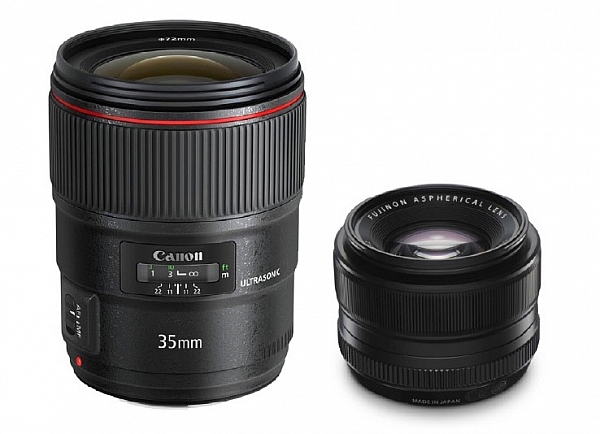
What do these two lenses have in common? They are both 35mm f/1.4 lenses. The Canon one (left) is much bigger than the Fujifilm lens (right) because it is made to fit a full-frame camera. This is a good example of how sensor size, affects lens size.

3. Don’t fall into the focal length trap

The focal length trap is the belief that you need zoom lenses that cover every conceivable focal length. For example, if you start off with an 18-55mm kit lens, then buy a telephoto zoom, you might feel that you need one that starts from 55mm so that you don’t miss out on any focal lengths in between.

This simply is not true. The next point explains the way you should be thinking about lenses.

4. What subjects are you going to photograph?

Continuing with the 18-55mm kit lens example, you may find yourself considering the following second lenses: a 50mm prime as a portrait lens (giving you the benefit of high quality imaging and wide apertures), or a macro lens for taking close-up photos of insects and flowers, or wide-angle zoom for landscape photography, or a super-telephoto for wildlife and sports photography.

The key point here is that lens choice is related to subject. The subject always comes first. Once you know what you are going to photograph, you can choose the best lens (or lenses) for the job. Focal length is a secondary consideration.

In other words, don’t buy a lens because you think you should own it, buy it because you actually need it.

How to buy a camera lens

5. Should you buy a zoom or a prime lens?

The benefit of zoom lenses is convenience. If you are a wedding photographer it is much easier to zoom from a wide-angle to a telephoto when you need to, than it is to change lenses. If you are a landscape photographer it is easier to use a wide-angle zoom to frame the scene precisely, than it is to change prime lenses (or it may not be possible to stand where you need to get the shot).

The benefits of prime lenses are image quality and wider apertures. Compare an 18-55mm kit lens (typical maximum aperture f/5.6) with a 50mm prime with maximum aperture of f/1.4. There’s a four stop difference 16 times more light) between f/1.4 and f5.6, which helps you take photos with blurred backgrounds, and also to shoot in low light conditions, without raising the ISO too much. That’s why a 50mm prime is a better portrait lens than the 18-55mm kit lens (taking us back to the point about lens choice being driven by subject, not focal length).

Some photographers prefer primes, others zooms – thinking about your priorities will help you decide which is best for you.

For example, if you are a landscape photographer who always shoots at f/8, f/11, or f/16 then the wider apertures that prime lenses have are of little use to you, and a zoom may be a better choice.

How to buy a camera lens

Action photos require a telephoto lens and a camera with a good autofocus system capable of tracking moving subjects. A zoom will help you frame the subject accurately.

6. Don’t forget about weight and size

Think about the weight and size of your lenses carefully. After all, you are the one who is going to be carrying them around.

But there is another thing you should also think about when it comes to size, and that is filters. You can save a lot of money on filters by buying smaller lenses. If you’re curious to see how much, do a search for circular polarizing filters and compare the prices of the same filter in 58mm and 77mm sizes. If you need to buy a lot of filters (landscape photographers take note) then you can potentially save hundreds of dollars by buying a smaller (the diameter of the lens or filter size is also smaller) lens.

How to buy a camera lens

Wide-angle zooms are ideal for landscape photos and will help you take photos like this. Bear in mind that smaller lenses also require smaller (and less expensive) filters.

7. Build quality, weather proofing and autofocus

Most manufacturers have inexpensive, middle range, and expensive or high end lenses. Inexpensive lenses may seem like a bargain at the time, but they won’t be built as well as more expensive ones, and they may also have inferior (i.e. slower and noisier) autofocus motors.

At the other end of the scale expensive lenses tend to be built well, use good quality autofocus lenses (i.e. faster and quicker) and may also be weatherproofed (important if you take photos in bad weather or dusty conditions).

Bear these points in mind when considering a lens. Don’t forget to ask how well the lens is built, whether it is weatherproofed, and the speed and quality of the autofocus motor.

How to buy a camera lens

Wide-angle lenses are also helpful for taking photos indoors, where you may not have space to move back to use a longer focal length.

8. Brand name or third party?

You can often save money by buying a third-party lens for your camera, but in my opinion it is best to buy a lens made by your camera’s manufacturer whenever possible. Unless you have a specific reason to buy a third-party lens (usually because the type of lens you need isn’t made by your camera’s manufacturer) then stick with OEM (Original Equipment Manufacturer) lenses. They hold their value better, and autofocus performance is usually superior.

Editor’s note: for a good discussion on that topic, head to: Brand Name Versus Third-Party Photography Gear: Which is better?

How to buy a camera lens

If street and candid photography is your thing, then consider buying smaller lenses to help you take photos like this, without being noticed.

9. Image Stabilization*

An Image Stabilizer is a motor inside the lens, that moves the elements in a way that compensates for the movement created by camera shake. It is given different names by different manufacturers (Nikon, for example, calls it Vibration Reduction). It helps you take photos in low light, using lower ISO settings or smaller apertures, than would otherwise be possible. Lenses with Image Stabilization cost more than their non-stabilized counterparts, so think carefully about whether or not you need it, before paying the extra money.

* Some manufacturers, like Sony and Pentax, build Image Stabilization into the camera body, not the lenses.

Hopefully these points will help you decide which lens to buy next for your camera. If you have any questions about lenses let us know in the comments and I will do my best to answer.


Mastering Lenses

If you want to know more about buying and using lenses then please check out my ebook Mastering Lenses: A Photographer’s Guide to Creating Beautiful Photos With Any Lens.

googletag.cmd.push(function() {
tablet_slots.push( googletag.defineSlot( “/1005424/_dPSv4_tab-all-article-bottom_(300×250)”, [300, 250], “pb-ad-78623” ).addService( googletag.pubads() ) ); } );

googletag.cmd.push(function() {
mobile_slots.push( googletag.defineSlot( “/1005424/_dPSv4_mob-all-article-bottom_(300×250)”, [300, 250], “pb-ad-78158” ).addService( googletag.pubads() ) ); } );

The post 8 Things to Consider Before You Buy Your Next Lens by Andrew S. Gibson appeared first on Digital Photography School.

Digital Photography School

 
Comments Off on 8 Things to Consider Before You Buy Your Next Lens

Posted in Photography


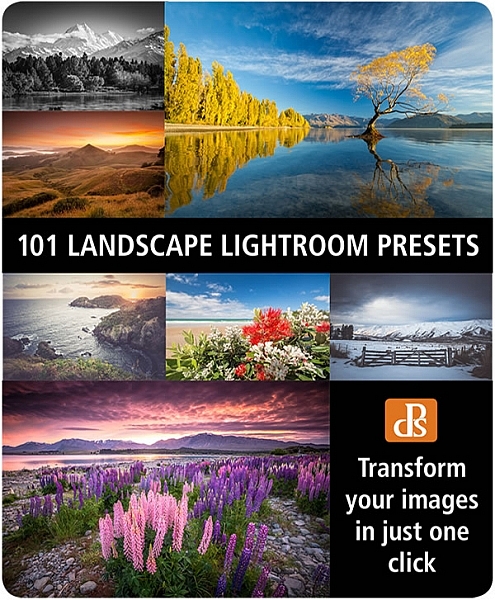
The Winner of $1000 from our 101 Landscape Lightroom Presets Competition is….

19 Jun

Recently we launched 101 Landscape Lightroom Presets product. As part of the launch we put everyone who purchased a copy into the draw to win $ 1000 in camera gear. Those who purchased the bundle (101 Lightroom Presets and 101 Landscape Lightroom Presets) received 2 entries.

The winner of this competition is Terrence Jones

Congratulations – we’ve just emailed you with details of how we’ll get you your prize and can’t wait to see what you buy!

landscape-lightroom-presets

Thanks everyone else for picking up a copy of the the presets packs – we’ve received some amazing feedback and appreciate you supporting dPS with your purchase.

googletag.cmd.push(function() {
tablet_slots.push( googletag.defineSlot( “/1005424/_dPSv4_tab-all-article-bottom_(300×250)”, [300, 250], “pb-ad-78623” ).addService( googletag.pubads() ) ); } );

googletag.cmd.push(function() {
mobile_slots.push( googletag.defineSlot( “/1005424/_dPSv4_mob-all-article-bottom_(300×250)”, [300, 250], “pb-ad-78158” ).addService( googletag.pubads() ) ); } );

The post The Winner of $ 1000 from our 101 Landscape Lightroom Presets Competition is…. by Darlene Hildebrandt appeared first on Digital Photography School.

Digital Photography School

 
Comments Off on The Winner of $1000 from our 101 Landscape Lightroom Presets Competition is….

Posted in Photography


How to Enhance Urban Night Photographs Using Luminosity Masks in Photoshop

19 Jun

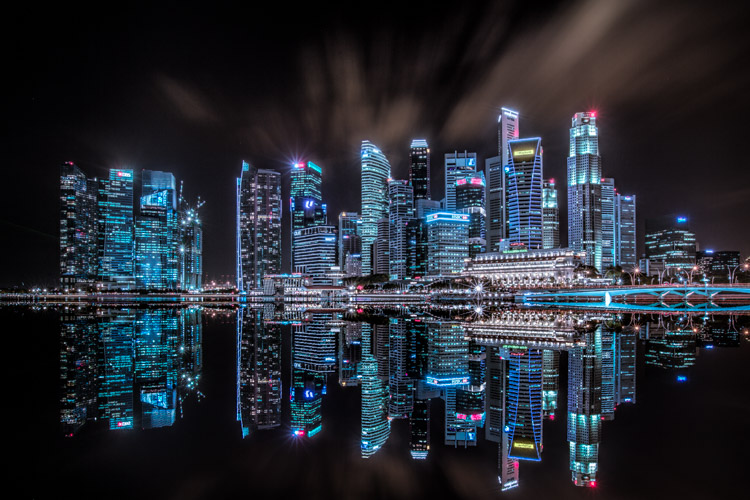
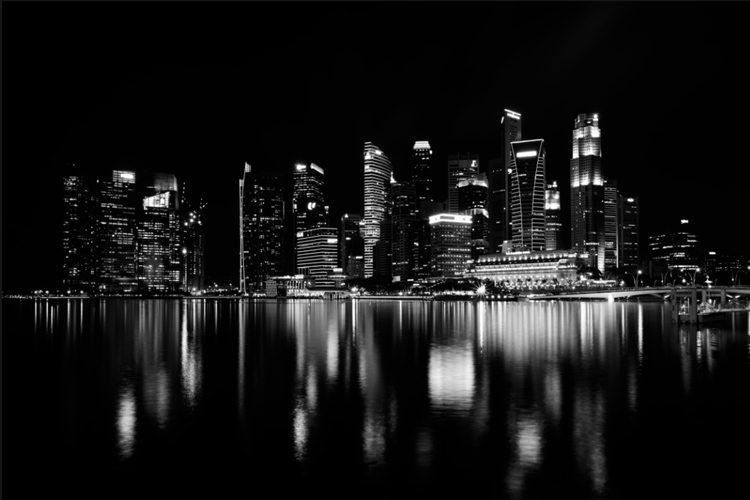
As the sun sets on a city’s skyline, thousands of lights come flooding the concrete jungle, turning every urban scene into a photographer’s paradise. Every corner around the city suddenly seems too irresistible not to be photographed.

Image 01

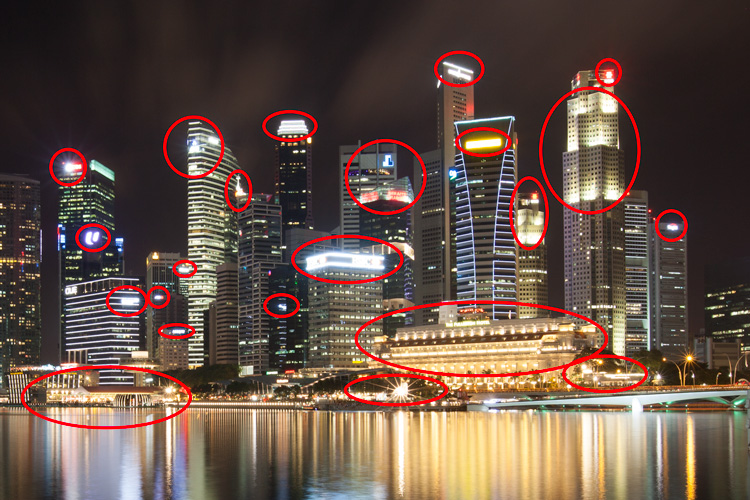
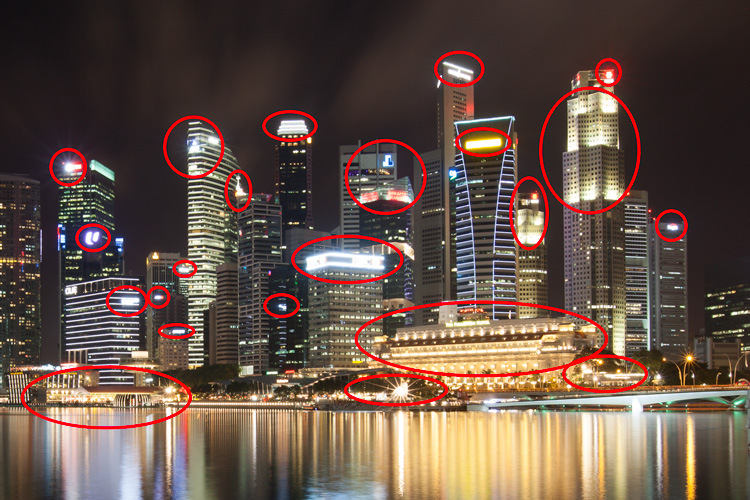
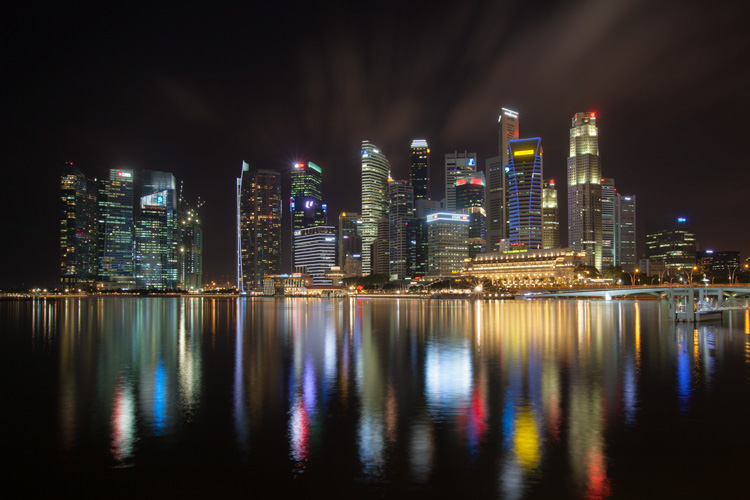
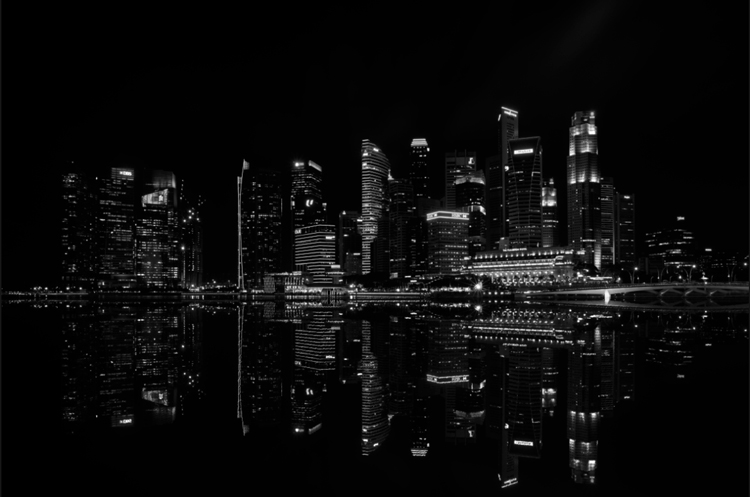
Urban night shots is probably one of the most common photos taken at night. The way most people shoot cityscapes at night is to keep the camera still, press the trigger, and snap the shot. The result is often an uninspired image, with overexposed highlights due to the long exposure. This problem can be fixed by blending multiple exposures, to recover details in the highlights with luminosity masks.

Image 02

Overexposure of highlights circles in red.

Using Luminosity Masks is a way of making a selection based on the luminosity (or brightness) value of the pixels. The main advantage of luminosity masks over other selection tools is its ability to feather the edges, which makes the transition seamless. One of the earliest articles detailing how luminosity masks works was published by Tony Kuyper. You can learn more about luminosity masks here.

In this tutorial, I will show you step by step, how you can recover detail in the highlights of your urban night shots, using luminosity masks in Photoshop. There are two parts to this: taking the multiple exposure, and editing them in Photoshop with luminosity masks.

Part one: How to take multiple exposures

  • Step 1: You need a tripod, and a camera that has aperture priority and manual mode.
  • Step 2: Mount your camera on the tripod and compose your image. In aperture priority mode, set the aperture and ISO settings you want, and take a shot with the default metering mode (usually matrix metering).
  • Step 3: Review the image on the LCD screen and take note of the shutter speed. Switch your camera to manual mode and dial in the ISO, aperture, and shutter speed that you used for the first shot.
  • Step 4: Speed up your shutter speed by one stop and take a shot again. For example, if the initial shutter speed was 30 seconds, stopping up by one stop would be 15 seconds (the shutter speed halves).
  • Step 5: Repeat step 4 until you can see details in the highlights by zooming in on the LCD screen on your camera, and checking the histogram for clipped highlights (blinks).

Tip: Use a remote release and/or enable mirror lockup (in a DSLR) to ensure the sharpness of your photos.

Part two: Recovering the highlights using luminosity masks in Photoshop

Step 1: If you use Adobe Lightroom, select all the images you want to blend. Right click on the mouse, choose Edit in > Open as layers in Photoshop. Otherwise, you can open them individually in Photoshop, use the move tool and drag each image into a single file as layers.

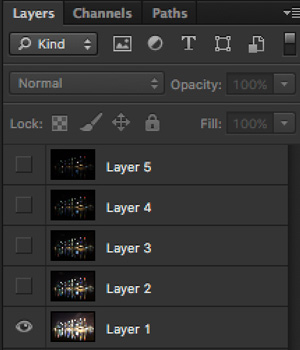
Step 2: Make sure the images are arranged such that the brightest exposure is at the bottom of the layers. To make sure all images are absolutely aligned, select all layers, then go to Edit > Auto-Align Layers. You may have to crop the image a bit after alignment.

Image 03

The layers are arranged so that the brightest image is at the bottom.

Step 3: Make sure you have luminosity masks Photoshop Actions to add and remove luminosity masks. If you don’t, you can download it here (the file is zipped, so make sure you unzip it first, then follow the instruction on how to install it here).

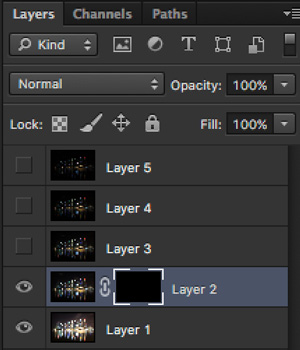
Step 4: To start off, make all layers invisible except the bottom two (layer 1 and 2). You can do so by unchecking the eye icon next to each layer. Next, create a mask for Layer 2 and fill it with black.

Image 04

Step 4: Next, generate luminosity masks based on Layer 1 (the brightest exposure). To do that, select Layer 1 on the layers panel, and generate the luminosity mask with the Photoshop Action.

Step 5: Go to Channels panel, select a Brights luminosity mask that targets just the highlights. In this case, Brights 2 seems like a good choice because it is not too restrictive and has good feathering on the edges.

Image 05

Step 6: Select Brights 2 luminosity mask by holding down CMD (Mac) or CTRL (Win) and left click on the mask. You should see marching ants appear on the image. Depending on your image, if you do see a pop-up window that says “Warning: No pixels are more than 50% selected…”, don’t worry about it and just click ok.

Step 7: Go back to the layers panel and click on the mask on layer 2. Select the brush tool, set the opacity to 50%, color to white, and paint over the layer mask to blend the darker exposure (Layer 2) into the brighter exposure (Layer 1 below). Depending on your image, you can choose to paint just the brightest highlights or all of them. In this example, I chose to paint all the highlights. If you find the marching ants annoying, hit CMD (Mac) or CTRL (Win) + H key to hide them.

Image 06

Details in the highlights are gradually recovered.

Step 8: Delete the luminosity masks generated previously because you now need luminosity masks based on the brightness of Layer 2, where you have just blended in the darker exposure. To do so, remove the current luminosity masks with the Photoshop Action.

Step 9: Now select Layer 2 and generate luminosity masks with the Photoshop Action.

Step 10: Select Layer 3, add a layer mask, and fill it with black.

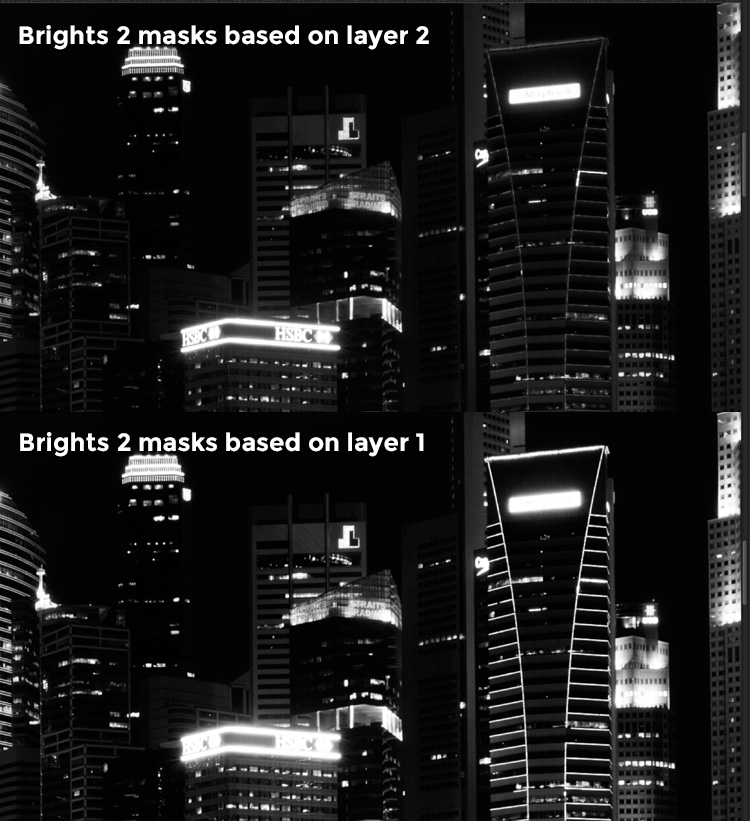
Step 11: Go to the Channels panel, select a brights mask that targets the highlights. In most cases, selecting the same mask should do the job. In this example, I have chosen the Brights 2 mask again.

Image 07

Comparison of Brights mask for Layer 1 and Layer 2.

Step 12: Hold down CMD (Mac) or CTRL (Win) and click on Brights 2 mask to select once again. Go back to layers panel and click the mask on Layer 3, then use a white brush as before, and paint over the highlights again. You should see details being recovered gradually. At this stage, you should consider painting over the brightest highlights only instead of the whole image. In this example, I only painted the highlights as circles in the illustration below.

Image 02

Step 13: Repeat Steps 8 to 12 until you are done with all the layers. Your final image should have a more balanced exposure, with details in the highlights. You can then apply further tonal or color adjustments, and sharpening to your image.

Image 08

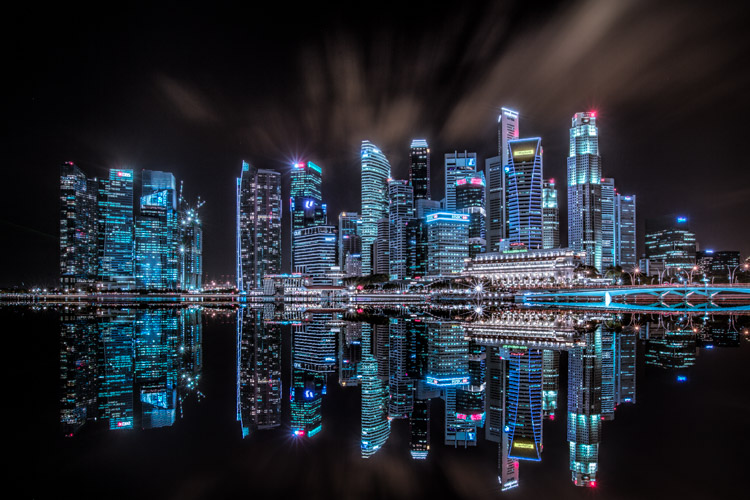
Final image.

Bonus: Adding a reflection and color to the lights

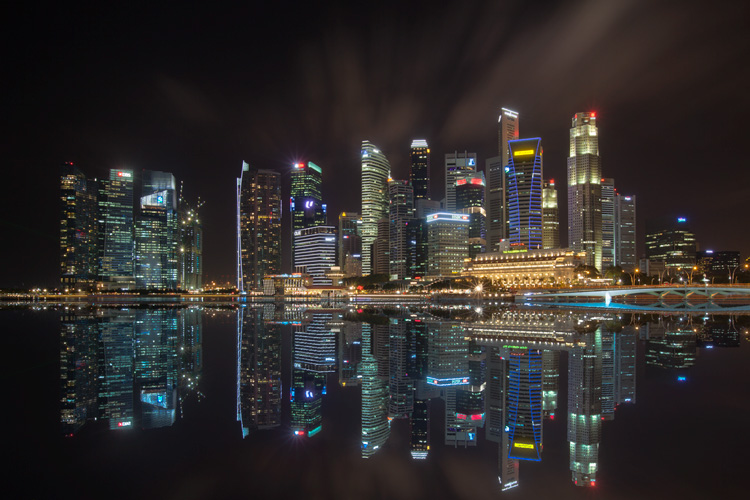
This involves a lot of editing, and may not be for everyone. For those of you who are into post-processing, you can clean up the image by removing unwanted objects, add a reflection, and change the color of the lights.

Adding a reflection

This only works if you have an empty foreground in your image like the example here.

  • Step 1: Use the rectangular marquee tool and make a selection of the city’s skyline. Then, copy and paste it as a new layer.
Image 09

Copy and paste the selection as a new layer.

  • Step 2: Select the layer of the copy, hold CMD (Mac) or CTRL (Win) + T to transform. Move your cursor to the image, right click and select > Flip Vertical. Use the move tool to position the flipped image lower to align the border.

Image 10

  • Step 3: You can add a ripple effect to the reflection by going to the top menu and selecting Filter > Distort > Ripple. Keep the size of the ripple to medium, set the amount you like, and press ok.
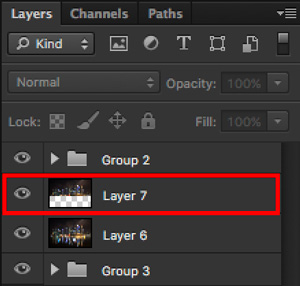
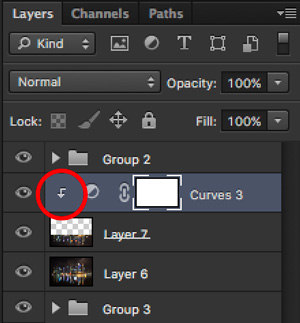
  • Step 4: Increase the contrast of the reflection by adding a curves adjustment layer, and clip it to the reflection layer only. To do that, right click on the curves layer and select Create Clipping Masks. You should see a little arrow on the curves layer pointing down at the layer below it. You can also reduce the opacity of the reflection layer if you like.
image-11

Clipping curves adjustment to the layer below.

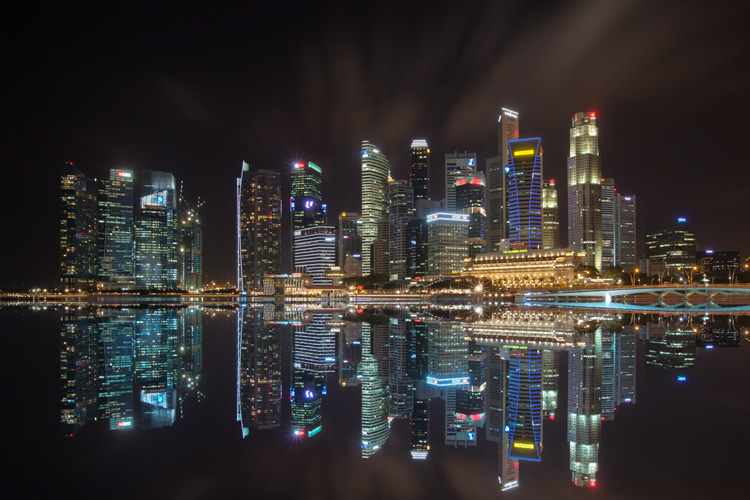
Image 12
Final image with reflection.

Adding color to the lights

  • Step 1: You need a visible layer to begin with. If you don’t have one, you can go to the menu on the top and choose Layer > Merge Visible.
  • Step 2: Generate luminosity masks based on this layer. Remember to delete any luminosity masks you had before this.
  • Step 3: Select a brights luminosity masks that targets the highlights. In this example, I know from before that brights 2 mask works very well, so I’m going to choose it again. Select it by holding cmd (Mac) or ctrl (Win) + left click on your mouse.
Image 13

Brights 2 luminosity mask.

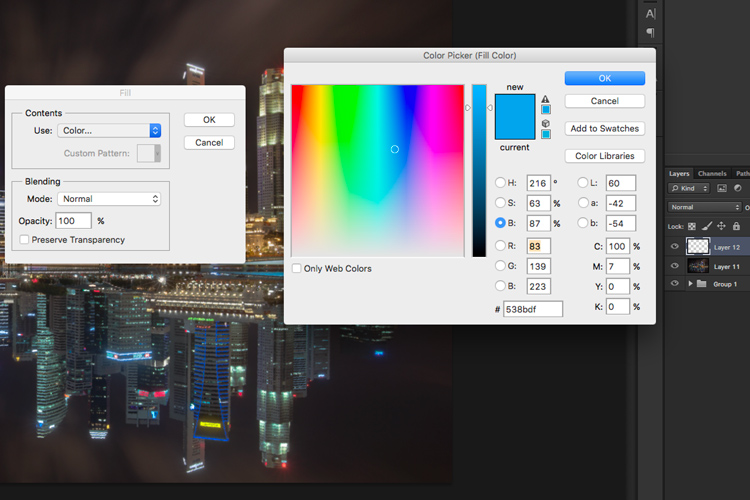
  • Step 4: Add a new layer, and change the blend mode to soft light. The selection should be automatically loaded onto this new layer already.
  • Step 5: Now fill the with the color of your choice by holding down Shift + Backspace, select a color, and press ok. You should now see the color of the lights have changed subtly.

Image 14

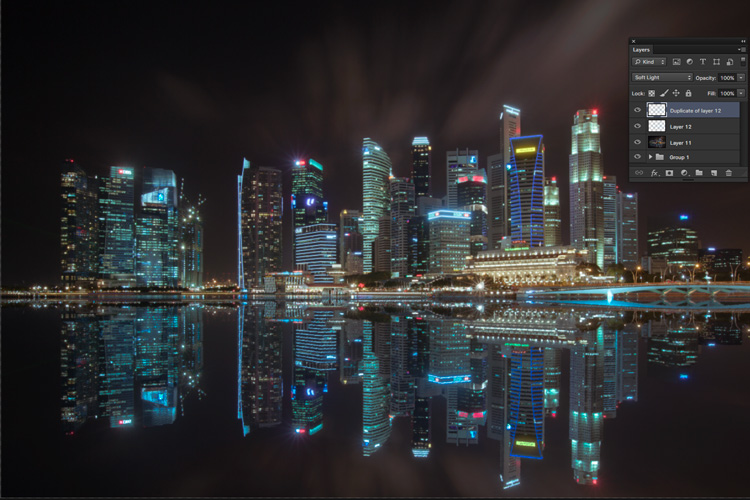
  • Step 5: If you want the effect to be stronger, duplicate the layer once or twice until you like it.
Image 15

Duplicate the layer for a stronger effect.

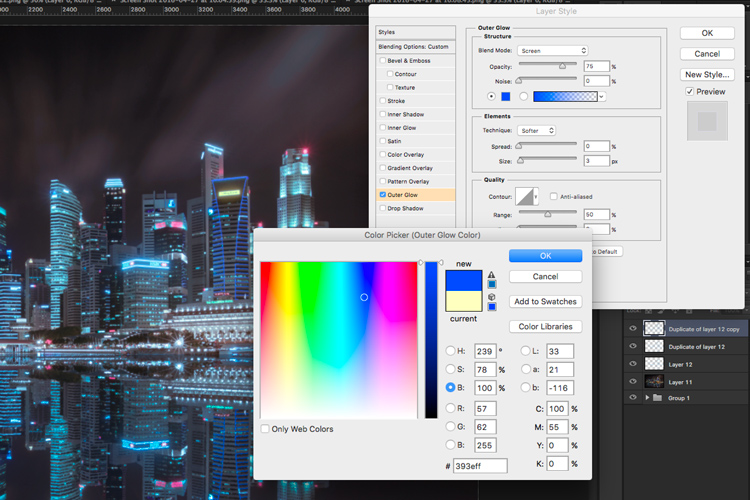
  • Step 6: The final step is what makes the lights glow. Double click on the top layer to bring up the layer style. Check the box for outer glow, and pick a color that is slightly darker than the one you have used before. Click ok and your done!
Image 16

Apply outer glow for the final touch.

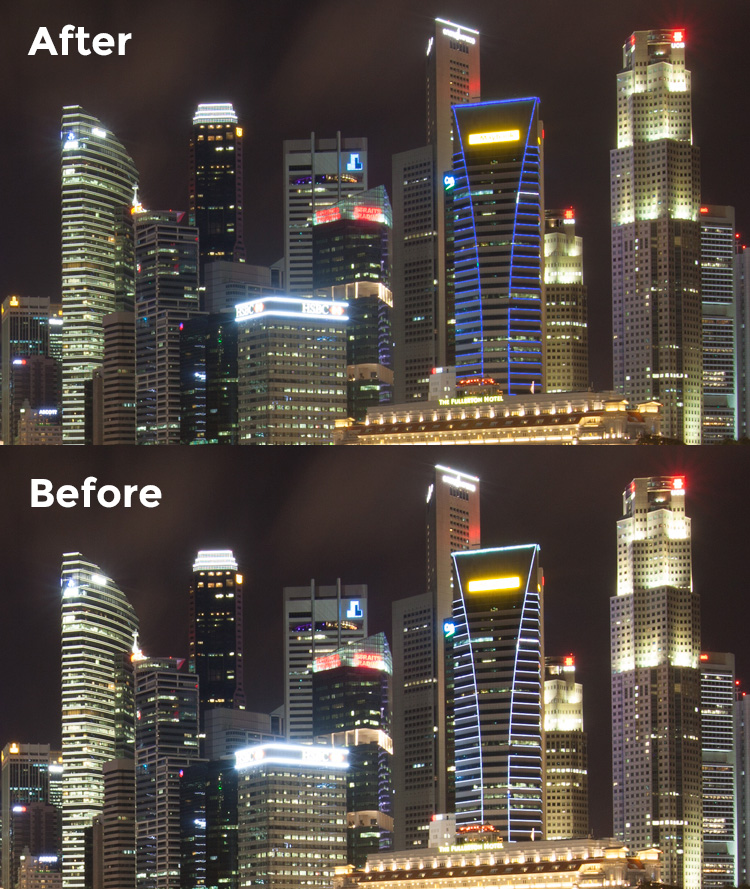
Apply a few other tweaks and sharpening and you’ve got yourself a cool urban night cityscape!

Before

Before

Image 01

After


googletag.cmd.push(function() {
tablet_slots.push( googletag.defineSlot( “/1005424/_dPSv4_tab-all-article-bottom_(300×250)”, [300, 250], “pb-ad-78623” ).addService( googletag.pubads() ) ); } );

googletag.cmd.push(function() {
mobile_slots.push( googletag.defineSlot( “/1005424/_dPSv4_mob-all-article-bottom_(300×250)”, [300, 250], “pb-ad-78158” ).addService( googletag.pubads() ) ); } );

The post How to Enhance Urban Night Photographs Using Luminosity Masks in Photoshop by Yaopey Yong appeared first on Digital Photography School.

Digital Photography School

 
Comments Off on How to Enhance Urban Night Photographs Using Luminosity Masks in Photoshop

Posted in Photography


Space Age 3D Furniture: Skyscrapers & Rockets Support Stellar Tables

19 Jun

[ By WebUrbanist in Design & Furniture & Decor. ]

curved wave table

Furniture designer and sculptor Stelios Mousarris has added a new twist to his latest 3D-printed creation, taking a leap from sweeping cityscapes to impromptu launch platforms with a spaceship-supported glass coffee table.

rocket lift table

rocket slice

The Cyprus-based creator has “been collecting toys and action figures and anything nostalgic from my childhood until this day,” and wanted to recreate that sense of carefree creativity and imagination in this latest piece, turning toy-style rockets into the centerpiece of a clever table design.

rocket table top

rocket side table

The table’s creation “combines various techniques from lathe to 3D printing, resin casting and traditional hand carved elements” while “each of the individual rockets remain unattached to the glass, allowing the user to generate their own desired structure and configuration. The table is designed to tap into the playful minds of nostalgic adults and children alike.”

wave coffee table

wood table detail

wave table side

wave city table

wave wrapping city

In his previous works, Mousarris has taken an inception-style approach to wrapping cities, turning their inverted grounds into the supports for coffee and dining tables (using raw wood or added glass to top them off, respectively). The meticulously-detailed buildings become a layer of urban decor, allowing the rest of the materials to remain minimalist in their expression.

Share on Facebook


[ By WebUrbanist in Design & Furniture & Decor. ]

[ WebUrbanist | Archives | Galleries | Privacy | TOS ]


WebUrbanist

 
Comments Off on Space Age 3D Furniture: Skyscrapers & Rockets Support Stellar Tables

Posted in Creativity


Review: Panasonic Lumix DMC-GX85 impresses with image quality, versatility

19 Jun

Key Features

  • 16MP Four Thirds MOS sensor
  • Electromagnetically driven shutter
  • Depth from Defocus AF
  • 2.76M-dot field sequential EVF
  • 1.04M-dot tilting touchscreen display
  • 4K video / photo
  • 5-axis image stabilization with Dual I.S.
  • Bouncable pop-up flash
  • Wi-Fi

The Panasonic Lumix DMC-GX85 is a mid-range interchangeable lens camera sporting a 16MP Four Thirds sensor and 4K video capability. In markets outside of North America the GX85 is sold as the GX80; in Japan it is sold as the GX7 Mark II.

Sliding in directly below the flagship GX8, the GX85 is targeted toward enthusiast photographers and videographers. It doesn’t use the new 20MP Four Thirds chip we saw in the GX8, instead it sticks with the familiar 16MP sensor used on many other Micro Four Thirds cameras. It also does not have the tilting EVF, weather-sealing or microphone input offered by the GX8. 

Still, the GX85 shares many of its big brother’s features like 4K photo mode, Post Focus, Depth from Defocus AF, and Dual I.S.. It also has a redesigned shutter mechanism. Shutter-induced blur (‘shutter shock’) was an issue we encountered on the GX8, which used a motor and spring arrangement in its shutter mechanisms. The new electromagnetic shutter found in the GX85 resolves this problem.

The GX85 also has no anti-aliasing filter, a first for Panasonic cameras. This should lead to better detail retention at the pixel level, but can also lead to moiré. However, Panasonic claims that the new Venus Engine image processor is specially tuned to combat moiré and false color and in use, we’ve found that it does so pretty well.

Like the GX8, the GX85 offers Dual I.S., combining sensor-based image stabilization with lens-based IS. But unlike the GX8, which has 4-axis sensor IS, the GX85 offers 5-axis sensor IS with rotation correction. Another advantage over its big bro: the GX85 can also use Dual IS during 4K video capture, something that the GX8 cannot.

Compared to its peers

  Panasonic GX85 Panasonic GX8 Panasonic GX7 Olympus PEN-F  Sony a6300
Sensor 16.0MP Four Thirds CMOS  20.3MP Four Thirds CMOS 16.0MP Four Thirds CMOS  20.3MP Four Thirds CMOS  24.0MP APS-C CMOS
Anti-aliasing filter  No  Yes Yes  No  Yes
Image stabilization Sensor-shift (5-axis) + Dual I.S.
Sensor-shift (4-axis) + Dual I.S. Sensor-shift (2-axis) Sensor-shift (5-axis) In-lens only
AF system  49-pt CDAF 49-pt CDAF 23-pt CDAF 81-pt CDAF Hybrid AF
(with 425 PDAF points)
Flash x-sync  1/160 sec  1/250 sec   1/320 sec 1/250 sec  1/160 sec
Burst rate
(with C-AF)
 6  fps   6 fps 5 fps 5 fps   11 fps
EVF res/type 2.76M-dot field sequential LCD 2.36M-dot tilting OLED 2.76M-dot tilting field sequential LCD 2.36M-dot fixed OLED 2.36M-dot fixed OLED
EVF magnification  0.7X 0.77x  0.7x 0.62x  0.7x
LCD type/res 3″ tilting touch 1.04M-dot LCD 3″ vari-angle touch
1.04M-dot OLED
3″ tilting touch
1.04M-dot LCD
3″ vari-angle touch
1.04M-dot LCD

3″ tilting
921.6k-Dot  LCD

Built-in flash  Yes  No  Yes No *  Yes
Video 2160/30p @ 100Mbps 2160/30p @ 100Mbps 1080/60p @ 28Mbps 1080/60p @ 77Mbps  2160/30p @ 100Mbps
Mic/headphone sockets No / No Yes / No No / No No / No Yes / No
Weather-sealing No Yes No No  Yes
Battery life  290 shots 330 shots 320 shots 330 shots 400 shots 
Dimensions 122 x 71 x 44 mm 133 x 78 x 63mm 123 x 71 x 55mm 125 x 72 x 37mm 120 x 67 x 49 mm
Weight (CIPA) 426 g 487 g 402 g  427 g 404 g
* External flash included in box 

It’s arguable whether the GX85 should be called the little brother of the GX8 or the true replacement to the GX7. And the different regional naming conventions for the GX85 only add to the confusion. The chart above seems to give support to both ways of looking at it: the GX85 uses the same field sequential EVF as the GX7 (although it doesn’t tilt), and what is presumably the same sensor (sans AA filter). And like the GX7, it lacks weather sealing and microphone/headphone ports but has a pop-up flash.

However, aside from its sensor and EVF, the GX85 also shares a lot of core components and specs with the GX8, such as its 49-point AF system, 4K video capture and 6 fps burst with AF. So whichever way you view the GX85, it certainly stacks up nicely to its Panasonic peers, as well as to the competition.

Part of the family: The GX85 (top) alongside its Lumix stablemates, the GX7 and GX8.

Pricing and availability 

Kitted with the collapsible 12-32mm F3.5-5.6 zoom lens, the GX85/GX80 will run you $ 799/£599/€699. In the UK and Europe it’s available body-only for £509/€599 and with both the 12-32mm F3.5-5.6 and a 35-100mm F4-5.6 for £729/€899.

Articles: Digital Photography Review (dpreview.com)

 
Comments Off on Review: Panasonic Lumix DMC-GX85 impresses with image quality, versatility

Posted in Uncategorized


Avast Photo Space lets you store more photos on your iPhone

18 Jun

Software maker Avast is known by most users for its mobile and desktop anti-virus products, but now the company has launched an app with a totally different use case. Avast Photo Space allows you to increase the number of pictures you can store on your iPhone by up to 7 times. 

It does so by reducing the resolution of the images that are stored on your device down to the resolution of the screen. At the same time, the app connects to your personal cloud service – currently Dropbox or Google Drive are supported –  where it stores the full-size versions. So you can always access the original files when needed, but still have a usable smaller image on your device. 

Avast Photo Space also comes with its own camera app which automatically transfers, optimizes and syncs your images right at the point of capture, for a totally seamless user experience. Given the iPhone does not offer any local storage expansion options the app sounds like a good idea for those users who are constantly on the verge of running out of photo storage space and don’t rely much on image magnification while viewing. Avast Photo Space is now available as a free download from the Apple App Store. 

Articles: Digital Photography Review (dpreview.com)

 
Comments Off on Avast Photo Space lets you store more photos on your iPhone

Posted in Uncategorized