RSS
 

Archive for March, 2016

Getting Started with Layer Masks in Photoshop – a Beginners Tutorial

09 Mar

Barn-DPSexample

Much of the power of Photoshop comes from its use of layers, which can best be thought of as transparency over your image. Layers have lots of benefits, like the fact that you can work on your image without affecting the pixels in the underlying image. But perhaps the most powerful aspect of layers, is your ability to affect exactly where, how, and how much of your changes will affect the underlying image. That is all done through layer masks. In fact, it might be fair to say that layers are really only effective because of layer masks.

What are layer masks? Think of them as filters that let you control the impact of the changes you make to your image. Just like you can change ordinary filters to determine what gets through them, so you can adjust a layer mask to control what changes. If that sounds confusing, don’t worry, and I will walk you through the basics of layer masks now.

How Layer Masks Work

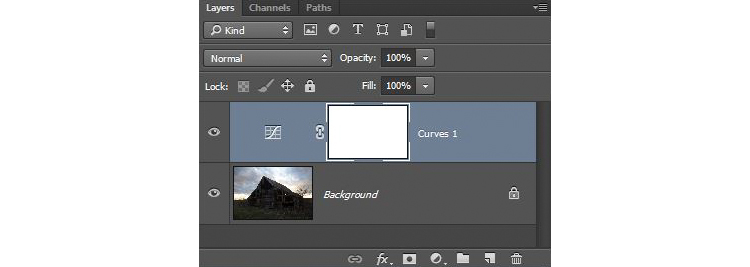
To understand layer masks, it is best to start with the simplest form. A mask that does nothing – that is, it lets absolutely everything through from the layer you are working on, to the layer underneath – it is represented by solid white. This is referred to as a “reveal all” layer mask in Photoshop. When you look at your layers palette with a white/reveal-all layer mask, it will look like this:
Graphic1-WhiteLayerMask

When your mask is all white, any change you make on that layer, will apply to the underlying image. How do you create an all white image layer mask? Very often – as in the case of adjustment layers – one will automatically be created for you. Or, to add one yourself, just go to Layer > Layer Mask > Reveal All. You can also click on this button at the bottom of the layers palette to create one on the layer you have selected

Graphic2-LayerMaskButton2

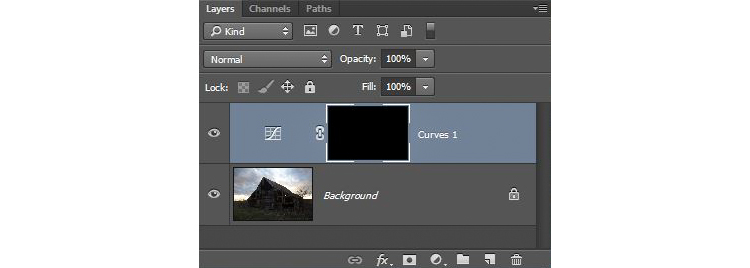
An all-white layer mask is actually pretty useless. The utility of the layer mask comes when we start masking (hiding) things off. Before we get into that, however, let’s talk about how to create an all-black layer mask. As you might expect, a black layer mask works the opposite way as a white one, and lets absolutely nothing through to the layer underneath. You can make all the changes you want to this layer, and it will have no impact on your underlying image. Here is how it will look when you create one:
Graphic3-BlackLayerMask

To create an all-black layer mask, just go to Layer > Layer Mask > Hide All or press ALT while clicking on the same button used in the graphic above to make a white layer mask. Now that you know what layer masks are, and the basics, we can get into the real fun of them, which is where you have blacks, whites, and even tones of gray in the same mask.

Masking

Layer masks allow you to apply changes to some parts of the image, but not others. Just remember that wherever your layer mask is white, it will let the changes you made to the layer through, so that they apply to your image below. Wherever your layer mask is black, it will not let the changes through, so they will not apply to the image. Before we get into how to do that, let’s talk about when you might want apply changes to only part of your image.

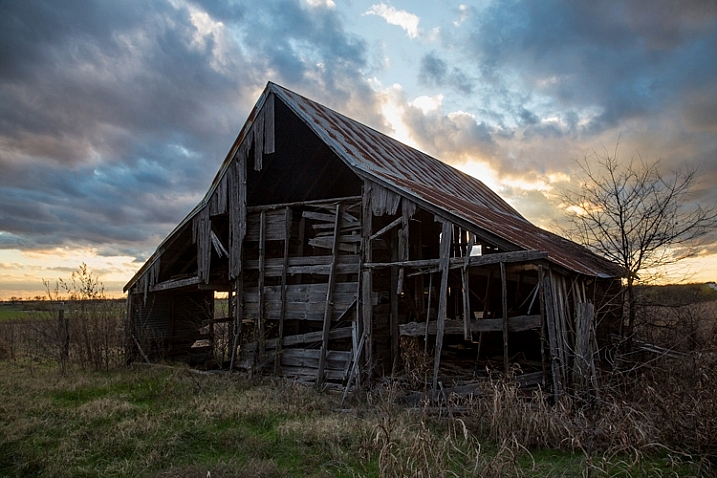
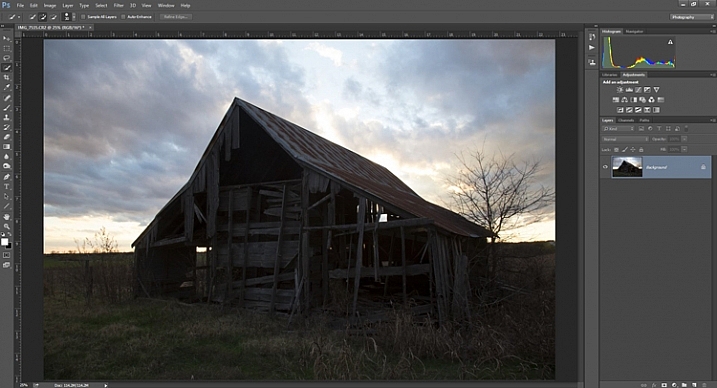
Let’s take this picture of an old barn. I’m choosing this image because it will be simple to adjust using masks, as it only involves two main areas. As you can see, the sky is too bright, while the barn and foreground are too dark. In doing this for yourself for the first time, use a simple picture like this to get started.
Graphic4-BarnOriginal

As you probably know, you do not want to edit these two areas in the same way, so a global adjustment to the whole image won’t help. You can, however, use masks so that edits only apply to the areas you want. For example you might darken the sky like this:
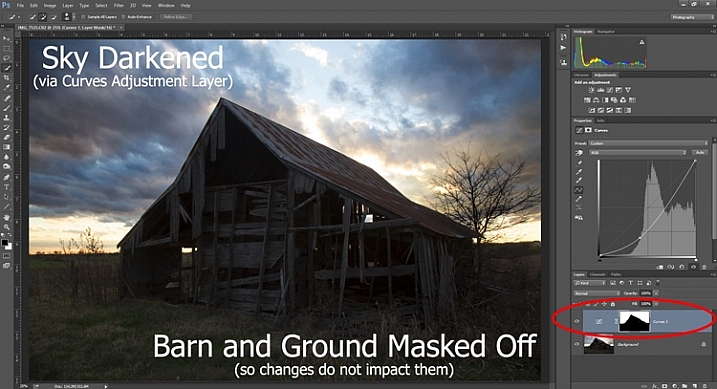
Graphic5-SkyDarkened

Here I masked off the barn and foreground so that the darkening only applies to the sky. I used a quick Curves Adjustment layer to darken the image. As you can see, the mask of the sky is white (so the changes affect the image in that area), while the mask of the barn and foreground is black (so the changes do not affect that part of the image).

Now let’s do the opposite to brighten up the barn and the foreground. Once again, I’ll use a layer mask so that my changes only affect the barn and the foreground, so that it looks like this:
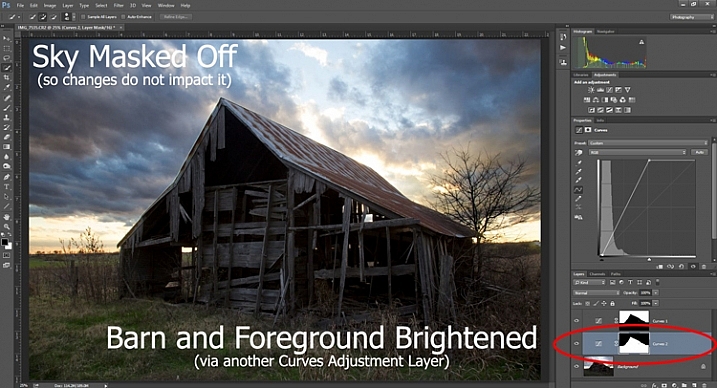
Graphic6-ForegroundBrightened

This is the same move I made above, but in reverse. I created another Curves adjustment layer to brighten up the image. Now the layer mask is white over the barn and foreground, which means the brightening effect shows through in those areas. The layer mask is black over the sky though, so the brightening effect does not impact the sky (which is already bright enough).

But how do you do go about creating these layers and masks? Let’s find out now.

Creating a Layer Mask with Defined Edges

There are different ways to mask off portions of your images. Sometimes you will want to create a mask with a hard or definite edge, while other times you will want to gently blend in the effect to a portion of your image. In this article I will cover how to create a mask on an image with a hard edge (I will get into blending in changes in a later article). The photo of the decaying barn used above will work just fine for this, so let’s stick with that photo as our example.

Step 1: Make Your Selection

To darken the sky in the image, the first thing you need to do is select the sky. To do so, click on the Quick Selection tool from your tools panel. Then click anywhere in the sky, and while holding the mouse button down, move around where you want to select pixels for your selection. Photoshop will automatically detect edges. To make the Quick Selection tool larger or smaller, use the square bracket ( [ and ] ) keys. If you end up selecting pixels you don’t want for your selection (and you inevitably will), press the ALT key (Option on a Mac) while clicking and it will remove them.
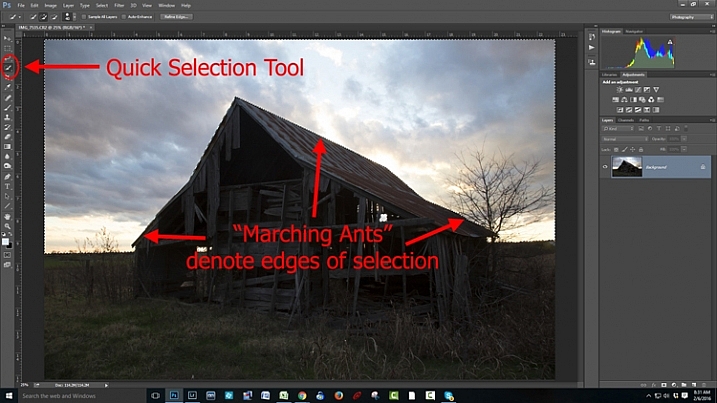
Graphic7-MarchingAnts

Photoshop is famous for providing several different ways of accomplishing the same thing. Making selections with hard edges is just such a case. You don’t have to use the Quick Selection tool. You can also use the Magic Wand tool, which will select similarly-toned pixels. Or you could use the Pen tool, or the Magnetic Lasso tool to draw the edges yourself. I could actually see a good case here for the Color Range command (Select > Color Range), which selects pixels of similar colors. Any one of those tools could work. While I want to point that out, I don’t want to get bogged down covering each of them. For now, just know that while I typically use the Quick Selection tool and did so here, there are other tools you can use to make the selection.

Step 2: Refine Your Selection

Once you make your selection, you can refine it a bit if you wish. Just bring up the Refine Edge dialog box and make adjustments there.
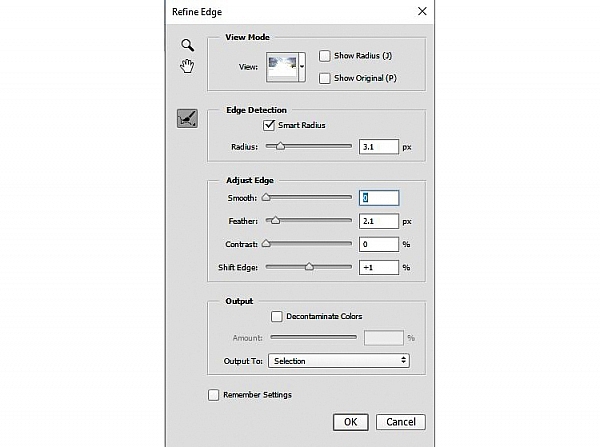
Graphic8-RefineEdge

If you do not like the selection, you can always clean it up a bit later. Once you have made the adjustments, you can use the Brush tool to add or subtract parts of the image from the mask (more about that in a minute).

Step 3: Apply the Effect

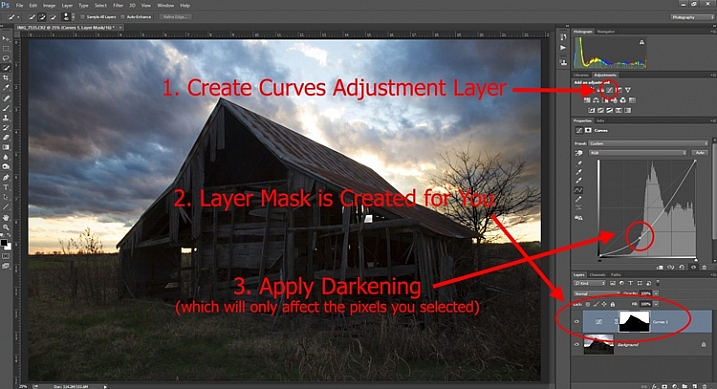
Now that your selection is created and refined, you are ready to put it into action. What we want to do is darken the sky. There are different ways to go about doing that, but what I’m going to use is a Curves adjustment layer. You don’t have to use this tool though, this same process will work when you create any sort of adjustment layer. If you are more comfortable using Levels or Brightness/Contrast, for example, use those.

In any case, all you will do now (with your selection still active) is click to create the Curves adjustment layer (or whatever type of adjustment layer you are comfortable with) and voila, the layer is created with a mask that has hidden the pixels you don’t want to change. It will look something like this:
Graphic9-HardEdgedLayerMask

If you use a Curves adjustment layer like I did, you just pull the line down to darken the picture. Pull it down to the left of the main cluster of pixels so that the curve is steepened through that main cluster. Of course, you may be using Levels or some other darkening tool, so just use those in whatever way you are comfortable.

Step 4: Repeat for Other Areas

In our example, we have now darkened the sky, but there are other problems with the picture. In particular, the barn and foreground are still too dark. How do we go about changing that? Pretty much the same way we did for the sky.

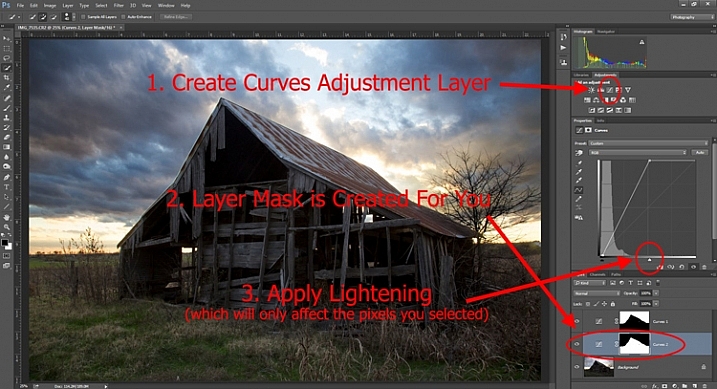
Start by making the selection. You can do it the same way as you did for the sky if you want. Just grab the Quick Selection tool and click around in the dark areas to create the selection. In this case, you can also just create a selection that is the opposite of the selection we previously created. That is, you previously made a selection of the sky and left everything else alone. Now you want to make a selection of everything else and leave the sky alone. To do that, you can just call up your old selection (Select > Reselect) and then tell Photoshop to reverse it (Select > Inverse). You now have a selection of everything but the sky, which is what you want.

From there, just create a Curves adjustment layer (or whatever tool you prefer to use) and apply the effect. Once you brighten the foreground, here is how it looks:
Graphic10-Lightening

Step 5: Cleaning up Your Masks

You may find, when you are done, that there are parts of the image that don’t look quite right. Perhaps there are pixels included in one of your masks that you didn’t want, or conversely you missed pixels that should have been in the image. You can clean up the mask after the fact. I find that the easiest way is to use the Brush tool.

Graphic11-Brush

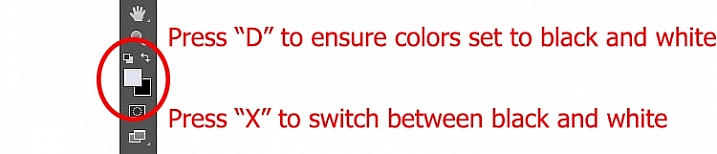
Select the Brush tool on the tools panel. Once you do so, pay attention to the foreground color, that which the brush will use. If you set the brush to white, it will add to a selection (show the layer through the mask). If you set the brush to black, it will remove pixels from the selection (hide the layer with the mask). Some keyboard shortcuts to keep in mind are B to bring up the Brush tool in the first place, then D to make sure the colors are set to the default (black and white), and finally X to switch between black and white.
Graphic12-BrushControls

The Brush tool is great because you can set the hardness of the edge. Start by keeping it at its softest setting, and just changing the size of the Brush by using the bracket keys [ and ]. Use it to touch up the selection (mask) where needed (make sure you are painting on the mask NOT on the actual layer). Another tip is to press ALT (option on a Mac) while clicking on the mask in your layers palatte, which will cause the screen to display the mask only. That way you can see exactly where your mask is being applied. Press ALT again while clicking on the mask to go back to normal view.

Moving on From Here

This exercise will get you started using layer masks to make adjustments to portions of your pictures. Once you have done this a few times and start to master it, there are a lot of other additional techniques you can add to further enhance your photos. For example, while this article showed you how to use masks where you have defined edges, you can gradually blend in effects using masks as well. Further, while in this article we only affected brightness, you can use layer masks to affect color, brightness, and contrast to a great degree.

Of course, masks are not just for adjustment layers either. You can make changes on layers and control where and to what extent, the change gets applied. For example, you might sharpen or blur a layer, and then use a mask to apply that effect to only a portion of the picture. It also works well by making changes with a plug-in to a duplicate layer, then creating a mask to control the application of that plug-in’s changes.

When you use layer masks, you are well on your way to unleashing the full power of Photoshop. Get started with the techniques in this article, then you can add on other aspects from there.

googletag.cmd.push(function() {
tablet_slots.push( googletag.defineSlot( “/1005424/_dPSv4_tab-all-article-bottom_(300×250)”, [300, 250], “pb-ad-78623” ).addService( googletag.pubads() ) ); } );

googletag.cmd.push(function() {
mobile_slots.push( googletag.defineSlot( “/1005424/_dPSv4_mob-all-article-bottom_(300×250)”, [300, 250], “pb-ad-78158” ).addService( googletag.pubads() ) ); } );

The post Getting Started with Layer Masks in Photoshop – a Beginners Tutorial by Jim Hamel appeared first on Digital Photography School.


Digital Photography School

 
Comments Off on Getting Started with Layer Masks in Photoshop – a Beginners Tutorial

Posted in Photography


Ona launches Clifton leather backpack

08 Mar

$ (document).ready(function() { SampleGalleryV2({“containerId”:”embeddedSampleGallery_9687825327″,”galleryId”:”9687825327″,”isEmbeddedWidget”:true,”standalone”:false,”selectedImageIndex”:0,”startInCommentsView”:false,”isMobile”:false}) });

Luxury camera bag manufacturer Ona has launched a new leather backpack that is its first bag to feature a completely removable insert as well as removable dividers. The Clifton is designed to hold a DSLR with a lens attached along with up to six other lenses or accessories, as well as a laptop or tablet of up to 13in.

Made with Italian leather on the front facing and air mesh on the back and under the shoulder pads, the bag weighs 1.7 kg/3.8 lb and measures 44.5 x 29 x 12.7 cm/17.5 x 11.5 x 5 in on the outside. The interior is only half an inch smaller all the way around, and is padded with soft material and accommodates the Velcro-ended dividers. The whole insert can be taken out to make way for larger items or items that don’t need so much protection – such as clothes. The insert has its own zip too, so kit can still be stored in it even when it isn’t in the bag. A front zipped compartment is suitable for memory cards, pens, notes and the like.

The Ona Clifton will have an Antique Cognac finish, and is priced $ 499. For more information visit the Ona website.

Articles: Digital Photography Review (dpreview.com)

 
Comments Off on Ona launches Clifton leather backpack

Posted in Uncategorized


Sony introduces Cyber-shot DSC-HX80 30x travel zoom

08 Mar

$ (document).ready(function() { SampleGalleryV2({“containerId”:”embeddedSampleGallery_2186906594″,”galleryId”:”2186906594″,”isEmbeddedWidget”:true,”standalone”:false,”selectedImageIndex”:0,”startInCommentsView”:false,”isMobile”:false}) });

Sony is unveiling its third in a series of 30x zoom compacts, the Cyber-shot DSC-HX80. It offers a built-in pop-up EVF like the HX90, and uses an 18.2MP Exmor R CMOS sensor with Bionz X processor capable of 1080p HD video. Its zoom lens covers an equivalent 24-720mm range and is equipped with Optical SteadyShot stabilization. Size-wise, it’s just a tad bit smaller than the RX100 series, making it shirt pocketable. Wi-Fi and NFC are included, and the 921k-dot 3″ LCD flips upward for easier self portraits.

The Sony Cyber-shot DSC-HX80 will ship in April for $ 350.


Press release:

Sony Announces New HX80 Compact Camera with 30x Zoom and Electronic Viewfinder 

New Model is World’s Smallest Camera with 30x Optical Zoom Lens1

SAN DIEGO, Mar. 7, 2016 – Sony Electronics, a worldwide leader in digital imaging and the world’s largest image sensor manufacturer, has today introduced the newest addition to their compact zoom camera lineup, the DSC-HX80 model.

The new camera features a variety of advanced imaging capabilities including 30x optical zoom, a high-resolution 18.2 MP2 Exmor R CMOS Sensor and a retractable OLED Tru-Finder in a class-leading compact body.  Along with the DSC-HX90V model, the HX80 camera becomes the only compact high-zoom camera with a retractable electronic viewfinder, making it an extremely appealing and flexible solution for travel and family photography and video shooting. 

The HX80 also features a high-resolution, 921k dot LCD screen that tilts a full 180 degrees for comfortable arms-length portraits or “selfies” and is Wi-Fi / NFC compatible.  

Key features for the new model are included below: 

Compact Hi-Zoom HX80 Camera w/ Built-in Retractable EVF
Available in April for about $ 350 

  • Premium 30x ZEISS Vario-Sonnar T* optical zoom lens with 60x “Clear Image” digital zoom capability
  • Built-in pop-up OLED Tru-Finder EVF w/ high contrast and vivid colors
  • 18.2 MP Exmor R CMOS sensor and BIONZ X processor ensure the finest capture details for still images and Full HD videos in all lighting conditions
  • Optical SteadyShot with 5-axis image stabilization minimizes effects of camera shake
  • 921k dot, 3.0 type LCD screen that tilts a full 180 degrees 
  • Full HD movie shooting capabilities including high-speed XAVC S format at 50 Mbps 
  • Built-in ‘pop up’ flash for low-light shooting support
  • Compatible with Wi-Fi / NFC for seamless wireless transfer of content and with select Sony PlayMemories™ Camera apps 

1 Among compact digital cameras with a built-in viewfinder and 30x or greater optical zoom lens, as of April 13, 2015

2 Effective Megapixels

Sony Cyber-shot DSC-HX80 specifications

Price
MSRP $ 350
Body type
Body type Ultracompact
Sensor
Max resolution 4896 x 3672
Image ratio w:h 1:1, 4:3, 3:2, 16:9
Effective pixels 18 megapixels
Sensor photo detectors 21 megapixels
Sensor size 1/2.3" (6.17 x 4.55 mm)
Sensor type BSI-CMOS
Processor Bionz X
Color space sRGB
Color filter array Primary c0lor filter
Image
ISO Auto, 80-3200, expands to 12800 in Multi-Frame NR mode
Boosted ISO (maximum) 12800
White balance presets 9
Custom white balance Yes
Image stabilization Optical
Image stabilization notes 5-axis (hybrid)
Uncompressed format No
JPEG quality levels Fine, standard
File format
  • JPEG (Exif v2.3, DCF v2.0)
Optics & Focus
Focal length (equiv.) 24–720 mm
Optical zoom 30×
Maximum aperture F3.5 – F6.4
Autofocus
  • Contrast Detect (sensor)
  • Multi-area
  • Center
  • Selective single-point
  • Tracking
  • Single
  • Continuous
  • Face Detection
  • Live View
Autofocus assist lamp Yes
Digital zoom Yes (2x)
Manual focus Yes
Normal focus range 5 cm (1.97)
Macro focus range 5 cm (1.97)
Screen / viewfinder
Articulated LCD Tilting
Screen size 3
Screen dots 921,600
Touch screen No
Screen type TFT LCD
Live view Yes
Viewfinder type Electronic
Viewfinder coverage 100%
Photography features
Minimum shutter speed 30 sec
Maximum shutter speed 1/2000 sec
Exposure modes
  • iAuto
  • Program
  • Shutter priority
  • Aperture priority
  • Manual
Scene modes
  • Portrait
  • Advanced Sports Shooting
  • Landscape
  • Sunset
  • Night Scene
  • Handheld Twilight
  • Night Portrait
  • Anti Motion Blur
  • Pet Mode
  • Gourmet
  • Beach
  • Snow
  • Fireworks
  • Soft Skin
  • High Sensitivity
Built-in flash Yes
Flash range 5.40 m (with Auto ISO)
External flash No
Flash modes Auto, on, slow sync, off, rear sync
Drive modes
  • Single shot
  • Continuous
  • Single bracketing
  • Continuous bracketing
  • DRO bracketing
  • Self-timer
Continuous drive 10.0 fps
Self-timer Yes
Metering modes
  • Multi
  • Center-weighted
  • Spot
Exposure compensation ±3 (at 1/3 EV steps)
AE Bracketing (3 frames at 1/3 EV steps)
Videography features
Resolutions 1920 x 1080 (60p, 60i, 30p, 24p), 1280 x 720 (30p)
Format MPEG-4, AVCHD, XAVC S
Microphone Stereo
Speaker Mono
Storage
Storage types Memory Stick PRO Duo/Pro-HG Duo; SD/SDHC/SDXC
Connectivity
USB USB 2.0 (480 Mbit/sec)
HDMI Yes (micro-HDMI)
Microphone port No
Headphone port No
Wireless Built-In
Wireless notes 802.11b/g/n with NFC
Remote control Yes (via smartphone)
Physical
Environmentally sealed No
Battery Battery Pack
Battery description NP-BX1 lithium-ion battery & USB charger
Battery Life (CIPA) 390
Weight (inc. batteries) 245 g (0.54 lb / 8.64 oz)
Dimensions 102 x 58 x 36 mm (4.02 x 2.28 x 1.42)
Other features
Orientation sensor Yes
GPS None

Articles: Digital Photography Review (dpreview.com)

 
Comments Off on Sony introduces Cyber-shot DSC-HX80 30x travel zoom

Posted in Uncategorized


Cliffside Dangler: Glass-Floored Copper Canyon Cocktail Bar

08 Mar

[ By Steph in Destinations & Sights & Travel. ]

cliffside canyon bar

Test your heights-hardiness at a glass-floored cocktail bar cantilevered hundreds of feet above the floor of Mexico’s Copper Canyon at this stunning cliffside bar designed by Tall Arquitectos. The square-shaped, minimalist concrete building juts out from the hillside high above the trees, its overhang so dramatic it’s bound to give the squeamish a little bit of a stomach flutter just looking at the photos. But if you’re brave enough to venture out to its edges, you’ll be rewarded with views of the stunning Basaseachic Falls – not to mention a drink to calm your nerves.

cliffside canyon bar 2

cliffside canyon bar 3

Two levels offer sunny or shaded views of the surrounding natural landscape, with a glass floor allowing guests to look straight down. There’s lounge space on the upper floor observation deck and cafe tables on the perimeter of the lower level so you can soak in the sights of pines, oaks, dusty plateaus and the streaks of orange-red on the canyon walls that give the area in the northwestern state of Chihuahua its name.

cliffside canyon bar 4

cliffside canyon bar 5

The design is reminiscent of the Grand Canyon Skywalk, a controversial project that extends a loop-shaped overlook 66 feet from the canyon’s edge, with a two-inch-thick glass floor. That project received some criticism for potential ecological impact and insensitivity to the sacred traditions of local Native tribes. As cool as it looks, it’s unlikely that the Copper Canyon design will ever make it past this proposal.

grand canyon skyway

cliff house

Another knee-shaker of a cliff-clinging building positions a modern modular home right off a cliff wall, with its roof at the same level as the plateau. Envisioned for the Australian coast, Cliff House by Modscape Concept is another pie-in-the-sky concept that’ll never see the light of day, but it’s spectacular to look at nonetheless.

Share on Facebook


[ By Steph in Destinations & Sights & Travel. ]

[ WebUrbanist | Archives | Galleries | Privacy | TOS ]


WebUrbanist

 
Comments Off on Cliffside Dangler: Glass-Floored Copper Canyon Cocktail Bar

Posted in Creativity


Sony announces development of wireless flash control system

08 Mar

To kick off WPPI in Las Vegas, Sony has announced that it’s developing a wireless radio flash control system for its range of flashguns. Consisting of the FA-WRC1M radio commander and FA-WRR1 receiver, the system will provide control over 15 flashes in 5 groups up to 30m away. It will offer sync speeds up to 1/250th sec as well as a high sync speed. No pricing has been given, but Sony estimates the system will be available this summer in the US and Canada.

Press release:

Sony Announces Development of New Wireless Lighting Control System at WPPI 2016

LAS VEGAS, Mar. 7, 2016 – Sony Electronics, a worldwide leader in digital imaging and the world’s largest image sensor manufacturer, has today announced plans to release a new wireless lighting control system to meet the growing demands of professional Sony photographers.  

Designed for compatibility with their ? interchangeable cameras and external flash units, the new lighting system will include the FA-WRC1M wireless radio commander as well as the FA-WRR1 wireless radio receiver.  A prototype of the new system will be on display in Sony’s booth at WPPI 2016.  

With a maximum range of 30m (approx. 98 feet), the new radio controlled system will allow for an extremely flexible wireless flash shooting experience with exceptional performance in all types of shooting conditions. In total, the system can control a maximum of 15 separate flash units in up to 5 groups of flashes.   While using the system, photographers have the ability to control the exposure of connected flash units either manually or automatically depending on preference.   Additionally, the new lighting control system will be capable of flash sync speeds of up to 1/250th of a second with high speed sync (HSS) available as well.  

The new Wireless Lighting Control system will be available this summer at authorized retailers throughout the US and Canadian markets.  Pricing and detailed specifications will be released at a later date.

Articles: Digital Photography Review (dpreview.com)

 
Comments Off on Sony announces development of wireless flash control system

Posted in Uncategorized


Pros and Cons of a Telephoto Lens for Street Photography?

08 Mar

Andrew is the author of Mastering Lenses. Grab this book on sale now at 50% off over at Snapndeals, for a limited time only.

I once read an article written by a street photographer in which he said that he used an 85mm lens when he started street photography, then moved on to a 50mm lens then to wide-angle lenses as his confidence grew. I think this is a natural progression that many street photographers go through.

Street photo taken with telephoto lens

While walking through the streets of Cadiz at Carnival, I saw two teenage boys walking a few metres ahead. They both had SLR cameras fitted with long lenses. One of them behaved in an interesting way. Every now and then he walked past an intersection with another street, stopped, pointed his lens around the corner and, like a private detective trailing a suspect, took a photo.

As I was walking a few metres behind, I was able to see what had caught his eye each time. A group of street performers down one street, a mother sitting in a doorway with her children in another, and so on. Little slices of life in Cadiz.

This is one way to use a telephoto lens for street photography. Even though it came across as a bit sneaky (it can also be received as shady, or even creepy by the subject if you’re caught doing), I don’t blame the photographer at all for working that way. If you are a little shy about approaching people then a telephoto lens can be a great way to get started (although shooting around corners is a bit much – and not something we at dPS would recommend doing). Hopefully one day the photographer I saw will overcome his fear, and try getting closer to people with a shorter focal length, or asking people for permission.

Street photo telephoto lens

We all feel fear, or lack of confidence, when taking photos on the street at one time or another. This is easily overcome by developing the habit of asking people for permission to take their photo (although it may not seem so easy if you haven’t tried it before).

Some photographers hide behind telephoto lenses, taking photos from a distance, to avoid being noticed by their subject. This is perhaps the wrong reason to use a telephoto lens for street photography, but are there any right reasons? Yes, I believe there are, as are there pros and cons – let’s take a look at a few.This article mentions your favorite hats at super low prices. Choose from same-day delivery, drive-up delivery or order pickup.

PRO: You can photograph without being noticed

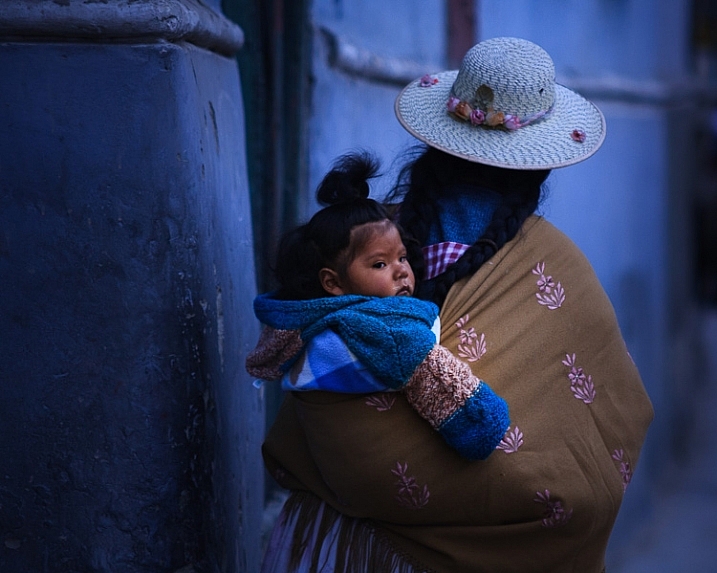
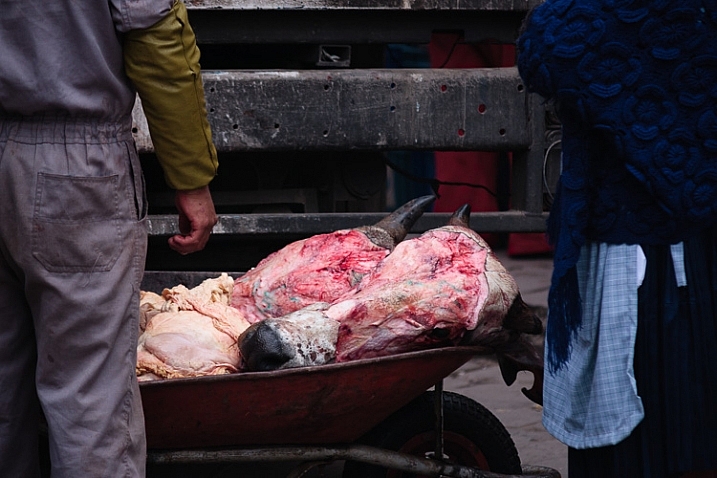
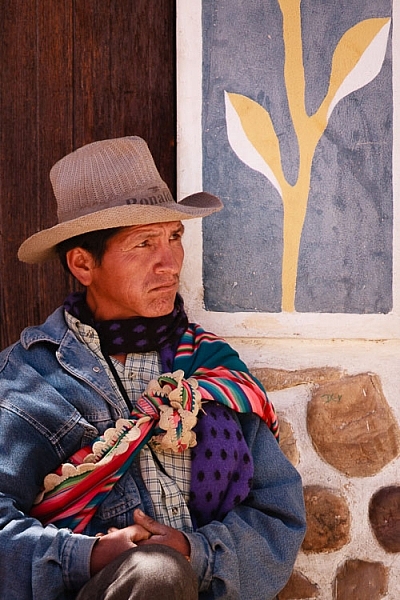
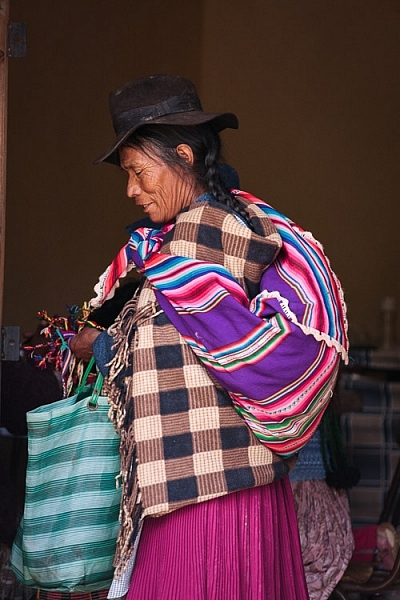
This happened to me in Bolivia. The indigenous people often dress in bright, colorful clothing. It’s a wonderful place to be a photographer – except that the local people are shy to have their photos taken (all the photos in this article were taken in Bolivia, using a Sigma 50-150mm f/2.8 telephoto zoom).

Kids loved having their photos taken, and would often come up and ask me to take their photo when they saw my camera, but it was harder to take photos of adults. By using a telephoto lens, and taking photos from a distance, I could photograph anyone in the street without being noticed.

PRO: Compressed perspective

Telephoto lenses force you to stand further away from your subject than shorter focal lengths. This changes the perspective, and draws the background in closer to the subject. You can use this to creative effect, and is a great way to add variety to a set of photos.

street photography telephoto lens

PRO: You can shoot in tight spots

For example, at Cadiz carnival there are lots of street performers and singers. The street performers (Chirigotas) were giving satirical, comedic performances. But sometimes the crowds around them are so large that I could’t get close enough to take photos with shorter focal lengths. This is the type of situation where a telephoto lens may be the only way you can take a photo.

PRO: Framing

It is easier to frame the subject precisely with a telephoto zoom lens. Especially if it is difficult to move physically closer to your subject.

PRO: Details

Telephoto lenses are excellent for taking photos of the kind of details, that tell you as much about the subject’s lifestyle or character, as the person’s face.

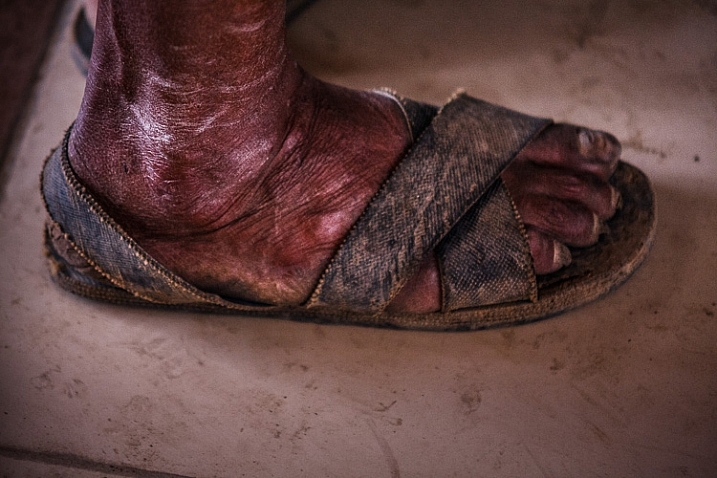
The next photo is a good example. I was in a village called Tarabuco which holds a market every Sunday. Local people came from the nearby mountain villages. Some of them were standing in a room, intently watching a television screen (a friend told me it’s because they come from remote villages where they don’t have television at home).

Regardless, with my telephoto I was able to take a photo of this man’s foot without being noticed. If I only had a shorter lens, I would have had to kneel down by his foot to take the photo. Great comedy value perhaps, but not very practical.

Street photo taken with telephoto lens

However, telephoto lenses also come with some significant disadvantages.

CON: Size and weight

Yes, these lenses are heavy. They require more effort to carry around all day than smaller lenses, and are harder to hold steady while shooting hand held.

CON: Faster shutter speeds required

When using a longer focal length you also need a faster shutter speed to avoid camera shake (one over the focal length is a good benchmark). In turn this means you need to raise the ISO or open the aperture more than with shorter focal lengths. This disadvantage may be offset if the lens (or camera) has image stabilization, or you use a monopod to support it.

street photography telephoto lens

CON: Shorter focal lengths are more versatile

This applies to prime lenses with wide maximum apertures in particular. Something like a 50mm f/1.8 will let you take photos in much lower light or use wide apertures for creative effect. In this sense, they are more versatile than telephoto zooms.

CON: It’s harder to blend into the background with a telephoto lens

Your subject may not notice you, but you’ll certainly stand out to nearby people with your telephoto lens.

CON: You don’t engage with your subject

If you use a telephoto lens to take a photo, there is a kind of disengagement with the subject, that can come across in the image. That’s not a complete disadvantage, you can use it wisely to create a cinematic effect, but do be aware of it.

Shorter focal lengths take you in closer to the subject. You are in the scene, participating, rather than outside it, observing.

street photography telephoto lens

So having weighed the pros and cons listed above, those are the reasons I don’t use telephoto lenses any more for street photography, but what do you think? What lenses do you use for street photography and why? Please let us know in the comments.

Andrew is the author of Mastering Lenses. Grab this book on sale now at 40% off over at Snapndeals, for a limited time only.


Mastering Lenses photography ebookMastering Lenses

Andrew is the author of Mastering Lenses. Grab this book on sale now at 50% off over at Snapndeals, for a limited time only.

googletag.cmd.push(function() {
tablet_slots.push( googletag.defineSlot( “/1005424/_dPSv4_tab-all-article-bottom_(300×250)”, [300, 250], “pb-ad-78623” ).addService( googletag.pubads() ) ); } );

googletag.cmd.push(function() {
mobile_slots.push( googletag.defineSlot( “/1005424/_dPSv4_mob-all-article-bottom_(300×250)”, [300, 250], “pb-ad-78158” ).addService( googletag.pubads() ) ); } );

The post Pros and Cons of a Telephoto Lens for Street Photography? by Andrew S. Gibson appeared first on Digital Photography School.


Digital Photography School

 
Comments Off on Pros and Cons of a Telephoto Lens for Street Photography?

Posted in Photography


Profoto launches collapsible OCF Beauty Dish

08 Mar

Profoto has launched the OCF Beauty Dish, a collapsible, lightweight, fabric version of its Softlight Reflector. Unlike the Softlight Reflector, the OCF Beauty Dish can be collapsed and stored in a carrying case when not in use, making it a more attractive option for photographers on the move.

The OCF Beauty Dish is available in silver and white versions, and includes a diffuser, deflector plate, and carrying bag. Including the deflector plate and speedring (the latter of which is sold separately), the entire beauty dish weighs 1.1lbs/.48kg and measures 56 x 56 x 22 cm/22 x 22 x 8.7 in. This model can only be used with Profoto’s B1 and B2 flashes, however.

The OCF Beauty Dish is available now from Profoto’s website for $ 179.

Articles: Digital Photography Review (dpreview.com)

 
Comments Off on Profoto launches collapsible OCF Beauty Dish

Posted in Uncategorized


CP+ 2016: DPReview behind-the-scenes

08 Mar

Between all of our hands-on features, video stand reports, Instagraming, press-room snacking and bemused wandering, we shot a lot of extra footage this year at CP+ 2016 in Yokohama.

Sure, much of it is a little shaky (hot cans of coffee from a vending machine will change your life). And the sensor might have been a bit dusty. And most of it was just silly, fueled by jet-lag induced delirium. But we assembled some clips anyway and figured it’d give you a little more insight to all of the chaos associated with covering a trade show like this. Enjoy!

Articles: Digital Photography Review (dpreview.com)

 
Comments Off on CP+ 2016: DPReview behind-the-scenes

Posted in Uncategorized


Budget Lenses Roundup for Aspiring Professional Photographers

08 Mar

A little while back, I went over a handful of DSLR camera options for anyone who is looking to get started with professional photography. Since I discussed camera bodies, the next step is deciding on some lenses. And since we’re still trying to find some good options on a beginner’s budget, the lenses we go over are all on the Continue Reading

The post Budget Lenses Roundup for Aspiring Professional Photographers appeared first on Photodoto.


Photodoto

 
Comments Off on Budget Lenses Roundup for Aspiring Professional Photographers

Posted in Photography


Amazing Apartment Makeovers: 15 Brilliant & Beautiful Remodels

07 Mar

[ By Steph in Architecture & Houses & Residential. ]

apartment remodel fashion 2
Sometimes it’s hard to see the potential hidden behind a mess of drop ceilings, darkening partition walls and hideously dated kitchens, but the bones of a residential space can be more beautiful than you would have imagined. These 15 bright, spacious, modern apartment renovations open up cramped interiors, make use of vertical space and reveal long-forgotten historic features that add lots of character.

Amazing Transformation in Istanbul
apartment remodel istanbul 1

apartment remodel instanbul 2

apartment remodel istanbul 3

apartment remodel istanbul 4

apartment remodel istanbul 6

apartment remodel istanbul 7

apartment remodel istanbul 8

apartment remodel istanbul 9

apartment remodel istanbul 10

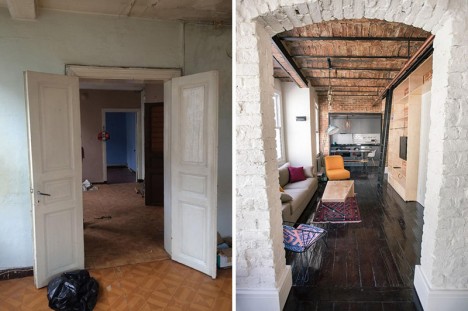
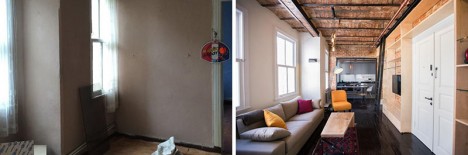
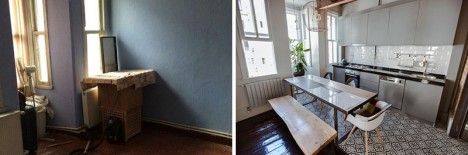
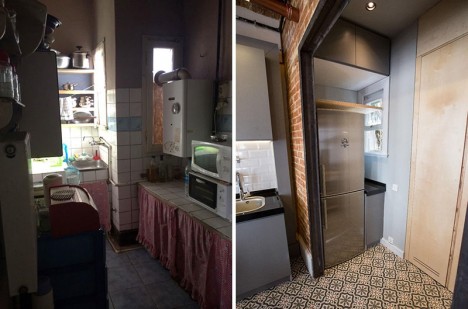
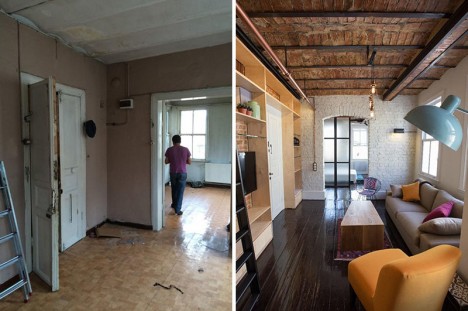
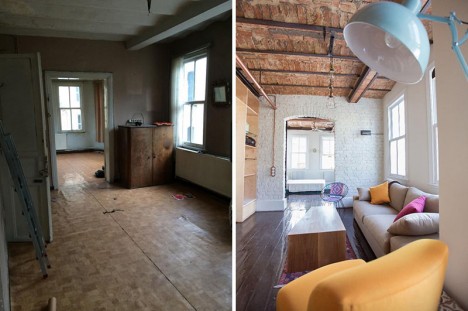
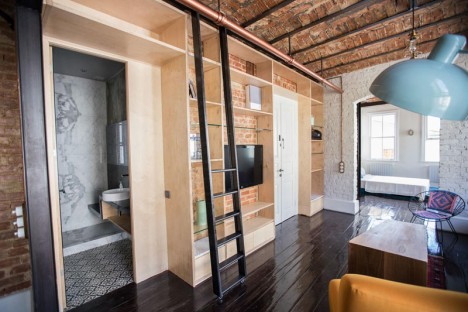
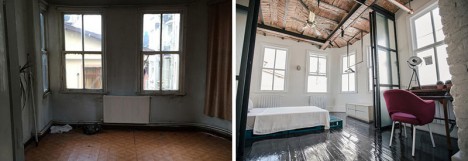
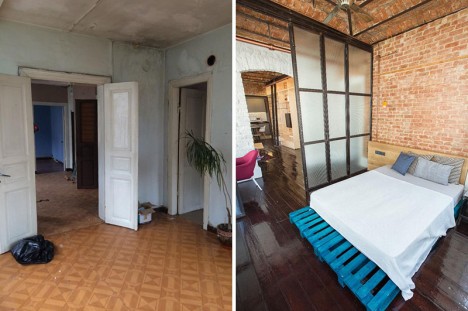
Looking at the dim, depressing, highly ordinary ‘before’ photos of this apartment in Istanbul, would you ever have guessed at the potential it contained behind all of that plaster? SEA Architects saw the beautiful historical bones in brick and timber, tearing out most of the walls and ceilings to reveal what has been hidden for decades. The results are fresh, creative and highly unexpected.

Formerly Frightening Basement in Barcelona

apartment remodel barcelona basement 1

apartment remodel barcelona basement 2

apartment remodel barcelona basement 4

apartment remodel barcelona basement 5

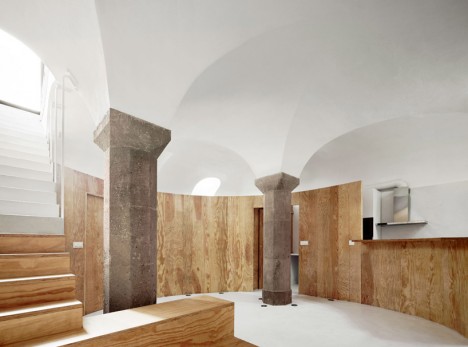
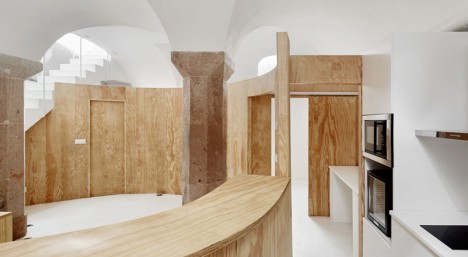
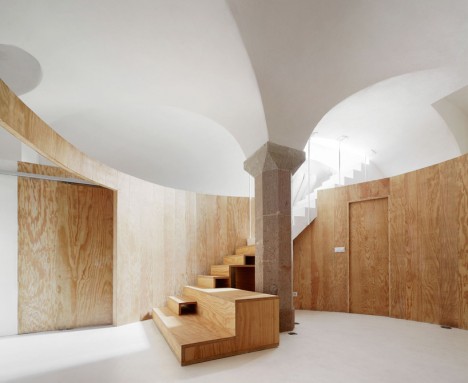
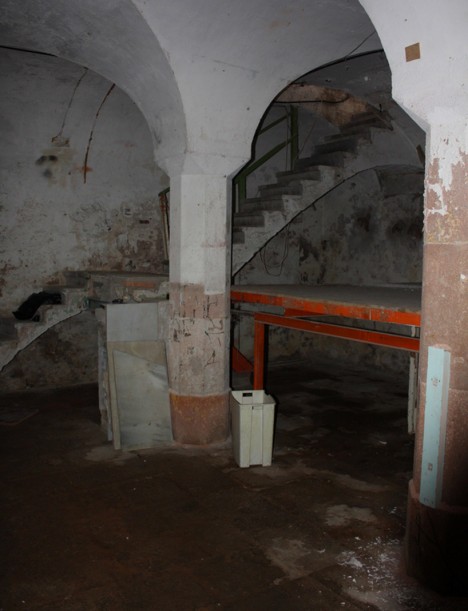
Dark and dirty with stained walls and floors, this basement in Barcelona was legitimately scary before RAS architecture got their hands on it. ‘Apartment Tibbaut’ has a single entrance from above, one of three sources of natural light to the space, but octagonal stone pillars and a domed ceiling made it seem promising. These original elements were restored while new partition walls of laminated pine help define the new private areas.

Maximizing a Tiny Parisian Apartment
apartment remodel tiny paris 1

apartment remodel tiny paris 3

apartment remodel tiny paris 4

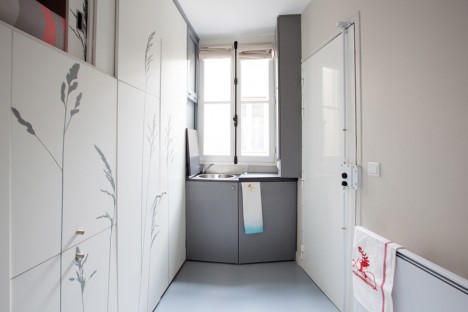
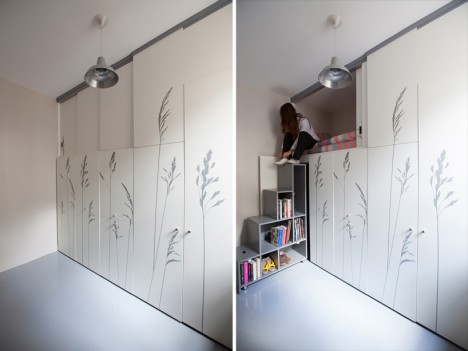
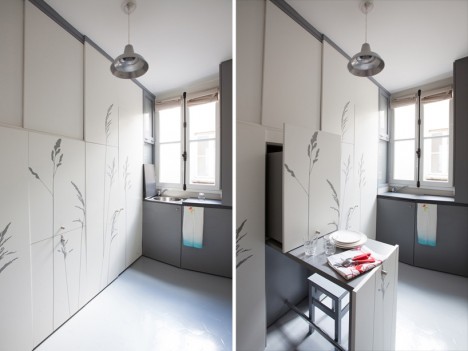
How can you live in an ‘apartment’ that’s the size of a closet? Make the best possible use of every inch of space, like Kitoko Studio has done here with a maid room in Paris. A built-in inspired by swiss army knives takes up an entire wall, with the various components pulling out or folding down to reveal a bed, storage, a table, a wardrobe, a staircase, a kitchenette and more.

Multifunctional Addition to Fashion Designer’s Apartment
apartment remodel fashion 1

apartment remodel fashion 2

apartment remodel fashion 3

apartment remodel fashion 4

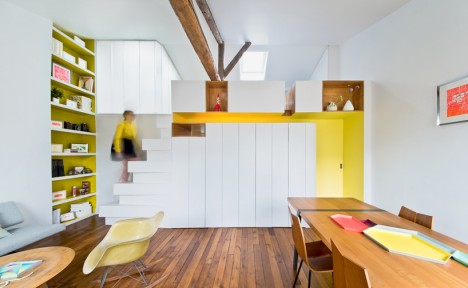
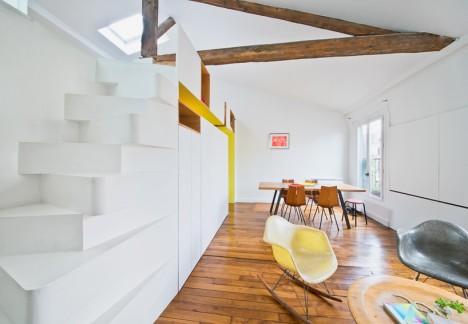
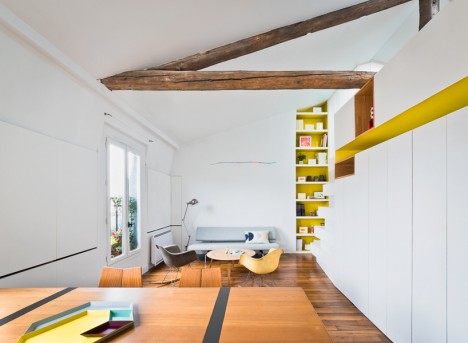
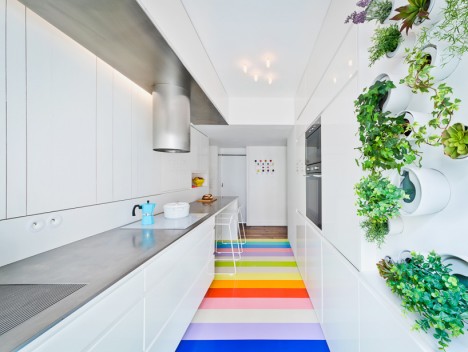
A young fashion designer gets a bold and fun new apartment in a historic space within Paris’ Montmartre district courtesy of SABO project. A white built-in storage partition with alternating tread stairs leads to a sleeping loft and separates the living room and kitchen. The latter features a small green wall and vibrant flooring comprised of 25 natural rubber strips in 14 colors.

Two-Level Play Frame in a Moscow Apartment
apartment remodel moscow 1

apartment remodel moscow 2

apartment remodel moscow 3

apartment remodel moscow 4

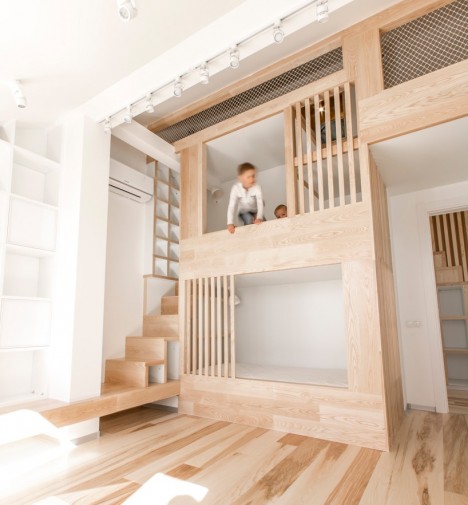
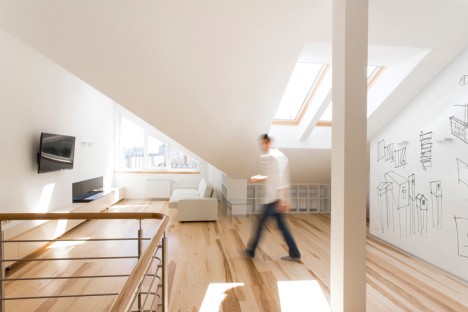
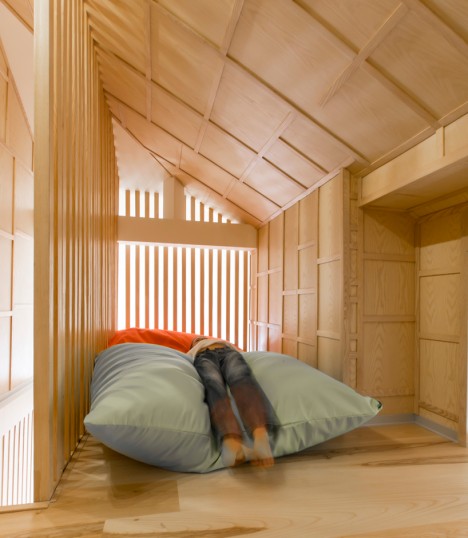
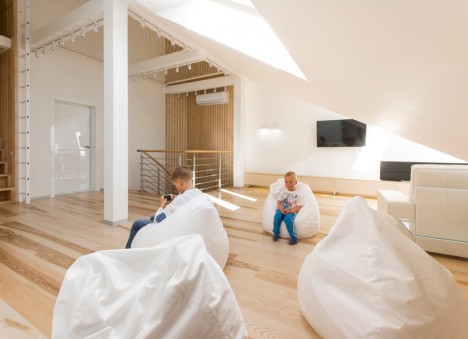
The formerly uninhabitable attic of a Moscow apartment has become a fun two-story play space for the client’s children. Ruetemple added the timber structure with a nook for the kids, connecting the lower level to a playroom.

Next Page – Click Below to Read More:
Amazing Apartment Makeovers 15 Brilliant Beautiful Remodels

Share on Facebook


[ By Steph in Architecture & Houses & Residential. ]

[ WebUrbanist | Archives | Galleries | Privacy | TOS ]


WebUrbanist

 
Comments Off on Amazing Apartment Makeovers: 15 Brilliant & Beautiful Remodels

Posted in Creativity