RSS
 

Archive for July, 2015

Fault Creep: Tectonic Motion is Slowly Tearing this Town in Two

10 Jul

[ By WebUrbanist in Destinations & Sights & Travel. ]

fault creep angled view

Located along a tectonic fault, the town of Hollister, California, acts like an earthquake in slow motion, its surfaces slipping past one another along a ragged line visible in everything from skewed traffic lines and split sidewalks to entirely torqued houses.

fault creep skewed house

As Geoff Manaugh neatly summarizes on BldgBlog, “Hollister is an inhabitable catalog of misalignment and disorientation, bulging, bending, and blistering as it splits right down the middle.” Thanks to inexorable forces of geology at work far below, “The entire west half of Hollister is moving north along the Calaveras Fault, leaving its eastern streets behind.”

fault creep sidewalk bulge

Instead of the sudden and devastating motion we normally associate with earthquakes, Hollister suffers the movements of rocks below at more geological than human speeds, its buildings and infrastructure ever-so-slowly twisted through the passage of time. At a rate of one inch per five years, the change is not noticeable on a daily basis, but dramatic over the decades.

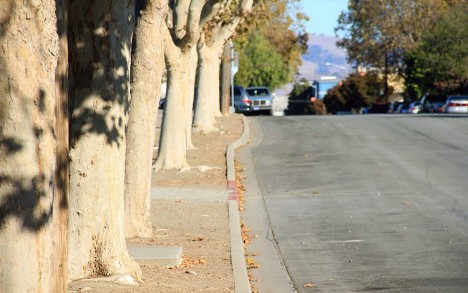
fault creep curb alignment

There are elements of Alice’s Wonderland all over the urban landscape: “Curbs at nearly the exact same spot on opposite sides of the street are popped out of alignment. Houses too young to show this level of wear stand oddly warped, torqued out of synch with their own foundations, their once strong frames off-kilter. The double yellow lines guiding traffic down a busy street suddenly bulge northward—as if the printing crew came to work drunk that day—before snapping back to their proper place a few feet later.”

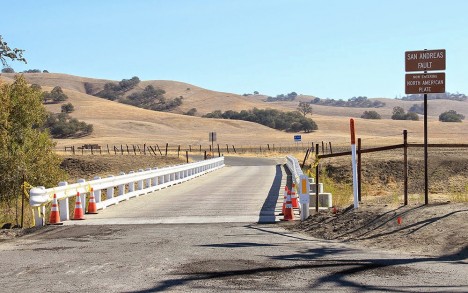
distorted bridge

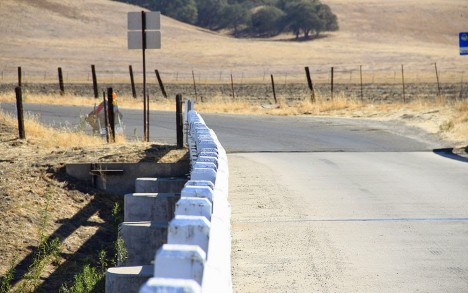
Manaugh also traveled to a nearby bridge in Parkfield where a road bridge spans the San Andreas Fault, its distortions the ultimate manifestation of fault creep as each anchored side moves in the opposite direction. Built straight across, curves are already visible as one sights along the structure.

fault creep curved bridge

His photos here and elsewhere capture many of the region’s “minor landmarks for the seismic tourist,” which, “for all their near-invisibility, visiting can still provide a mind-altering experience.” All images by Geoff Manaugh.

Share on Facebook


[ By WebUrbanist in Destinations & Sights & Travel. ]

[ WebUrbanist | Archives | Galleries | Privacy | TOS ]


WebUrbanist

 
Comments Off on Fault Creep: Tectonic Motion is Slowly Tearing this Town in Two

Posted in Creativity


Apple adds Raw support for ten cameras to Mac OS X Yosemite

10 Jul

Apple has released version 6.05 of Raw compatibility software for Mac OS X Yosemite. This update adds support for ten cameras including the Fujifilm X-T10, Leica M Monochrom (Typ 246), Nikon 1 J5, and Panasonic DMC-G7 to Apple’s Aperture, Photos, and iPhoto software. The download is now available in the Software Update section of the Mac App Store. See the full list of new cameras

Articles: Digital Photography Review (dpreview.com)

 
Comments Off on Apple adds Raw support for ten cameras to Mac OS X Yosemite

Posted in Uncategorized


9. Juli 2015

10 Jul

Das Bild des Tages von: Konrad Winkler

©-Konrad-Winkler-17992285793

Im Ausblick: Jürgen Teller, eine trauernde Frau und eine Frage.
kwerfeldein – Fotografie Magazin | Fotocommunity

 
Comments Off on 9. Juli 2015

Posted in Equipment


Q&A With TOAST:Urban Photography Fun

10 Jul

San Francisco is the most gorgeous city on this planet (sorry, New York.)

But if we’re being honest, the postcard views of the City are getting a little – dare we say it – boring.

Combating that is TOAST, a self-proclaimed urban explorer. We spoke to him on what he sees in between the lines and what draws him to beneath the city surface.

Learn his tips and pick up a few urban exploring tricks of your own!

Urban Photo Tips From TOAST

(…)
Read the rest of Q&A With TOAST:
Urban Photography Fun (692 words)


© Taylor for Photojojo, 2015. |
Permalink |
No comment |
Add to
Urban Photography Fun”>del.icio.us

Post tags:


Photojojo


Comments Off on Q&A With TOAST:Urban Photography Fun

Posted in Equipment


All 7 Photography Deals are Back – But only until Friday!

09 Jul

Photography resources

It’s been another huge dPS mid year sale and we hope you’ve enjoyed it as much as we have sharing it with you.

Over 7 days, 7 amazing photography deals were released, 24 hours at a time.

But did you miss a deal you’d love to have?

Well, we’d like to give you one last chance before they’re gone for good (it’s about helping you with your photography, after all).

So until Friday, all 7 deals are back!

  • Deal #1: Living & Loving Landscapes ebooks – $ 10 each
  • Deal #2: 60% OFF Photography Concentrate’s Incredibly Important Composition Skills
  • Deal #3: 100 Hacking Photography Lightroom presets for $ 10!
  • Deal #4: Our Photo Magic ebook – just $ 7
  • Deal #5: 70% OFF Photoshop Artistry: Fine Art Grunge Composition course
  • Deal #6: Jay & Varina Patel’s Focus Collection – 50% OFF
  • Deal #7: Our Portraits ebooks $ 7… or 5 for $ 21!

This is the last time we’ll email you about this sale and we simply can’t extend the deals any further than Friday (they’re just too good).

So act quickly or you’ll miss out!

googletag.cmd.push(function() {
tablet_slots.push( googletag.defineSlot( “/1005424/_dPSv4_tab-all-article-bottom_(300×250)”, [300, 250], “pb-ad-78623” ).addService( googletag.pubads() ) ); } );

googletag.cmd.push(function() {
mobile_slots.push( googletag.defineSlot( “/1005424/_dPSv4_mob-all-article-bottom_(300×250)”, [300, 250], “pb-ad-78158” ).addService( googletag.pubads() ) ); } );

The post All 7 Photography Deals are Back – But only until Friday! by Darren Rowse appeared first on Digital Photography School.


Digital Photography School

 
Comments Off on All 7 Photography Deals are Back – But only until Friday!

Posted in Photography


4 Tips to Help you Decide Between Black and White or Color for your Image

09 Jul

Why do black and white photographs speak to us? In nature, colors are meant to attract, and cause things to catch our attention. Still, even without color, black and white images are a mainstay of our craft, and are powerful representations of the artistic spirit.

Half Color

There are many differing opinions when it comes to black and white photography. Some photographers love it, and shoot black and white exclusively, while other photographers absolutely shun the notion and shoot only in color. Then you have the majority of our lot who fall somewhere in between the love and hate poles. Luckily, the digital imaging age allows photographers to decide after the fact whether our images make us happier in full color, or in black and white. However, this ease of conversion can become somewhat of a problem because it is in fact so simple to switch from color to black and white, that it can cause conflicting feelings about which route to take. While there is really no absolute magic formula to determine the best choice for your particular image, there are some guidelines that you can follow to make your decision a little easier.

Here are four tips to help you decide if an image will be more appealing in black and white than in color.

Black and white or color?

#1 Does color have a large impact on the image?

This may seem like an easy judgment to make, but it is not always so simple. Color can be a fickle thing, and can either add to, or unintentionally detract interest from a photograph. Ask yourself, “does this image rely exclusively on color or are there other interesting aspects that can be emphasized?” Just how nice would it be to look at as a colorless rainbow? This not to say that all colorful objects and scenes won’t do well as black and white, but as a general rule most highly or diversely colored subjects should remain just that – colorful.

Silhouette
This image really had nothing to say in the way of color, so I made use of the heavy backlighting to create a strong contrast with the subject.

Two Giraffes
The original image didn’t have a lot going on as far as color, so I choose to convert it to black and white to really make the patterns pop.

The opposite of this usually proves to be true also. When you have an inherently bland scene or subdued colors, the image will usually do well when converted to black and white and this leads us to tip #2.

#2 Are there interesting light or contrasts?

This is where new photographers tend to encounter a little bit of difficulty because seeing good light or contrasts usually requires quite a bit of pre-visualization. Don’t worry! Developing an eye takes, well, some developing. The more you force yourself to look past what is readily apparent, the more you will learn to almost see in black and white.

When you remove color from the photographic equation, you are left with only differences in tone; lights and darks. These differences are what truly make good black and white images, and the differences in light and shadow bring contrast to the photograph. So, when you see that a given scene or subject presents the opportunity to exploit stark contrasts and unique lighting or shadow, it might be a great opportunity to try black and white. Take a look at this image of the leaf of a house plant.

Plant Leaf

I used a single flash behind the leaf to really bring out the contrasts within. Ordinarily these details might have gone unnoticed, and the black and white treatment really compliments the lighting.

The great Ansel Adam’s said that he; “could convey a greater sense of color with well executed black and white images using only light, shadow, and even subtleties in texture to express the qualities of the photo”. It’s that last variable, texture, that brings us to tip #3.

#3 Are there interesting textures?

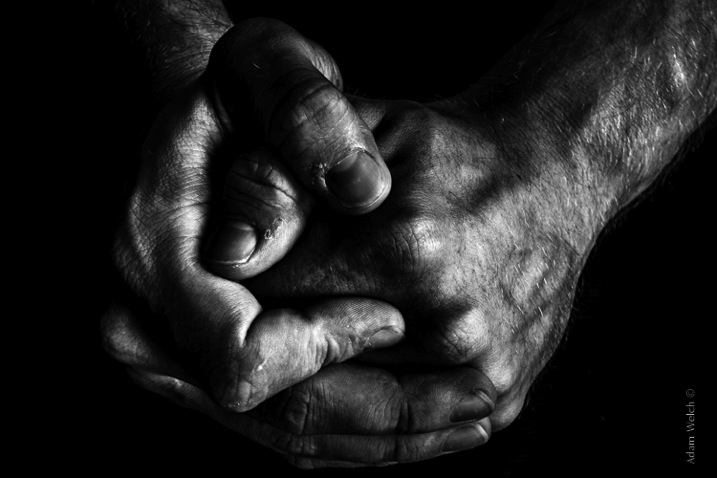
When we think of texture, we can easily describe it in terms of how things feel physically, when we perceive them through our sense of touch. Texture in photography, however, can be a little more challenging to put into words. Texture in a photograph has to be perceived with our eyes and then we determine if it’s smooth, rough, or coarse. Transforming the tactile tangible into a visually tangible image takes practice and a trained eye, and this is where working in black and white can be the best choice. Examples of textures that work well for black and white photos are wood, metals and stone, even plants and human skin. Directional lighting (light from largely one source coming from the side) compliments, and helps emphasize textures.

This image was made with natural lighting coming in directly from one side. This really brings out the texture, imperfections, and grittiness of the photograph.
Hands

This last tip goes beyond the physical attributes of an image and delves into the feelings we want to convey through a photograph. This is where black and white photography can really shine.

#4 What is the mood you want to create?

Have you ever looked a photograph, and been immediately struck by how the photograph felt? This is often referred to as the mood of a photo. It could be a bleak and rainy street scene, or an image of a warm and welcoming sunset. In any case, using black and white is a good way to convey a sense of mood in your photography. Admittedly, black and white usually imparts dark, bleak, somber, or an etherial overtone to a photograph, but that does not mean that it doesn’t work well for more upbeat images. Convert some of your landscapes to black and white to see how the mood can change. Experiment with black and white portraits which can portray your subject with a more stoic and brooding persona.

This photo of a hot day on Boston Common had lots of differences in lighting, along with some great coloring especially in the sky. Still, I chose black and white because it simply felt better to me, and matched what I saw in my mind more closely.

Boston Common

Keep in mind that you may run into some different terms if you decide to work more with black and white photography. These terms are usually interchanged, but in reality they are not all the same. It will help you to understand the differences in each so you can know what to expect.

Monochrome

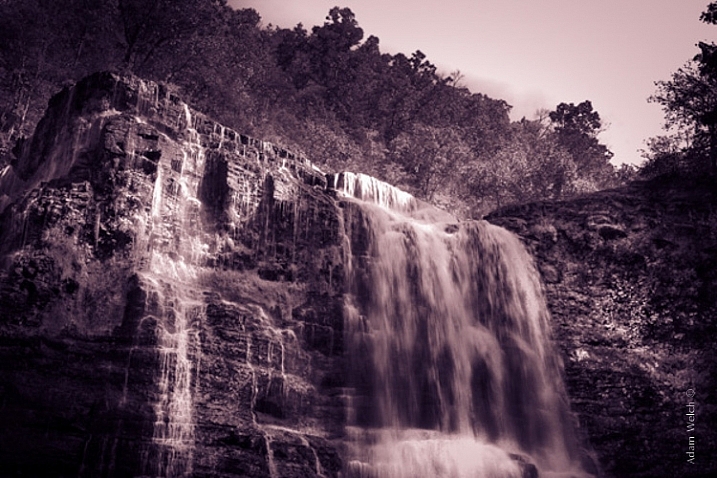
Monochrome simply means varying shades of only one color are used to make an image. This is often thought of as black and white (which are technically monochromatic) but in reality any color can be used. Sepia toned photographs are a good example of images which are monochrome.

This is an example of a monochromatic photograph that is not black and white.
Sepia Waterfall (2)


Grayscale

The term grayscale is another one that gets thrown around to label black and white images. Though not completely incorrect, grayscale images use only varying shades of gray (256 to be exact), and no other color. Grayscale can be a very bland when no other edits are used because it tends to leave the entire photo as middle gray. Notice how bland and uninteresting the below image looks when it’s converted to grayscale.

Grayscale

True Black and White

As I have said, black and white images are indeed monochromatic but not all monochrome images are black and white. True black and white photos use only black and white to produce the image although the majority still use a mix of gray tones.

This is the same image as above after it has been further processed to be closer to a true black and white photo. The differences in tones become becomes more apparent, and the photo becomes much more pleasing.
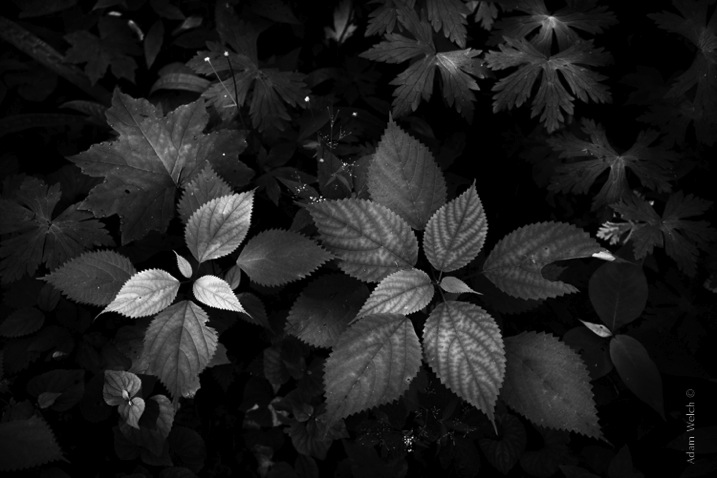
True BW

Black and white photography has been a staple genre since literally the inception of photography, and has evolved into a high art-form. Of course there are some people who simply do not like black and white images and prefer everything in color. Still, black and white photography is something that should not be discounted, and certainly not underestimated in terms of artistic expression. Today’s processing software makes converting color images to black and white nearly effortless, so use these tips and give it a try!

googletag.cmd.push(function() {
tablet_slots.push( googletag.defineSlot( “/1005424/_dPSv4_tab-all-article-bottom_(300×250)”, [300, 250], “pb-ad-78623” ).addService( googletag.pubads() ) ); } );

googletag.cmd.push(function() {
mobile_slots.push( googletag.defineSlot( “/1005424/_dPSv4_mob-all-article-bottom_(300×250)”, [300, 250], “pb-ad-78158” ).addService( googletag.pubads() ) ); } );

The post 4 Tips to Help you Decide Between Black and White or Color for your Image by Adam Welch appeared first on Digital Photography School.


Digital Photography School

 
Comments Off on 4 Tips to Help you Decide Between Black and White or Color for your Image

Posted in Photography


Feature film shot on iPhone 5 coming to cinemas

09 Jul

Tangerine, a feature film by Sean Baker, is headed for theaters on July 10th. It was shot entirely on the iPhone 5, keeping the overall budget of the film under $ 100,000, and the production utilized anamorphic adapter prototypes for shooting. Read more

Articles: Digital Photography Review (dpreview.com)

 
Comments Off on Feature film shot on iPhone 5 coming to cinemas

Posted in Uncategorized


Von der Idee zum Bild mit Martina Havlová

09 Jul

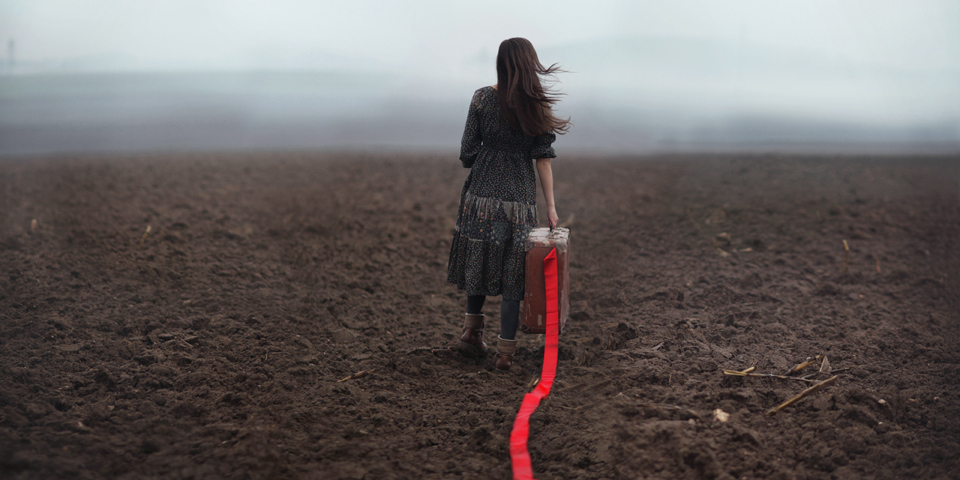
Ein Mädchen läuft über einen nebeligen Acker und zieht ein rotes Band hinter sich her.

Ein Beitrag von: Martina Havlová

Das Foto „Die Dinge, die wir hinter uns lassen“ ist ungefähr vor anderthalb Jahren entstanden. Die Fotosession ist damals sehr spontan abgelaufen. Eines Morgens bin ich aufgewacht und draußen war es eisig kalt und neblig. Als ich den dichten Nebel durch mein Fenster beobachtet habe, ist in meinem Kopf dieses Bild entstanden, wie ein Mädchen durch den Nebel schreitet, einen Koffer mit sich trägt und ein rotes Band hinter sich herzieht.
kwerfeldein – Fotografie Magazin | Fotocommunity

 
Comments Off on Von der Idee zum Bild mit Martina Havlová

Posted in Equipment


Ricoh drops GR II price $100 three weeks after announcement

09 Jul

Just three weeks after Ricoh announced its GR II enthusiast compact, the company has dropped the MSRP by $ 100, from $ 799 to $ 699. While we don’t why Ricoh has dropped the price, it is arguable that the minor differences between the GR II and its predecessor didn’t justify the original $ 200 price difference. Read more

Articles: Digital Photography Review (dpreview.com)

 
Comments Off on Ricoh drops GR II price $100 three weeks after announcement

Posted in Uncategorized


A Brief Guide to Lightroom Mobile and Lightroom Web

09 Jul

Lightroom mobile and Lightroom web

As you are aware, there are two ways to buy Lightroom.

The first is to buy a perpetual license, which means that you pay a set one-off fee to use the software for as long as you want. The second way is to subscribe to Adobe’s Creative Cloud Photography plan. With this, you pay a monthly fee that allows you to use Lightroom CC, Photoshop CC, Lightroom mobile and Lightroom web for as long as you keep up the subscription.

The subscription plan is somewhat controversial, and I know from comments on previous articles that some of you don’t like it. However, as it gives you access to Lightroom mobile and Lightroom web (as well as Photoshop CC) it’s worthwhile exploring the benefits of this licensing model.

Photoshop needs no introduction, but Lightroom mobile and Lightroom web are less well known. So let’s take a look at what they do, and how you can use them in your workflow.

Note: Lightroom mobile is now available for most Android and iOS smart phones and tablets. Up to date operating systems may be required.

Lightroom mobile helps you synchronize photos on your mobile device

In Lightroom CC you can synchronize any Collection with Lightroom mobile.

Lightroom mobile and Lightroom web

The lightning bolt icons on the left indicate these Collections are synchronized with Lightroom mobile.

Synchronized Collections appear on your mobile device (internet connection required) and you can download them for offline viewing.

Lightroom mobile and Lightroom web

Synchronized Collections created in Lightroom CC are immediately available for viewing in Lightroom mobile.

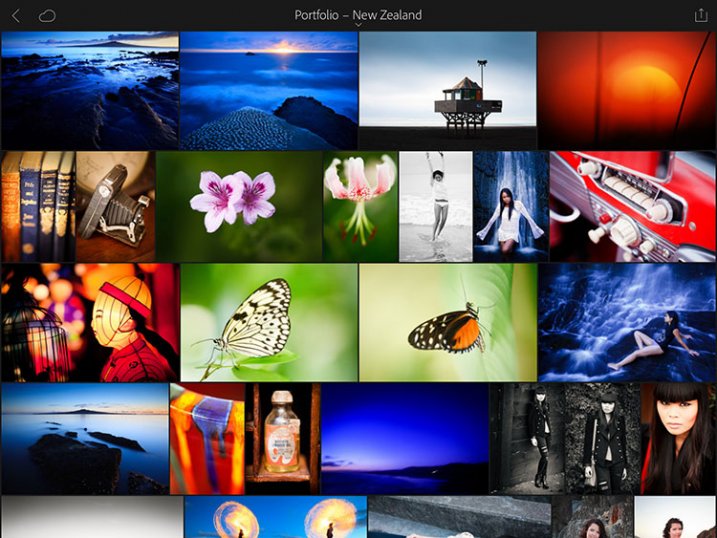
One practical application of this is that you can create a Collection containing your best photos to show people interested in viewing your portfolio. You can add or remove photos in Lightroom CC, and the updates are automatically pushed to Lightroom mobile. Very little work is required on your part, as most of the process is automated.

Lightroom mobile and Lightroom web

Lightroom mobile doesn’t require much storage space on your mobile device

Unless you have a device with a lot of storage space you probably don’t have room to store hundreds of full-size JPEG or Raw files in addition to what’s already on there.

Lightroom mobile works around that by using Smart Previews; a compressed preview of your photo that measures 2540 pixels along the longest edge. Crucially, Smart Previews are only a fraction of the size of a JPEG or Raw file (around 2%).

When you synchronize a Collection with Lightroom mobile, Lightroom CC generates Smart Previews of the photos it contains (if they don’t exist already) and uploads them to Adobe Cloud.

In turn, Lightroom mobile accesses Adobe Cloud and downloads the Smart Previews when they are required. They are cached and can be deleted when you need to free up memory. This system ensures you can use Lightroom mobile on devices without much spare storage space.

Lightroom mobile and Lightroom web

This Collection contains 37 photos yet only takes up 54.6Mb of my device’s storage space.

You can also download Smart Previews to your device and store them to enable off-line viewing and editing. This requires more storage space (although not a lot), but doing so both speeds up Lightroom mobile, and lets you view and edit photos without an internet connection. If you have a device with 64GB or 128GB storage, you have space for tens of thousands of Smart Previews.

Note: Lightroom mobile can be set to use a wi-fi connection only, so it doesn’t consume mobile bandwidth.

Lightroom mobile lets you Flag and rate images

If you use the Lightroom Library module to view images you will be aware that even on fast systems it’s not always as fast as you would like. Viewing images in Lightroom mobile is much faster. There’s virtually no delay in previewing images as long as you have enabled offline editing.

This means you can view photos and assign Flags or Ratings very quickly, greatly speeding up the amount of time it takes to view images from a shoot, and decide which ones to process.

Any changes you make to metadata, including Flags and Ratings, are automatically updated in Lightroom CC (internet connection required).

Lightroom mobile and Lightroom web

Lightroom mobile lets you process photos

Yes, you can process your photos in Lightroom mobile as well. All edits are synchronized with Lightroom CC. However, you don’t have the full functionality of Lightroom’s Develop module. But you can carry out the following:

  • All the adjustments available in the Basic panel
  • Cropping images
  • Apply one of 42 built-in presets
  • Add a vignette
  • Adjust Tone Curves
  • Use the Color/B&W adjustment tool

Note: Most mobile devices are not colour calibrated, so critical processing work should be carried out on a computer with a calibrated monitor.

Lightroom mobile and Lightroom web

Lightroom mobile synchronizes photos taken with your mobile device, with Lightroom CC

You can create a Lightroom mobile Collection that automatically populates with photos taken with, or added to your mobile device. Lightroom mobile uploads them to Adobe Cloud when you go online, and when you open Lightroom CC it downloads them and saves them on your computer. This works with JPEG, PNG and video files but not Raw files.

Lightroom web lets you make photos available for online viewing

When you synchronize a Collection with Lightroom mobile you can also make it available for public viewing. Lightroom generates a unique link for you to share with people so they can view the Collection in a web browser. Viewer’s logged in with an Adobe ID can comment on photos and mark favourites.

Lightroom mobile and Lightroom web

Lightroom web lets you access your photos from a web browser

Log in to the Adobe Lightroom website using your Adobe ID to access all your synchronized Collections. You can assign flags and ratings, make comments, mark images as favourites, and view essential metadata such as exposure settings. However, you can’t carry out any processing. You can also download a large JPEG file (generated from the Smart Preview).

Lightroom mobile and Lightroom web

Lightroom mobile as a backup

You may be wondering if you can use Lightroom mobile to edit or view photos taken in the field. The answer is you can, but with restrictions. The major one is that you can’t import Raw files into Lightroom mobile, even if they have been downloaded from your camera to your mobile device.

But you can import JPEG files. This is the workflow. It’s not as straightforward as it could be, but it works.

  • Shoot Raw+JPEG in-camera
  • Download all the photos to your mobile device
  • Import the JPEG files into Lightroom mobile
  • Assign Flags and Ratings, or process images in Lightroom mobile
  • When you get home, import the Raw files into Lightroom CC without changing the name. Meanwhile the JPEGS are synchronized via the Adobe Cloud
  • Use John Beardsworth’s Syncomatic plug-in to synchronize the changes you made to the JPEG files with their Raw equivalents

Your turn

Do you use Lightroom mobile or Lightroom web? What do you use them for? I’d love to know – please tell us in the comments.


The Mastering Lightroom CollectionMastering Lightroom ebooks

My Mastering Lightroom ebooks will help you get the most out of Lightroom. They cover every aspect of the software from the Library module through to creating beautiful images in the Develop module. Click the link to learn more or buy.

googletag.cmd.push(function() {
tablet_slots.push( googletag.defineSlot( “/1005424/_dPSv4_tab-all-article-bottom_(300×250)”, [300, 250], “pb-ad-78623” ).addService( googletag.pubads() ) ); } );

googletag.cmd.push(function() {
mobile_slots.push( googletag.defineSlot( “/1005424/_dPSv4_mob-all-article-bottom_(300×250)”, [300, 250], “pb-ad-78158” ).addService( googletag.pubads() ) ); } );

The post A Brief Guide to Lightroom Mobile and Lightroom Web by Andrew S. Gibson appeared first on Digital Photography School.


Digital Photography School

 
Comments Off on A Brief Guide to Lightroom Mobile and Lightroom Web

Posted in Photography