RSS
 

Archive for April, 2014

Windows 8 – Stop Rearranging My Windows!

20 Apr

Prevent Windows 8.1 from automatically rearranging and resizing windows when they are moved to the edges.

Just as with Windows 7, when you move windows to the borders of the Windows 8.1 Desktop, they will automatically rearrange and resize. For example, moving a window to the top will make it appear full screen (except for the Taskbar unless it is set to Auto-hide), and moving a window to the left or right edge will make it fill half the screen.

While some people appreciate this automatically occurring, advanced users and those who want more control over their window placements may find this feature extremely annoying. Luckily, it can be disabled:…

Read more at MalekTips.
New Computer and Technology Help and Tips – MalekTips.Com

 
Comments Off on Windows 8 – Stop Rearranging My Windows!

Posted in Technology


Windows 8 – Tweak the Explorer Navigation Pane

20 Apr

Missing seeing Libraries in Explorer? Want to see a full list of folders? Or do you not need to see the Favorites?

When opening folders via Explorer in Windows 8.1, you may notice that the Libraries aren’t automatically present. Plus, if you open Explorer to a particular folder, that folder is not automatically expanded. Also, you may not find much need for the Favorites section. Luckily you can tweak what Windows Explorer shows:

1. From an Explorer window, click the “View” menu, then select “Options”….

Read more at MalekTips.
New Computer and Technology Help and Tips – MalekTips.Com

 
Comments Off on Windows 8 – Tweak the Explorer Navigation Pane

Posted in Technology


Toshiba unveils UHS-II Class 3 microSD memory cards

20 Apr

toshiba-uhs-ii.jpg

Toshiba has announced the industry’s first microSD memory cards to comply with the UHS-II standard. Also being UHS Speed Class 3 (U3) enabled will allow the new cards, available in 64GB and 32GB capacities, to capture 4K video at constant minimum write speeds of 30MB/s. The 64GB cards offer a maximum read speed of 260MB/s and a maximum write speed of 240MB/s. The 32GB cards have a maximum read speed of 145MB/s and maximum write speed of 130MB/s. Learn more

News: Digital Photography Review (dpreview.com)

 
Comments Off on Toshiba unveils UHS-II Class 3 microSD memory cards

Posted in Uncategorized


Ryan Brenizer on how to shoot engagement sessions

20 Apr

Screen_Shot_2014-04-18_at_9.13.57_AM.png

Engagement photo sessions are not only an additional source of income for photographers but, as New York City-based wedding photographer Ryan Brenizer explains, these shoots provide the perfect opportunity to establish a relationship with the couple and learn how to make them feel comfortable in front of the camera before the big day. See video

News: Digital Photography Review (dpreview.com)

 
Comments Off on Ryan Brenizer on how to shoot engagement sessions

Posted in Uncategorized


Hunting Season

20 Apr

Ein Beitrag von: Rebecca Schwarzmeier

Ich bin in einer Gegend aufgewachsen, in der man vom Auto abhängig ist. Die nächste größere Stadt liegt fünfzig Kilometer entfernt. Und bis zum nächsten Supermarkt fährt man zehn Kilometer – durch den Wald.

Autofahren kann Spaß machen. Und ich gebe es zu, ich fahre gern. Doch nur allzu oft wird diese Freude durch Gefühle von Beklommenheit, Ekel und auch Trauer unterbrochen – nämlich dann, wenn da Tiere sind, tote Tiere.

In der Jagdsaison 2012/2013 zählte der Deutsche Jagdverband über 200.000 Wildunfälle. Aber wer ruft schon den Jäger an, wenn er einen Hasen überfährt? Und kleinere Tiere wie Igel oder Mäuse bleiben ohnehin unerwähnt.

Irgendwann war da dieser tote Fuchs, den ich sah, als ich meine Eltern besuchte, der tagelang am Straßenrand lag und an dem ich immer wieder und wieder vorbeifuhr. Ich hatte das Bedürfnis, diese Situation fotografisch aufzuarbeiten. Stehenzubleiben. Hinzusehen.

Hunting Season © Rebecca Schwarzmeier

Hunting Season © Rebecca Schwarzmeier

Hunting Season © Rebecca Schwarzmeier

Hunting Season © Rebecca Schwarzmeier

Hunting Season © Rebecca Schwarzmeier

Hunting Season © Rebecca Schwarzmeier

Hunting Season © Rebecca Schwarzmeier

Hunting Season © Rebecca Schwarzmeier

Hunting Season © Rebecca Schwarzmeier

Hunting Season © Rebecca Schwarzmeier

Hunting Season © Rebecca Schwarzmeier

Hunting Season © Rebecca Schwarzmeier

Hunting Season © Rebecca Schwarzmeier

Hunting Season © Rebecca Schwarzmeier

Ein Großteil der Serie ist im Frühjahr und Sommer 2012 entstanden. Als ich meinen Freunden davon erzählte, begannen auch sie, ihre Augen für diese Problematik zu öffnen. Fast täglich wurde ich angerufen, weil jemand auf dem Weg zur Arbeit an einem überfahrenen Tier vorbeigekommen war.

Im Herbst 2012 wurde die Serie im Rahmen der Ausstellung „Waldrand“ der Fotoszene Nürnberg gezeigt. Für mich ist das Thema aber längst nicht abgeschlossen; ich habe die Kamera immer im Kofferraum dabei.


kwerfeldein – Fotografie Magazin | Fotocommunity

 
Comments Off on Hunting Season

Posted in Equipment


Digital Street Eraser: Rubbing Out Reality, Photoshop-Style

20 Apr

[ By WebUrbanist in Art & Street Art & Graffiti. ]

street eraser graffiti wall

Analog stickering is taking on a new dimension in the hands of these street artists, a pair of creatives selectively defacing signs, billboards, mailboxes, graffiti and more.

street eraser construction process

street eraser red paint

From DsgnWrld: “Guus Ter Beek and Tayfun Sarier , two creatives behind the Street Eraser blog, are merging the digital world with the analog, sticking their adobe-inspired art throughout London’s urban fabric.”

street eraser fried chicken

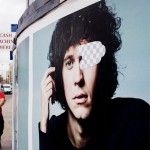
Anyone who has used Adobe Photoshop should be familiar with the circular edges of the default tool and the spaces it creates.

street eraser no entry

And then there is the square checkered background that shows up when you wipe out all the layers in front of it to reveal the void.

street eraser bilboard face

The concept is clear: the world becomes a facade and the backdrop a digital no man’s land, or, better yet, a blank slate on which to re-add another layer of creative art.

Share on Facebook


[ By WebUrbanist in Art & Street Art & Graffiti. ]

[ WebUrbanist | Archives | Galleries | Privacy | TOS ]


WebUrbanist

 
Comments Off on Digital Street Eraser: Rubbing Out Reality, Photoshop-Style

Posted in Creativity


Light Blaster [ For Special Effects Lighting ] a Review

20 Apr

Sometimes a new piece of camera equipment will let you do something better, faster, or cheaper. But sometimes it lets you do something wholly new, that nothing else can do, and it opens up a whole new world of creative opportunities. The Light Blaster is that kind of gear.

Light blaster 33 1024 resize

By combining a flash, a lens, and one of many different slides which you can buy or provide yourself, the Light Blaster lets you project an image into your scene or onto the subject. Like any new piece of equipment there’s a bit of a learning curve, but you can create effects that add to your photo in ways only possible with tricky DIY hacks until now.

How it works

The Light Blaster is a strong plastic shell that acts as a mount to hold the three key elements – lens, flash and slide – securely in place and in the correct relative positions. You provide a lens and a flash. The lens attaches to the front via an EOS bayonet mount (a Nikon adapter is available). There’s no lock, but it is held firmly. At the back you slide in your flash, which is held in place with a strong leather friction-secured strap, which is adjustable and held in place with velcro. Flashes of many sizes are accepted, and I tested with a Canon 580EX and a Lumopro 160.

In the centre of the Light Blaster there is a slot which accepts the provided caddy. The caddy holds the slide which is to be projected. You can use standard mounted 35mm slides or small plastic sheets about the size of a coloured gel you might put on the front of your flash. Just on that topic: you can gel the flash you’re using to give a colour tint to the projected image as well. The caddy is super easy to swap, although putting the slide in can be a wee bit fiddly. Topping off the well designed and sturdy construction is a metal tripod thread on the bottom in the thickest part of the plastic body so that you can securely mount the whole arrangement on a light stand.

Looking at the whole thing assembled, one might think it’s a bit precarious and that the lens or flash could be bumped and fall out, but that was not my experience at all. Everything felt sturdy and secure, and I didn’t mind picking up the light stand with everything attached and moving it around the set.

The Light Blaster also comes with a convenient case which safely holds everything, including a whole bunch of slides and an extra caddy in a small package with a fabric handle.

The Results

While I was testing out the Light Blaster I used it primarily in three different ways:

  1. Projecting onto the background
  2. Projecting onto a model
  3. Projecting into the air itself with the aid of a smoke machine

Here are some examples:

Creek 131110 078 X3 resize

Model: Mei Hikari

For this shot I projected a pair of wings onto a large wall behind the subject. It was dusk and low light, so the flash projection was easily visible, even though it’s a dark wall. The contrast was enhanced in post processing. The image projected ended up being about three meters wide. It took a few shots to get myself and the model lined up exactly right, since you can only see the projection on the camera screen. Have a look at the rest of the photos from this shoot here.

Creek 140319 236 X3 resize

Model: Graciously

I used the Light Blaster to project a simple circle of light onto the backdrop behind my model in this burlesque style shoot for a “stage” feel. While a snoot can restrict the light to a spot, only a focussed light can create the sharp clean edge I wanted, like a stage spotlight, or the Light Blaster. See more photos from this shoot.

Creek 140319 383 X3 resize

Model: Graciously

Later in the same shoot I fired up my smoke machine, and using a random geometric pattern on one of the effects slides, I created cool light beams through the smoke. The shafts of light you see wouldn’t be possible with a single light. It needs to be broken up in order to cast shadows into the smoke.

I NXG3q3z X3 resize

Here a photo of autumn leaves was projected directly onto the model and background, creating interesting layers of texture and shadow. I filled in the shadow of the model’s face with a tightly gridded flash to make his whole face visible. Projecting onto the model can be tricky to get right, but the results can be impressive. I want to experiment more with this technique. I think it is particularly well suited to art nude photography.

Any Problems?

There’s a couple of potential ‘gotchas’ when using the Light Blaster, which you’ll need to overcome and learn how to work with, but that’s true of any piece of gear in your kit.

Firstly, you’ll most likely want the projected image to be in focus, which is achieved by turning the focus ring on the attached lens, (make sure it’s in manual focus mode). Since the image is only visible when the flash fires, you’ll need to use a flashlight in place of the flash before you add the flash to the back. You’ll need the set to be quite dark or use a bright flashlight to see well enough to focus, and if you move the Light Blaster relative to the surface it’s being projected onto, you’ll need to take the flash out and re-focus.

As mentioned in the first example shot above, it can be tricky to get the best placement of the image, your model and yourself. You might need to take several shots and make small adjustments each time.

Because there’s a powerful flash shining through the slide, the blacks are never going to be truly black. Some of the light will still pass through the black ink or emulsion, so the contrast might not be as good as you’d like it to be. To address this issue, a brand new set of laser-cut metal “slides” has just been announced for the Light Blaster. This will give you absolutely solid blacks.

Conclusion

I had a great deal of fun testing this product, and I’m looking forward to using it in future shoots. With a good variety of effects slides available from the Light Blaster site, the ability to take any 35mm slide, and even home-printed acetate slides, there is literally unlimited creative potential. You can put any backdrop you like behind your subjects, and transport them to another world. Or you can use it in ways similar to what I have here. Have a look at the Light Blaster site for more example photos. For under $ 100, this is a super versatile creative tool to add to your kit.

Want more on special lighting techniques? Try these articles:

  • How to Create this “Fight Club” Inspired Portrait using One Light
  • Accent Lighting for Portraits
  • Studio Lighting: Building a Light Set-up
  • How the Shot was Done: SNK Police Cosplay

The post Light Blaster [ For Special Effects Lighting ] a Review by Neil Creek appeared first on Digital Photography School.


Digital Photography School

 
Comments Off on Light Blaster [ For Special Effects Lighting ] a Review

Posted in Photography


HDR Darkroom 3 Software Review

19 Apr

Digital cameras may be making incremental improvements with dynamic range capabilities, but are still lacking in terms of what they can capture. Bracketing multiple exposures of the same scene and merging them together with tone mapping software is one way of creating an HDR photograph allowing you to capture the full range of the scene in front of your camera.
HDR-darkroom3

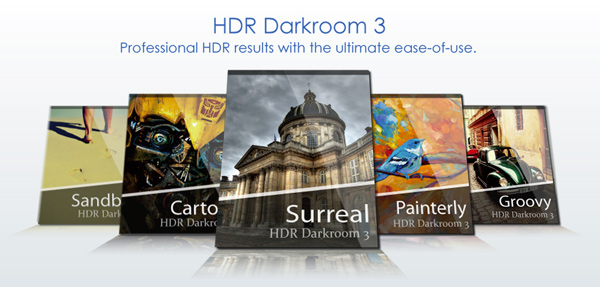
The people at Everimaging have recently upgraded their HDR tone mapping software offering to its third edition, and as a result today we’re going to talk about HDRDarkroom 3. It’s available for both Mac and Windows users, and a free trial version can be downloaded from their site.

What’s Cool About HDR Darkroom 3?

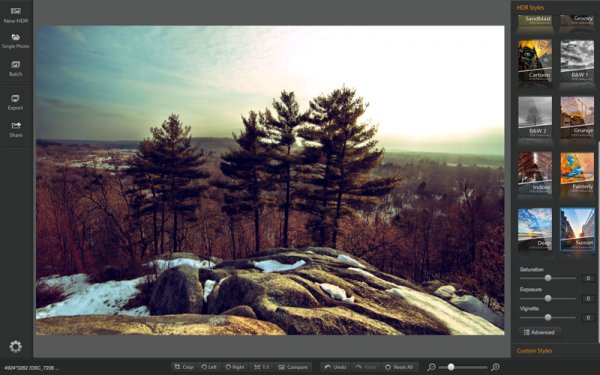
The number one thing that stands out to me is the user interface. The simplicity of the way that HDR Darkroom 3 uses presets to get you started with tone mapping is unique, and takes a lot of the work out of finding the right starting point. The program is also stripped down in a way that gives even the most novice HDR photographer an easy learning curve to get started.
HDRDarkroom3-review-2

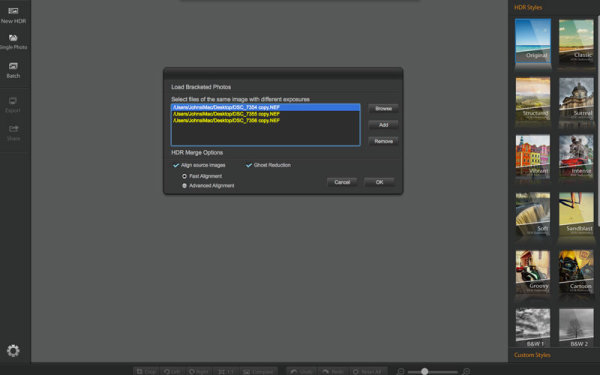
When you launch the program you can choose from three different import methods: New HDR, Single Photo and Batch. These work as you might expect where New HDR allows you to choose the set of bracketed images that you’d like to work on, single photo allows you to tone map a single photograph and batch processing allows for processing a batch of HDRs using the same settings.

For this review I’ll be using a three bracket set I took while photographing waterfalls recently. When importing photographs you can have HDR Darkroom 3 align the images by either a fast method or advanced method. When switching between the two options there is no difference to the user interface (both options are completely software driven) so I’m assuming this is just going to depend on the amount of time it takes for the merge to be completed.

On top of the alignment you can also have HDR Darkroom 3 take care of ghosting effects by checking the appropriate box. Again, this is a very simplistic approach, where the user is left at the mercy of the algorithm inside the program with no ability to customize which areas of the photograph to focus on, or the intensity of the ghosting effect removal.
HDRDarkroom3-Review-3

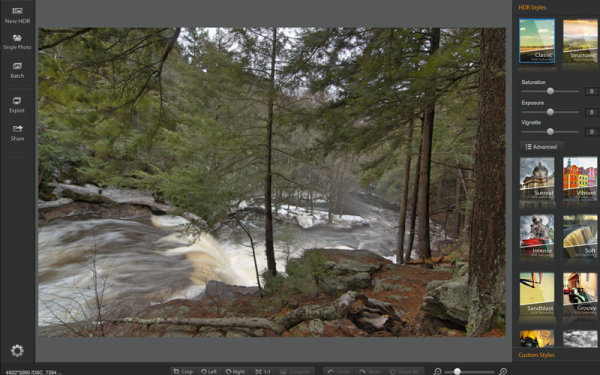
After importing your image you are defaulted to the ‘Classic’ preset which is a very standard almost uninteresting HDR image. On top of this preset the program comes packed with 15 more for you to choose from and the option to save any modifications that you’ve made as custom presets.

HDR Darkroom 3, unlike the other programs in the industry, actually forces you to start with a preset. You choose which one you like best for the image that you’re working on and each one will change the image to achieve a particular look.
HDRDarkroom3-Review-6

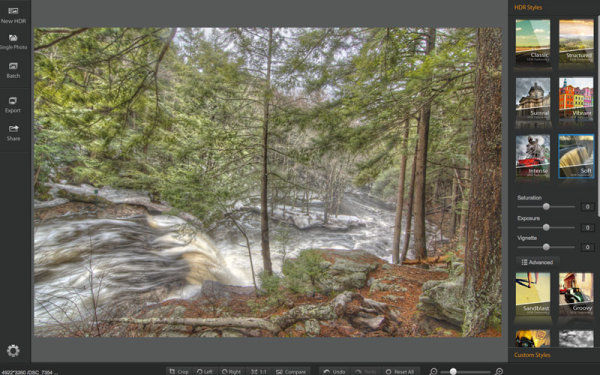
When you have found a preset that you like for the image, you can then customize it to your liking with three different sliders for Saturating, Exposure and Vignette as well as an advanced button for more freedom in the editing process.
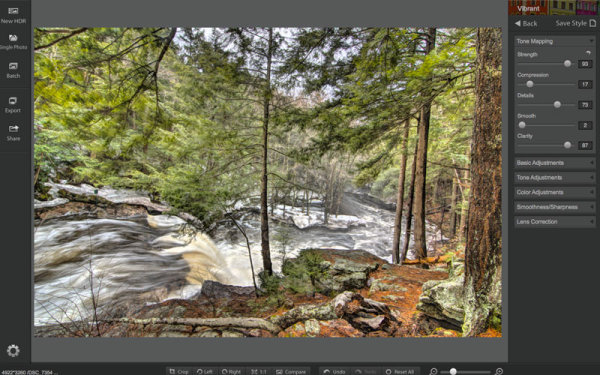
HDRDarkroom3-Review-5

Once in the advanced section you have access to many of the tools you might expect like: tone mapping, basic exposure and contrast control, highlight and shadow adjustments, white and black point adjustments, and other tools for color, smoothness and even lens correction.

HDRDarkroom3-Review-4

Overall, HDR Darkroom 3 does do a good job at processing a bracketed set of photographs with a slick, easy to use interface to boot. However, for those who do want a little more control, it might be just a bit too limiting. One of the biggest things that I felt was missing was a local adjustment brush for finer control over where effects were being applied.
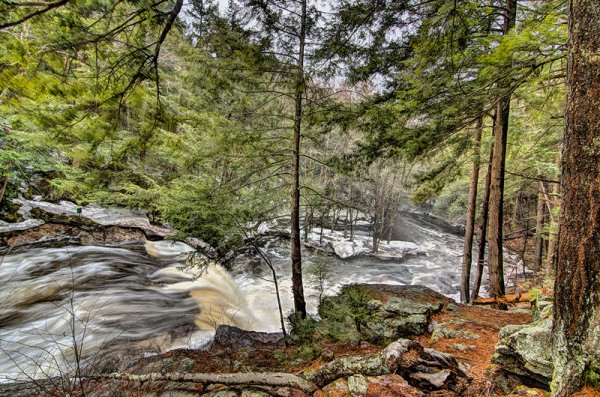
HDR-Darkroom3-Review-7

How’s HDR Darkroom 3 handle worst case high dynamic range?

The waterfall photo above that I used for the walkthrough is a fairly easy shot for an HDR process as its low on dynamic range and won’t really push the software to its maximum potential. But, I didn’t want to be too unfair in the introduction.

So let’s take it a bit further, let’s try and and do something close to a worst case scenario HDR. The image below is made up of three bracketed images shot at +2, 0, -2 directly into the sun. Plus there’s snow and shadows in the foreground to deal with as well, making for a truly difficult shot.

Admittedly HDR Darkroom 3 did struggle here, I tried to recover those highlights in the sky, but no matter what I did they were always blown out. Below are screenshots of three different presets plus advanced adjustments that I applied in order to try to control the image.
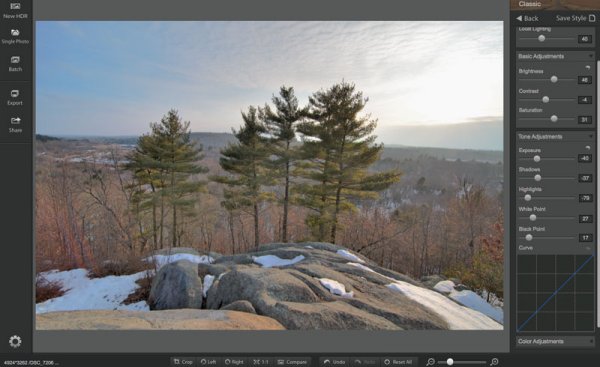
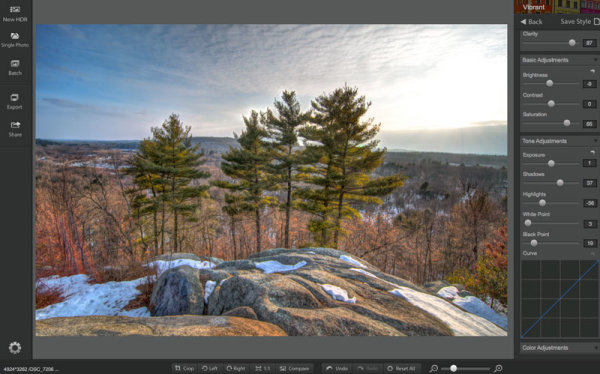
Sunset-HDR-Darkroom3.2 Sunset-HDRDarkroom-3.3 Sunset-HDR-Darkroom3

While the presets make for some easy switching between different effects of HDR, the overall fine-tuning control of the process is lacking in some situations. On most occasions when I went to reduce the highlights I was left with something that was lacking detail and muted in color. Not to mention the sliders are very heavy handed and effect a much larger portion of the tone curve than the respectively named ones in Lightroom.

The best I was able to come up with, shown below, has a few issues with haloing around the trees (the blown out highlights around the sun. It’s something that you may be able to fix in Photoshop later by masking in the sky from one of the brackets, but that’s beyond the scope of this review.
HDR Darkroom 3

HDR Darkroom 3 Final

Compared to the Merge to 32-Bit Lightroom Plugin by HDR Soft

Being that this was a challenging photograph it’s worth checking out two other HDR options to see how they would handle the same scene. Both of the options I’m testing below are offered by HDRSoft. One of these is very budget friendly at a price of $ 29, while the other one is more comparably priced to HDR Darkroom 3 listing for only $ 10 more at $ 99.

Our budget friendly option is a plugin called Merge to 32-bit HDR for Lightroom. It’s a very simple process that really strips out the tone mapping process of creating an HDR image, but still allows you to merge the data from a bracketed set of photos directly inside of Lightroom 4 and greater. For more about how it works you can read Five Minutes to Realistic HDR using Lightroom and a 32-Bit Plugin.

Now it’s not surprising that the 32-bit plugin struggled with this photograph, as after all, it is very limited. However, because it imports the 32-bit TIFF file back into Lightroom for you to work on, I think it may have handled the highlights in the sky slightly better than HDR Darkroom 3, it’s a judgement call, but for the price difference I’d say it’s a win.
LRPlugin

Merge to 32-Bit HDR Plugin for Lightroom

HDR Darkroom 3 Versus Photomatix 5.0

Next up would be the flagship offering from HDRSoft, and one of the leaders in the HDR tone mapping word, Photomatix 5.0. It’s no surprise to me that Photomatix did a fairly decent job with the foreground detail and even most of the sky, it still had some problems with the sun, but that’s not surprising given the circumstances of the image set.
Photomatix-+-LR-3

Photomatix 5.0 + Quick Lightroom Cleanup

Overall I’d argue that this particular image set is one of the more challenging that you will run through an HDR tone mapping software, and all three options above gave it a fair attempt.

My thoughts on the three software in terms of how they did overall:

  • Photomatix 5.0 – Probably did the best overall job at merging the three images. However, it’s a more involved process, requires more training, and ultimately isn’t a standalone editor you’re going to need to clean up the tone mapped image in LR or some other program after the fact.
  • Merge to 32-Bit plugin – It’s quick and dirty. You are able to collect more data from the scene and basically create an HDR image without ever leaving Lightroom all for less than 30 dollars. Yes it’s limited, but it’s also affordable.
  • HDR Darkroom 3 – Like I said at the start of this article – I think HDR Darkroom 3′s best features are its user interface and intuitive preset oriented process of tone mapping images. I’d argue that it struggles the most when it comes to complicated scenes mainly due to the fact that the localized tone controls of highlights and shadows are a bit heavy handed and could stand to be more refined.

Would I Recommend HDR Darkroom 3?

HDR Darkroom 3 is a bit more affordable than some of the other premium tone-mapping solutions out there and does make a fair attempt at providing a good amount of the basic functionality into a nice looking and affordable package.

I think it boils down to this…

If you’re the type of person who likes to keep it simple and you don’t mind giving up a bit of control for the sake of simplicity then HDR Darkroom 3 might be the best option for you. But I’d urge you to check out the Merge to 32-Bit plugin first, as it may be all you need considering the price points.

However, I just can’t recommend it to those who are looking for a full featured product with total control over the HDR tone mapping process – there are better tools for the job such as Photomatix Pro and the small amount of savings here just doesn’t justify what you’ll give up.

Have you used HDR Darkroom 3? Tell us your own thoughts on it in the comments below – after all I’m just one opinion.

The post HDR Darkroom 3 Software Review by John Davenport appeared first on Digital Photography School.


Digital Photography School

 
Comments Off on HDR Darkroom 3 Software Review

Posted in Photography


19. April 2014

19 Apr

Ein Beitrag von: Leon Beu

Leon Beu


kwerfeldein – Fotografie Magazin | Fotocommunity

 
Comments Off on 19. April 2014

Posted in Equipment


Rezension: Falllicht

19 Apr

Vor ein paar Wochen habe ich Euch in unseren Ausstellungstipps Fenster, Ausgabe 1 die Arbeit „Light Fall“ von Guido Baselgia empfohlen, die noch bis zum 3. Mai in Zürich zu sehen ist. Der Weg ist mir leider zu weit, aber heute möchte ich Euch hier das Buch zu dieser epochalen Werkreihe vorstellen.

Der Fotograf Guido Baselgia war von 2006 bis 2014 mit seiner Fachkamera in verschiedenen Ecken der Welt unterwegs, um sich seinem zugegebenermaßen sehr weit gesteckten Thema anzunähern. Es geht um das Zusammenspiel der Erde mit anderen Gestirnen, das wir hier vor allem in Form von Lichtphänomenen wahrnehmen können. – Licht, das auf die Erde fällt.

Der nun vorliegende Zyklus „Light Fall“ bzw. „Falllicht“ fächert diese Phänomene sehr weit auf. So weit, dass ich auf den ersten Blick irritiert war und das Gefühl hatte, dass zu viele verschiedene Dinge hier unter einem Titel vereint werden. Aber bei erneutem Betrachten wachsen die unterschiedlichen Bildtypen immer weiter zusammen.

Falllicht © Guido Baselgia

Um Euch eine Vorstellung davon zu geben: Zu sehen sind Dämmerungen. Zwielicht auf Berg- und Schneelandschaften. Nebel. Gestochen scharfe, vom Vordergrund bis in den Hintergrund detaillierte Buschlandschaften in der Mittagssonne. Dann fast vollkommene Dunkelheit, in der nur noch schemenhaft Landschaften oder Wolkenformationen zu erahnen sind.

Kurze und lange Verläufe von Sonne, Mond und Sternenhimmel über wilder Natur ebenso wie über Städten (deren Lichter in der Nacht leuchten) oder abstrakten Wolkenformationen. Ich bin erstaunt, wie viele Variationen der Lichtverläufe es gibt. Gerade, gebogen, von Wolkenschichten unterbrochene Linien.

Senkrecht zu einem besonders üppig mit Sternenspuren gefüllten Himmel zeichnet sich der gerade Verlauf eines Flugzeugs ab. Über der Linie sogar mit den sichtbaren Leuchtsignalen — bip-bip — bip-bip — bip-bip.

Falllicht © Guido Baselgia

Fast abstrakte Langzeitbelichtungen von Wasser- und Wolkenbewegungen, die beinahe zu einer einheitlichen horizontalen Streifenanordnung mit Verlauf verwischt sind. Aber wie viele andere Bilder gerade noch so knapp an der Grenze des Erkennbaren liegen, das man weiß: Dort ist der Himmel, da das Wasser.

Daneben gestochen scharfe Felsformationen, mit Mustern von Schnee oder Eis überzogen. Ein beachtliches Spiel der Natur, das in den unendlich vielen Details, die sich durch herabfallenden, verwehten, gefrorenen und wieder getauten Schnee ergeben, wird auf dunkelgrauem Stein nachvollziehbar.

Aufbrausende Gischt an der Küste in gedämpftem Zwielicht. Die Bewegung einzelner Wellen, verwischt und doch deutlich in ihrer einzelnen Richtung erkennbar, lässt einen grübeln, zu welcher Tageszeit diese Bilder aufgenommen und wie lange sie belichtet wurden.

Falllicht © Guido Baselgia

Surreal anmutende Eislandschaften, die an Aufnahmen eines Rasterelektronenmikroskops erinnern. Knollenartig sind Pflanzen und Steine von dicken Eisschichten überwuchert. Man muss schon genau hinsehen, um irgendwo einige Grasbüschel zu entdecken, die filigran eingefroren sind und so eine Größenzuordnung erlauben.

Direkt neben Bildern, die fast vollkommen dunkelgrau sind, die mit unglaublich schwachem Kontrast und der Tatsache, dass das menschliche Auge trotzdem noch etwas zu erkennen vermag, spielen, steht etwa der Kontrast eines grell erleuchteten Himmels vor einer schwarz im Schatten liegenden Hügelformation.

Der Himmel in seinen Weißabstufungen ist ebenso fein durchgezeichnet wie die Landschaft am Boden. Es sind Wolkenschleier oben und flache Dünen unten erkennbar, immer gerade an der Grenze des Wahrnehmbaren. Besonders das Dunkelgrau in Dunkelgrau fasziniert mich. Ich vergesse meine normalen, starren Erwartungen.

Falllicht © Guido Baselgia

Der Abbildungsteil kommt abgesehen von Seitenzahlen ganz ohne Ablenkungen aus. So herrscht beim Blättern in meinem Kopf automatisch eine meditative, sich langsam ausbreitende Ruhe, die mich ganz erfasst. Im Anschluss an die Abbildungen folgt eine Liste der Aufnahmeorte und -daten aller Bilder.

Die Textbeiträge von Andrea Gnam und Nadine Olonetzky nähern sich der Arbeit relativ philosophisch an und bieten dem Leser und Betrachter so viele neue Ansätze und Inspirationen, wie einzelne Bilder oder das Gesamtwerk interpretiert werden können.

Im Anhang finden sich Auszüge aus den Notizbüchern von Baselgia, in denen er Beobachtungen, Illustrationen und Daten zu Orten und den dortigen Gestirnverläufen notiert hat. Ebensolche Notizen finden sich auch auf Abzügen, dazu Aufzeichnungen zum verwendeten Filmmaterial, Belichtung, Temperatur und andere Angaben.

Informationen zum Buch
Guido Baselgia: Light Fall*
Sprache: Deutsch und Englisch
Einband: Gebunden
Seiten: 144
Abbildungen: 113
Maße: 31 x 30 cm
ISBN 978-3-85881-420-3
Preis: 87 €

Die Galerie Andres Thalmann, Talstrasse 66, Zürich zeigt noch bis zum 3. Mai 2014 die Arbeiten. Geöffnet dienstags bis freitags und samstags von 11 bis 18.30 Uhr bzw. von 11 bis 16 Uhr.

* Das ist ein Affiliate-Link zu Amazon. Wenn Ihr darüber etwas bestellt, erhält kwerfeldein eine kleine Provision, Ihr zahlt aber keinen Cent mehr.


kwerfeldein – Fotografie Magazin | Fotocommunity

 
Comments Off on Rezension: Falllicht

Posted in Equipment