[ By WebUrbanist in Technology & Vehicles & Mods. ]
Both the first person to bike across the San Francisco Bay and over the Hudson River is great, but being able to skip traffic jams and cycle to work over the water daily is even better, according to Judah Schiller. And now he is looking to take his invention into the mainstream, so to speak.
Co-founder of the Aiko Agency (focused aptly on innovation and design), this tinkerer built his own bike from a kit, then hacked it to work on the water. He has since founded BayCycle in an effort to make such mods widely available, particularly given the shortcomings of regional bike lanes.
Schiller’s augmentations fit inside of a backpack and can be deployed in a matter of minutes. They consist mainly of a pair of inflatable pontoons, metal mounting rods and a propeller attachment.
During peak traffic, he can compete with cars clogged up in a tunnel or on a bridge, peddling along the water at his own pace, enjoying the exercise and fresh air to and from the office.
Along his way, he encounters a different set of more leisurely traveling companions, from sailors to paddlers, many of whom are naturally quite intrigued by his contraption.
[ By WebUrbanist in Technology & Vehicles & Mods. ]
If you’re a Lightroom user you’ll know that in Lightroom you can mask the sharpening you apply to an image so it is applied to the edges in the image only. This same feature is not yet available in Photoshop and the sharpening filters there are applied to the entire image rather than just edge detail.
However you can achieve a reasonable approximation of the Lightroom masking feature in Photoshop using the Photoshop Find Edges filter. The benefit of this is you can apply more sharpening to the image than you would do without the masking effect and areas of flat color like skies and skin tones won’t be sharpened. Here’s how to do this.
How to Sharpen Image Edges in Photoshop
Once you have finished processing your image in Photoshop, flatten the image to a single layer or make a single layer of the edited image by adding a new layer at the top of the Layer palette and press Ctrl + Alt + Shift + E (Command + Option + Shift + E on the Mac) to create a flattened version of the image on that layer.
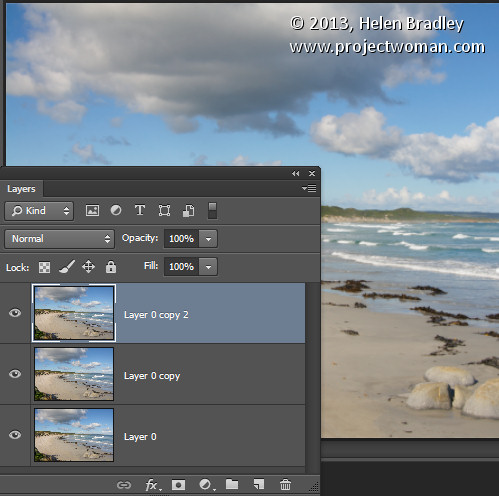
Duplicate the flattened layer twice.
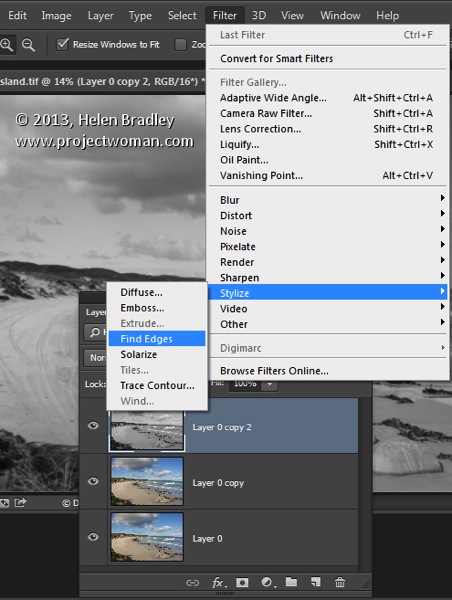
Target the topmost layer – you will create your sharpening mask from this layer. Choose Image > Adjustments > Desaturate to convert it to black and white then choose Filter > Stylize > Find Edges to isolate the edges in the image.
Choose Image > Adjustments > Invert to invert the colors so that what is black is white and vice versa.
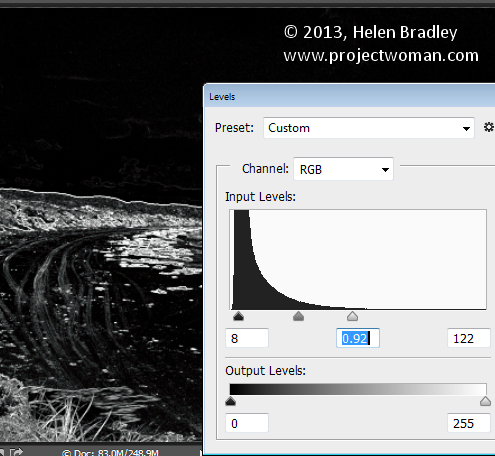
Choose Image > Adjustments > Levels and adjust the mask so that it shows white in the areas that you want to sharpen and black in those areas that you do not want to sharpen.
Once you have a good mask, blur its edges slightly by choosing Filter > Blur > Gaussian Blur and apply a 1 or 2 pixel blur to it. When this is done, hide the sharpening mask layer by turning its visibility icon off in the Layer palette.
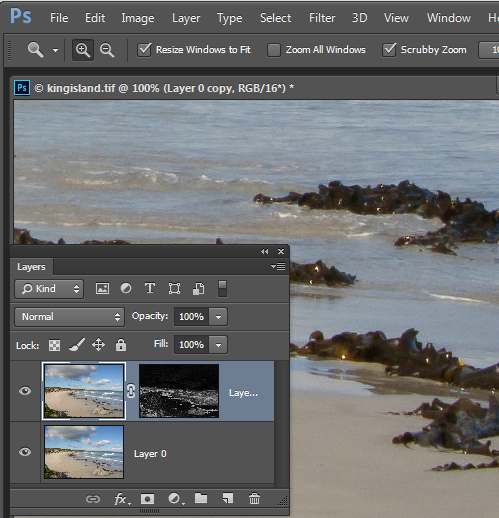
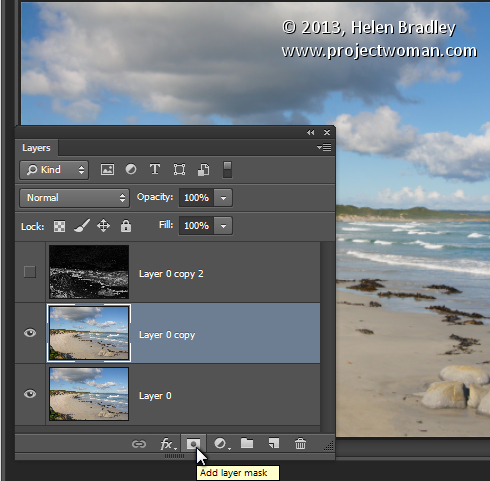
Now target the second topmost layer in the image and click the Add Layer Mask icon at the foot of the Layer palette.
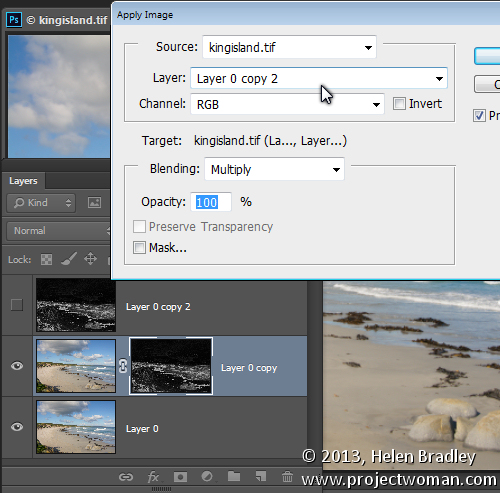
Click the mask thumbnail on this layer to target it and choose Image > Apply Image to open the Apply Image dialog. From the Layer dropdown list select the layer that contains the hidden sharpening mask, and click Ok.
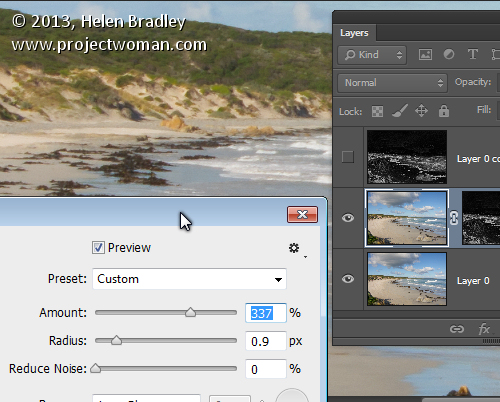
Click on the image thumbnail on this layer to target it and apply your sharpening to this layer – use Smart Sharpen or Unsharp Mask as desired. When you set the slider values, view the result on the image and not using the preview in the sharpening dialog. The preview in the dialog doesn’t take into account the mask you have applied – the image itself does. Click Ok when you’re done.
To compare the before and after result of sharpening the image with an edge mask, Shift + Click on the mask layer thumbnail to disable it and see the image as it would look sharpened and without the masking effect. Click the mask thumbnail again to enable the mask again. You can discard the hidden mask layer now, if desired as it is no longer needed.
While this sharpening mask takes some effort to create once you’ve done it a few times you will find the process quite straightforward and some of its creation can be automated using Actions.
Post originally from: Digital Photography Tips.
Check out our more Photography Tips at Photography Tips for Beginners, Portrait Photography Tips and Wedding Photography Tips.
How to Sharpen Image Edges in Photoshop
The post How to Sharpen Image Edges in Photoshop by Helen Bradley appeared first on Digital Photography School.
Panasonic quietly announced the development of a Leica DG SUMMILUX 15mm F1.7 lens, which the company says will be an ideal companion to the DMC-GM1 also released today. Details are scarce at this point, but the lens (equivalent to 30mm on a Micro Four Thirds body) will have a manual aperture ring and will ship sometime next year. Also coming in 2014 are a Leica DG NOCTICRON 42.5mm F1.2 lens, as well as a budget-friendly Lumix G 35-100mm.
One of the remaining arms of the Kodak legacy, Kodak Alaris, is working to remain relevant by focusing its efforts on moving photos from smartphone to print, via one of its 105,000 photo printing kiosks worldwide. The company recently released its API to lure developers into adding Kodak kiosk printing capabilities directly into their mobile photography apps. Learn more at connect.dpreview.com.
Various rumor sites are today reporting Hasselblad is poised to release a $ 10,000 rebadge of the Sony A7 that was just announced yesterday. Some even report it as if it’s a real product. Even just a cursory glance at the image suggests it’s a quick Photoshop job to add a wood grip and lighten the tint of the body. The serial number on the lens also suspiciously matches the product shots Sony released yesterday as well. What do you think?
As with all other types of businesses, your photography business won’t become successful overnight, no matter how much you want it to. There’s so much to consider when starting it up: marketing costs, an online presence, physical store space, overhead and, of course, consummate skill in shooting and editing your pictures. There is only so much of the marketplace available Continue Reading
The post 10 Tips to Make Your Photography Business Flourish appeared first on Photodoto.
It can be hard to explain to someone from Europe or elsewhere just how vast and variegated the United States really is, but this short epic photo series is a great start. It depicts a series of surreal landscapes, carefully chosen to show the amazing range of environments found across the American West.
Photographer Reuben Wu came originally from the United Kingdom and was awed by what he found traveling cross-country in America. On his latest trip from his home in Chicago, he looped through the northern and southern Midwest on his way to the West Coast and back, taking incredible images along the way, dubbing the series Cross Country.
He traveled this route with a plan: capture scenes at night when natural marvels were devoid of human activity and using technology to calculate when peak moonlight would allow for stunning visibility. The result is this set of vivid images that make familiar places seem alien, and speak both to beautiful variety and carefully found settings.
Subjects of the series span from Illinois and Indiana through North Dakota and Nevada, California, New Mexico and Kansas, and featured sites (or sights) include: Yellowstone, Badlands, Death Valley, the Grand Canyon and the Grand Prismatic Spring, the Devil’s Tower and the Smith Mansion.
Our friend Margo (dancin’ on the right there) has a real gift for making gifs.
She can crank out a masterful gif, in a jiff.
Margo has made some jolly good gifs for the Photojojo Shop (and points beyond).
So, we grabbed our most giferiffic questions, and sat her down to gab gifs.
We’ve gathered her answers in The Ultimate Gif Guide. Read it to find how she makes gorgeous gifs, how you can too and just how to pronounce “gif” in the first place.
Read The Ultimate Gif Guide, Then Go Forth And Gif
Q: How do you plan out your gifs?
A: I start off by thinking about what I want to happen. How the gif should start and end, and what will happen in between? Do I need an extra set of hands or any other tools?
I keep a few items in my studio- glue dots, tape, fishing line, just in case I need to keep wiggly objects in place or make other objects levitate.
I try to keep it simple, but fun. Cuz gifs are fun. 🙂
Q: How’d’ya take photos that’ll work well as a gif?
A: The key here is consistency. I’ve learned my lesson trying to put together a crazy hodge podge of images (that just doesn’t work).
Now when I’m making a gif, I try to make sure my lighting, focus, and camera placement will stay the same. If I accidentally move the camera, I’ll start over from the beginning. Sometimes it’s a pain, but it makes it easier in the long run.
If you’re going for a stop-action gif, tripods are your best friends. Seriously. Unless you have rock-steady hands, which I don’t.
Working in the studio makes it easy. I know my lights, background, and focus will be spot on. Working outdoors, and with models, gets trickier. I try to find a nice shady spot to shoot in, and ask my model to stay as still as possible… which is also harder than it seems.
In any case, try to minimize the variables! Keep the camera on my tripod if you can, and shoot wider than you normally would, so that you can crop in and have room to line things up during post-production.
Q: Got any pro tips for shooting a stop motion gif?
A: How you take your photos totally depends on how smooth you want the action to be.
If you want it to be real smooth, like video smooth, just move the objects a tiny bit at a time. This means more photos, and more editing, but smoother transitions between frames.
If you like the choppy look, you can make larger movements and take less photos.
Q: How do you turn your photos into a gif, on a compy?
A: This part can be as simple or complex as you want it to be, and also depends on how consistently you shot the images.
1. Open the images you want to use in Photoshop, and resize them to a smaller resolution. *Don’t crop or make major edits at this point.* Simply resize.
Since gifs end up being pretty small for the web, and my camera takes really large file size photos, I do this first. It just makes it easier on me and the computer. For the web, the resolution only needs to be 72dpi, so start there.
2. Copy each image onto a new document, pasting them in layers one at a time. With each new layer, lower the opacity so that you can see the image layer beneath it. Use “free transform” to move, resize, and line up the layers.
3. Once you have all the layers in place, crop and edit. By making adjustment layers to the entire document, you make sure to keep the consistency you started with (and don’t have to remember the exact adjustments from image to image).
Bonus Step. SAVE YOUR FILE every few changes. The WORST is when you’ve spent forever editing something, then your computer freezes. It’s made me want to cry.
4. Once it’s all edited, I use the “Create Frame Animation” feature of Photoshop CS6 (free trial here). It creates a frame from each layer. Then set the speed and save it for the web.
This site has a great step by step for making gifs, if you’ve never tried it before.
Q: How do you turn your photos into a gif, on a phone?
A: There are a few apps specifically for gifs.
Gifboom lets you upload from your camera roll, from the web, from a video or from another gif, which means you can make anything you want. You can also add music to it right in the app.
Cinemagram is really great for creating gifs in real time, especially ones where you also want to involve an optical illusion, like your body walking away with out your head.
You can also take still photos on your phone, then using iMovie make a stop action movie. Save that, upload it to Instagram and bam! Watch out world.
Q: What’s the best way to share your new gif?
A: Tumblr is a great way to share gifs, as long as they meet their specs (see below). Be like these guys and make an entire tumblr just for your amazing gifs!
You can make a real-time gif using Vine (just tap your finger quickly as you record).
Or if you want to add it to Instagram, just export your gif in photoshop as a movie. Then send the file to your phone.
Q: Posting to Tumblr can be a pain. What’s the secret?
A: Tumblr is one of the best places for gifs but they have to be a certain size to upload and play correctly. They need to be under 1mb and no more than 500px wide.
Best way to achieve that – First, check your image size. Make sure the resolution is 72dpi, and the width is 500 px or less.
Another way to reduce file size is to reduce the number of colors the gif is using when you are “saving for web.” Instead of 256 colors, try 128 or even 64. Sometimes that makes the gif look strange, but sometimes it looks alright and that does the trick!
If it’s still too big, you may simply have too many frames. Try reducing the number of frames in your gif. Less frames means choppier transitions, but might be the only way to get that gif onto Tumblr.
Q: Once and for all, is it pronounced “gif” or “gif”?
A: Oh man. Such a debatable issue!
I believe the g is actually silent. So I just call them “ifs.”
Related posts:
Ask Photojojo: Photojojo’s Photo Pros Answer All Your Questions! Have you ever wondered what Photojojo’s deepest dreams and desires…
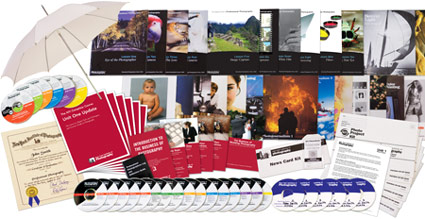
Over the last few years here at dPS, we’ve run very popular competitions with one of our partners – the New York Institute of Photography – to give away to lucky dPS readers some of their great photographic teaching.
Due to popular demand – we’re doing it again this week!
For this competition, NYIP is giving away FIVE prizes!
These five prizes are designed to be helpful for two different levels of photographers. Each will be won by a different dPS reader. Here’s what you could win:
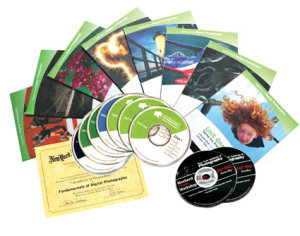
Fundamentals of Digital Photography – worth $ 499
Complete Course in Professional Photography – worth $ 1,499
Photoshop for Photographers – Worth $ 1,499
Complete Course in Video Making and Storytelling – Worth $ 1,499
Marketing for Photographers – Worth $ 999
All courses include comprehensive and illustrated lesson books, CD Audio Guides, DVD Video Training, Photo Projects and Professional Evaluation and Personal Student Advisers.
Learn a little more about how New York Institute of Photography works in this video:
How to Win
To win this competition you’ll need to:
Visit the above five course information pages and choose which of the courses suits your needs more. Choose one that you’d like to win.
Leave a comment below and tell us which one you’d like to win and WHY you’d like to participate in the course. Please note: there is a limit of 1 entry per person.
Do this in the next 8 days and on Thursday, October 24th, the team at NYIP will choose the best 5 answers and we will announce the winners in the following days.
The deadline for entries is Wednesday, October 23rd, Midnight PDT. Comments left after deadline will not be considered.
By ‘best’ – we’re looking for people who have an understanding of what the course offers and how it suits their needs. So you’ll need to check out the course pages to put yourself in the best position to win.
There’s no need to write essay length comments to win – but we’re looking to hear what you like about the course and how it would help your development as a photographer.
This competition is open to everyone around the world no matter where you live – but there is only one entry per person.
To enter – simply leave your comment below.
Disclaimer: NYIP is a paid partner of dPS.
Post originally from: Digital Photography Tips.
Check out our more Photography Tips at Photography Tips for Beginners, Portrait Photography Tips and Wedding Photography Tips.
Win One of Five Photography Courses from New York Institute of Photography
The post Win One of Five Photography Courses from New York Institute of Photography by Darren Rowse appeared first on Digital Photography School.




 A: I start off by thinking about what I want to happen. How the gif should start and end, and what will happen in between? Do I need an extra set of hands or any other tools?
  A: The key here is consistency. I’ve learned my lesson trying to put together a crazy hodge podge of images (that just doesn’t work).


 A: Tumblr is one of the best places for gifs but they have to be a certain size to upload and play correctly. They need to be under 1mb and no more than 500px wide.
 Over the last few years here at dPS, we’ve run very popular competitions with one of our partners – the New York Institute of Photography – to give away to lucky dPS readers some of their great photographic teaching.