RSS
 

Archive for June, 2013

Women Posing Guide in Action: 7 Sample Poses – 21 Different Photos

04 Jun

A post by Kaspars Grinvalds from Posing App.

Previously published articles in the Posing Guide series contained hand illustrated posing samples as a guide or reference during your photo shoots. Based upon feedback and questions I received about these guides, I wanted to describe the process in a little more detail and show some real photos created while using these posing techniques.

I’d like to begin by stating once again – the main purpose of using posing samples is only to get your model into some starting point. That’s it. You don’t need to (and quite often you wouldn’t be able to) precisely recreate even the simplified illustrated pose.

This will be a three part series looking at standing, sitting and laying down poses for female models. For the the first article I chose seven sample standing poses and by slightly adjusting each pose I got 21 different photos. Now, let’s take a look at this process.

Pose 1
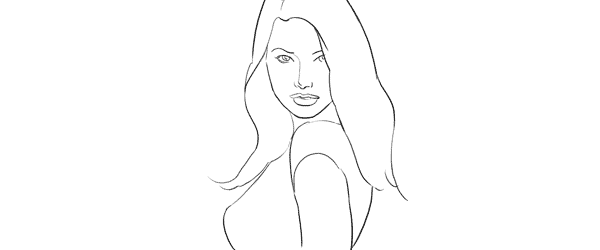
Pose1

It is a good idea to start your photo shoot with some very basic, easy pose. That’s why I chose this one to begin with. It’s easy to describe and easy to understand – “portrait shot from a side”. So you might start with saying to your model “Ok, turn with your side towards me, turn your head to me and look right over the shoulder at the camera. Straighten your spine and keep hands loose by sides.”

7poses 1

Photo 1 – With these instructions you should get something like the first picture. The next thing without changing the pose, is to “find” the face expression you’re looking for. You may want to try moving from very subtle smirks to stronger smiles or even laughter. And once you have the expression (or different ones) you’re after, tell and show it to the model. Thereby it will be easy for the model to learn and repeat it.

Photo 2 – After I got the simple and kind expression I was looking for, I slightly changed my position and asked the model to keep looking back over her shoulder to the camera. Exactly the same pose, just taken from another angle and you already have a slightly different photo.

Photo 3 – Also many different looking directions and head tilts are possible. In this particular example I asked the model to look back down her body. This look works very well in many posing situations, creating yet another variation just by slightly adjusting the starting pose.

Pose 2
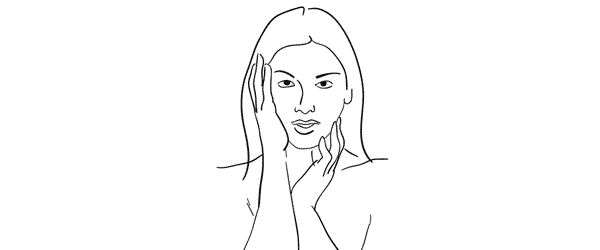
Pose2

Seeing this sample illustration you should grab only the basic idea – “portrait shot with hands around the face”. That’s all you need for playing around with initial sample pose. Eventually you will come up with some nice variations of your own.

7poses 2

Photo 4 – Before getting to the hands, ask the model to stand facing the camera and support her body weight on just one leg. This instantly curves her body and her shoulder line is shifted. After that ask her to gently move her hands around the face and in the hair. Generally look for asymmetrical hand placements, but as you can imagine – many variations are possible.

Photo 5 – In this shot the only difference is slight tilting of the head and putting one hand behind the hair.

Photo 6 – To differentiate the look and feel, I once again asked the model to look down her own body and cropped tighter around the face. And again with only minor adjustments from one pose we’ve got 3 different photos.

Pose 3

Pose3

Another easy pose with very simple idea – “hands connected on the chest”. Notice that hands are not really “crossed”, but “connected”. Also you should warn your model not to grip them too tight or press upper arms against the body. Simply put, the posture should feel comfortable and subtle.

7poses 3

Photo 7 – Before taking this shot, I showed the model the sample illustration and she tried to recreate it. This is as close as you usually get if you recreate the sample pose.

Photo 8 – The outlines don’t and won’t match perfectly. In this particular example I took a shot from higher angle aiming slightly down because I saw that this angle works better for the model.

Photo 9 – Another simple way of transforming the pose is simply mirroring it the other way around. And to even more differentiate it from the first shot, I asked the model to lean against a wall.

And then I moved closer and took a head shot for just another variation of the same pose.

Pose 4
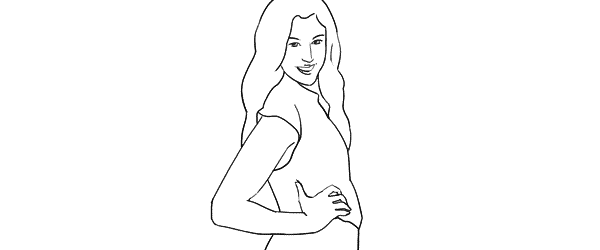
Pose4

This simple pose is again self-explanatory – “the model turned to the side with one hand on the waist”. That’s all I tried to recreate.

7poses 4

Photo 10 – Here I started straight away with mirroring the sample pose because this was the better looking side for my model. Remember that it is different for each person. If you are not sure, take both variations and ask your model which one she prefers.

Photo 11 – From side view I followed to 45 degree position and asked the model to keep looking to the camera.

Photo 12 – Lastly, I just moved farther away for wider frame. The same pose, but these minor variations provide you with greater choice of images to select from in post.

Pose 5
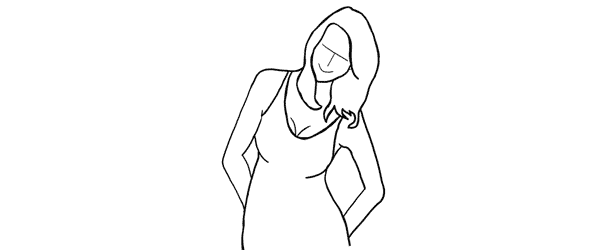
Pose5

This pose provides simple yet elegant at the wall concept – “standing at the wall with hands behind the back”.

7poses 5

Photo 13 – Start with asking your model to support herself at the wall with her back. After that the first thing to take care of is shifting her body weight on one leg with the other crossed over it. Even if the legs are not visible in the frame, it is critical for forming the model’s body in S shape. Then ask her to place her hands behind her back asymmetrically. Finally ask her to lean forward slightly away from the wall with her upper body part.

Photo 14 – As usual I tried changing my shooting angle and took the next shot more from a side.

Photo 15 – And I continued to experiment with slightly different hand placement and head tilt. These images might be very similar, but most probably your subjects will be grateful for this kind of choice.

Pose 6
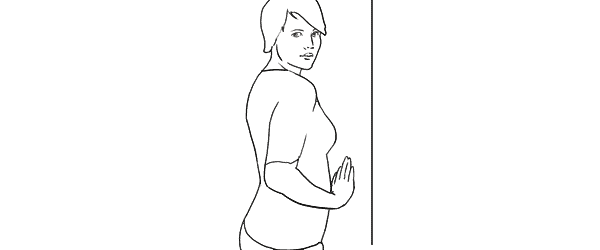
Pose6

Another at the wall pose but this time with the model facing the wall. Easy to describe and recreate. Both hands are gently placed on the wall right in front of her just below the breast line.

7poses 6

Photo 16 – With the previous instructions the model easily achieved the described pose. And again I chose mirroring the sample illustration which already is one variation for any pose.

Photo 17 – Here I changed the shooting angle nearly parallel to the wall and cropped for a portrait shot.

Photo 18 – Finally the model changed the hand placement asymmetrically for just another variation.

Pose 7
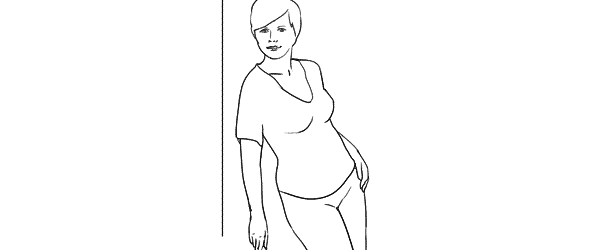
Pose7

This is a bit more challenging pose than the previous ones, so definitely some guidance for the model is required in order to recreate it.

7poses 7

Photo 19 – The trick for the model here is to stand slightly off the wall and support herself against the wall with the front shoulder only. Front hand is loosened by the wall. After that the model should support the body weight on the outer leg, kicking the hip out with the inner leg crossed over. The back arm rests on the hip and the elbow is pulled behind her back.

Photo 20 – After managing the starting pose I started to variate it. Here I moved closer for tighter crop and asked the model to lean slightly forward along the wall.

Photo 21 – And finally I asked the model to turn sideways, supporting against the wall with both shoulders. And to further differentiate the shots I asked her to look down her body.

So, that’s it. Out of 7 sample poses we managed to get 21 different shots. And as you can easily imagine, even these are only samples, adjustments and variations are indeed endless.

All of these illustrations and many more posing samples are available on Posing App for your mobile devices.

Kaspars Grinvalds is a photographer working and living in Riga, Latvia. He is the author of Posing App where more poses and tips about people photography are available.

(function(d){
var f = d.getElementsByTagName(‘SCRIPT’)[0], p = d.createElement(‘SCRIPT’);
p.type = ‘text/javascript’;
p.setAttribute(‘data-pin-hover’, true);
p.async = true;
p.src = ‘//assets.pinterest.com/js/pinit.js’;
f.parentNode.insertBefore(p, f);
}(document));

Post originally from: Digital Photography Tips.

Check out our more Photography Tips at Photography Tips for Beginners, Portrait Photography Tips and Wedding Photography Tips.

Women Posing Guide in Action: 7 Sample Poses – 21 Different Photos


Digital Photography School

 
Comments Off on Women Posing Guide in Action: 7 Sample Poses – 21 Different Photos

Posted in Photography


Studio Lighting Tips For Beginners

04 Jun

Even as a new photographer you’ll no doubt be aware of the not-so-secret ingredient to creating stunning photographs – lighting. But there are so many things to consider so where do you start? This article will hopefully ‘shed some light’ on some basic but important techniques to improve your shots.

Choose the best light source

Remember that your lighting setup should depend on the purpose of your shoot, the time of day (if you want natural light), and what you’re capturing. Your first task therefore is to choose the right type for the job. So without further ado here’s a breakdown of the main lighting sources and what they’re best for:

  • Continuous light sources, as the name implies, stay lit continuously much like a lightbulb or tube. They’re a great option for beginners on a budget as they’re generally much cheaper than flash lights. A big benefit is that they immediately show you where shadows will appear in the studio. Be wary that such lighting tends to release a lot of heat – not ideal for photographing human subjects for long periods.
  • Flash lighting tends to be a lot more powerful than continuous equipment and is great for capturing quick-moving subjects – for instance when you’re shooting a family session in your studio with energetic children running about.
  • Natural light isn’t for everyone. It can boost portraiture shots with a realistic, natural quality when there’s plenty of it (and vastly reduces the strength of catch light in the eyes). However, if there isn’t enough, it can have an adverse effect on your subjects – giving them a dull, dark look. If your studio allows for a good amount of natural light though, I do recommend you at least give it a try.

Portrait photography ideas

An excellent way of brightening up your portraits without using harsh lighting is by utilising a reflector. Simply sit your subject near a window and place a reflector up to a metre from their face – the natural light bounces off, illuminating the portrait and filling up unwanted shadows. Don’t want to spend lots on a reflector? Make your own! Simply use a sheet of card covered in tin foil. You’ll be surprised how effective it is.

studio-lighting-tips-beginners

Also, try experimenting with the angles of the light source in relation to your subject. Small angle adjustments can make big differences to the look of your photos. As a general guide, lighting from a person’s side produces more of a shadow-heavy yet dramatic style, whilst placing the light behind creates a silhouette. To emphasise your subject even more, or to highlight a particular aspect (such as their hair), try experimenting with a second flash light. We do of course recommend you master a one-flash set up first before taking on two.

Photographing children

As we suggested before, using continuous light sources near people can sometimes cause discomfort due to the high amount of heat they emit, and is even more of a concern for young children. If there’s sufficient natural light available, it’s best to use that. Otherwise, opt for a softbox attachment. For movement-heavy shoots, go for flash.

lisa2

For older children I suggest utilising both flash and continuous. Softboxes help brighten children’s already cute faces and you may want to try large umbrellas to really enhance the catch lights.

Lisa Gill is a professional photographer who also teaches a range of courses from her studio in Buckinghamshire, UK.
http://www.lisagillphotography.co.uk

dslrBlog

 
Comments Off on Studio Lighting Tips For Beginners

Posted in Photography


Critique Yourself: Weekly Photography Challenge

04 Jun

This week we published a post by Lynsey Peterson in which she shared 5 of her own images that she feels could have been better.

Look at me

It was a brave move by Lynsey to share that post and got me thinking about the topic of self critique.

My own experience of photography is that going through the process of critiquing your own work to see how you might improve is actually a very valuable process and as a result I’d like to encourage others to do the same as this weeks photography challenge.

Your challenge is to share a photo that you’ve taken recently and share with us how you’d improve it if you could shoot it again.

Would you change the composition, use different gear, pose your subject differently, shoot at a different time of day, use a different approach to lighting…. or something else?

There’s no need to write a long essay critique (although feel free). Just a few points on what you’d do to improve your shot next time is fine.

Once you’ve worked out which shot you want to critique upload it to your favourite photo sharing site either share a link to them even better – embed them in the comments using the our new tool to do so.

If you tag your photos on Flickr, Instagram, Twitter or other sites with Tagging tag them as #DPSCRITIQUE to help others find them. Linking back to this page might also help others know what you’re doing so that they can share in the fun.

Also – don’t forget to check out some of the great shots posted in last weeks Spirit challenge – there were some great shots submitted.

Post originally from: Digital Photography Tips.

Check out our more Photography Tips at Photography Tips for Beginners, Portrait Photography Tips and Wedding Photography Tips.

Critique Yourself: Weekly Photography Challenge


Digital Photography School

 
Comments Off on Critique Yourself: Weekly Photography Challenge

Posted in Photography


Photo Magic, 3D Photography

04 Jun

creek110319-133-hdr-3d

This will blow your mind. If you have never tried ‘free view’ 3D, then you might find it hard to imagine that you can take 3D photos with any camera and see them on any computer screen without glasses or special technology. I will show you how.

I’m Neil Creek, author of DPS’s latest ebook Photo Magic: Special Effects Photography Made Easy and the popular Photo Nuts ebook series. Photo Magic is full of techniques to create unique and impressive images, just like this one, so if you want a copy you can grab it here at the special launch price of $ 15.

We see the world with two eyes, and that tells us the depth of a scene. Most cameras can only capture a flat plane, destroying any depth the original scene had and robbing it of a great deal of its impact. This technique lets you capture photos of certain scenes that contain the depth of the original, and with a little bit of practice most people can learn to see these photos simply by crossing their eyes.

I’ve written a detailed guide on how to see 3D photos on my blog, and it has already helped thousands of people to learn how to ‘free view’ 3D photography. If you’re not familiar with the technique, go and have a read, then come back, enjoy the photo above in glorious 3D.

Now I bet you want to know how you can make these images yourself!

What I’ll Be Using For The Shot

  • Canon 5D MkIII
  • 24-70mm f2.8 lens

How The Shot Was Taken

Taking a 3D photo is actually really simple, but with some limitations. Most importantly: this technique will not work with a moving subject. You won’t be able to take good photos of moving water, leaves blowing in the wind, people you can’t direct, or anything else which does not stay still for a few seconds. Feel free to give it a go if you think your subject is still enough, but the effect may not work well.

The technique is called the “cha-cha” method because all you do is rock from one side to the other when taking a pair of photos.

Find a subject that you think will look good in 3D. My photo looks interesting because there are rocks and outcrops and overhangs and grass and all kinds of things going on in the depth of the photo which you can’t see in the 2D version. Use a relatively narrow aperture, as out of focus parts of a 3D photo can be distracting rather than attractive. A faster shutter speed also helps to reduce camera shake, since you are hand-holding.

Compose your shot and pick out a feature that’s not too far away from you to be a reference point. This will probably be in the lower third of the photo, near the centre. Now stand with your weight on your right foot and take the first photo. Then, while watching your reference point and trying to keep it in the same place in your viewfinder, put your weight onto your left foot and take the second photo. And you’re done! The magic happens in the processing.

Portrait or landscape?
For free viewing, it’s best to take all of your 3D photos in portrait orientation. This requires you to cross your eyes less and is thus more comfortable. Also, two landscape photos side by side are very wide and will thus make the whole image appear smaller on your monitor. However, if you have a 3D TV or monitor and you are taking 3D photos to display with it, then landscape is the better choice. These displays overlay the two images, so a landscape oriented photo will fill the screen.

Processing the Shot

Now that we have two images, to share and show them as a 3D pair we need to make them one. It’s not as simple however as just sticking them side by side in one file. There are a couple of issues we need to take care of which are unique to 3D photos: Alignment and the 3D window.

Both of these issues can be handled with a nifty piece of retro-looking software called Stereo Photo Maker, and the AutoPano plugin for it. Download them both at the links below, install AutoPano, run Stereo Photo Maker and in its preferences, point to AutoPano and you’re ready to go!

  • Download and install StereoPhoto Maker
  • Download and install AutoPano and link it to StereoPhoto Maker as a plugin

Alignment
Taking 3D photos with the cha-cha method can cause each photo to become slightly misaligned from the other. There is also distortion introduced from pointing the camera at the same target in each photo. Even though this is necessary for the most 3D coverage with your two photos, this keystone distortion needs to be corrected. This is achieved with the AutoPano plugin.

2013-05-28 22_33_50-Left Image(creek110319-133-hdr-3d

3D Window
The edge of the frame of your photo has an apparent position in 3D space: where your monitor is. Things look weird and uncomfortable if parts of your photo appear to be touching this frame, it’s far better to make it look like they are inside it, beyond the monitor. Stereo Photo Maker has a tool to help here as well.

Step by step process

  • Drag both photos onto the StereoPhoto Maker shortcut icon
  • Zoom out a bit with your mouse’s scroll wheel if you need to to make it easier to fuse the pair into 3D with the cross-eye technique
  • Click on the auto align button to use autopano to correct for any distortions
  • Click on the Easy Adjustment button to fix the 3D images position relative to the 3D window (see below for more information)
  • I find adding a border helps, so if you like, in the menu go to View – Border Options
  • Check “Show Border” and adjust the border settings to your liking
  • Save the image by clicking in the menu File – Save Stereo Image

Positioning the image within the 3D window is done with the “Easy Adjustment” button in the top toolbar. This opens the adjustment dialogue box, seen here, and you move the slider above the two overlaid images, increasing or decreasing their separation, thus moving them in or out of the 3D plane. It can be difficult to know exactly how to adjust this but a good rule of thumb is to look at the lower edge, and get features here to overlap. With practice and experimentation you can try different positions for the 3D window, creating cool effects with elements coming through the 3D window. It’s best to avoid anything touching the 3D window however.

2013-05-28 00_54_11-Easy Adjustment

Some More Examples

Now you’ve got your feet wet, here are some more 3D photos I’ve taken over the years to show you. And don’t forget, if you liked this post, then you’re bound to enjoy Photo Magic! The book is packed with cool stuff you can create just like this, fully explained with examples, explanations and variations you can try on the looks described. Check it out here.

Enjoy dancing with your camera! Cha cha!

creek-100717-049-hdr-3d

creek-060830-159-3d

creek-110317-035

creek-090308-295-3d

creek-081129-131-3d

creek-040506-091-3d

creek110319-061-3d

creek-110317-033

Post originally from: Digital Photography Tips.

Check out our more Photography Tips at Photography Tips for Beginners, Portrait Photography Tips and Wedding Photography Tips.

Photo Magic, 3D Photography


Digital Photography School

 
Comments Off on Photo Magic, 3D Photography

Posted in Photography


How to Use Converging Lines to Enhance Your Photography

04 Jun
Converging-LinesPhoto by stevacek

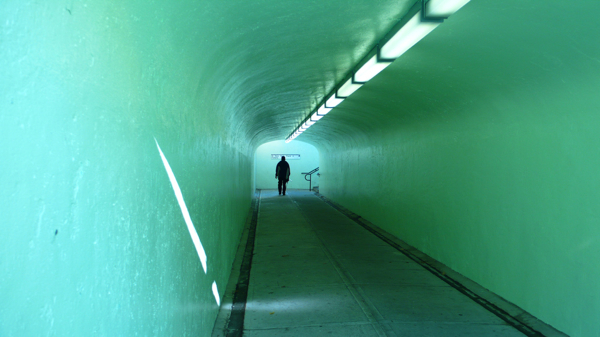
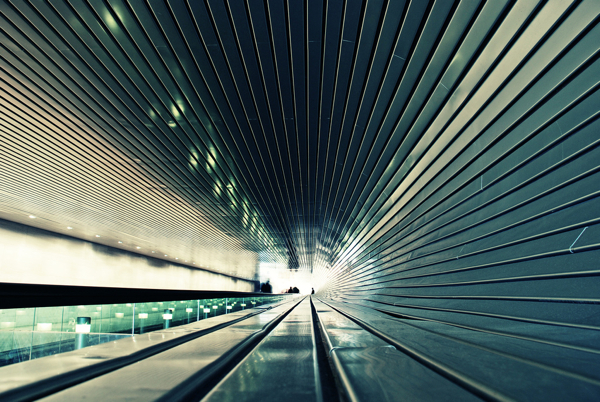
When framing a landscape shot one of the types of environmental features that many photographers look for and like to incorporate in their shots is converging lines.

We’ve talked previously about how lines have the potential to add interest to an image – but multiple lines that converge together (or come close to one another) can be a great technique to lead your viewers eye into a shot.

Perhaps the classic example (and one that’s probably been overdone) of converging lines are railway tracks.

Position yourself in the middle of two tracks (after taking a look at what might be coming from behind) and you’ll see the two tracks on either side of you appear to get closer and closer together as they go into the distance.

Take this shot and the natural reaction for those looking at the scene will be for them to follow the lines off into the distance. In a sense the two lines act like a funnel which directs the gaze of those entering them in a certain direction.

The same effect can be achieved with roads or pathways, converging fence lines, a set of stairs, power lines or virtually any other lines that run parallel into the distance or that actually converge at some point.

4 Tips Regarding Converging Lines

1. Experiment with Positioning – the classic railway line shot described above has many possibilities. One is to position the tracks dead center and symmetrically in the shot.

Another positioning would be to step to one side of the tracks and let them run diagonally through your frame from a lower corner to the opposite upper corner. The beauty of this is that you’ll end up with a more dynamic shot. Symmetrical and vertical placement of the lines can be powerful but diagonal lines tend to convey movement.

Alternatively stepping away from the start of the lines can give another perspective – as can holding your camera on an angle to give another diagonal framing of the lines.


2. Wide Angle Lenses – different lenses can totally change the impact of a shot with converging lines. I find that a wide angle lens can be particularly useful – especially when positioning yourself between the two lines.

This will help to give the perception that the distance between the lines at the starting point of the image is wider than it is. This exaggeration of the width of your lines can have a powerful impact upon your shot.

Lines-ConvergingPhoto by MarvinOS

3. Positioning the ‘convergence’ – one thing to consider when you have converging lines in an image is that they draw the eye into a shot – towards the point that they converge – this becomes one of the most important parts of this image – a focal point.

As you’re framing your shot ask yourself – ‘where is the most effective position to frame this?”

Keep in mind rules like the Rule of Thirds that says that the intersecting points of imaginary lines a third of the way into an image are key points for positioning points of interest.

Also know that if the point of convergence is outside the frame of the shot that you are leading the eye out of your shot. This could leave a shot unbalanced and with tension – alternatively it could enhance the shot and leave your viewers wondering about the place that they converge.

4. Adding Interest at the Point of Convergence – Sometimes it is worth enhancing the point of convergence with something of interest (for example waiting until a train appears in the distance on the tracks – or positioning a person at the top of stairs) – on other occasions the composition of the shot is strong enough without adding an extra subject.

If you’ve got some examples of converging lines in images that you’ve taken I’d love to see them over at the DPS forums – either in the How I took It or Critique My Shot sections.

Here are a few more Converging Lines shots to illustrate the point and hopefully give a little inspiration.

Converging-Lines-2-1Image by MarkyBon

Converging-Lines-3-1Image by Loving Earth

Converging-Lines-4-1Image by vividiti

Converging-Lines-5-1Image by Lush.i.ous

Converging-Lines-7Image by Aeloux

Post originally from: Digital Photography Tips.

Check out our more Photography Tips at Photography Tips for Beginners, Portrait Photography Tips and Wedding Photography Tips.

How to Use Converging Lines to Enhance Your Photography


Digital Photography School

 
Comments Off on How to Use Converging Lines to Enhance Your Photography

Posted in Photography


Roaming Market: Modern Update on 16th Century Tradition

04 Jun

[ By Steph in Global & Travel & Places. ]

Roaming Market 1

Based on the stalls of performance artists and fortune tellers that once wandered the streets of Europe in the sixteenth century, ‘Roaming Market’ brings fun little shows to London in modernized form. Local studio Aberrant Architecture constructed the steel venue on a trailer chassis so it can be moved from one urban location to the next in the Waterloo district this summer.

Roaming Market 2

Painted bright blue and bearing little ornamentation, the stall only vaguely resembles the often-ornate ‘pageant wagons‘ of centuries past, but it serves the same purpose: livening up the streets with music and plays. Pageant wagons were movable carts on which plays based on biblical texts were performed, before the rise of professional theater rendered them obsolete.

Roaming Market 3

The mobile venue is also inspired by the ‘totem’ structures found in London’s historic street markets. It unfolds into a multi-functional stall with a covered seating area featuring a built-in chess board, as well as a rooftop stage. The giant chicken sign protruding from the top is a nod to the history of chicness being used to tell people’s fortunes.

Roaming Market 4

Waterloo is an ideal location for a revival of the tradition, with its long history of fortune tellers, mystics and peep shows. Roaming Market will be used to promote Waterloo as a vibrant shopping destination, and will ultimately be moved around the wider area to act as a signpost for the historic Lower Marsh Market.

Share on Facebook


[ By Steph in Global & Travel & Places. ]

[ WebUrbanist | Archives | Galleries | Privacy | TOS ]


WebUrbanist

 
Comments Off on Roaming Market: Modern Update on 16th Century Tradition

Posted in Creativity


Just Posted: Pentax K-5 II / K-5 IIS Review

04 Jun

pentax_k5ii.png

We just posted a review of the Pentax K-5 II, which also covers its near-twin the K-5 IIS, a version of the camera that lacks an AA filter for higher resolution (in theory). Offering 16MP CMOS sensors, a unique shake reduction system, and a rugged weatherproof body, the Pentax K-5 II and K-5 IIS are compelling little cameras and in this review we’ll explore their various standout features, as well as look at the difference in image quality between the two models. Click through for a link to the full review.

News: Digital Photography Review (dpreview.com)

 
Comments Off on Just Posted: Pentax K-5 II / K-5 IIS Review

Posted in Uncategorized


Panasonic Lumix ZS30/TZ40 Review

04 Jun

Panasonic Lumix ZS30:TZ40 Review.jpg

For camera makers the bad news is that smart phones and their inbuilt cameras are hurting the sales of compact digicams.

The good news is that it probably means more people are taking more pictures and shooting video — but not with digital cameras.

Not for me. Ergonomics comes into it: I find holding a smart phone far from an ideal way to fire off a shot and even worse when it comes to shooting video.

With the latter in mind, let’s face it, a video camcorder is the ideal shape for shooting video, digicams/DSLRs and CSCs come in second and way down the list is a smart phone or, even worse, a tablet.

Then, when it comes to a camera like the TZ40 (or the ZS30 as it is known in North America), the game changes radically.
Panasonic Lumix ZS30:TZ40 Back.jpg

Panasonic Lumix ZS30:TZ40 top.jpg

Panasonic Lumix TZ40/ZS30 Features

Let’s look at the specs:

The lens is designed by Leica. Its range is 20x, zooming from a 35 SLR equivalent of a wide 24mm to a tele 480mm focal length.
Harbour Bridge full tele 4.JPG

Harbour Bridge full wide 3.JPG

The camera is stabilised and compensates for five types of movement: horizontal, vertical, axis of rotation, vertical rotation and horizontal rotation. So there, smart phones!

The CMOS sensor captures a maximum image size of 4876×3264 leading to a 41x28cm print.

Video is captured at the Full HD resolution of the 1920×1080 pixels in either MPEG4 or AVCHD formats. And note: you can shoot stills mid video recording.

The DMC-TZ40 can easily ‘talk’ to a compatible smart phone easily, allowing still and video shooting to be controlled from the smart phone screen with the help of the supplied Panasonic
Image App for iOS and Android phones. Users can also see what the camera lens is seeing live from their phone at 30 fps, then set zoom, focus, shutter release, shutter speed, aperture and exposure compensation, as well as capture video remotely.
$  10 note.jpg

Opera House and ferry 4.JPG

Level Shot is a feature new to the TZ Series which detects the horizontal angle of view and keeps the image straight: useful for shooting ‘blind’. The video is cropped to allow the feature to come into play. I managed to make this feature work but found the straightening effect to be relatively minor. Still, it may help many a topsy turvy videographer!

Besides this, there’s also an on screen indicator for camera level.
The TZ40 will shoot at 10 fps in full resolution using the mechanical shutter and 5 fps with continuous AF.

The GPS function shows the name of the country, state, city and key landmarks using an internal data library. The area information covers over 200 countries or regions and more than a million landmarks worldwide.

The 7.6cm LCD screen is a touch screen, which makes it very useful when you’re shooting in a tight corner.

Panasonic Lumix TZ40/ZS30 Controls

The camera is small and light, only gaining depth when the lens protrudes.

Top deck: centre is the mode dial with positions for intelligent auto, PASM, two custom settings, panorama shooting, scene and creative control modes; the zoom lever is centred by the shutter button and flanked by the power and video record buttons.

Rear: WiFi button; map/exposure button; replay; jog dial with positions for exposure correction, self timer, flash options and macro … the menu button is in the dial’s centre; beneath this is a button for display options and another for quick menu access.

The scene and creative control modes are interesting.
Scene modes.jpg

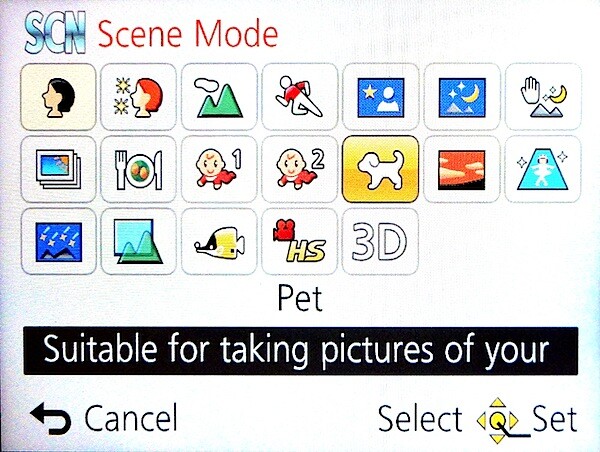
The former offers 19 options: soft skin; scenery; babies or pets; starry sky; handheld night shots etc. Purists may scoff at these, but the options sure help novices to bring home the bacon!
Creative Control.jpg

Creative control: you get a choice of retro, expressive, high key, etc. Creative control lets users apply a filter effect while shooting, while another mode, creative retouch allows effects to be added to shots after capture.

In the creative panorama mode you can add the above filters post-shoot.

In High Dynamic Range (HDR) mode the camera takes an undisclosed number of shots at different exposure levels and then automatically merges them to preserve details in the highlights, mid-tones and shadows.
Menu.jpg

The menu display is clear and obvious.

Startup Time

Startup from cold took just over a second; follow on shots came as fast as the shutter button was hit.

Distortion

A good performance, with no evidence of distortion at either the wide or tele ends of the zoom

Panasonic Lumix TZ40 ISO Tests

Panasonic DMC-TZ40 ISO100.JPG

Panasonic DMC-TZ40 ISO400.JPG

Panasonic DMC-TZ40 ISO800.JPG

Panasonic DMC-TZ40 ISO1600.JPG

Panasonic DMC-TZ40 ISO3200.JPG

Panasonic DMC-TZ40 ISO6400.JPG

Noise began to appear at ISO 1600 and the image became a little murky.

By ISO 6400 noise was well up, the image even murkier and definition far lower.
Swimmers 30_.JPG

Panasonic Lumix ZS30/TZ40 Verdict

Quality: above average

Why you’d buy the Panasonic Lumix TZ40/ZS30: small, pocketable; 20x zoom is a useful range; wide range of features; good stabiliser.

Why you wouldn’t: can’t think of any reason!

There is little to fault with this camera, however I question the placement of the video record button a few mills away from the power on/off button. Too often did I hit the one when aiming for the other!

I may have gone overboard on this little device but I hope my review serves to remind people that there are well-featured digicams out there that are far superior to smart phones that seemingly offer similar capabilities. Go get ‘em!

Available in black or white.

Panasonic Lumix TZ40/ZS30 Specifications

Image Sensor: 18.1 million effective pixels.
Sensor: 11mm CMOS.
Metering: Multi, centre-weighted, spot.
Lens: Leica DC Vario-Elmar f3.3-6.4/4.3-86mm (24-480mm as 35 SLR equivalent)
Exposure Modes: Auto, Program AE, shutter and aperture priority, manual.
Shutter Speed: 15-1/1200 second.
Memory: SD/SDHC/SDXC plus 12 MB internal.
Image Sizes (pixels): Stills: 4876×3264 to 480×480.
Movies: 1920×1080, 1280×720, 640×480, 320×240.
Continuous Shooting: 5 and 10fps.
Viewfinder:7.6cm LCD screen (920,000).
File Formats: JPEG, MPO 3D, MPEG4, AVCHD.
ISO Sensitivity: Auto, 100 to 6400.
Interface: USB 2.0, HDMI mini, DC input.
Power: Rechargeable lithium ion battery.
Dimensions: 1205x59x28 WHDmm.
Weight: 198 g (with battery and card).
Price: Get a price on the Panasonic Lumix TZ40 at Amazon.

Post originally from: Digital Photography Tips.

Check out our more Photography Tips at Photography Tips for Beginners, Portrait Photography Tips and Wedding Photography Tips.

Panasonic Lumix ZS30/TZ40 Review


Digital Photography School

 
Comments Off on Panasonic Lumix ZS30/TZ40 Review

Posted in Photography


Pentax announces Efina budget compact and white WG-3 waterproof

04 Jun

pentax-efina-green-trans.png

Pentax has announced a white version of its WG-3 rugged waterproof camera and an entry-level point-and-shoot compact. The white version of the WG-3 shares all the features with the existing model but comes in a different color scheme (we’ll let you guess what that is). We’ll be testing the GPS version of the WG-3 as one of our forthcoming waterproof camera tests. Meanwhile, the ‘Efina’ is an inexpensive 14MP CCD-based camera that’s exactly the sort we thought Pentax had stopped making. Still, it comes with decorative patterns on it, which seems to be this season’s thing – so that’s something. The Efina, announce in Japan in January, will cost around £80, while the white WG-3 will retail for $ 299/£289.

News: Digital Photography Review (dpreview.com)

 
Comments Off on Pentax announces Efina budget compact and white WG-3 waterproof

Posted in Uncategorized


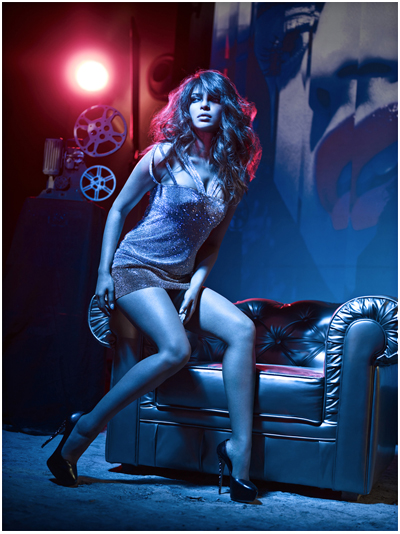
In-Depth QA: Martin Prihoda Photographs Priyanka Chopra for GQ India

04 Jun

Long-time readers will remember photographer Martin Prihoda, who was originally based in Vancouver before packing up and relocating to Mumbai. Or as he still often thinks of it, Bombay. (Martin, on the distinction: "You do business in Mumbai. You party in Bombay.")

His recent cover shoot of Indian actress Priyanka Chopra for GQ India represents a major departure from his previous use of color and light. So I contacted him for a QA.

My questions (and his generous answers) follow, along with more images form the shoot. To see any image bigger (and other images from the shoot not seen here) click through to his blog, Atomic Safari.

Read more »
Strobist

 
Comments Off on In-Depth QA: Martin Prihoda Photographs Priyanka Chopra for GQ India

Posted in Photography