RSS
 

Archive for May, 2013

Von Menschen und Essen

22 May

Ein Beitrag von: Ken Knoll

Auf die Food-Fotografie bin ich nicht zufällig, aber über Umwege gestoßen. Eigentlich bin ich seit Jahren der Menschenfotografie verschrieben. Den Portraits, Momentaufnahmen, Fashionbildern und Bildergeschichten gilt auch heute noch mein Hauptinteresse als Fotograf. Und natürlich als Mensch.

„Shoot what you love“ tönt es von allen Seiten, also warum nicht mal das Spektrum erweitern und etwas hinzufügen, was ich auch liebe? Mit leckerem Essen verbindet mich nicht nur meine persönliche Leidenschaft, sondern auch mein Startup foodQuest, das sich mit dem Thema Essen, genauer: Restaurants, in Form einer App auseinandersetzt. Und dann auch noch in Berlin wohnen! Klischeealarm!

Food © Ken Knoll

Es mag kaum überraschen, aber ich könnte kaum glücklicher über die Reihenfolge sein, in der ich diese Felder der Fotografie kennengelernt habe. Warum? Ganz einfach: Einen Menschen darzustellen, einen Moment festzuhalten, den Ausdruck einzufangen, all das sind Dinge, die neben einem Hauch Technik vor allem eines erfordern:

Gefühl. Den Moment erkennen, erspüren, ihn vielleicht sogar selbst zu erzeugen. Sich auf das Wesentliche zu konzentrieren.

Etwas entdecken im Gesicht des Gegenübers und dieser Entdeckung zu huldigen. In der Food-Fotografie versuche ich, diesen Prozess zu wiederholen: Nicht einfach nur abbilden, sondern erst einmal fühlen. Sehen. Mit dem Koch reden: Was ist das Besondere an diesem Essen? Wer ist der Star?

Ach, das Fleisch hat eine Kerntemperatur von 55°C und ist deswegen so schön rosa? Diese Eindrücke nehme ich mit und versuche, sie in das Bild einzubauen. Hierbei hilft es mir enorm, dass ich das Entdecken, Fühlen und Sehen bereits aus meiner vorherigen Fotografieerfahrung einbauen kann.

Food © Ken Knoll

Food © Ken Knoll

Wir kennen alle die stark konzeptualisierte und stilisierte Form der Food-Fotografie (die ich auch auf eine gewisse Weise bewundere), aber genau wie in meiner Menschenfotografie interessiert mich meistens der Blick auf’s Ganze, nicht nur der hochglanzkompatible Eindruck.

Die Emotion, die ich mit meinen Food-Bildern erzeugen will, ist ungleich einfacher als in der Menschenfotografie: APPETIT. Ich mag Bilder, die Lust auf Essen machen. Lecker. Will ich haben. Ich persönlich muss dafür dem Foto glauben.

Es muss authentisch sein und trotzdem ästhetisch. Dieser Ästhetik sind natürlich dadurch gewisse Grenzen gesetzt. Essen sieht nun mal schnell „falsch“ aus. Verdorben, ungesund. Wir sind nun einmal evolutionsbiologisch so programmiert. Meine Lösung hierfür: Mach’s Dir einfach.

Ein Tageslicht-Setup im Studio nachbauen klappt mit etwas Übung im Portraitbereich sehr gut, im Food-Bereich ist es aufgrund der Vielzahl an unterschiedlichen Oberflächen, die teilweise recht erbarmungslos jeden Fehler offenbaren, schon etwas komplizierter.

Food © Ken Knoll

Food © Ken Knoll

Meine Food-Fotos entstehen daher häufig mit reinem Tageslicht. Ein großes Fenster zur Nordseite, ein Faltreflektor. Mehr brauche ich meistens nicht. Ich baue durchaus mal das eine oder andere Setup im Studio, aber die Limitationen sind deutlich stärker:

Je nachdem, wie viel Essen ich fotografieren möchte (ich fotografiere viel in Restaurants) und wie der Prozess der Essensanlieferung aussieht, muss ich teilweise sehr schnell und spontan arbeiten.

Eine Suppe? Vielleicht ein softes Gegenlicht. Das leckere Fleisch? Braucht schönen Kontrast, also versuche ich, das Licht eher von der Seite oder von hinten kommen zu lassen. Und so weiter.

Hierbei liegt es mir trotz reicher Erfahrung mit Blitzen aller Art einfach näher, mich mit einer großen Lichtquelle in Form eines Fensters zu begnügen und so schnelle Entscheidungen treffen zu können.

Food © Ken Knoll

Ich will in diesem Text bewusst nicht viel von der Technik erzählen. Technik ist entsetzlich langweilig. Klar ist es notwendig, seinen Weißabgleich richtig einzustellen, wenn man ordentliche Farben haben möchte. Aber genau darum geht’s mir ja: Erst fühlen, dann sehen, dann fotografieren.

Dann klappt’s auch mit den richtigen Farben und der restlichen Technik. Wer noch nie eine Softbox bedient hat, tut in jedem Fall gut daran, bei den ersten Food-Gehversuchen die große kostenlose Softbox von „da oben“ zu verwenden.

Vielleicht bringt Euch dieser Text dazu, Euer Hauptinteressengebiet mal für einen Moment zu verlassen und etwas ganz anderes zu fotografieren. Und dann erlebt Ihr vielleicht, was für Euch die darunterliegende Verbindung zwischen den verschiedenen Gebieten ist. Seid gespannt!


kwerfeldein – Fotografie Magazin

 
Comments Off on Von Menschen und Essen

Posted in Equipment


21. Mai 2013

22 May

Ein Beitrag von: securethelights

© securethelights


kwerfeldein – Fotografie Magazin

 
Comments Off on 21. Mai 2013

Posted in Equipment


Solar Socket: Portable Plug-In Creates Free Energy to Go

22 May

[ By WebUrbanist in Gadgets & Geekery & Technology. ]

window socket

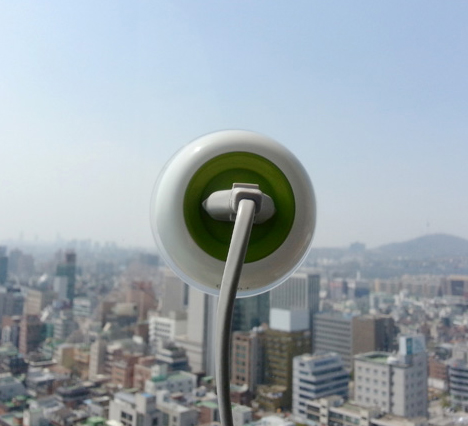
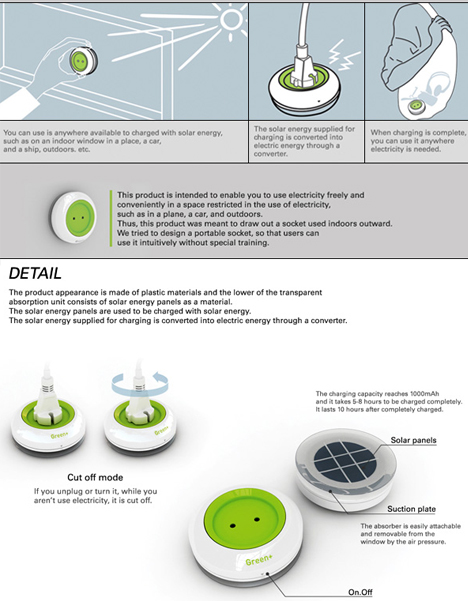
With batteries running low, your eye roams the room for a place to plug in, but then you remember: you brought your own power supply. Portable, easy and green, this solar socket design is a stroke of genius, able to both generate and hold a charge.

window portable power generator

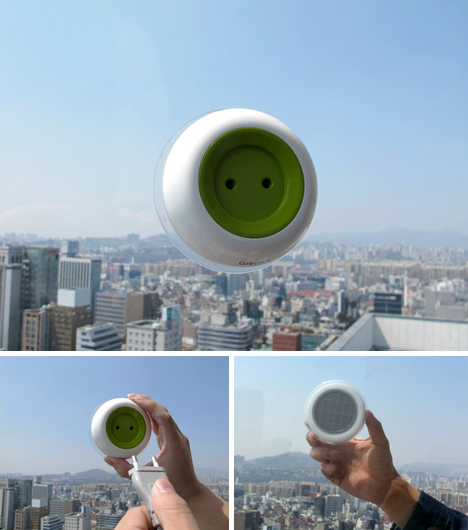
A suction cup lets you stick the converter to any flat glazed surface, putting photovoltaic panels on the outside and a customary energy outlet on the other. And if you are worried about what happens at night or in overcast conditions: the device itself can store energy for in-place or mobile use.

window mounted solar cells

Kyuho Song & Boa Oh have added a few other functional quirks to the design: rotate your charger plug and you kill the power, spinning a circular cut-off switch built into the face plate. There is a second manual on/off switch on the bottom as well.

Share on Facebook


[ By WebUrbanist in Gadgets & Geekery & Technology. ]

[ WebUrbanist | Archives | Galleries | Privacy | TOS ]


WebUrbanist

 
Comments Off on Solar Socket: Portable Plug-In Creates Free Energy to Go

Posted in Creativity


Just Posted: Olympus E-PM2 Review

22 May

oly_epm2.png

We’ve just posted a review of the The Olympus PEN Mini E-PM2. The E-PM2 is an entry-level Micro Four Thirds system camera, with a 16MP CMOS sensor and full 1080 HD video. It’s one of the smallest mirrorless cameras on the market and boasts 8 frames per second continuous shooting. This second generation ‘Mini’ is effectively the image quality ‘guts’ of the OM-D in a compact, lightweight, novice-friendly form. Click through to find out what we think of it.

News: Digital Photography Review (dpreview.com)

 
Comments Off on Just Posted: Olympus E-PM2 Review

Posted in Uncategorized


Canadian Travelogue – Newfoundland – Cape St. Mary’s

22 May

Cape St. Mary’s Ecological Reserve is about a one hour drive south on Highway 100 from the Marine Atlantic ferry terminus of Argentia. The drive to the reserve itself is fascinating and provides many opportunities for images of the rugged maritime coastline, particularly around Ship Cove and Gooseberry Cove. Should your departure point be the international airport at St. John’s, the drive will take about three hours as you travel inland via Salmonier Line, and south across the Avalon Peninsula to St. Bride’s.  Should you want the most scenic drive from St. John’s, take the 350Km coastal drive along what is known locally as the “Irish Loop.”  Be forewarned, however, you will want to stop continuously and can easily spend a couple of days playing tourist before you arrive at the Placentia Bay community of St. Brides.

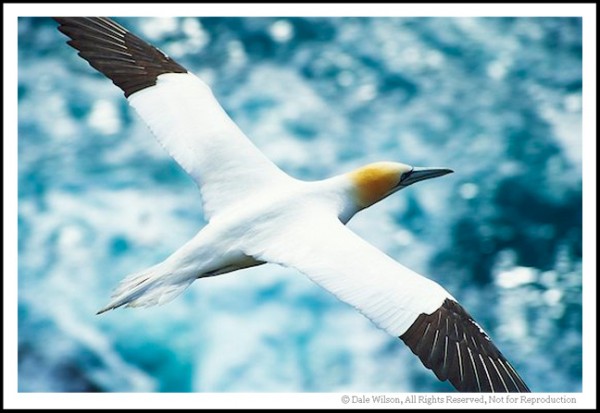
Once at the reserve your best vantage point will be mere metres from the large precipitous pinnacle known as Bird Rock, which is a 30-minute walk from the Visitation Centre. You will be welcomed to Bird Rock by a chorus originating from the third largest nesting colony of Northern gannets in North America. In addition there is a large rookery of common murre (known locally as turres), black-legged kittiwake, thick-billed murre, razorbill, black guillemont, double-crested and great cormorant as well as Northern fulmar all nesting at the site.  By far the most spectacular of these Pelagic species that nest here each summer is the golden headed avian dive bombing gannet.

You will also want to be vigilant as there is a strong possibility you will see the resident red fox scampering along the headlines in search of a poultry lunch.

Cape St. Mary's is one of the best locations in eastern Canada to make portraits of the sleek Northern Gannet.

Cape St. Mary’s is one of the best locations in eastern Canada to make portraits of the sleek Northern Gannet.

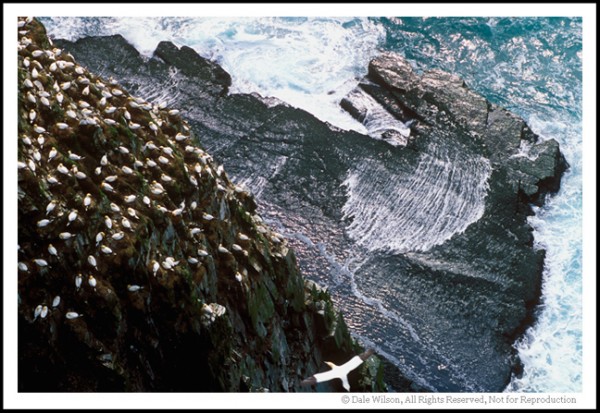
Images can be made here even during the harsh light of high-noon. For unique pictures mount your camera on a tripod and extend the legs as far as possible. You can safely lie on the cliff edge and then extend the tripod mounted camera out over the edge of the cliff face, and point the camera straight down yielding what will look like an aerial shot. You should be able to program your camera to take a series of images with a time lapse between frames and thereby increase the probability of getting a good frame.  When you think you have finished the sequence —I would recommend starting with a five image sequence— simply retrieve the camera back to terra firma and see if you have captured a “keeper.”  The nice thing about this location is that if you aren’t happy with your results the first time, try again – the birds and rocks aren’t going anywhere soon.

This is also a great location to practise panning technique. If you just sit and watch the birds for awhile, notice how the gannet when fishing dive bomb from great heights and plunge into the water at speed upwards of 100 km/h (60 mph).  The distance and the speed will probably make panning shots of a diving bird near impossible; however, if you observe the birds as they take off and land on Bird Rock you should notice several things: they will almost hover as they come in to land and they will usually always land facing into the wind (as do all birds).  It won’t take long until you learn the habits of the gannets, and why I think they are the most beautiful of all sea birds.

With 20,000 nesting pairs of gannets, Cape St. Mary's is the second largest rookery in Canada. Quebec's Bonaventure Island is the largest with around 50,000 pair.

With 20,000 nesting pairs of gannets, Cape St. Mary’s is the second largest rookery in Canada.  Quebec’s Bonaventure Island is the largest with around 50,000 pair.

Most of your image making will be done facing a southerly direction with an unobstructed field of view to both the east and west.  Pre-dawn is my preferred time, which means leaving the Interpretation Centre about an hour before sunrise. Simply do a web search or check the St. John’s newspaper, the Evening Telegram, for sunrise times. You should also be aware that this area annually receives around 200 days of fog per year, so you will want to dress warmly with a rain shell.

Extreme caution must be exercised as this is a natural area with no retaining or safety fences to keep an errant foot from going over a cliff edge. An inattentive moment could result in a fall that would surely be fatal, as the drop to the ocean is about 100 metres.

Ensure you have lots of fresh batteries and more than enough media. I know from experience you are going to shoot like crazy at this most incredible seabird sanctuary.

Post originally from: Digital Photography Tips.

Check out our more Photography Tips at Photography Tips for Beginners, Portrait Photography Tips and Wedding Photography Tips.

Canadian Travelogue – Newfoundland – Cape St. Mary’s


Digital Photography School

 
Comments Off on Canadian Travelogue – Newfoundland – Cape St. Mary’s

Posted in Photography


When disaster strikes, photo editors can help save memories

22 May

TS520x0~cms_posts_8882903403_Screen_Shot_2013-05-21_at_11.13.25_AM.png

When homes are damaged, often the most important items cannot be replaced. For victims of fire, floods and other natural disasters, family photos are among the worst things to lose. Operation Photo Rescue brings together victims with professional photo editors to turn damaged images back into clear memories. Learn more on connect.dpreview.com.


News: Digital Photography Review (dpreview.com)

 
Comments Off on When disaster strikes, photo editors can help save memories

Posted in Uncategorized


How to create a reflection in Photoshop in 6 easy steps

21 May

Creating a reflection using Photoshop is one of those things that at first glance looks really hard, but really isn’t, once you break down the steps (just light Light Painting which I covered in another two part series). In this article I’m going to demystify creating a reflection, a technique that works particularly well on images with open pavement, and HDR processed images which tend to make the pavement look wet already.

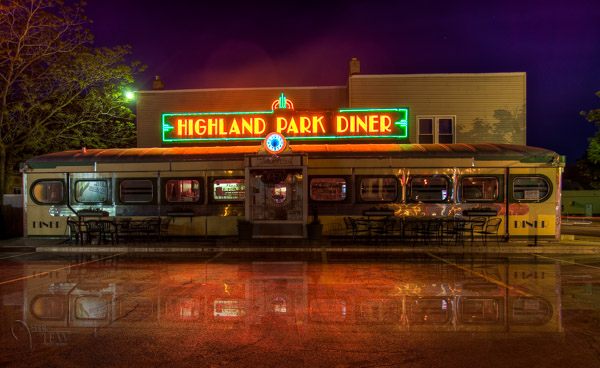
We’re going to learn how to go from this . . .
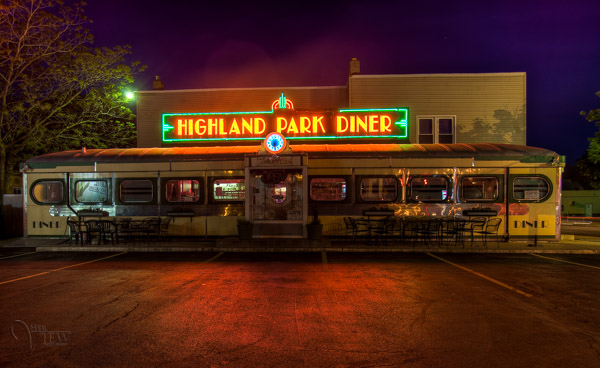
reflection-before

To this!

reflection-after-photoshop

In less than 10 minutes!

I recently showed one my HDR classes how to do this, and they all followed along with me step by step.  Some of them were using Elements (which works just fine, but you may find the menus and choices look slightly different), and this technique can be done using that program too, so if you use Elements, not to worry. Many of my students were also self proclaimed “Photoshop novices” and when I asked them if they thought they’d be able to this when I showed the before and after images, most said “no”!  But they all did, and we were done in less than 10 minutes. **Note that also included me going super slow to ensure each of the 12 people in the class were on the same page with me. I’m going to guess this will take less than 5 – ready GO!

Here are the six easy steps to follow in Photoshop.  This is the super condensed version for those quick readers and skimmers.

  1. copy a section of the image
  2. paste it as a new layer
  3. flip it
  4. position it
  5. change the layer blend mode
  6. mask it

That’s it! You want a few more details?
Let’s dive in a little deeper into each step

STEP ONE – COPY

Using the marque tool (“M” is the keyboard shortcut) draw a box around an area of your image that will become the reflection (see Figure #1 below). Make sure you go edge to edge on the sides, and get enough of the image vertically. If you grab more than you need that’s fine we’ll be moving it around and masking later anyway.
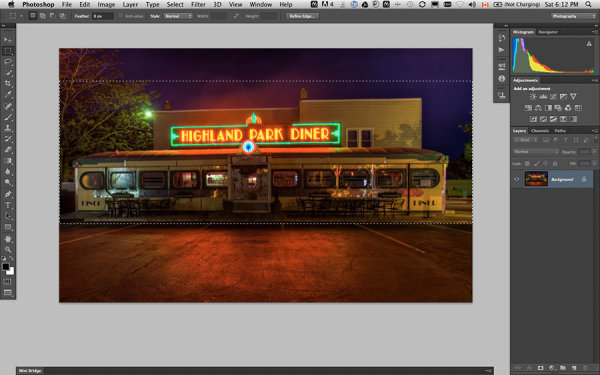
select-section

Figure #1 make a selection

Copy the selection as a new layer. You can do that a few ways.

  • right click on the image and from the menu that pops up choose “layer via copy” (see Figure #2 below)
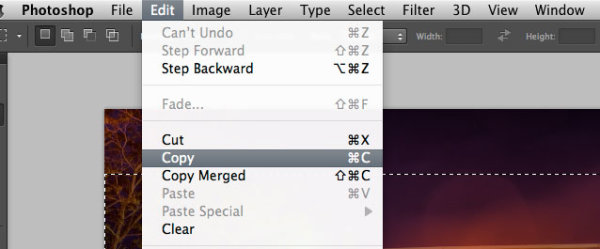
  • from the edit menu choose “copy” or using the keyboard shortcut “command/control+c”  (see Figure #3 below)
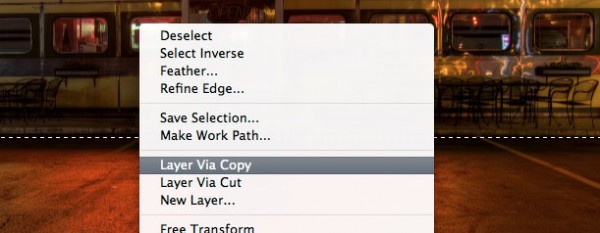
layer-via-copy2

Figure #2 right click>Layer Via Copy

Figure #3

Figure #3 Copy from Edit menu

STEP TWO – PASTE AS NEW LAYER

If you chose the “layer via copy” method above you already have the selection pasted as a new layer. If you haven’t already done that go ahead and paste either from the Edit>Paste menu option of the keyboard shortcut “command/control+v”. You will end up with something that looks like this, Figure #4 below.
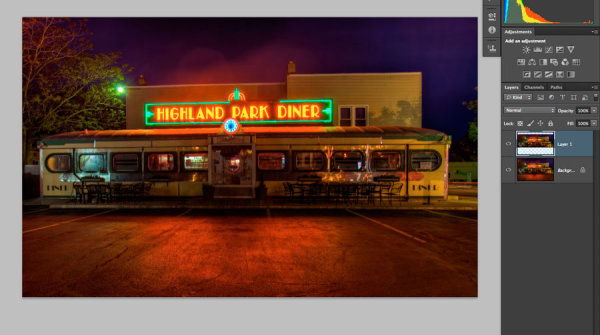
Figure #5

Figure #4 paste new layer

Doesn’t look much different right? Right! Because it’s basically on top of itself.  But look at your layers, it is there on a new layer and it only grabbed part of the image. Now the magic begins!

STEP THREE – FLIP IT

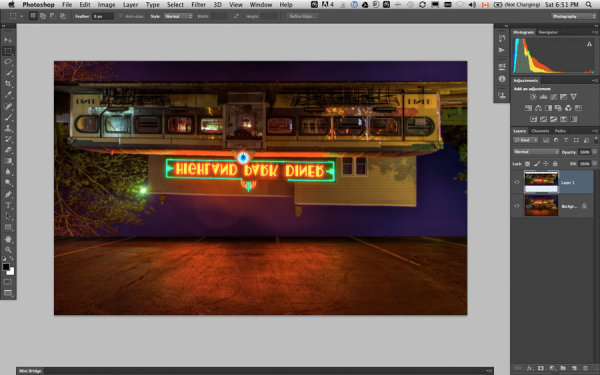
Next from your Edit menu choose “Edit>Transform>Flip vertical” to flip this new layer upside down. You should end up with something funny looking like Figure #5 below.
flip-layer

Figure #5 flip vertically

STEP FOUR – POSITION IT
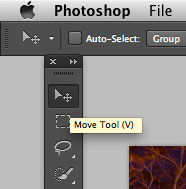
Figure #5 move tool

Figure #6 move tool

Next select your MOVE tool from your tool palette (see Figure #6 right – “v” is the keyboard shortcut) and grab the flipped layer and drag it down until the images start to line up where the reflection will begin. In my image I’m using the edge of the sidewalk in front of the diner. If it doesn’t line up perfectly don’t worry about it, you can mask any imperfect bits out later in step six.

Now you want to have something that looks like Figure #7 below. The reflection is in roughly the right position. Make sure you don’t move side to side, just down, otherwise you’ll have gaps on the edges of your reflection.

NOTE: once you’ve selected the Move Tool, you can also use the up and down arrows on your keyboard to move the layer up and down. This works great for smaller adjustments when you get it close to position.
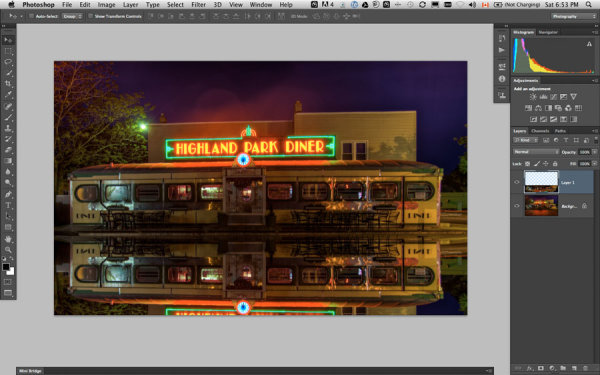
Figure #6

Figure #7 position the layer

STEP FIVE – CHANGE THE BLEND MODE
layer-blend-modes

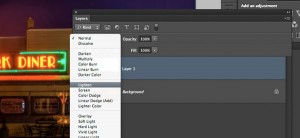
Figure #8 Lighten blend modes

From your layers panel change the layer blend mode to one of the “lighten mode”.  You will find the layers blend modes near the top of your layers panel, next to “opacity”. By default the blend mode is “normal”.

The Lighten modes are the ones in the third section down (see Figure #8 right), they include: Lighten, Screen, Color Dodge, Linear Dodge, Lighter Color. Layer blend modes change how the selected layer interacts with the one below it (the original image). By selecting one of the options in this section it will only show areas of this layer that are lighter than the one below it, and any areas darker will not appear.  For reflections I usually choose Lighten or Screen, depends on the image. Try them all and choose the one that looks best for your image. For this example I’m using Screen mode.

Now I have something that looks a little closer to a real reflection  (see Figure #9 below).

Are you still with me!?  Do you have something reasonably similar?
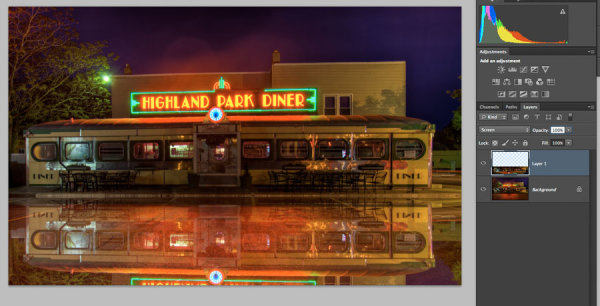
Figure #

Figure #9 change the layer blend mode

STEP SIX – MASK IT
add-layer-mask2

Figure #10 add a layer mask

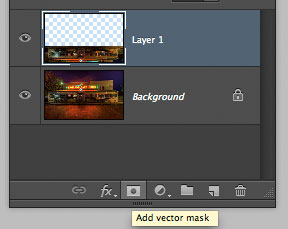
Okay we’re almost done and it’s looking pretty good. But in my image the neon sign in the reflection is too bright. It doesn’t look natural because reflections are usually darker than the original – so we’re going to tone it down using a mask and the gradient tool.

First, make a layer mask by clicking on the “add layer mask” icon at the bottom of your Layers Panel (Figure #10 right). You can also do it by going to the Layers menu>Layer mask>Reveal all.
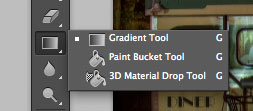
Figure #11 gradient tool
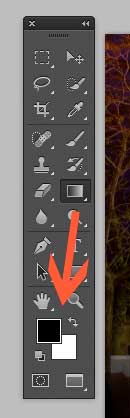
Figure #11 gradient tool

colors-foreground-background

Figure #12 foreground/background colors

Next select the Gradient tool from your tools panel. Keyboard shortcut is “g”  but make sure you have the gradient tool and not the paint bucket.  See Figure #11 above. Hit the “d” key on your keyboard to set your foreground/background colors to default, then hit “x” to switch them. Make sure you see black as your foreground color and white as the background color (see Figure #12 right).

Once you have your colors set to black and white, and your gradient tool selected and ready for use – make sure you are on the layer mask not the layer. You can tell because whatever is active has corner brackets around it. If you layer thumbnail is selected, just click on the white layer mask thumbnail to make it active. We need to make sure we are doing this on the mask, NOT the layer.

How masks work is that anything in white on the mask reveals the contents of the layer.  Where ever there is black on the mask it hides that area of the layer. So we want to hide the outer edges of this layer so it fades out gradually towards the bottom of the image and looks more natural.

With the gradient tool, by default it paints from the foreground color, to the background – fading from one to the other depending on how we create the gradient. Sometimes it takes a little experimenting to get it just right but you can always “undo” using the handy “command/control+z” shortcut on your keyboard and it goes back one step or undoes what you just applied.

NOTE:  ”undo” is your best friend in Photoshop, if you learn no other keyboard shortcuts, memorize this one!

So, to apply it to our reflection start with the cross hairs for the tool in the middle of your image, near the bottom.  TIP: holding the SHIFT key down will keep the gradient from applying at an angle, it will just go straight up. Click and drag the tool up (you’ll see a line drawing the gradient spread) and let go when you get near the top of your reflection. If it’s not exactly how you want it you may have to start a little more away from the bottom edge, or drag it up higher, or other variations.

NOTE: with the gradient tool on a mask you don’t actually even need to “undo” if you just drag another one overtop it replaces the first one. But it’s still good to know how to undo!

Here’s the image with my gradient applied to the layer mask.  Notice on the mask it goes from black to white? So it’s hiding the bottom area of this layer which is what we want. See Figure #13 below.
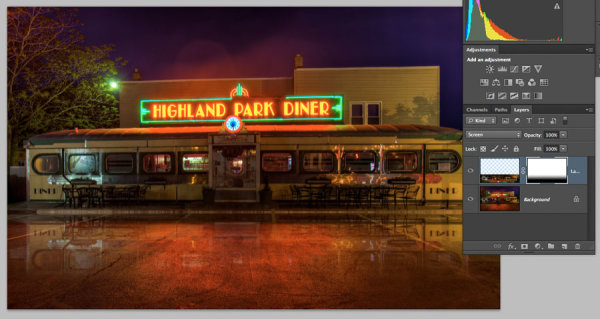
Figure #13 gradient applied to mask

Figure #13 gradient applied to the layer mask

OPTIONAL FINISHING TOUCHES

Now if you want to do any other masking to show or hide certain areas of the reflection just use your brush tool (“b” shortcut) at a lowered opacity (10-20%) and paint with black on the mask over areas you want to hide, and white on areas you want to show.  In this image I painted over the edges of the diner where I felt it was still a bit too bright. You can also change the opacity of your layer to adjust it that way too.

SeeFigure #14 below for my final version. Notice my mask where I painted a little up the sides to hide those areas just a little bit more.  You could also paint away a little in the middle of the reflection where the pavement is the darkest if you wanted. That’s the neat thing about photography – it’s all subjective!

It’s really easy to get upset or hurt feelings when someone else says something that we perceive as negative about one of our images, something we put blood, sweat and tears into, right!?   Well my personal opinion is that it is just their opinion, one person, and you don’t have to agree with them. If they have a valid, or constructive criticism YOU get to decide if you want to take it on board or, just agree to disagree and move on. Life is too short to worry about pleasing other people.

Do photography for you!  If other people like it, then great!

If not, oh well!  Move along and life goes on.
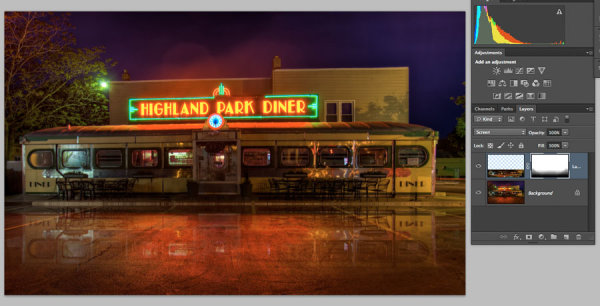
Figure #14

Figure #14

OKAY YOUR TURN!

So, think you can do this? Give it a try!

Here is my image to play with, in case you don’t have one that will work.  It’s 2000 pixels wide which is plenty big enough for this test.

Download diner image – just click on this link and save the image that opens in a new tab.

A few trivial things FYI about this image:

  • it was taken in Rochester, NY, USA when I was in the area and visited Eastman Kodak House. If you’re ever there, do go, it’s worth the trip to see where photography took roots and grew
  • it is a 5 image HDR, tone mapped in Photomatix and finished using LR4
  • during the longest exposure of my bracketed series a kid on a skateboard, carrying a goldfish in a bag skated right through the parking lot in front of me. Why didn’t he show up? Because my exposure was 30 seconds long and if you aren’t there for more than 1/2 the time you will not appear.

Okay, off you go and let’s see your results! 

Cheers Darlene


Post originally from: Digital Photography Tips.

Check out our more Photography Tips at Photography Tips for Beginners, Portrait Photography Tips and Wedding Photography Tips.

How to create a reflection in Photoshop in 6 easy steps


Digital Photography School

 
Comments Off on How to create a reflection in Photoshop in 6 easy steps

Posted in Photography


Earthscraper: Inverted Pyramid Spans 1000 Vertical Feet

21 May

[ By WebUrbanist in Architecture & Public & Institutional. ]

earthscraper underground

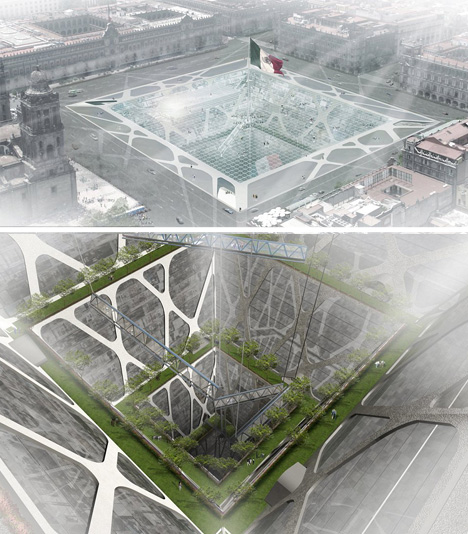
Skyscrapers are the traditional small-footprint solution for growing square footage in big cities, but what are developers to do in growing places like Mexico City where new building construction is limited to just ten stories tall?

earthscraper subterranean city park

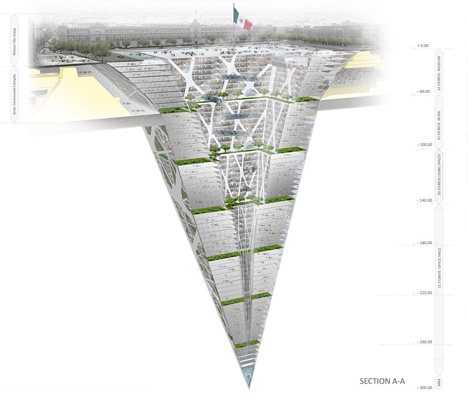
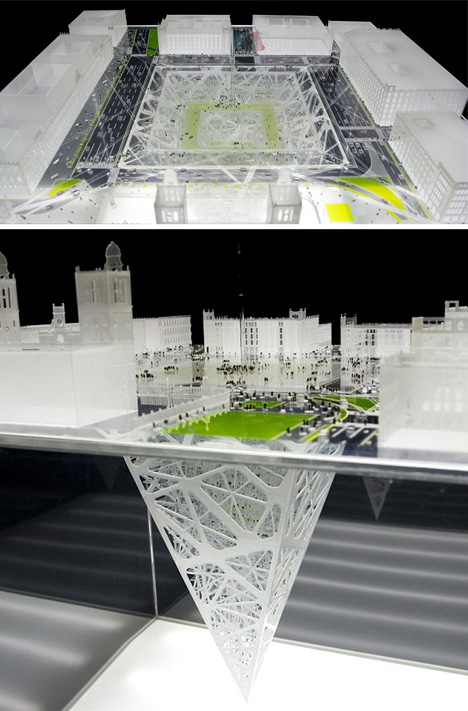
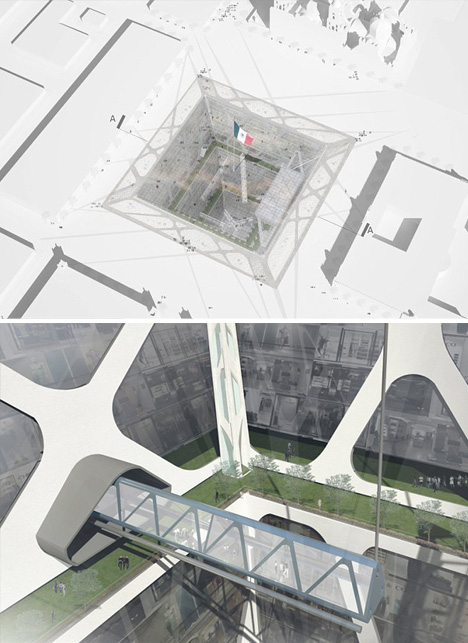
The only option, of course, is to reverse direction: build down instead of up. This his earth-scraper design by BKNR Arquitectura features a cental lightwell that doubles as a layered park, bringing illumination, ventilation and living greenery into the depths of the building.

earth scraper physical model

Since the ‘base’ of the structure is an open void rather than a filled volume, the existing city square is maintained – it becomes a transparent platform, effectively, adding dimension without subtracting functionality. This configuration provides not only a window to the world below that you can also walk on, still also allows for public gatherings, music festivals, open exhibitions, marches and parades.

earth scraping underground building

Below, the extensive building has multiple floors each of housing, shopping and office spaces, all arrayed around the exterior with views that face in rather than out – another inversion of expectations and conventions.

Share on Facebook


[ By WebUrbanist in Architecture & Public & Institutional. ]

[ WebUrbanist | Archives | Galleries | Privacy | TOS ]


WebUrbanist

 
Comments Off on Earthscraper: Inverted Pyramid Spans 1000 Vertical Feet

Posted in Creativity


How to Use Photography to Help in Natural Disasters — Operation Photo Rescue

21 May

You’ve run through this fire drill a million times over: first, you grab the family cat, then your family photos.

Sadly, it doesn’t always work out that way. While many are grateful to survive a natural disaster, they’re still left devastated from the loss of everything they own.

The worst of it might just be the loss of irreplacable family photos.

Operation Photo Rescue is a league of photographers and graphic designers who set out to help survivors get their treasured memories back.

OPR’s first mission was Hurricane Katrina in 2005. Since then, they’ve restored 9,000+ photos in other disasters like Hurricane Sandy.

If you’re itching to help, OPR’s always looking for skilled photo restorers and fundraising.

You can help folks get back photos from their wedding day, that regal portrait of their great of grandpa, and snapshots of their daughter’s first birthday.

Won’t that feel awesome?

Operation Photo Rescue

p.s. WE ARE HIRING A WEB DEVELOPER. If you love photography and San Francisco and codes, APPLY HERE.

p.p.s. WE ARE ALSO HIRING AN EVANGELIST/BIZ DEV HERO. Creative deal-maker types, APPLY HERE.

Related posts:

  1. 100 Cameras — How to Improve Kids’ Lives Through Photography Photo by Brooke Schwab Photography is a solo sport. It’s…
  2. No light? No hot shoe? No problem. The Metz 28 CS-2 Digital Slave Flash to the Rescue! Nothing will ruin a shot quicker than on-camera flash. Unless…
  3. How Street Photography Can Turn into Astrophotography Those Star Trek special effects guys are going to feel…


Photojojo

 
Comments Off on How to Use Photography to Help in Natural Disasters — Operation Photo Rescue

Posted in Equipment